Recognition Display BPDU Filter Safety Audit for School Switch Ports
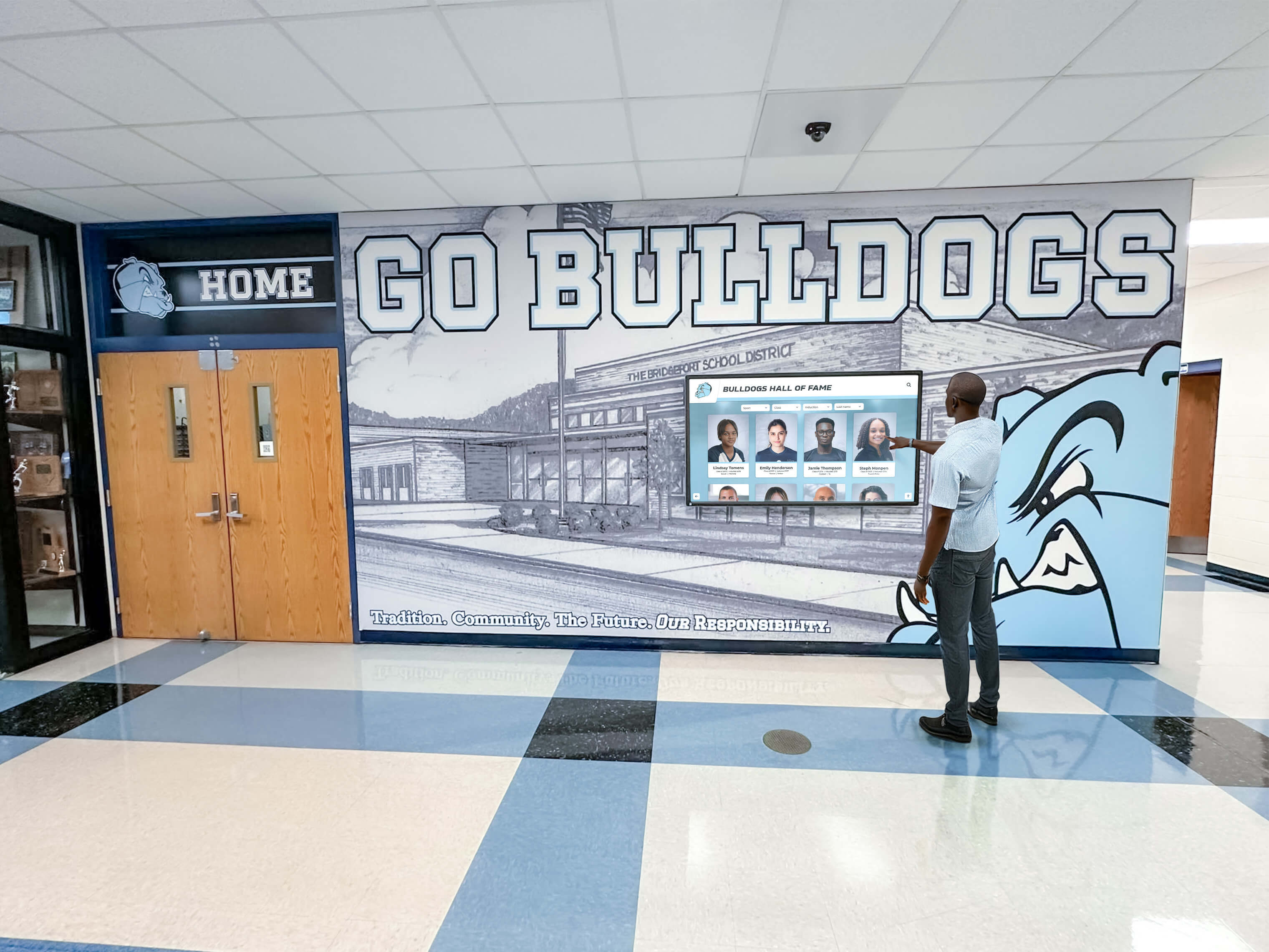
A recognition display BPDU filter safety check audits the managed-switch ports in your school’s network to identify any port where spanning-tree bpdufilter enable has been applied incorrectly—creating a condition where a switching loop can form, grow undetected, and eventually take a lobby kiosk or hall-of-fame touchscreen offline with a broadcast storm. BPDU filter stops a switch port from sending or receiving Bridge Protocol Data Units (BPDUs), which are the control frames that Spanning Tree Protocol (STP) and Rapid Spanning Tree Protocol (RSTP) use to detect and block loops. When BPDU filter is applied to an edge port that genuinely connects only to a recognition display, it is benign. When it is applied to an uplink port, a trunk port, or any port that could connect to another switch, it blinds the spanning tree process to that port entirely—and a loop that forms through that port will not be blocked.
Read More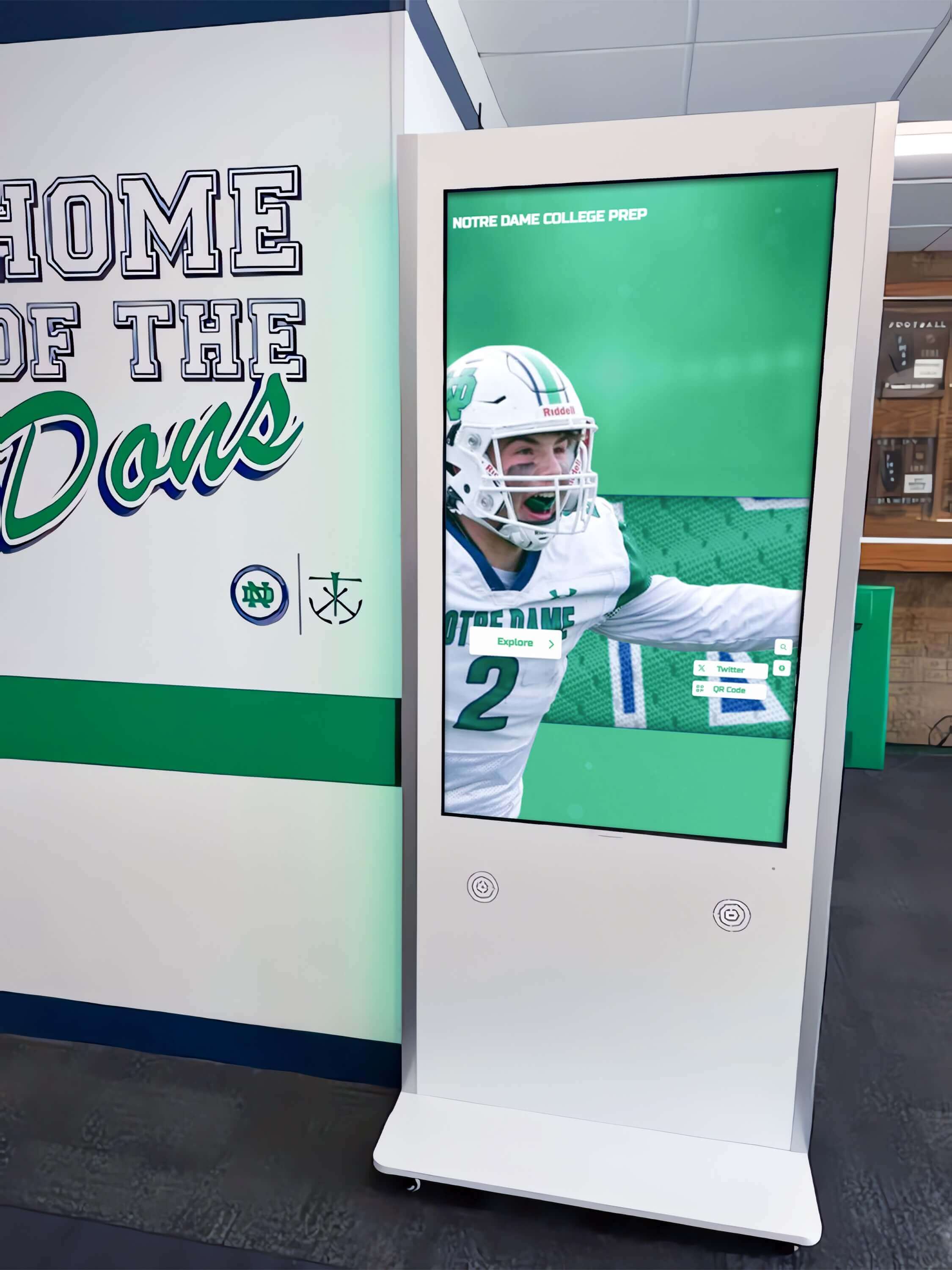
Recognition Display RSTP Convergence Test for Fast Link Recovery
A school recognition display RSTP convergence test verifies that Rapid Spanning Tree Protocol (IEEE 802.1w) reconfigures your managed-switch topology quickly enough after an uplink failure that a lobby kiosk or hall-of-fame touchscreen reconnects to the network within seconds rather than sitting offline for half a minute or more. RSTP convergence is the process by which switches in a network with redundant paths detect a failed link, elect a new active path, and transition the relevant ports from Discarding through Learning to Forwarding—restoring normal traffic flow. When RSTP is correctly configured, convergence completes in one to six seconds. When it is misconfigured or a switch is running classic STP (802.1D) rather than RSTP, the same failover can take thirty to fifty seconds—long enough for an uplink failure during an awards ceremony or induction night to produce a visible content outage on the recognition display.
Read More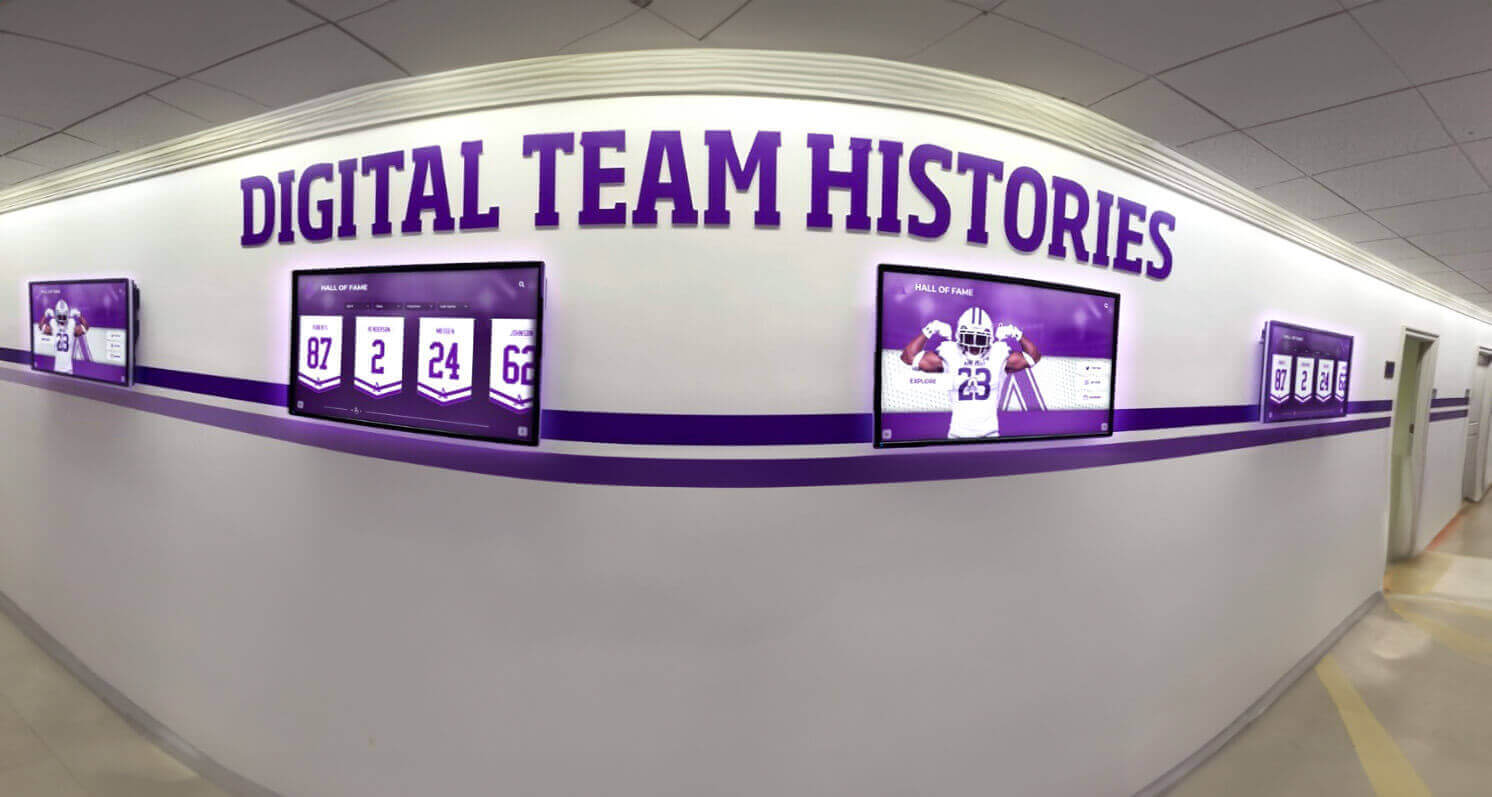
Recognition Display TCP Window Scaling Test for Large Athletic Media
A recognition display TCP window scaling test is a structured network procedure that confirms your school’s firewall, router, and WAN path allow TCP receive windows large enough to sustain athletic video throughput—so championship highlight reels, induction ceremony clips, and large athletic media assets stream without stalling on lobby kiosks, hall-of-fame touchscreens, and hallway recognition panels. TCP window scaling, defined in RFC 1323, extends the maximum TCP receive window beyond the 65,535-byte limit imposed by the original TCP specification. Without it, a TCP connection’s throughput is capped by the bandwidth-delay product of the network path: on a school WAN link with 40 ms round-trip time to a CDN edge node, an unscaled 65,535-byte window limits throughput to roughly 13 Mbps—often insufficient for multiple concurrent 1080p athletic video streams. When window scaling is blocked or stripped by a middlebox, athletic video content fails to buffer ahead of playback, producing the stalling and incomplete-load symptoms that disrupt recognition events.
Read More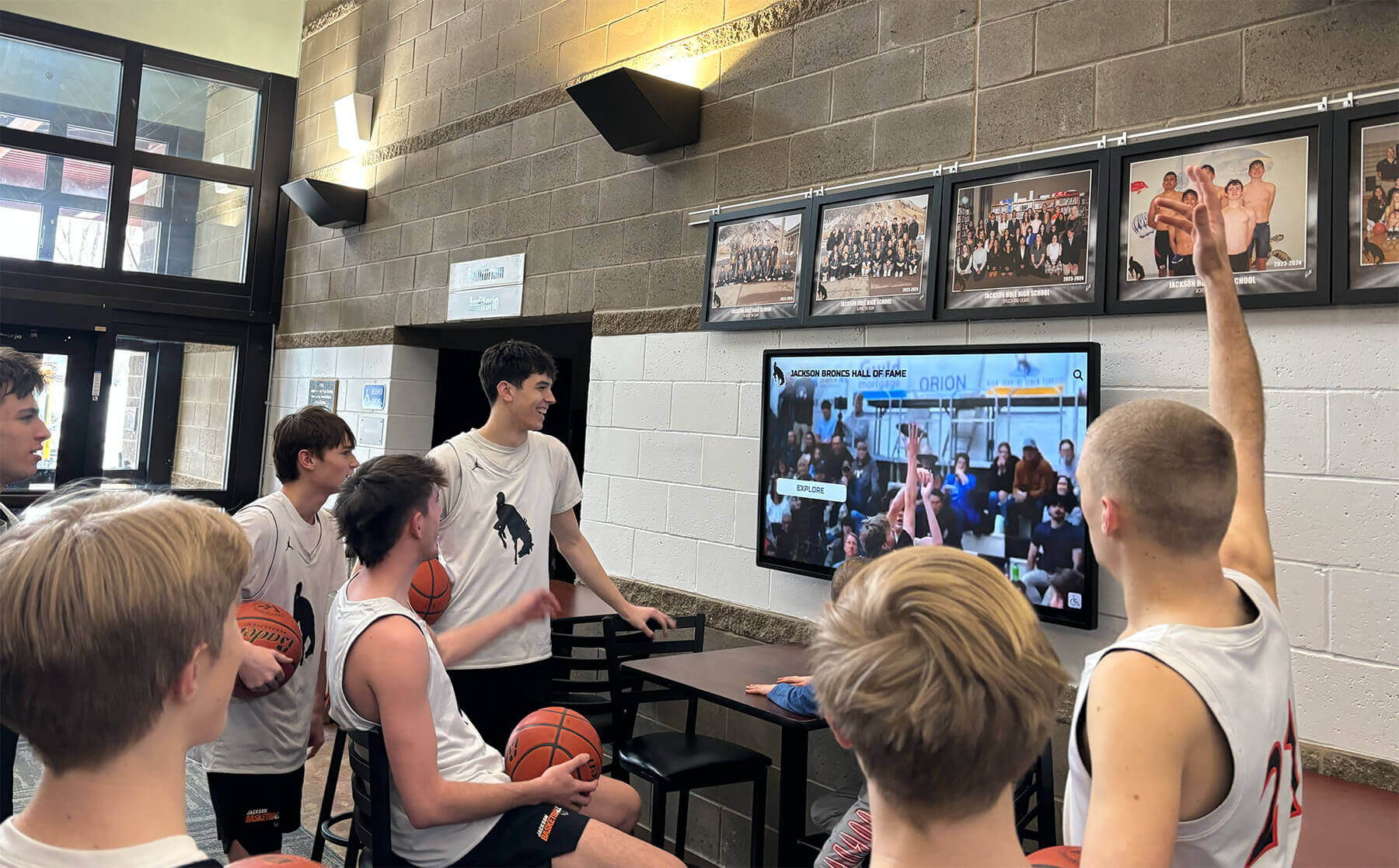
TCP MSS Clamping Test for Recognition Display Athletic Video
A recognition display TCP MSS baseline test is a structured network procedure that verifies your school’s firewall or router is clamping the TCP Maximum Segment Size (MSS) correctly, so athletic video streams play without buffering or black screens on lobby kiosks, hall-of-fame touchscreens, and hallway recognition panels. TCP MSS clamping sets an upper limit on the size of data segments exchanged during a TCP connection, preventing packets from exceeding the available path MTU when traffic crosses WAN links, PPPoE circuits, VPN tunnels, or ISP hand-off points that reduce the effective frame size below the Ethernet default of 1500 bytes. When MSS is not clamped correctly, TCP segments arrive at the display sized larger than the path allows, triggering IP fragmentation or silent packet loss that manifests as video buffering, incomplete content loads, and recognition profiles that fail to update before an event begins.
Read More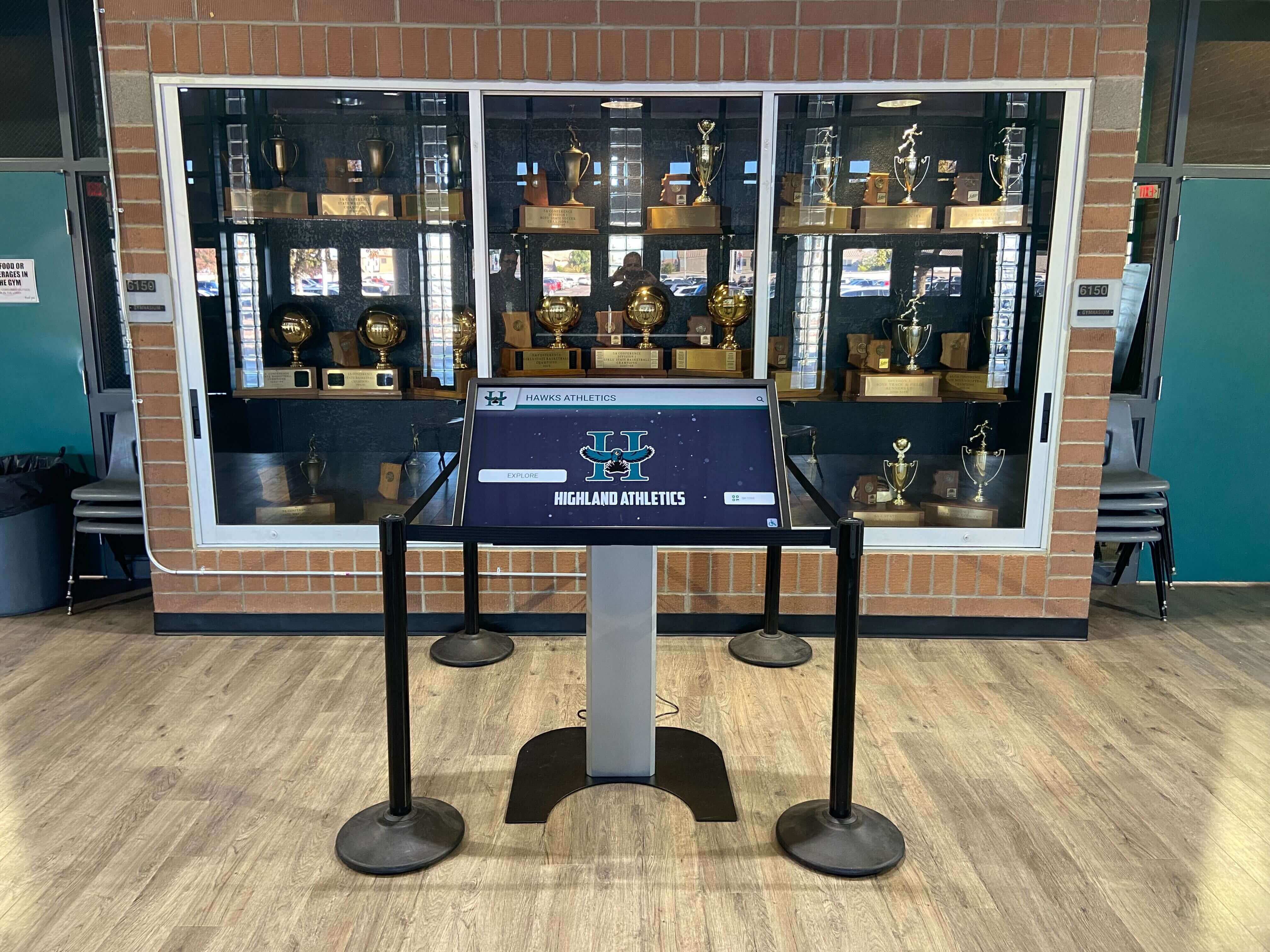
Recognition Display DHCP Starvation Protection Test for School Networks
A school recognition display DHCP starvation protection test verifies that your managed-switch configuration prevents an exhausted IP address pool from taking a lobby kiosk or hall-of-fame touchscreen offline. DHCP starvation occurs when a device—whether a misconfigured endpoint, a rogue laptop, or a deliberate attacker—rapidly claims large numbers of addresses from a DHCP scope, leaving no leases available for legitimate devices. When a recognition display’s lease expires and no new address is available, the kiosk drops off the network, stops pulling content updates, and goes dark at exactly the moment—a championship ceremony, an induction night, an alumni weekend—when it is most visible.
Read More
Recognition Display Port Mirroring Test: Capture School Kiosk Traffic Safely
A school recognition display port mirroring test is a non-intrusive network diagnostic technique that allows school IT teams to capture and analyze every packet flowing to and from a lobby kiosk or hall-of-fame touchscreen without modifying the device itself, disrupting live visitors, or changing any production network paths. When a recognition display behaves unexpectedly—failing to refresh athlete profiles, losing its cloud connection before a championship event, or generating bandwidth alerts—a port mirror gives IT staff a ground-truth view of what the kiosk is actually transmitting and receiving. Guessing at firewall rules and cloud platform settings is unnecessary once you can see the raw traffic.
Read MoreRecognition Display Screen-Tearing Test for Sports Video and Animations
Screen tearing on a recognition display appears as a jagged horizontal split that slices across the panel mid-frame—most visible during fast-motion athlete highlight reels, sliding record-board animations, and championship-montage videos. When tearing shows up on your school’s hall-of-fame screen or lobby recognition wall during an assembly or awards night, it immediately undercuts the professional impression those installations are built to create.
Read More
Touchscreen Recognition Display Screen Response-Time Test: Check Motion and Interaction Clarity
A touchscreen recognition display screen response-time test measures whether a display panel transitions between images quickly enough to show athlete highlight reels, scrolling recognition feeds, and portrait gallery animations without visible ghosting or blurring—and whether the touch layer registers visitor inputs within a timeframe that feels immediate. These are two distinct measurements that are often confused with each other, and both matter for a display serving a school hall of fame, athletic archive, or recognition program.
Read MoreTouchscreen Recognition Display Backlight Bleed Test: A School Acceptance Guide
A touchscreen recognition display backlight bleed test is a structured visual inspection that confirms whether a new display panel shows unacceptable light leakage before it is mounted in a school lobby, athletic corridor, or hall of fame wall. Run on a dark test image in a controlled environment, the test takes under 20 minutes and catches a defect that would otherwise go unnoticed until the display is installed—and then becomes visible to every parent, donor, and administrator who walks past during an evening event.
Read MoreTouchscreen Recognition Display Speaker Audio Test Checklist: Isolate Source, Cable, and Speaker Faults
A touchscreen recognition display speaker audio test checklist addresses the problem that appears most often on game nights and induction ceremonies: the display looks perfect but no sound comes out—or the narration for an induction video is so distorted that families in the front row cannot understand a word. Audio failures on school recognition displays rarely stem from one cause. They trace back to a combination of source settings, cable routing, and speaker configuration that each passed an informal glance but were never tested together as a system.
Read MoreTouchscreen Recognition Display Backup Testing Checklist: Prove Recovery Before an Event
A touchscreen recognition display is only as valuable as its ability to perform on the moments that matter most—the Friday night home game, the annual athletic induction ceremony, the 20-year class reunion. When the display goes dark or loses content right before the gymnasium fills with proud families, there is no time to troubleshoot from scratch. A structured touchscreen recognition display backup testing checklist completed days before the event turns a stressful unknown into a verified guarantee.
Read More
Touchscreen Recognition Display Touch Calibration Verification Log
When a hall of fame recognition display starts registering touches in the wrong location—an athlete’s name tapped on the left side of the screen activates a record on the right—the visible symptom is obvious but the documentation trail is almost always missing. Recalibrating fixes the immediate problem. But without a touchscreen recognition display touch calibration verification log, the school has no record of when the offset began, how severe it was before correction, which calibration method was used, or whether the same display has needed recalibration three times in a single semester. That pattern—repeated offset on the same screen—is diagnostic information that points to a hardware fault, mounting vibration, or an OS configuration issue that recalibration alone will not resolve.
Read MoreTouchscreen Recognition Display HDMI Cable Testing Checklist: Diagnose Black Screens and Signal Drops
A touchscreen recognition display that goes black in the middle of a hall of fame ceremony or shows a no-signal banner during homecoming is more than a technical inconvenience. It disrupts a public event, undermines confidence in the school’s recognition program, and leaves athletes, families, and alumni staring at a dark screen instead of the content that honors their achievements. In most cases, the failure traces back to the HDMI signal path—a cable past its reliable length, a port that lost contact during a cleaning shift, a resolution handshake the display cannot complete, or an extender that was never tested under full load.
Read MoreTouchscreen Recognition Display Kiosk Mode Configuration Checklist for School IT
A touchscreen recognition display in a school hallway, lobby, or athletic corridor is built to do one job: show the school’s history to students, staff, and visitors who walk past. Left in a standard Windows environment, that same display is also a full desktop computer accessible to anyone who touches it—capable of opening unauthorized applications, browsing the web, accessing district network resources, or landing on an error screen after an unexpected restart. Kiosk mode closes that gap by locking the display to a single approved application or controlled set of applications, restoring the session automatically after power loss, and ensuring touch input is calibrated correctly at all times.
Read More