Universal touchscreen driver software bridges the critical gap between touch hardware and operating systems—enabling legacy devices to function with modern systems, providing multi-touch capabilities where native support falls short, and offering advanced configuration options that standard OS touch interfaces cannot deliver. For schools, museums, organizations, and businesses deploying interactive kiosks, digital signage, or touchscreen recognition displays, understanding how universal touch drivers like UPDD (Universal Pointer Device Driver) work becomes essential for achieving reliable, responsive touch experiences across diverse hardware and software environments.
Organizations implementing interactive touchscreens often discover that simply connecting a touch display to a computer doesn’t guarantee optimal functionality—older devices may lack driver support entirely, some operating systems provide limited native touch capabilities, and many institutions need advanced features like precise calibration, custom gesture mapping, or multi-monitor touch coordination that standard drivers cannot provide.
This comprehensive guide explores UPDD touch software from Touch-Base Ltd—examining what makes this universal driver solution essential for certain deployments, how to properly install and configure it across Windows, Mac, Linux, and Android platforms, when organizations benefit from dedicated touch driver software versus relying on native OS capabilities, and proven best practices for calibration, gesture configuration, and ongoing maintenance ensuring optimal touchscreen performance in educational institutions, public spaces, and professional environments.
Modern interactive installations require more than consumer-grade touchscreens—they demand professional-grade touch software capable of supporting legacy hardware, providing granular control over touch behavior, and delivering consistent experiences across diverse operating environments that schools and organizations commonly maintain.

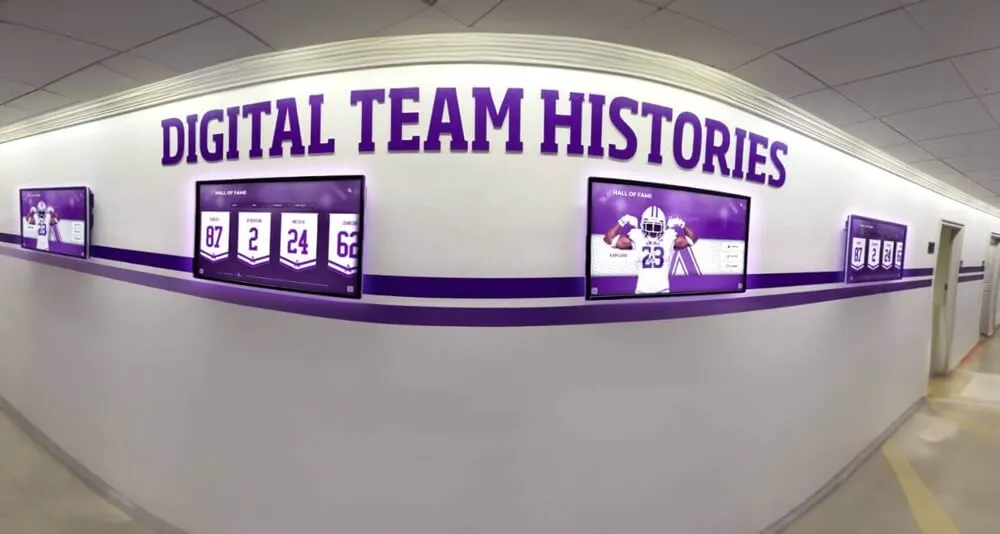
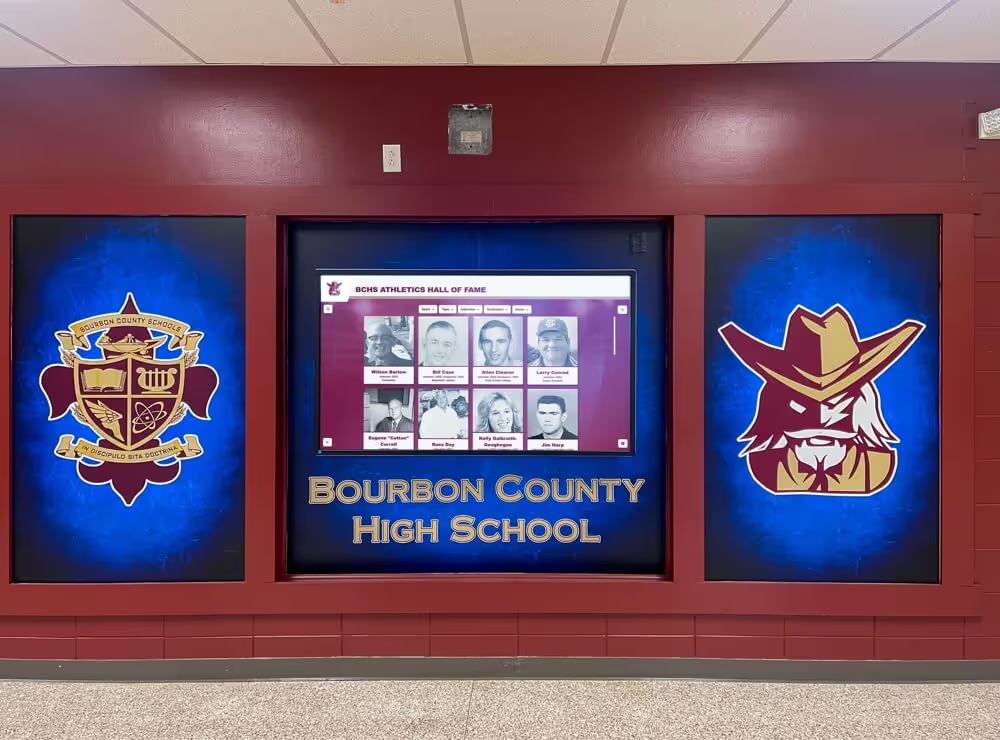
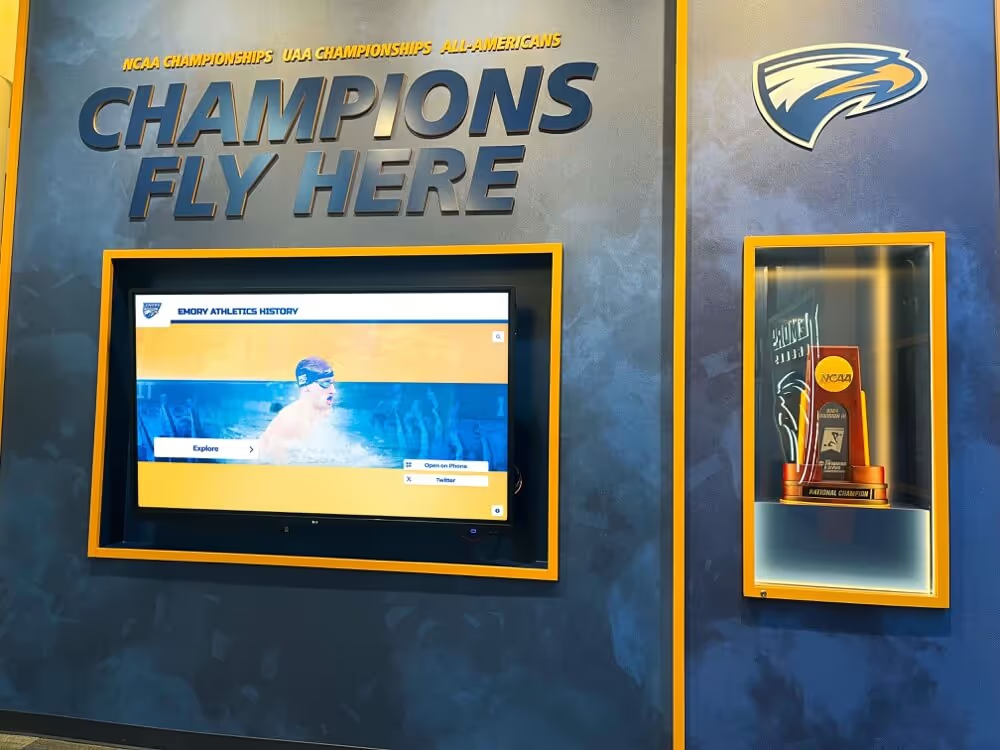
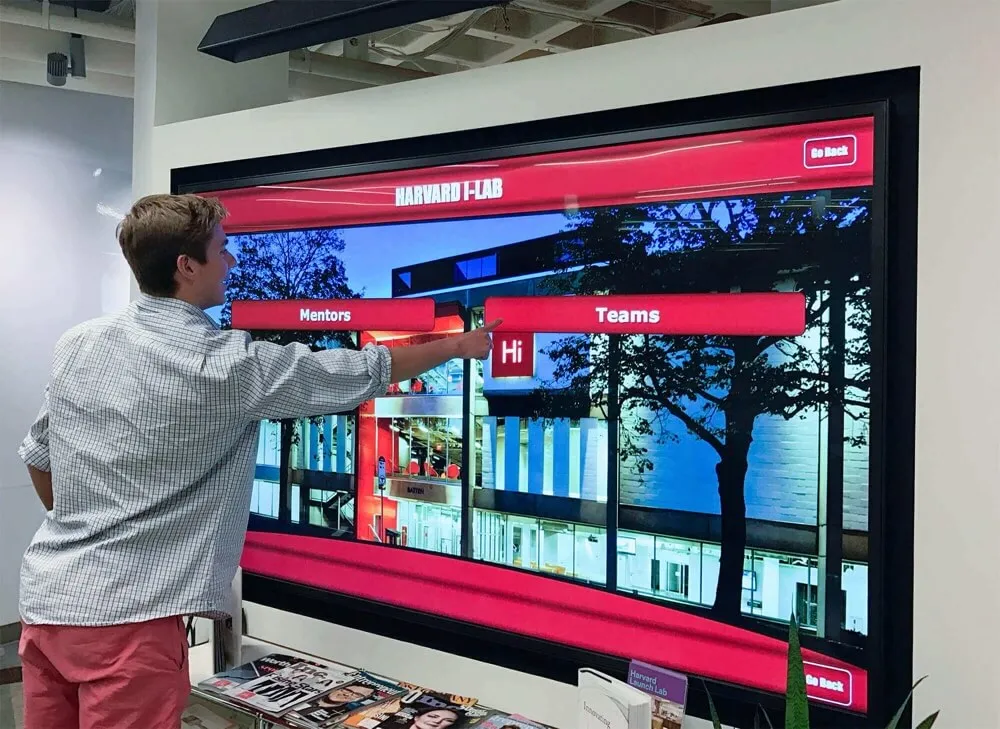
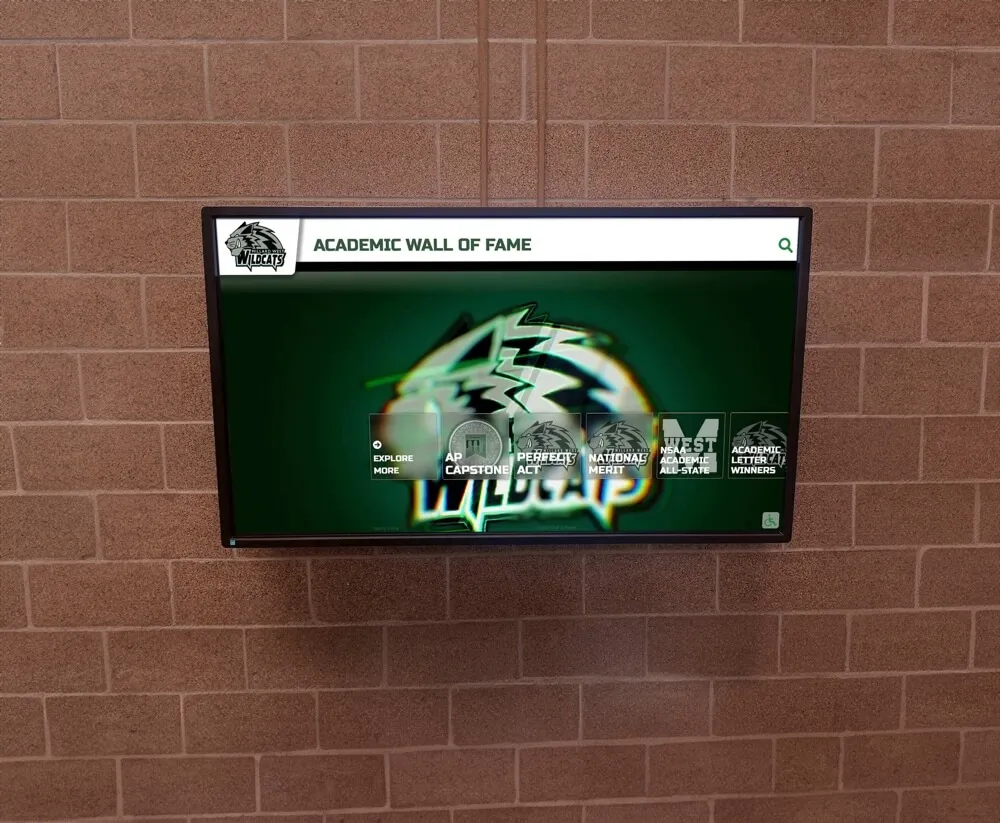
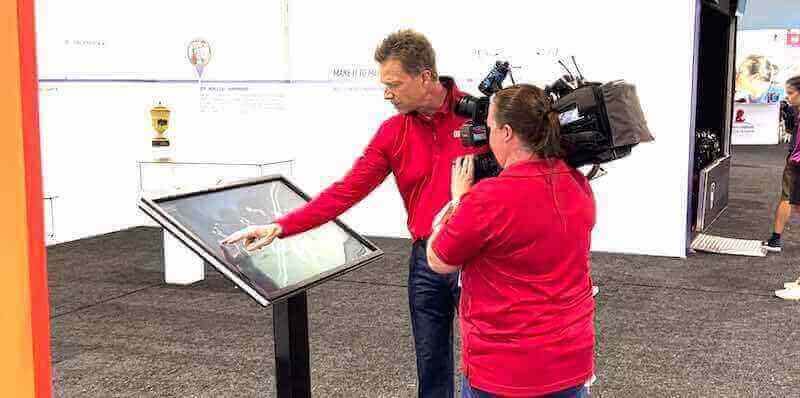
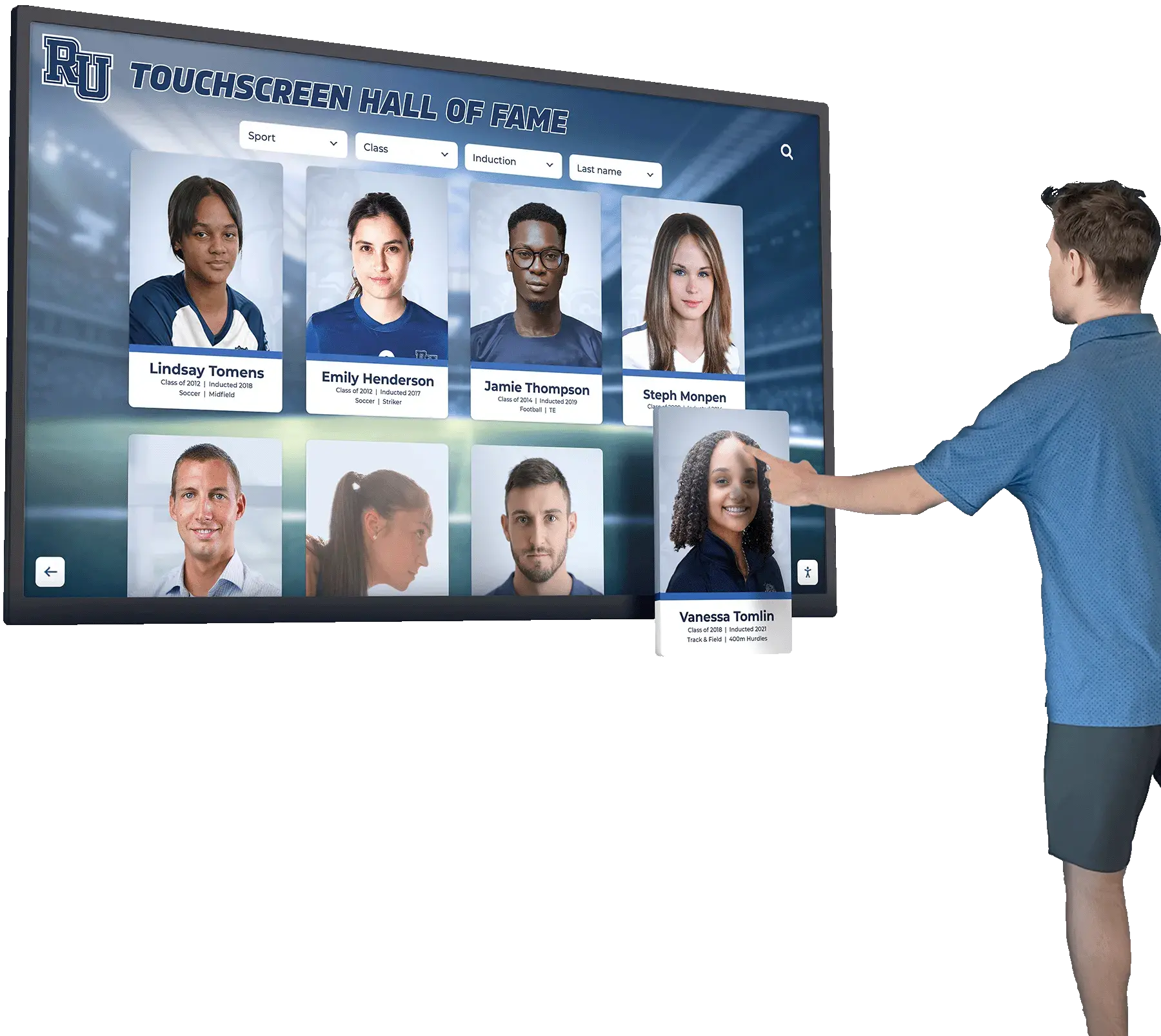
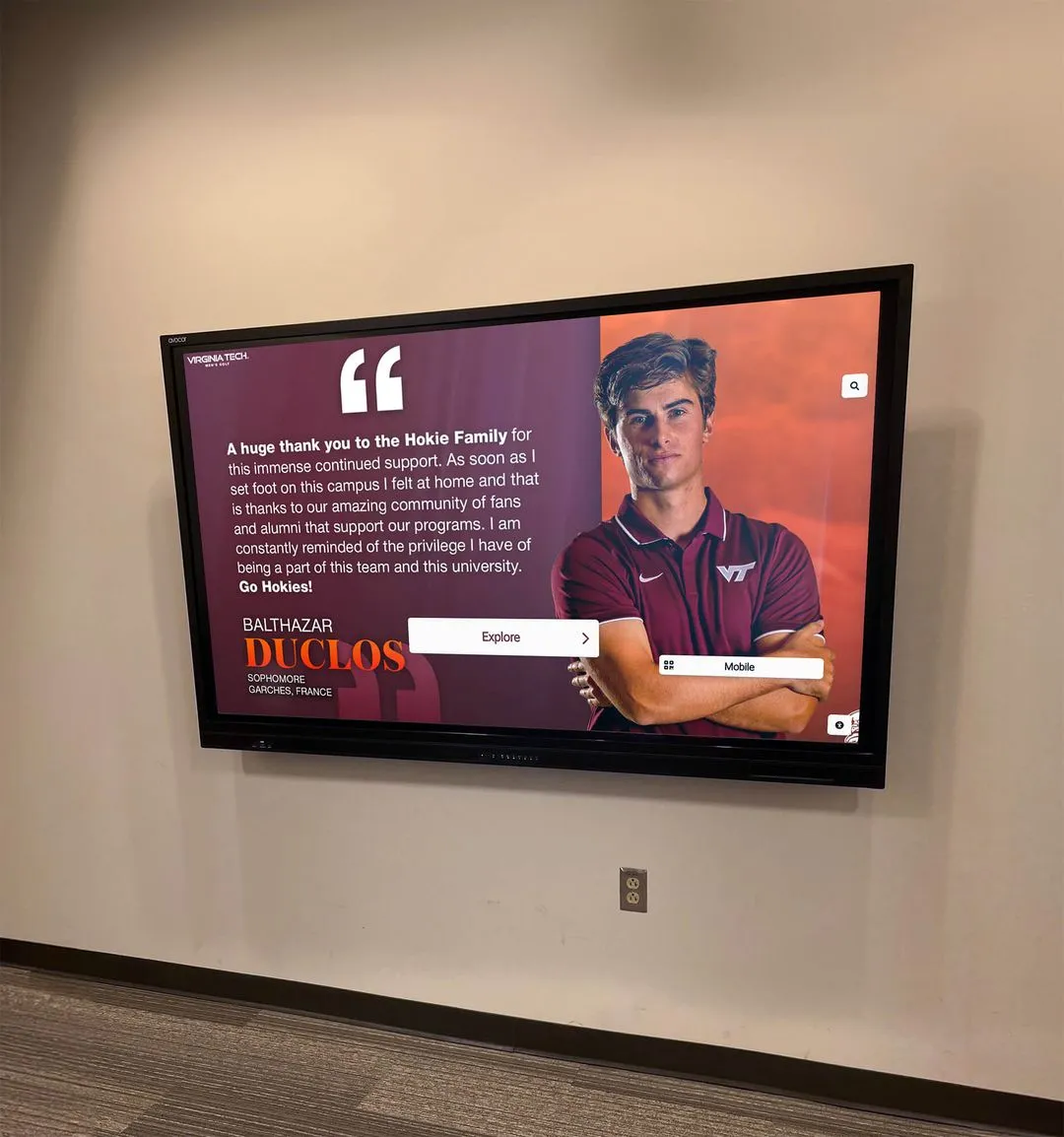
Professional touch driver configuration ensures reliable, responsive interaction across diverse hardware and software combinations
Understanding UPDD Touch Software: What It Is and Why Organizations Need It
Before exploring installation and configuration specifics, understanding what UPDD accomplishes and which scenarios genuinely require dedicated touch driver software helps organizations make informed decisions about their interactive display technology stack.
What is UPDD (Universal Pointer Device Driver)?
UPDD represents comprehensive touch driver software developed by Touch-Base Ltd., designed to provide universal touchscreen support across multiple operating systems and hardware configurations where native OS capabilities prove insufficient or nonexistent.
Core UPDD Capabilities
The UPDD software suite delivers several critical functions:
- Universal Hardware Support: Works with modern HID-compliant USB touchscreens as well as legacy serial and non-HID USB devices that contemporary operating systems no longer support natively
- Cross-Platform Compatibility: Single driver architecture functioning across Windows (XP through Windows 11), macOS, Linux distributions, and Android platforms
- Multi-Touch Functionality: Provides full multi-touch gesture support including pinch, zoom, rotate, and swipe—even on systems or hardware where native OS multi-touch capabilities are limited
- Advanced Calibration: Precise calibration tools compensating for mounting variations, display geometry differences, and touch coordinate mapping requirements
- Gesture Configuration: Customizable gesture recognition enabling organizations to map touch patterns to specific actions matching application requirements
- API and Development Interfaces: Comprehensive programming interfaces (UPDD API and TUIO server) allowing custom applications to directly access touch data rather than relying solely on mouse emulation
- Multi-Monitor Support: Coordinates touch input across multiple displays, essential for installations using several touchscreens simultaneously
According to Touch-Base documentation, UPDD V6 supports the main operating systems including Windows, macOS, Linux, and Android, with UPDD V7 introducing universal binary support for both Intel and ARM processors—addressing the architectural transitions affecting modern computing environments.
When Organizations Need Universal Touch Drivers
Not every touchscreen installation requires dedicated driver software—modern operating systems include capable native touch support for contemporary hardware. However, specific scenarios make universal drivers like UPDD essential:
Legacy Hardware Integration: Organizations possessing older touchscreen equipment—particularly displays using serial connections or non-HID USB protocols—find these devices incompatible with current operating systems without specialized driver support. UPDD enables continued use of functional hardware that would otherwise require expensive replacement.
Operating System Limitations: Some operating systems provide minimal or no native touch support. Linux distributions historically lacked comprehensive touch capabilities, and older Windows versions (XP, Vista) offer limited multi-touch functionality. UPDD fills these gaps enabling modern touch experiences on systems where they wouldn’t otherwise function.
Advanced Configuration Requirements: Institutions needing precise touch behavior control—custom calibration for unusual mounting configurations, specific gesture mappings for specialized applications, or coordinated multi-display touch environments—benefit from UPDD’s advanced configuration capabilities exceeding what standard OS settings provide.
Application Development Needs: Organizations developing custom interactive applications gain significant advantages from UPDD’s API and TUIO server interfaces, enabling direct touch data access providing more sophisticated control than standard mouse emulation can deliver.
Learn about comprehensive approaches to touchscreen software selection for interactive displays comparing different driver and platform options for institutional deployments.
UPDD Software Components and Architecture
Understanding UPDD’s component structure helps administrators effectively configure and maintain touch driver installations across their interactive display environments.
Primary Software Components
UPDD Driver (Core Service): The fundamental driver component running as a background service (Windows/Linux) or daemon (macOS) providing actual touch device communication and coordinate translation. This service operates continuously, converting raw touch hardware input into usable pointer data that applications and operating systems can interpret.
UPDD Console: Administrative interface enabling device management, calibration access, touch testing, and system configuration. The Console provides the primary tool administrators use for viewing connected touch devices, updating driver settings, performing diagnostics, and accessing calibration routines.
UPDD Commander: Gesture configuration application allowing administrators to define and customize touch gesture behavior—mapping swipes, pinches, rotations, and other multi-touch patterns to specific system or application actions. Commander centralizes gesture settings affecting how users interact with touch-enabled applications across the entire system.
UPDD API and SDK: Programming interfaces enabling custom application development with direct touch device access. The API provides developers with low-level touch coordinate data, pressure information (when hardware supports), and multi-touch tracking—surpassing capabilities of standard mouse input emulation.
TUIO Server: Alternative interface protocol commonly used in interactive installations and creative applications. UPDD’s TUIO server capability enables compatibility with numerous interactive frameworks and software platforms designed for installations, exhibits, and artistic applications expecting TUIO touch data formatting.
Software Architecture Approach
UPDD implements modular architecture separating device communication, coordinate processing, gesture recognition, and application interfaces—enabling flexibility in configuration and compatibility with diverse use cases ranging from simple kiosk applications to complex multi-display interactive installations.
This separation means organizations can utilize basic mouse emulation for standard applications while simultaneously providing API or TUIO access to custom software requiring direct touch data—all managed through single driver installation rather than requiring multiple competing touch solutions.
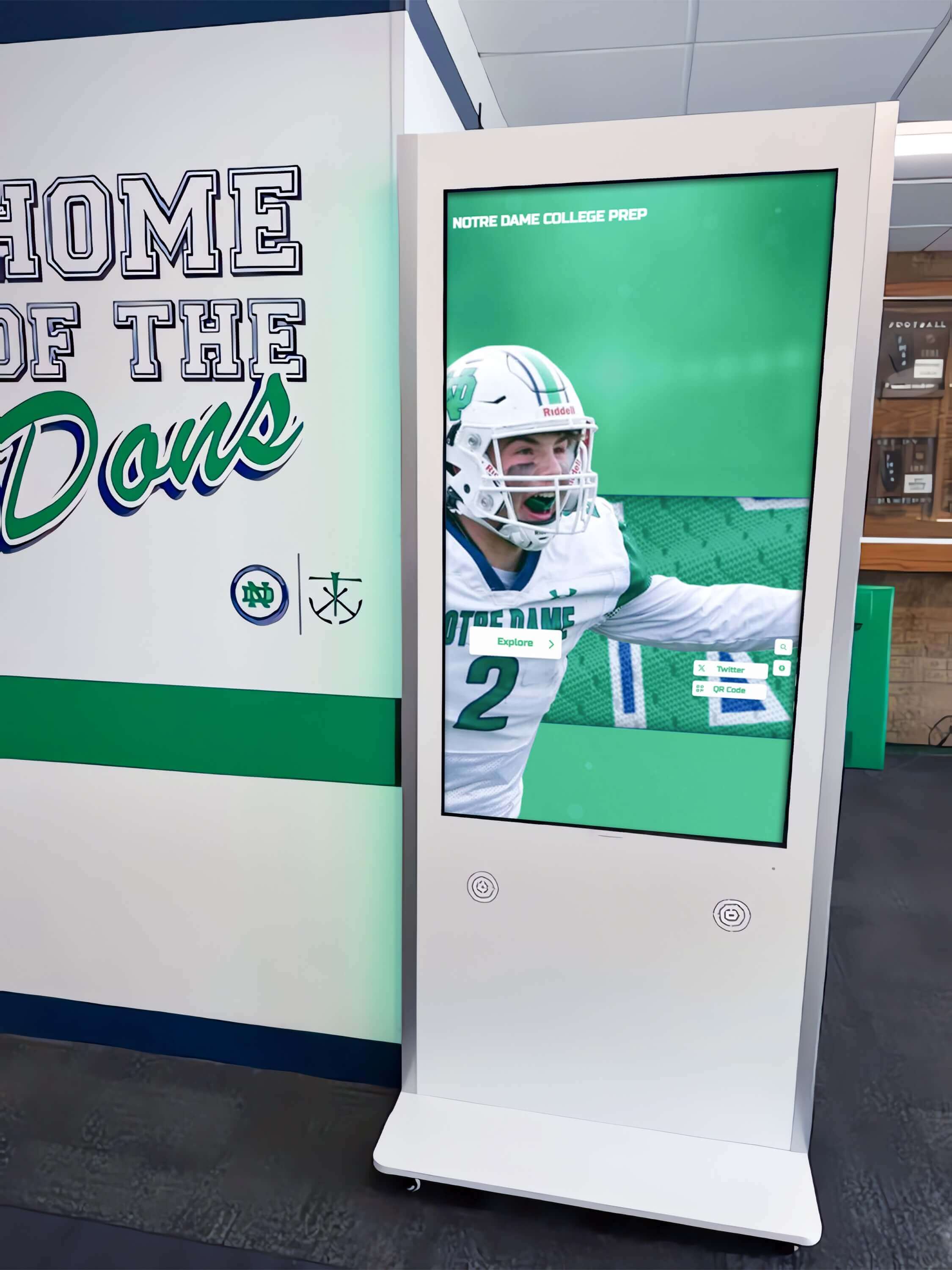
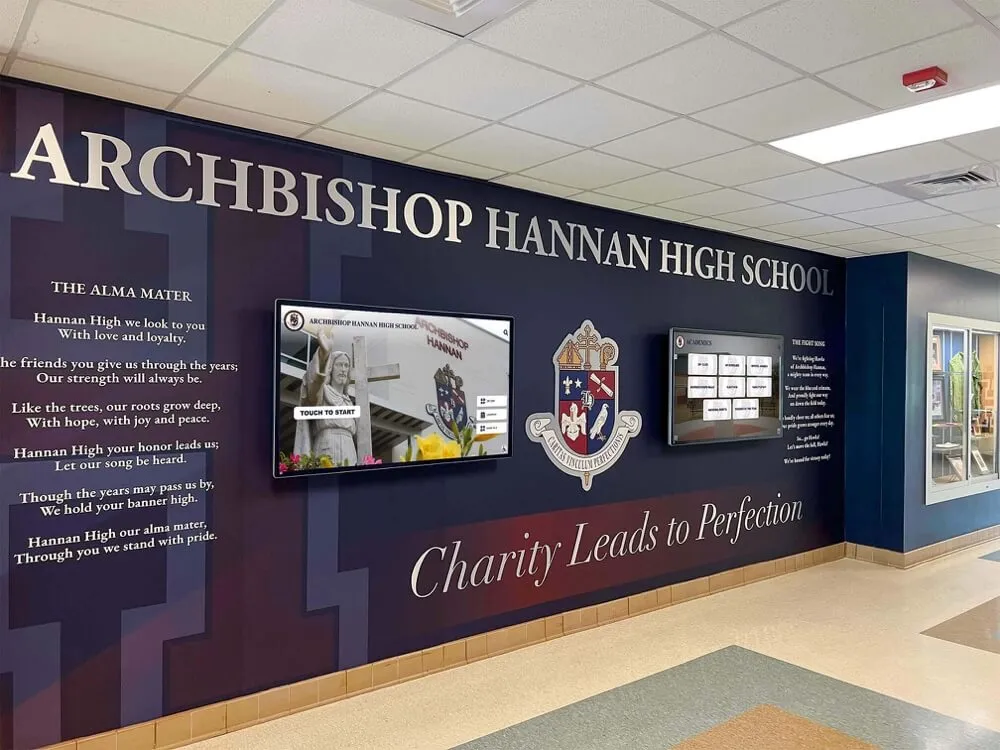
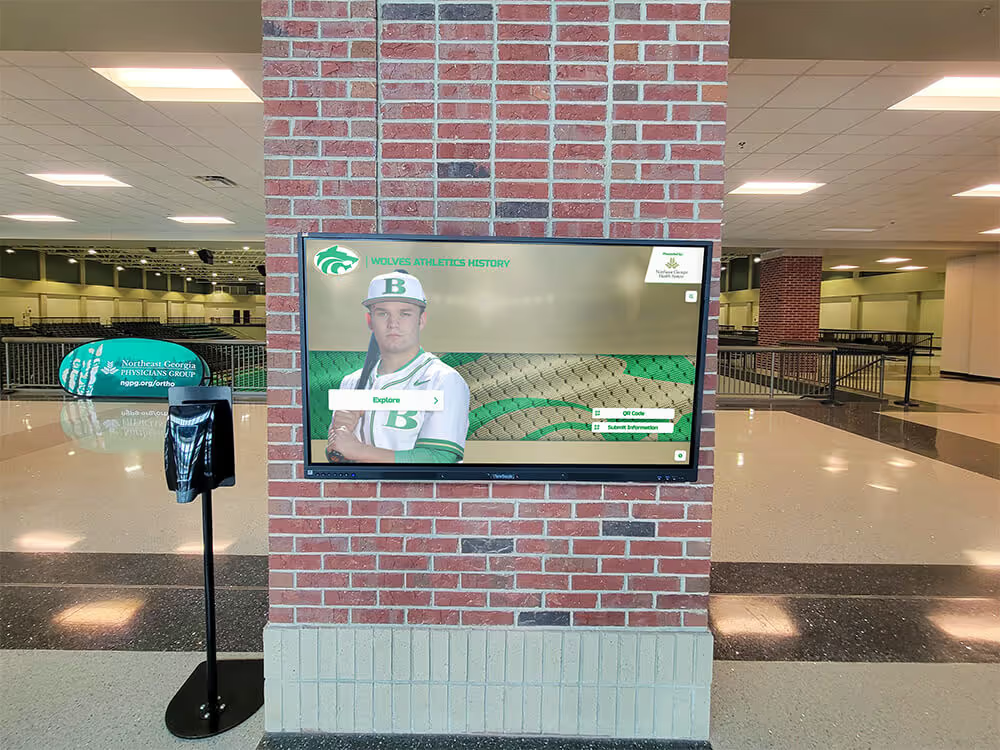
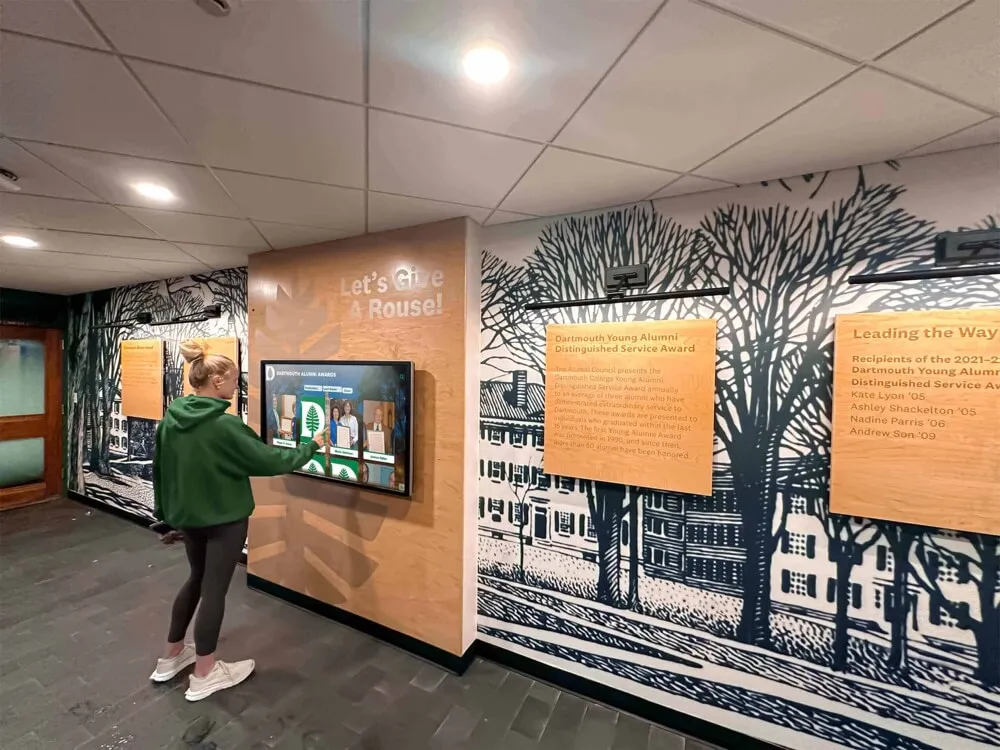
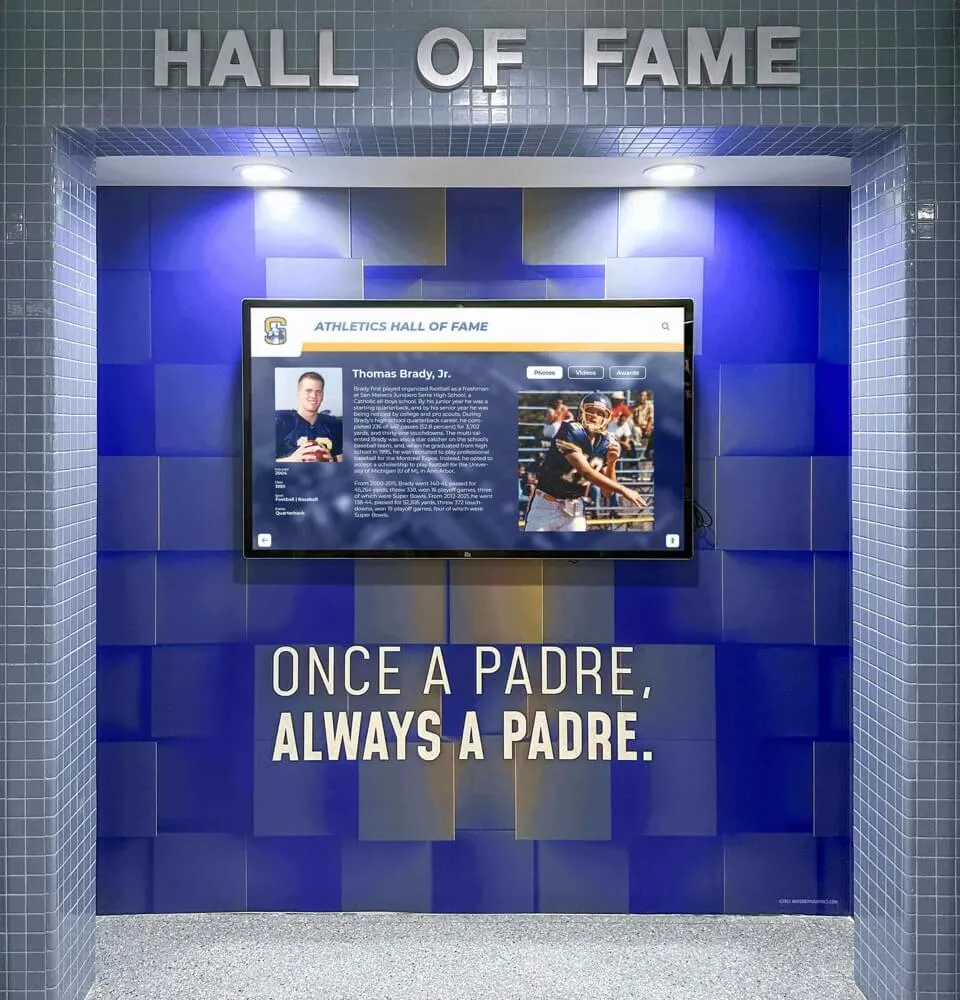
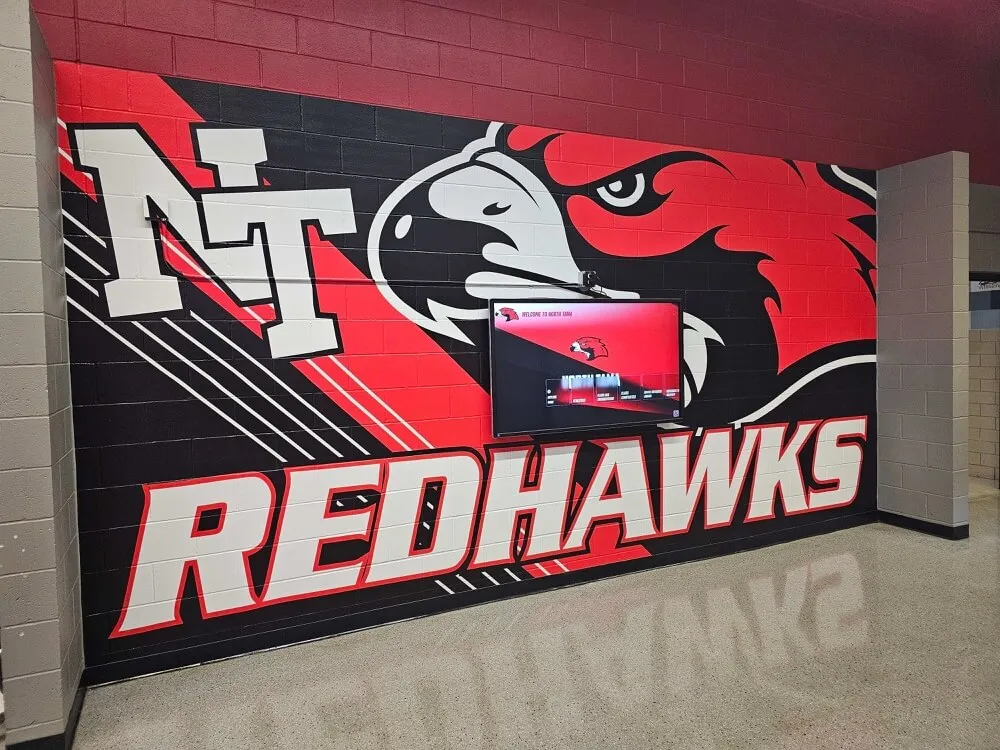
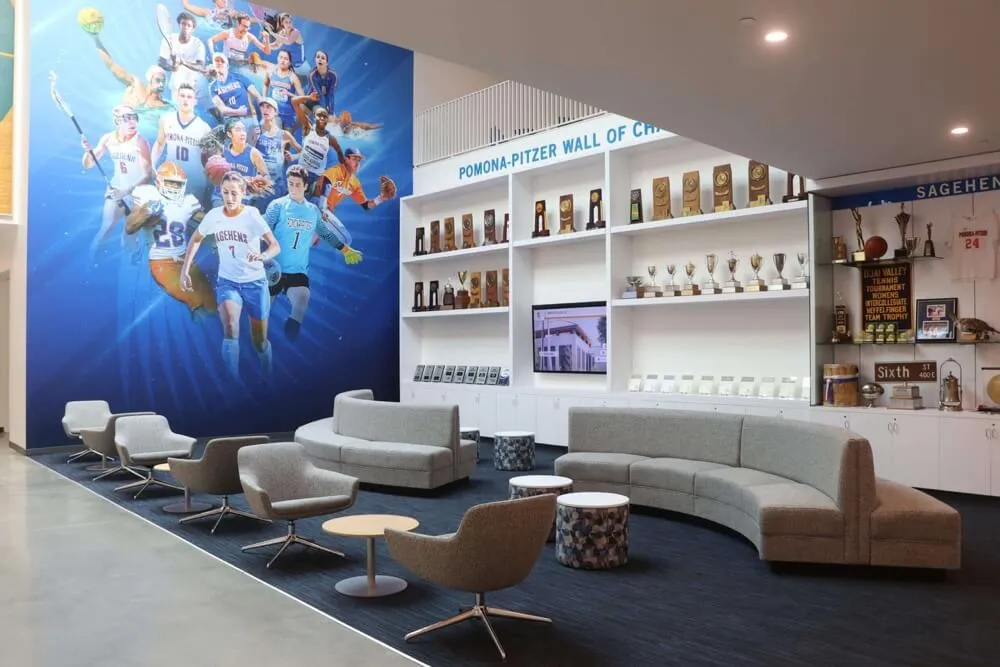
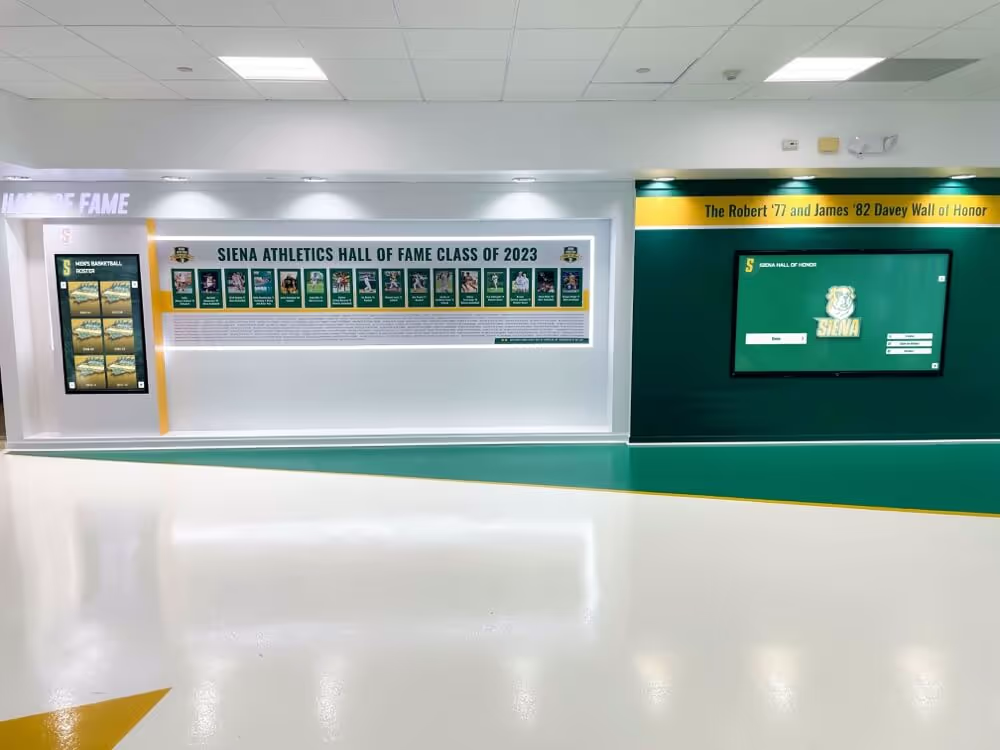
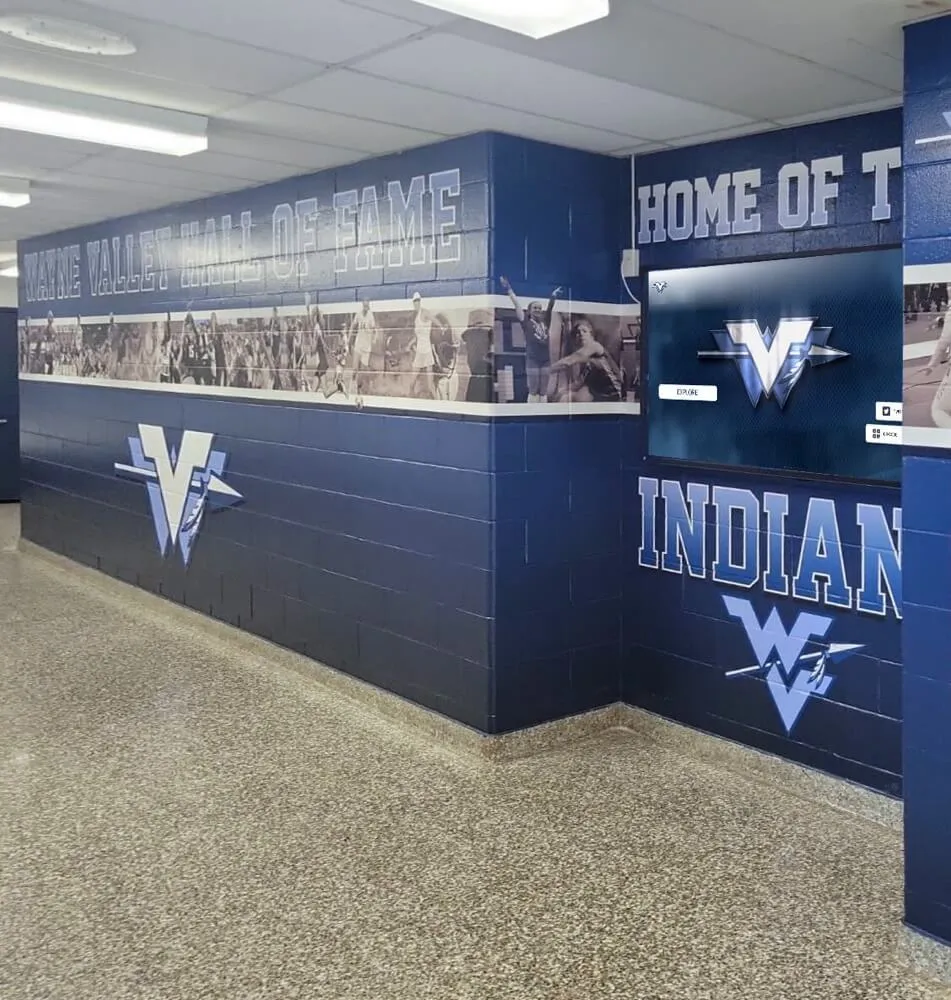
Educational institutions commonly deploy interactive touchscreens requiring reliable driver support for consistent performance
Installing UPDD Touch Software Across Different Operating Systems
Proper installation establishes the foundation for reliable touchscreen operation—understanding platform-specific requirements and following correct procedures prevents common configuration issues that affect touch responsiveness and accuracy.
Windows Installation Process and Considerations
Windows environments represent the most common UPDD deployment scenario, with driver support spanning from legacy Windows XP through current Windows 11 releases.
Pre-Installation Requirements
Before beginning UPDD installation on Windows systems:
Administrator Access: Installation requires administrator-level permissions for driver installation and system service configuration. Ensure you possess appropriate credentials before starting the installation process.
Existing Driver Removal: If Windows automatically installed generic touch drivers for your hardware, these may conflict with UPDD. Check Device Manager under “Human Interface Devices” for any touch-related entries, and uninstall them before proceeding with UPDD installation.
Connection Verification: Connect your touchscreen device and verify Windows recognizes it as hardware (even if touch functionality doesn’t work yet). Confirming basic hardware detection ensures cable connectivity and hardware function before attributing issues to driver installation.
Windows Installation Steps
1. Download Appropriate UPDD Version: Visit the Touch-Base download portal at https://www.touch-base.com/download or https://license.touch-base.com/download and select the Windows version matching your system (32-bit vs. 64-bit, Windows version). UPDD V7 supports both Intel and ARM processors with universal binary architecture.
2. Run Installer Package: Execute the downloaded installer file (.exe or .msi) with administrator privileges. Right-click the installer and select “Run as administrator” if not automatically prompted for elevation.
3. Follow Installation Wizard: The installation wizard guides through license acceptance, installation location selection, and component choices. Standard installations include all components (Driver, Console, Commander, utilities).
4. Allow Driver Installation: Windows may display security warnings about driver installation. Authorize the installation when prompted—UPDD drivers are digitally signed by Touch-Base Ltd.
5. Restart System: Complete installation by restarting your computer, allowing Windows to fully initialize the UPDD driver service and recognize touch hardware through the new driver.
Post-Installation Verification
After restart, verify successful installation:
- Launch UPDD Console from the Start menu or system tray
- Confirm your touch device appears in the device list
- Perform basic touch testing using Console’s testing tools
- Check that touch input moves the cursor (may require calibration for accuracy)
Windows-Specific Configuration
Disable Windows Ink (When Necessary): On Windows 10/11 systems, Windows Ink may interfere with UPDD gesture handling. If you experience gesture recognition issues, disable Windows Ink through UPDD Console settings or Windows system settings.
Configure Touch Feedback: Windows provides visual touch feedback (circles appearing where you touch). Adjust or disable this through Windows Settings > Ease of Access > Cursor & pointer > Touch feedback, based on your application requirements.
Multi-Monitor Touch Coordination: For installations using multiple touchscreens, UPDD Console enables mapping each touch device to its corresponding display, ensuring touches on screen A don’t control cursor on screen B—critical for multi-display interactive installations.
macOS Installation and Configuration
macOS deployments require understanding Apple’s security model and permission requirements affecting driver installation and operation.
macOS Security Considerations
Recent macOS versions (10.15 Catalina and later) implement strict security policies affecting kernel extensions and system-level software:
System Extension Approval: During UPDD installation, macOS displays security prompts requiring explicit user authorization for system extension loading. Navigate to System Preferences > Security & Privacy and click “Allow” when prompted about Touch-Base software.
Accessibility Permissions: UPDD requires accessibility permissions for proper gesture handling and cursor control. Grant these permissions through System Preferences > Security & Privacy > Privacy > Accessibility, checking the box next to UPDD-related entries.
macOS Installation Process
1. Download macOS Package: Obtain the macOS UPDD installer from Touch-Base download portal, ensuring you select the package compatible with your macOS version and processor architecture (Intel vs. Apple Silicon M1/M2/M3).
2. Open Package File: Double-click the downloaded .pkg file to launch the installation wizard. macOS may display warnings about software from identified developer—proceed by clicking “Open” in the security dialog.
3. Complete Installation: Follow the installation wizard prompts, providing administrator credentials when requested. The installer configures the UPDD daemon (background service), utilities, and configuration applications.
4. Grant Security Permissions: Immediately after installation, macOS displays security prompts requiring explicit authorization. Open System Preferences > Security & Privacy and approve all Touch-Base/UPDD-related requests appearing in the security panel.
5. Restart or Log Out: Complete installation by restarting your Mac or logging out and back in, ensuring all system extensions load properly.
macOS-Specific Features
Trackpad Gesture Mimicking: UPDD on macOS can configure multi-touch displays to mimic trackpad gestures familiar to Mac users—two-finger scrolling, pinch-to-zoom, rotate, and swipe navigation matching standard macOS gesture conventions.
Mission Control Integration: Multi-touch gestures can trigger macOS-specific functions like Mission Control, application switching, and desktop management—providing natural integration with Mac workflow patterns.
Organizations deploying interactive recognition displays often utilize Mac hardware for its reliability and aesthetic qualities. Solutions like Rocket Alumni Solutions support Mac deployments while handling touch driver complexities through web-based platforms minimizing OS-specific configuration requirements.
Linux Installation and Platform Variations
Linux deployments present unique challenges given the diverse distribution landscape, but UPDD provides kernel-independent driver architecture supporting major Linux variants.
Linux Distribution Compatibility
UPDD supports numerous Linux distributions including:
- Ubuntu and derivatives (Mint, Elementary, Pop!_OS)
- Debian and Debian-based distributions
- Fedora and Red Hat Enterprise Linux (RHEL)
- CentOS and Rocky Linux
- SUSE and openSUSE
- Arch Linux and Manjaro
The driver operates independently of desktop environment choice (GNOME, KDE, XFCE, etc.), though interface tools may require specific dependencies based on your environment.
Linux Installation Methods
Linux installations typically utilize package managers or direct installer scripts depending on distribution:
Debian/Ubuntu (.deb packages):
sudo dpkg -i updd-driver-package.deb
sudo apt-get install -f  # Install any missing dependencies
Red Hat/Fedora (.rpm packages):
sudo rpm -i updd-driver-package.rpm
sudo yum install dependencies  # If needed
Generic Linux (Installer Script):
chmod +x updd-install.sh
sudo ./updd-install.sh
Post-Installation Configuration
Service Startup: Ensure UPDD service starts automatically:
sudo systemctl enable updd
sudo systemctl start updd
User Permissions: Add your user account to appropriate groups for touch device access:
sudo usermod -a -G input $USER
X Server Configuration (if needed): Some configurations require X server input device adjustments preventing conflicts between native X11 touch handling and UPDD. Consult Touch-Base documentation for your specific distribution requirements.
Linux Touch Advantages
Linux systems commonly power cost-effective kiosk installations using Raspberry Pi, Intel NUC, or similar compact computing platforms. UPDD enables professional touch functionality on these economical hardware solutions—particularly valuable for educational institutions deploying multiple interactive displays with budget constraints.
Learn about kiosk software selection and implementation strategies including hardware platform considerations for Linux-based interactive systems.
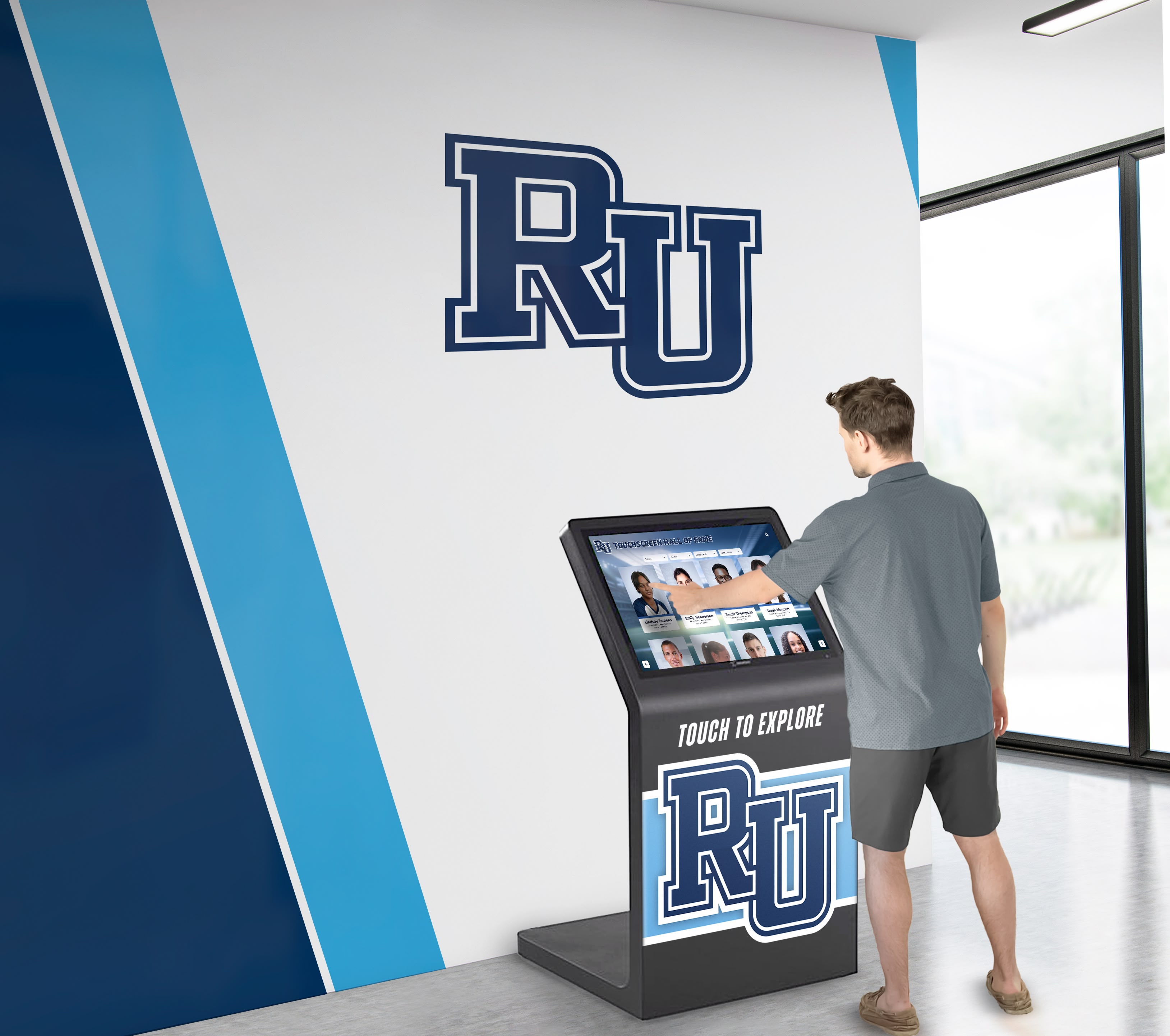
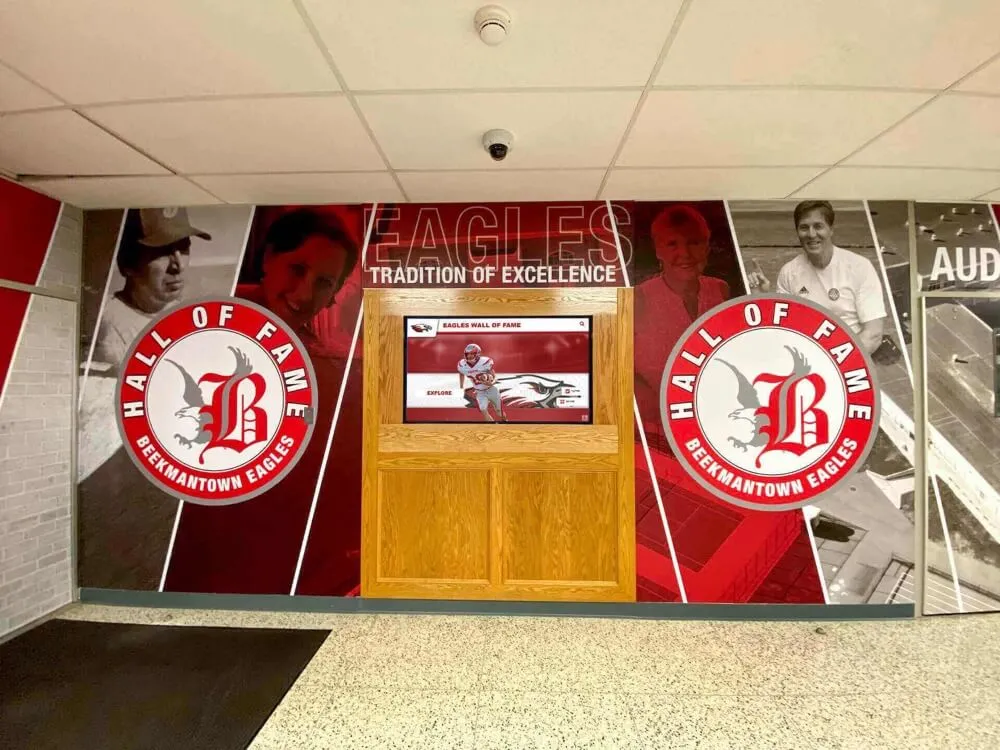
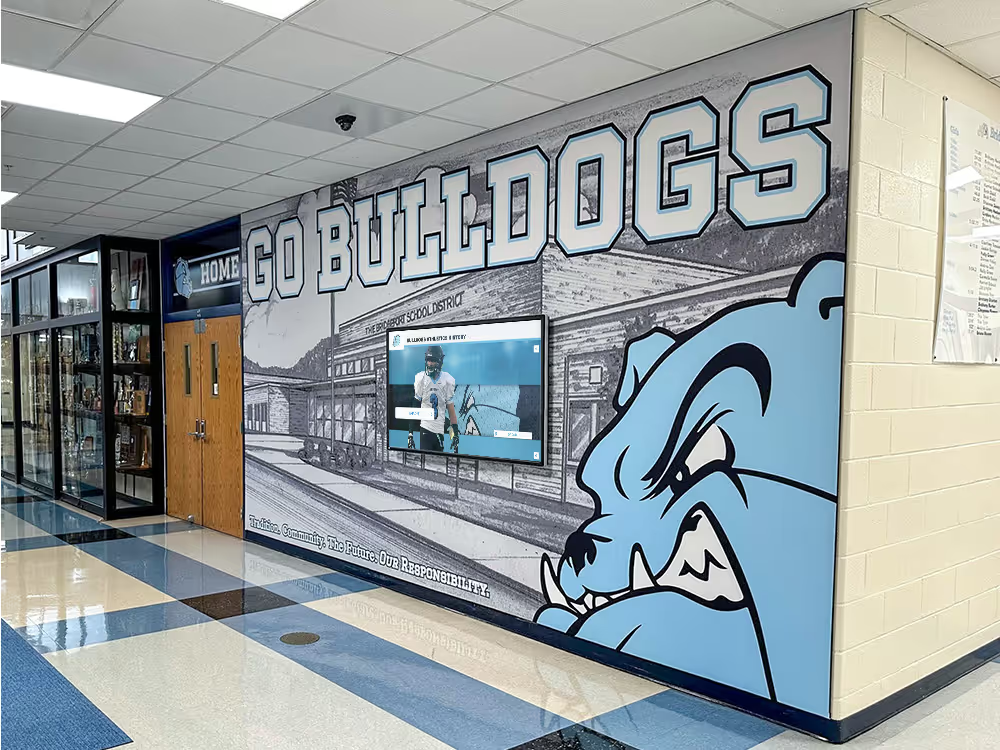
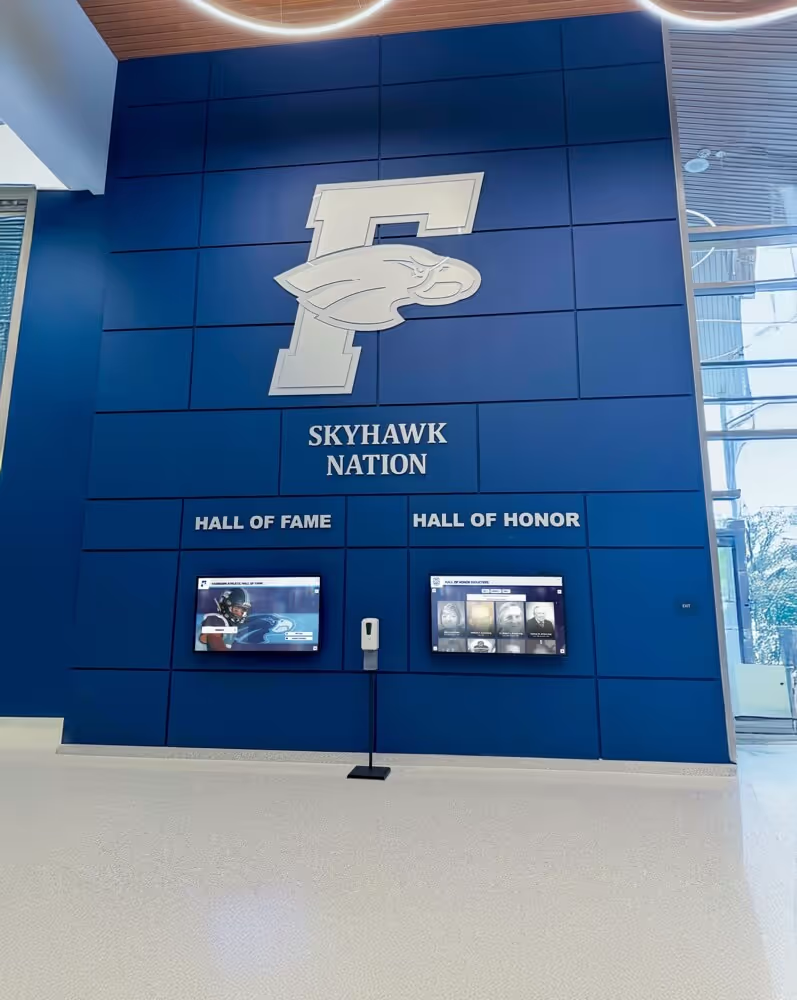
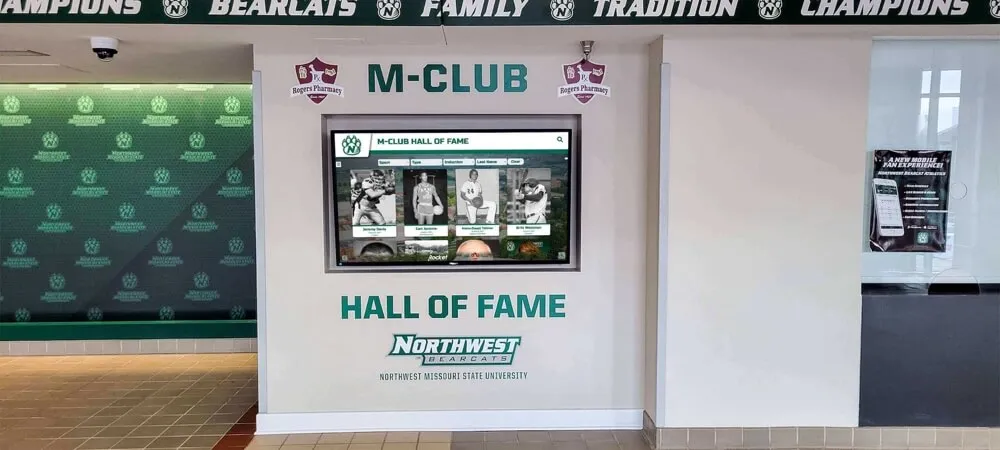
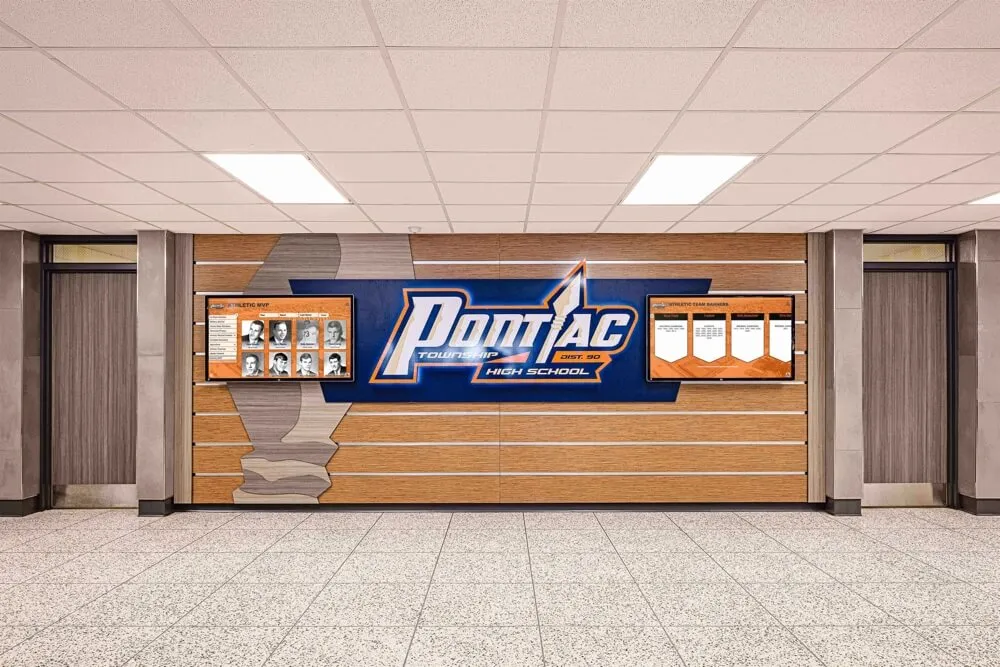
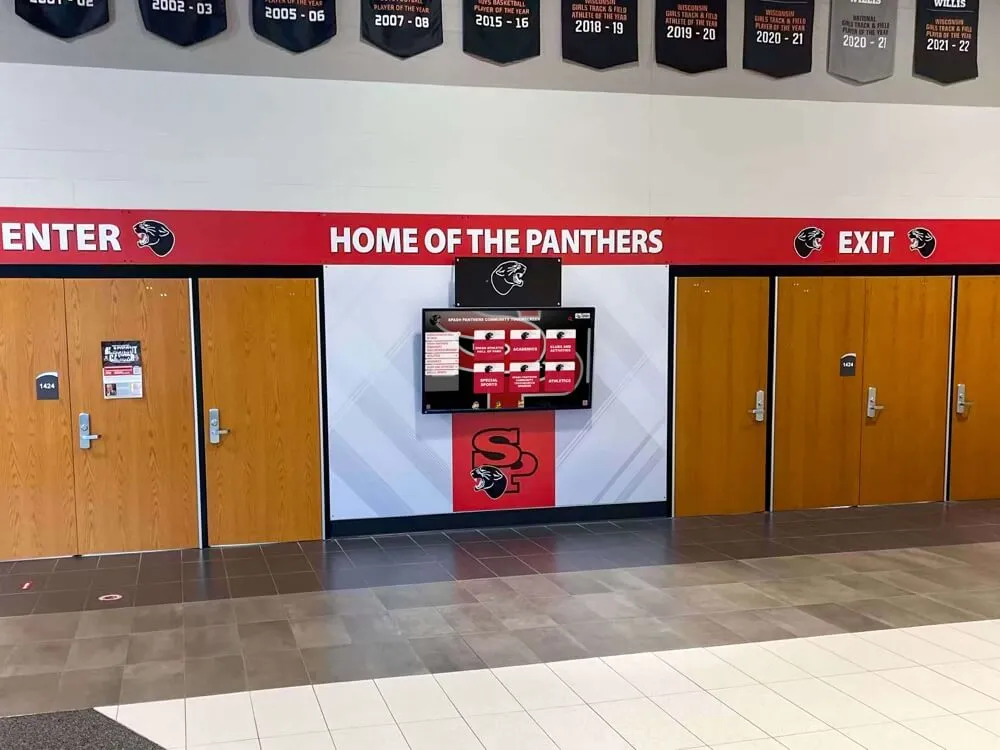
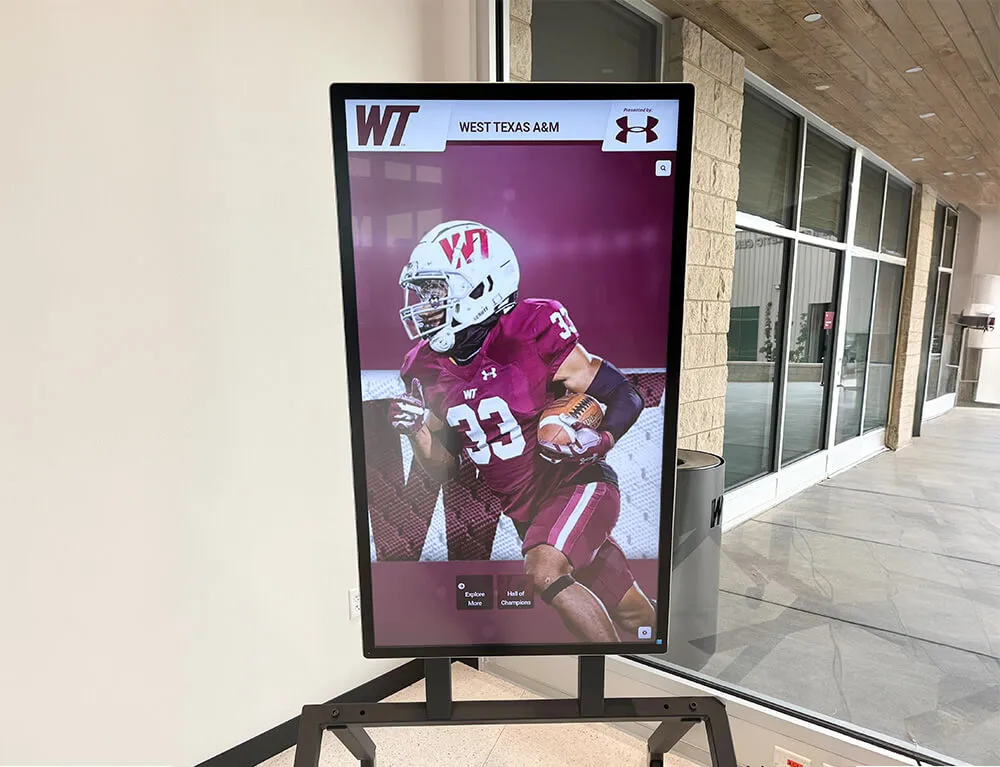
Reliable touch driver configuration ensures consistent user experiences across diverse institutional computing environments
Calibration: Ensuring Accurate Touch Response
Calibration represents the most critical post-installation configuration step—properly calibrated touchscreens respond exactly where users touch, while uncalibrated systems frustrate users with significant offset between touch points and resulting cursor positions.
Understanding Touch Calibration Requirements
Touch calibration aligns physical touch coordinates reported by hardware with visual display coordinates shown by the operating system—compensating for manufacturing variations, mounting differences, and display geometry characteristics.
Why Calibration Matters
Even identical touchscreen models from the same manufacturer often exhibit slight variations in touch coordinate reporting. Additionally, factors affecting calibration accuracy include:
Manufacturing Tolerances: Touch sensors manufactured within specification may still vary slightly in active area dimensions, edge coordinates, or aspect ratio precision—requiring calibration compensating for these device-specific characteristics.
Mounting and Installation: Physical installation introduces variables affecting touch accuracy: bezel overlap reducing active touch area, mounting orientation (portrait vs. landscape), and environmental factors like electromagnetic interference near other equipment.
Display Resolution and Scaling: Operating systems use specific resolutions and scaling factors, while touch controllers report coordinates in device-native coordinate space. Calibration creates mathematical transformation mapping touch coordinates to display coordinates accounting for resolution, scaling, and aspect ratio differences.
Multiple Display Configurations: Installations using extended desktops across multiple monitors require calibration ensuring touch input on each physical screen controls cursor on that corresponding logical display area—preventing touches on left screen from affecting right screen cursor.
When to Perform Calibration
Organizations should calibrate touchscreens in these situations:
- Immediately after UPDD installation before production deployment
- After changing display resolution or scaling settings
- Following physical relocation or remounting of displays
- When changing orientation (landscape to portrait or vice versa)
- If users report touch accuracy problems or offset issues
- After operating system updates affecting display settings
Performing UPDD Calibration Process
UPDD provides straightforward calibration utilities accessible through UPDD Console or system menus.
Accessing Calibration Utility
Windows:
- Open UPDD Console from Start menu or system tray
- Click “Calibration” in the function bar
- Select your touch device if multiple devices exist
- Click “Calibrate” button to launch calibration program
macOS:
- Open UPDD Console from Applications or menu bar
- Navigate to Calibration section
- Select “Calibrate” option from menu
- Grant permissions if prompted for accessibility access
Linux:
- Launch UPDD Console from applications menu
- Access calibration through Console interface
- Alternative: Run calibration utility from command line if desktop environment doesn’t support GUI tools
Calibration Procedure Steps
1. Prepare Calibration Environment: Perform calibration under normal operating conditions—typical lighting, with any protective screens or overlays in place, and with clean touch surface free of fingerprints or debris that might affect accuracy.
2. Use Appropriate Stylus or Touch Tool: For most accurate calibration, use a pointed stylus or pen (not your finger) enabling precise touch on calibration targets. If your application primarily uses finger touch, some administrators perform final calibration using finger input matching actual user interaction.
3. Touch Calibration Targets: The calibration program displays a series of crosshair targets (typically 4, 9, or 16 points depending on calibration precision needed):
- Touch the exact center of each crosshair as it appears
- Hold your touch steady until the system acknowledges (usually by color change or progression to next point)
- Maintain consistent pressure and technique across all calibration points
- Don’t rush—accuracy matters more than speed during calibration
According to Touch-Base documentation, during calibration you touch the center of each cross as it appears and hold the touch until the circle changes to dark blue, indicating the system has captured sufficient data from that calibration point.
4. Verify Calibration Accuracy: After completing all calibration points, most UPDD calibration utilities offer verification:
- Test accuracy by touching various screen areas
- Verify cursor appears exactly where you touch
- Pay particular attention to screen corners and edges where accuracy challenges most commonly occur
- If accuracy remains poor, repeat calibration process
5. Save Calibration Data: Once satisfied with accuracy, save the calibration profile. UPDD stores calibration data associated with specific device and display configuration, automatically loading appropriate calibration when system starts.
Advanced Calibration Options
Multi-Point Calibration: Standard calibration uses 4-9 points, but high-precision installations can utilize 16 or 25 point calibration providing more granular mapping—particularly valuable for large-format displays or situations requiring exceptional edge accuracy.
Profile Management: Organizations frequently changing display configurations (rotation, resolution, multi-monitor arrangements) benefit from saving multiple calibration profiles for quick switching between configurations without recalibration.
Per-Application Calibration: Some specialized use cases require different calibration profiles for different applications—UPDD supports advanced configuration enabling per-application calibration loading automatically when applications launch.
Troubleshooting Calibration Issues
Calibration Doesn’t Improve Accuracy: If calibration fails to correct touch offset:
- Verify correct touch device is selected for calibration
- Check display resolution and scaling haven’t changed since calibration
- Confirm no other touch drivers or software conflict with UPDD
- Test whether hardware issues affect touch sensor consistency
Touch Works in Some Areas But Not Others: Partial touch functionality suggests:
- Incomplete calibration—repeat full calibration process
- Hardware problems with touch sensor in non-responsive zones
- Interference from electromagnetic sources near specific screen areas
- Physical damage or debris affecting portions of touch surface
Organizations implementing professional interactive displays benefit from solutions handling low-level technical complexities. Systems like Rocket Alumni Solutions abstract driver configuration details while ensuring reliable touch performance across diverse hardware platforms.
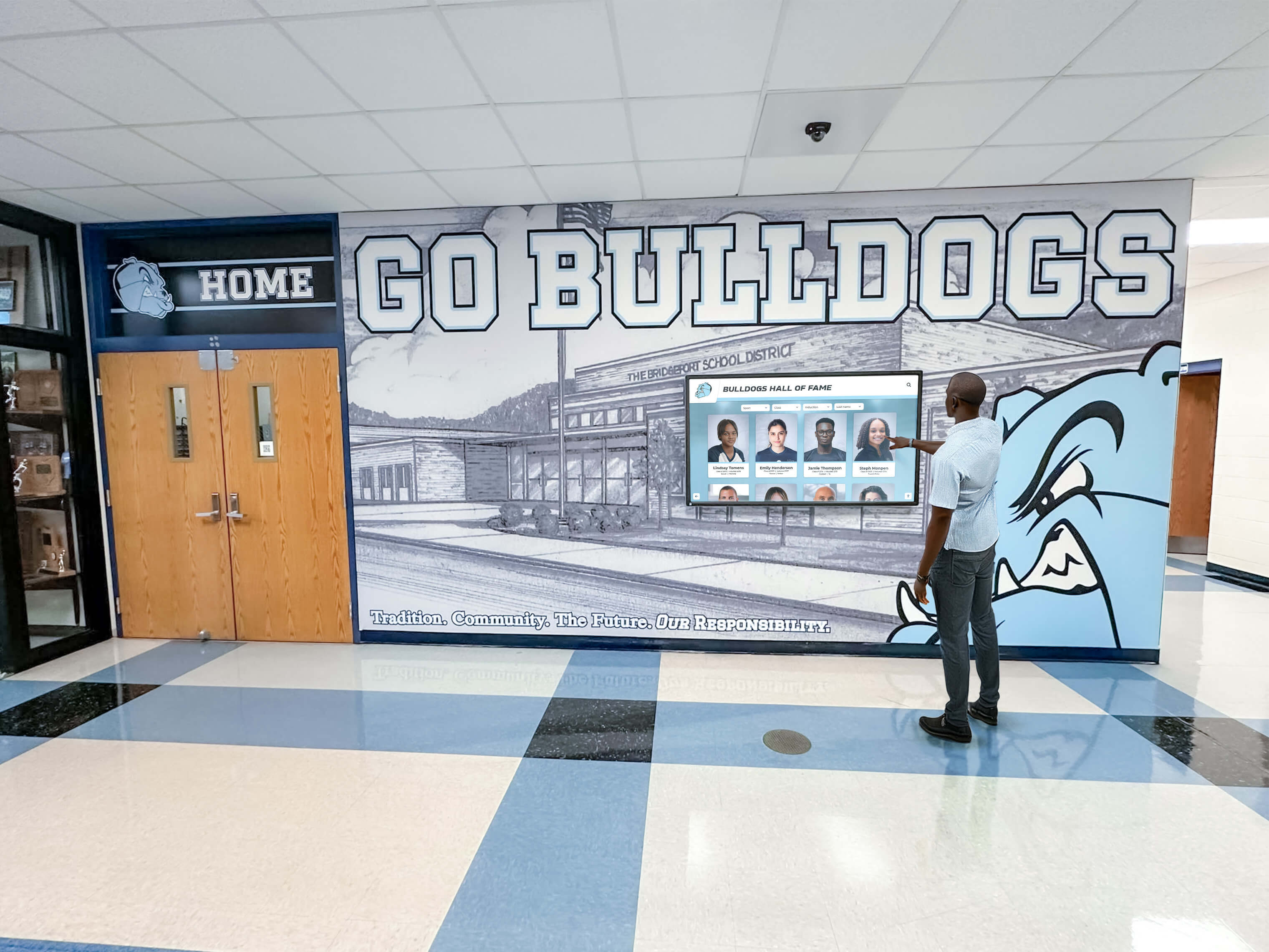
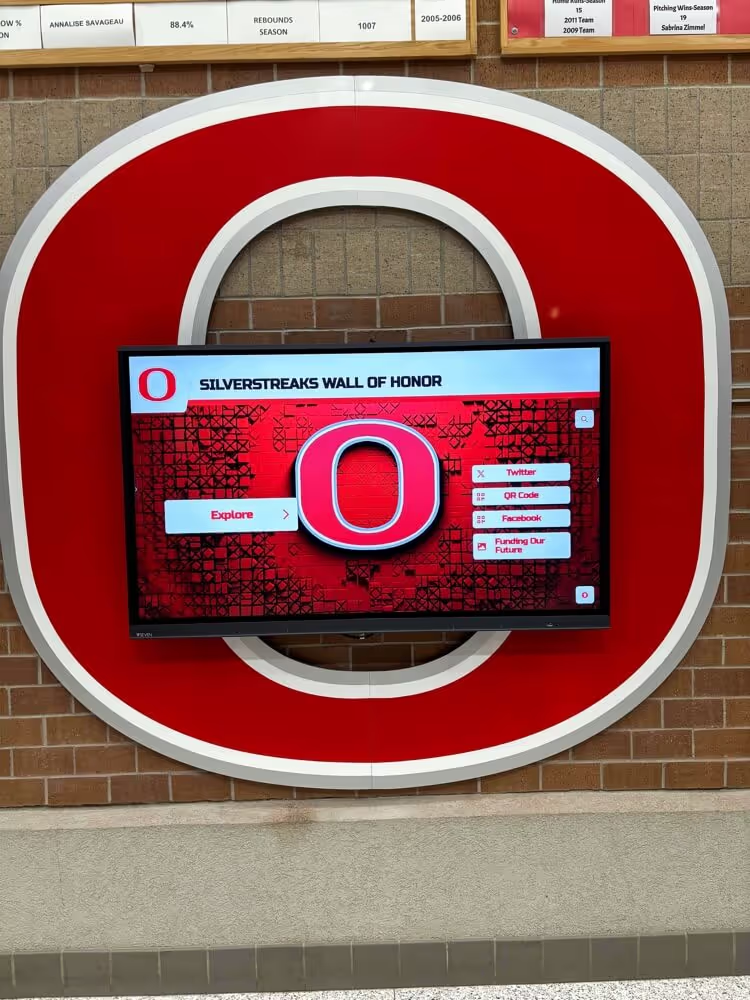
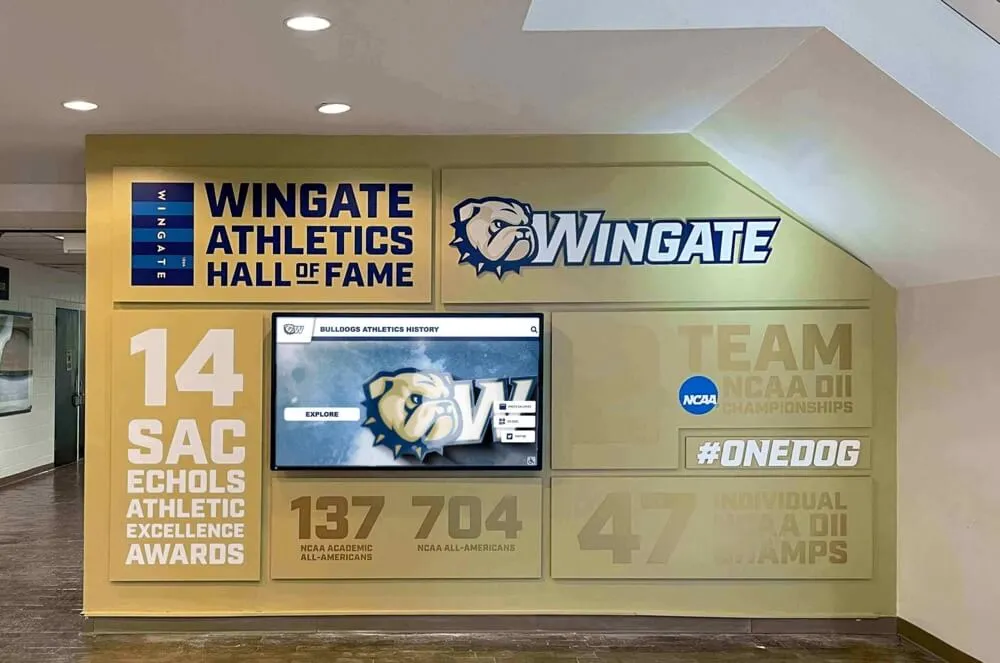
Accurate calibration ensures users can confidently interact with touchscreens without frustration from offset or inaccurate responses
Configuring Gestures and Advanced Touch Behavior
Beyond basic touch input, modern interactive experiences rely on intuitive multi-touch gestures—pinch-to-zoom, swipe navigation, rotate, and more. UPDD Commander provides comprehensive gesture configuration enabling organizations to customize touch behavior matching application requirements and user expectations.
Understanding UPDD Gesture System
UPDD recognizes gesture patterns and translates them into system actions, enabling rich interactive experiences beyond simple point-and-click interfaces.
Gesture Categories
Single-Touch Gestures:
- Tap: Single brief touch (equivalent to mouse click)
- Double-tap: Two rapid taps (equivalent to double-click)
- Long-press: Sustained touch (equivalent to right-click)
- Drag: Touch, hold, and move (equivalent to click-and-drag)
- Swipe: Rapid directional touch motion (navigation, scrolling)
Multi-Touch Gestures:
- Pinch: Two-finger inward motion (zoom out, reduce scale)
- Spread: Two-finger outward motion (zoom in, increase scale)
- Rotate: Two-finger circular motion (rotate objects, maps)
- Two-finger swipe: Directional swipe with two points (page navigation, workspace switching)
- Three-finger swipe: Additional navigation gesture (application switching, desktop management)
Advanced Multi-Touch Patterns:
- Multi-finger tap: Simultaneous multi-point touch triggering specific actions
- Custom gesture paths: Drawing specific shapes or patterns invoking configured actions
- Pressure-sensitive actions: Different responses based on touch pressure (if hardware supports)
Accessing and Configuring UPDD Commander
UPDD Commander centralizes gesture configuration accessible through simple interface abstracting complex touch pattern recognition.
Opening UPDD Commander:
- Launch from Start menu (Windows), Applications folder (macOS), or application menu (Linux)
- Alternative: Access through UPDD Console menu options
- Commander displays current gesture configuration and available gesture types
Gesture Configuration Interface
Settings Overview: Commander presents list of recognizable gestures with current mappings showing what system or application action each gesture triggers when performed.
Modifying Gesture Actions:
- Select gesture you wish to configure
- Choose action type (keyboard shortcut, mouse button, system command, custom script)
- Define specific action details (which key combination, which mouse button, command to execute)
- Test gesture to verify proper recognition and action execution
- Save changes applying new gesture configuration
Common Gesture Configurations
For General Kiosk Applications:
- Single tap: Primary selection action
- Long-press: Open context menu or additional options
- Two-finger swipe left/right: Navigate between pages or sections
- Pinch/spread: Zoom images or maps when applicable
- Home gesture: Custom pattern returning to main menu
For Educational Interactive Displays:
- Swipe up/down: Scroll through student rosters or achievement lists
- Pinch on images: Zoom into photos for detail viewing
- Two-finger tap: Trigger video playback or audio clips
- Long-press on profiles: Share or save favorite content
- Corner tap: Access administrative functions or settings
Learn about comprehensive interactive touchscreen display implementation strategies including gesture design patterns for educational environments.
Resetting Gestures to Defaults
If gesture configuration becomes problematic or overly customized:
- Open UPDD Commander Settings
- Navigate to File menu
- Select “Reset All Touch Gestures”
- Confirm reset operation
- Gestures return to UPDD default configuration
This reset capability provides safety net enabling administrators to recover from configuration mistakes without reinstalling entire driver software.
Gesture Best Practices for Public Interactive Displays
Organizations deploying touchscreens in schools, museums, lobbies, or public spaces should consider these gesture configuration principles:
Prioritize Familiarity: Configure gestures matching patterns users know from smartphones and tablets—pinch-to-zoom, swipe-to-navigate, tap-to-select. Avoid requiring gesture learning curve preventing intuitive interaction.
Limit Gesture Complexity: Public displays serve diverse audiences with varying technical comfort. Stick to simple, obvious gestures rather than complex multi-finger patterns or drawn shapes most users won’t discover or remember.
Provide Visual Cues: Interface design should suggest available gestures through visual affordances—arrow indicators suggesting swipe directions, pinch icons near zoomable images, visible scroll bars indicating draggable content.
Test with Representative Users: Before finalizing gesture configuration, observe actual users (students, visitors, community members) interacting with the system. Note which gestures they naturally attempt vs. which configured gestures go undiscovered.
Balance Functionality and Simplicity: While UPDD supports sophisticated gesture configurations, simpler often proves better for public installations. Consider whether advanced gestures truly enhance user experience or just add complexity without proportional benefit.
Explore user experience design principles for touchscreen interfaces ensuring gesture configuration aligns with intuitive interaction patterns.
UPDD for Multi-Display and Specialized Configurations
Advanced installations often involve multiple simultaneous touchscreens, unusual mounting configurations, or specialized hardware requiring sophisticated driver configuration beyond standard single-display setups.
Coordinating Touch Across Multiple Displays
Interactive installations increasingly utilize multiple touchscreens—video walls with several touch-enabled panels, separate displays for different content areas, or complementary information displays users access simultaneously.
Multi-Display Touch Challenges
Device-to-Display Mapping: When multiple touchscreens connect to single computer, the operating system must know which touch device controls which display. Without proper mapping, touching left screen might move cursor on right screen—creating unusable interface.
Extended vs. Cloned Displays: Operating systems support different multi-monitor modes:
- Extended desktop: Each display shows different content; combined displays form single large workspace
- Cloned displays: All displays show identical content (common for presentations)
Touch coordination requirements differ dramatically between these modes.
UPDD Multi-Display Configuration
1. Connect All Displays and Touch Devices: Physically connect all touchscreens and ensure UPDD recognizes each touch device appearing separately in UPDD Console device list.
2. Configure Display Arrangement: Use operating system display settings to arrange monitors in their physical positions—left to right, stacked vertically, or other configurations matching actual installation layout.
3. Map Touch Devices to Displays: In UPDD Console:
- Select first touch device
- Assign it to corresponding display using device settings
- Repeat for each additional touch device
- UPDD creates association ensuring touches on physical screen A control cursor in logical display A coordinates
4. Test Touch Mapping: Verify proper mapping by touching each physical screen and confirming cursor appears in correct location on that specific display.
Specialized Multi-Display Applications
Video Walls: Large installations combining multiple displays into single visual canvas require UPDD coordination ensuring seamless touch interaction across display boundaries—users touching content spanning two displays should experience single continuous interaction rather than separate screens.
Information Kiosks with Multiple Sections: Some kiosks utilize separate displays for different purposes—main interactive content on primary screen, wayfinding map on secondary screen, accessibility information on third display—each requiring independent touch control mapped to appropriate display.
Learn about digital signage and interactive display implementation including multi-display configuration strategies for institutional environments.
Supporting Legacy and Specialty Touch Hardware
UPDD’s primary value proposition focuses on enabling touchscreen hardware that operating systems no longer support natively or that requires configuration capabilities standard drivers don’t provide.
Serial Touch Controllers
Older touchscreens using RS-232 serial connections lack modern USB connectivity. UPDD supports serial touch controllers enabling continued use of functional displays that would otherwise require expensive replacement.
Configuration Requirements:
- Serial port communication settings (baud rate, data bits, parity, stop bits)
- Controller protocol selection matching specific hardware
- Coordinate translation appropriate for controller output format
Non-HID USB Devices
Some touchscreen controllers use USB connectivity but don’t implement HID (Human Interface Device) protocol that modern operating systems expect. UPDD provides translation layer enabling these non-standard devices to function properly.
Resistive Touch Displays
Though capacitive touch dominates contemporary touchscreens, resistive displays remain common in industrial, outdoor, and specialized environments. UPDD supports resistive touch controllers providing pressure-based touch sensing different from capacitive detection methods.
Specialized Touch Technologies
- Infrared (IR) frames: Touch detection using infrared beam grid interruption
- Optical touch: Camera-based touch detection analyzing user finger position
- SAW (Surface Acoustic Wave): Touch sensing using ultrasonic waves across display surface
UPDD abstracts these different underlying technologies providing consistent touch input regardless of detection method—enabling organizations to select optimal hardware for their specific environmental conditions (bright sunlight, gloves required, high precision needed) while maintaining consistent software interface.
Performance Optimization and Response Time Configuration
Touch responsiveness critically affects user experience—users expect immediate reaction to touches based on smartphone conditioning. UPDD provides configuration options enabling optimization for specific hardware and application requirements.
Touch Sensitivity Adjustment
UPDD sensitivity settings control how touch hardware interprets and reports touch events:
Touch Pressure Threshold: Minimum pressure required registering touch. Higher thresholds reduce accidental touches but may require more deliberate contact. Lower thresholds increase sensitivity but risk false activations.
Touch Duration Filtering: Minimum time contact must sustain before registering as intentional touch vs. accidental brush. Helps prevent spurious touch events from sleeves, jewelry, or incidental contact in public installations.
Ghost Touch Prevention: Electromagnetic interference or hardware issues sometimes cause false touch detection (ghost touches). UPDD filtering options reduce these phantom inputs through validation algorithms requiring consistent position reports before accepting touches as legitimate.
Optimizing Touch Response Latency
Several factors affect end-to-end touch latency—time between physical touch and application response:
Hardware Polling Rate: Frequency UPDD queries touch controller for position updates. Higher polling rates reduce latency but increase CPU usage. Balance based on performance requirements and available computing resources.
Coordinate Smoothing: Touch controllers report raw coordinates that may jitter slightly. Smoothing algorithms average recent positions creating steadier cursor movement but potentially introducing slight latency. Adjust smoothing based on whether absolute accuracy or smooth motion proves more important.
Application Response Time: UPDD delivers touch events to applications rapidly, but application rendering speed affects perceived responsiveness. Web-based kiosk applications may exhibit higher latency than native applications due to browser overhead and network dependencies.
Organizations deploying professional interactive recognition displays benefit from platforms optimized for touch responsiveness. Solutions like Rocket Alumni Solutions deliver web-based touchscreen experiences engineered for sub-100ms response times matching user expectations established by consumer touch devices.
Discover comprehensive analysis of touchscreen response time impact on user engagement demonstrating the critical relationship between performance and user satisfaction.
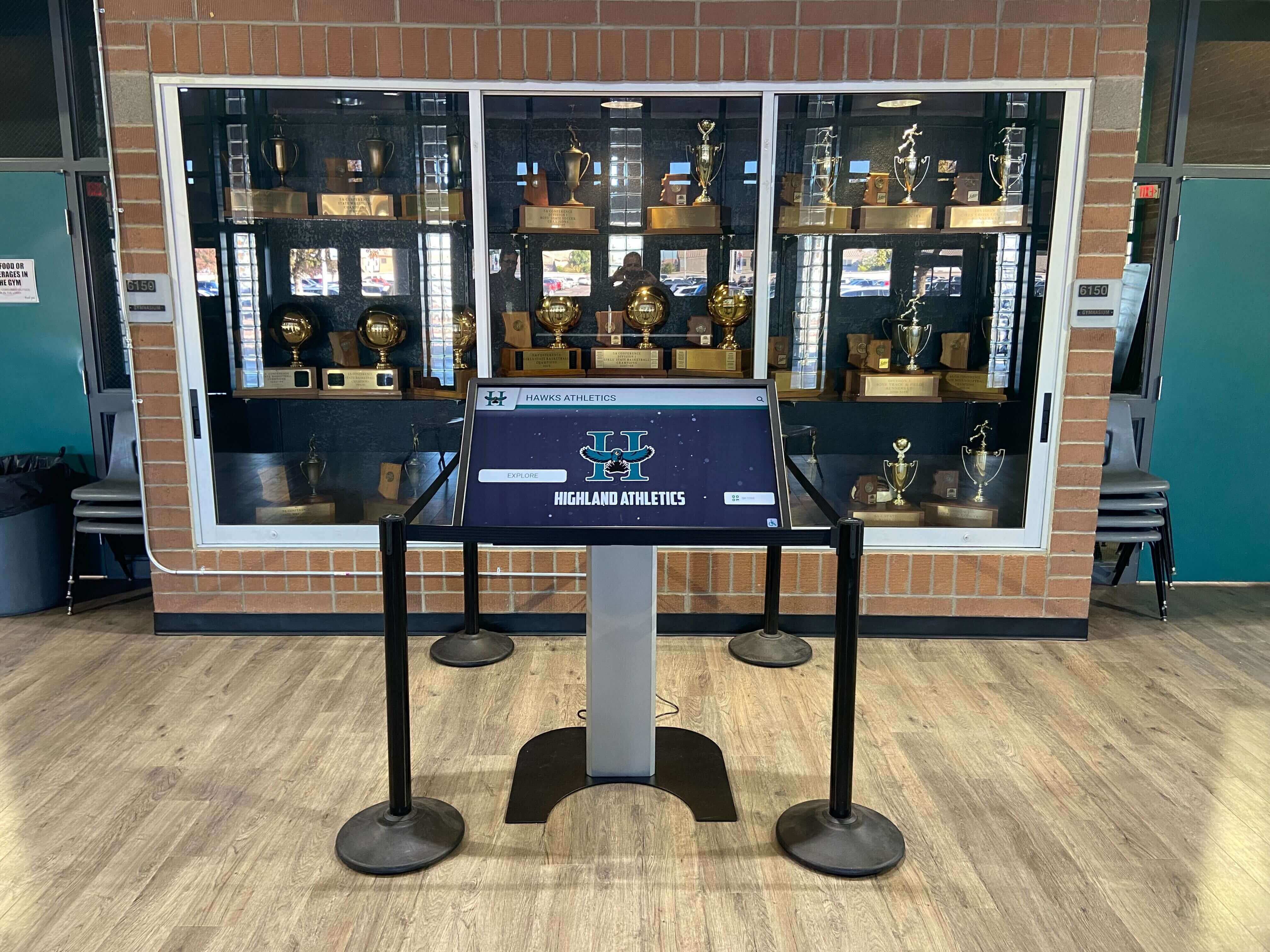
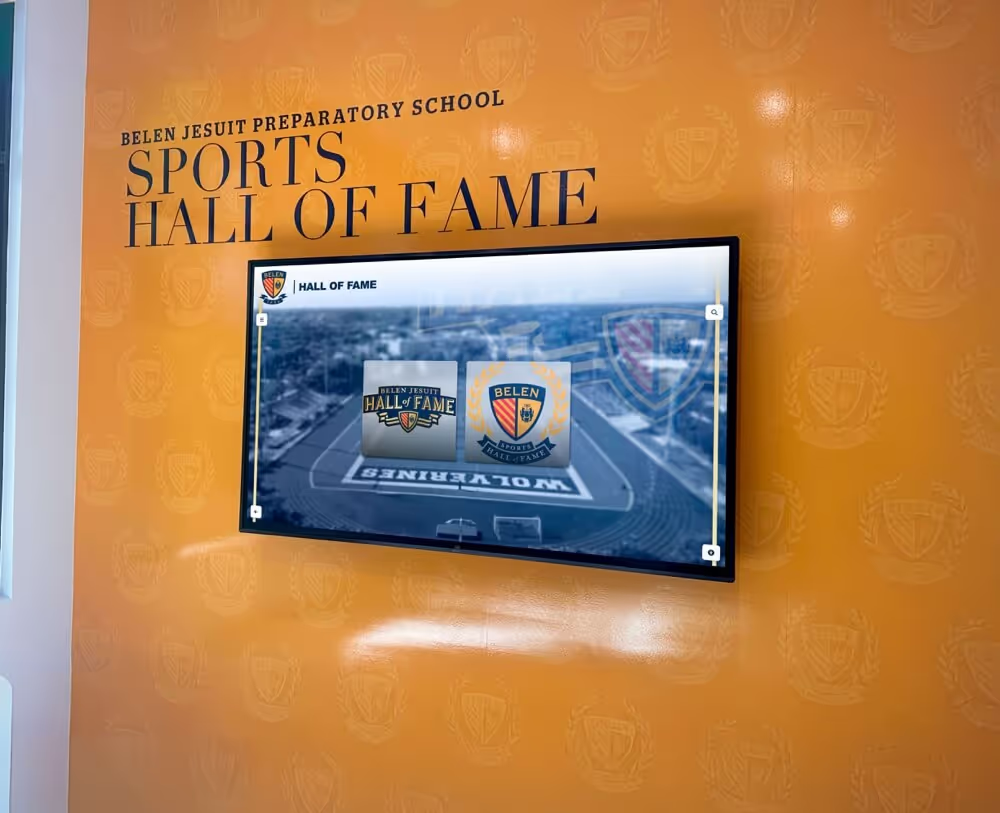
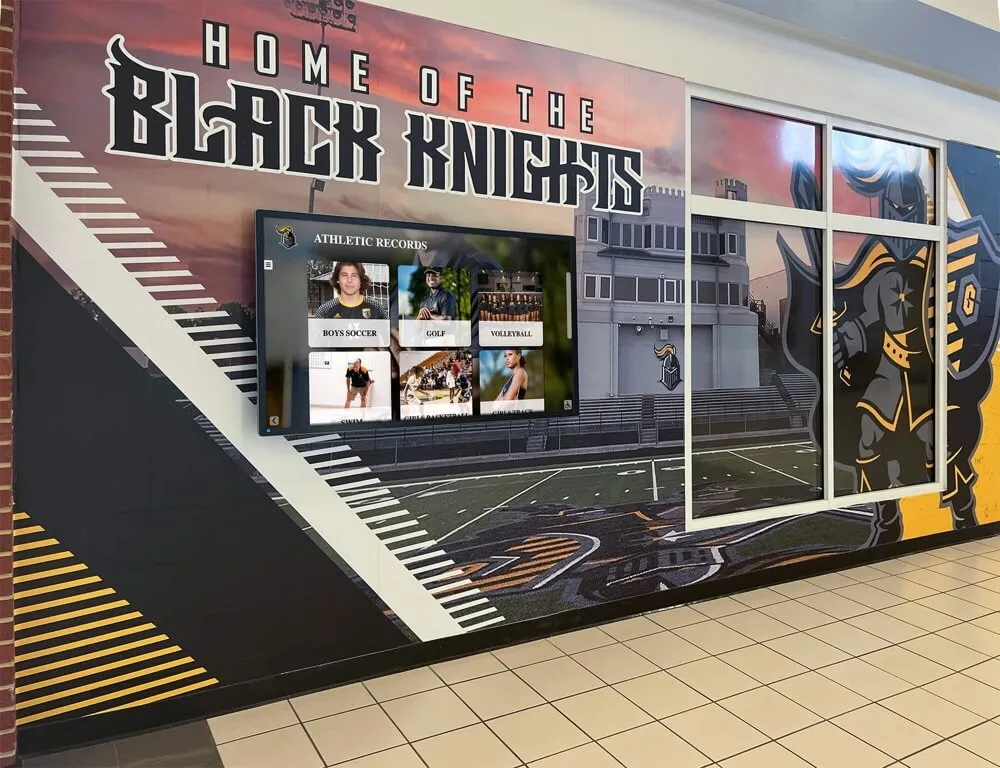
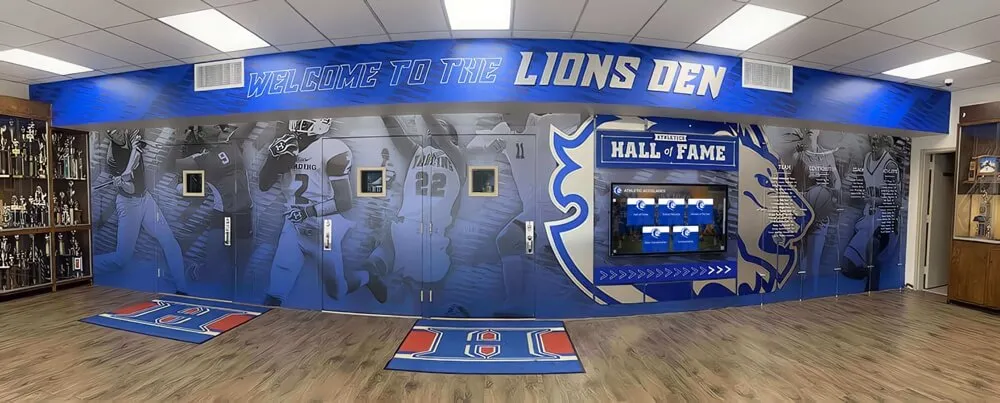
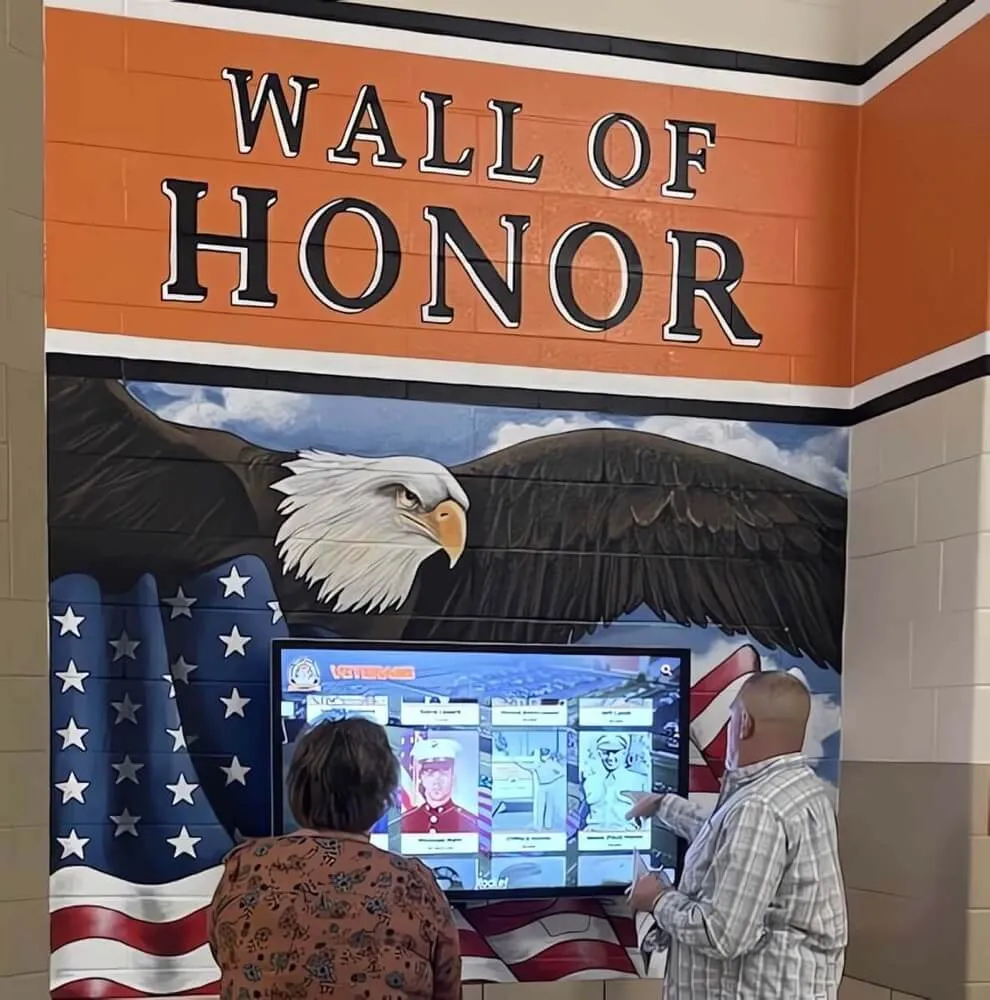
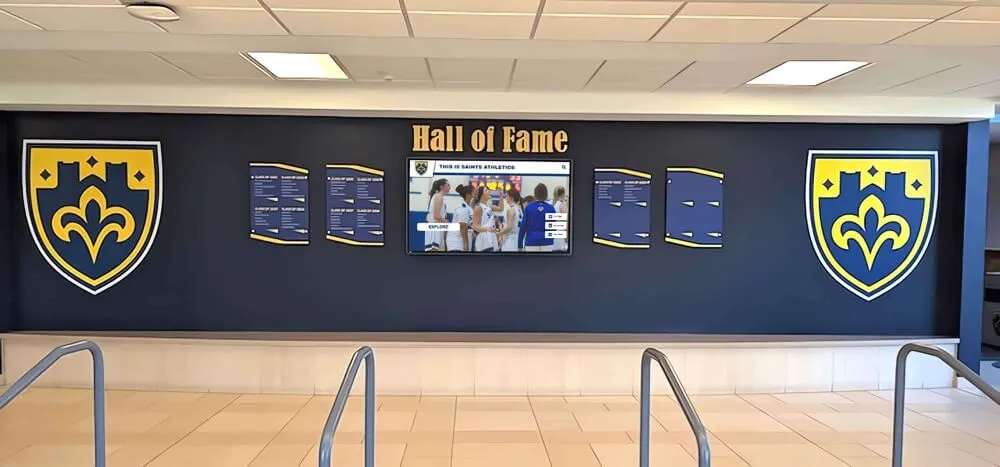
Professional touch driver configuration ensures optimal performance for interactive displays in high-traffic institutional environments
UPDD API and Development Integration
Organizations developing custom interactive applications gain significant advantages from UPDD’s programming interfaces providing direct touch data access beyond standard mouse emulation—enabling sophisticated multi-touch experiences, pressure-sensitive interfaces, and performance optimization impossible through conventional input methods.
Understanding UPDD API Capabilities
The UPDD API provides comprehensive programming interface available across Windows, macOS, Linux, and Android platforms, enabling developers to create applications with deep touch integration.
API Core Functions
Device Discovery and Management:
- Enumerate available touch devices
- Query device capabilities and specifications
- Register for device connection/disconnection notifications
- Select specific device for multi-device installations
Raw Touch Data Access:
- Retrieve touch coordinates in device-native resolution
- Access touch pressure/force data when hardware supports
- Obtain touch area/size information for finger vs. stylus differentiation
- Monitor touch state changes (down, move, up, hover)
Multi-Touch Tracking:
- Individual touch point identification and tracking
- Simultaneous multi-touch coordinate retrieval
- Touch gesture recognition events
- Custom gesture pattern definition and detection
Calibration and Coordinate Transformation:
- Access calibration data for coordinate mapping
- Transform coordinates between device and screen space
- Handle rotation and scaling transformations
- Manage multi-display coordinate systems
Configuration and Settings:
- Programmatically adjust sensitivity and filtering
- Enable/disable specific gestures or touch features
- Configure device-specific parameters
- Save and load configuration profiles
TUIO Server Integration
TUIO (Tangible User Interface Objects) represents widely-adopted protocol for communicating touch and tangible interface data, particularly popular in interactive installations, museums, educational environments, and creative applications.
What TUIO Provides
TUIO transmits touch data as Open Sound Control (OSC) messages over network connections, enabling applications to receive touch input from UPDD-managed devices without direct API integration.
TUIO Advantages:
- Framework independence—works with Processing, openFrameworks, Unity, Max/MSP, Pure Data, and numerous other creative coding platforms
- Network capability—touch data can traverse network enabling distributed installations
- Standardized messaging—applications written for TUIO work with any TUIO-compliant touch source
- Multiple object types—supports touch points, tangible markers, and other interface objects
Enabling UPDD TUIO Server:
- Open UPDD Console or Commander
- Navigate to TUIO server settings
- Enable TUIO server functionality
- Configure network port (default 3333)
- Select which touch devices send TUIO data
- Launch your TUIO-compatible application
Common Development Scenarios
Web-Based Kiosk Applications:
Many interactive kiosk installations utilize web technologies (HTML, CSS, JavaScript) for content management flexibility and ease of updates. Modern browsers support touch events natively, receiving input through UPDD’s standard mouse/pointer emulation without requiring custom API integration.
Advantages:
- Cross-platform compatibility
- Remote content updates
- Familiar development tools and frameworks
- Rich multimedia and animation capabilities
Considerations:
- Browser touch event handling varies between browsers
- May have slightly higher latency than native applications
- Requires reliable network connectivity for cloud-based content
Learn about selecting touchscreen kiosk software platforms comparing web-based vs. native application approaches for interactive displays.
Native Application Development:
Organizations requiring maximum performance, offline operation, or specialized hardware integration commonly develop native applications with direct UPDD API integration.
Use Cases:
- High-performance interactive displays requiring sub-50ms latency
- Applications needing pressure-sensitive input
- Complex multi-touch gesture recognition beyond standard patterns
- Hardware integration with sensors, RFID readers, or other peripherals
- Installations operating without network connectivity
Development Platforms:
- C/C++ for maximum performance and low-level control
- C# and .NET for Windows-focused applications
- Python with UPDD bindings for rapid prototyping
- Java for cross-platform native application deployment
Interactive Installation and Museum Exhibits:
Creative installations often utilize specialized frameworks designed for interactive art, exhibits, and immersive experiences—many supporting TUIO input enabling UPDD integration.
Popular Frameworks:
- Processing (visual design and creative coding)
- openFrameworks (C++ toolkit for creative coding)
- Unity (game engine popular for interactive exhibits)
- TouchDesigner (node-based visual programming)
- Max/MSP (audio/visual programming environment)
These platforms typically connect to UPDD through TUIO server functionality, abstracting driver details while enabling sophisticated multi-touch interactions, projection mapping, sensor integration, and generative content.
SDK Resources and Documentation
Touch-Base provides comprehensive SDK documentation, code examples, and developer resources supporting UPDD API integration.
Available Resources:
- API reference documentation detailing functions, parameters, and return values
- Sample code in multiple programming languages demonstrating common integration patterns
- Technical support for developers encountering integration challenges
- Community forums where developers share experiences and solutions
Accessing Development Resources: Visit https://www.touch-base.com/software or https://support.touch-base.com for SDK downloads, documentation, and developer support materials.
Organizations lacking in-house development expertise benefit from turnkey solutions handling technical implementation. Systems like Rocket Alumni Solutions provide complete touchscreen experiences purpose-built for recognition and engagement without requiring custom development, driver configuration, or ongoing technical maintenance.
Maintaining and Troubleshooting UPDD Installations
Reliable ongoing operation requires regular maintenance, monitoring, and systematic troubleshooting approaches addressing common issues affecting touchscreen performance in institutional environments.
Routine Maintenance Best Practices
Software Updates
Touch-Base regularly releases UPDD updates providing bug fixes, performance improvements, new hardware support, and operating system compatibility updates.
Update Frequency:
- Check for updates quarterly
- Apply updates during scheduled maintenance windows
- Test updates on non-production systems before deploying to critical installations
- Review release notes understanding changes and potential impacts
Update Process:
- Download latest UPDD version from Touch-Base portal
- Backup current configuration and calibration data
- Uninstall existing UPDD version (or run installer allowing upgrade)
- Install new version following platform-specific procedures
- Verify touch functionality and restore calibration if needed
- Test all interactive features confirming proper operation
Physical Maintenance
Display and Touch Surface Cleaning: Accumulation of fingerprints, dust, and debris affects touch sensitivity and visual quality.
- Clean displays weekly in high-traffic environments
- Use microfiber cloths with screen-appropriate cleaning solution
- Avoid harsh chemicals damaging touch coatings or anti-glare treatments
- Power off displays during cleaning preventing accidental touch registration
Connection Verification: Loose cables cause intermittent touch failures frustrating users and complicating troubleshooting.
- Inspect cable connections monthly
- Verify USB, serial, or other touch controller cables remain securely connected
- Check for cable damage from environmental factors or physical stress
- Replace questionable cables proactively preventing failures
Calibration Verification: Environmental changes, physical shocks, or component aging may affect calibration accuracy over time.
- Test calibration accuracy monthly
- Recalibrate if users report offset or inaccuracy
- Document calibration dates tracking drift patterns
- Consider environmental factors (temperature, humidity, electromagnetic interference) affecting stability
Common Issues and Troubleshooting
Touch Not Working After Installation
Symptoms: Touch device connected but no cursor response to touches.
Troubleshooting Steps:
- Verify UPDD Console recognizes touch device in device list
- Check device shows “connected” status rather than error state
- Confirm no conflicting drivers installed (check Device Manager on Windows)
- Review operating system permissions (macOS Accessibility, Linux user groups)
- Test with UPDD Console testing tools isolating driver vs. hardware issues
- Restart computer ensuring driver service initialized properly
Inaccurate Touch Response
Symptoms: Cursor appears offset from touch location, or touch works in some areas but not others.
Troubleshooting Steps:
- Perform complete UPDD calibration
- Verify display resolution and scaling unchanged since calibration
- Check for electromagnetic interference from nearby equipment
- Inspect touch surface for damage, debris, or coating degradation
- Test whether issue occurs consistently or intermittently (suggests hardware vs. configuration)
- Try different calibration precision (4-point vs. 9-point vs. 16-point)
Gestures Not Recognized
Symptoms: Multi-touch gestures fail to trigger configured actions.
Troubleshooting Steps:
- Verify touch hardware supports multi-touch (not all devices support multiple simultaneous touches)
- Check UPDD Commander gesture configuration
- Test whether operating system native gesture handling conflicts (disable Windows Ink, macOS gestures)
- Confirm application supports gesture input type (some applications ignore certain gesture events)
- Review UPDD Console logs for gesture detection events
- Reset gestures to defaults testing whether custom configuration causes issues
Poor Touch Responsiveness
Symptoms: Noticeable delay between touch and cursor response, sluggish performance.
Troubleshooting Steps:
- Monitor computer performance—high CPU or memory usage affects responsiveness
- Check UPDD polling rate settings (very high rates may overwhelm slow hardware)
- Verify network latency not affecting cloud-based applications
- Test touch response with local diagnostic applications isolating driver vs. application issues
- Review background processes consuming resources
- Update UPDD to latest version addressing performance issues
- Consider hardware upgrades if computer specifications insufficient
Device Disappears or Disconnects
Symptoms: Touch functionality stops randomly; device vanishes from UPDD Console.
Troubleshooting Steps:
- Check cable connections for physical reliability
- Test different USB ports ruling out port-specific issues
- Review operating system logs for hardware errors
- Verify adequate power supply (some touch controllers draw significant USB power)
- Test whether environmental factors (temperature, electromagnetic interference) correlate with failures
- Replace cables and, if issues persist, consider hardware replacement
Discover comprehensive troubleshooting resources for maintaining interactive touchscreen displays including preventive maintenance strategies for institutional installations.
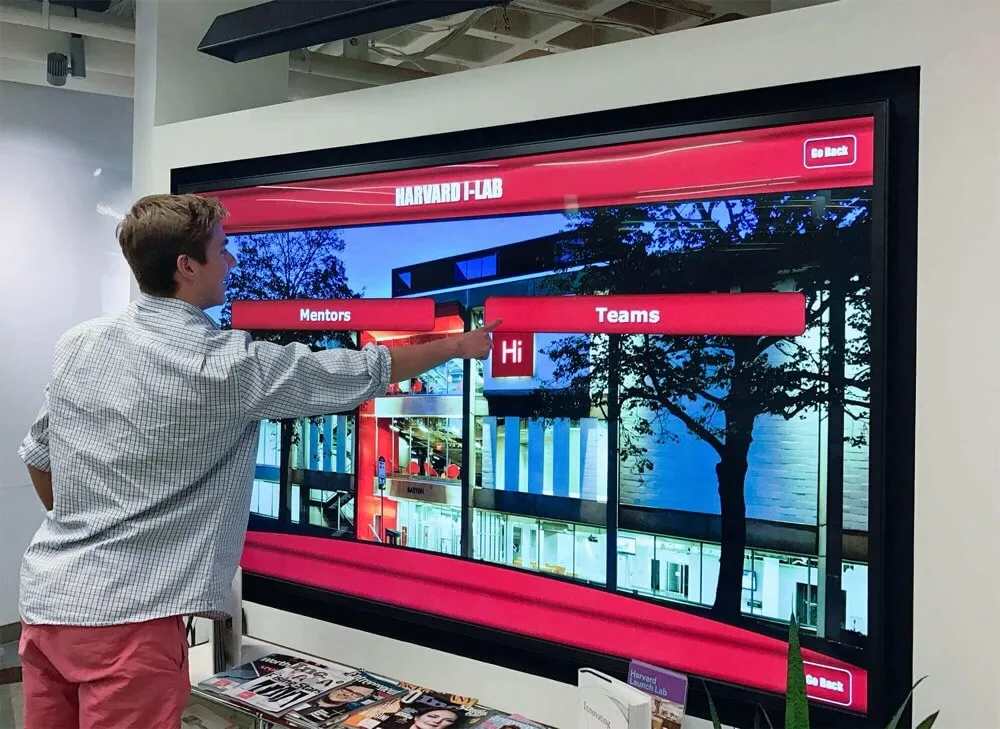
Regular maintenance and proper troubleshooting procedures ensure interactive displays deliver reliable performance throughout their operational lifetime
When to Use UPDD vs. Alternative Approaches
Understanding when dedicated touch driver software like UPDD provides genuine value versus scenarios where simpler approaches suffice helps organizations make cost-effective technology decisions aligned with their actual requirements.
Scenarios Where UPDD Excels
Legacy Hardware Support
Organizations possessing functional older touchscreens lacking modern OS support should strongly consider UPDD:
- Serial touch controllers from older installations
- Non-HID USB devices predating standardized touch protocols
- Touch hardware incompatible with current operating systems
- Specialty touch technologies (resistive, SAW, optical) needing dedicated drivers
Advanced Configuration Requirements
Installations needing capabilities beyond standard OS touch support benefit from UPDD:
- Precise multi-point calibration for critical applications
- Custom gesture mapping to specific application functions
- Multi-display touch coordination with device-to-screen mapping
- Touch behavior customization (sensitivity, filtering, response characteristics)
- Development applications requiring direct touch data access
Cross-Platform Deployments
Organizations managing diverse computing environments gain consistency advantages:
- Unified touch driver across Windows, Mac, Linux, and Android
- Consistent configuration and management tools across platforms
- Single vendor relationship simplifying support and licensing
- Portable calibration and configuration knowledge across operating systems
Specialized Interactive Applications
Custom development projects requiring sophisticated touch integration benefit from UPDD API:
- Applications needing pressure-sensitive input beyond standard touch events
- Multi-touch tracking with individual touch point identification
- TUIO integration for creative coding frameworks
- Direct coordinate access for performance-critical applications
- Custom gesture recognition beyond standard OS patterns
When Native OS Touch Support Suffices
Modern operating systems provide capable native touch support adequate for many interactive applications—understanding when native capabilities meet requirements saves deployment complexity and licensing costs.
Modern HID-Compliant Touchscreens
Contemporary touchscreens using standard USB HID protocols work automatically with current operating systems without additional drivers:
- Windows 10/11 include comprehensive touch and multi-touch support
- macOS supports modern touchscreens with native gesture handling
- Linux distributions increasingly include capable touch support
If your hardware works properly with native drivers, adding UPDD introduces unnecessary complexity unless you need advanced configuration features.
Simple Kiosk Applications
Basic interactive kiosks running web-based content or simple applications rarely require dedicated touch drivers:
- Modern browsers fully support touch events
- Standard tap, swipe, and pinch gestures work through native support
- Content management systems handle touch input through browser capabilities
- Calibration typically adequate through OS-provided tools
Consumer Display Environments
Installations in controlled environments using contemporary commercial touchscreens generally achieve good results with native support:
- Proper mounting and installation minimizing calibration requirements
- Standard touch interactions matching OS native gesture handling
- Recent hardware designed for native OS compatibility
- Simplified management avoiding third-party driver software
Comparing UPDD to Purpose-Built Solutions
Organizations deploying interactive recognition displays, digital halls of fame, or donor recognition systems face decision between universal drivers like UPDD versus integrated platforms handling driver complexity automatically.
Purpose-Built Platform Advantages
Solutions like Rocket Alumni Solutions provide complete touchscreen experiences without requiring administrators to manage drivers, calibration, or low-level configuration:
Simplified Deployment:
- Web-based applications working through browser on any OS
- No driver installation or configuration required
- Automatic adaptation to various touch hardware
- Cloud-based content management accessible from any device
Reduced Technical Burden:
- No calibration maintenance by institution
- Automatic updates without local IT intervention
- Professional support understanding educational/institutional contexts
- Proven reliability across hundreds of installations
Optimized User Experience:
- Interface designed specifically for recognition and engagement
- Touch interactions tested and refined across diverse user populations
- Responsive performance engineered for interactive displays
- Integrated analytics measuring engagement without technical expertise
Total Cost Considerations:
- No UPDD licensing fees
- Minimal IT time investment
- Reduced troubleshooting and support burden
- Predictable subscription pricing vs. perpetual license management
Learn about comprehensive touchscreen software selection criteria comparing driver-based vs. integrated platform approaches for institutional interactive displays.
When Universal Drivers Remain Appropriate
UPDD and similar universal drivers serve essential roles in specific scenarios:
- Custom application development requiring low-level touch access
- Legacy hardware lacking modern alternatives
- Specialized use cases needing precise configuration control
- Development environments requiring flexibility exceeding purpose-built platforms
- Organizations with sophisticated IT capabilities managing driver complexity
The decision ultimately balances technical requirements, available expertise, and total cost of ownership—simpler solutions often prove more effective when they meet functional requirements.
Conclusion: Leveraging UPDD for Reliable Touchscreen Experiences
Universal touch driver software like UPDD from Touch-Base fills critical gaps between touchscreen hardware capabilities and operating system support—enabling organizations to utilize legacy equipment, access advanced configuration options, support specialty hardware, and develop custom interactive applications requiring direct touch data access beyond standard input methods.
For institutions deploying interactive kiosks, digital recognition displays, educational exhibits, or other touchscreen applications, understanding when UPDD provides genuine value versus scenarios where simpler approaches suffice ensures technology decisions align with actual requirements rather than adding unnecessary complexity to interactive installations.
Deploy Professional Interactive Displays Without Driver Complexity
Discover how purpose-built touchscreen recognition platforms deliver reliable interactive experiences across diverse hardware while eliminating driver configuration, calibration maintenance, and troubleshooting burden for your IT team.
Explore Turnkey SolutionsThe comprehensive guidance explored in this article provides frameworks for successful UPDD deployment—from understanding when universal drivers prove necessary through proper installation across operating systems, accurate calibration procedures ensuring responsive touch, gesture configuration enabling intuitive interaction, multi-display coordination for complex installations, API integration for custom development, and ongoing maintenance ensuring reliable long-term operation.
Whether your organization needs to extend the life of existing touchscreen hardware through proper driver support, requires advanced configuration capabilities exceeding native OS touch features, develops custom interactive applications demanding direct touch data access, or seeks to understand the complete touchscreen software landscape informing strategic technology decisions, the principles and procedures detailed here establish foundation for effective touch driver implementation.
Key takeaways for organizations considering UPDD include the critical importance of proper calibration affecting user experience quality, gesture configuration matching user expectations established by consumer touch devices, regular maintenance preventing common issues before they affect users, and realistic assessment of whether universal driver complexity provides benefits justifying deployment effort versus simpler alternatives.
For schools, museums, universities, and organizations implementing recognition displays specifically, purpose-built platforms like Rocket Alumni Solutions abstract driver complexities while delivering optimized touchscreen experiences—enabling institutions to focus on content and engagement rather than technical configuration management.
Your interactive installations deserve reliable, responsive touch experiences delivering on the promise of engaging user interaction. Whether through careful UPDD configuration matching your specific technical requirements or turnkey solutions eliminating low-level complexity entirely, prioritizing proven approaches to touch software ensures your investment achieves intended engagement objectives rather than creating technical challenges overshadowing content value.
Ready to implement reliable touchscreen experiences without driver configuration complexity? Professional interactive recognition platforms provide the technical foundation, content management capabilities, and ongoing support ensuring your displays deliver engaging experiences achieving institutional objectives for years to come.