



A touchscreen recognition display screen response-time test measures whether a display panel transitions between images quickly enough to show athlete highlight reels, scrolling recognition feeds, and portrait gallery animations without visible ghosting or blurring—and whether the touch layer registers visitor inputs within a timeframe that feels immediate. These are two distinct measurements that are often confused with each other, and both matter for a display serving a school hall of fame, athletic archive, or recognition program.
This guide is written for school athletic directors, IT coordinators, facilities managers, and booster or alumni program leaders responsible for accepting a recognition display before it is mounted in a lobby, athletic corridor, or hall of fame room. It covers exactly what panel response time and touch input latency mean, why both affect recognition-specific content, and how to run a structured series of visual checks and interaction tests in under 30 minutes before the installation crew finishes their work.
Run this test before the display is mounted. A display rejected from a delivery cart is far easier to return than one rejected from a wall.
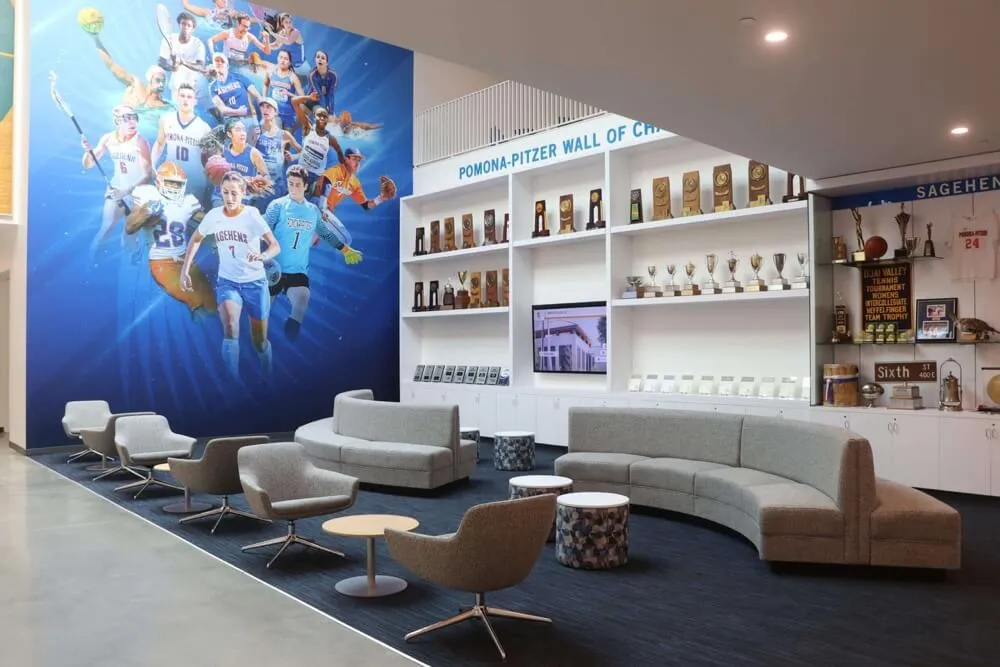
A recognition display in a school lobby or athletic corridor is expected to perform during the highest-stakes moments on a school calendar—induction ceremonies, senior nights, alumni weekends, and pregame lobby gatherings where families, donors, and community members form a lasting impression of the school’s recognition program. Motion artifacts or sluggish touch response during those moments undermine the content the display was purchased to show.

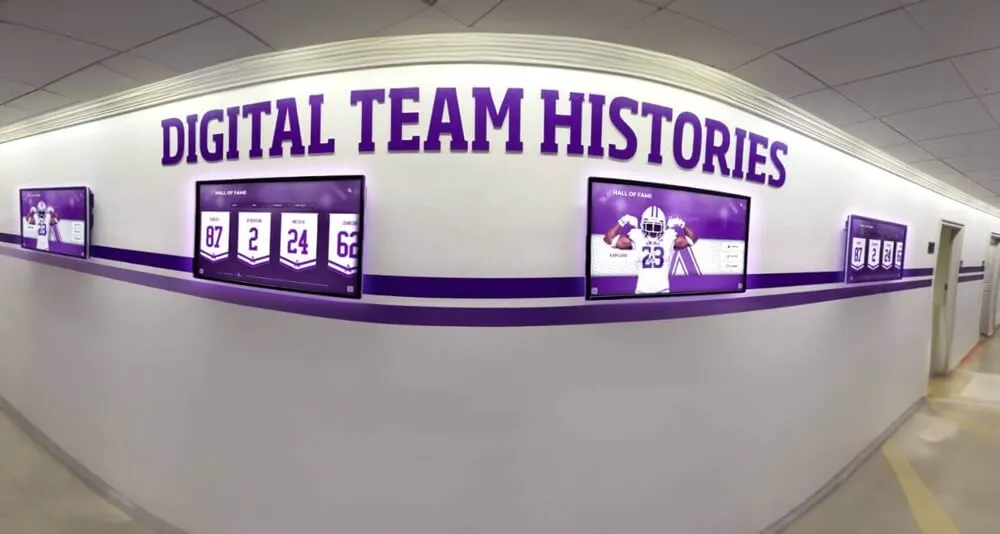
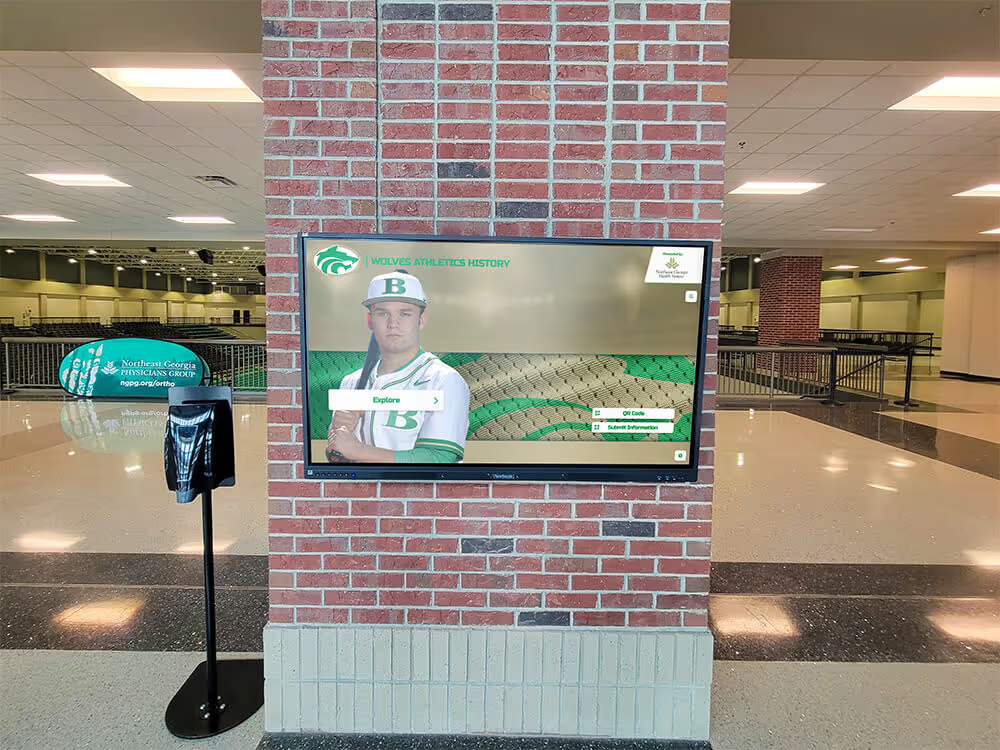
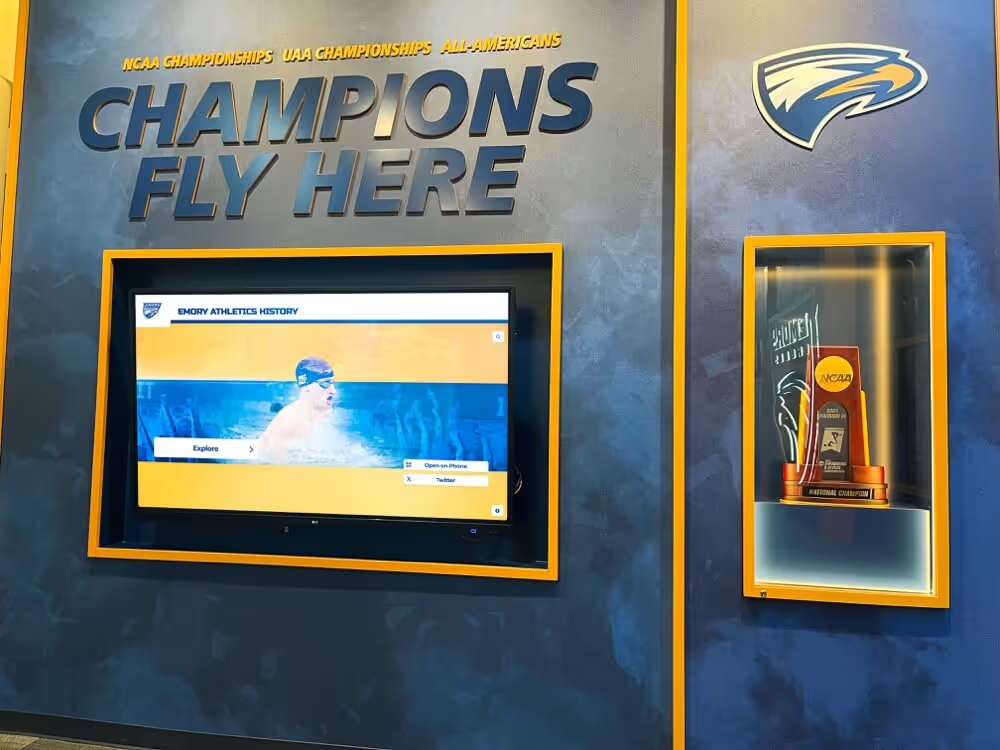
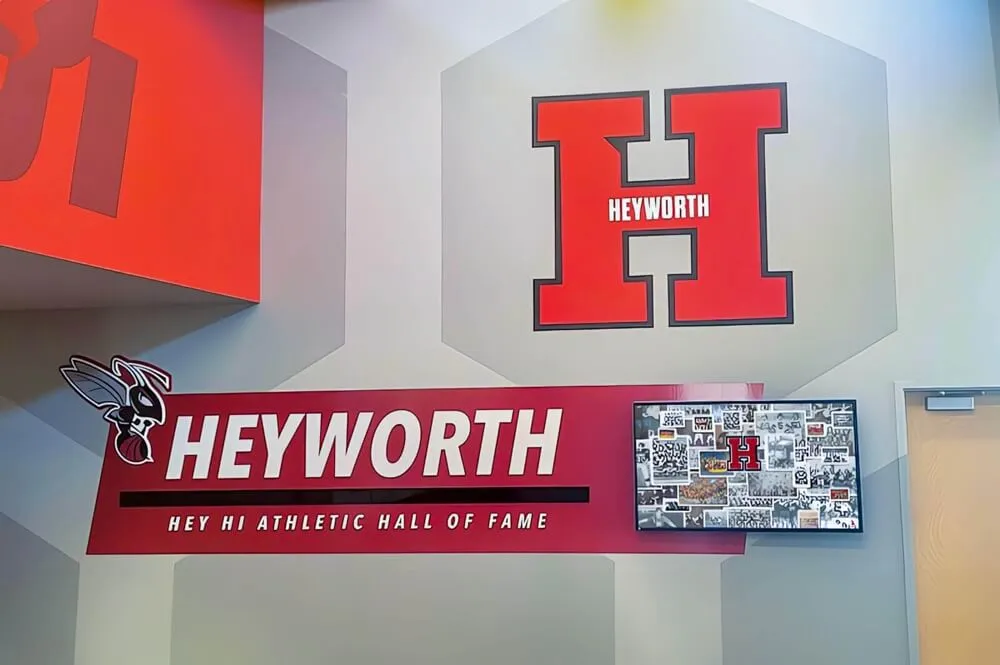
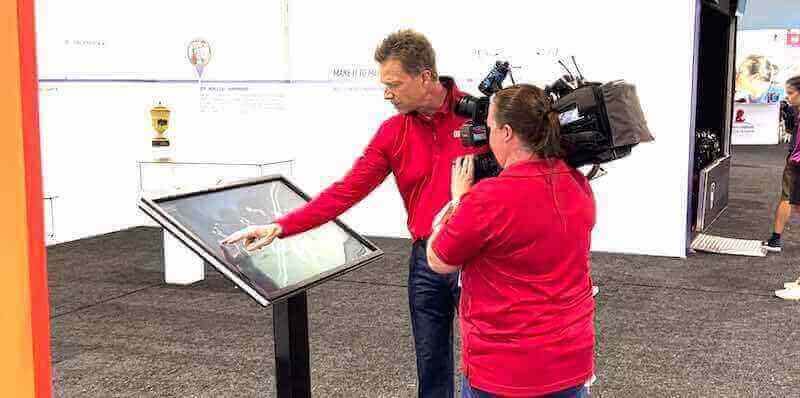
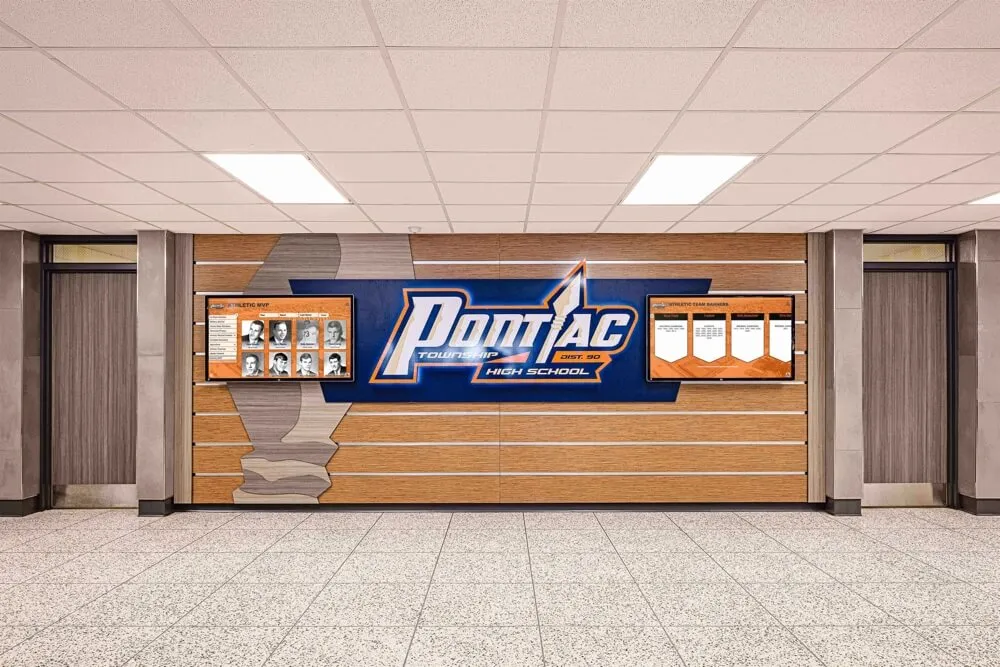
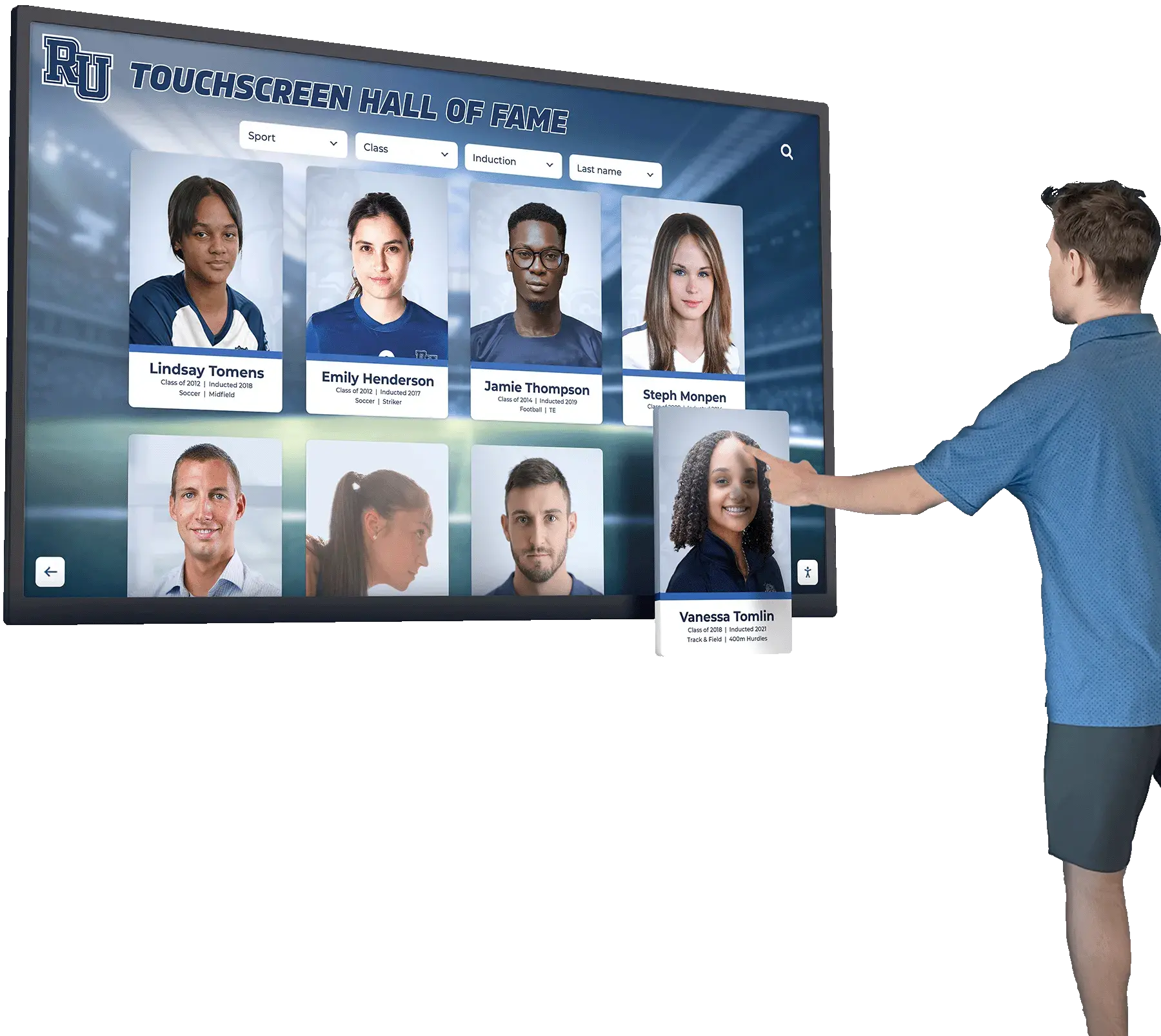
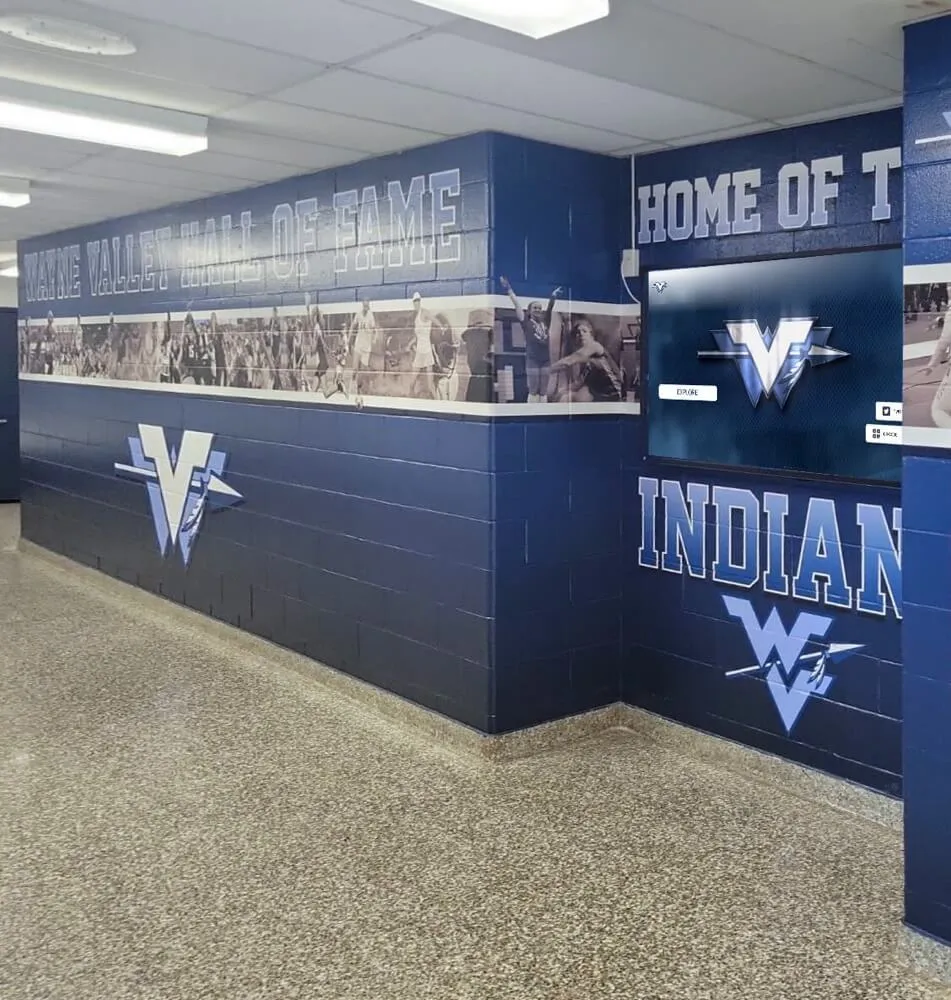
Touch interactions on recognition displays happen at arm's length during live events—sluggish response or touch registration lag is immediately apparent to visitors browsing athlete profiles or hall of fame archives
Panel Response Time and Touch Input Latency: Two Different Measurements
Before running any test, it helps to be clear on what is being measured. School buyers frequently ask about “response time” as if it is a single number, but a recognition display involves two distinct latency measurements that affect the visitor experience in different ways.
Panel response time is how quickly an individual pixel can transition from one color or brightness level to another. It is measured in milliseconds (ms) and is specified by the display manufacturer. A panel with a 5 ms response time transitions pixels faster than one rated at 25 ms. Fast pixel transitions prevent ghosting—the faint trail of a previous image visible behind moving content—during video playback, scrolling text, and animated transitions.
Touch input latency is the time between a visitor placing a finger on the touch surface and the software on the display registering and responding to that input. Touch latency is influenced by the touch controller hardware, the USB or serial connection between the touch overlay and the host computer, the operating system’s input handling, and the recognition platform’s own event loop. A display can have excellent panel response time and still deliver a frustrating touch experience if touch latency is high.
For a school recognition display, both numbers matter:
- Poor panel response time shows up during scrolling athlete feeds, animated induction sequences, and video highlights—content that is central to recognition platforms.
- High touch latency shows up whenever a visitor taps a name, swipes through a gallery, or navigates a category menu—which is every interaction the display was built to support.
Latency Comparison: What Different Response-Time Levels Mean for Recognition Content
| Response Time Range | Effect on Recognition Content |
|---|---|
| Under 5 ms (panel) | No visible ghosting on any content type, including fast sports video |
| 5–10 ms (panel) | Minimal ghosting; only noticeable on very fast-motion video |
| 10–20 ms (panel) | Mild ghosting on scrolling name feeds and fast video transitions |
| Over 25 ms (panel) | Visible motion blur on scrolling honor roll lists and highlight reels |
| Under 50 ms (touch latency) | Feels immediate to the visitor; no perceived delay on any tap |
| 50–100 ms (touch latency) | Acceptable; a slight delay may be perceptible on fast sequential taps |
| 100–150 ms (touch latency) | Noticeable lag; visitors may tap a second time assuming the first was missed |
| Over 150 ms (touch latency) | Frustrating; visitors commonly interpret the display as broken or frozen |
Most commercial-grade touchscreen displays supplied for recognition applications target panel response times under 10 ms and touch latency under 100 ms. Use the table above to interpret the results of the visual tests in this guide.
Why Motion and Interaction Clarity Matter for Recognition Display Content
Recognition platforms serve content that spans a wide range of motion demands. A static portrait profile of a hall of fame inductee makes no demands on panel response time. An animated season highlight reel, a scrolling leader board, or an auto-advancing gallery of graduating seniors places high demands on panel response time—and all of those content types appear in standard recognition software deployments.
Schools that have upgraded from traditional trophy cases and static plaques to interactive digital displays—a comparison explored in depth in the digital hall of fame display vs. traditional trophy case guide—make that transition specifically to gain the ability to present animated and interactive content. A display with poor panel response time undermines the core value proposition of that upgrade.
Touch interaction clarity matters for a different reason. A recognition display in a school lobby is typically used by visitors who are not regular users of that specific software interface: parents attending a game, alumni returning for a reunion, prospective families on a campus tour. These visitors are not willing to troubleshoot a slow screen. If a tap on an athlete name does not respond within approximately half a second, the typical visitor interprets the display as broken rather than slow. In a lobby full of people waiting to enter a gymnasium, a display that appears broken is worse than no display at all.
Schools planning recognition programs that include academic recognition alongside athletic achievement often deploy displays in high-traffic hallways where brief, spontaneous interactions are the norm. In those contexts, sub-100 ms touch response is not a premium specification—it is the minimum standard for the display to serve its purpose.
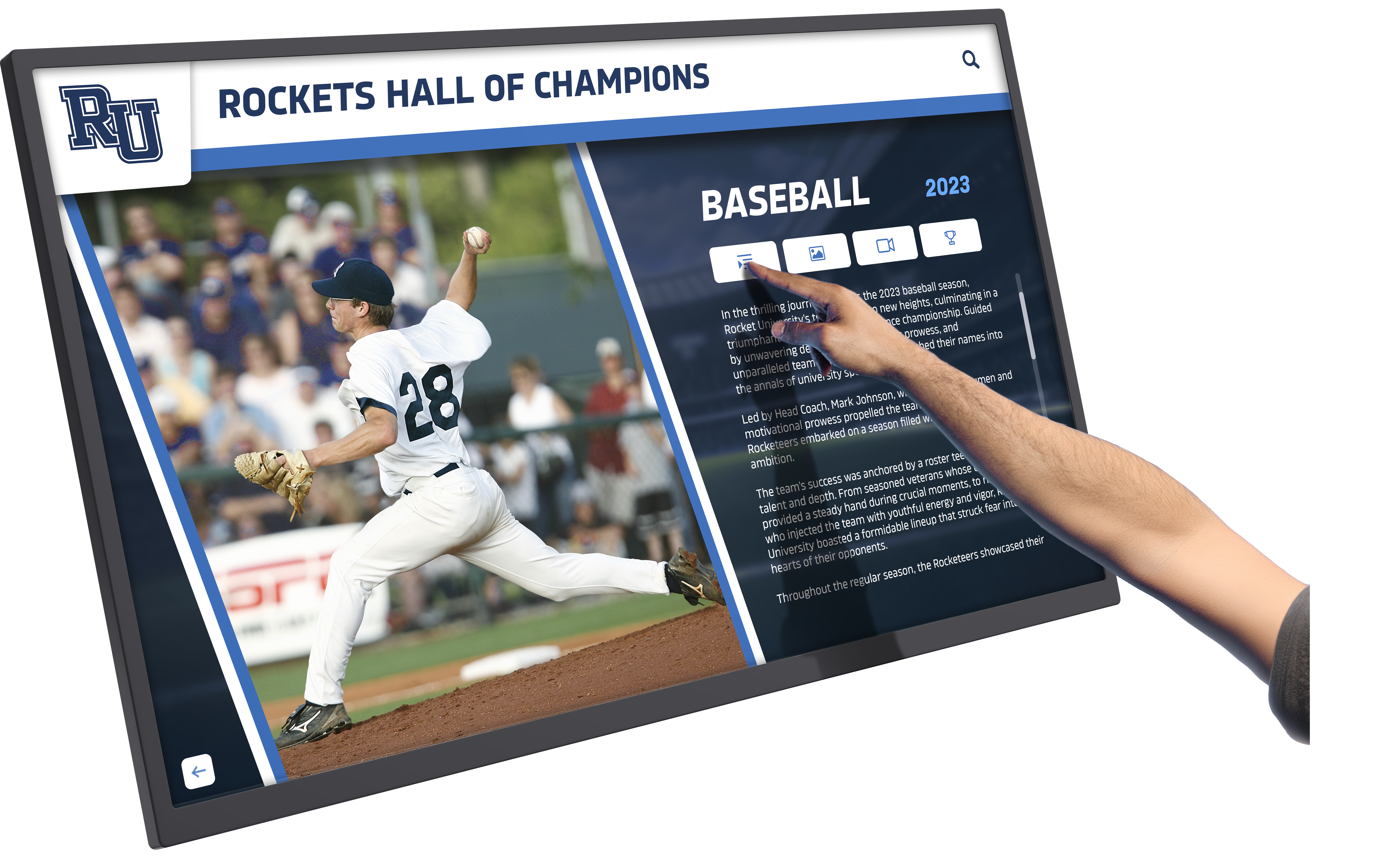
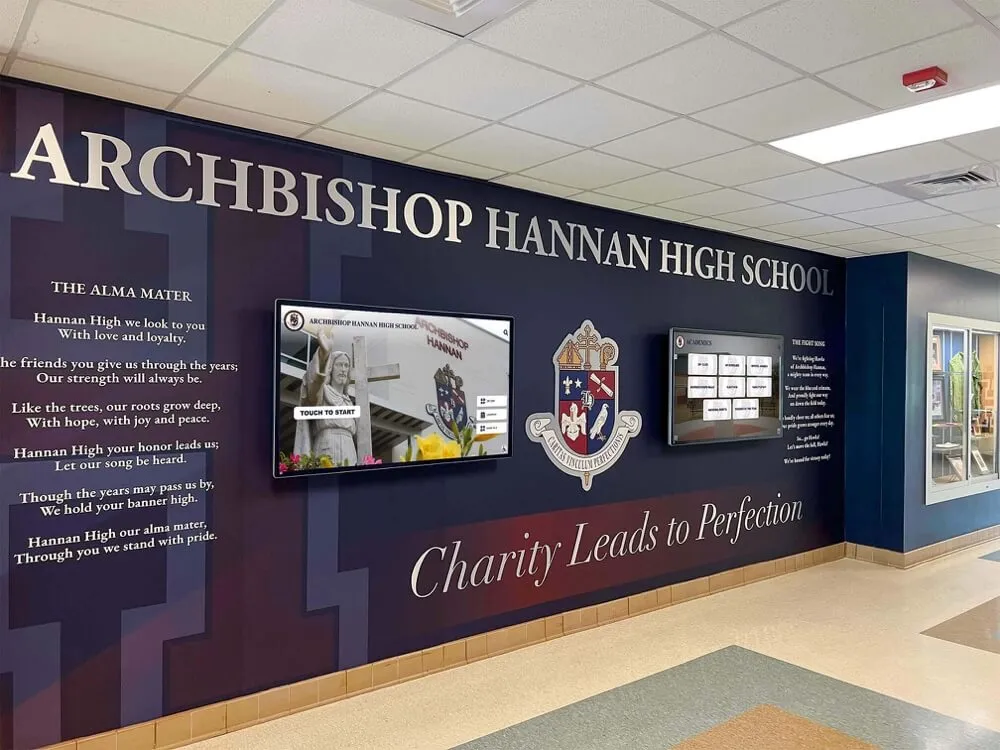
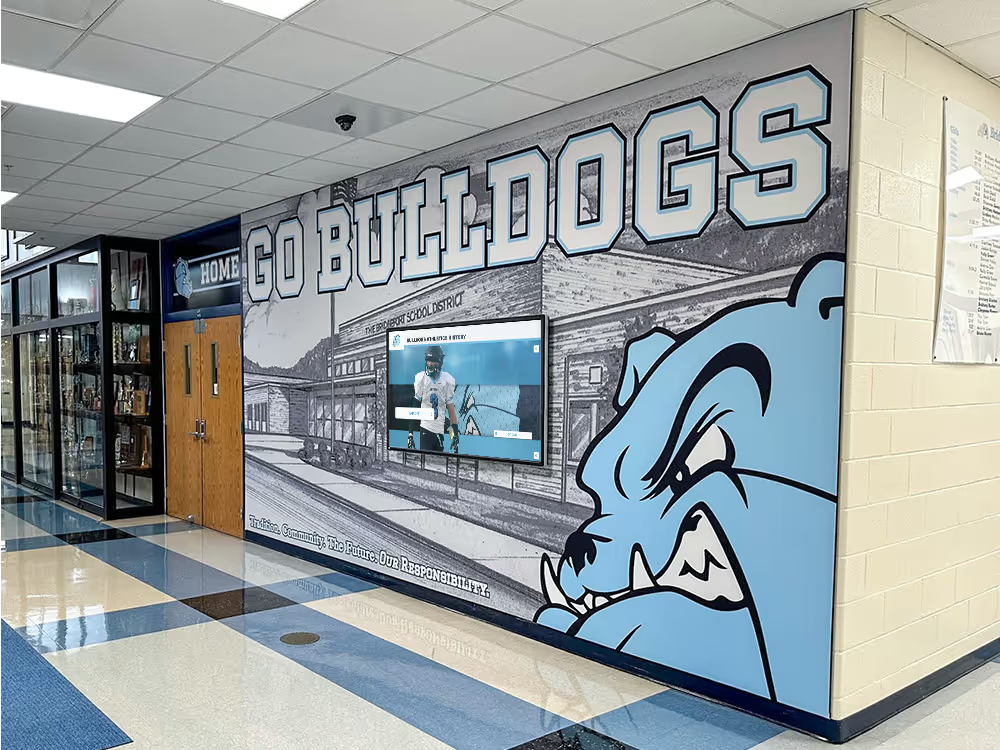
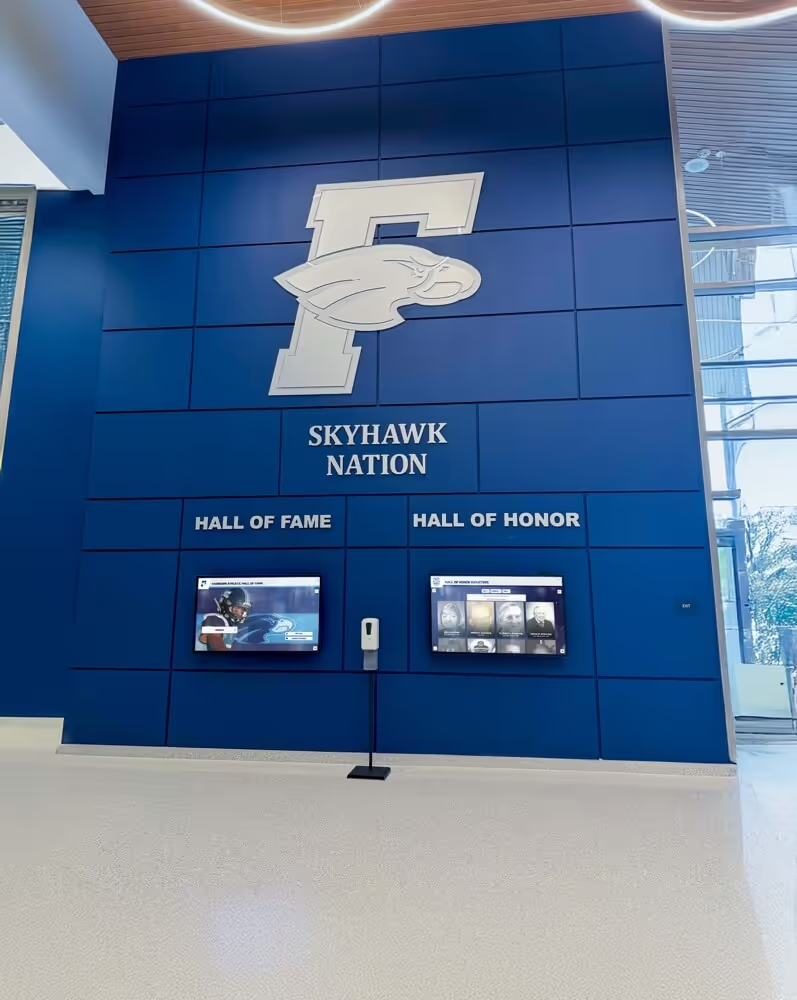
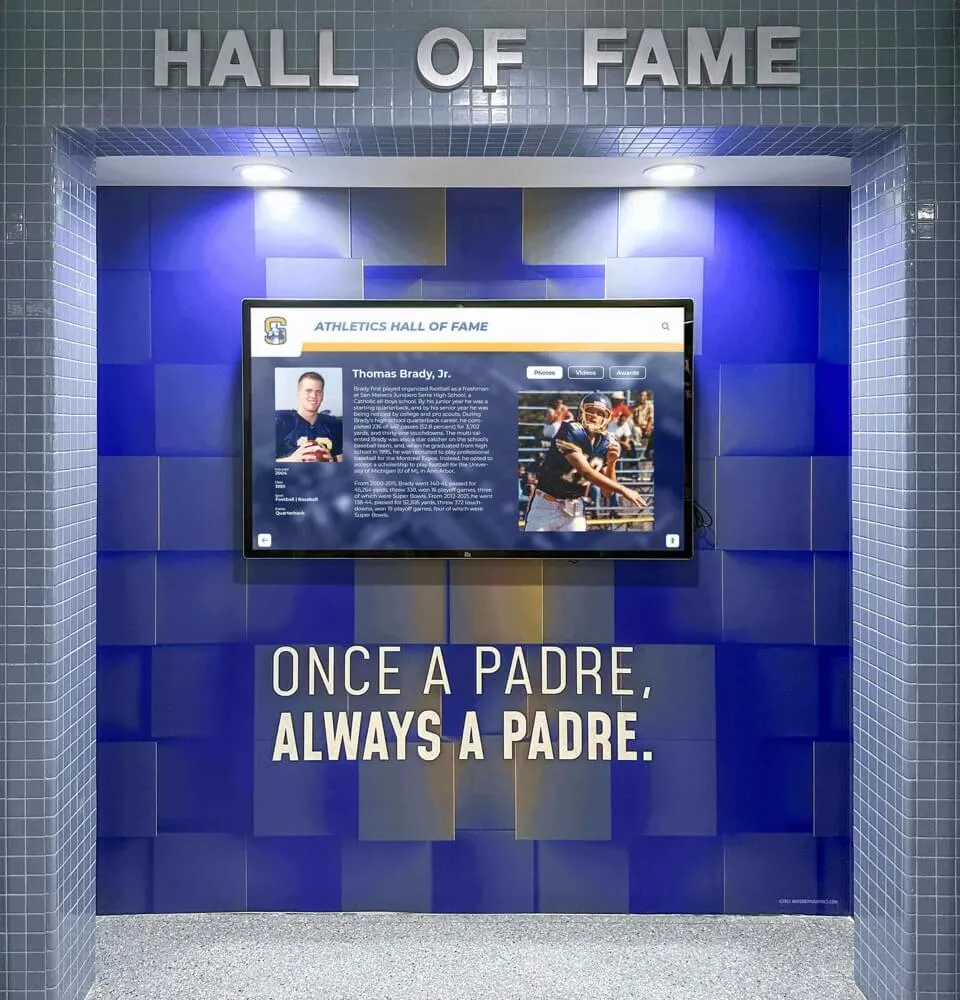
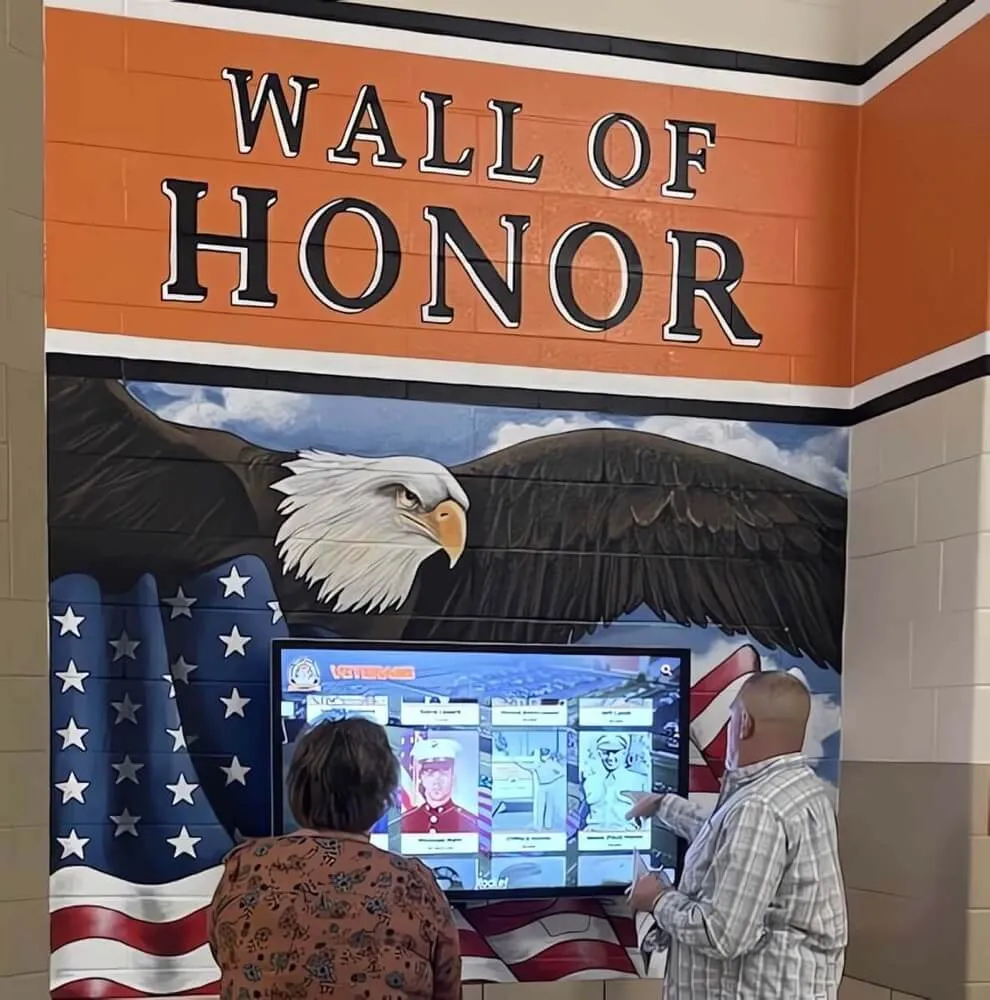
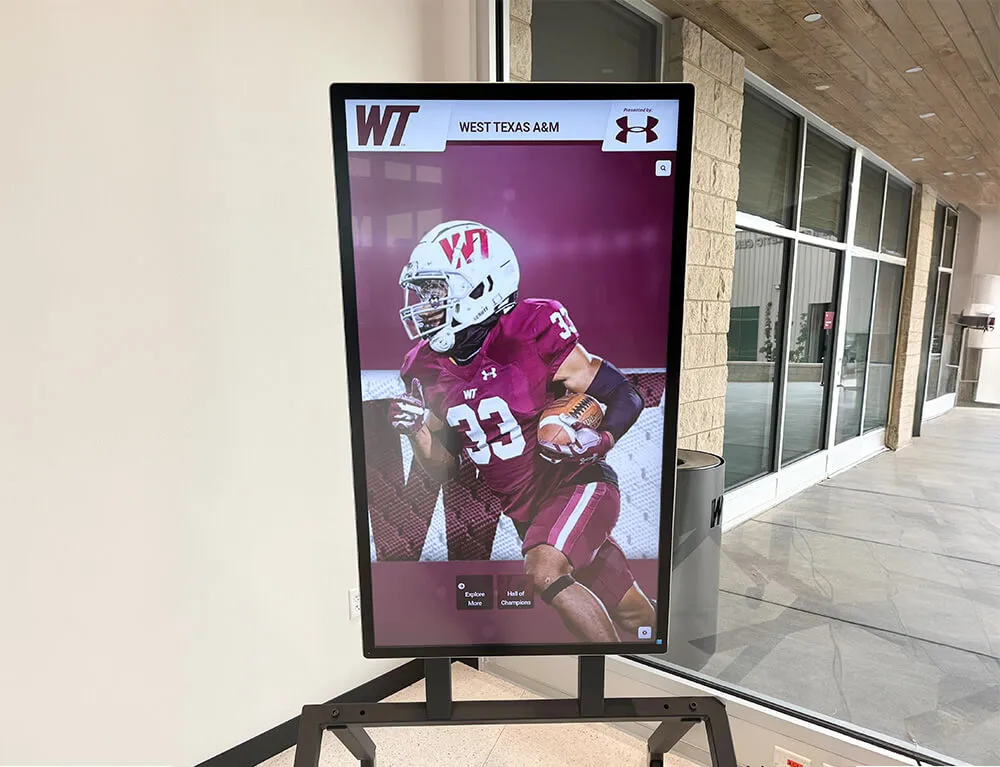
Recognition displays in athletic corridors and lobby areas are used by visitors who expect immediate response—touch latency above 150 ms registers as a system failure rather than a specification variation
Before You Start: Setup Requirements
The response-time test requires a connected source device and specific test content. Prepare the following before beginning:
Equipment and materials:
- The display powered on and connected to a laptop or desktop computer via HDMI or DisplayPort
- A web browser or media player on the source device capable of displaying full-screen video and scrolling text content
- A test video or animation containing scrolling text and fast horizontal or vertical motion (a locally saved test pattern works; avoid streaming services that add buffering latency separate from the display)
- The recognition platform software loaded on the source device, or a demo environment if the platform is not yet configured for this installation
- A smartphone with slow-motion video capability enabled, for documenting any ghosting that the eye perceives but that still photography does not capture accurately
- A printed or on-screen copy of the pass/fail table in this guide for field reference
Display settings before testing:
- Set display brightness to the level it will operate at in the installed location—not maximum, unless the installation environment demands it
- Confirm the display is using the correct input source and that no display firmware screensaver or timeout will activate during the test sequence
- Allow the display to warm up for 10 minutes at operating brightness before evaluating motion performance; a cold panel may show different results than one at operating temperature
The Response-Time Test: Step-by-Step Visual Acceptance Procedure
Step 1: Scrolling Text Motion Test
Display a horizontally or vertically scrolling feed of athlete names, honor roll text, or numbers at a moderate scroll speed—roughly equivalent to the auto-scroll setting the recognition platform uses in normal operation. Stand 4 to 6 feet from the display.
What to look for: Each character in the scrolling text should have a clean, sharp edge. If characters show a faint trailing copy offset in the direction of motion—commonly called ghosting or motion blur—the panel response time is affecting text readability. A trail that disappears within one character width is borderline acceptable. A trail extending more than one character width is a failure for any recognition application presenting scrolling name feeds or achievement lists.
Record the result: Pass (clean edges), Marginal (short trail within one character width), or Fail (visible ghost extending beyond one character width).
Step 2: Video Transition Test
Play a brief video clip containing fast horizontal action—a running athlete, a ball in motion, or a quick camera pan. Display it full-screen, at operating brightness. Stand 4 to 6 feet from the display.
What to look for: Moving subjects at the edges of their motion path should appear defined rather than smeared across the direction of travel. Some softness during very fast action is within normal limits for commercial displays not rated for gaming or broadcast applications. Persistent smearing that makes it impossible to distinguish individual subjects at moderate action speeds is a failure for a display intended to show athletic recognition video content.
Record the result: Pass (clean subjects at moderate action speed), Marginal (slight smear at high speed only), or Fail (persistent smear at moderate action speeds).
Step 3: Screen Transition Clarity Test
Navigate between two visually distinct screens in the recognition platform—for example, from an athlete profile page with a dark background to a category menu with a lighter background, or vice versa. Perform the transition as an abrupt navigation rather than relying on a slow-fade animation setting.
What to look for: After the transition completes, the destination screen should be fully rendered with accurate colors and no residual image of the previous screen visible. If a faint ghost of the previous screen persists for more than one to two seconds after the transition, the panel response time is producing a visible carry-over artifact in the content type this display was purchased to show.
Record the result: Pass (clean transition, no residual image), Marginal (brief faint residual lasting under one second), or Fail (persistent residual image lasting over one second).
Step 4: Touch Registration Speed Test
With the recognition platform loaded in normal operation, tap a series of interactive elements—individual athlete name cards, navigation buttons, category filters—in deliberate but quick succession. Tap each element once and observe whether the display registers and responds before your next tap.
What to look for: Each tap should produce a visible response—highlight, selection animation, or page change—within approximately half a second of the tap. A display that requires waiting for the previous response to complete before registering the next tap is exhibiting high touch latency. A display that registers taps but delays the visual response by more than one second warrants investigation of both the touch controller and the host computer software configuration.
Record the result: Pass (response within 0.5 seconds), Marginal (response within one second), or Fail (response requires over one second or misses taps).
Step 5: Multi-Touch and Swipe Interaction Test
Using two fingers, attempt a pinch gesture if the recognition platform supports it, or perform two simultaneous taps in different areas of the screen to test whether the touch controller registers concurrent inputs. Follow with a deliberate swipe gesture across a gallery or profile list.
What to look for: Multi-touch inputs should register without one input canceling the other. Swipe gestures should produce proportional, smooth scrolling that matches the speed of the gesture rather than lurching or skipping content sections.
Record the result: Pass (multi-touch and swipe respond correctly), Marginal (minor jitter in swipe response), or Fail (multi-touch inputs fail to register or swipe produces skipping).
Pass/Fail Acceptance Table
| Test | Pass Criteria | Marginal | Fail Criteria |
|---|---|---|---|
| Scrolling text motion | Clean character edges; no visible ghost trail | Short ghost trail within one character width | Ghost trail extending beyond one character width |
| Video transition | Clean subjects at moderate action speeds | Slight smear at high speed only | Persistent smear at moderate action speeds |
| Screen transition | No residual image after transition completes | Brief faint residual lasting under one second | Persistent residual image lasting over one second |
| Touch registration speed | Response within 0.5 seconds | Response within one second | Response requires over one second or misses taps |
| Multi-touch and swipe | All gestures register and respond correctly | Minor jitter in swipe response | Multi-touch fails to register or swipe skips content |
A display with any Fail result should be documented and returned to the vendor before mounting. A display with multiple Marginal results should be discussed with the vendor to confirm whether the results fall within the specification of the panel type supplied.
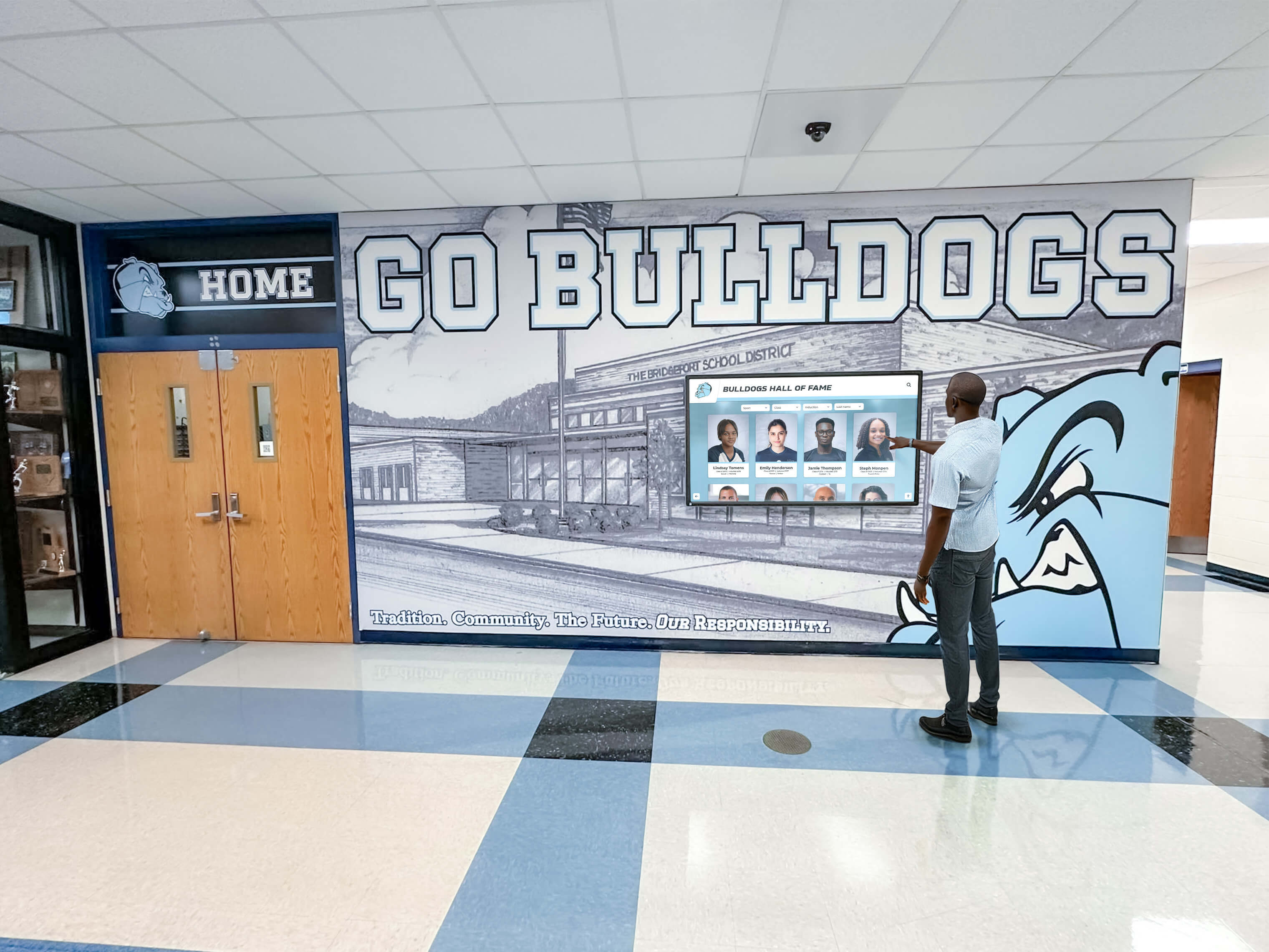
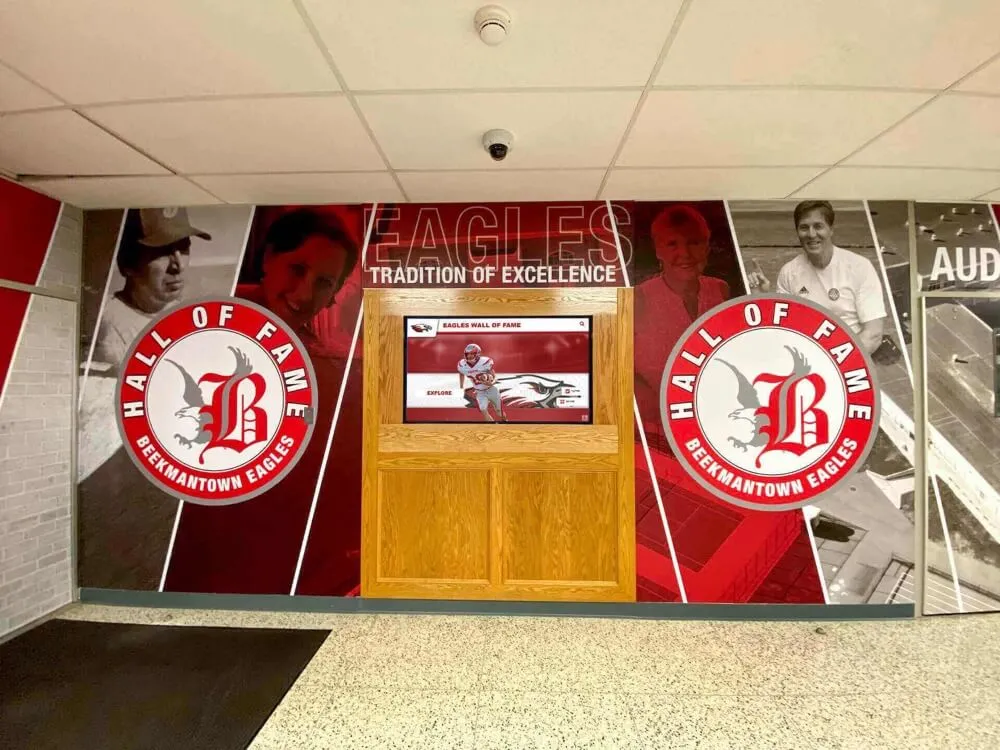
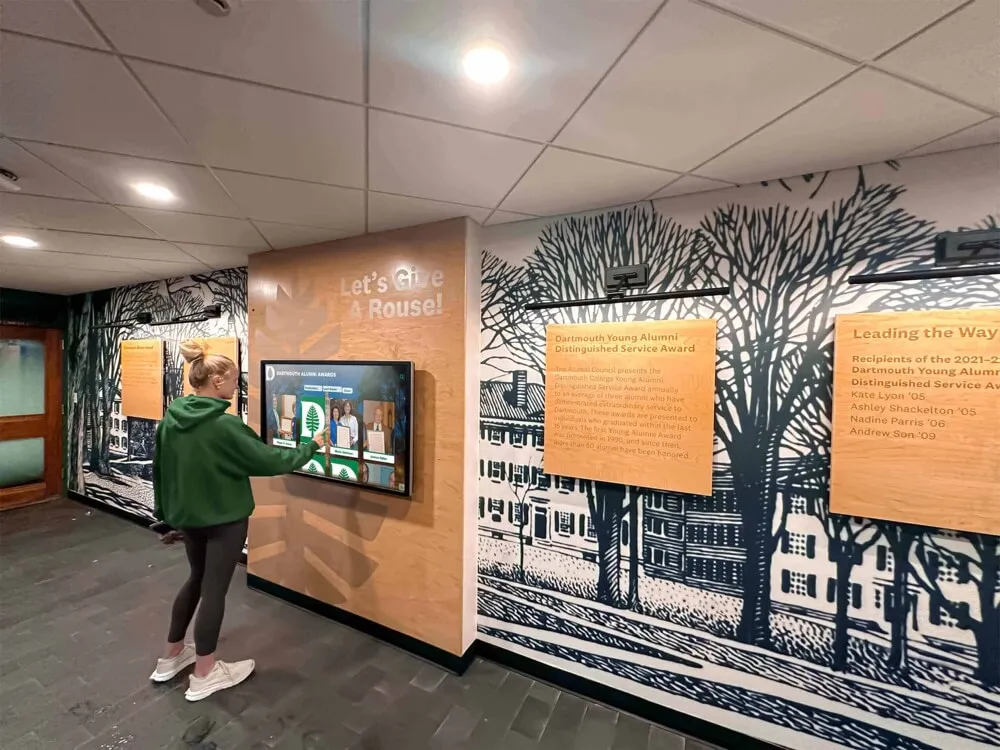
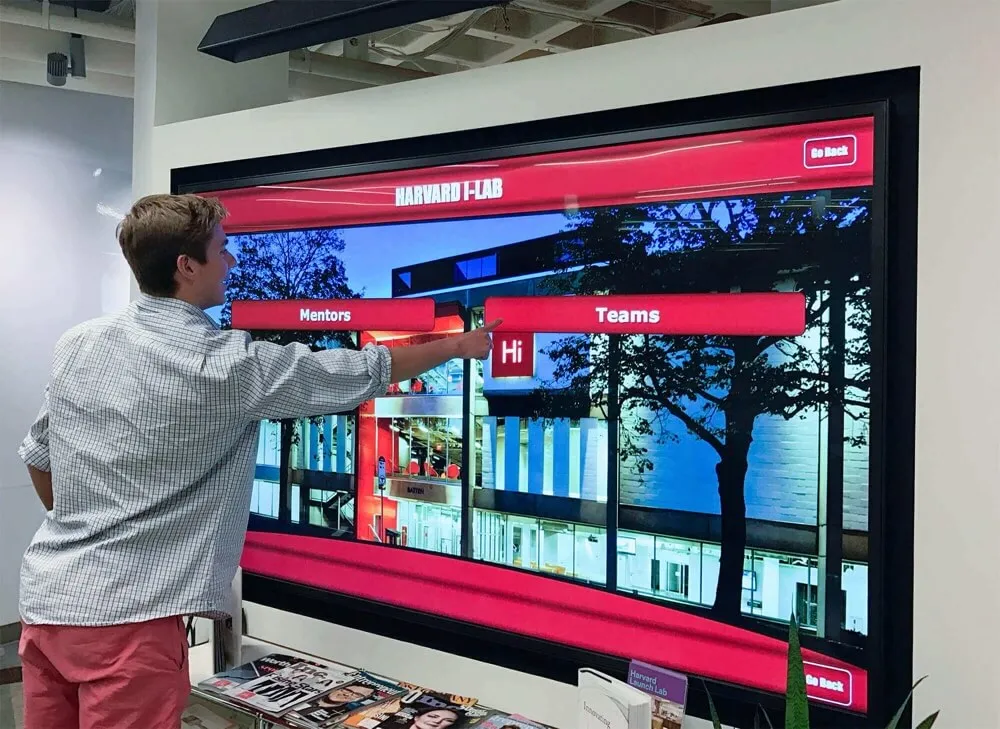
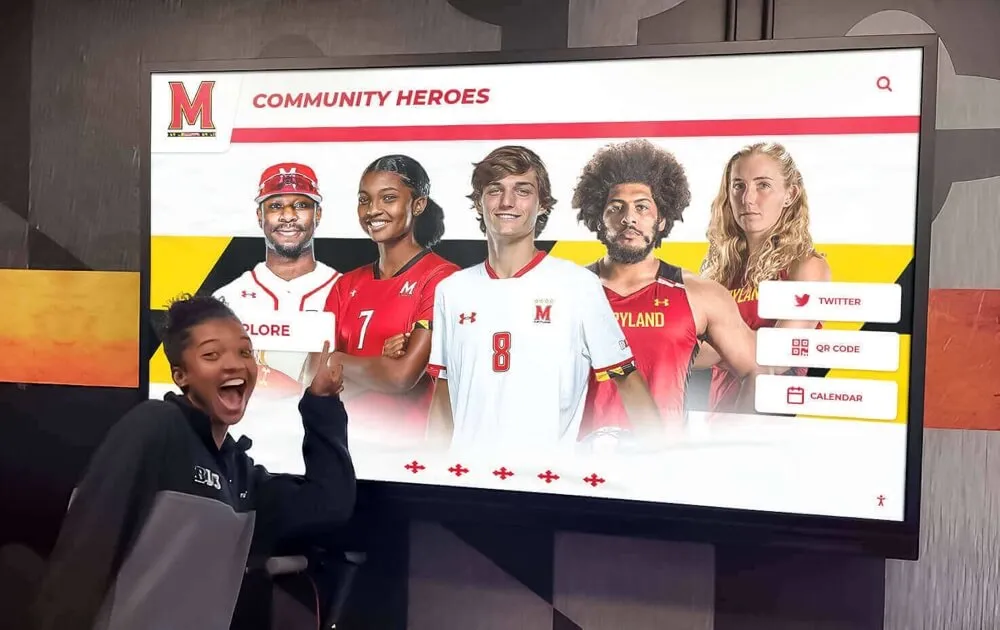

Normal visitor interactions on recognition displays involve quick taps and browsing through portrait galleries—high touch latency makes these routine interactions feel broken rather than slow, regardless of the quality of the underlying recognition content
Documenting Your Results
Document each test step with a brief written note and, where possible, a slow-motion video clip from a smartphone. Still photography is often insufficient to capture ghosting artifacts because camera exposure time averages motion in a way that hides panel artifacts the eye perceives in real time.
For each step, record:
- Whether the display passed, was marginal, or failed
- A brief description of what was observed
- The display brightness setting during testing
- The source device and connection type used
- The date and time of testing
Send the written record and any video documentation to the vendor on the same day the test is run. This timestamps your findings before the display is mounted and establishes a clear record if a return is required.
Schools preparing athletic hall of fame installations with complete content and program planning benefit from treating the response-time acceptance test as a formal step in the installation checklist. Including test results in the project file creates a record that the school assessed display quality before accepting the unit.
Extended-Use Checks for Displays Serving Multiple Recognition Programs
Recognition displays in schools frequently serve more than one program: an athletic hall of fame, an academic honor roll, a donor acknowledgment section, and a student life archive may all appear on a single display rotating through content areas. Interactive displays deployed across K-12 school programs face a wider range of content types than displays serving a single purpose, and the response-time test should account for that range.
For displays serving multiple content programs, extend the test to include one content sample from each program area:
- Fast-motion athletic highlight video (highest demand on panel response time)
- Scrolling academic honor roll list (moderate motion demand)
- Static donor portrait grid with animated highlight selection (low motion demand, moderate touch demand)
- Multi-category navigation menu (primary touch latency test scenario)
If the display passes the motion and touch tests for athletic video—the highest-demand content type—it will generally perform acceptably for lower-demand recognition content. But testing with a representative sample from each content area catches edge cases where software-rendering differences between content sections create unexpected latency in specific program areas.
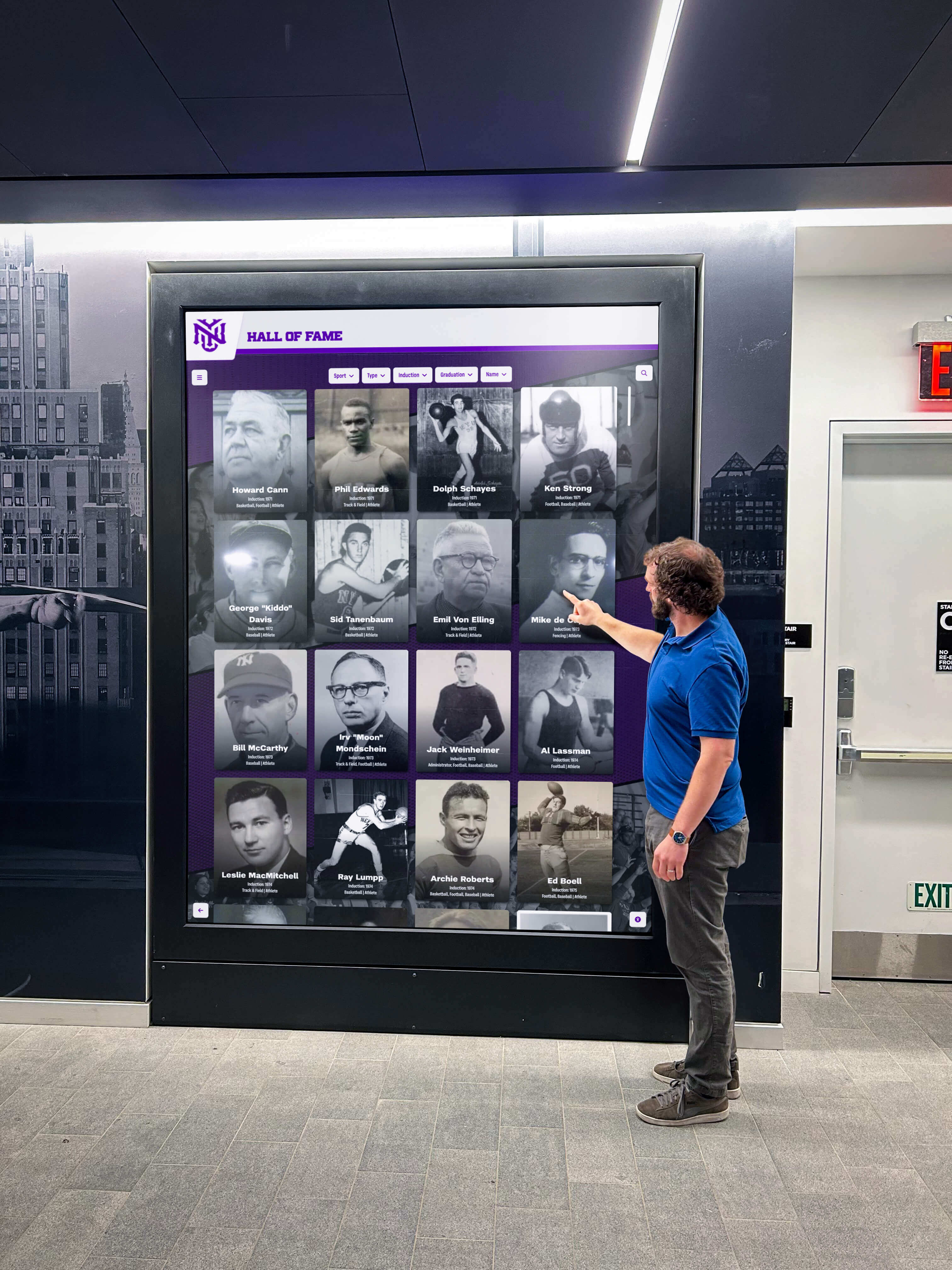
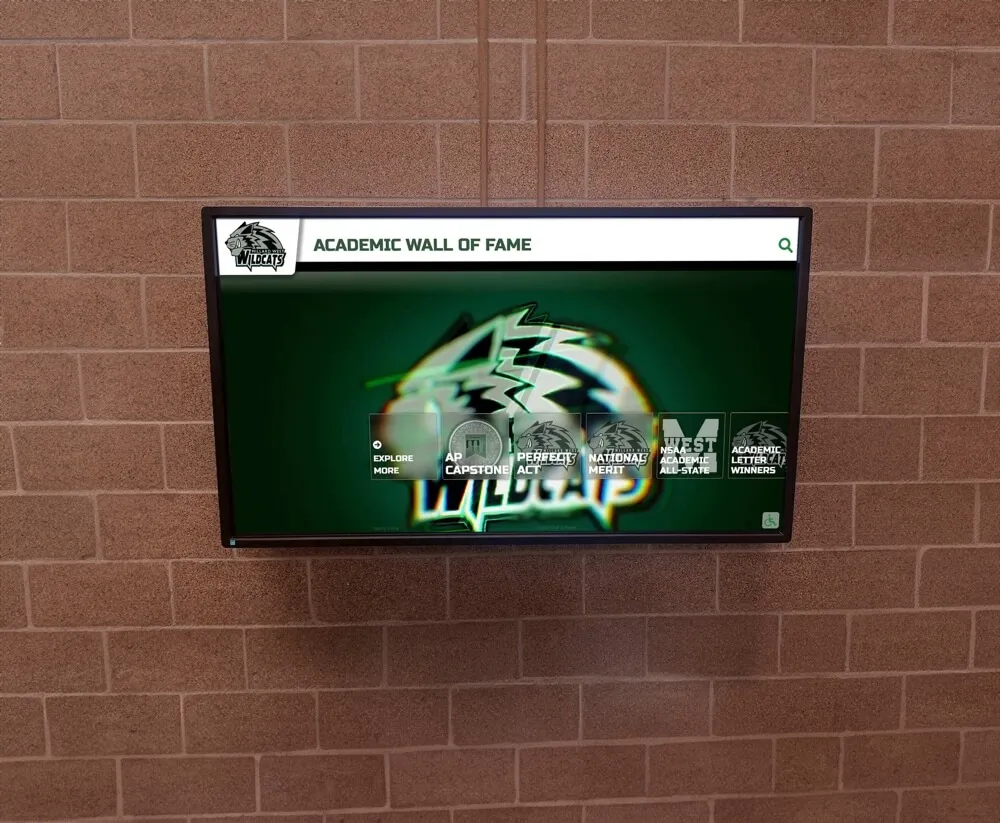
Recognition displays serving multiple program areas—athletics, academics, donors, and student life—should be tested with content samples from each area before the installation is accepted
Testing Schedule Relative to Installation
| Timing | Recommended Action |
|---|---|
| On delivery, before any mounting work | Full five-step response-time test |
| After a firmware or driver update | Repeat touch registration and screen transition tests |
| Before a major public event (ceremony, alumni weekend, game night) | Quick scrolling text and touch registration check |
| After display service or component replacement | Full five-step response-time test |
| Annually during scheduled maintenance | Touch registration and screen transition tests |
The most valuable test is the one run on delivery, before the display is mounted. Returning a display from a wall mount requires an installation crew, additional labor hours, and potential repair of the mounting location. Returning a display on a cart requires a shipping label and a clear test record.
Schools coordinating recognition program procurement through booster club budget and procurement planning should include acceptance-testing requirements in vendor contracts and purchase documentation, so the response-time test is an expected step rather than an afterthought at delivery.
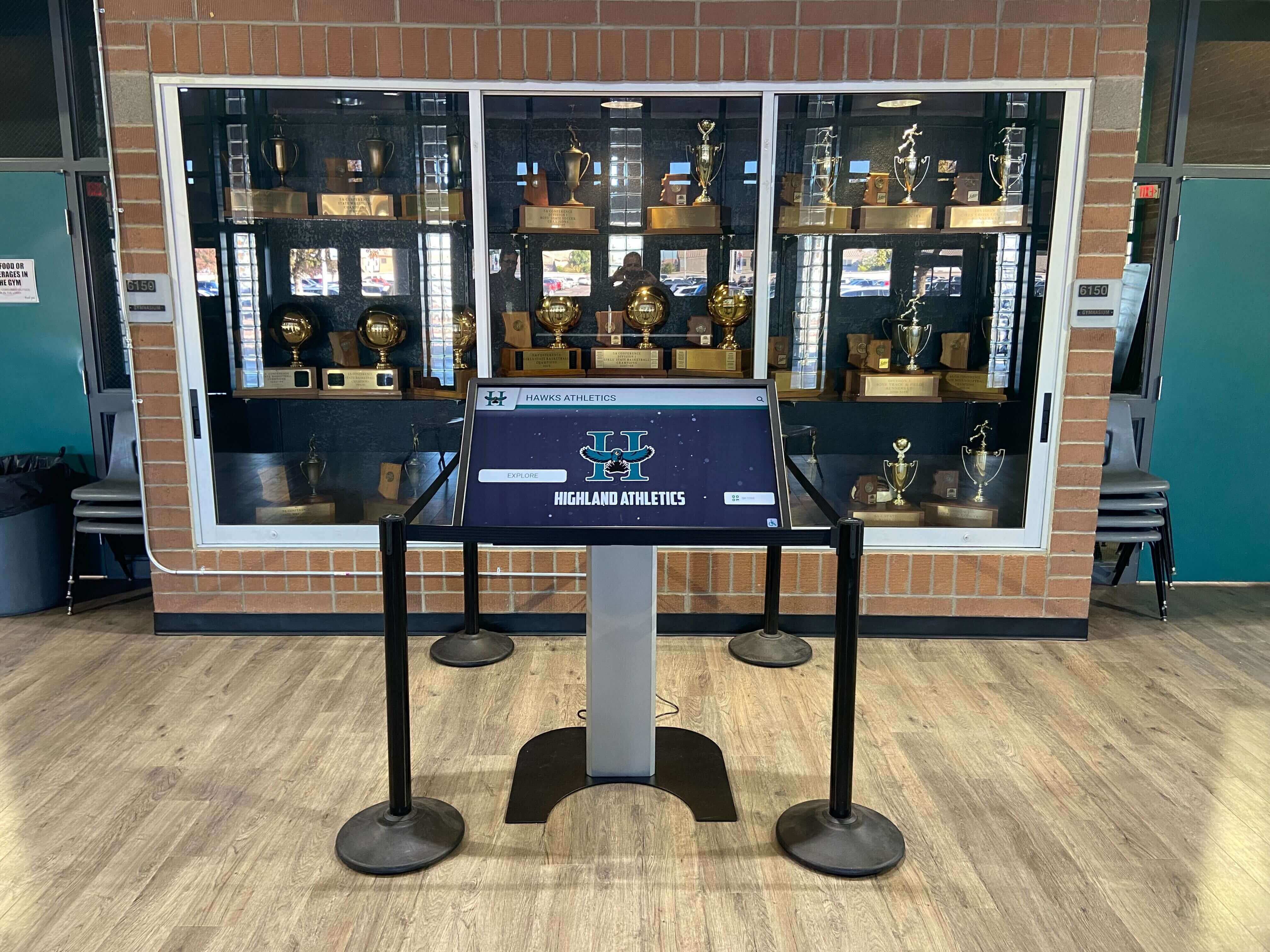
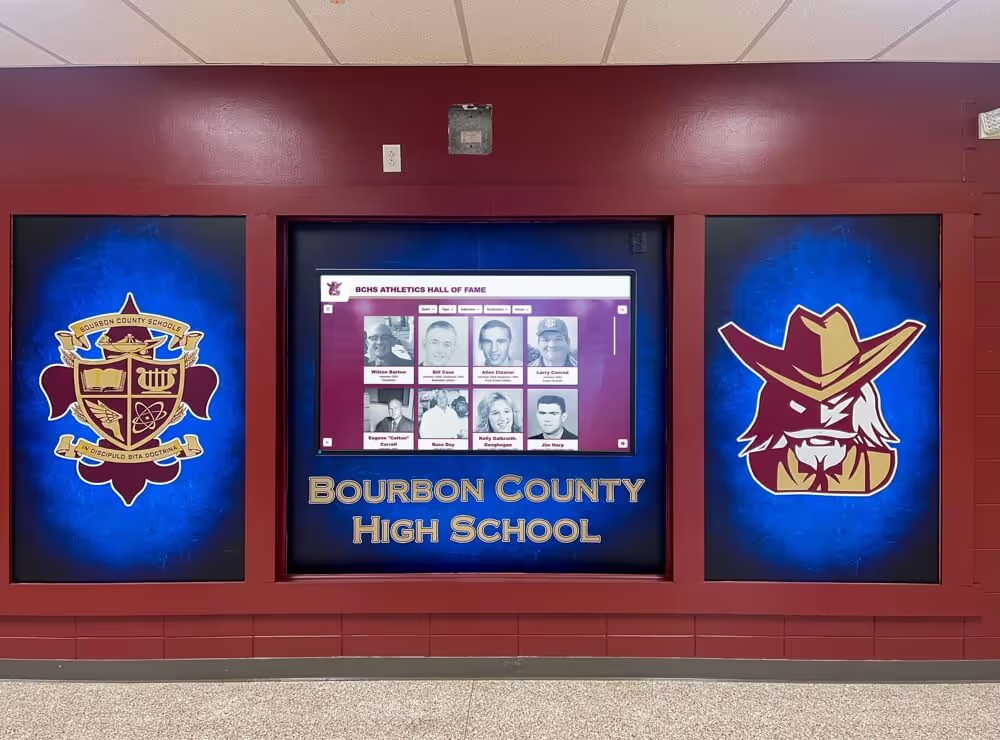
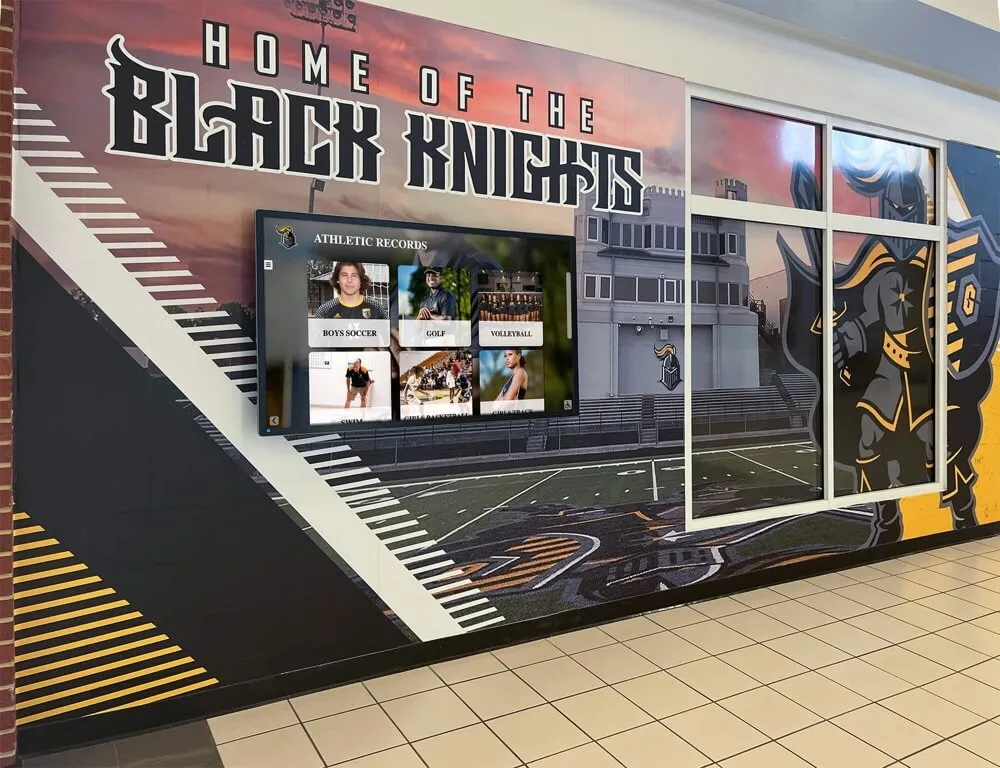
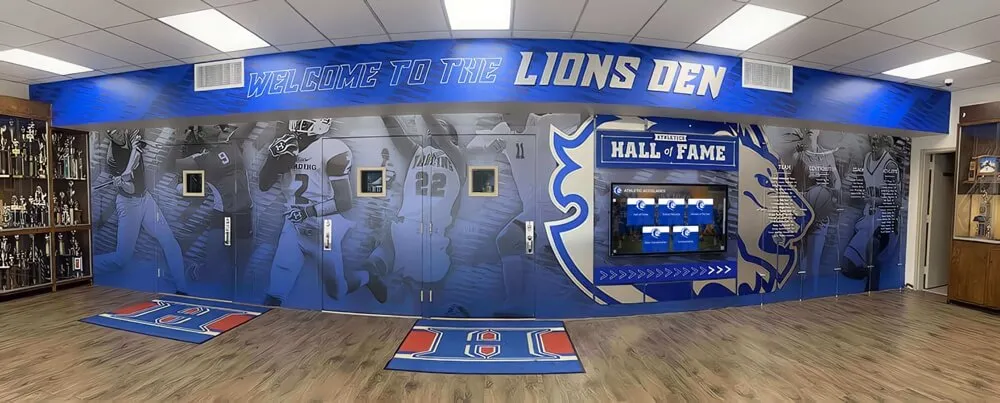
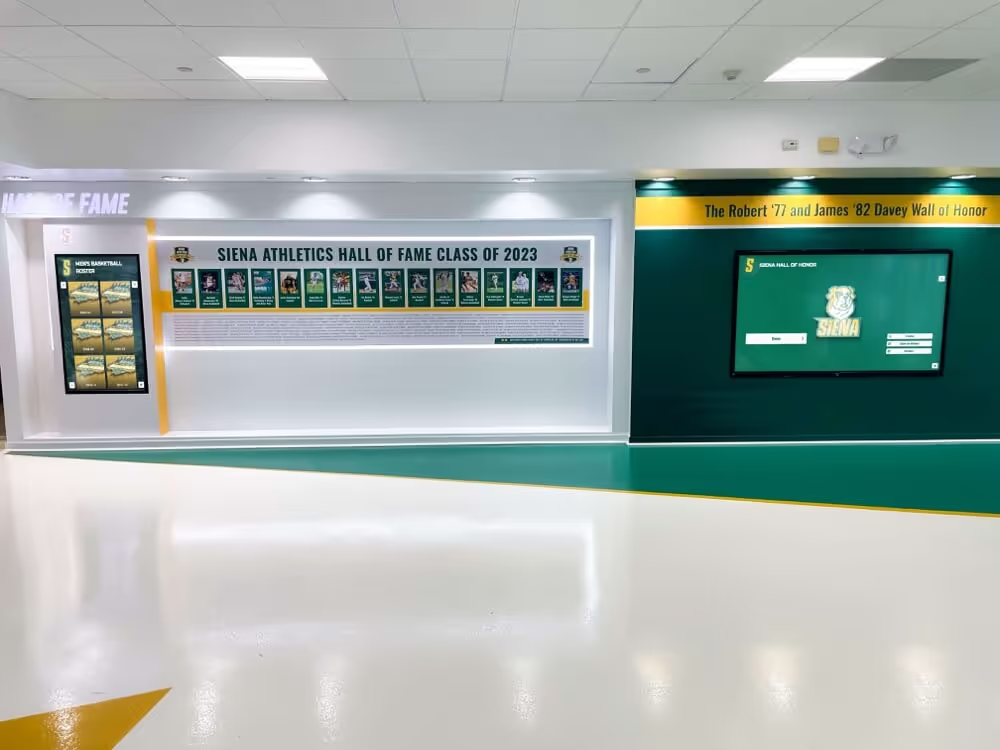
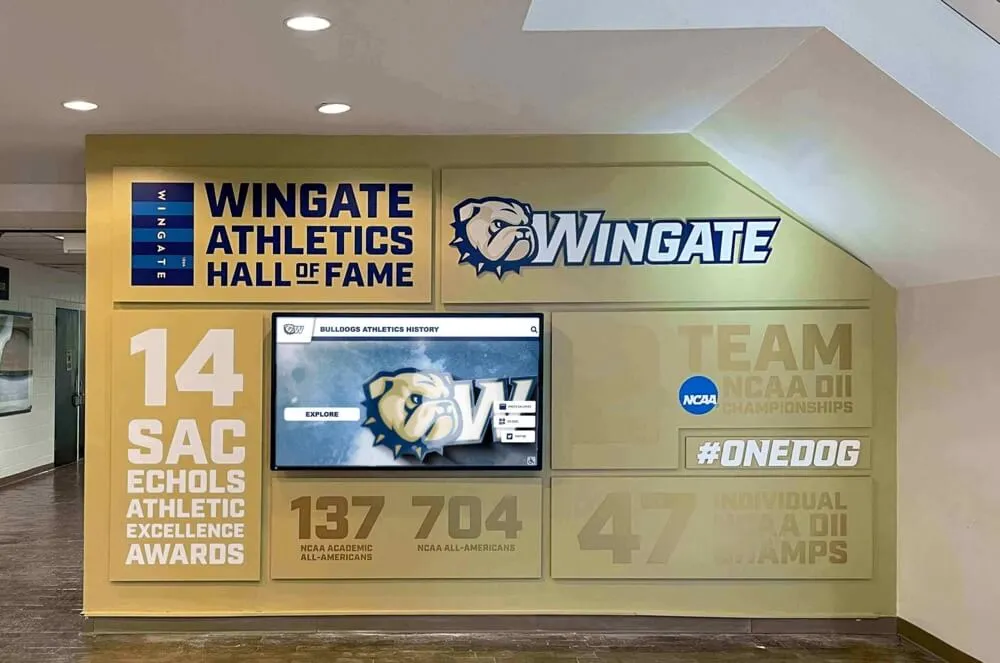
Displays positioned near trophy cases and hall of fame artifacts are viewed during high-attendance events—accepting a unit without a motion and interaction clarity test risks a visible performance problem in front of the school's most important audiences
Connecting Response-Time Testing to Recognition Program Standards
Schools investing in recognition displays make a commitment to present athletic history, academic achievement, and community contributions in a format that communicates institutional care and quality. A display that shows motion blur during an induction ceremony video or registers touch inputs with a noticeable lag sends a message inconsistent with that commitment—regardless of the quality of the recognition content loaded on it.
Schools recognizing student-athlete achievement at high-profile award events understand that the visual environment surrounding a recognition moment matters as much as the recognition itself. A display performing at its specified capability supports that environment. A display with acceptance-test failures in a high-visibility lobby detracts from it.
Recognition programs built to preserve and present athletic hall of fame history and multi-year program achievement deserve the display performance to match the quality of the program they represent. The response-time test is how you confirm that match before mounting, while there is still an easy path to returning a display that does not meet standard.
Quick Q&A: Screen Response Time on School Recognition Displays
The vendor spec sheet lists a 4 ms response time. Does that mean we can skip the visual test?
No. Manufacturer-specified response time is measured under controlled laboratory conditions using a specific test pattern and measurement methodology. Real-world performance on scrolling recognition content, video highlights, and multi-touch navigation may differ from that number. The visual test in this guide verifies actual performance on the content types the display will serve—not the manufacturer’s test pattern.
What causes high touch latency if the display hardware specification looks acceptable?
Touch latency accumulates across multiple layers: the touch controller firmware, the USB or serial connection between the touch overlay and the host computer, the operating system’s input event queue, and the recognition platform’s own event loop. A display with a capable touch controller can still deliver high touch latency if the host computer is running software that creates processing delays at any layer. Test the display with the same computer and software configuration that will be used after installation.
Our recognition platform uses slow cross-fade transitions between profiles. Does panel response time matter less with slow transitions?
Cross-fade transitions intentionally use the display’s ability to render intermediate gray values, which are more demanding on panel response time than abrupt cuts. Slow fades on a panel with poor response time can show banding or stepping artifacts during the transition rather than smooth gradual blending. Test transition quality using the recognition platform’s actual transition settings rather than assuming slow transitions avoid response-time issues.
Should we test the display at the brightness level listed in the vendor spec, or at operating brightness?
Test at the brightness level the display will operate at in its installed location. Panel response time and perceived ghosting can vary with brightness setting. If the display will operate at 70% brightness in a window-lit lobby, test at 70%—not at maximum, which may produce different results than the conditions the installed display will face.
We are replacing an older display that staff have used for years. How do we know if the new display actually performs better?
Run the same scrolling text and touch registration tests on the old display immediately before removal and on the new display immediately before mounting. The side-by-side comparison gives staff a concrete reference for whether the replacement represents a visible improvement, and creates a record if the new display’s performance is unexpectedly similar to or worse than the unit it is replacing.
Can we run this test if the recognition software is not yet installed on the display computer?
Yes, with limitations. You can run the panel response time tests—scrolling text and video—using any browser or media player to load test content. You cannot meaningfully test touch input latency without the software layer that will process those inputs in normal operation. Run a preliminary panel response test on delivery, then complete the touch latency tests once the recognition software is installed and configured on the host computer before the display is mounted.
Conclusion: Confirm Motion and Touch Performance Before Mounting
A touchscreen recognition display screen response-time test is a structured, 30-minute acceptance procedure that verifies motion clarity on animated and video content and confirms that touch interactions register within the timeframe visitors expect. Panel response time and touch input latency are distinct measurements that require separate test steps—both matter for a recognition display serving athletic hall of fame content, scrolling academic recognition feeds, and visitor-facing interactive browsing during events.
Run the five visual test steps in this guide before the display is mounted. Document the results with written notes and slow-motion video where motion artifacts are observed. Apply the pass/fail table to make a consistent, documentable decision. Return any display with a Fail result before the installation crew mounts it—not after.
A recognition display that passes the motion and interaction clarity acceptance test is ready to serve the school’s hall of fame archive, athletic program highlights, and every visitor who walks through the lobby during a ceremony or event night.
See a Recognition Display Configured for School Lobbies and Athletic Facilities
Rocket Alumni Solutions works with schools to specify, configure, and support recognition displays designed for hall of fame archives, athletic corridors, and event-facing lobby installations—with guidance on display quality standards and acceptance requirements before your first ceremony goes live.
Book a Live Demo