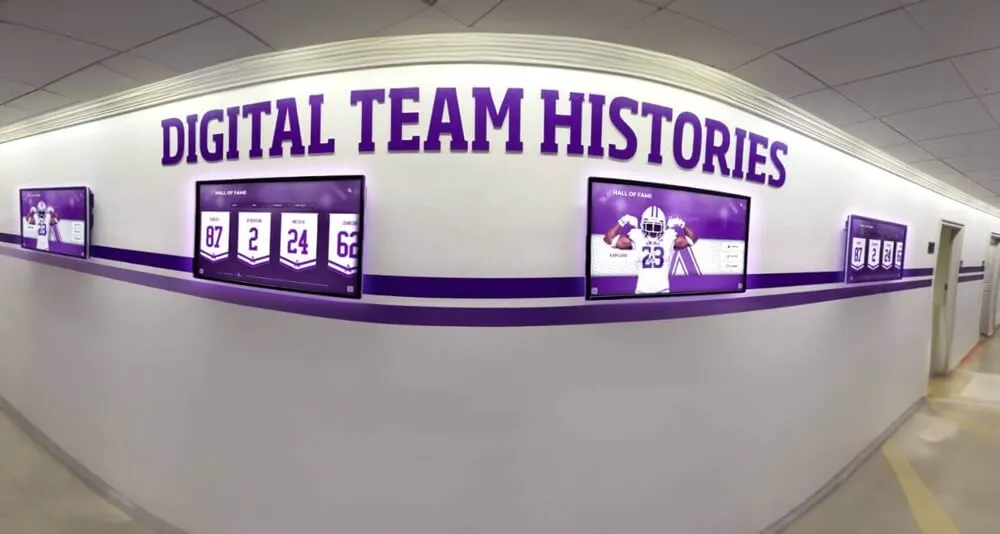
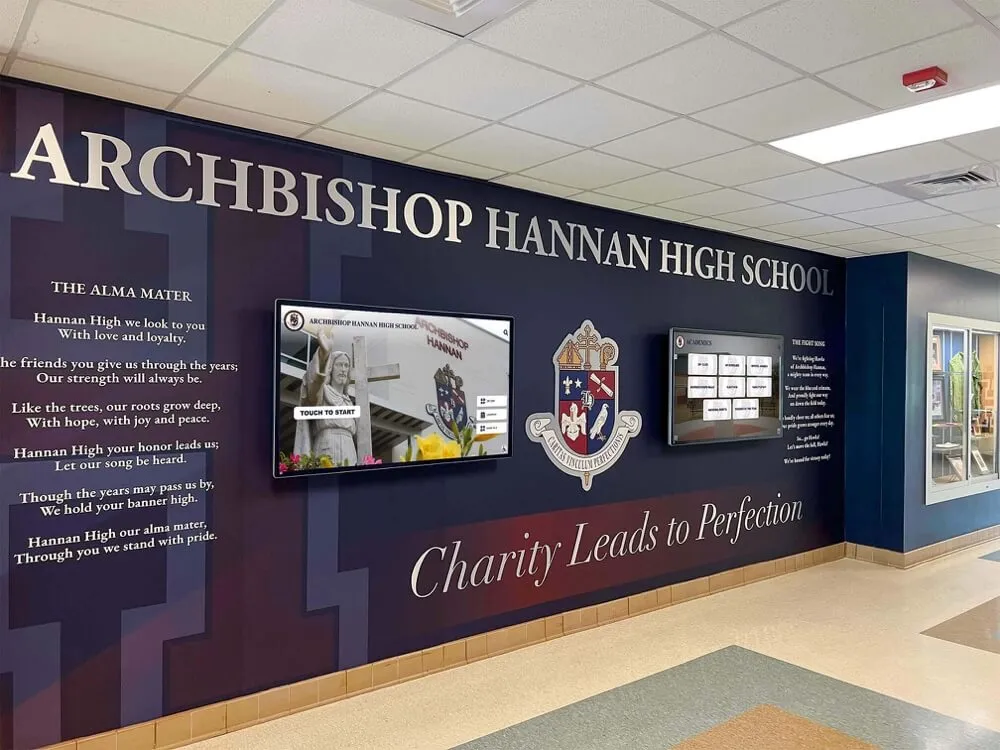
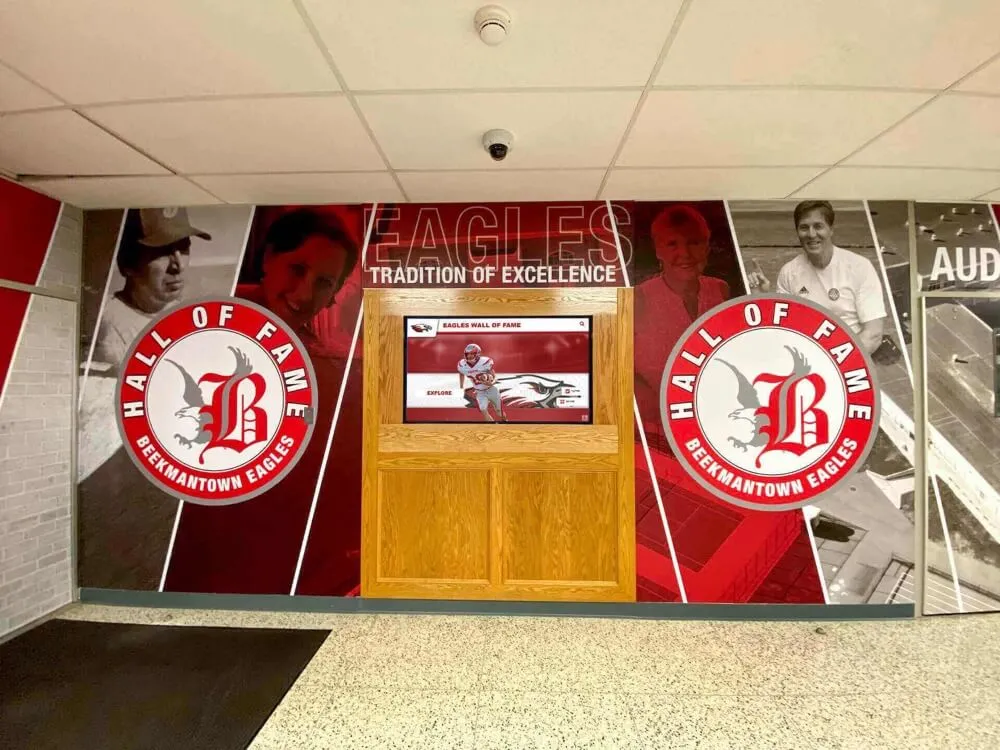
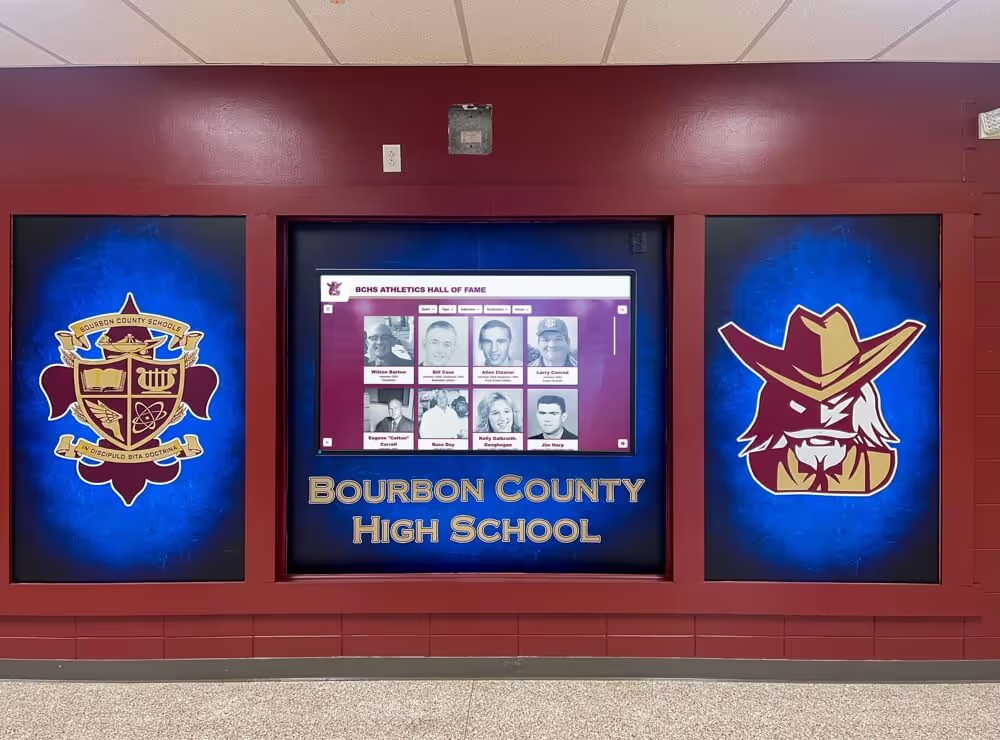
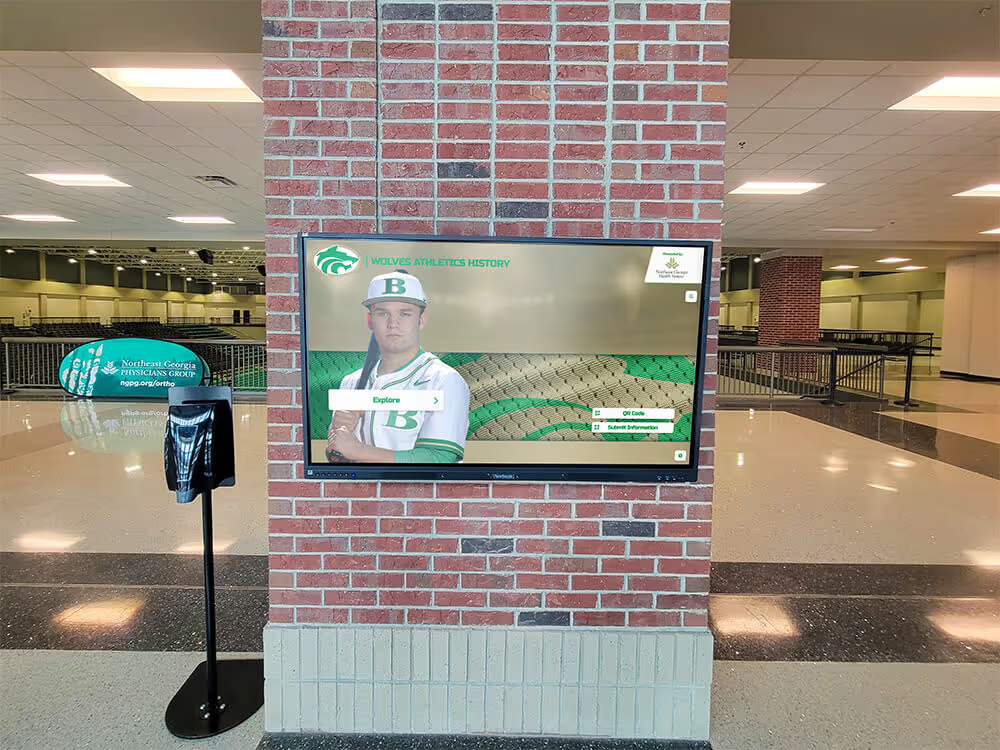
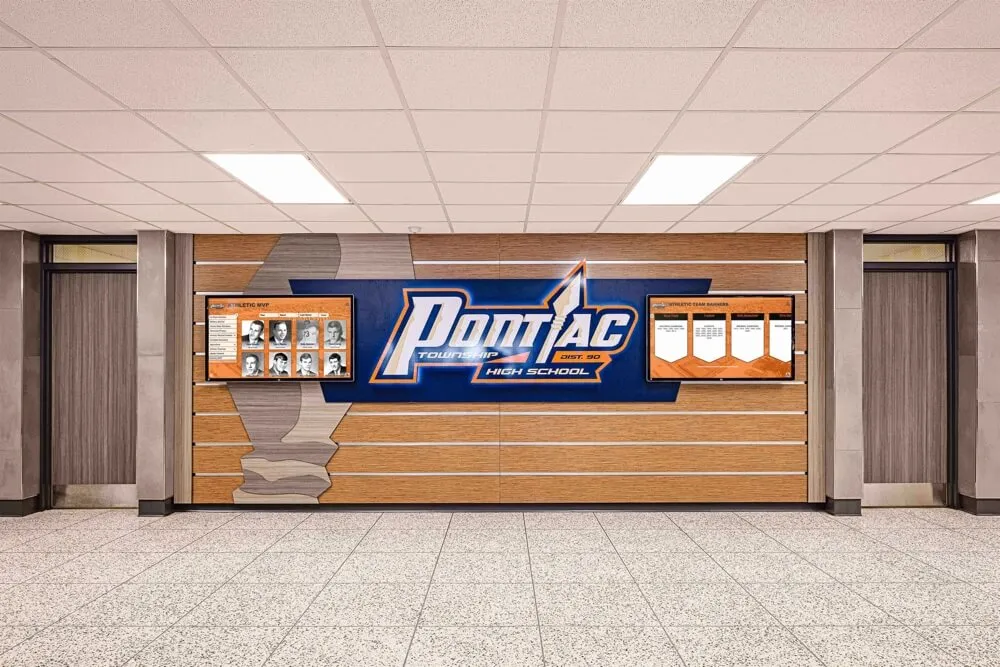
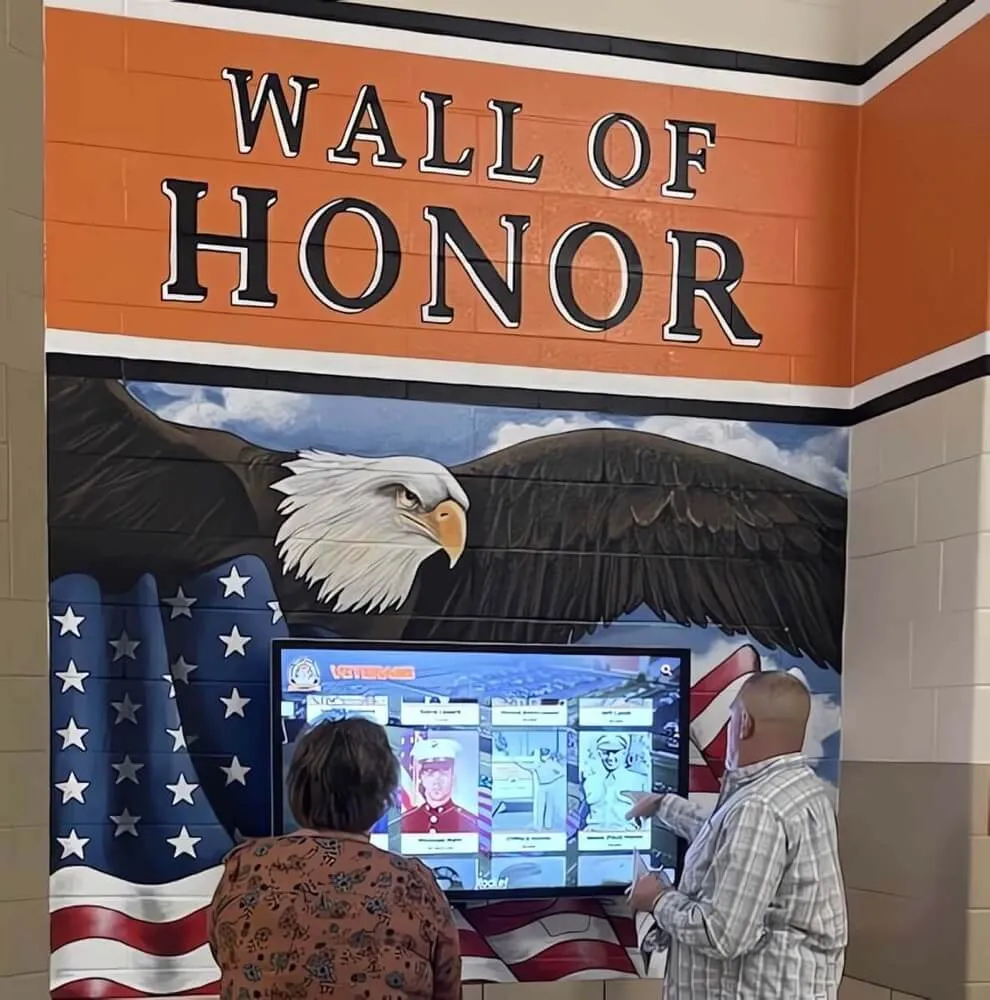
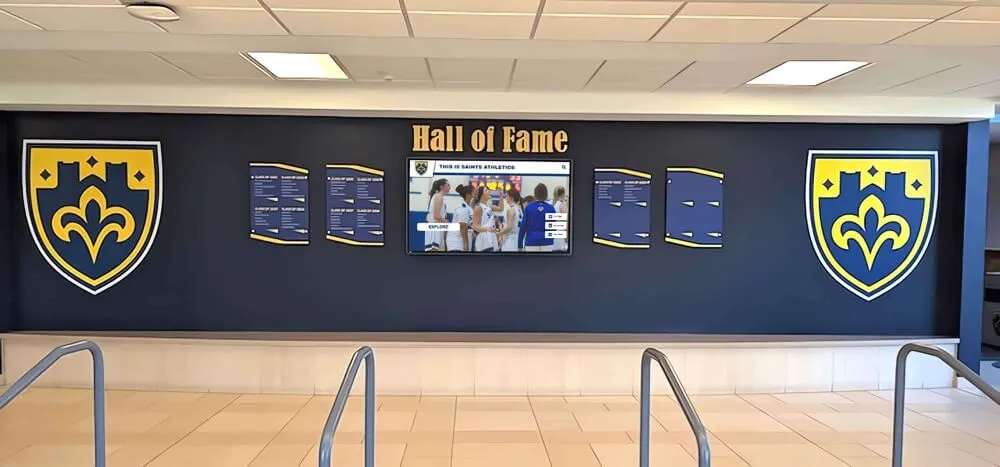
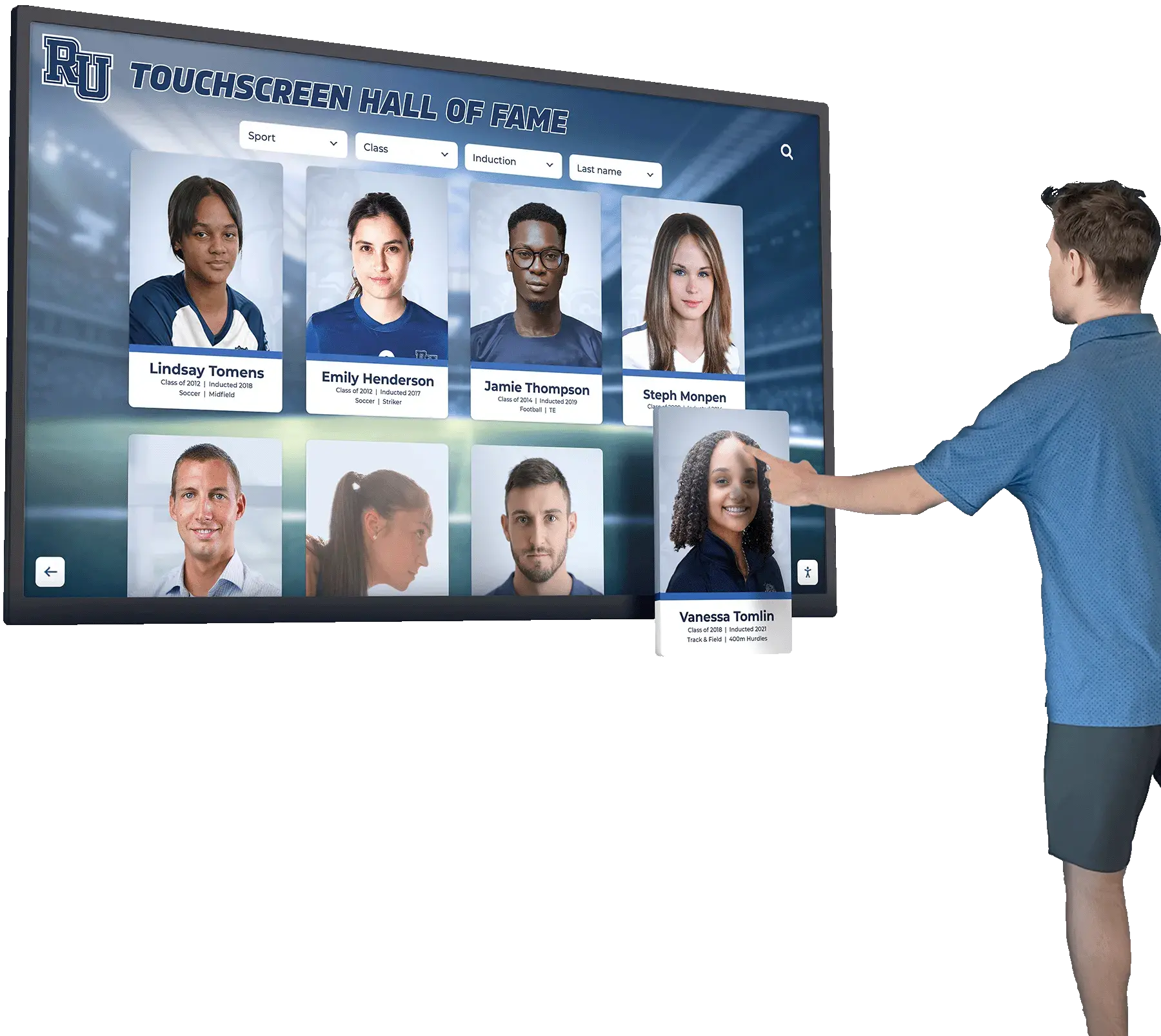
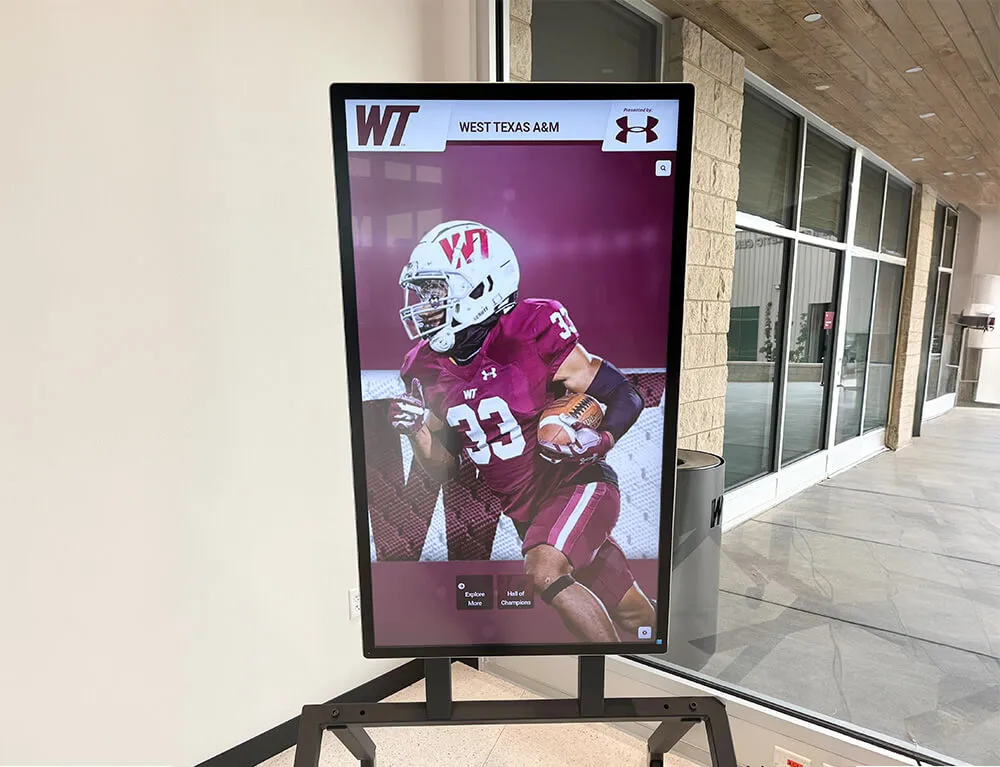
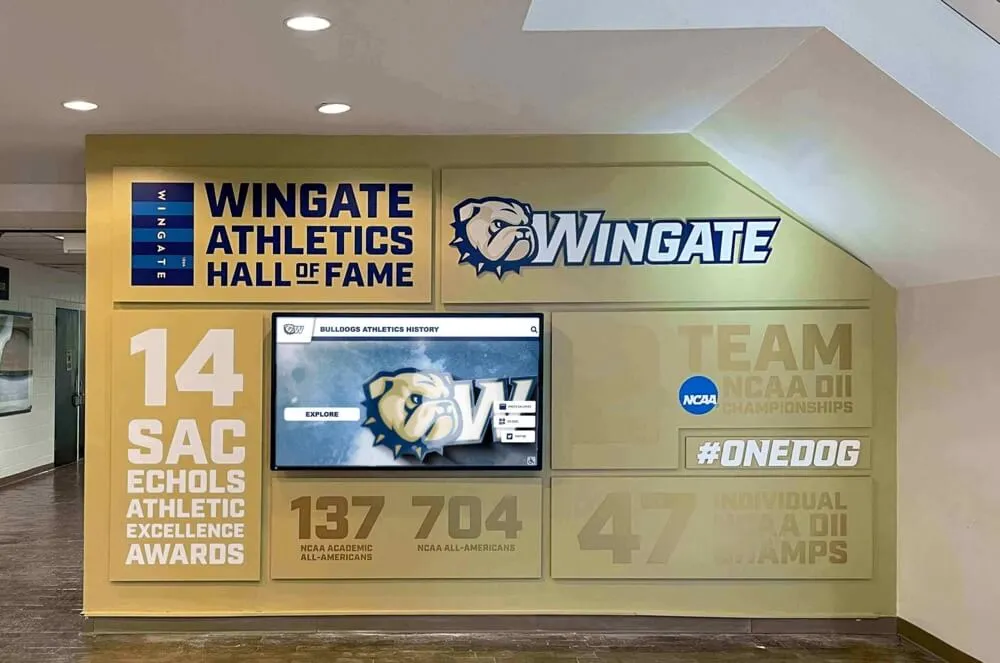
A touchscreen recognition display installed in a school lobby, gymnasium corridor, or athletic wing is not a simple passive screen—it is a networked device that retrieves content from the cloud, accepts remote administrative updates, and in many cases supports public-facing touchscreen interaction. Connecting that device directly to the same network segment as student data systems, grading platforms, or administrative workstations introduces unnecessary risk. A properly segmented network keeps the display fully functional while isolating it from sensitive school infrastructure.
This guide is written for school IT coordinators, network administrators, and facilities directors responsible for deploying or supporting a touchscreen hall of fame or recognition kiosk. It covers the reasoning behind segmentation, a practical implementation sequence, VLAN and firewall configuration guidance, monitoring considerations, and the access paths that vendors and content managers need to keep the display running without touching the rest of your network.
The short answer: place the recognition display on a dedicated VLAN with outbound internet access to its cloud content management platform, block lateral movement to other school segments, and create a documented support path so the vendor can reach the device for remote troubleshooting without entering your production network. The steps below walk through each piece in order.

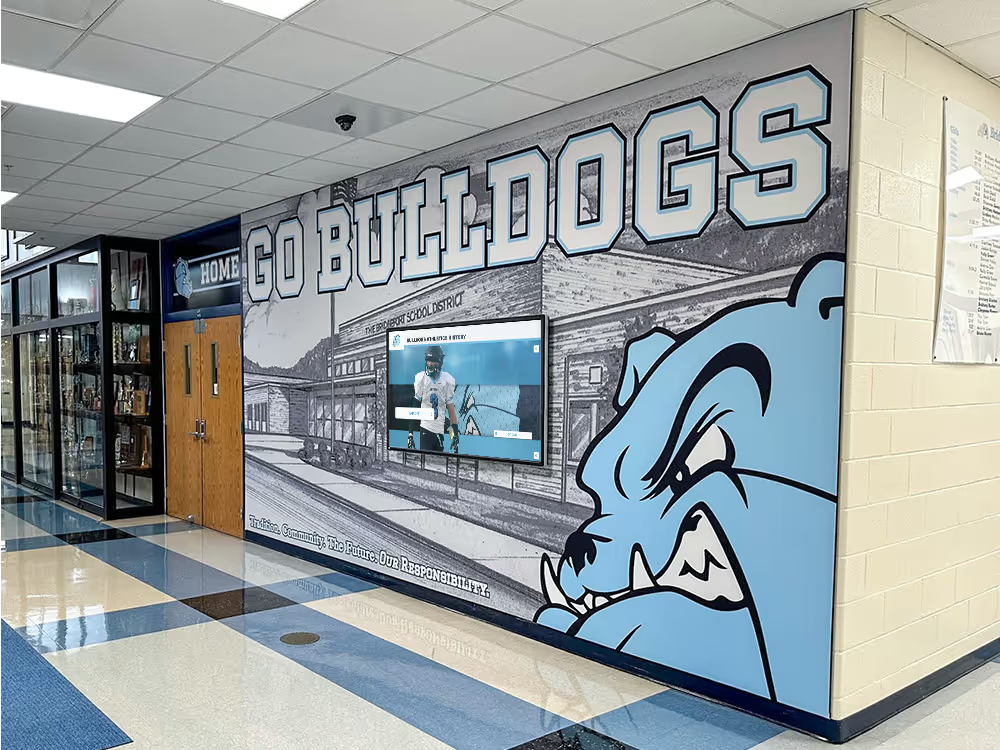
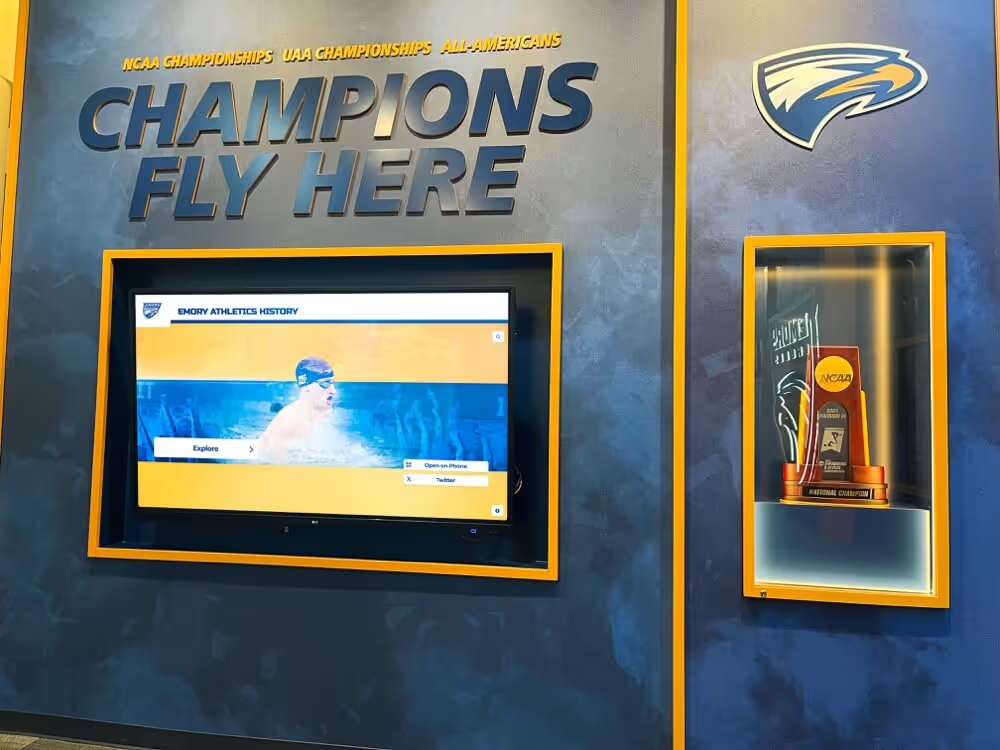
Touchscreen recognition displays require outbound cloud access and remote support paths—both of which can be provisioned safely through proper network segmentation
Why Network Segmentation Matters for Recognition Displays
School networks carry student records, financial systems, grading platforms, and staff credentials. A publicly accessible touchscreen kiosk—visited daily by students, parents, alumni, and visitors—represents a different risk profile than a staff workstation behind a locked door.
The core concern is lateral movement. If a device on the same flat network as student information systems were ever compromised or misconfigured, an attacker with access to that device could attempt connections to adjacent systems. Segmentation removes that path without affecting what the display actually needs to do: pull content from the internet, accept touches from visitors, and allow the vendor or administrator to push updates remotely.
Segmentation also simplifies policy enforcement. IT teams can apply bandwidth caps, logging, and content filtering rules specifically to the display VLAN without affecting production traffic. If the display ever behaves unexpectedly—high bandwidth use, unexpected outbound connections—those anomalies appear in a dedicated log stream rather than buried in general campus traffic.
Schools managing records involving student athletes, academic honor rolls, or donor recognition data have additional motivation to keep display devices away from databases containing personally identifiable information. Segmentation is a practical, not just theoretical, control.
What a Recognition Display Actually Needs from the Network
Before building firewall rules, identify the traffic the display legitimately requires.
Outbound Internet Access
Cloud-based recognition platforms—including those that power interactive hall of fame kiosks—store content on vendor-managed servers. The display needs outbound HTTPS (port 443) to reach those servers to retrieve athlete profiles, award records, video highlights, and layout updates. Some platforms also use HTTP (port 80) for redirect handling and NTP (port 123 UDP) for time synchronization.
Remote Management Access
Vendors providing ongoing support typically use one of three remote access models:
- Direct SSH or RDP to the display’s operating system (requires an inbound rule or VPN tunnel)
- Reverse tunnel or cloud relay where the device initiates an outbound connection to a vendor relay server (no inbound rule required from the internet, but the outbound destination must be allowed)
- Web-based remote desktop such as TeamViewer or similar, which also uses outbound connections
Your vendor should document exactly which model they use and which destinations or IP ranges their remote sessions require. Get this in writing before provisioning.
Content Management by School Staff
Athletic directors, recognition coordinators, and administrators updating the hall of fame do so through a web browser—not through the display device itself. Their update traffic goes from their workstation through the internet to the vendor’s cloud platform. This means content managers do not need network access to the display device at all, which simplifies your segmentation design considerably.
NTP, DNS, and Optional Monitoring
Displays need DNS resolution and time sync. You can point them at your internal DNS forwarder or directly at public DNS (8.8.8.8 or 1.1.1.1). If your monitoring system uses SNMP or a syslog agent, the display will need outbound access to your monitoring collector.
Step-by-Step Network Segmentation Implementation
Step 1: Inventory the Display Device
Before touching any network configuration, document the display hardware:
- Operating system (Windows, Android, ChromeOS, Linux—this affects firewall rule specificity)
- MAC address of the network interface (wired or wireless)
- Hostname as configured by the vendor
- Required outbound destinations from vendor documentation (domain names or IP ranges)
- Remote access method the vendor will use for support sessions
- Content delivery network domains if the platform uses a CDN for images and video
Share this inventory with your network team before installation day. Surprises during installation—discovering the device needs a static IP, or that the vendor’s remote tool is blocked by your current firewall policy—add hours to deployment.
Step 2: Create a Dedicated VLAN
Create a new VLAN for the recognition display. If you manage multiple display installations across buildings, a single display VLAN can serve all of them—you do not need a separate VLAN per device unless your policy requires it.
Recommended VLAN configuration:
| Setting | Recommended Value | Notes |
|---|---|---|
| VLAN ID | 50–99 (pick unused) | Document in your network register |
| Subnet | /27 or /28 | Recognition displays rarely exceed 10 devices per school |
| DHCP | Enabled with reservation | Reserve by MAC address for predictable IP |
| Default gateway | L3 switch or router interface | Required for internet egress |
| DNS | Internal forwarder or 8.8.8.8 | Confirm with vendor if internal forwarder works |
| VLAN name | RECOG-DISPLAY or KIOSK | Use a descriptive name in your switch management system |
Assign the switch port at the display location to this VLAN as an access port (untagged). If the display uses Wi-Fi, create a dedicated SSID mapped to this VLAN and suppress SSID broadcast if your platform supports it—there is no reason for visitors to see or join that network.
Step 3: Configure Inter-VLAN Firewall Rules
At your perimeter firewall or core L3 switch, create rules governing traffic between the display VLAN and other segments. Apply the principle of least privilege: allow only what is documented and necessary.
Recommended firewall rule set for the display VLAN:
| Direction | Source | Destination | Protocol/Port | Action | Purpose |
|---|---|---|---|---|---|
| Outbound | Display VLAN | Internet | TCP 443 | Allow | Cloud content platform, remote support relay |
| Outbound | Display VLAN | Internet | TCP 80 | Allow | HTTP redirects, platform onboarding |
| Outbound | Display VLAN | NTP server | UDP 123 | Allow | Time synchronization |
| Outbound | Display VLAN | DNS | UDP/TCP 53 | Allow | Name resolution |
| Outbound | Display VLAN | Monitoring collector | Syslog/SNMP | Allow | If monitoring is deployed |
| Inbound | Vendor support IPs | Display VLAN | TCP 22 or 3389 | Allow | Only if vendor uses direct SSH/RDP; restrict to vendor IP ranges |
| Any | Display VLAN | Student data VLANs | Any | Deny | Block lateral access to SIS, grading, HR systems |
| Any | Display VLAN | Admin/Staff VLANs | Any | Deny | Block display from reaching staff workstations |
| Any | Display VLAN | Finance VLANs | Any | Deny | Block access to financial systems |
| Any | Other VLANs | Display VLAN | Any | Deny | Prevent school devices from initiating connections to the display |
Log denied traffic from the display VLAN. This gives you visibility into any unexpected connection attempts without generating alert fatigue from production traffic.
Step 4: Verify Outbound Connectivity
After configuring the VLAN and firewall rules, connect a laptop to the display VLAN before deploying the actual hardware. From that laptop, confirm:
- You can reach the vendor’s platform URL in a browser
- NTP sync works (
ntpdate -q <ntp-server>or equivalent) - DNS resolves vendor domains correctly
- You cannot reach student data systems from this VLAN
Run this verification yourself rather than assuming it will work. Firewall rule ordering errors and overlooked ACLs are common and far easier to catch before the display is mounted on the wall.
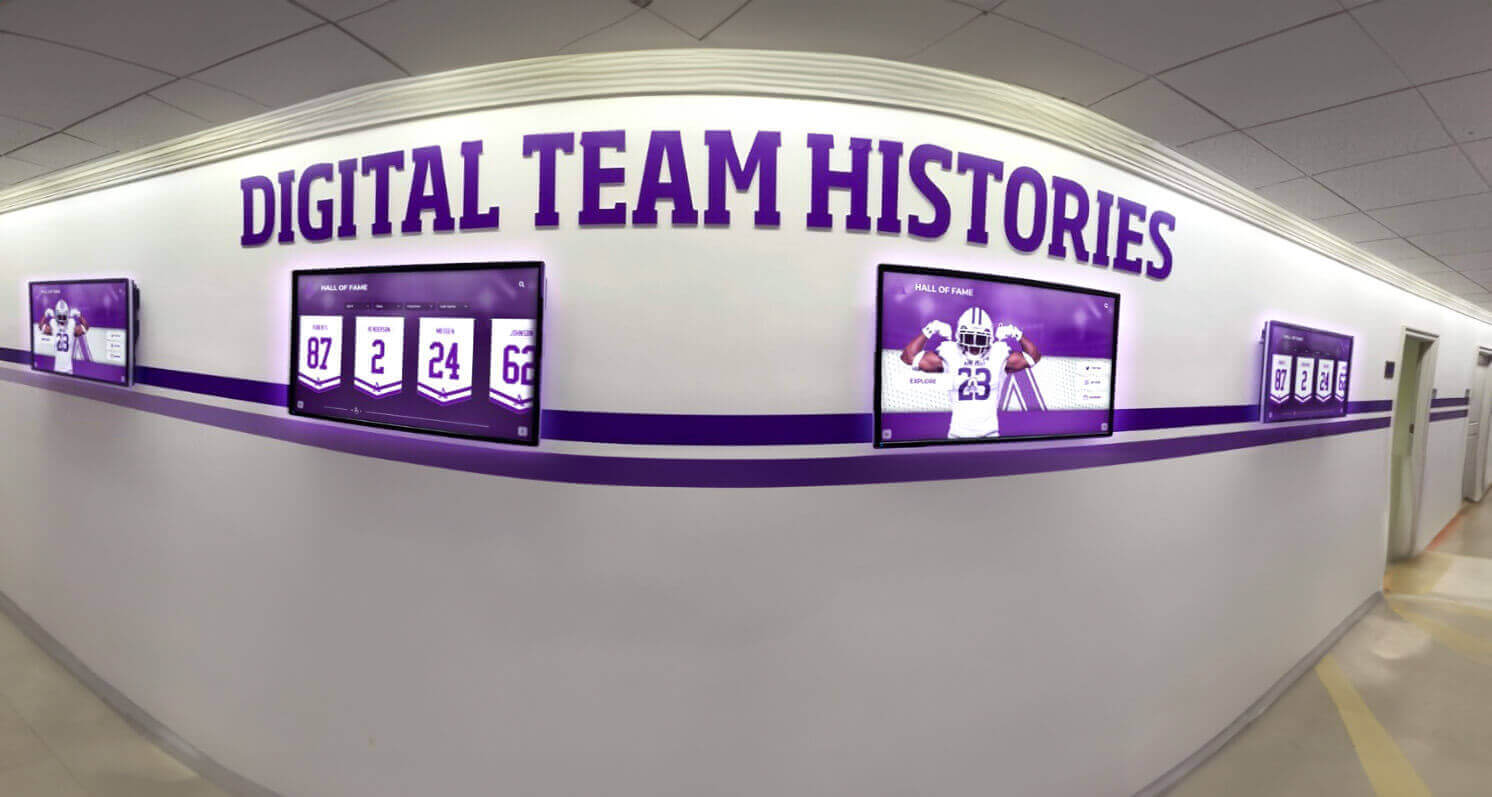
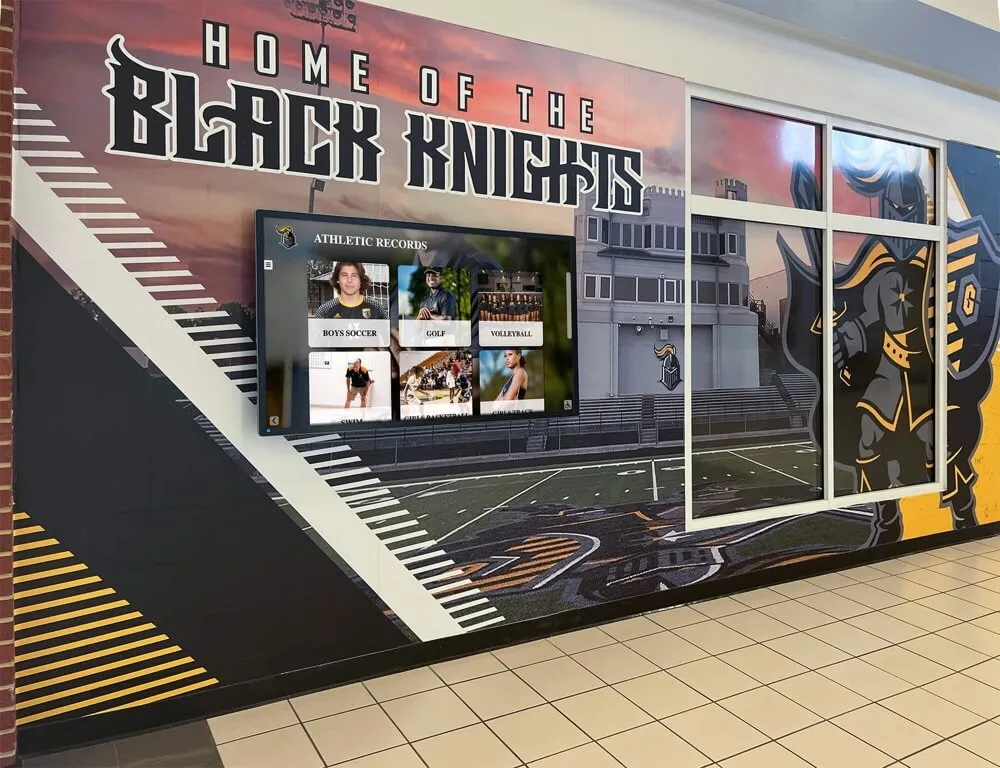
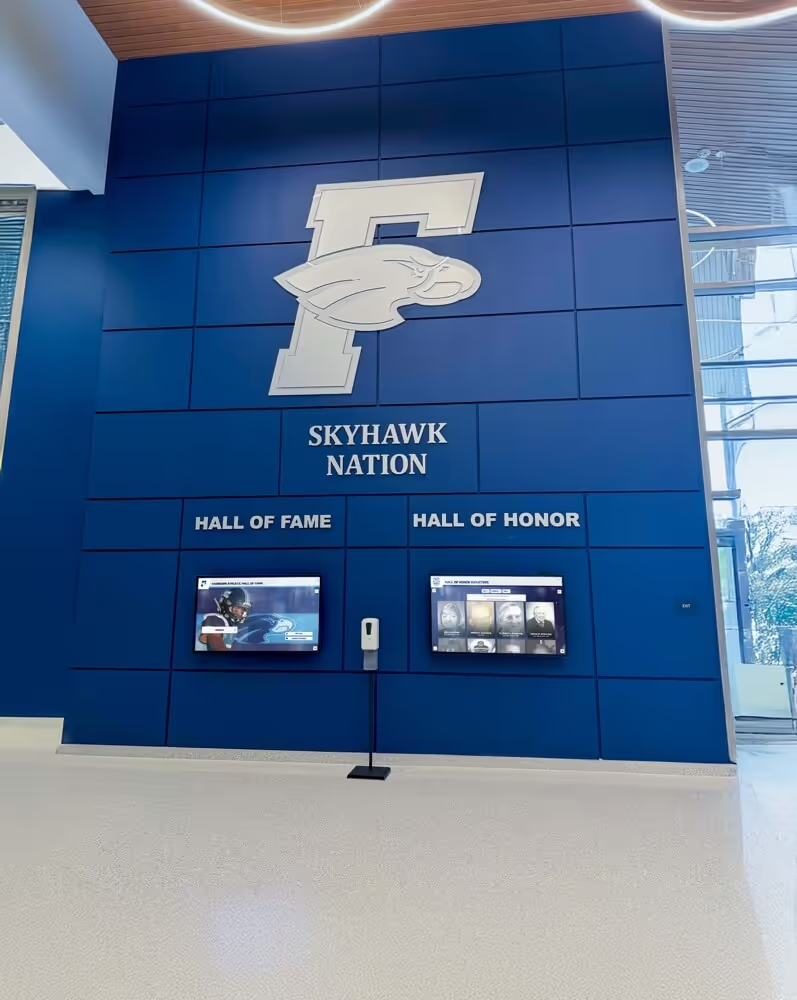
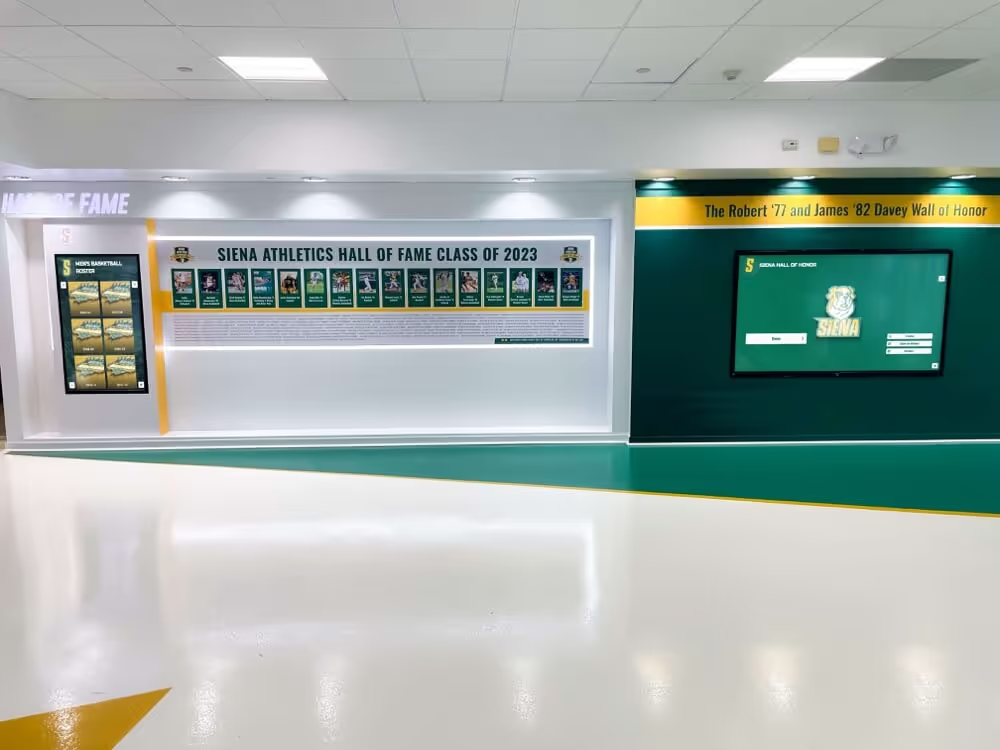
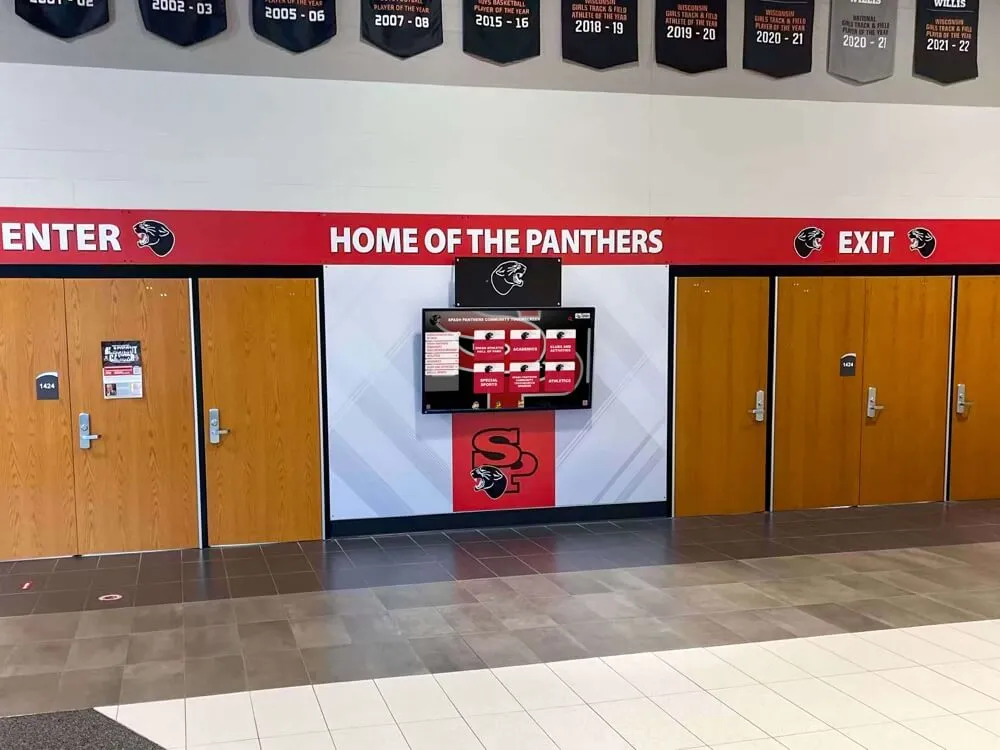
Schools deploying multiple displays across hallways and athletic wings benefit from a single dedicated VLAN serving all recognition devices under one firewall policy
Step 5: Deploy the Display Hardware
With the network segment ready, the vendor’s installation team can connect the display. At this stage, your IT involvement typically covers:
- Confirming the reserved DHCP binding activated correctly (verify the IP assignment matches the MAC reservation)
- Testing content retrieval by watching the display load its initial content from the cloud platform
- Confirming remote management access works by having the vendor initiate a support session while you observe the firewall logs
- Documenting the device in your asset register with VLAN, IP, MAC, and vendor contact
For schools with multiple locations—hallway kiosks, gymnasium lobby displays, athletic wing recognition boards—repeat the physical deployment steps at each location, using the same VLAN and policy framework established in Steps 2 and 3.
Step 6: Enable Monitoring
A recognition display in a public space can run for months without visible problems—until it goes blank the day of homecoming or graduation. Proactive monitoring reduces the likelihood that a network or hardware failure goes undetected.
Practical monitoring options for school IT:
- Ping monitoring: Add the display IP to your existing monitoring tool (PRTG, Nagios, Zabbix, or similar) with a ping check. An alert when the device stops responding gives you early warning.
- SNMP: If the display OS supports SNMP, poll CPU and memory alongside uptime.
- Syslog forwarding: Configure the display to forward system logs to your syslog collector, separated from production device logs by a source-IP filter.
- Content platform status: Many cloud recognition platforms provide an admin dashboard showing display heartbeat status—ask your vendor if this is available. It complements network-layer monitoring with application-layer visibility.
Document the monitoring setup in your standard network runbook. Athletic directors and recognition coordinators occasionally notice display issues before IT does—give them a direct contact method so they can report problems without guessing who to call.
Remote Content Management Without Network Access to the Display
One of the most common sources of confusion for school IT teams is the assumption that the people who update the hall of fame—coaches, athletic directors, recognition program administrators—need some form of access to the display device’s network. They do not.
Cloud-based recognition platforms work like any other web application. An administrator logs into the vendor’s portal from any internet-connected browser, makes changes to athlete profiles, championship records, or award entries, and publishes those changes. The display device, sitting on its isolated VLAN, pulls the updated content the next time it syncs—typically on a schedule or immediately upon a remote push command.
This architecture means:
- Content managers can work from home, from a school office, or from a phone without any special network configuration
- IT does not need to create inbound firewall exceptions for staff content updates
- Role-based permissions in the vendor portal control who can publish what, separate from network access entirely
Schools building out employee recognition programs or athletic hall of fame archives often find this separation of concerns—network access for IT, content access for program administrators—makes ongoing management considerably simpler than systems requiring VPN access to update a display.
Supporting Legacy Content and Expanding the Archive
Network segmentation decisions made during initial installation have a long tail. Schools that start with a single touchscreen kiosk often expand to multiple displays as programs grow. The records that go into those displays—championship histories, alumni achievement archives, donor recognition, and community honors—accumulate over years and decades.
Planning for expansion at the segmentation stage is straightforward: size your VLAN subnet to accommodate future devices, document your firewall rule structure so adding a second or third display is a matter of plugging into the existing VLAN rather than redesigning the policy, and confirm with your vendor that their platform supports multi-display management from a single content portal.
For schools exploring how the display landscape is evolving—including how AI-assisted tools may affect content integrity for recognition programs—the AI data integrity considerations for digital hall of fame systems are worth reviewing before adopting any automated content workflows.
VLAN Naming and Documentation Standards
IT documentation created at deployment time is the resource that saves hours when a problem surfaces two years later. At minimum, record:
| Document | Contents |
|---|---|
| Network register entry | VLAN ID, subnet, gateway, DNS, DHCP scope, purpose |
| Asset record | Device hostname, MAC, IP reservation, physical location, vendor, model |
| Firewall change log | Rule set entries with date, owner, and justification |
| Vendor support sheet | Vendor name, support phone/email, remote access method, SLA terms |
| Content admin contacts | Names and roles of staff with platform login credentials |
| Monitoring configuration | Alert thresholds, escalation path, ticket queue |
Store this in your existing IT documentation system—a wiki, a shared drive, or your ticketing platform’s CMDB—rather than in a personal folder. Staff turnover is a real risk in school IT, and a new administrator should be able to fully support the display without tribal knowledge.
Bandwidth Considerations
Recognition displays serve rich media: high-resolution athlete photographs, video highlights, graphic overlays, and sometimes live data feeds pulling championship records or season statistics. Understand the bandwidth profile before assuming your existing uplink can absorb it without impact.
Typical bandwidth patterns for cloud-connected recognition displays:
- Idle state: Minimal traffic; the display serves locally cached content and sends periodic heartbeats to the cloud platform
- Content sync: Moderate burst when new content is published; duration depends on media file size and connection speed
- Video playback: Sustained downstream bandwidth for the duration of any video clip; varies by resolution (720p vs. 4K)
- Remote support session: Moderate bidirectional traffic during active vendor support sessions; typically brief and infrequent
For most schools, a dedicated 10 Mbps downstream allocation for the recognition display VLAN is more than adequate. If your uplink is constrained, apply a QoS policy or bandwidth cap on the display VLAN to prevent content sync bursts from affecting adjacent production traffic during the school day.
Platforms that serve interactive kiosks—including those used for touchscreen hall of fame installations at major venues—typically design their content delivery to be tolerant of variable bandwidth and support local caching that reduces repeated downloads of unchanged assets.
Wireless Deployment Considerations
Not every display location has convenient access to a wired network drop. Wireless deployment is a reasonable alternative provided you account for a few additional factors:
Dedicated SSID mapped to the display VLAN. Do not connect the display to your general staff or student wireless networks. Create a dedicated SSID with WPA2-Enterprise or WPA3 authentication, mapped to the display VLAN at the wireless controller. This keeps the device logically isolated regardless of its physical location.
Signal reliability at the display location. Touchscreen kiosks are often placed in lobbies, corridors, and gymnasium entrances—areas that may have weaker wireless coverage than classrooms. Conduct a site survey before finalizing the display location. A poor wireless connection causes content sync failures and intermittent display blanking, which looks bad during events.
Suppress the SSID. Since only the display device needs to connect to this network, suppress the SSID broadcast at your wireless controller. This does not add meaningful security by itself but reduces visual clutter in the wireless environment.
Consider a dedicated access point. For high-traffic lobby installations where the display is expected to run continuously during open hours, a dedicated AP at the display location with the display as its only client eliminates contention from neighboring devices.

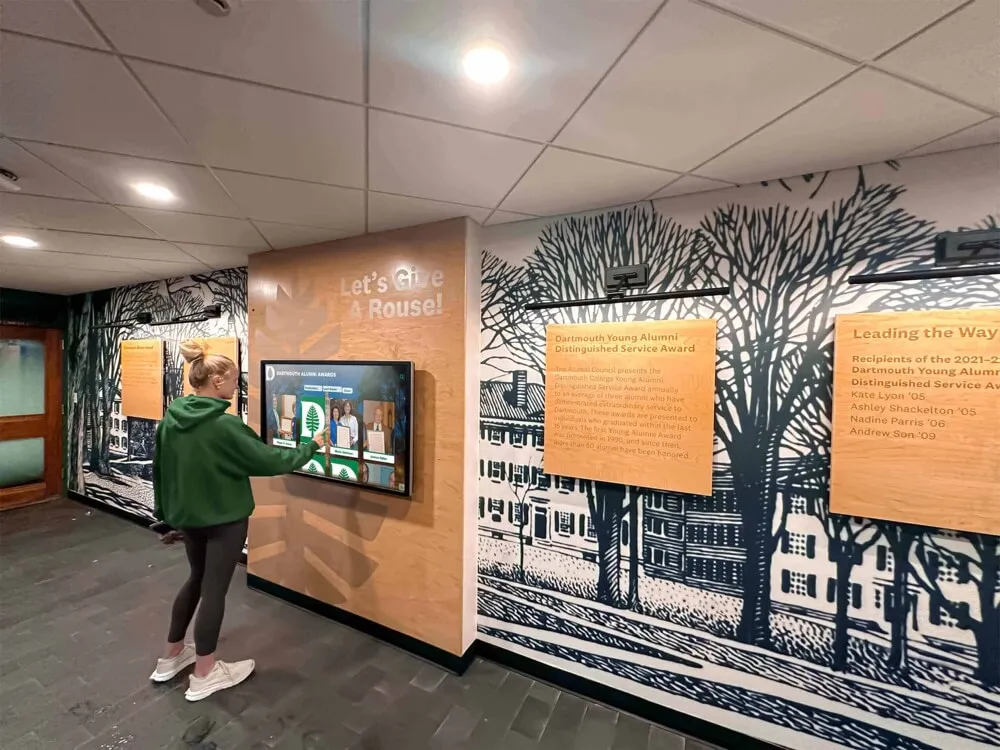
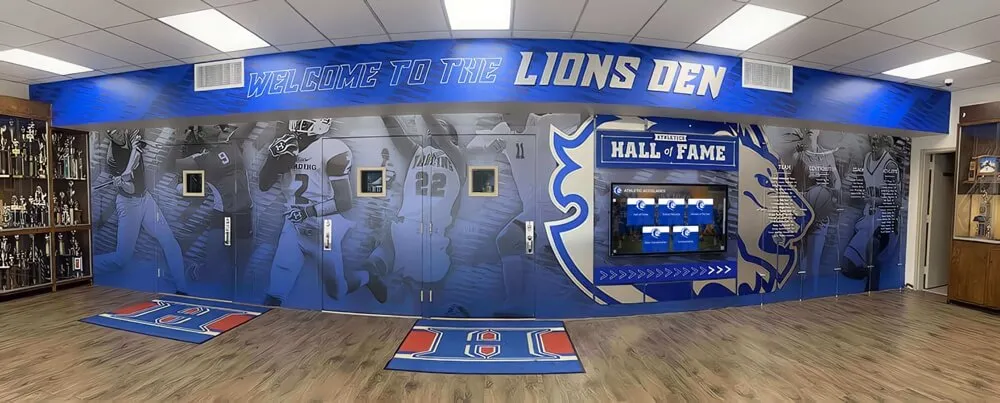
Wired or wireless, recognition displays benefit from dedicated network segments that contain their traffic without impeding their content delivery
Coordinating with Your Recognition Platform Vendor
Your vendor’s implementation team should be a working partner in the network segmentation process, not just a hardware delivery service. Before installation, ask for the following in writing:
- Complete list of outbound domains and IP ranges the display needs to reach
- Remote access method (direct, relay, third-party tool) and the destination addresses or ports it uses
- Supported OS and any OS-level firewall requirements (some display systems run Windows with local firewall rules that must be left open)
- Content delivery network providers so you can allowlist CDN IP ranges rather than overly broad rules
- Escalation path if a network change on your end breaks display connectivity
Vendors who have worked with multiple school IT teams will have this information ready. If a vendor is unable to provide specific firewall requirements and instead asks you to disable filtering for the display entirely, treat that as a signal to push back and ask for specifics before proceeding.
The broader question of how recognition technology vendors position their products—and what to look for versus what represents oversell—is addressed in the AI kiosk marketing analysis for digital hall of fame buyers, which is useful context when evaluating vendor claims during procurement.
Frequently Asked Questions
Does a touchscreen recognition display need to be on a separate VLAN, or is a firewall ACL on the existing VLAN sufficient?
Either approach can work technically, but a dedicated VLAN is preferable because it provides a clean boundary for monitoring, QoS, and future policy changes. An ACL on an existing VLAN requires careful rule maintenance to ensure it catches all lateral movement paths—a dedicated VLAN makes the isolation structural rather than policy-dependent.
Can the display be on the guest Wi-Fi network?
Guest networks are designed for unauthenticated public internet access, which means the display would have internet connectivity but no path to your monitoring infrastructure and no stable identity in your network inventory. More importantly, guest networks typically share bandwidth with visitor devices and apply different filtering policies than you would want for a managed school system. A dedicated display VLAN is a better choice.
Our vendor wants to use TeamViewer for remote support. Is that acceptable?
TeamViewer and similar tools use outbound relay connections, meaning no inbound firewall rules from the internet are required. The display initiates the outbound session to TeamViewer’s relay infrastructure, and the vendor’s technician connects through that relay. This is generally acceptable from a firewall policy perspective. Review TeamViewer’s published IP ranges and ensure your outbound rules allow those destinations. Confirm with your vendor that they use a company-managed TeamViewer account (not a personal one) and that sessions are logged.
What happens to the display if the internet goes down?
Well-designed recognition platforms cache content locally so the display continues serving stored athlete profiles, award records, and recognition content during outages. New content cannot be pushed and remote management is unavailable, but the visitor-facing display remains operational. Verify this behavior with your vendor before deployment—it is an important resilience consideration for high-visibility installations.
Do we need to notify students or families that the display is on the network?
The display is a school-managed device used to present publicly available recognition content. It is not a data collection device in the sense that most privacy notices contemplate. That said, your school’s legal counsel or privacy officer should review any vendor data practices—particularly around analytics or usage logs—against applicable state student data privacy laws. This guide provides practical network guidance, not legal advice, and your institution’s policies on device data practices should govern that determination.
We already have a network segmentation policy for digital signage. Can we put the recognition display on that existing segment?
Yes, provided the existing segment’s firewall rules permit the outbound destinations the recognition platform requires and the segment is already isolated from student and staff production systems. Review the rule set against the vendor’s requirements before connecting the display. If the existing signage VLAN has broader or different access than what the recognition platform needs, a separate VLAN gives you cleaner policy control.
Recognition Content Management After Segmentation
Once the network is configured, the day-to-day experience for recognition program administrators is unchanged. Athletic directors, archive owners, and recognition coordinators log into the vendor’s web portal from any device—a laptop at their desk, a tablet at home, or a phone on the sidelines—and manage content entirely through that interface.
The types of content flowing through that portal include everything that makes a school recognition display valuable: individual athlete career profiles, team championship histories, academic honor records, donor recognition walls, and community hero features. Schools with rich archives—decades of records organized by sport, year, and category—depend on the platform’s content management tools rather than any direct network access to the kiosk hardware itself.
For programs building out comprehensive recognition archives, the hall of fame tools comparison for athletics, donors, arts, and history is a useful reference for understanding what platform features matter most at different program scales.
Youth athletic programs and schools adding sports recognition to existing displays may also find the youth sports awards ideas guide helpful when structuring recognition categories in the content management portal.
Implementation Checklist
Use this checklist when deploying a touchscreen recognition display on a segmented school network:
- Inventory collected: OS, MAC, hostname, required outbound destinations, remote access method
- VLAN created with dedicated subnet, DHCP reservation for display MAC
- Firewall rules configured: outbound internet access allowed, lateral movement to production VLANs denied
- Outbound connectivity verified from a test device on the VLAN before display deployment
- Display deployed, DHCP reservation confirmed active, content loading verified
- Remote support access tested with vendor while monitoring firewall logs
- Monitoring configured: ping check active, alerting to appropriate queue
- Documentation complete: network register, asset record, firewall change log, vendor support sheet, content admin contacts
- Wireless SSID suppressed (if wireless deployment)
- Bandwidth allocation reviewed and QoS policy applied if needed
See How a Properly Supported Recognition Display Works in Practice
Rocket Alumni Solutions works with school IT teams to document network requirements, explain remote access models, and ensure installations meet institutional security policies. If you are planning a hall of fame, athletic record board, or recognition kiosk deployment and want to walk through the technical setup before committing, a live demo is the fastest way to get concrete answers.
Schedule a Live DemoNetwork segmentation adds a small amount of configuration work at installation time and pays for itself in reduced risk, simpler policy management, and cleaner monitoring for the life of the display. The recognition content that flows through these systems—athlete histories, championship records, donor honors, and community achievements—deserves infrastructure that is both reliable and secure. A well-segmented network provides both.