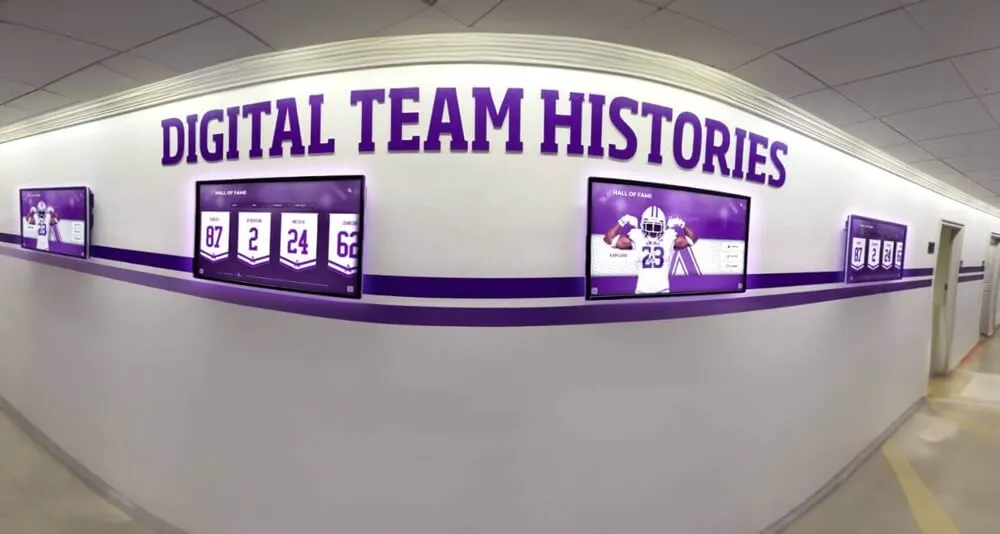
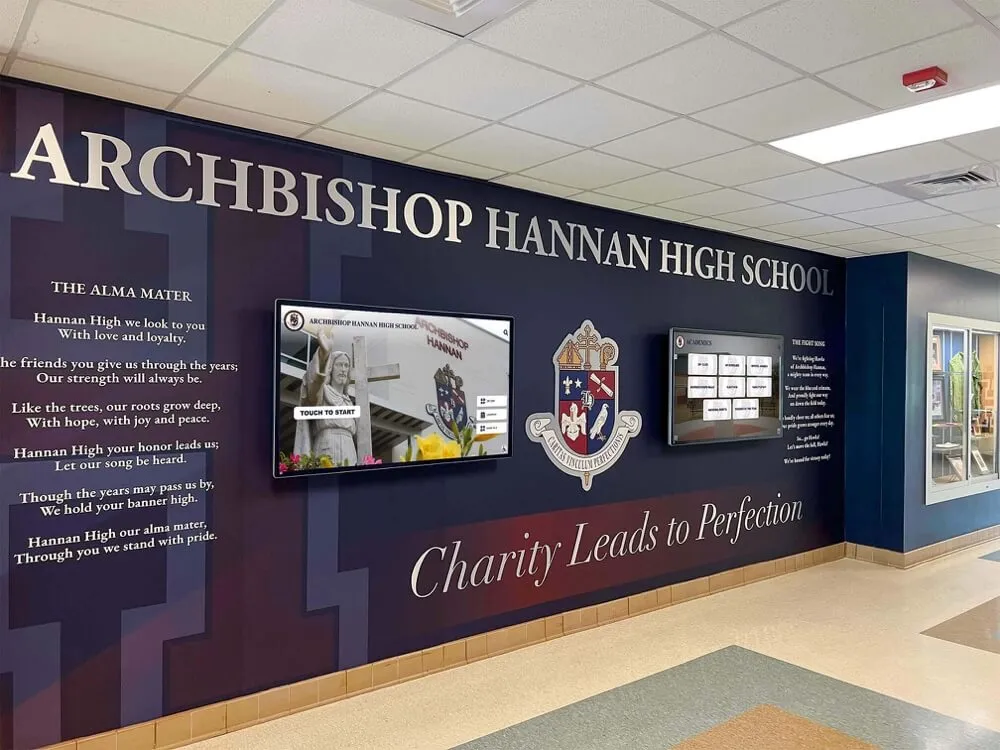
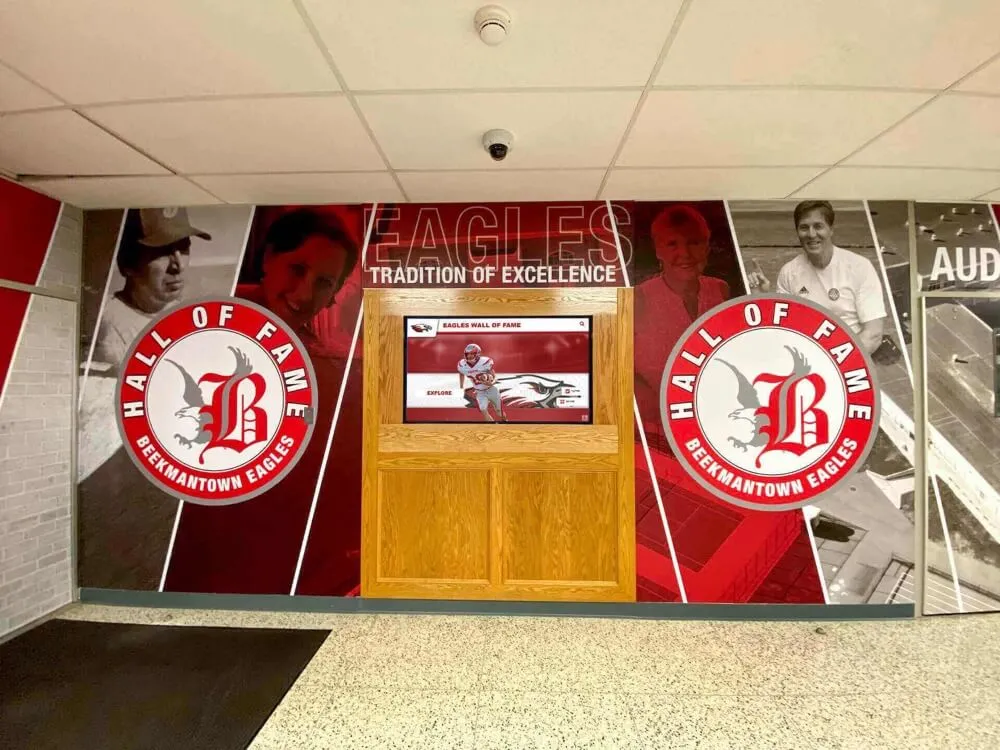
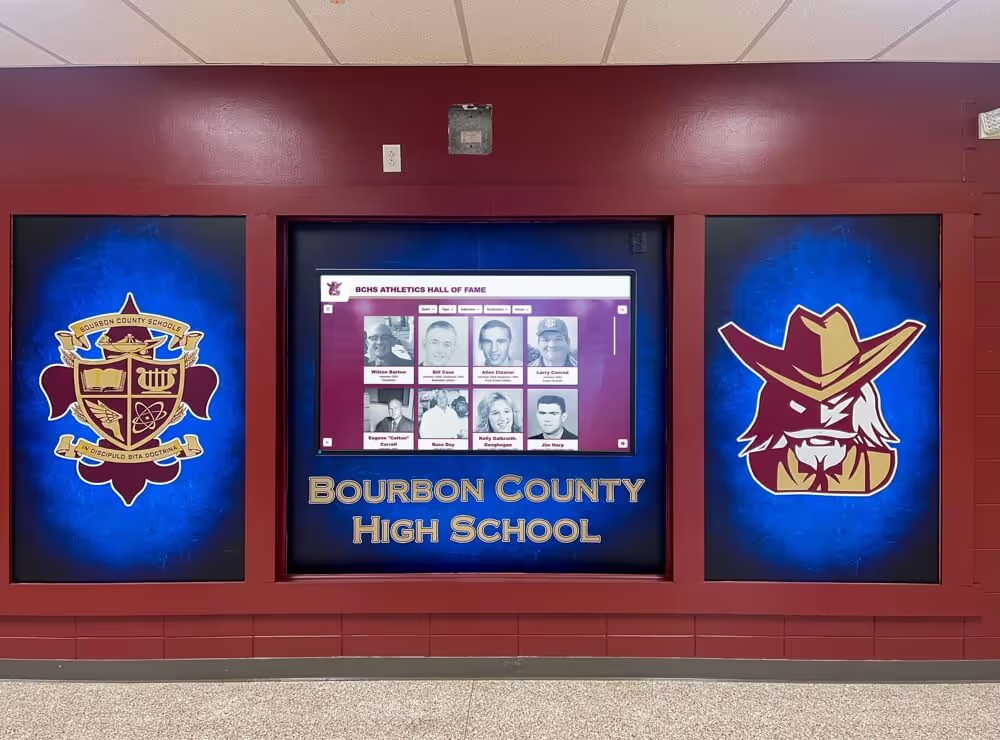
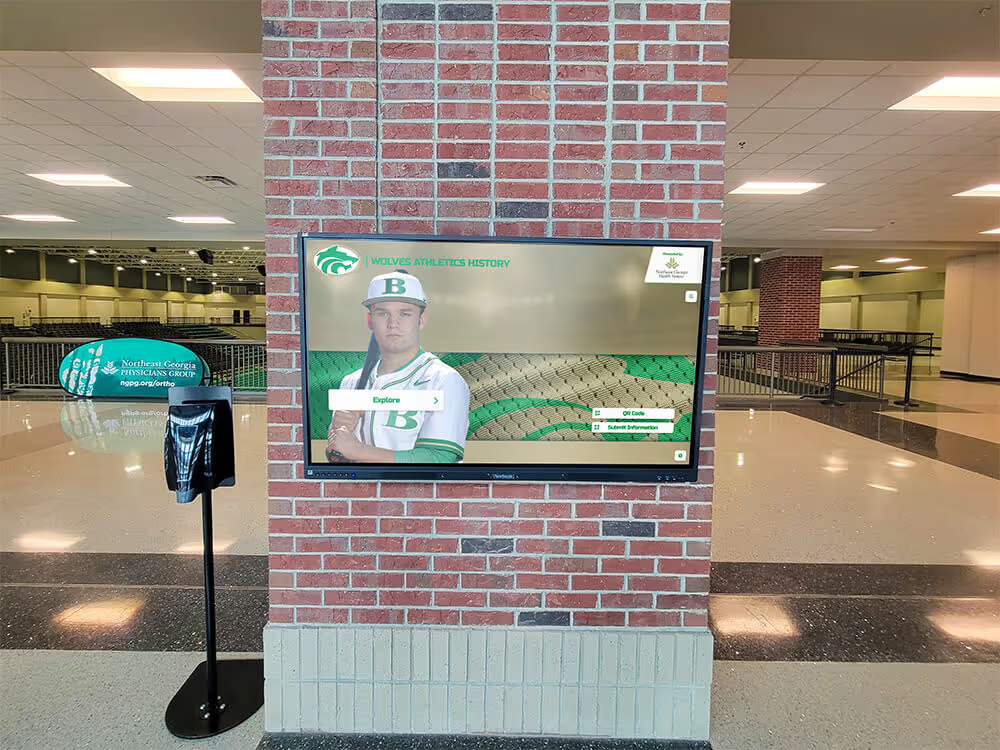
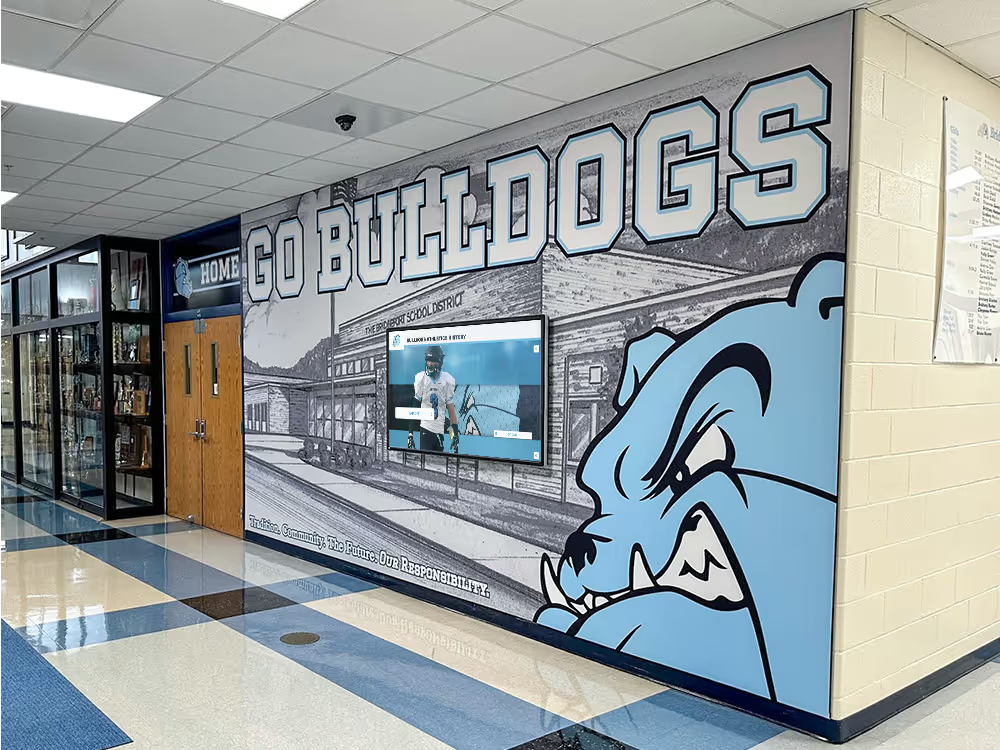
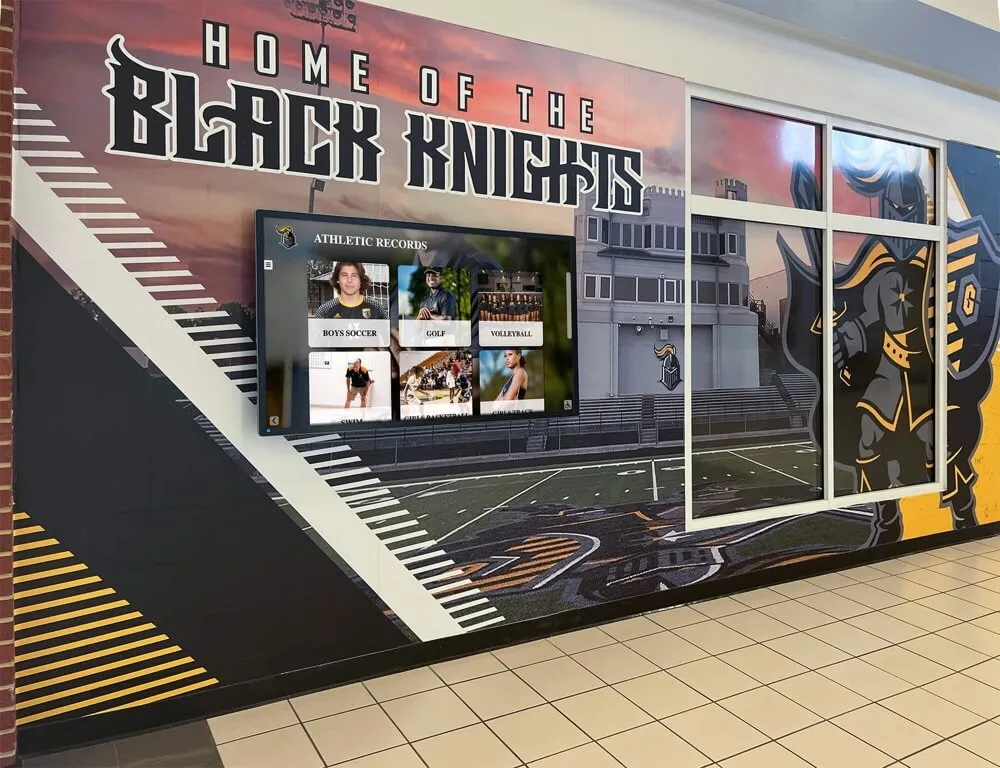
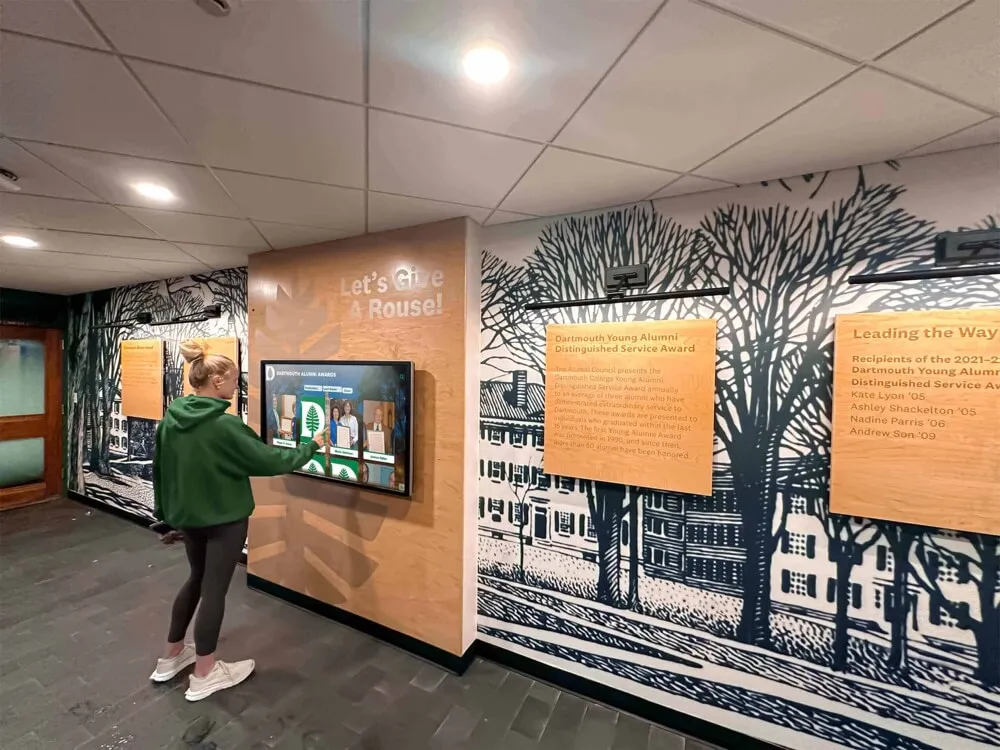
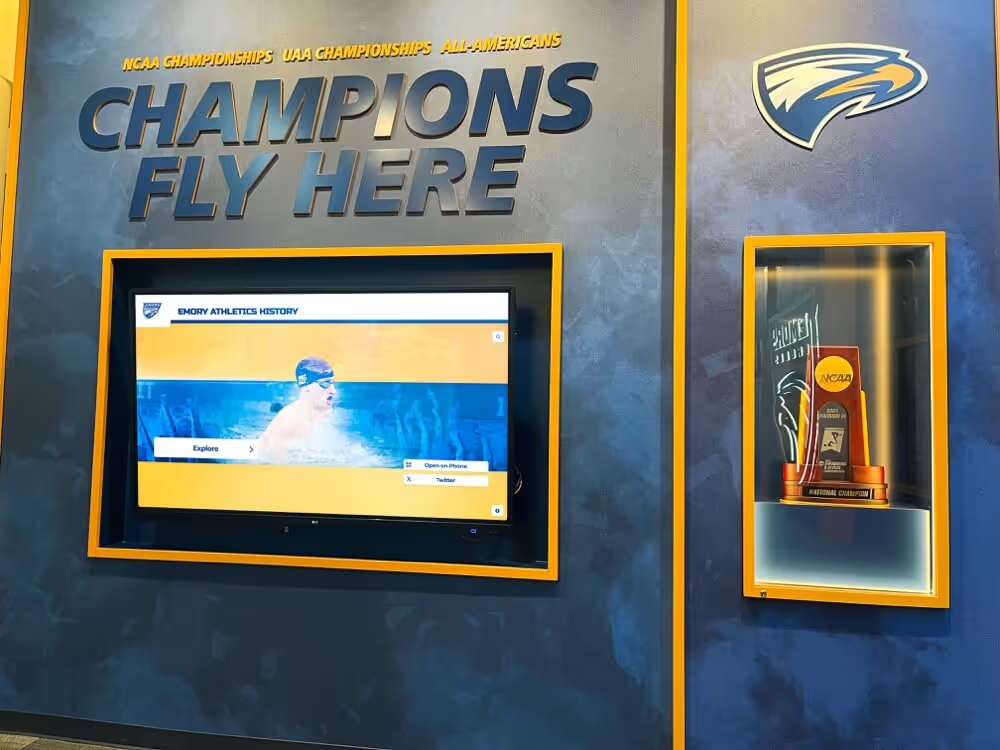
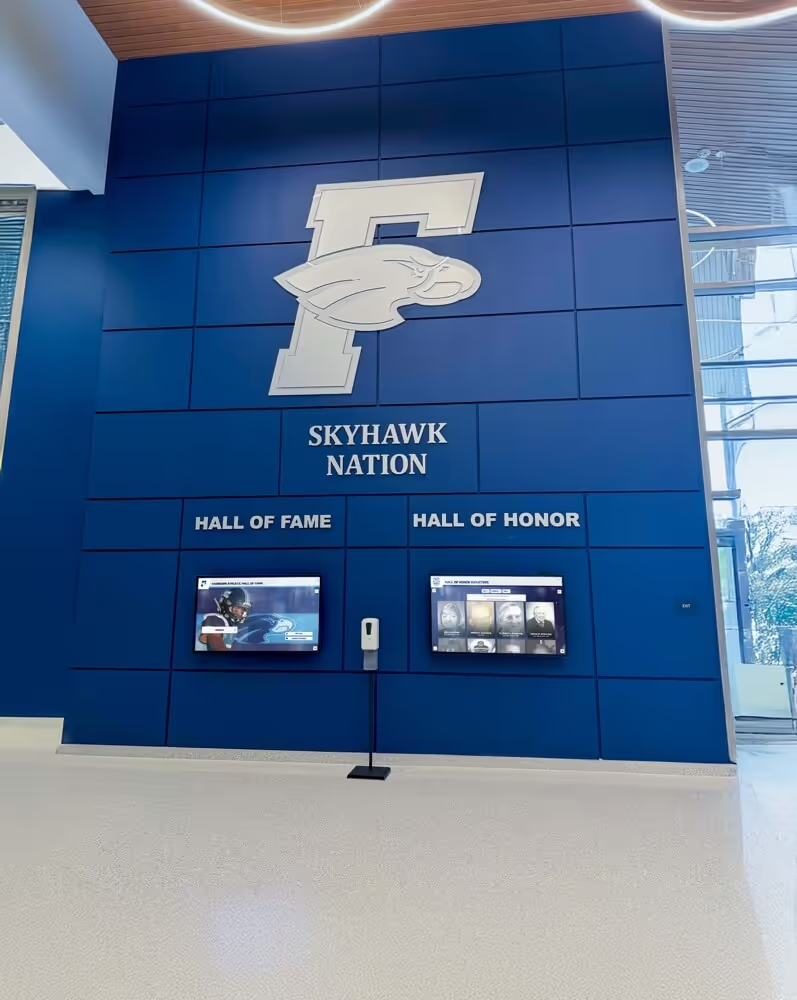
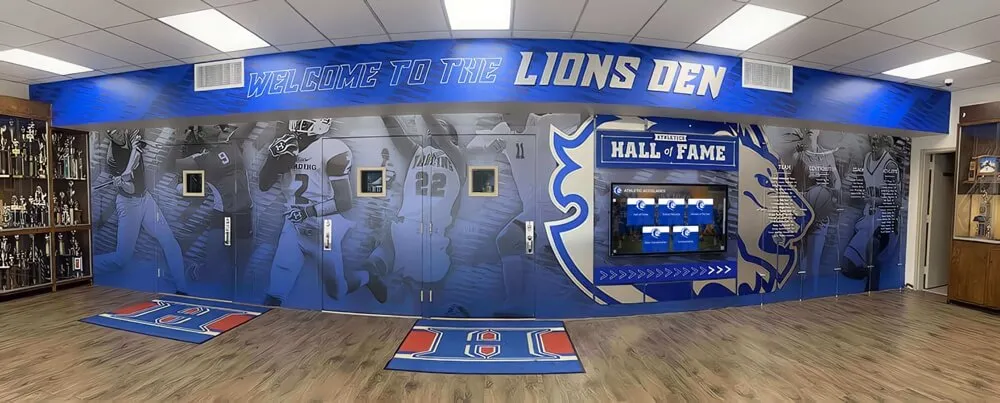
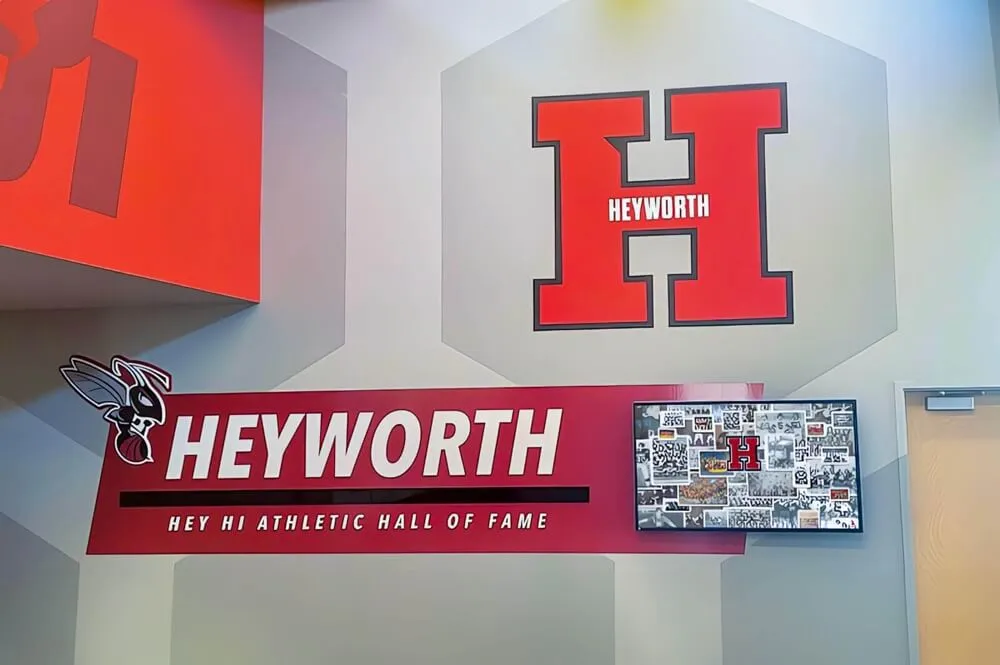
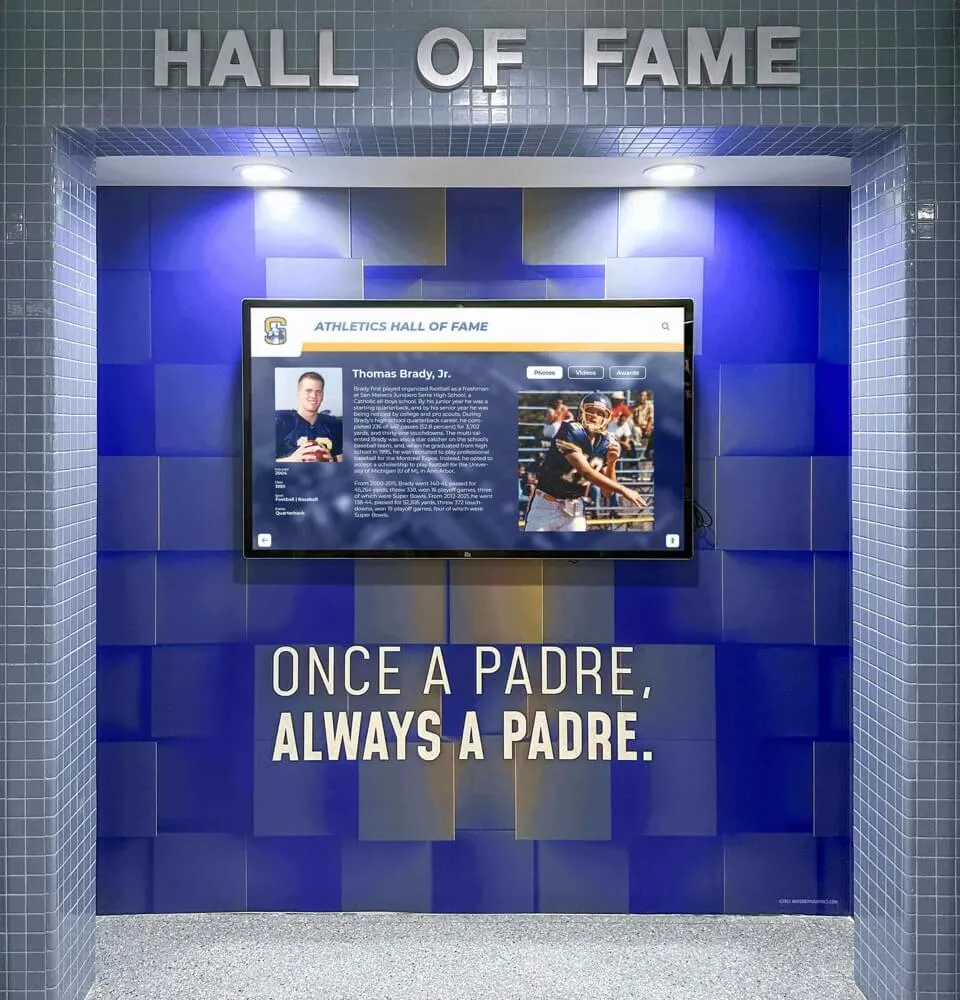
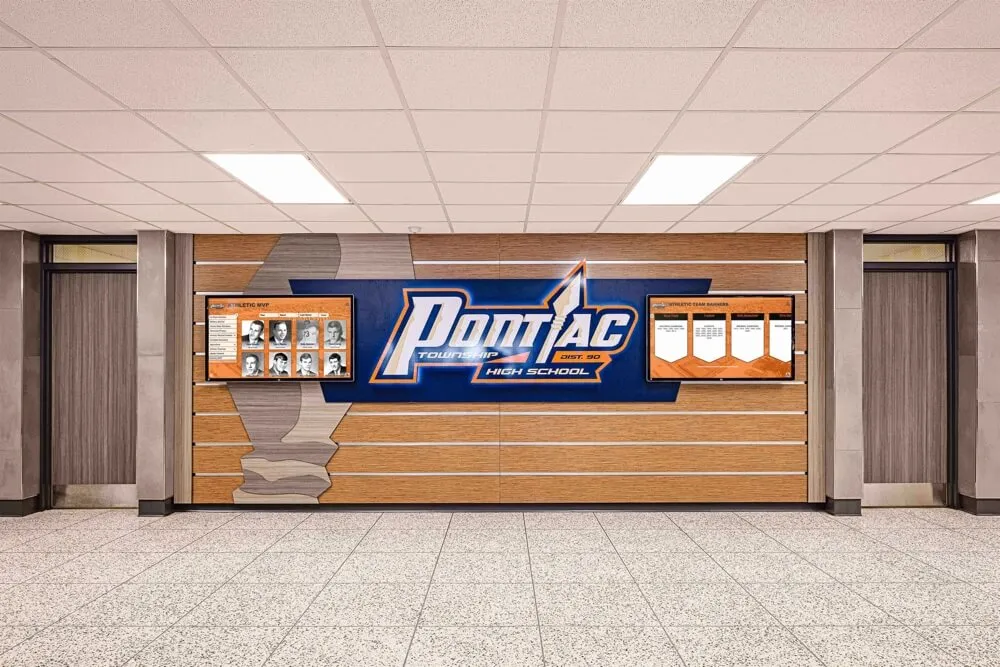
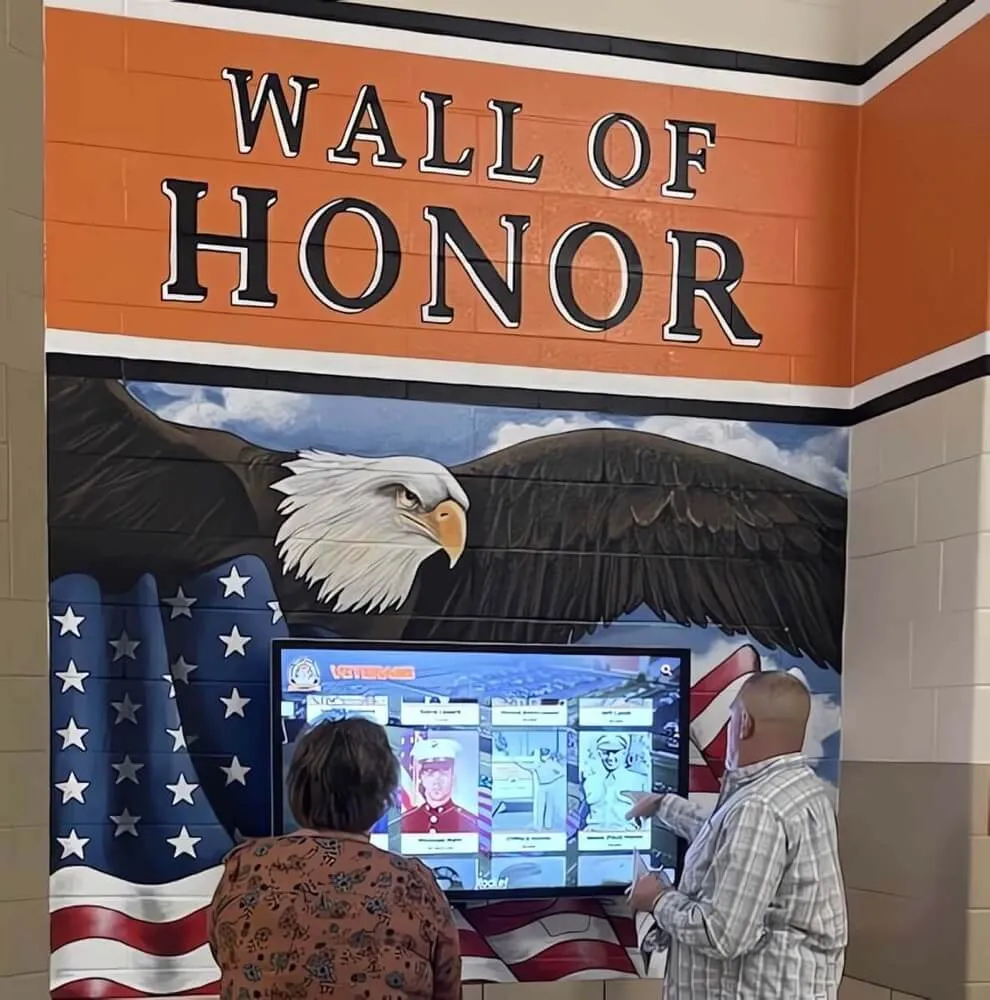
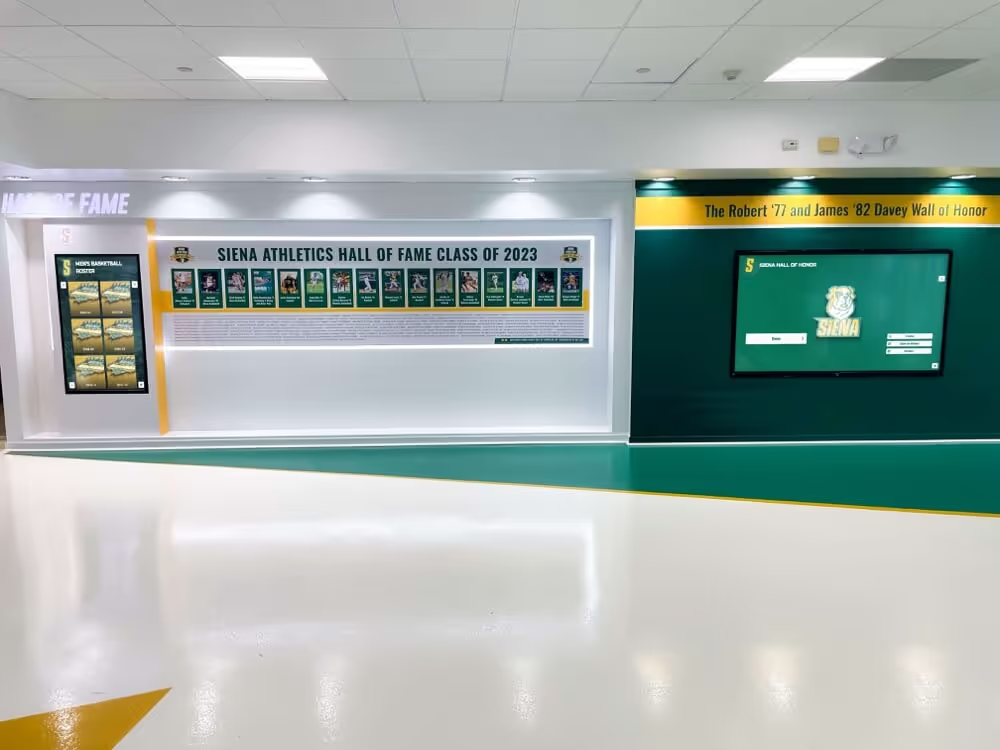
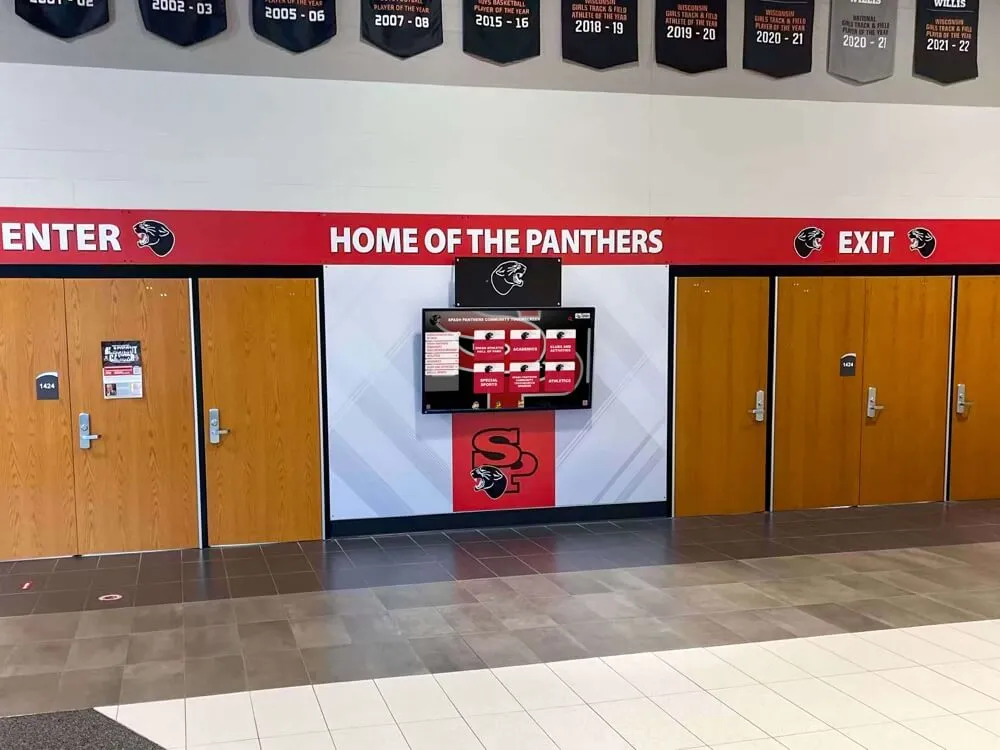
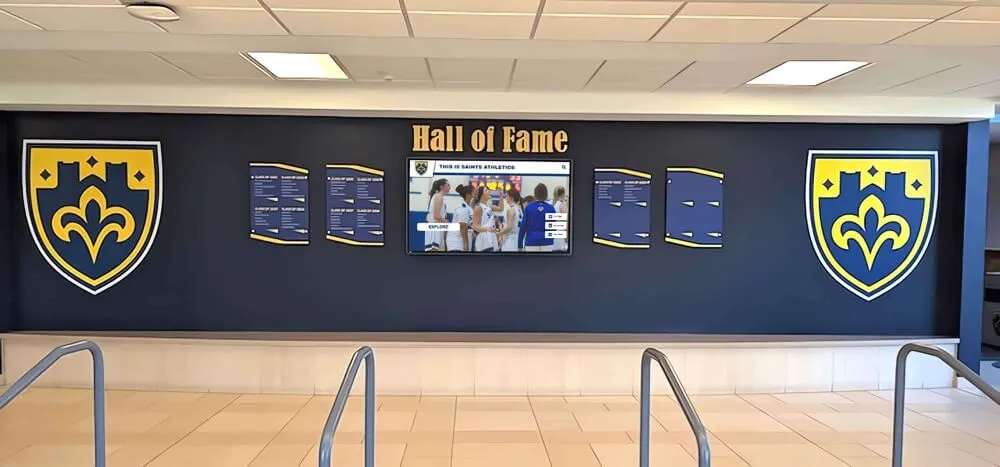
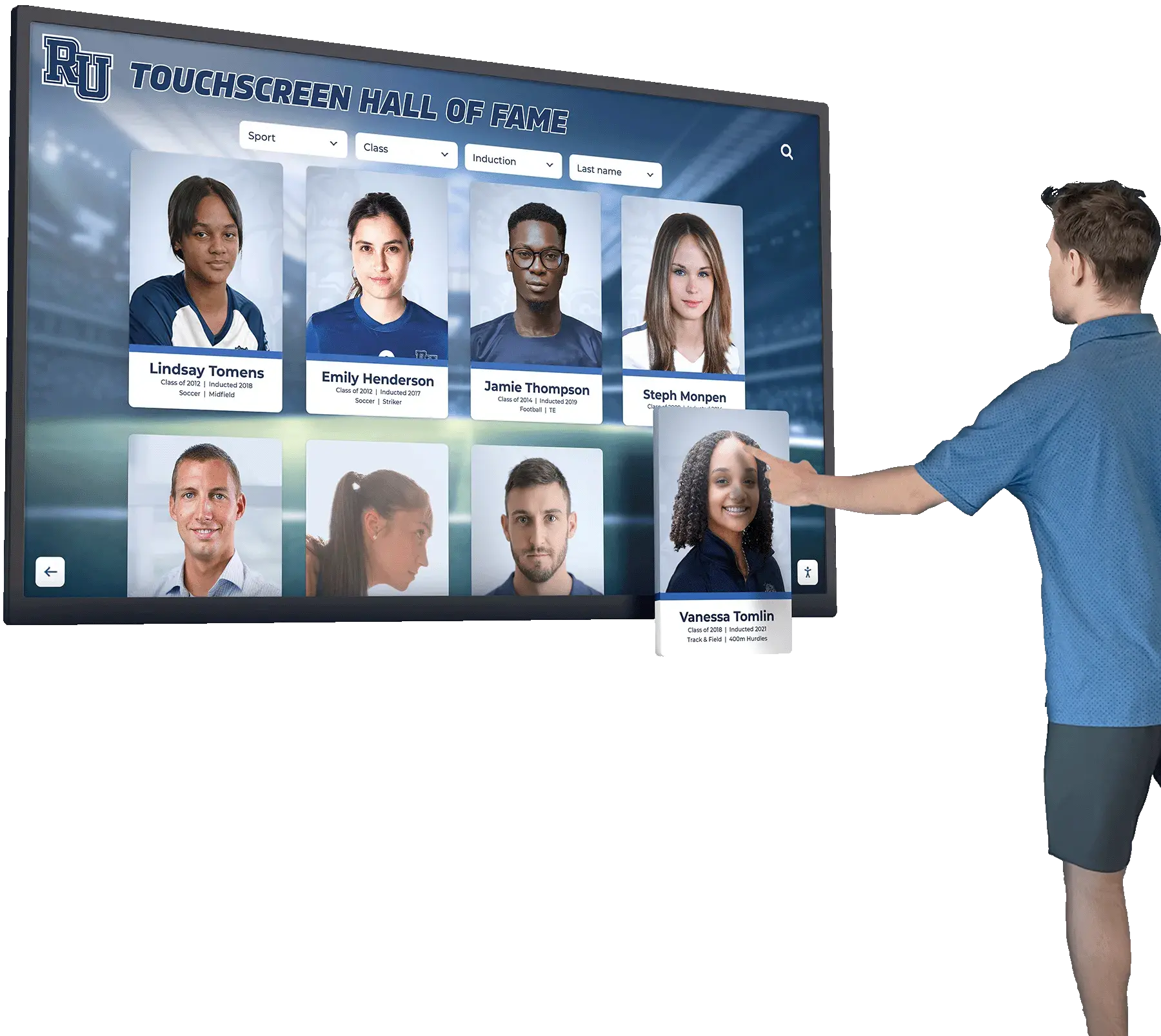
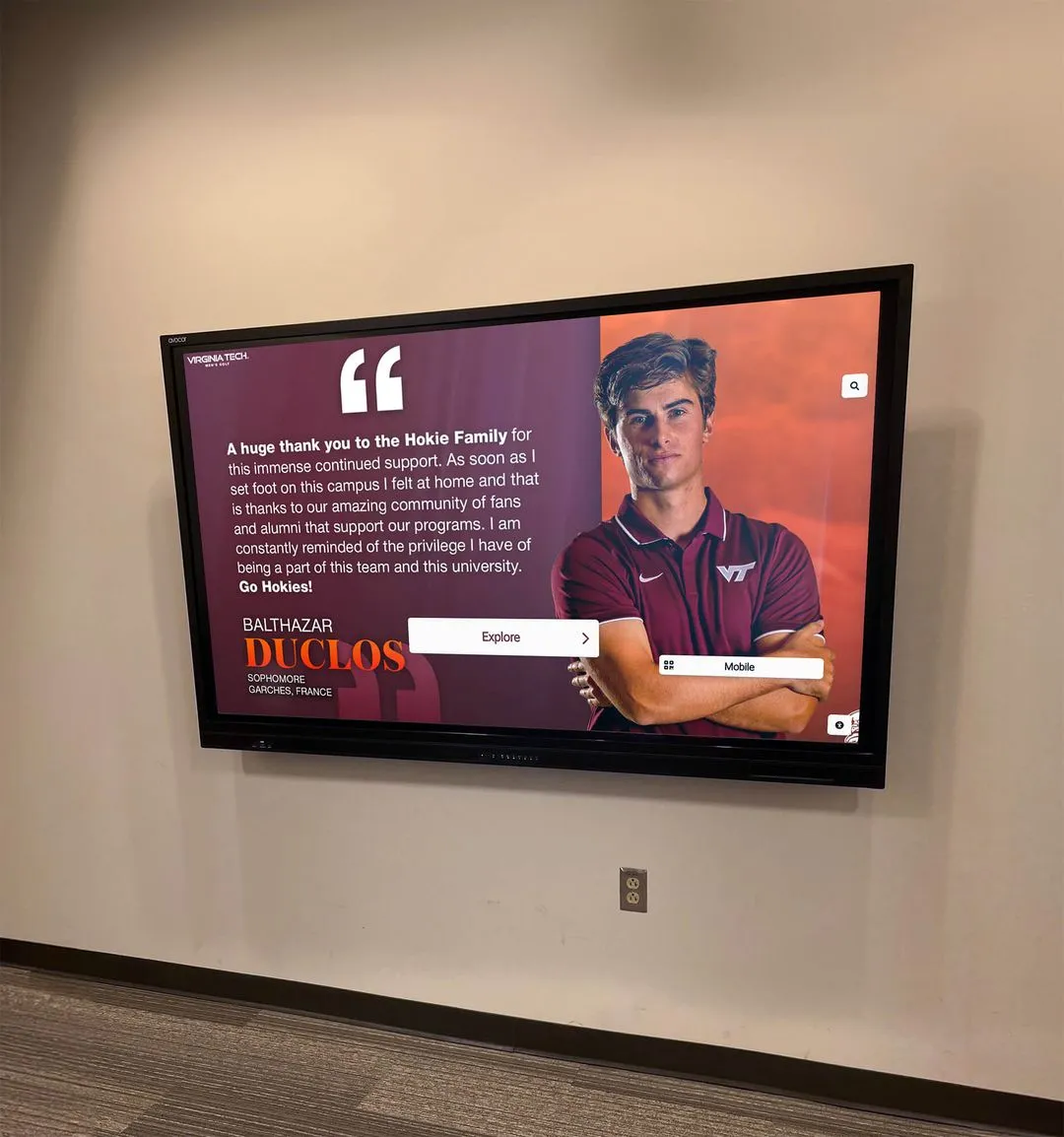
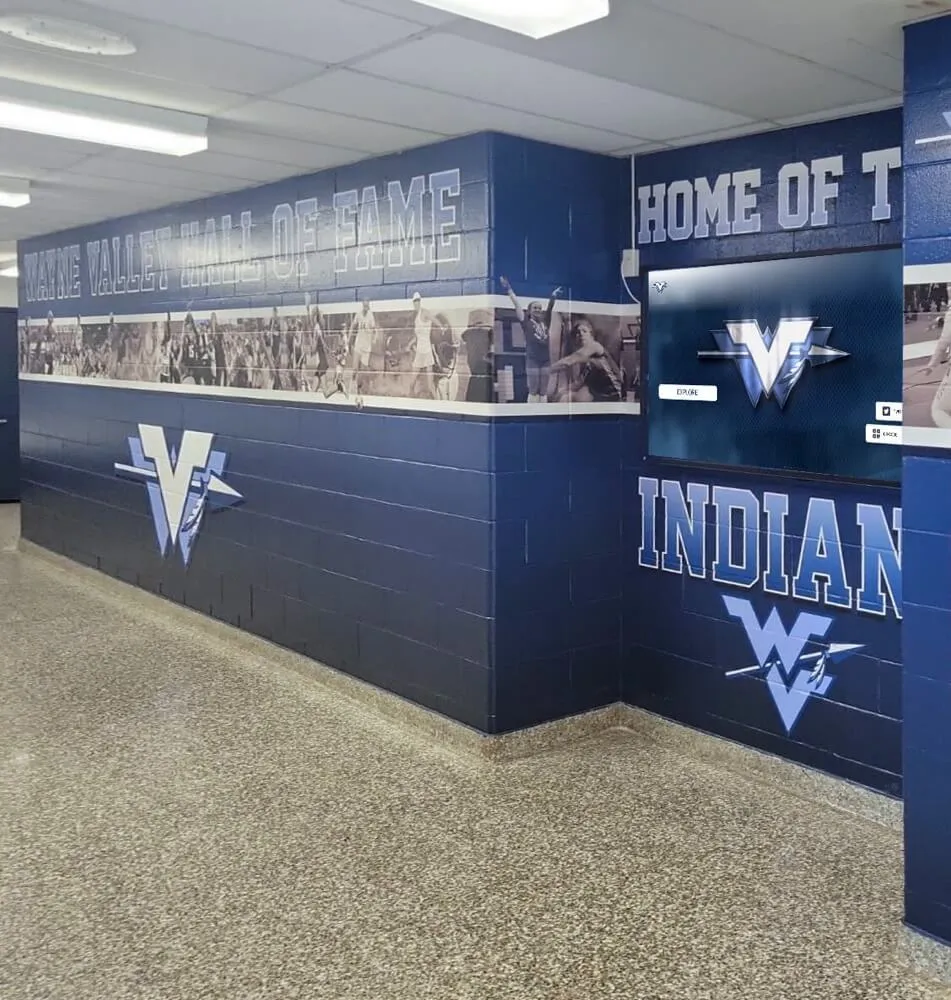
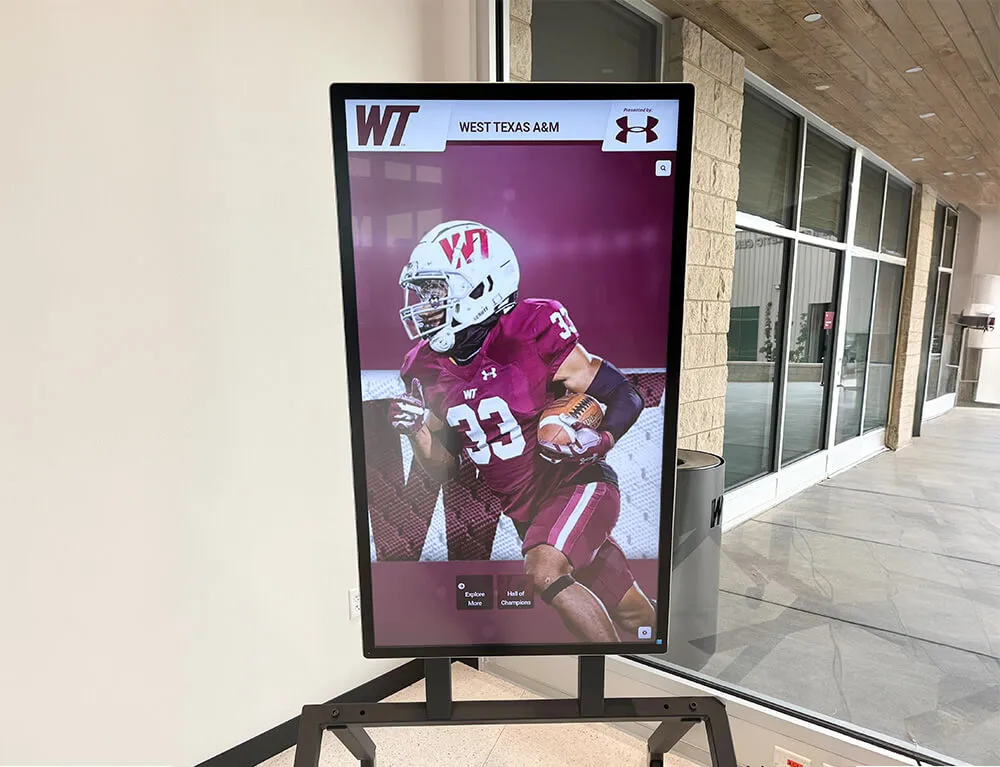
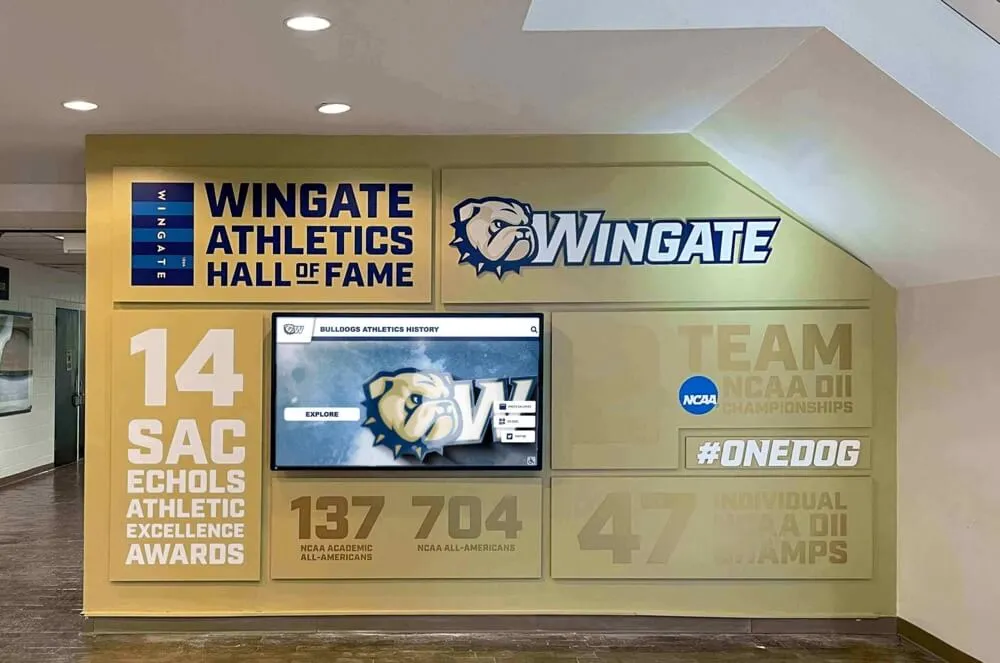
A touchscreen recognition display in a school lobby or athletic corridor serves a purpose that most incident response frameworks never mention: it is the permanent, publicly visible record of what your student athletes achieved, what your donors gave, and who your community honored. When that kiosk goes blank before homecoming, shows corrupted content during a banquet, or behaves strangely on the network, the response cannot follow the same low-urgency queue as a printer outage. Recognition content has an audience, a calendar, and a reputational weight that makes timely, structured recovery matter.
This playbook is written for school IT coordinators, athletic directors, and facilities staff responsible for supporting a touchscreen hall of fame or recognition kiosk. It follows a four-phase structure—Detect, Contain, Recover, Document—and is designed to be printed, laminated, and kept at the IT help desk alongside the display’s technical documentation. Each phase includes specific actions, decision points, and the people who need to be involved.
The short answer: when a recognition display incident occurs, isolate the device from the network to prevent any issue from spreading, preserve logs before rebooting, contact your vendor’s support line with a description of observed symptoms, restore content from the cloud platform once the device is confirmed clean, and close the record with a written incident summary that includes timeline, actions taken, and any changes made to configuration. The full playbook below covers each phase in detail.

Touchscreen recognition displays hold years of school history—an incident response playbook protects that content and gets the kiosk back online before the next event
Why Recognition Displays Need a Dedicated Incident Response Playbook
Standard IT incident response procedures cover workstations, servers, and network infrastructure. A touchscreen recognition kiosk shares some properties with those assets but has characteristics that generic runbooks do not account for:
Content is irreplaceable in context. An athlete’s career record, a championship banner listing, a donor honor roll—this content exists in a specific format, tied to a specific display, visible to a specific community. While cloud-based platforms protect the underlying data, the display’s locally cached content and configuration can be disrupted in ways that take hours to restore if no one has documented the recovery path.
The display has a public calendar. Recognition kiosks are most visible—and most scrutinized—during athletic events, alumni reunions, award ceremonies, and graduation season. An incident during senior night or homecoming carries more urgency than the same incident on a Tuesday in January. Your playbook needs to account for event-sensitive recovery timelines.
Vendor involvement is built in. Unlike a workstation you can rebuild from a standard image, a recognition platform kiosk requires the platform vendor to participate in recovery. The vendor holds the authoritative content record, the remote management path, and the display configuration. Your playbook must include vendor contact steps and clear handoff points.
The device sits in a public space. Unlike server room hardware, a kiosk can be physically accessed by students, parents, contractors, and visitors. Physical interaction—a loose cable, an unauthorized USB device, a forced restart—is a legitimate incident trigger, not just a network or software event.
Schools building out interactive recognition display programs increasingly treat their kiosks as operational infrastructure, not just signage—which means applying the same disciplined incident handling to these systems that they would to any school-managed device.
Phase 1: Detect — Recognizing That an Incident Has Occurred
Detection is the phase most likely to fail silently. A recognition display in a hallway can be blank, frozen, or serving incorrect content for hours before anyone reports it. Proactive monitoring and clear reporting paths are the difference between detecting an incident in minutes versus discovering it when a visitor complains during an event.
Automated Detection
Your monitoring infrastructure should include the recognition display on the same ping-monitoring or heartbeat-check schedule as other managed devices. If the display stops responding:
- Your monitoring tool should generate an alert within the configured check interval (typically 2–5 minutes)
- The alert should route to the IT help desk queue with a priority label that identifies it as a recognition system, not a generic device
- The on-call contact for display incidents should receive a text or email notification, not just a ticket
Cloud-based recognition platforms often include a vendor-side heartbeat dashboard showing whether each managed display is online and serving content. Ask your vendor whether this feature is available and how to access it—it provides application-layer visibility that network-layer ping monitoring alone cannot give you.
Reported Detection
Many display incidents are first noticed by non-IT staff: a coach walking past before practice, an athletic director checking the lobby before a game, or a student worker noticing the screen is frozen. Make the reporting path simple:
| Reporter | Reporting Path | Expected Response Time |
|---|---|---|
| Athletic director / coach | Direct call or text to IT on-call number | 15 minutes |
| Front office staff | Help desk ticket marked “recognition display” | 30 minutes |
| Facilities staff | Phone or radio to IT coordinator | 15 minutes |
| Student or visitor | Notify nearest school staff member; staff reports to IT | 30 minutes |
Post the IT contact number at or near the display in a location visible to staff but not to the general public—a label on the mount bracket or a card in the nearby supply closet is sufficient.
What Counts as an Incident
Not every display anomaly is an incident requiring the full playbook. Use this classification to calibrate your response:
| Observation | Classification | Response |
|---|---|---|
| Display is blank or black | Incident — Priority 1 if event within 24 hours | Activate playbook Phase 1 immediately |
| Display shows wrong or outdated content | Incident — Priority 2 | Activate playbook; contact vendor |
| Display is slow to respond to touch | Minor issue | Reboot per standard procedure; document |
| Display is offline per monitoring but visible to users | Investigate — may be a monitoring false positive | Verify physically before escalating |
| Unfamiliar content, modified layouts, or unexpected applications visible | Security incident — Priority 1 | Activate playbook; escalate to IT security |
| Physical damage visible to screen or mount | Physical incident | Notify facilities; document; contact vendor for hardware assessment |
If the observed symptoms suggest unauthorized access, content modification, or unfamiliar software on the device, treat the incident as a potential security event and escalate beyond the standard display recovery path.
Phase 2: Contain — Stopping the Incident from Getting Worse
Containment has two goals: prevent the incident from affecting other systems, and preserve evidence needed for diagnosis and documentation. These goals occasionally create tension—rebooting a frozen device may restore service faster but destroys log data you need for root cause analysis. This phase helps you navigate that tradeoff.
Immediate Containment Actions
Step 1: Assess remotely before touching the device. Before walking to the kiosk, check whatever remote visibility you have: ping status in your monitoring tool, vendor heartbeat dashboard, firewall logs for unusual traffic from the display’s IP. A 90-second remote check tells you whether you are dealing with a device-level issue, a network issue, or potentially a security event, and it lets you make a more informed decision about physical response.
Step 2: Preserve logs before rebooting. If the device is accessible but behaving abnormally, connect to it via your vendor’s supported remote management path and collect:
- System event logs (Windows Event Viewer, Linux syslog, or equivalent)
- Network connection logs if available
- Application crash or error logs from the recognition platform software
- A screenshot or photo of whatever is displayed on screen
Export or photograph this information before any reboot. If the device cannot be reached remotely, photograph the screen with your phone before touching it.
Step 3: Isolate from the network if a security incident is suspected. If you observed unexpected content, unfamiliar applications, or anomalous network traffic from the display, disconnect it from the network before attempting recovery. On a wired deployment, unplug the Ethernet cable. On a wireless deployment, use your wireless controller to deauthenticate the device’s MAC address from the display SSID.
Network isolation protects your other systems from any potential lateral movement while you investigate. Recognition displays on dedicated VLANs—as recommended in a segmented school network—are already limited in their ability to reach adjacent systems, but disconnecting the device entirely removes any remaining path.
Step 4: Notify the vendor. Contact your recognition platform vendor’s support team with the following information:
- Device identifier (hostname, serial number, or the site identifier used in the vendor portal)
- Time the incident was first detected
- What was observed (blank screen, wrong content, unusual behavior, physical damage)
- Whether the device is currently network-isolated
- Whether any logs were captured
Vendors with school recognition platform experience will have their own diagnostic procedures. Your containment actions—particularly log preservation and network isolation decisions—should be made before this call so you can report what you have already done.
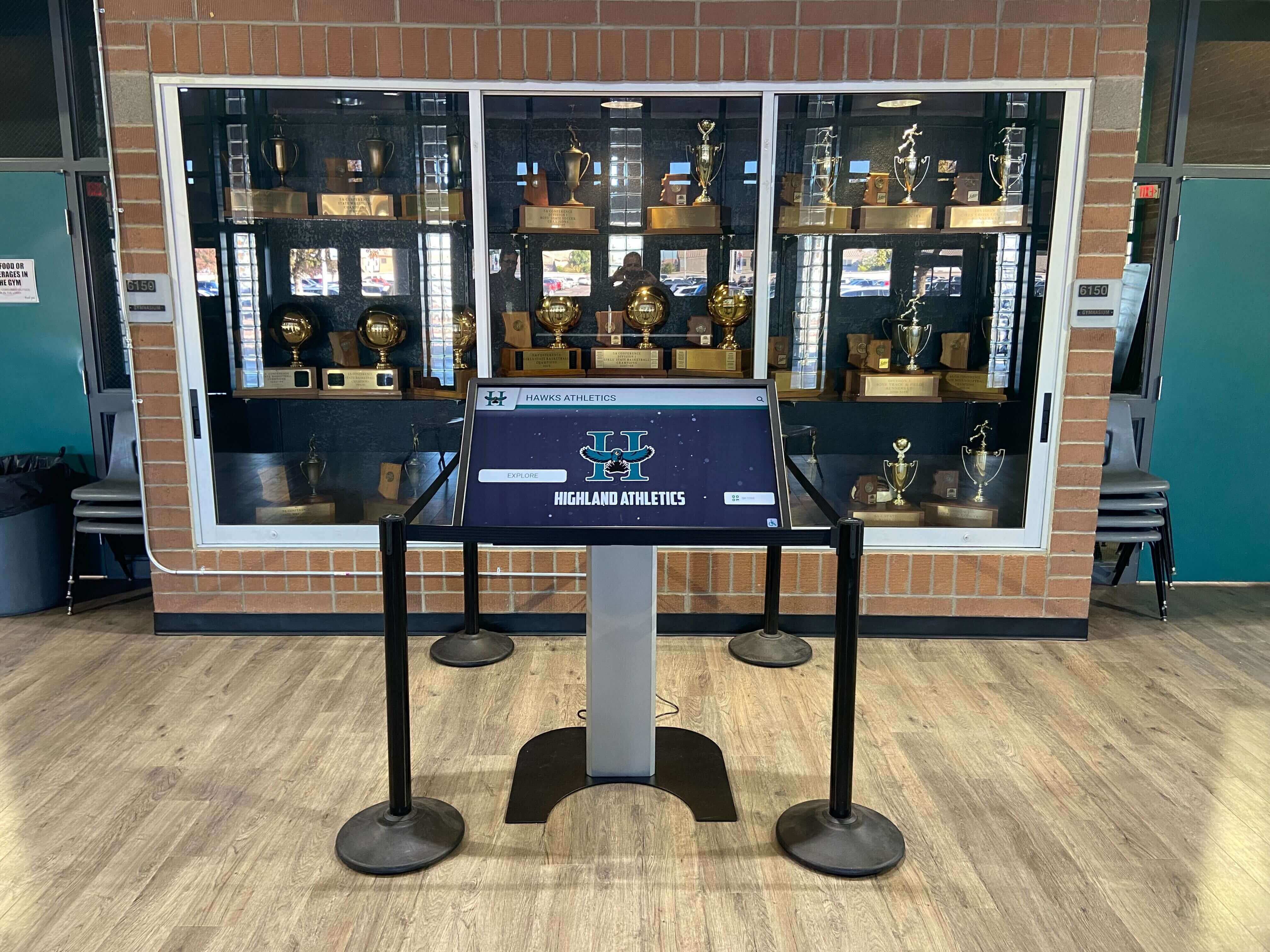
Physical access to display hardware during an incident should be controlled and documented—note who accessed the device and when before any hands-on recovery begins
Containment Decision Matrix
| Scenario | Isolate Network? | Preserve Logs First? | Reboot? | Escalate to Security? |
|---|---|---|---|---|
| Blank screen, device responsive to ping | No | Recommended | Yes, if vendor advises | No |
| Blank screen, device unresponsive to ping | No | Not possible | Yes, after physical assessment | No |
| Wrong or outdated content displaying | No | Recommended | Only if vendor advises | No |
| Unfamiliar applications or content visible | Yes | Yes — before any action | Only after vendor review | Yes |
| Unusual outbound traffic in firewall logs | Yes | Yes | Only after vendor review | Yes |
| Physical damage to hardware | No (unless security concern) | Photograph screen | No — preserve for vendor assessment | Only if tampering suspected |
Phase 3: Recover — Restoring Recognition Content and Kiosk Availability
Recovery for a recognition display has two distinct goals: restore the device to a known-good operational state, and confirm that the recognition content is complete and accurate. Both must be completed before the incident can be closed.
Device Recovery
The recovery path depends on what caused the incident. Work with your vendor to follow the appropriate path:
Software or application issue:
- Vendor performs remote diagnosis via their supported management tool
- Vendor pushes a software update or configuration correction
- IT verifies the display has reconnected to the cloud platform and is pulling content
- Run a full content sync to confirm all recognition data has refreshed
Operating system issue (crash, corruption, failed update):
- Vendor advises whether an OS-level repair or factory reset is required
- If a factory reset is needed, confirm with vendor that all content is safely stored in the cloud platform before proceeding—a factory reset removes locally cached content
- Vendor performs or guides the reset and reconfiguration
- IT verifies network connectivity from the device VLAN after reset
- Vendor confirms cloud platform registration is restored and full content sync completes
Network connectivity issue:
- IT diagnoses the network path: DHCP assignment, VLAN membership, firewall rules
- Check whether a switch port, Wi-Fi SSID, or DHCP reservation changed since the last known good state
- Restore the correct network configuration
- Verify the device can reach the vendor’s platform URL from the display VLAN
- Confirm content sync resumes
Hardware failure:
- Vendor assesses whether the failure affects the display panel, the embedded compute module, or peripheral hardware (touch overlay, media player)
- Vendor arranges replacement hardware per warranty or service agreement
- IT prepares the network port/SSID assignment for the replacement device
- After hardware replacement, vendor completes reconfiguration and content sync
- IT verifies physical installation and network connectivity
Content Verification
Hardware and software recovery restores the delivery mechanism. Content verification confirms that what the display is showing is correct and complete.
After any recovery, the recognition program administrator—athletic director, archives coordinator, or similar—should review the display and confirm:
- Athlete profiles are showing current and accurate information
- Award records and championship histories are complete
- Donor recognition entries are accurate and complete
- No content from another school, another program, or a test environment is visible
Schools with comprehensive recognition archives—decades of athletic records, alumni achievement spotlights, or donor recognition walls—should cross-reference the display output against the content management portal to confirm nothing was lost or altered during the incident.
This verification step matters especially for schools that maintain recognition programs tied to larger alumni engagement efforts. If donors or honorees can see the display—at events, during campus visits, or via shared photos—content accuracy is a relationship matter, not just a technical one.
Recovery Timeline Targets
| Incident Type | Target Restore Time (Standard) | Target Restore Time (Event Within 24 Hours) |
|---|---|---|
| Network connectivity issue | 2 hours | 30 minutes |
| Software/application issue | 4 hours | 1 hour |
| Operating system issue requiring reset | 8 hours | 2–4 hours with vendor priority support |
| Hardware failure (panel or compute) | Per vendor SLA (typically 1–5 business days) | Contact vendor for emergency hardware escalation |
If an event falls within 24 hours and hardware replacement is required, contact your vendor immediately to discuss interim options: a temporary display running cached content, a secondary display if your program includes multiple kiosks, or a printed summary for the event space while the primary display is repaired.
Phase 4: Document — Creating an Auditable Incident Record
Documentation is the phase most likely to be skipped under time pressure. It is also the phase that protects your school if questions arise later about what happened to recognition content, whether a device was compromised, or how a similar incident can be prevented.
Incident Record Components
A complete incident record for a recognition display should include:
| Component | Contents |
|---|---|
| Incident summary | Brief description of what happened and when |
| Detection timestamp | When the incident was first detected and by whom |
| Containment actions | What was done, in sequence, with timestamps |
| Vendor communications | Summary of calls or tickets with the vendor, including case numbers |
| Recovery actions | What was done to restore the device and content, with timestamps |
| Content verification | Name of the person who reviewed the display after recovery and what they confirmed |
| Root cause | Determined or suspected cause of the incident |
| Corrective actions | Any configuration changes, software updates, or procedural changes made as a result |
| Escalation decisions | If the incident was escalated to security, administration, or other parties, document why |
| Unresolved items | Any open questions, pending hardware replacements, or follow-up actions |
Use your organization’s existing ticketing system or IT documentation platform to store this record. Do not keep incident records only in email threads or personal notes—they need to be accessible to future IT staff who may not have been involved in the original event.
Why the Record Matters for Recognition Programs
Athletic programs maintaining award recognition categories and comprehensive athlete records depend on their recognition platform being reliable. An incident record creates an auditable trail that answers several practical questions:
- Did anything change in the content database during the incident window?
- Was the display offline during a specific event, and if so, for how long?
- Has this incident type occurred before, and has the root cause been addressed?
- If a vendor dispute arises about content accuracy or data loss, what actions were taken and when?
For schools with active booster organizations, donor walls, or community recognition programs, the documentation requirement connects directly to financial stewardship obligations. The same discipline that appears in a booster club audit checklist applies to the digital infrastructure those programs rely on—a documented incident record is part of responsible program management.
Post-Incident Review
Within five business days of closing the incident, hold a brief post-incident review with IT, the relevant program administrator (athletic director, recognition coordinator), and the vendor account manager if the incident was significant.
The review should answer three questions:
- What happened, and do we understand why?
- Did our response work, and what would we do differently?
- What changes do we make to prevent recurrence or improve response next time?
Document the outcomes of this review and link them to the incident record. If the review identifies a configuration change, a monitoring gap, or a procedural update, assign a specific owner and a completion date.
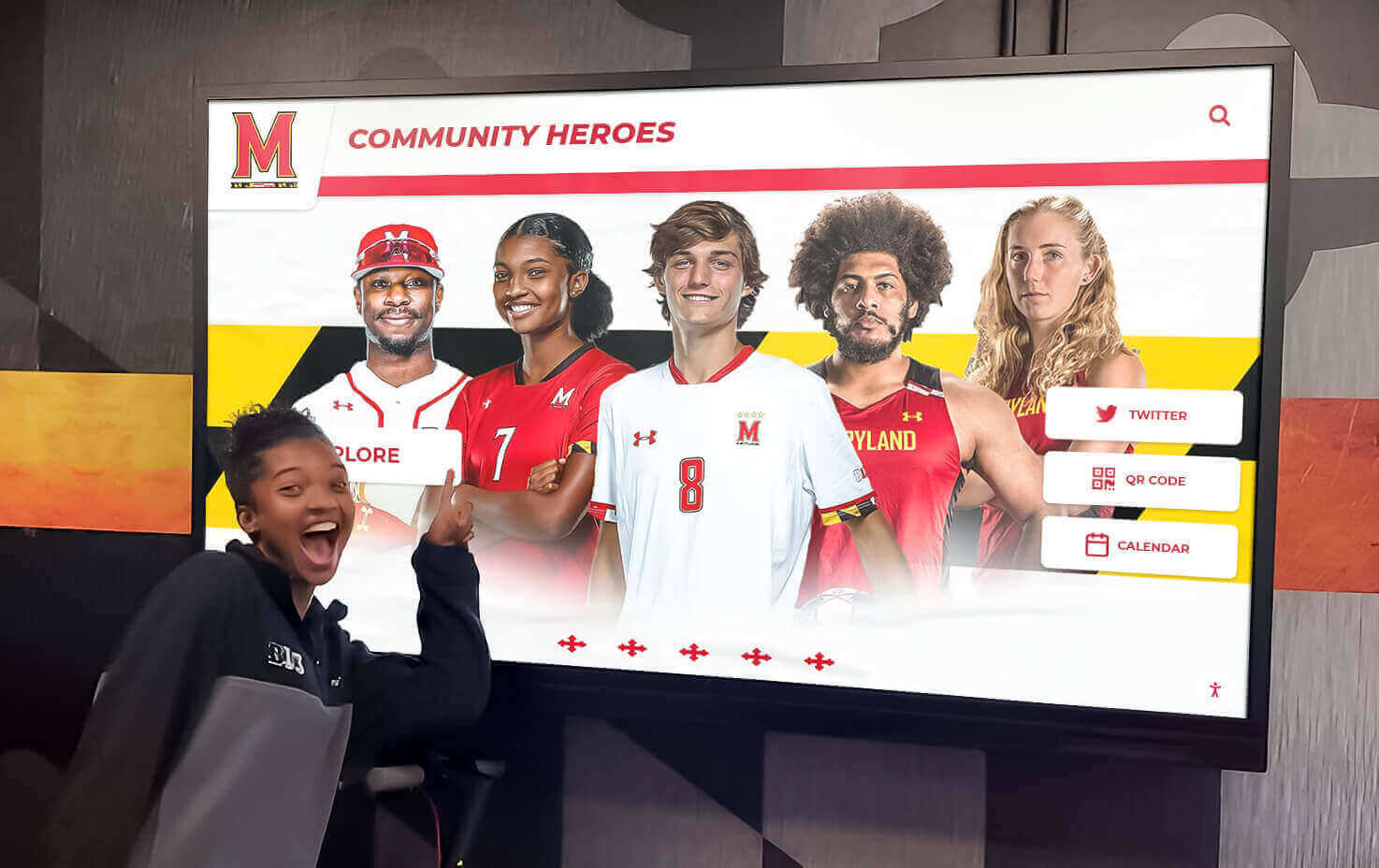
Recognition displays serve students, families, and community members who interact with them at events and throughout the school year—post-incident reviews improve the response for next time
Roles and Responsibilities Summary
A recognition display incident involves more people than a typical IT help desk ticket. This RACI clarifies who does what:
| Action | IT Coordinator | Athletic Director / Program Admin | Vendor Support | IT Security |
|---|---|---|---|---|
| Monitor display health | Responsible | Informed | Consulted | Informed (if security concern) |
| Report incident | Accountable | Responsible (if first to notice) | — | — |
| Preserve logs | Responsible | Informed | Consulted | Consulted (if security concern) |
| Isolate network | Responsible | Informed | Consulted | Accountable (if security concern) |
| Contact vendor | Responsible | Consulted | Accountable | — |
| Verify content post-recovery | Consulted | Responsible | Informed | — |
| Document incident | Responsible | Consulted | Consulted | Informed |
| Post-incident review | Accountable | Responsible | Responsible | Informed (if escalated) |
Pre-Incident Preparation Checklist
The playbook is most effective when the following are in place before any incident occurs:
- Vendor support contact information (phone, email, support portal URL, account number) documented and accessible to IT staff at all hours
- Display device inventory complete: hostname, IP, MAC address, VLAN, physical location, vendor model
- Monitoring configured: ping check active with alert routing to IT on-call
- Vendor heartbeat dashboard access confirmed and bookmarked
- Remote management access path tested with vendor within the last 90 days
- Content backup approach confirmed with vendor: all recognition data stored in cloud platform and recoverable after a factory reset
- Recognition program administrator (athletic director or equivalent) briefed on how to report a display incident
- Event calendar shared with IT so high-visibility dates are flagged in monitoring alert priorities
- IT help desk template created for “recognition display incident” tickets with required fields (device ID, observed symptoms, event context)
- This playbook printed and kept with the display’s network documentation
Schools with multiple kiosks—hallway displays, gymnasium lobbies, athletic wing honor boards—should maintain a separate inventory entry and vendor contact card for each location. Recognition programs covering alumni engagement initiatives often expand from a single display to a coordinated multi-kiosk environment; the playbook scales by replicating the inventory and contact information for each device rather than changing the response structure.
Frequently Asked Questions
What should I do first if the display is blank during an athletic event?
Physically check the display and confirm whether it is powered on but blank (indicator light on, no image) or completely unpowered (no indicator light). If powered on, reboot the media player or mini-PC connected to the display per your vendor’s standard procedure. If that does not restore the image within 3–5 minutes, call your vendor’s support line and report the device ID and symptoms. Do not begin disassembling hardware during an event—preserve the device for a post-event assessment if an immediate reboot does not resolve it.
How do I know if recognition content was actually changed or deleted during an incident?
Log into your vendor’s content management portal and review the content change history or activity log. Most cloud-based recognition platforms record when content was last modified and by which account. If the change log shows modifications during the incident window that no authorized administrator made, escalate to your vendor and treat the incident as a potential unauthorized access event.
Our vendor uses TeamViewer for remote support. Does that change the containment steps?
TeamViewer and similar relay-based remote tools use outbound connections from the device, so no inbound firewall exception is required. During a containment phase where network isolation is warranted, deauthenticating the device from the network also terminates any active TeamViewer session. Reconnecting for vendor-assisted recovery requires restoring network access first and then having the vendor reinitiate the session. This is expected behavior—note it in your incident record.
Who should own the incident record if both IT and the athletic director are involved?
IT should own the incident record in the IT ticketing system. The athletic director should be listed as a stakeholder and should receive a summary when the record is closed. Ownership means IT is responsible for ensuring the record is complete and accurate—it does not mean IT makes decisions about recognition content. Content decisions remain with the program administrator.
How does this playbook interact with our district’s general cybersecurity incident response plan?
This playbook handles operational incidents—display outages, content errors, hardware failures, network connectivity issues—that are specific to recognition display management. If an incident escalates to a suspected security event (unauthorized access, malware, anomalous outbound traffic), hand off to your district’s cybersecurity incident response plan and involve your district security officer or CISO. The two plans are complementary: this playbook handles the display-specific operational recovery; the district plan handles security investigation and notification obligations.
What records should I keep for booster club or donor recognition program accountability?
If your recognition display includes a donor wall, scholarship acknowledgments, or booster-sponsored features, incidents affecting that content should be noted in your incident record and reported to the relevant program administrator. The same financial stewardship discipline that applies to a booster club bank reconciliation checklist applies to the digital assets those programs fund—a documented record of what happened to recognition content, when, and how it was corrected protects both the school and its donor relationships.
Can schools with historical athletic archives—including legacy tournament records—restore that content after a hardware failure?
Yes, if the recognition platform stores content in a cloud database rather than only on the local device. Verify with your vendor before any incident that a full hardware replacement—including a factory reset of the embedded compute module—can be followed by a complete content restore from the cloud. Programs with deep archives covering decades of athletic history, hall of fame induction records, or comprehensive sports statistics should treat this verification as a pre-incident requirement, not a post-incident question.
We support athletic banquet events where the display is a centerpiece. What advance steps reduce incident risk before a high-profile event?
Three to five business days before a major event—banquet, homecoming, hall of fame induction night, graduation—run a manual content check by reviewing the display in person and confirming the content management portal shows the correct published state. Test the touchscreen interaction. Reboot the device and verify it returns to normal operation within the expected startup time. Confirm your vendor support contact is reachable during the event window. Schools hosting athlete recognition banquets and community events where the display will receive significant visibility should build this pre-event check into their standard event planning checklist.
How do we recognize when a display incident is part of a larger pattern versus a one-off?
Review your incident records quarterly. If the same device is generating recurring incidents of the same type—repeated connectivity drops, repeated content sync failures, repeated touch calibration issues—that pattern warrants a deeper investigation rather than another round of the same fix. Bring your incident history to your vendor’s quarterly or annual account review and ask whether the pattern suggests a hardware replacement, a configuration change, or a platform update that addresses the underlying cause.
What documentation standards apply to schools with active recognition programs, including birthday and milestone celebrations?
Schools running year-round recognition programs—covering everything from athletic championships to community birthday recognition programs—should maintain their incident records with the same care as their recognition content archives. An incident log that shows a display was offline during a specific recognition event, and documents how quickly it was restored, is a meaningful part of program accountability to families and donors.
Are there specific considerations for recognition displays at schools with active wrestling or combat sports programs?
Display incidents during tournament and championship seasons create particular urgency for athletic record systems. Schools supporting programs that participate in events like Big Ten wrestling or similar high-profile competitions maintain display content that families and media may reference during the season. The same playbook applies regardless of sport—the event-sensitive recovery timelines in Phase 3 exist precisely because athletic season timing affects how quickly a display incident needs to be resolved.
Implementation and Ongoing Maintenance
A playbook that lives in a folder and is never tested is only marginally more useful than no playbook. Two practices improve playbook effectiveness over time:
Tabletop exercises. Once per year, walk through a simulated incident scenario with IT and the athletic director. Present a scenario (“the display is blank two hours before the Hall of Fame induction ceremony—what do we do?”), walk through the playbook together, and identify any gaps in contacts, access, or procedures. Update the playbook based on what you learn.
Annual vendor review. At your vendor account review, confirm that all contact information, remote access methods, and content backup procedures in this playbook are still current. Platform vendors update their support infrastructure, and your playbook should reflect the current state, not the state at the time of initial installation.
For schools building out or expanding recognition programs—adding alumni engagement features, interactive donor walls, or expanded athletic archive capabilities—the structure of this playbook scales without significant modification. Each new device gets an inventory entry; each new program administrator gets a role in the content verification step; each new event type gets considered in the event-sensitive recovery timeline. The framework remains the same.
See How a Supported Recognition Display Works Before You Need This Playbook
Rocket Alumni Solutions provides school IT teams with complete technical documentation—network requirements, remote access procedures, content backup architecture, and support escalation paths—before installation begins. If you are evaluating a touchscreen recognition display or want to understand how incident recovery works in practice, a live demo is the fastest way to get concrete answers from the team that will support your system.
Schedule a Live DemoRecognition display incidents are manageable when you have a structured plan, documented contacts, and a vendor whose support infrastructure matches your school’s recovery expectations. The Detect, Contain, Recover, Document sequence in this playbook keeps your response consistent, your evidence preserved, and your recognition content protected—whether the incident is a routine connectivity glitch or something that warrants a deeper investigation.