



Finding the right touchscreen kiosk app that locks down your Android tablet or Mac computer into a secure, fully controlled display shouldn’t require expensive monthly subscriptions or complex enterprise software. Schools displaying digital recognition systems, small businesses deploying information kiosks, restaurants showcasing menu boards, and museums creating interactive exhibits all face the same challenge: transforming general-purpose devices into dedicated, locked-down touchscreen terminals that users cannot exit or misuse.
The market for kiosk browser software has historically been dominated by costly solutions requiring ongoing subscriptions—often $2-10+ per device monthly—or one-time purchases like Fully Kiosk Browser that, while reasonably priced at €7.90, only work on Android and lack features many organizations need. Yet the fundamental requirements remain straightforward: fullscreen display, exit prevention, automatic reset capabilities, and ideally remote content management. Most organizations don’t need advanced enterprise features like motion detection, MQTT integration, or complex APIs that paid solutions emphasize.
This comprehensive guide examines the best free and affordable touchscreen kiosk apps available in 2025, with particular focus on the Rocket Touchscreen app—a completely free solution available on both Google Play Store and Mac App Store that provides professional kiosk functionality without subscriptions, watermarks, or artificial limitations. Whether you’re deploying a single information kiosk or managing dozens of displays across multiple locations, you’ll discover practical solutions that deliver robust lockdown capabilities, reliable performance, and straightforward management without recurring costs straining budgets.
Touchscreen kiosk applications serve diverse purposes across industries—from schools celebrating achievement through digital hall of fame displays to retail stores offering self-service product catalogs, restaurants providing touchscreen ordering systems, museums creating interactive educational exhibits, corporate lobbies showcasing company information, and healthcare facilities streamlining patient check-in processes. Each requires reliable software that transforms tablets or computers into locked, purpose-dedicated terminals.

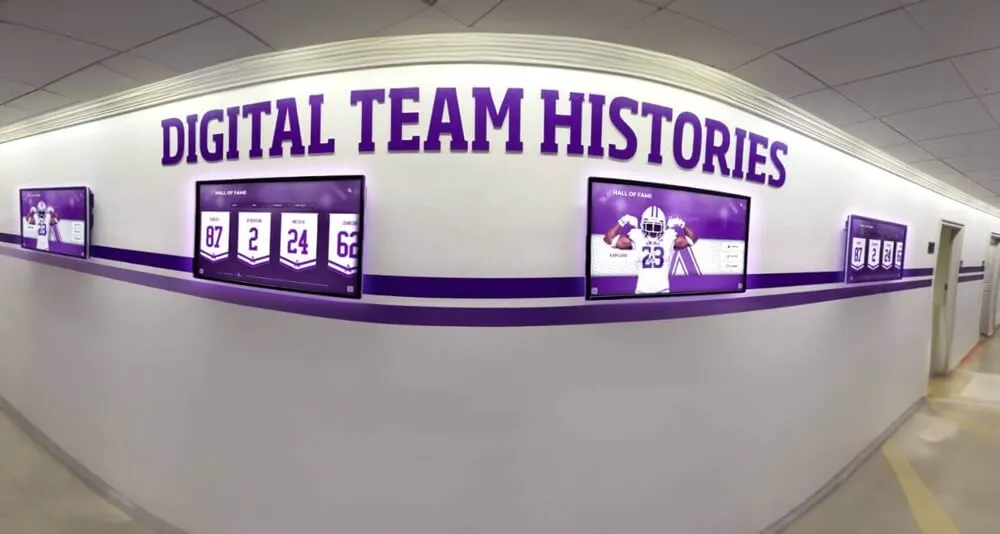
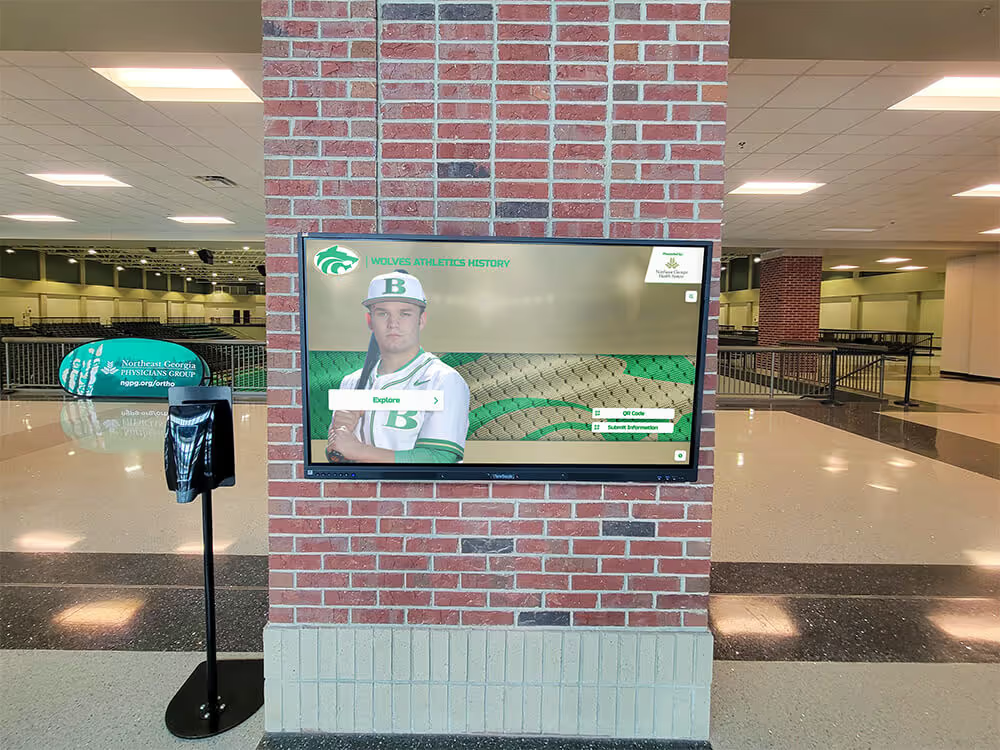
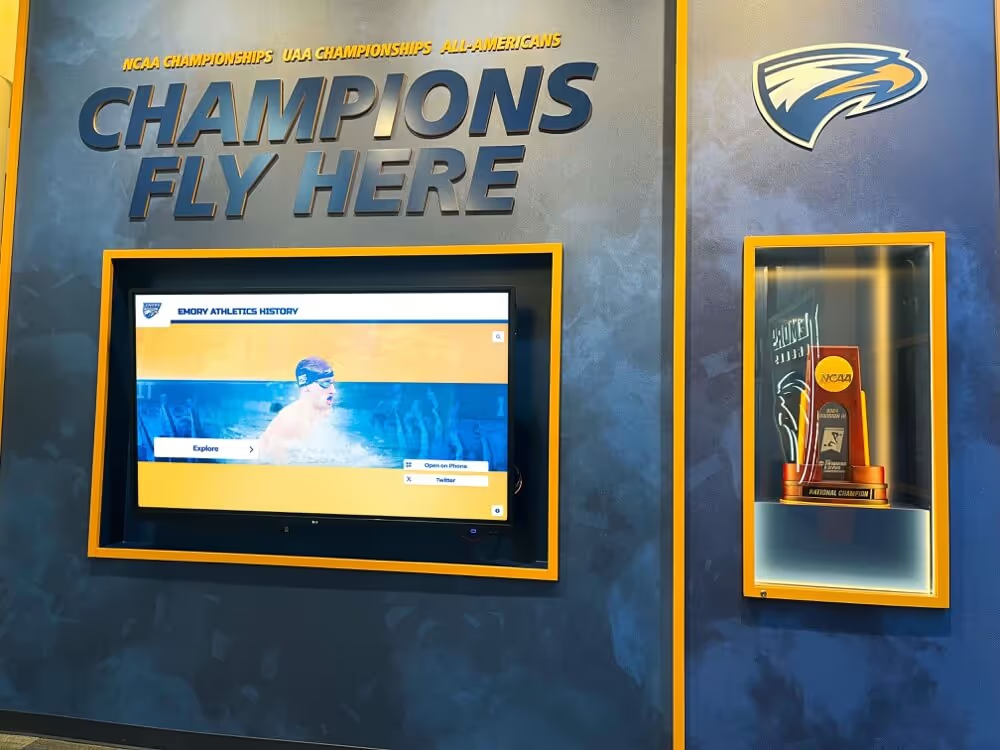
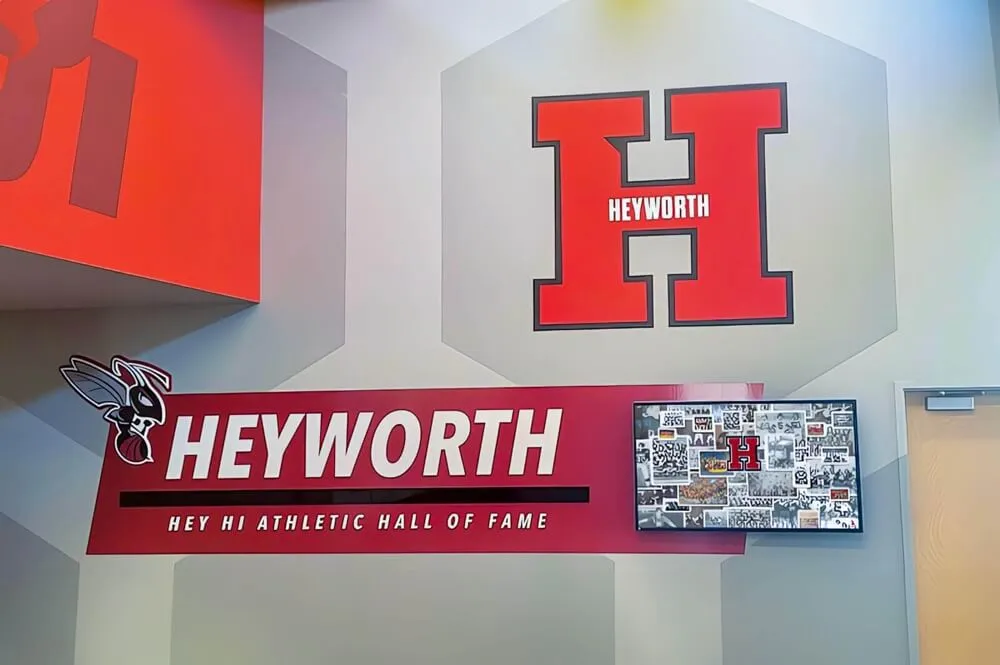
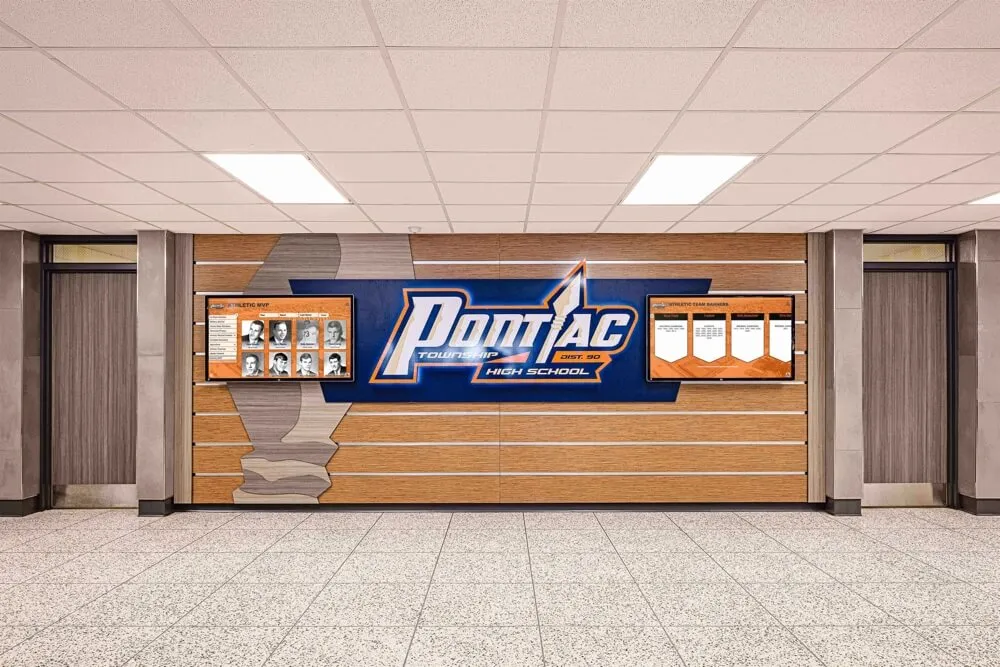
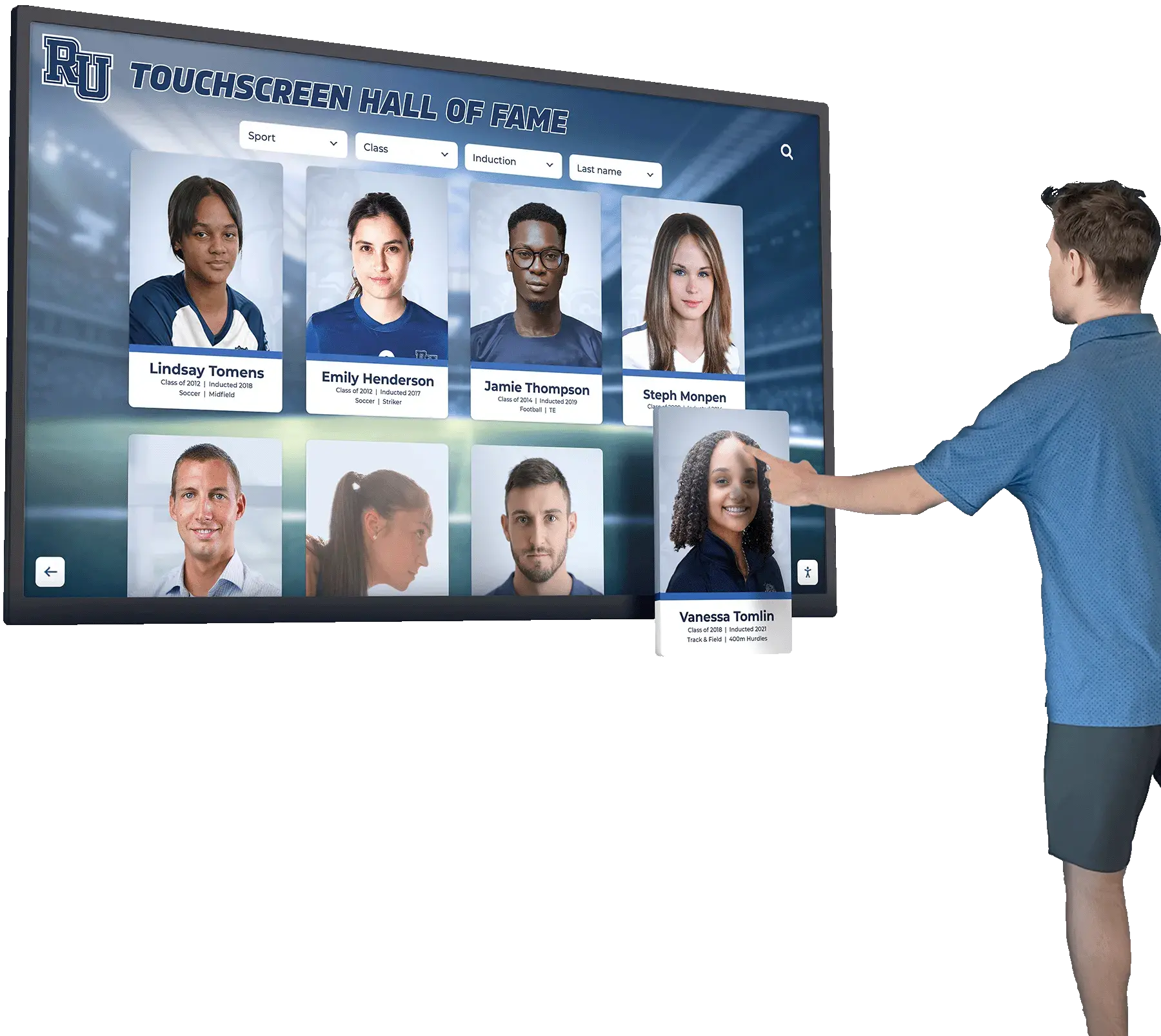
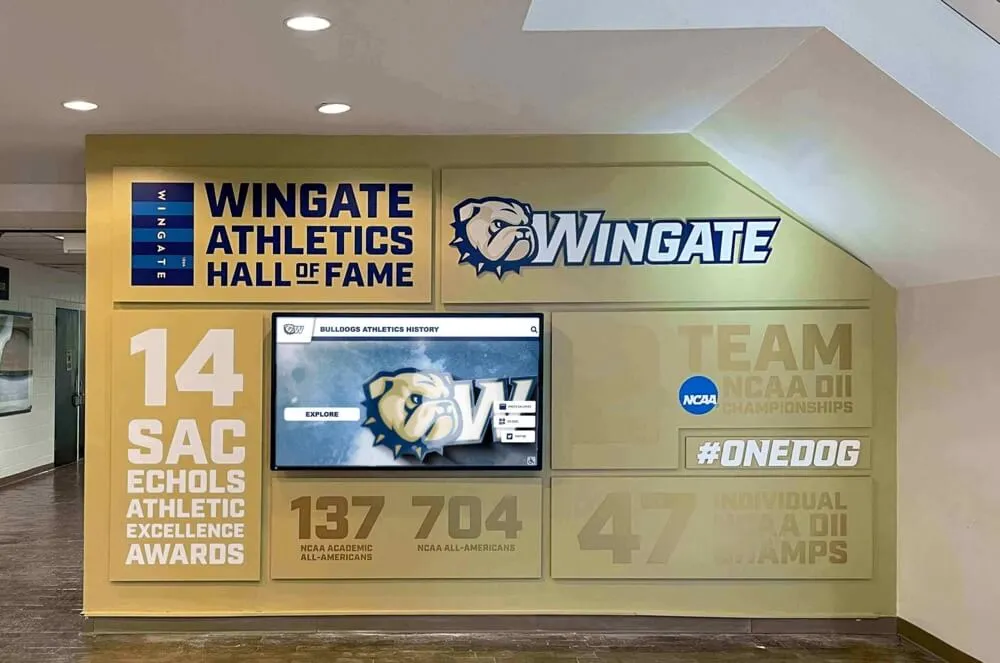
Modern touchscreen kiosk apps transform tablets and computers into engaging, secure interactive displays for public and business environments
Understanding Touchscreen Kiosk Apps and Browser Software
Before exploring specific solutions, understanding what kiosk software actually does and which types suit different deployment scenarios helps organizations make informed decisions aligned with genuine requirements rather than marketing claims.
What Is a Touchscreen Kiosk App?
Core Functionality and Purpose
Touchscreen kiosk applications transform general-purpose computing devices—Android tablets, iPads, Mac computers, or Windows PCs—into dedicated-purpose terminals that display only approved content while preventing access to underlying system functions, settings, or alternative applications.
Essential Kiosk App Features
Effective kiosk software provides several critical capabilities:
- Fullscreen display mode: Eliminates navigation bars, address bars, menu bars, and all interface elements beyond content itself
- Exit prevention mechanisms: Blocks system shortcuts, keyboard combinations, and gestures that might allow users to leave the kiosk application
- Automatic session reset: Returns to homepage or default state after inactivity, ensuring clean slate for next user
- Content configuration: Enables administrators to specify which website, web application, or native content displays
- Startup automation: Launches kiosk mode automatically when device boots, requiring no manual intervention
- Password-protected settings: Restricts configuration access to authorized personnel only
- Crash recovery: Automatically relaunches if application closes unexpectedly, maintaining continuous operation
These features collectively create controlled, single-purpose devices suitable for unsupervised public environments where users should access only designated content without compromising device security or functionality.
Types of Kiosk Solutions
Organizations can implement kiosk functionality through several distinct approaches, each with different advantages, limitations, and appropriate use cases.
Native Kiosk Applications
Purpose-built applications installed directly on devices provide dedicated kiosk functionality. Examples include Rocket Touchscreen, Fully Kiosk Browser, and Kiosk Browser Lockdown. These apps specifically address kiosk requirements with specialized features, lockdown capabilities, and configuration options unavailable through general-purpose software.
Browser-Based Kiosk Mode
Standard web browsers like Chrome, Firefox, or Safari offer kiosk modes activated through command-line flags or hidden settings. While functional for basic needs, browser kiosk modes typically provide limited security, offer minimal configuration options, and remain vulnerable to exit through keyboard shortcuts or system functions.
Built-in Operating System Features
Modern operating systems include basic kiosk capabilities—Android Screen Pinning, iOS Guided Access, and Windows Assigned Access. These free built-in features work adequately for supervised or temporary applications but lack the robust security, automatic reset capabilities, and remote management features necessary for permanent public installations.
Enterprise Mobile Device Management (MDM)
Comprehensive device management platforms like AirDroid Business, Scalefusion, Hexnode, or Miradore offer kiosk mode as one feature within broader device administration suites. While powerful, MDM solutions typically cost $2-10+ per device monthly and provide far more functionality than organizations needing simple kiosk capabilities actually require.
Organizations deploying interactive recognition displays frequently find purpose-built kiosk applications provide the optimal balance between functionality, security, and cost.

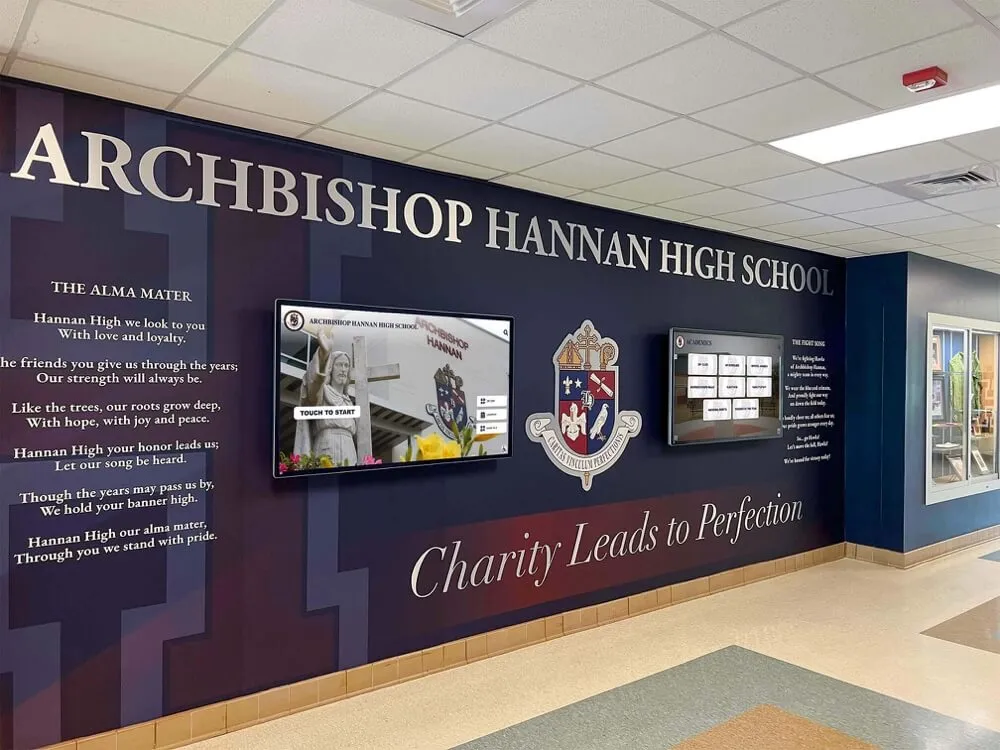
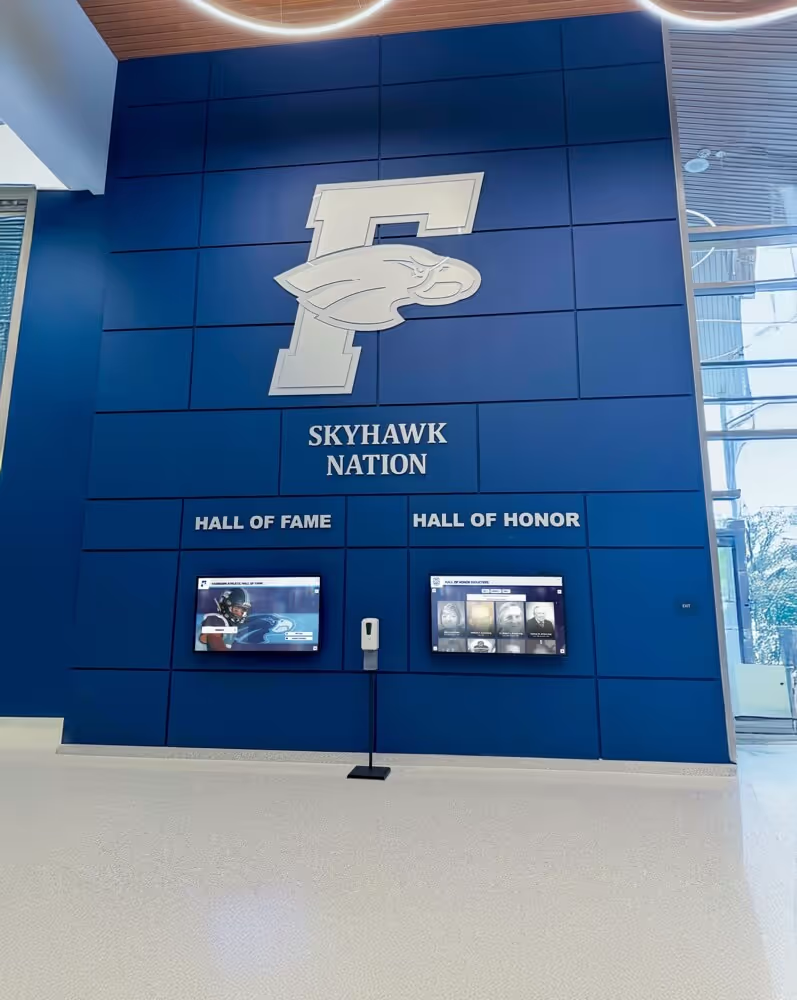
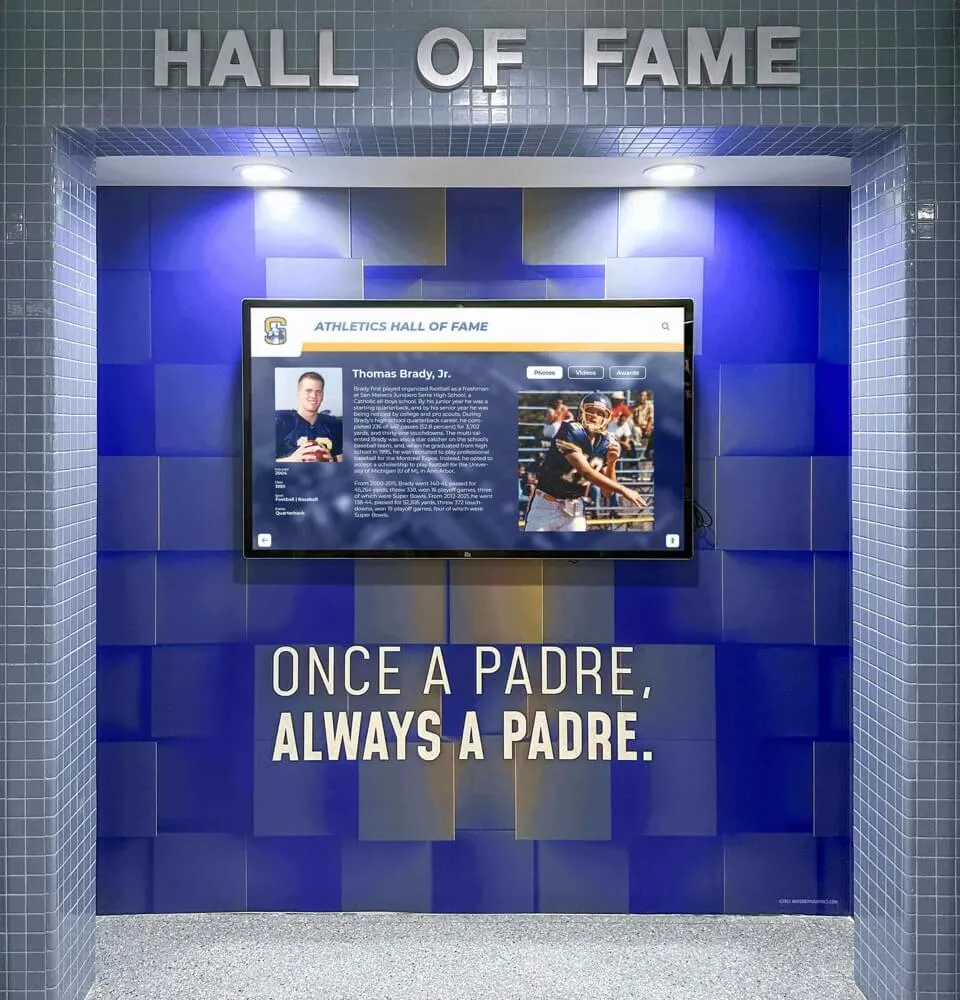
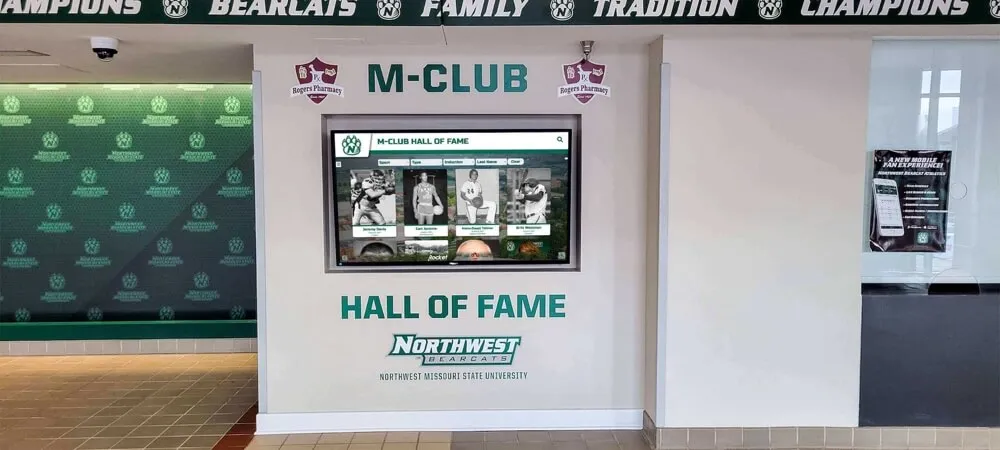
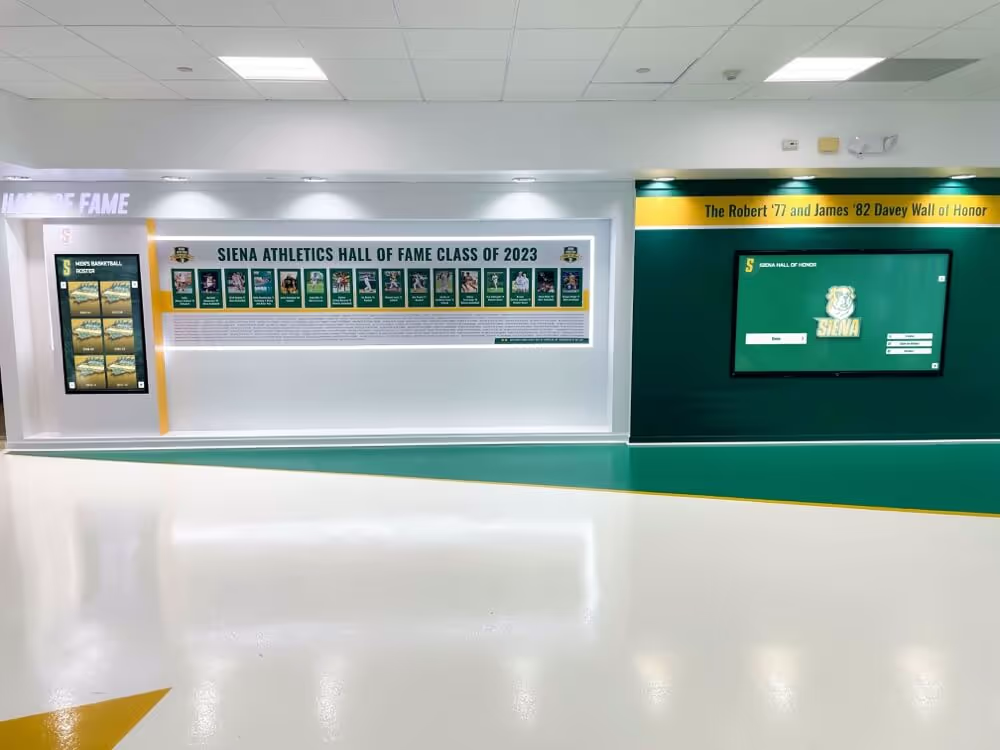
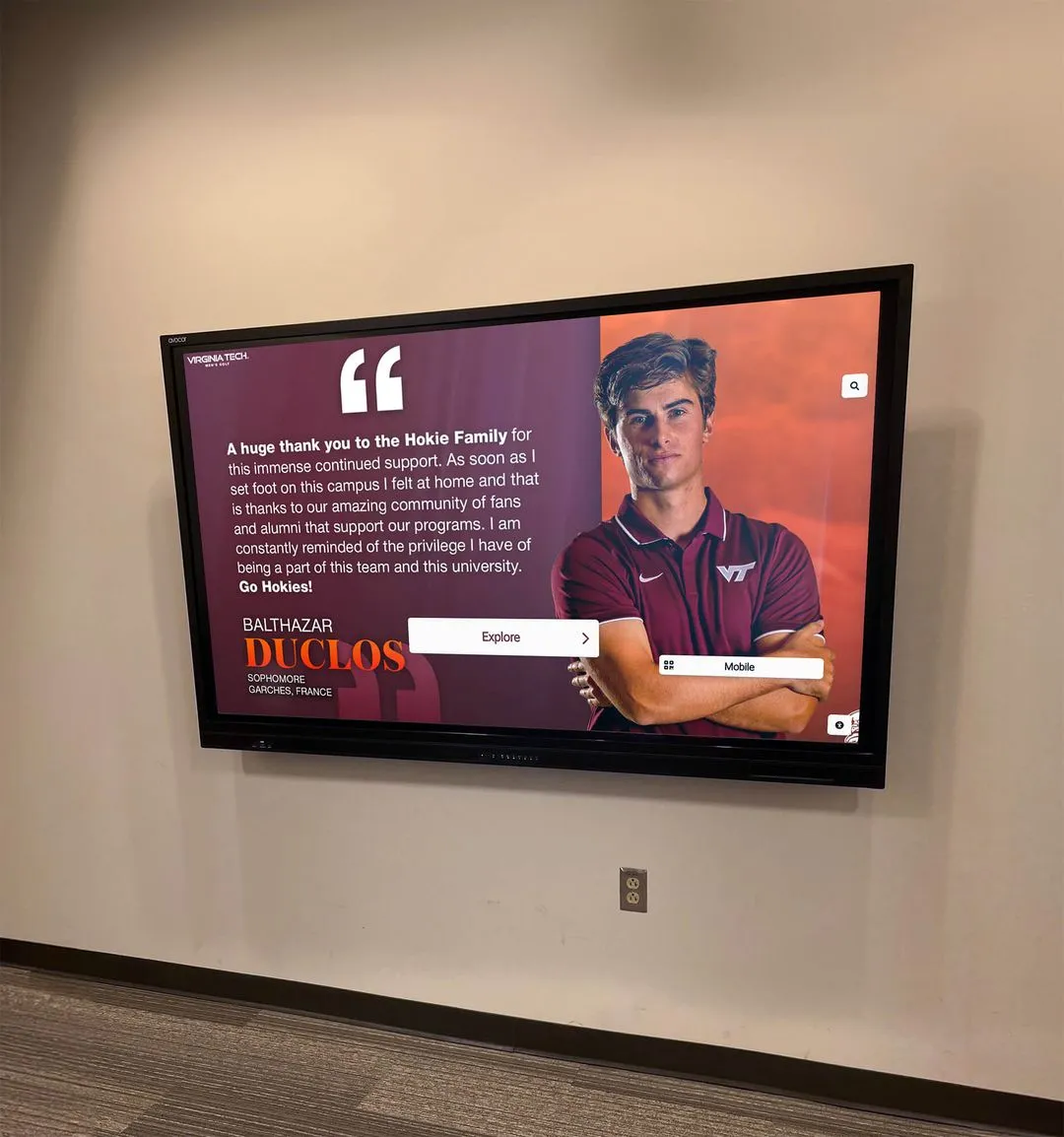
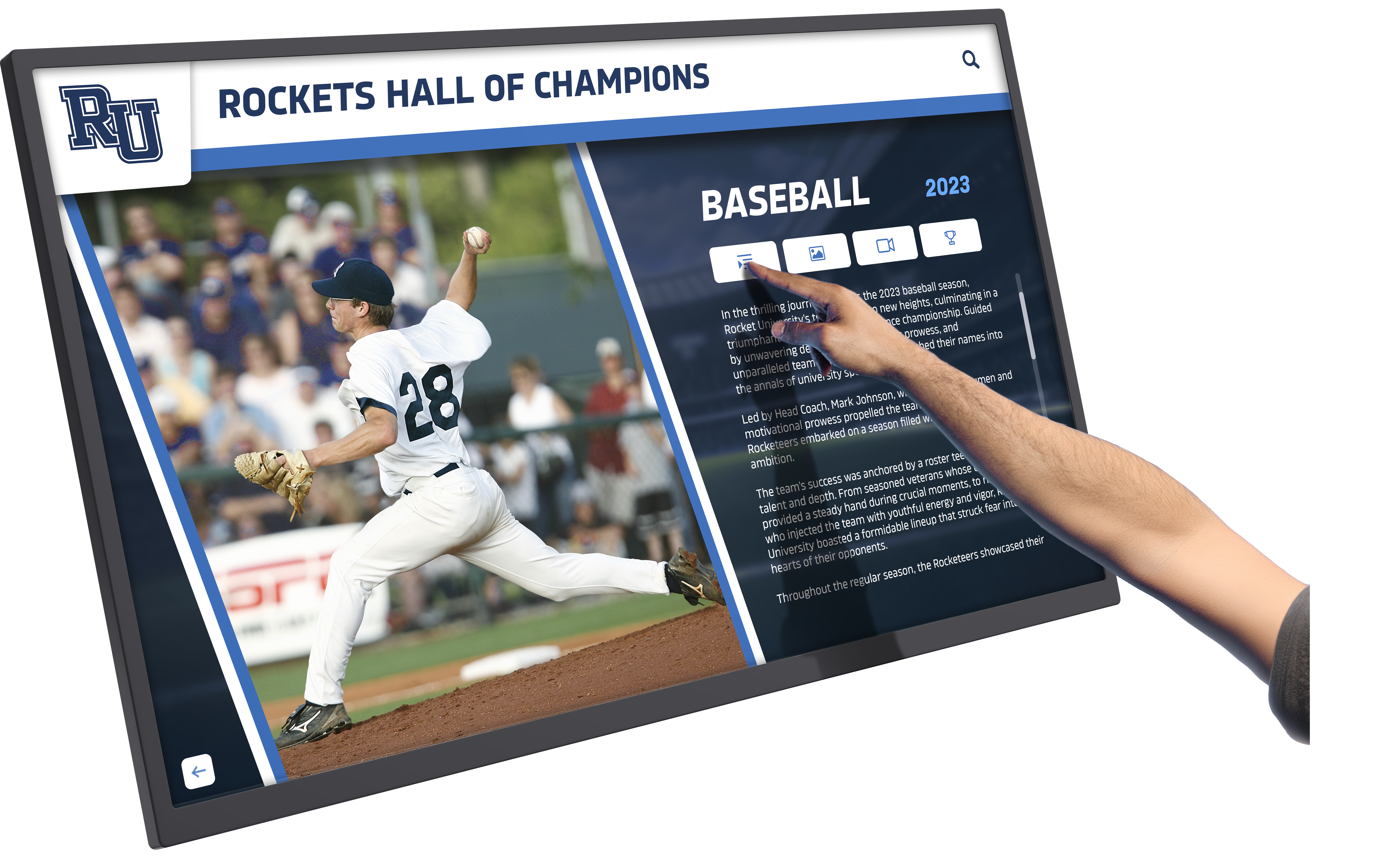
Touchscreen kiosk software enables intuitive public interaction with digital content in educational, retail, and exhibition environments
Web-Based vs Native Content Approaches
Beyond the kiosk application itself, organizations must decide whether to display web-based content or native applications—a decision significantly impacting flexibility, management complexity, and long-term costs.
Web-Based Kiosk Content (Recommended)
The most flexible and manageable approach uses kiosk browser software that displays websites or web applications while providing lockdown functionality. The content itself lives online, while the kiosk app simply provides secure fullscreen display and exit prevention.
Advantages of Web-Based Approach
- Update content remotely without physical device access
- Single content source serves multiple kiosk devices simultaneously
- Platform independence—same content works on Android, Mac, Windows, or other systems
- No app development required—standard web technologies sufficient
- Lower implementation and maintenance costs
- Faster deployment and iteration
- Leverages existing web development skills and tools
Schools implementing digital athletic recognition displays particularly value web-based approaches enabling immediate content updates when teams win championships or athletes break records—changes propagate instantly to all displays without physical access to individual devices.
Native Application Content
Some scenarios require displaying native applications rather than web content. This approach involves custom app development specifically for the kiosk purpose or using existing native apps within kiosk lockdown.
When Native Apps Make Sense
- Completely offline operation required with zero internet dependency
- Advanced hardware integration needs (specialized peripherals, sensors, custom equipment)
- Performance-critical applications requiring maximum efficiency
- Proprietary functionality unavailable through web technologies
- Legacy systems without web interfaces
Native Approach Limitations
Native content approaches impose significant challenges:
- Platform-specific development (separate Android, iOS, Mac, Windows versions required)
- Expensive custom development and ongoing maintenance
- Difficult remote updates requiring app redistribution
- Limited flexibility compared to web-based alternatives
- Longer development timelines and higher complexity
For approximately 95% of kiosk use cases, web-based content displayed through kiosk browser software provides superior flexibility, lower costs, and simpler management compared to native application approaches.
The Subscription Problem: Why Free Alternatives Matter
Understanding the total cost of kiosk software over time reveals why free alternatives like Rocket Touchscreen provide compelling value for schools, small businesses, and organizations with limited technology budgets.
Hidden Costs of Subscription-Based Kiosk Software
Many kiosk solutions appear affordable initially but accumulate substantial costs through recurring subscription fees calculated per device, per month or year.
Typical Subscription Pricing Models
Enterprise MDM and kiosk platforms commonly charge:
- Basic kiosk functionality: $2-5 per device monthly
- Advanced features (remote management, analytics): $5-10 per device monthly
- Premium enterprise capabilities: $10-20+ per device monthly
- Annual contracts with minimum device commitments
Real Cost Calculations
A small organization deploying 5 kiosk tablets faces:
- Year 1: 5 devices × $5/month × 12 months = $300
- Year 2: $300
- Year 3: $300
- 3-Year Total: $900
Schools or businesses deploying 20 kiosks:
- Year 1: 20 devices × $5/month × 12 months = $1,200
- Year 2: $1,200
- Year 3: $1,200
- 3-Year Total: $3,600
These ongoing costs never end, consuming technology budgets that could fund additional hardware, content development, or other organizational priorities. Organizations often discover after deployment that they’re essentially “renting” basic software functionality indefinitely.
One-Time Payment Options
Some kiosk applications charge single upfront fees rather than subscriptions, providing more predictable long-term costs.
Fully Kiosk Browser
The most popular one-time payment option costs €7.90 (approximately $8.50 USD) per device for the PLUS version removing watermarks and unlocking full features. While reasonable for individual deployments, costs multiply across multiple devices:
- 5 devices: €39.50 ($42.50)
- 10 devices: €79.00 ($85.00)
- 20 devices: €158.00 ($170.00)
Limitations Beyond Cost
Fully Kiosk Browser, despite reasonable pricing, presents challenges:
- Android-only (no Mac, iOS, or Windows versions available)
- Free version includes watermarks unsuitable for professional deployments
- Remote administration capabilities described by users as “very poor”
- Feature complexity overwhelming for organizations needing simple kiosk functionality
- Some advertised features reportedly unreliable or difficult to configure
Organizations committed to Mac hardware or requiring cross-platform consistency find Fully Kiosk’s Android limitation particularly problematic.
The Case for Completely Free Solutions
Rocket Touchscreen’s completely free model—available on both Google Play Store and Mac App Store with zero cost, no watermarks, no device limits, and no artificial feature restrictions—fundamentally changes kiosk software economics.
Total Cost Comparison: 3-Year Deployment of 10 Devices
| Solution | Upfront Cost | Monthly Cost | 3-Year Total |
|---|---|---|---|
| Rocket Touchscreen | $0 | $0 | $0 |
| Fully Kiosk Browser | $85 | $0 | $85 |
| Basic MDM ($3/device/mo) | $0 | $30 | $1,080 |
| Premium MDM ($7/device/mo) | $0 | $70 | $2,520 |
For schools, small businesses, nonprofits, and organizations with constrained budgets, eliminating ongoing software costs enables investing those resources in better hardware, additional displays, professional content development, or other priorities delivering direct value rather than simply maintaining software licensing.
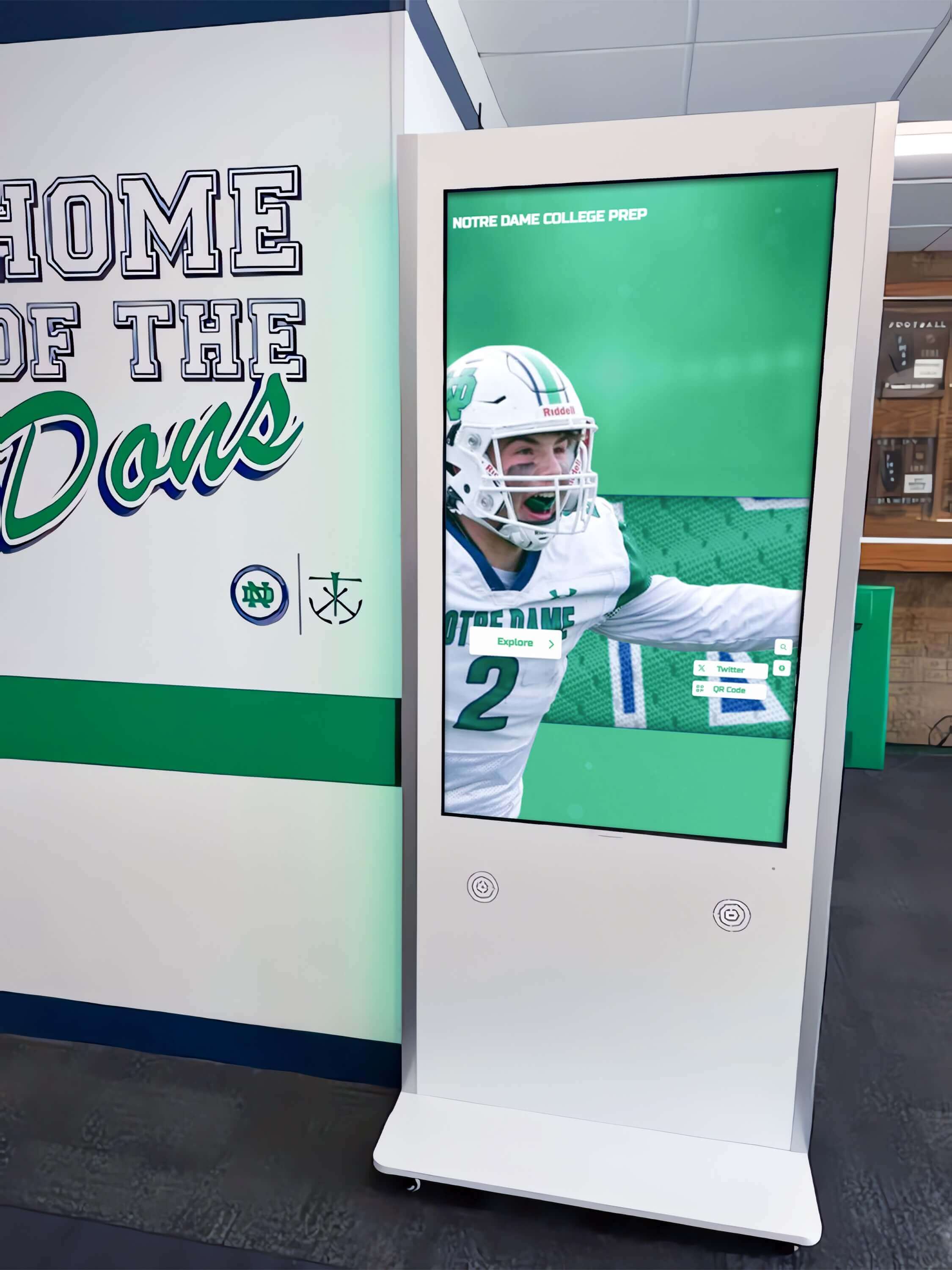
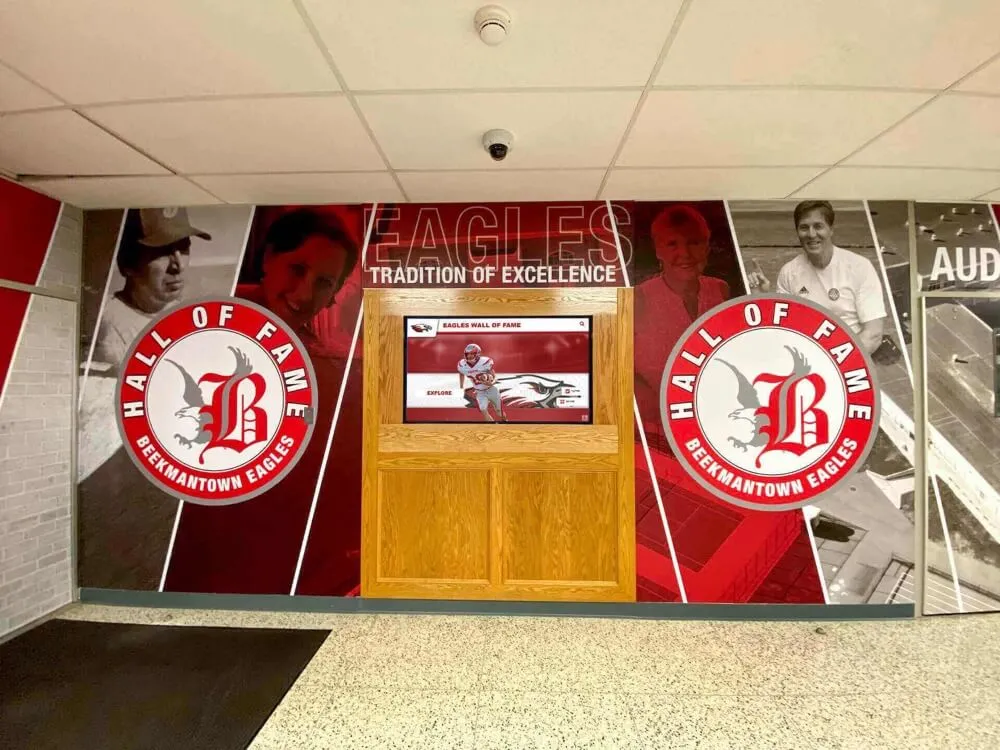
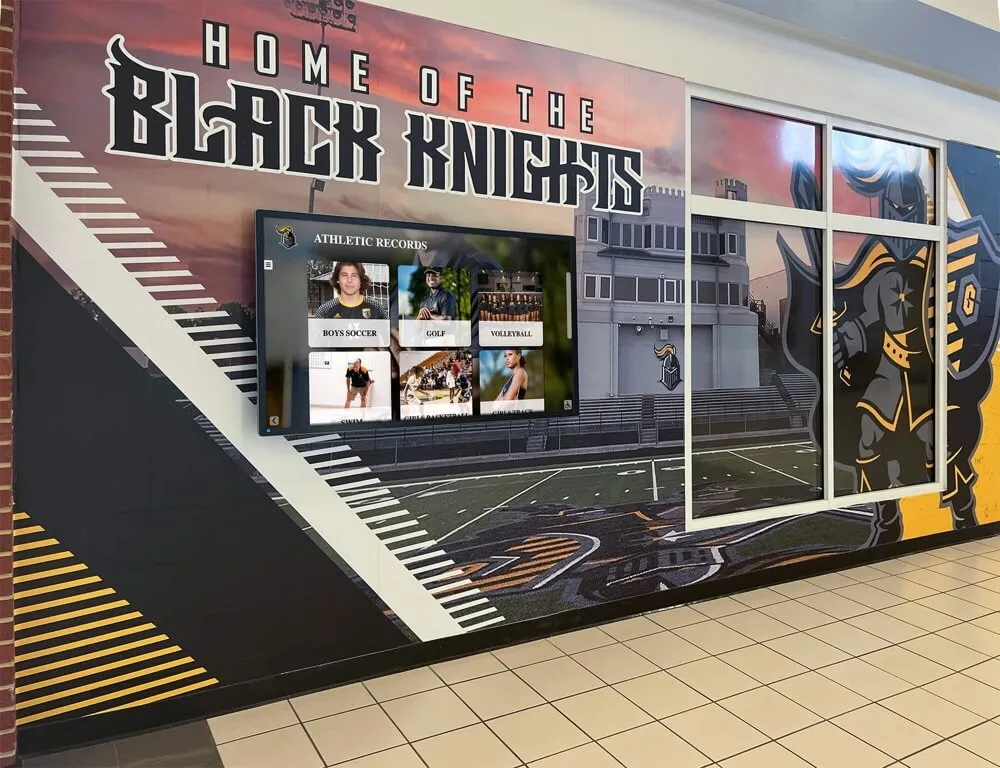
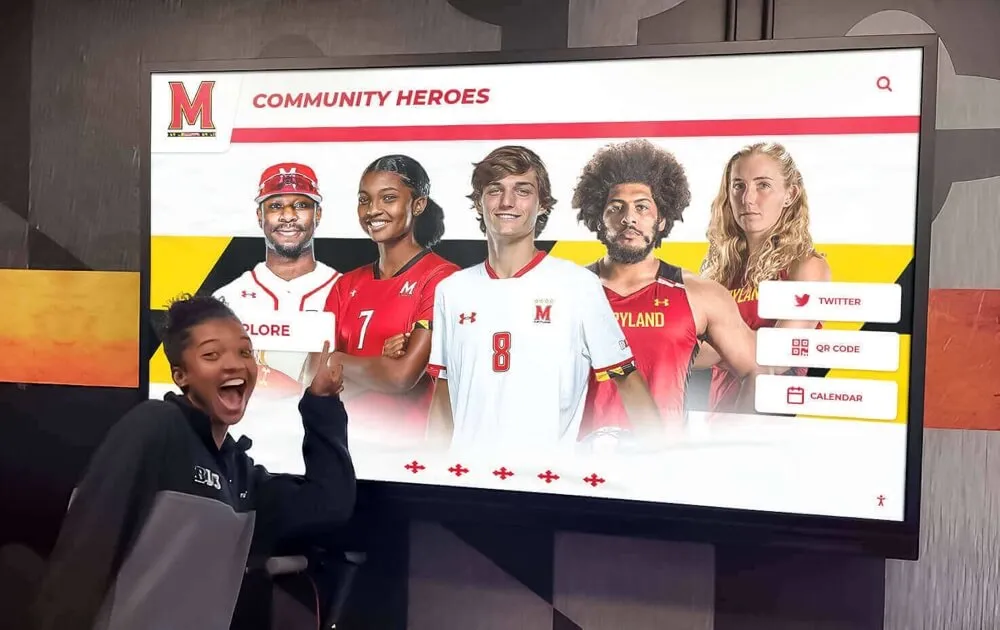
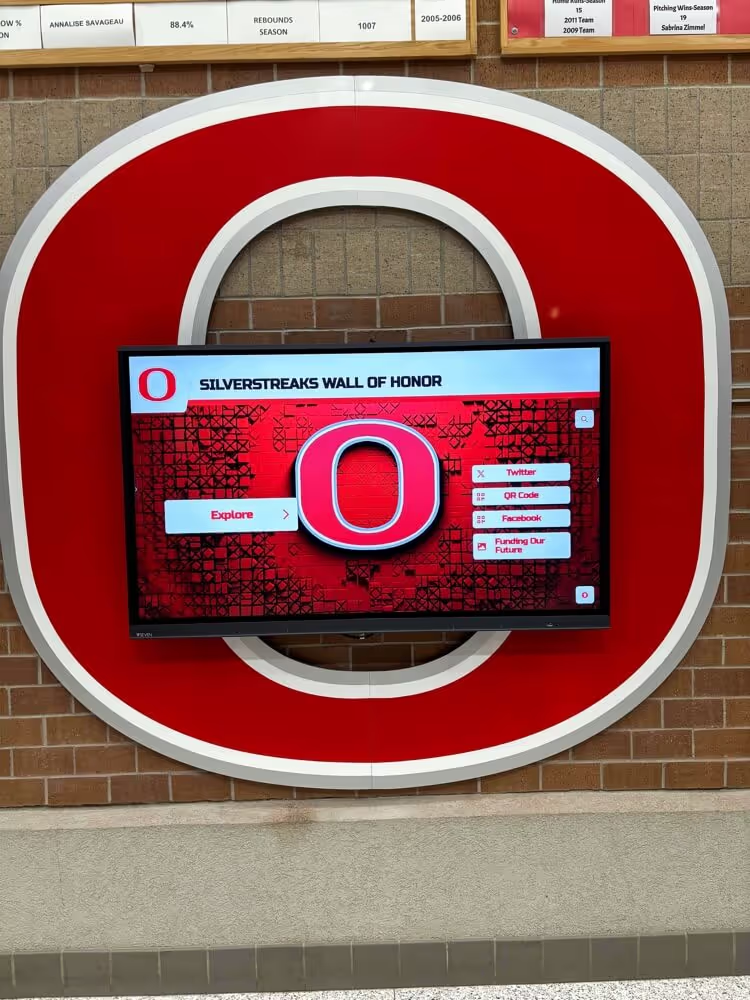
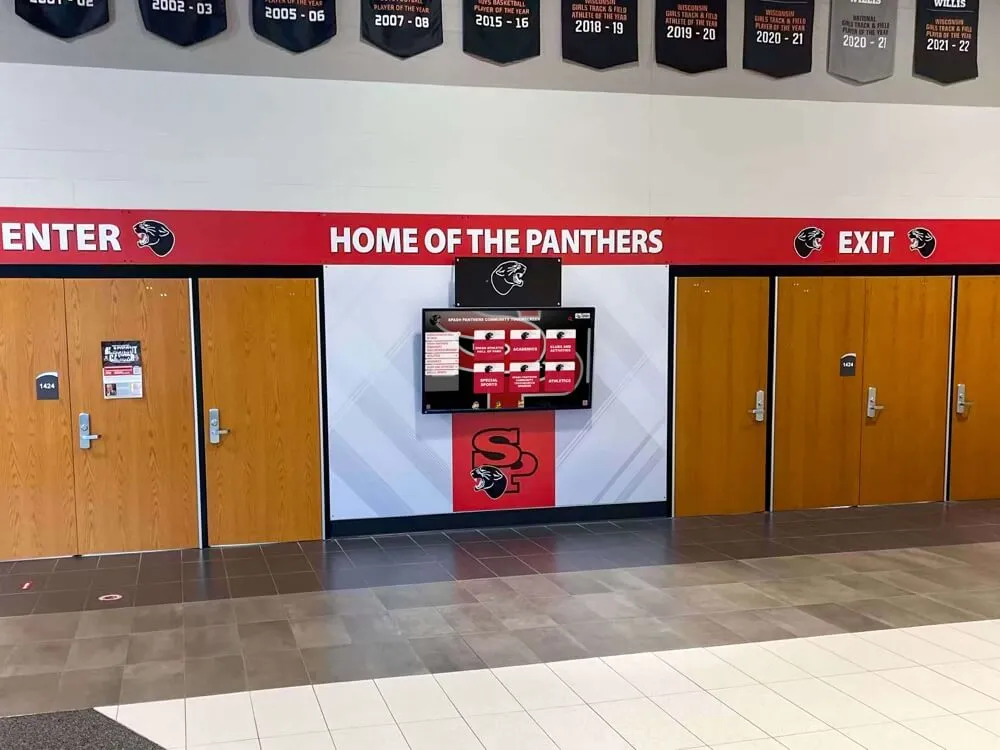
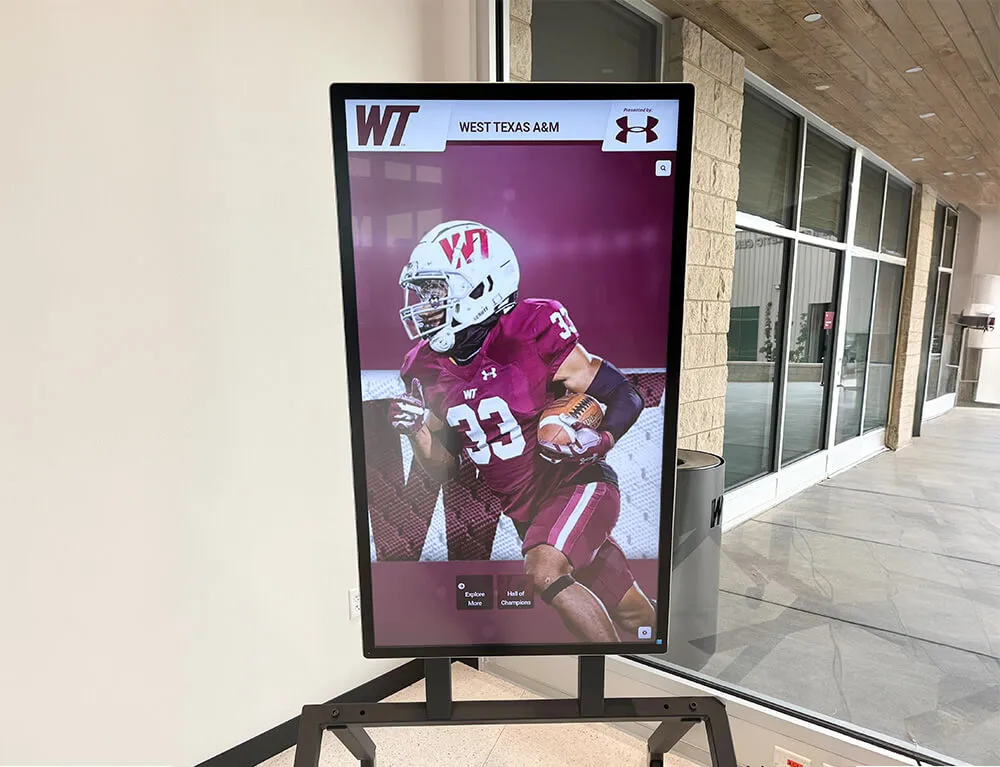
Strategic kiosk deployments in high-traffic areas maximize engagement while free software eliminates ongoing licensing expenses
Best Free Touchscreen Kiosk Apps for 2025
This comprehensive comparison examines top kiosk applications across platforms, highlighting features, limitations, ideal use cases, and costs to help organizations select appropriate solutions for specific requirements.
1. Rocket Touchscreen App (FREE - RECOMMENDED)
Platform Availability: Android (Google Play Store) & macOS (Mac App Store)
Cost: Completely FREE with no watermarks, device limits, or feature restrictions
Rocket Touchscreen provides purpose-built kiosk functionality specifically designed for organizations needing reliable, professional touchscreen displays without recurring costs or complex configuration.
Key Features and Capabilities
- True fullscreen kiosk mode eliminating all system interface elements
- Built-in browser engine for displaying web-based content reliably
- Simple URL configuration pointing to any website or web application
- Single-touch optimized interface ensuring accessibility without multitouch gestures
- Password-protected exit preventing unauthorized access
- Automatic session reset capabilities
- Offline operation once content cached locally
- No installation complexity—download from app stores and configure
- Regular updates through official app stores ensuring ongoing compatibility
- Works seamlessly with Rocket Alumni Solutions content platforms for recognition displays
Why Rocket Touchscreen Excels
The app eliminates common kiosk software frustrations:
- Zero ongoing costs: No subscriptions, no per-device fees, no premium tiers requiring payment
- Cross-platform support: Same solution works on Android tablets and Mac computers, enabling consistent deployments across mixed hardware environments
- Simplicity focus: Designed specifically for straightforward kiosk needs without overwhelming users with advanced features most organizations never use
- Professional appearance: No watermarks, branding, or limitations creating unprofessional impressions
- Reliable web content display: Built-in browser engine ensures consistent rendering without external browser dependencies
- Easy content management: Web-based content updates propagate instantly without touching devices
Ideal Use Cases
Rocket Touchscreen proves particularly valuable for:
- Schools implementing digital hall of fame displays showcasing athletic and academic achievements
- Small businesses deploying information kiosks without technology budgets for subscriptions
- Restaurants creating digital menu boards or ordering kiosks
- Museums and cultural institutions developing interactive exhibits on limited budgets
- Corporate lobbies featuring company information, directories, or recognition content
- Organizations preferring Mac hardware for reliability, security, or aesthetic reasons
- Any deployment where eliminating ongoing software costs proves essential
Download and Setup
Setup requires simply downloading the app, entering your content URL, configuring basic kiosk settings, and optionally enabling auto-launch on device startup. No complex terminal commands, configuration file editing, or technical expertise required.
2. Fully Kiosk Browser (€7.90 One-Time)
Platform Availability: Android only
Cost: Free with watermark; €7.90 for PLUS version removing watermark and unlocking full features
Fully Kiosk Browser represents the most popular paid alternative, offering extensive features targeting advanced users and Home Assistant enthusiasts.
Key Features
- Comprehensive lockdown and kiosk functionality
- JavaScript, REST, and MQTT APIs for advanced integration
- Motion detection using device camera
- Screen brightness and screensaver controls
- Extensive configuration options
- Large user community and documentation
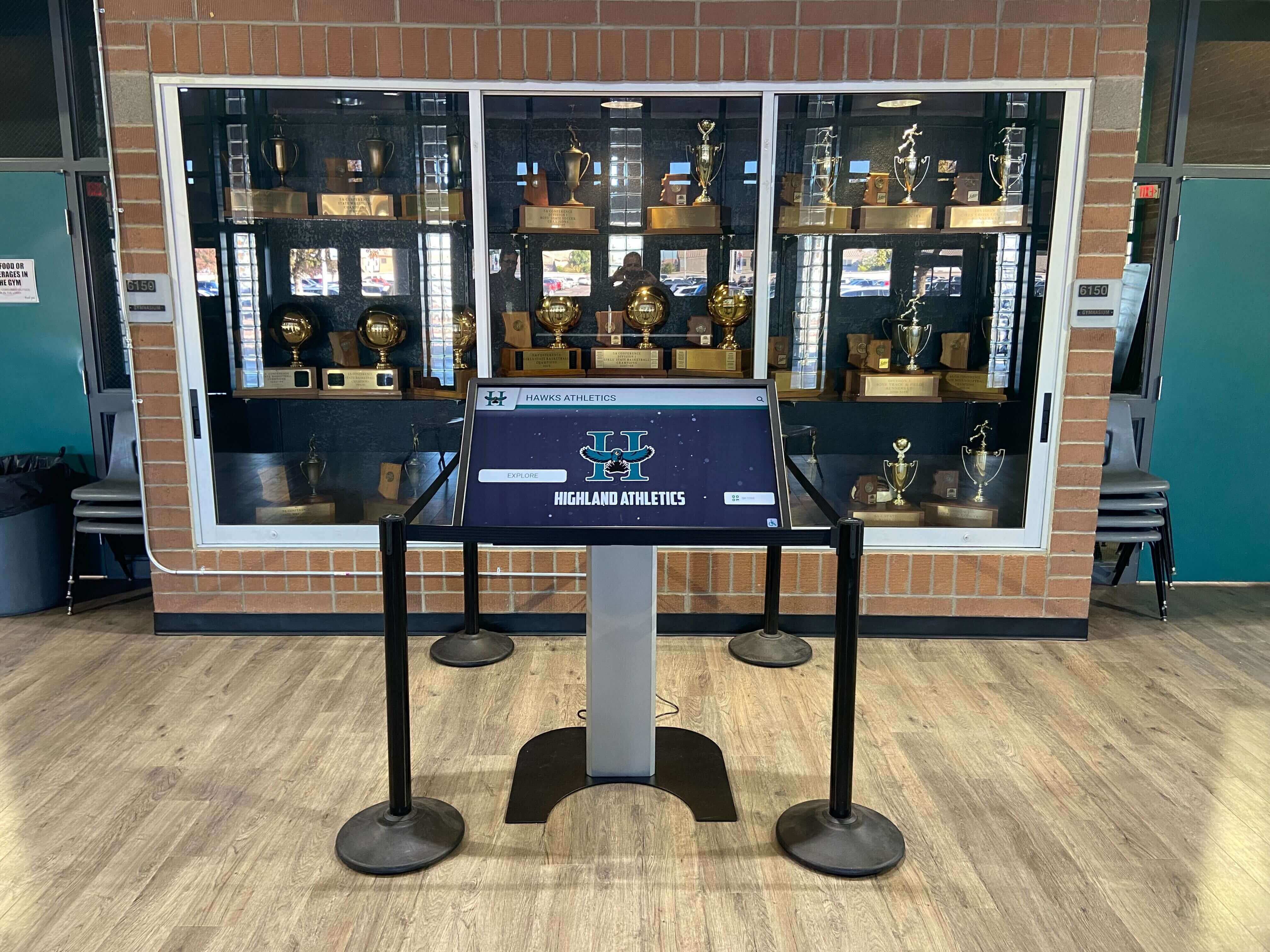
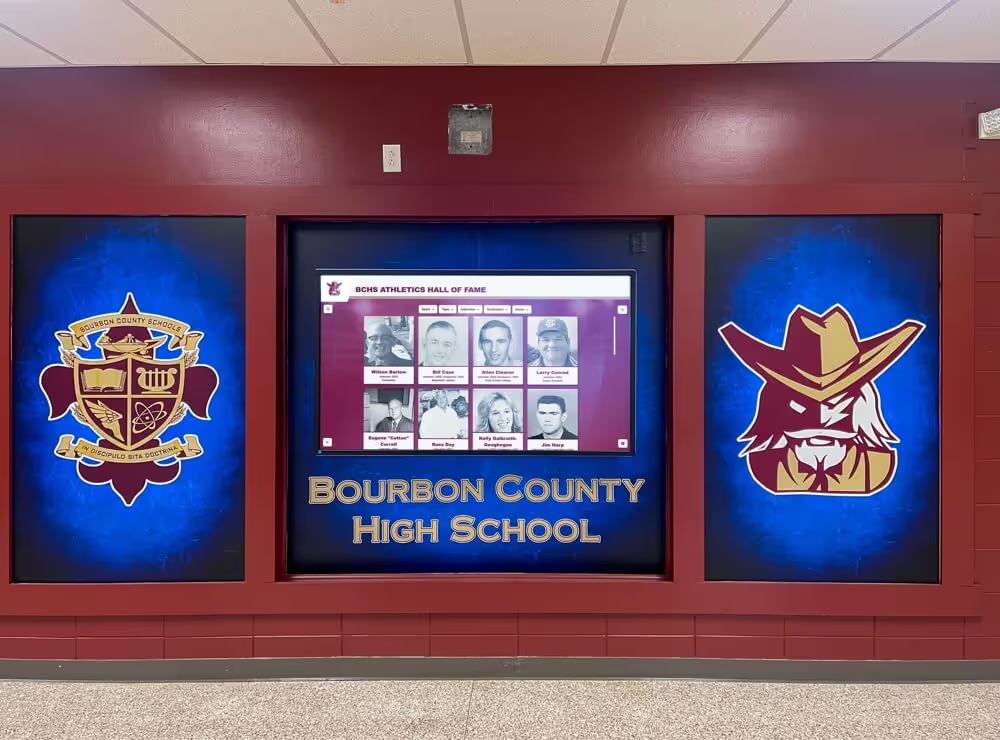
Professional kiosk installations integrate seamlessly with existing recognition elements
When Fully Kiosk Makes Sense
Consider Fully Kiosk Browser if you specifically need:
- Home Assistant integration with motion detection
- MQTT communication protocols
- JavaScript or REST APIs for custom functionality
- Android-specific features unavailable in other solutions
Limitations to Consider
- €7.90 cost multiplied across multiple devices
- Android-only (incompatible with Mac, iOS, or Windows)
- Free version watermark unsuitable for professional use
- Complexity overwhelming for organizations needing simple kiosk functionality
- Remote administration capabilities receive mixed user reviews
- Some features reportedly unreliable or difficult to configure properly
Download: Fully Kiosk Browser on Google Play Store
3. Built-in Android Screen Pinning (FREE)
Platform Availability: Android 5.0 (Lollipop) and newer
Cost: Completely free—built into Android operating system
Android’s native screen pinning provides basic kiosk functionality without installing any additional applications.
How to Enable Screen Pinning
- Open Settings app
- Navigate to Security & Privacy (or Security)
- Find “Screen Pinning,” “Pin Windows,” or “App Pinning” option
- Enable the feature
- Optional: Require PIN, pattern, or password to unpin
- Open desired app, tap Recent Apps button, tap app icon, select “Pin this app”
Exit Method
Press and hold Back + Overview buttons simultaneously (timing varies by device manufacturer).
Advantages
- Zero cost and no installation required
- Works on virtually all Android devices
- Simple to enable and use
- Sufficient for supervised or temporary kiosk needs
- Good for family/home use cases
Significant Limitations
- Intentionally easy to exit—unsuitable for unsupervised public kiosks
- No automatic session reset capabilities
- No remote management options
- No advanced security beyond basic pinning
- Single app only—cannot alternate between multiple apps
- User can still interact with pinned app normally (potentially problematic depending on app)
When Screen Pinning Works
Use built-in screen pinning for:
- Temporary kiosk deployments (events, short-term displays)
- Supervised environments where staff monitors usage
- Family settings (kids’ tablets, home use)
- Testing kiosk concepts before investing in dedicated solutions
When to Upgrade
Transition to dedicated kiosk apps like Rocket Touchscreen when:
- Deploying permanent unsupervised public kiosks
- Requiring automatic session reset
- Needing remote content management
- Implementing multiple kiosk devices
- Demanding professional security and reliability
4. iOS Guided Access (FREE - iOS/iPadOS)
Platform Availability: iPhone, iPad
Cost: Free built-in feature
Apple’s Guided Access provides basic kiosk functionality for iOS devices, comparable to Android’s screen pinning but with slightly more control.
Enabling Guided Access
- Settings → Accessibility → Guided Access
- Toggle Guided Access on
- Set passcode for exit
- Configure time limits and restrictions as desired
- Open desired app, triple-click side or home button, tap “Start”
Capabilities
- Locks device to single app
- Disables hardware buttons
- Can disable touch in specific screen areas
- Time limit options
- Passcode-protected exit
Limitations
Similar to Android screen pinning:
- Basic functionality only
- No automatic reset
- No remote management
- Manual activation required
- Better than nothing but inadequate for professional deployments
For iPad-based kiosks needing professional features, consider web-based content accessed through Guided Access combined with proper web app design addressing kiosk requirements.

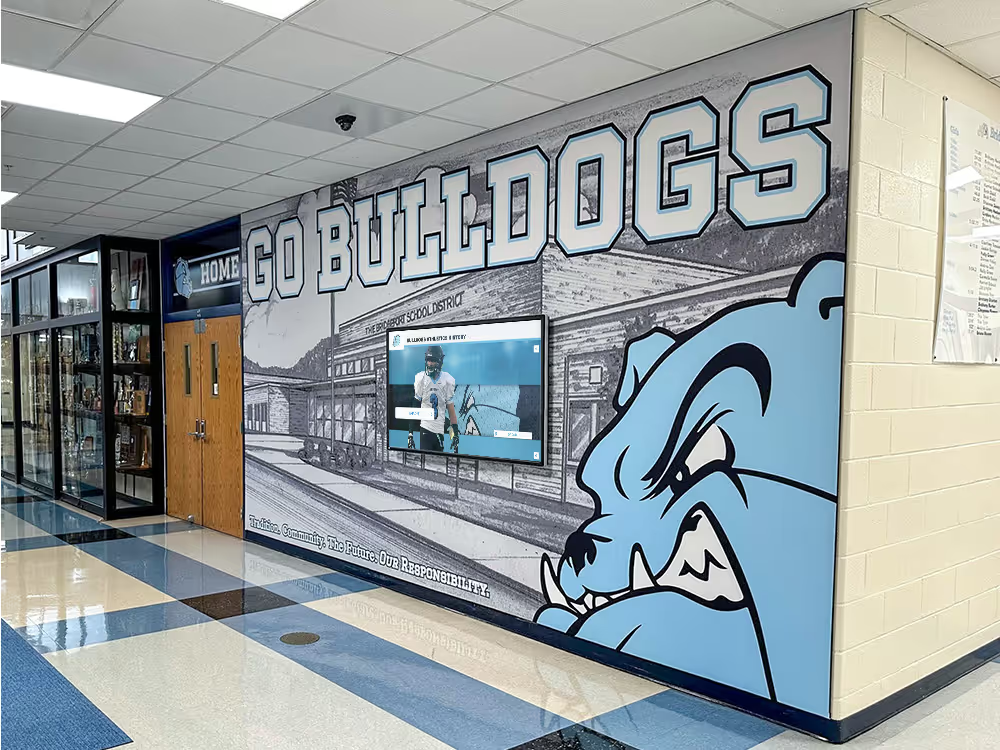
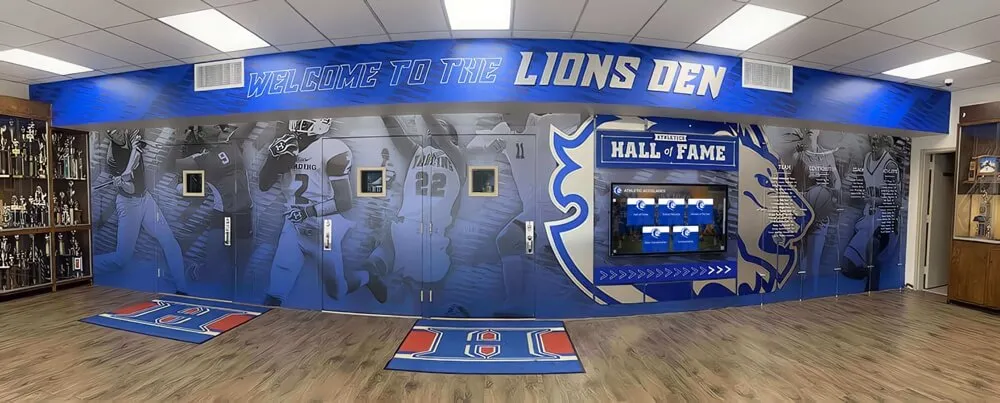
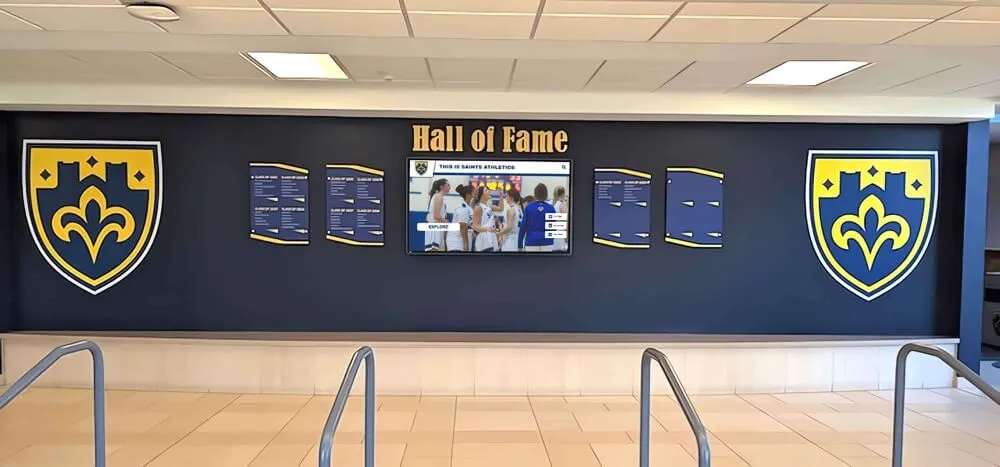
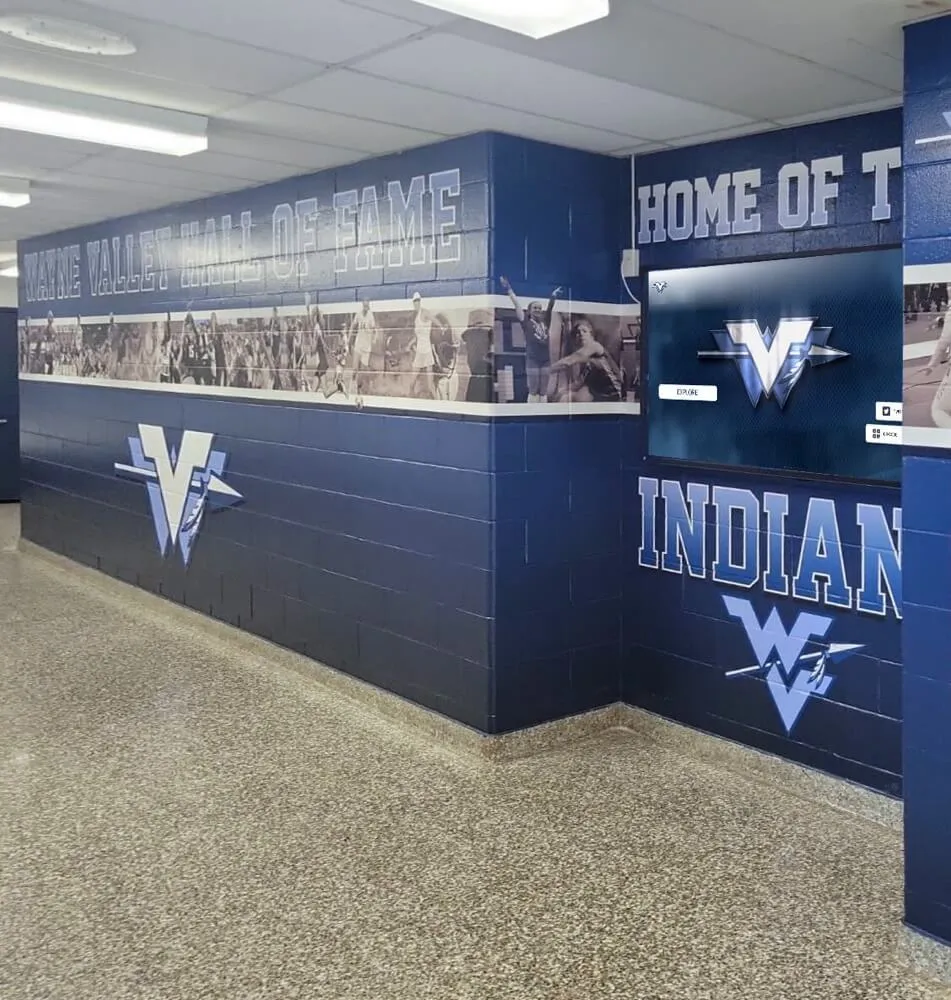
Integrated digital displays complement traditional school branding while providing interactive kiosk functionality
5. Kiosk Browser Lockdown (One-Time License)
Platform Availability: Android
Cost: Free basic version; paid license for full features
Kiosk Browser Lockdown offers another one-time payment alternative to subscription models, focusing on secure browser lockdown specifically.
Key Features
- Browser-based kiosk functionality
- Website whitelisting and blacklisting
- Password-protected exit
- Auto-start capabilities
- Commercial-grade lockdown
When to Consider
Organizations committed to Android platforms needing alternatives to Fully Kiosk may find Kiosk Browser Lockdown suitable, particularly if specific features align with requirements.
Download: Kiosk Browser Lockdown on Google Play Store
6. Enterprise MDM Solutions (Subscription Required)
Platforms: Multiple (Android, iOS, Windows, macOS depending on vendor)
Cost: Typically $2-10+ per device monthly
Major Providers: AirDroid Business, Scalefusion, Hexnode UEM, Miradore, ManageEngine Mobile Device Manager Plus, 42Gears SureFox
Enterprise Mobile Device Management platforms provide comprehensive device administration capabilities including kiosk mode as one feature among many.
When MDM Makes Sense
Consider MDM solutions only when:
- Managing 25+ devices requiring centralized administration
- Needing comprehensive device control beyond kiosk functionality
- Deploying devices to remote workers requiring support
- Compliance requirements mandate specific device management features
- Budget accommodates ongoing per-device subscription costs
- Organization already uses MDM for other purposes
Why Most Organizations Don’t Need MDM for Kiosks
MDM platforms provide far more functionality than simple kiosk deployments require:
- Complex setup and administration
- Steep learning curve for non-IT staff
- Ongoing subscription costs
- Feature overkill for straightforward kiosk needs
- Administrative overhead managing policies and configurations
Schools implementing academic recognition displays or small businesses deploying information kiosks gain little benefit from MDM capabilities designed for managing employee mobile devices across distributed workforces.
Recommendation
Start with free dedicated kiosk apps like Rocket Touchscreen. Only invest in MDM if you definitively identify specific requirements that free alternatives cannot satisfy—a scenario that proves rare for most kiosk deployments.
Comparison Summary Table
| Solution | Platform | Cost | Subscription | Best For | Key Advantage |
|---|---|---|---|---|---|
| Rocket Touchscreen | Android & Mac | FREE | No | General kiosk use | Free, cross-platform, no limitations |
| Fully Kiosk Browser | Android | €7.90 | No | Home Assistant users | Advanced APIs and integrations |
| Screen Pinning | Android | FREE | No | Temporary/supervised use | Built-in, zero setup |
| Guided Access | iOS/iPadOS | FREE | No | iPad basic kiosk | Built-in Apple solution |
| Kiosk Browser Lockdown | Android | Paid | No | Android-specific needs | One-time payment alternative |
| MDM Solutions | Multiple | $2-10+/mo | Yes | Enterprise (25+ devices) | Comprehensive management |
Step-by-Step Setup Guide: Rocket Touchscreen App
This detailed walkthrough demonstrates deploying Rocket Touchscreen on both Android and Mac platforms, transforming devices into professional kiosk displays.
Setting Up Rocket Touchscreen on Android Tablets
Prerequisites
- Android tablet or device running Android 5.0 (Lollipop) or newer
- Google account for accessing Play Store
- Website URL or web application address to display
- WiFi internet connection for initial setup and content delivery
Step-by-Step Installation and Configuration
1. Download and Install
- Open Google Play Store on your Android device
- Search for “Rocket Touchscreen”
- Tap Install button
- Wait for installation to complete
- Tap Open to launch the application
2. Initial Configuration
- Grant necessary permissions when prompted (display overlay, device admin if requested)
- Enter your website URL or web application address in the configuration field
- Example:
https://yourdomain.com/kioskorhttps://your-school.rocketalumnisolutions.com - Configure fullscreen mode (typically enabled by default)
- Set session timeout if desired (optional—causes automatic refresh after inactivity)
3. Test Kiosk Functionality
- Verify your content displays correctly in fullscreen mode
- Test touch interactions ensuring all buttons and navigation work properly
- Attempt to exit kiosk mode to confirm lockdown security
- Check that content loads at appropriate size for your screen resolution
4. Configure Auto-Start (Critical for Unattended Operation)
- Access Android Settings from Rocket Touchscreen configuration
- Navigate to Apps → Rocket Touchscreen → Advanced → Battery optimization
- Set to “Not optimized” preventing Android from closing the app
- Return to main Settings → Accessibility
- Enable Rocket Touchscreen accessibility service (if required by app)
- Set Rocket Touchscreen to launch automatically on device startup
5. Final Security Configuration
- Set administrator password preventing unauthorized configuration changes
- Disable unnecessary Android notifications
- Configure device to prevent sleep/lock if intended for continuous operation
- Test complete startup sequence by restarting device
6. Optional: Remote Management Setup
If using web-based content, enable remote updates:
- Ensure content URL points to remotely managed website
- Verify content changes propagate to kiosk without device intervention
- Consider implementing automatic page refresh if real-time updates critical
Deployment Tips for Android
- Use commercial-grade tablets rated for continuous operation
- Mount tablets securely preventing theft or tampering
- Connect via Ethernet adapter when possible for more reliable connectivity than WiFi
- Implement charging cable security preventing casual unplugging
- Document configuration settings and passwords for future reference
Setting Up Rocket Touchscreen on Mac Computers
Prerequisites
- Mac computer running macOS 10.13 (High Sierra) or newer
- Apple ID for accessing Mac App Store
- Content to display (website URL or web application)
- Monitor or touchscreen display (if using external display)
Step-by-Step Installation and Configuration
1. Download from Mac App Store
- Open Mac App Store application
- Search for “Rocket Touchscreen”
- Click Get or Download button
- Authenticate with Apple ID if prompted
- Wait for installation to complete
2. Initial Launch and Configuration
- Open Applications folder and launch Rocket Touchscreen
- Grant necessary permissions when macOS requests them
- Enter your content URL in the configuration interface
- Configure display settings appropriate for your screen size
- Enable fullscreen mode and security options
3. Configure Auto-Launch on Startup
- Open System Preferences → Users & Groups
- Click Login Items tab
- Click + button to add Rocket Touchscreen to startup applications
- Ensure checkbox is enabled for automatic launch
- Test by restarting Mac and verifying app launches automatically
4. Lock Down System Access
- Consider creating dedicated user account specifically for kiosk use
- Disable password reset options for kiosk account
- Remove dock and menu bar access if possible through Rocket Touchscreen settings
- Disable hot corners and system shortcuts that might allow exit
5. Optimize for Touchscreen Displays
If using external touchscreen monitor:
- Connect touchscreen via USB for touch input
- Verify touch calibration accuracy
- Test all touch interactions ensuring proper registration
- Adjust display resolution and scaling for optimal visibility at viewing distance
6. Test Complete Deployment
- Restart Mac completely
- Verify Rocket Touchscreen launches automatically on startup
- Confirm content displays properly in fullscreen mode
- Attempt to exit or access system functions (should be prevented)
- Test touch interactions if using touchscreen hardware
Mac Deployment Considerations
Mac-based kiosk deployments particularly benefit from:
- Excellent reliability and stability for long-term continuous operation
- Superior security compared to consumer operating systems
- Professional aesthetics appropriate for corporate or educational environments
- Integration with existing Mac infrastructure in schools and businesses
Schools implementing digital recognition displays on Mac hardware find Rocket Touchscreen eliminates historical Mac kiosk software challenges, providing straightforward deployment without complex workarounds or expensive alternatives.

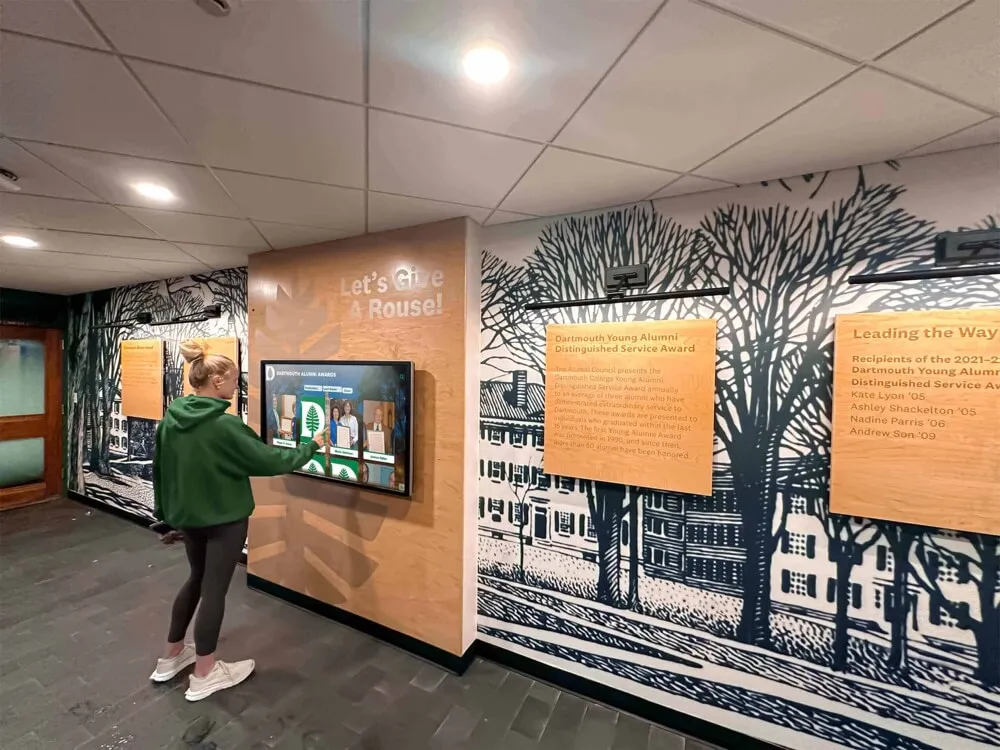
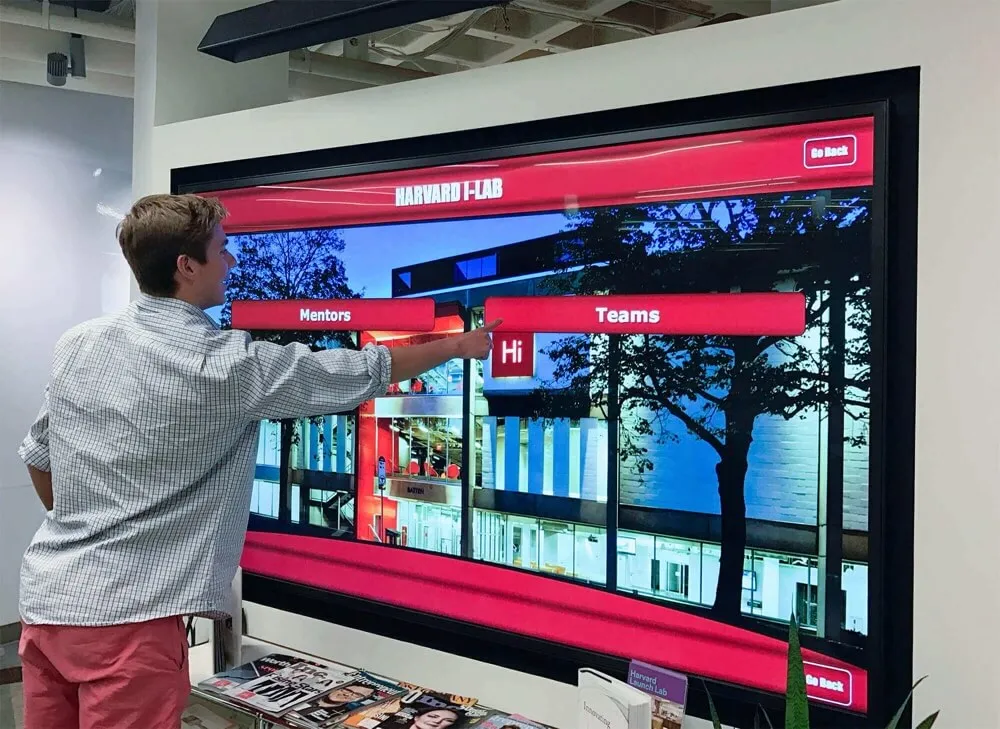
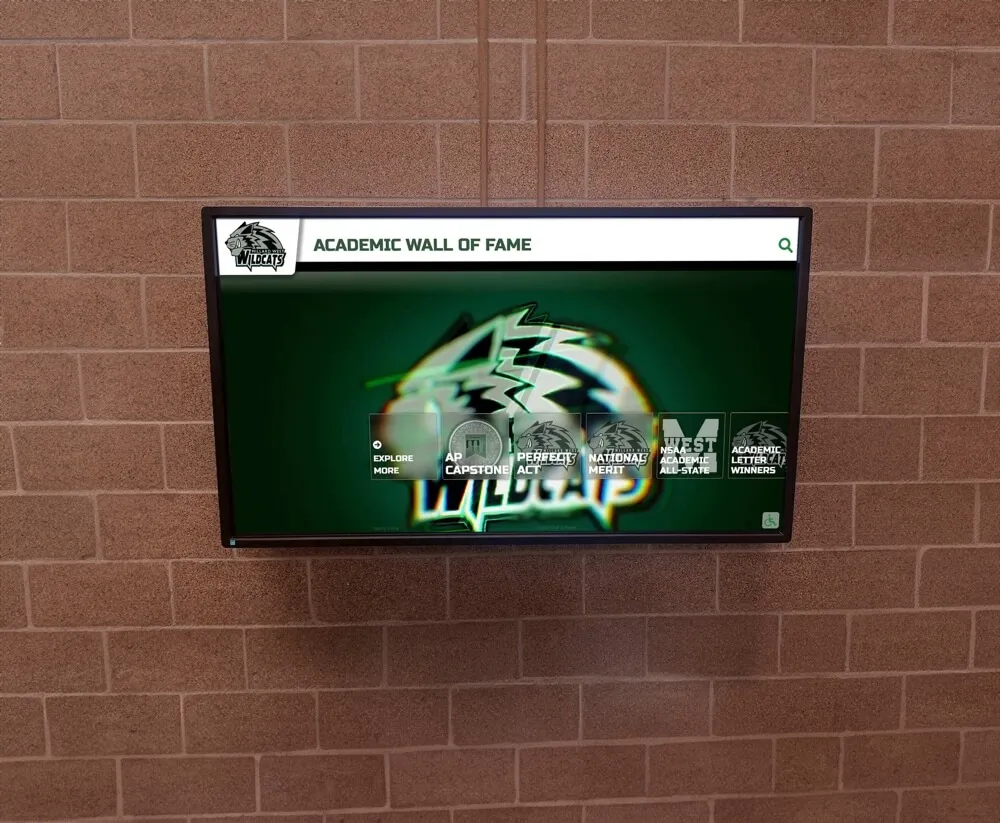
Intuitive touch interfaces enable easy exploration of content on properly configured kiosk displays
Essential Kiosk App Features Comparison
Understanding which features matter for specific use cases helps organizations avoid paying for unnecessary capabilities while ensuring critical requirements are met.
Must-Have Features for Any Kiosk Deployment
Fullscreen Display Mode
Every kiosk application must eliminate all system interface elements—navigation bars, address bars, menu bars, status bars, and window decorations—creating immersive, distraction-free experiences where only content displays.
Exit Prevention and Security
Robust kiosk apps prevent users from:
- Pressing hardware buttons (home, back, recent apps) to exit
- Using system keyboard shortcuts (Alt-Tab, Cmd-Q, etc.)
- Accessing notification panels or system settings
- Force-quitting the application
- Switching to other applications
Password or PIN protection should guard any exit mechanisms that do exist, ensuring only authorized personnel can leave kiosk mode.
Automatic Session Reset
After user inactivity for configurable duration (typically 30-120 seconds), kiosks should automatically return to homepage or default state, clearing any user-entered data and ensuring clean slate for next visitor. This proves essential for public installations preventing information leakage between users.
Simple Content Configuration
Non-technical staff should easily specify what content displays—whether entering website URLs, selecting local files, or choosing from predefined content options—without requiring IT intervention or programming knowledge.
Reliable Startup Automation
Kiosks deployed in unsupervised environments must launch automatically when devices power on, requiring zero manual intervention. This ensures displays remain operational after power outages, system updates, or unexpected restarts.
Advanced Features (When You Need Them)
Remote Device Management
For organizations deploying multiple kiosks across different locations, remote management capabilities enable:
- Centralized content updates affecting all devices simultaneously
- Remote troubleshooting and configuration changes
- Usage monitoring and analytics
- Device health monitoring and alerts
Web-based kiosk solutions like Rocket Touchscreen inherently provide this capability—content changes made to websites automatically propagate to all kiosk displays accessing those URLs.
Offline Operation
Some installations lack reliable internet connectivity or require guaranteed operation during network outages. Offline-capable kiosk apps cache content locally, enabling continued functionality when disconnected. Both Rocket Touchscreen and Fully Kiosk Browser support offline operation once initial content loads.
Scheduled Content Changes
Digital signage applications sometimes require different content displaying at different times—breakfast menus in morning, lunch menus at midday, or rotating promotional content throughout day. While valuable for some deployments, many organizations find simpler approaches (web-based content management handling scheduling) more flexible than device-level scheduling.
Multi-App Kiosk Mode
Enterprise environments occasionally need kiosks providing access to multiple approved applications rather than single app or website. This proves rare for most kiosk deployments, which benefit from simplicity of single-purpose displays.
Features You Probably Don’t Need
Motion Detection
While interesting, motion detection using device cameras primarily serves Home Assistant integration enabling screens to wake when people approach. Most kiosk deployments simply leave screens constantly active or use simpler touch-to-wake approaches.
JavaScript/REST/MQTT APIs
Advanced programming interfaces enable custom integrations and automation. Unless you have developers creating custom functionality or integrating with home automation systems, these APIs provide little practical value while significantly increasing complexity.
Complex Device Administration
Enterprise MDM features—remote app installation, policy enforcement, detailed compliance monitoring, location tracking—prove unnecessary overhead for straightforward kiosk applications. Organizations needing these capabilities already know it; others shouldn’t pay for unused functionality.
Peripheral Hardware Support
Most kiosks require only display and touch input. Specialized peripherals (barcode scanners, card readers, receipt printers) prove necessary for point-of-sale applications but irrelevant for information displays, digital signage, or recognition systems representing majority of kiosk deployments.
Feature Comparison Matrix
| Feature | Rocket Touchscreen | Fully Kiosk | Screen Pinning | MDM Solutions |
|---|---|---|---|---|
| Fullscreen mode | ✓ Yes | ✓ Yes | ✓ Yes | ✓ Yes |
| Exit prevention | ✓ Strong | ✓ Strong | ✗ Weak | ✓ Strong |
| Auto session reset | ✓ Yes | ✓ Yes | ✗ No | ✓ Yes |
| Password protection | ✓ Yes | ✓ Yes | ○ Optional | ✓ Yes |
| Auto-start on boot | ✓ Yes | ✓ Yes | ✗ No | ✓ Yes |
| Remote management | ✓ Via web content | ○ Limited | ✗ No | ✓ Comprehensive |
| Offline operation | ✓ Yes | ✓ Yes | N/A | Varies |
| Motion detection | ✗ No | ✓ Yes | ✗ No | Varies |
| APIs (REST/MQTT) | ✗ No | ✓ Yes | ✗ No | Varies |
| Multi-platform | ✓ Android & Mac | ✗ Android only | ✗ Android only | ✓ Usually |
| Cost | ✓ FREE | € €7.90 | ✓ FREE | $$$ Subscription |
This comparison reveals that free solutions like Rocket Touchscreen provide all essential features most organizations actually need, while paid alternatives primarily add specialized capabilities benefiting niche use cases.
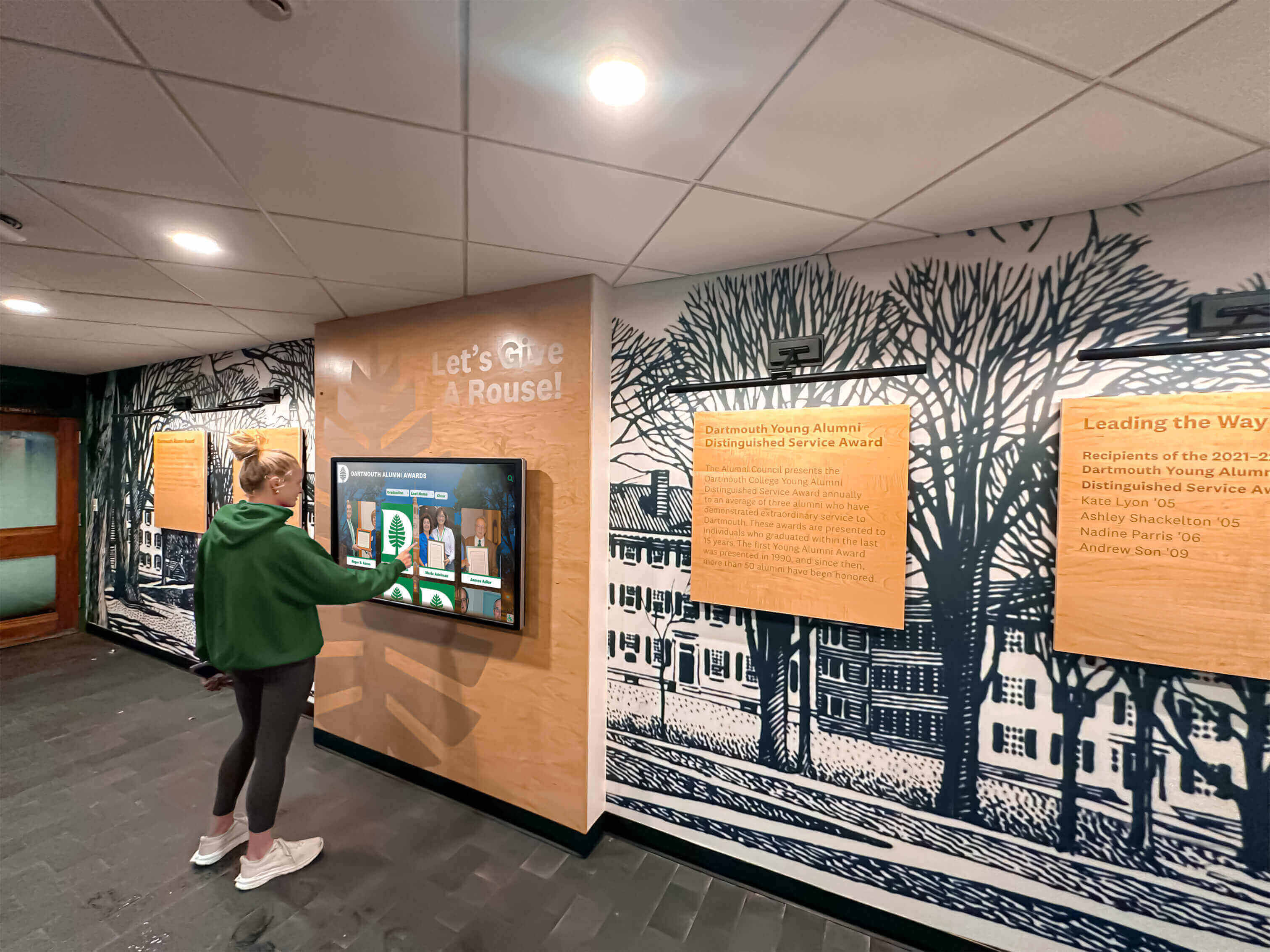
Well-designed kiosk interfaces encourage exploration and engagement across diverse user populations
Common Problems and Troubleshooting Solutions
Even straightforward kiosk software encounters occasional issues during deployment or operation. This troubleshooting guide addresses frequent challenges with practical solutions.
Setup and Installation Issues
Problem: “Cannot Find Kiosk Mode Settings on My Android Device”
Different manufacturers label kiosk-related features differently, creating confusion during configuration.
Solutions:
- Search device Settings for terms: “pin,” “kiosk,” “lock,” “screen pinning,” or “app pinning”
- Common locations: Settings → Security, Settings → Accessibility, Settings → Display
- Manufacturer-specific names: Samsung calls it “Screen Pinning,” some devices use “Pin Windows”
- If unavailable: Some budget or heavily customized Android versions omit this feature entirely—consider dedicated kiosk app instead
Problem: “Kiosk App Crashes Immediately After Opening”
Solutions:
- Clear app cache: Settings → Apps → [Kiosk App] → Storage → Clear Cache
- Clear app data (resets configuration): Settings → Apps → [Kiosk App] → Storage → Clear Data
- Verify Android version compatibility (check app requirements in Play Store)
- Ensure all requested permissions granted: Settings → Apps → [Kiosk App] → Permissions
- Uninstall and reinstall application
- Update Android to latest available version for your device
- Check available storage (insufficient space causes instability)
Problem: “Content Doesn’t Display Correctly in Kiosk App”
Solutions:
- Verify URL entered correctly (include https://)
- Check that website/web app optimized for touchscreen interaction
- Test URL in standard browser first to confirm content loads
- Verify internet connectivity (open other apps requiring network)
- Disable any content blocking or VPN that might interfere
- Check if website requires login or authentication (problematic for public kiosks)
- Ensure content dimensions appropriate for your screen resolution
Security and Exit Prevention Issues
Problem: “Users Can Still Exit Kiosk Mode Easily”
Built-in screen pinning intentionally includes accessible exit mechanisms suitable for personal use but inadequate for unsupervised public kiosks.
Solutions:
- Upgrade from built-in screen pinning to dedicated kiosk app (Rocket Touchscreen or Fully Kiosk)
- Enable PIN/password requirement for exit (Settings → Security → Screen Pinning)
- Consider physical button disabling features if available in advanced kiosk apps
- Evaluate whether supervision makes simple screen pinning adequate
- For truly unsupervised public deployments, only dedicated kiosk software provides sufficient security
Problem: “Forgot Kiosk Mode Exit Password”
Solutions:
- Check documentation or password management system for recorded credentials
- Some apps offer password reset via email or administrator console
- Safe mode boot: Restart device, hold volume down during boot, access settings to clear app data
- Factory reset (last resort—erases all device data): Only if no other option exists
- For future deployments: Maintain secure password documentation accessible to authorized staff
Problem: “System Notifications Appear Over Kiosk Content”
Solutions:
- Android: Settings → Apps & Notifications → Notifications → Block notifications from unnecessary apps
- Enable “Do Not Disturb” mode: Settings → Sound → Do Not Disturb → Always On
- Configure kiosk app settings to suppress notifications if option available
- Use device administration features blocking system notifications entirely
Performance and Reliability Issues
Problem: “Kiosk App Runs Slowly or Exhibits Lag”
Solutions:
- Clear app cache regularly (weekly or monthly depending on usage)
- Simplify displayed content reducing complexity, large images, or autoplay videos
- Verify device specifications meet minimum requirements for content complexity
- Close background apps consuming resources: Settings → Apps → Force Stop unused apps
- Check available RAM and storage—devices need minimum 10-15% free storage
- Restart device weekly or monthly to clear accumulated memory leaks
- Consider hardware upgrade if device truly insufficient for requirements
Problem: “Touchscreen Not Responding Properly”
Solutions:
- Calibrate touchscreen: Settings → Display → Touch Screen Calibration (availability varies)
- Update device firmware to latest version
- Check for screen protector interference (some protectors reduce touch sensitivity)
- Clean screen surface (fingerprints and dirt affect touch registration)
- Test with different kiosk app to isolate whether issue is hardware or software
- Verify touch driver compatibility if using external touchscreen monitor
- Check touchscreen USB connection if separate from video connection
Problem: “Display Goes to Sleep Despite Configuration”
Solutions:
- Increase screen timeout: Settings → Display → Screen Timeout → Maximum available setting
- Some devices offer “Stay Awake” developer option: Settings → Developer Options → Stay Awake
- Disable battery optimization for kiosk app: Settings → Battery → Battery Optimization → [App] → Don’t Optimize
- Connect device to constant power (required for kiosk deployments anyway)
- Some kiosk apps include built-in screen wake features preventing sleep
Connectivity and Content Management Issues
Problem: “Kiosk Stops Working When WiFi Connection Drops”
Solutions:
- Use wired Ethernet connection via USB adapter (far more reliable than WiFi)
- Configure kiosk app for offline operation with local content caching
- Implement automatic WiFi reconnection in Android settings
- Consider content hosted on local network rather than internet if connectivity unreliable
- Use Progressive Web App (PWA) approaches enabling offline functionality
- Verify router stability and signal strength at kiosk location
Problem: “Cannot Update Kiosk Content Without Physical Device Access”
Solutions:
- Switch to web-based kiosk content approach (recommended)
- Host content on website enabling remote updates propagating automatically
- Use cloud-based content management platforms
- Configure automatic content refresh at regular intervals
- Consider remote device management tools if managing multiple kiosks
- For native app content: Implement automatic update checking and installation
Organizations implementing touchscreen recognition displays find web-based content approaches eliminate most management challenges, enabling instant updates from anywhere without physical device access.
Choosing the Right Kiosk App for Your Specific Needs
Different deployment scenarios prioritize different features and capabilities. This decision framework helps match solutions to genuine requirements.
For Schools and Educational Institutions (1-20 Devices)
Recommended Solution: Rocket Touchscreen App (FREE)
Educational institutions consistently find Rocket Touchscreen optimal because:
- Zero cost for unlimited devices aligns with constrained education budgets
- Simple setup and management requires minimal IT staff involvement
- Remote content updates via web platforms enable instant changes when teams win championships or honor roll published
- Cross-platform support works with schools’ mixed Android and Mac infrastructure
- Professional appearance without watermarks maintains institutional standards
- Sufficient security for supervised hallway or lobby installations
Perfect for:
- Athletic hall of fame displays celebrating team achievements
- Academic recognition showcasing honor roll students and scholars
- Main lobby information kiosks welcoming visitors
- Library directory and resource systems
- Alumni engagement displays connecting past and present
Thousands of schools deploy digital athletic recognition systems using Rocket Touchscreen, eliminating software licensing costs while maintaining professional, engaging displays.
When to Consider Alternatives:
Only if specific advanced features prove absolutely essential (rare in educational contexts)
For Small Businesses (1-10 Devices)
Recommended Solution: Rocket Touchscreen App (FREE)
Small businesses with limited technology budgets maximize value through:
- Elimination of ongoing subscription costs enabling investment in other business priorities
- Quick deployment allowing focus on business operations rather than technology administration
- Flexibility to display any web content including business websites, dashboards, or custom applications
- Professional reliability ensuring customer-facing displays remain operational
Ideal Applications:
- Retail product catalogs and self-service information
- Restaurant digital menu boards and promotional displays
- Real estate property showcase displays in office windows
- Service business waiting room information and entertainment
- Professional office lobby directories and company information
Cost Benefit:
Even single-device deployments save $24-120 annually compared to subscription alternatives. For businesses deploying multiple displays, savings multiply while budget predictability improves.
For Home Assistant and Smart Home Enthusiasts
Recommended Solution: Fully Kiosk Browser (€7.90)
Despite Rocket Touchscreen’s general superiority, Home Assistant users specifically benefit from Fully Kiosk Browser’s specialized integration:
- Motion detection using tablet camera wakes screen when approaching
- MQTT protocol enables deep Home Assistant integration
- REST API allows automation triggering based on kiosk events
- Extensive configuration options control every aspect of behavior
Why €7.90 Investment Makes Sense:
Home Assistant installations already involve technical setup and configuration. Fully Kiosk’s advanced features integrate naturally with that ecosystem, providing capabilities unavailable in simpler alternatives. The one-time cost proves reasonable for enthusiasts already investing in smart home infrastructure.
Download: Fully Kiosk Browser
For Temporary or Family Use Cases
Recommended Solution: Built-in Android Screen Pinning or iOS Guided Access (FREE)
Temporary kiosk needs—event displays, family gatherings, kids’ tablets—don’t justify dedicated kiosk software installation:
- Zero installation required saves time for short-term needs
- Easy enable/disable provides flexibility unsuitable for permanent installations
- Sufficient security for supervised contexts where staff or parents present
- Works on any device without software compatibility concerns
When It Works:
- Weekend events or temporary displays
- Kids’ tablets in supervised family environments
- Testing kiosk concepts before permanent deployment
- One-time presentations or demonstrations
When to Upgrade:
Transition to dedicated apps when deployments become permanent, move to unsupervised environments, or require professional reliability and features.
For Mac-Based Kiosk Deployments
Recommended Solution: Rocket Touchscreen for Mac (FREE)
Mac users historically faced limited kiosk software options with most solutions targeting Android or Windows. Rocket Touchscreen fills this gap:
- Native Mac application from Mac App Store
- Zero cost unlike expensive Mac kiosk alternatives
- Simple deployment without complex terminal commands or configuration files
- Professional appearance and reliability Mac users expect
- Perfect for Mac mini-powered displays popular in schools and businesses
Organizations committed to Mac hardware—whether for reliability, security, aesthetics, or existing infrastructure—finally have straightforward, free kiosk software matching their platforms.
For Retail Point-of-Sale and Transaction Kiosks
Recommended Solution: Custom Development or Enterprise Solutions
While information kiosks benefit from simple apps like Rocket Touchscreen, transaction-based retail kiosks require specialized capabilities:
- Payment processing integration (PCI compliance requirements)
- Inventory system connectivity
- Receipt printer and peripheral hardware support
- Offline operation ensuring sales continue during outages
- Advanced security meeting financial transaction standards
These requirements typically necessitate custom native development or specialized point-of-sale kiosk platforms rather than general-purpose kiosk browsers.
Quick Decision Tree
Use this flowchart to rapidly identify appropriate solutions:
Need Mac or cross-platform support? → Yes: Rocket Touchscreen → No: Continue…
Need Home Assistant integration? → Yes: Fully Kiosk Browser → No: Continue…
Budget allows any cost? → No: Rocket Touchscreen or Screen Pinning → Yes: Continue…
Temporary or supervised use only? → Yes: Screen Pinning (Android) or Guided Access (iOS) → No: Continue…
Managing 25+ devices needing enterprise features? → Yes: MDM Solution → No: Rocket Touchscreen
This decision tree confirms that for approximately 90% of real-world kiosk deployments, Rocket Touchscreen provides the optimal combination of features, simplicity, cross-platform support, and zero cost.
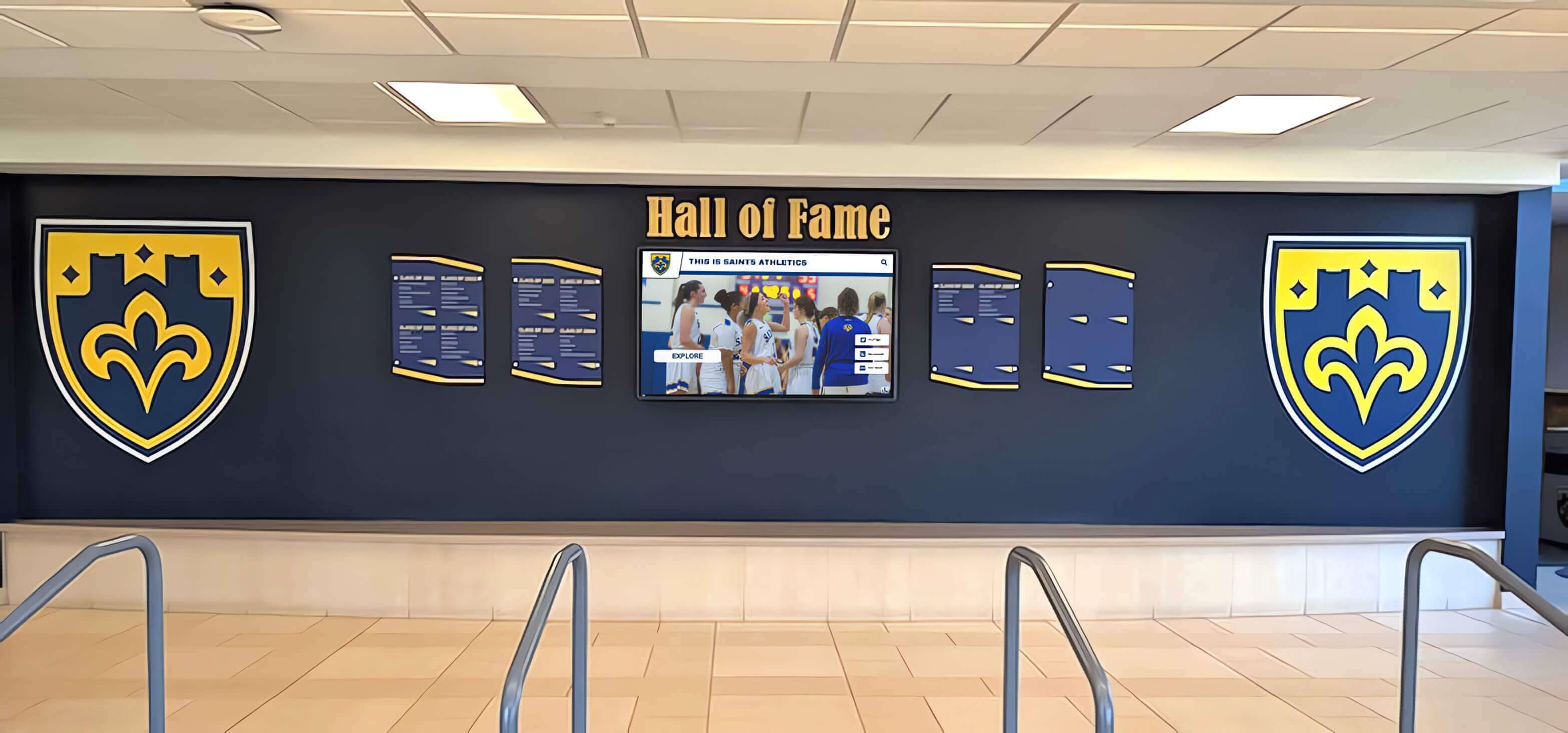
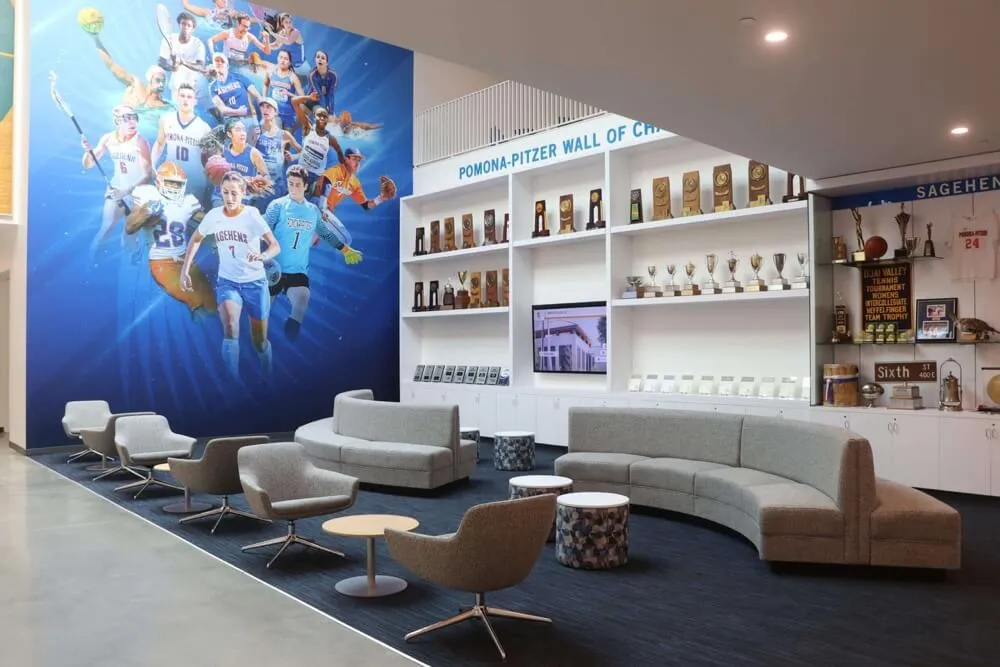
Professional kiosk installations combine traditional and digital elements creating impressive recognition environments
Security Best Practices for Kiosk Deployments
Properly secured kiosk installations protect both device functionality and user privacy while preventing unauthorized access or misuse.
Physical Security Measures
Device Protection
- Mount tablets or computers securely to walls, stands, or enclosures preventing theft
- Use commercial-grade mounting hardware rated for device weight
- Consider locked enclosures for valuable hardware or high-risk locations
- Implement cable locks preventing removal of small form factor computers (Mac mini, Intel NUCs)
- Protect power cables and network connections from casual unplugging
- Use tamper-evident seals on access panels when appropriate
Environmental Considerations
- Place displays at appropriate heights preventing accidental damage or vandalism
- Avoid direct sunlight exposure damaging screens or making content unreadable
- Ensure adequate ventilation preventing overheating during continuous operation
- Consider vandal-resistant screens or protective glazing for high-risk environments
- Provide adequate clearance for user interaction without crowding
Software and Configuration Security
Access Controls
- Use strong, unique passwords for kiosk mode exit (minimum 8 characters with complexity)
- Maintain password documentation in secure location accessible to authorized staff
- Disable or remove administrator accounts beyond single kiosk administrator
- Enable encryption (FileVault on Mac, device encryption on Android) protecting data at rest
- Restrict USB and Bluetooth when not required for kiosk functionality
- Disable developer options and debugging features on Android devices
Network Security
- Use separate network VLAN for kiosk devices isolating from primary business networks
- Implement firewall rules restricting kiosk network access to only required services
- Use VPN connections when kiosks must access sensitive internal resources
- Monitor network traffic from kiosk devices identifying anomalous behavior
- Keep devices updated with latest security patches and firmware
- Disable unnecessary network services (file sharing, remote access, etc.)
Content Security
- Serve kiosk content exclusively over HTTPS preventing interception
- Implement Content Security Policy headers preventing script injection attacks
- Avoid displaying sensitive information unnecessarily (personal data, internal documents)
- Clear browsing data automatically between sessions
- Disable cookies and tracking when possible for privacy protection
- Consider data loss prevention measures for kiosks handling confidential information
User Privacy Protection
Session Management
- Implement automatic session timeout (typically 30-120 seconds of inactivity)
- Clear all user-entered data when sessions reset
- Return to default homepage after timeout
- Log users out of any authenticated systems automatically
- Disable browser history and cache when possible
Privacy Compliance
- Post privacy notices explaining what data kiosks collect (if any)
- Comply with relevant privacy regulations (GDPR, CCPA, etc.) for your jurisdiction
- Avoid unnecessary data collection or retention
- Implement data minimization principles
- Provide opt-out mechanisms where required by law
Public-Facing Considerations
- Disable form autofill preventing previous users’ information from appearing
- Warn users about public device nature before any data entry
- Avoid storing passwords or sensitive credentials
- Consider on-screen keyboards preventing physical keylogger attacks
- Position displays preventing shoulder surfing of sensitive interactions
Operational Security
Monitoring and Maintenance
- Implement monitoring alerting when kiosks go offline or exhibit problems
- Schedule regular security audits reviewing configurations and access logs
- Maintain inventory documenting all kiosk devices, locations, and configurations
- Establish regular maintenance schedules including cleaning, testing, and updates
- Document security incident response procedures
- Train staff on recognizing and reporting security issues
Update Management
- Keep kiosk software updated to latest versions
- Test updates in non-production environment before deployment
- Schedule updates during low-usage periods when possible
- Maintain rollback capability if updates cause problems
- Subscribe to security advisories for platforms and software used
Emergency Procedures
- Document emergency shutdown procedures
- Establish clear escalation paths for security incidents
- Maintain current contact information for IT support
- Create recovery procedures for compromised devices
- Plan for continuity if kiosks become unavailable
Organizations implementing interactive display systems must balance security, usability, and convenience. Overly restrictive security frustrates legitimate users, while insufficient security creates risks. The guidelines above establish reasonable baseline security appropriate for most kiosk deployments.
Frequently Asked Questions About Touchscreen Kiosk Apps
What is the best free kiosk app for Android tablets?
Rocket Touchscreen, available free on Google Play Store, provides the most comprehensive free kiosk solution for Android with no watermarks, device limits, or feature restrictions. For basic supervised needs, built-in Android Screen Pinning offers simple free functionality, though with limited security and no automatic reset capabilities.
Is Fully Kiosk Browser worth paying for?
Fully Kiosk Browser’s €7.90 one-time fee proves worthwhile specifically if you need Home Assistant integration, motion detection, or JavaScript/REST/MQTT APIs for custom functionality. However, for standard kiosk applications displaying web content in information displays, digital signage, or recognition systems, free alternatives like Rocket Touchscreen provide all necessary features without cost.
Can I create a kiosk without subscription fees?
Yes. Rocket Touchscreen (completely free), Fully Kiosk Browser (€7.90 one-time), and built-in OS features (Android Screen Pinning, iOS Guided Access) all avoid subscription models. Only enterprise MDM solutions typically require ongoing monthly or annual fees. For most organizations, free solutions provide all required functionality.
How do I turn my Android tablet into a kiosk without MDM software?
Download a dedicated kiosk browser app like Rocket Touchscreen from Google Play Store, configure your content URL, enable security settings, and set the app to auto-launch on startup. Alternatively, use built-in Android Screen Pinning (Settings → Security → Screen Pinning) for basic functionality without any app installation.
What’s the difference between screen pinning and a dedicated kiosk app?
Screen pinning provides basic app locking but remains easy to exit (long-press back + overview buttons), offers no automatic session reset, lacks remote management, and provides minimal security unsuitable for unsupervised public deployments. Dedicated kiosk apps like Rocket Touchscreen or Fully Kiosk provide robust exit prevention, automatic reset, password protection, remote management capabilities, and professional security appropriate for permanent public installations.
Do kiosk apps work offline?
Yes, most kiosk apps including Rocket Touchscreen and Fully Kiosk Browser function offline once content initially loads and caches locally. Web-based content requires internet connectivity for updates, but apps themselves operate without continuous connection. For completely offline operation, cache content locally or use native applications within kiosk lockdown.
Is there a free kiosk app for Mac computers?
Yes, Rocket Touchscreen is available free on the Mac App Store, providing native macOS kiosk functionality without cost. This represents one of few free Mac-specific kiosk solutions, addressing the historical lack of affordable Mac kiosk software.
How do I prevent users from exiting kiosk mode?
Use dedicated kiosk apps (not just screen pinning) with password-protected exit, enable all security features disabling system shortcuts, and ensure proper configuration preventing hardware button exits. Built-in screen pinning intentionally allows easy exit and proves unsuitable for unsupervised public kiosks. Professional deployments require apps like Rocket Touchscreen or Fully Kiosk providing robust exit prevention.
Should I use web-based or native app kiosk content?
For approximately 95% of use cases, web-based kiosk content (displaying websites or web apps through kiosk browser) proves superior because you can update content remotely without touching devices, use same content across different platforms, avoid expensive native app development, and enable faster deployment. Native apps benefit only specialized scenarios requiring completely offline operation or deep hardware integration unavailable through web technologies.
How much does kiosk software typically cost?
Costs vary dramatically: Rocket Touchscreen (completely FREE), Fully Kiosk Browser (€7.90 one-time), built-in OS features (FREE), and enterprise MDM solutions ($2-10+ per device monthly). Total cost of ownership calculations matter—subscription solutions costing just $3/month accumulate to $108 over three years per device, while free alternatives like Rocket Touchscreen cost nothing regardless of deployment scale or duration.
Conclusion: Download the Best Free Touchscreen Kiosk App Today
Transforming tablets and computers into professional, secure, fully locked-down touchscreen kiosks no longer requires expensive subscriptions, complex enterprise software, or compromising on features and reliability. Free solutions like Rocket Touchscreen demonstrate that purpose-built kiosk functionality can be accessible to every organization—schools celebrating student achievement through digital recognition displays, small businesses showcasing products and services, restaurants presenting menu options, museums creating educational exhibits, and countless other applications benefiting from interactive touchscreen interfaces.
The critical insight this guide provides: you don’t need to pay ongoing subscriptions or sacrifice cross-platform compatibility to deploy professional kiosk displays. Rocket Touchscreen’s completely free model—available on both Google Play Store for Android and Mac App Store for macOS—eliminates the false choice between functionality and affordability that has historically plagued kiosk software decisions.
Download Rocket Touchscreen Free Today
Stop paying monthly subscriptions for basic kiosk functionality. Download Rocket Touchscreen completely free from Google Play Store (Android) or Mac App Store (macOS) and transform your devices into professional locked-down touchscreen displays in minutes.
For most organizations reading this guide, the decision path proves straightforward: start with Rocket Touchscreen’s free solution. It provides all essential kiosk features—fullscreen display, robust exit prevention, automatic session reset, password protection, auto-launch capabilities, and simple content configuration—without cost, without watermarks, without device limits, and without artificial restrictions pushing users toward paid upgrades. The cross-platform support enables consistent deployments whether using Android tablets, Mac computers, or mixed environments.
Only pursue paid alternatives like Fully Kiosk Browser if you definitively identify specific requirements their specialized features address—Home Assistant integration, motion detection APIs, or MQTT protocols serving particular technical needs. For standard kiosk applications displaying information, recognition content, menus, directories, or interactive exhibits, free solutions provide completely adequate functionality while eliminating ongoing costs.
Organizations already paying subscription fees for kiosk or MDM software should carefully evaluate whether they genuinely utilize premium features justifying ongoing costs, or whether simpler free alternatives like Rocket Touchscreen meet actual requirements while freeing budget resources for priorities delivering direct organizational value rather than simply licensing commodity software functionality.
Your next steps:
- Identify your specific kiosk requirements and use cases
- Download Rocket Touchscreen from Google Play Store (Android) or Mac App Store (Mac)
- Follow the step-by-step setup guide provided in this article
- Configure your content URL and security settings
- Test thoroughly ensuring all functionality works as expected
- Deploy with confidence knowing you’ve eliminated ongoing software costs
Educational institutions will find Rocket Touchscreen particularly valuable for implementing digital recognition systems that strengthen school culture, honor achievement, and engage students, alumni, and visitors through interactive touchscreen experiences. The combination of Rocket Touchscreen’s free kiosk functionality with web-based recognition platforms like Rocket Alumni Solutions creates comprehensive solutions requiring zero software licensing costs while delivering professional, engaging displays that maintain relevance through easy remote content management.
The kiosk software landscape has fundamentally changed. Free no longer means limited, professional no longer requires enterprise budgets, and cross-platform compatibility no longer necessitates compromises. Download Rocket Touchscreen today and discover how transforming devices into locked-down touchscreen kiosks should work: simply, reliably, professionally, and completely free.
Ready to explore touchscreen solutions for your organization? Learn more about touchscreen kiosk software options or discover how web-based touchscreen platforms compare to native applications. Explore comprehensive digital display implementation strategies or connect with Rocket Alumni Solutions to discover professional recognition content platforms designed specifically for touchscreen kiosk displays.