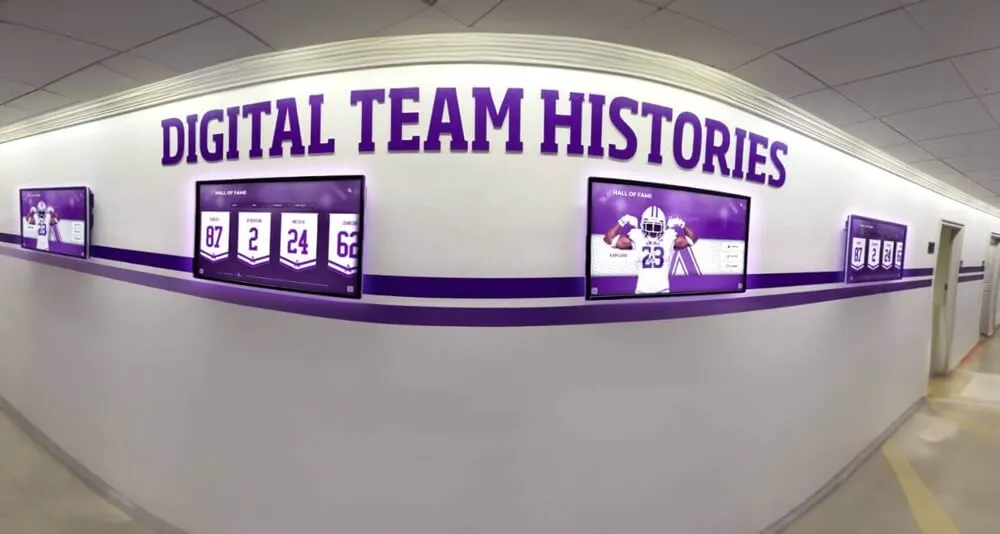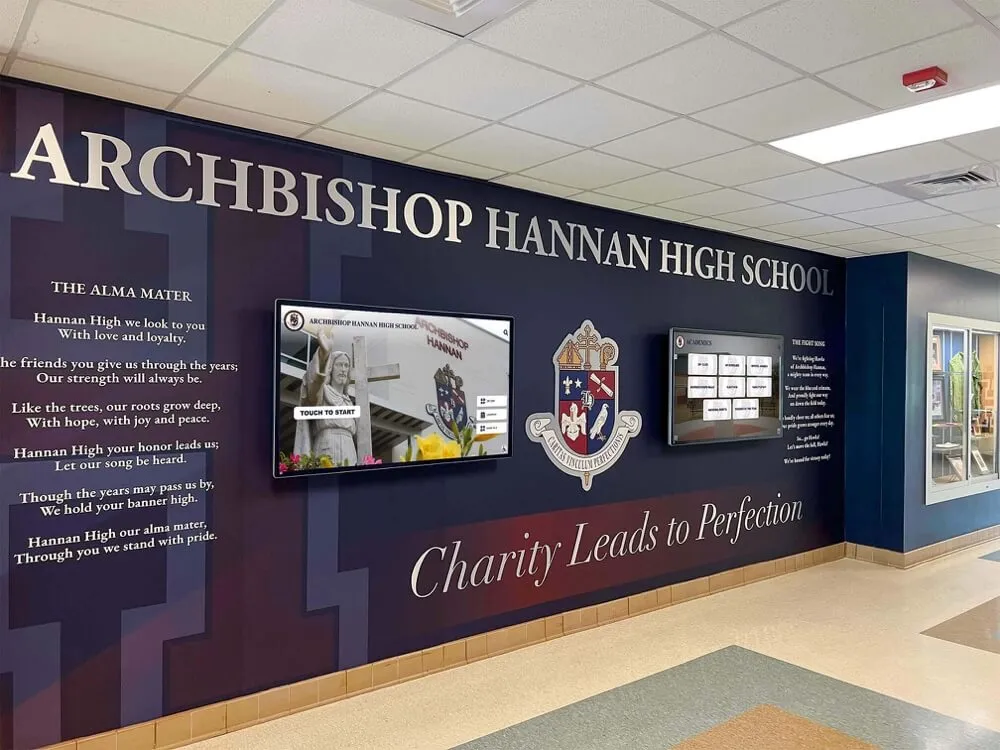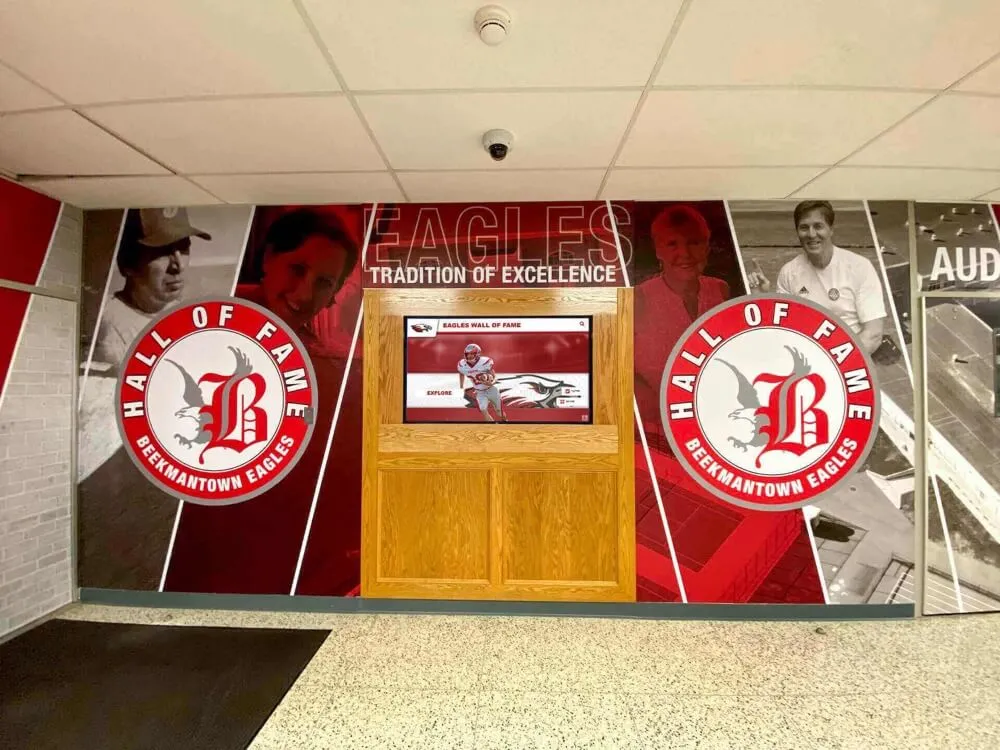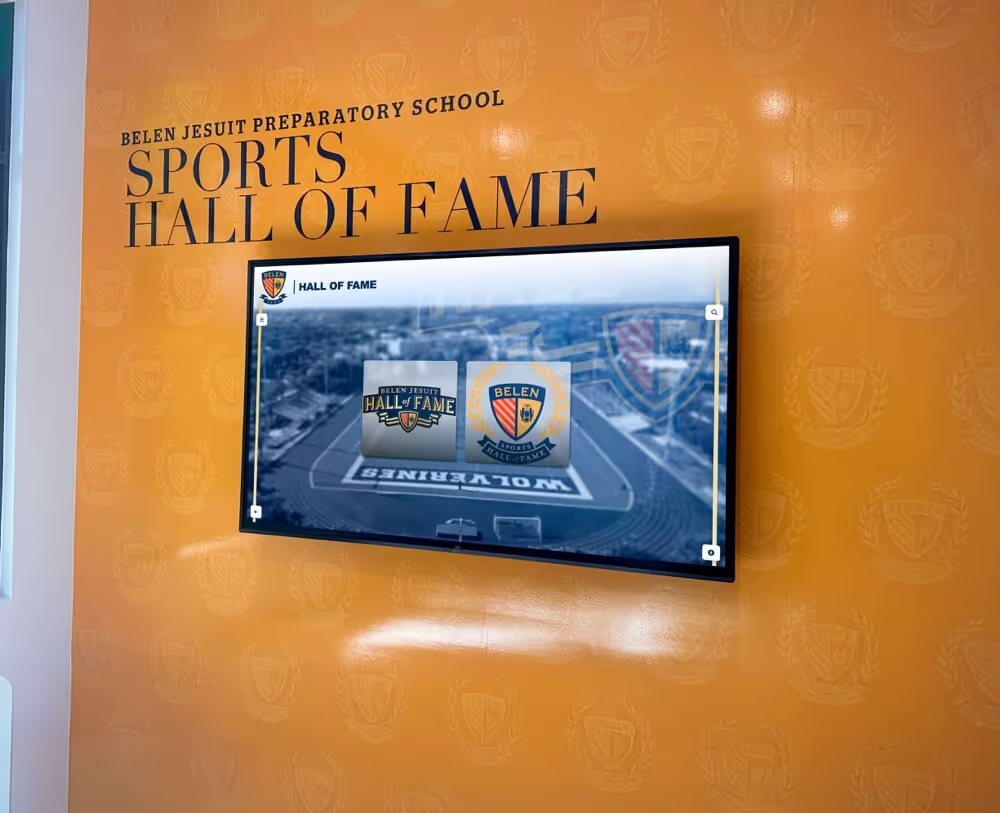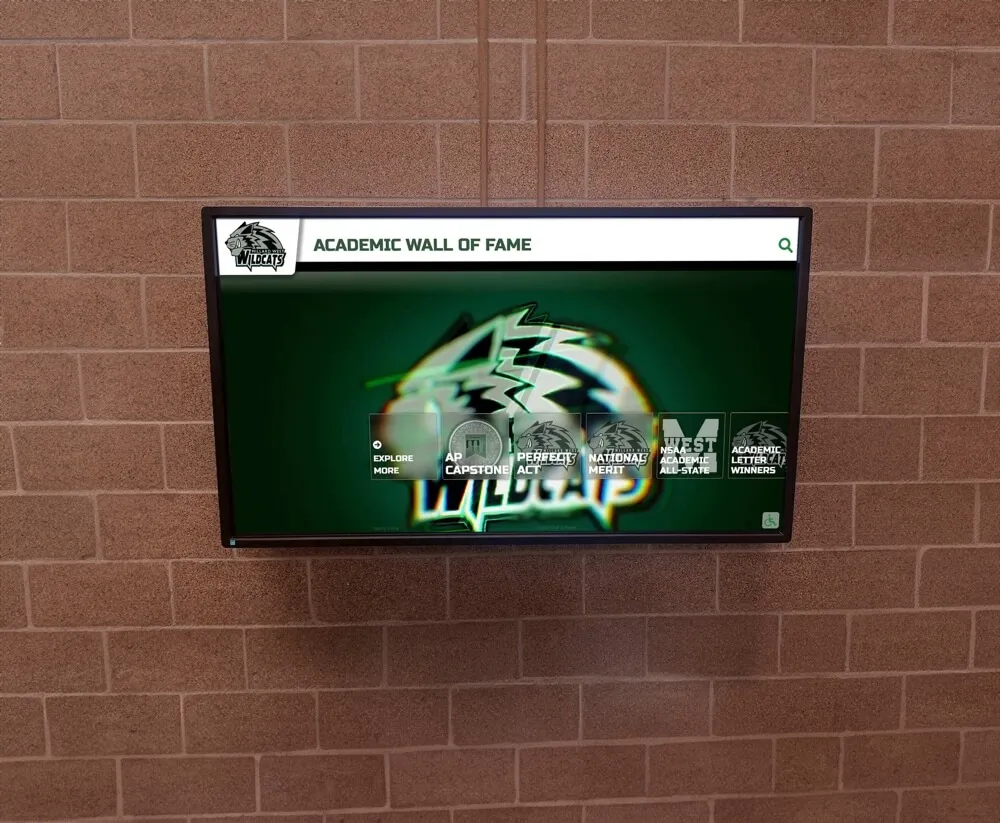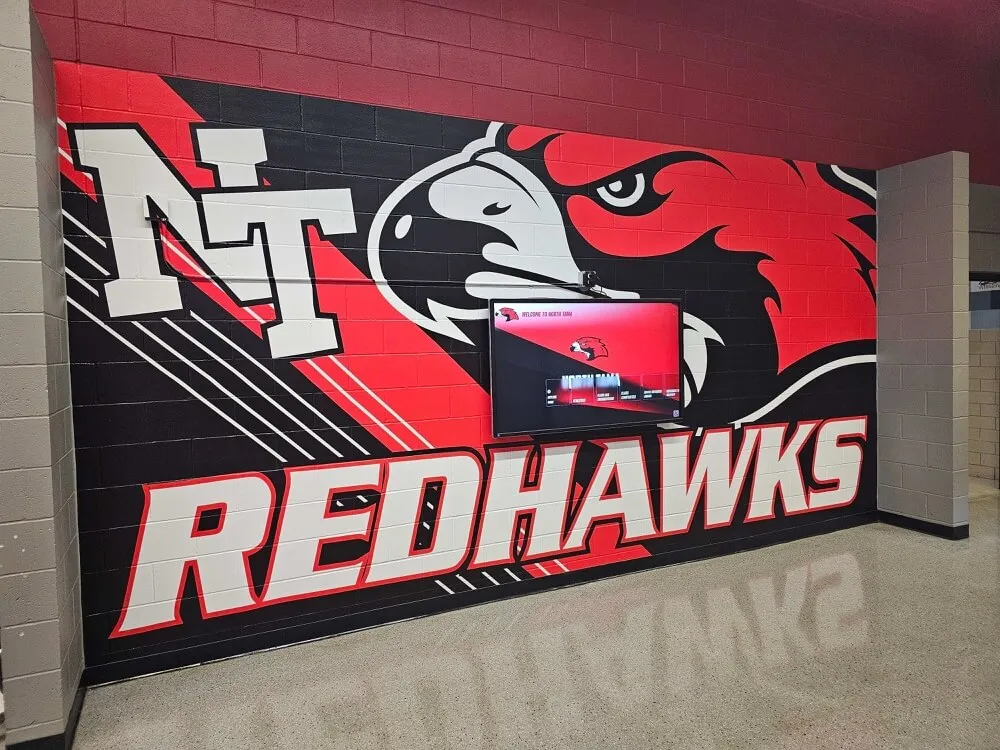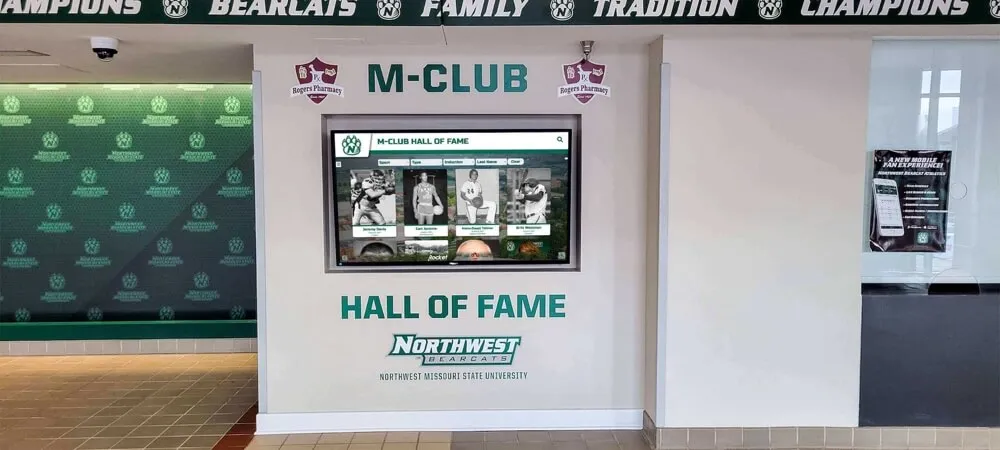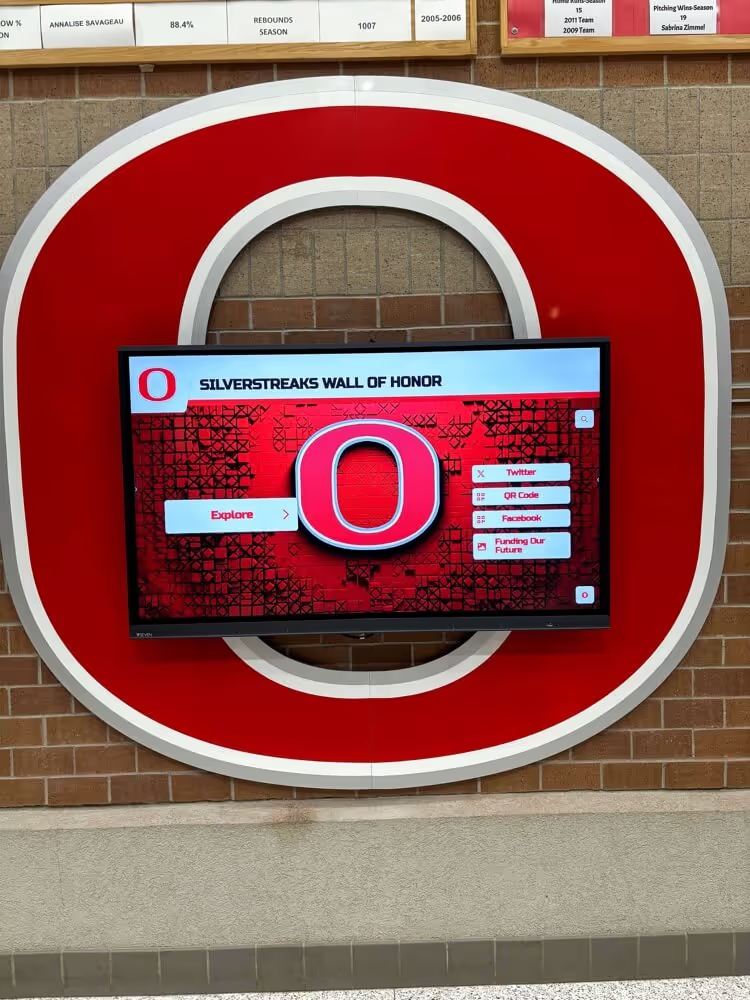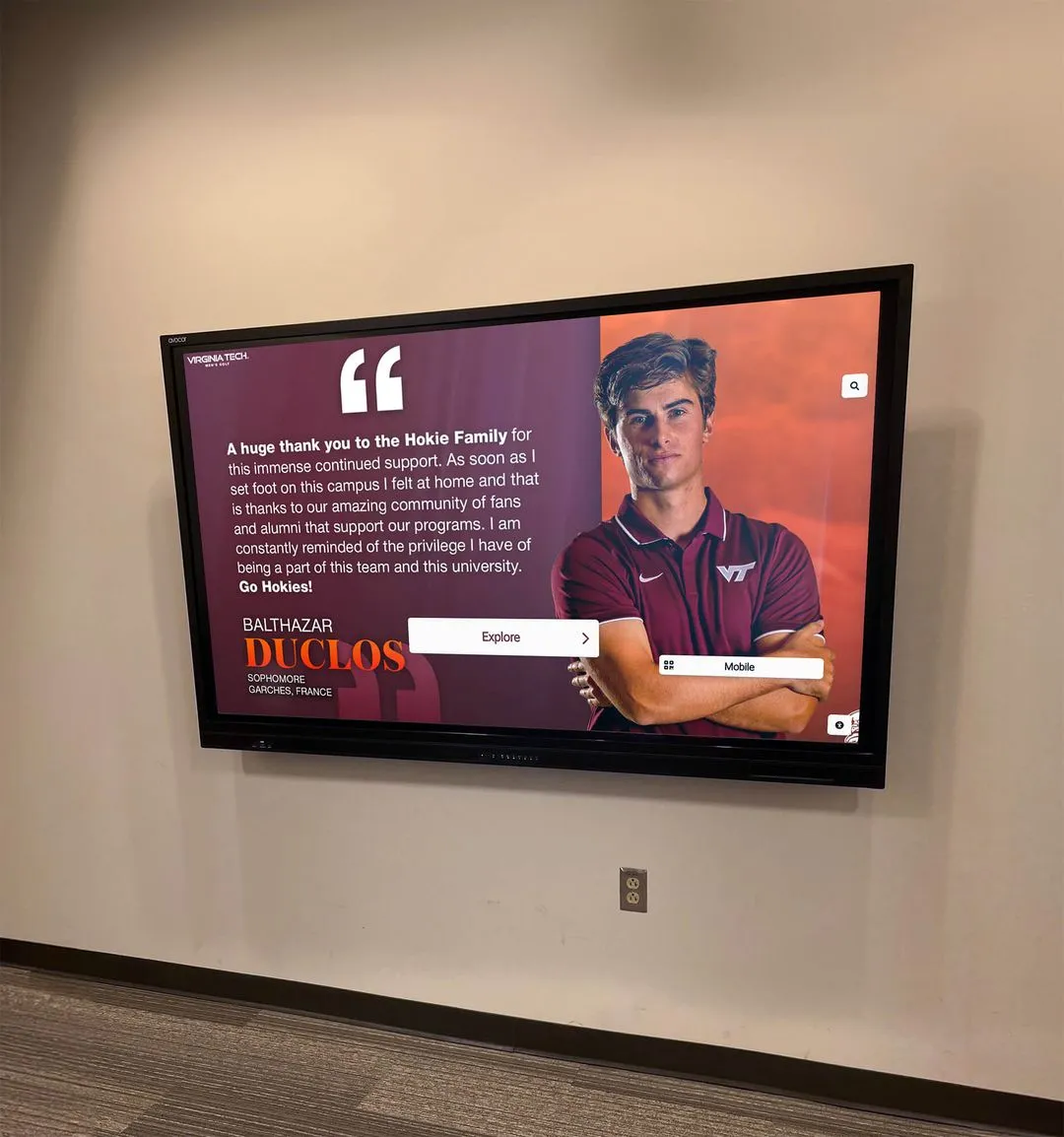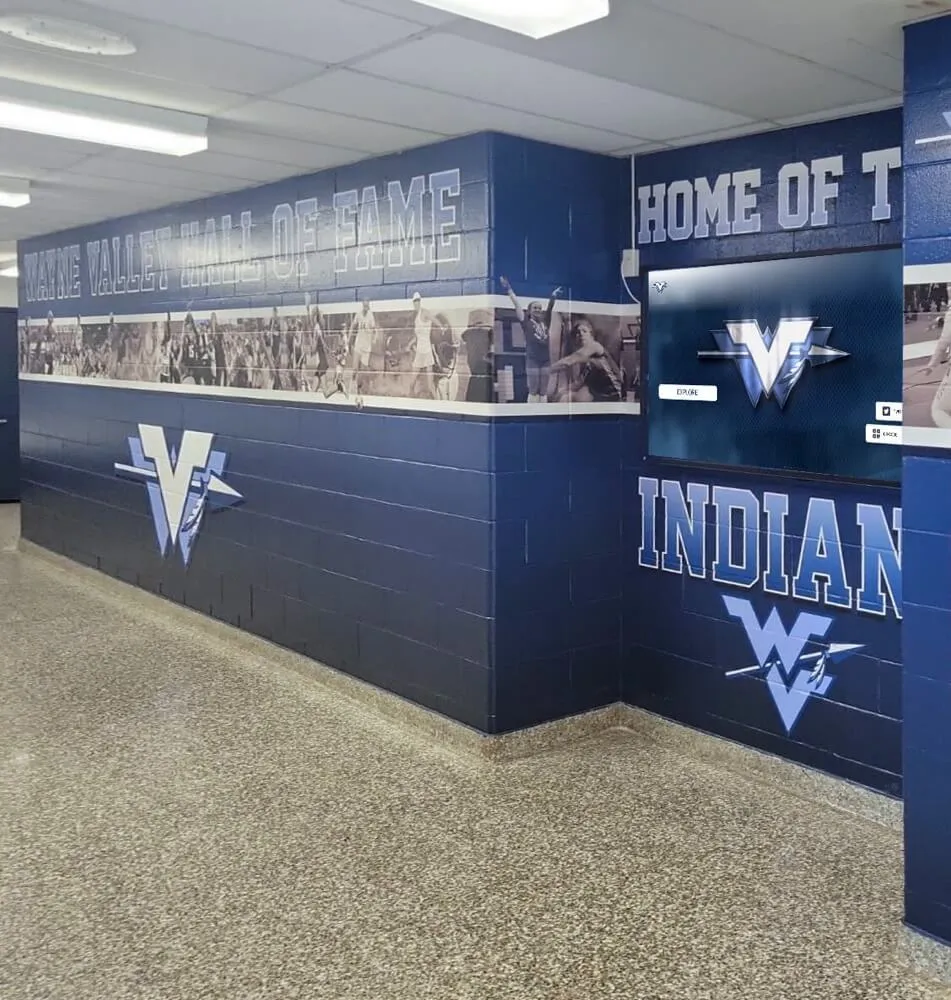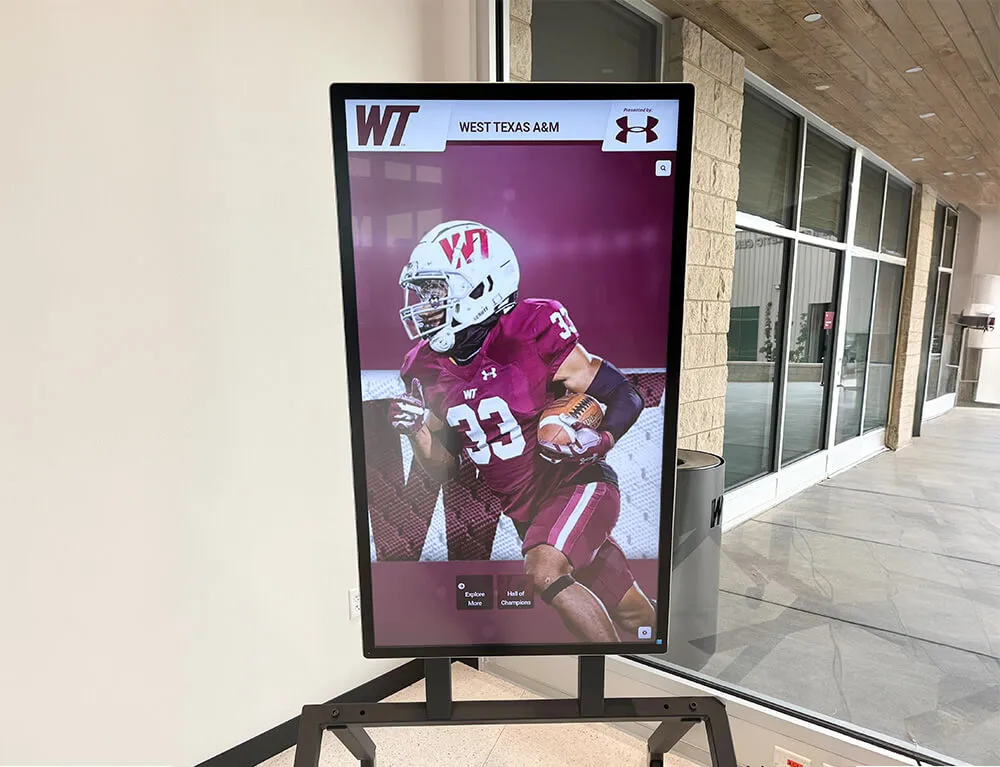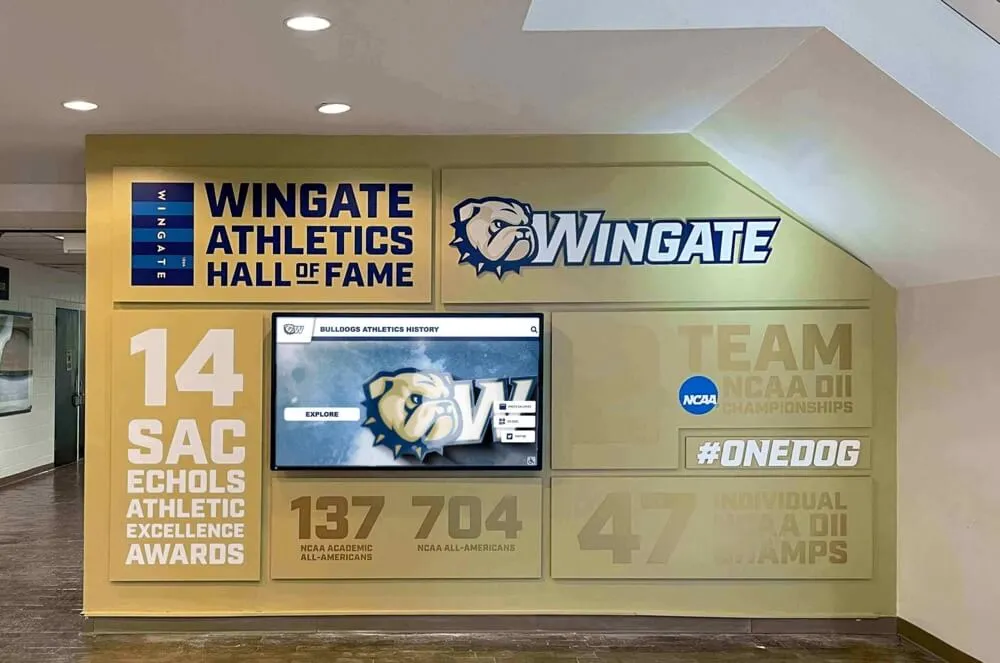




If your school’s lobby kiosk plays athletic induction highlight reels or digital hall of fame recognition videos, you need to run a school recognition video picture-in-picture test before those videos go live on a shared touchscreen. Picture-in-Picture (PiP) lets a browser detach a playing video into a floating overlay that lives above every other window on the operating system—including the kiosk interface itself. On a personal laptop, that floating window closes when the user is done. On a shared recognition kiosk, it can persist after a visitor walks away, leaving the next visitor to find a floating video of an athletic induction from a previous session obscuring the gallery the display is supposed to show. This guide walks athletic directors, recognition-program owners, and the IT or facilities staff who support those programs through the specific browser behaviors to test, the acceptance criteria that determine whether PiP is safely handled, and the return-to-gallery session-reset steps that clear any active PiP window before the next visitor arrives.
A recognition kiosk in a school lobby—whether it serves as the front door to a digital hall of fame, a trophy-case companion display, or a ceremony-night video station—is a different operating context than a personal browser session. The kiosk runs unattended between visitors. Controls that are reasonable for a personal device can produce unexpected states on a shared display, and PiP falls squarely into that category. Understanding what browsers will and will not do with a disablePictureInPicture attribute, and testing that behavior explicitly before deployment, is the practical step that keeps a recognition video program running cleanly across visitor sessions.

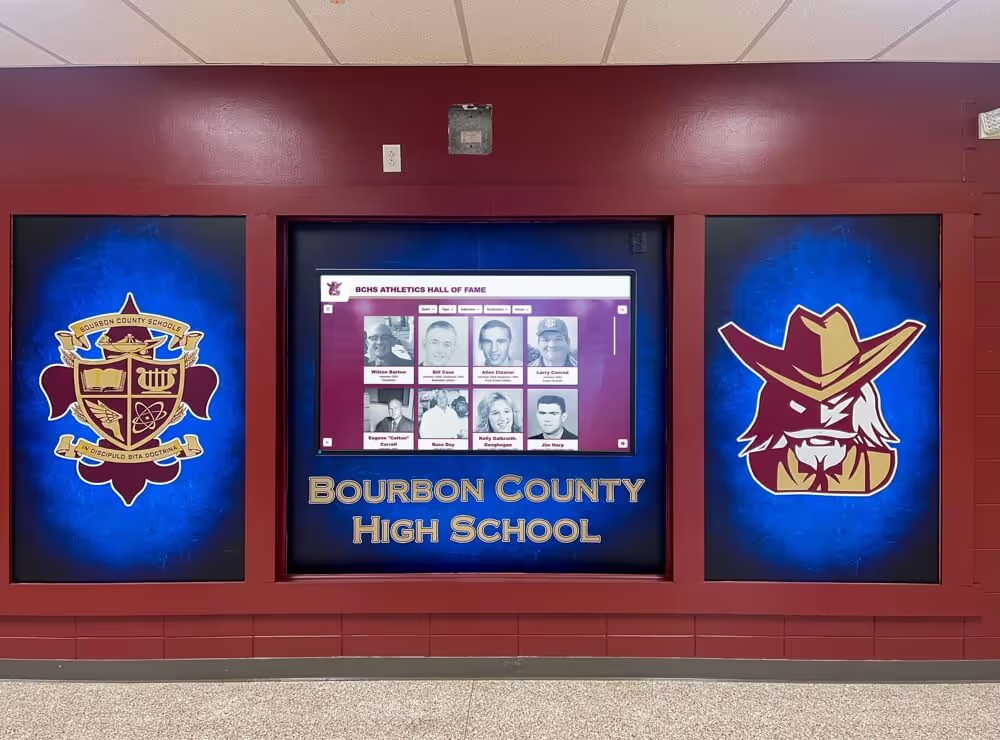
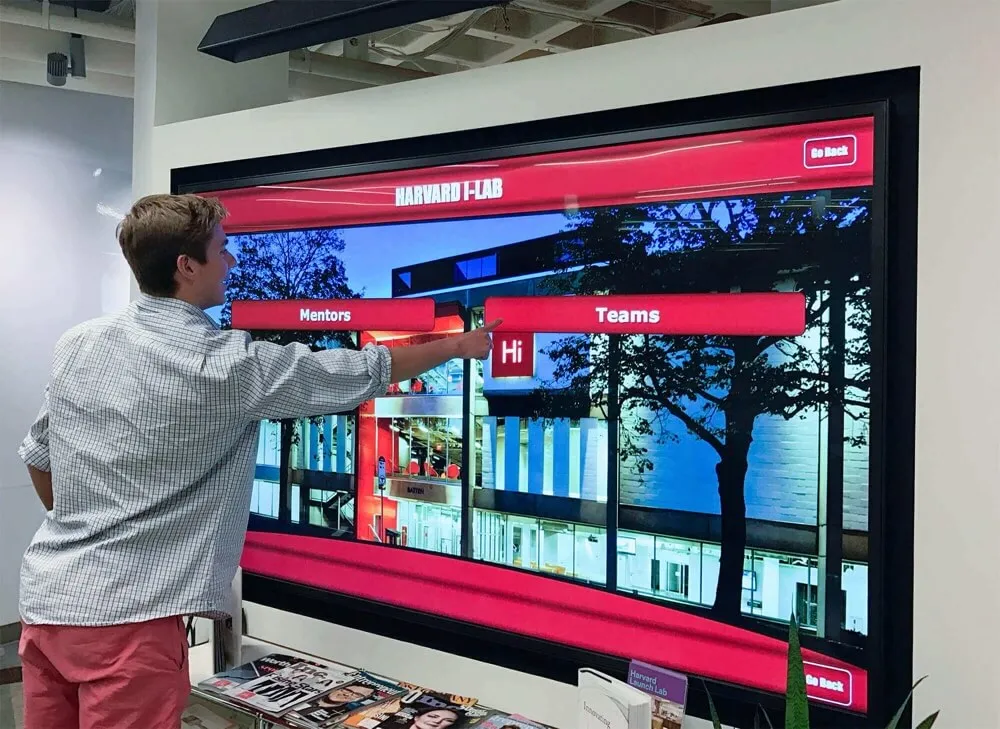
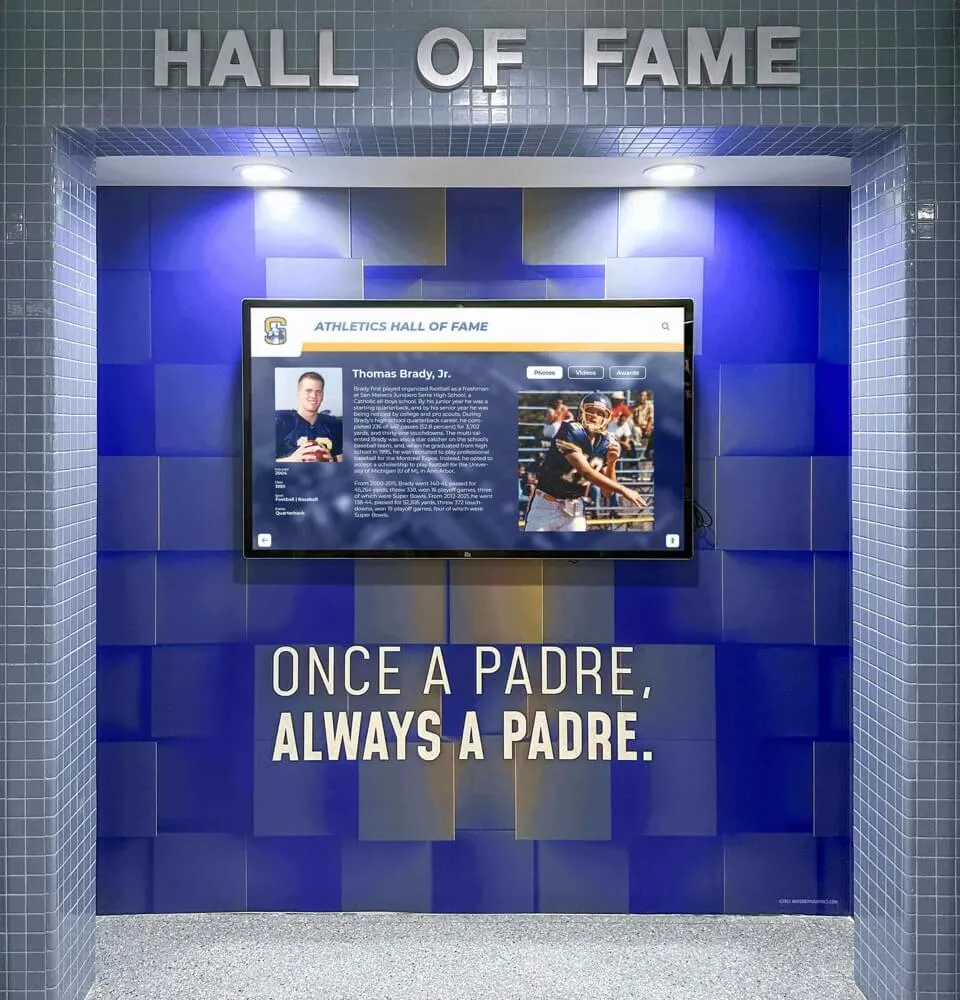
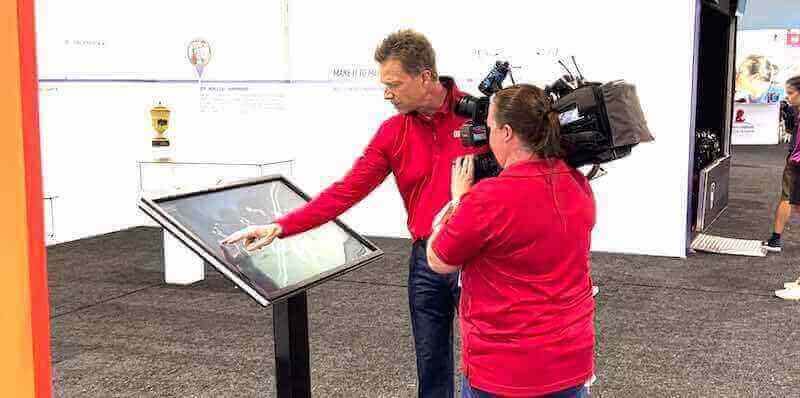
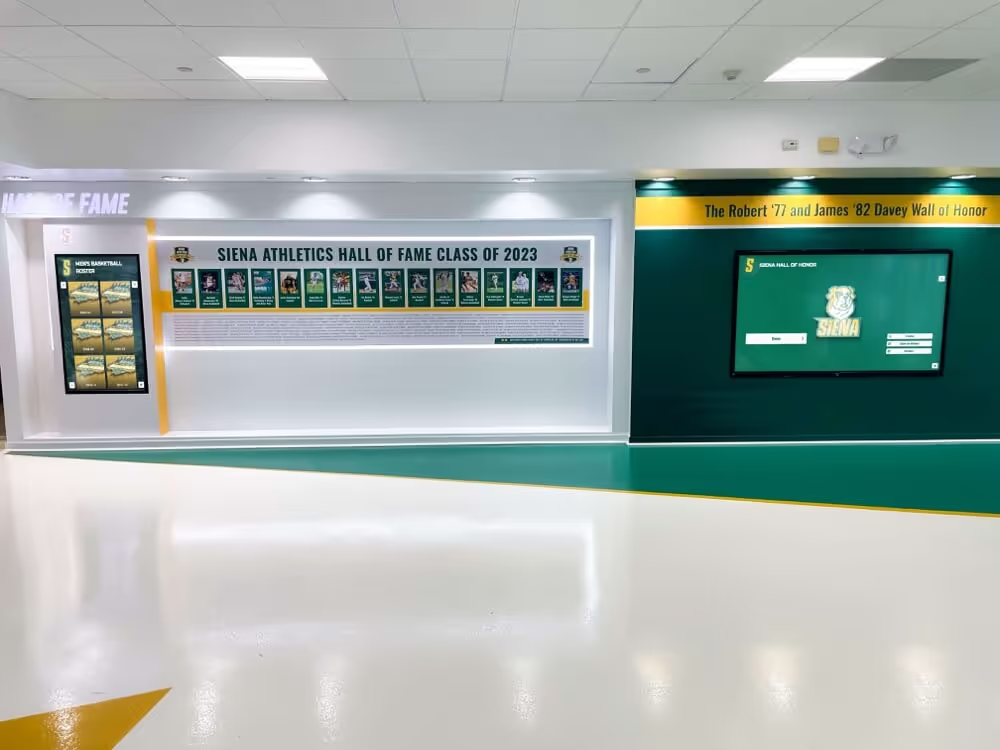
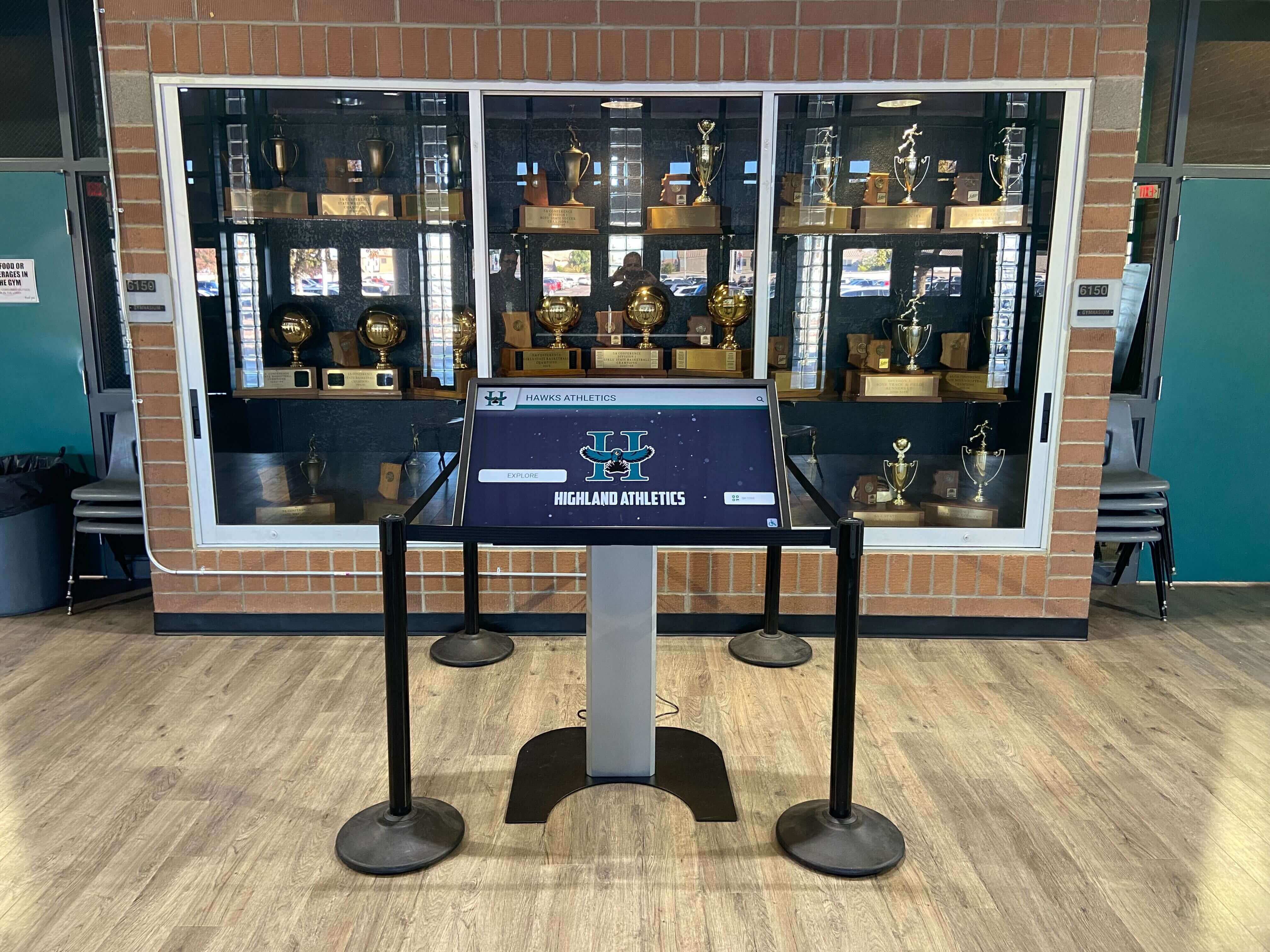
A shared kiosk inside a school trophy case is the environment this test targets: an unattended display where a PiP window that outlasts one visitor's session becomes a problem for every visitor who follows
Why Picture-in-Picture Is a Kiosk-Specific Problem
PiP is a browser-level feature that makes personal video consumption more convenient. For a shared school recognition kiosk, those same characteristics become operational risks.
A PiP window is system-level, not page-level. When a visitor triggers PiP on an athletic highlight video, the floating overlay does not belong to the kiosk web page—it belongs to the browser process and persists even if the page navigates to a different view, reloads, or times out to the gallery home screen. A session-reset timer that returns the kiosk to the main menu does not close a PiP window that has already detached from the page context.
Triggering PiP is easy and uninstructed. In most Chromium-based browsers, a visitor can activate PiP by right-clicking the video element and selecting “Picture in Picture” from the native context menu—or through a PiP button that appears in the browser’s built-in media overlay controls. Neither path requires the visitor to understand what PiP does. A visitor who taps or clicks on a recognition video to pause it, then accidentally right-clicks, can trigger PiP unintentionally.
Dismissing a PiP window is not intuitive on a kiosk. On a personal device, closing a PiP window is a familiar action. On a lobby touchscreen, a visitor who sees a floating video playing above the gallery interface is unlikely to know how to dismiss it—and the next visitor may encounter the floating video immediately on approach, before the kiosk interface has finished its session-reset sequence.
For schools building out a digital trophy case as part of a broader recognition modernization project, PiP acceptance testing belongs in the same pre-launch checklist as browser compatibility verification and accessibility review—not as an afterthought once the display is already installed.
What disablePictureInPicture Does
The disablePictureInPicture attribute is a boolean property of the HTML <video> element. According to the MDN documentation for HTMLVideoElement.disablePictureInPicture, setting this attribute is a request to the browser to disable PiP controls for the video element—suppressing the browser-native PiP button that appears in some implementations and preventing the element from being used as the source of a picture-in-picture session initiated through the browser’s own interface.
The critical word is request. The Picture-in-Picture API documentation makes clear that browser PiP controls are subject to browser settings and user overrides. A visitor using a browser extension that adds its own PiP controls, or a browser configured to allow PiP regardless of page settings, may still be able to trigger PiP on a video element that has disablePictureInPicture set. This is not a security enforcement mechanism—it is a request that compliant browser implementations honor, and that browsers or users may override.
For a school kiosk, the practical implication is that disablePictureInPicture reduces the surface area for accidental PiP activation without eliminating the possibility under every configuration. The acceptance test below verifies the behavior under the specific browser and configuration your kiosk actually uses in production.
Adding the attribute to a video element in HTML:
<video controls disablePictureInPicture>
  <source src="recognition-highlights-2024.mp4" type="video/mp4">
  <track kind="captions" src="recognition-highlights-2024.vtt" srclang="en" label="English Captions">
</video>
Or setting the property in JavaScript after the element is created:
const videoEl = document.querySelector('video');
videoEl.disablePictureInPicture = true;
Feature-Detecting PiP Support Before Testing
Before testing whether disablePictureInPicture suppresses PiP in your kiosk environment, verify whether the browser supports the Picture-in-Picture API at all. A browser that does not support PiP will not expose a PiP entry point to visitors regardless of whether disablePictureInPicture is set—so the test result for that browser is straightforward.
The document.pictureInPictureEnabled property returns true if the API is supported and not disabled by a browser flag or permission policy, and false otherwise:
if (document.pictureInPictureEnabled) {
  // PiP is available in this browser — test disablePictureInPicture behavior
} else {
  // PiP not supported or policy-disabled — no browser-native PiP activation path exists
}
Run this check in the browser and configuration your kiosk will use in production. A kiosk running a Chromium-based browser in a standard profile will typically return true. A kiosk running in a managed browser profile with PiP disabled by IT policy may return false, which changes the scope of testing needed—but that policy state should be verified at each browser update since managed policy configurations can be inadvertently changed.
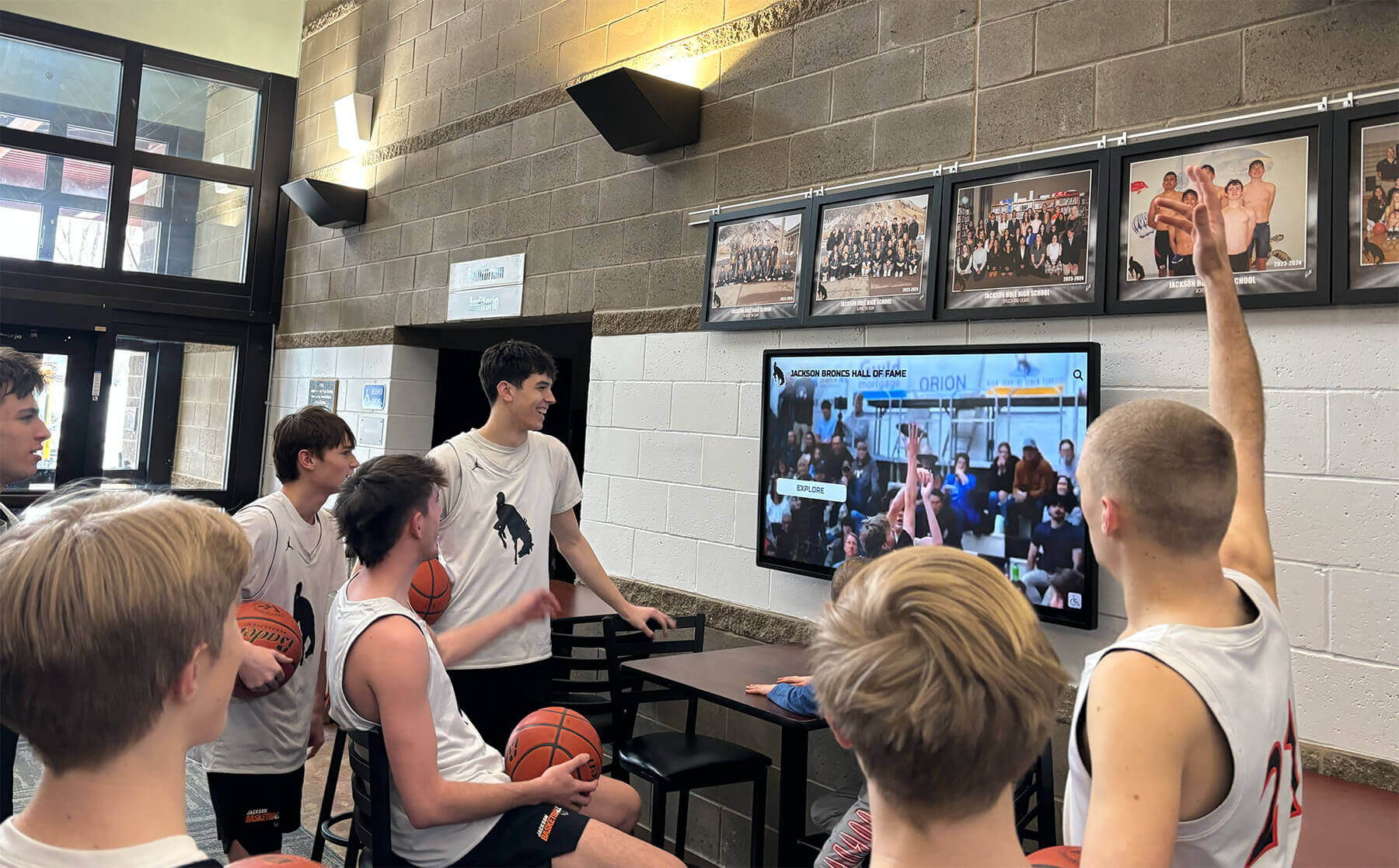
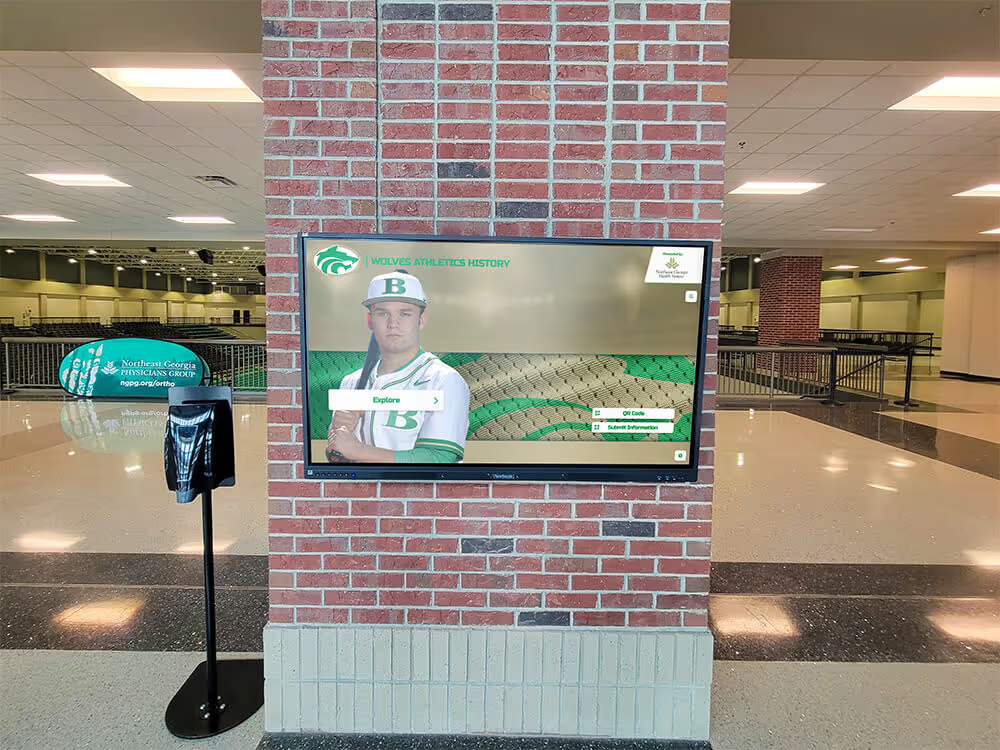
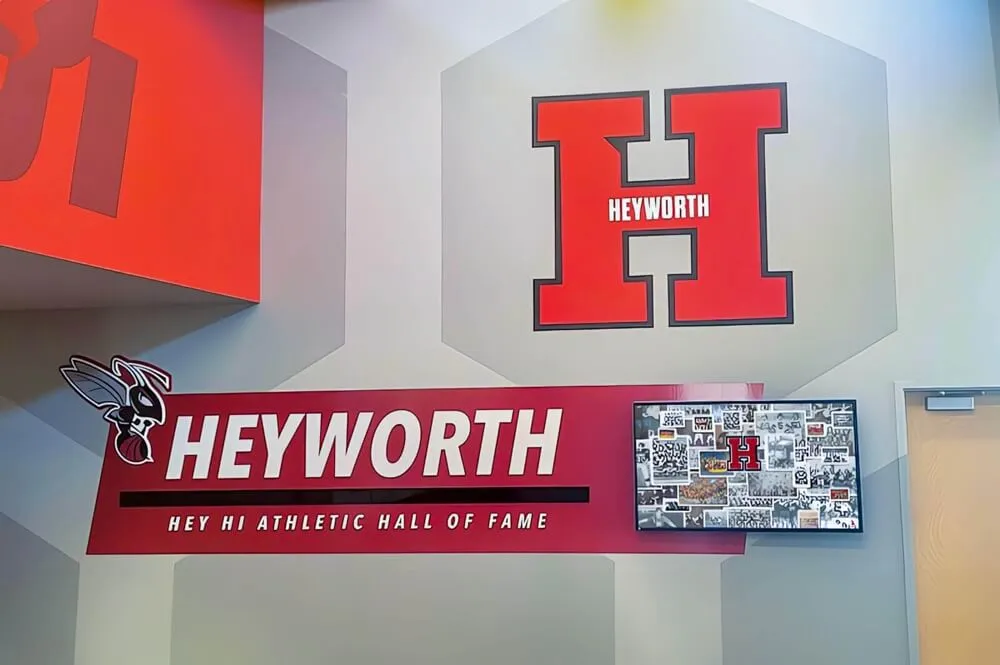
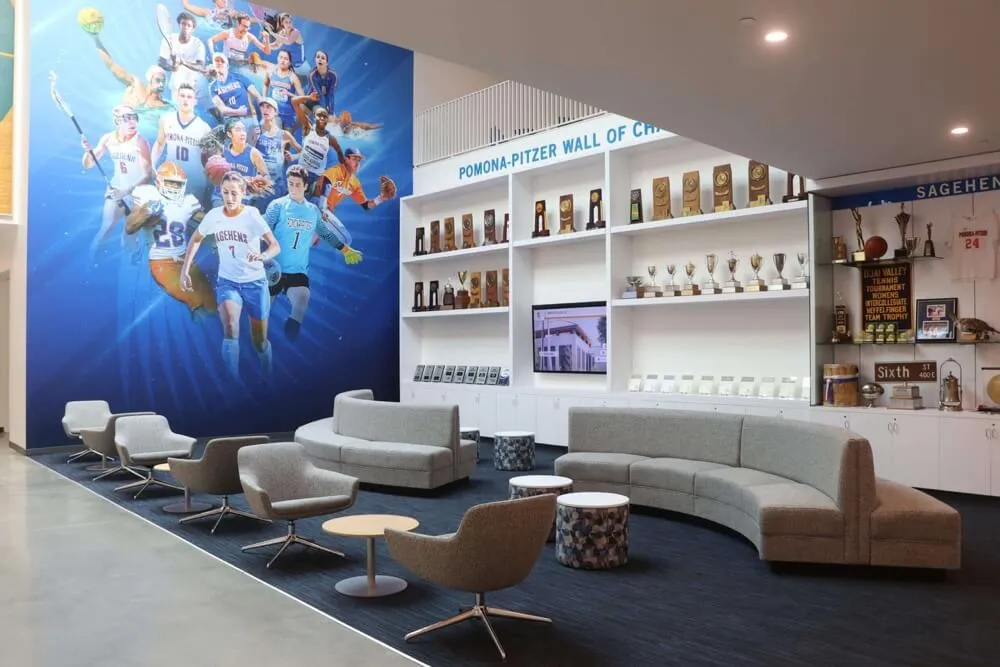
A shared lobby display showing athletic recognition video is the operational context that PiP testing protects—each visitor session should start clean, with no floating video carried over from the session before
Numbered Test Steps for the Acceptance Check
Run the following steps in each browser your kiosk will use in production. The goal is to confirm that PiP is either suppressed by disablePictureInPicture in your specific configuration or that your session-reset logic closes any active PiP window reliably before the next visitor session begins.
1. Prepare the test environment. Load the recognition video page in the kiosk browser, using the same browser profile, extensions, and managed-policy configuration active in production. Do not test in a browser with developer extensions active unless those extensions are also present in production—extensions that add media controls can introduce PiP entry points that would not exist in a clean managed deployment.
2. Feature-detect. Open the browser console and run document.pictureInPictureEnabled. Record whether the result is true or false. If false, skip to step 8 and note that PiP is not available in this configuration.
3. Confirm disablePictureInPicture is set. In the console: document.querySelector('video').disablePictureInPicture should return true. If it returns false, the attribute is not set on the element—correct that before continuing.
4. Test the right-click context menu. Right-click (or long-press on a touchscreen) the video element while it is playing. Check whether a “Picture in Picture” option appears in the native browser context menu. Record the result.
5. Test the browser media overlay controls. In Chromium browsers, a play/pause overlay and a PiP button sometimes appear when the user hovers over or taps a playing video, independent of the right-click menu. Hover over or tap the video without right-clicking and observe whether a PiP control appears in the overlay. Record the result.
6. Attempt to enter PiP programmatically. In the console, call document.querySelector('video').requestPictureInPicture(). A video with disablePictureInPicture = true should reject this call with a NotSupportedError or equivalent in compliant implementations. Record the actual error or behavior observed.
7. Test user-initiated PiP from browser UI. Some browsers expose a PiP entry point from the browser toolbar or address bar when a video is playing on the page. Check whether this control appears and whether selecting it activates PiP despite disablePictureInPicture being set.
8. Verify session-reset behavior. Simulate a session timeout or gallery-return navigation while PiP is active—if PiP was successfully activated in any of the steps above. Confirm whether the PiP window closes automatically when the page navigates or reloads.
9. Test document.exitPictureInPicture(). In the session-reset or return-to-gallery code path, call document.exitPictureInPicture() explicitly. Confirm that it closes any active PiP window in the test browser.
10. Repeat in each target browser. A result in Chrome does not predict Safari behavior, and neither predicts Firefox. Run the full sequence in each browser your kiosk deployment uses before signing off on the pre-launch acceptance check.
Acceptance Evidence Table
Record the results from each test step in a table organized by browser. A complete pass in every row and every browser column means the PiP handling meets the acceptance criteria for a shared recognition kiosk. These criteria are proposed school acceptance standards, not official browser or W3C requirements.
| Test Item | Chrome / Edge | Firefox | Safari (macOS) | Safari (iOS) | Pass Criteria |
|---|---|---|---|---|---|
document.pictureInPictureEnabled | Record true/false | Record true/false | Record true/false | Record true/false | Result documented |
disablePictureInPicture property confirmed true | Pass / Fail | Pass / Fail | Pass / Fail | Pass / Fail | Returns true in console |
| Right-click context menu: no PiP option | Pass / Fail | Pass / Fail | Pass / Fail | Pass / Fail | Option absent or greyed out |
| Browser media overlay: no PiP button | Pass / Fail | Pass / Fail | Pass / Fail | Pass / Fail | PiP button absent from overlay |
requestPictureInPicture() rejected | Pass / Fail | Pass / Fail | Pass / Fail | Pass / Fail | Promise rejects with error |
| Browser toolbar PiP: suppressed or absent | Pass / Fail | Pass / Fail | Pass / Fail | Pass / Fail | No PiP entry from browser chrome |
| Page navigation closes PiP window | Pass / Fail | Pass / Fail | Pass / Fail | Pass / Fail | PiP dismissed on navigate |
exitPictureInPicture() closes active PiP | Pass / Fail | Pass / Fail | Pass / Fail | Pass / Fail | PiP window dismissed |
| Session reset: PiP cleared before next visitor | Pass / Fail | Pass / Fail | Pass / Fail | Pass / Fail | Gallery screen fully unobscured |
A “Fail” result in any row is not necessarily a blocker—it is information. A row that reads “Fail — PiP context menu appeared despite attribute” tells you that your session-reset logic must close PiP explicitly via exitPictureInPicture(), rather than relying on the attribute alone to prevent all PiP activation. Document what failed and what compensating control addresses it.
For schools that maintain their recognition video archive as a long-term institutional record, running this test at each major browser update is comparable to the periodic integrity checks recommended in Athletic Archive Bit Rot Detection: A Fixity and Recovery Checklist—browser behavior changes across versions, and a test that passed six months ago should be re-confirmed when a major update ships to kiosk machines.
Native Controls vs. Custom Player Controls
The test steps above cover the browser’s native video controls. If your recognition video platform uses a custom JavaScript player rather than the browser’s native <video> controls, the PiP surface area changes in two important ways.
The native context menu is still present. A custom player that replaces the visible playback controls typically does not suppress the browser’s native right-click context menu on the <video> element. Visitors can still right-click the video area and access browser-native options, including PiP if the browser exposes it through that path. Setting disablePictureInPicture on the underlying <video> element remains relevant even when a custom player UI is in use.
Custom PiP button control is explicit. A custom player that has built its own PiP button—calling videoElement.requestPictureInPicture() directly—will not activate PiP if disablePictureInPicture is set on that element, because the underlying API call will be rejected in compliant browsers. If the custom player exposes a PiP button for non-kiosk use cases, the kiosk deployment should either disable that button in the player configuration or set disablePictureInPicture to suppress the API call at the element level.
Verify which layer owns the media controls. Some custom players pass through certain browser controls while replacing others. Before running the acceptance test, confirm whether the visible controls on your recognition video page are the browser’s native controls, the custom player’s controls, or a combination of both. The answer determines which test steps are most relevant for your deployment.

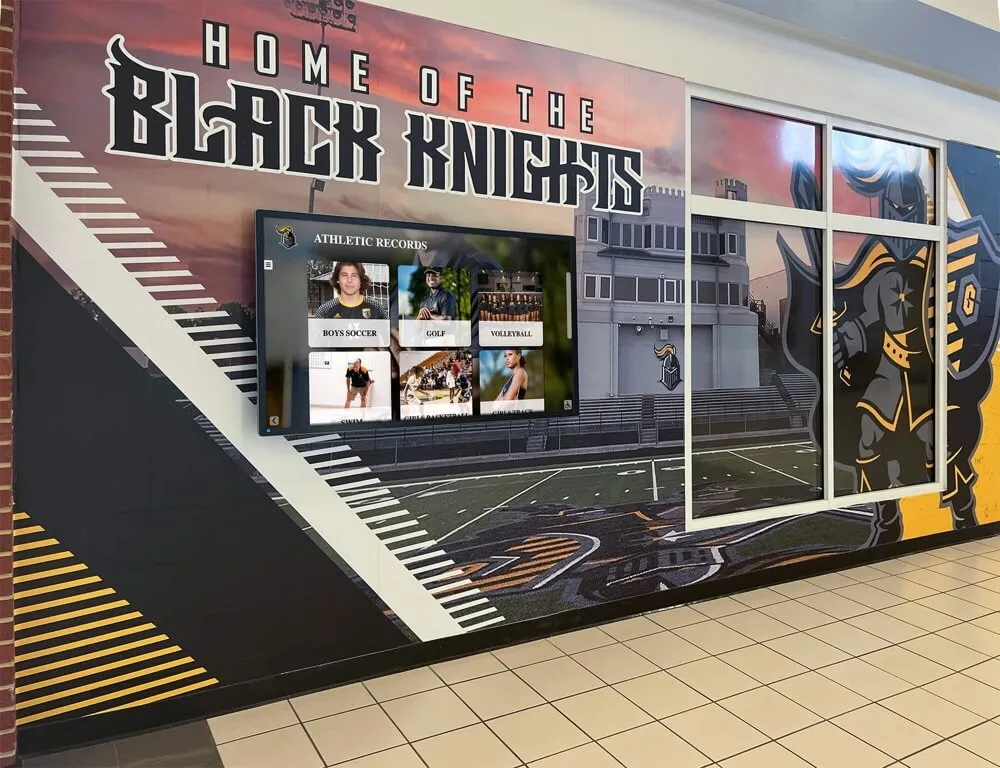
Custom touchscreen player controls and native browser video controls behave differently with respect to PiP entry points—testing both layers independently is required for a complete acceptance result
Return-to-Gallery and Session Reset
The return-to-gallery behavior is the operational checkpoint that determines whether a PiP window created during one visitor’s session disappears before the next visitor arrives. Three scenarios require explicit attention in any recognition kiosk deployment.
Inactivity timeout. Most kiosk recognition platforms include an inactivity timer that returns the display to a gallery home screen or attract loop after a configured idle period. That navigation event—a JavaScript redirect or a route change in a single-page application—does not automatically close a PiP window in all browsers. The inactivity timeout handler should include an explicit document.exitPictureInPicture() call, guarded by a check that PiP is actually active:
async function onSessionReset() {
  if (document.pictureInPictureElement) {
    await document.exitPictureInPicture();
  }
  navigateToGallery();
}
Manual return-to-gallery navigation. If the kiosk interface includes a Home or Back to Gallery button, the same guard should be applied in that navigation handler. A visitor who actively chooses to leave the recognition video and return to the gallery menu should find the gallery unobscured by a floating video.
Browser crash or forced reload. A PiP window created in a browser tab is closed when that tab is closed or the browser process terminates. A hard reload of the kiosk page will also close the PiP window in most cases. However, relying on a crash or forced reload to clean up PiP state is not an acceptable session-reset strategy—the explicit exitPictureInPicture() call in the inactivity handler should be the primary mechanism, with the page reload as a fallback for error states.
Schools that have invested in a structured hall of fame press release and induction announcement workflow as part of their recognition program will recognize the parallel: defining the expected behavior of each touchpoint—including what the kiosk shows at session end—is the kind of operational clarity that prevents small failures from eroding the quality of a recognition program over time.
Browser-Specific Behavior Notes
Because disablePictureInPicture is a request to the browser rather than a policy enforcement, the practical result varies across browser implementations. The acceptance test steps above are authoritative over any generalizations here—browser updates change behavior, and field-testing your specific deployment is the only way to confirm results.
Chrome and Chromium-based Edge. These browsers honor disablePictureInPicture in their native implementation, suppressing the PiP entry in the right-click context menu and the browser overlay controls when the attribute is set. However, browser extensions that add independent PiP controls—common in consumer Chrome installations—may operate outside the attribute’s scope. On a managed school kiosk where extension installation is locked by IT policy, this risk is lower; on a kiosk running an unmanaged browser profile, test with any installed extensions active to reproduce the production environment.
Firefox. Firefox implements its own PiP feature independently of the standard disablePictureInPicture attribute. Firefox PiP is controlled by the browser itself and may not respond to the HTML attribute in the same way Chromium-based browsers do. The acceptance test for Firefox should verify whether a PiP button appears on the video overlay in the production browser version and whether document.exitPictureInPicture() successfully closes it if triggered.
Safari on macOS and iOS. Safari supports PiP through WebKit controls and typically integrates PiP with the system-level media controls rather than exposing it only through the page interface. On iOS, PiP may be accessible through the system playback controls when the video is in fullscreen. The disablePictureInPicture attribute is supported in WebKit; verify behavior against the specific OS version installed on your kiosk hardware, since behavior can differ between macOS versions.
When evaluating the full range of tools available for managing school athletic recognition programs—including how video, displays, and physical award collections work together in a unified program—resources like 10 Best Hall of Fame Tools: Athletics, Donors, Arts, History offer a broader view of the technology landscape that informs deployment decisions.
Keeping Usable Media Controls After Restricting PiP
A practical concern when testing PiP suppression: some video element configurations that restrict PiP access can inadvertently affect other media controls that visitors legitimately need. The acceptance test should confirm that suppressing PiP does not break the controls that make a recognition video navigable and accessible.
Play and pause. Verify that the play/pause button or tap behavior works normally after disablePictureInPicture is set and after any custom control overrides are applied. A recognition video that visitors cannot pause is not usable for a visitor who wants to stop and read a stat panel or take a photo of an inductee’s profile on screen.
Volume control. Confirm that volume controls remain accessible. On a kiosk, the system volume may be locked by IT policy, but the video element’s own volume control should not be unintentionally affected by PiP-related attribute settings.
Fullscreen. The disablePictureInPicture attribute does not affect fullscreen behavior—these are distinct browser features controlled by separate attributes and API calls. Verify that fullscreen entry and exit work as expected if the kiosk interface supports fullscreen video playback for inductee tribute videos.
Captions and chapter navigation. If the recognition video includes closed captions or chapter navigation—particularly important for long induction ceremony recordings where a visitor wants to jump directly to a specific athlete’s tribute—confirm that those controls remain functional after PiP suppression is applied. disablePictureInPicture does not interact with the TextTrack API or caption track behavior.
The goal is not to lock down the video element entirely—it is to remove the specific PiP entry points that create session-isolation problems on a shared display, while preserving the legitimate controls that make a recognition video accessible and navigable for every visitor who approaches the kiosk.
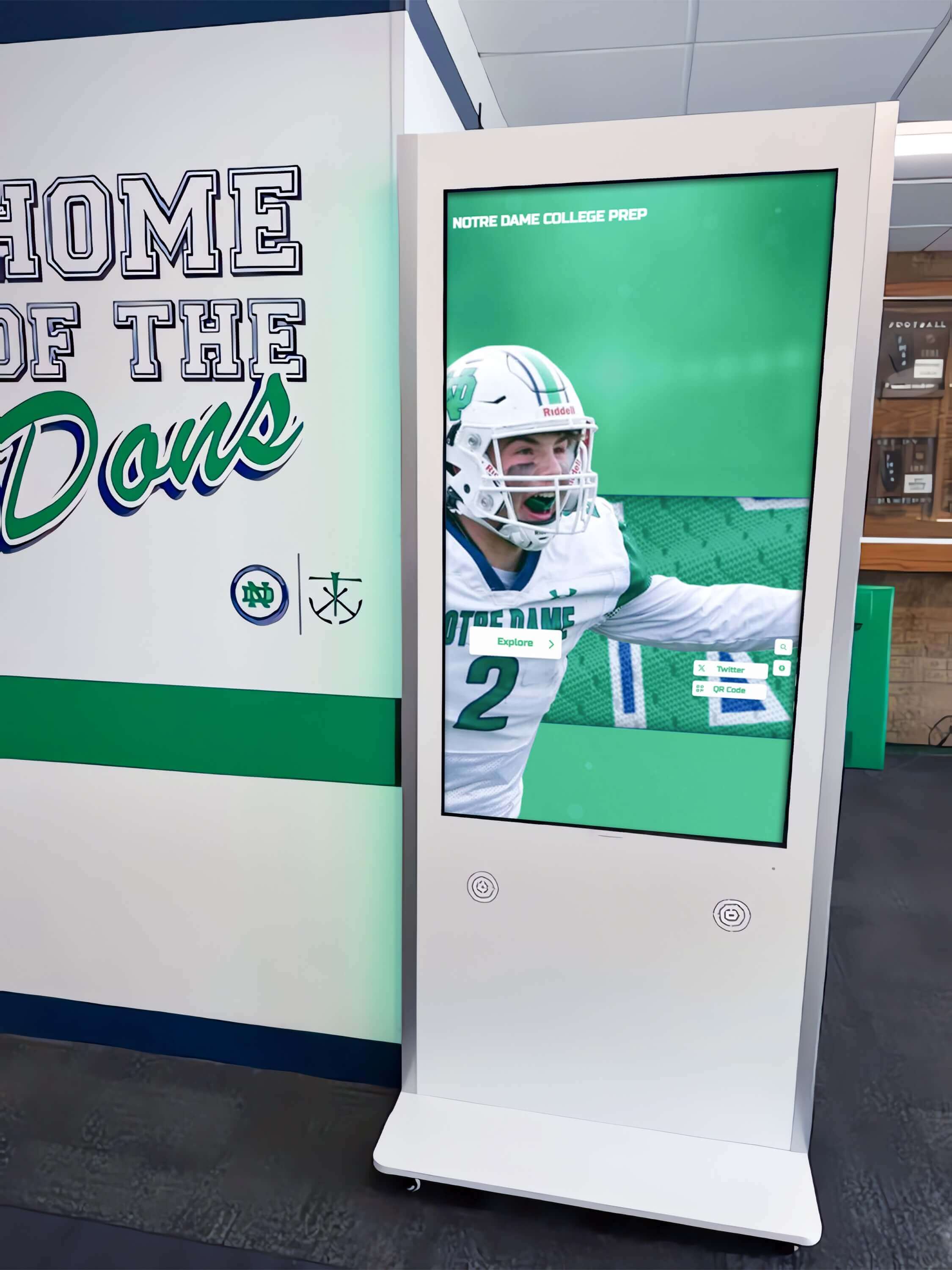
After PiP suppression is applied, confirm that play, pause, volume, fullscreen, captions, and chapter navigation controls all remain fully functional for every visitor at the kiosk
Connecting PiP Testing to the Broader Recognition Program
The school recognition video picture-in-picture test is one component of a larger pre-launch acceptance checklist for deploying athletic recognition videos on a shared kiosk. It sits alongside tests for browser compatibility, caption track behavior, chapter navigation for long ceremony recordings, inactivity timeout, and accessibility of native controls. No single test answers all of those questions—each requires its own test sequence and its own acceptance criteria documented for the specific browser and hardware combination in production.
The context that makes these tests worth running is the recognition program itself: the athletic hall of fame inductees whose tribute videos play on the kiosk, the championship archives that document decades of school athletic achievement, the induction ceremonies that families and alumni come to the lobby to experience through the display. A kiosk that enters a broken state because PiP was not tested is a kiosk that fails exactly the visitors who came to see someone they know honored. That failure is avoidable with a structured pre-launch test pass.
For programs that also manage the physical award artifacts that digital recognition programs document—jerseys, trophies, photographs, and framed records—the environmental stewardship guidance in Trophy Case Humidity Control: Protect School Awards, Photos, Jerseys, and Documents is a useful companion to the digital-side testing work covered here. Both disciplines protect the integrity of the same program: the physical awards and the digital displays that give those awards context for current students and future alumni.
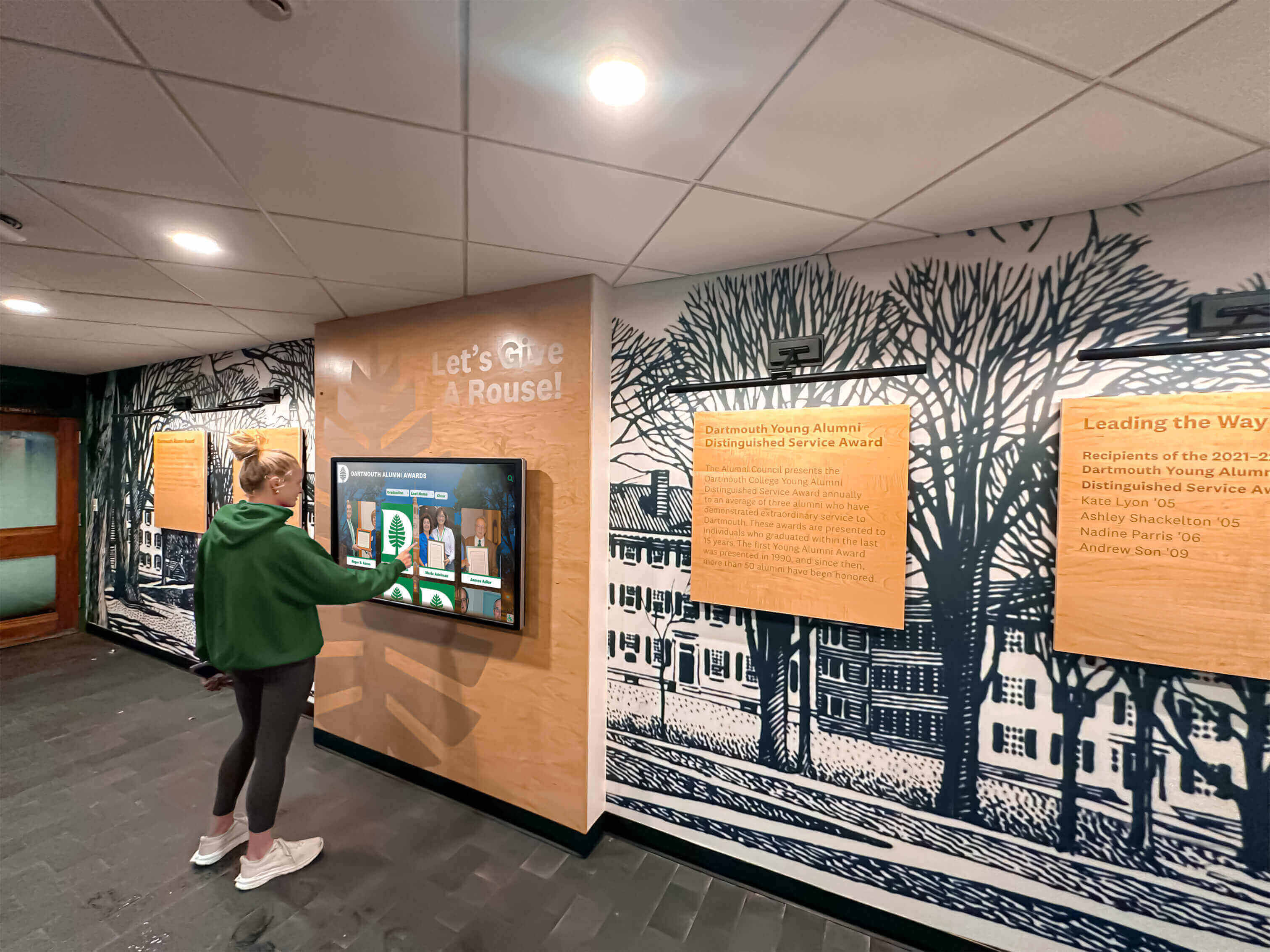
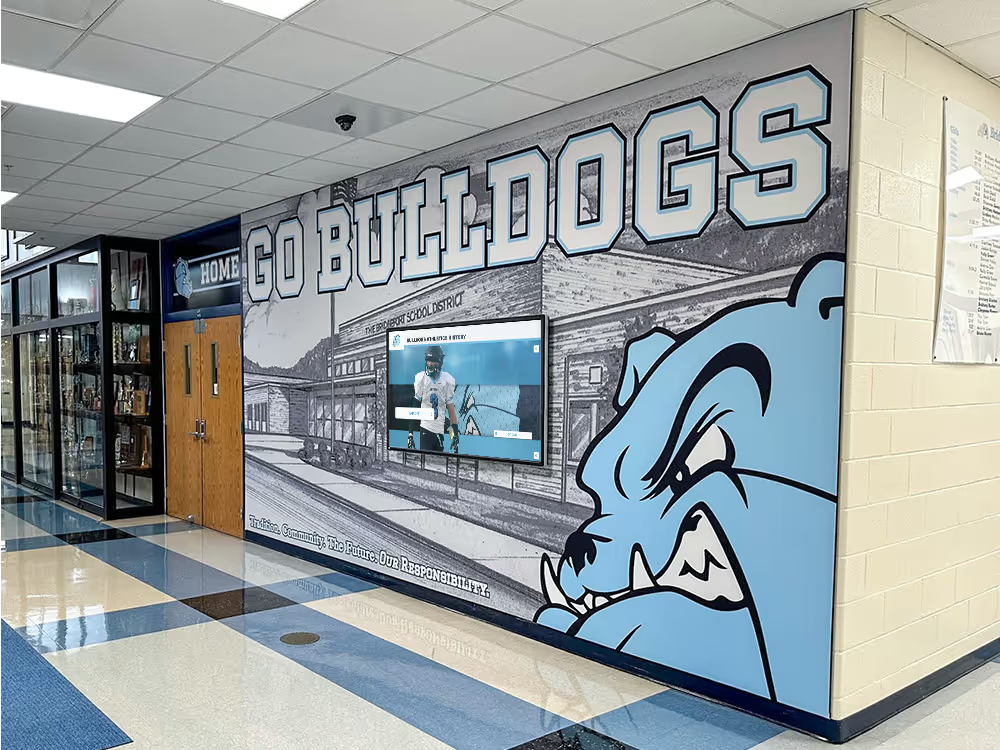
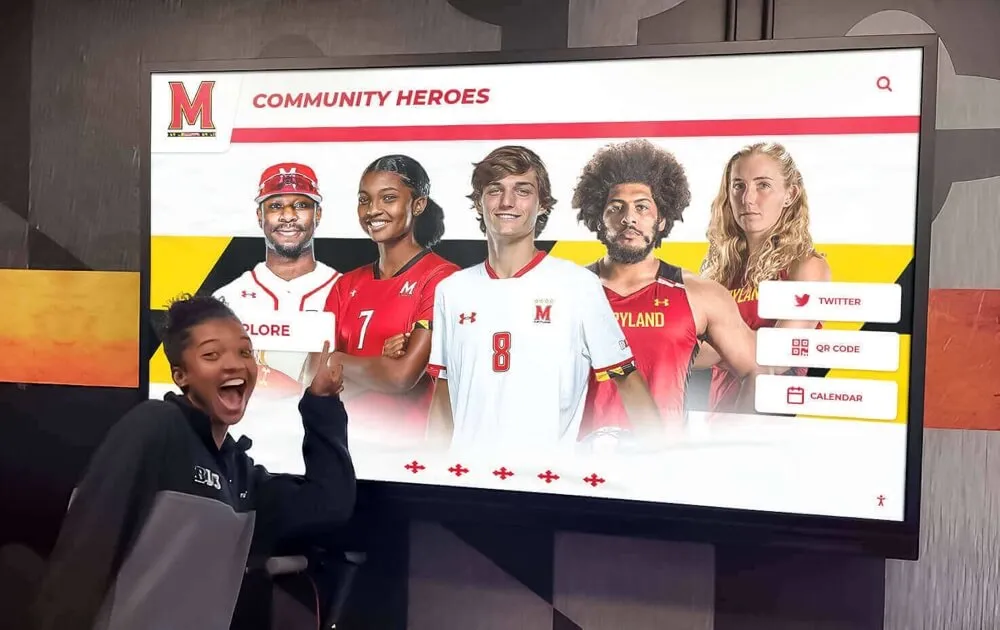
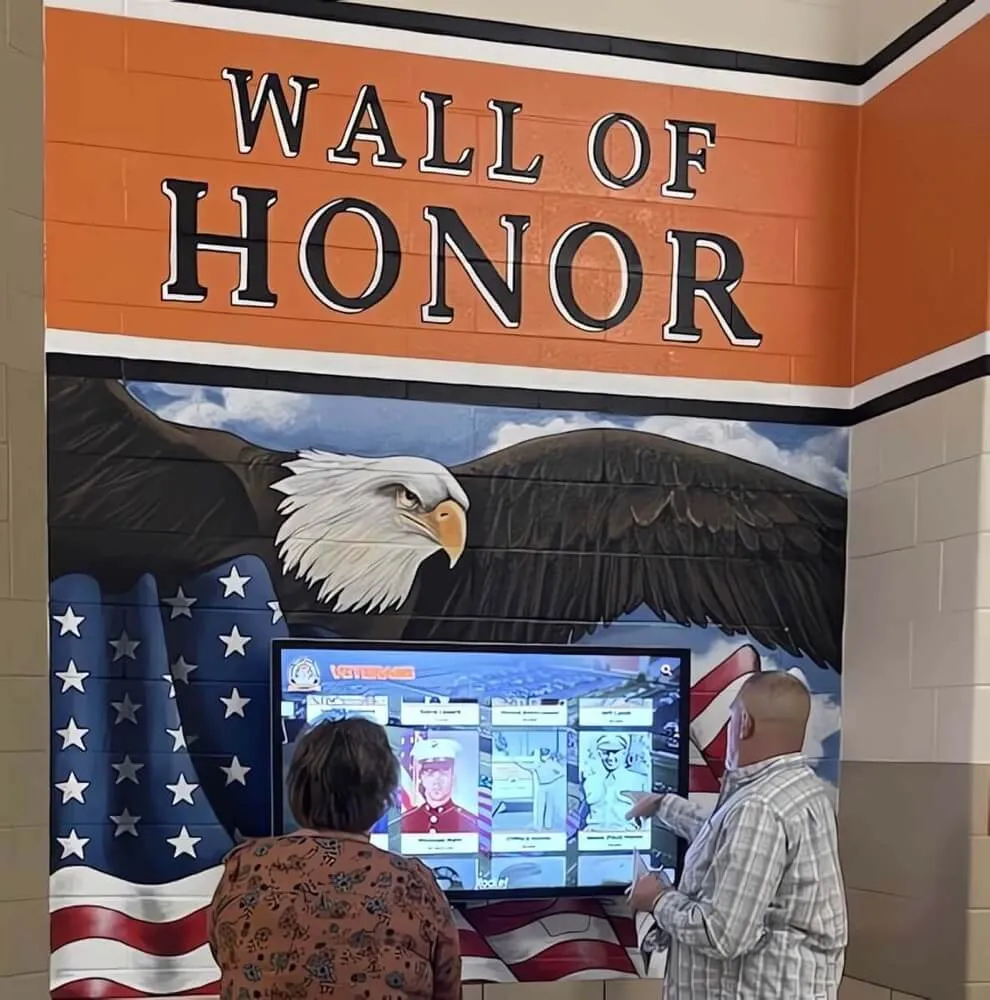
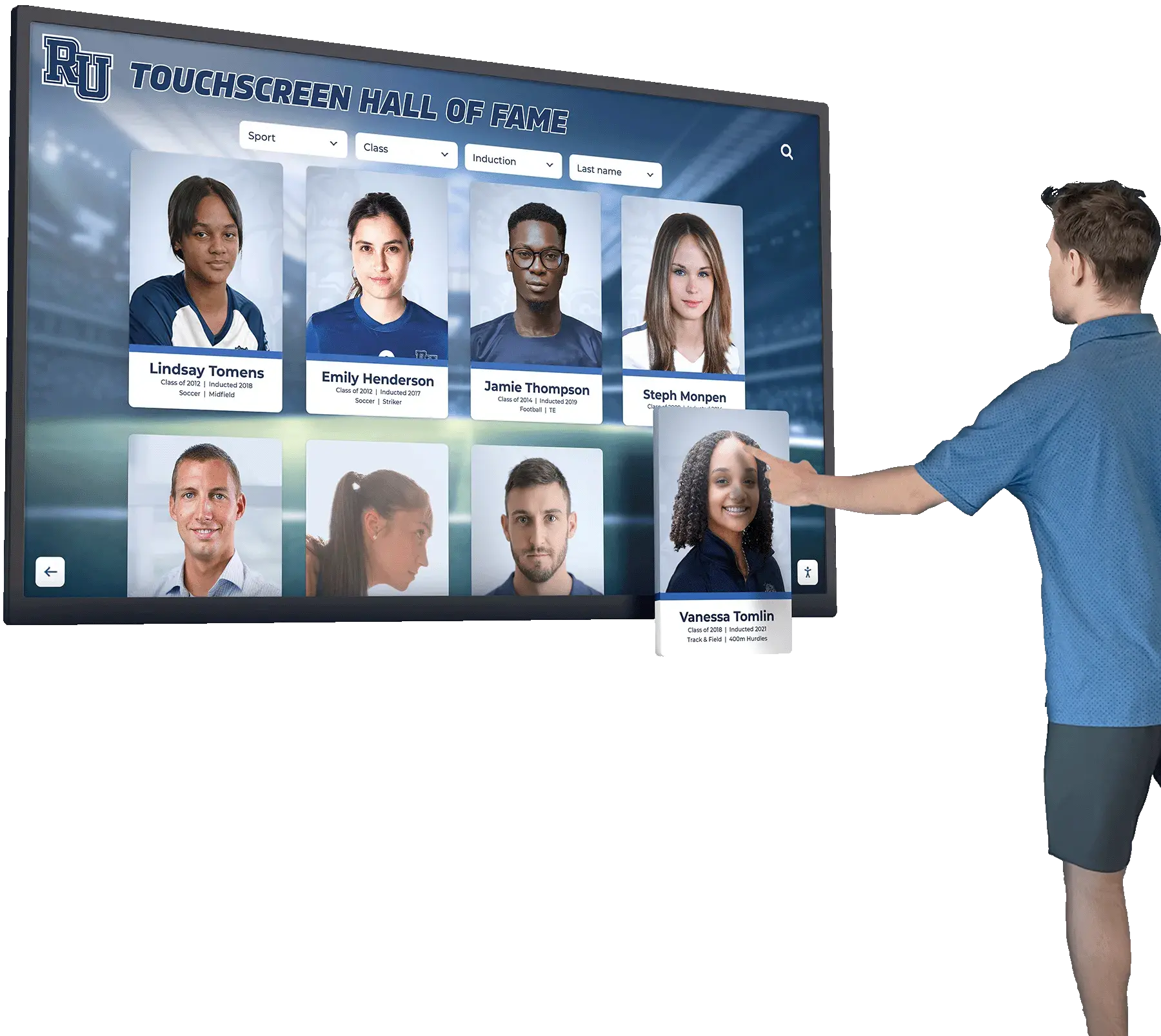
A well-tested shared kiosk delivers a clean session to every visitor—the PiP acceptance test is the step that confirms the previous session's video is not floating above the interface when a new visitor approaches
Frequently Asked Questions
Does disablePictureInPicture prevent all PiP activation on the kiosk?
No. The attribute is a request to the browser, not an enforcement guarantee. Compliant browser implementations honor it by suppressing their own PiP controls, but browser extensions, browser flags, and operating-system-level media controls may activate PiP independently. The acceptance test verifies whether PiP is suppressed under your specific kiosk configuration—the result applies to your environment, not to every browser and configuration a school might use.
What does document.pictureInPictureElement tell me during the session-reset check?
document.pictureInPictureElement returns the video element currently in PiP mode, or null if no PiP session is active. Checking this property in the session-reset handler lets you conditionally call document.exitPictureInPicture() only when a PiP session is actually running—calling exitPictureInPicture() when no PiP is active throws an error that can interrupt the reset sequence if not handled.
Can I disable PiP for the entire kiosk page rather than individual video elements?
A Permissions-Policy HTTP response header can request that PiP be disabled for the entire page using the picture-in-picture feature policy directive. This operates at the document level rather than the element level. Whether the kiosk server can send custom response headers, and whether the browser in use respects the policy directive, determines whether this approach is viable—test it as part of your acceptance checklist the same way you would test the element-level attribute.
My session-reset code navigates the page to the gallery URL. Does that close PiP?
Not reliably. Navigating to a new URL in the same browser tab may close the PiP session in some browser implementations but not in others. Calling document.exitPictureInPicture() explicitly before navigating is the reliable approach. Use await document.exitPictureInPicture() before the navigation call so the async exit completes before the page changes context.
What if the kiosk is running a browser managed by school IT policy that already disables PiP?
If the browser management policy disables PiP at the policy level, document.pictureInPictureEnabled will return false and PiP cannot be activated through any browser-native path. The acceptance test result in that case is straightforward: document the policy in your test record and verify that it remains in place across browser updates and policy refreshes. If the policy is ever relaxed—during an OS upgrade, for example—re-run the full acceptance test.
Should each inductee’s tribute video have a separate PiP test pass?
No. PiP behavior is determined by the video element’s attributes and the browser’s implementation, not by the content of the video file. One test pass covering the video element configuration used for all recognition videos in your deployment is sufficient. If different sections of the kiosk use different video players or different element configurations—for example, a different player for short highlight clips versus full ceremony recordings—each configuration needs its own test pass.
How does this test relate to a kiosk running a native app rather than a browser?
This guide covers browser-based PiP behavior, which is relevant for kiosks that run recognition video through a web browser or a browser-based kiosk application. Native app deployments on iOS, Android, or Windows handle PiP differently through platform-specific APIs and are outside the scope of this browser-focused test. The acceptance criteria, browser-specific notes, and session-reset code samples here apply specifically to the web platform <video> element and the Picture-in-Picture API.
See how a managed recognition platform handles shared-kiosk videos, inductee profiles, and session isolation in one place.
Request a live demo of Rocket Alumni Solutions tailored to your school’s athletic recognition program—hall of fame displays, tribute video archives, and the kiosk experience that serves every visitor.