School Recognition Display Content-Disposition Audit: Keep Award PDFs and Media Usable
- Home /
- Blog Posts /
- School Recognition Display Content-Disposition Audit: Keep Award PDFs and Media Usable
The Easiest Touchscreen Solution




Live Example: Rocket Alumni Solutions Touchscreen Display
Interact with a live example (16:9 scaled 1920x1080 display). All content is automatically responsive to all screen sizes and orientations.
A school recognition display content-disposition audit is a structured review of the Content-Disposition HTTP response header served with every award PDF, team photo, certificate scan, and archived media asset that your lobby kiosk, hall-of-fame touchscreen, or recognition panel delivers to visitors — confirming that each file opens for in-browser viewing when the display context demands it, or triggers a properly named download when an archivist or program administrator needs to save a copy. The Content-Disposition header, documented in the MDN Web Docs HTTP Reference for Content-Disposition, tells the browser or embedded web view whether to render a resource directly (inline) or prompt the visitor to save it (attachment). On a locked-down school lobby kiosk where the operating system blocks file-system write access and no save dialog ever completes, an award PDF served with Content-Disposition: attachment simply fails — the visitor sees nothing, and the championship certificate, inductee plaque image, or all-conference honor document the school digitized is inaccessible at the exact moment it should be on display. The audit finds each mismatch, assigns the correct disposition per context, and gives an IT or platform contact a precise header change to make.
This guide walks school athletic directors, recognition program owners, and their IT, accessibility, archives, and facilities partners through a complete school recognition display content-disposition audit: how Content-Disposition works and why the wrong value silently breaks kiosk file access, which file-serving endpoints to audit, a pre-audit inventory checklist, a numbered step-by-step procedure, a decision table mapping file type and context to the correct header combination, Content-Type accuracy requirements, filename* encoding for award titles that contain special characters, mobile fallback behavior, a FAQ, and guidance on documenting a verified baseline before the next recognition event.
Award PDFs and team media are among the most meaningful assets a school recognition program publishes. A hall-of-fame inductee’s original nomination letter, a championship game program scan, a certificate from a state athletic association, a team photo from a championship season forty years ago — these are the files that make a recognition display a genuine archive rather than a name list on a screen. When the HTTP headers serving those files are misconfigured, visitors at the lobby touchscreen encounter blank white boxes, stalled loading spinners, or download prompts that lead nowhere on a kiosk that has no accessible file system. The Content-Disposition header is the single HTTP field that determines which of those outcomes the browser delivers.

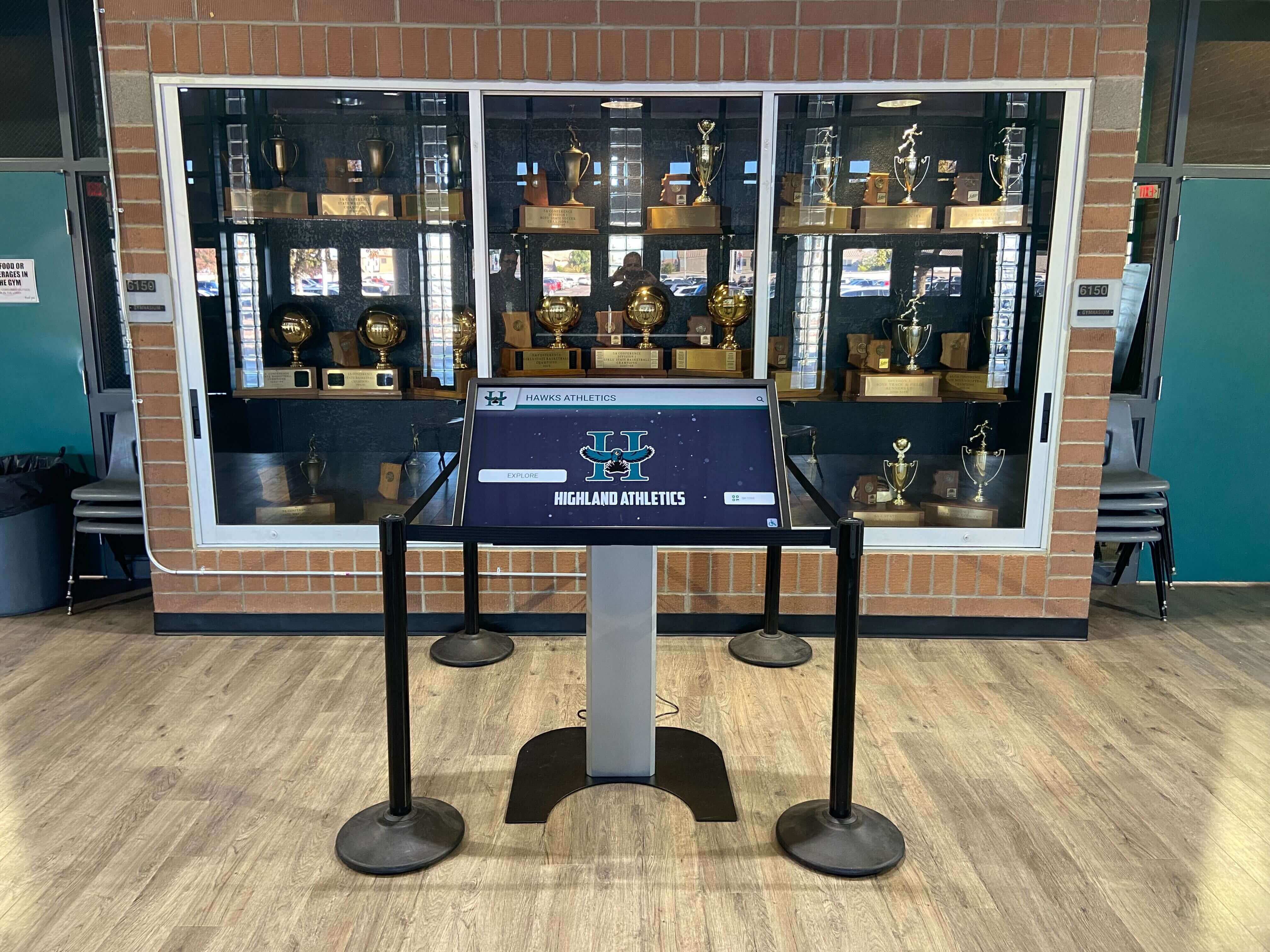
Trophy case kiosk displays in school lobbies serve award PDFs and team media to visitors who expect documents and images to appear on screen — a Content-Disposition audit confirms that inline is set for every file the kiosk browser should render
How Content-Disposition Controls What the Browser Does with Award Files
The Content-Disposition response header can carry one of two primary directives for the HTTP body context.
Content-Disposition: inline instructs the browser or web view to render the resource directly — a PDF opens in the browser’s built-in PDF viewer, an image renders in the page, a video plays in the browser’s media player. This is the correct value for any file that should appear on a recognition display screen without requiring the visitor to interact with a save dialog.
Content-Disposition: attachment instructs the browser to treat the resource as a file to save locally, presenting a “Save As” dialog or initiating an automatic download to the device’s download folder. This is appropriate when an athletic administrator, archivist, or program coordinator is downloading an award document to keep in a record-keeping system — not when a family member or student is standing at a lobby touchscreen expecting a certificate to appear on screen.
Both directives accept a filename parameter that suggests what the saved file should be named if the visitor downloads it:
Content-Disposition: attachment; filename="2024-state-championship-certificate.pdf"
For award filenames that include special characters — an apostrophe in “Class of ‘94,” an ampersand, or accented letters in an athlete’s name — the filename* parameter provides RFC 5987 encoding using UTF-8 percent-encoding:
Content-Disposition: attachment; filename="award.pdf"; filename*=UTF-8''2024%20State%20Championship%20%E2%80%94%20Certificate.pdf
When both filename and filename* are present, browsers that support RFC 5987 use filename*; browsers that do not fall back to filename. Including both provides the widest compatibility across kiosk browsers, school desktop clients, and archivist workstations.
A key behavior to understand: if Content-Disposition is absent entirely from the response, the browser applies its own heuristic based on the Content-Type header. For application/pdf, most desktop browsers default to rendering inline; for application/octet-stream, most browsers default to a download prompt. The absence of Content-Disposition means you are delegating the behavior decision to browser defaults that vary between kiosk browsers, mobile browsers, and the administrator’s desktop — which is why the audit replaces absence with explicit intent.
Why Locked-Down Kiosk Browsers Make the Wrong Default Catastrophic
A standard desktop browser that receives Content-Disposition: attachment opens a save dialog or deposits the file in the user’s download folder. Neither outcome is harmful on a laptop or desktop — the visitor has a file system and can see the saved file.
A locked-down school lobby kiosk operates differently. The kiosk browser typically runs in a restricted environment where:
- Write access to the file system is blocked by the school’s mobile device management (MDM) or kiosk lockdown profile
- No user-accessible download folder exists
- The operating system may silently drop the download attempt without presenting any visible error
- The visitor sees a blank screen, a perpetual loading indicator, or the browser briefly flashes a download toast and then shows nothing
From the visitor’s perspective, a PDF served with Content-Disposition: attachment on a kiosk looks exactly like a broken link. There is no diagnostic message. The award document the school spent staff hours digitizing, naming, and uploading appears to not exist at all.
The fix is always the same: set Content-Disposition: inline for files that the kiosk browser should render, and reserve attachment strictly for endpoints specifically intended for administrative download — endpoints that are never accessed from a lobby kiosk display.
Lobby recognition displays serve award documents and archived media to visiting families, alumni, and community members — the Content-Disposition header on each file determines whether those documents appear on screen or fail silently on the kiosk's restricted operating system
Pre-Audit Inventory Checklist
Before running the header inspection steps, build an inventory of every file-serving endpoint in the recognition display. The audit covers only what is in the inventory — an endpoint left off the list remains unverified.
Award and Recognition Documents
- List every endpoint that serves award PDFs: conference honor certificates, state association recognition letters, academic award documentation, championship program scans
- List every endpoint that serves scanned or photographed plaque images: inductee plaques, team banner scans, retired jersey graphics
- List every endpoint that serves certificate files linked from athlete profile pages
- List every endpoint that serves nomination letters or written induction tributes in PDF form
Team and Historical Media
- List every endpoint that serves team photographs linked from recognition display season-history pages
- List every endpoint that serves archived print photography (e.g., scanned prints from decades-old team albums — see athletic archive photo negative scanning workflow for context on how these files are typically produced)
- List every endpoint that serves game programs or yearbook page scans
- List every endpoint that serves award-night or banquet event photographs
Administrative Download Endpoints
- List any endpoints that are deliberately designed for staff or archivist download rather than visitor display (these should retain
Content-Disposition: attachmentwith a correctfilename*) - Note which of these administrative endpoints are accessible from the same URL path as the visitor-facing kiosk, versus endpoints that require authentication or a separate administrative URL
Display Contexts
- Identify every physical display location the recognition program operates: lobby kiosks, hallway touchscreens, gym entrance panels, alumni atrium screens
- Note which displays are locked-down kiosks (MDM-managed, kiosk mode) versus standard managed desktops with accessible file systems
- Note whether any displays are accessed over mobile browsers on personal devices (a mobile QR-code experience linking to the recognition program content)
Testing Access
- Obtain a test device on the same VLAN and browser environment as the kiosk (or access to the kiosk itself in a non-locked test mode)
- Confirm
curlis available on a test laptop connected to the same network segment as the recognition display - Confirm the file URLs are directly accessible without authentication for the
curltests (or that you have a credential to include in the test requests)
School Recognition Display Content-Disposition Audit: Numbered Procedure
Complete each step in sequence and document findings at every step before moving to the next.
Step 1 — Retrieve the current Content-Disposition header for each file endpoint
For each URL in your inventory, issue a HEAD request to retrieve the response headers without downloading the file body:
curl -sI "<file-url>"
In the response headers, identify:
- Whether
Content-Dispositionis present - The directive value:
inline,attachment, or absent - Whether a
filenameorfilename*parameter is included - The
Content-Typeheader value
Record each finding in the inventory table alongside the file URL. If Content-Disposition is absent from the response, note that separately from a value of inline — absence delegates the rendering decision to the browser’s default behavior, which varies across browser versions and should not be relied upon for consistent kiosk display behavior.
Example curl output for a correctly configured award PDF serving inline:
HTTP/2 200
content-type: application/pdf
content-disposition: inline; filename*=UTF-8''2024-State-Championship-Certificate.pdf
content-length: 512048
Example output for a misconfigured award PDF served as attachment:
HTTP/2 200
content-type: application/pdf
content-disposition: attachment; filename="certificate.pdf"
content-length: 512048
Step 2 — Classify each endpoint as kiosk-display or administrative-download
Using the inventory from the pre-audit checklist, assign each file URL one of two classifications:
- Display: The file is intended to be viewed by visitors on a kiosk or recognition panel. These must use
Content-Disposition: inline. - Download: The file is intended for administrative or archival download by staff, and no kiosk browser will access this URL. These should use
Content-Disposition: attachmentwith afilename*parameter.
If an endpoint serves both audiences from the same URL — for example, a PDF linked from both the visitor-facing kiosk profile page and an archival management interface — classify it as Display and set inline. Administrative users accessing a file from a desktop browser can save an inline PDF using the browser’s built-in save command; they do not require attachment to obtain the file.
Step 3 — Identify mismatches: Display endpoints with attachment, and Download endpoints with inline
From the findings in Step 1 and the classifications in Step 2, identify:
- Critical mismatches: Display endpoints currently serving
Content-Disposition: attachment. These will fail silently on locked-down kiosk browsers. Each is a priority remediation item. - Missing header: Display endpoints where
Content-Dispositionis absent. These rely on browser default rendering behavior; the kiosk browser may handle them correctly, but the behavior is not guaranteed and may regress after a browser update. - Attachment without filename*: Download endpoints that use
Content-Disposition: attachment; filename="..."with ASCII-only filenames for award titles that include special characters. Thefilenameparameter cannot encode apostrophes, em dashes, accented characters, or non-Latin letters correctly across all browsers; these needfilename*added.
Document the mismatch type for each affected URL.
Step 4 — Check Content-Type accuracy for each file
A Content-Disposition: inline header on a PDF file does nothing useful if the Content-Type header is application/octet-stream — the browser receives a generic binary type and cannot select a renderer for it. Many kiosk browsers will default to a download prompt for application/octet-stream regardless of the Content-Disposition value.
For each file in the inventory, confirm the Content-Type value from the curl output in Step 1 matches the actual file format:
| File Format | Correct Content-Type |
|---|---|
| Award PDF | application/pdf |
| JPEG photograph | image/jpeg |
| PNG photograph or graphic | image/png |
| WebP photograph | image/webp |
| MP4 video | video/mp4 |
| WebM video | video/webm |
| SVG graphic | image/svg+xml |
| ZIP archive (bulk download) | application/zip |
If the Content-Type is application/octet-stream for a file that is a PDF or image, flag it as a Content-Type mismatch in the findings log. Correcting the Content-Disposition alone will not resolve the rendering failure on a kiosk if the Content-Type is also wrong.
Step 5 — Test inline rendering on the kiosk browser directly
For each Display-classified endpoint confirmed to have Content-Disposition: inline and a correct Content-Type, open the file URL directly in the kiosk browser (or in a test browser matching the kiosk’s browser version and OS).
Expected behavior:
- An award PDF opens in the browser’s built-in PDF viewer within the page or in a new browser tab — the visitor sees the document
- A team photograph renders as an image in the browser window
- A scanned certificate appears as a zoomable image or PDF
If the file fails to render — the browser shows a blank screen, a loading spinner that never resolves, or a toast notification about a blocked download — return to Step 1 and confirm the Content-Disposition and Content-Type values are correctly set. If both are correct and rendering still fails, the kiosk browser may have a PDF viewer disabled in its kiosk lockdown profile; document this as a kiosk configuration issue (see the FAQ for guidance on this scenario).
Step 6 — Verify filename encoding for award titles with special characters*
For any endpoint that should serve Content-Disposition: attachment (administrative download context), verify that the filename* parameter is correctly encoded for the award title if the title contains characters outside of basic ASCII.
Common award titles with encoding requirements:
- “Class of ‘23 Award” — apostrophe requires encoding:
Class%20of%20%2723%20Award.pdf - “All-Conference — Women’s Soccer” — em dash and apostrophe:
All-Conference%20%E2%80%94%20Women%27s%20Soccer.pdf - “Athlete of the Year — 1994–95 Season” — en dash:
Athlete%20of%20the%20Year%20%E2%80%94%201994%E2%80%9395%20Season.pdf
The correct header syntax for a UTF-8 encoded filename is:
Content-Disposition: attachment; filename="award.pdf"; filename*=UTF-8''Class%20of%20%2723%20Award.pdf
The filename fallback uses the simpler ASCII-safe name; the filename* carries the correctly encoded title for browsers that support RFC 5987. Both parameters in the same header are the standard practice for maximum compatibility across browsers.
To verify: after issuing the curl -sI request in Step 1, inspect the raw content-disposition header value for any non-ASCII characters or improperly escaped sequences. A filename containing a literal apostrophe in the filename (not filename*) parameter — such as filename="Class of '23 Award.pdf" — may render incorrectly in Internet Explorer and older browser versions. Encode those characters in filename* and provide a clean ASCII fallback in filename.
Step 7 — Test mobile fallback for inline award PDFs
Mobile browsers handle inline PDF rendering differently from desktop and kiosk browsers. On iOS Safari, a PDF served with Content-Disposition: inline and Content-Type: application/pdf typically opens in a full-screen PDF viewer with zoom and scroll controls — usable for a mobile QR-code recognition display experience. On Android Chrome, the PDF is usually rendered inline using Chrome’s built-in viewer. On some older Android browsers, inline PDFs trigger a download rather than rendering, regardless of the Content-Disposition value.
For recognition programs that offer a mobile QR-code companion to the kiosk — where a visitor can scan a code from the lobby touchscreen and open the same award document on their phone — test the PDF rendering on:
- iOS Safari (current version)
- Android Chrome (current version)
- Any school-issued device browser used by staff for archival access
If a mobile browser consistently fails to render an inline PDF — downloading it instead — document the browser and OS version. A practical fallback for award documents that must work across all mobile browsers is to provide an HTML-rendered version of the document content alongside the PDF link, so visitors who cannot view the inline PDF still see the content in a format their browser handles. This is a platform-level decision to raise with the recognition system vendor rather than a header change.
Schools that have confirmed DNS negative caching behavior for their recognition display’s media hosts will recognize that mobile browsing adds another potential DNS resolution path for the same file URLs — if the PDFs are hosted on a CDN with recent DNS changes, mobile devices may experience intermittent load failures even when the Content-Disposition header is correctly configured.
Step 8 — Document the verified baseline
For each file endpoint audited, record:
- File URL and file type
- Display or Download classification
Content-Dispositionvalue observed in Step 1 and corrected value after remediationContent-Typevalue and whether it matched the file formatfilename*encoding status for Download endpoints- Whether inline rendering was confirmed on the kiosk browser in Step 5
- Mobile behavior observed in Step 7 (if applicable)
- Date of audit and name of the person who conducted it
This baseline is the reference point for re-testing after platform updates, CDN changes, or kiosk browser upgrades. The award documents the school serves today should still be accessible in the same way after the next recognition platform release.
Content-Disposition Decision Table
Use this table to determine the correct Content-Disposition value for each file type and access context.
| File Type | Access Context | Correct Content-Disposition | Content-Type | Notes |
|---|---|---|---|---|
| Award PDF | Lobby kiosk display | inline | application/pdf | Kiosk browser renders in built-in PDF viewer |
| Award PDF | Administrative download | attachment; filename="..."; filename*=UTF-8''... | application/pdf | Include both filename and filename* for compatibility |
| Scanned certificate image | Lobby kiosk display | inline | image/jpeg or image/png | Renders as image in browser |
| Team photograph | Lobby kiosk display | inline | image/jpeg or image/webp | Renders as image; no download dialog |
| Retired jersey graphic | Lobby kiosk display | inline | image/png or image/svg+xml | SVG: confirm kiosk browser supports inline SVG rendering |
| Historical team photo scan | Lobby kiosk display | inline | image/jpeg | Same as team photograph |
| Historical team photo scan | Archivist bulk download | attachment; filename*=UTF-8''... | image/jpeg | Use filename* for year and team name encoding |
| Award PDF | Mobile QR-code viewer | inline | application/pdf | Mobile fallback testing required (Step 7) |
| Nomination letter PDF | Program administrator download | attachment; filename*=UTF-8''... | application/pdf | Not served from kiosk URL path |
| Inductee profile page PDF export | Lobby kiosk display | inline | application/pdf | Same as award PDF kiosk rule |
| Scanned game program | Lobby kiosk display | inline | application/pdf or image/jpeg | PDF for multi-page programs; image for single-page |
| ZIP archive of season photos | Archivist download only | attachment; filename*=UTF-8''... | application/zip | Never linked from kiosk display — admin interface only |
| Missing or absent header | Any | Verify and set explicitly | Per file type above | Browser default behavior varies; do not rely on defaults |
application/octet-stream Content-Type | Any | Fix Content-Type first | Per file type above | Correct Content-Type before checking Content-Disposition |
Content-Type Must Match the File Before Content-Disposition Is Meaningful
The Content-Disposition: inline directive instructs the browser to render the resource in-page — but “render” requires the browser to know what kind of resource it is. The Content-Type header carries that information. A PDF file served as Content-Type: application/octet-stream is an opaque binary blob to the browser; it has no renderer for that type and will attempt to save it as a file regardless of the Content-Disposition value.
Two patterns produce Content-Type mismatches in school recognition platforms:
Generic upload handlers that do not set Content-Type based on file extension. Some content management systems store all uploaded files in an object storage bucket and serve them through a generic handler that returns application/octet-stream for everything, leaving the Content-Type determination to downstream configuration. If the recognition platform’s media hosting was set up without explicit content-type mapping, every PDF and image may be arriving at the kiosk browser as application/octet-stream.
CDN misconfiguration for specific file extensions. CDN layers that serve recognition platform assets may have explicit MIME type rules for common extensions but miss less-common ones — for example, .webp image files might be served as application/octet-stream if the CDN’s MIME type table was last updated before WebP became widely used.
When the curl output from Step 1 shows Content-Type: application/octet-stream for a file that is visually identifiable as a PDF or image, report both the Content-Type mismatch and the Content-Disposition value to the recognition platform vendor. Both need to be corrected; fixing only the Content-Disposition header on an application/octet-stream response will not cause the kiosk browser to render the file.
Championship trophy displays and award collections in school and university athletics programs often have associated digital documentation — PDFs, certificates, and program scans — that are accessible from recognition kiosks; both Content-Type and Content-Disposition must be correct for these documents to render rather than fail
filename* Encoding and Why Award Titles Need It
Award titles in school recognition programs routinely include characters that the filename parameter cannot represent safely across all browsers: apostrophes in class years (“Class of ‘97”), en dashes in season ranges (“1994–95 State Champs”), em dashes as separators, accented characters in athlete names, and characters from non-Latin scripts in schools with multilingual communities.
The original filename parameter in Content-Disposition is defined in RFC 2183 and uses the syntax from RFC 2045, which restricts parameter values to ASCII text with specific quoting rules. A filename value that contains an apostrophe within a quoted string — filename="Class of '97 Award.pdf" — may render correctly in modern browsers but can produce garbled filenames in Internet Explorer, certain download managers, and some archival software.
The filename* parameter, defined in RFC 5987 and used in HTTP headers, encodes the filename using a language tag and percent-encoded UTF-8 characters:
Content-Disposition: attachment;
  filename="Class of 97 Award.pdf";
  filename*=UTF-8''Class%20of%20%2797%20Award.pdf
The filename* value format is: charset'language'encoded-value, where the language tag is optional and may be left empty (UTF-8''). Percent-encoding replaces each byte of the UTF-8 representation of the character with %XX where XX is the hexadecimal byte value. The apostrophe (') encodes to %27; the em dash (U+2014) encodes to %E2%80%94; the en dash (U+2013) encodes to %E2%80%93.
According to the MDN Content-Disposition reference, Firefox and Chrome decode percent-encoded characters in the filename parameter, but Safari does not — so percent-escaping in the filename parameter (not filename*) can produce broken filenames on Safari. Keeping the filename parameter ASCII-only and using filename* for the full encoded title is the safe approach for all browsers.
For an award title like “Women’s Soccer — State Champions 2023,” the header would read:
Content-Disposition: attachment;
  filename="Womens Soccer State Champions 2023.pdf";
  filename*=UTF-8''Women%27s%20Soccer%20%E2%80%94%20State%20Champions%202023.pdf
The ASCII fallback in filename strips the apostrophe and em dash; the filename* value carries the complete original title for browsers that support RFC 5987.
A recognition program that maintains an awards database where file records are tied to athlete and award metadata should ensure that when a file record is removed from the database, the underlying file is also handled according to a clear retention policy. An athletic awards database on-delete cascade policy that removes or archives linked file records consistently prevents the scenario where a Content-Disposition header is correctly set but the URL returns a 404 because the file record was deleted without removing or preserving the asset.
Athletic honor walls in school hallways document years of achievement; the digital counterparts to those plaques — award PDFs and certificate scans — benefit from filename* encoding so the files carry meaningful names when archived rather than generic ASCII approximations of the original award titles
Mobile Fallback: What Happens When Inline PDF Rendering Is Not Available
Setting Content-Disposition: inline for an award PDF ensures the browser receives the instruction to render the file rather than save it. Whether the browser can act on that instruction depends on whether a PDF renderer is available in the browsing environment.
On desktop kiosk browsers, most Chromium-based kiosk deployments include a built-in PDF viewer (Chrome’s PDFJS-based renderer) that handles application/pdf files served with Content-Disposition: inline. If the kiosk lockdown profile has explicitly disabled the PDF viewer — which some MDM configurations do to prevent visitors from viewing documents outside of the recognition display interface — even a correctly configured Content-Disposition: inline will not produce a rendered PDF. This is a kiosk configuration decision, not a header error; the remediation is to review the MDM profile setting for PDF rendering, not to change the Content-Disposition header.
On iOS Safari and iOS Chrome, PDF rendering is handled natively by the operating system’s PDF viewer, which activates for inline PDFs served with the correct Content-Type. For recognition programs that include a QR-code mobile companion — where a visitor at the lobby kiosk can scan a code to open the recognition program on their phone — inline PDFs will typically render correctly in iOS browsers.
On Android Chrome, the built-in PDF viewer handles inline PDFs in most modern versions. On older Android devices or third-party Android browsers, behavior varies; some will attempt a download rather than rendering inline.
For a school that has built inductee profile pages with linked award documentation, understanding which parts of those pages are delivered with correct header configuration is part of the broader content audit work that the digital hall of fame language of parts audit for inductee profiles addresses — covering how each element in an inductee profile page, including linked documents and media, is structured for display.
A practical fallback for award documents that must work across the widest range of mobile browsers is to serve a high-resolution image (JPEG or PNG) of the award in addition to the PDF. An image version of a certificate or plaque renders in every browser without a PDF viewer, covers the display use case on mobile and kiosk equally, and can be served alongside the PDF link so visitors who prefer to download the full PDF still have that option through the attachment-served PDF download path.
Ongoing Re-Test Triggers
The verified baseline from Step 8 documents the configuration at the time of the audit. Several subsequent changes require a re-audit.
Recognition platform CMS or media host migration. When the platform moves file storage to a new CDN, object storage provider, or media server, the new hosting layer may not carry the same Content-Disposition and Content-Type configurations as the previous one. Re-run Steps 1 and 4 for all endpoints immediately after a media migration is confirmed.
New award document or media types added to the program. When a school begins serving a new file category — for example, adding scanned game programs to a display that previously served only photographs, or adding nomination letter PDFs alongside existing certificate files — run the audit procedure for the new file endpoints before they go live in the display.
Kiosk browser version update. Kiosk browser updates can change how browsers handle edge cases in Content-Disposition — for example, whether a browser renders inline PDFs in a new tab versus the current window, or whether a browser update changes the fallback behavior when Content-Disposition is absent. After a kiosk browser update, re-run Step 5 for a representative sample of the file endpoints.
Reports of blank screens or failed document loads. If visitors, staff, or program coordinators report that award PDFs or photographs are not appearing on the recognition display, re-run Step 1 immediately for the affected URLs before assuming the problem is a network or hardware fault. A Content-Disposition: attachment value that appeared following a platform update is a two-minute diagnosis with curl that can be identified and escalated before a recognition event begins.
Physical display hardware or MDM profile changes. Schools that have completed the physical setup of their recognition displays — including checking LED inrush current before lighting upgrades near trophy display hardware to confirm that power delivery to kiosk hardware is stable — should note that MDM profile changes applied during hardware maintenance can affect PDF viewer settings on the kiosk. Re-run Step 5 after any MDM profile update that touches the kiosk browser configuration.
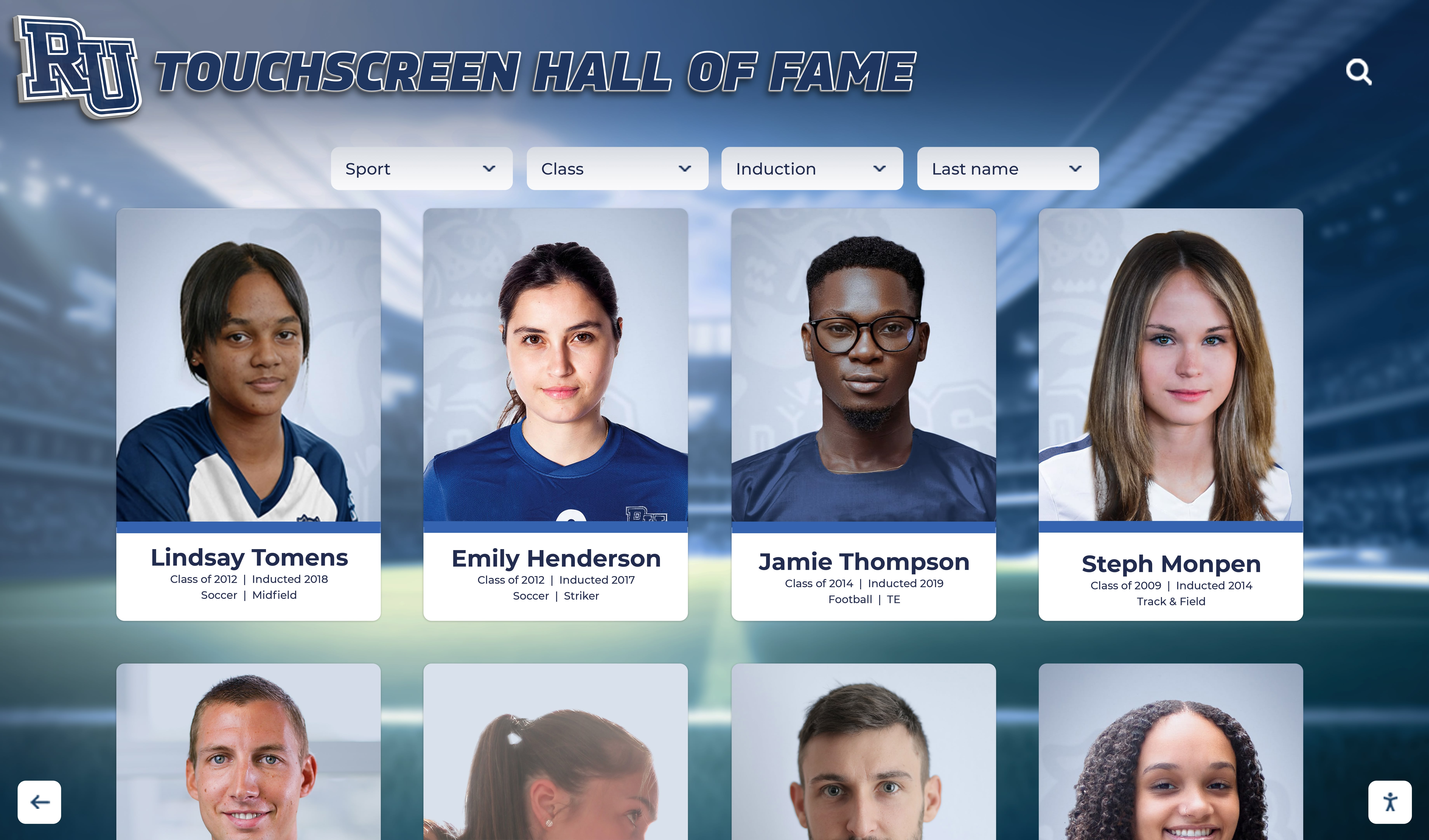
Interactive hall of fame displays that present athlete portrait cards often link to associated award documentation — a Content-Disposition audit confirms that every linked file opens in the kiosk browser rather than triggering a download that the kiosk's locked operating system cannot complete
Q&A: Content-Disposition for Award PDFs and Media on School Recognition Displays
What does it actually look like on the kiosk when Content-Disposition: attachment is incorrectly set on an award PDF?
The most common visible symptom is nothing at all. A visitor taps a link to an award certificate or championship program and the kiosk browser initiates a download, immediately encounters the MDM block on file-system write access, and silently discards the download. The screen either stays on the previous view without transition, shows a brief loading indicator that disappears, or in some kiosk browser configurations displays a dismissible toast notification about a blocked download that a standing visitor may not read before it disappears. There is no “PDF failed to open” error dialog on most locked-down kiosk browsers. From the visitor’s perspective, the link appears to be broken.
Can we just set Content-Disposition: inline for all files universally and remove the issue?
For display contexts, yes — setting inline on all visitor-facing file endpoints is the safest and simplest policy. Administrative users who need to save a file from a desktop browser can use the browser’s built-in “Save As” or “Download” command on any inline-rendered PDF or image; they do not require attachment to save the file. The reason to preserve attachment with a filename* parameter on administrative endpoints is specifically to ensure archivists receive the correctly named file in their download folder with the full award title, not a generic server-side filename. If the recognition program does not have separate administrative download endpoints — if staff access files the same way visitors do — then inline for all is a valid and maintainable policy.
What if the recognition platform does not let us change Content-Disposition headers directly?
Most school recognition platforms do not expose raw HTTP headers as a setting in their content management interface — header configuration is handled at the CDN, object storage, or server layer, which the platform vendor controls. The correct path is to report the audit findings — the specific file URLs and the header values observed in the curl output — to the platform’s support or technical team and request that the affected endpoints be updated to Content-Disposition: inline with the appropriate Content-Type. Providing the curl command and output gives the vendor a precise and reproducible record rather than a general complaint about files not loading.
Our PDF opens in a new browser tab as a blank white page instead of rendering. Is that a Content-Disposition problem?
A blank white page in a new tab when a PDF URL is opened directly is usually a PDF renderer issue rather than a Content-Disposition problem. The browser received the response with Content-Disposition: inline and Content-Type: application/pdf and opened a new tab to render it — but the PDF renderer failed to initialize or the PDF file itself is malformed. Check whether the PDF opens correctly in a standard browser outside the kiosk environment (a desktop Chrome or Firefox). If it renders correctly there but not on the kiosk, the kiosk browser’s PDF renderer may be disabled in the MDM profile. If it fails everywhere, the PDF file may be damaged; re-upload the original and re-test.
Should we test Content-Disposition for video files served on the recognition display as well?
For video files played through an HTML <video> element on the recognition display, the browser does not evaluate Content-Disposition — the video element loads and plays the source URL regardless of the header. Content-Disposition matters for video files only when the URL is opened directly (not embedded in a <video> element), which is not the standard delivery pattern for recognition display athletic videos. The header concern for video in this context is Content-Type — a video file served as application/octet-stream may fail to play in some browser/video element configurations. Confirm Content-Type: video/mp4 for MP4 video files and Content-Type: video/webm for WebM; the Content-Disposition header for video served through a <video> element is not a priority in this audit.
How do we handle a recognition program that has both a kiosk display and a public website where families can access the same award documents from home?
When the same file URLs are accessed from both a locked-down kiosk and a standard home browser, Content-Disposition: inline is the correct setting for both contexts. Desktop browsers at home will open the PDF in the browser’s built-in viewer just as the kiosk does; family members who want to save the award document can use the browser’s file menu to do so. The dual-context case does not require attachment — it reinforces the argument for setting inline universally for visitor-facing endpoints. If families specifically request a “download this certificate” button, implement it as an HTML link with the download attribute pointing to the same PDF URL, which instructs the browser to save the file without requiring the server to serve attachment.
Content-Disposition Audit Completion Checklist
Use this checklist to confirm the audit was completed and findings were documented.
- All file-serving endpoints inventoried: award PDFs, team photos, certificates, historical scans, and administrative download endpoints
-
Content-Dispositionheader checked for every endpoint viacurl -sI(Step 1); values recorded - Every endpoint classified as Display or Download (Step 2)
- Mismatches identified: Display endpoints with
attachment, and absent-header endpoints (Step 3) -
Content-Typevalues verified for every endpoint;application/octet-streammismatches flagged (Step 4) - Inline rendering confirmed in the kiosk browser for all Display endpoints (Step 5)
-
filename*encoding verified for all Download endpoints with special characters in award titles (Step 6) - Mobile browser inline PDF rendering tested on iOS Safari and Android Chrome (Step 7)
- Findings documented in IT runbook: file URL, classification, current header, corrected header, Content-Type status, rendering confirmed, date, technician (Step 8)
- Mismatches escalated to recognition platform vendor with
curloutput as evidence - Re-test triggers documented: media migration, new file types, browser updates, hardware changes
Building Content-Disposition Verification Into Pre-Event Recognition Display Preparation
A recognition display that has served award PDFs and team media correctly for months can silently lose inline rendering after a CDN configuration change, a platform update that resets media-serving headers, or a kiosk MDM policy change that disables the PDF viewer — changes that do not interrupt the display itself but leave every file link quietly broken. A parent at a hall-of-fame induction tapping a certificate link and seeing nothing is a small, invisible failure that the school never hears about directly; the family just assumes the display does not show documents.
Incorporating a Content-Disposition spot-check into pre-event display preparation takes less than ten minutes with the curl commands in this guide. Testing three to five representative file URLs — one award PDF, one team photograph, one historical scan — against the decision table above confirms that inline rendering is working before the event begins. If a mismatch is found, there is still time to escalate to the platform vendor or swap in an image fallback before families arrive.
Schools that have built recognition programs archiving decades of athletic history through digitized photo collections understand that the digitization effort is only as valuable as the display infrastructure that makes those files accessible. The Content-Disposition header is one configuration field — but it is the field that determines whether a visitor at the lobby kiosk sees a photograph from a 1987 championship season or a spinner that goes nowhere.
See Award PDFs and Recognition Media Working Live on a School Display Demo
If your school is planning or evaluating a touchscreen athletic recognition display and wants to understand how award documents, team photographs, historical scans, and media assets are served to visitors — including how the platform handles Content-Disposition, file rendering on kiosk browsers, and mobile access — a live product demonstration covers those specifics alongside the content, design, and athletic recognition features. Rocket Alumni Solutions works with school athletic directors, IT teams, and recognition program administrators to confirm the complete file-serving path is working correctly before championship documents and historical media go live on lobby screens.
Live Example: Rocket Alumni Solutions Touchscreen Display
Interact with a live example (16:9 scaled 1920x1080 display). All content is automatically responsive to all screen sizes and orientations.