802.1X Reauthentication Timer Test for School Recognition Displays
- Home /
- Blog Posts /
- 802.1X Reauthentication Timer Test for School Recognition Displays

The Easiest Touchscreen Solution




Live Example: Rocket Alumni Solutions Touchscreen Display
Interact with a live example (16:9 scaled 1920x1080 display). All content is automatically responsive to all screen sizes and orientations.
A school recognition display 802.1X reauthentication timer test confirms that the periodic re-authentication required by IEEE 802.1X port-based Network Access Control does not interrupt continuous display playback, cause the display to lose its content platform connection, or leave the switch port in an unauthorized state that keeps the screen dark. When 802.1X is active on the switch ports serving lobby kiosks and hallway recognition screens, the switch enforces periodic reauthentication—typically every 3,600 seconds by default on Cisco IOS—by restarting the EAP exchange with the connected device or issuing a fresh MAC Authentication Bypass (MAB) request to the RADIUS server. If the timer fires at the wrong moment, the RADIUS server is slow, or the display’s operating system does not maintain a responsive supplicant daemon, the port can transition to the unauthorized state briefly while authentication resolves. That brief gap interrupts content playback and, depending on the display’s application behavior, may require a manual restart to resume normal operation.
This guide explains how 802.1X reauthentication works at the switch port level, why it matters specifically for continuously running recognition displays in school environments, and how to run a structured test to confirm that your current timer configuration is compatible with uninterrupted display operation.
Port-based authentication using 802.1X is increasingly common in school network deployments as IT departments align with security frameworks that require access control on every wired port. Recognition displays—hall-of-fame touchscreens, athletic record boards, and lobby honor walls—are permanently connected devices that are expected to run continuously. The combination of a continuously running device and a recurring authentication timer creates a test condition that many school IT coordinators first encounter only when a display goes dark unexpectedly and the switch log reveals a reauthentication failure.

Recognition displays installed in school athletics hallways run continuously and are expected to remain available through every scheduled reauthentication cycle—a timer test confirms the switch port configuration supports that requirement
What 802.1X Reauthentication Does on a School Switch Port
IEEE 802.1X defines a port-based network access control framework in which the switch acts as an authenticator, the connected device acts as a supplicant, and a RADIUS server acts as the authentication server. When a device first connects, the switch initiates an EAP (Extensible Authentication Protocol) exchange. If the device presents valid credentials and the RADIUS server responds with an Access-Accept message, the switch moves the port to the authorized state and forwards traffic normally. If reauthentication is enabled on the port, the switch repeats this exchange at the interval defined by the reauthentication timer.
For recognition displays, two authentication methods are relevant:
EAP-based 802.1X (supplicant on the device): The display’s operating system runs a 802.1X supplicant daemon—software that handles the EAP exchange on the device side. Windows-based display systems include a built-in supplicant; Linux-based display systems may use wpa_supplicant with a wired adapter configured. When reauthentication fires, the switch sends an EAP-Request/Identity frame, the supplicant on the display responds, and the exchange proceeds. If the supplicant daemon is stopped, the display’s OS is in a sleep state, or the EAP exchange times out, the port moves to unauthorized. The switch stops forwarding traffic until the next authentication attempt succeeds.
MAC Authentication Bypass (MAB): Many recognition displays—embedded media players, dedicated digital signage appliances, and hardware kiosks—do not run a 802.1X supplicant. For these devices, MAB allows the switch to authenticate the device by its MAC address. The switch detects the device’s MAC, sends a RADIUS Access-Request with that MAC address as both the username and password (in a format such as aabbccddeeff), and waits for the RADIUS server’s response. If the RADIUS server has that MAC address authorized, it returns Access-Accept and the port is authorized. During reauthentication, the same process repeats. Because no EAP exchange is required from the device side, MAB reauthentication is generally faster and less disruptive—but it still depends on RADIUS server reachability and response time.
On Cisco IOS and IOS-XE, the commands that control reauthentication behavior on a switch port are:
authentication periodic
authentication timer reauthenticate <seconds>
The first command enables reauthentication; the second sets the interval in seconds. An older equivalent syntax uses:
dot1x reauthentication
dot1x timeout reauth-period <seconds>
The default reauthentication timer on Cisco IOS when reauthentication is enabled is 3,600 seconds (one hour), though administrators can override this with any value from 1 to 65,535 seconds. The timer can also be set to use the RADIUS Session-Timeout attribute returned in the Access-Accept message:
authentication timer reauthenticate server
When the server-based timer is active, the RADIUS server controls the reauthentication interval for each device individually—a useful option for environments with mixed device types where the IT team wants the RADIUS policy to govern the timer rather than a uniform switch-level setting.
Why the Reauthentication Timer Matters for Continuous Display Playback
A corporate laptop that reauthenticates every hour experiences the event transparently—the supplicant handles it in the background, the port stays authorized, and the user sees nothing. A school recognition display does not have the same assurance for several reasons specific to how display hardware and software operate.
Display hardware and operating systems are optimized for playback, not authentication. Embedded display systems that run proprietary firmware or stripped-down operating systems may not maintain an active supplicant process during normal playback operation. A supplicant that stops responding to EAP frames causes the EAP exchange to time out, which moves the port to the unauthorized state until the next full authentication cycle begins.
Continuous playback applications maintain persistent connections to content platforms. Recognition display content—athlete profiles, academic honor roll records, alumni halls of fame, and rotating recognition screens—is typically pulled from a cloud content management system. A brief port deauthorization causes the display’s application to lose its TCP connection to the content platform. Many display applications do not reconnect automatically after a TCP session is dropped; they require a manual restart or wait for a watchdog timer to cycle the application. Schools that use touchscreen hall-of-fame platforms to showcase academic excellence programs and student recognition depend on that connection remaining stable.
Reauthentication timer misconfigurations are not visible during initial installation. A display installed and tested in the morning will not encounter a one-hour reauthentication cycle until that first hour passes. IT coordinators who complete installation and verify playback at installation time are not seeing the behavior that will occur when reauthentication fires after the first hour of operation. The timer test in this guide deliberately triggers reauthentication so the IT team observes the port behavior before leaving the installation site.
RADIUS server availability varies during school events. Network load on school RADIUS servers increases during high-attendance events. If a reauthentication cycle fires while the RADIUS server is under elevated query load, the authentication response may be delayed enough to cause the port to transition to unauthorized before the response arrives. Testing reauthentication behavior during a controlled window identifies whether the current timer and RADIUS timeout configuration is resilient enough for event night conditions.
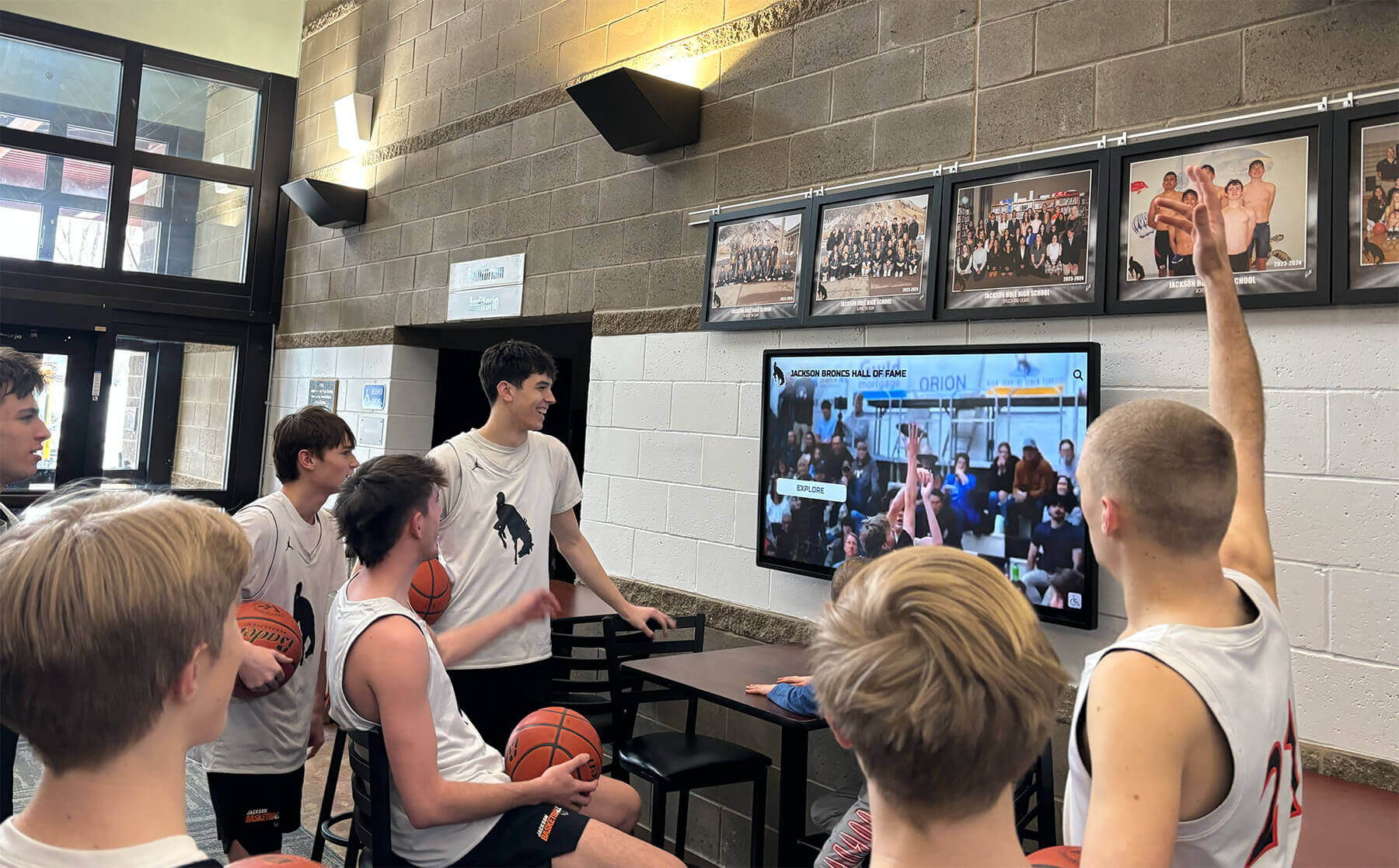
Recognition displays in school lobbies and athletics corridors run continuously during events and must survive scheduled reauthentication cycles without going dark—the timer test verifies that the port configuration supports uninterrupted playback
Pre-Test Preparation Checklist
Complete each item before running the reauthentication timer test. The test itself requires the ability to force reauthentication from the switch CLI and to observe both switch-side and display-side behavior simultaneously. In most school environments, two technicians complete the test—one at the switch CLI and one observing the display and its application status.
Authentication Method Identification
- Confirm whether the recognition display uses EAP-based 802.1X or MAB. Check the switch:
show authentication sessions interface GigabitEthernet0/X— theMethodfield showsdot1x(EAP supplicant) ormab(MAC Authentication Bypass) - If using EAP: confirm the supplicant type and version on the display’s OS. For Windows: confirm the Wired AutoConfig service is running and set to Automatic. For Linux: confirm
wpa_supplicantis active and configured for wired EAP - If using MAB: confirm the display’s MAC address is registered in the RADIUS server’s authorized device list and that the entry has not expired
Timer and Policy Review
- Check the current reauthentication timer on the display’s switch port:
show running-config interface GigabitEthernet0/Xand look forauthentication timer reauthenticateordot1x timeout reauth-period - Check whether reauthentication is enabled:
show authentication sessions interface GigabitEthernet0/X— theReauthenticationfield showsEnabledorDisabled - Check the current fail-action policy:
show running-config interface GigabitEthernet0/X— look forauthentication event fail actionto understand what happens if the RADIUS exchange fails (authorized VLAN, unauthorized state, or restricted VLAN) - Note the RADIUS server address and confirm it is reachable from the switch:
test aaa group radius server <ip-address> <mac-address> <mac-address> new-code(for MAB) or equivalent RADIUS connectivity test for your platform
Display Application State Capture
- Before triggering reauthentication, document the current display state: what content is shown, whether the application is fully loaded, and whether the display’s cloud platform connection is active (check the display’s management console if available)
- Confirm you have a stopwatch or timer to measure the interval between the reauthentication trigger and display application recovery, if recovery is needed
Platform Considerations
- For Cisco Meraki: verify the authentication policy in Network > Access policies for the relevant switch and SSID or wired network. Meraki reports reauthentication status in the switch event log under Security > Event log
- For Ubiquiti UniFi: check the wired network’s RADIUS authentication settings in Network > Settings > Profiles. UniFi logs authentication events in the Insights > Port activity view for the switch
- For HPE Aruba: review the port access configuration with
show port-access authenticator <port>and confirm thereauth-periodvalue
802.1X Reauthentication Timer Test: Numbered Procedure
Run each step in sequence. Record the outcome of each step before moving to the next. The test is non-destructive when the switch port’s fail-action policy is configured to authorize the port on a guest or restricted VLAN during authentication failure—but if the fail-action is unauthorized (default), a failed reauthentication will take the display offline until the next authentication cycle. Review the fail-action policy in the preparation checklist before proceeding.
Step 1 — Confirm the current authentication session state
At the switch CLI, verify the recognition display’s port is currently in the authorized state and note the session details.
On Cisco IOS / IOS-XE:
show authentication sessions interface GigabitEthernet0/X
In the output, confirm:
Status:AuthorizedMethod:dot1xormabDomain:DATA(or your configured access VLAN name)Session time: the elapsed time since the last successful authentication—this tells you how soon the next reauthentication will fire under the current timer
Record the Session time and the current Reauthentication period. If the reauthentication period is set to 3,600 seconds and the session time is 3,500 seconds, the timer will fire within two minutes—this is a useful natural trigger point if you can observe the display during that window. If the session is newly authenticated, proceed to Step 2 to force reauthentication deliberately.
Step 2 — Force reauthentication and observe port transition
On Cisco IOS / IOS-XE, force immediate reauthentication on the recognition display’s port:
dot1x re-authenticate interface GigabitEthernet0/X
On newer IOS-XE using the authentication manager syntax:
authentication reinitialize interface GigabitEthernet0/X
Immediately after issuing the command, watch the port state with repeated show authentication sessions commands or enable a brief monitoring interval:
show authentication sessions interface GigabitEthernet0/X
The port will briefly show Status: Authenticating during the exchange. For MAB, this window is typically under two seconds when the RADIUS server is responsive. For EAP-based 802.1X, the window depends on how quickly the supplicant on the display responds to the EAP-Request/Identity frame—typically two to five seconds on a healthy supplicant.
On Ubiquiti UniFi: force reauthentication by toggling the port authentication policy off and back on in the switch port configuration, or by disconnecting and reconnecting the display cable (port down/up triggers a new authentication cycle).
On HPE Aruba: aaa port-access reauthenticate <port> forces reauthentication on the specified port.
Step 3 — Monitor display behavior during the authentication window
While Step 2 is executing, the second technician observes the display directly and watches the display’s management console for content platform connection state.
Document:
- Does the display’s screen go blank or freeze during the reauthentication window?
- Does the content application lose its connection to the cloud content platform?
- If the application loses the connection: does it reconnect automatically, and how long does reconnection take?
- If the port entered an unauthorized state briefly: does the display’s IP lease expire or change?
A display using DHCP with a long lease time (24 hours or more) will retain its IP address through a brief port deauthorization. A display configured with a short DHCP lease or a lease-renewal interval that fires during the deauthorization window may request a new IP address when the port returns to authorized, causing a longer reconnect delay.
Step 4 — Verify the port returns to authorized state
After the reauthentication exchange completes, confirm the port is back in the authorized state:
show authentication sessions interface GigabitEthernet0/X
Confirm:
Status:AuthorizedSession timehas reset to near zero (a new session started with the reauthentication)Methodis unchanged from Step 1
If the port does not return to Authorized within the EAP timeout period (default 30 seconds on Cisco IOS), check the RADIUS server log for the Access-Request corresponding to the display’s MAC address. A missing entry in the RADIUS log indicates the request did not reach the server; an Access-Reject entry indicates the MAC address or credentials were not recognized.
Step 5 — Check the switch log for authentication events
Review the switch log for events generated during the reauthentication cycle:
show logging | include AUTHMGR
show logging | include DOT1X
show logging | include MAB
Events that indicate a healthy reauthentication cycle:
%AUTHMGR-5-START: Starting 'dot1x' for client→ reauthentication initiated%AUTHMGR-7-RESULT: Authentication result 'success'→ reauthentication succeeded%AUTHMGR-5-VLANASSIGN: VLAN <n> assigned→ port returned to correct VLAN
Events that require investigation:
%AUTHMGR-5-FAIL: Authorization failed→ reauthentication failed; review RADIUS log%DOT1X-5-FAIL: Authentication failed for client→ EAP exchange failed; check supplicant state on display%AUTHMGR-7-NOPOLICY: No policy exists→ port lacks an authentication policy; the reauthentication cycle ran but had no policy to enforce (check interface configuration)
Step 6 — Simulate RADIUS server unavailability
This step tests the fail-action behavior when the RADIUS server is unreachable during a reauthentication cycle—a scenario that can occur during school network maintenance windows, RADIUS server restarts, or upstream connectivity events.
On Cisco IOS / IOS-XE, temporarily modify the RADIUS server configuration to an unreachable address, force reauthentication (Step 2), then restore the correct server address:
radius server <server-name>
  address ipv4 192.0.2.1 auth-port 1812 acct-port 1813
(192.0.2.1 is a documentation address that will not respond.)
After the reauthentication times out (allow the full EAP timeout period plus the configured RADIUS retransmission delay—typically 30 to 60 seconds on default settings), observe the port state.
If the port’s fail-action is authorize vlan <guest-vlan-id>, the display should remain on the network in the specified VLAN. If the fail-action is the default unauthorized state, the display will go offline. Document which behavior occurs, then restore the correct RADIUS server address and verify the port returns to authorized.
Restore the correct RADIUS server address after completing this step.
Step 7 — Document findings and set the timer appropriately
Using the results from Steps 1 through 6, document:
- Authentication method (EAP or MAB) and time to complete a full reauthentication cycle
- Whether the display’s application maintained its content platform connection through a successful reauthentication
- Whether the display’s application recovered automatically after a port deauthorization event, and how long recovery took
- Whether the fail-action policy kept the display operational during RADIUS unreachability
- Recommended timer adjustment, if any
If the reauthentication cycle completes without visible interruption on the display, the current timer setting is compatible with uninterrupted playback. If the display application loses connection and does not recover automatically, one of three changes should be evaluated:
- Extend the reauthentication timer to reduce the frequency of the event (longer intervals mean fewer reauthentication cycles per day)
- Add or correct a fail-action policy so that RADIUS unavailability does not deauthorize the display port
- Resolve the supplicant or application reconnect behavior on the display side so that the application restores its content platform connection automatically after a brief deauthorization
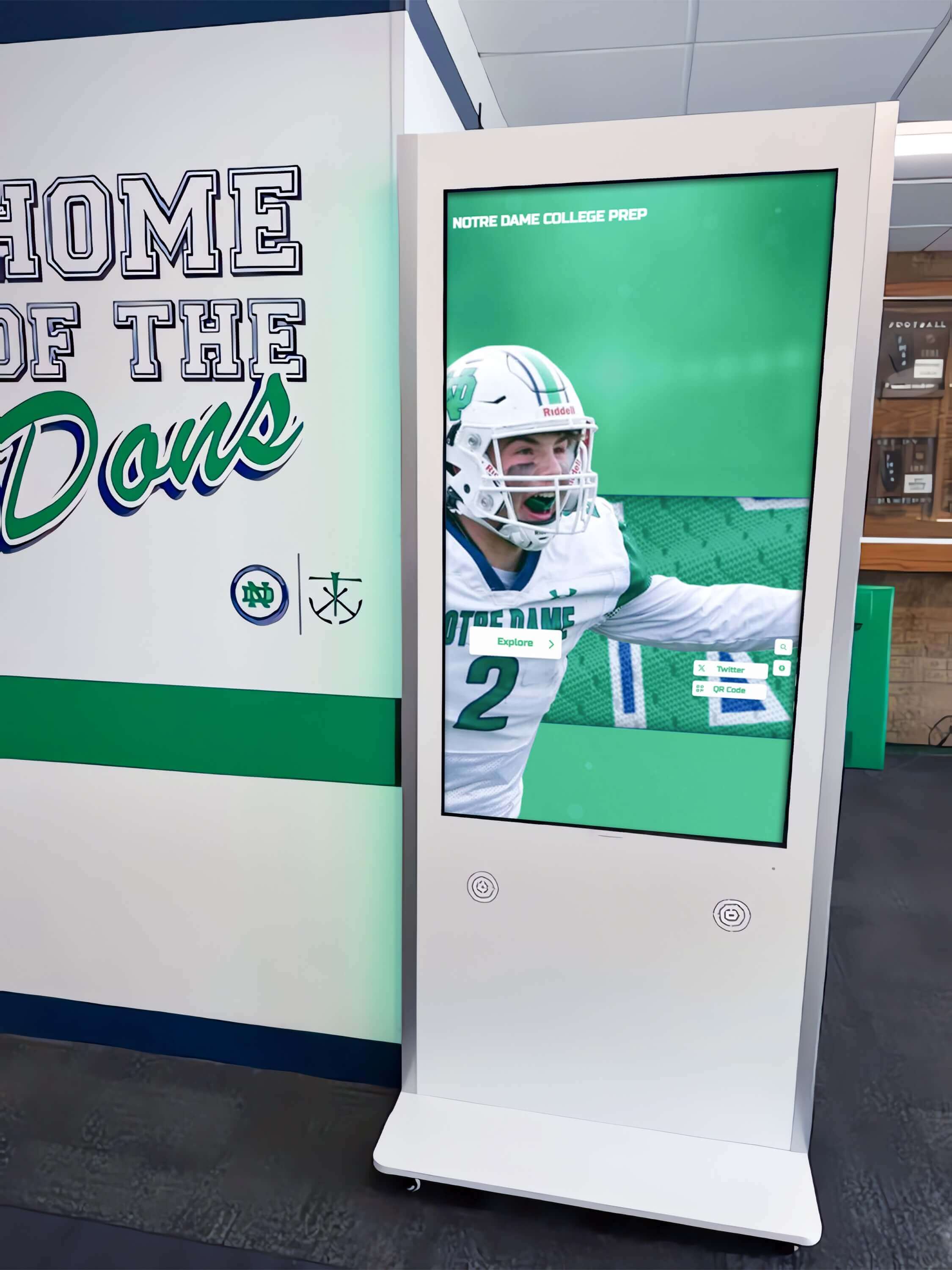
Interactive kiosks in school hallways present athlete profiles, hall-of-fame records, and academic achievement data pulled continuously from a cloud platform—the reauthentication timer test confirms that 802.1X port cycling does not break that connection
Reauthentication Timer Verification Table
Use this table to document the results of each test step and confirm the port configuration supports uninterrupted display operation.
| Test | Pass Criteria | Result (Pass / Fail / Note) | Switch Command |
|---|---|---|---|
| Port shows Authorized before test | Status: Authorized in show authentication sessions | show authentication sessions interface Gi0/X | |
| Authentication method confirmed | Method: mab or Method: dot1x recorded | show authentication sessions interface Gi0/X | |
| Reauthentication completes under 10 seconds | Port returns to Authorized within 10 s of trigger | show authentication sessions interface Gi0/X | |
| Display screen remains visible during reauth | No blank screen or freeze observed at display | Direct observation | |
| Content platform connection maintained | Management console shows no dropped connection | Display management console | |
| Application reconnects automatically after port deauth | Display resumes playback without manual intervention | Direct observation | |
| RADIUS server log shows Access-Accept | Access-Accept recorded for display MAC during reauth cycle | RADIUS server event log | |
| Switch log shows no auth failure events | No AUTHMGR-5-FAIL or DOT1X-5-FAIL in log | show logging | include AUTHMGR | |
| Fail-action keeps display online during RADIUS outage | Port remains in authorized or guest VLAN during simulated RADIUS outage | show authentication sessions interface Gi0/X | |
| Port returns to authorized after RADIUS restored | Status: Authorized within one reauth cycle after RADIUS restoration | show authentication sessions interface Gi0/X |
Want to Walk Through Recognition Display Network Requirements Before Installation?
If your school is evaluating a touchscreen recognition display and wants to understand how 802.1X port authentication, reauthentication timers, and RADIUS policy interact with a continuously running display platform, a live demonstration gives your IT coordinator and athletic director those specifics in one session. Schedule a free demo with Rocket Alumni Solutions to see the platform and discuss infrastructure requirements before your installation begins.
School-Specific Reauthentication Scenarios
School network environments create reauthentication conditions that differ from those in enterprise networks in the frequency and context in which failures occur.
Event Night RADIUS Load
Major school events—hall-of-fame induction nights, championship celebrations, alumni homecoming weekends—bring elevated visitor and staff device counts onto the school’s network. Alumni homecoming events at schools involve significant visitor attendance in spaces where recognition displays are the focal point of the gathering. If the school’s RADIUS server is handling authentication requests for visitor wireless devices, staff badge readers, and wired classroom devices simultaneously, the additional query load can delay responses to reauthentication requests from display switch ports. A reauthentication that normally completes in under two seconds may take ten or more seconds during peak event load.
The RADIUS server response time test in Step 6 (simulating unavailability) is a conservative proxy for this scenario—if the display survives a full RADIUS outage with the fail-action policy keeping it online, it will also survive a slow RADIUS response during event night. Schools that have not configured a fail-action policy and rely on the default unauthorized state should resolve this before the first major event.
Display Placement in Multi-VLAN Hallways
School hallways often carry network infrastructure serving multiple VLANs: student devices, staff devices, IP cameras, and building management systems. A recognition display installed in a hallway shared with IP cameras or student device access points may be on an access switch that uses a global RADIUS policy applied to all access ports. If that global policy enforces a reauthentication timer configured for student laptops (sometimes as short as 900 seconds, or 15 minutes, in high-security deployments), that same timer applies to the recognition display port.
A display reauthenticating every 15 minutes is manageable for a MAB-authenticated display on a reliable RADIUS server—the exchange is fast, and if the application handles brief connectivity interruptions gracefully, the interruption may be invisible. But for an EAP-authenticated display with a supplicant that does not respond consistently during playback, a 15-minute timer produces 96 reauthentication cycles per day—each one a potential playback interruption.
IT coordinators managing recognition displays alongside ADA-accessible touchscreen kiosk deployments should review reauthentication timer settings against the accessibility requirement for continuous, uninterrupted display availability. An ADA-compliant display that goes dark during a reauthentication cycle when a user with a visual impairment is navigating its touch interface creates an accessibility gap that the timer setting can prevent.
Summer Network Reconfiguration
School IT teams frequently use summer breaks for infrastructure projects: switch replacements, RADIUS server upgrades, policy updates, and VLAN reorganizations. A recognition display that was correctly tested during the spring may encounter a different reauthentication policy in the fall when school resumes, if the summer work included a RADIUS policy change or a switch configuration rebuild that reset the per-port authentication settings.
The reauthentication timer test in this guide should be run after any summer infrastructure change that touches the switch serving the recognition display, the RADIUS server policy for the display’s MAC address or EAP credentials, or the VLAN assignment for the display port. A 20-minute test run before the fall semester begins confirms the display will operate correctly before the first recognition event of the year.
Simultaneous Display and Touchscreen Input
Recognition displays with touchscreen input—kiosks where visitors browse athlete profiles, search alumni records, or navigate hall-of-fame categories—have an additional constraint: a reauthentication event that interrupts network connectivity during active user interaction will freeze the interface mid-session. Touchscreen controls tested against pointer cancellation and similar input validation procedures confirm the display’s touch responsiveness; the 802.1X reauthentication timer test adds the network layer to that validation.
A visitor who taps to browse an athlete’s profile and sees the screen freeze because a reauthentication cycle interrupted the content platform query has a negative experience that reflects on the school’s recognition program. For touchscreen displays, the fail-action policy and the application’s reconnect behavior are particularly important—the display must return to a usable, navigable state automatically after any authentication event.

Multi-screen recognition display installations introduce multiple simultaneous 802.1X reauthentication sessions—testing timer behavior across all ports in the installation confirms the RADIUS server handles the load without individual ports failing authentication
Q&A: 802.1X Reauthentication Timer for School Recognition Display Ports
What is the default 802.1X reauthentication timer, and should I change it for a recognition display port?
On Cisco IOS when reauthentication is enabled with authentication periodic, the default reauthentication timer is 3,600 seconds (one hour). Whether to change it depends on your security policy and the display’s behavior during reauthentication. If the display completes reauthentication without visible interruption and the application maintains its content platform connection, the one-hour default is appropriate for most school security policies. If reauthentication causes interruptions, extending the timer to 7,200 seconds (two hours) or longer reduces the frequency of the event. If your school’s security policy mandates a shorter interval for wired device authentication, test the display at that shorter interval to confirm it operates correctly. Do not disable reauthentication entirely unless your security policy explicitly permits indefinite sessions for approved device MACs—and document the exception.
Does reauthentication cause the recognition display to lose its IP address?
Not directly. The 802.1X reauthentication process occurs at the data-link layer (Layer 2) and does not clear the port’s DHCP binding or IP assignment. If the reauthentication completes quickly—within the typical two to five second window—the display’s IP lease remains valid and the application’s TCP connections are not severed at the IP layer. However, if the port enters an unauthorized state for long enough that the display’s application detects a network loss and closes its TCP sessions, the application will need to re-establish those sessions when the port returns to authorized. The IP address is retained through a brief unauthorized state as long as the DHCP lease has not expired; it is only if the unauthorized period extends to hours that the lease might expire.
Our recognition display uses MAB. Is the reauthentication timer handled differently than for EAP supplicants?
The reauthentication timer fires identically for MAB and EAP ports—the switch uses the same authentication timer reauthenticate value for both. The difference is in what happens during the reauthentication exchange. For MAB, the switch sends a new RADIUS Access-Request with the device’s MAC address. If the RADIUS server responds with Access-Accept within the authentication timeout, the port remains authorized (or briefly transitions through the authenticating state before returning to authorized). Because no EAP exchange is required from the display side, MAB reauthentication is typically faster and less sensitive to the display’s operating state. A display in MAB mode that survives a reauthentication test cleanly is primarily dependent on RADIUS server availability and response time, not on the display’s supplicant daemon.
What happens if the RADIUS server is unreachable when reauthentication fires?
The switch will retry the RADIUS request according to the configured radius-server timeout and radius-server retransmit values. On Cisco IOS, the defaults are a 5-second timeout and 3 retransmits, for a total of up to 15 seconds of retry before the RADIUS request is declared failed. After the request fails, the port’s behavior is determined by the authentication event server dead action configuration. If no dead-action policy is configured, the default behavior is that the port moves to the unauthorized state. If authentication event server dead action authorize vlan <vlan-id> is configured, the port moves to the specified VLAN and remains accessible. For recognition displays, configuring a dead-action policy that keeps the display on the network during RADIUS outages is strongly recommended—a RADIUS server restart or upstream connectivity event should not take a lobby display offline.
Can I disable reauthentication entirely on the recognition display port?
Yes. If authentication periodic is not configured on a port (or if it is explicitly removed with no authentication periodic), reauthentication is disabled. The port authenticates once when the device connects and remains authorized indefinitely until the link drops or the switch reboots. This is an acceptable configuration for a permanently installed recognition display where the device’s MAC address or EAP credentials are stable and the security policy permits indefinite sessions for approved devices. Document the exception in your network policy records and include the display port in periodic access-control audits to confirm the port is still serving only the approved recognition display.
How often should the reauthentication timer test be run?
Run the test at initial installation and after any change that affects the display’s switch port configuration, the RADIUS server policy, or the display’s operating system or firmware. Also run it after any unplanned event—a display that went dark without an obvious physical cause, a RADIUS server restart, or a switch configuration rebuild—to confirm that the reauthentication configuration remains correct. An annual test run before the school year begins is a reasonable maintenance cadence for stable installations with no configuration changes.
Can the reauthentication timer be set individually per port, or does it apply globally?
On Cisco IOS / IOS-XE, the authentication timer reauthenticate command is applied per interface, so each port can have its own timer. A common school IT approach is to set a shorter timer (900 or 1,800 seconds) on ports serving student devices where session turnover is expected, and a longer timer (7,200 seconds or more) on ports serving fixed infrastructure like recognition displays, printers, and IP cameras. Per-port timer configuration allows the security policy to match the device type without forcing a single timer on all wired ports.

A corridor of digital recognition boards represents multiple concurrent 802.1X sessions—the reauthentication timer test should include every port in the installation to confirm that no individual screen goes dark during a reauthentication cycle
Reauthentication Timer Test Completion Checklist
Use this checklist to confirm the test was completed correctly and all findings are documented.
- Authentication method (MAB or EAP) confirmed for each recognition display port
- Current reauthentication timer value recorded for each display port
- Reauthentication enabled or disabled status confirmed on each display port
- RADIUS server reachability confirmed before testing (
test aaa group radiusor equivalent) - Reauthentication forced on each display port and port-transition time recorded
- Display screen behavior observed during each reauthentication cycle (screen continuity, freeze, or blank)
- Content platform connection state observed during and after reauthentication (maintained, dropped, or auto-recovered)
- Switch log reviewed for authentication events: no fail events for display ports
- RADIUS server log reviewed: Access-Accept recorded for each display MAC during test
- RADIUS unavailability scenario tested: fail-action policy confirmed to keep display accessible
- Timer adjustment decision documented: current timer confirmed acceptable, or recommended change recorded
- Findings recorded in IT runbook: switch hostname, interface, auth method, timer value, test results, technician, date
Connecting the Reauthentication Timer Test to the Recognition Display Maintenance Calendar
A school recognition display 802.1X reauthentication timer test addresses a failure mode that is invisible during normal installation and verification. A display that is powered on, shows content, and responds to touch inputs at installation time may still fail during the first reauthentication cycle an hour later—because the EAP supplicant is not responding, because the application does not reconnect automatically after a brief deauthorization, or because the RADIUS server is slow to respond when the timer fires during an event. Running the test deliberately before the display enters production use closes that gap.
Schools that invest in touchscreen recognition platforms to honor athletic achievements, academic excellence, and alumni contributions depend on those displays being available when recognition matters most—during induction events, championship celebrations, and community gatherings. The reauthentication timer test is a 20-minute procedure that confirms the authentication infrastructure supports that availability requirement, and it produces a documented record that the IT team can reference when the next network change or event night approaches.
Connecting this test to related infrastructure verification—spanning tree configuration checks on the display’s switch ports, QoS baseline documentation, and VLAN isolation review—builds a complete network verification record for the recognition display that covers authentication, loop prevention, traffic prioritization, and segmentation in a single IT runbook entry.
See a School Recognition Display Platform Running Live
If your school is planning a touchscreen recognition display deployment and wants to understand how the platform integrates with your existing network—including 802.1X authentication, switch port requirements, and RADIUS policy—a live demonstration gives your IT coordinator and athletic director those answers before installation begins. Rocket Alumni Solutions builds recognition display platforms for school environments, with documented infrastructure requirements and technical staff prepared to walk through authentication and network configuration questions alongside your team.
Live Example: Rocket Alumni Solutions Touchscreen Display
Interact with a live example (16:9 scaled 1920x1080 display). All content is automatically responsive to all screen sizes and orientations.