



When schools, universities, and organizations invest in interactive touchscreen displays for recognition and engagement, ensuring accessibility for all community members isn’t just a legal requirement—it’s a fundamental commitment to inclusive excellence. WCAG 2.2 AA compliance represents the global standard for digital accessibility, defining specific criteria that make interactive content perceivable, operable, understandable, and robust for people with diverse abilities including vision, hearing, motor, and cognitive differences.
Every educational institution serves diverse populations: students with visual impairments who rely on screen readers or high-contrast displays, athletes with motor challenges who need larger touch targets and simplified gestures, alumni with color vision deficiencies who can’t distinguish information conveyed through color alone, and community members with cognitive differences who benefit from clear navigation and consistent interfaces. When interactive displays meet WCAG 2.2 AA standards, every person can independently explore recognition content, discover achievements, and feel welcomed by technology designed for universal access rather than excluded by barriers that make interaction difficult or impossible.
This comprehensive guide explores what WCAG 2.2 AA compliance means for interactive touchscreen displays, why accessibility matters for educational and institutional contexts, how technical implementation creates truly inclusive experiences, and what organizations should evaluate when selecting recognition platforms that serve all community members equitably.
Accessibility in interactive displays isn’t an optional enhancement added after design completion—it’s a foundational principle shaping every design decision from initial interface architecture through content presentation, interaction patterns, and technical implementation. Platforms built with accessibility as a core consideration deliver better experiences for all users while ensuring legal compliance and demonstrating institutional commitment to inclusive values.

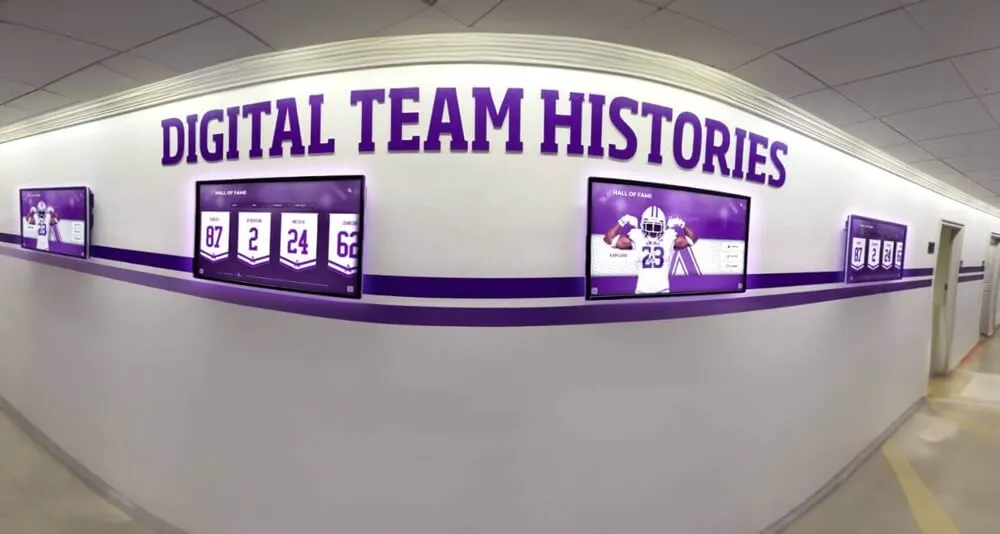
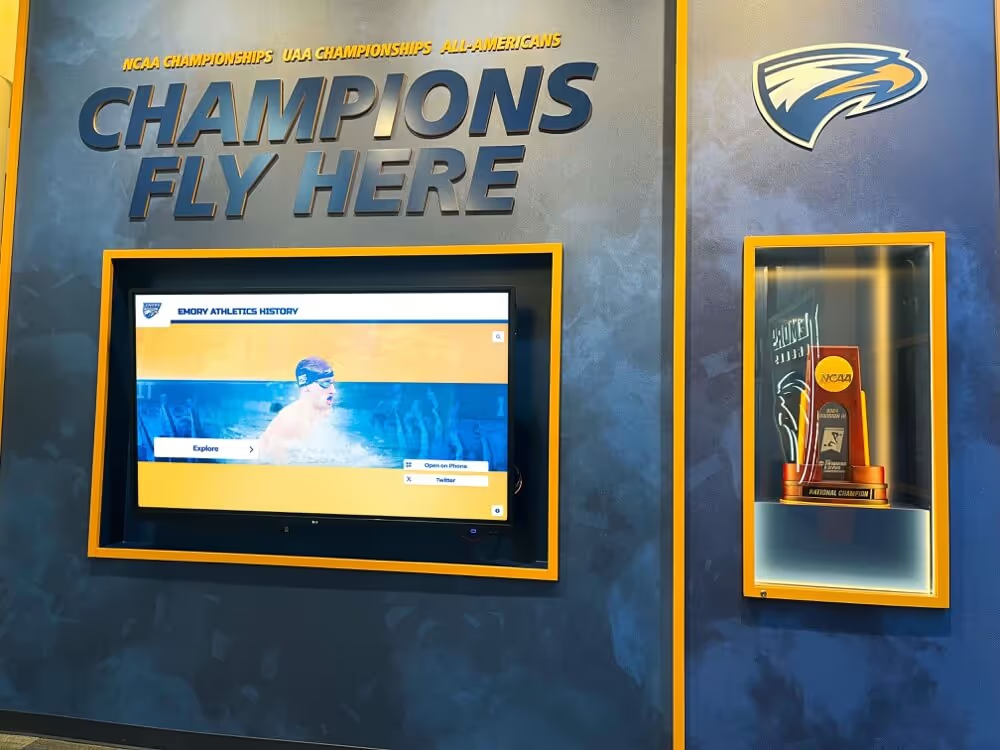
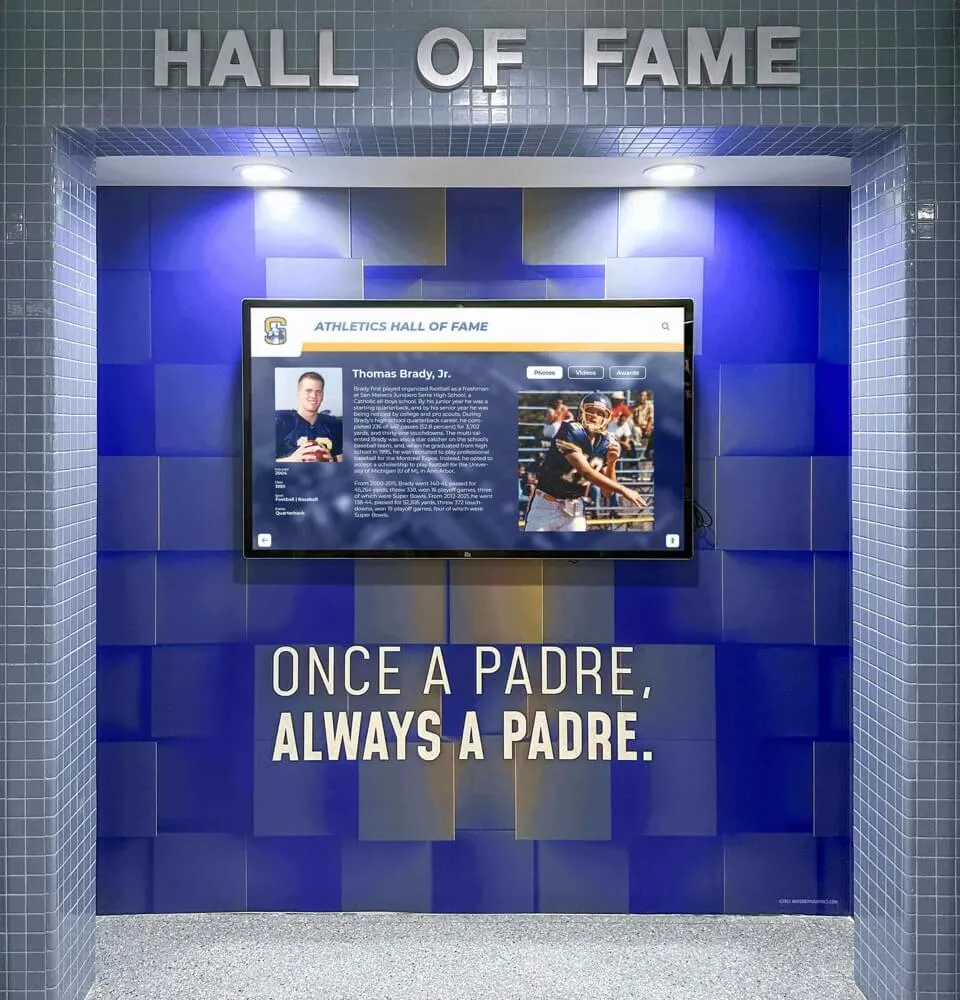
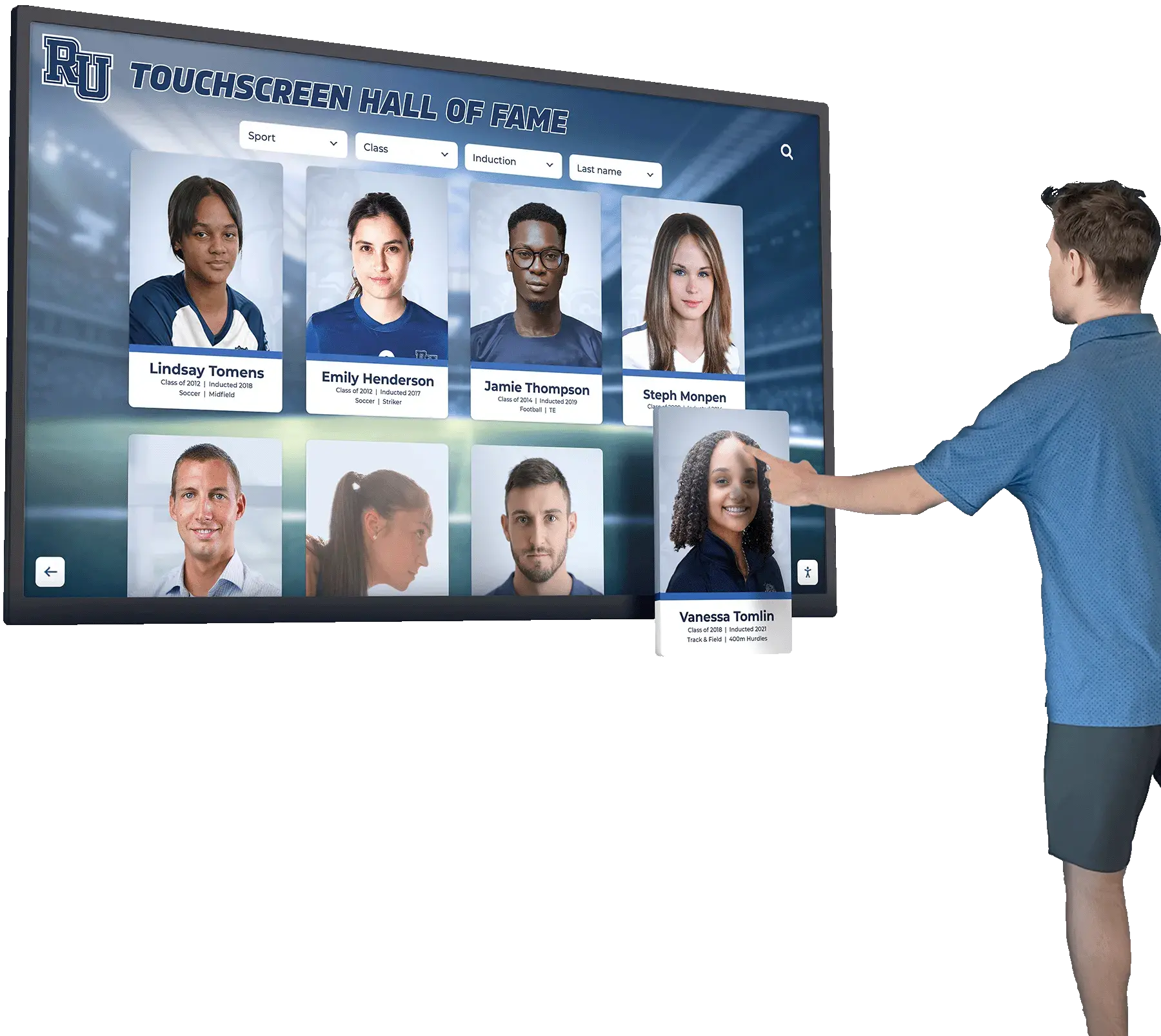
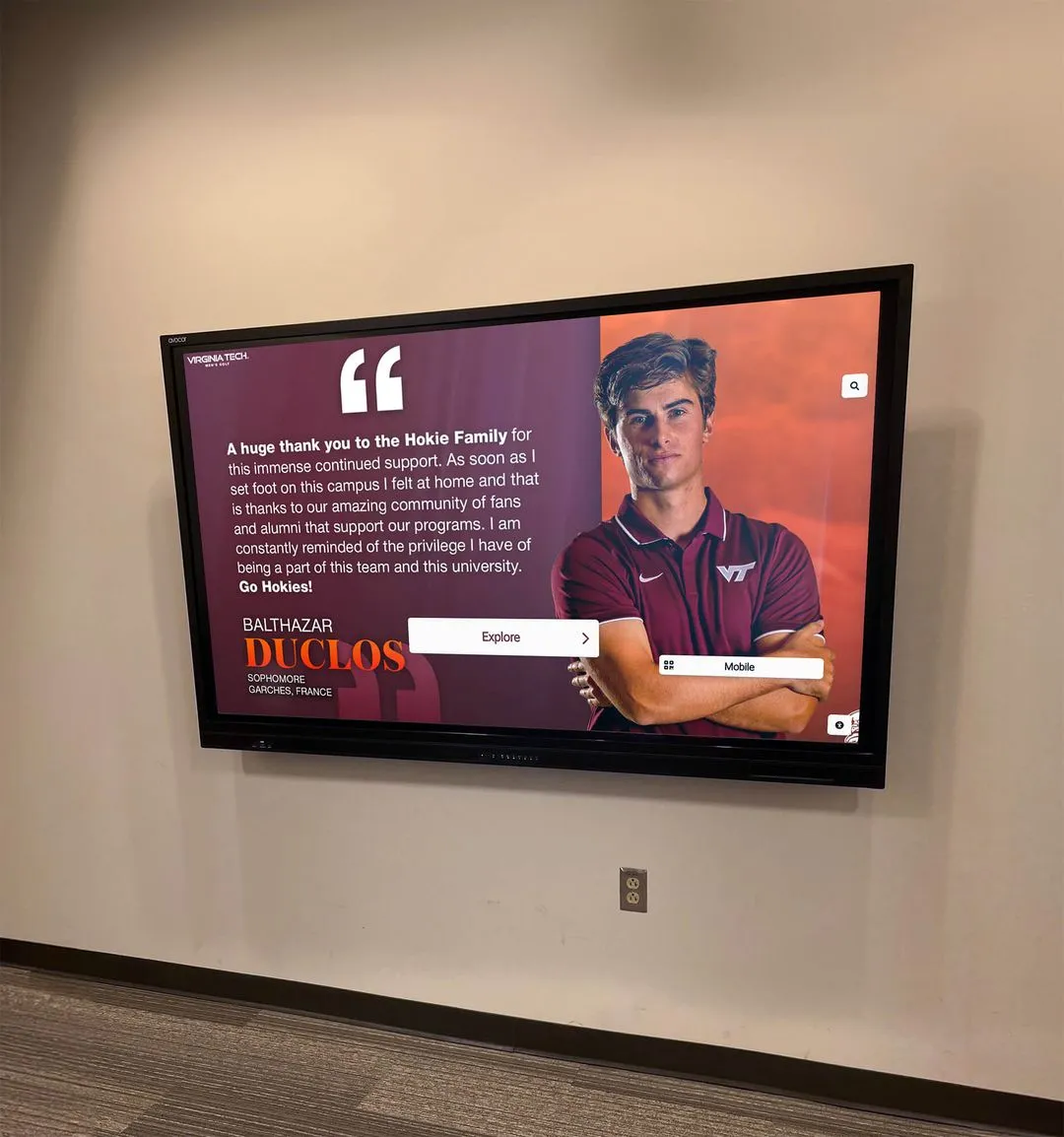
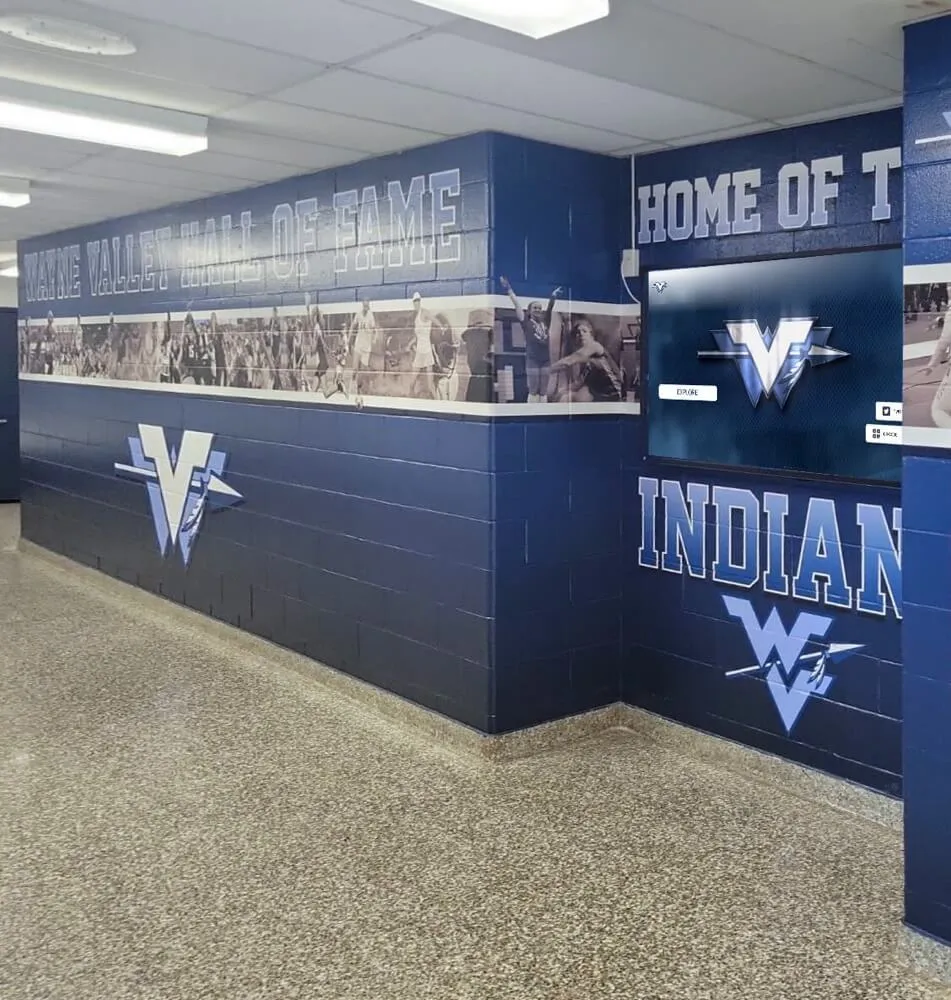
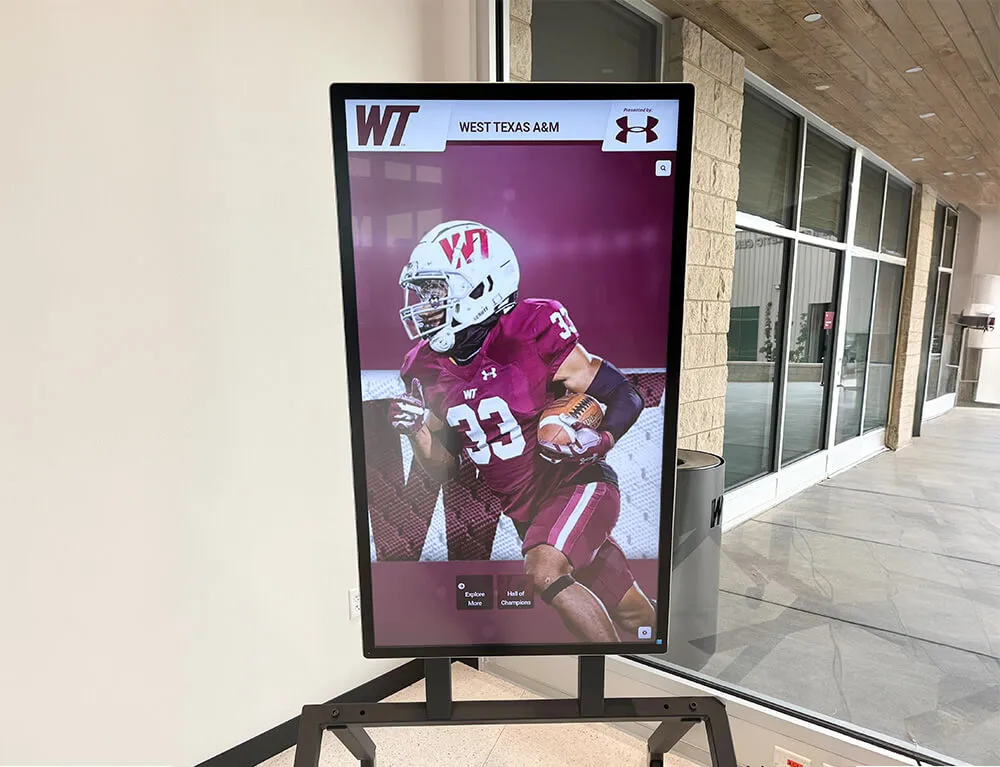
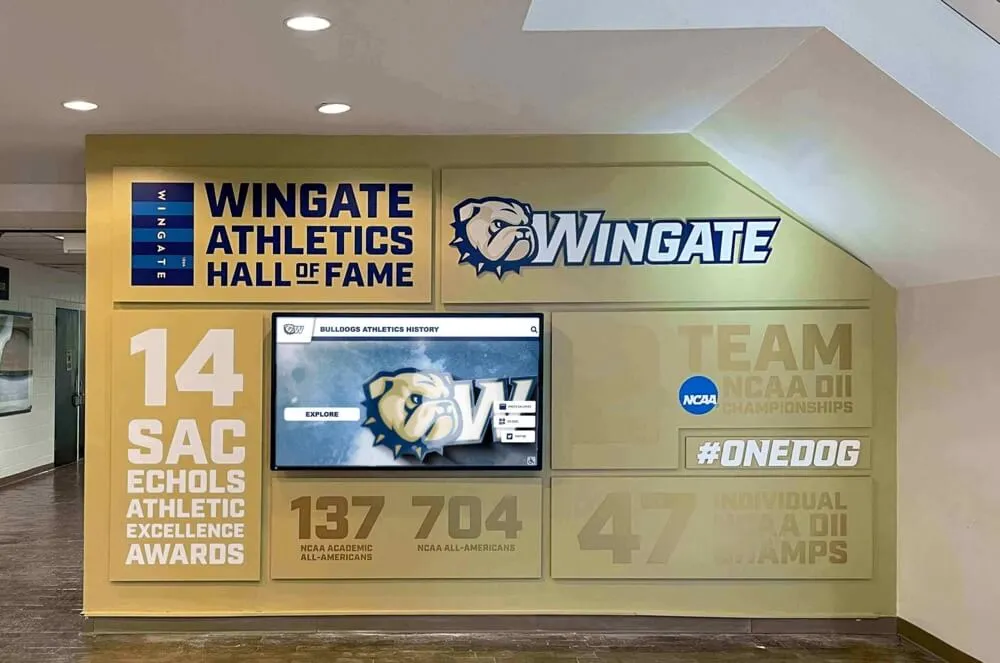
Accessible interactive displays enable confident independent exploration for all community members regardless of individual abilities
Understanding WCAG 2.2 AA: The Global Accessibility Standard
Before exploring how WCAG 2.2 AA applies specifically to interactive touchscreen displays, understanding what these standards represent and why they exist provides essential context for design and procurement decisions.
What Is WCAG 2.2 AA?
The Web Content Accessibility Guidelines (WCAG) are international standards developed by the World Wide Web Consortium (W3C) Web Accessibility Initiative defining how to make digital content accessible to people with disabilities. WCAG 2.2, published in October 2023, represents the most recent version incorporating new success criteria addressing mobile accessibility, low vision needs, and cognitive considerations beyond previous versions.
The Three Conformance Levels
WCAG defines three conformance levels with increasing accessibility requirements:
- Level A (Minimum): Basic accessibility features removing most severe barriers but leaving significant challenges for many users
- Level AA (Mid-range): Comprehensive accessibility addressing most common barriers; widely adopted as the standard for government, education, and institutional requirements
- Level AAA (Highest): Maximum accessibility addressing specialized needs; often not fully achievable for all content types
Level AA conformance balances comprehensive accessibility with practical implementation feasibility, making it the most commonly adopted standard for educational institutions, government entities, and organizations committed to inclusive practices.
The Four Core Principles (POUR)
WCAG organizes accessibility requirements around four fundamental principles ensuring content remains usable by people with diverse abilities:
- Perceivable: Information and user interface components must be presentable to users in ways they can perceive (not invisible to all their senses)
- Operable: User interface components and navigation must be operable (users must be able to operate the interface through available means)
- Understandable: Information and user interface operation must be understandable (users must be able to understand the information and how to use the interface)
- Robust: Content must be robust enough to be interpreted reliably by diverse user agents including assistive technologies
These principles guide all specific success criteria within WCAG 2.2, ensuring standards address fundamental access needs rather than prescribing specific implementation techniques that might become outdated as technology evolves.
Why WCAG 2.2 AA Matters for Educational Institutions
Schools, colleges, and universities face both legal obligations and moral imperatives to ensure digital accessibility for all community members.
Legal Compliance Requirements
Educational institutions receiving federal funding must comply with various accessibility laws and regulations:
- Section 504 of the Rehabilitation Act: Prohibits discrimination based on disability in programs receiving federal financial assistance, including most schools and universities
- Section 508 of the Rehabilitation Act: Requires federal agencies and entities receiving federal funds to make electronic and information technology accessible; WCAG 2.0 AA adopted as technical standard
- Americans with Disabilities Act (ADA) Title II: Requires state and local governments including public schools and universities to ensure equal access to programs, services, and activities including digital content
- Americans with Disabilities Act (ADA) Title III: Requires places of public accommodation to provide equal access; courts increasingly interpret this to include websites and interactive digital displays
According to the U.S. Department of Education Office for Civil Rights, educational institutions must ensure that students with disabilities have equal access to electronic and information technology unless doing so would impose an undue burden.
Failure to meet accessibility standards exposes institutions to legal liability, Office for Civil Rights complaints, and costly remediation efforts when problems are discovered after implementation rather than addressed during initial design and procurement.
Inclusive Excellence and Institutional Values
Beyond legal compliance, accessibility reflects core educational values and mission commitments:
- Equal opportunity: Ensuring all students, alumni, and community members can access recognition and institutional information regardless of ability status
- Dignity and independence: Enabling people to explore content independently without requiring assistance that may feel embarrassing or limiting
- Community belonging: Demonstrating through actions that the institution welcomes and serves all members of its diverse community
- Educational leadership: Modeling inclusive practices that prepare students to create accessible environments throughout their careers
Educational institutions committed to diversity, equity, and inclusion must ensure that commitment extends to digital accessibility—otherwise excluding people with disabilities from full community participation despite rhetoric about inclusive excellence.
Learn about comprehensive accessibility considerations in digital recognition display accessibility with detailed implementation guidance for educational settings.

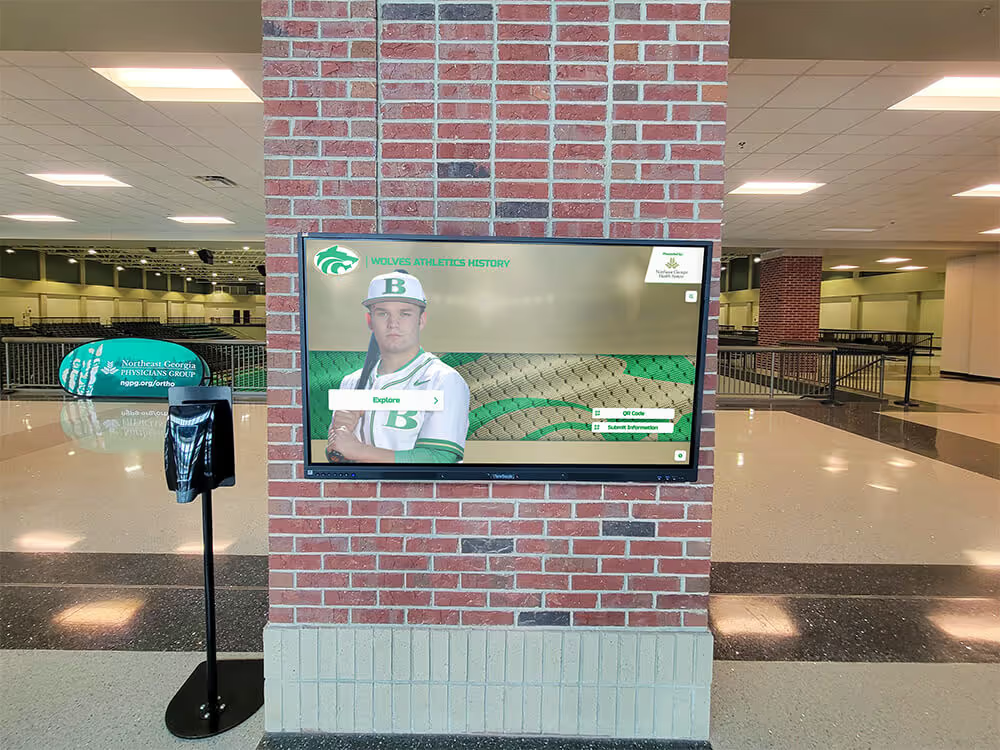
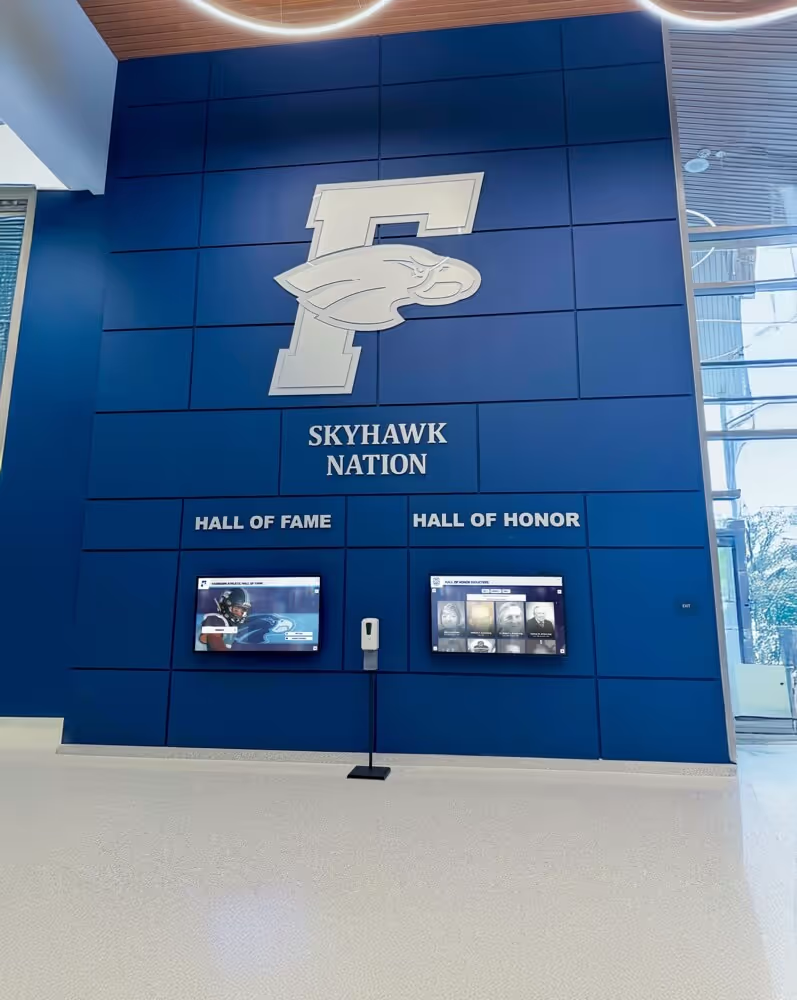
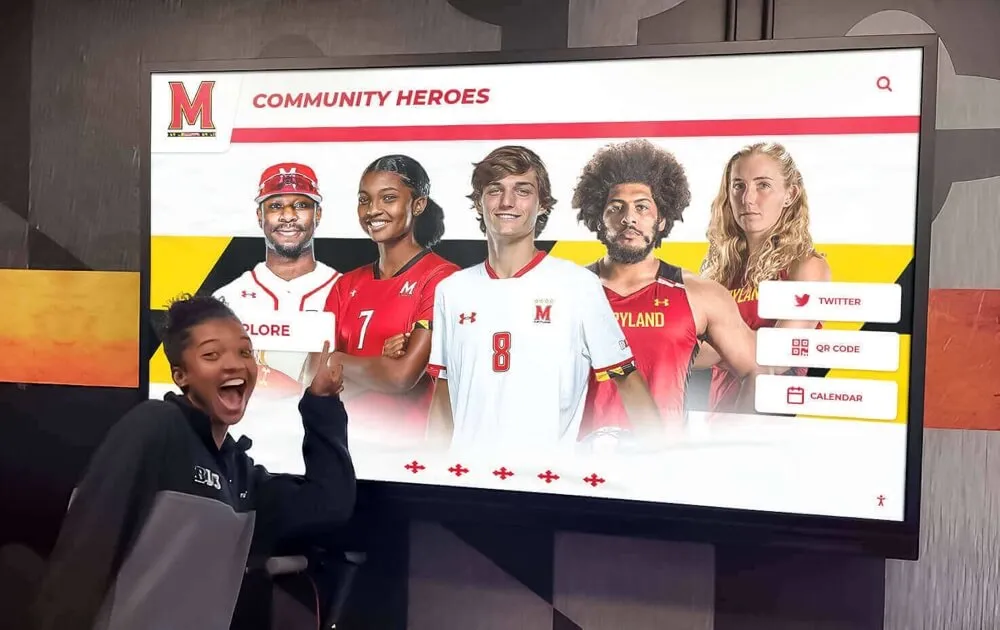
WCAG 2.2 AA compliant interfaces feature clear visual hierarchy, sufficient contrast, and intuitive navigation patterns serving all users
Key WCAG 2.2 AA Requirements for Interactive Touchscreens
While WCAG encompasses dozens of specific success criteria, several requirements prove particularly relevant for interactive touchscreen displays in educational and institutional environments.
Visual Accessibility: Perceivable Information
People with vision differences including low vision, color vision deficiencies, and legal blindness must be able to perceive interface elements and content through various accommodations.
Contrast Requirements (Success Criterion 1.4.3)
Text and interactive elements must meet minimum contrast ratios ensuring visibility:
- Normal text: Minimum 4.5:1 contrast ratio between text and background colors
- Large text (18pt+ or 14pt+ bold): Minimum 3:1 contrast ratio acceptable for larger, more legible text
- Interactive elements: Minimum 3:1 contrast ratio for user interface components and graphical objects necessary for understanding content
For touchscreen displays viewed from various distances and under different lighting conditions, higher contrast ratios improve usability for all users while ensuring accessibility for people with low vision or color deficiencies who cannot distinguish content with inadequate contrast.
Non-Color Information (Success Criterion 1.4.1)
Color alone cannot be the only visual means of conveying information, indicating an action, prompting a response, or distinguishing a visual element.
For interactive displays, this means:
- Navigation states use icons, text labels, or patterns in addition to color changes
- Required form fields indicate necessity through labels or symbols, not just red text
- Interactive elements show visual changes beyond color when selected (borders, underlining, iconography)
- Charts and graphs use patterns or labels supplementing color coding
- Status indicators use shapes or text in addition to color signals
People with color vision deficiencies (affecting approximately 8% of males and 0.5% of females of Northern European ancestry according to the National Eye Institute) rely on these non-color cues to understand interface states and information relationships.
Text Sizing and Reflow (Success Criteria 1.4.4, 1.4.10)
Users must be able to resize text up to 200% without loss of content or functionality, and content must reflow appropriately when users zoom or increase text size.
For touchscreen displays:
- Use relative sizing units allowing text to scale proportionally
- Design layouts that accommodate larger text without horizontal scrolling or content overlap
- Test interfaces at various zoom levels ensuring functionality remains intact
- Provide sufficient spacing between elements preventing overlap when text enlarges
- Ensure critical interactive elements remain accessible at increased text sizes
This flexibility serves people with low vision who need larger text for comfortable reading, older users experiencing age-related vision changes, and situations where viewing distance varies requiring different text sizes for optimal legibility.
Visual Presentation (Success Criterion 1.4.8)
Text blocks should use adequate line spacing (at least 1.5x font size), paragraph spacing (at least 2x font size), and line length constraints (maximum 80 characters) ensuring comfortable reading for people with cognitive or learning disabilities.
For recognition content on interactive displays:
- Use 1.5 or greater line height for body text improving readability
- Provide generous spacing between distinct content sections
- Break long text into shorter paragraphs with clear topic organization
- Use readable typefaces avoiding decorative fonts that reduce legibility
- Ensure adequate letter spacing preventing character crowding
These presentation choices improve readability for users with dyslexia, cognitive processing differences, or attention challenges while creating more comfortable reading experiences for all users engaging with content while standing at displays.
Explore detailed guidance on touchscreen digital signage accessibility with comprehensive technical recommendations for educational institutions.
Motor Accessibility: Operable Interfaces
People with motor disabilities including limited fine motor control, tremor conditions, mobility impairments, or temporary injuries must be able to operate interactive interfaces through various input methods.
Touch Target Size (Success Criterion 2.5.8 - New in WCAG 2.2)
Interactive elements must provide adequate touch target size ensuring users can reliably activate intended controls without accidentally triggering adjacent elements.
WCAG 2.2 requires:
- Minimum target size of 24x24 CSS pixels for most interactive elements
- Larger targets (44x44 pixels or approximately 9mm) recommended for more comfortable interaction
- Adequate spacing between adjacent interactive elements preventing accidental activation
- Exception for inline text links within sentences where larger targets prove impractical
For standing-height touchscreen displays operated from arm’s length distance, generous target sizing proves especially important since slight hand tremor or reaching at awkward angles increases difficulty of precise touch placement.
Pointer Gestures (Success Criterion 2.5.1)
All functionality that uses multipoint or path-based gestures must be operable with a single pointer without requiring precise timing or complex motions.
For touchscreen displays, this means:
- Avoid requiring pinch-to-zoom, multi-finger swipes, or complex gesture patterns
- Provide alternative methods (buttons, controls) for actions requiring gestures
- Use simple tap interactions for primary functionality
- Ensure single-touch interactions accomplish all essential tasks
- Avoid requiring sustained touch-and-hold or precise sliding motions
People with motor disabilities, prosthetic users, or those using assistive pointing devices often cannot execute complex gestures that able-bodied designers take for granted based on smartphone usage patterns.
Motion Actuation (Success Criterion 2.5.4)
Functionality triggered by device motion or user gestures must also be operable through conventional user interface components, and motion actuation must be able to be disabled.
For interactive displays:
- Do not rely solely on shake, tilt, or motion-based interactions
- Provide button or touch alternatives for any motion-activated features
- Allow users to disable motion-based functionality if implemented
- Design primary interactions around deliberate touch input rather than motion detection
No Keyboard Trap (Success Criteria 2.1.1, 2.1.2)
If focus can be moved to a component using keyboard or alternative input method, focus must be movable away from that component using only keyboard or documented alternative methods.
For touchscreen displays:
- Ensure all interactive elements remain accessible through touch alone
- Do not create interface states users cannot exit through available input methods
- Test navigation flow ensuring users can reach and leave all interface areas
- Provide clear “back” or “home” navigation from any screen depth
People using alternative input devices like switch controls, sip-and-puff systems, or adaptive mice need predictable, complete navigation without dead-ends or trapped focus states.

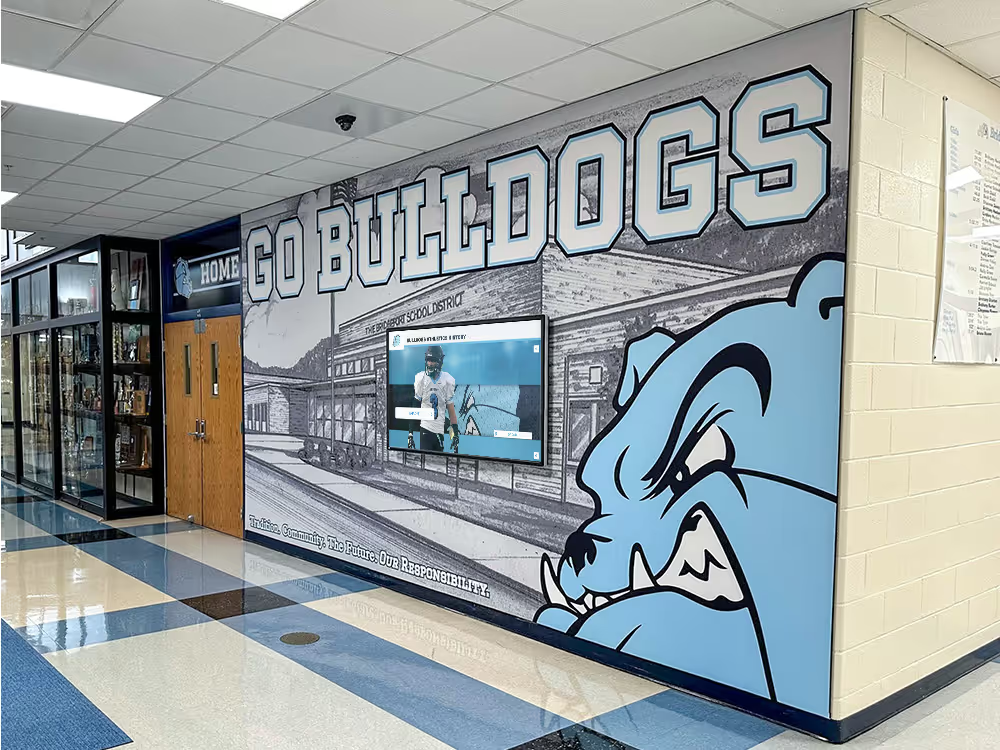
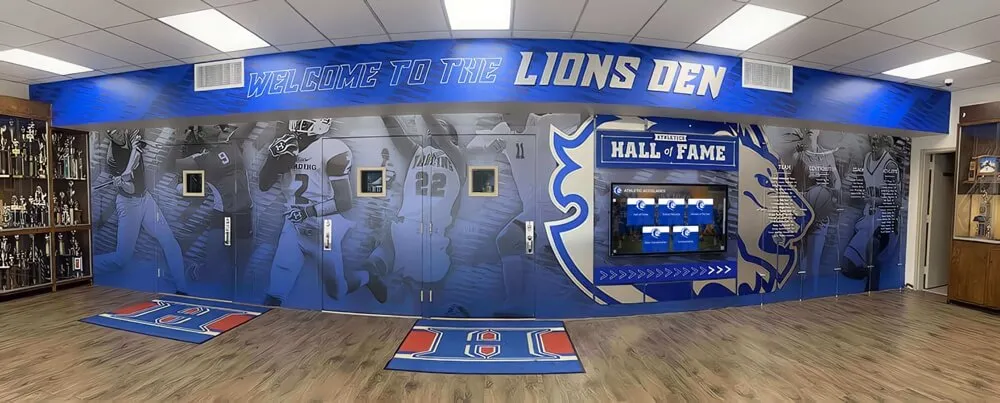
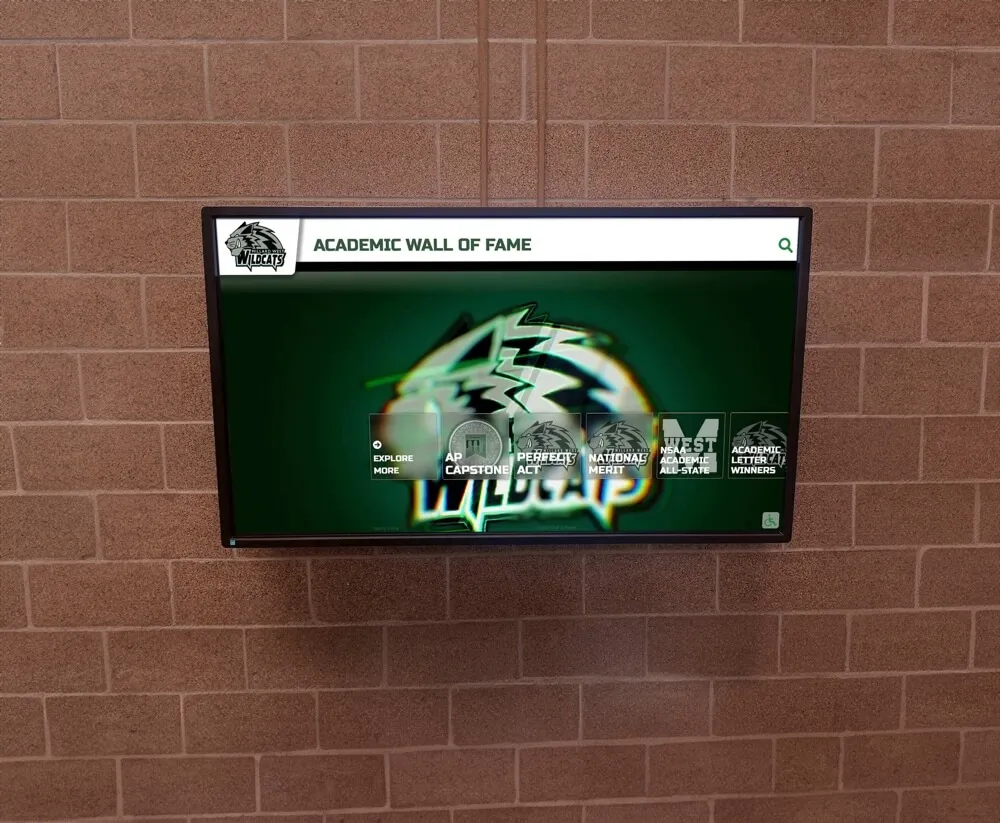
Accessible interactive displays feature generous touch targets, simple gestures, and clear navigation preventing motor accessibility barriers
Cognitive Accessibility: Understandable Content
People with cognitive disabilities, learning differences, attention challenges, or language barriers must be able to understand both information presentation and interface operation.
Consistent Navigation (Success Criterion 3.2.3)
Navigation mechanisms repeated on multiple screens must occur in the same relative order each time they appear, unless user-initiated changes occur.
For touchscreen displays:
- Position “home” buttons consistently (typically upper-left or center-bottom)
- Keep navigation bars in predictable locations across screens
- Maintain consistent icon designs and labeling throughout interface
- Use standard interaction patterns users recognize from other digital experiences
- Avoid surprising interface reorganization that disrupts learned usage patterns
Consistency reduces cognitive load allowing users to develop automatic navigation patterns rather than requiring conscious thought for each interaction, benefiting people with cognitive differences, learning disabilities, or memory challenges.
Predictable Operation (Success Criteria 3.2.1, 3.2.2)
Components should not cause automatic changes of context when receiving focus or user input unless users are adequately warned beforehand.
For interactive displays:
- Do not automatically navigate away from current content when users touch elements
- Require explicit confirmation for actions that change context significantly
- Warn users before launching external content or leaving current flow
- Use consistent behaviors—similar elements should function similarly throughout interface
- Avoid unexpected behavior that confuses or frustrates users
People with cognitive disabilities, autism spectrum conditions, or attention differences benefit from predictable interfaces that behave as expected without surprising context changes or unexpected consequences from exploratory touches.
Error Prevention and Recovery (Success Criteria 3.3.1, 3.3.3, 3.3.4)
Users should receive clear error messages, suggestions for correction, and the ability to review and correct input before final submission.
For interactive displays:
- Provide clear feedback when searches return no results with suggestions
- Explain why actions fail rather than just indicating failure
- Allow users to easily return to previous states without losing progress
- Use clear, non-technical language in error messages and instructions
- Prevent errors through interface design rather than relying solely on correction
Accessible error handling reduces frustration and supports independent use for people with cognitive differences who may struggle to understand technical error messages or recover from mistakes without clear guidance.
Reading Level (Success Criterion 3.1.5 - AAA, but good practice)
While not required for AA conformance, using clear language appropriate for your audience improves accessibility for people with reading difficulties, cognitive disabilities, or non-native speakers.
For recognition content:
- Write at appropriate reading level for your intended audience
- Define technical terms or institutional jargon
- Use short sentences and clear structure
- Break complex information into digestible sections
- Provide context for abbreviations and acronyms
Educational institutions serve diverse literacy levels from current students to alumni decades removed from academic environments, making clear writing practices valuable for broad accessibility.
Learn about inclusive content strategies in digital storytelling for athletic programs demonstrating accessible narrative approaches.
Technical Robustness: Assistive Technology Compatibility
Content must work reliably with current and future assistive technologies including screen readers, magnification software, and alternative input devices.
Compatible Markup (Success Criterion 4.1.1)
Content must use valid, well-formed markup enabling assistive technologies to parse and understand interface structure and information relationships.
For touchscreen displays:
- Use semantic HTML elements conveying meaning (headings, lists, navigation landmarks)
- Ensure all interactive elements have appropriate roles and states
- Provide programmatic labels for all user interface components
- Maintain clean, valid code without parsing errors that confuse assistive technologies
- Test compatibility with screen readers and other assistive tools
Name, Role, Value (Success Criterion 4.1.2)
All user interface components must have names, roles, and values that can be programmatically determined and set by assistive technologies.
For interactive displays:
- Label all buttons, links, and interactive elements clearly
- Ensure interactive elements communicate their purpose programmatically
- Provide state information (selected, expanded, pressed) for dynamic elements
- Use ARIA (Accessible Rich Internet Applications) attributes when native HTML inadequate
- Enable assistive technologies to interact with and manipulate interface components
This technical foundation enables screen readers to announce interface elements accurately, magnification software to identify interactive areas, and alternative input devices to activate controls—serving users who cannot interact through standard touch alone.

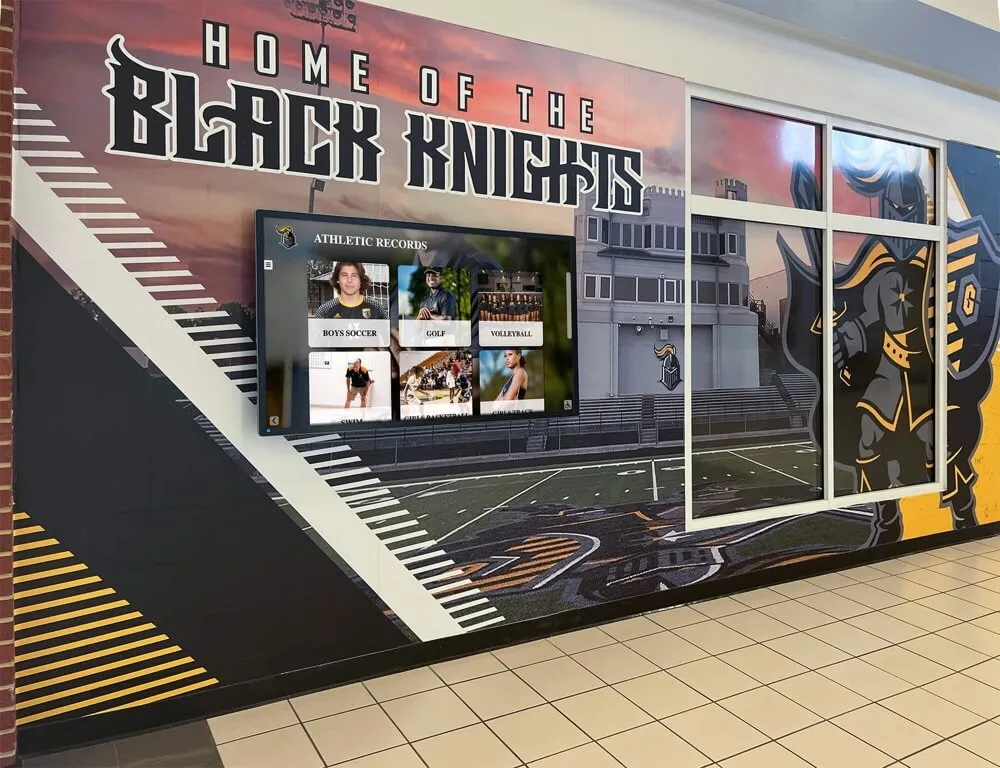
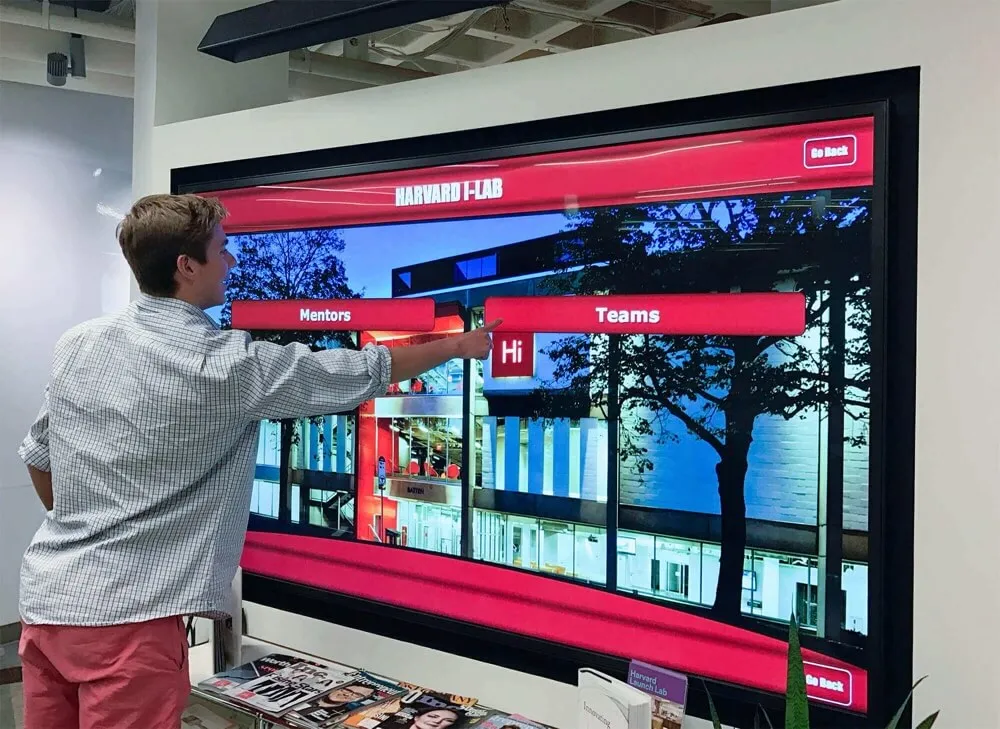
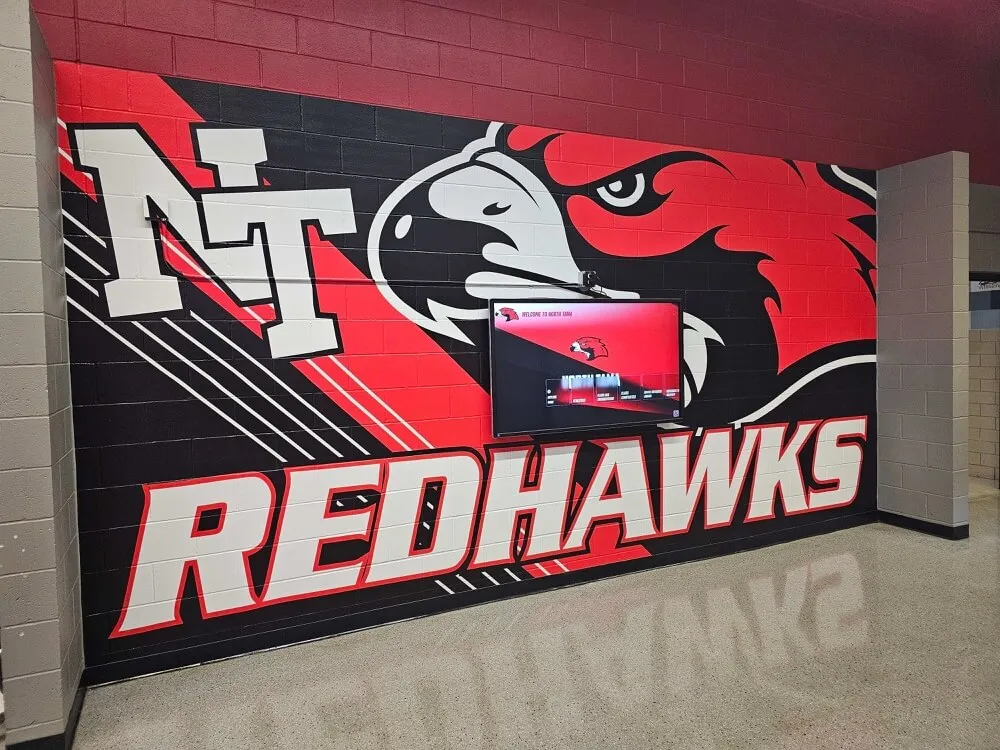
Robust technical implementation ensures compatibility with assistive technologies serving diverse access needs
WCAG 2.2 New Success Criteria Relevant to Touchscreens
WCAG 2.2 introduced nine new success criteria addressing gaps in previous versions, with several particularly relevant for interactive touchscreen displays.
Focus Appearance (Success Criterion 2.4.13)
The keyboard focus indicator must meet minimum size and contrast requirements ensuring users can easily determine which element currently has focus.
For touchscreen displays with alternative input support:
- Provide clear visual indication of current focus or selection state
- Ensure focus indicators meet 3:1 contrast ratio against adjacent colors
- Use sufficient size making focus indication clearly visible
- Maintain consistent focus indication style throughout interface
- Support keyboard or switch navigation for users unable to touch directly
While touchscreens primarily operate through touch, supporting alternative input methods extends accessibility to users with motor disabilities who cannot accurately touch small screens or operate from certain positions.
Dragging Movements (Success Criterion 2.5.7)
Functionality requiring dragging movement must also be achievable through single pointer actions without dragging motion.
For interactive displays:
- Avoid requiring drag-and-drop interactions for essential functionality
- Provide button or tap alternatives for any drag-based operations
- Use simple tap-to-select rather than swipe or drag gestures
- Ensure all functionality remains accessible through single touches
- Design interactions suitable for users with tremor or limited fine motor control
Target Size Minimum (Success Criterion 2.5.8)
As discussed earlier, this new requirement establishes minimum 24x24 pixel touch targets for interactive elements, addressing a critical gap in previous WCAG versions that didn’t specify minimum target dimensions.
Consistent Help (Success Criterion 3.2.6)
If help mechanisms appear on multiple pages, they must be in the same relative order or location each time.
For touchscreen displays:
- Position help buttons consistently across screens
- Keep search functionality in predictable locations
- Maintain consistent placement for “home” and “back” navigation
- Use standard icon positions throughout interface
- Ensure users can reliably find assistance when needed
This consistency particularly helps users with cognitive disabilities or memory challenges who struggle when interface elements move unpredictably between screens.
Explore comprehensive WCAG implementation strategies in digital hall of fame accessibility covering all aspects of inclusive design.
Why Rocket Alumni Solutions Prioritizes WCAG 2.2 AA Compliance
While many interactive display vendors treat accessibility as an afterthought or optional feature, platforms designed specifically for educational institutions like Rocket Alumni Solutions build WCAG 2.2 AA compliance into core architecture from the beginning.
Built-In Accessible Design Patterns
Rather than retrofitting accessibility onto existing designs, accessible platforms incorporate inclusive patterns throughout:
Visual Design Standards
- High contrast color schemes meeting 4.5:1 minimum ratios for all text
- Large, legible typography scaled appropriately for standing viewing distances
- Clear visual hierarchy using size, weight, and spacing rather than color alone
- Generous whitespace preventing visual crowding and improving focus
- Consistent use of icons and visual indicators supplementing color coding
Interaction Design Standards
- Generous touch target sizing (60x60 pixels minimum) accommodating diverse motor abilities
- Simple tap interactions avoiding complex gestures or precise timing requirements
- Consistent navigation patterns with prominent “home” and “back” buttons
- Clear visual feedback for all interactions confirming successful touch registration
- Predictable behavior throughout interface following established conventions
Content Presentation Standards
- Clear, concise language appropriate for diverse literacy levels
- Logical information hierarchy with proper heading structure
- Short paragraphs with adequate spacing improving readability
- Consistent formatting and layout reducing cognitive processing requirements
- Alternative text for images enabling screen reader access
These standards ensure that accessibility remains inherent to the user experience rather than requiring special modes or accommodations that single out users with disabilities.
Universal Design Benefits All Users
Accessible design choices improve experiences for everyone, not just people with disabilities:
- Older users benefit from larger text, higher contrast, and simpler interactions as vision and motor abilities naturally decline with age
- Mobile users accessing web-based content appreciate generous touch targets and clear visual design
- Users in challenging environments (bright sunlight, noisy spaces, while moving) benefit from high contrast, clear labeling, and robust interaction patterns
- Non-native speakers appreciate clear language and consistent labeling reducing linguistic barriers
- Temporary disability situations (broken arm, eye injury, carrying items while using display) affect everyone occasionally, making accessible design universally valuable
This universal benefit means accessible design creates better products for all users while ensuring legal compliance and inclusive access—a true win-win rather than perceived cost with limited benefit.
Ongoing Compliance as Standards Evolve
Accessibility requirements continue evolving as technology advances and understanding of diverse needs deepens. WCAG 2.2 represents current standards, but WCAG 3.0 development continues with potential future requirements.
Professional platforms like Rocket Alumni Solutions maintain compliance as standards evolve through:
- Regular accessibility audits using automated and manual testing methods
- Updates addressing new success criteria as they’re published
- Incorporation of emerging best practices beyond minimum compliance
- User feedback from people with disabilities informing continuous improvement
- Partnership with accessibility experts ensuring implementation quality
This ongoing commitment means institutions selecting accessible platforms receive sustained compliance support rather than facing costly retrofits when requirements change or gaps are discovered.

Professional platforms build accessibility into core design rather than adding it as an afterthought or optional feature
Evaluating Accessibility When Selecting Interactive Displays
Educational institutions procuring interactive touchscreen displays should systematically evaluate accessibility during vendor selection and platform evaluation.
Essential Accessibility Questions for Vendors
WCAG Conformance Claims
- Does the platform meet WCAG 2.2 AA standards? Request documentation.
- Has accessibility been verified through third-party audits or testing?
- What testing methods are used (automated tools, manual evaluation, user testing)?
- Are there any known non-conformance issues or exceptions?
- How frequently are accessibility audits conducted?
Assistive Technology Compatibility
- Does the platform work with screen readers? Which ones have been tested?
- Can users operate the interface with alternative input devices?
- Does the system support keyboard navigation for users unable to touch directly?
- Are there magnification compatibility issues or display problems at high zoom?
- What assistive technologies have been tested during development?
Design and Interaction Standards
- What are minimum touch target sizes throughout the interface?
- How is color used, and what redundant cues supplement color coding?
- What contrast ratios are maintained for text and interactive elements?
- How do focus indicators appear for keyboard or alternative input navigation?
- Are complex gestures required, or does simple touch accomplish all tasks?
Content Accessibility
- How are images and media assets made accessible?
- Does the platform support alternative text for all visual content?
- Are videos captioned, and do media players meet accessibility requirements?
- Can content administrators easily create accessible content without technical expertise?
- What guidance does the platform provide for creating accessible content?
Documentation and Support
- What accessibility documentation does the vendor provide?
- Does support staff understand accessibility requirements and can assist with implementation?
- Are there training resources for creating accessible content?
- How are accessibility issues reported and addressed?
- What is the vendor’s commitment to ongoing accessibility compliance?
Learn evaluation strategies in choosing interactive touchscreen displays with comprehensive procurement guidance.
Testing Accessibility Before Implementation
Before full deployment, institutions should test interactive displays with representative users including people with disabilities.
Recommended Testing Approaches
Automated Accessibility Testing
- Run automated testing tools (WAVE, Axe, Lighthouse) identifying common issues
- Review contrast ratios using dedicated contrast checking tools
- Validate HTML markup using W3C validation services
- Test touch target sizes using measurement tools or browser inspection
- Generate accessibility reports documenting current compliance status
Manual Accessibility Testing
- Navigate the entire interface using only keyboard or alternative input methods
- Test with screen readers (NVDA, JAWS, VoiceOver) ensuring content is accessible
- Verify all interactive elements are reachable and operable
- Check that all information is available without relying on color alone
- Ensure text remains readable and functional at 200% zoom or larger
User Testing with People with Disabilities
- Recruit testers representing diverse disability types (vision, motor, cognitive)
- Observe actual usage identifying barriers not apparent during technical testing
- Gather qualitative feedback about experience quality and usability challenges
- Document specific problems and recommendations for improvement
- Iterate design based on real user experiences rather than theoretical compliance
This comprehensive testing reveals accessibility gaps before widespread deployment when remediation remains simpler and less costly than post-implementation retrofits.
Documenting Accessibility Compliance
Maintain documentation demonstrating accessibility compliance for legal protection and ongoing improvement:
Accessibility Conformance Report
- Formal documentation using VPAT (Voluntary Product Accessibility Template) format
- Specific WCAG 2.2 success criteria addressed with conformance levels
- Testing methods used and results obtained
- Known limitations or exceptions to full conformance
- Remediation plans for any identified non-conformance issues
Accessibility Statement
- Public statement communicating institution’s accessibility commitment
- Description of accessibility features in interactive displays
- Contact information for reporting accessibility problems
- Process for requesting accommodations if needed
- Timeline for addressing reported accessibility issues
This documentation demonstrates good faith compliance effort while providing framework for continuous accessibility improvement as issues are discovered or requirements evolve.
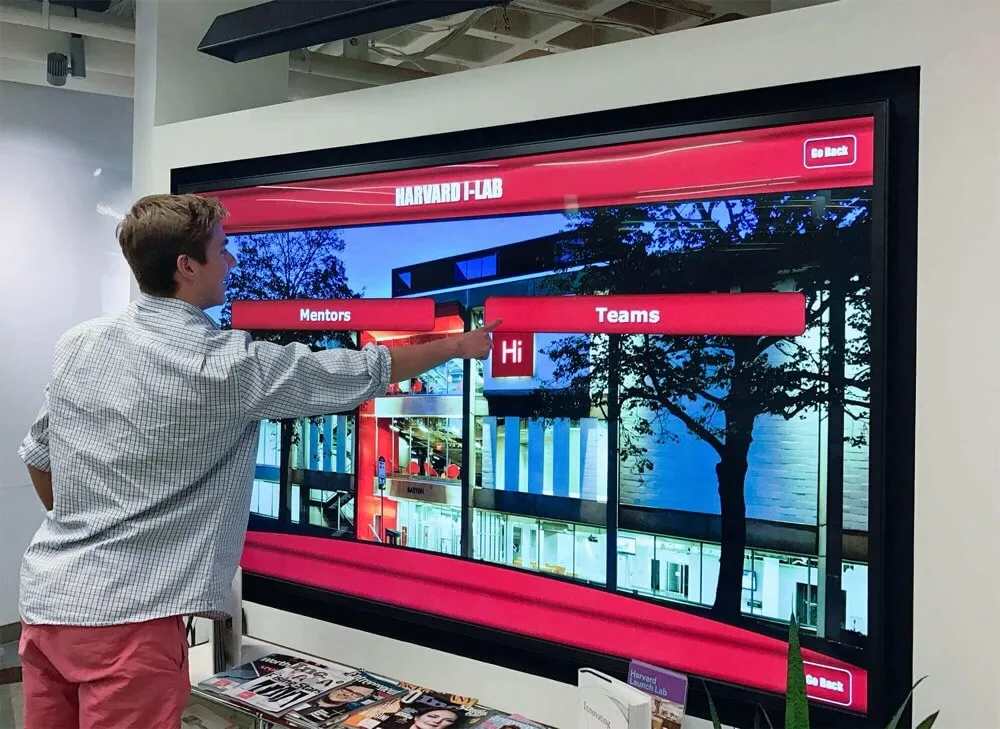
Systematic accessibility evaluation ensures interactive displays serve all community members before deployment
Implementing Accessible Content on Interactive Displays
Platform accessibility provides foundation, but content creators must follow best practices ensuring the information added to displays remains accessible.
Accessible Image and Media Practices
Alternative Text Requirements
Every image on interactive displays should include descriptive alternative text enabling screen reader users to understand visual content:
- Describe image content concisely (typically 100 characters or fewer)
- Convey information presented visually without excessive detail
- For decorative images, use empty alt text (alt="") signaling no information content
- For complex images (charts, diagrams), provide extended descriptions
- Avoid redundant phrases like “image of” or “picture of”—screen readers announce image presence
Video Accessibility
Videos featured on interactive displays require multiple accessibility accommodations:
- Captions: Accurate text display of dialogue, speaker identification, and relevant sound effects
- Audio descriptions: Narration of visual-only information for blind or low-vision users
- Transcript: Complete text version of all audio and visual content
- Accessible player controls: Keyboard operable with clear visual indicators and labels
Many video accessibility requirements prove challenging for institutions without dedicated production resources, making vendor support for accessible media especially valuable during platform selection.
Color and Contrast in Media
- Ensure text overlays on images meet contrast requirements
- Don’t embed information solely in color-coded charts without alternative cues
- Test media assets using colorblindness simulation tools
- Provide text alternatives for information conveyed through color in graphics
Discover multimedia strategies in digital archives for schools and colleges demonstrating accessible content practices.
Accessible Text Content Guidelines
Clear, Structured Writing
- Use descriptive headings creating logical content hierarchy
- Write concise paragraphs (3-5 sentences) avoiding walls of text
- Use lists for sequential information or item collections
- Define abbreviations and acronyms on first use
- Avoid jargon or explain technical terms clearly
Readable Typography
- Use sufficient text size (minimum 24pt for standing displays)
- Maintain adequate line spacing (1.5x font size minimum)
- Choose legible typefaces avoiding decorative fonts
- Use left-aligned text rather than centered or justified
- Provide adequate whitespace between distinct content sections
Link and Button Text
- Write descriptive link text indicating destination (“View athlete profile” not “Click here”)
- Ensure button labels clearly describe resulting action
- Avoid ambiguous link text requiring surrounding context
- Make interactive elements identifiable through visual design beyond color alone
Accessible Data Presentation
Recognition displays often feature statistics, records, and numerical information requiring accessible presentation:
Table Accessibility
- Use proper table markup with header rows and column headers
- Keep tables simple avoiding complex merged cells
- Provide table captions or summaries explaining purpose
- Ensure tables remain readable when linearized by screen readers
- Consider alternative presentations for complex data relationships
Chart and Graph Accessibility
- Include descriptive titles and axis labels
- Use patterns or textures supplementing color coding
- Provide text summaries of key data points and trends
- Offer data tables as alternatives to visual charts
- Ensure interactive elements in charts are keyboard accessible
Statistics and Records Display
- Present numerical information clearly with context
- Use consistent formatting for similar data types
- Supplement numbers with explanatory text
- Avoid requiring color interpretation for comparisons
- Ensure critical statistics appear in accessible text, not images only
These content practices ensure that information added to inherently accessible platforms remains usable by all visitors regardless of how they access and interpret content.
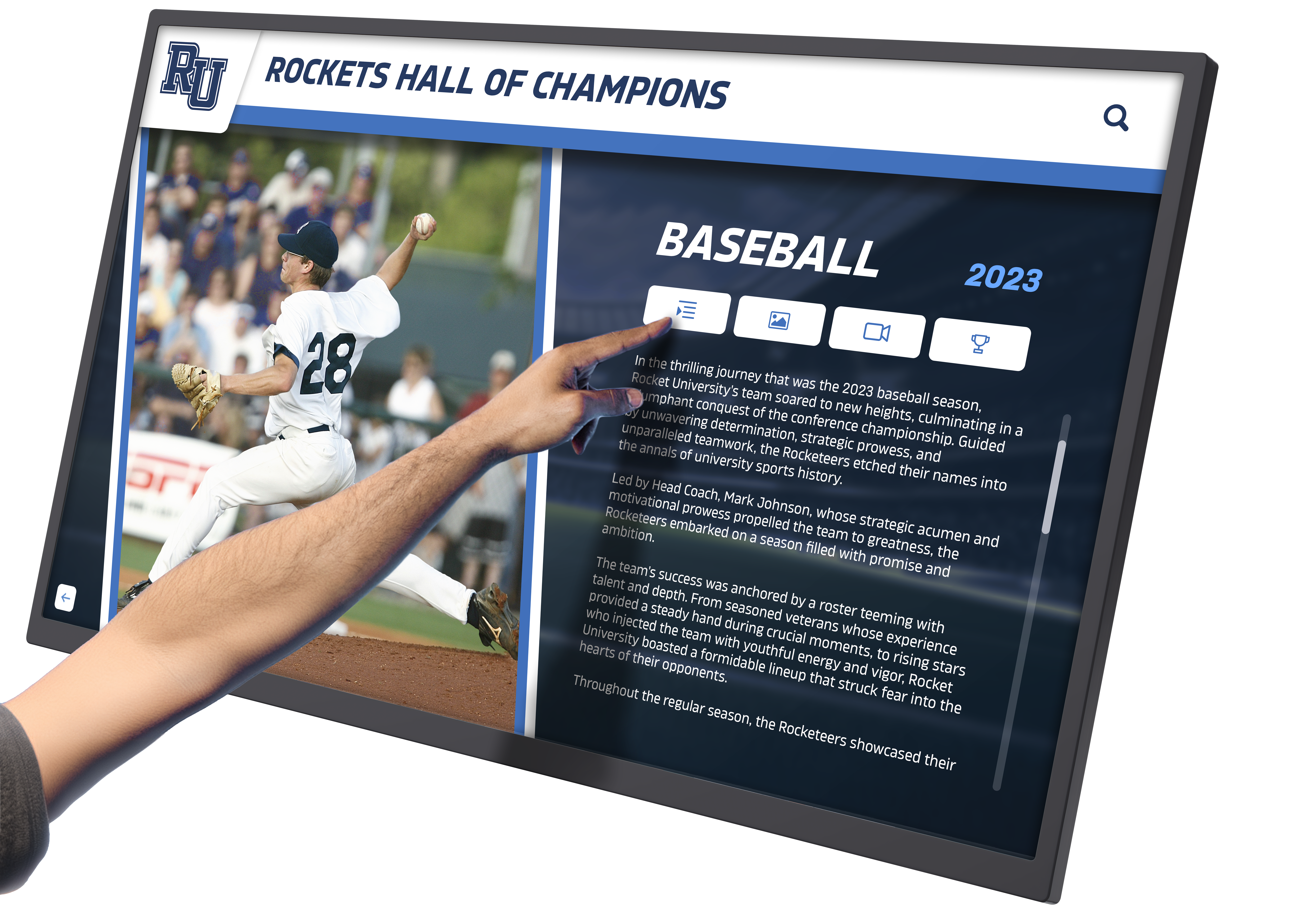
Accessible content practices ensure information remains perceivable and understandable for all users
Real-World Impact: Accessibility Benefits for Educational Communities
Understanding abstract accessibility requirements matters less than recognizing how accessible design affects real people in educational communities.
Students with Visual Disabilities
Students with low vision, legal blindness, or visual processing differences benefit from:
- High contrast interfaces remaining visible under various lighting conditions
- Text sizing that accommodates vision challenges without requiring assistive technology
- Screen reader compatibility enabling complete access to recognition content
- Color-independent navigation not requiring color vision for full functionality
- Clear visual hierarchy reducing cognitive load of parsing complex layouts
These students can independently explore achievement recognition, learn about institutional history, and feel included in community celebration rather than excluded by inaccessible displays requiring sighted assistance.
Students with Motor Disabilities
Students with cerebral palsy, muscular dystrophy, spinal cord injuries, or temporary motor impairments benefit from:
- Large touch targets accommodating limited fine motor control or tremor
- Simple tap interactions not requiring complex gestures or precise timing
- Keyboard or alternative input support for those unable to directly touch displays
- Error-tolerant interfaces preventing accidental activation of unintended elements
- Predictable behavior reducing motor demands of exploration and correction
These students can engage with displays comfortably at their own pace without frustration from inaccessible interaction patterns designed only for typical motor abilities.
Students with Cognitive Disabilities
Students with learning disabilities, attention differences, autism spectrum conditions, or cognitive processing challenges benefit from:
- Clear, consistent navigation patterns reducing learning burden and confusion
- Predictable interface behavior without unexpected changes or surprises
- Readable text using adequate spacing, appropriate language, and logical structure
- Simple interaction models avoiding complex workflows or multi-step processes
- Clear error prevention and recovery supporting independent problem-solving
These students can explore content successfully without cognitive overload from confusing interfaces or unpredictable behavior that undermines confidence and independent exploration.
Older Alumni and Community Members
Older adults experiencing age-related vision, motor, or cognitive changes benefit from:
- Text and touch targets sized generously for declining vision and motor precision
- High contrast overcoming age-related contrast sensitivity reduction
- Simple interfaces accommodating reduced familiarity with complex technology
- Clear labeling and instructions supporting memory and processing challenges
- Consistent patterns leveraging recognition rather than requiring continual learning
These community members can engage with recognition displays celebrating their own achievements and those of current students without frustration or embarrassment from age-related accessibility barriers.
Explore inclusive recognition approaches in elementary school recognition boards serving diverse age groups and abilities.
Legal Risk Mitigation
Beyond moral imperatives and community service, accessibility compliance reduces legal risk:
- Prevents Office for Civil Rights complaints from students or community members unable to access displays
- Reduces ADA lawsuit risk increasingly affecting educational institutions with inaccessible digital content
- Demonstrates good faith compliance effort if accessibility issues are identified
- Aligns with institutional risk management and legal counsel recommendations
- Protects institution from costly retrofits required by legal settlements or compliance orders
The cost of implementing accessibility from the beginning proves substantially lower than retrofitting non-compliant systems after legal action or civil rights complaints identify violations.
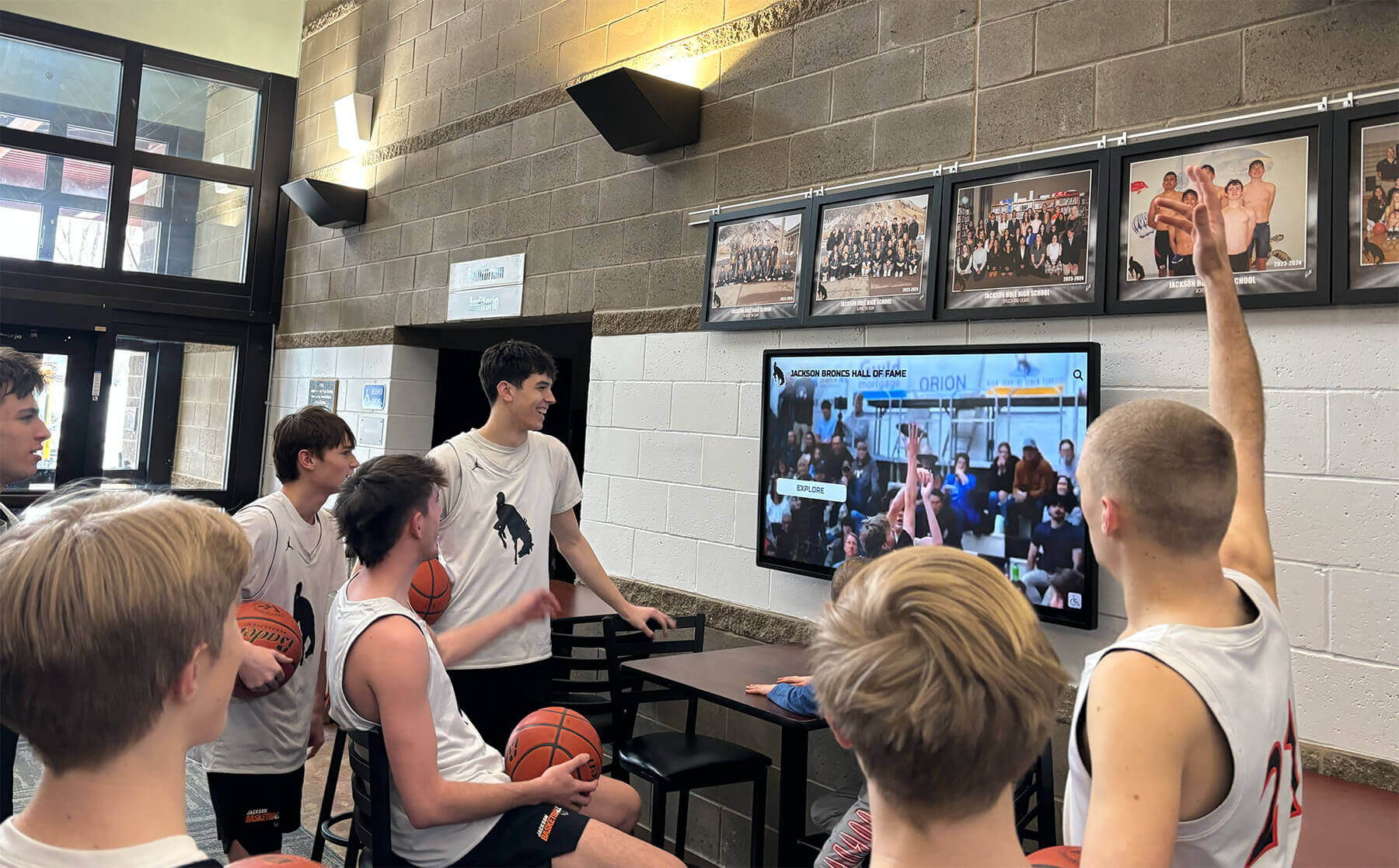
Accessible design enables all community members to participate in shared experiences and community connection
Accessibility Maintenance and Continuous Improvement
Achieving initial accessibility compliance represents an important milestone, but sustained accessibility requires ongoing attention and improvement.
Regular Accessibility Audits
Systematic evaluation identifies emerging issues before they affect users:
Quarterly Automated Testing
- Run automated accessibility testing tools on updated content
- Review contrast ratios if design elements change
- Validate markup and code quality
- Check for common issues introduced during content updates
- Document findings and remediation needs
Annual Manual Accessibility Evaluation
- Comprehensive manual testing using keyboard and assistive technologies
- User testing with people with disabilities when possible
- Comparison against updated WCAG standards or best practices
- Documentation of current compliance status
- Prioritized remediation plan for identified issues
Vendor Platform Updates
- Review vendor release notes for accessibility improvements
- Test platform updates ensuring continued compliance
- Provide feedback to vendors about accessibility issues encountered
- Participate in vendor accessibility improvement programs if available
Content Administrator Training
Staff creating and managing content on interactive displays need accessibility knowledge:
Essential Training Topics
- Why accessibility matters for institutional values and legal compliance
- How to write effective alternative text for images
- Creating properly structured content using headings and lists
- Ensuring adequate color contrast in custom graphics
- Testing content accessibility using available tools
- Accessible media practices for videos and audio
Ongoing Support Resources
- Accessibility checklists for content creation workflow
- Quick reference guides for common accessibility requirements
- Examples of accessible content demonstrating best practices
- Point of contact for accessibility questions or consultation
- Regular refresher training as standards evolve
Feedback Mechanisms and Issue Resolution
Community members should be able to easily report accessibility problems:
Accessible Feedback Process
- Clear contact information for accessibility concerns
- Multiple feedback methods (email, phone, web form)
- Acknowledgment and response timeline commitments
- Systematic tracking of reported issues
- Communication about resolution when problems are addressed
Continuous Improvement Culture
- View accessibility as ongoing journey, not one-time compliance exercise
- Incorporate accessibility into design and procurement processes
- Celebrate accessibility improvements and successes
- Share accessibility knowledge across departments
- Participate in broader accessibility communities and professional development
Learn about sustained engagement strategies in keeping digital displays fresh with year-round content and accessibility maintenance approaches.
Conclusion: Accessibility as Foundation for Inclusive Excellence
WCAG 2.2 AA compliance in interactive touchscreen displays represents far more than legal obligation or technical checklist—it reflects fundamental commitment to inclusive excellence ensuring all community members can independently access recognition, information, and engagement opportunities regardless of individual abilities or disabilities.
When educational institutions prioritize accessibility from initial platform selection through content creation and ongoing maintenance, they demonstrate through concrete action that inclusive values extend beyond rhetoric to every aspect of campus experience. Students, alumni, and community members with disabilities receive clear message: you belong here, you are valued, and we have designed systems serving everyone equitably without requiring special accommodations or assistance that may feel stigmatizing.
Implement WCAG 2.2 AA Accessible Interactive Recognition
Discover how Rocket Alumni Solutions builds WCAG 2.2 AA accessibility into every aspect of interactive touchscreen platforms, ensuring your institution serves all community members through inclusive design that benefits everyone.
Explore Accessible SolutionsThe strategies explored in this comprehensive guide provide frameworks for understanding accessibility requirements, evaluating platforms during procurement, implementing accessible content, and maintaining compliance through continuous improvement. From contrast ratios and touch target sizing to alternative text and keyboard navigation, WCAG 2.2 AA success criteria work together creating experiences where technology removes barriers rather than creating them.
Platforms like Rocket Alumni Solutions that build accessibility into core architecture from the beginning deliver superior experiences for all users while ensuring legal compliance and reducing long-term maintenance burden compared to systems retrofitted with accessibility as an afterthought. Purpose-built accessible design costs no more than inaccessible design when incorporated from project inception, making accessibility an achievable goal rather than prohibitive investment.
Your institution deserves interactive displays that serve all community members equitably, demonstrate inclusive values through concrete action, and reduce legal risk while improving experiences for everyone. Accessibility isn’t a constraint limiting design possibilities—it’s a design principle creating better products that more people can use more successfully in more contexts.
Every student who can independently explore achievements and feel welcomed by accessible technology, every alumni who can discover their own legacy regardless of vision or motor abilities, and every community member who participates fully in institutional celebration represents the real impact of accessibility commitment. That impact matters infinitely more than any technical specification or compliance requirement.