Recognition Display TCP Window Scaling Test for Large Athletic Media
- Home /
- Blog Posts /
- Recognition Display TCP Window Scaling Test for Large Athletic Media
The Easiest Touchscreen Solution




Live Example: Rocket Alumni Solutions Touchscreen Display
Interact with a live example (16:9 scaled 1920x1080 display). All content is automatically responsive to all screen sizes and orientations.
A recognition display TCP window scaling test is a structured network procedure that confirms your school’s firewall, router, and WAN path allow TCP receive windows large enough to sustain athletic video throughput—so championship highlight reels, induction ceremony clips, and large athletic media assets stream without stalling on lobby kiosks, hall-of-fame touchscreens, and hallway recognition panels. TCP window scaling, defined in RFC 1323, extends the maximum TCP receive window beyond the 65,535-byte limit imposed by the original TCP specification. Without it, a TCP connection’s throughput is capped by the bandwidth-delay product of the network path: on a school WAN link with 40 ms round-trip time to a CDN edge node, an unscaled 65,535-byte window limits throughput to roughly 13 Mbps—often insufficient for multiple concurrent 1080p athletic video streams. When window scaling is blocked or stripped by a middlebox, athletic video content fails to buffer ahead of playback, producing the stalling and incomplete-load symptoms that disrupt recognition events.
This guide walks school IT coordinators, network administrators, and athletic directors through the complete recognition display TCP window scaling test: understanding the bandwidth-delay product constraint that window scaling solves, identifying whether your school’s network permits scaling, capturing live TCP connections to observe window size advertisements and scaling factors, running throughput tests that expose window-limited connections, enabling or preserving window scaling on common school firewall platforms, and verifying that the recognition display delivers large athletic media smoothly under real streaming load.
TCP window scaling is a persistent source of undiagnosed performance problems on school networks because modern operating systems enable it by default and most internet paths support it—so schools that have never experienced a visible buffering problem may still find their recognition display struggling with large athletic video precisely because a firewall or transparent proxy between the display and the WAN is silently stripping the window scale TCP option from handshakes, removing the receiver’s ability to advertise a window large enough to fill the available bandwidth.

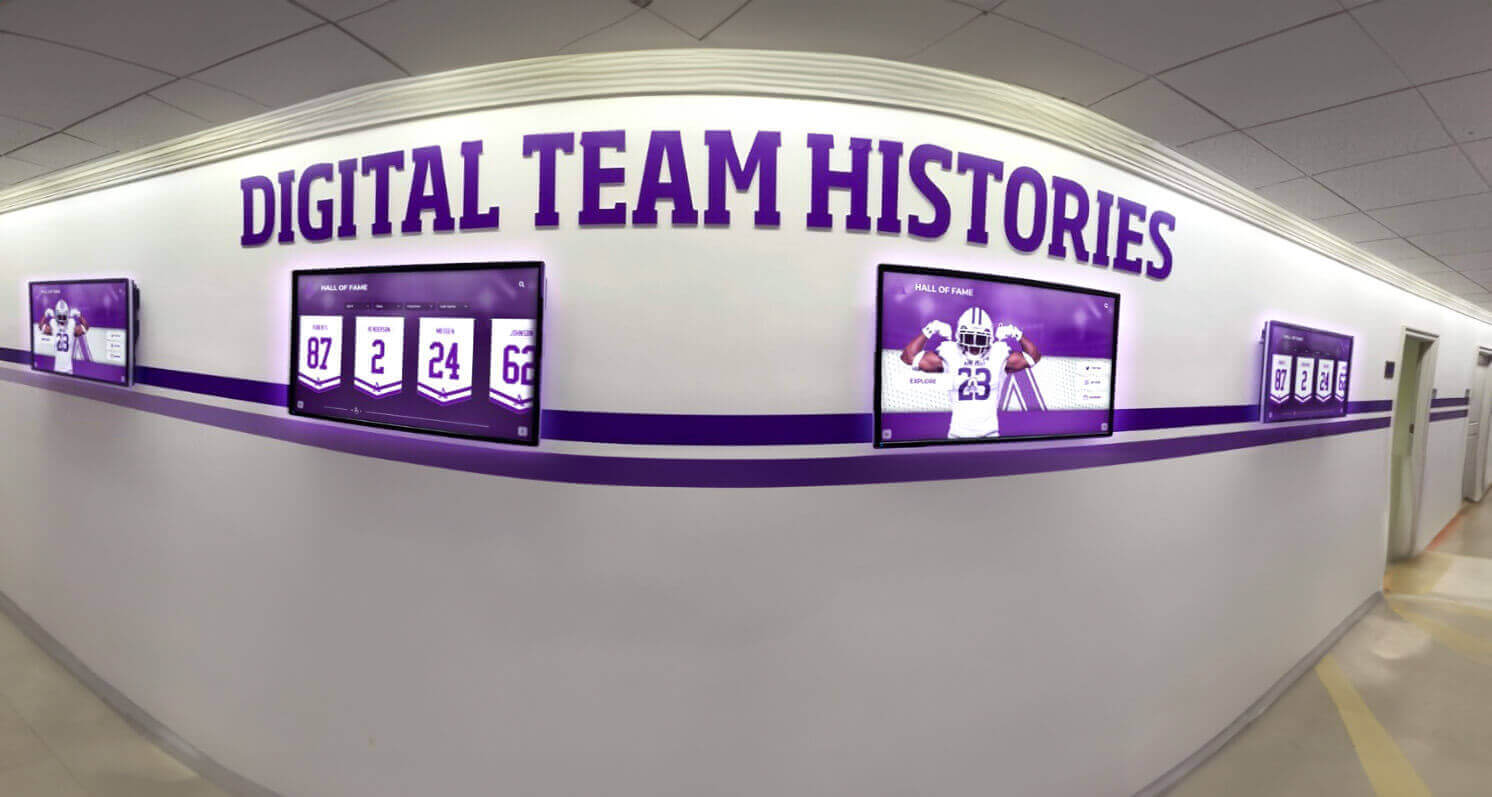
Digital team histories and athletic recognition content streamed to school hallway displays rely on TCP window scaling to sustain the throughput needed for large athletic media—a TCP window scaling test confirms that scaling is active and effective across the school's WAN path
Why TCP Window Scaling Matters for Athletic Media on Recognition Displays
TCP’s original specification imposed a 16-bit receive window field, capping the maximum advertised receive window at 65,535 bytes. This was sufficient for the bandwidth-delay products of 1980s network links, but it creates a throughput ceiling on modern WAN paths.
The bandwidth-delay product (BDP) describes how many bytes of data are in flight between sender and receiver at any moment. A TCP sender cannot transmit more than one receive window’s worth of unacknowledged data at a time. If the receive window is smaller than the BDP, the sender is forced to pause and wait for acknowledgments before transmitting more data—a state that reduces effective throughput regardless of how much bandwidth the school’s ISP contract provides.
The BDP for a typical school WAN path to a CDN edge node serving athletic video is:
| WAN Link Speed | RTT to CDN | Bandwidth-Delay Product | Unscaled Window Limit | Throughput Cap (Unscaled) |
|---|---|---|---|---|
| 100 Mbps | 20 ms | 250 KB | 65,535 bytes | ~26 Mbps |
| 100 Mbps | 40 ms | 500 KB | 65,535 bytes | ~13 Mbps |
| 100 Mbps | 80 ms | 1,000 KB | 65,535 bytes | ~6.5 Mbps |
| 500 Mbps | 30 ms | 1,875 KB | 65,535 bytes | ~17 Mbps |
When window scaling is active, the receiver can advertise an effective window of up to 1,073,725,440 bytes (65,535 × 2^14), removing the throughput ceiling entirely for practical purposes. When it is stripped or disabled, the 65,535-byte cap applies regardless of what the recognition display’s operating system requested.
Recognition displays are particularly exposed to window scaling problems for three reasons.
Large athletic media creates large bandwidth-delay product requirements. A static profile card or name record involves small HTTP responses well within any receive window. A 60-second championship highlight reel at 1080p delivered as an HLS stream involves sustained megabit-per-second flows where the TCP sender must keep hundreds of kilobytes of unacknowledged data in flight at all times to maintain bitrate. If the effective receive window is capped at 65 KB by a middlebox stripping the scale option, the sender stalls for acknowledgments dozens of times per second.
School WAN links to CDN endpoints often have elevated round-trip times. CDN edge nodes serving athletic video content may be geographically proximate, but VPN tunnels, content inspection proxies, and ISP routing inefficiencies can push effective RTTs to 40–100 ms. Each millisecond of additional RTT reduces the throughput achievable under an unscaled window.
Middleboxes strip TCP options on school networks. Some next-generation firewalls, transparent HTTP proxies, content filtering appliances, and WAN optimization controllers normalize or strip TCP options—including the window scale option—as a side effect of deep packet inspection, traffic normalization, or protocol optimization routines. The recognition display’s OS requests a window scale factor in its SYN packet; the middlebox removes the option before forwarding the SYN; the remote server never sees the request and does not include a scale factor in its SYN-ACK; and both endpoints proceed with an unscaled 65,535-byte window for the duration of the session.
Schools building interactive recognition displays that tell athletic stories through video across multiple hallway panels depend on this TCP transport path performing at the throughput the school’s WAN link can supply—not at a fraction of it imposed by a stripped TCP option.
Key Window Scaling Values and Throughput Expectations
Window scale factors are negotiated during the TCP three-way handshake. Each endpoint includes a window scale option in its SYN (and the server includes one in its SYN-ACK). The scale factor is an exponent: the advertised receive window is multiplied by 2^scale_factor. Common values:
| Window Scale Factor | Effective Max Window | Typical Throughput at 40 ms RTT |
|---|---|---|
| 0 (unscaled) | 65,535 bytes | ~13 Mbps |
| 2 | 262,140 bytes | ~52 Mbps |
| 4 | 1,048,560 bytes | ~209 Mbps |
| 6 | 4,194,240 bytes | ~838 Mbps |
| 8 | 16,776,960 bytes | ~3.3 Gbps |
Modern operating systems request window scale factors of 6–10 depending on available memory. If the recognition display’s SYN shows a window scale factor and the server’s SYN-ACK shows none—or vice versa—window scaling is not active for that connection, and the throughput cap applies.
Before You Start: Pre-Test Checklist
Complete every item before beginning the window scaling test. Some steps require temporary administrative access to the school’s firewall or network appliances.
Network Path and Topology
- Identify every network device between the recognition display and the WAN: firewall, content filter, WAN optimizer, transparent proxy, any traffic shaping appliance
- Confirm whether any transparent HTTP or HTTPS proxy is intercepting traffic from the recognition display’s network segment
- Identify whether the school uses a WAN optimization controller that may be performing TCP optimization
- Confirm the school’s ISP-provisioned WAN link speed and typical RTT to major CDN endpoints (use
pingormtrto a known CDN IP)
Firewall and Proxy Access
- Confirm administrative access to the firewall or UTM appliance managing the recognition display’s internet path
- Identify whether any TCP normalization, TCP optimization, or traffic shaping rules are active on the firewall
- Check whether HTTPS inspection (SSL/TLS decryption) is enabled for the recognition display’s network segment—HTTPS inspection requires the proxy to terminate and re-originate TCP connections, which may affect window scaling behavior
Test Device and Tools
- Laptop with Wireshark or
tcpdumpinstalled, connected to the same network segment as the recognition display (wired preferred for accurate capture) - Access to
iperf3or a web-based speed test with per-connection throughput metrics for the throughput ceiling test - Access to
ss -tinornetstatfor checking socket buffer sizes if testing from a Linux device - Access to
curlwith verbose output for observing connection behavior during large-asset downloads
Recognition Display
- Confirm the recognition display is powered on and connected to the network
- Identify the IP address of the recognition display
- Identify the cloud platform domains serving athletic video content to the display
- Confirm athletic video content is scheduled in the display’s current content playlist
Recognition Display TCP Window Scaling Test: Numbered Procedure
Run each step in sequence. Document observations at each step; together they form the evidence record that window scaling is active and effective for large athletic media delivery to the recognition display.
Step 1 — Confirm the recognition display OS reports window scaling as enabled
On the recognition display (if it is running a general-purpose OS such as Windows 10/11 or a Linux-based media player), verify that TCP window scaling is enabled at the OS level before investigating whether middleboxes are stripping it.
On Windows:
netsh int tcp show global
Confirm Receive Window Auto-Tuning Level is set to normal. If it shows disabled, window scaling is off at the OS level:
netsh int tcp set global autotuninglevel=normal
On Linux:
sysctl net.ipv4.tcp_window_scaling
A value of 1 confirms window scaling is enabled. If 0:
sysctl -w net.ipv4.tcp_window_scaling=1
On macOS:
sysctl net.inet.tcp.win_scale_factor
macOS enables window scaling by default; this command confirms the current scale factor request.
Document the OS-level window scaling state. If it was disabled at the OS level, enable it and note that this change was required before network-level testing can proceed.
Step 2 — Capture the TCP handshake to observe the window scale option
A Wireshark capture of the three-way handshake reveals whether the window scale option survives the path from the recognition display to the cloud platform.
On the monitoring laptop (connected to the same network segment as the recognition display):
- Open Wireshark and select the interface connected to the recognition display’s network segment
- Apply the capture filter:
host <recognition-display-IP> - Apply the display filter:
tcp.flags.syn == 1 - On the recognition display, trigger a content reload or navigate to a new content section that forces new TCP connections to the cloud platform
- Stop the capture after 30 seconds
In each captured SYN packet from the recognition display, expand the TCP header and locate Options. Look for:
- Window scale: X — confirms the display OS is advertising a scale factor
- Maximum Segment Size: Y — confirms the MSS option is present
- SACK permitted — confirms selective acknowledgment is also negotiated
In the SYN-ACK from the cloud server:
- Window scale: X — confirms the server received the display’s scale request and is responding with its own
- If the SYN-ACK shows no Window scale option, the server did not receive a scale option in the SYN, meaning a middlebox removed it in transit
If the SYN shows a window scale option and the SYN-ACK does not, a middlebox between the recognition display and the WAN is stripping the option. Document the observed values in both directions.
Step 3 — Run a throughput ceiling test to detect window-limited connections
If window scaling is stripped, the throughput cap imposed by the unscaled window is detectable by a sustained throughput test from the recognition display’s network segment to an internet endpoint.
From the monitoring laptop on the recognition display network, use curl to download a large test file:
curl -o /dev/null -s --write-out "Speed: %{speed_download} bytes/sec\n" https://<large-file-endpoint>
Compare the observed download speed against what the school’s provisioned WAN speed should deliver per connection. A single-connection cap at approximately (65,535 bytes) ÷ (RTT in seconds) suggests window scaling is not active. For example, a cap near 13 Mbps on a 100 Mbps link with 40 ms RTT is a reliable indicator.
If iperf3 is available with an internet-accessible server:
iperf3 -c <iperf3-server-IP> -t 30 -P 1
A single-stream result consistently far below the provisioned link speed—while two parallel streams (-P 2) reach significantly higher throughput—confirms each individual connection is window-limited.
Schools building athletic hall of fame programs with video content for induction nights and championship celebrations need this single-connection throughput to be sufficient for the video bitrates their media assets require.
Step 4 — Identify the middlebox stripping the window scale option
If Step 2 confirms the SYN-ACK lacks a window scale option when the SYN included one, the stripping is occurring at a specific device between the recognition display and the cloud server. Isolate which device is responsible.
Method: Capture the SYN packet at successive network segments between the display and the WAN.
- Capture on the recognition display’s LAN segment: confirm the SYN contains a window scale option as it leaves the display
- Capture on the WAN interface of the firewall (if accessible via a SPAN port or management capture): check whether the SYN forwarded to the ISP still contains the window scale option
- If the WAN-side capture still shows the window scale option but the SYN-ACK returning to the display lacks it, the stripping is occurring at a cloud-side intermediary—this is less common and typically requires investigation with the CDN provider
- If the WAN-side capture shows the SYN without the window scale option, the school’s firewall or a transparent proxy in the path is stripping it
Document which device is stripping the window scale option. This is the device requiring configuration correction in Step 6.
Step 5 — Check for WAN optimization controllers and transparent proxies
WAN optimization controllers and transparent HTTP/HTTPS proxies sometimes intercept TCP connections and re-originate them with different TCP options—including reduced or absent window scale factors—as part of their optimization or inspection routines.
On the monitoring laptop, use traceroute toward the cloud platform domain to identify intermediate hops:
traceroute -T -p 443 <cloud-platform-domain>
(-T uses TCP SYN probes on port 443, which better reflect the path a recognition display HTTPS connection traverses than ICMP-based traceroute.)
A WAN optimization controller or transparent proxy typically appears as an unexpected hop with low latency that does not match the expected ISP gateway sequence. If such a hop appears, identify the device type and verify whether its TCP normalization or optimization settings can be configured to preserve the window scale option for traffic from the recognition display’s network segment.
Schools that audit athletic award records across seasons and teams and sync that data to recognition displays over HTTPS connections depend on the underlying TCP connections performing at the throughput the school’s link can sustain—not at the reduced throughput that a WAN optimizer imposes by re-originating connections with stripped TCP options.
Step 6 — Configure the firewall or proxy to preserve window scaling
Apply configuration changes at the device identified in Step 4 or Step 5 to preserve the window scale TCP option in SYN and SYN-ACK packets.
Cisco IOS / IOS-XE:
If TCP normalization is active through a zone-based policy, confirm that the policy map does not include a set conn advanced-options action that strips TCP options. Remove or modify any such action for traffic in the recognition display’s zone:
policy-map type inspect <policy-name>
 class <class-name>
  inspect
   no set conn advanced-options
For Cisco ASA, verify the TCP normalization policy applied to the recognition display’s traffic:
show running-config policy-map
Remove any tcp-options window-scale clear action from the policy map applied to the recognition display’s connection class.
pfSense / OPNsense:
Navigate to Firewall > Settings > Advanced and confirm that State Modulation settings are not stripping TCP options. If State Modulation is set to Modulate state, pfSense rewrites TCP sequence numbers and may affect TCP options on some versions. Switch to Keep state for connections from the recognition display’s IP range to preserve TCP options intact.
Under Firewall > Rules, select the rule governing outbound traffic from the recognition display, expand Advanced Options, and confirm that no TCP flag manipulation is active.
Fortinet FortiGate:
Check the firewall policy applying to the recognition display’s internet traffic for a UTM profile with SSL inspection enabled:
show firewall policy <policy-id>
If ssl-ssh-profile is set to a profile other than no-inspection, the firewall is terminating and re-originating HTTPS connections. For the recognition display’s traffic, either apply a profile with SSL inspection disabled, or confirm that the re-originated connections include window scaling in the new TCP sessions the FortiGate initiates toward the CDN.
Palo Alto Networks:
Navigate to Network > Network Profiles > Zone Protection and review the zone protection profile applied to the recognition display’s zone. Under Packet Based Attack Protection > TCP Drop, confirm that legitimate TCP options are not being stripped as a side effect of attack protection settings. Palo Alto does not typically strip window scale options unless a TCP normalization profile explicitly includes option stripping.
Riverbed SteelHead / WAN Optimizer:
WAN optimizers intercept and re-originate TCP connections by design. If a SteelHead is in path, check whether the in-path rule covering the recognition display’s traffic is configured for Full Transparency mode, which preserves TCP options from the original connection in the re-originated sessions. Configure the in-path rule for the recognition display’s IP range:
- In-Path Rule: TCP Proxy Steered
- Transparency Mode: Full Transparency (client IP spoofing enabled)
This preserves the original SYN options (including window scale) in the connections the SteelHead opens toward the server.
Football and athletic recognition kiosks serving hall-of-fame video content require TCP window scaling to remain active through the school's firewall and WAN path—without it, throughput is capped by the original TCP window limit regardless of available bandwidth
Step 7 — Re-capture the handshake to verify window scaling is preserved
After applying the configuration changes from Step 6, repeat the Wireshark capture from Step 2. Trigger new TCP connections from the recognition display by reloading content.
In the new SYN packet from the recognition display, confirm the window scale option is present. In the SYN-ACK from the cloud server, confirm the window scale option is present and the server has included a scale factor value.
If both sides negotiate a window scale factor, calculate the effective receive window:
Effective Window = Advertised Window × 2^Scale_Factor
For example: a SYN-ACK showing Window size value: 65535, Window scale factor: 6 produces an effective window of 65,535 × 64 = 4,194,240 bytes. At 40 ms RTT, this supports roughly 838 Mbps—sufficient for any school WAN link delivering athletic video to a recognition display.
Document the confirmed scale factors in both directions and the resulting effective receive window size.
Step 8 — Re-run the throughput ceiling test to confirm window scaling is effective
Repeat the throughput test from Step 3 with window scaling now confirmed as active in the handshake.
curl -o /dev/null -s --write-out "Speed: %{speed_download} bytes/sec\n" https://<large-file-endpoint>
The observed throughput should now approach the school’s provisioned WAN speed (for a single connection), or at minimum significantly exceed the cap that characterizes an unscaled 65,535-byte window at the measured RTT. If throughput is still capped at the same level after window scaling is confirmed in the handshake, investigate TCP receive buffer sizes at the OS level (Step 1) or look for a separate rate-limiting policy applied to the recognition display’s traffic.
Schools that export athletic archive records for use in recognition content and stream that content to displays through CDN-delivered video need this full-throughput path available for every content delivery cycle, not only during controlled testing windows.
Step 9 — Run the streaming load test with large athletic media
With window scaling confirmed in the handshake and throughput measured above the unscaled ceiling, run the recognition display’s video content under real streaming conditions to verify playback quality at full load.
On the recognition display, navigate to a content section containing the longest or highest-bitrate athletic highlight video in the current schedule. On the monitoring laptop, maintain the Wireshark capture with the filter tcp.window_size < 32768 to flag any connections where the effective receive window drops to unexpectedly small values during playback—which can indicate OS-level receive buffer exhaustion under sustained load.
Observe during the video segment:
- Window size growth in captured packets: the receive window should be large and growing as the OS confirms receipt of data, not staying fixed near 65,535 bytes
- TCP retransmissions (filter:
tcp.analysis.retransmission): should be at normal background levels - Video playback quality: no buffering pauses, no frame drops visible on the display
- Throughput during playback: sustained at the expected video bitrate, not spiking and stalling
If the effective window shrinks or stalls during playback even after scaling is confirmed in the handshake, the recognition display’s OS or application may have a receive buffer configuration that limits scaling in practice. On Linux-based display players, verify:
sysctl net.core.rmem_max
sysctl net.core.rmem_default
Values below 4 MB may limit effective window growth under sustained streaming load. Increase to allow the OS to use the full negotiated window:
sysctl -w net.core.rmem_max=67108864
sysctl -w net.core.rmem_default=4194304
Students and visitors browsing athletic recognition touchscreens encounter video content served over TCP connections that require window scaling to sustain full throughput—the window scaling test confirms this capability is preserved across every device in the network path
Step 10 — Document the baseline and restore the test environment
Record the complete test findings in the school IT runbook or ticketing system:
- Recognition display OS window scaling state (enabled/disabled at OS level; action taken if disabled)
- Window scale factor observed in SYN from recognition display
- Window scale factor observed in SYN-ACK from cloud server (before and after configuration changes)
- Throughput observed before and after configuration changes (in Mbps)
- Device identified as stripping window scale option (if applicable) and configuration change applied
- Any OS-level receive buffer adjustments made on the recognition display
- Video playback quality observation during streaming load test
- Date of test and technician name
This documentation becomes the recognition display TCP window scaling baseline: the verified configuration state that future tests compare against after any network topology change, appliance replacement, or content platform migration.
Window Scaling Configuration Reference by Platform
| Platform | Window Scaling Preservation Method | Key Setting |
|---|---|---|
| Cisco IOS/IOS-XE | Remove tcp-options window-scale clear from policy maps | no set conn advanced-options in zone policy |
| Cisco ASA | Remove TCP normalization action stripping window scale | Edit policy-map to remove window-scale clear |
| pfSense | Use Keep state instead of Modulate state | Firewall > Rules > Advanced Options |
| OPNsense | Verify scrub normalization is not stripping options | Firewall > Rules > Normalization |
| Fortinet FortiGate | Disable SSL inspection for display traffic or verify re-originated sessions include scaling | Apply no-inspection profile or confirm re-originated SYN options |
| Palo Alto Networks | Verify Zone Protection profile does not strip TCP options | Network > Zone Protection > TCP Drop settings |
| Riverbed SteelHead | Use Full Transparency mode for the recognition display’s IP range | In-Path Rule: Full Transparency |
| Ubiquiti UniFi / EdgeRouter | Default behavior preserves TCP options; verify no traffic shaping rule caps window | No specific configuration typically required |
Ongoing Monitoring and Re-Test Triggers
A recognition display TCP window scaling baseline establishes the verified configuration for the school’s current network topology. Re-run the baseline test when any of the following changes occur.
Firewall or proxy replacement. A new appliance may have different default TCP normalization settings. Run a post-replacement handshake capture (Step 2) before re-enabling recognition display athletic video content to confirm the window scale option survives the new hardware.
WAN optimization controller changes. Enabling, disabling, or reconfiguring a WAN optimizer changes how TCP connections from the recognition display are handled in transit. Repeat the throughput ceiling test (Step 3) and the handshake capture (Step 2) after any WAN optimizer reconfiguration.
Content filter or HTTPS inspection policy changes. Enabling HTTPS inspection on the recognition display’s network segment introduces a transparent proxy that terminates and re-originates TCP connections. Verify that the re-originated connections include window scaling in the new sessions opened toward CDN endpoints.
New recognition display deployments in different network segments. Additional displays installed in athletics corridors, alumni lobbies, or gymnasium entrances may traverse different firewall policies with different TCP option handling. Run a per-segment handshake capture for each new deployment zone.
ISP or WAN link upgrades. A bandwidth upgrade may expose window scaling problems that were previously masked: when the WAN link was constrained to 10 Mbps, an unscaled 13 Mbps ceiling was not a visible bottleneck; at 100 Mbps, the same unscaled ceiling becomes the binding constraint on per-connection throughput.
Schools investing in recognition programs that plan award ceremonies and hall-of-fame events supported by live video on recognition displays need TCP window scaling to remain verified across every network change, not only during initial deployment.
Athletic programs with multi-sport recognition archives reviewed by families and boosters through video highlights surfaced by displays aligned with hall of fame program best practices depend on that video path performing at full throughput during every ceremony and open house, not only during controlled tests.
Visitors and community members browsing athletics hall of fame digital displays expect video and media to load smoothly—TCP window scaling testing confirms the network path delivers at the throughput the school's WAN link provides, not at the lower ceiling an unscaled window imposes
Q&A: TCP Window Scaling and Athletic Media on School Recognition Displays
What symptoms indicate a window scaling problem rather than a bandwidth problem?
Window-scaling problems have a specific pattern: a single large-asset download from the recognition display’s network segment is capped at roughly (65,535 bytes) ÷ (RTT in seconds) regardless of how much bandwidth is provisioned—typically 13–26 Mbps on a typical school WAN path with 20–40 ms RTT. Increasing ISP bandwidth does not resolve the cap. Running two concurrent download connections rather than one roughly doubles throughput (since each connection has its own 65,535-byte window), whereas a true bandwidth problem caps both connections together. Wireshark confirms the diagnosis: the TCP window size in captured packets stays at or near 65,535 bytes and never grows, indicating scaling is not active.
Does window scaling affect all traffic on the school network, or only the recognition display?
TCP window scaling is negotiated per connection between specific endpoints. If the school’s firewall or proxy is stripping the window scale option from the recognition display’s connections, it is likely stripping it from all connections traversing that appliance and that policy rule—including student and staff internet traffic. In practice, most school internet use involves web browsing where individual page resources are small enough that the throughput cap is not noticeable. Large-file downloads and video streams are where the unscaled window becomes a visible bottleneck. Correcting the configuration benefits all traffic on the affected network segment.
Our school uses HTTPS inspection for content filtering. How does that interact with window scaling?
When HTTPS inspection is active, the firewall terminates the TLS connection from the recognition display and opens a new TLS (and TCP) connection to the cloud platform. Window scaling in the re-originated connection depends on the firewall’s TCP stack, not on what the display requested. Most modern firewall platforms include window scaling in their own TCP stacks by default. Verify by capturing the SYN packet the firewall sends toward the cloud platform’s CDN from the WAN side of the firewall. If the firewall’s outbound SYN includes a window scale option, re-originated connections will scale correctly. If it does not, configure the firewall’s TCP stack to include window scaling in originated connections.
Can window scaling be verified without Wireshark if we don’t have capture tools on site?
The throughput ceiling test (Step 3) provides a practical diagnostic without requiring packet capture. If a single curl download from the recognition display’s network segment consistently reaches the WAN link’s provisioned capacity, window scaling is likely active. If the download stalls at a fixed ceiling consistent with the bandwidth-delay product calculation for an unscaled window, window scaling is likely stripped. Wireshark is required to confirm definitively and to identify the specific scale factors being negotiated, but the throughput test narrows the diagnosis quickly.
Does IPv6 change the window scaling test procedure?
No—TCP window scaling is a TCP-layer mechanism that applies identically over IPv4 and IPv6. The handshake capture procedure (Step 2), the throughput test (Step 3), and the configuration steps (Step 6) are the same regardless of whether the connection uses IPv4 or IPv6 addressing. If the recognition display uses dual-stack, run the handshake capture on both IPv4 and IPv6 connections to the cloud platform, since different firewall policies may apply to each address family and a middlebox might strip the window scale option from one but not the other.
How does TCP window scaling testing relate to the other network tests for recognition displays?
TCP window scaling testing addresses the throughput layer of the recognition display’s transport path—confirming that TCP connections can achieve the bandwidth the school’s WAN link provides. TCP MSS clamping testing addresses a different problem: confirming that TCP segments are sized to traverse the WAN link without fragmentation. Both tests are necessary but independent. A display with correctly clamped MSS and no window scaling will deliver fragmentation-free but slow video. A display with active window scaling and incorrectly clamped MSS will deliver fragmentation-affected video at theoretically sufficient throughput. Schools that evaluate digital hall of fame platform fit for their program’s scale and data benefit from treating network verification as a multi-layer checklist, not a single test.
Test Completion Checklist
Use this checklist to confirm the TCP window scaling test was completed correctly and findings were documented.
- Recognition display OS-level window scaling confirmed enabled (or enabled and documented)
- TCP handshake captured; window scale option presence confirmed in SYN from display
- SYN-ACK window scale option observed (present or absent); result documented
- Throughput ceiling test completed; observed speed recorded and compared against expected bandwidth
- Middlebox stripping window scale option identified (if applicable) and documented
- Configuration correction applied to identified device
- Handshake recaptured after configuration change; window scale option confirmed present in both SYN and SYN-ACK
- Effective receive window calculated and confirmed sufficient for expected video bitrate at measured RTT
- Throughput ceiling test repeated; throughput confirmed above unscaled cap
- Streaming load test completed with large athletic media; no buffering observed
- TCP window size in Wireshark capture during streaming confirms window growth (not fixed at 65,535 bytes)
- Findings documented in IT runbook: device modified, scale factors confirmed, throughput before and after, test date, technician
Building Window Scaling Verification Into the Pre-Event Network Process
A recognition display that passes visual and functional checks—displaying current athlete profiles, responding to touch inputs, showing recent championship records—can still deliver large athletic video at a fraction of the school’s available bandwidth if a middlebox in the network path is silently stripping the TCP window scale option from every HTTPS connection. TCP window scaling testing closes that gap before a championship event or hall-of-fame induction night makes the bottleneck visible to the families, alumni, and community members the display is designed to honor.
Schools that have built recognition programs capturing the full athletic history their communities deserve—from interactive touchscreen recognition storytelling to curated championship archives—invest in network infrastructure that delivers that content at the quality it warrants. TCP window scaling verification is the network-layer step that confirms the school’s WAN capacity reaches the display, not a middlebox’s normalization routine.

Athletic wall-of-honor displays and interactive recognition panels serve large media assets to every visitor who browses them—TCP window scaling verification confirms the network transport path supports that delivery without the throughput ceiling an unscaled receive window imposes
See Athletic Media Streaming Live on a Recognition Display
If your school is evaluating or deploying a touchscreen recognition display and wants to confirm the complete network stack—TCP window scaling, MSS configuration, VLAN isolation, and cloud platform connectivity—supports the video content your athletes have earned, a live product demonstration gives your IT team and athletic director those answers in one session. Rocket Alumni Solutions documents the full network requirements for recognition display deployments and works alongside school IT teams to confirm the transport path is ready before the first championship highlight goes live.
Live Example: Rocket Alumni Solutions Touchscreen Display
Interact with a live example (16:9 scaled 1920x1080 display). All content is automatically responsive to all screen sizes and orientations.