



A recognition display TCP MSS baseline test is a structured network procedure that verifies your school’s firewall or router is clamping the TCP Maximum Segment Size (MSS) correctly, so athletic video streams play without buffering or black screens on lobby kiosks, hall-of-fame touchscreens, and hallway recognition panels. TCP MSS clamping sets an upper limit on the size of data segments exchanged during a TCP connection, preventing packets from exceeding the available path MTU when traffic crosses WAN links, PPPoE circuits, VPN tunnels, or ISP hand-off points that reduce the effective frame size below the Ethernet default of 1500 bytes. When MSS is not clamped correctly, TCP segments arrive at the display sized larger than the path allows, triggering IP fragmentation or silent packet loss that manifests as video buffering, incomplete content loads, and recognition profiles that fail to update before an event begins.
This guide walks school IT coordinators, network administrators, and athletic directors through the complete recognition display TCP MSS baseline test procedure: understanding what MSS is and why it matters for athletic video, identifying the correct MSS value for your WAN link type, using packet capture to observe the negotiated MSS in a live TCP handshake, running a large-payload transfer test to detect fragmentation, configuring MSS clamping on your firewall or router, and verifying the configuration holds under real streaming load from the recognition display.
TCP MSS clamping is among the most frequently overlooked network controls affecting media-rich recognition displays, because its absence does not cause an immediate obvious failure. Instead, it produces intermittent video stalls, inconsistent load times, and content gaps that appear only when athletic highlights or induction ceremony video segments are playing—not during the lower-bandwidth text and image loads that dominate most routine display checks. A recognition display TCP MSS baseline test surfaces this category of problem before a championship ceremony or hall-of-fame induction night makes it visible to the audience the display is designed to honor.

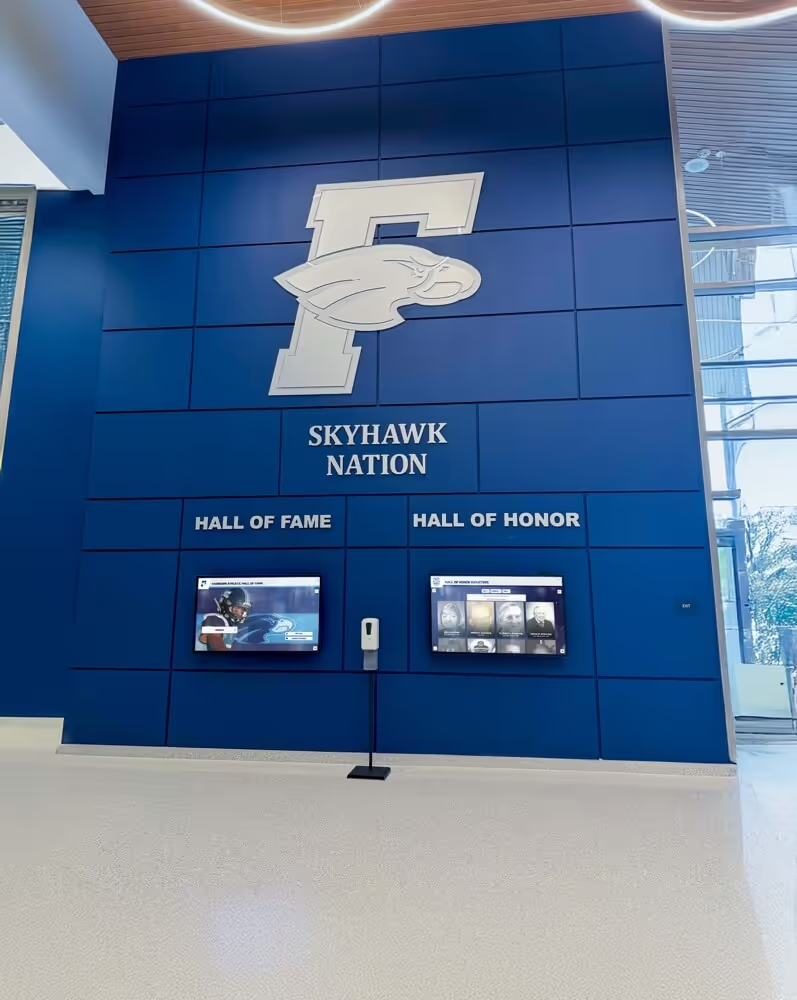
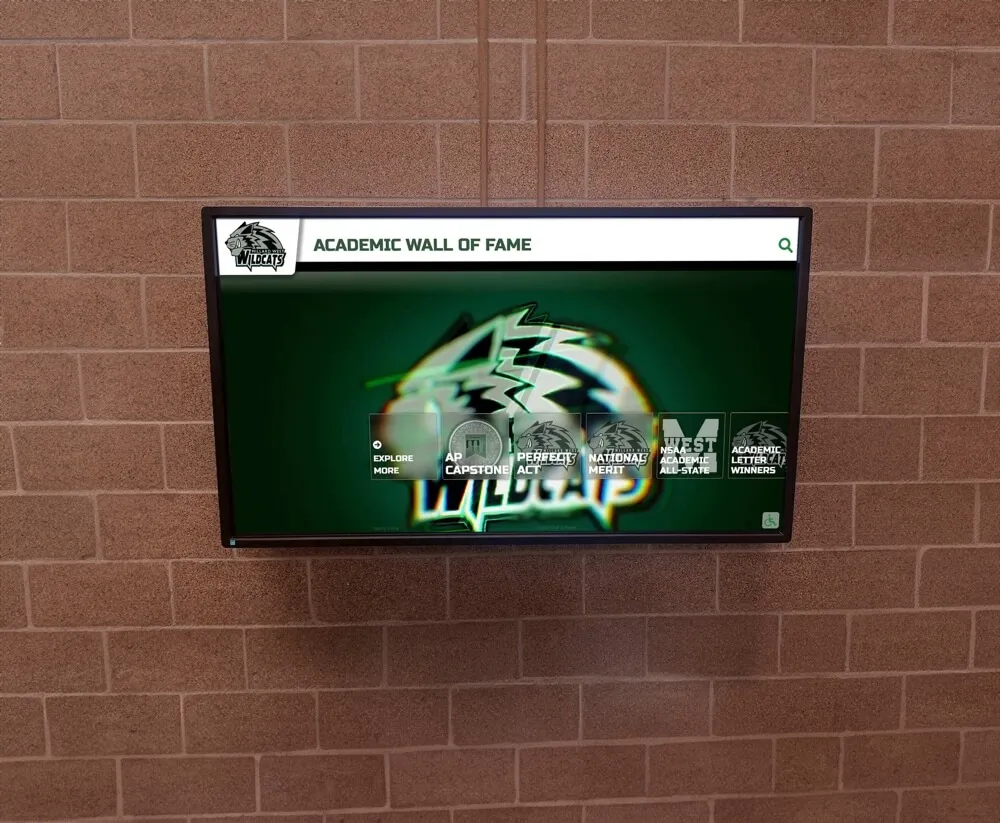
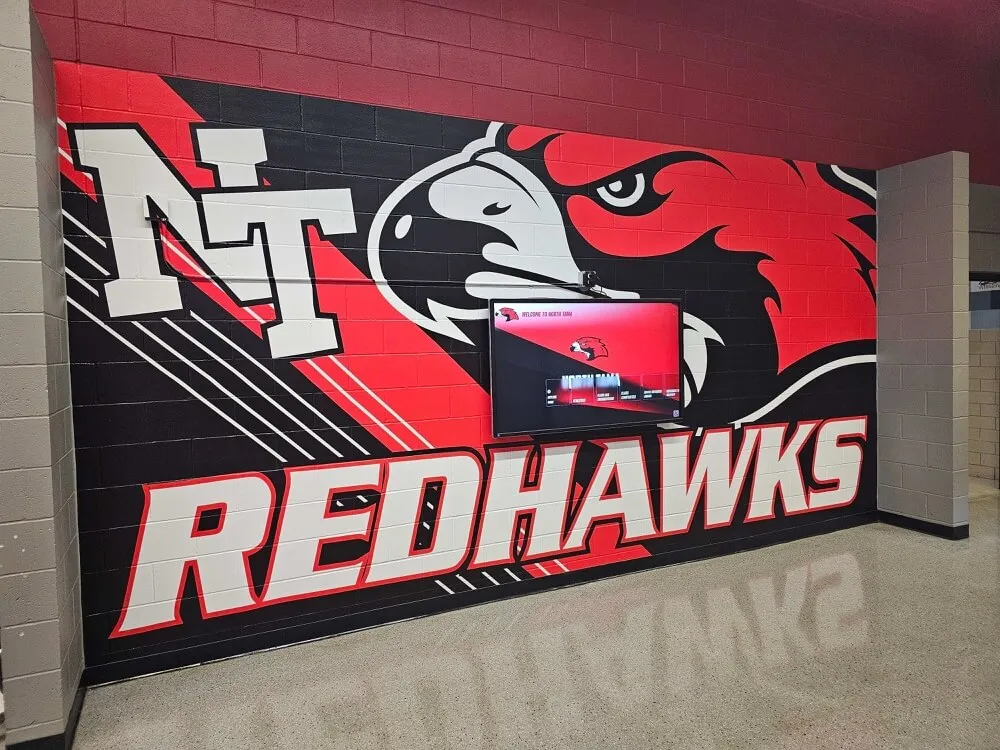
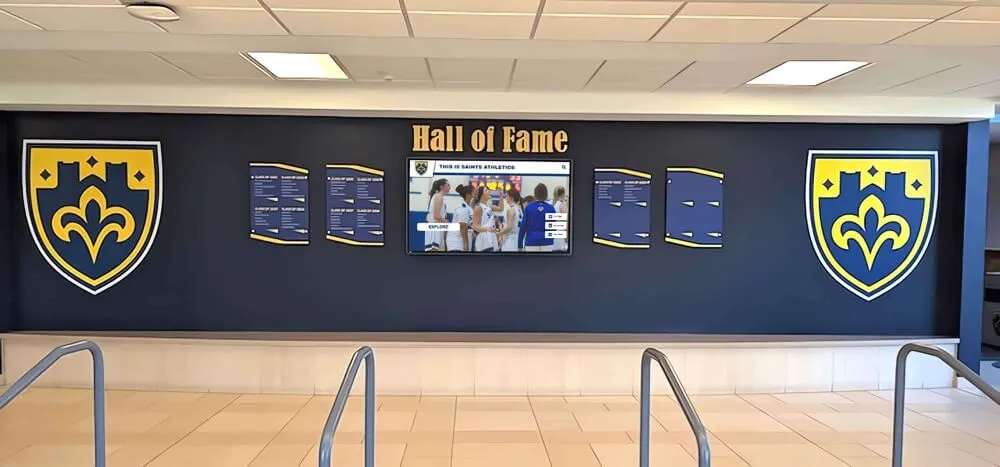
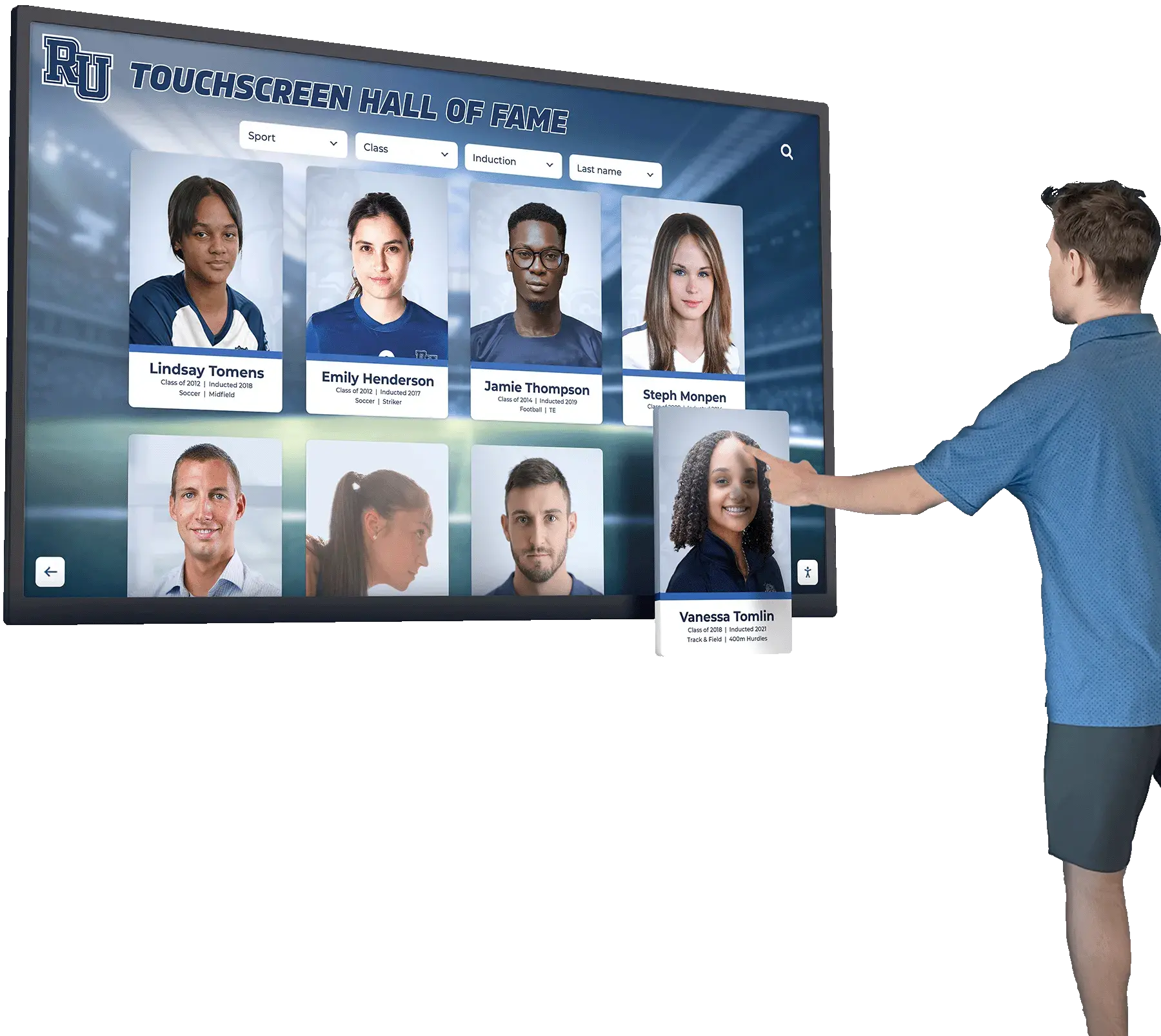
Athletic video played on recognition displays in school lobbies and gymnasiums depends on correctly sized TCP segments crossing the WAN link—a TCP MSS baseline test confirms clamping is in place before the display is tested under real streaming load
Why TCP MSS Affects Athletic Video on Recognition Displays
Athletic video content—highlight reels, auto-ranking animations, induction ceremony clips, championship recap segments—is delivered to recognition displays over HTTPS using HTTP Live Streaming (HLS) or MPEG-DASH. Both protocols deliver video as a series of small media segments over TCP connections. Each segment is typically 2–10 seconds of video, encoded and packaged at the cloud platform level, then transmitted in TCP data segments that are as large as the connection’s negotiated MSS value allows.
When MSS is correctly set, segments traverse the school’s WAN link without fragmentation. When MSS is set too high for the actual path MTU, one of two things happens: the router or firewall that discovers the MTU mismatch fragments the oversized packets—adding overhead and delay—or, more commonly, the router has the “Don’t Fragment” (DF) bit set and simply drops the oversized packets silently, leaving the recognition display’s video player waiting for data that never arrives.
Recognition displays are particularly exposed to MSS problems for three reasons.
School WAN links frequently have reduced path MTUs. PPPoE circuits—common on DSL and fiber hand-offs—reduce the effective MTU from 1500 to 1492 bytes. VPN tunnels used for content management or remote administration add encapsulation overhead (IPsec in tunnel mode typically reduces path MTU by 50–80 bytes). MPLS-tagged frames and GRE tunnels each consume additional header space. On any of these link types, an unclamped MSS of 1460 bytes—the default for standard Ethernet—results in segments that are too large to cross the WAN interface without fragmentation or loss.
Athletic video segments are larger payloads than typical display content. A hall-of-fame profile card loading a static image and a name record involves small HTTP responses that may cross the WAN link in one or two TCP segments regardless of MSS configuration. A 6-second athletic highlight clip at 1080p involves hundreds of TCP segments per second. An MSS problem that is invisible during routine content checks becomes visible the moment video playback begins.
Path MTU Discovery (PMTUD) frequently fails on school networks. PMTUD is the mechanism that allows TCP endpoints to automatically negotiate a smaller MSS when they detect that packets are being dropped due to MTU constraints. It depends on ICMP Type 3, Code 4 (“Fragmentation Needed”) messages traveling back to the sender. Many school firewalls block ICMP either by policy or by misconfiguration, silently breaking PMTUD. When PMTUD fails, the sender never receives the signal to reduce its segment size, and the connection stalls.
Schools that maintain athletic award databases and recognition archives on cloud platforms send those records to recognition displays over HTTPS connections that rely on correctly sized TCP segments. An MSS problem silently degrades the reliability of that delivery.
Key MSS Values by WAN Link Type
The correct MSS clamp value depends on the MTU of your school’s WAN interface. Use this table to identify your link type and target MSS.
| WAN Link Type | Path MTU | Correct MSS Clamp |
|---|---|---|
| Standard Ethernet (no tunneling) | 1500 bytes | 1460 bytes |
| PPPoE (DSL, fiber with PPPoE hand-off) | 1492 bytes | 1452 bytes |
| IPsec tunnel (transport mode) | ~1480 bytes | ~1440 bytes |
| IPsec tunnel (tunnel mode) | ~1422–1446 bytes | ~1382–1406 bytes |
| GRE tunnel (no IPsec) | 1476 bytes | 1436 bytes |
| GRE over IPsec | ~1400–1420 bytes | ~1360–1380 bytes |
| MPLS (single label) | 1496 bytes | 1456 bytes |
The MSS is calculated as: path MTU – 20 bytes (IP header) – 20 bytes (TCP header). For links carrying IP options or IPv6, add the appropriate header size to the deduction. When in doubt, use a conservative value 40–80 bytes below the nominal maximum to provide headroom for variable overhead.
When IPv6 is in use, the default IPv6 header is 40 bytes, reducing the MSS baseline accordingly. Recognition displays that connect over dual-stack or IPv6-only WAN links require a separate MSS clamp test on the IPv6 path; the procedure below applies equally with the corrected header deduction.
Before You Start: Pre-Test Checklist
Complete every item before beginning the MSS baseline test. Some steps require temporary administrative access to the school’s firewall or router; schedule a maintenance window if the configuration changes will briefly interrupt other traffic.
WAN Interface and Link Type
- Identify the WAN interface type (PPPoE, standard Ethernet, IPsec VPN, GRE, MPLS, or fiber with hand-off)
- Confirm the MTU configured on the WAN interface via the firewall or router GUI or CLI
- If the WAN link type is uncertain, check with the ISP or examine interface statistics for fragmentation counters
- Determine whether IPv4 only, IPv6 only, or dual-stack is in use for the recognition display’s internet path
Firewall and Router Access
- Confirm administrative access to the firewall or router managing the WAN interface
- Identify whether MSS clamping is currently configured (check existing
ip tcp adjust-mssortcp-msspolicy settings) - Confirm whether ICMP Type 3 (Destination Unreachable) is permitted inbound—PMTUD depends on these messages
- Identify the recognition display’s IP address and the interface it is connected to on the school network
Test Device and Tools
- Laptop with Wireshark or
tcpdumpinstalled, connected to the same network segment as the recognition display (wired preferred) - Access to
pingwith configurable packet size (ping -son Linux/macOS,ping -lon Windows) for fragmentation detection - Access to
curlor a browser for large-payload transfer tests - Optionally:
tracepathortraceroute -Fto confirm path MTU from the recognition display network to the internet
Recognition Display
- Confirm the recognition display is powered on and connected to the network
- Confirm the display is currently showing content (cloud sync is active)
- Identify a video segment or athletic highlight reel in the current content schedule that will play during the streaming load test (Step 7)
Recognition Display TCP MSS Baseline Test: Numbered Procedure
Run each step in sequence. Document your observations at each step; together they form the evidence record that MSS clamping is correctly configured and effective under athletic video streaming load.
Step 1 — Determine the WAN interface MTU
From the firewall or router management interface, confirm the MTU configured on the WAN-facing interface.
On pfSense or OPNsense: navigate to Interfaces > WAN and confirm the MTU value. For PPPoE, the interface may show 1500 with the actual PPPoE overhead handled by the encapsulation layer; verify by running ping -s 1473 -M do <wan-gateway> from the firewall CLI—a response confirms 1492-byte frames are traversing correctly, while “Frag needed” or packet loss indicates the effective MTU is lower than expected.
On Cisco IOS:
show interface <WAN-interface> | include MTU
On Ubiquiti EdgeRouter or UniFi Dream Machine:
ip link show <wan-interface>
Record the MTU value. Use this to calculate the target MSS clamp value from the table above.
Step 2 — Check for existing MSS clamping configuration
Before configuring MSS clamping, determine whether it is already configured on the firewall or router.
On Cisco IOS:
show running-config | include adjust-mss
If any line matching ip tcp adjust-mss or ipv6 tcp adjust-mss appears, note the current value and compare it to the correct value for your WAN link type from the table above. A value that is too high—for example, 1460 on a PPPoE link that requires 1452—is functionally the same as no clamping, because packets will still exceed the path MTU.
On pfSense/OPNsense: navigate to Firewall > Traffic Shaper > Limiters and check for MSS clamping rules, or check Interfaces > WAN > MSS if the option is available in your version. MSS clamping on pfSense is typically configured per-interface in the interface settings or via a firewall rule using the scrub directive.
On Fortinet FortiGate:
show system interface <wan-interface>
Look for tcp-mss in the interface configuration or in firewall policies.
Document the current configuration status: not configured, configured at incorrect value, or configured correctly.
Step 3 — Test ICMP path MTU discovery
A working PMTUD path means that even if MSS is misconfigured, oversized segments will eventually trigger a corrective response. Verify PMTUD is functional before relying on it.
From a monitoring device on the recognition display network:
ping -s 1472 -M do <internet-target-IP>
(Linux/macOS — sends a 1472-byte payload, which becomes a 1500-byte packet including IP and ICMP headers, with the Don’t Fragment bit set)
On Windows:
ping -l 1472 -f <internet-target-IP>
A successful reply with no error means 1500-byte packets are traversing the path correctly from this network. If you receive “Fragmentation needed” or the ping times out, the path MTU is below 1500 and PMTUD may be broken (if the firewall is blocking ICMP Type 3 responses).
Repeat with decreasing payload sizes until you find the largest size that succeeds. The working maximum payload + 28 bytes (IP + ICMP headers) is the effective path MTU. If this is below 1500, MSS clamping is required and PMTUD cannot be relied on to self-correct.
Step 4 — Capture a TCP handshake to observe the negotiated MSS
A TCP three-way handshake (SYN / SYN-ACK / ACK) is where both endpoints announce their MSS to each other. Capturing this handshake allows you to observe the actual MSS value being negotiated for connections from the recognition display to the cloud platform.
On the monitoring laptop (connected to the same network segment as the recognition display), start a Wireshark capture on the relevant interface:
- Open Wireshark and select the interface connected to the recognition display’s network segment
- Apply the display filter:
tcp.flags.syn == 1 - On the recognition display, trigger a content reload or navigate to a new content section to generate fresh TCP connections to the cloud platform
- Stop the capture after 30 seconds; you should see SYN and SYN-ACK packets from the display’s IP address
In the captured SYN packet from the recognition display, expand the TCP header in Wireshark’s detail panel and locate the Maximum Segment Size option under Options. Note the announced MSS value.
In the SYN-ACK packet from the cloud server, locate the MSS option and note the server’s announced value.
If MSS clamping is active on the firewall, both values will be clamped to the configured maximum, regardless of what either endpoint announces. If clamping is absent, the SYN from the display will show the display OS’s default MSS (typically 1460 on a standard Ethernet interface), and the SYN-ACK from the server will show the server’s default (also typically 1460). On a PPPoE link, an unclamped MSS of 1460 will produce fragmentation on 1492-byte frames.
Document the observed MSS values before and after clamping configuration for the test record.
Step 5 — Run a large-payload fragmentation detection test
Before configuring clamping, run a large-payload test to confirm whether fragmentation is currently occurring on the path from the recognition display network to the internet.
From the monitoring laptop on the recognition display network, use curl to download a large file from the cloud platform or any reliable large-payload endpoint, while monitoring for retransmissions and fragmentation in a simultaneous Wireshark capture:
curl -o /dev/null -s https://<cloud-platform-domain>/large-test-asset --write-out "%{speed_download}\n"
While the download runs, watch the Wireshark capture (filter: ip.frag_offset > 0) for any fragmented IP packets. If fragmented packets appear, MSS is not correctly clamped and oversized TCP segments are being fragmented at the WAN interface—exactly the condition that causes athletic video buffering. If no fragmentation appears but download speeds are abnormally low and retransmission counts are high (Wireshark filter: tcp.analysis.retransmission), PMTUD is failing silently, dropping oversized segments.
Schools that store athlete records in a comprehensive award winner database and sync profile updates to lobby displays depend on this large-payload path being clean and un-fragmented for every sync cycle, not just during manual tests.
Step 6 — Configure TCP MSS clamping
Apply MSS clamping at the WAN interface using the correct target value from your Step 1 MTU assessment.
Cisco IOS (router or firewall):
interface <WAN-interface>
 ip tcp adjust-mss 1452
Replace 1452 with the correct value for your link type. Apply to both the WAN-facing interface and, if the display is behind an additional NAT layer, the interface facing the recognition display VLAN. For IPv6:
interface <WAN-interface>
 ipv6 tcp adjust-mss 1432
pfSense / OPNsense: Navigate to Interfaces > WAN, find the MSS field, and enter the clamped value (e.g., 1452 for PPPoE). Save and apply. Alternatively, configure via a firewall rule scrub action: Firewall > Rules > WAN > Add an advanced option specifying the MSS value, or use the Shaper’s MSS clamping in older pfSense versions.
Fortinet FortiGate:
config system interface
  edit <wan-interface-name>
    set tcp-mss 1452
  next
end
Ubiquiti EdgeRouter:
set interfaces ethernet eth0 tcp-mss 1452
commit
save
MikroTik RouterOS: Navigate to IP > Firewall > Mangle and add a rule:
- Chain:
forward - Protocol: tcp
- TCP flags: syn
- Action: Change MSS
- New MSS: 1452
Alternatively via CLI:
/ip firewall mangle add chain=forward protocol=tcp tcp-flags=syn action=change-mss new-mss=clamp-to-pmtu
The clamp-to-pmtu option instructs RouterOS to automatically determine and apply the correct MSS based on the path MTU, which is more adaptive than a fixed value.
Step 7 — Re-capture the TCP handshake to verify clamping is active
After applying the configuration, repeat the Wireshark capture from Step 4. Trigger new TCP connections from the recognition display by reloading content.
In the new SYN packet from the recognition display, confirm that the MSS option now shows the clamped value (e.g., 1452) rather than the display OS’s default (1460). In the SYN-ACK from the server, confirm the server-announced MSS is also clamped. The firewall applies the clamp to both directions of the handshake: the client SYN as it leaves the network toward the server, and the server SYN-ACK as it enters the network toward the display.
If the MSS values still show 1460 unclamped, the configuration was not applied to the correct interface or was not saved correctly. Verify the interface name, confirm the configuration saved, and re-capture.
Step 8 — Run the streaming load test with athletic video
With clamping confirmed in the handshake capture, run the recognition display’s video content under real streaming conditions to verify playback quality.
On the recognition display, navigate to a content section containing athletic highlight video or trigger playback of a championship archive clip. On the monitoring laptop, maintain the Wireshark capture (filter: ip.frag_offset > 0 or tcp.analysis.retransmission) throughout the video segment.
Observe:
- Fragmented packets: should be zero after clamping is correctly applied
- TCP retransmissions: should be at normal background levels (occasional retransmissions from network noise are expected; continuous retransmission storms indicate the clamping value is still too high for the actual path MTU)
- Video playback quality on the display: no buffering pauses, no black screen intervals, no incomplete frame loads
- Download throughput during playback: should be steady at the expected content bitrate, not spiking and stalling
Schools maintaining recognition displays as part of an athletics recognition program that includes basketball hall of fame archives and championship video segments need this streaming path clean across every session, not just during controlled tests. The streaming load test confirms that real video playback validates what the handshake capture showed in the MSS values.
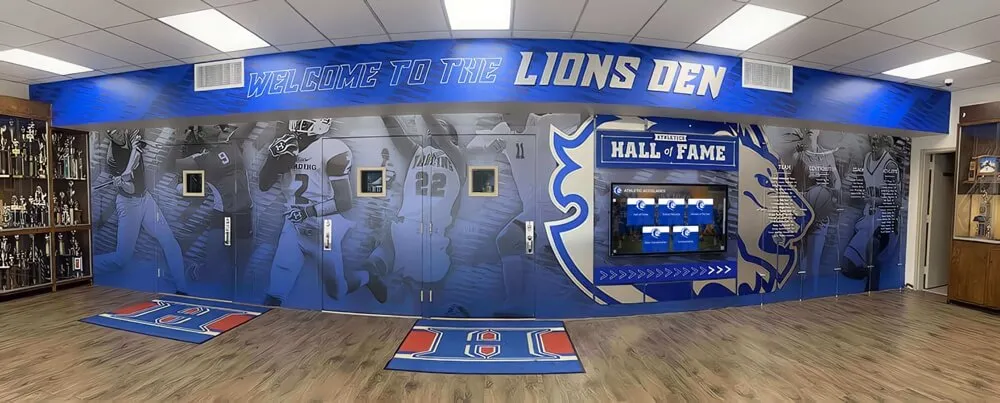
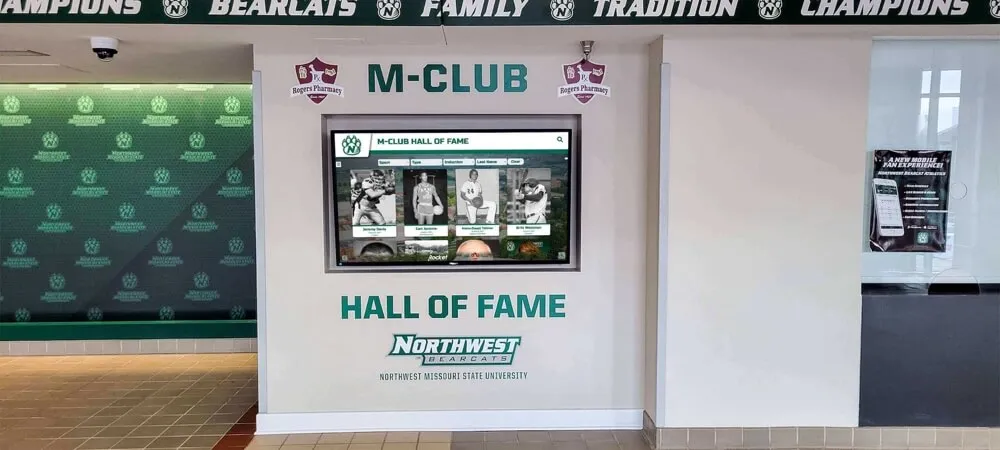
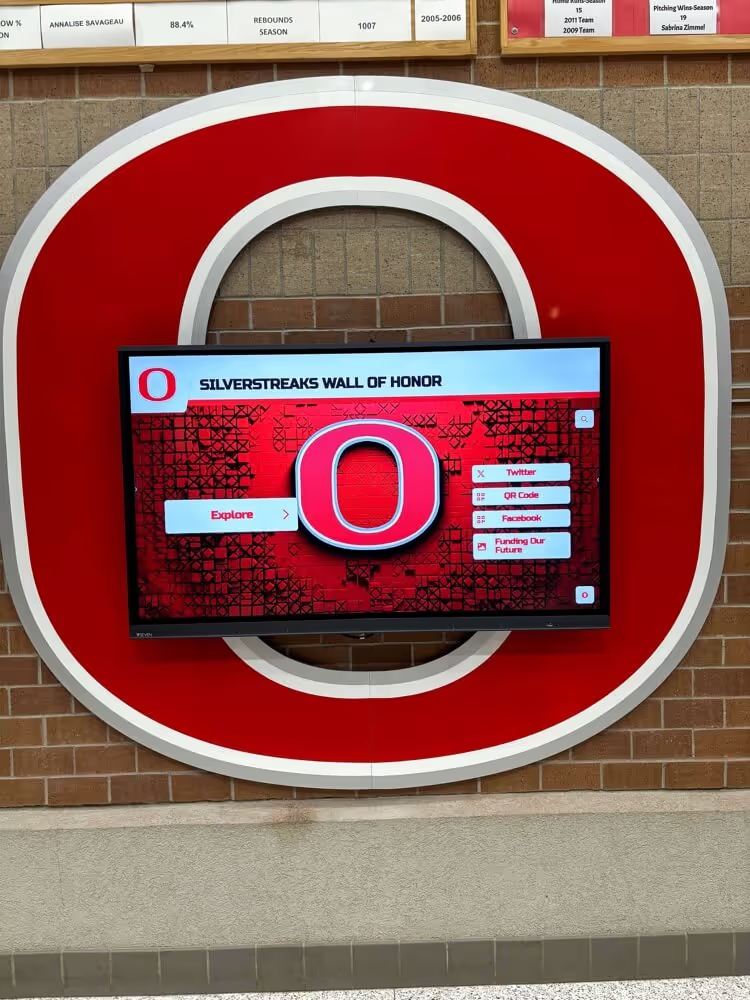
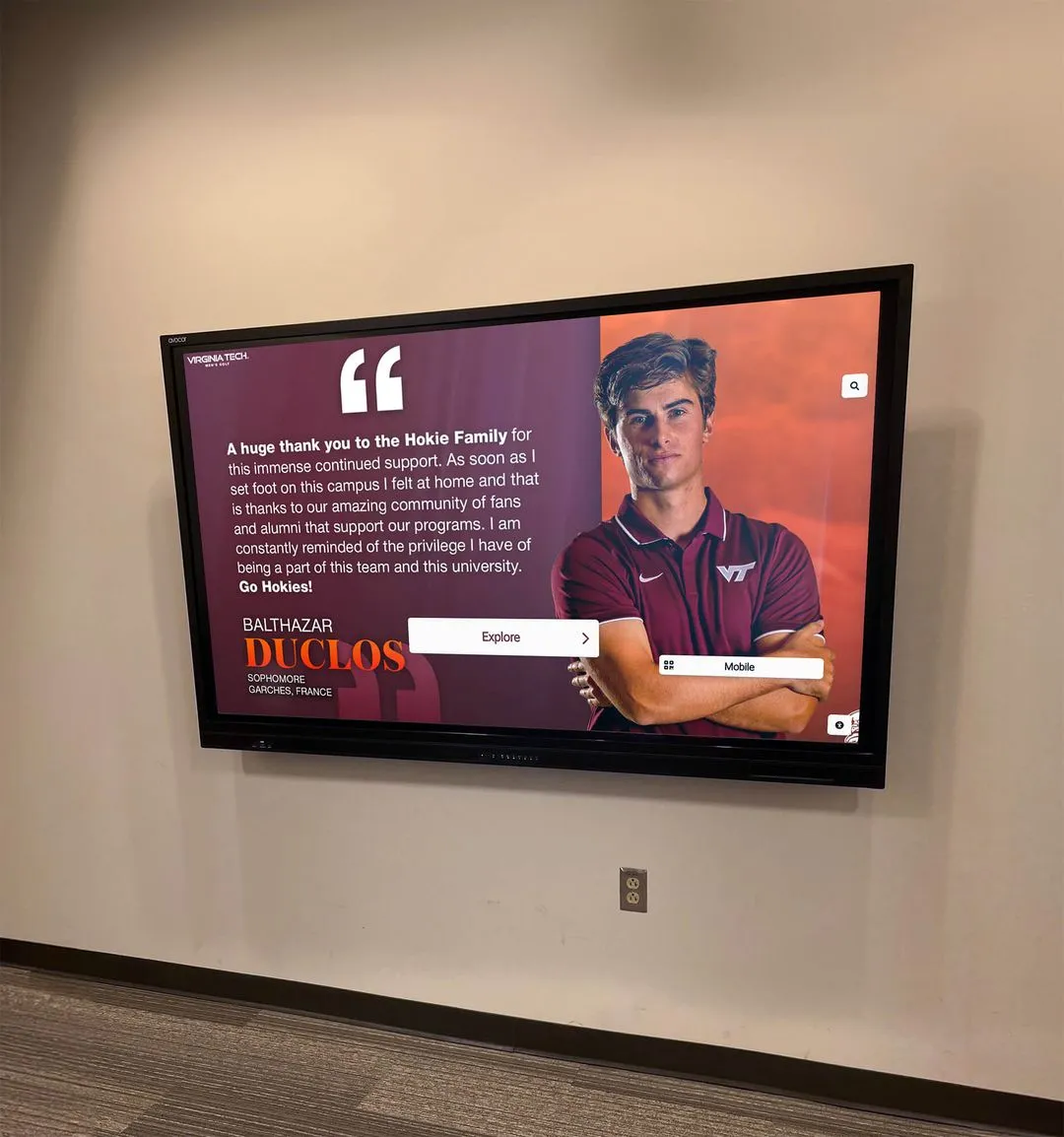
Recognition kiosks installed in trophy cases and athletics hallways play athletic video segments retrieved over HTTPS from cloud platforms—the TCP MSS baseline test confirms segment delivery is clean across the school's WAN path before a ceremony or induction event makes video quality visible to families and guests
Step 9 — Test ICMP path MTU discovery after clamping
Repeat the ICMP large-packet test from Step 3 to confirm that PMTUD-based recovery also functions correctly now that MSS clamping is in place. This step verifies that the network allows ICMP Type 3 messages—used by PMTUD as a backup mechanism when MSS negotiation produces a value that is still too large for some intermediate link.
ping -s 1472 -M do <internet-target-IP>
If the ping succeeds at 1472 bytes and fails at 1473+, the path MTU is confirmed at 1500 bytes. If it fails at a lower size, the WAN link has a reduced MTU that your clamping configuration should have already accounted for. Any unexpected failure at sizes that should succeed after clamping suggests a firewall rule blocking ICMP unreachable messages outbound; verify that ICMP Type 3, Code 4 is permitted on the WAN interface firewall policy.
Schools that have completed an HDMI-CEC configuration audit for recognition displays have already verified the display’s video signal path at the hardware layer; this PMTUD check is the network-layer equivalent—confirming the software signaling path that governs TCP segment sizing is equally complete.
Step 10 — Document the baseline and restore the test environment
Record the complete test findings in the school IT runbook or ticketing system:
- WAN interface type and confirmed MTU
- MSS clamp value applied and the interface it was applied to
- MSS values observed in SYN and SYN-ACK packets before clamping (unclamped values)
- MSS values observed in SYN and SYN-ACK packets after clamping (clamped values)
- Fragmentation count before clamping (from Wireshark capture)
- Fragmentation count after clamping (should be zero)
- Video playback quality observation during streaming load test
- ICMP path MTU discovery result (passing or blocked)
- Date of test and technician name
This documentation becomes the recognition display TCP MSS baseline: the verified correct configuration that future tests compare against after any WAN link change, ISP upgrade, firewall replacement, or network topology change.
MSS Clamping Configuration Reference Table
| Platform | Clamping Method | Example Command or Setting |
|---|---|---|
| Cisco IOS / IOS-XE | Per-interface ip tcp adjust-mss | ip tcp adjust-mss 1452 on WAN interface |
| pfSense | Interface MSS field or firewall scrub rule | Interfaces > WAN > MSS: 1452 |
| OPNsense | Firewall rule normalization (scrub) | Firewall > Rules > Normalization |
| Fortinet FortiGate | Per-interface tcp-mss | set tcp-mss 1452 under interface config |
| Ubiquiti EdgeRouter | Per-interface tcp-mss | set interfaces ethernet eth0 tcp-mss 1452 |
| MikroTik RouterOS | Mangle rule, action: change-mss | /ip firewall mangle with clamp-to-pmtu |
| Juniper SRX | tcp-mss in security flow settings | set security flow tcp-mss 1452 |
| Palo Alto Networks | Zone protection profile | Device > Setup > Session > TCP Settings |
For firewall platforms not listed, consult the vendor’s documentation for TCP MSS or TCP normalization settings. The underlying mechanism is the same across platforms: intercept TCP SYN and SYN-ACK packets and rewrite the MSS option to the clamped value before forwarding.
Ongoing Monitoring and Re-Test Triggers
A recognition display TCP MSS baseline test establishes the correct clamped configuration for the school’s current network topology. That configuration remains valid until one of the following changes occurs—each is a trigger to re-run the baseline test.
WAN link type changes. An ISP upgrade that moves the school from PPPoE to native Ethernet, or from a fiber hand-off to a MPLS service, changes the effective path MTU and requires recalculating and re-applying the MSS clamp value. Re-run Steps 1 through 10 after any WAN link change.
Firewall or router replacement. A new firewall may not carry the MSS clamping configuration from the replaced device unless it was explicitly exported and imported. Run a post-replacement handshake capture (Step 7) to confirm the clamp value is active on the new hardware before re-enabling recognition display video content.
VPN additions or removals. Adding an IPsec or GRE tunnel for content management access, remote administration, or a district-wide WAN overlay changes the effective path MTU for any recognition display traffic routed through the tunnel. Re-run the fragmentation detection test (Step 5) to confirm the new overhead is accounted for in the clamped MSS value.
New recognition display deployments. When a school deploys additional recognition kiosks in new locations—an athletics corridor, an alumni lobby, or a gymnasium entrance—the new displays may traverse different network paths with different MTU profiles. Run a per-display handshake capture for each new deployment to confirm the MSS baseline applies uniformly.
Schools that have reviewed digital hall of fame WCAG text spacing requirements for accessibility have already approached their recognition displays as systems requiring systematic verification of multiple layers. TCP MSS baseline testing applies the same systematic approach to the network layer, confirming the transport path is as carefully verified as the interface layer.
Athletic programs with complex recognition archives—tracking gymnastics records, scoring histories, and championship lineages that the display surfaces through video and profile content—publish high-bandwidth media assets that expose any path MTU problem more quickly than static content alone. Running the baseline test before the competitive season’s first major event confirms the network is ready for that content load.
See How Rocket Alumni Solutions Supports School IT Teams
If your school is deploying or evaluating a touchscreen recognition display and wants to understand the complete network requirements—including TCP MSS guidance, firewall allowlists, VLAN configuration, and cloud platform traffic patterns—a live walkthrough gives your IT team those answers before the first content update ships. Rocket Alumni Solutions provides documented network requirements and works alongside school IT coordinators to confirm the display's network path is ready for athletic video and real-time recognition content.
Q&A: TCP MSS and Athletic Video on School Recognition Displays
What symptoms indicate a TCP MSS problem rather than a bandwidth problem?
MSS-related video failures have a specific pattern: playback starts correctly at low load and degrades or stalls as larger video segments are requested, and the problem is consistent across times of day (not correlated with peak user counts on the school network). Bandwidth problems typically correlate with peak usage windows and affect all internet traffic, not specifically large-segment TCP flows. Fragmented packets in a Wireshark capture on the recognition display’s network segment confirm MSS as the cause; a clean capture with no fragmentation points to a bandwidth or content delivery issue instead.
Does TCP MSS clamping affect other traffic on the school network?
MSS clamping applied to the WAN interface affects all outbound TCP connections that cross that interface, not only the recognition display. For the vast majority of school internet traffic—web browsing, email, cloud applications—correctly clamped MSS is invisible: the browser and server negotiate an MSS that does not exceed the clamped value, and the connection performs normally. The only scenario where incorrect clamping harms non-display traffic is if the clamp value is set too low (unnecessarily reducing throughput by making TCP segments smaller than the path MTU requires). Clamping to the correct value for the WAN link type has no negative effect on any traffic type.
Our recognition display uses a cloud platform with CDN-delivered video. Does MSS clamping still apply?
Yes. CDN delivery changes the geographic origin of video segments but not the TCP transport path through the school’s WAN link. Every TCP connection from the recognition display to a CDN edge node traverses the school’s WAN interface, where the path MTU constraint applies. The CDN node’s announced MSS in the SYN-ACK is subject to the same clamping rule as any other server, and correctly clamped segments traverse the WAN link cleanly regardless of which CDN edge is serving the content.
Can we skip MSS clamping if our school uses a standard fiber connection with no PPPoE?
If the WAN connection is native Ethernet with no PPPoE, VPN, or tunnel encapsulation, the path MTU from the school to the internet is typically 1500 bytes and the default MSS of 1460 is correct without clamping. However, verify this by running the ICMP path MTU test from Step 3 before concluding that clamping is unnecessary. Some ISPs insert transparent proxies or traffic management appliances that reduce the effective path MTU without advertising the change; the ICMP test detects these transparently. If the test confirms 1500-byte frames traverse cleanly, the default MSS is sufficient and clamping is not required.
How does this test relate to the overall recognition display network verification process?
TCP MSS baseline testing addresses the transport layer of the recognition display’s network stack. Other network tests address different layers: DHCP starvation protection validates IP address assignment, RADIUS change-of-authorization testing validates authentication policy delivery, and network segmentation reviews validate VLAN isolation. TCP MSS baseline testing is the test that specifically validates whether large TCP payloads—athletic video segments, large profile images, updated championship records—can traverse the WAN path without fragmentation or silent discard. It complements the other tests rather than replacing them. Schools managing alumni and recognition program data across multiple platforms benefit from running all four tests before major recognition events.
What if the SYN-ACK MSS value in our Wireshark capture looks correct but video still buffers?
If the negotiated MSS is correctly clamped and fragmentation is absent from the capture, but video playback still buffers intermittently, the problem is not MSS-related. Investigate: (1) cloud platform connectivity—confirm the recognition display can reach the content delivery CDN endpoints without latency spikes using traceroute or mtr; (2) DNS resolution time—slow DNS responses delay segment fetches even when TCP paths are clean; (3) concurrent bandwidth contention—run the video test while monitoring WAN interface utilization in the firewall dashboard to determine whether the school’s WAN capacity is the constraint; (4) TLS handshake overhead—a misconfigured TLS session resumption setting can cause excessive re-handshaking on video connections.
Schools that maintain year-round recognition archives connecting back-to-school events and community ceremonies to digital display content depend on smooth video delivery across all seasons, not only during championship periods. Building TCP MSS baseline testing into the annual IT pre-season checklist converts a potential event-day failure into a documented, verified, working network configuration.
Test Completion Checklist
Use this checklist to confirm the TCP MSS baseline test was completed correctly and findings were documented.
- WAN interface MTU confirmed and recorded
- Existing MSS clamping configuration checked (not configured / incorrect / correct)
- ICMP path MTU discovery tested before clamping; result documented
- TCP handshake captured; pre-clamping MSS values recorded for SYN and SYN-ACK
- Large-payload fragmentation detection test completed; fragmentation count recorded
- MSS clamping configured at correct value for WAN link type
- TCP handshake recaptured; post-clamping MSS values confirmed equal to clamp target
- Streaming load test completed with athletic video content; no buffering observed
- Fragmentation count post-clamping confirmed as zero in Wireshark capture
- ICMP path MTU test repeated after clamping; result documented
- Findings documented in IT runbook: WAN type, path MTU, clamp value, test date, technician
- Re-test triggers documented: WAN link change, firewall replacement, VPN additions, new display deployments
Building MSS Baseline Testing Into the Pre-Event IT Process
A recognition display that passes visual inspection—powered on, displaying current content, responding to touch—can still fail to play athletic video correctly if the TCP segment path to its cloud platform is misaligned with the school’s WAN link MTU. MSS baseline testing is the step that closes that gap: it validates the network configuration at the transport layer under real streaming conditions, not only under the low-bandwidth content loads that most routine display checks involve.
Schools that invest in recognition programs capturing championships, honoring inductees, and surfacing the athletic history represented in comprehensive school recognition yearbooks and archives rely on network infrastructure that handles video as reliably as it handles text. A TCP MSS baseline test completed and documented before the season’s first major event gives the IT team, the athletic director, and the recognition program staff the confidence that the display’s network path is ready for the video content that makes those events memorable.