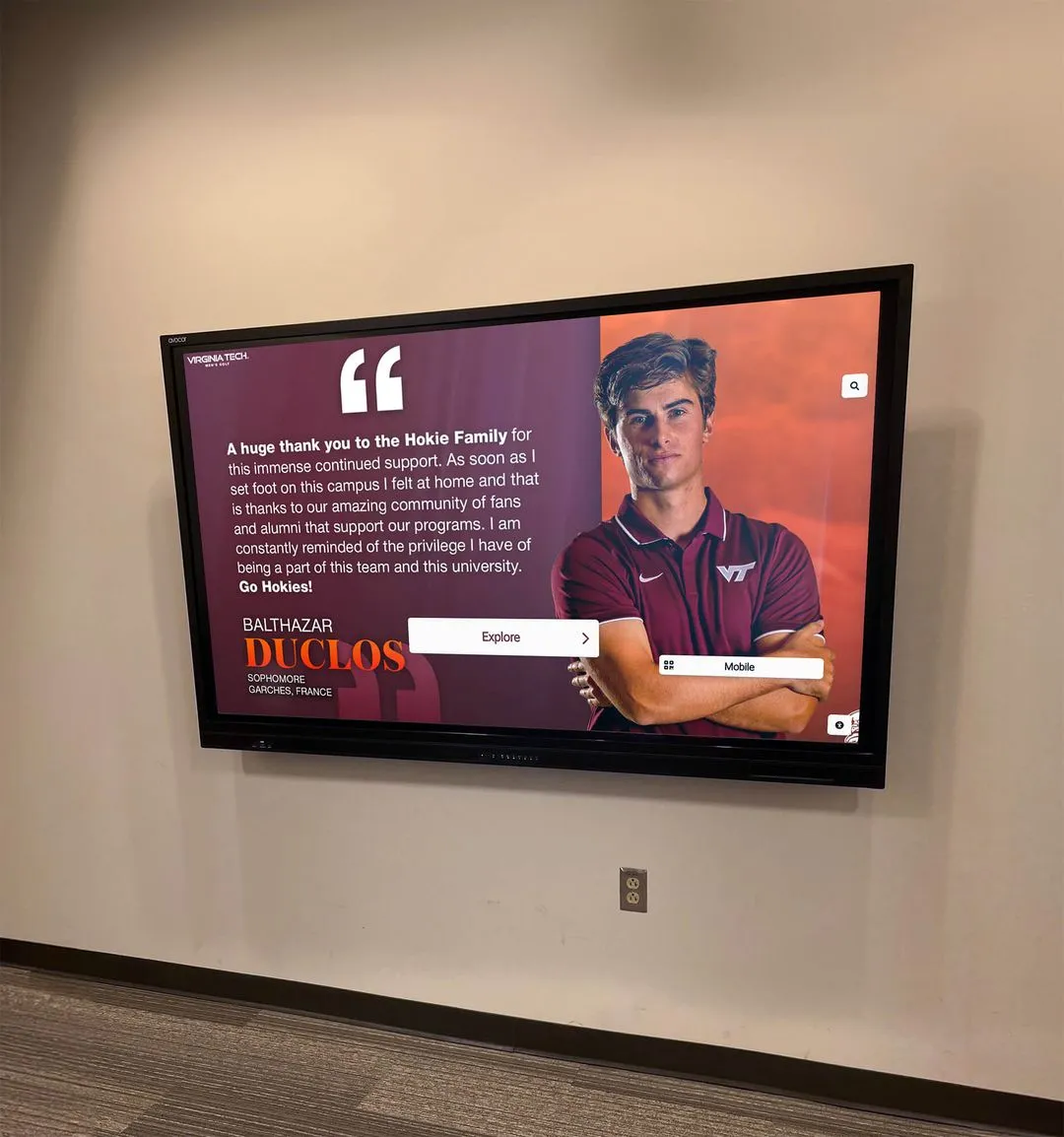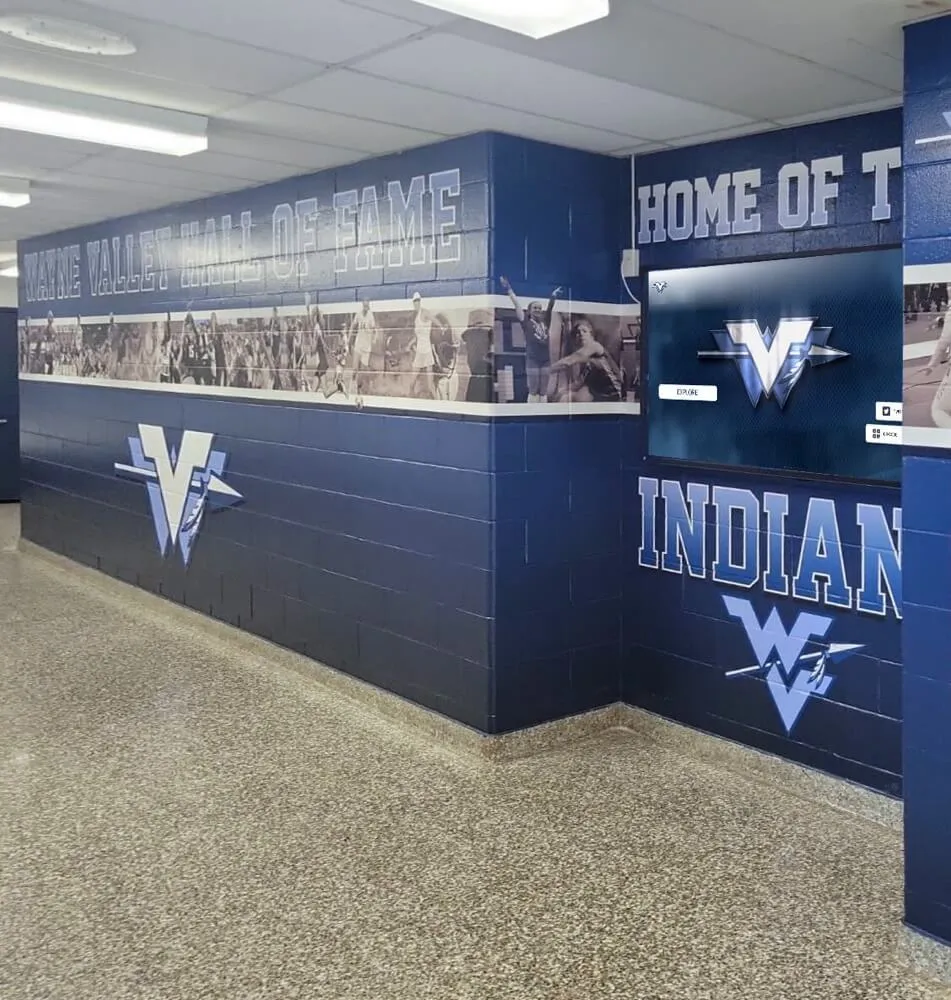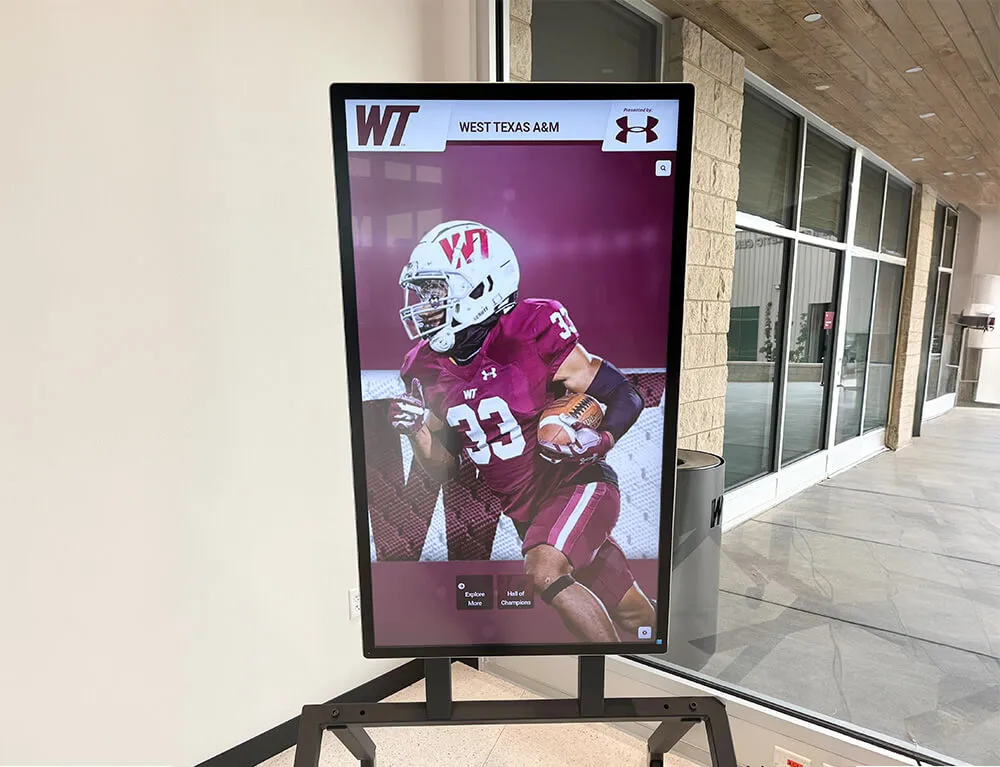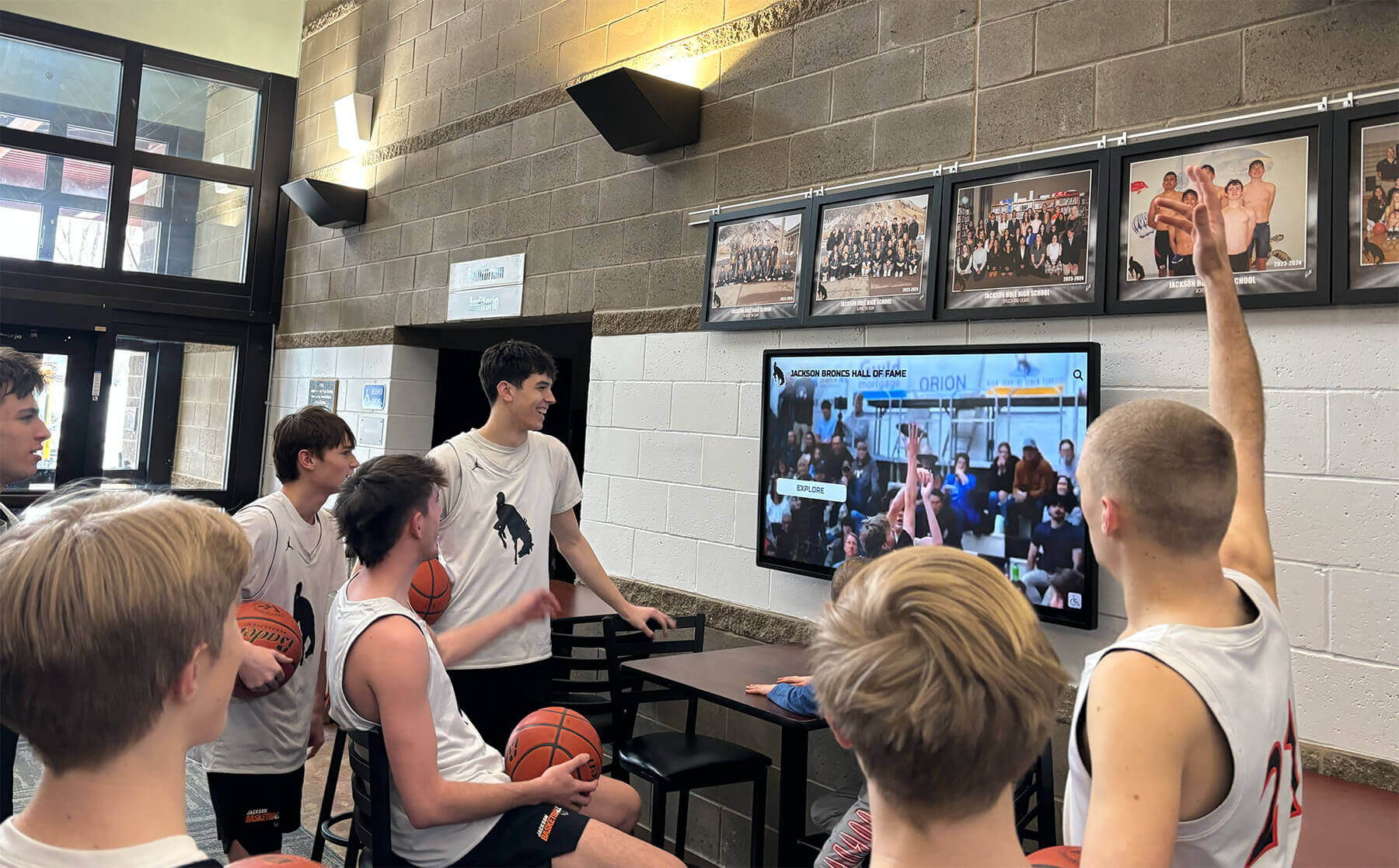




Screen tearing on a recognition display appears as a jagged horizontal split that slices across the panel mid-frame—most visible during fast-motion athlete highlight reels, sliding record-board animations, and championship-montage videos. When tearing shows up on your school’s hall-of-fame screen or lobby recognition wall during an assembly or awards night, it immediately undercuts the professional impression those installations are built to create.
The direct answer: recognition display screen tearing occurs when the media player outputs video frames at a rate that is out of sync with the panel’s refresh cycle, forcing the display to stitch together parts of two different frames simultaneously. On recognition systems running sports video loops or motion-graphic animations, the mismatch is most pronounced during high-velocity horizontal pans—a sprinter crossing the finish line, a basketball game-winning shot, a scrolling name ribbon. The fix requires aligning the output frame rate, enabling the panel’s sync technology, and verifying the signal chain—all of which can be confirmed before the installation goes live using the test sequence below.
Recognition screens combine content types that stress the signal chain in different ways: static portrait cards transition to looping highlight video, motion-graphic overlays animate over sponsor backgrounds, and auto-ranking scoreboards refresh every few seconds. Each content layer creates a different tearing risk. A pre-launch screen-tearing test that exercises each layer systematically gives AV teams and IT coordinators a repeatable method for clearing displays before they face a public audience.

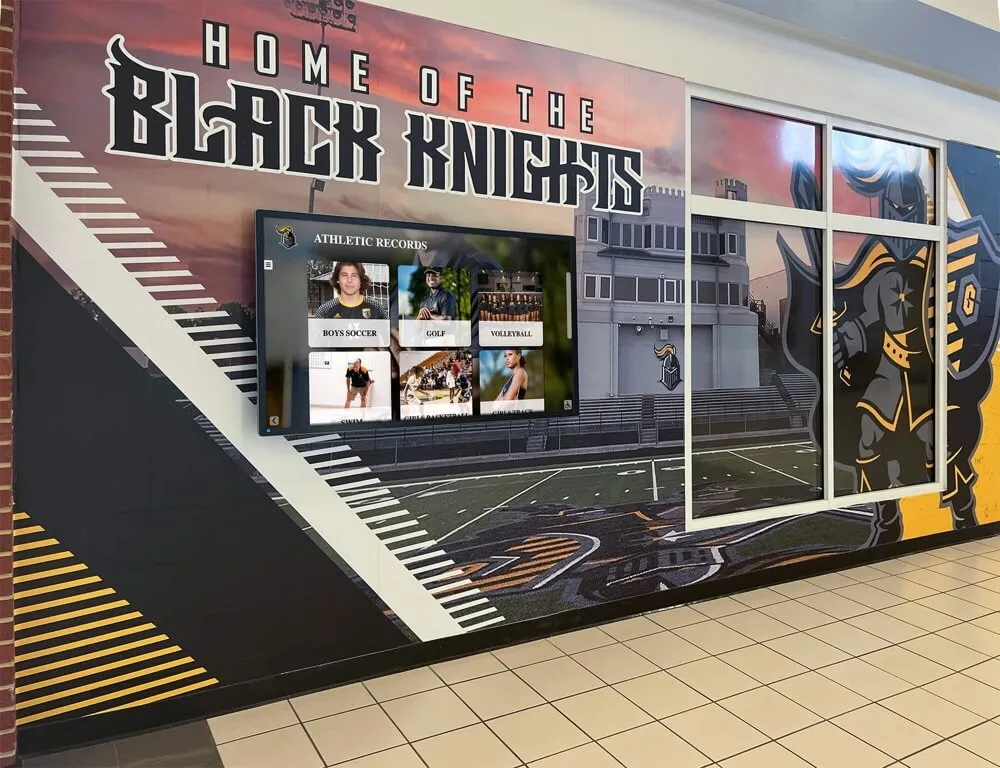
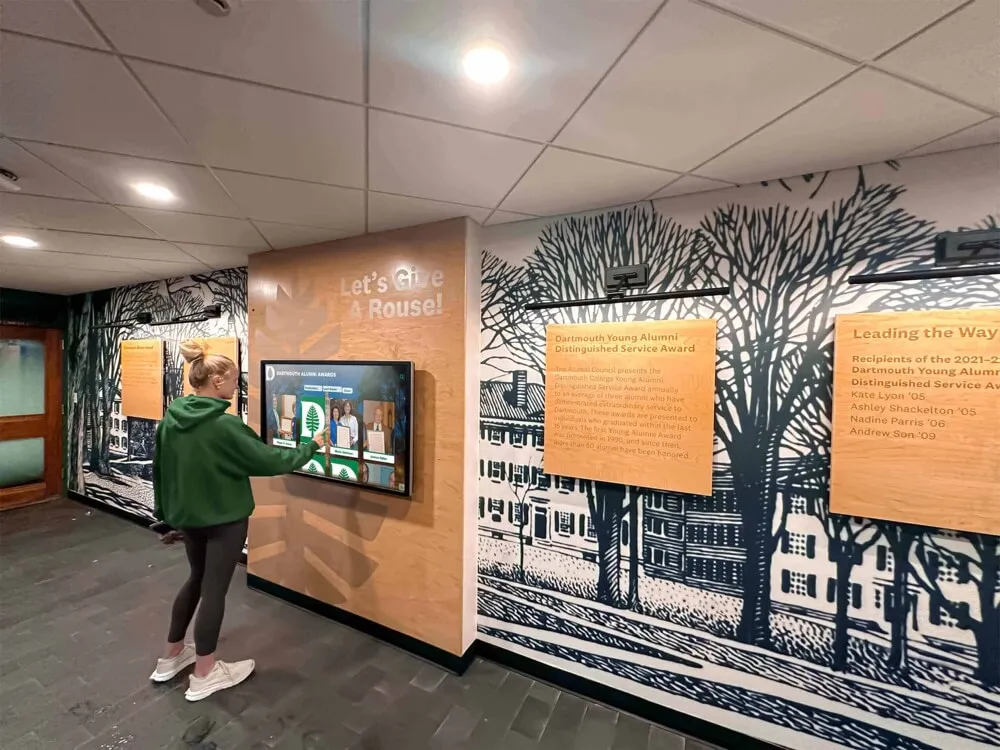
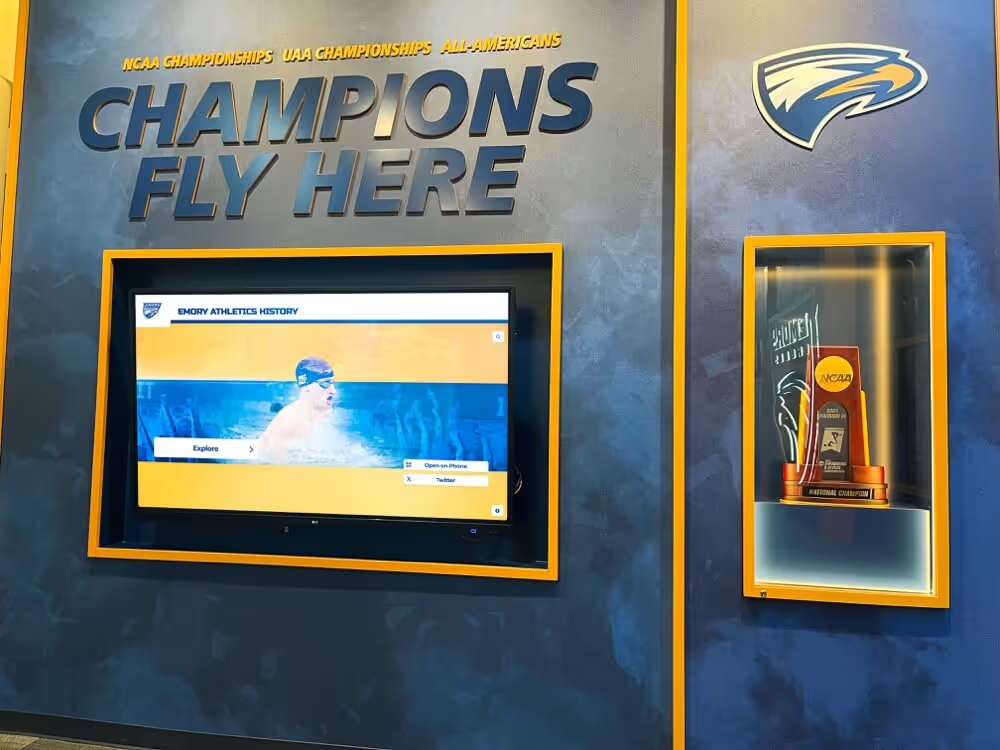
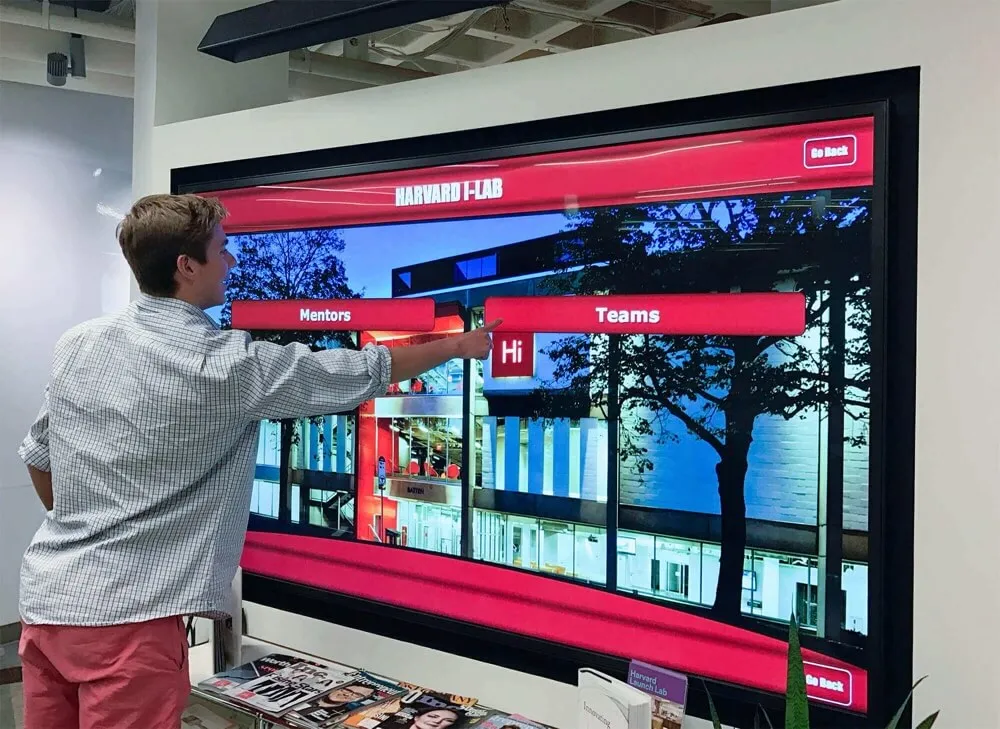
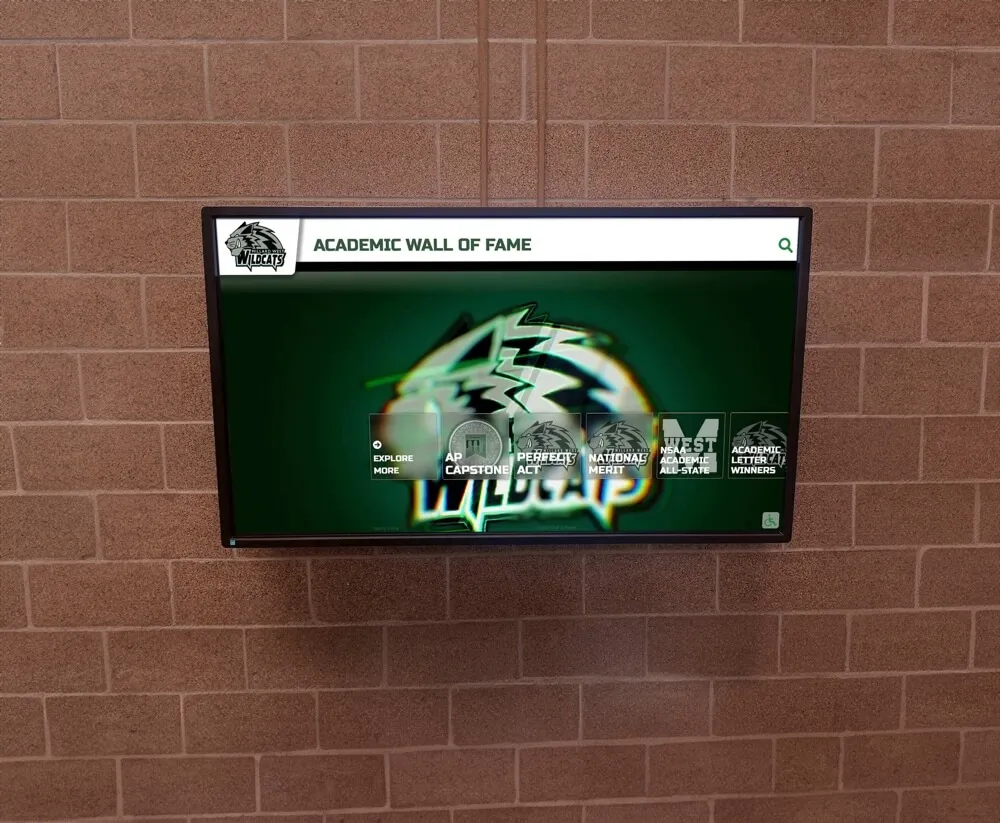
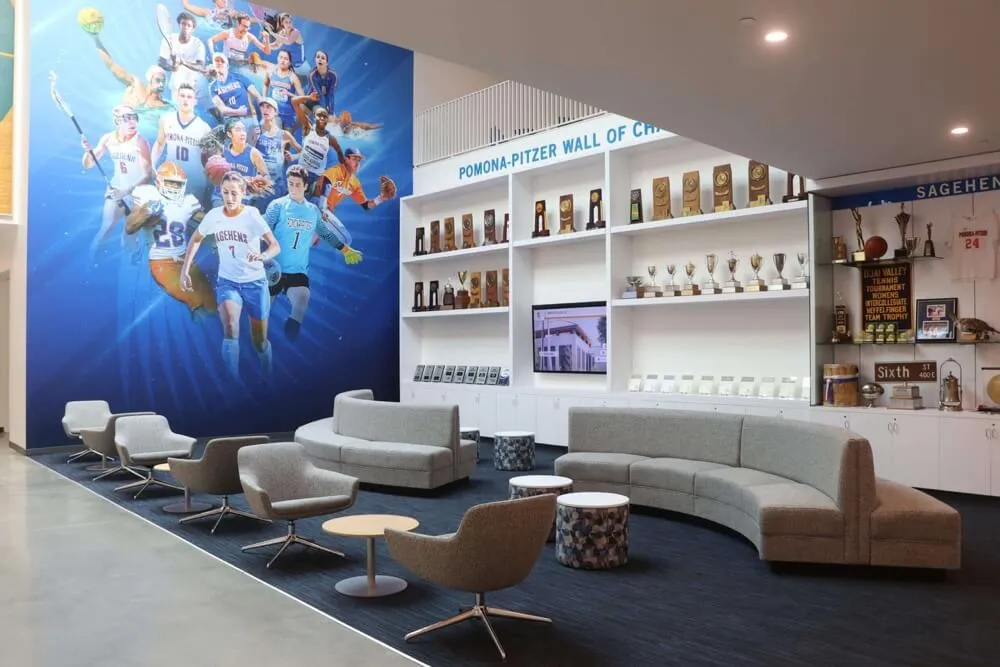
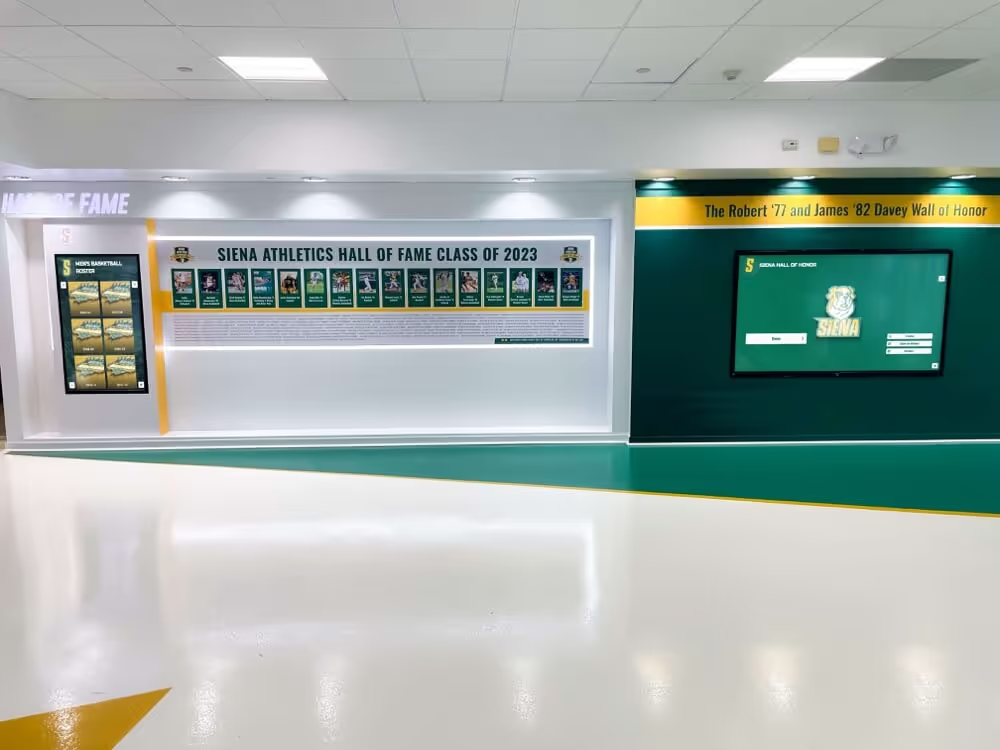
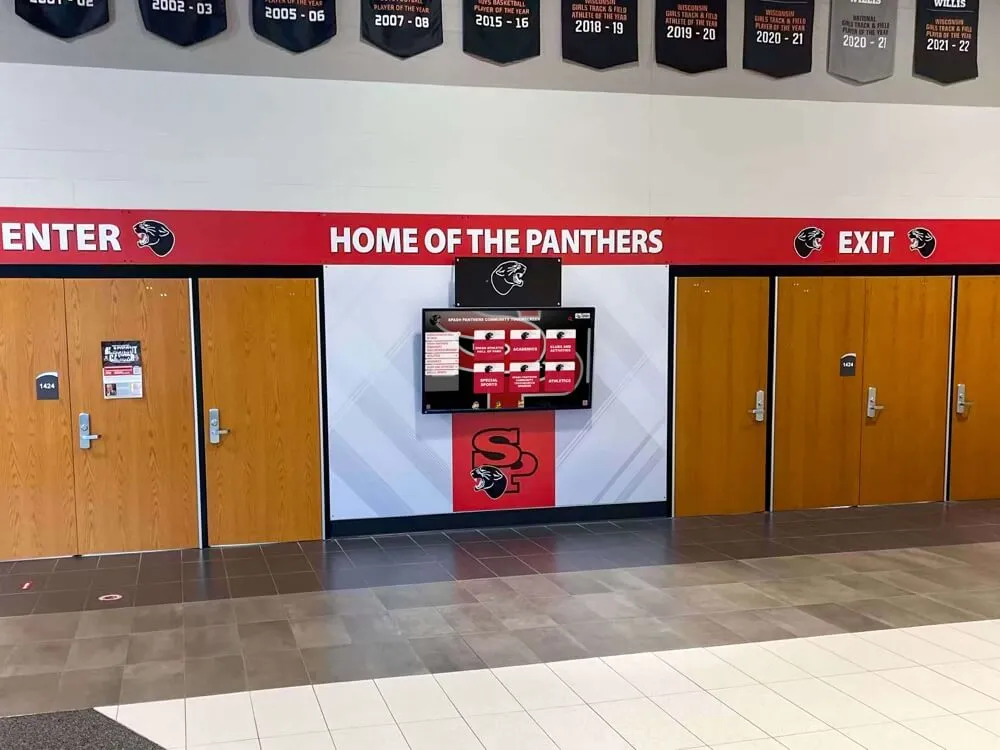
School lobby recognition screens playing sports highlight video are among the most common environments where frame-rate mismatches produce visible screen tearing
What Causes Screen Tearing on School Recognition Displays
Understanding the root cause narrows the fix considerably. Screen tearing is not a content problem—it is a synchronization problem between the source device and the display panel.
Frame-Rate and Refresh-Rate Mismatch
Every display panel refreshes its image at a fixed rate, typically 60 Hz on commercial signage screens and many lobby-grade televisions. When the media player or connected computer sends frames at a different rate—59.94 fps from broadcast-origin sports footage, 30 fps from a highlights slideshow, or a variable rate from a presentation application—the display draws the next refresh line before the current frame is fully delivered. The panel captures part of frame N and part of frame N+1 in a single refresh cycle, and the boundary between those two partial frames appears as the horizontal tear.
On a recognition display running static award graphics, this rarely matters. On a display cycling through 30- or 60-second sports highlight clips, panning game footage is the highest-risk content because fast horizontal motion makes the frame boundary visible to the naked eye from across a lobby.
V-Sync and Adaptive Sync Availability
Vertical sync (V-Sync) is the software-side mechanism that holds the graphics output until the display begins a new refresh cycle. Most media player software and digital signage platforms include a V-Sync toggle in display or playback settings. When V-Sync is disabled—often the default after a fresh installation—the player streams frames as fast as it can render them, creating the conditions for tearing.
Commercial panels in the 40–86 inch range used for recognition walls vary in their support for adaptive sync protocols. Panels with HDMI 2.1 or DisplayPort 1.4 connections and matching hardware on the source side may support AMD FreeSync or NVIDIA G-Sync Compatible, which dynamically align the refresh rate to the source frame rate and eliminate tearing without the latency penalty of traditional V-Sync. However, most school-grade installations use HDMI 1.4 or 2.0 connections where adaptive sync is not available, making V-Sync the primary control.
Signal Chain Issues
Tearing that persists after enabling V-Sync often originates in the signal chain rather than the player software. Common culprits include:
- HDMI extenders or matrix switches that introduce timing jitter, causing the panel to lose frame-sync with the source
- Long cable runs without signal repeaters that degrade the TMDS clock signal, producing intermittent sync loss that looks like tearing
- Incorrect EDID handshake between the player and panel, causing the player to output at a resolution or refresh rate the panel cannot cleanly accept
Before running the numbered test sequence, confirm each physical connection in the signal chain is secure and that any HDMI extenders or splitters are rated for the resolution and refresh rate you intend to use.
Pre-Test Equipment and Setup Checklist
Complete this checklist before running the numbered test sequence. Skipping setup steps is the most common reason a tearing test produces inconclusive results.
Hardware
- Display panel powered on and warmed up for at least 15 minutes
- Media player or signage computer connected directly to the panel (bypassing switches and extenders for initial test)
- HDMI or DisplayPort cable rated for the target resolution and refresh rate (check cable packaging or specifications)
- Spare cable of the same type available for substitution test
Software and Settings
- Media player software updated to the current stable release
- Display resolution set to the panel’s native resolution (check panel spec sheet; do not rely on auto-detect for testing)
- Refresh rate set to 60 Hz in the operating system display settings
- V-Sync enabled in media player settings (consult the player’s display or playback configuration menu)
- Any screen-saver, power-saving timeout, or OS compositor effects disabled during the test
Test Content
- Horizontal-pan sports video clip at 1080p/60fps (use a known-good clip from your highlight archive)
- Horizontal-pan sports video clip at 1080p/30fps (to test mixed frame-rate handling)
- Motion-graphic animation with fast-moving text ribbon or sliding name scroll
- Static recognition slide (athlete portrait, record board, award graphic)
- Full content loop as it will actually run in public (the complete playlist, not individual clips)
Recognition Display Screen-Tearing Test: Numbered Sequence
Run each step in order. Document whether tearing appears, on which content type, and at what point in the clip or animation. This log becomes your troubleshooting baseline.
Step 1 — Baseline static test
Play a static recognition slide (portrait card or award graphic) for 60 seconds. Confirm no tearing on static content. If the panel shows tearing on a still image, the issue is a panel hardware defect or EDID misconfiguration, not frame rate—address the signal chain before continuing.
Step 2 — Slow-motion pan test
Play a sports highlight clip that includes a slow-speed horizontal camera pan (game-day footage panning across a bench or crowd). Observe the full width of the panel. Note any tearing location (top third, middle, bottom third). Tearing concentrated in the same region every time indicates a consistent frame-rate boundary and confirms V-Sync is not active or not functioning.
Step 3 — Fast-motion pan test
Play a clip with high-velocity horizontal motion: a wide receiver running a route, a hockey player skating across the rink, or a sprint finish. This is the most sensitive test for frame-rate mismatch. Tearing that was invisible in Step 2 often becomes obvious here. Record whether tearing is consistent, intermittent, or absent.
Step 4 — 30 fps content test
Play the 30 fps sports video clip. Recognition systems frequently receive content from multiple sources—some shot at 30 fps for social media delivery, some at 60 fps from broadcast. A player configured for 60 Hz output playing 30 fps content should not tear if V-Sync is enabled and frame doubling is functioning correctly. Tearing on 30 fps content with V-Sync enabled usually points to a player software issue or an incorrect refresh-rate setting.
Step 5 — Motion-graphic animation test
Play the sliding text ribbon or scrolling name animation. Fast-moving text at high contrast (white text on dark background) makes horizontal tears extremely visible. A recognition display that shows no tearing on video may still tear on high-contrast motion graphics if the graphics engine outputs at a different rate than the video player.
Step 6 — Full playlist loop test
Queue the complete content playlist as it will run in public. Let it cycle for at least 20 minutes, or through a minimum of three full rotations. Tearing that appears only on certain transitions—for example, between a static slide and a looping video—indicates a frame-rate switch event rather than a persistent sync problem. Note the exact transition where tearing appears.
Step 7 — Extended-run test
After correcting any issues found in Steps 1–6, let the display run unattended for two hours. Some tearing appears only after the media player software runs for an extended period due to memory management or thermal effects on the display panel. Return and observe for 10 minutes at the 1-hour and 2-hour marks.
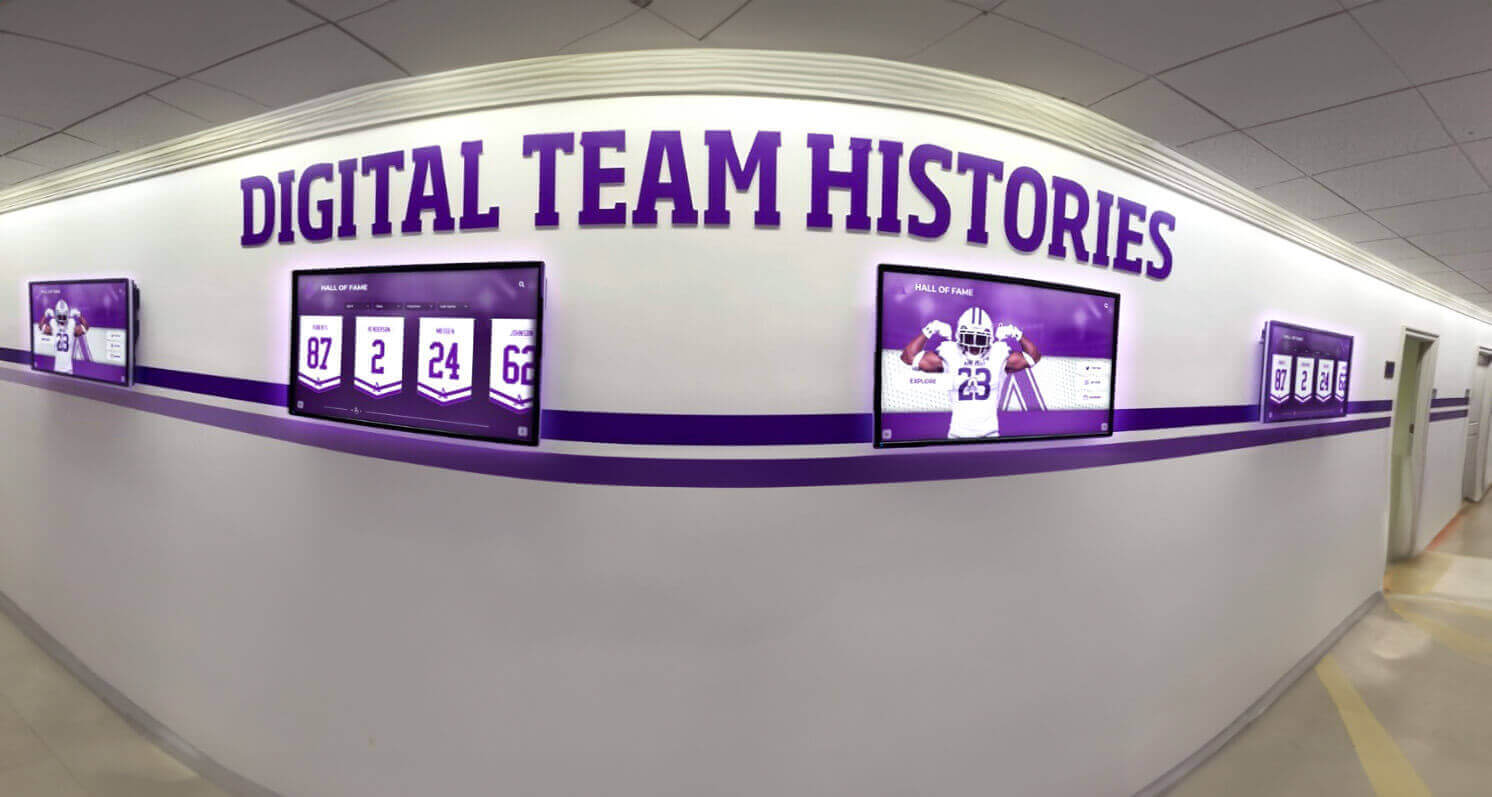
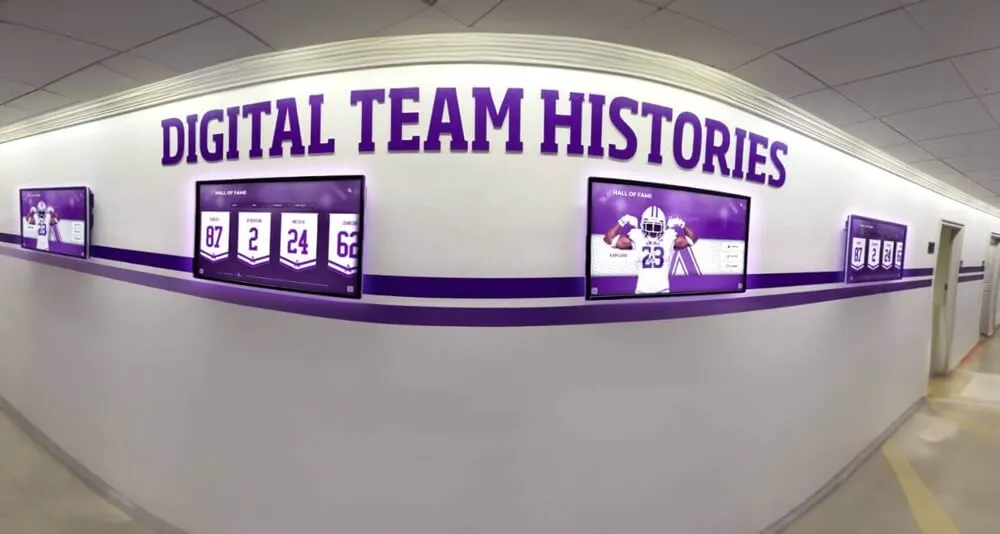
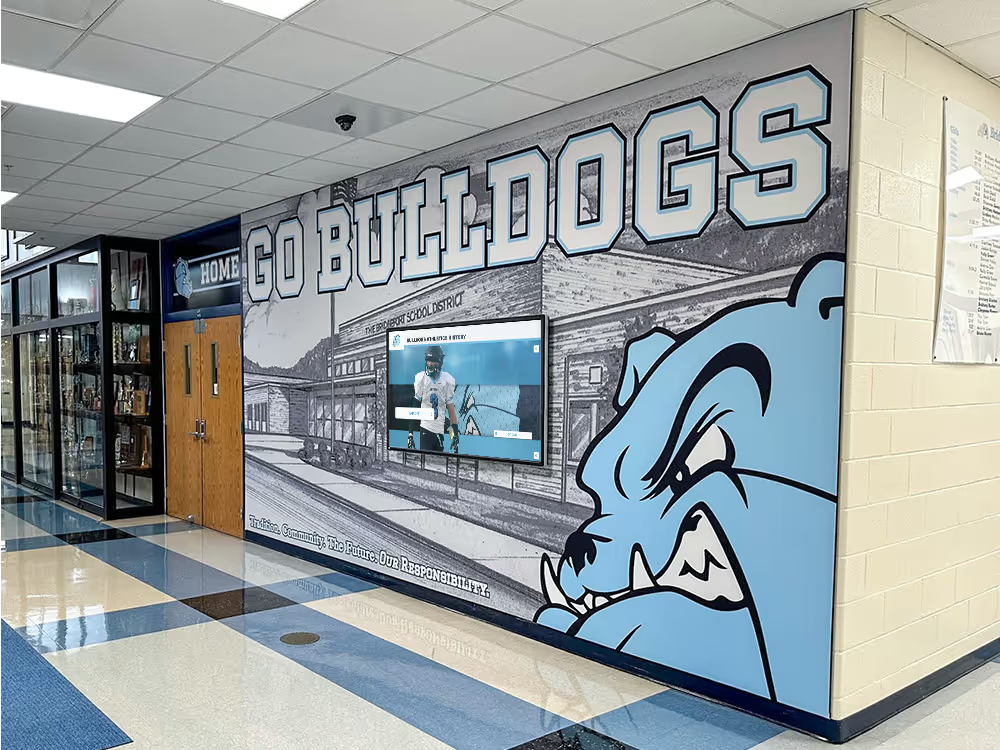
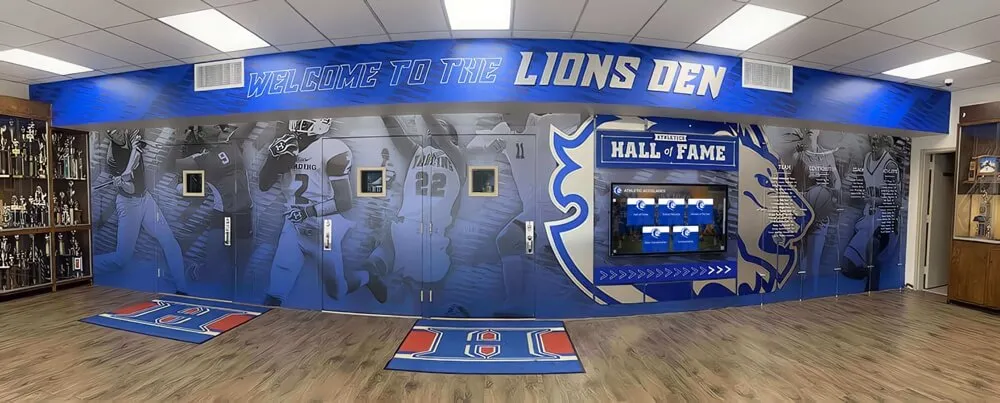
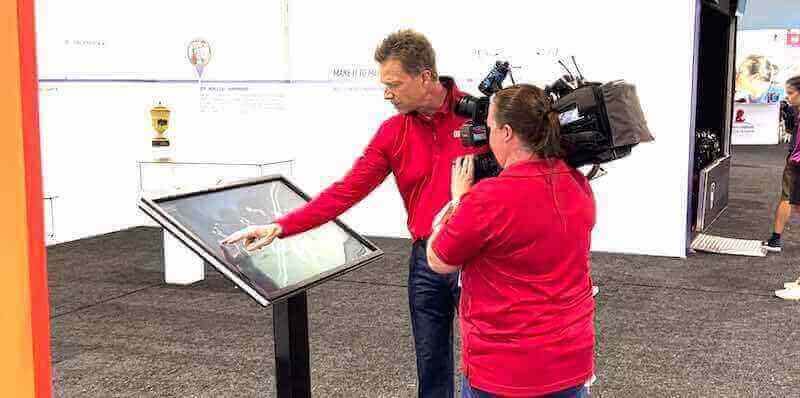
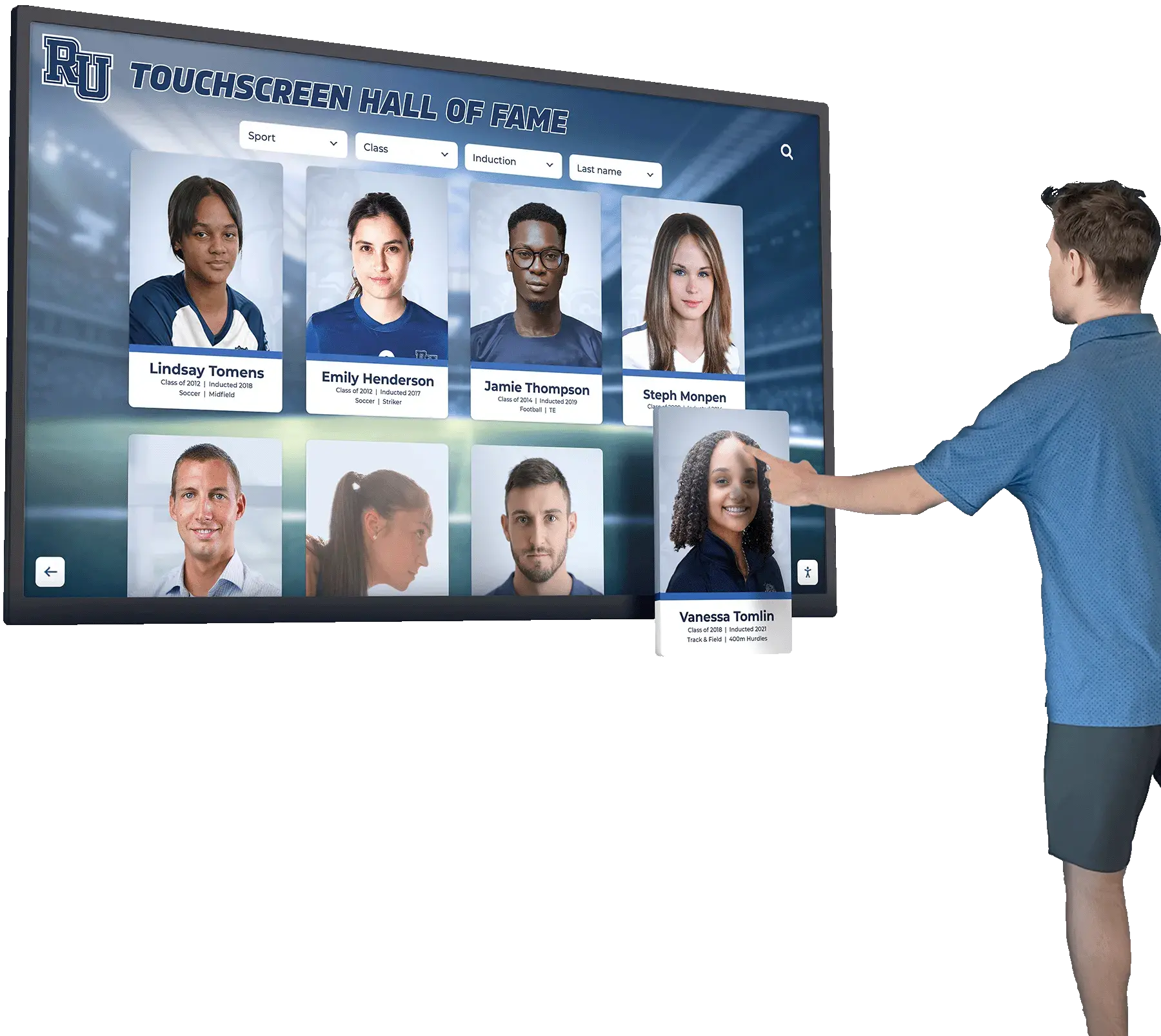
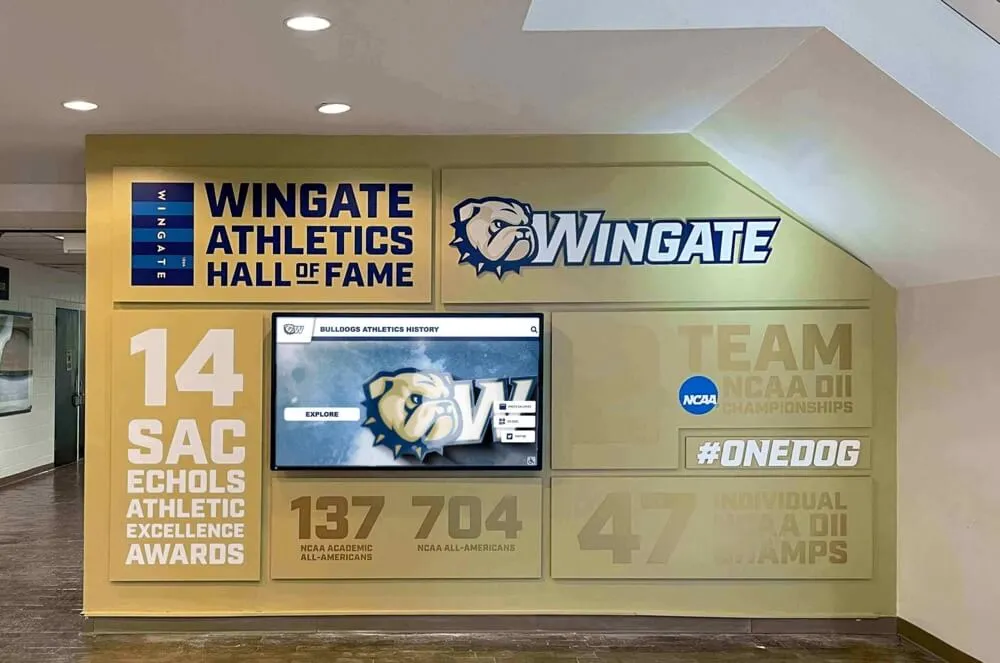
Recognition walls displaying scrolling team histories and animated content require frame-sync verification before public launch to prevent visible tearing during high-motion sequences
Troubleshooting Table: Screen Tearing on Recognition Displays
Use this table after completing the numbered test sequence to match your observed symptoms to likely causes and corrective actions.
| Symptom | Likely Cause | Corrective Action |
|---|---|---|
| Tearing visible on all content types including static slides | Panel EDID mismatch or hardware defect | Set resolution and refresh rate manually in OS display settings; swap HDMI cable; test with a second panel |
| Tearing on fast-motion video only; static and slow content clean | Frame-rate mismatch with V-Sync disabled | Enable V-Sync in media player settings; confirm output refresh rate matches panel native rate (60 Hz) |
| Tearing on 60 fps content but not 30 fps | Player outputting variable refresh rate | Lock output to 60 Hz in OS display settings; disable any “smooth motion” or frame-interpolation features |
| Tearing on motion graphics but not video | Graphics engine running at different rate than video player | Use a unified signage platform that renders all content layers through a single compositing engine |
| Tearing only at specific transition points in the playlist | Frame-rate switch between content items | Transcode all content to a uniform frame rate (60 fps recommended) before loading into the playlist |
| Intermittent tearing that appears and disappears | Signal integrity issue in cable or extender | Shorten cable run; replace HDMI extender with one rated for 4K/60; check all connector seating |
| Tearing that worsens after 60–90 minutes of runtime | Thermal throttling on media player hardware | Ensure adequate ventilation around player; check player CPU/GPU temperature; update media player firmware |
| Tearing persists after V-Sync enabled and refresh rate corrected | Player software V-Sync not functioning correctly | Update or reinstall media player software; test with an alternative player application to isolate the issue |
| Tearing only on certain panel zones (top or bottom strip) | Firmware bug in panel’s scan driver | Check panel manufacturer’s firmware update page; apply any available display firmware update |
| No tearing during test but tearing reported during live event | Content added after testing introduced frame-rate variation | Audit all newly added content for frame rate before each public display cycle; standardize transcoding workflow |
People Also Ask: Screen Tearing on Recognition Displays
What is the fastest way to check if a recognition display has screen tearing?
Play a high-contrast horizontal pan video—a wide receiver running a route or a sprinter crossing the finish line—at full playback speed. Stand at normal viewing distance (10–15 feet for a lobby display). If you see a horizontal line where the top and bottom of the image appear offset or jagged, screen tearing is present. This takes under 60 seconds and requires no special equipment.
Does screen tearing damage the display?
No. Screen tearing is a synchronization artifact that affects image quality but causes no physical damage to the panel or electronics. It will not shorten the panel’s lifespan. However, it is worth correcting before public display because it signals a signal-chain or software configuration issue that could indicate other instability.
Why does screen tearing appear on sports video but not on award photos on the same screen?
Still images have no frame rate—they place no timing demand on the display refresh cycle. Sports video with fast horizontal motion creates the highest per-frame pixel change of any content type on a recognition screen, which makes frame-sync errors visible. The display is struggling with the video pipeline, not the image pipeline.
Can screen tearing be fixed without replacing hardware?
In most cases, yes. The majority of screen-tearing incidents on school recognition displays are caused by V-Sync being disabled in software, a frame-rate mismatch between source and display, or a degraded cable connection—all software or low-cost hardware corrections. Hardware replacement (panel or media player) is rarely required unless the panel has a firmware defect or the media player lacks sufficient processing power for the content resolution.
How often should we run a screen-tearing test?
Run the full test sequence before initial public launch, after any change to the media player hardware or software, after adding a new category of content (for example, adding sports video to a display that previously ran only static graphics), and after any cabling or signal-chain modification. An abbreviated fast-pan spot-check before any major event (awards night, homecoming, alumni weekend) takes under five minutes and catches problems introduced by recent content updates.
What frame rate should recognition display content use?
60 fps is the recommended standard for all motion content on recognition displays. Most commercial panels refresh at 60 Hz, so 60 fps content eliminates frame-doubling and frame-dropping complexity. If your highlight archive contains 30 fps footage, transcode it to 60 fps using frame duplication (not interpolation) before loading it into the playlist. Keep all content—video, motion graphics, and animated transitions—at the same frame rate to avoid the rate-switch tearing described in the troubleshooting table.
Is HDMI or DisplayPort better for avoiding screen tearing on recognition displays?
For recognition displays in the 1080p/60 range, both HDMI 1.4 and DisplayPort 1.2 are adequate. DisplayPort has a slight advantage because its native protocol handles adaptive sync more cleanly, but in practice the difference on a fixed 60 Hz commercial panel with a single content source is negligible. The cable quality and run length matter more than the connector type: use cables rated for the target resolution, keep runs under 15 feet without a repeater, and verify that any HDMI extender supports the full bandwidth of your signal.
Connecting the Test to Your Digital Recognition Program
A screen-tearing test is one component of a broader display quality process. Once tearing is resolved, the remaining visual quality checks—color fringing on athlete portrait cards, HDMI-CEC configuration for automated on/off scheduling, and color calibration across multiple display panels—complete the pre-launch verification routine.
The display quality effort is most valuable when the underlying recognition content is also well organized. Youth athlete of the year programs and formal sports banquet recognition generate the highlight video, award graphics, and motion-content libraries that end up on recognition screens. Building a clean, consistent asset library—video at 60 fps, graphics at native panel resolution, transitions using consistent frame rates—reduces tearing risk on every future content update.
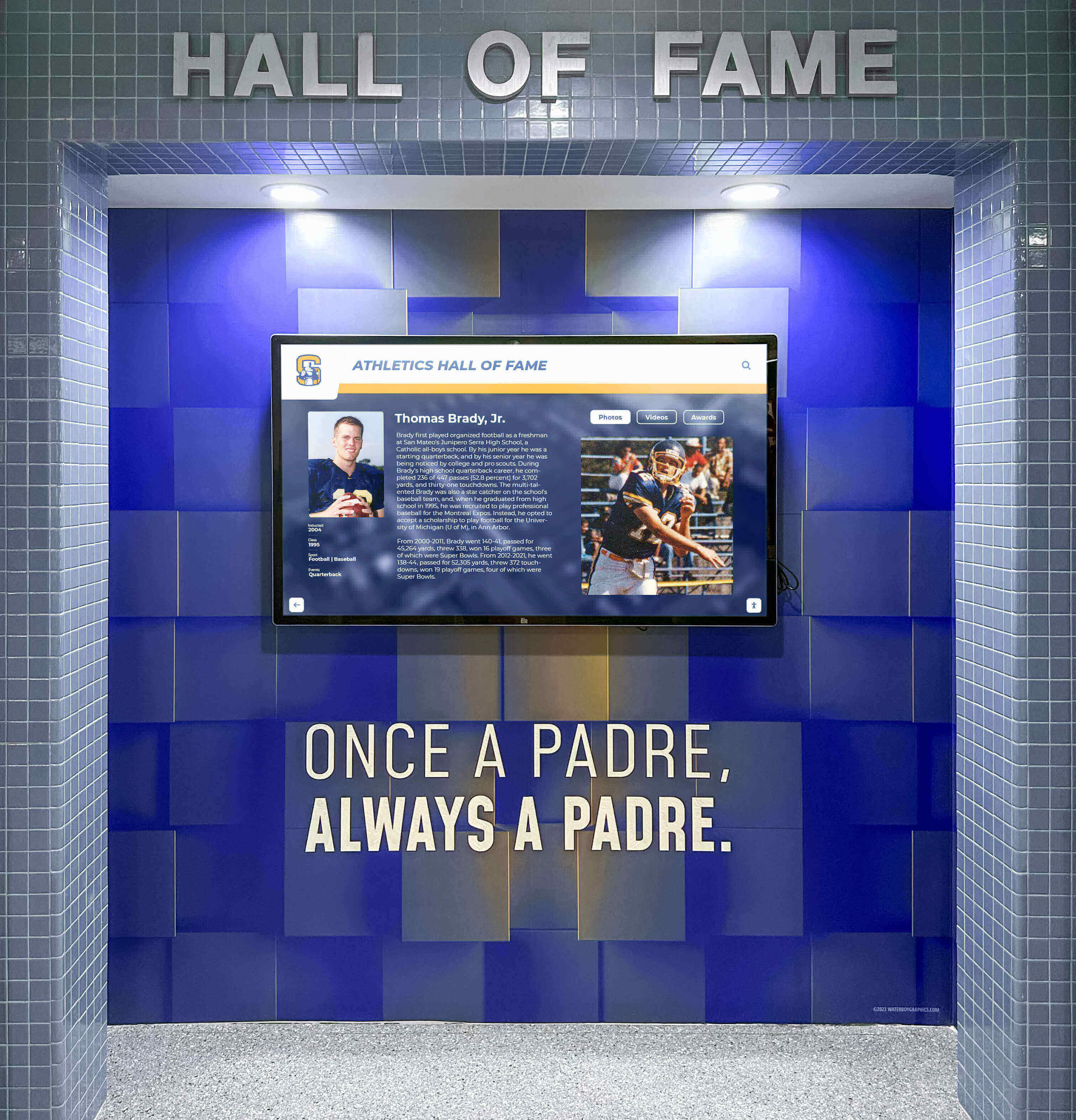
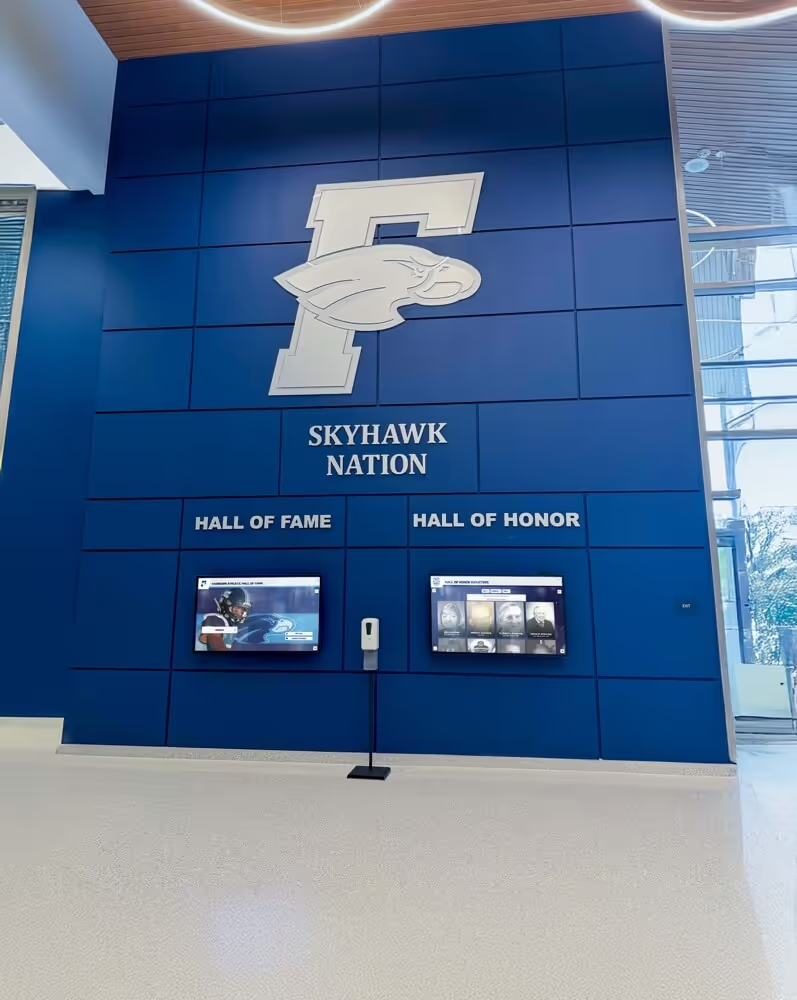
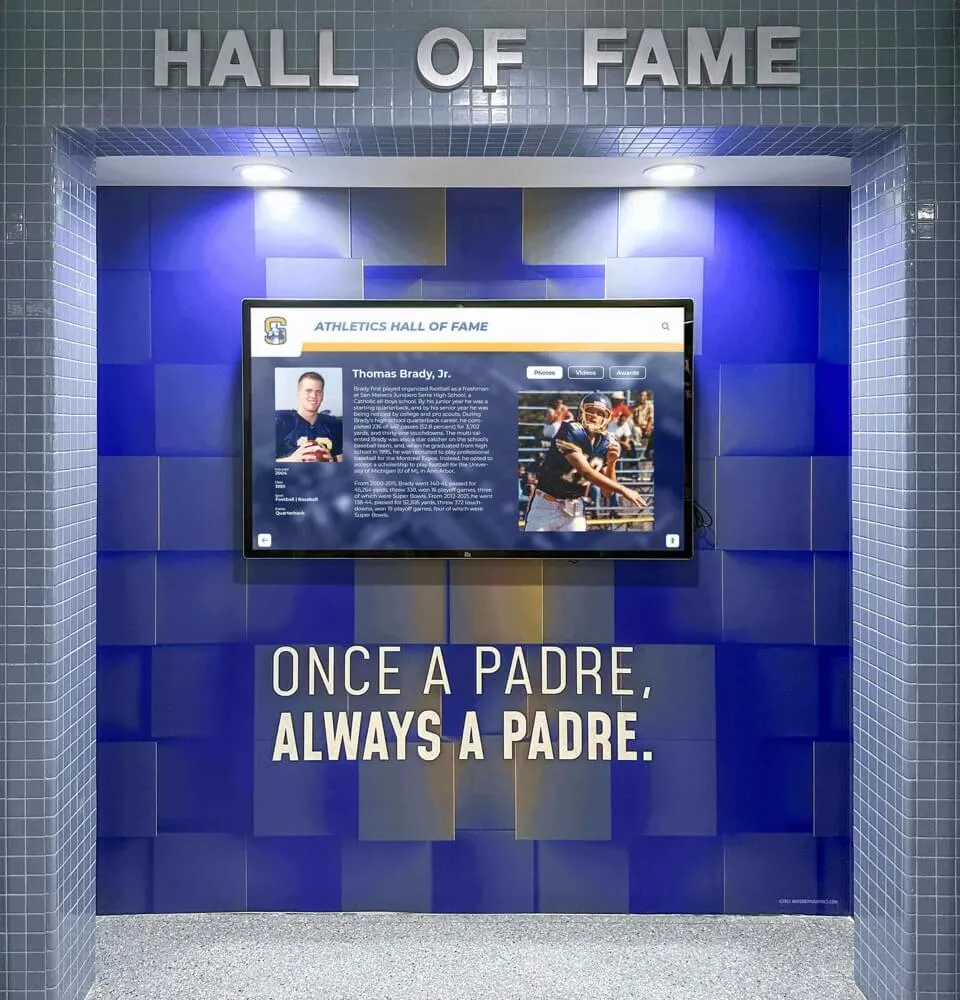
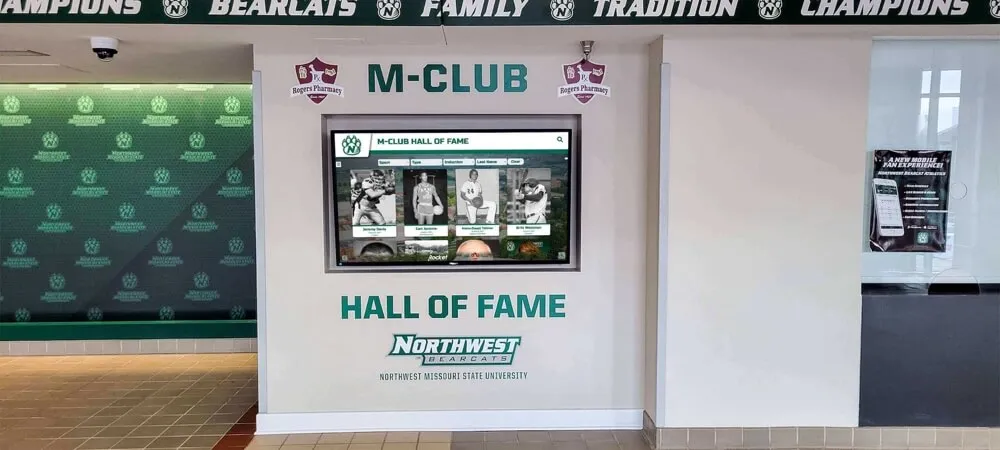
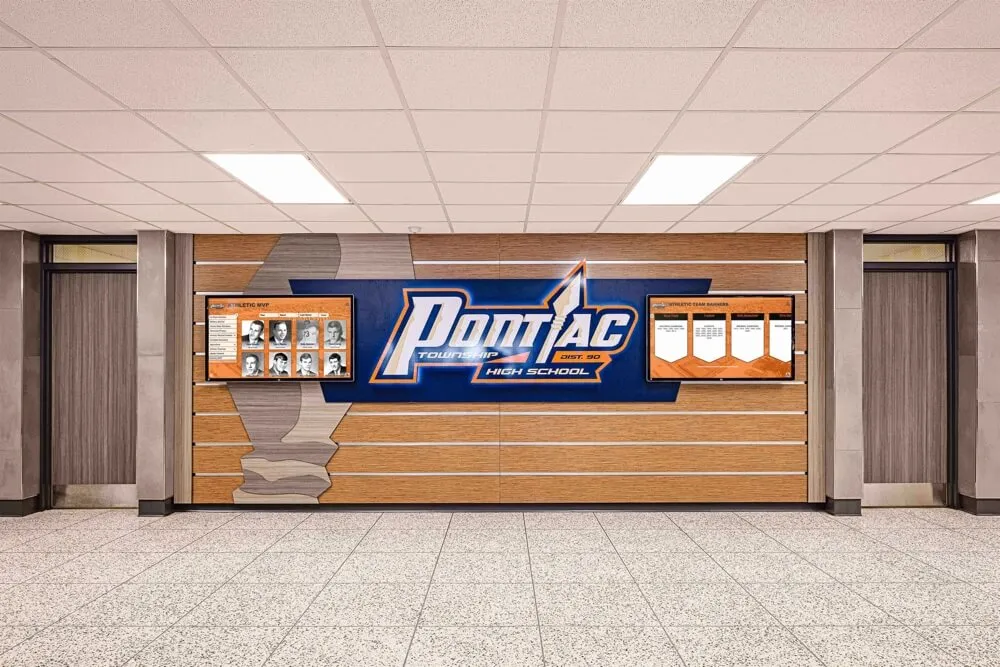
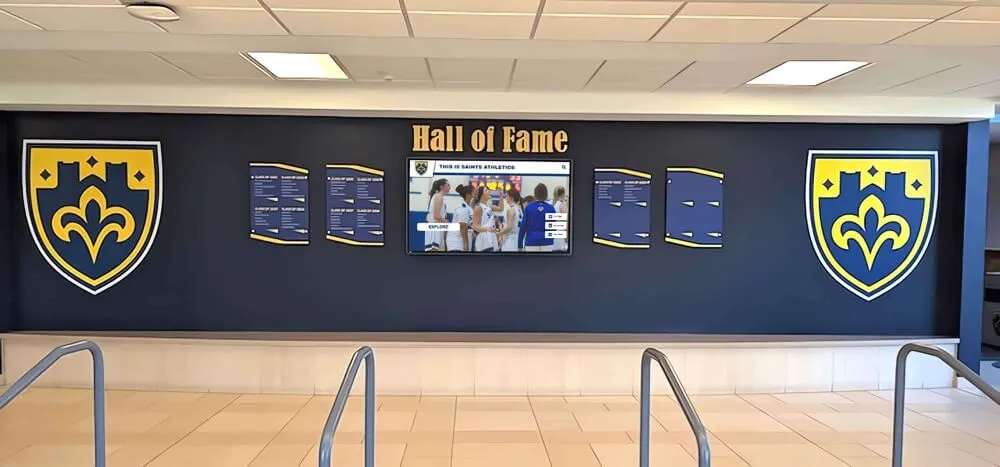
Hall-of-fame recognition screens displaying a mix of athlete portraits, video highlights, and animated records require a pre-launch screen-tearing test to ensure polished presentation quality
Digital vs. Static Recognition: Why Display Quality Matters More with Video
Static recognition boards—framed plaques, printed banners, laminated record sheets—have no frame-rate or signal-chain dependencies. Their image quality is fixed at the time of printing. Digital recognition systems gain enormous advantages in timeliness, depth of archive, and engagement, but they introduce display quality variables that static systems do not have.
A digital recognition workflow can surface an athlete’s complete career stats, highlight reel, and social recognition within hours of a championship performance—something no physical board can match. That responsiveness is only an asset if the display presents the content cleanly. A tearing highlight video during a booster club event is more disruptive than a slightly outdated plaque, because the failure is visible and dynamic rather than static and easily overlooked.
Running a thorough recognition display screen-tearing test before each public event is the quality assurance step that protects the investment in digital recognition and ensures the technology enhances rather than distracts from the athletes being celebrated.
The same principle applies when digital recognition systems support non-athletic programs. Academic honor rolls, performing arts walls, and academic distinction displays all benefit from verified display quality, particularly when those screens run animated content or video tributes alongside traditional award listings.
For middle school recognition programs building their first digital archives, the screen-tearing test sequence is equally relevant—younger students’ first encounters with formal recognition on a school display should be just as polished as a varsity hall-of-fame wall.
Summary: Recognition Display Screen-Tearing Test Checklist
Before marking the display ready for public viewing, confirm each item:
- Panel native resolution and 60 Hz refresh rate set in OS display settings
- V-Sync enabled in media player or signage software
- All content transcoded to 60 fps (or a single uniform frame rate)
- Passed Step 1–7 test sequence with no tearing observed
- Signal chain tested with production cabling (not the short test cable)
- Extended 2-hour run completed without tearing appearing
- Spot-check scheduled before each major recognition event
A recognition screen that plays athlete highlight videos, championship montages, and award animations without tearing looks as intentional and professional as the athletic program it represents. The test takes less than three hours from setup to sign-off and can be repeated in under 30 minutes for ongoing event-day verification.
Ready to see what a professionally managed digital recognition system looks like in practice? Book a live demo with Rocket Alumni Solutions to explore how a cloud-managed platform handles content delivery, display quality, and recognition updates for school athletics programs.