A recognition display RADIUS failover test is a structured network verification procedure that school IT teams run to confirm that touchscreen halls of fame, digital trophy cases, and lobby recognition kiosks will stay online—or recover quickly—when the primary RADIUS authentication server goes down. Networks that use 802.1X authentication require a functioning RADIUS server for every connected device, including wired and wireless recognition displays, to maintain or re-establish their network sessions. When the primary RADIUS server is unavailable and no failover has been tested, a digital hall of fame can go dark in the middle of an induction event, a championship celebration, or an ordinary school day. Testing failover before that happens is a thirty-to-sixty-minute procedure that protects an investment schools measure in years.
This guide walks school administrators, athletic directors, IT and facilities teams, and recognition-program coordinators through a complete recognition display RADIUS failover test procedure. It covers what RADIUS authentication means for recognition displays, how to prepare for the test, a step-by-step checklist for triggering and verifying failover, how to document results, and a FAQ addressing the most common configuration issues school networks encounter.
RADIUS—Remote Authentication Dial-In User Service—is the network protocol that most enterprise and school networks use to authenticate devices before they are allowed to connect. When a recognition display kiosk connects to the school network on a port configured for 802.1X authentication, the switch or wireless controller contacts a RADIUS server to verify that the device is authorized. If the RADIUS server does not respond, the default behavior depends on how the port is configured: some networks fail open (the device connects anyway), and some fail closed (the device is blocked from the network entirely). For a school lobby touchscreen that visitors will use on induction night, the difference between those two behaviors is significant.

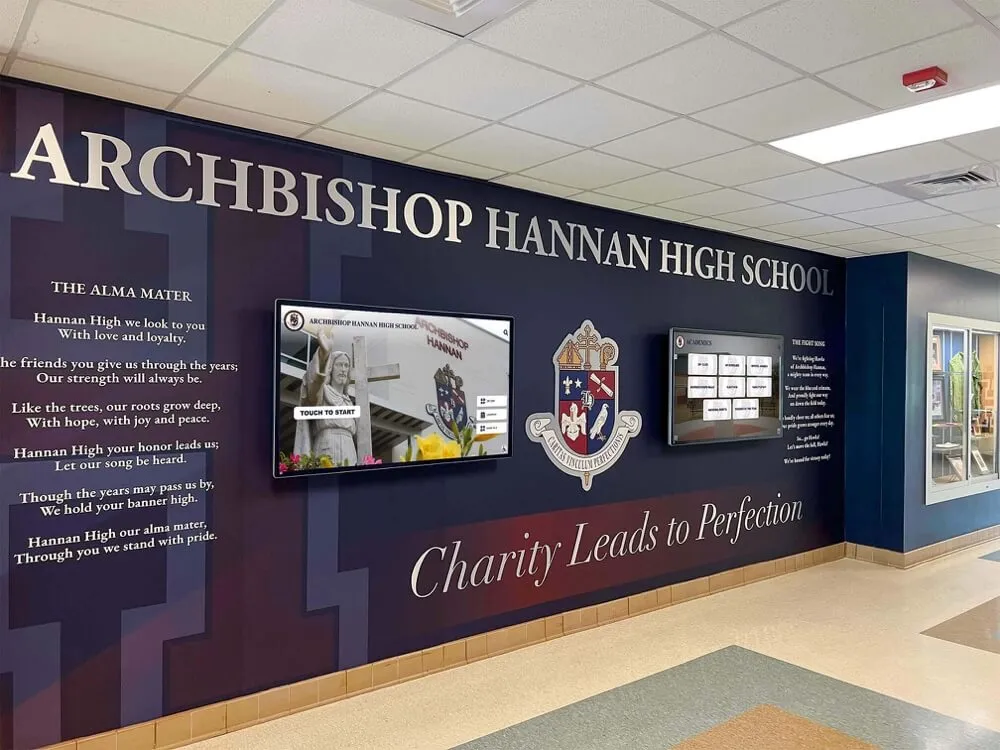
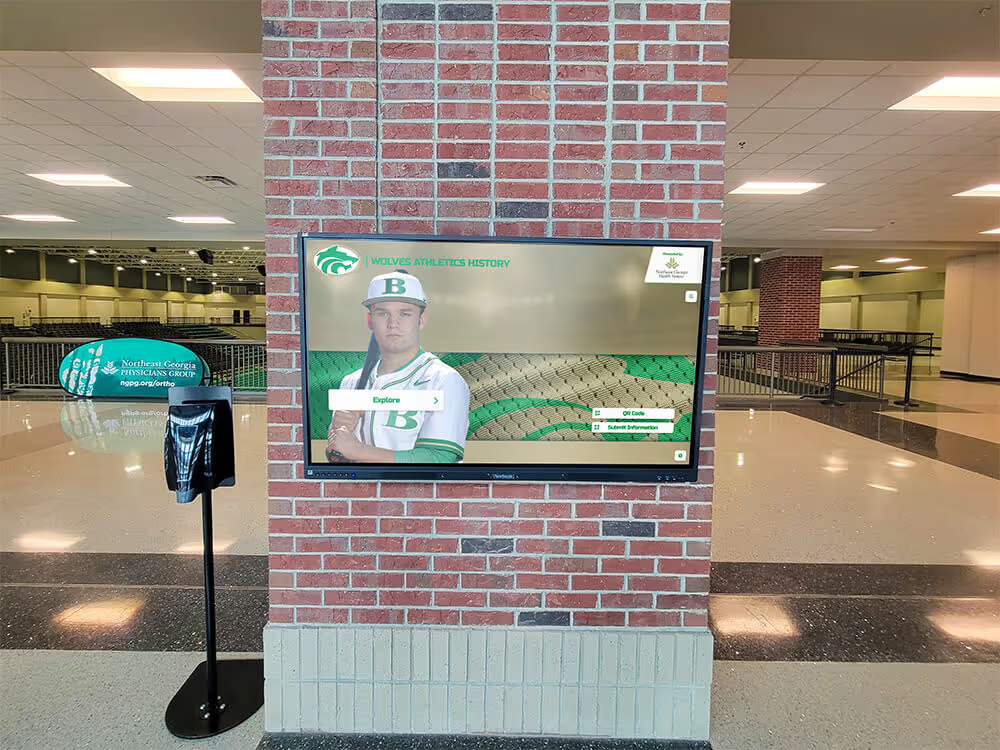
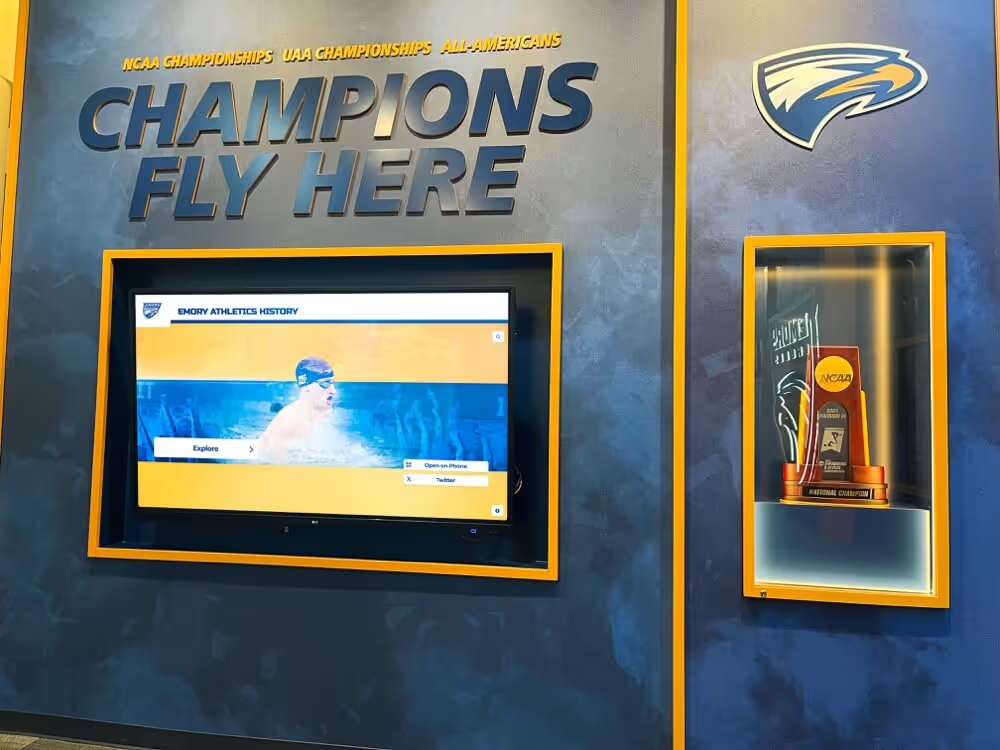
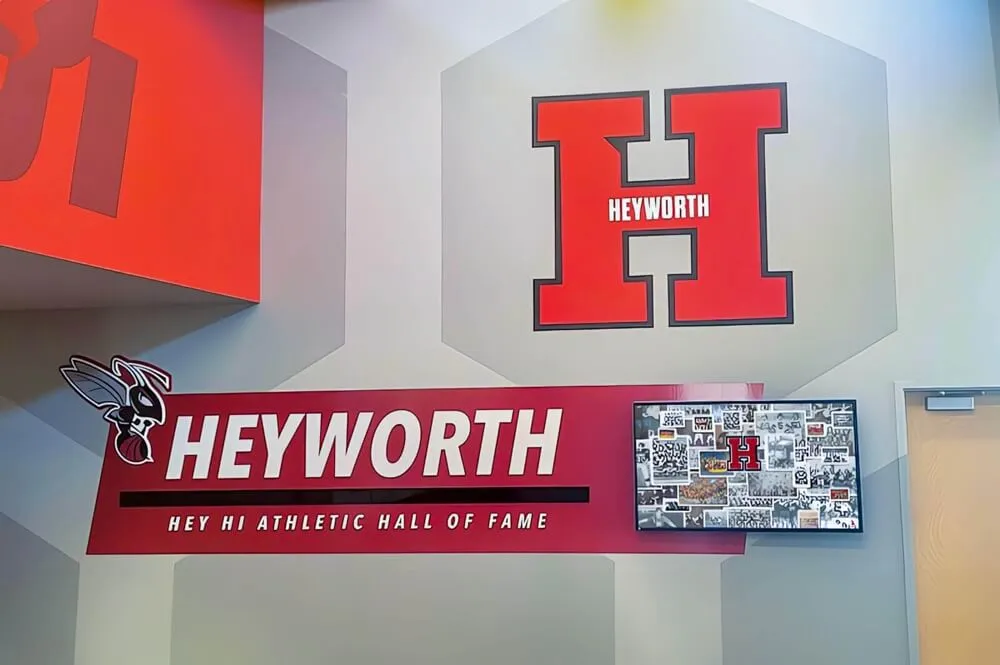
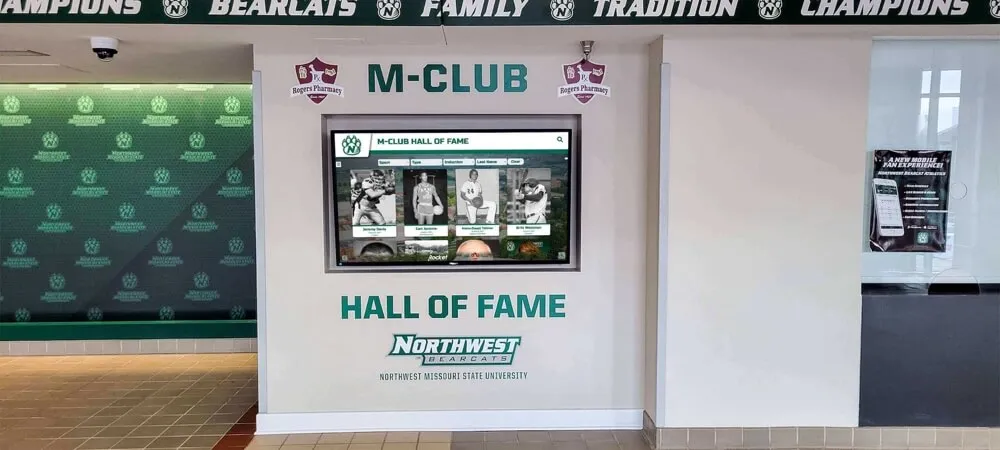
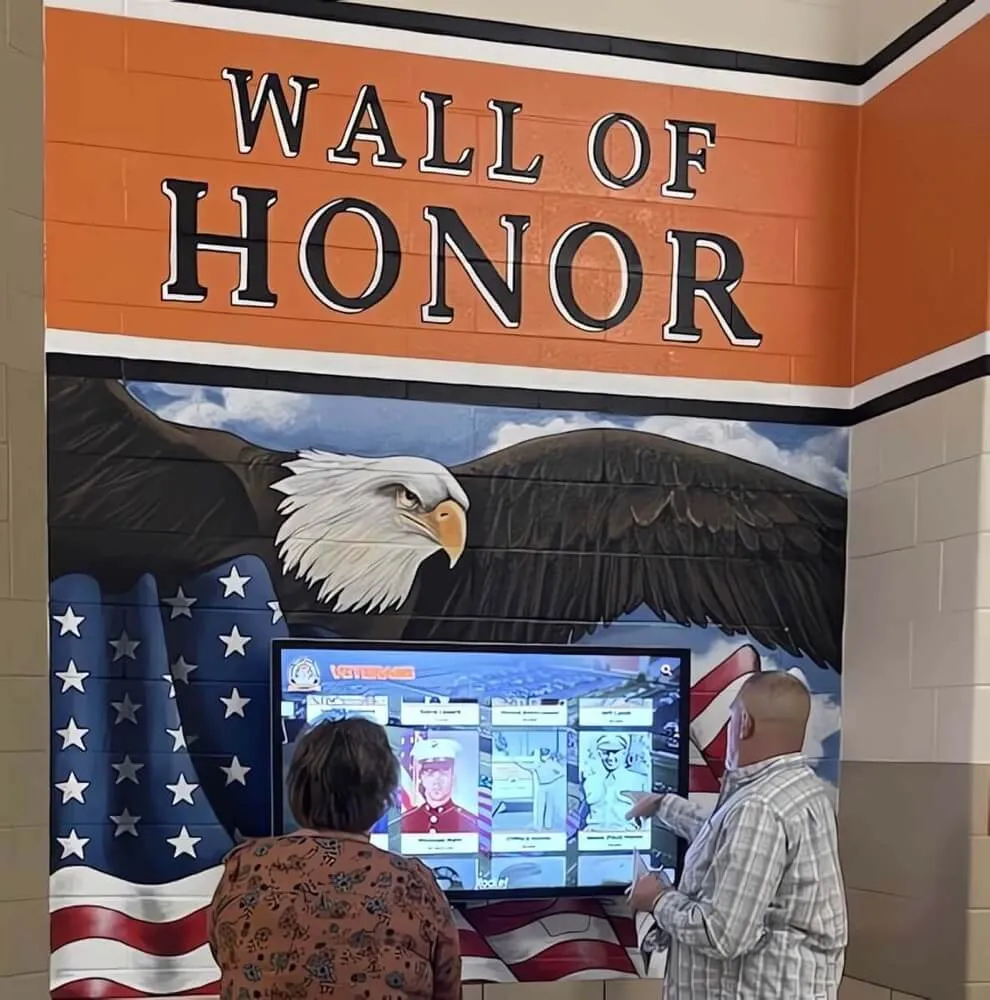
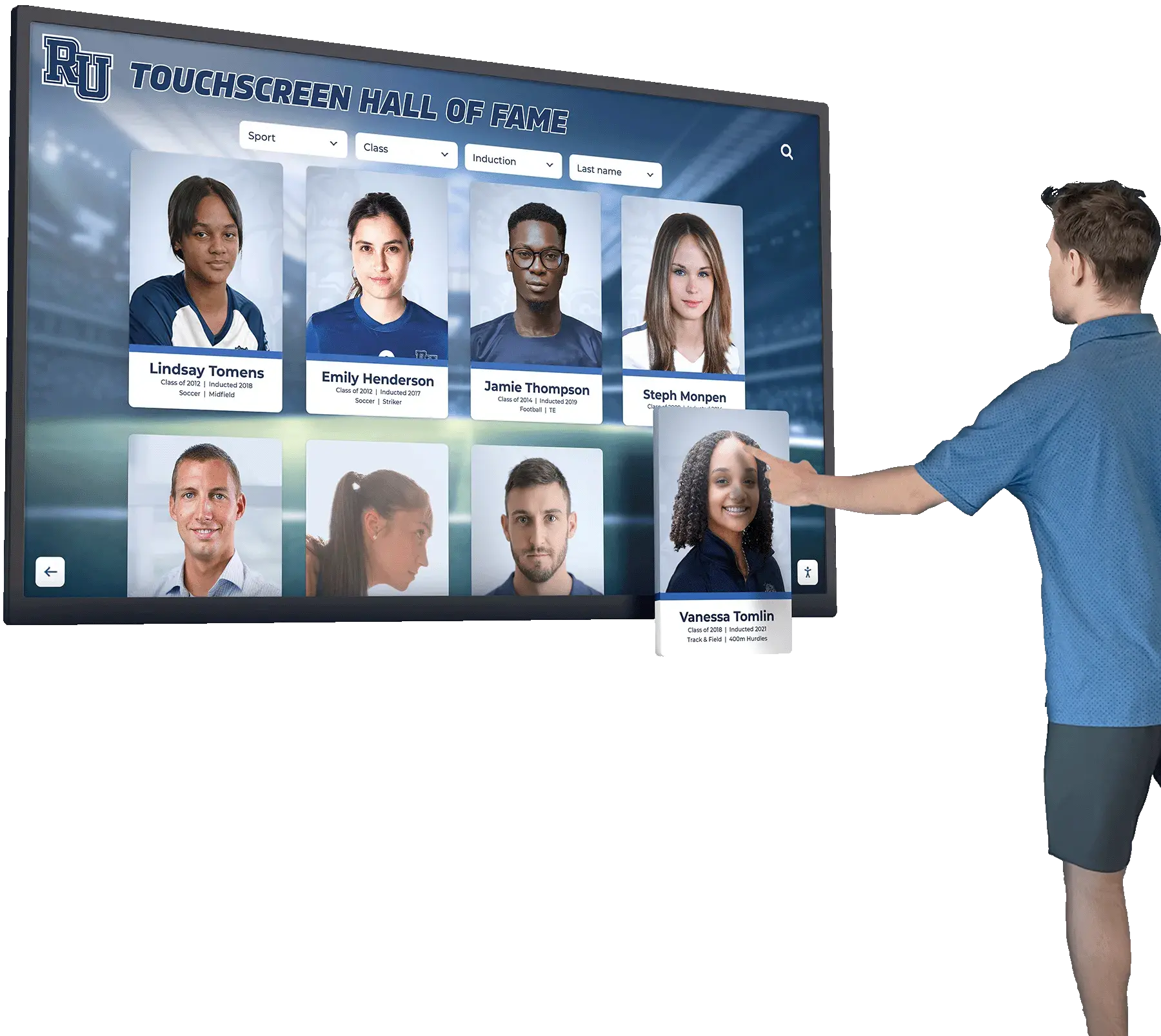
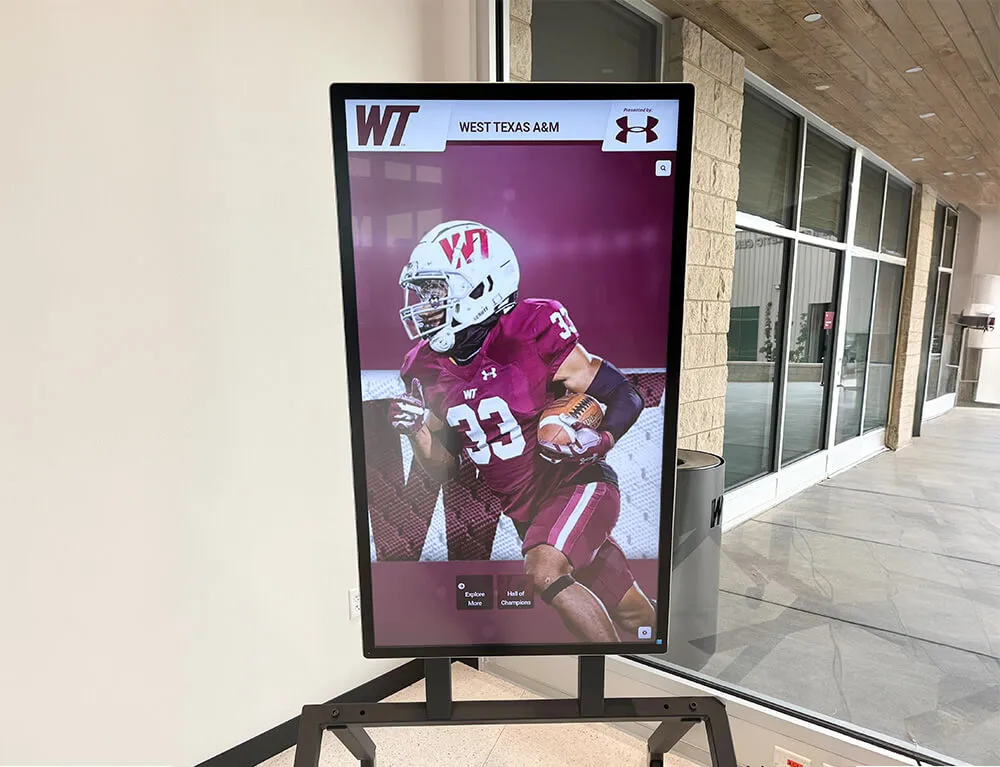
A recognition display touchscreen kiosk like this one contacts a cloud content platform every time it loads or refreshes content—if the underlying network authentication fails and no failover server is configured, the display can go offline at the worst possible moment
Why RADIUS Failover Testing Matters Specifically for Recognition Displays
Recognition displays are not the same as workstations or printers in terms of when they are most visible and most critical. A teacher’s laptop losing network access on a Tuesday afternoon is an inconvenience. A touchscreen hall of fame going blank during a Saturday induction ceremony attended by two hundred alumni, parents, and community members is an institutional disruption that erodes trust in the recognition program.
The operational profile of recognition displays creates specific RADIUS-related risks that general network planning often does not fully address:
- Event-driven criticality: Recognition displays matter most during events—inductions, homecoming, championship celebrations, alumni weekends—when IT staff are not necessarily monitoring the network and when any outage is immediately visible to visitors.
- Long authenticated sessions: A recognition display kiosk may authenticate at boot and remain connected for eight or twelve hours without re-authenticating. A RADIUS server restart during the day may go unnoticed until the session expires and the device attempts to re-authenticate against a now-unavailable server.
- Content-platform dependency: Cloud-hosted recognition platforms—which serve profiles, video, and athletic history to touchscreen displays—require continuous network access to refresh content. A brief authentication failure that causes a switch port to enter an unauthorized state will disconnect the display from its content source even if the content platform itself is fully operational.
- Non-technical monitors: Recognition displays in school lobbies are often supervised by front-office staff or volunteers during events, not IT staff. If a display goes offline, the person closest to it is unlikely to know that RADIUS is the cause or how to initiate a recovery.
Testing failover under controlled conditions before an event is the only way to confirm that the backup authentication path is actually functional—not merely configured.
Reviewing a digital hall of fame for status message accessibility is one part of pre-event preparation; confirming the network authentication layer that keeps the display online is another equally important part.

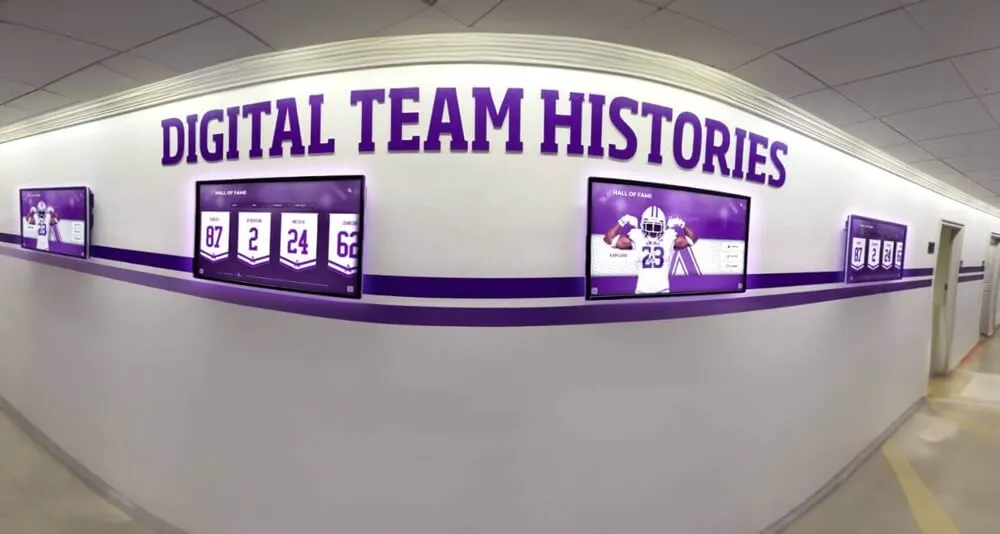
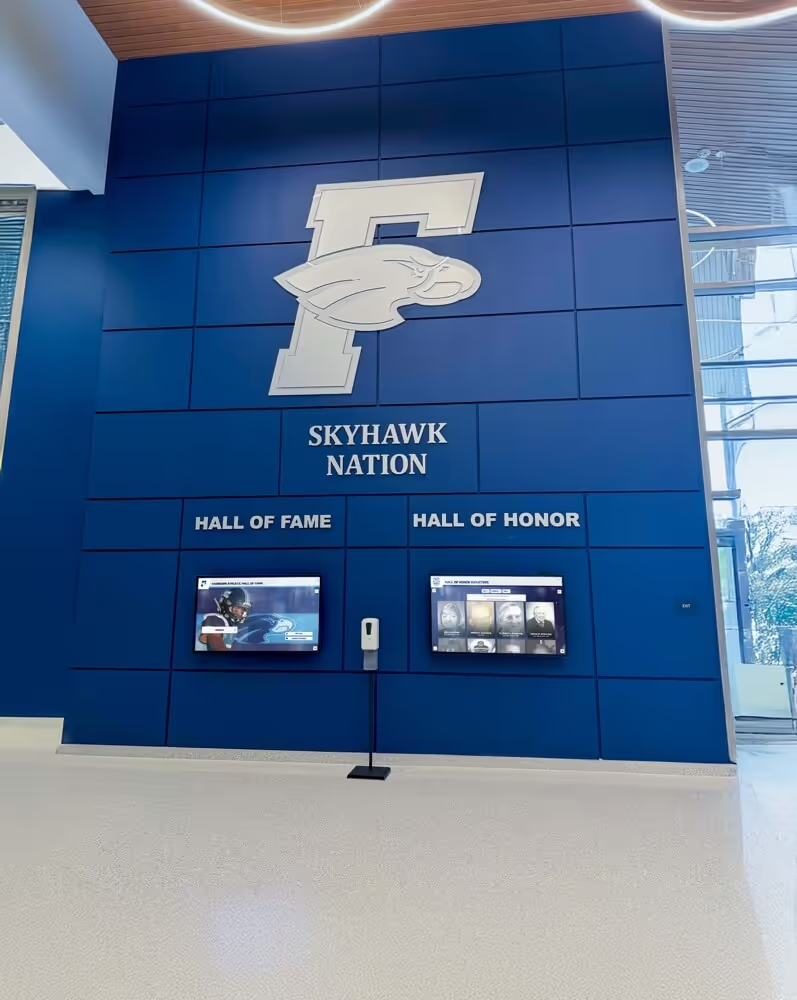
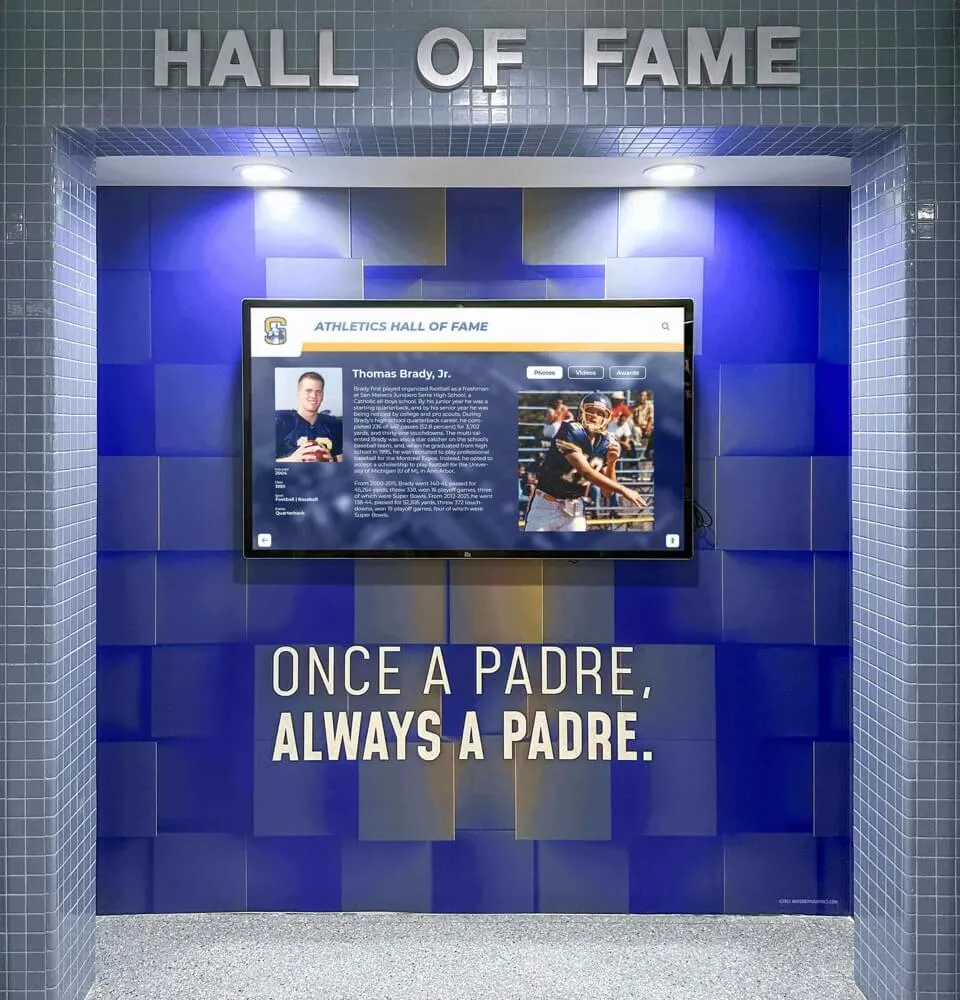
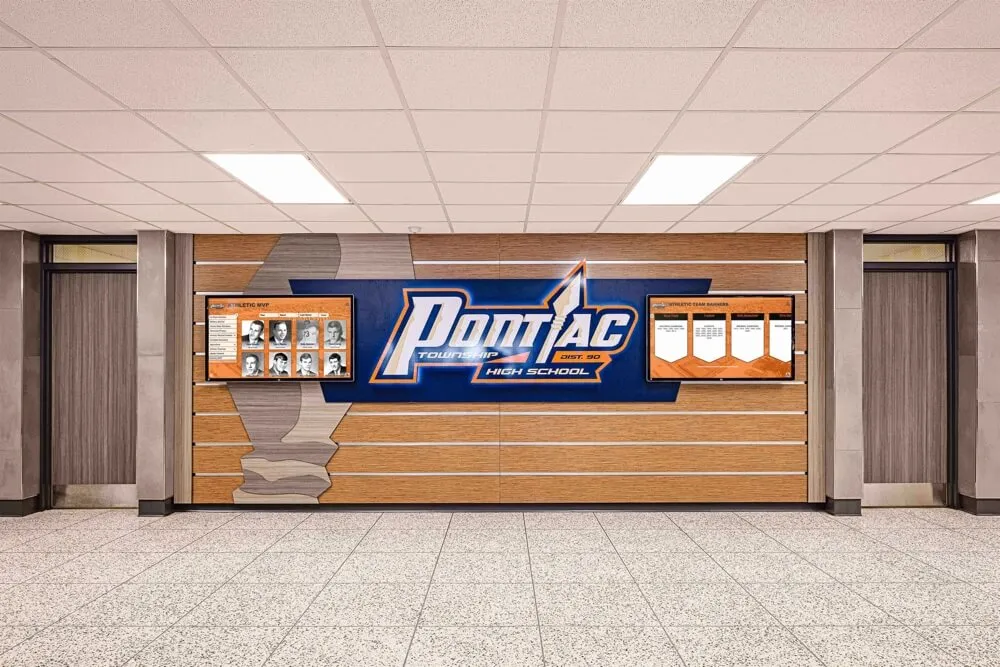
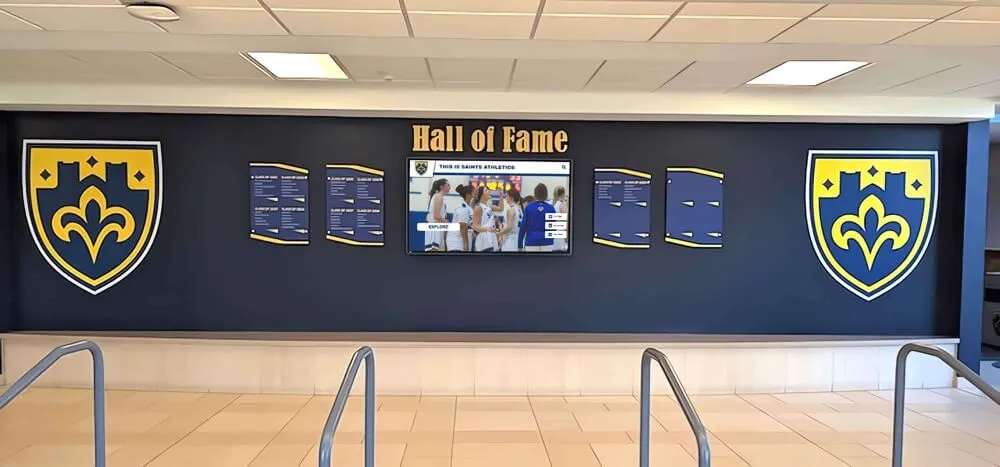
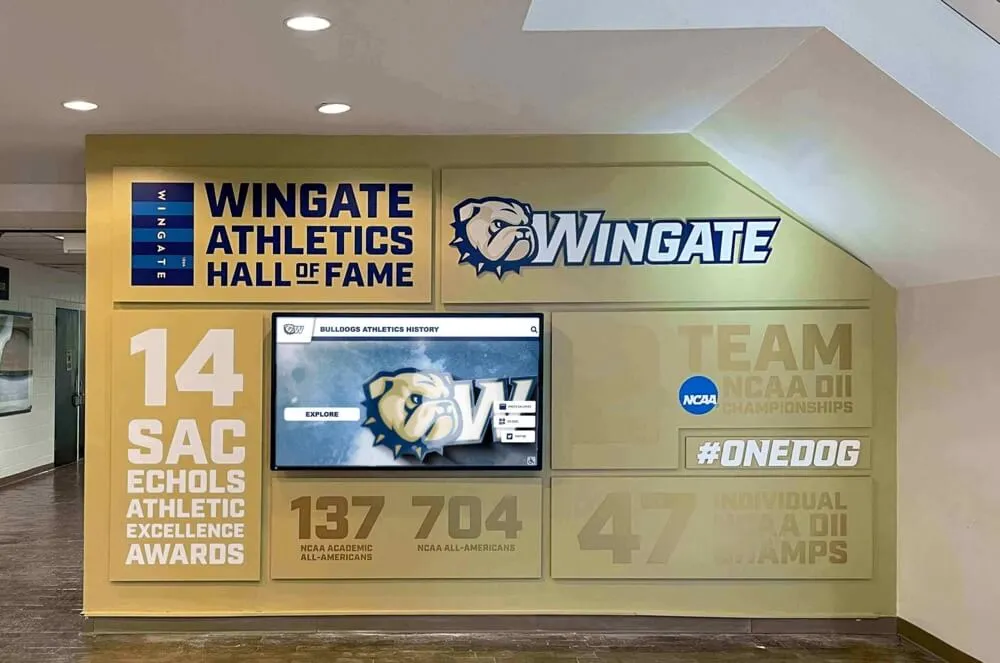
Recognition displays in high-traffic school hallways are among the most visible technology in the building—a network authentication failure that takes the display offline is noticed by visitors long before IT staff are aware of it
Before You Start: Prerequisites and Preparation Checklist
Do not begin a recognition display RADIUS failover test without completing this preparation phase. Running the test against an incorrectly documented environment produces results that do not reflect what will actually happen during an event.
What you need before starting:
| Item | Where to Find It |
|---|---|
| IP address of primary RADIUS server | Network management console, or show aaa servers on Cisco, get system radius on FortiGate |
| IP address of secondary/backup RADIUS server | Same source; if absent, stop—failover cannot be tested until a secondary is configured |
| RADIUS shared secret | Stored in network management console or switch configuration |
| MAC address or device name of each recognition display | Check the display’s network settings, or review the switch port MAC table |
| Switch port or SSID to which each display connects | Network diagram or switch port map for the recognition display location |
| Maintenance window approval | Confirm with IT leadership and administration before triggering any intentional server interruption |
| Notification to front-office staff | Inform anyone who might see the display go briefly offline during the test |
Preparation checklist:
- Confirm the secondary RADIUS server is configured in the switch or wireless controller as the fallback authentication server for ports hosting recognition displays
- Confirm the secondary RADIUS server is currently reachable from the network (ping test from a management workstation to the secondary server IP)
- Confirm the secondary RADIUS server has the same shared secret as the primary for the devices under test
- Confirm the secondary RADIUS server has the recognition display device accounts or MAC addresses in its authorization database
- Document the current authentication state of each recognition display before the test (authenticated, authorized, VLAN assigned)
- Set a test window of at least sixty minutes to allow for failover detection time plus full display recovery
- Designate one person to monitor the recognition display physically during the test and report display status in real time
If the secondary RADIUS server does not exist or has not been configured, stop at this step and work with your network team to configure one before scheduling the test. A RADIUS failover test without a secondary server is simply a planned outage.
Section 1: Primary Server Baseline Verification Checklist
Establish a documented baseline of normal RADIUS operation before disrupting anything. This baseline is your reference point for confirming that failover and recovery are working correctly.
Primary server verification:
- Authenticate a known-good test device against the primary RADIUS server and confirm it receives the expected VLAN and authorization attributes
- Confirm that the recognition display’s switch port or SSID shows the display as authenticated (use
show dot1x interfaceon Cisco, or the wireless controller’s client table) - Record the VLAN the recognition display is assigned to during normal authenticated operation
- Confirm the recognition display can reach its content platform from the network by loading the touchscreen interface and verifying content is current
- Record the timestamp of the last successful content refresh shown on the display
- Confirm the primary RADIUS server’s accounting log shows active sessions for the recognition display devices
- Take note of the primary RADIUS server’s current request and authentication counters to confirm the server is actively handling requests at baseline
RADIUS timeout and retry settings to document:
| Setting | Typical Default | Where Configured | Value in Your Environment |
|---|---|---|---|
| RADIUS request timeout | 5 seconds | Switch/controller | |
| RADIUS retry count | 3 attempts | Switch/controller | |
| Dead criteria time | 10 requests, 10 seconds | Switch/controller | |
| Dead timer | 30 minutes | Switch/controller | |
| Re-authentication interval | 3600 seconds (1 hour) | Switch/controller |
Record your environment’s actual values before testing. The failover detection time is approximately (timeout × retries) before the switch marks the primary server dead—for default values, that is up to 15 seconds before failover begins.
Programs building touchscreen displays in high school gym lobbies for digital trophies invest significant planning in physical installation—the same systematic documentation discipline is needed for the network authentication layer that keeps those displays online.
Section 2: Failover Trigger and Detection Checklist
This section covers the procedure for deliberately interrupting the primary RADIUS server and confirming that the switch or controller detects the failure and switches to the secondary server.
Methods for triggering primary RADIUS failure (choose one based on environment):
| Method | Steps | Recovery |
|---|---|---|
| Block RADIUS port at firewall | Add a temporary rule blocking UDP 1812 and 1813 from the switch to the primary server IP | Remove the temporary rule |
| Stop RADIUS service on server | Stop NPS service (Windows: net stop ias) or FreeRADIUS daemon (systemctl stop freeradius) | Restart service to restore |
| Unplug primary server NIC (physical test) | Disconnect the primary server’s network cable | Reconnect cable |
The firewall rule method is preferred for production environments because it is immediately reversible, does not require physical access to the server, and does not risk corrupting server state. The service stop method is acceptable for dedicated RADIUS servers not running other services. Never modify a shared secret in a production environment as a test trigger—the risk of configuration errors that outlast the test window is too high.
Failover trigger checklist:
- Confirm the maintenance window is active and front-office staff have been notified
- Start a timer at the moment the primary RADIUS server is made unreachable
- Monitor the switch or controller for RADIUS server status changes (Cisco:
debug radius, Windows NPS: Event Viewer → Security log) - Note the elapsed time from primary failure to the switch marking the primary server as dead
- Confirm the switch has begun sending authentication requests to the secondary server
- Record the elapsed time from primary failure to first successful authentication against the secondary server
What you should see during failover:
The switch or wireless controller will attempt the primary server the configured number of times, then mark it dead and route authentication requests to the secondary. The recognition display’s existing authenticated session typically continues uninterrupted during this period—the failover affects new authentication requests, not existing sessions, unless the switch is configured to re-authenticate all devices when a RADIUS server change occurs.
Session continuity vs. re-authentication:
| Scenario | Effect on Display During Failover |
|---|---|
| Display re-authenticates during the test window | Display must authenticate against secondary server—full failover path tested |
| Display session does not expire during test window | Display remains online; failover path tested for future re-authentication only |
| Switch configured for periodic re-authentication (default: every 3600 seconds) | Depending on remaining session time, display may or may not re-authenticate during a 60-minute test |
To force the display to re-authenticate against the secondary server during the test, administratively shut and re-open the switch port (interface shutdown / no shutdown on Cisco) after primary failure is confirmed. This produces a clean test of the full failover path.
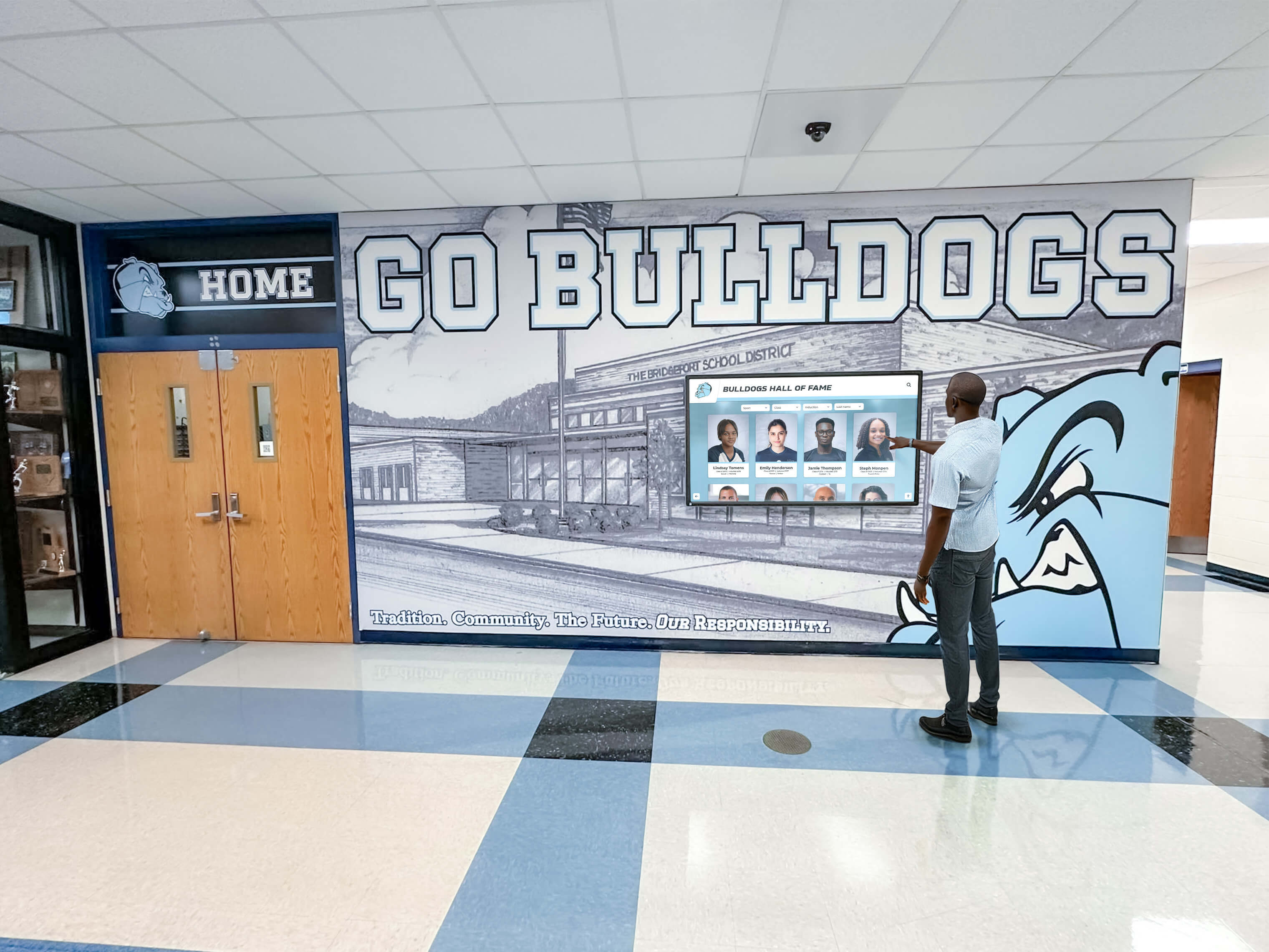
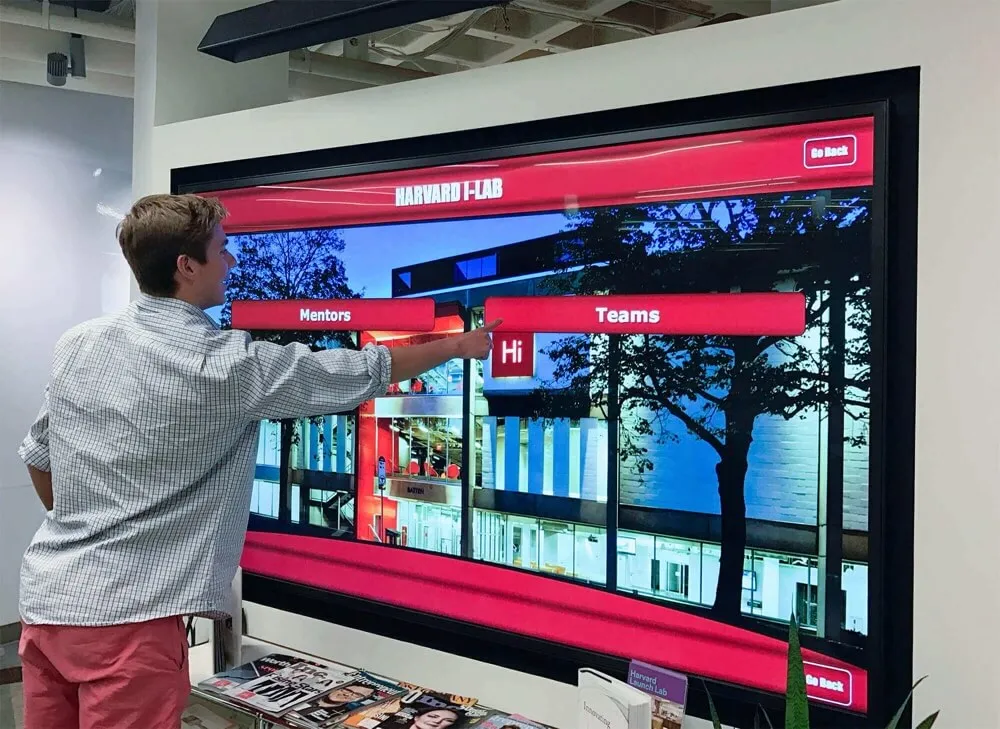
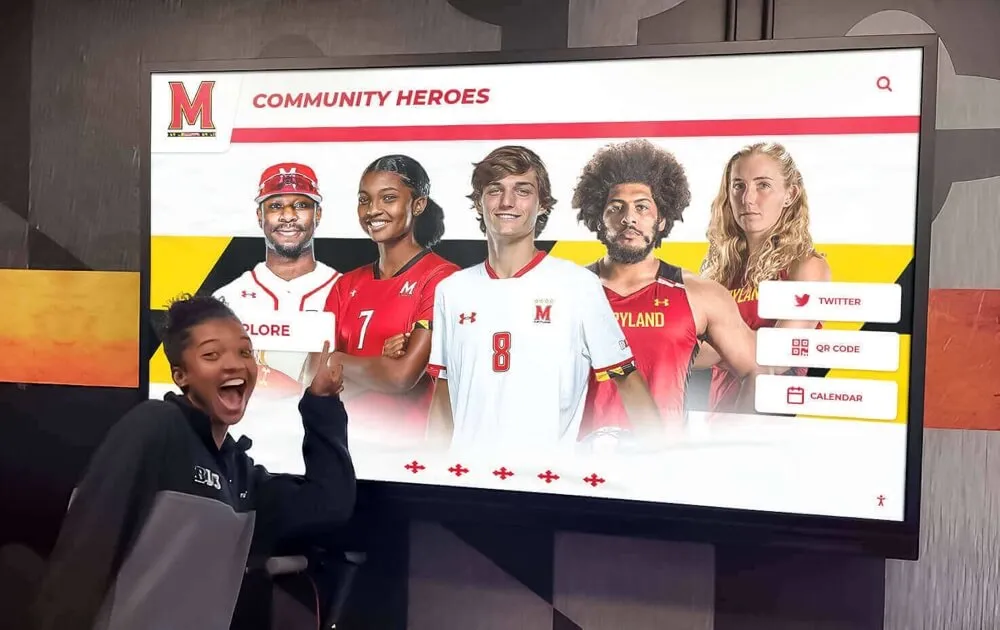
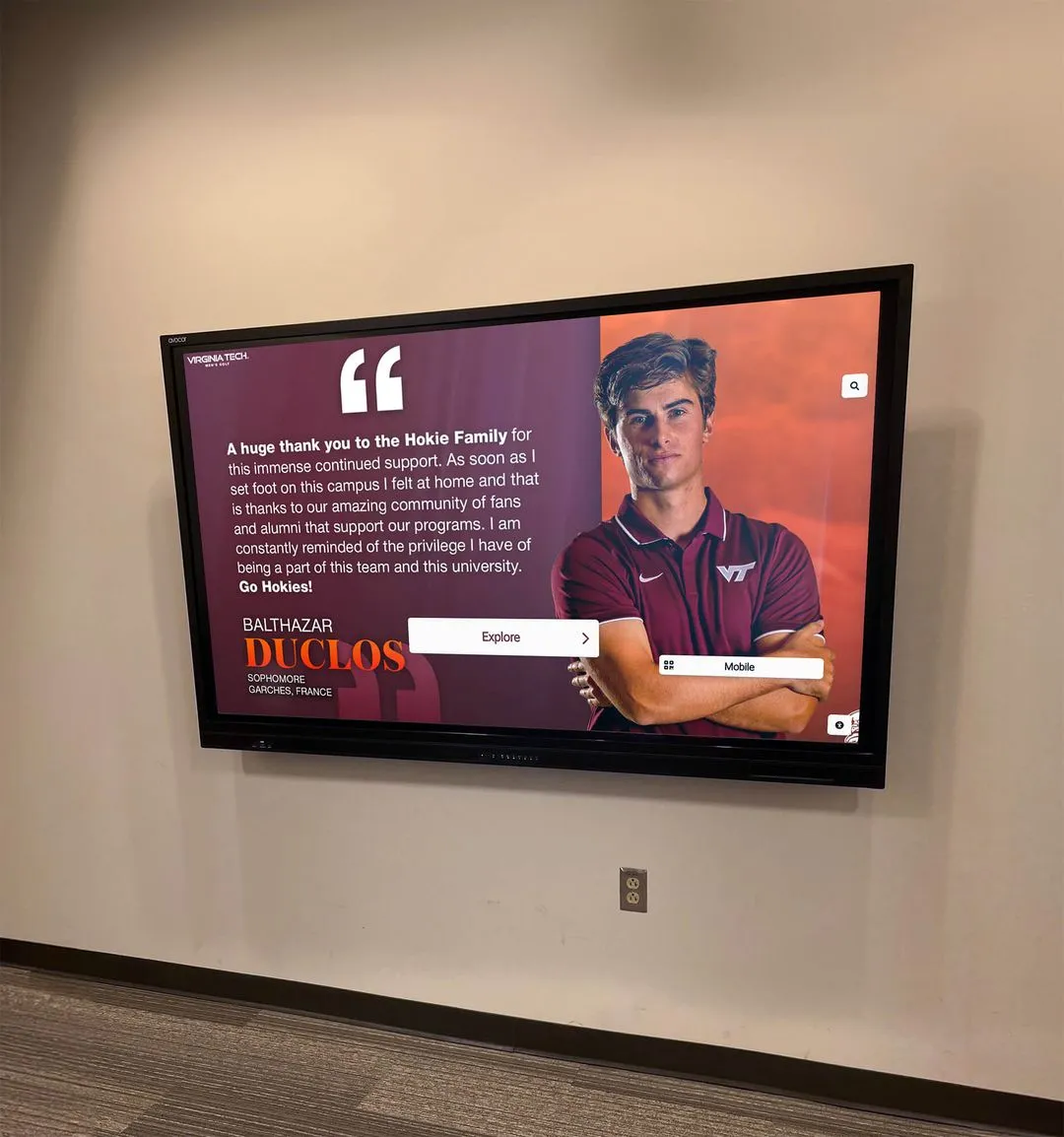
Recognition displays in active use during events are the most sensitive to RADIUS failover timing—a display that recovers from authentication interruption in under thirty seconds is generally imperceptible to users who interpret momentary loading delays as normal content refresh behavior
Section 3: Display Recovery Verification Checklist
After confirming the switch has failed over to the secondary RADIUS server, verify that the recognition display itself has recovered and is delivering content correctly.
Display recovery checklist:
- Confirm the recognition display’s switch port or SSID shows the display as authenticated against the secondary RADIUS server
- Confirm the display is assigned to the correct VLAN (verify it matches the baseline VLAN recorded in Section 1)
- Confirm the recognition display can reach its content platform over the network (load the touchscreen interface and verify content is present)
- Verify that the content on the display is current—a display that reconnects but serves stale cached content needs its refresh interval investigated
- Time the recovery: measure from the moment the switch port is re-enabled (or the session expires) to the moment the display is showing live content again
- Confirm the display’s content platform shows the device as connected in the admin interface, if the platform provides a device status view
- If the display shows any error messages during recovery, capture screenshots and note the messages for investigation after the test
Acceptable recovery time benchmarks:
| Recovery Phase | Target Time | Notes |
|---|---|---|
| Switch port re-authentication against secondary | Under 30 seconds | From port re-enable to authorized state |
| Network connectivity restoration | Under 10 seconds | From authorized state to first successful ping |
| Content platform reconnection | Under 60 seconds | From network connectivity to display showing content |
| Full content refresh | Under 120 seconds | From reconnection to current content fully loaded |
If any phase exceeds these benchmarks significantly, investigate and document before the test concludes. A display that takes four minutes to show content after reconnecting will leave visitors looking at a blank or error screen during an event, even if RADIUS failover itself is technically working.
Reviewing digital hall of fame canonical configuration and platform health is a useful companion to network recovery testing—a display that reconnects quickly but serves incorrect content has solved the wrong problem.
Section 4: Primary Server Restoration and Failback Checklist
After confirming secondary server failover is working, restore the primary RADIUS server and verify that the network returns to normal operation.
Primary server restoration:
- Restore the primary RADIUS server to full operation (remove firewall rule, restart service, or reconnect network cable)
- Confirm the primary RADIUS server is reachable from the network (ping test)
- Monitor the switch or controller for primary server re-entry into the active pool
- Note whether the switch automatically fails back to the primary server or continues using the secondary
Important note on failback behavior:
Most network switches and controllers do not automatically fail back to the primary RADIUS server after it recovers. The switch continues using whatever server is currently marked active and healthy—often the secondary—until devices re-authenticate or are administratively re-authenticated. This is intentional design: automatic failback can cause authentication interruptions during the recovery period.
For recognition displays, this means:
- Confirm the display remains online during the primary server recovery period (it should, since it is already authenticated against the secondary)
- If your environment is configured for automatic failback, confirm the display re-authenticates against the primary without a perceptible interruption
- If automatic failback is not configured, document that the display will continue using the secondary server until the next re-authentication cycle
- Confirm that the dead timer has reset and the primary server will be tried again for new authentication requests after the timer expires
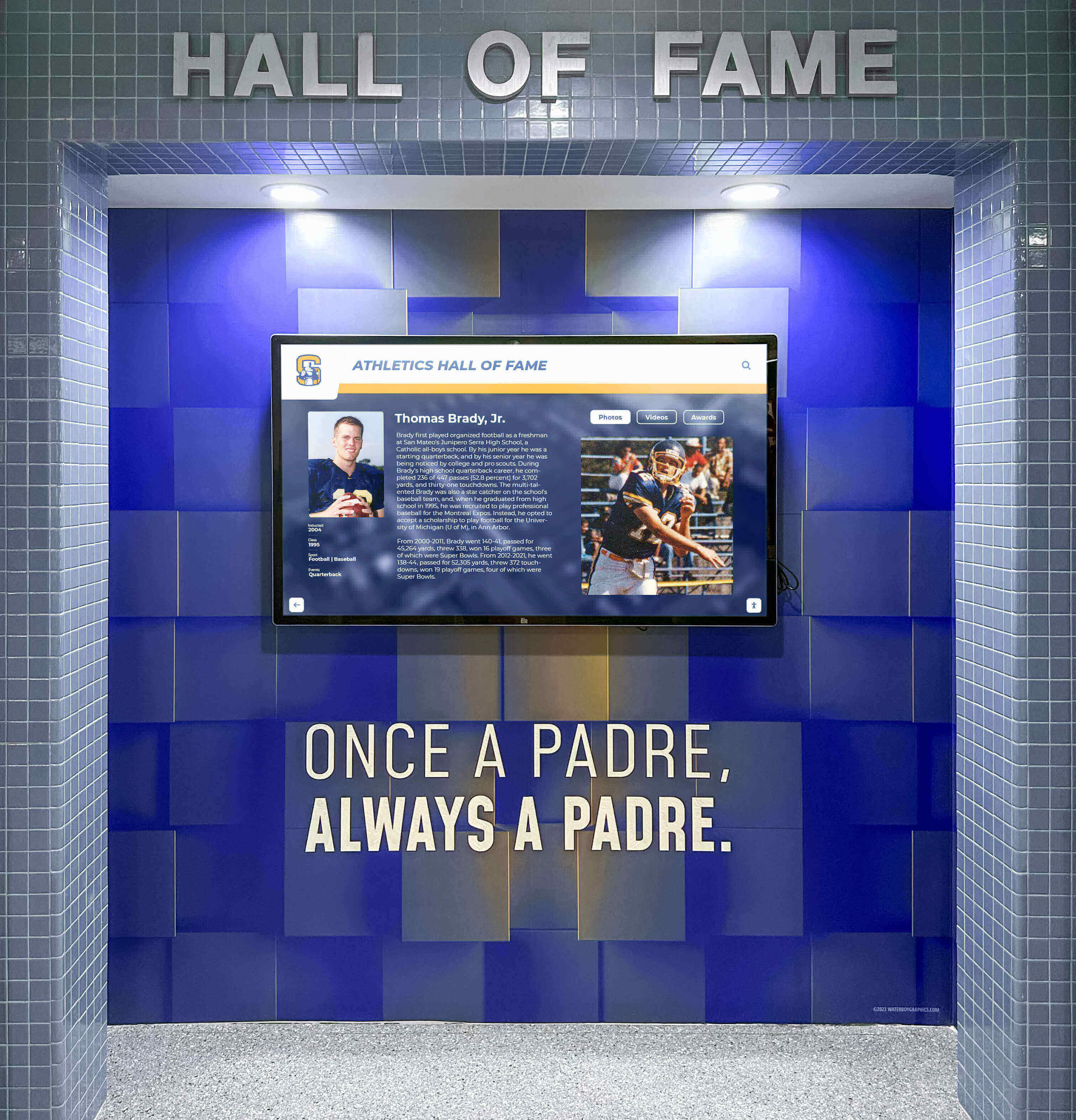
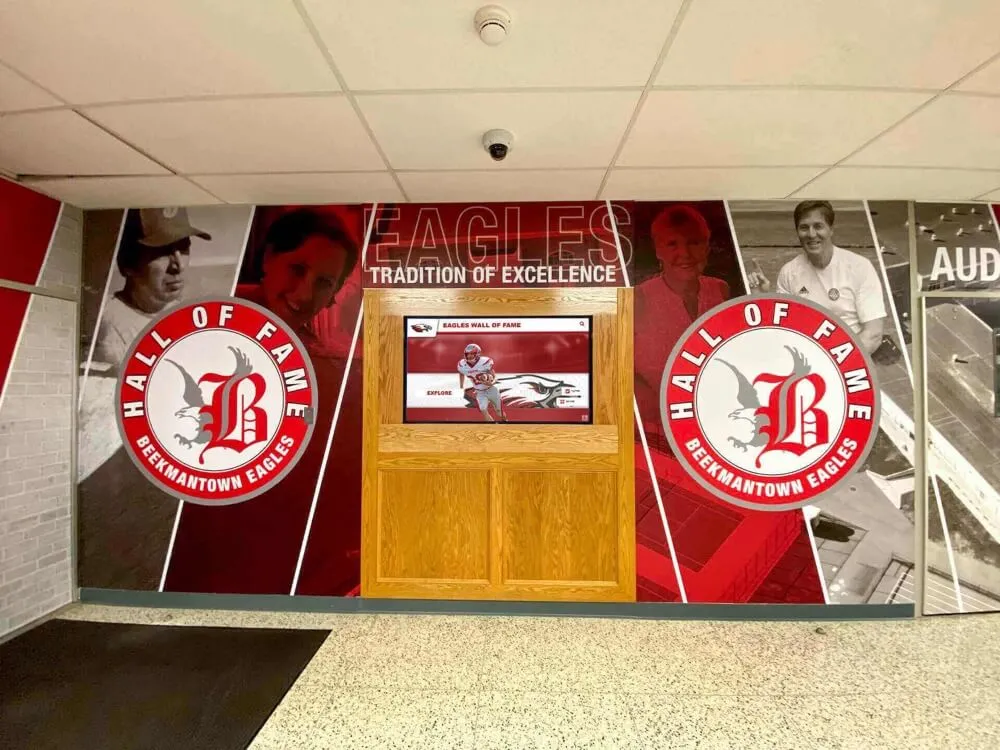
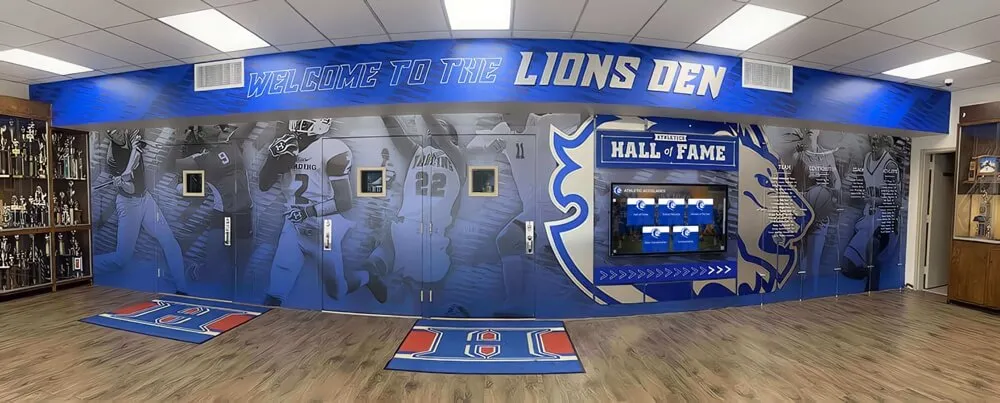
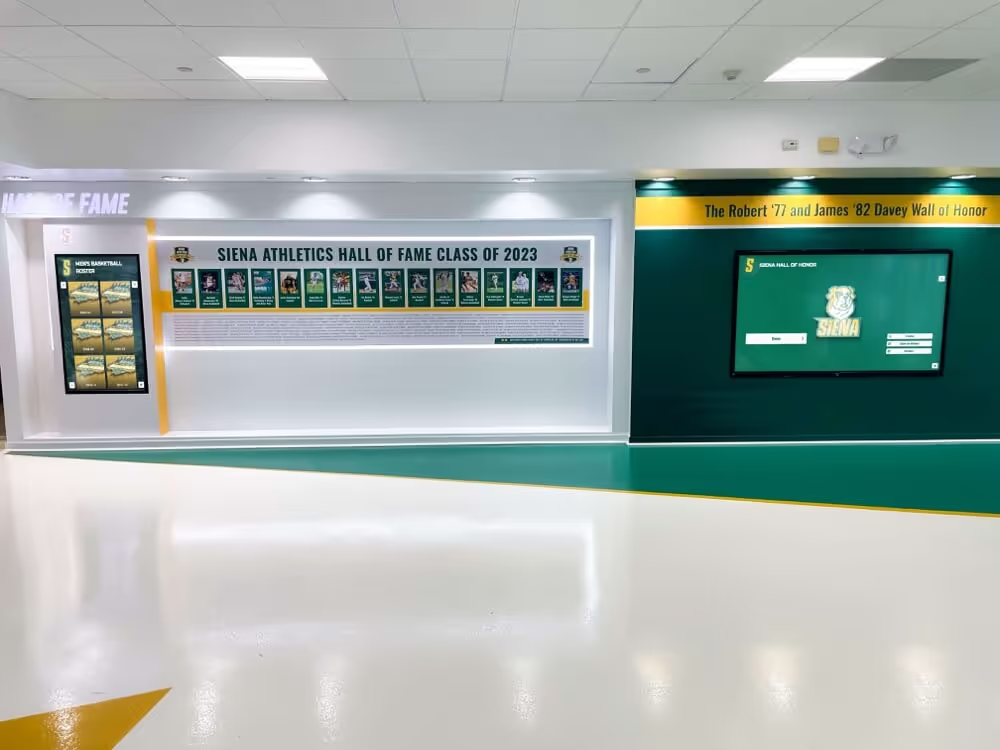
Fixed recognition display installations operate continuously throughout the school day and event schedule—failover test results inform whether secondary server capacity is sufficient to maintain authentication service without performance degradation
Section 5: Wireless Recognition Display Considerations
Some recognition display kiosks connect via wireless rather than wired Ethernet. Wireless 802.1X authentication adds several considerations that wired environments do not face.
Wireless-specific checklist items:
- Confirm the wireless controller or access point is configured with both primary and secondary RADIUS server IP addresses for the SSID the display uses
- Confirm the wireless RADIUS timeout and retry settings match the wired settings documented in Section 1 (wireless controllers often have separate timeout configurations)
- Verify that the wireless controller itself can reach both RADIUS servers—the controller, not the display, contacts the RADIUS server on behalf of the device
- Confirm that RADIUS failover at the wireless level triggers correctly when only the primary server is unavailable
- After wireless failover, confirm the display is still associated to the correct SSID and has not roamed to an unintended access point during the recovery window
- Confirm that the wireless SSID does not fall back to open (unauthenticated) mode if both RADIUS servers are unreachable—a fail-open wireless network is a security concern regardless of display operation
| Wireless Platform | Primary RADIUS Configuration Path | Secondary RADIUS Configuration Path |
|---|---|---|
| Cisco Meraki | Wireless → Access Control → RADIUS servers | Add second server in same panel |
| Aruba / HPE | Configuration → Security → Authentication Servers | Add server with lower priority value |
| Ubiquiti UniFi | Network → WiFi → Advanced → RADIUS Profile | Add second server in RADIUS profile |
| Cisco WLC (traditional) | Security → AAA → RADIUS → Authentication | Add fallback server with secondary designation |
| Juniper Mist | Organization → Access Policies → RADIUS Servers | Add secondary with Fallback enabled |
Schools building recognition programs that include displays across multiple buildings or campuses should verify that wireless RADIUS configurations at each location include a locally reachable secondary server. A secondary RADIUS server at the district office does not help if the WAN link connecting the branch campus to the district office is the same link that has failed.
Understanding how school lobby designs and digital signage placements interact with networking infrastructure helps recognition program owners communicate placement decisions to IT teams with accurate information about what network requirements each location creates.
Section 6: Post-Test Documentation Checklist
Documentation is what converts a one-time test into a repeatable process. Without it, the results exist only in the memory of the staff members who ran the test—which means the next test starts from scratch, and the next outage may not be recognized as a RADIUS issue because no one remembers what was verified and when.
Documentation checklist:
- Record the primary RADIUS server IP address, secondary RADIUS server IP address, and shared secret storage location (do not record the secret itself in test documentation)
- Record all timeout and retry settings documented in Section 1
- Record the elapsed time from primary failure to failover detection and to secondary authentication
- Record the elapsed time from display disconnection to display recovery with live content
- Record the elapsed time from primary restoration to primary server re-entry into the active pool
- Note any anomalies—error messages, slow recovery phases, unexpected behaviors—and their resolution or planned resolution
- Note the test date and the names of IT staff who conducted the test
- Schedule the next test date (recommended: semi-annually, or thirty days before any major recognition event)
- File the documentation in a location accessible to all IT staff, not just the person who ran the test
RADIUS failover test summary table (fill in during test):
| Test Phase | Expected Behavior | Observed Behavior | Pass / Fail | Notes |
|---|---|---|---|---|
| Pre-test: secondary server reachable | Ping succeeds | |||
| Primary failure trigger | Service stops / firewall blocks | |||
| Failover detection time | Under 15 seconds (default settings) | |||
| Secondary authentication | Display stays online or re-authenticates cleanly | |||
| Display recovery time | Under 120 seconds to live content | |||
| Primary restoration | Service restores; server rejoins pool | |||
| Failback behavior | Display continues on secondary until re-auth |
Managing digital assets and documentation for school recognition programs provides a framework for organizing the broader library of program records—RADIUS failover test documentation belongs in that same structured asset library so it is findable when needed.

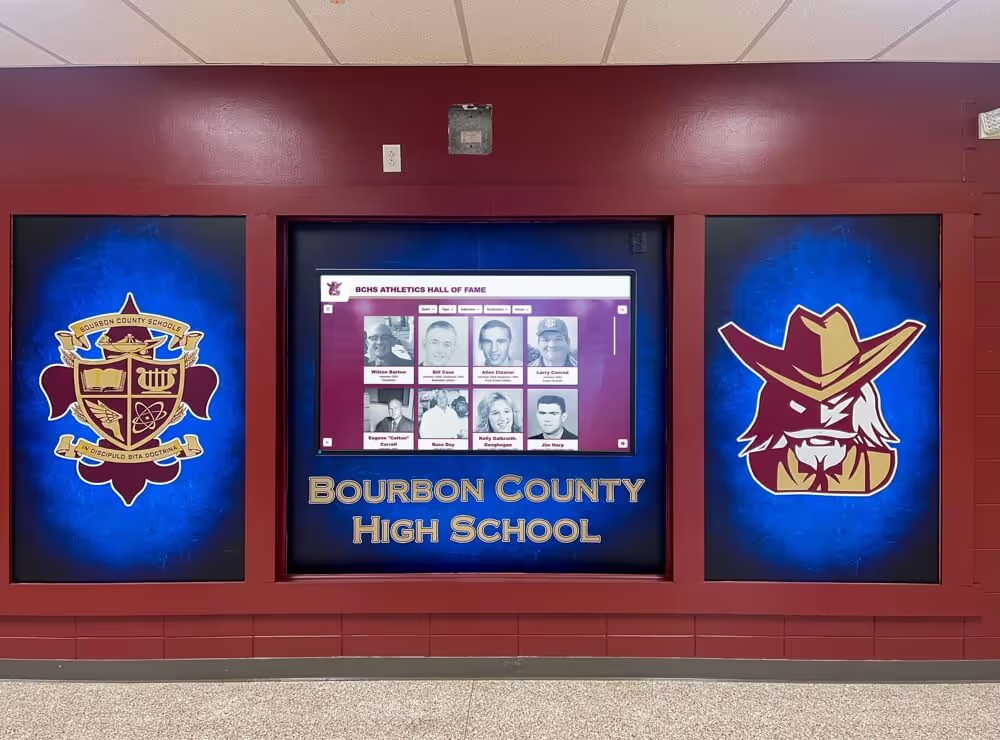
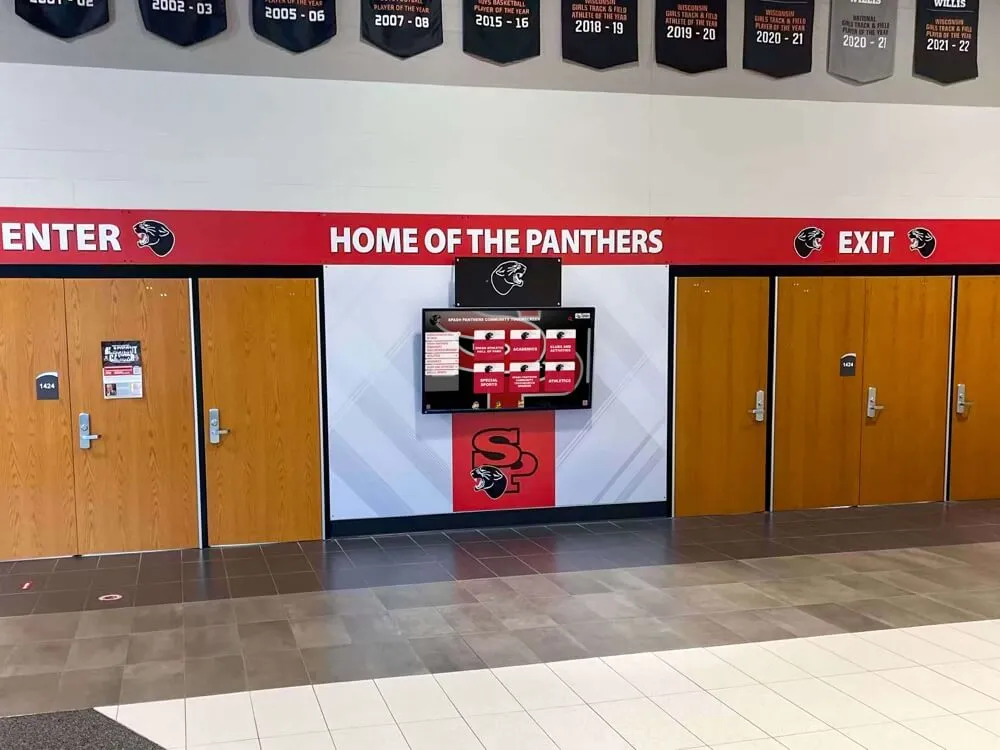
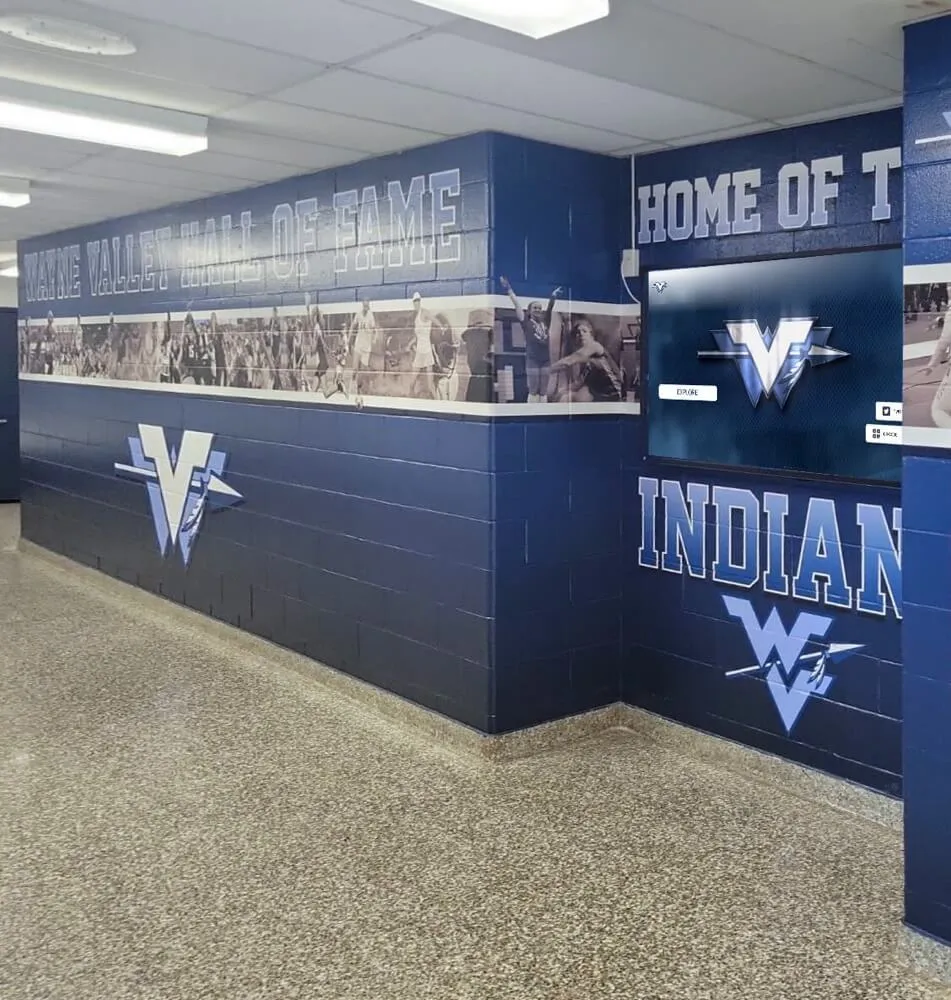
Multi-display recognition environments require individual verification of each display's authentication recovery—a failover test that confirms the first display recovered correctly does not automatically confirm that every display in the same hallway recovered identically
RADIUS Failover Quick Reference Table
| Parameter | Typical School Value | Effect on Recognition Display |
|---|---|---|
| Primary RADIUS server | Internal NPS or FreeRADIUS | Handles all authentication during normal operation |
| Secondary RADIUS server | Second internal server, or cloud RADIUS service | Takes over when primary is dead; must be pre-configured |
| Authentication port | UDP 1812 | Firewall must allow this from switch/AP to both servers |
| Accounting port | UDP 1813 | Optional for displays; some platforms require it for session tracking |
| Timeout per request | 5 seconds (default) | Multiplied by retry count to determine max wait before failover |
| Retry count | 3 (default) | 3 retries × 5 seconds = up to 15 seconds before server marked dead |
| Dead timer | 30 minutes (Cisco default) | Primary not retried for 30 minutes after marked dead |
| Re-authentication interval | 3600 seconds (1 hour) | Determines when display next attempts full re-authentication |
| Fail-open behavior | Network-dependent | Some ports allow access if no RADIUS server responds; others block |
Understanding these parameters allows IT teams to tune failover timing to match recognition display event schedules. A school with weekly Friday evening induction events might reduce the dead timer and increase the retry count to limit authentication disruptions during those windows, then restore defaults between events.
Academic recognition programs that depend on reliable display systems require the same infrastructure planning as athletic recognition programs—RADIUS failover testing applies equally to displays honoring scholars and displays honoring athletes.
Frequently Asked Questions
Our recognition displays are on a dedicated display VLAN. Does RADIUS failover still apply?
Yes, unless your display VLAN is configured for MAC Authentication Bypass (MAB) with a local fallback that does not require RADIUS—and even then, MAB typically still contacts a RADIUS server to check the MAC address against an authorization database. The VLAN assignment itself is usually delivered as a RADIUS attribute during the authentication exchange. If your RADIUS server is unavailable, the switch may not correctly assign the display to its authorized VLAN even if the port eventually comes up in an unauthenticated state.
What is the difference between a RADIUS server being “dead” and being “unavailable”?
These terms have specific meanings in network authentication. A RADIUS server is “unavailable” if it does not respond to a request. It is marked “dead” when the switch or controller has exhausted all retries across its configured criteria and has decided not to send further requests to that server for a defined period (the dead timer). Once marked dead, the server is not contacted again until the dead timer expires, even if the server recovers before that. This is why testing after primary recovery is an important part of the procedure—you need to confirm that the primary rejoins the active pool after the dead timer expires, not just that the service restarted.
We use cloud-based RADIUS (RADIUS as a Service). How does failover testing differ?
Cloud RADIUS providers typically offer their service from multiple redundant infrastructure nodes behind a single hostname. The failover test procedure is the same in principle, but instead of simulating a server failure, you test by temporarily blocking the cloud RADIUS IP range at your perimeter firewall. Check with your cloud RADIUS provider for the specific IP ranges to block and whether they offer a test mode. Also confirm what happens if your WAN connection fails—a cloud RADIUS service is unavailable to your switches if the WAN link is down regardless of how redundant the service itself is.
Our hall of fame touchscreen uses a locally cached app. Does RADIUS still matter?
It depends on how the display connects to the network. If the touchscreen is on a switch port or wireless network using 802.1X authentication, RADIUS matters for network access even if the app content is locally cached. The display must still authenticate to gain network access; if RADIUS is unavailable and the port is not configured to fail open, the display goes offline. If your display is on an isolated local network segment with no 802.1X authentication, RADIUS is not involved in that display’s connectivity.
How often should we run the recognition display RADIUS failover test?
At minimum, run the test twice per year: once before the fall athletic season when induction events begin, and once in late winter before spring ceremonies. If your school holds major alumni or recognition events on a fixed schedule, run the test thirty days before any event where a display outage would be highly visible. Any time you change your RADIUS server configuration, add a new server, or migrate from one platform to another, run the test again—even if the change seems minor.
The display goes blank for two minutes during the failover test. Is that acceptable?
Two minutes of blank display during a controlled test indicates that either the failover detection time is longer than expected or the display’s content reconnection time exceeds the Section 3 benchmarks. Both are correctable. Review your switch timeout and retry settings, confirm the secondary server is locally reachable rather than on the far side of a WAN link, and confirm the display’s content platform reconnects immediately after network restoration rather than waiting for a scheduled refresh interval. Two minutes of blank display on a lobby kiosk during an induction ceremony is noticeable and should be resolved before the event.
We have five recognition displays in three buildings. Do we need to test each one?
Yes, if they connect through different switch ports or access points. A failover test on one switch port confirms that switch’s configuration, not every switch in the building. If displays in different buildings connect through different access layer switches, each building’s switch configuration should be tested independently. If all five displays connect through ports on the same switch with identical RADIUS configuration, testing two ports is reasonable. Carry the test summary table from Section 6 to each location and document results for each display individually.
School recognition programs that serve athletes, scholars, donors, and community members rely on displays that work reliably when visitors are present—the RADIUS failover test is the IT team’s contribution to making that reliability a documented, verified fact rather than an assumption.
Rocket Alumni Solutions builds interactive touchscreen halls of fame, digital trophy displays, and recognition platforms that school programs rely on for inductions, alumni events, and daily celebrations of athletic and academic achievement. If your program wants to see how a properly networked recognition display platform behaves during a live demonstration—and what your IT team should verify before deployment—request a demo and see the platform working in a real school environment.