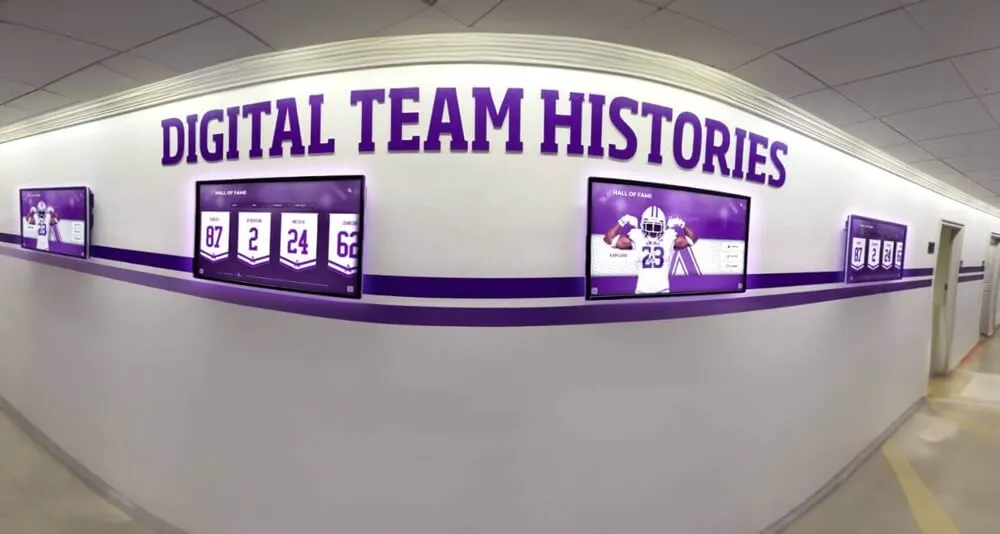
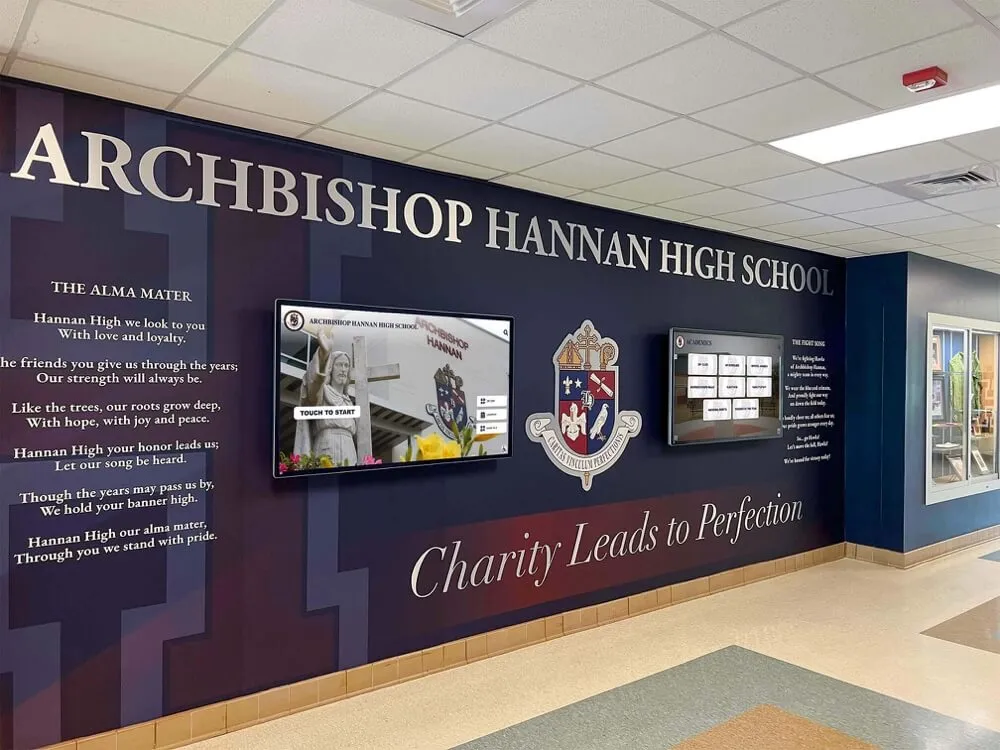
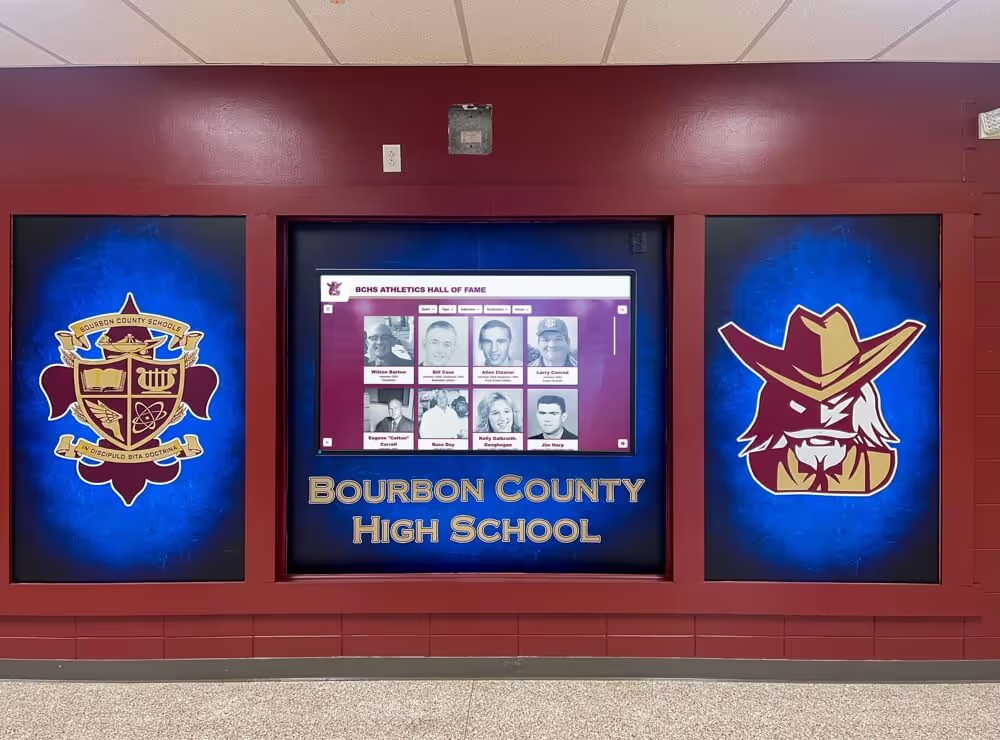
A school recognition display port mirroring test is a non-intrusive network diagnostic technique that allows school IT teams to capture and analyze every packet flowing to and from a lobby kiosk or hall-of-fame touchscreen without modifying the device itself, disrupting live visitors, or changing any production network paths. When a recognition display behaves unexpectedly—failing to refresh athlete profiles, losing its cloud connection before a championship event, or generating bandwidth alerts—a port mirror gives IT staff a ground-truth view of what the kiosk is actually transmitting and receiving. Guessing at firewall rules and cloud platform settings is unnecessary once you can see the raw traffic.
This guide walks school administrators, IT coordinators, facilities directors, and athletic technology staff through a complete recognition display port mirroring test procedure. It covers the purpose of port mirroring in a school kiosk context, the preparation steps required before capturing traffic, a numbered test sequence, a table for interpreting common traffic patterns, and a FAQ addressing the most frequent questions school IT teams ask when applying this technique to recognition kiosk diagnostics.
Port mirroring—also called SPAN (Switched Port Analyzer) on Cisco equipment, or port monitoring on other platforms—instructs a managed switch to copy every frame entering or leaving a specified source port and forward those copies to a designated destination port where a capture device (a laptop running Wireshark, or a dedicated network tap) can record them. The production traffic on the source port is completely unaffected: the kiosk sends and receives normally. The mirror provides an exact duplicate stream for analysis only. This makes it the safest diagnostic tool available for a live, visitor-facing recognition display—no downtime, no config change on the kiosk itself, no interruption to the athlete profiles and championship content the display is showing.

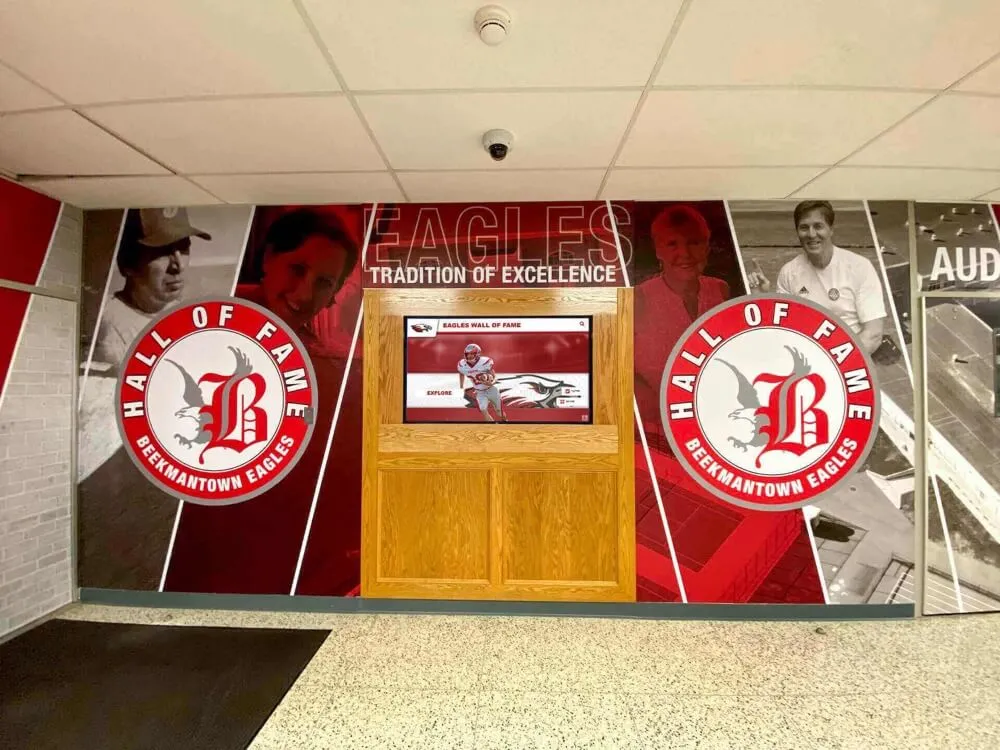
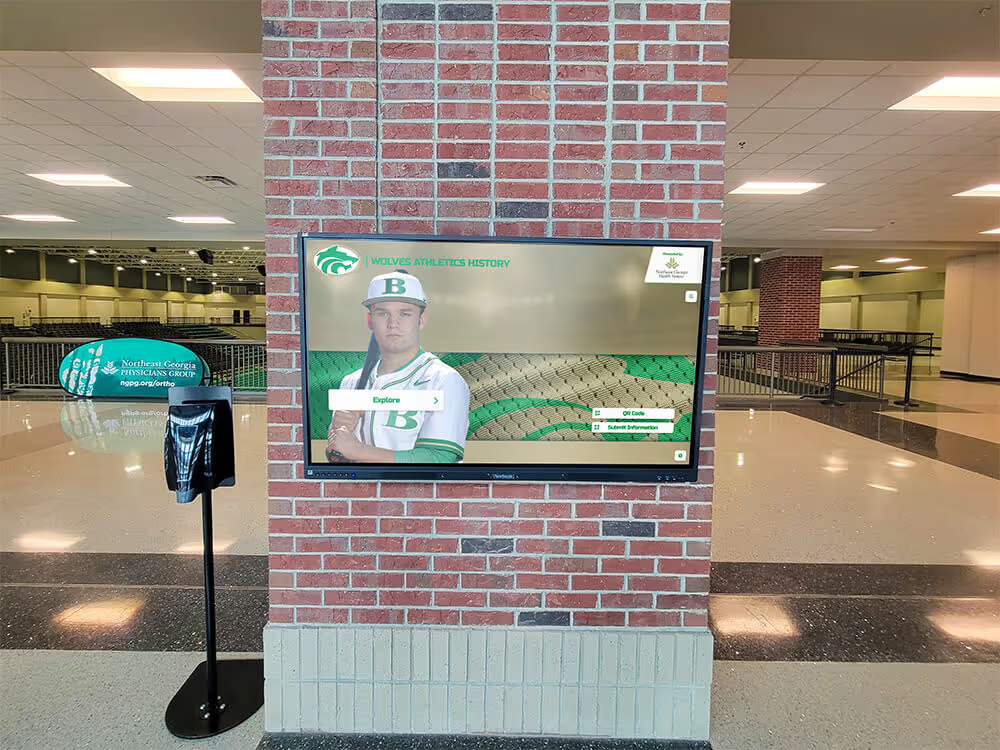
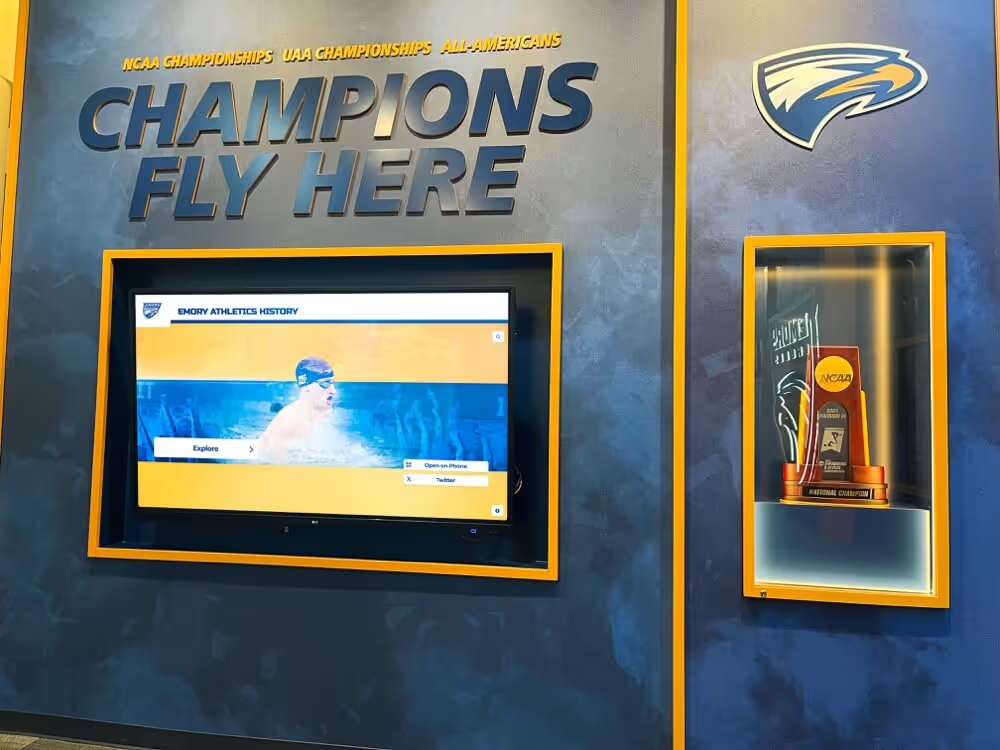
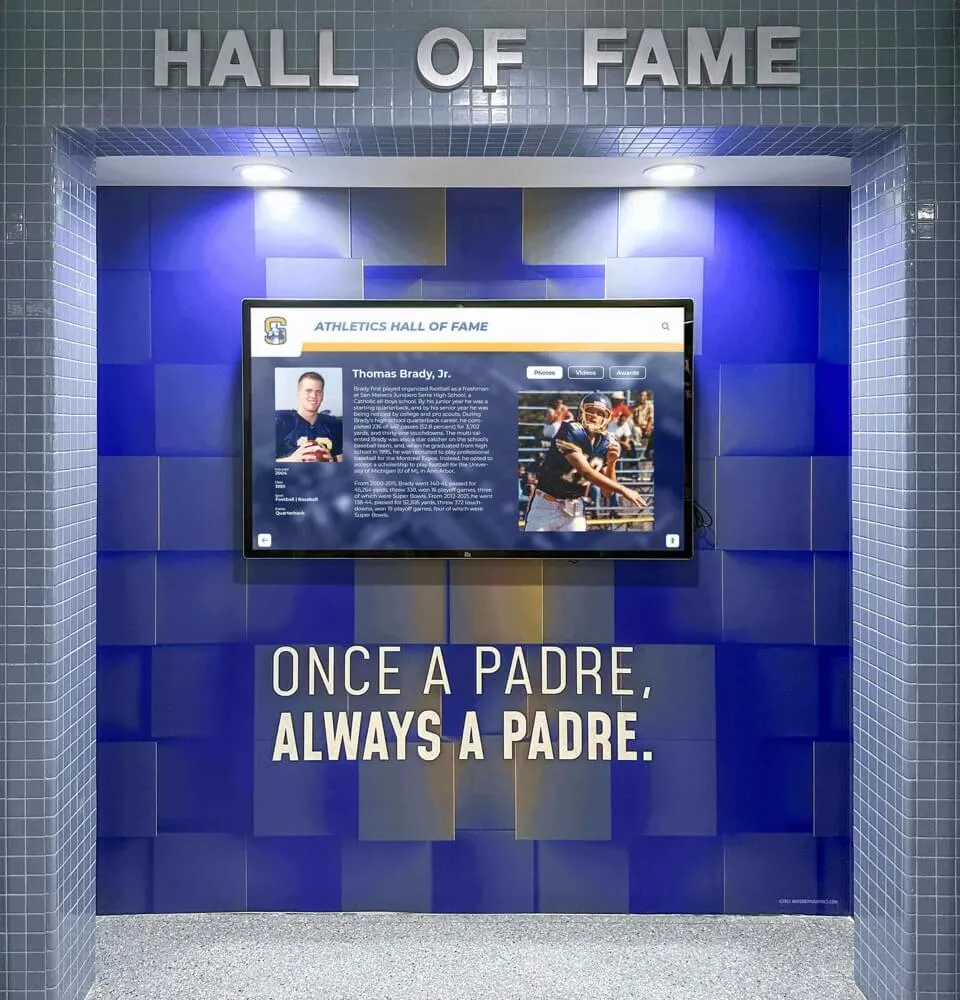
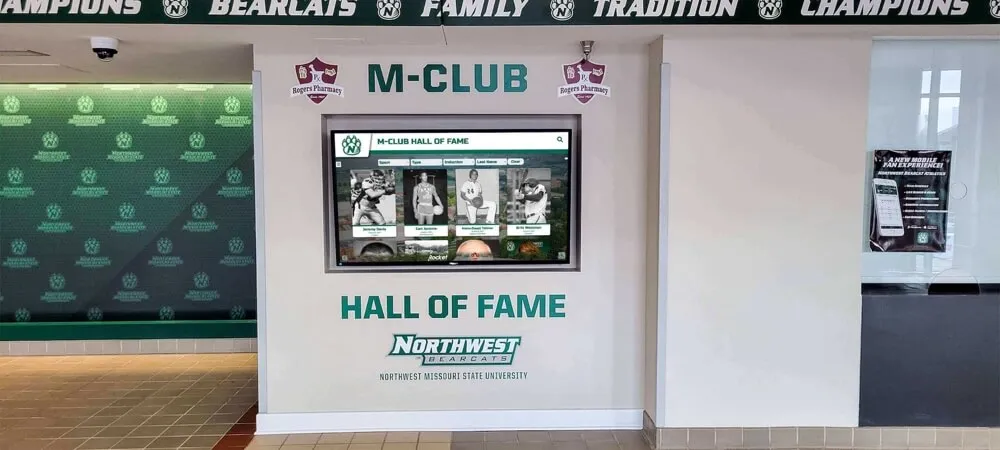
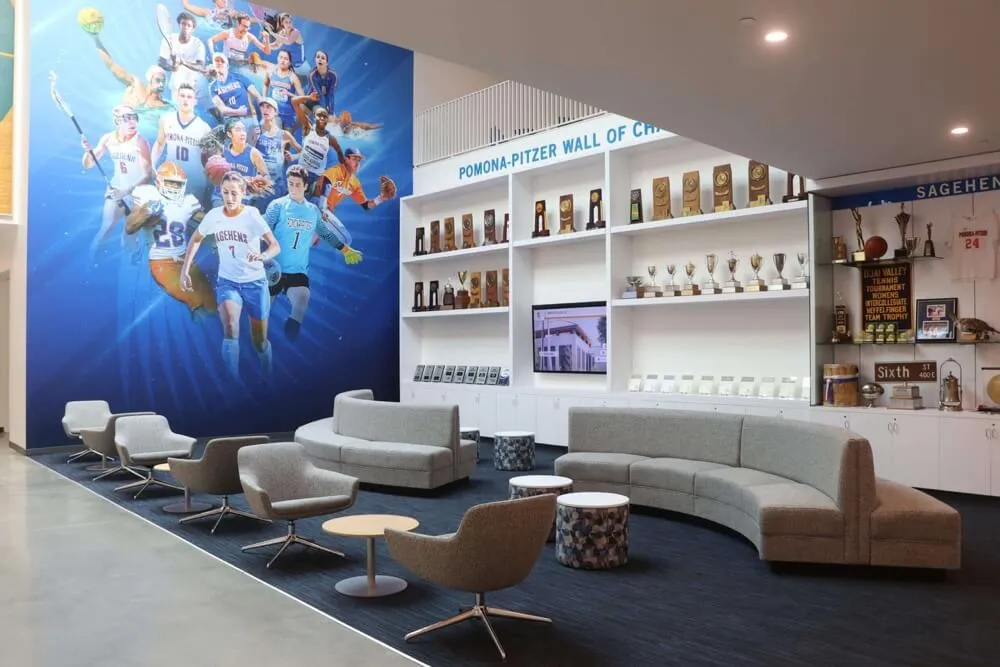
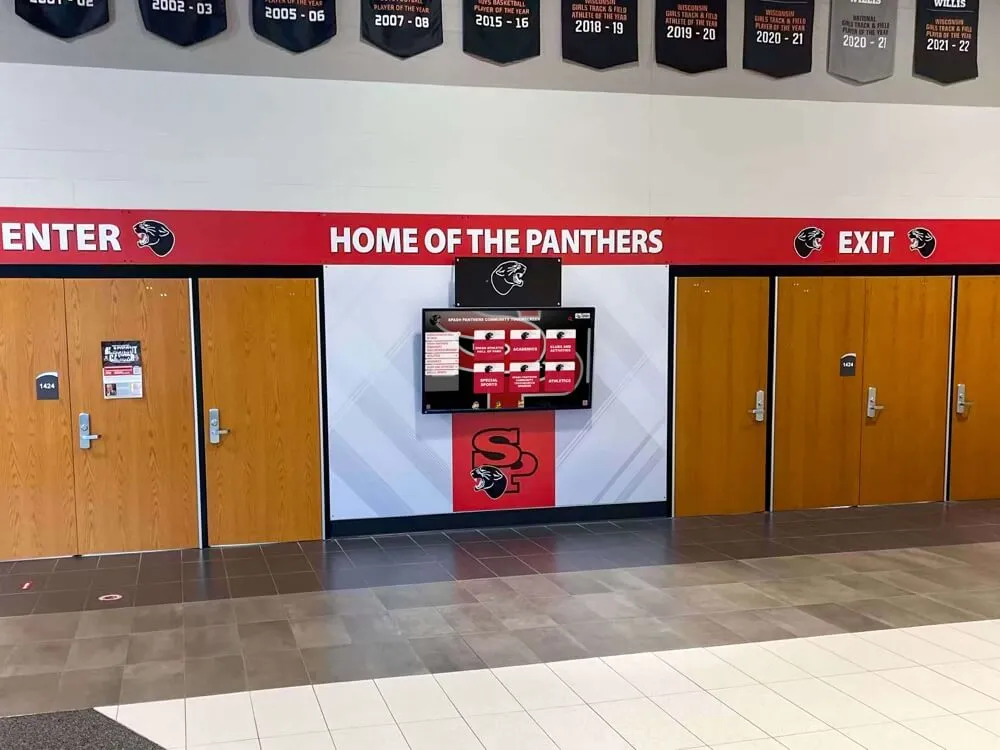
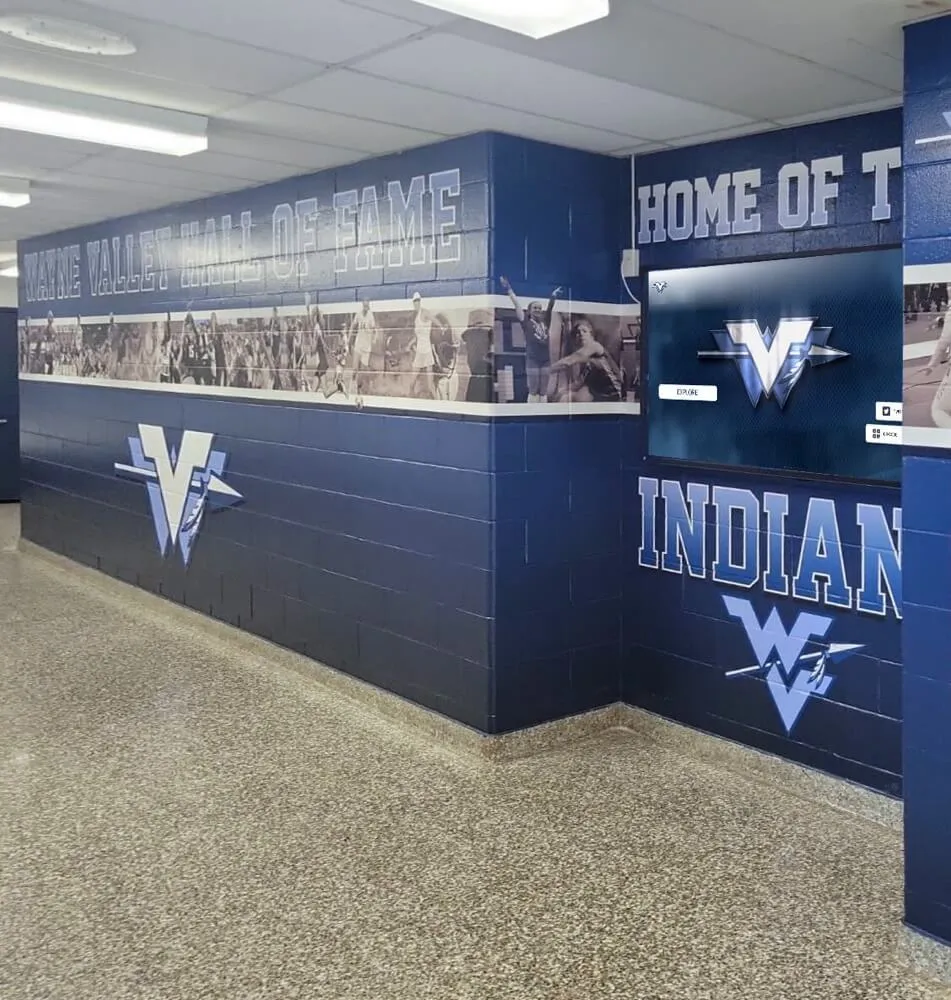
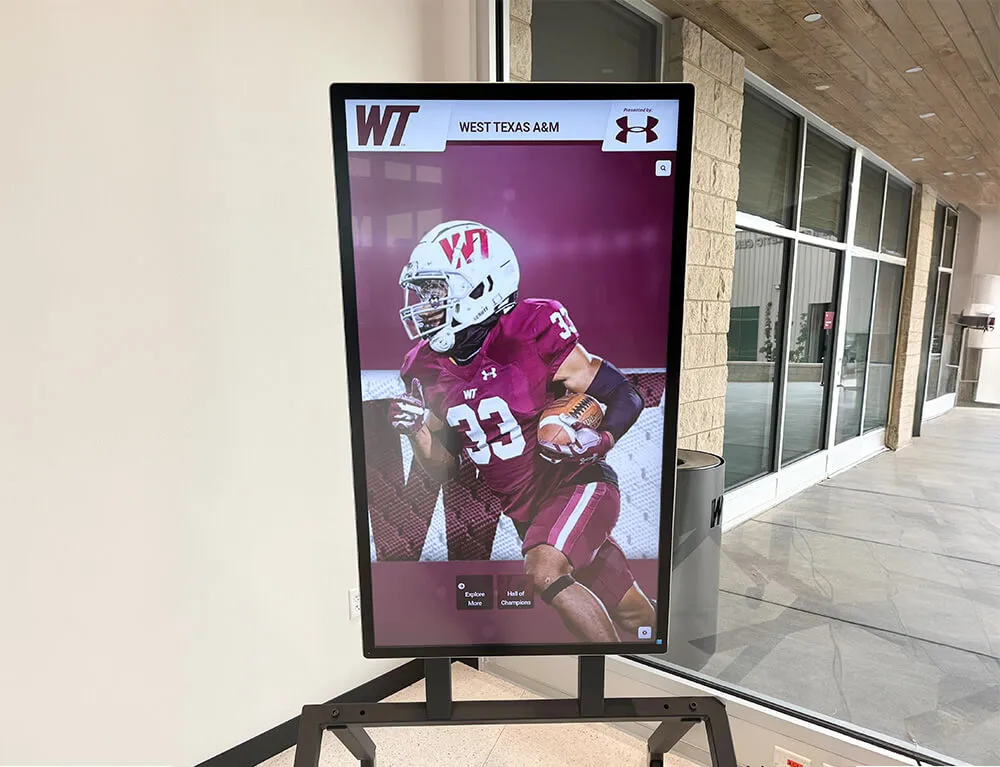
A school lobby recognition kiosk like this one operates continuously, pulling content from a cloud platform and responding to visitor touches—port mirroring lets IT teams observe that traffic without any disruption to normal operation
Why School Recognition Displays Need Dedicated Traffic Analysis
Recognition displays are not passive screens. A lobby hall-of-fame kiosk or touchscreen record board is a networked device that regularly contacts a cloud content management platform, downloads updated athlete profiles, streams championship video, and in many cases sends touch-interaction telemetry back to the platform provider. The traffic profile of a recognition kiosk is distinct from a staff workstation, a student Chromebook, or a classroom projector—and general network monitoring tools that were not configured with this device class in mind may misread its behavior.
Several common support scenarios make a targeted port mirroring test the right diagnostic tool:
- Content not refreshing: The display shows outdated athlete records or missing award entries even after a content administrator publishes updates. The kiosk may be reaching the platform intermittently, or a firewall rule is blocking specific CDN domains used for media files.
- Bandwidth policy alerts: Network monitoring flags the kiosk’s switch port for unusual traffic volume. A port mirror lets IT staff confirm whether the spike is a legitimate content sync, an unexpected outbound connection, or a misconfigured application.
- Authentication failures: The display occasionally drops off the network. A port mirror captures the 802.1X exchange and the subsequent DHCP and DNS transactions that reveal whether the authentication sequence is completing correctly.
- Event-day connectivity doubts: Before a homecoming ceremony, induction night, or alumni weekend, IT staff want to verify that the display is communicating cleanly with its cloud platform—not just that it is showing content (which could be cached) but that the sync channel is open and healthy.
- Vendor escalation support: A recognition platform vendor asks for a packet capture to diagnose a reported sync failure. Port mirroring is how that capture is collected without installing agent software on the kiosk.
Schools whose athletic and donor recognition programs have expanded to include gymnasium wall graphics and athletic space recognition displays often find that multiple kiosk locations across a campus make coordinated traffic analysis essential—what looks like a platform issue may turn out to be a per-switch configuration difference.
What Traffic a School Recognition Kiosk Actually Generates
Understanding the expected traffic profile before running a port mirror makes the captured data much easier to interpret. Recognition kiosks running cloud-connected platforms generate traffic in three distinct modes:
Idle and Cache-Serving Mode
When the kiosk is displaying locally cached content—athlete portraits, trophy case records, award listings—and no new content has been published since the last sync, outbound traffic is minimal. Expect periodic HTTPS heartbeats (typically every 30 to 120 seconds depending on the platform) to the vendor’s cloud API, DNS lookups for those same API endpoints, and NTP traffic for time synchronization. A healthy idle kiosk generates well under 1 Mbps of sustained traffic.
Content Sync Mode
When a content administrator publishes new athlete records, updated award graphics, or video highlights, the kiosk enters a sync sequence. It contacts the cloud platform via HTTPS, receives a manifest of updated assets, and downloads those assets—images, video files, JSON data records—from the vendor’s CDN. This generates a burst of downstream traffic that may reach 5–20 Mbps for a minute or two depending on the size and quantity of updated assets. On a port mirror, this sync burst appears as sustained HTTPS traffic to CDN hostnames rather than the API hostname used for heartbeats.
Touch-Interaction Mode
When a visitor interacts with the touchscreen—browsing athlete profiles, watching highlight video, exploring team championship histories—the kiosk may stream video from the CDN in real time and send interaction events back to the platform. Touch interaction telemetry is typically low-volume JSON over HTTPS. Video streaming is higher-volume but bounded by the video resolution (typically 720p or 1080p for recognition kiosk content).
Knowing these three modes lets you look at a port mirror capture and immediately identify whether the kiosk is operating normally (heartbeats on schedule, CDN traffic during known publish events, bounded video traffic), or exhibiting unexpected behavior (DNS failures, TLS handshake errors, high-volume traffic to unknown destinations, complete absence of heartbeats suggesting a disconnected platform session).
Pre-Test Preparation Checklist
Complete every item in this checklist before configuring the port mirror. Skipping preparation is the most common reason a port mirroring test produces data that cannot be interpreted or acted on.
Network Documentation
- Identify the managed switch serving the recognition display’s switch port (building, closet, switch hostname or IP)
- Identify the specific port number on that switch to which the display is connected (check the port map or use the switch MAC address table with the kiosk’s MAC)
- Confirm the switch supports SPAN/port mirroring (most enterprise-grade managed switches do; low-cost unmanaged switches do not)
- Identify a free port on the same switch to use as the SPAN destination port
- Confirm the SPAN destination port can be reached with a laptop cable from the switch location
Capture Device
- Laptop with Wireshark installed (free, open-source; use a current stable version)
- Network adapter that supports promiscuous mode (most wired adapters do; some Wi-Fi adapters do not—use a wired connection to the SPAN destination port)
- Sufficient disk space for the capture file (a 30-minute session at normal kiosk traffic generates 50–200 MB; a content sync could be larger)
- Capture filter planned in advance (see filter recommendations below) to reduce file size
Access and Authorization
- Switch management credentials available (HTTPS or SSH access to the switch CLI or GUI)
- Maintenance window approved with IT leadership if any switch configuration changes require brief disruption (port mirroring itself causes no disruption, but accessing the switch CLI requires credentials and logging)
- Notification sent to front-office or recognition program staff that you will be observing network traffic from the display during the test window
Baseline Documentation
- Record the kiosk IP address (from DHCP lease table or device network settings)
- Record the kiosk MAC address (from switch port MAC table or device settings)
- Record the expected cloud platform API domain (from vendor documentation or a prior successful DNS log)
- Note the time of the most recent content publish to the display (from the content management portal)
Recognition Display Port Mirroring Test: Numbered Procedure
Run each step in order. Document your observations at each step—the log becomes your diagnostic record for the current issue and a baseline for future tests.
Step 1 — Access the switch management interface
Connect to the managed switch serving the kiosk’s port via SSH (CLI) or HTTPS (web GUI). Log in with administrative credentials. Confirm you are on the correct switch by checking that the kiosk’s MAC address appears in the MAC address table for the expected port.
On Cisco IOS, run:
show mac address-table | include <kiosk-mac>
On other platforms, check the MAC table in the web GUI under Port Status or MAC Forwarding Table. If the kiosk MAC does not appear, the display may not be powered on, or it may be connected to a different switch or port than expected.
Step 2 — Connect the capture device to the destination port
Plug your capture laptop into the switch port you have designated as the SPAN destination. Do not configure the SPAN session yet—just establish the physical connection. The port should currently be inactive (no traffic) or carry its existing unmirrored traffic until SPAN is configured.
Step 3 — Configure the SPAN session
On Cisco IOS:
monitor session 1 source interface GigabitEthernet0/X both
monitor session 1 destination interface GigabitEthernet0/Y
Replace GigabitEthernet0/X with the kiosk source port and GigabitEthernet0/Y with the destination port connected to your capture laptop. The both keyword captures ingress and egress traffic; use rx or tx if you need directional analysis only.
On most web-managed switches (Netgear, TP-Link, Ubiquiti), port mirroring is configured under Switching > Port Mirroring or Monitoring > Port Mirror in the GUI. Select the source port (kiosk), the direction (both), and the destination port (capture laptop).
Verify the SPAN session is active:
show monitor session 1
Step 4 — Start the Wireshark capture
On your capture laptop, open Wireshark, select the wired network adapter connected to the SPAN destination port, and start capturing. Apply a display filter to focus on traffic to and from the kiosk IP address:
ip.addr == <kiosk-ip>
If you do not yet know the kiosk IP and are capturing before it fully boots, use a capture filter on the MAC address:
ether host <kiosk-mac>
Let the capture run for at least five minutes without any intervention to establish a baseline of normal idle traffic. Save this baseline segment before proceeding.
Step 5 — Observe and document the idle heartbeat
During the first five minutes, identify the heartbeat pattern: the recurring HTTPS connection to the cloud platform’s API domain. In Wireshark, filter by:
ip.addr == <kiosk-ip> && tcp.port == 443
Look for periodic TCP connections to a consistent external IP or hostname. Right-click a packet in that flow and select “Follow > TCP Stream” to see the TLS handshake and the destination server name (visible in the Client Hello SNI field before encryption). Document the destination hostname and the interval between heartbeats. This is the expected normal state.
If no outbound HTTPS traffic appears during five minutes, the kiosk’s network session may be disrupted—proceed to Step 6 and check DNS before investigating upstream.
Step 6 — Check DNS resolution
Filter Wireshark for DNS traffic from the kiosk:
ip.src == <kiosk-ip> && dns
Confirm the kiosk is successfully resolving the cloud platform’s API domain and CDN hostnames. A healthy kiosk shows DNS queries answered with valid A or AAAA records. Missing responses, NXDOMAIN answers, or DNS queries that receive no response indicate a DNS configuration issue—either the kiosk is pointed at a DNS server it cannot reach, or an upstream resolver is blocking the platform domains.
Step 7 — Trigger a content sync
Log into the recognition platform’s content management portal from a separate device (not the capture laptop). Make a minor content change—updating an athlete’s season statistics, adding a new award entry, or adjusting a display layout—and publish it. This triggers a content sync from the display to the cloud platform.
Return to the Wireshark capture on the laptop and observe the traffic change. You should see a burst of HTTPS connections to CDN hostnames (different from the API heartbeat hostname), followed by sustained downstream data transfer as the kiosk downloads the updated assets. Document the CDN hostnames observed, the volume of data transferred, and the duration of the sync burst. This confirms the display can successfully retrieve content updates under real conditions.
Step 8 — Verify video streaming traffic (if applicable)
If the recognition display includes video highlights or championship montages, trigger a video playback by navigating the kiosk’s public interface to an athlete page containing a video asset. Return to the Wireshark capture and observe the traffic. Video streaming from a cloud CDN typically appears as sustained HTTPS traffic to a CDN hostname at a consistent data rate matching the video bitrate. Document the CDN hostname used for video delivery and confirm it is the same CDN allowed by your firewall policy.
Step 9 — Check for unexpected outbound connections
With the kiosk running normally, review the Wireshark capture for any outbound HTTPS or HTTP connections to hostnames outside of the documented vendor platform domains and CDN ranges. Filter all unique destination IPs:
In Wireshark, use Statistics > Endpoints to see all IP addresses communicating with the kiosk. Cross-reference each external destination against the vendor’s documented IP range list. Unknown outbound connections from a kiosk are not automatically malicious—telemetry services, certificate revocation checks (OCSP), and analytics CDNs are common—but each should be identified and documented so you can make an informed policy decision.
Step 10 — Remove the SPAN session and document
After completing the capture, remove the SPAN session from the switch:
On Cisco IOS:
no monitor session 1
On web-managed switches, return to the port mirroring configuration and disable or delete the session. Verify the session is removed:
show monitor session 1
Save the Wireshark capture file with a descriptive filename including the kiosk name and date. Document your findings—observed traffic patterns, identified platform domains, CDN hostnames, unexpected connections if any—in your IT runbook or ticketing system.
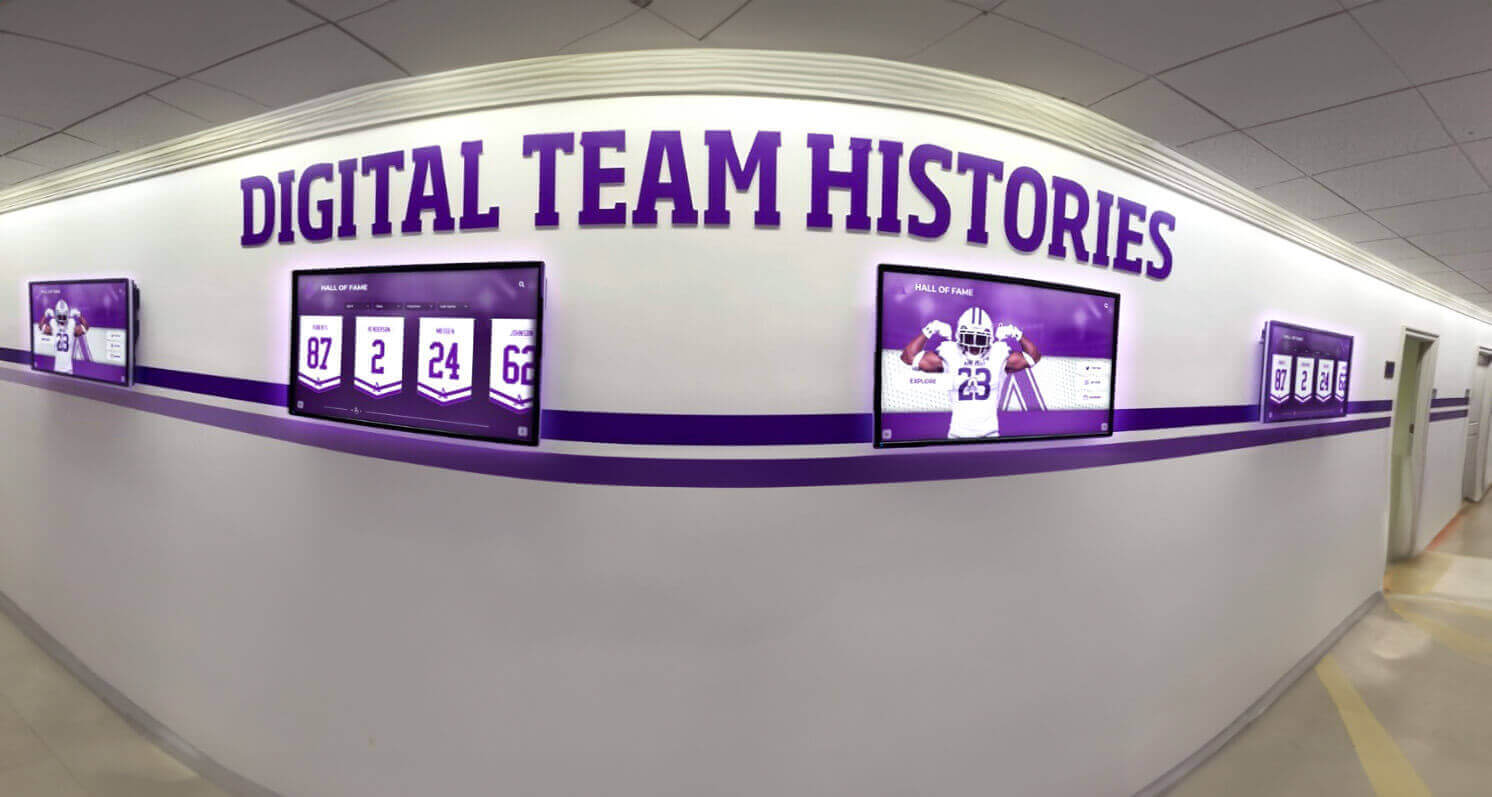
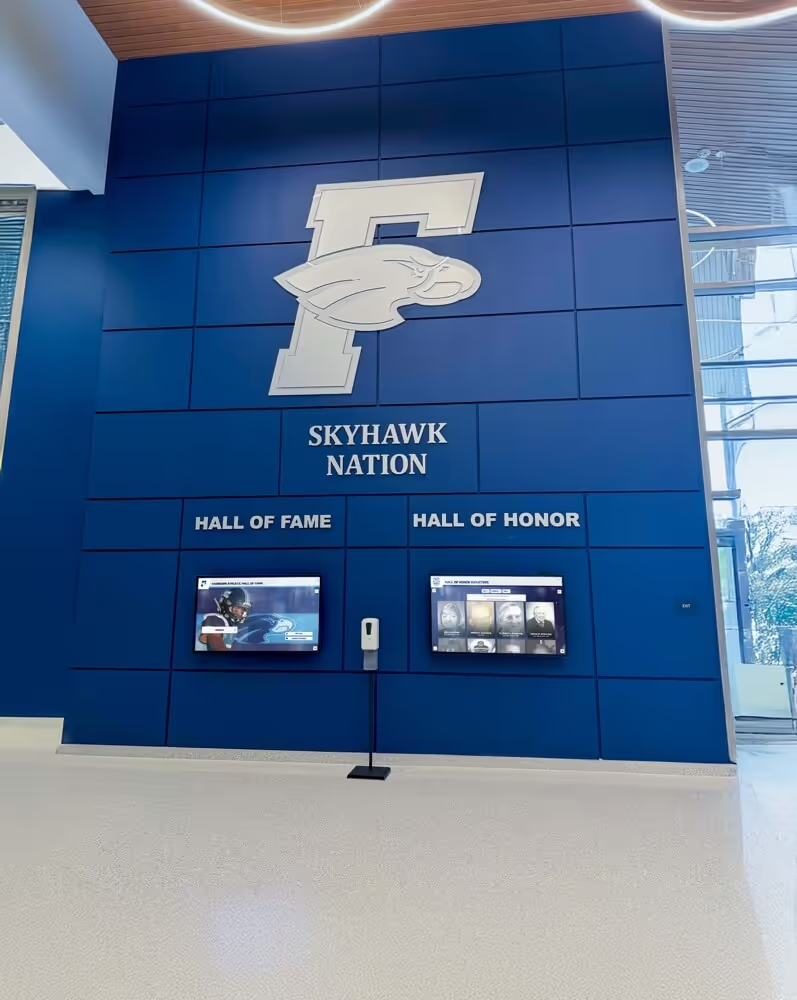
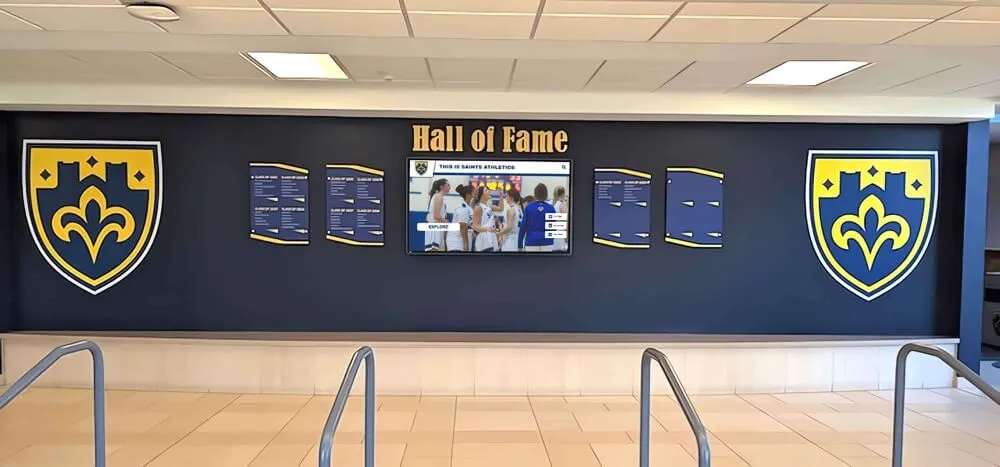
Schools with multiple recognition displays across hallways and athletic wings can perform targeted port mirroring tests on individual kiosk ports to isolate location-specific connectivity differences
Interpreting Common Traffic Patterns in the Capture
| Observed Traffic Pattern | What It Indicates | Recommended Action |
|---|---|---|
| Regular HTTPS heartbeats every 30–120 seconds to API domain | Kiosk is connected and maintaining cloud platform session | Healthy state; document the heartbeat interval for future reference |
| DNS queries to platform API domain receiving no response | DNS server unreachable or blocking platform domains | Check kiosk DNS server assignment; test DNS resolution from the display VLAN using a test laptop |
| HTTPS heartbeats absent for more than 5 minutes | Kiosk may have lost its authenticated network session or platform credentials | Check 802.1X authentication logs on the switch; verify RADIUS server availability |
| Content sync burst to CDN hostnames after publish event | Normal content update delivery | Confirm CDN hostnames are in your firewall allowlist; document data volume for bandwidth planning |
| Content sync absent after publish event | Kiosk not receiving update notifications from platform | Check firewall rules for outbound HTTPS to vendor API domain; verify kiosk platform agent is running |
| Video streaming to CDN at expected bitrate | Normal video delivery from cloud CDN | Healthy state; document CDN hostnames for firewall policy |
| High-volume outbound traffic to unknown IP addresses | Possible misconfigured application, telemetry agent, or policy violation | Identify hostname via reverse DNS or vendor documentation; block if cannot be attributed |
| OCSP requests to certificate authority | Normal TLS certificate revocation checks | Expected; no action required |
| NTP traffic to public time servers | Normal time synchronization | Allow in firewall policy; consider redirecting to internal NTP server for consistency |
| ARP requests flooding the capture | Kiosk may be on an incorrect subnet or DHCP lease has expired | Verify DHCP reservation is active and kiosk received the expected IP address |
Capture Filter Quick Reference
These Wireshark display filters accelerate analysis during and after the capture:
| Filter | Purpose |
|---|---|
ip.addr == <kiosk-ip> | Show only traffic involving the kiosk |
ip.src == <kiosk-ip> && tcp.port == 443 | Outbound HTTPS connections from kiosk |
ip.src == <kiosk-ip> && dns | DNS queries from kiosk |
tcp.flags.syn == 1 && tcp.flags.ack == 0 && ip.src == <kiosk-ip> | New TCP connections initiated by kiosk |
ip.src == <kiosk-ip> && !(ip.dst == <gateway-ip>) | Traffic not addressed to the gateway (unexpected local-network attempts) |
tls.handshake.type == 1 | TLS Client Hello packets—reveals destination hostname via SNI |
Coordinating the Test with the Recognition Program Team
An IT-side diagnostic that surprises athletic directors or front-office staff creates unnecessary tension. A school recognition display port mirroring test runs in the background without affecting what visitors see, but the people responsible for the recognition program deserve a brief heads-up: you are observing the display’s network traffic for a defined window, and they may notice you connecting a laptop to the network closet.
This coordination also creates a useful opportunity. The content management team can time a deliberate content publish during your test window—adding a new donor recognition entry or updating an athletic award record—to generate a real content sync for you to observe in the capture. A live sync event produces far more diagnostic value than an idle heartbeat alone.
Schools that have developed strong recognition programs covering academic honors like salutatorian recognition alongside athletic records often run content publishes frequently enough that timing a diagnostic test around a scheduled publish requires only a short conversation with the recognition coordinator.

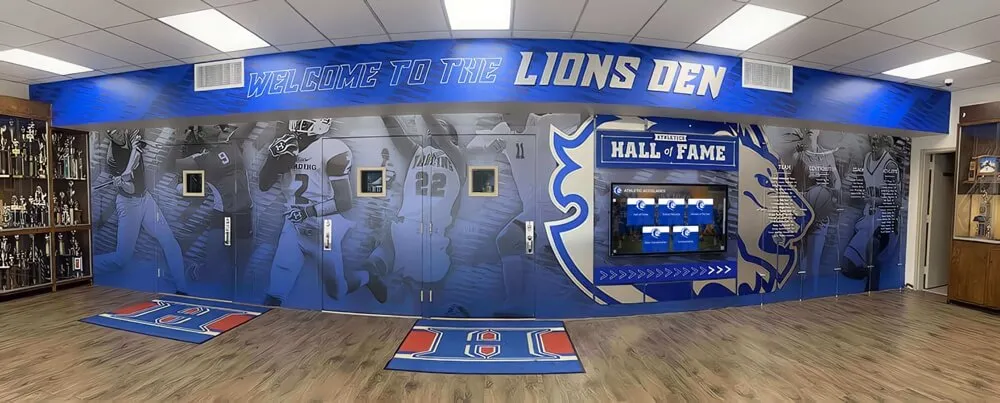
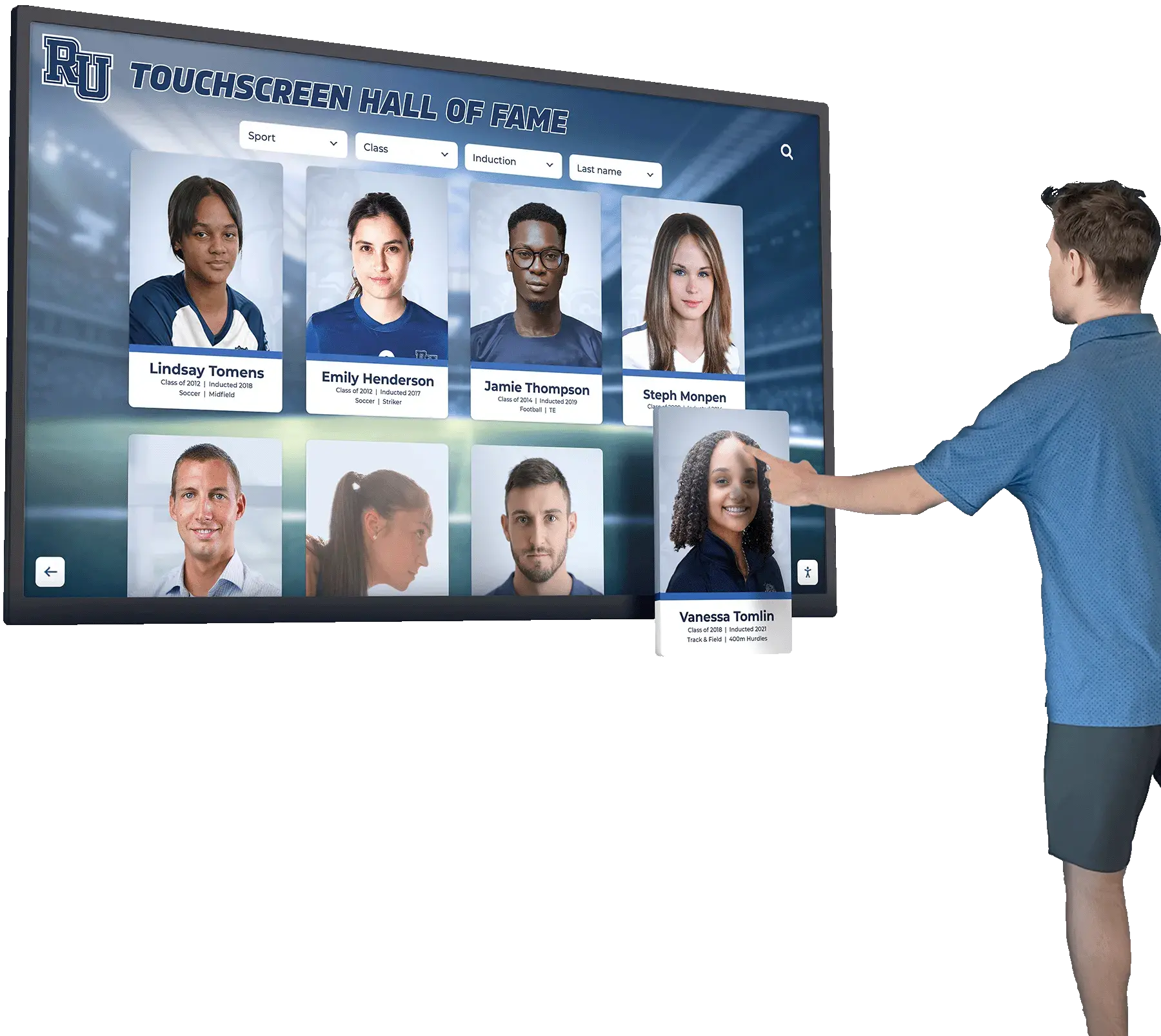
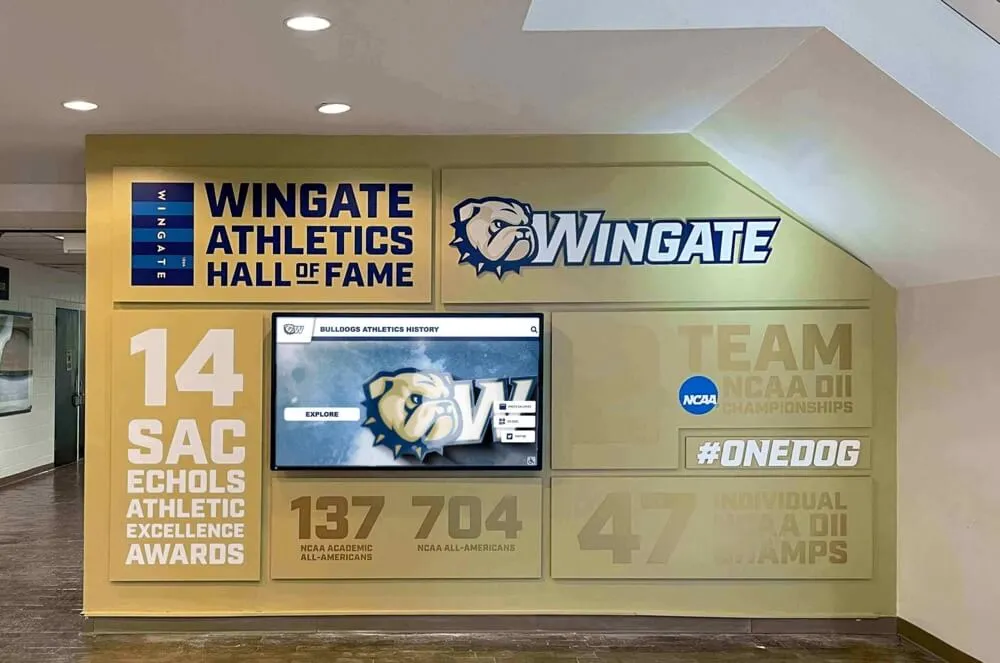
Port mirroring is performed at the switch level, making it invisible to anyone interacting with the recognition display—the kiosk continues operating normally throughout the diagnostic session
Switch Compatibility and Limitations
Port mirroring is a feature of managed switches. Before planning the test, confirm your switch supports SPAN:
Switches that generally support SPAN/port mirroring:
- Cisco Catalyst series (IOS and IOS-XE)
- Cisco Meraki (configured via Dashboard under Switch > Port Mirroring)
- Netgear ProSAFE (GS and XS series)
- Ubiquiti UniFi (configured via UniFi Network application under Devices > Ports)
- HPE Aruba (configured via CLI or Aruba Central)
- TP-Link JetStream managed switches
Common limitations to verify before the test:
| Limitation | Impact | Resolution |
|---|---|---|
| SPAN destination port exits access mode | Some switches require the destination port to be in a specific mode; the laptop may not receive traffic | Configure destination port as an access port in the correct VLAN, or consult switch documentation |
| Only one SPAN session supported at a time | If another SPAN session is already active, you cannot add a second without removing the first | Check for existing sessions before configuring; coordinate with any other diagnostic work |
| SPAN cannot capture traffic on the same VLAN if the switch uses hardware VLAN isolation | Traffic between devices in the same VLAN may not be mirrored in some configurations | Use a routed port mirror or RSPAN if same-VLAN traffic is needed |
| Meraki Dashboard requires Cloud access to configure | If Meraki cloud access is disrupted, Dashboard-based configuration is unavailable | Configure during a known-stable cloud connectivity window |
| Unmanaged switches have no SPAN capability | Port mirroring is impossible on unmanaged hardware | Replace with a managed switch, or insert a network tap between the kiosk and the uplink |
For schools where the recognition display connects via a patch panel to a switch in a remote IDF closet, confirming the physical port mapping before connecting the SPAN destination laptop saves considerable troubleshooting time.
People Also Ask: Port Mirroring for School Recognition Kiosks
Does port mirroring capture encrypted HTTPS traffic?
Port mirroring captures the encrypted packets as they traverse the wire—Wireshark will show you the TLS handshake, including the Server Name Indication (SNI) field in the Client Hello that reveals the destination hostname, but the payload of HTTPS sessions remains encrypted. For most recognition display diagnostics, hostname and connection pattern information from the TLS handshake is sufficient: you can verify the kiosk is reaching the correct cloud platform domains, identify CDN hostnames, and confirm the presence or absence of connections to unexpected destinations. Full payload decryption requires the TLS session keys, which are not available without cooperation from the kiosk operating system.
Is port mirroring legal on a school network?
Schools have authority to monitor traffic on their own managed networks, including recognizing that the network is a school resource subject to acceptable use policies. Network monitoring for diagnostic and security purposes is a standard IT function. That said, your institution’s policies, state laws, and any applicable student privacy regulations (FERPA, state equivalents) should be reviewed with your administration or legal counsel if the traffic you are capturing could include student-identifiable information. A recognition display kiosk’s traffic—which consists of cloud platform heartbeats, athlete record syncs, and CDN media downloads—typically does not include student communications, so this concern is minimal in practice. Document the business purpose of the test and the limited time window.
Can I use port mirroring on a Meraki switch to capture recognition display traffic?
Yes. Meraki switches support port mirroring configured through the Meraki Dashboard under Switch > Ports > select the source port > Mirror > select the destination port. The session is active only while configured in the Dashboard. One limitation: Meraki’s port mirroring captures only traffic on the specified port; it does not support remote SPAN across uplinks. Ensure your capture laptop is directly connected to a port on the same Meraki switch as the recognition display.
What if the recognition display is on a wireless network instead of wired?
Wireless networks require a different approach. Most wireless controllers (Cisco WLC, Aruba, Ubiquiti UniFi) support a packet capture function at the access point level—configure the AP to capture traffic on the SSID the kiosk uses and write the capture to a file or forward it to a remote capture server. This is functionally equivalent to port mirroring but configured at the AP rather than the switch. Alternatively, if the display VLAN is routed through a firewall with traffic logging, the firewall flow logs provide destination IP and connection volume data without requiring a full packet capture.
How long should I run the capture?
For a baseline idle analysis, five minutes is sufficient to observe the heartbeat pattern and DNS behavior. For a content sync observation, time the capture to include at least one full publish-and-sync cycle—typically two to five minutes after triggering a content publish. For an extended stability check before a major event, run a thirty-minute capture encompassing idle, sync, and at least one period of simulated visitor interaction. Save all captures; they serve as the diagnostic baseline if the next event produces a connectivity complaint.
Will configuring a SPAN session affect the kiosk or other devices on the switch?
No. SPAN is a read-only mirror operation. The production traffic on the source port is copied, not redirected—the kiosk’s network behavior is completely unaffected. The SPAN destination port is also isolated: devices on other switch ports are not affected. The only performance consideration is that the switch’s internal fabric must carry an additional copy of the mirrored traffic to the destination port, which can introduce minimal CPU or fabric load on older or lower-capacity switches—an effect that is negligible on any modern managed switch at the traffic volumes a recognition kiosk generates.
How does this test differ from a network tap?
A network tap is a hardware device inserted inline between the kiosk and the switch. It physically intercepts the cable and provides a passive copy of traffic to a monitoring port. Taps capture at wire speed with no dependency on switch software support, but they require physically disconnecting the kiosk’s cable to insert—a brief interruption. Port mirroring is entirely software-configured at the switch and requires no physical interruption. For a live, visitor-facing recognition kiosk, port mirroring is the preferred approach. A tap is more appropriate when the switch lacks SPAN support or when you need to capture at a layer below the switch (e.g., between the kiosk and a PoE injector).
Building a Port Mirroring Runbook for Your Recognition Program
The diagnostic value of a port mirroring test compounds over time. A capture taken when the system is healthy serves as the definitive baseline for every future comparison. When a connectivity issue arises before the next induction event, you can compare the current capture against the healthy baseline and immediately identify what changed—a missing CDN hostname, a new unknown destination, an absent heartbeat—rather than guessing at the cause.
A minimal runbook entry for a recognition display port mirroring test includes:
| Field | Contents |
|---|---|
| Switch hostname/IP | The managed switch serving the kiosk port |
| Source port | The specific interface number the kiosk connects to |
| Kiosk MAC and IP | For MAC table lookups and Wireshark filters |
| SPAN command (CLI) or dashboard path | Copy-paste ready for reuse |
| Baseline capture filename and storage location | Where the healthy reference capture is saved |
| Observed heartbeat interval | The normal HTTPS heartbeat cadence (e.g., every 60 seconds) |
| Platform API domain | The primary outbound domain for cloud platform heartbeats |
| CDN hostnames observed | Domains used for content asset delivery |
| Date of last test | To schedule the next pre-event verification |
Schools managing broader recognition programs—including athletic booster fundraising activities and creative donor recognition walls that feed content into the display—generate content updates frequently enough that regular diagnostic windows are straightforward to schedule around existing publish events.
Programs that display marching band visual identities alongside athletics content often have the highest content update frequency during fall season—an ideal time to establish a baseline capture that reflects full content-sync load.
Connecting Network Diagnostics to Display Quality
A port mirroring test solves the connectivity and traffic-analysis layer of recognition display support. It complements, rather than replaces, the other diagnostic procedures that keep a hall-of-fame kiosk running well before events. A complete pre-event verification routine covers the network layer (port mirroring and firewall verification), the display layer (screen quality and signal chain checks), and the content layer (reviewing that athlete profiles, award records, and media assets have published correctly to the display).
For schools building out comprehensive recognition systems—covering athletics, academics, performing arts, and community recognition—the network reliability work that a port mirroring test supports is the foundation on which the visible program rests. Visitors browsing donor recognition walls or searching for a graduating class’s academic honor roll during an alumni weekend event have no awareness of the network infrastructure delivering that content. That invisibility is the goal.
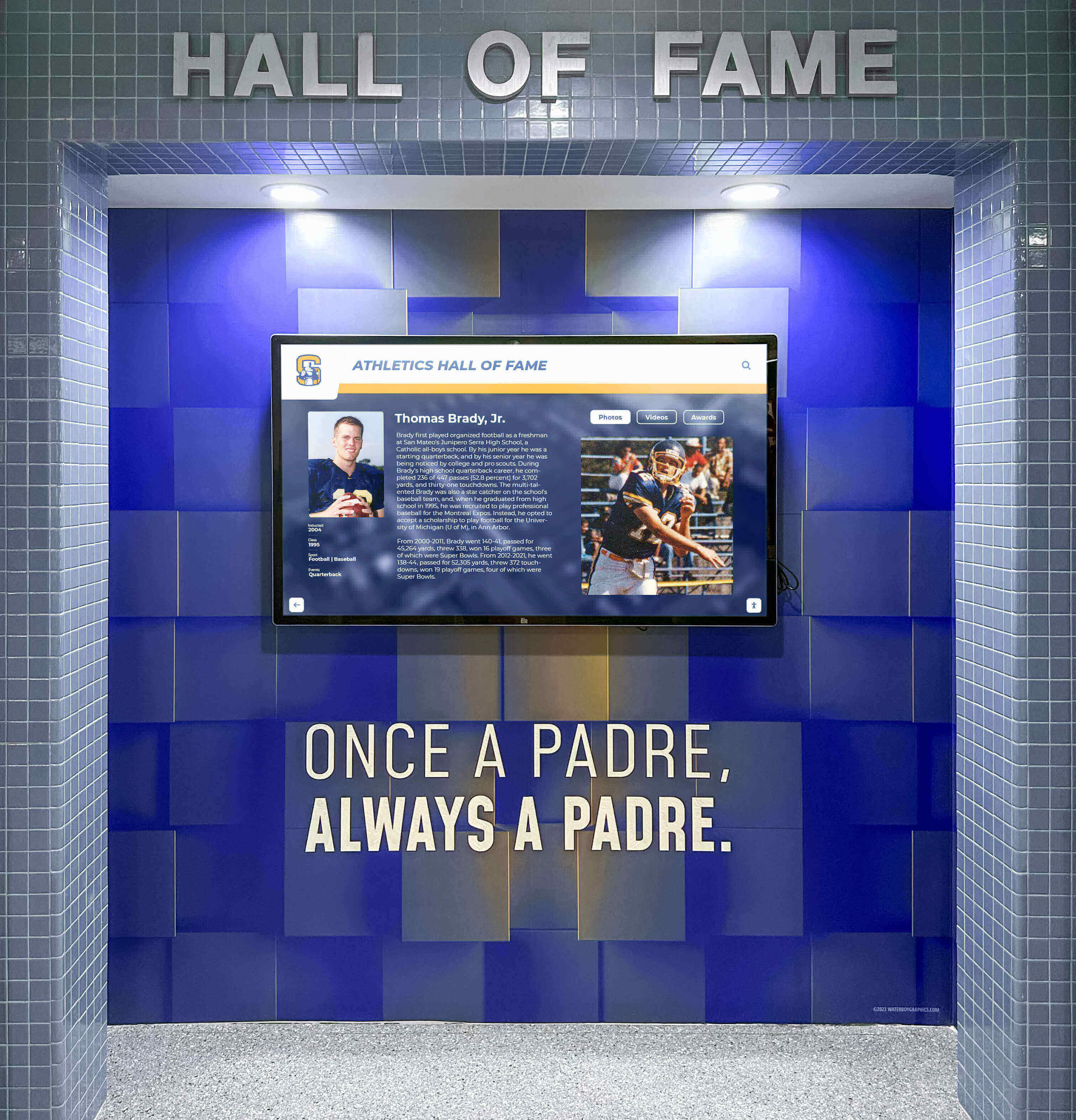
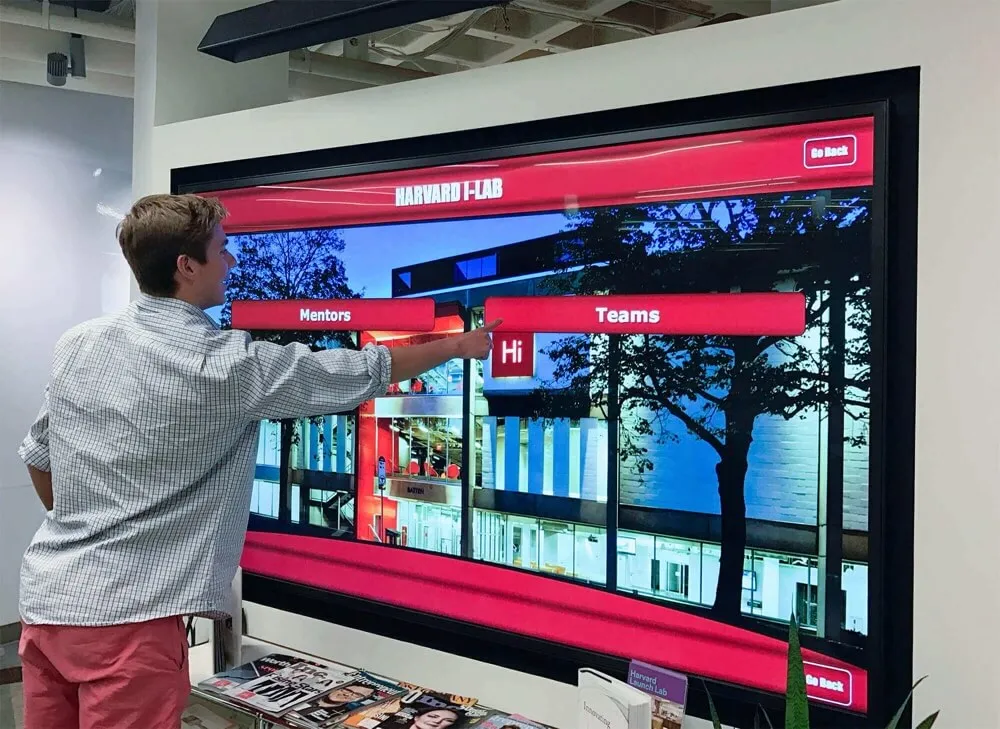
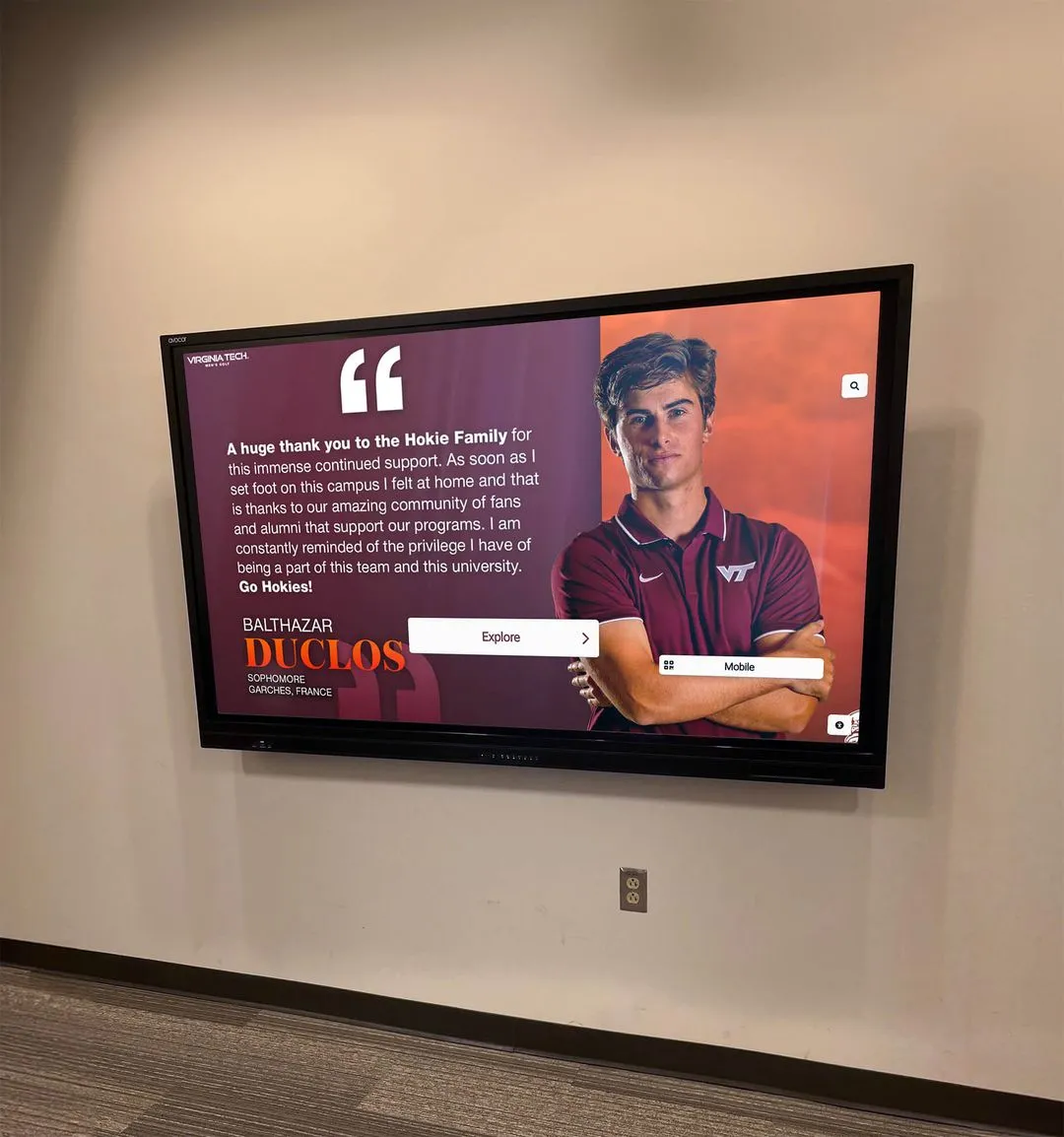
A hall-of-fame display that works seamlessly during an induction event reflects not just the content team's work but the IT team's pre-event network verification—port mirroring is the diagnostic tool that makes that verification possible
Port Mirroring Test Completion Checklist
Use this checklist to confirm the test was completed correctly and results were documented:
- Switch management access confirmed; kiosk MAC located in MAC address table on correct port
- SPAN session configured: source port (kiosk), destination port (capture laptop), direction (both)
- Wireshark capture started on capture laptop wired interface
- Baseline idle capture recorded (minimum 5 minutes); heartbeat interval documented
- DNS resolution confirmed: platform API domain and CDN hostnames resolving correctly
- Content sync triggered from portal; sync burst observed and CDN hostnames documented
- Video streaming verified (if applicable); CDN hostname and bitrate documented
- Unknown outbound connections reviewed and attributed or flagged
- SPAN session removed from switch; removal verified
- Capture file saved with descriptive filename and stored in IT documentation system
- Runbook entry created or updated with all documented values
- Any identified issues logged in ticketing system with capture filename as attachment
See a Cloud-Managed Recognition Display in Action
Rocket Alumni Solutions builds school recognition kiosks designed to work cleanly with school IT infrastructure—with documented network requirements, transparent cloud platform traffic, and support teams who can walk through port mirroring findings alongside your IT coordinator. If you are evaluating a recognition display for your lobby, gymnasium, or athletic wing and want to understand exactly what it will do on your network before committing, a live demo is the direct path to those answers.
Book a Live Recognition Display DemoA school recognition display port mirroring test costs less than an hour of IT time when the switch documentation is ready and the capture device is prepared. The diagnostic clarity it provides—ground-truth packet evidence rather than inference from symptom reports—is worth that hour many times over when a connectivity problem surfaces before a major recognition event. Running the test once under normal conditions, saving the healthy baseline, and scheduling a repeat check before each major event is the simplest possible insurance for a system that represents years of athletic achievement and community recognition.