



A school recognition display IGMP snooping test verifies that your access switch is correctly tracking which display endpoints have joined each multicast group—so that scheduled media updates push only to screens that requested the stream, rather than flooding every port on the recognition display VLAN. When IGMP snooping is absent, misconfigured, or missing an active querier, a content update to four hall-of-fame screens can look identical to a multicast flood from the switch’s perspective: the switch forwards every frame to every port in the VLAN, consuming bandwidth whether or not the attached device wants the content. Running a structured test before a scheduled update—not after a failure—catches this class of misconfiguration before it disrupts a live event.
This guide is written for school IT directors, network administrators, and facilities managers supporting interactive hall-of-fame touchscreens, athletic record boards, and lobby recognition kiosks. It covers prerequisites, a step-by-step IGMP snooping test procedure, querier verification, multicast group membership checks, a results interpretation table, common failures and their fixes, and post-update monitoring. No failure statistics have been invented. Specific command syntax is labeled by platform; always consult your switch vendor’s current documentation for production use.
A school recognition display network has a deceptively simple appearance: a media player, a cable, a screen. The multicast complexity is invisible until a scheduled content update for a hall-of-fame induction night or end-of-season record board refresh fails to reach every screen—or arrives on screens that were never supposed to receive it, while consuming bandwidth that other devices on the segment need.

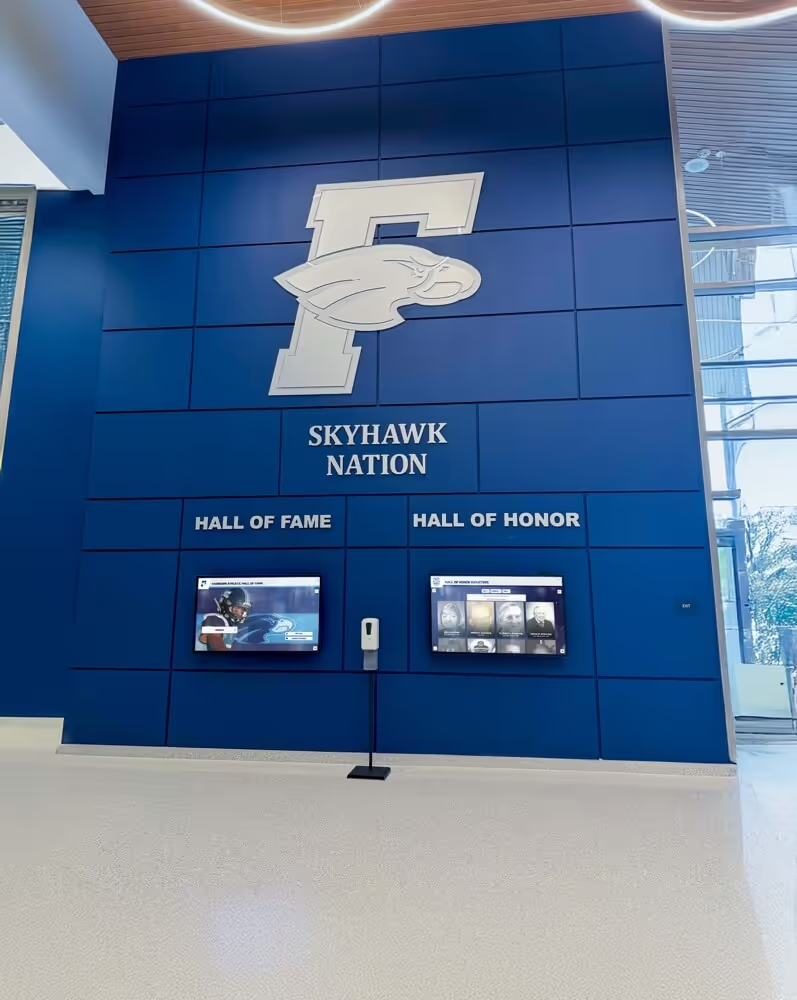
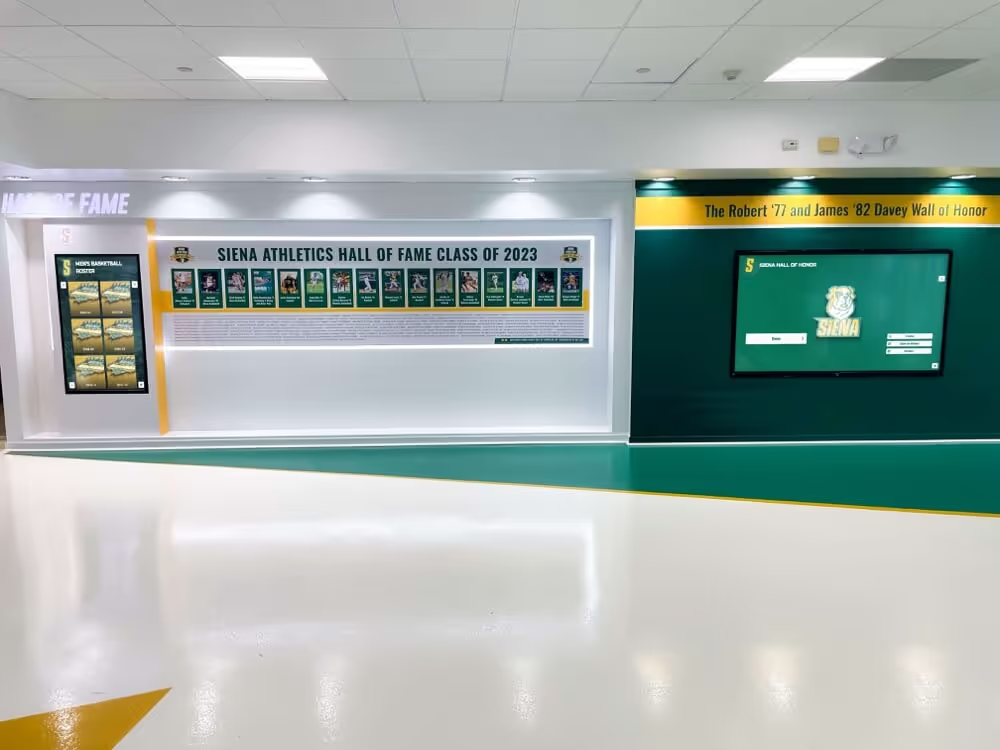
Synchronized recognition display networks rely on IGMP snooping to route multicast media updates only to the ports whose attached screens have joined the relevant multicast group—testing this before a scheduled update prevents event-day content failures
What IGMP Snooping Does in a Recognition Display Network
IGMP (Internet Group Management Protocol) allows hosts—including recognition display media players—to tell the network which multicast streams they want to receive. IGMP snooping is a switch feature that listens to those conversations and builds a per-port forwarding table, so multicast frames travel only to ports that have active group members. Without IGMP snooping, a layer-2 switch treats multicast like broadcast: it forwards every frame to every port on the VLAN, regardless of whether any device on that port requested the stream.
For recognition display networks, the practical implication is direct. When a media server sends updated athlete profiles, championship records, or ceremony graphics as a multicast stream to six hall-of-fame screens, IGMP snooping ensures the switch delivers that stream only to the six ports connected to those screens. An IGMP snooping failure—whether from a disabled setting, an absent querier, or a stale group table entry—causes the update to flood every port on the recognition display VLAN. Depending on the VLAN’s scope, that flood may reach classroom switches, faculty devices, or any other equipment sharing the same network segment before a router or firewall blocks further propagation.
The test described in this guide verifies each layer of that mechanism in sequence: that IGMP snooping is enabled and active on the recognition display VLAN, that a querier is present and generating membership queries, that display endpoints have correctly joined their multicast groups, and that the switch’s forwarding table reflects the correct per-port membership state.
Schools managing recognition programs that include AP scholar awards, academic honor roll boards, and formal recognition displays benefit from the same media delivery reliability as athletic recognition systems—both depend on scheduled multicast updates reaching the right screens without disrupting other school traffic.
Before You Test: Prerequisites and Equipment
Run through this checklist before beginning the IGMP snooping test. Each item is a dependency; attempting the test with a missing prerequisite produces misleading results.
| Prerequisite | Verification Step | Why It Matters |
|---|---|---|
| Managed switch with IGMP snooping support | Check the switch model’s datasheet or admin guide | Unmanaged switches cannot be tested; they always flood multicast |
| Access to switch management interface | Confirm CLI or web UI login credentials | Required to read IGMP snooping state, querier status, and group tables |
| Recognition display VLAN identified | Note the VLAN ID used for display devices | IGMP snooping is configured per-VLAN; you must target the correct VLAN |
| At least one display endpoint powered on | Confirm the media player or display OS is running | IGMP group membership only appears when a device has joined a group |
| Knowledge of the display platform’s multicast group address | Check vendor documentation or use packet capture to observe | Required to verify that the expected group appears in the switch table |
| A packet capture tool available (optional but recommended) | Wireshark on a laptop with a mirrored or monitored port | Provides ground truth when switch command output is ambiguous |
| Maintenance window scheduled | Coordinate with display program administrator | Some test steps trigger brief multicast traffic bursts |
If your display platform delivers content updates over unicast HTTPS—where each screen independently fetches content from the vendor’s cloud CDN—IGMP snooping may not apply to the content delivery path. In that case, IGMP remains relevant for mDNS and service discovery traffic that many display management systems generate for local device detection. Verify your platform’s traffic model with the vendor before concluding that this test is not needed.
Step 1: Verify IGMP Snooping Is Enabled on the Recognition Display VLAN
The first test step confirms that IGMP snooping is both configured and operationally active on the VLAN carrying recognition display traffic. Configured but inactive is a common state on switches where a global IGMP snooping enable was missed or overridden by a per-VLAN setting.
Cisco IOS / Catalyst:
show ip igmp snooping vlan <vlan-id>
Look for IGMP snooping status showing Enabled. If the output shows Disabled, enable it with:
ip igmp snooping vlan <vlan-id>
Also run show ip igmp snooping (global) to confirm the global setting is not overriding per-VLAN configuration.
Aruba / HP ProCurve:
show igmp vlan <vlan-id>
Confirm IGMP Enabled appears in the output. The show igmp command without a VLAN ID shows the global state.
Ubiquiti UniFi:
Navigate to Settings → Networks → select the recognition display network → confirm IGMP Snooping is toggled on. Ubiquiti applies this setting globally to the selected network; verify the correct SSID or wired network is selected.
Netgear managed switches:
Navigate to Switching → Multicast → IGMP Snooping. Confirm the IGMP snooping status for the recognition display VLAN shows Enable.
Record the output of these commands as a baseline. If you are running this test for the first time after a switch replacement or firmware update, the IGMP snooping state may have reverted to a default that differs from your intended configuration.
Step 2: Verify an IGMP Querier Is Active
IGMP snooping requires an active querier—a device that periodically sends IGMP general queries to prompt hosts to report their multicast group memberships. Without a querier, group membership entries in the switch’s IGMP snooping table time out and are not refreshed. The switch falls back to flooding multicast to all ports on the VLAN, which is exactly what IGMP snooping is meant to prevent.
The querier is typically the layer-3 device acting as the default gateway for the recognition display VLAN: a router, a layer-3 switch, or a firewall interface. On some networks, the recognition display VLAN may not have a directly attached layer-3 device generating IGMP queries—particularly when the VLAN terminates at an access switch without a local routing instance. In those cases, configure the access switch itself to act as an IGMP snooping querier.
Identifying the querier on Cisco IOS:
show ip igmp snooping querier vlan <vlan-id>
The output should show an IP address field with the querier’s IP address and a Last member query count reflecting recent activity. If the querier IP address is 0.0.0.0 or the field is absent, no querier is active on the VLAN.
Enabling the IGMP snooping querier on a Cisco switch (when no layer-3 querier is present):
ip igmp snooping querier
ip igmp snooping querier address <switch-management-ip>
ip igmp snooping vlan <vlan-id> querier
Verifying querier activity with a packet capture:
On a laptop connected to a monitored or SPAN port on the recognition display VLAN, capture traffic filtered for IGMP (IP protocol 2). An active querier sends a general membership query to the all-hosts group address (224.0.0.1) at the IGMP query interval—by default 125 seconds per RFC 3376. If no general query appears within 260 seconds (two query intervals plus tolerance), the querier is absent or unreachable.
The absence of a querier is one of the most common root causes of IGMP snooping failures in recognition display networks. A switch that was working correctly may lose its querier after a router replacement, a VLAN configuration change that removed the layer-3 interface, or a firmware update that reset the IGMP snooping querier setting.
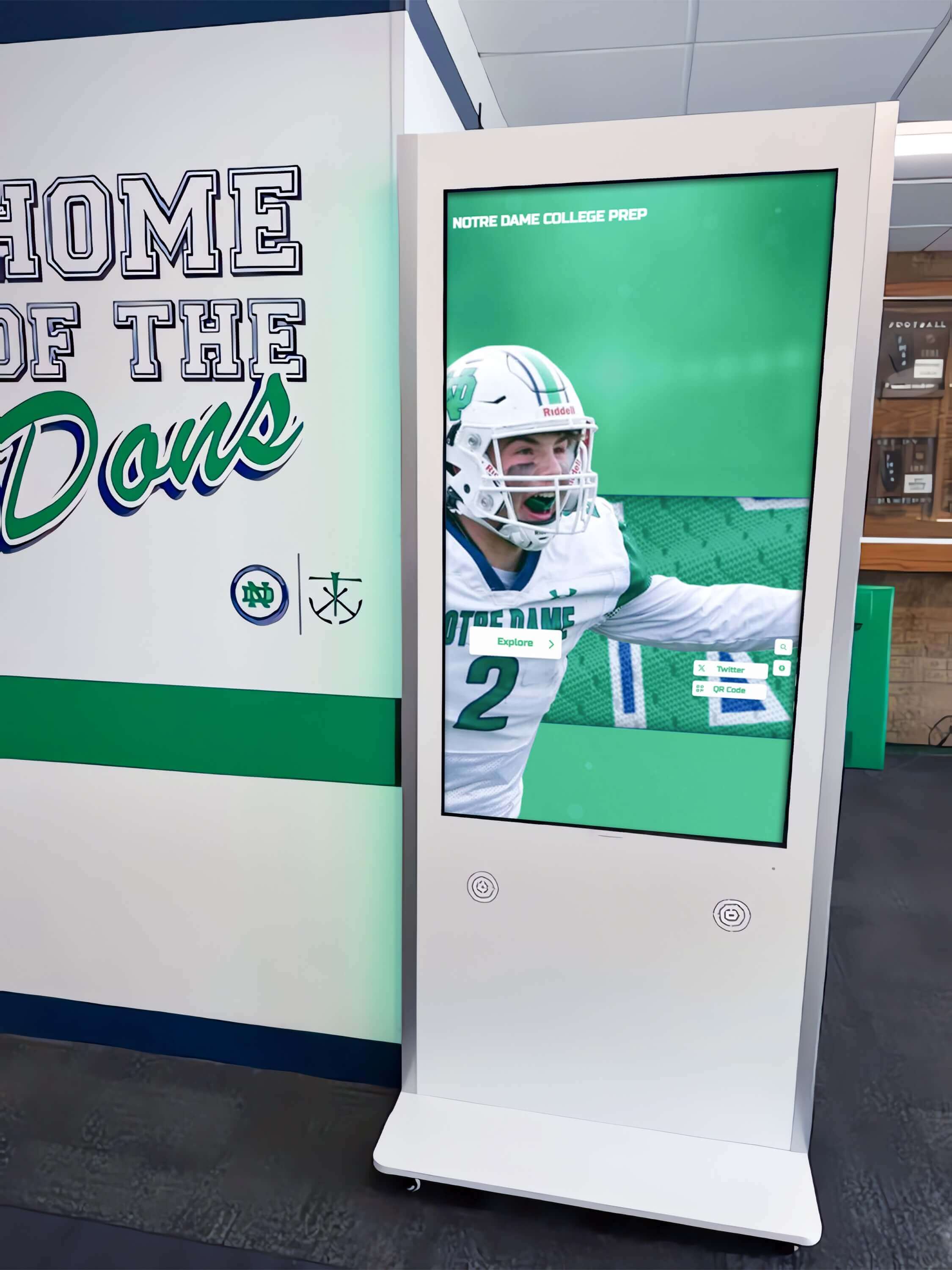
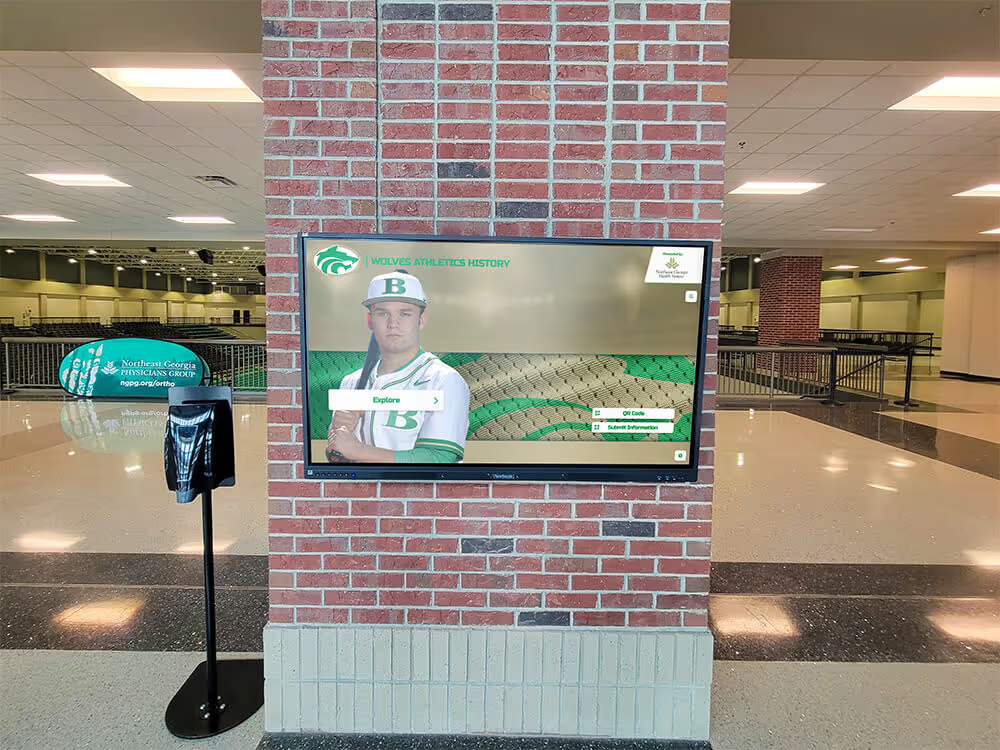
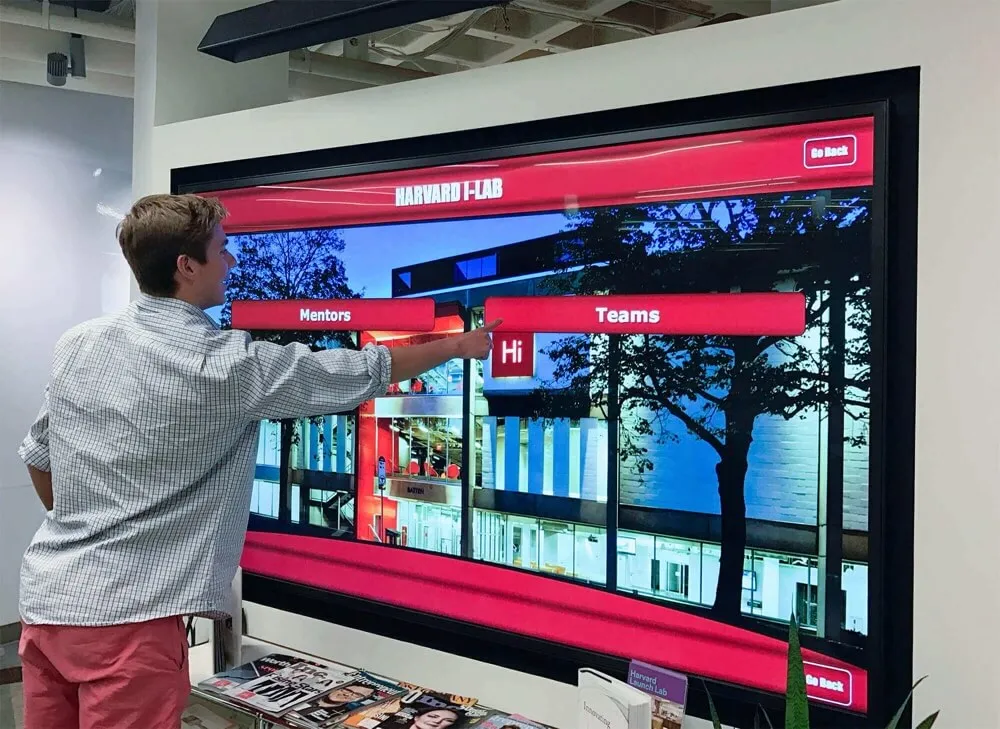
Recognition kiosks like this one show no visible error when IGMP snooping fails—content simply stops updating, because the switch floods multicast to all ports rather than routing it correctly to the display's port
Step 3: Inspect the IGMP Group Membership Table
Once you have confirmed IGMP snooping is enabled and a querier is active, inspect the switch’s IGMP group membership table to verify that recognition display endpoints have correctly joined their expected multicast groups.
Cisco IOS:
show ip igmp snooping groups vlan <vlan-id>
The output lists multicast group addresses alongside the switch ports that have active members. Each recognition display media player that has successfully joined a multicast group appears as a port entry under the relevant group address.
What to look for:
- The multicast group address your display platform uses for media updates should appear in the table
- The switch ports connected to display endpoints should be listed under that group
- Ports connected to devices that should not receive the stream (administrative workstations, printers, VoIP phones on the same VLAN if not separated) should not appear under the group
What a healthy table looks like:
| Group Address | Port | VLAN | Type |
|---|---|---|---|
| 239.255.10.1 | GigabitEthernet0/1 | 50 | dynamic |
| 239.255.10.1 | GigabitEthernet0/3 | 50 | dynamic |
| 239.255.10.1 | GigabitEthernet0/5 | 50 | dynamic |
| 224.0.0.251 | GigabitEthernet0/1–0/8 | 50 | dynamic |
The first three entries represent three display endpoints that have joined the media distribution group. The 224.0.0.251 entries represent mDNS (multicast DNS) traffic from all devices on the segment—this is expected background traffic from display management software using mDNS for local device discovery.
If the table is empty or missing expected entries:
An empty IGMP group table for the recognition display VLAN, when display devices are powered on and running, means one of three things: the display platform is not sending IGMP join messages (check platform configuration or firmware version), the querier is absent so the switch has timed out and discarded its entries, or IGMP snooping is not actually active despite appearing enabled in the configuration. Work through Steps 1 and 2 again before concluding that the display platform’s IGMP implementation is at fault.
Step 4: Trigger a Test Media Update and Observe Traffic
With IGMP snooping confirmed as enabled, a querier confirmed as active, and group membership entries present for display endpoints, the next step is to trigger a test media update and observe whether multicast traffic is forwarded correctly—only to ports with active group members—rather than flooded to all ports.
Method 1: SPAN / port mirror analysis
Configure a SPAN (Switched Port ANalyzer) session on the switch that mirrors traffic from a non-display port on the recognition display VLAN to a monitoring port. Connect a laptop running Wireshark to the monitoring port. Trigger a content update from the display management platform. If IGMP snooping is working correctly, the mirrored non-display port should show no multicast traffic from the media distribution group during the update—only background IGMP queries and mDNS traffic.
If the mirrored port shows media-distribution-group multicast during the update, IGMP snooping is not preventing the flood.
Method 2: Switch port statistics
Check the per-port multicast packet counter on a non-display port during a media update. On Cisco IOS:
show interfaces GigabitEthernet0/<non-display-port> counters
Run this command before and after a test update. If the multicast packet count on the non-display port does not increase during the update, IGMP snooping is containing the traffic correctly. If the counter increases significantly during the update, multicast is flooding that port.
Method 3: Bandwidth monitoring
If your network monitoring tool reports per-port traffic rates, observe the rate on a non-display port during a scheduled update. Multicast flooding produces a clear bandwidth spike that is absent when IGMP snooping is working correctly.
Schools coordinating recognition content for events—new hall-of-fame inductee profiles before a ceremony, updated basketball records before a tournament bracket announcement, or end-of-year senior recognition graphics—benefit from running a test update at least 48 hours before the live event window to allow time for troubleshooting if the test reveals a snooping failure. For programs managing multi-sport recognition displays, the approach to organizing interactive kiosk deployments at schools and community organizations underscores why network-layer testing belongs in any pre-event checklist alongside content review and display power verification.
Step 5: Verify IGMP Leave and Rejoin Behavior
A complete IGMP snooping test includes verifying that display endpoints correctly leave a multicast group when they stop needing the stream, and that the switch removes the port from the forwarding table promptly. Stale group entries—where the switch continues forwarding multicast to a port whose device has rebooted, crashed, or changed groups—are a common source of persistent low-level multicast overhead on recognition display VLANs.
Testing leave behavior:
- Confirm a display endpoint appears in the IGMP group table for its active group (from Step 3)
- Power off or cleanly restart the display media player
- Wait for the IGMP leave message to propagate—on a network using IGMPv2 or IGMPv3, the device sends a leave-group message before going offline
- Re-run
show ip igmp snooping groups vlan <vlan-id>on the switch - The port should no longer appear under the multicast group within the IGMP last-member-query-interval (default approximately 2 seconds in IGMPv2 after a leave message is received)
If the port entry persists significantly longer than the last-member-query-interval after a clean shutdown, investigate whether the switch’s IGMP snooping implementation is processing leave messages correctly, and whether the last-member-query-count is set to a value that delays port removal.
Note on abrupt power loss:
If a display media player loses power without sending a leave message—a hard power failure rather than a clean shutdown—the switch retains the port entry until the IGMP membership timeout expires (approximately 260 seconds under RFC 3376 defaults). During that window, the switch continues forwarding multicast to the disconnected port. This is expected behavior, not a configuration error. It is the scenario that IGMP snooping fast-leave or immediate-leave configurations are designed to address, though those settings require careful evaluation to ensure they do not remove active members prematurely in multi-device environments.
Interpreting Test Results
Use this table to interpret the outcome of each test step and identify the appropriate corrective action.
| Test Step | Expected Result | Failure Indication | Corrective Action |
|---|---|---|---|
| Step 1: IGMP snooping state | Enabled on the recognition display VLAN | Disabled or not present in output | Enable IGMP snooping globally and per-VLAN; verify firmware supports per-VLAN control |
| Step 2: Querier presence | Querier IP shown, recent query interval active | No querier IP, all-zeros address, or query counter not advancing | Enable IGMP snooping querier on the switch if no layer-3 device is present on the VLAN; verify the router/L3 switch is generating queries |
| Step 3: Group membership table | Display endpoint ports listed under the media distribution group | Table empty or display ports absent | Check display platform IGMP configuration; verify querier is active; check for firewall rules blocking IGMP traffic (protocol 2) within the VLAN |
| Step 4: Traffic isolation during update | Non-display ports show no media-group multicast during test update | Non-display ports show multicast burst during update | IGMP snooping is not preventing flooding—re-verify Steps 1–3; check switch firmware for IGMP snooping bugs |
| Step 5: Leave behavior | Port removed from group table within leave-query-interval after clean shutdown | Port persists for longer than expected after shutdown | Check last-member-query-interval and last-member-query-count settings; investigate IGMPv1 compatibility modes that suppress leave processing |
A test that passes all five steps confirms that IGMP snooping is functioning correctly end-to-end for multicast media delivery to recognition displays. Document the test results, the querier IP address, and the expected multicast group addresses for future reference. When the recognition display network changes—new screens added, VLAN reconfigured, switch replaced—this baseline makes regression testing straightforward.
Common IGMP Snooping Failures in Recognition Display Environments
Failure: IGMP snooping appears enabled but the group table is empty
The most common cause is a missing querier. With no querier generating general membership queries, display devices eventually stop sending membership reports—they have nothing to respond to. The switch’s IGMP table times out and is not rebuilt. Verify querier presence per Step 2 before assuming a platform-side IGMP problem.
Failure: Group table shows correct ports, but traffic is still flooding
Some switches have a known behavior where IGMP snooping is active but a misconfigured or absent router port entry causes the switch to flood multicast to all ports as a fallback. Verify that the switch has a correctly configured router port—the port connected to the layer-3 querier device—by checking:
show ip igmp snooping mrouter vlan <vlan-id>
If no router port appears, the switch may not know where to forward multicast upstream and defaults to flooding. Configure a static mrouter port if dynamic detection is not working.
Failure: IGMP snooping breaks after a switch firmware update
Firmware updates sometimes reset per-VLAN IGMP snooping settings to defaults or change default behavior. After any firmware update on a switch hosting recognition display VLANs, re-run the full test sequence and verify all settings are intact. Add IGMP snooping state to your post-update change verification checklist.
Failure: Display platform uses IGMPv1, switch defaults to IGMPv2 or IGMPv3
Older display media players may use IGMPv1, which has no leave message—a device simply stops sending membership reports and the switch waits for the full membership timeout before clearing the entry. If your display platform uses IGMPv1, configure the switch’s IGMP snooping version to match, or accept longer leave latency as a normal characteristic of that platform’s IGMP implementation.
Failure: Multicast floods only during scheduled updates, not during baseline observation
If the IGMP table appears correct during baseline testing but flooding occurs during a live media update, the likely cause is that the update generates traffic at a rate or from a source address that triggers the switch’s multicast flooding fallback. Verify that the media server sending the update is joined to or listed as a source for the correct multicast group, and that the server’s NIC driver is not sending frames with a destination MAC that differs from the standard multicast MAC derived from the group address—some driver bugs generate non-standard multicast MACs that bypass IGMP snooping lookups.
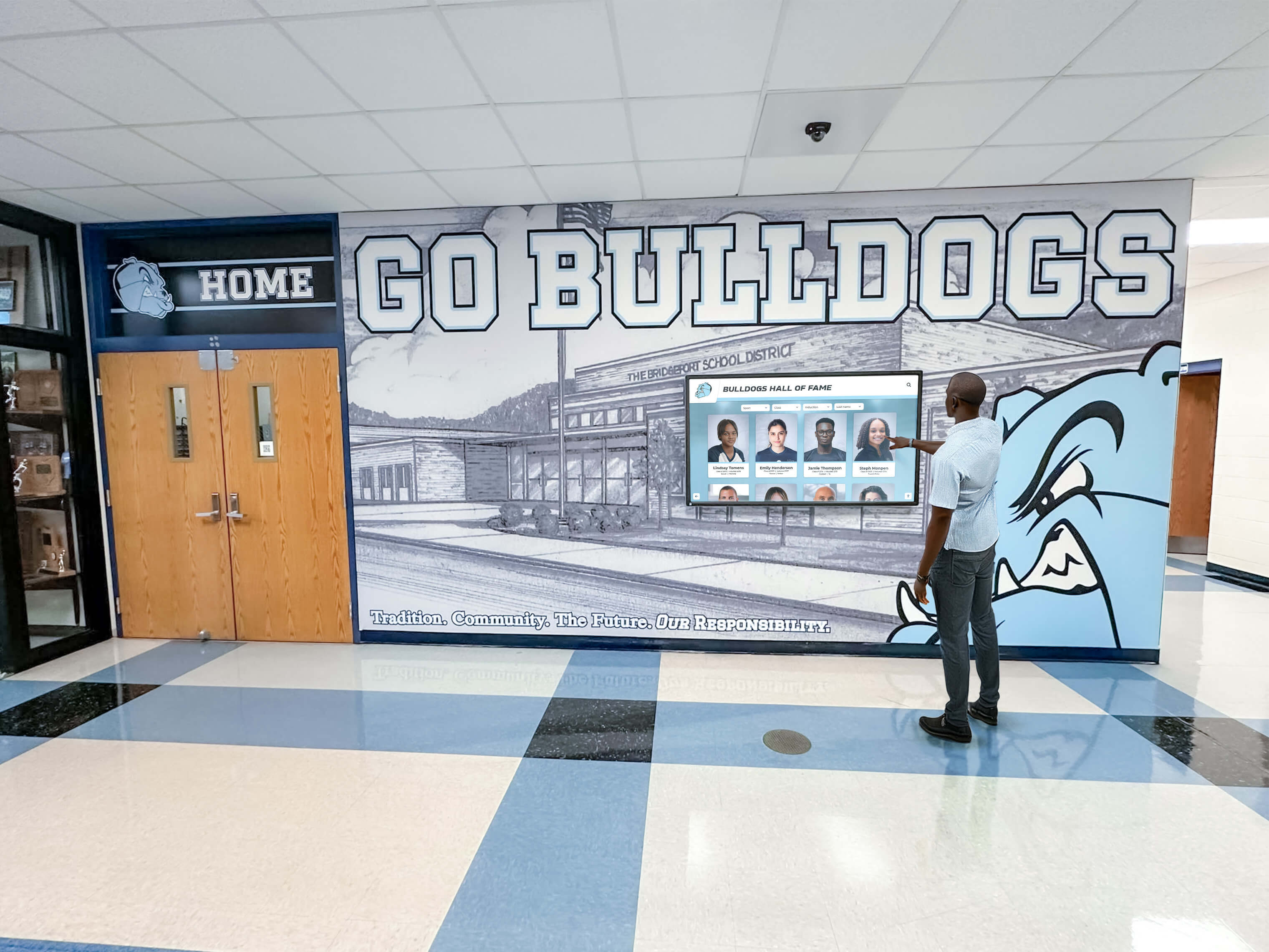
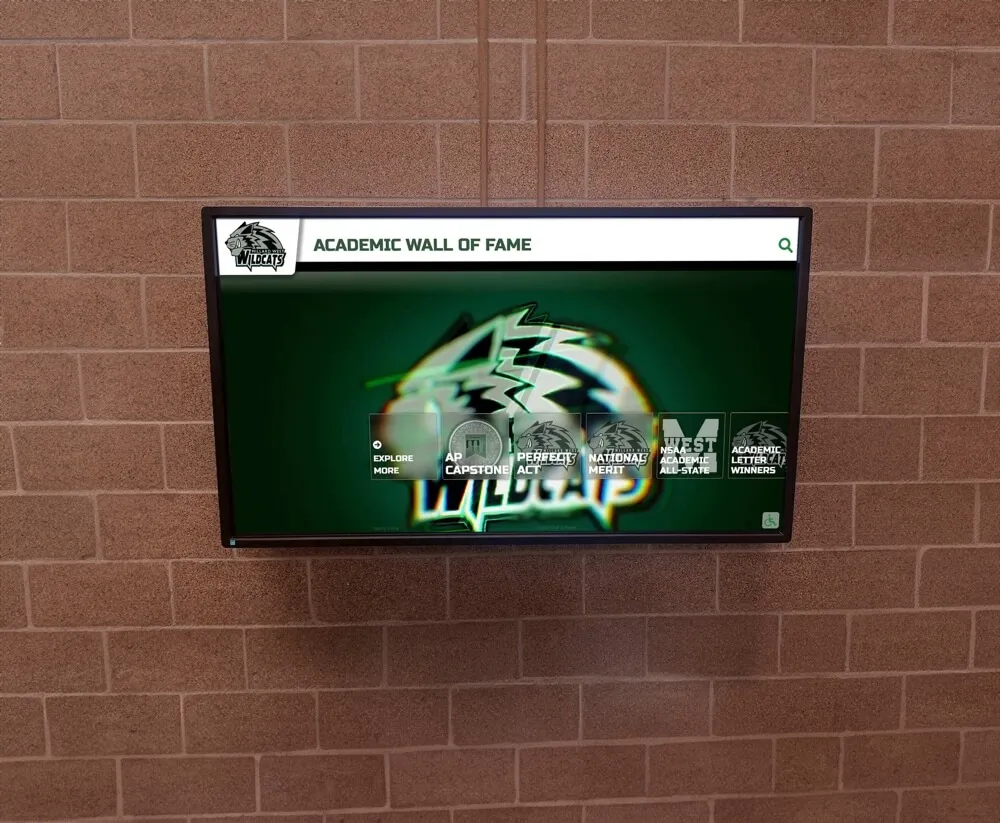
Recognition display failures caused by IGMP snooping misconfiguration appear silent to users—the screen continues operating but stops receiving new content, which may not be detected until event day when outdated records are visible
Scheduling and Monitoring After the Test
Passing an IGMP snooping test before an event is the minimum baseline. Ongoing monitoring confirms that the configuration remains intact between tests.
What to monitor between events:
- IGMP querier status: Verify at least weekly that the querier IP address and query interval remain correct. Many schools tie this check to their regular switch health review.
- IGMP group table entries: Check that display endpoint ports remain listed under their expected groups during scheduled update windows. A port that drops out of the table between updates may indicate intermittent IGMP join failures at the media player.
- Storm control counters (if configured alongside IGMP snooping): If storm control threshold counters increment during a scheduled update, the threshold may be too aggressive—media traffic is being suppressed before IGMP snooping can prevent a flood from forming. Review thresholds in coordination with IGMP snooping verification.
Scheduling recommendations:
Run the full IGMP snooping test at least:
- Before any recognition event (hall-of-fame induction, awards ceremony, end-of-season program)
- After any switch replacement, VLAN reconfiguration, or firmware update
- After adding any new display endpoint to the recognition display VLAN
- After any network maintenance window that included changes to routing or L3 switch configuration
For recognition programs managing recurring events—football banquet recognition updates, academic achievement displays at semester transitions, or spring awards season content pushes—building the IGMP snooping test into the event-prep workflow at a fixed interval before each event prevents the class of failure where a working configuration silently degrades between uses.
For schools managing athletic recognition programs that span multiple sports and seasons, coordinating the content publication calendar with the IT maintenance schedule helps ensure that recognition content for significant program milestones reaches displays correctly when it matters most.
Connecting IGMP Testing to Recognition Display Program Success
A recognition display that fails to update is a recognition program that fails the people it is designed to honor. When an end-of-year hall-of-fame inductee’s profile does not appear on the lobby kiosk before a ceremony, or when updated basketball records from a championship season still show last year’s numbers weeks later, the cause is often not the content management platform or the display hardware. It is a network configuration that worked correctly when it was first set up and then silently changed in a way that no one caught until the failure became visible at an event.
IGMP snooping testing is the network-side equivalent of verifying that content was published correctly in the display management portal—it closes the loop between “we pushed the update” and “the update reached every screen it was supposed to reach.” For schools managing recognition programs that serve athletes, scholars, coaches, and community contributors across many years and many sports, that reliability is what makes the investment in digital recognition infrastructure worthwhile.
Schools building comprehensive recognition archives—class presidents recognized on interactive digital displays, coaching legacies preserved as part of long-term institutional memory, and sport-specific athletic records organized by season—depend on scheduled content delivery being reliable enough that program administrators can publish an update and trust it will appear on screen without requiring IT intervention to investigate a silent delivery failure.
The same principle applies to programs with rich hall-of-fame content across team sports. When recognition content organized by athlete roles, seasonal records, and career milestones flows through a correctly configured multicast delivery path, program administrators can focus on honoring achievement rather than troubleshooting infrastructure. Maintaining that reliability is the practical outcome a school recognition display IGMP snooping test is designed to protect.

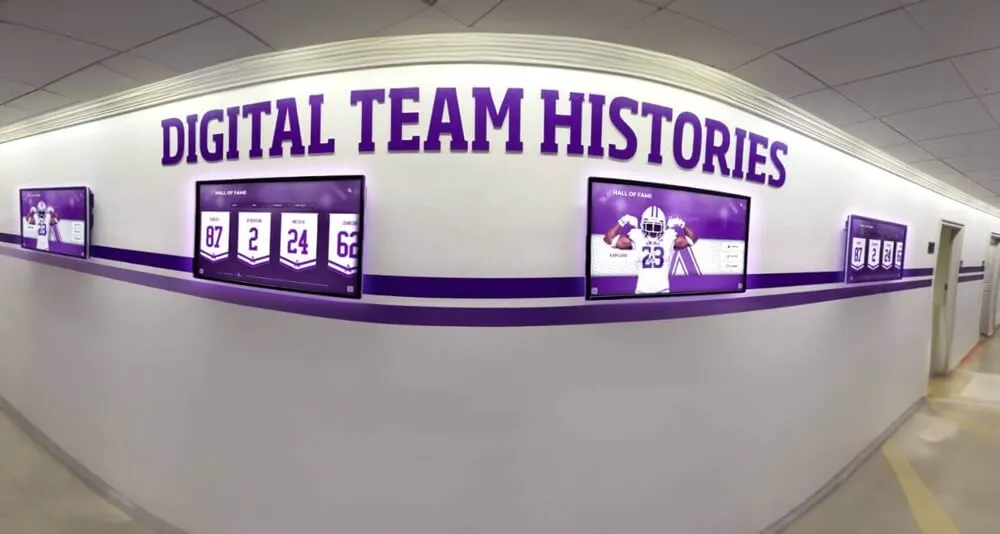
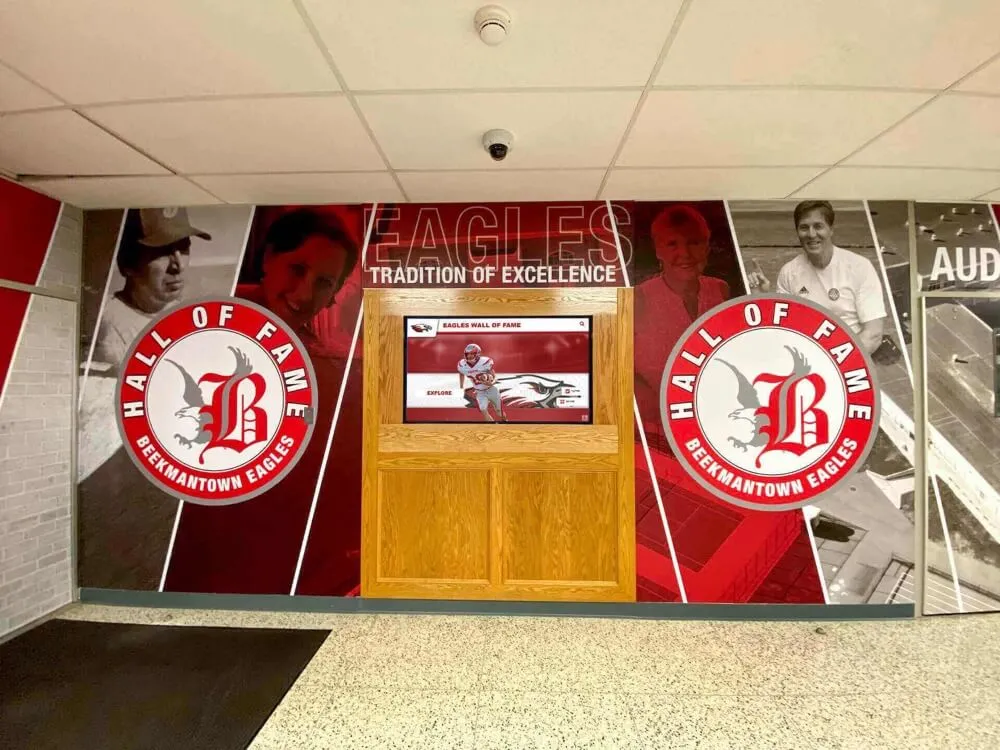
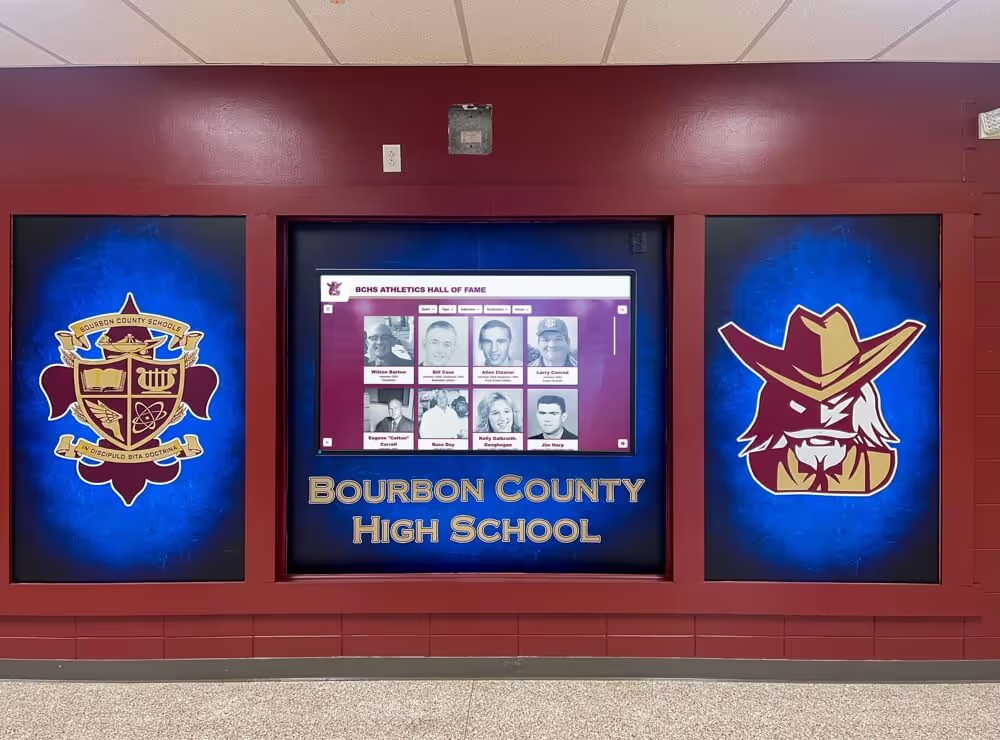
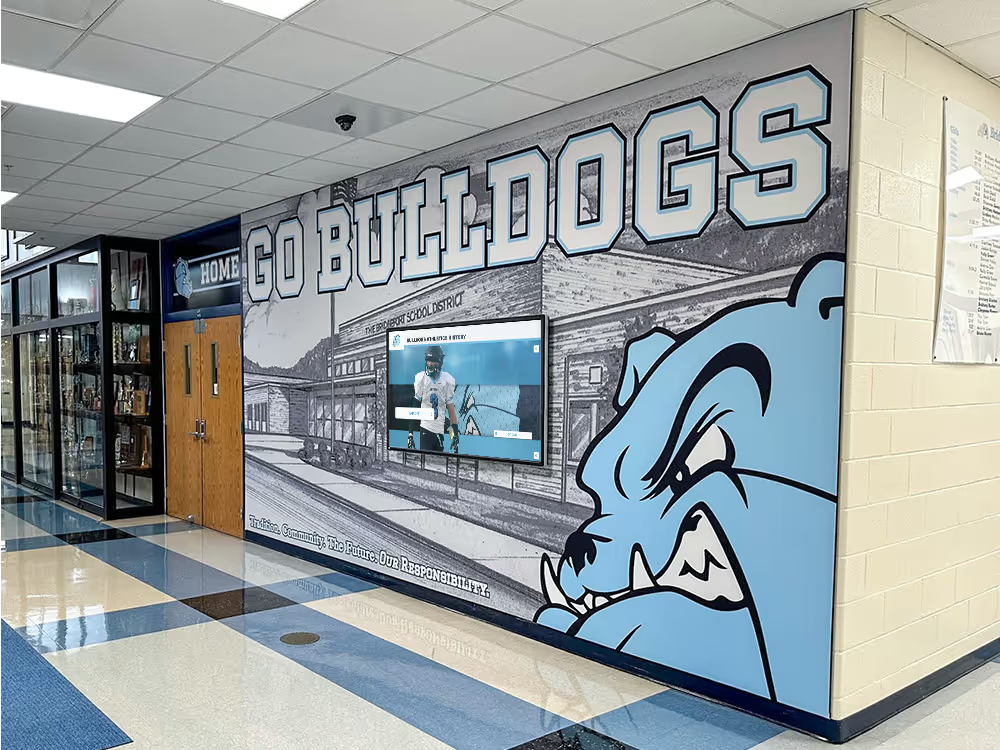
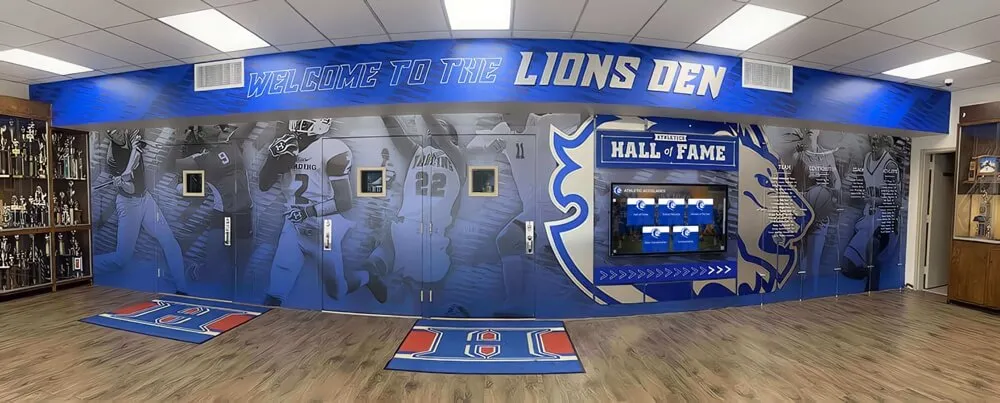
Recognition displays integrated into hallway murals and lobby environments depend on IGMP snooping to deliver scheduled content updates reliably—a correctly configured and tested switch makes the difference between content that appears on schedule and content that fails silently
Pre-Event IGMP Snooping Test Checklist
Use this checklist before any scheduled recognition event that involves a content update to hall-of-fame screens, record boards, or lobby kiosks.
- Confirmed IGMP snooping is enabled on the recognition display VLAN (Step 1)
- Querier IP address verified; last query interval confirmed active (Step 2)
- IGMP group membership table reviewed; all expected display endpoint ports are listed under the correct multicast group (Step 3)
- Test media update triggered; SPAN or port statistics confirm multicast not flooding non-display ports (Step 4)
- IGMP leave and rejoin behavior verified after a test restart of one display endpoint (Step 5)
- Storm control thresholds reviewed and confirmed not suppressing legitimate media traffic
- Display management platform confirms update was published and received (application-layer confirmation)
- All display screens verified showing the updated content after the test update completes
Document the results with the date, switch hostname, VLAN ID, querier IP, and tested group addresses. Store this record with your network change log so future troubleshooting can reference the last known-good state.
Frequently Asked Questions
Q: Our recognition display vendor says their platform uses unicast delivery, not multicast. Do I still need to test IGMP snooping?
Unicast content delivery—where each display independently fetches updates from a CDN over HTTPS—does not create IGMP-relevant multicast streams for the content itself. However, many display management platforms still use mDNS (multicast DNS, group 224.0.0.251) and SSDP for local device discovery, both of which generate multicast background traffic. IGMP snooping is still relevant for controlling that discovery traffic, though the testing priority and threshold calibration differ from networks with active multicast content delivery. Confirm with your vendor exactly which protocols their platform uses before concluding that IGMP snooping is irrelevant to your deployment.
Q: How do I find out which multicast group address my recognition display platform uses?
The easiest method is to run a packet capture on the recognition display VLAN during a scheduled content update and filter for multicast traffic (destination IP in the 224.0.0.0/4 range). The group address your platform uses for content distribution will appear as the destination of frames originating from the media server. Alternatively, check vendor documentation or ask your vendor’s technical support—reputable platforms document their multicast group usage as part of network integration guidance. Knowing the group address is required to verify correct entries in the switch’s IGMP snooping table.
Q: We have only two recognition display screens and a very small VLAN. Is this test necessary?
A two-screen deployment is a reasonable minimum for a hall-of-fame or academic recognition program, and at that scale, multicast flooding is less likely to cause serious network disruption—the blast radius of an IGMP snooping failure is smaller. However, the test is still valuable because it establishes a documented baseline that makes future troubleshooting faster, and because small deployments often grow: what starts as two lobby screens frequently expands to include hallway boards, trophy case kiosks, and athletic wing displays as the recognition program develops. Running the test while the network is simple is considerably easier than diagnosing an IGMP snooping misconfiguration after the network has expanded to twelve screens across two buildings.
Q: Can I run this test during school hours, or does it require a maintenance window?
Most of the read-only steps—checking IGMP snooping state, verifying querier presence, inspecting the group membership table—can be run during school hours without any traffic impact. The steps that generate test traffic—triggering a test media update, enabling a SPAN session for packet capture, or observing port statistics during an update—are best scheduled during low-utilization periods to avoid introducing background traffic during peak usage. A maintenance window is not strictly required for the read-only verification steps, but it is recommended for the full end-to-end test including a live update trigger.
Q: What is the difference between IGMP snooping and multicast storm control? Do I need both?
They address different aspects of multicast management and are deployed together for comprehensive protection. IGMP snooping is preventive: it limits multicast forwarding to ports whose devices have joined a group, reducing the volume of traffic that reaches each port under normal conditions. Multicast storm control is reactive: it monitors per-port multicast traffic rates and drops frames that exceed a configured threshold, protecting against runaway multicast sources regardless of IGMP snooping state. A network with only IGMP snooping is protected against flooding from a correctly functioning delivery architecture but is vulnerable to a misconfigured media server generating multicast at line rate. A network with only storm control limits the damage from a runaway source but still floods multicast to every port if IGMP snooping is absent. For recognition display networks, both should be configured and tested.
Q: After we pass this test, how long until we need to run it again?
Run the test again whenever the recognition display network changes in any way: new display added, switch replaced or updated, VLAN reconfigured, router or L3 switch modified, or display management platform updated. Outside of network changes, running the test before each major recognition event provides ongoing assurance. A fully managed recognition display deployment with no recent changes might run the test quarterly as a minimum maintenance cadence. There is no elapsed time after which a passing result remains guaranteed—the test is valuable precisely because configurations can change silently through firmware updates, automated configuration resets, or changes to adjacent network infrastructure that affect querier behavior.
See How Recognition Displays Are Built for School Networks
Rocket Alumni Solutions designs interactive hall-of-fame touchscreens, digital trophy cases, and athletic recognition kiosks built to integrate with managed school network environments. If your program is planning a recognition display rollout and wants to walk through content delivery, scheduled update workflows, and network infrastructure requirements with a technical team that understands school IT constraints—schedule a demo to see the complete system in action.
Book a Live Demo