HTTP/3 QUIC Compatibility Test for School Recognition Display Video
- Home /
- Blog Posts /
- HTTP/3 QUIC Compatibility Test for School Recognition Display Video
The Easiest Touchscreen Solution




Live Example: Rocket Alumni Solutions Touchscreen Display
Interact with a live example (16:9 scaled 1920x1080 display). All content is automatically responsive to all screen sizes and orientations.
A school recognition display HTTP/3 QUIC compatibility test is a structured network procedure that determines whether your school’s firewall permits QUIC over UDP port 443, whether the kiosk browser negotiates HTTP/3 with the recognition platform’s content delivery network, and whether the display falls back reliably to HTTP/2 when QUIC is unavailable—so athletic video, hall-of-fame profiles, and championship archives load correctly regardless of which transport protocol the connection ultimately uses. HTTP/3 is the third major version of the Hypertext Transfer Protocol, standardized in RFC 9114 (June 2022). Unlike HTTP/1.1 and HTTP/2, which both run over TCP, HTTP/3 runs over QUIC (RFC 9000), a connection-oriented transport protocol built on UDP. Because many school firewalls restrict or block outbound UDP traffic—particularly on non-standard ports or on managed display VLANs—QUIC may be silently unavailable even on networks that support HTTP/2 for all other purposes. A recognition display that encounters a blocked QUIC path and does not fall back correctly can stall during video content requests, fail to load athlete highlight reels, or show blank content panels at exactly the moment a hall-of-fame event begins.
This guide walks school IT coordinators, network administrators, and athletic directors through the complete HTTP/3 QUIC compatibility test for recognition display video: understanding how HTTP/3 and QUIC affect media delivery, checking whether your school network permits QUIC, verifying browser-level HTTP/3 support on the display kiosk, testing Alt-Svc negotiation and fallback behavior, confirming athletic video loads under both protocol paths, and documenting a policy decision about whether to permit or block QUIC going forward.
HTTP/3 and QUIC are increasingly common on the internet—major CDNs including Cloudflare, Google Cloud, and AWS CloudFront support HTTP/3 by default for many endpoints—which means recognition display platforms that deliver athletic video over CDN infrastructure may negotiate HTTP/3 connections without any explicit school IT configuration. Whether that negotiation succeeds or fails silently determines whether your display’s video content loads over a working transport path or waits for a connection that the school’s firewall prevents from forming.

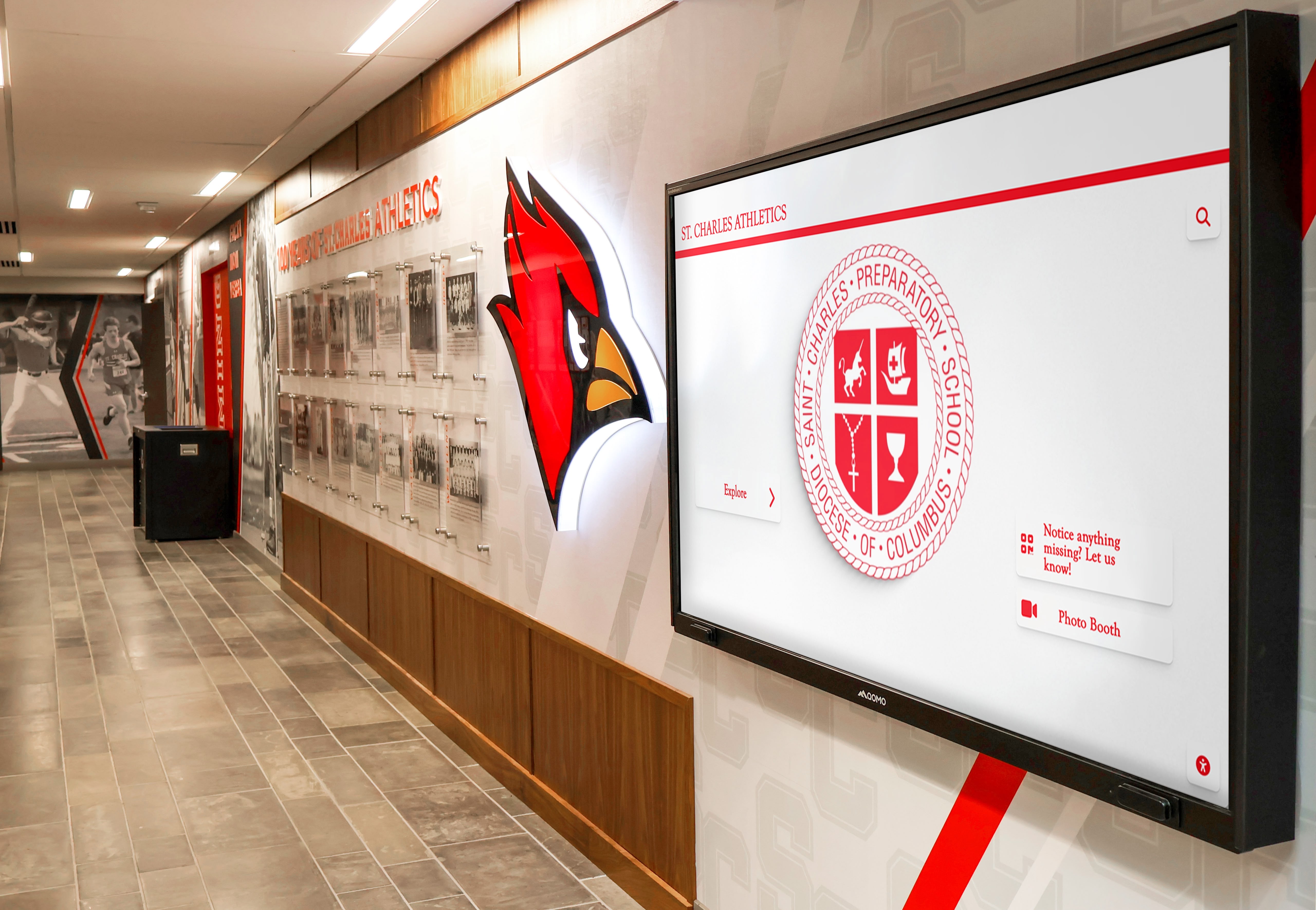
School athletics hallway recognition displays load video content over HTTPS connections that may use HTTP/3 over QUIC or HTTP/2 over TCP depending on what the network permits—compatibility testing determines which path is active and whether fallback to HTTP/2 is reliable when QUIC is unavailable
What HTTP/3 and QUIC Are and Why They Matter for Recognition Display Video
HTTP/3 replaces the TCP transport layer with QUIC, a protocol designed at Google and standardized by the IETF in RFC 9000 (May 2021). QUIC runs over UDP and incorporates connection establishment, flow control, stream multiplexing, and TLS 1.3 encryption into a single protocol layer, rather than separating those functions across TCP and TLS as HTTP/2 does.
For recognition display video, the protocol difference has two practical implications.
Connection establishment is faster under QUIC when it succeeds. A new QUIC connection can complete a 1-RTT handshake (combining transport and TLS negotiations) compared to the TCP three-way handshake plus a separate TLS handshake required for HTTP/2 over HTTPS. On subsequent connections to the same server within the resumption window, QUIC supports 0-RTT data transmission, allowing the display to send the first content request before the handshake completes. This reduces the time to first video frame on fresh connections—but this advantage is measurable primarily when connection latency is the bottleneck, not when the school’s WAN bandwidth or the CDN’s throughput is the constraint. Do not assume a speed improvement without measuring connection time before and after on your specific network.
QUIC’s stream multiplexing eliminates head-of-line blocking between concurrent requests. HTTP/2 also multiplexes streams but still shares a single TCP connection, so a lost packet stalls all streams until TCP retransmits it. QUIC gives each stream independent flow control, so a lost UDP datagram affects only the stream that contains it. For recognition displays fetching multiple concurrent assets—a video segment, an athlete profile image, and a content metadata update—QUIC’s stream independence can prevent a single packet loss from briefly stalling all three downloads simultaneously. Whether this difference is perceptible depends on the packet loss rate on the school’s specific WAN path.
The practical constraint for school recognition displays is whether QUIC can be formed at all. If the school’s firewall blocks outbound UDP on port 443, QUIC is unavailable, and the browser must fall back to HTTP/2 over TCP. Both Chrome and Firefox implement a reliable fallback: when QUIC connection attempts fail or time out, the browser records the failure and uses HTTP/2 for that server. HTTP/2 over a well-maintained school network delivers athletic video reliably; the goal of this test is to determine which protocol path is active, verify that fallback works correctly when needed, and confirm that video content loads reliably on the path the display actually uses.
Schools that have established a TCP retransmission baseline for their recognition display network will find this test a natural companion: the retransmission baseline characterizes the TCP path quality that HTTP/2 depends on, while the HTTP/3 QUIC compatibility test determines whether an alternative UDP-based path is available and negotiated.
How School Networks Interact with QUIC
QUIC over UDP port 443 traverses school networks differently from TCP traffic, and several common school network configurations interfere with it.
UDP blocking or rate-limiting on managed VLANs. Many school firewalls are configured to permit only TCP and ICMP on display VLANs, with UDP restricted to DNS (port 53) and possibly DHCP. A display VLAN with no explicit UDP 443 permit rule will silently drop QUIC packets. The recognition display’s browser will attempt QUIC, receive no response, and eventually time out before falling back to HTTP/2—a delay that can be several seconds on the first connection attempt after the timeout threshold is reached.
Stateful firewall inspection of UDP flows. Firewalls that apply stateful inspection to UDP traffic require an inbound rule permitting return traffic for established UDP flows. If the firewall’s state table treats QUIC sessions differently from DNS UDP or if the session timeout for UDP is shorter than the duration of a QUIC connection for a long video segment, the firewall may terminate a mid-session QUIC flow, causing the video stream to stall. QUIC includes connection migration capabilities that allow it to recover from certain path changes, but a hard firewall drop of an active flow requires a full reconnection.
Content filtering appliances that do not inspect QUIC. Some school content filtering appliances inspect HTTP/2 traffic at the application layer but cannot inspect QUIC, because QUIC encrypts its entire payload (including transport-layer headers) with TLS 1.3. An appliance that cannot inspect QUIC may block it as an unknown protocol rather than pass it to allow HTTP/3 content retrieval. In this case, QUIC is blocked at the application layer rather than the transport layer, and the fix is either permitting QUIC explicitly or configuring the browser to disable QUIC so the appliance can inspect HTTP/2 traffic.
QoS policies that deprioritize UDP. Schools that have configured network QoS monitoring baselines for recognition displays may have QoS rules that prioritize TCP traffic and treat UDP as a lower-priority class. Under congestion, this can cause QUIC packets to be discarded before TCP packets, resulting in QUIC connections that work under light load but fail or degrade under high network utilization.
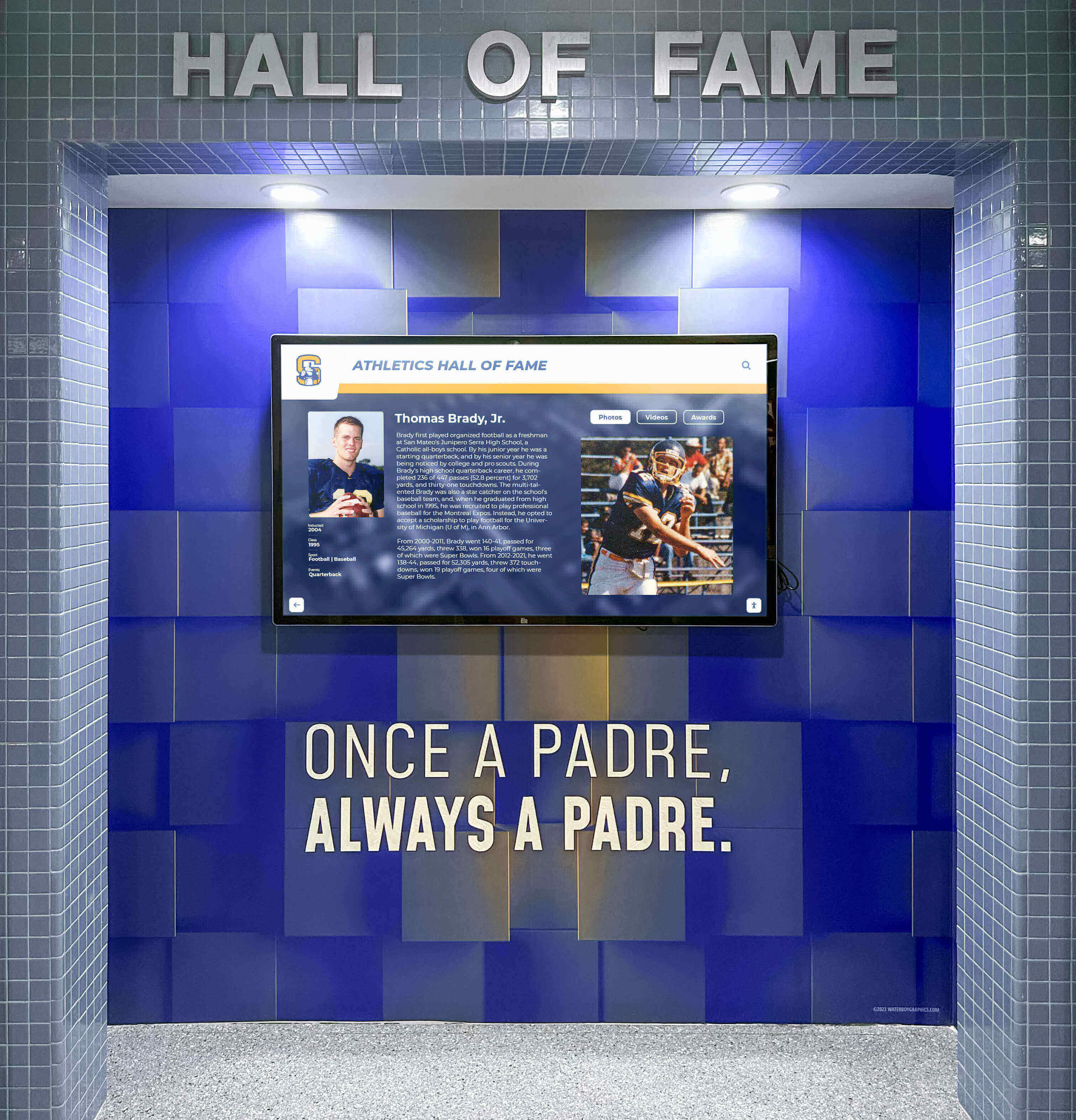
Hall of fame recognition displays load athletic video from cloud platforms over HTTPS connections—whether those connections use HTTP/3 over QUIC or HTTP/2 over TCP depends on the school firewall's UDP policy and the browser's negotiation result, both of which this test determines directly
Before You Start: Pre-Test Checklist
Complete every item before beginning the compatibility test. Several steps require administrative access to the school firewall or router, and one step requires access to the recognition display’s browser or OS.
School Network and Firewall
- Identify the VLAN and firewall zone the recognition display is connected to
- Confirm administrative access to the firewall managing outbound traffic from the display VLAN
- Locate the firewall’s outbound UDP policy for the display VLAN (check whether UDP 443 is explicitly permitted, implicitly permitted, or absent)
- Check whether a content filtering appliance sits between the display VLAN and the WAN interface
- Review QoS policies for the display VLAN to determine whether UDP traffic is deprioritized or rate-limited
Kiosk Browser and Display OS
- Identify the browser installed on the recognition display kiosk (Chrome, Chromium, Edge, or Firefox are the most common)
- Confirm the browser version number (Chrome 85 and later support HTTP/3; Firefox 88 and later support HTTP/3)
- Confirm whether the browser version can be updated if a version below the HTTP/3 threshold is found
- Identify whether the browser has any enterprise policy settings that disable QUIC (look for
QuicAllowed: falsein Chrome enterprise policy)
Test Device and Tools
- Laptop with
curlinstalled, connected to the same VLAN as the recognition display (wired preferred for consistent results) -
curlversion 7.66 or later with HTTP/3 support compiled in, or access to an alternative HTTP/3 testing tool - A browser on the test laptop for checking Alt-Svc response headers
- Access to the recognition platform’s primary CDN endpoint hostname (obtain from the vendor’s network documentation)
Recognition Display Content
- Confirm the recognition display is powered on and cloud sync is active
- Identify an athletic video segment or highlight reel in the current content schedule for use in the video load test (Steps 8 and 9)
- Note the current content load behavior: does video load consistently, intermittently, or not at all?
School Recognition Display HTTP/3 QUIC Compatibility Test: Numbered Procedure
Run each step in sequence. Document the results at every step; together they determine which protocol path the display is using and confirm that video content loads reliably under that path.
Step 1 — Identify the recognition platform’s content delivery CDN and HTTP/3 support
HTTP/3 is only negotiated when the server advertises support for it. Confirm whether the recognition platform’s CDN supports HTTP/3 before testing the school network’s UDP policy.
From the test laptop (which may be on any network with internet access for this step), run:
curl -sI https://<platform-cdn-hostname>/ | grep -i alt-svc
An alt-svc response header advertising HTTP/3 support looks like:
alt-svc: h3=":443"; ma=86400
The h3=":443" value indicates that the server offers HTTP/3 on the same port (443). The ma=86400 value is the max-age in seconds for which the browser may cache this advertisement. If no alt-svc header appears, or if the header does not include h3=, the platform’s CDN does not advertise HTTP/3, and QUIC will not be attempted regardless of the school network’s UDP policy—in this case, HTTP/2 is the current protocol path, and the test can document that and stop here.
If the platform uses multiple CDN hostnames (one for the content management API, one for video segments, one for static assets), check each hostname independently. Different CDN endpoints may advertise different protocol support.
Document the alt-svc header value for each hostname that advertises HTTP/3. If none advertise it, note that HTTP/3 is not currently offered by the platform and HTTP/2 is the effective transport.
Step 2 — Check the firewall’s outbound UDP 443 policy for the display VLAN
Access the school firewall’s management interface and locate the outbound traffic rules for the recognition display’s VLAN.
On pfSense or OPNsense: navigate to Firewall > Rules and select the recognition display’s interface or VLAN. Look for any rule that permits or denies outbound UDP traffic to destination port 443. If no explicit UDP 443 rule exists, check the default policy for the interface—a default-deny policy blocks QUIC even without an explicit rule.
On Cisco ASA or Firepower: review the access control policy for the interface or zone that includes the recognition display. Search for existing rules referencing udp with destination port 443. Cisco ASA implicitly permits return traffic for established sessions tracked in the connection table, but the initial QUIC flow must match an outbound permit rule.
On Fortinet FortiGate: navigate to Policy & Objects > Firewall Policy and examine policies originating from the display VLAN interface. Check whether any policy specifies UDP on port 443, or whether the QUIC service object is included in a recognized service group.
Document the current UDP 443 policy status:
- Explicitly permitted: QUIC connections can form; proceed to Step 3
- No explicit rule (default-permit policy): QUIC can form if the default permits UDP; proceed to Step 3
- No explicit rule (default-deny policy): QUIC is effectively blocked; skip to Step 6 to verify HTTP/2 fallback
- Explicitly blocked: QUIC is blocked; skip to Step 6 to verify HTTP/2 fallback
Step 3 — Test whether QUIC packets reach the internet from the display VLAN
From the test laptop connected to the same VLAN as the recognition display, use curl with HTTP/3 forced to test whether a QUIC connection can be formed from this network segment:
curl --http3 -o /dev/null -sI https://<platform-cdn-hostname>/
A successful QUIC connection returns HTTP response headers and exits with code 0. A QUIC failure (firewall blocking UDP 443) typically produces one of the following:
curl: (28) Operation timed out— QUIC SYN packets are being dropped silently; the firewall is not sending an ICMP port-unreachable responsecurl: (7) Failed to connect to host— the connection attempt was actively refusedcurl: (35) OpenSSL SSL_connect: Connection reset by peer— the content filtering appliance is terminating the connection
If curl does not have HTTP/3 compiled in (curl --version | grep -i quic), use an alternative: the nghttp3 utility, or access https://http3check.net/ from the test laptop’s browser to check QUIC reachability from the current network.
Document the result: QUIC connected successfully, QUIC timed out (firewall drop), or QUIC refused (appliance block).
Step 4 — Check whether the content filtering appliance blocks QUIC
If Step 3 showed a QUIC timeout or refusal that is not explained by the firewall rules reviewed in Step 2, the content filtering appliance may be intercepting and blocking QUIC traffic.
Identify the content filtering appliance in the school network path (DNS-based filtering, transparent proxy, or inline HTTPS inspection appliance). Check its configuration for any rule or setting that addresses QUIC or UDP 443:
- DNS-based filtering appliances: these do not inspect QUIC directly; a QUIC block from this type of appliance usually means a blocked UDP 443 rule at the firewall upstream of the display, not at the DNS layer
- Transparent HTTPS proxies: most cannot decrypt QUIC because QUIC encrypts at the transport layer; proxy appliances that cannot inspect QUIC often block it as an unknown protocol by default; check the appliance’s default action for unrecognized protocols
- Next-generation firewall (NGFW) with application identification: check whether the NGFW has a QUIC or HTTP/3 application signature and whether the policy for that signature is permit or block
If the filtering appliance blocks QUIC, document whether the block is by policy design (intentional, to force HTTP/2 for inspectability) or by default action (unintentional). Both outcomes result in HTTP/2 fallback, but a policy-design block should be documented as a deliberate choice, while a default-action block may warrant a review of whether the appliance needs a permit rule.
Step 5 — Verify browser HTTP/3 support on the recognition display kiosk
From the recognition display itself (if it has browser developer tools access) or by checking the browser version and enterprise policy configuration, confirm that the kiosk browser is eligible to negotiate HTTP/3.
For Chrome or Chromium:
Access chrome://version/ to confirm the version number. Chrome 85 and later include HTTP/3 support. In Chrome 112 and later, HTTP/3 is enabled by default with no flag required.
Check for enterprise policy overrides at chrome://policy/. Search for QuicAllowed. If QuicAllowed is set to false, QUIC is disabled at the browser level regardless of the network’s UDP policy. This is a common configuration in managed school Chromebook and kiosk deployments where the IT team has disabled QUIC to ensure HTTP/2 inspection by the content filter.
For Mozilla Firefox:
Access about:config and search for network.http.http3.enabled. If the value is false, HTTP/3 is disabled at the browser level.
For Microsoft Edge:
Edge is Chromium-based and follows Chrome’s HTTP/3 behavior. Check edge://policy/ for QUIC-related policies.
Document the browser version, whether HTTP/3 is enabled, and whether any enterprise policy overrides are in effect. If QUIC is disabled by enterprise policy, HTTP/2 is the effective protocol path regardless of the network’s UDP policy.
Step 6 — Verify HTTP/2 fallback behavior when QUIC is unavailable
Whether QUIC is blocked by the firewall, blocked by the content filter, or disabled by browser policy, HTTP/2 must function correctly as the fallback transport for recognition display video. Verify this explicitly from the test laptop on the display VLAN.
Force HTTP/2 with curl:
curl --http2 -o /dev/null -sI https://<platform-cdn-hostname>/
A successful HTTP/2 response returns headers with HTTP/2 200 (or a redirect status) and exits with code 0. A failure here indicates that HTTP/2 connectivity—not QUIC availability—is the problem affecting the recognition display.
If HTTP/2 returns successfully but HTTP/3 is blocked, this is the expected and acceptable state for school networks that restrict UDP. The recognition display’s browser will use HTTP/2 for all content requests, and video content will load using the TCP path. Schools that have verified their TCP fast open compatibility for recognition display connections have already characterized the performance of the TCP path for HTTPS connections; HTTP/2 over TCP relies on the same transport characteristics.
Document the HTTP/2 test result as the confirmed fallback path. If HTTP/2 also fails, the problem is not QUIC-specific—proceed to diagnose the HTTPS connectivity issue before returning to the QUIC test.
Step 7 — Observe the browser’s active protocol negotiation on the recognition display
If Steps 3 and 5 indicate that QUIC should be available (UDP 443 is permitted and the browser supports HTTP/3), confirm that the recognition display’s browser is actually negotiating HTTP/3 in production by observing connection headers from a live content load.
On a Chrome or Chromium kiosk, open Chrome DevTools (F12 or right-click > Inspect) and navigate to the Network panel. Trigger a content reload on the recognition display interface. In the Network panel, select any HTTPS request to the recognition platform’s CDN hostname. The Protocol column (if visible) or the Response Headers section will show h3 for HTTP/3 connections or h2 for HTTP/2 connections.
If DevTools is not accessible on the kiosk, use a browser on the test laptop (connected to the same VLAN) to navigate to a URL that the recognition platform uses for content delivery, and observe the protocol column in DevTools. The network path for the test laptop and the display is the same VLAN and firewall policy, so the observed protocol reflects what the display would negotiate.
Document whether the live connection shows h3 (HTTP/3 active) or h2 (HTTP/2 active, either as fallback or as the only available path).
Step 8 — Run a video load test under the active protocol path
With the active protocol path confirmed, run the recognition display’s athletic video content under that path and document load behavior.
On the recognition display, navigate to a content section containing an athletic highlight video or championship archive clip. Observe:
- Time from content section load to video playback beginning (the delay between page render and first video frame)
- Whether the video plays continuously without stalling or buffering pauses
- Whether the display’s cloud sync status shows a successful connection timestamp within the expected heartbeat interval
- Whether any error messages appear related to content loading or network connection
Note that this test documents actual behavior on your specific school network, which is the only reliable measure of whether the active protocol path supports recognition display video. Do not compare these results to generic HTTP/3 vs. HTTP/2 performance benchmarks from external sources; those benchmarks apply to network and server conditions different from your school’s specific path to the recognition platform’s CDN.
Step 9 — Run a video load test under the alternate protocol path (if both are available)
If Step 7 showed HTTP/3 active and the school network permits QUIC, and you want to document HTTP/2 fallback behavior explicitly (to confirm the display will continue working if QUIC is later blocked), use the browser’s QUIC disable flag to force HTTP/2 for a comparison test.
In Chrome, launch with the --disable-quic flag:
chrome --disable-quic --user-data-dir=/tmp/quic-test-profile
Repeat the video load observation from Step 8 with QUIC disabled. Compare the video load and playback behavior between the HTTP/3 and HTTP/2 paths on your specific network.
If both paths produce continuous video playback without errors, both are usable. If one path shows degraded behavior, document which protocol produces the degradation and investigate the relevant transport path—UDP path quality for QUIC issues, or TCP path quality (retransmissions, MSS clamping, window scaling) for HTTP/2 issues.
If the school network blocks QUIC and only HTTP/2 is available, this step confirms that the HTTP/2 path delivers acceptable video quality without requiring QUIC to be permitted.
Step 10 — Document findings and set a QUIC policy decision
Based on the test results, document the complete findings and make a deliberate policy decision about QUIC on the recognition display network.
Record the following in the school IT runbook:
- Whether the recognition platform’s CDN advertises HTTP/3 (Alt-Svc header content, or absence)
- Current firewall UDP 443 policy for the display VLAN (explicit permit, default permit, or blocked)
- Whether content filtering appliance blocks QUIC (yes, by policy / yes, by default action / no)
- Browser HTTP/3 support status (version, enterprise policy override if present)
- QUIC connectivity test result (connected, timeout, refused)
- HTTP/2 fallback test result (connected, working)
- Active protocol observed in browser DevTools (
h3orh2) - Video load behavior under the active protocol path (continuous, intermittent, failed)
- Video load behavior under the alternate protocol path (if tested)
- Date, technician, and QUIC policy decision
The QUIC policy decision is a school IT choice between three options—see the decision table below—and should be made based on the test results rather than defaulted to.
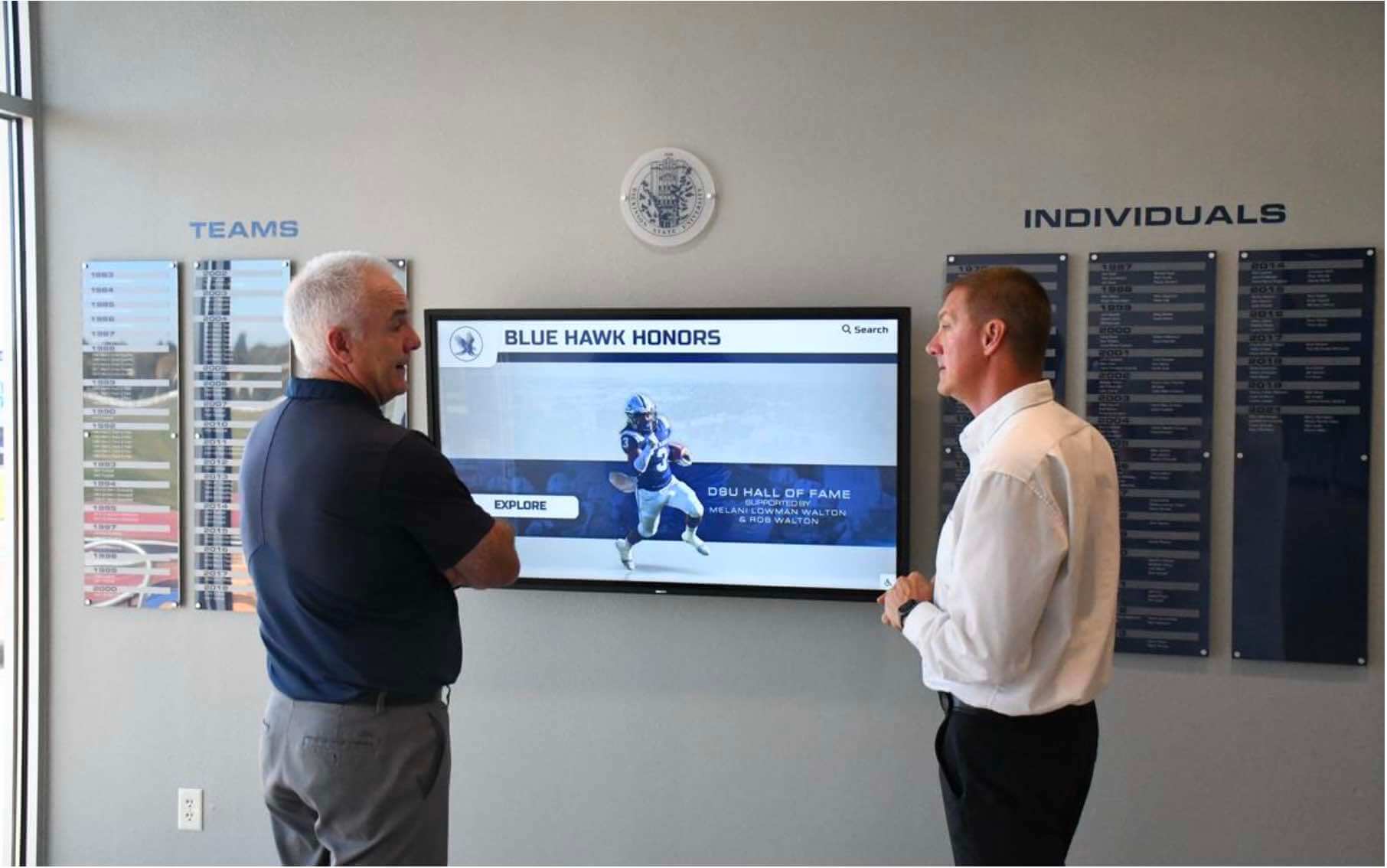
Recognition display deployments in school hallways depend on a stable, known transport path for video content—documenting the QUIC test results and setting a deliberate UDP 443 policy ensures IT teams know which protocol is active and can troubleshoot effectively when video load issues arise
HTTP/3 QUIC Compatibility Decision Table
Use this table to determine the correct next action based on what you observe during the test.
| Observation | Diagnosis | Next Action |
|---|---|---|
No alt-svc: h3=... header from platform CDN | Platform does not offer HTTP/3 | Document that HTTP/2 is the only available protocol; QUIC test is not applicable until platform upgrades |
alt-svc: h3=... present; QUIC connects (Step 3 succeeds) | QUIC is available; HTTP/3 is the active or negotiable path | Proceed to Step 5 to confirm browser support; verify video plays in Step 8 |
alt-svc: h3=... present; QUIC times out (Step 3 times out) | Firewall is silently dropping UDP 443; HTTP/2 fallback is active | Verify HTTP/2 fallback works (Step 6); decide whether to open UDP 443 or leave HTTP/2 as the deliberate path |
alt-svc: h3=... present; QUIC refused (Step 3 refused) | Content filter or firewall is actively rejecting QUIC | Check appliance policy; decide whether to permit QUIC or confirm HTTP/2 is acceptable |
Browser version below HTTP/3 threshold or QuicAllowed: false in policy | Browser-level QUIC is disabled regardless of network policy | Update browser or revise enterprise policy to enable HTTP/3, or document HTTP/2 as deliberate policy |
QUIC available at network level; browser shows h2 in DevTools | Browser’s Alt-Svc cache has not yet recorded the HTTP/3 advertisement for this server | Trigger a second content reload; if still h2, check whether the browser correctly received the Alt-Svc header |
| QUIC available; video plays continuously under HTTP/3 | HTTP/3 is functional end-to-end | Document as confirmed working; set QUIC permit policy |
| QUIC available; video stalls under HTTP/3 but plays under HTTP/2 | QUIC path has quality issues (packet loss, QoS deprioritization, firewall state timeout on UDP flows) | Investigate QoS policy and UDP flow state table; or block QUIC deliberately to force reliable HTTP/2 |
| QUIC blocked; video plays continuously under HTTP/2 | HTTP/2 fallback is reliable; QUIC block is acceptable | Document as confirmed HTTP/2 path; no change needed unless platform requires HTTP/3 in future |
| QUIC blocked; video stalls under HTTP/2 | Problem is on the TCP path, not QUIC-specific | Test TCP MSS clamping, window scaling, and TCP keepalive configuration as separate diagnostics |
Understanding UDP Policy in School Networks
School network administrators configure UDP policies based on the needs of the full school network, not just recognition displays. Understanding where QUIC fits in that policy context helps IT teams make an informed decision without disrupting other network functions.
Why Many School Networks Restrict UDP 443
UDP traffic on port 443 is less common than TCP traffic on the same port, and several legitimate reasons lead school networks to restrict it.
Content inspection requirements. Many school content filtering architectures rely on HTTPS inspection—they act as a man-in-the-middle proxy to decrypt, inspect, and re-encrypt HTTPS traffic. QUIC encrypts its transport headers as well as its payload using TLS 1.3, which means most HTTPS inspection proxies cannot decrypt QUIC traffic. A school that requires content inspection on managed displays must either block QUIC to force HTTP/2 (which the proxy can inspect) or accept that HTTP/3 traffic to permitted CDN endpoints bypasses content inspection.
Firewall state table management. UDP is stateless at the transport layer, and firewalls track UDP flows by maintaining state table entries with short idle timeouts (often 30–120 seconds for UDP, compared to hours for TCP-established connections). A QUIC connection carrying a long athletic video segment—four to six minutes of 1080p content—may outlast the firewall’s UDP state table timeout, causing the connection to be treated as a new flow on the return path and triggering packet drop if no inbound UDP 443 rule exists. Schools that rely on TCP keepalive configurations for persistent recognition display connections use TCP’s keepalive mechanism to maintain session state; QUIC uses its own keep-alive (PING frames) but depends on the firewall’s UDP flow timeout being long enough to preserve the state entry between frames.
ARP cache and flow table alignment. Schools that have tuned their ARP cache timeout settings for recognition display network segments understand that flow-level timing parameters interact with physical-layer addressing. UDP flow state timeouts add another timing dimension: a QUIC flow interrupted by an ARP cache expiry and MAC address re-learning cycle may not resume if the firewall’s UDP state entry expired during the interruption.
QUIC Blocked by Design vs. QUIC Blocked by Default
A critical distinction for the policy decision in Step 10 is whether QUIC is blocked because the school’s IT team made a deliberate decision or because no one has reviewed the UDP 443 policy. Both produce the same HTTP/2 fallback outcome for the recognition display, but they have different maintenance implications.
QUIC blocked by design: The IT team has a documented reason—content inspection requirements, QoS management, firewall state table limitations—and the block is an intentional choice. The recognition display uses HTTP/2 as the deliberate transport path. This decision should be recorded in the IT runbook and communicated to the recognition platform vendor so they do not troubleshoot QUIC failures as a misconfiguration.
QUIC blocked by default: No UDP 443 rule exists; the default-deny policy blocks all non-TCP traffic without deliberate review. This is common in school networks where firewall rules were configured for TCP-centric web traffic and UDP 443 simply was not considered when display VLANs were created. In this case, the school should make an explicit decision: either add a UDP 443 permit rule to enable QUIC, or add an explicit UDP 443 deny rule with a policy note so future IT staff understand the block is intentional.
Schools managing athletic video archives with long-form content—multi-year championship footage, induction ceremony recordings, and the kind of historical athletic records covered in athletic archive video digitization standards—benefit from explicit, documented transport policy for their recognition display networks. Long-form video places more sustained demands on transport connections than short profile images, making protocol-level documentation more valuable when diagnosing playback issues.
Platform Configuration Reference: HTTP/3 Status and Fallback Behavior
| Scenario | Active Protocol | Fallback Path | Video Load Behavior |
|---|---|---|---|
| Platform offers HTTP/3; UDP 443 permitted; browser supports HTTP/3 | HTTP/3 (QUIC) | HTTP/2 (TCP) if QUIC fails | Video loads over QUIC; falls back to HTTP/2 automatically on failure |
| Platform offers HTTP/3; UDP 443 blocked at firewall | HTTP/2 (TCP) via fallback | N/A (HTTP/2 is the path) | Video loads over HTTP/2; QUIC is not attempted after initial timeout is recorded by browser |
| Platform offers HTTP/3; QUIC blocked by content filter | HTTP/2 (TCP) via fallback | N/A | Same as above; browser falls back to HTTP/2 after filter blocks QUIC |
| Platform offers HTTP/3; browser policy disables QUIC | HTTP/2 (TCP) by browser policy | N/A | QUIC never attempted; HTTP/2 is used from first connection |
Platform does not offer HTTP/3 (no Alt-Svc h3 header) | HTTP/2 (TCP) | N/A | QUIC never negotiated; HTTP/2 is the only available path |
| Platform offers HTTP/3; QoS deprioritizes UDP | HTTP/3 degraded or fallback | HTTP/2 (TCP) | Video may stall under QUIC before browser detects failure and retries HTTP/2 |
The fallback mechanism deserves emphasis: modern browsers (Chrome 85+, Firefox 88+, Edge 90+) implement QUIC fallback to HTTP/2 automatically. When QUIC fails—whether from a firewall drop, content filter block, or network quality problem—the browser records the failure, uses HTTP/2 for the current session, and may avoid QUIC for subsequent connections to the same server for a period. This makes QUIC failure a recoverable condition for recognition display video, not a permanent outage, as long as the HTTP/2 path (TCP 443) is open and functional.
Ongoing Monitoring and Re-Test Triggers
A QUIC compatibility test documents the protocol path and policy at the time of testing. Several subsequent events require a re-test.
Recognition platform CDN changes. If the platform migrates CDN providers or enables HTTP/3 on endpoints that did not previously advertise it, the Alt-Svc check in Step 1 will return a different result. Re-run Step 1 periodically (at each major platform release or quarterly) to determine whether the platform’s HTTP/3 posture has changed.
Firewall or content filter policy changes. Any change to the display VLAN’s outbound UDP policy, content filter appliance configuration, or NGFW application signatures may change whether QUIC is permitted, blocked, or degraded. Re-run Steps 2 and 3 after firewall policy updates that affect the display VLAN.
Browser updates on the kiosk. A kiosk browser update may change HTTP/3 behavior—enabling it for the first time if the kiosk was running a pre-HTTP/3 version, or disabling it if an enterprise policy update changes the QuicAllowed setting. Re-run Step 5 after browser updates on recognition display kiosks.
New recognition display deployments. Additional kiosks installed in new locations—an alumni lobby, a gymnasium corridor, a trophy case alcove—may be on different VLANs or different firewall zones with different UDP policies. Run Steps 1 through 10 for each new deployment location rather than assuming the policy documented for existing displays applies uniformly.
Reports of intermittent video stalling. Intermittent video stalling that appears under load, at specific times of day, or after the display has been running for an extended period can indicate QUIC UDP flow state timeout issues (firewall state table entries expiring during long video sessions). Re-run Steps 3 and 7 under load to determine whether QUIC connections are being reset mid-session.

School athletics hallway recognition displays serve video content to students, families, and community members at recognition events and throughout the school year—periodic HTTP/3 QUIC compatibility checks confirm that transport policy changes have not silently altered the protocol path the display uses for video retrieval
Q&A: HTTP/3 QUIC and School Recognition Display Video
Will blocking QUIC harm our recognition display’s video performance?
Not on a well-maintained school network. HTTP/2 over TCP is the transport path used by recognition displays on the majority of school networks, and it delivers athletic video reliably when the underlying TCP connection is correctly configured. QUIC offers measurable advantages primarily in high-packet-loss environments and for connections where the initial handshake latency is the bottleneck—conditions that are uncommon on a school wired LAN connecting a kiosk to a CDN edge node. If you have established a clean TCP baseline including verified MSS clamping, window scaling, and TCP keepalive configuration, blocking QUIC and relying on HTTP/2 is a supported and predictable choice. The key is making the block deliberate and documented rather than leaving it as an undiscovered default.
How does our browser know to fall back to HTTP/2 when QUIC is blocked?
Chrome and Firefox implement QUIC fallback using a combination of connection failure detection and a broken network heuristic. When a QUIC connection attempt (SYN packet to UDP 443) does not receive a response within a timeout period, the browser starts a parallel TCP connection attempt (which takes the normal HTTPS path). Whichever connection succeeds first is used; if the TCP connection completes while the QUIC attempt is still timing out, the browser uses HTTP/2 for the current session and records that QUIC is currently unavailable for that server. The browser may re-attempt QUIC on a subsequent connection after a delay. This fallback is transparent to the recognition display’s content platform and to the display user—the video loads over HTTP/2 without any visible error.
Should we enable UDP 443 on our display VLAN to allow QUIC?
That depends on your content inspection requirements and your firewall’s UDP flow state table configuration. If your content filtering architecture requires HTTPS inspection of display traffic (for compliance, acceptable use policy, or CIPA requirements), opening UDP 443 allows QUIC traffic to bypass inspection—most content filtering proxies cannot decrypt QUIC. If content inspection of display traffic is not required (a common approach for managed kiosks connecting to a pre-approved content platform’s CDN hostnames), then permitting UDP 443 allows QUIC and may reduce connection establishment time for the display. Neither choice is universally correct; the test documents which path is currently active and whether video loads reliably, which is the data your team needs to make the policy decision.
The test shows QUIC connects but video stalls under HTTP/3. What causes this?
QUIC connection success does not guarantee reliable video delivery under load. Common causes of QUIC stalling that do not appear in the basic connection test include: QoS policies that deprioritize UDP under network load (the QUIC connection forms cleanly under low utilization but is rate-limited or queued during peak school network activity); firewall UDP state table timeouts that are shorter than a long video segment’s play duration (the state entry expires during a 5-minute highlight reel, the return path drops packets, and QUIC retransmissions fail until the browser falls back to HTTP/2); and network path quality issues such as high packet loss on the WAN link where QUIC’s per-stream recovery helps less than expected if the loss rate exceeds what QUIC FEC can recover. In each of these cases, blocking QUIC and relying on the well-characterized TCP/HTTP/2 path is a valid resolution—document the QoS or state table cause and set a deliberate block policy so future troubleshooting starts from the correct baseline.
How do I check if our kiosk browser has QUIC disabled by enterprise policy?
For Chrome or Chromium kiosks managed through Google Admin Console or a local Chrome policy file, navigate to chrome://policy/ in the kiosk browser. Search for QuicAllowed. If the value is false, QUIC is disabled by policy. If the policy does not appear, no QUIC-specific policy is set, and the browser default applies (QUIC enabled for Chrome 85+). For kiosks managed through a Windows Group Policy Object (GPO), check the applicable GPO for the Chrome or Edge QuicAllowed policy under Computer Configuration > Administrative Templates > Google Chrome (or Microsoft Edge). Enterprise policy overrides take precedence over browser defaults, so a QuicAllowed: false in policy means QUIC is off regardless of the browser version.
What should we include in the IT runbook entry for this test?
The runbook entry should be specific enough that a future IT administrator who has not run this test can understand the current protocol state without re-running it from scratch. Include: the recognition platform CDN hostnames tested; the Alt-Svc header values (or absence); the current firewall UDP 443 policy for the display VLAN (permit or deny, explicit or default); the content filter’s QUIC handling policy (permit, block-by-policy, or block-by-default); the kiosk browser version and QuicAllowed enterprise policy status; the observed protocol in DevTools (h3 or h2); the video load test result under the active path; and the policy decision made (permit QUIC, block QUIC deliberately, or leave as-is). Documenting when this test was run and the technician’s name allows future administrators to determine whether the recorded state predates any relevant network changes.
Test Completion Checklist
Use this checklist to confirm the HTTP/3 QUIC compatibility test was completed correctly and findings were documented.
- Recognition platform CDN hostnames identified;
alt-svcheader checked for each - HTTP/3 advertisement status documented (h3 offered / not offered) for each hostname
- Firewall UDP 443 outbound policy for display VLAN confirmed and recorded
- Content filtering appliance QUIC handling determined (permit / block-by-policy / block-by-default)
- QUIC connectivity test from display VLAN completed (
curl --http3); result documented - HTTP/2 fallback test completed (
curl --http2); confirmed working - Kiosk browser version confirmed; HTTP/3 support status documented
- Enterprise policy
QuicAllowedstatus checked and recorded - Active protocol observed in browser DevTools or equivalent (
h3orh2) - Video load test completed under active protocol path; result documented
- Alternate protocol path tested if both are available; comparison result documented
- QUIC policy decision made and documented: permit, block deliberately, or leave as-is
- Findings recorded in IT runbook: CDN hostnames, Alt-Svc status, firewall policy, browser policy, active protocol, video test result, policy decision, date, technician
- Re-test triggers documented: CDN changes, firewall policy changes, browser updates, new display deployments
Building Protocol Verification Into Recognition Display Network Maintenance
A recognition display that loads athletic video reliably today may encounter a changed protocol landscape tomorrow: the content platform upgrades its CDN and begins advertising HTTP/3, the school’s next-generation firewall receives an updated application signature that blocks QUIC, or a kiosk browser update enables HTTP/3 for the first time. None of these changes require any deliberate school IT action to occur—they happen at the platform level, the appliance vendor level, or the browser vendor level, independently of the school’s network configuration.
Building HTTP/3 QUIC compatibility into the recognition display network maintenance cycle—as a periodic check of the Alt-Svc advertisement, the UDP 443 policy, and the active protocol in DevTools—means that when video delivery behavior changes, the IT team has baseline documentation to compare against. The first question in a video stalling diagnosis shifts from “what changed on the network?” to “was the protocol path different from the last documented test?"—a more productive starting point for a time-sensitive troubleshooting session before a hall-of-fame induction night.
Schools that invest in recognition programs honoring athletic achievements, championship seasons, and decades of community history through interactive video displays depend on the reliability of the complete path from cloud platform to kiosk screen. Protocol-level compatibility testing—alongside the TCP transport tests that characterize the underlying network path—is the network infrastructure layer of that investment: the verification that the path the display uses is known, deliberate, and confirmed to carry video content to the screens where students, families, and alumni are looking.
See a School Recognition Video Display Working Live
If your school is evaluating or deploying a touchscreen recognition display and wants to understand the complete network infrastructure requirements—including protocol compatibility, UDP policy, firewall configuration, and content delivery architecture—a live product demonstration gives your IT team and athletic director those answers in one session. Rocket Alumni Solutions documents network requirements for recognition display deployments and works alongside school IT teams to confirm the display's connection path is correct before the first championship highlight goes live.
Live Example: Rocket Alumni Solutions Touchscreen Display
Interact with a live example (16:9 scaled 1920x1080 display). All content is automatically responsive to all screen sizes and orientations.