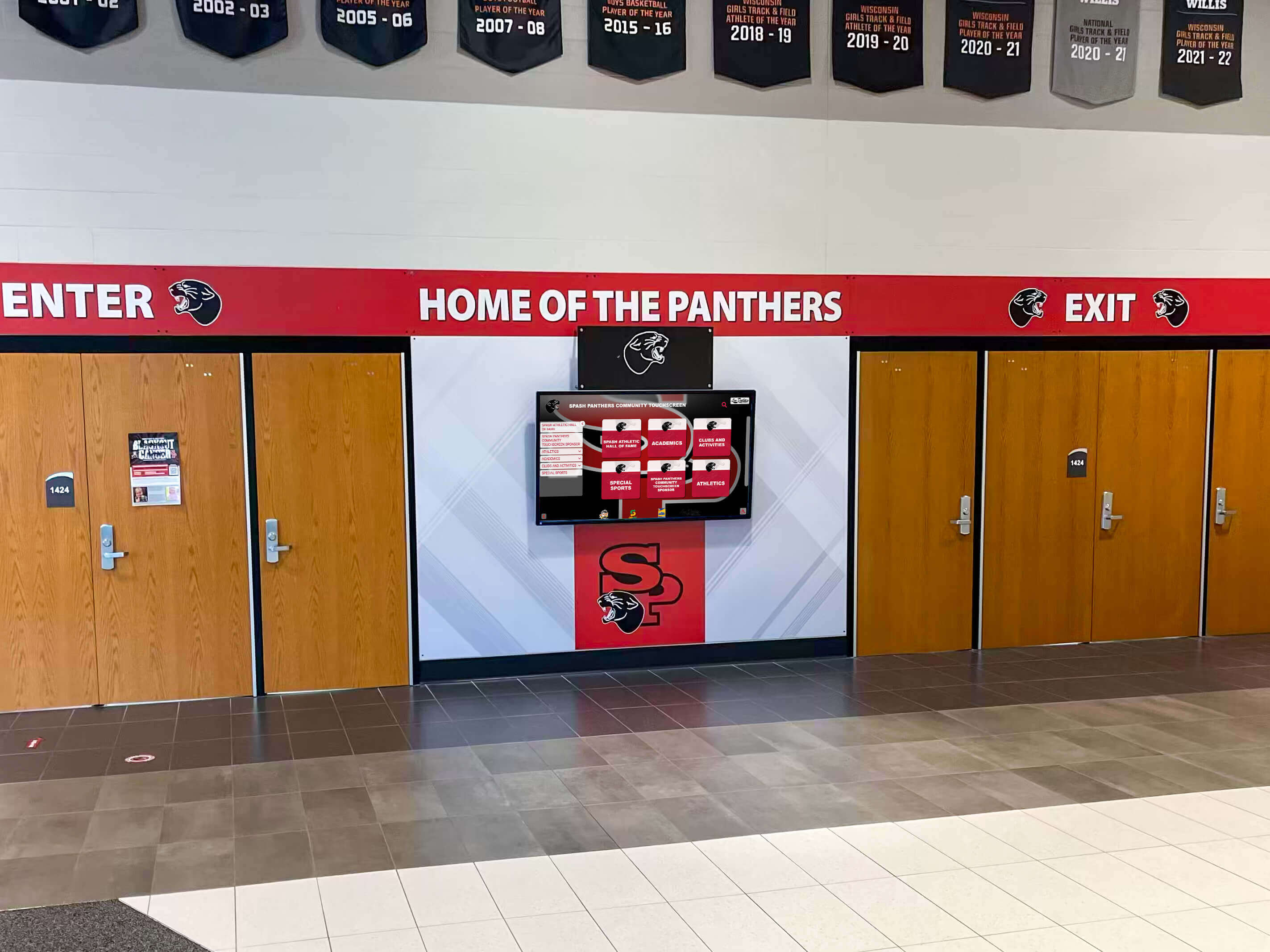




A recognition display glove mode test is the fastest way to confirm that a school entrance touchscreen will register reliable touches from visitors wearing winter gloves before cold weather arrives. Projected capacitive touchscreens—the panel technology in virtually all modern recognition kiosks—detect a subtle change in an electrical field caused by the conductive properties of bare skin. Heavy gloves, thick wool mittens, and insulated winter gloves reduce or block that signal entirely, turning a hall of fame kiosk into an unresponsive slab of glass for any visitor who does not remove their outerwear before touching the screen. Running a structured glove mode test in the weeks before temperatures drop identifies whether the display’s touch controller needs a sensitivity adjustment, determines which glove types will work after that adjustment, and documents the result so IT staff and facilities teams know what to expect throughout the cold-weather season.
This guide is written for school IT coordinators, athletic directors, and facilities managers responsible for touchscreen recognition displays installed at or near school entrances: main lobby kiosks, trophy hallway displays, athletic hall of fame walls, and any interactive recognition screen that prospective families, alumni, and winter-event attendees may reach with gloved hands.
Cold-weather entrance reliability is a practical concern that affects whether a recognition display fulfills its intended purpose at the moments it matters most. Winter athletic events, evening awards ceremonies, alumni nights, and booster club gatherings all bring visitors through school entrances in cold-weather gear. A hall of fame kiosk that does not respond to gloved touch during an induction night is not a minor inconvenience—it is a missed opportunity to share the athletic history, academic achievements, and school traditions the display was installed to showcase.

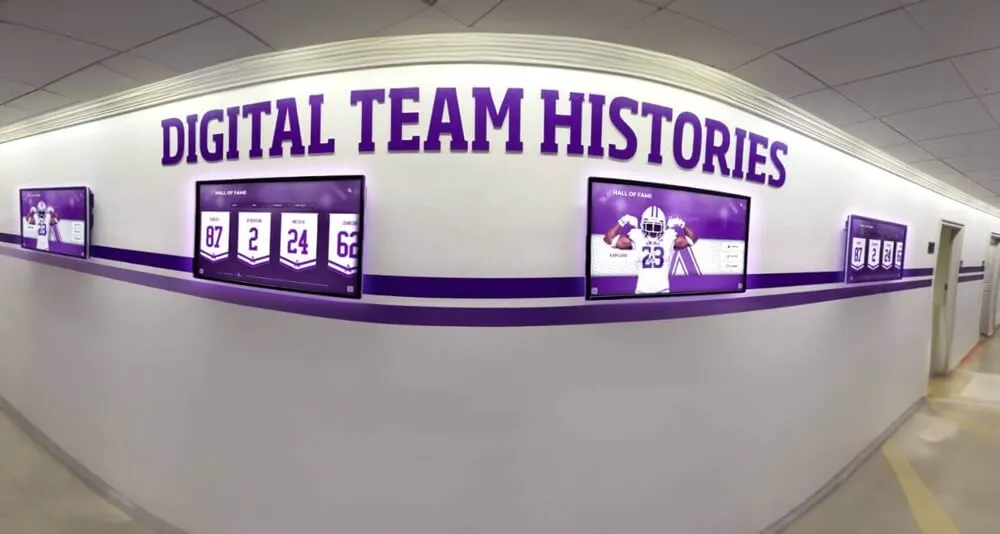
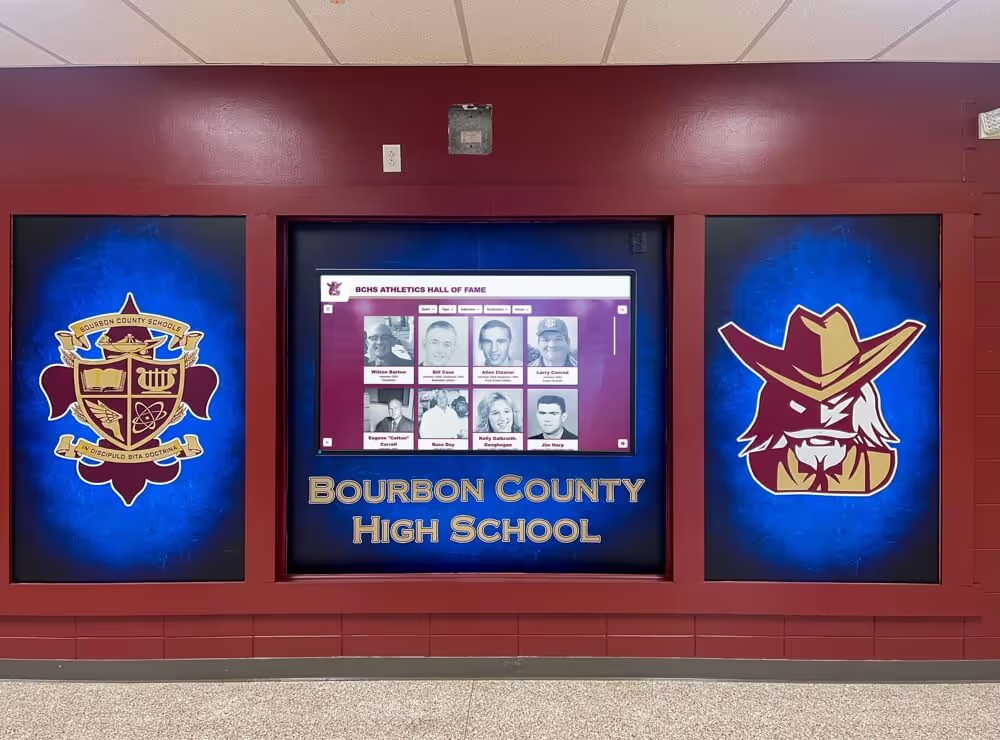
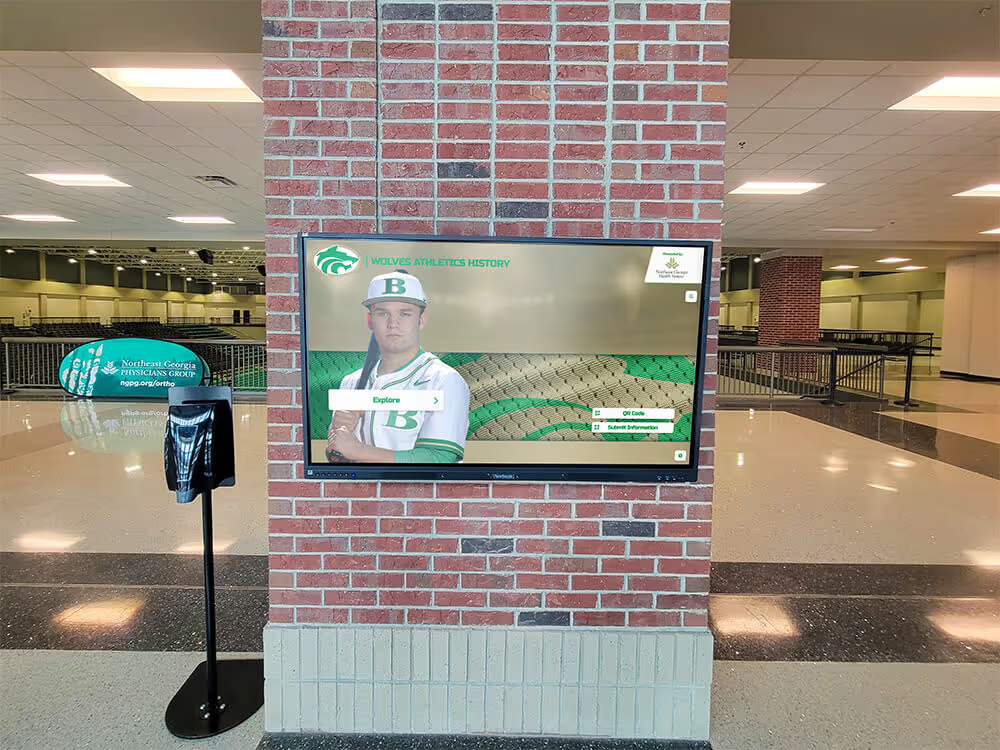
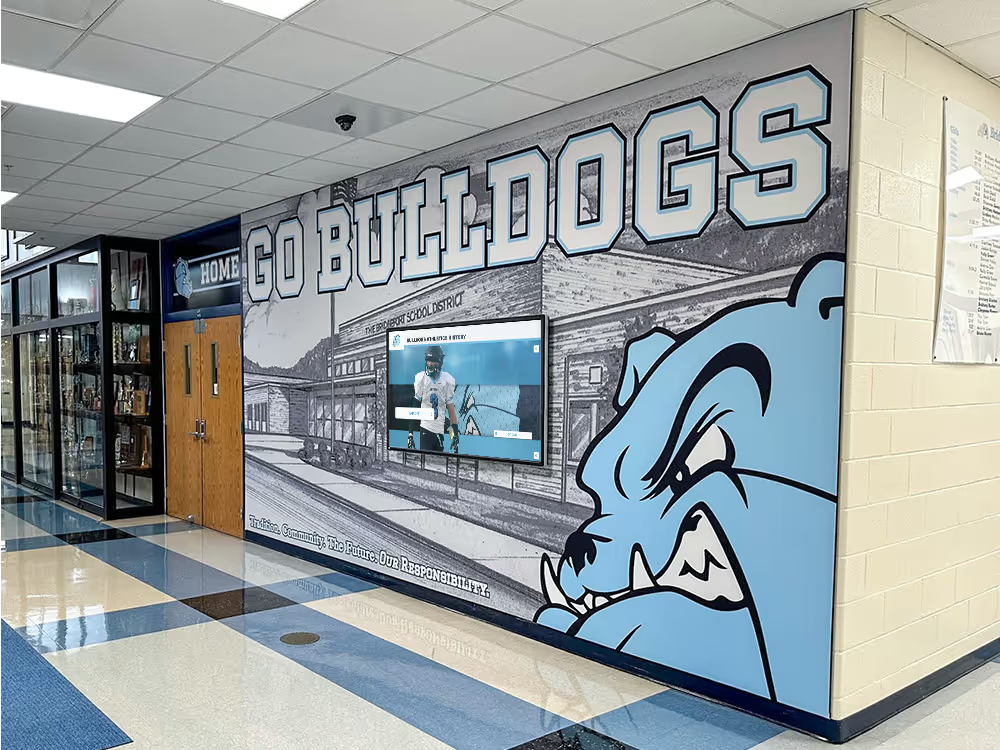
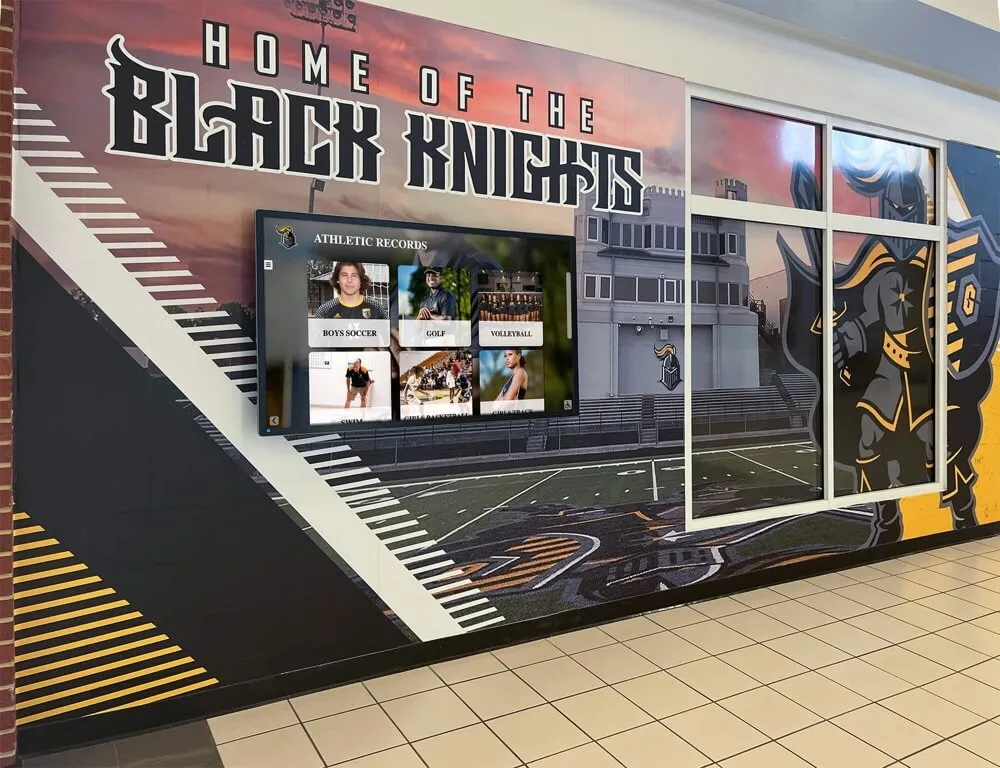
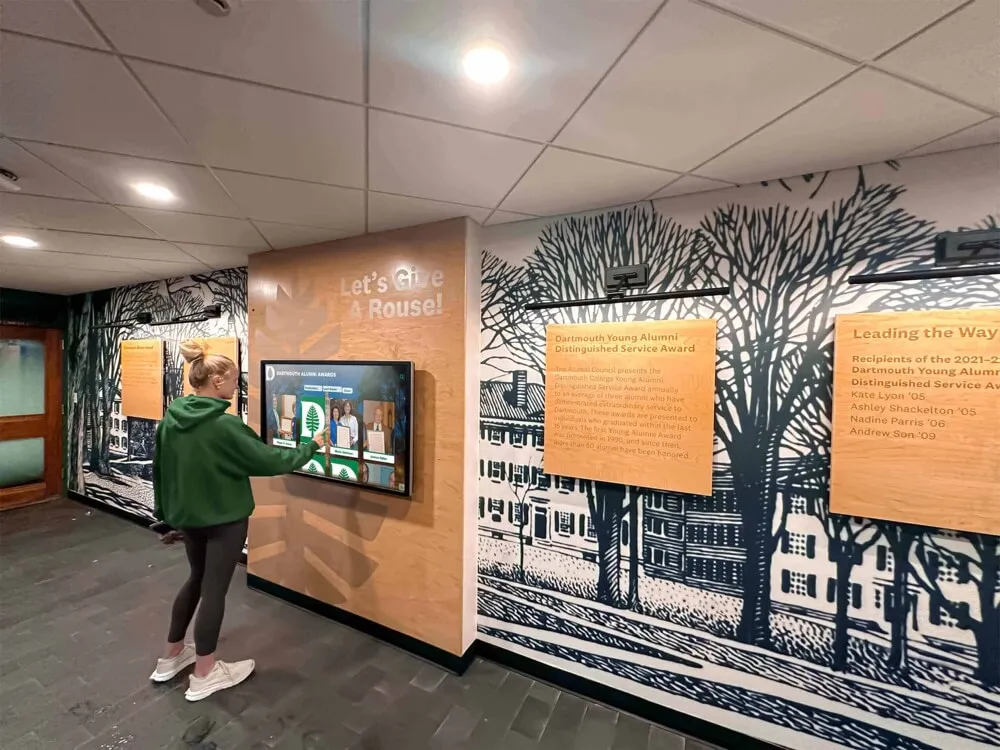
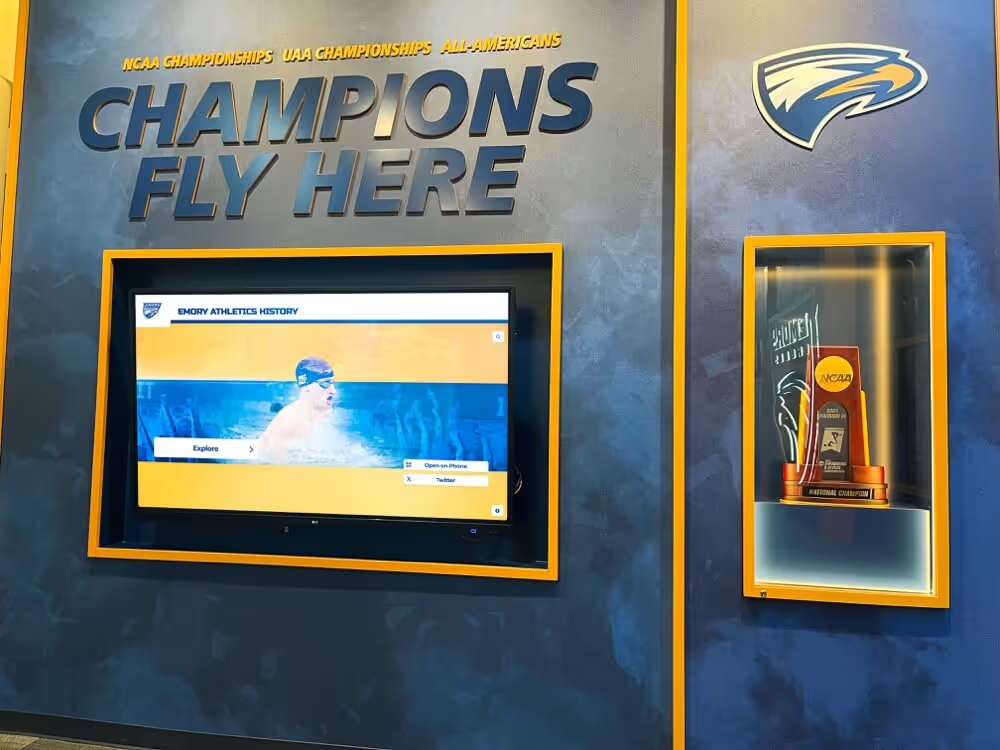
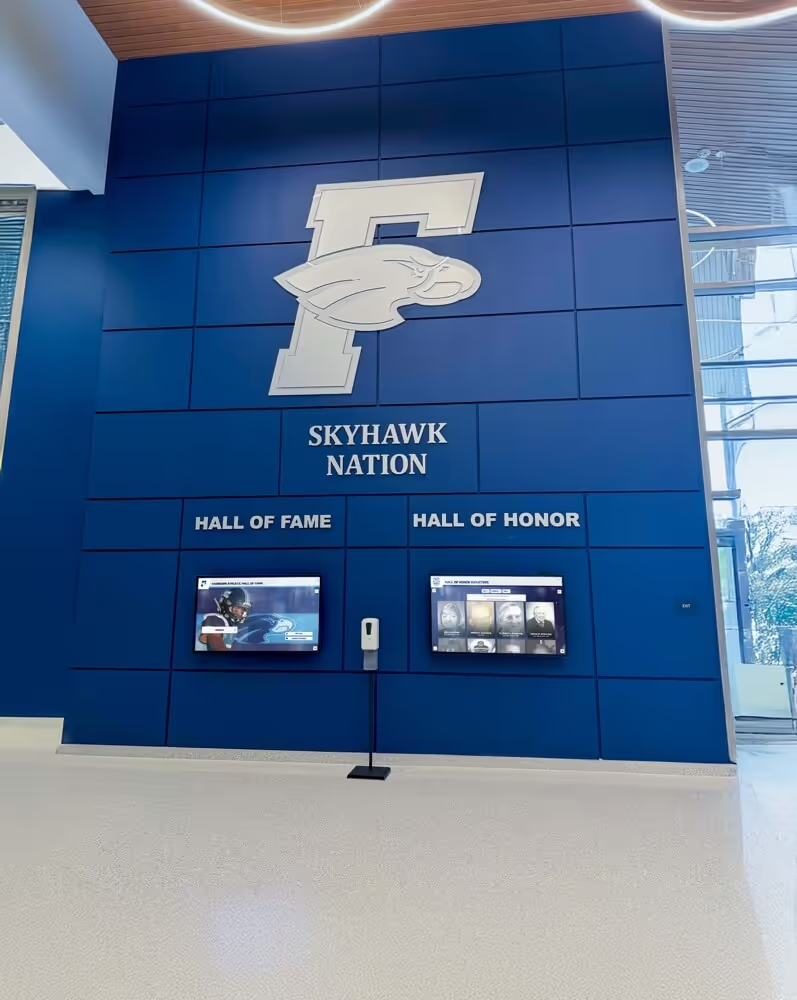
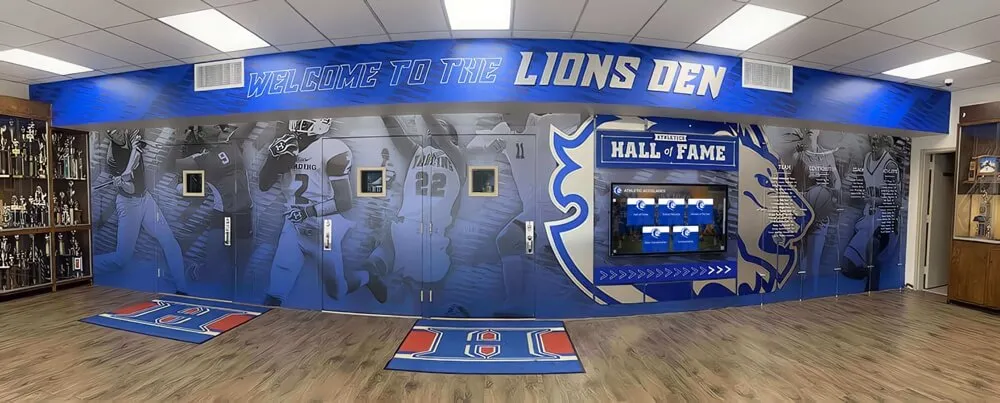
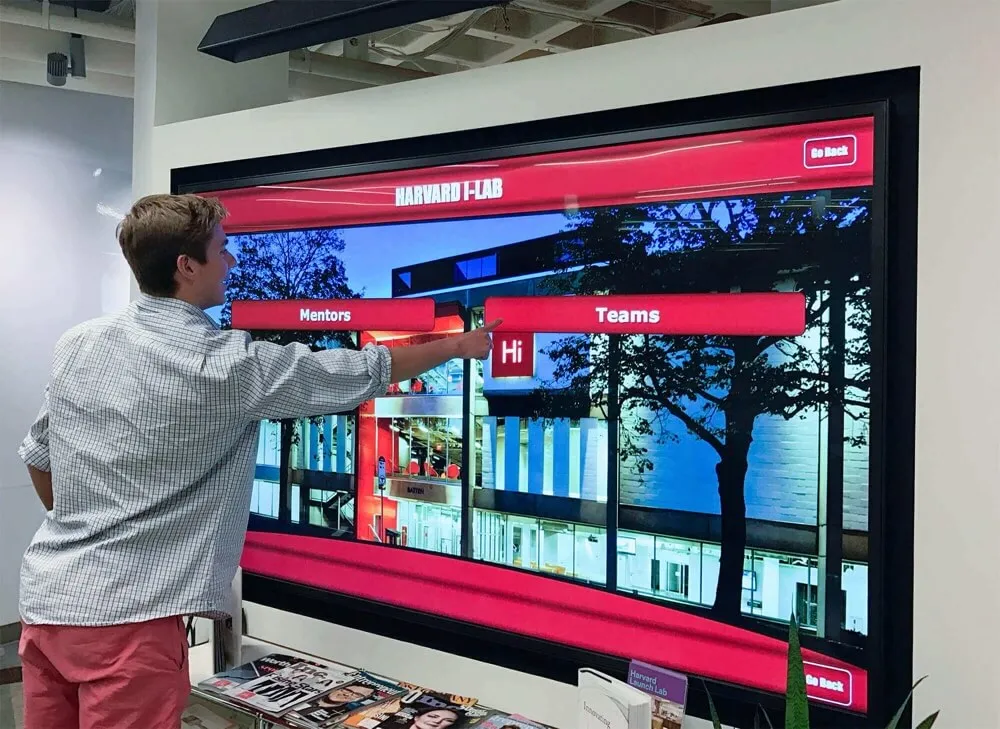
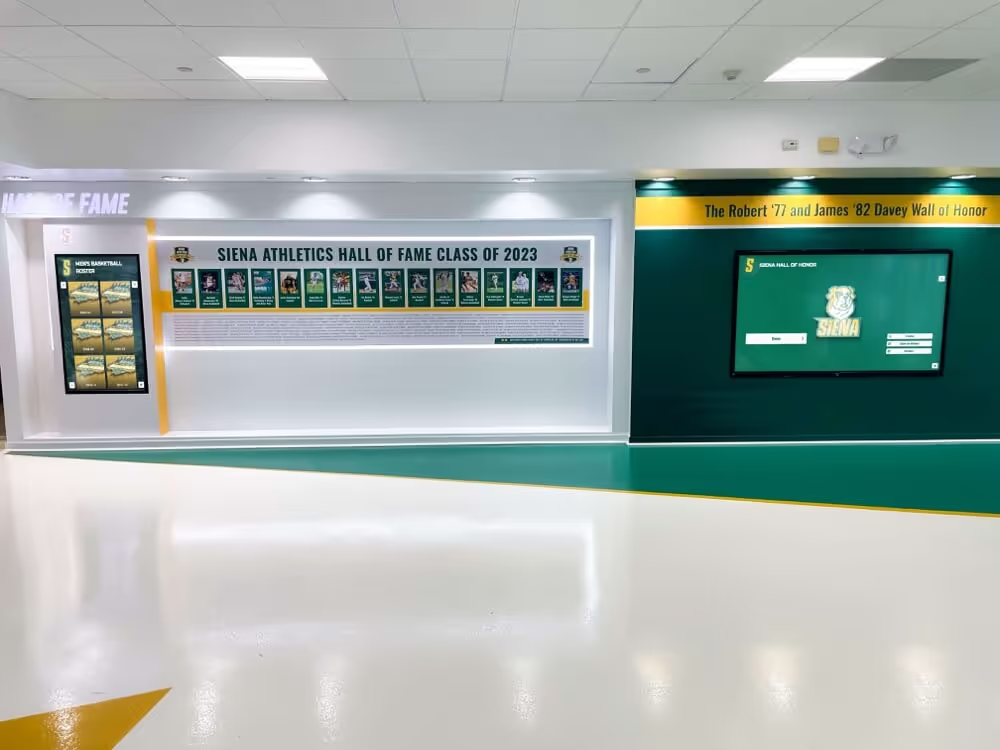
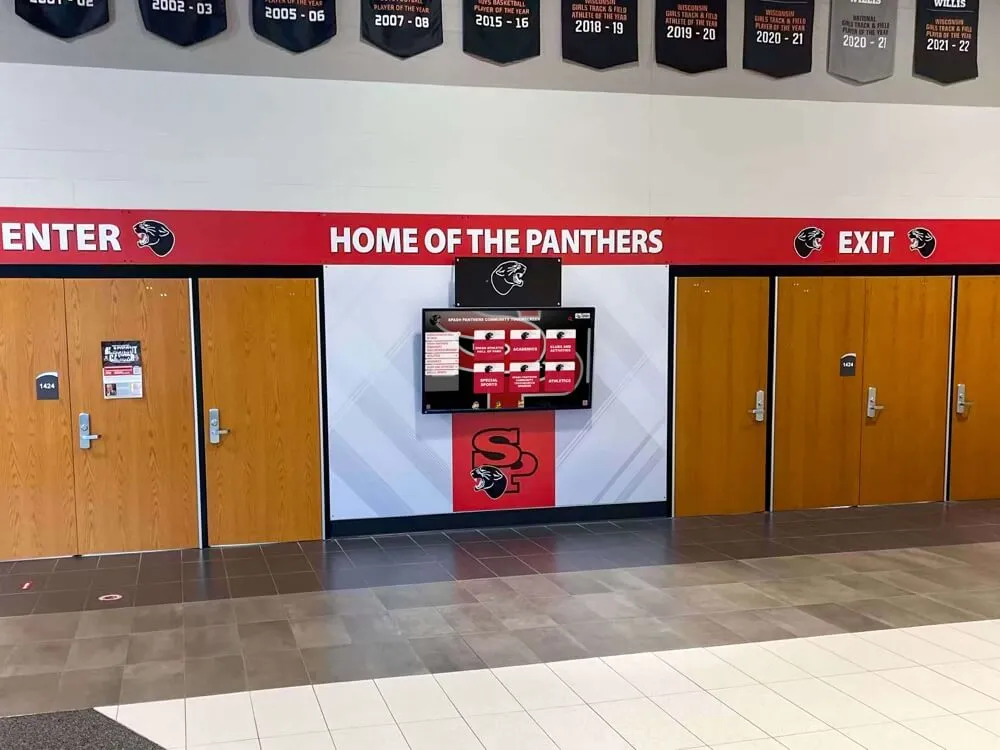
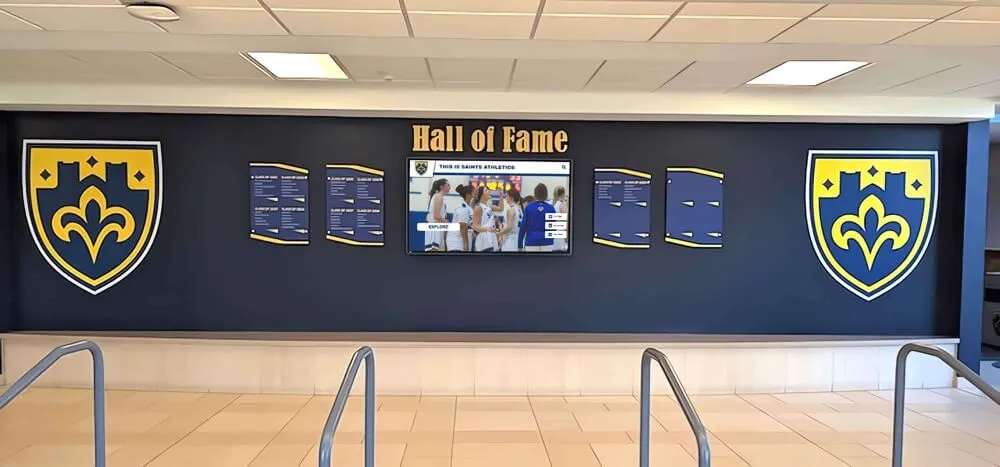
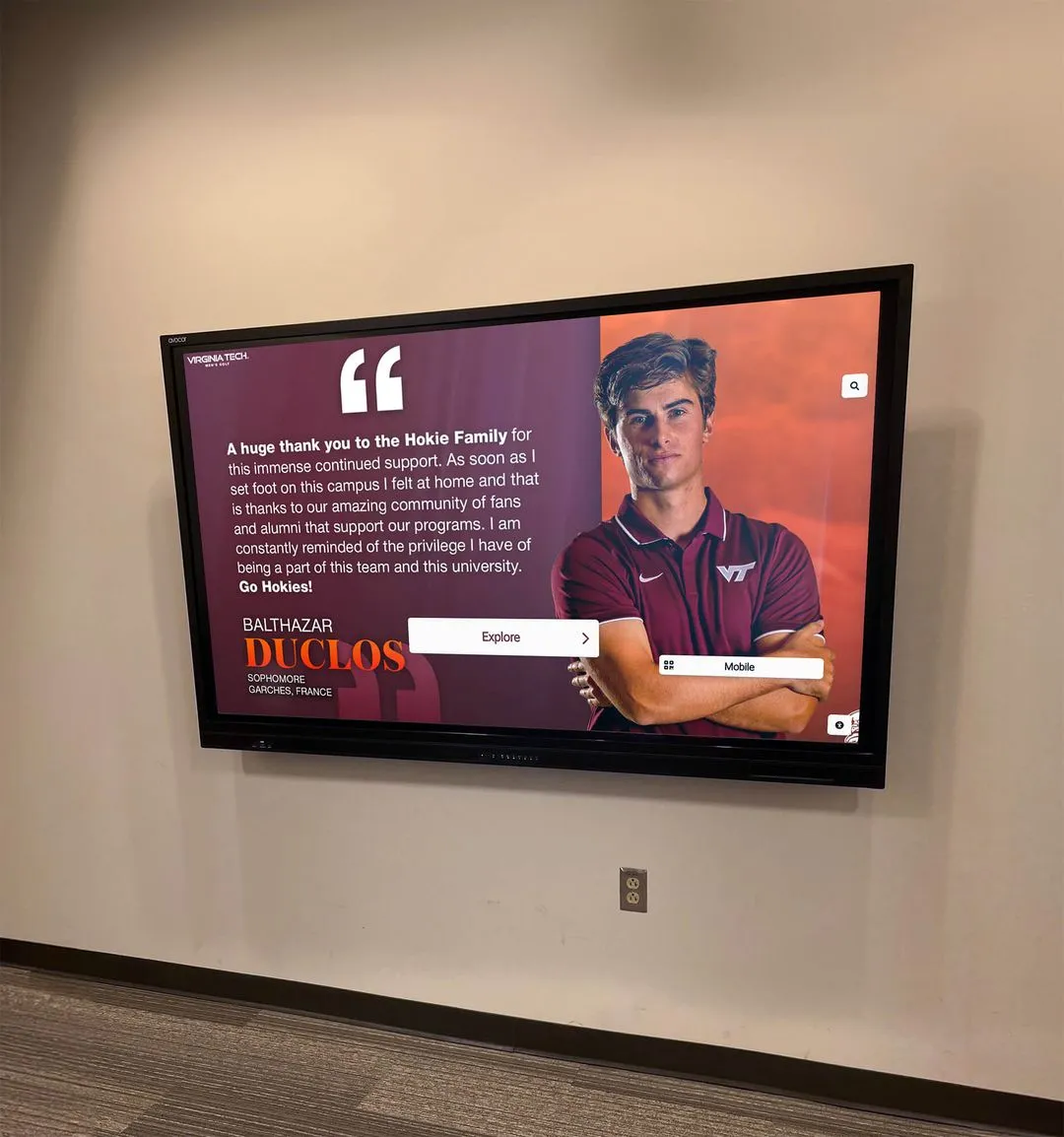
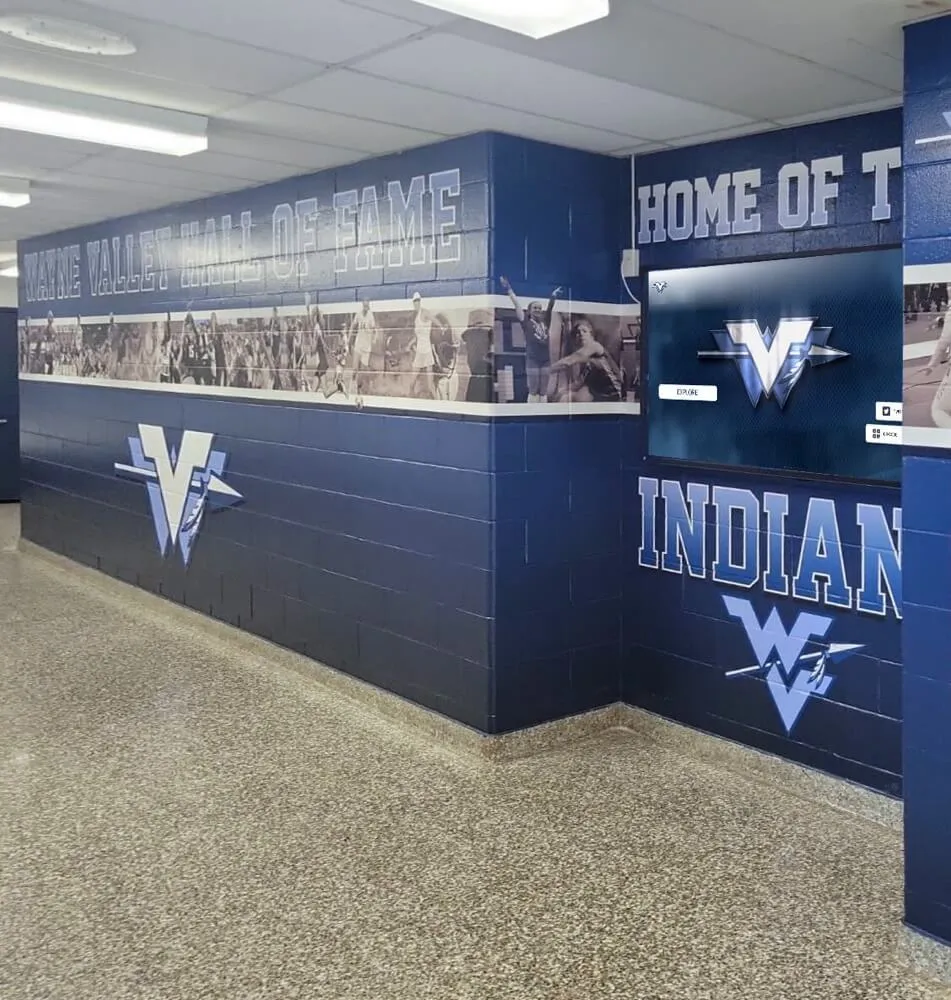
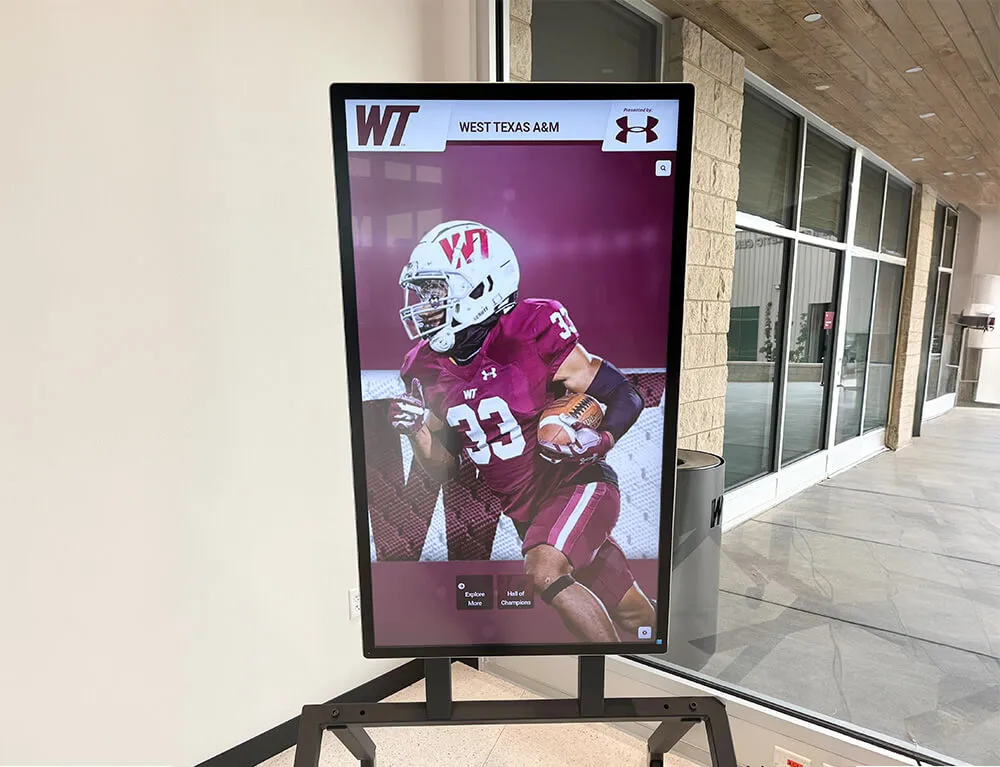
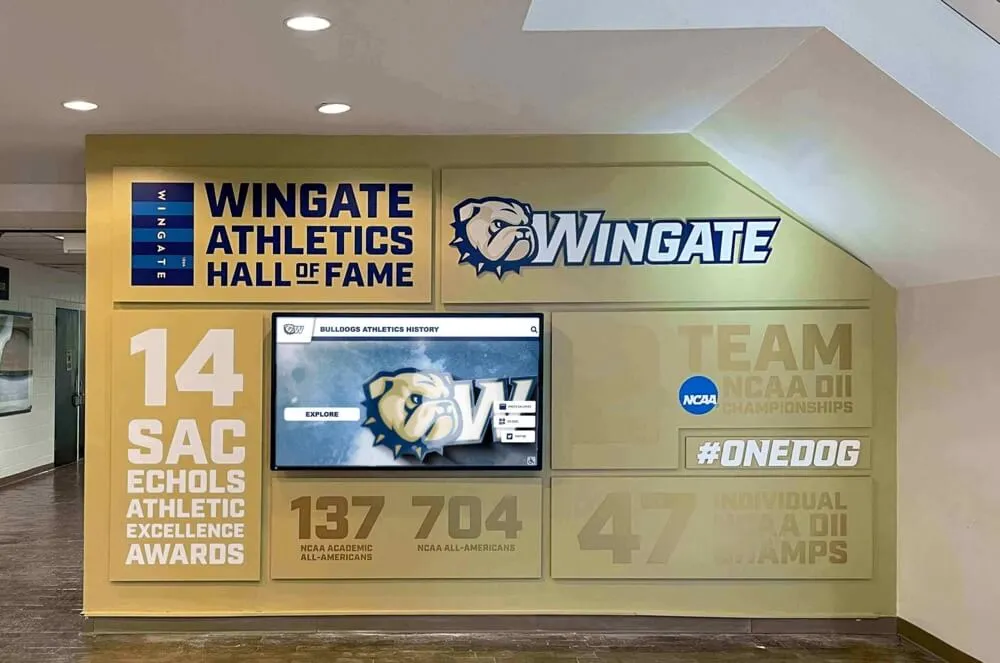
Recognition displays at school entrances are exposed to winter visitors wearing a wide range of glove types—a structured glove mode test before cold weather arrives confirms the display is configured for reliable access
What Glove Mode Does on a Touchscreen Recognition Display
Projected capacitive (PCAP) touchscreens work by projecting a grid of electrical fields across the panel surface. A fingertip touching the screen creates a measurable distortion in that field at the contact point. The touch controller chip reads the size and strength of that distortion and converts it into an X/Y coordinate.
The problem with gloves is straightforward: insulating materials—wool, leather, thick polyester—reduce the magnitude of the distortion the controller detects. The controller applies a minimum detection threshold to avoid registering false touches from rain, dust, or incidental contact. Gloves push the signal below that threshold, so the touch is not registered.
Glove mode, also referred to as high-sensitivity mode or glove sensitivity on most commercial touch controllers, lowers that detection threshold. A lower threshold allows the controller to register the weaker signal that passes through an insulating glove layer. The tradeoff is a modest increase in susceptibility to false touches from environmental sources—rain on the panel surface is the most common—but in a school entrance environment that tradeoff is generally acceptable.
Most commercial all-in-one touchscreen displays used in school recognition installations include glove mode as a configurable option in the touch controller’s settings. On some units it is accessible through an on-screen OSD menu; on others it requires access to the touch controller’s configuration utility through a connected computer.
Numbered Test Sequence: The Recognition Display Glove Mode Test
This sequence is designed to be completed by a single staff member in under 30 minutes per display. Complete the test on each entrance-area recognition display before the first consistently cold-weather week of the school year.
Before You Begin
Gather the following before starting the test:
- At least three glove samples representing the range your visitors will wear (see the glove-material matrix in the next section)
- A printed or digital copy of the display’s model number and touch controller specifications
- A notepad or shared document for logging results
- Access to the display’s OSD menu or attached configuration computer if sensitivity adjustment will be needed
Step 1: Record the Baseline Configuration
Power on the display and allow it to reach normal operating temperature (approximately 5 minutes from cold start). Before changing any settings:
- Note the current glove mode / touch sensitivity setting from the OSD menu or controller utility (e.g., “Off,” “Level 1,” “Normal”)
- Record the display model, serial number, and the current date
- Confirm the display is showing its normal recognition content—athlete profiles, hall of fame listings, award histories, or whatever content is active at this installation
Step 2: Test Touch Response Without Gloves
Confirm the baseline touch behavior before introducing variables.
- Touch the screen with a bare index finger in at least five locations across the panel: top-left, top-right, center, bottom-left, bottom-right
- Confirm each touch registers immediately (within 100 milliseconds) and navigates the recognition content correctly
- If any touch location is slow or unresponsive at baseline, log the finding and troubleshoot the existing sensitivity issue before proceeding—a display with poor bare-hand response has an underlying calibration problem that glove mode will not resolve
Step 3: Test Each Glove Sample in Current Configuration
Without changing any settings, test each glove sample at the same five panel locations.
- Put on the first glove sample; touch the screen at all five locations using the same pressure as the bare-hand test
- Log whether each touch registers: “Registers consistently,” “Registers sometimes,” or “Does not register”
- Repeat for each remaining glove sample
- Note which glove types already pass at the current sensitivity setting—these require no configuration change
Step 4: Enable Glove Mode and Repeat
If any glove sample failed the Step 3 test, access the display’s sensitivity settings and increase the glove mode level by one step.
- Access the OSD menu or touch controller utility and increase touch sensitivity by one level (e.g., from “Off” to “Level 1,” or from “Normal” to “High Sensitivity”)
- Exit the settings menu and wait 10 seconds for the change to take effect
- Repeat the five-location touch test with each glove sample that previously failed
- Log whether each glove type now registers
Step 5: Increment Sensitivity Until All Target Glove Types Pass (or Maximum Is Reached)
Most commercial touch controllers offer two to four sensitivity levels above the default. Increase one level at a time, testing after each increment.
- If the glove types that matter for your school entrance still do not register, increase to the next sensitivity level
- Re-test after each increment
- Stop when all target glove types register, or when the maximum sensitivity setting is reached
- If maximum sensitivity is reached and certain glove types still do not register, document those glove types in the log as “requires bare touch”—this is the expected outcome for very thick insulated gloves, which may exceed the capability of glove mode regardless of setting
Step 6: Test for False Touch Behavior
At the highest sensitivity level that passes the glove test, verify the display does not produce erratic false touches.
- Hold your hand approximately two inches from the screen without touching it; confirm no touch is registered
- Splash a small amount of water on the screen surface (representing rain or sleet carried into the entrance) and confirm the display either ignores the water or handles it without navigating erratically
- If the display registers false touches at the selected sensitivity level, reduce to the previous level and accept that certain glove types may require one glove layer removed or a stylus
Step 7: Document and Save the Final Configuration
- Record the final sensitivity setting in the maintenance log for this display
- Note which glove types pass and which require bare touch or stylus
- If a stylus solution is implemented at the display (a capacitive stylus attached by lanyard is a common fallback), note its location in the log
- Store the log entry in the IT or facilities shared folder alongside the display’s maintenance records

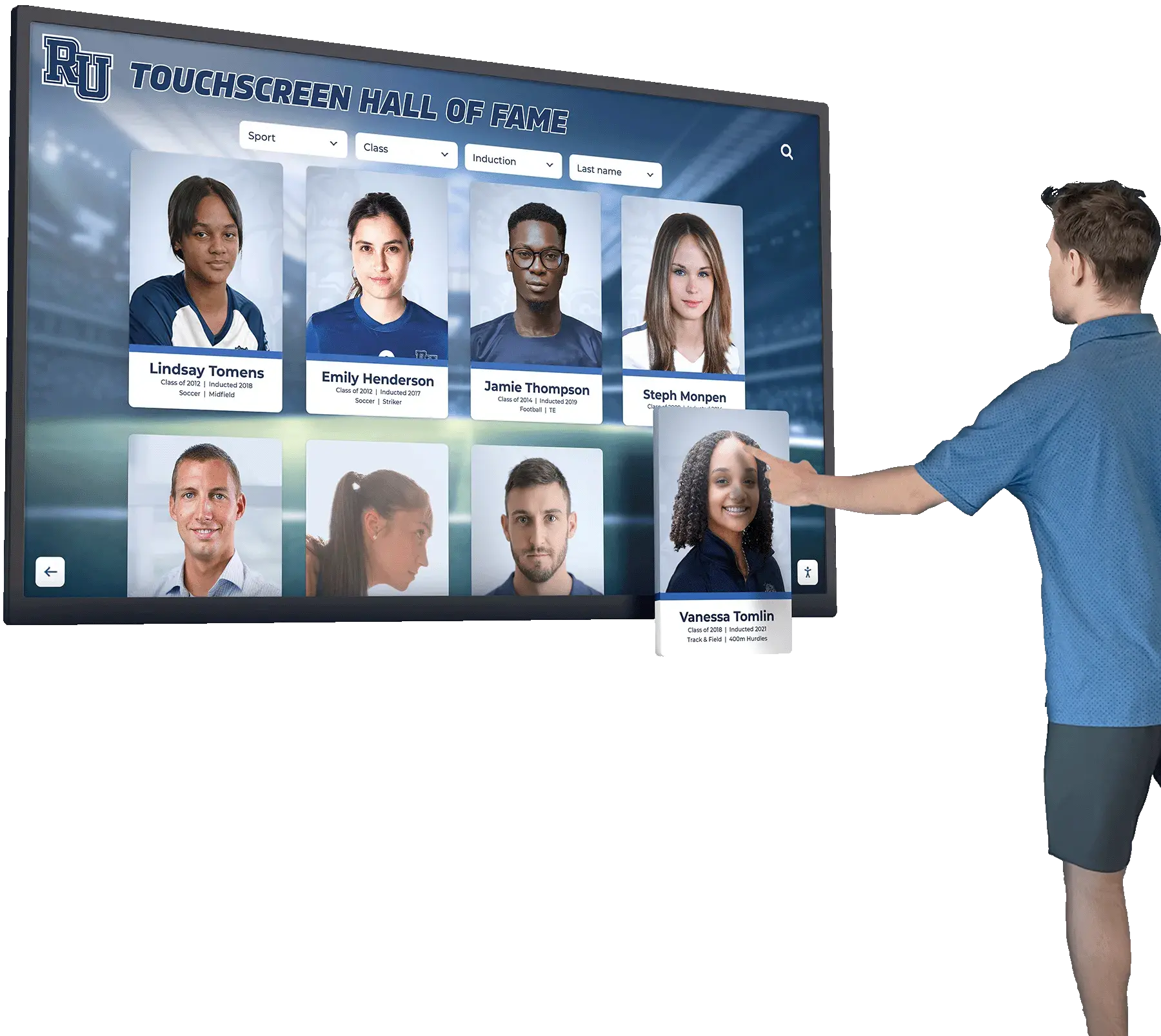
The recognition display glove mode test uses multiple glove types at multiple panel locations to determine which sensitivity setting provides reliable access for the full range of visitors who may approach the screen in winter outerwear
Glove-Material Compatibility Matrix
Capacitive touchscreen sensitivity to gloved touch depends primarily on material thickness and electrical conductivity. The matrix below reflects the general behavior of common glove types against projected capacitive panels. Results at any specific installation will vary with panel quality, touch controller model, and ambient conditions.
| Glove Type | Material | Typical Conductivity | Default Setting Response | Glove Mode Response | Notes |
|---|---|---|---|---|---|
| Bare hand | — | Excellent | Registers reliably | N/A | Baseline reference; no adjustment needed |
| Thin latex or nitrile glove | Latex / nitrile | Good | Often registers | Usually registers | Common for medical or custodial staff near the entrance |
| Touchscreen-compatible glove | Conductive fiber at fingertips | Good | Registers reliably | Registers reliably | Designed for PCAP; most reliable gloved-touch option |
| Thin cotton or jersey glove | Cotton | Moderate | Variable | Usually registers at Level 1–2 | Common in mild-weather use; results vary by thickness |
| Wool knit glove (single layer) | Wool | Low–Moderate | Rarely registers | Often registers at Level 2–3 | Natural fiber variability means results differ by glove |
| Fleece glove (single layer) | Polyester fleece | Low | Rarely registers | Sometimes registers at Level 2–3 | Thin fleece performs better than thick insulated versions |
| Leather dress glove (thin) | Thin leather | Low | Rarely registers | Sometimes registers at Level 3 | Thinner dress gloves perform better than work gloves |
| Insulated winter glove (heavy) | Mixed; thick insulation | Very low | Does not register | Does not register at most settings | Recommend capacitive stylus as fallback |
| Ski glove or mittens | Waterproof shell + thick insulation | Very low | Does not register | Does not register | Recommend capacitive stylus as fallback |
| Work glove (heavy rubber or PVC) | Rubber / PVC | Very low | Does not register | Does not register | Not a target use case for school entrances |
Planning note: School entrances in most cold-weather climates will see primarily thin-to-medium gloves (cotton, thin wool, fleece, dress leather) rather than the heavy insulated gloves typical of outdoor activity. Glove mode at Level 2 or the equivalent “High Sensitivity” setting on most commercial PCAP controllers is sufficient to handle the majority of the glove types an arriving visitor or event attendee is likely to be wearing. Mounting a capacitive stylus on a retractable lanyard at the display base provides a reliable fallback for the minority of heavy-glove users the setting cannot accommodate.
How to Access Glove Mode Settings on Common Display Types
Touch controller configuration access varies by display category. The following describes general approaches—always consult the specific display’s documentation for the exact menu path.
All-in-One Recognition Kiosks with OSD Menus
Many commercial all-in-one touchscreen displays include an OSD (On-Screen Display) menu accessible through a button or button combination on the display enclosure. Touch sensitivity or glove mode options, when present, appear in a “Touch Settings,” “Input,” or “Advanced” submenu. Look for labels including “Glove Mode,” “Touch Sensitivity,” “Enhanced Touch,” or “High Sensitivity.”
Changes made through the OSD menu persist across reboots on most units. After enabling glove mode through the OSD, wait 10 seconds and run Steps 3 and 4 of the test sequence to confirm the change took effect.
Displays with Separate Touch Controller Boards
Some larger display installations use a separate touch controller board connected to the display PC via USB. The controller manufacturer typically provides a Windows-based configuration utility that can be downloaded from the manufacturer’s support site. Common touch controller manufacturers in school display installations include EETI, Elo Touch Solutions, and others.
In these utilities, look for a “Sensitivity” or “Glove Mode” slider or dropdown. Save the setting and confirm it persists after a display reboot before closing the log entry.
Displays Running Windows with Precision Touchscreen Drivers
On Windows-based all-in-one displays, touch sensitivity settings may appear in the Windows Settings application under Devices > Touchscreen or through a manufacturer-installed control panel application. Windows itself does not include a native glove mode toggle, but some display manufacturers provide supplementary driver software that adds this capability.
If no sensitivity setting is accessible through software, check whether the display manufacturer offers a firmware update that adds touch sensitivity configuration—some display lines have received glove mode support through firmware updates released after the initial product launch.
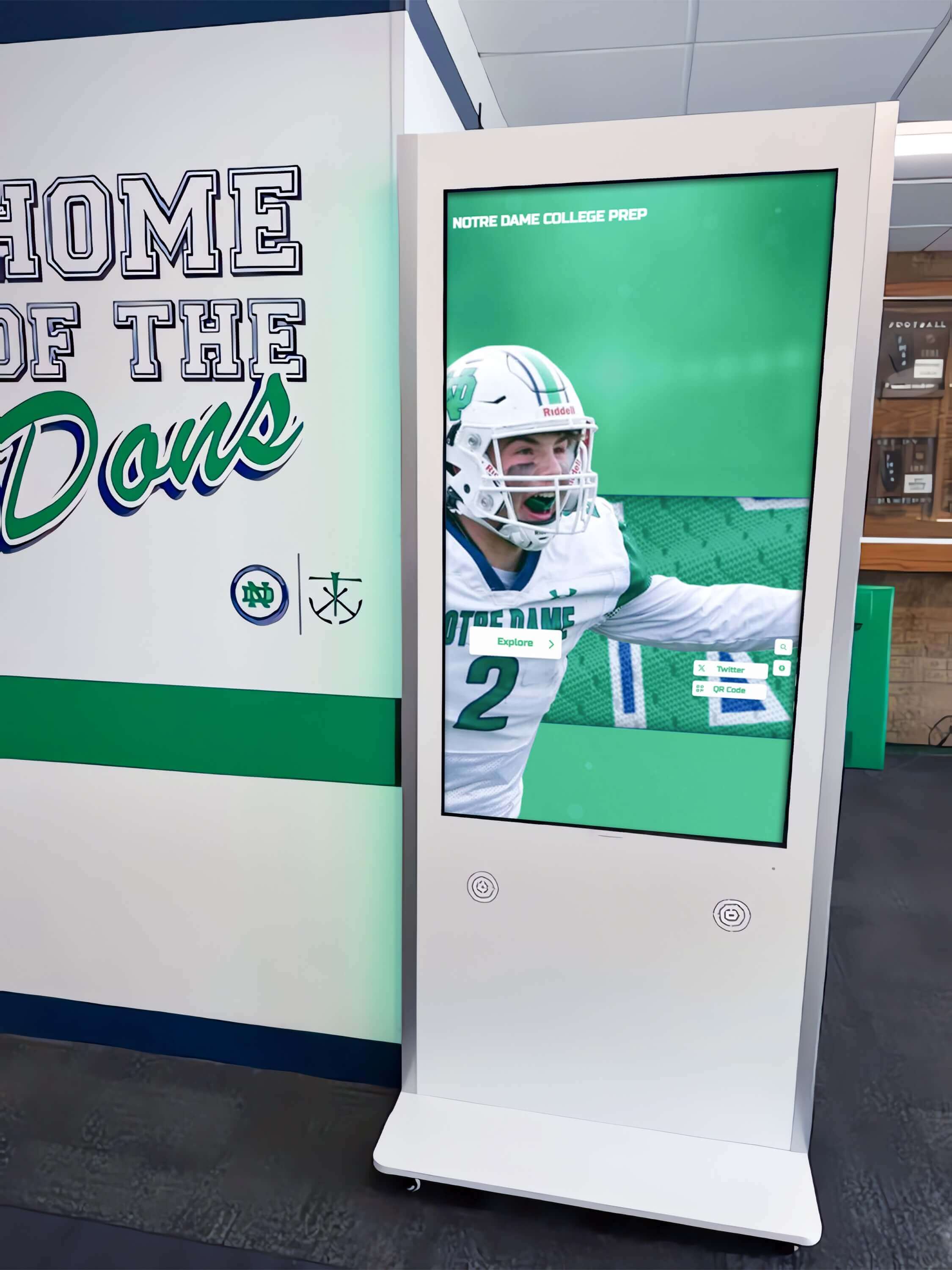
Most commercial recognition display kiosks include touch sensitivity configuration accessible through an OSD menu or configuration utility—locating that setting is the first step before running the glove mode test
Q&A: Common Questions About Glove Mode and Cold-Weather Entrance Displays
Does cold weather itself affect touchscreen sensitivity, even without gloves?
Yes, in two ways. First, cold temperatures reduce fingertip blood flow due to vasoconstriction, which modestly reduces the conductivity difference the touch controller detects. Most people do not notice this effect with bare hands at typical cold-weather outdoor temperatures, but it can become relevant at extreme cold. Second, the display panel itself operates within a specified temperature range. An all-in-one display installed directly at an exterior entrance alcove that experiences below-freezing ambient temperatures may operate outside the panel’s rated temperature range, affecting both touch response and display performance independent of glove mode. Check the display’s operating temperature specification if the installation is exposed to freezing conditions.
We enabled glove mode and now the display sometimes registers touches we did not intend. What is causing this?
Increased touch sensitivity lowers the detection threshold, which means the controller also detects weaker, unintended signals—moisture on the panel surface, incidental contact from a sleeve or bag, or very close proximity of a hand without contact. The first step is cleaning the panel: oils, moisture, and particulate on the panel surface create false signal. If false touches persist after cleaning, reduce sensitivity by one level and test whether the glove types you need to support still register. In most entrance environments, Level 1 or Level 2 glove sensitivity provides adequate gloved-touch coverage without meaningful false-touch problems.
Our display is mounted near the exterior entrance door and gets condensation on the panel surface in cold weather. Does that affect the test?
Condensation on the panel creates a conductive layer that can interfere with touch registration by distributing the electrical signal across the moisture rather than concentrating it at the touch point. If condensation is a recurring problem at the installation location, the display is likely experiencing a larger thermal management challenge: cold exterior air meeting warm interior air at the panel surface. Addressing condensation requires either relocating the display to a position less exposed to the temperature gradient at the entrance, adding a climate barrier between the display and the exterior door, or using a display enclosure rated for high-humidity environments. Glove mode configuration does not resolve condensation-related touch problems; the root cause is environmental, not a sensitivity threshold issue.
The display is older and does not have a glove mode setting. Are there other options?
Three options apply. First, a capacitive stylus on a retractable lanyard mounted at the display base provides reliable touch input regardless of glove type and requires no hardware or firmware changes—it is the most practical immediate solution for older displays without sensitivity settings. Second, on displays where the touch overlay is a separate component from the LCD panel, it may be possible to replace the touch overlay with a model that includes sensitivity configuration; this requires a hardware replacement and should be scoped as a vendor service engagement. Third, if the display’s touch controller connects via USB to a Windows PC, check whether installing a more recent driver version from the controller manufacturer’s support site adds glove mode capability to hardware that did not originally ship with it.
Should we run the glove mode test every year, or is a one-time configuration sufficient?
Run the test annually before the first cold-weather season, and also after any firmware update, hardware replacement, or display relocation. Firmware updates can reset touch sensitivity settings to default values, and hardware replacements may involve a different touch controller with different default sensitivity. A display relocated within the building—closer to an exterior entrance, for example—may experience different ambient conditions that affect practical glove mode performance even with the same settings. Annual testing keeps the configuration verified and the maintenance log current. Programs managing multiple recognition displays across a building should schedule the test for all displays in the same window so the findings are comparable.
We run athletic recognition, honor roll, and hall of fame content on the display. Is glove mode safe to enable permanently?
For school entrance installations displaying athletic recognition, academic achievement listings, hall of fame profiles, and similar content that visitors interact with by tapping and scrolling, glove mode is appropriate to leave enabled year-round. The modest increase in false-touch susceptibility at elevated sensitivity is not meaningful for recognition content navigation, where the consequences of an unintended tap are navigating to a different profile—not a data entry error or system action. If the display is used for a different purpose that requires high-precision touch input, re-evaluate the setting for that use case.
Connecting Glove Mode to the Broader Recognition Display Program
A recognition display glove mode test is ultimately about ensuring reliable access to the content the display carries. Schools that invest in athletic history, academic achievement, and community recognition deserve a display that works consistently for every visitor who approaches it—including the alumni returning for a winter reunion, the prospective family arriving for a January tour, and the booster club members filing in for a Friday-night basketball game.
Recognition programs that emphasize academic achievement awards at the high school level understand that recognition infrastructure—including the hardware reliability of the display showing that content—is part of honoring achievement seriously. A display that fails to respond because it was not configured for winter conditions sends the opposite message.
The same principle applies to athletic recognition. Programs building hall of fame tools for athletics, donors, arts, and institutional history recognize that interactive display hardware and software both need to be configured for the environment where they serve visitors. Cold-weather entrance reliability is part of that configuration.
For programs that coordinate recognition display maintenance with content update cycles, a day in the life of school digital displays at Digital Trophy Case offers useful context on how display management tasks—including hardware checks like glove mode testing—fit into the ongoing content stewardship cycle that keeps recognition screens accurate and current.
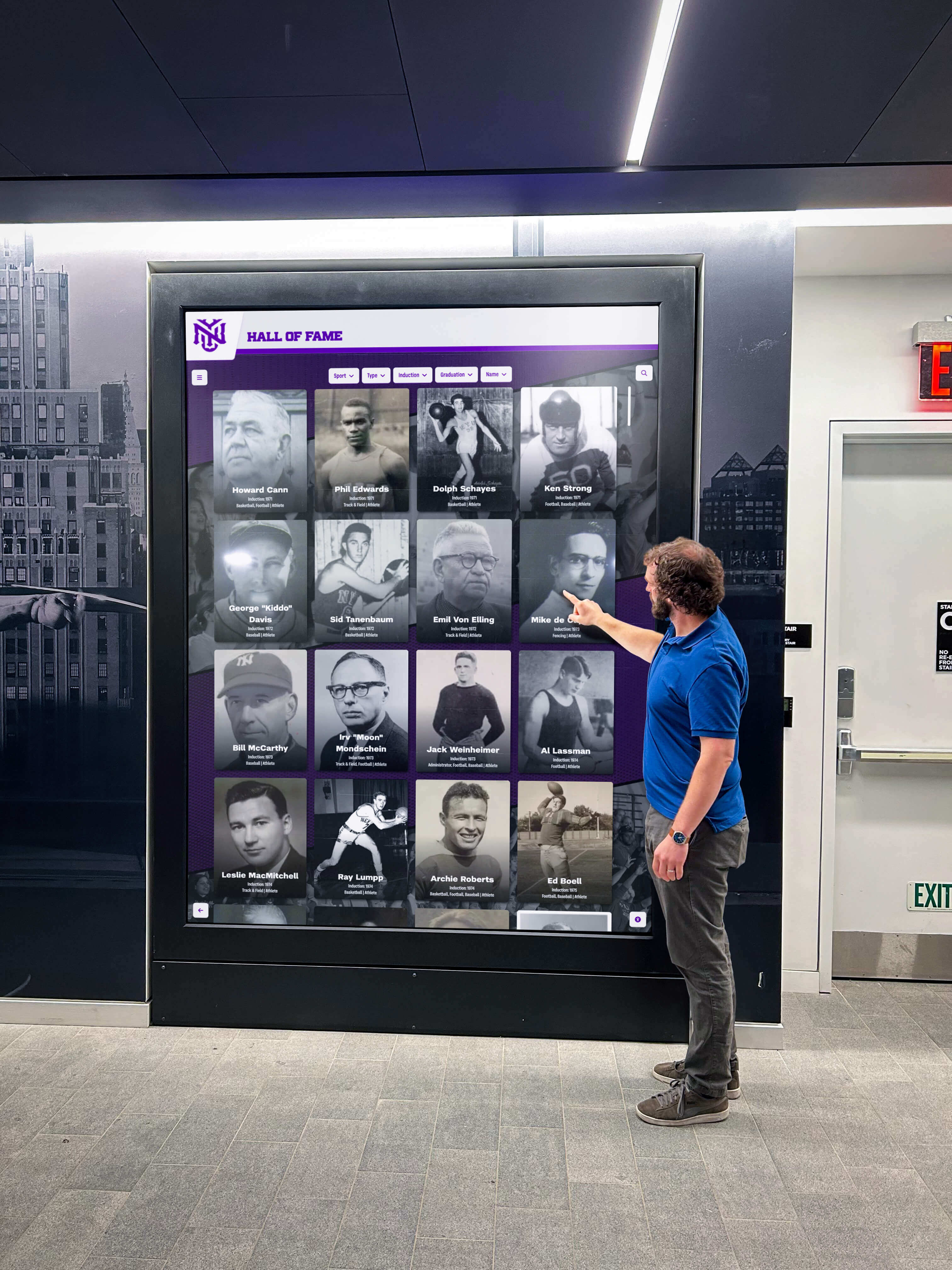
Every visitor who approaches a school recognition display deserves reliable touch access to the content it carries—glove mode configuration is the specific setting that extends that access to cold-weather visitors in winter outerwear
Schools planning end-of-year recognition events, winter alumni gatherings, or athletic banquet nights can connect the hardware reliability of an entrance display to the programs those events support. Programs that plan youth sports award ideas and recognition frameworks know that the tangible experience of recognition—touching a display to see an athlete’s profile or an award history—depends on the display actually responding when touched.
For programs managing recognition across multiple event types throughout the year, schools that have considered 10-year reunion ideas that integrate awards programming and digital displays understand that alumni returning to the school in winter months may encounter recognition hardware as the first point of contact with the program. A display that works reliably in cold weather supports those event experiences in a way that a misconfigured screen cannot.
The academic all-state recognition process that scholar-athletes go through to earn state-level academic recognition deserves display hardware that treats their achievement with the same attention to detail. Cold-weather entrance configuration is one part of that commitment. Schools honoring academic all-american award criteria at the display level—making sure scholar-athlete profiles load correctly, photos display properly, and the screen responds to every visitor—create a complete recognition experience rather than one that depends on the weather.
Recommended Glove Mode Testing Schedule
| Task | Frequency | Notes |
|---|---|---|
| Full glove mode test (all seven steps) | Annually, 4–6 weeks before first expected cold-weather period | Complete before the first winter events bring gloved visitors to the entrance |
| Quick glove check (single glove type at five panel locations) | After any firmware update or display hardware replacement | Firmware updates can reset sensitivity settings to factory defaults |
| Panel cleaning and false-touch inspection | Monthly during cold-weather season | Moisture and particulate accumulate faster in high-traffic winter entrance environments |
| Stylus check (if stylus is deployed as fallback) | Monthly | Confirm stylus is in place, functional, and clean; replace if worn |
| Settings documentation review | Annually with the full test | Confirm the recorded sensitivity setting matches the actual current configuration |
Glove Mode Test Log Template
Use this template to document each glove mode test event. Maintain the log in the shared IT or facilities folder alongside the display’s other maintenance records.
| Field | Example Entry |
|---|---|
| Display ID / Location | Main Lobby Recognition Kiosk – Front Entrance |
| Test Date | 2026-09-15 |
| Staff Name | M. Torres |
| Baseline Sensitivity Setting | Default / Glove Mode Off |
| Glove Types Tested | Thin cotton, single-layer wool knit, fleece, thin leather dress glove |
| Results at Baseline | Cotton: registers sometimes; wool: does not register; fleece: does not register; leather: does not register |
| Final Sensitivity Setting | Glove Mode Level 2 (High Sensitivity) |
| Results at Final Setting | Cotton: registers consistently; wool: registers consistently; fleece: registers consistently; leather: registers sometimes |
| False Touch Check Result | Pass—no false touches observed at final setting |
| Stylus Deployed? | Yes—capacitive stylus on retractable lanyard at display base |
| Notes | Heavy insulated glove test: does not register at any setting; stylus covers this case. Panel cleaned before test. |
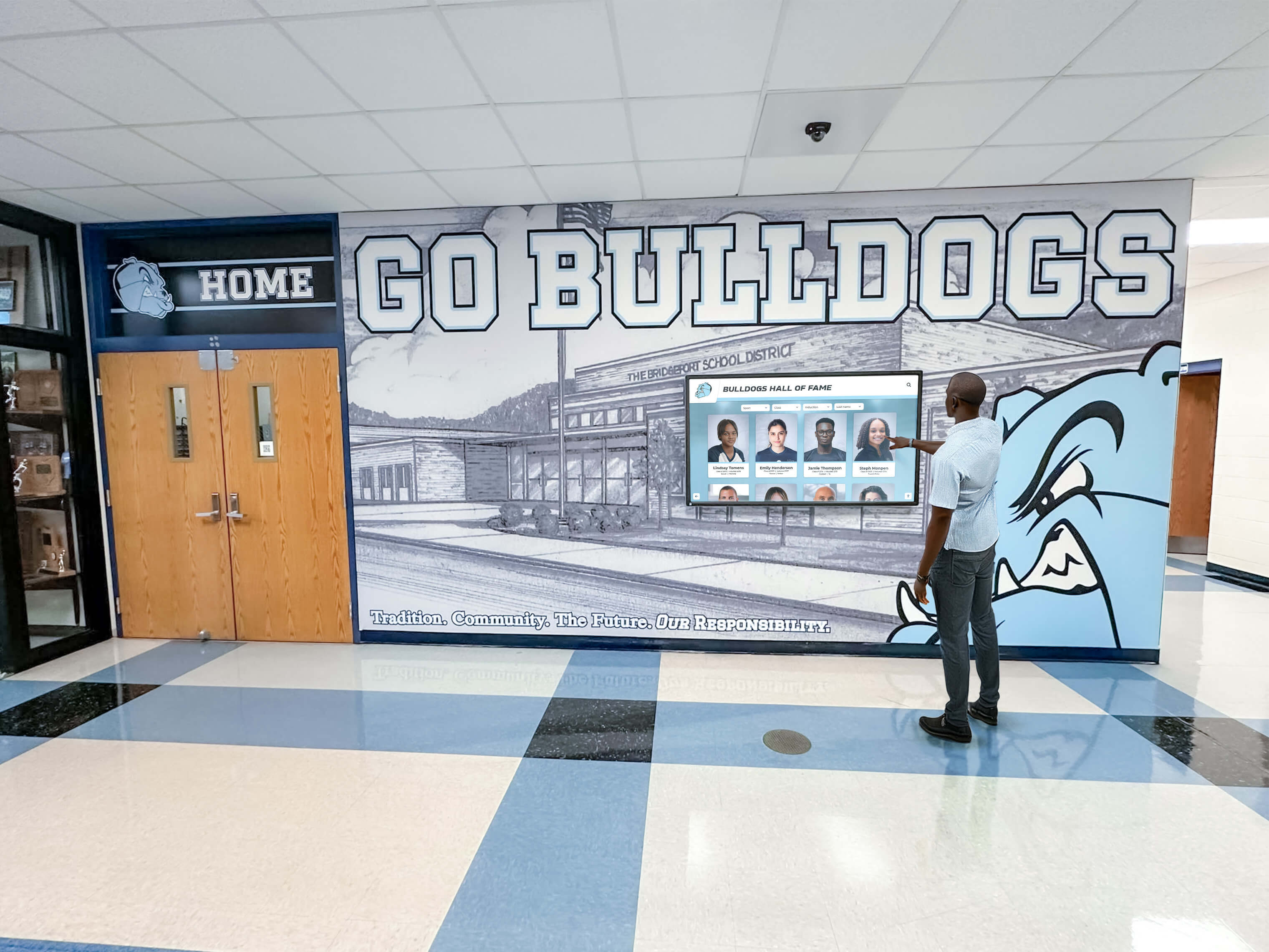
A completed recognition display glove mode test log gives IT coordinators, athletic directors, and facilities managers a documented record of the display's cold-weather touch configuration—including which glove types the current setting supports and what fallback is in place for visitors it cannot accommodate
A recognition display glove mode test is a short investment of time that pays for itself the first time a visitor in winter gloves successfully navigates to an athlete’s profile, reads a hall of fame induction history, or browses an academic honor roll without removing their outerwear at a cold entrance. Completing the test annually, documenting the result, and verifying the configuration after any firmware or hardware change keeps the display ready to serve every visitor who walks through the door—regardless of what they are wearing on their hands.
See a Recognition Display Built for School Environments
If your school is evaluating or managing a touchscreen recognition display and wants to see how a platform designed for athletic halls, trophy corridors, and entrance lobby recognition walls handles content management, hardware configuration, and year-round reliability, a live walkthrough gives you a clear picture of what that looks like in a real installation. Rocket Alumni Solutions builds recognition display platforms designed to stay on approved content, update remotely without on-site IT visits, and give IT coordinators and facilities managers confidence in the full display environment across every season.