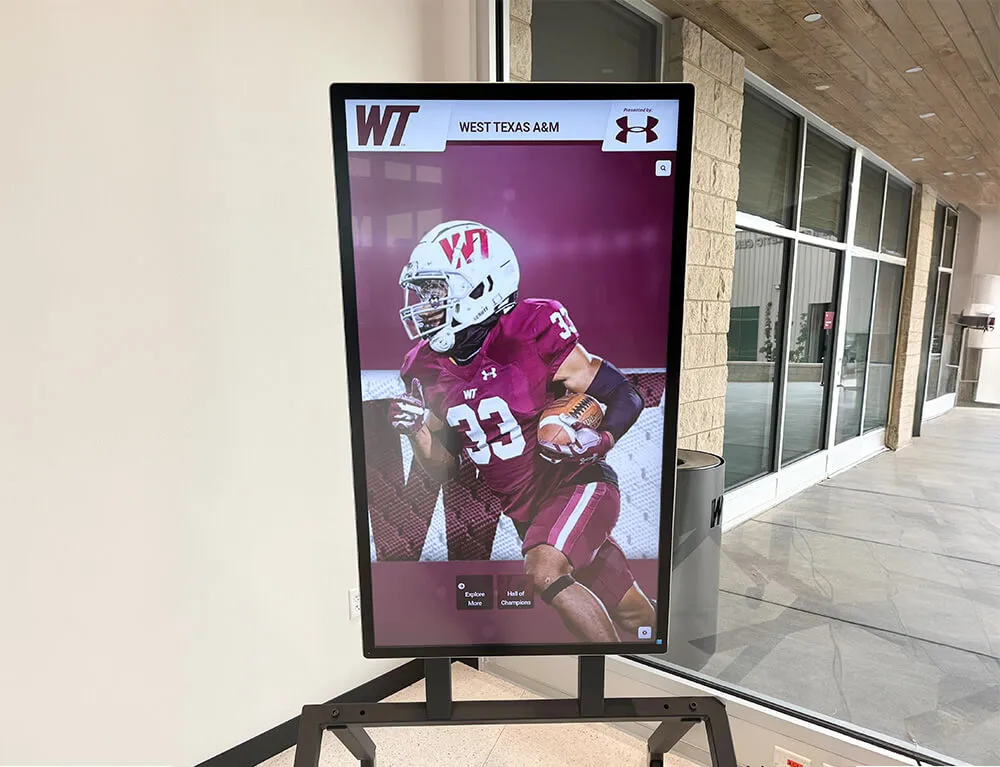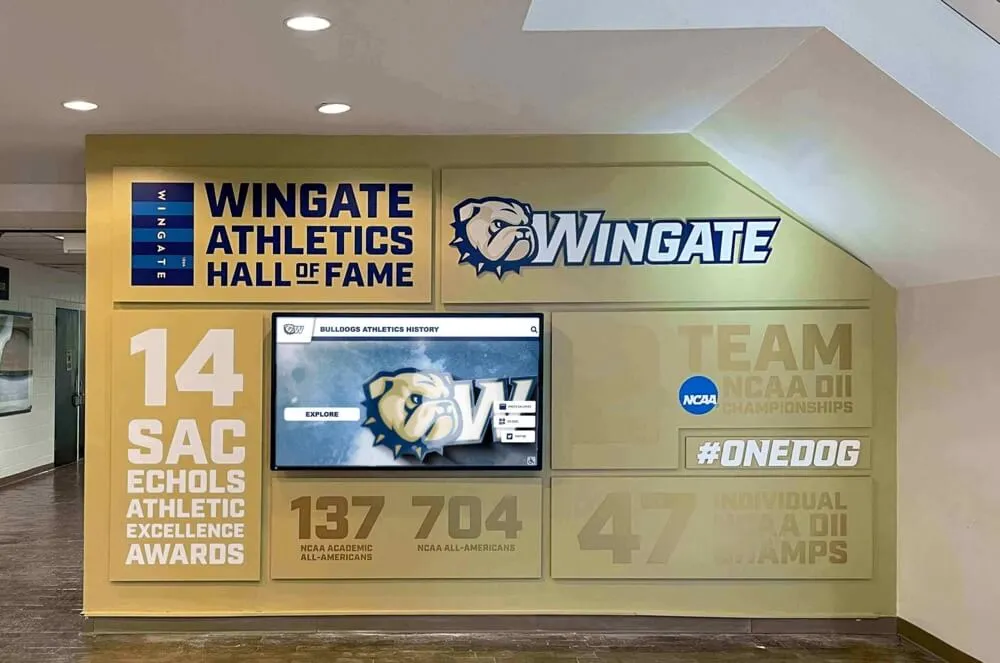




A school recognition display DHCP starvation protection test verifies that your managed-switch configuration prevents an exhausted IP address pool from taking a lobby kiosk or hall-of-fame touchscreen offline. DHCP starvation occurs when a device—whether a misconfigured endpoint, a rogue laptop, or a deliberate attacker—rapidly claims large numbers of addresses from a DHCP scope, leaving no leases available for legitimate devices. When a recognition display’s lease expires and no new address is available, the kiosk drops off the network, stops pulling content updates, and goes dark at exactly the moment—a championship ceremony, an induction night, an alumni weekend—when it is most visible.
This guide walks school IT coordinators, network administrators, and facilities technology staff through the complete test procedure: verifying DHCP snooping and lease-limiting controls are configured correctly, running a controlled starvation simulation, confirming the recognition display retains its address reservation throughout, and documenting the findings in a format usable for future maintenance reviews.
DHCP snooping, IP source guard, port security rate limiting, and static DHCP reservations are the four controls that together prevent starvation from reaching a recognition display. Each can be configured correctly in isolation and still fail in combination with the others when the network is under pressure. A protection test validates the controls as a system, not just as individual settings, which is the only way to confirm the display will stay online when the rest of the DHCP scope is contended.

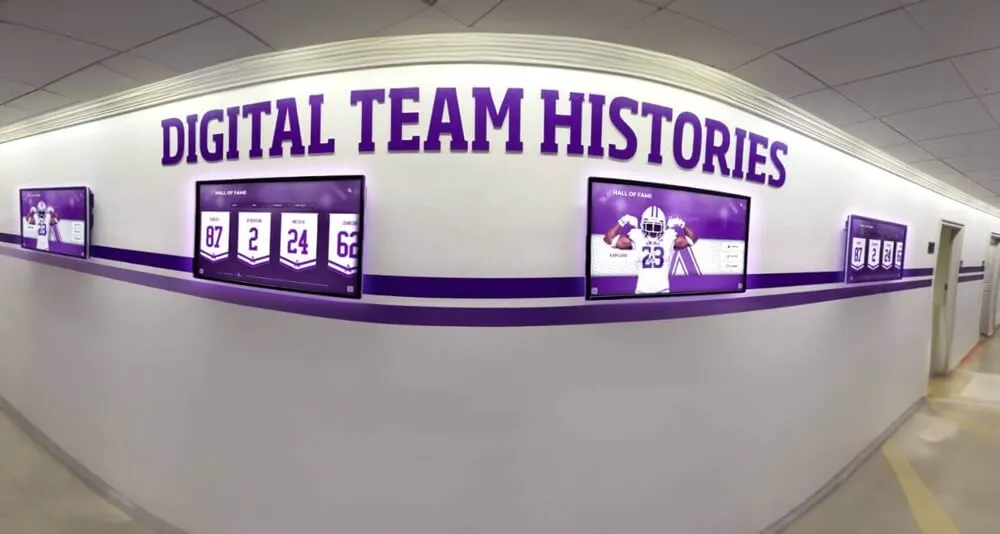
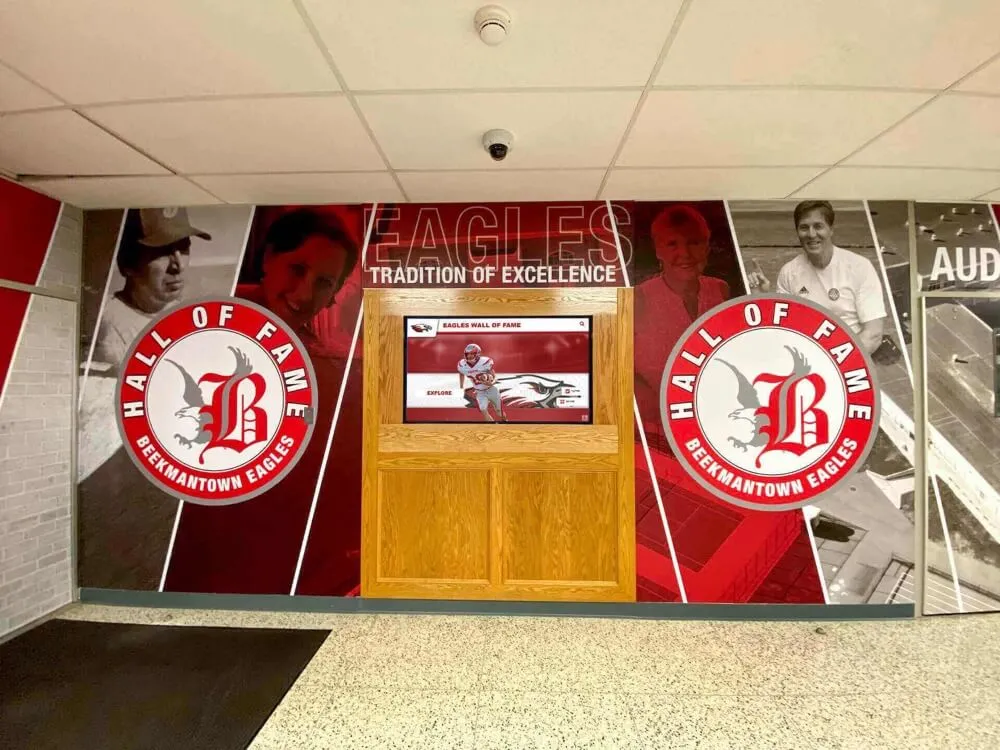
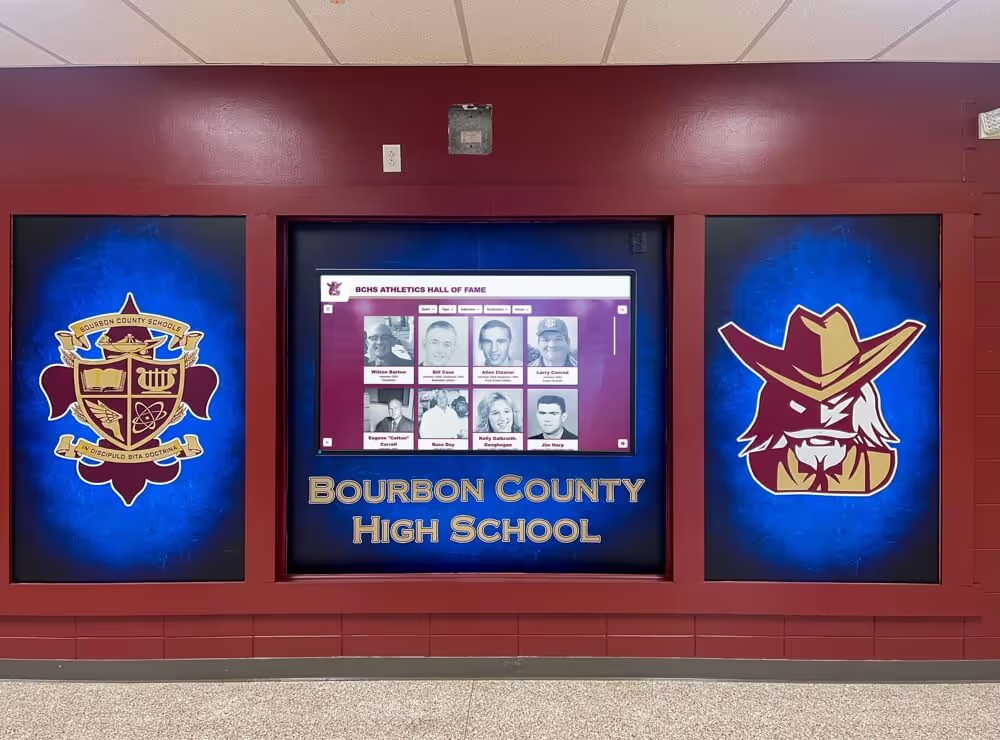
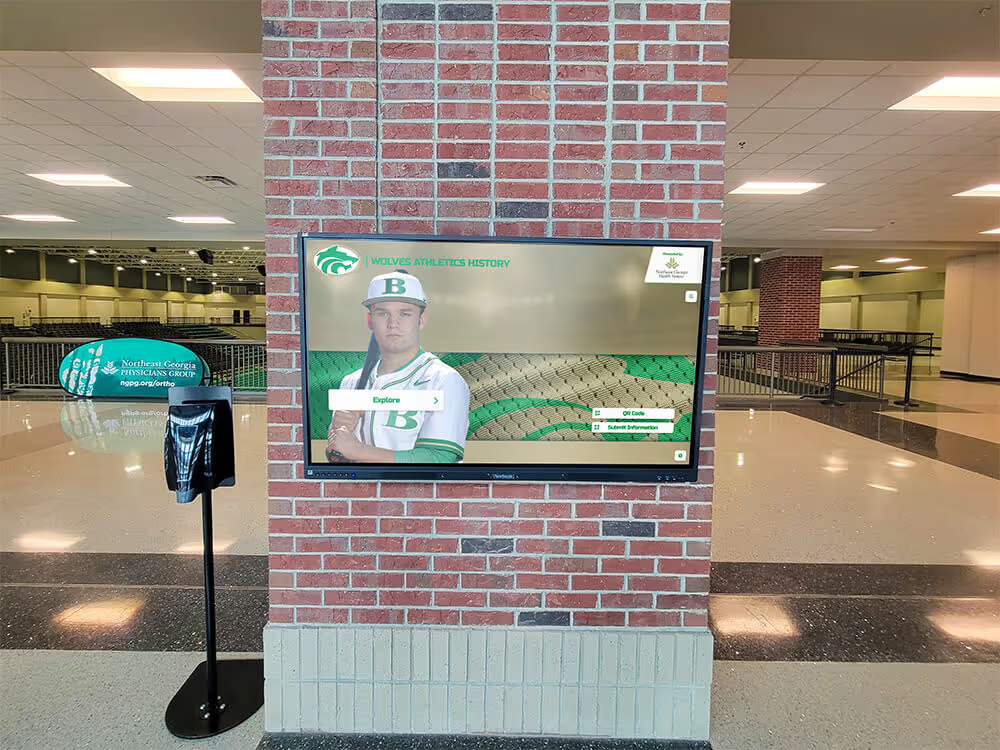
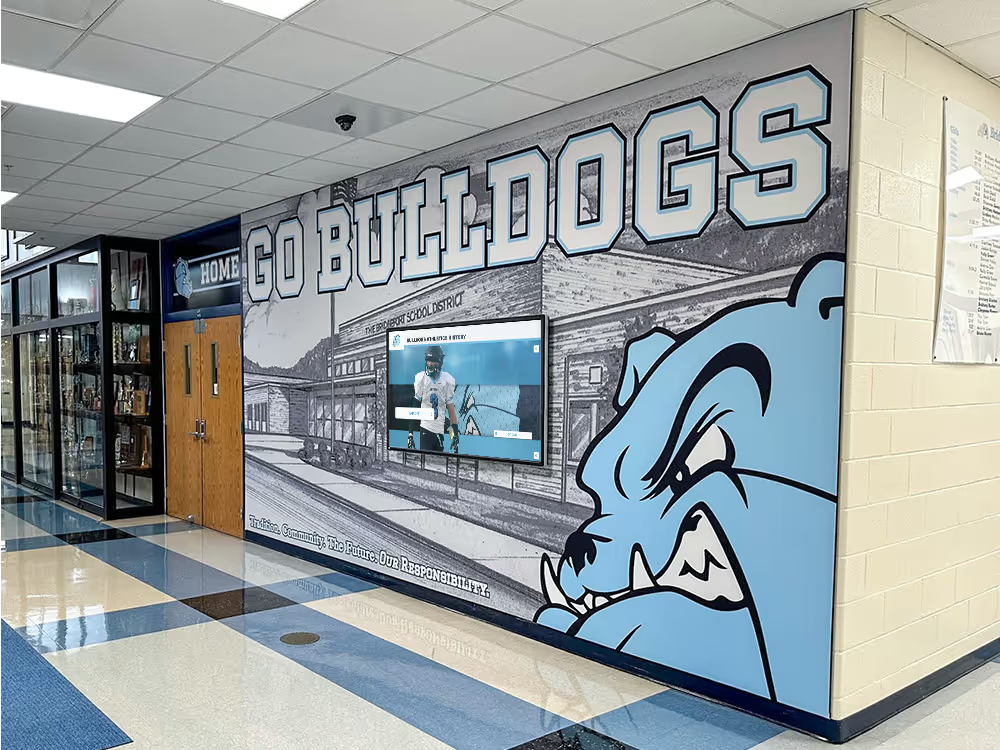
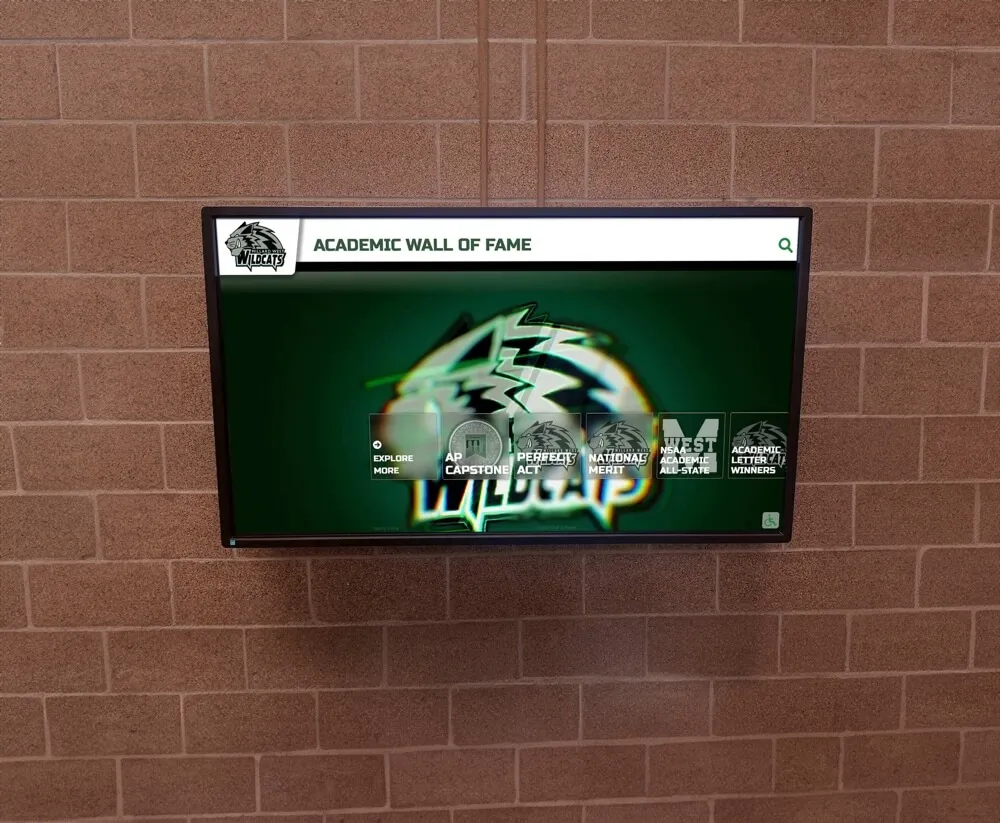
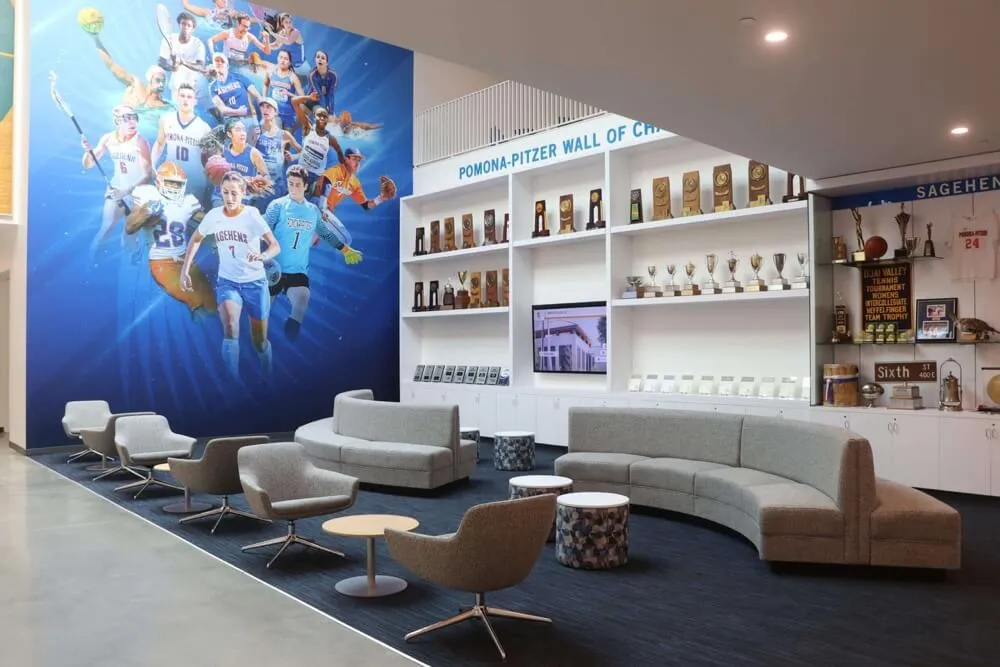
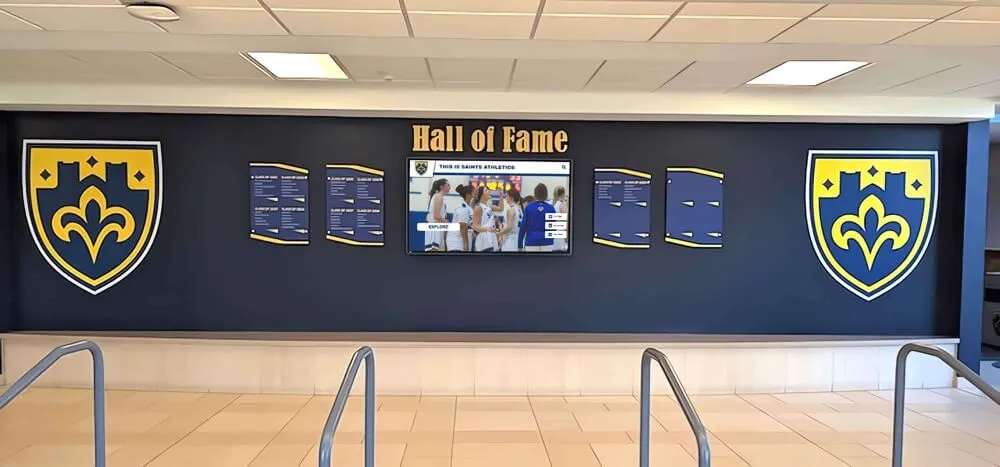
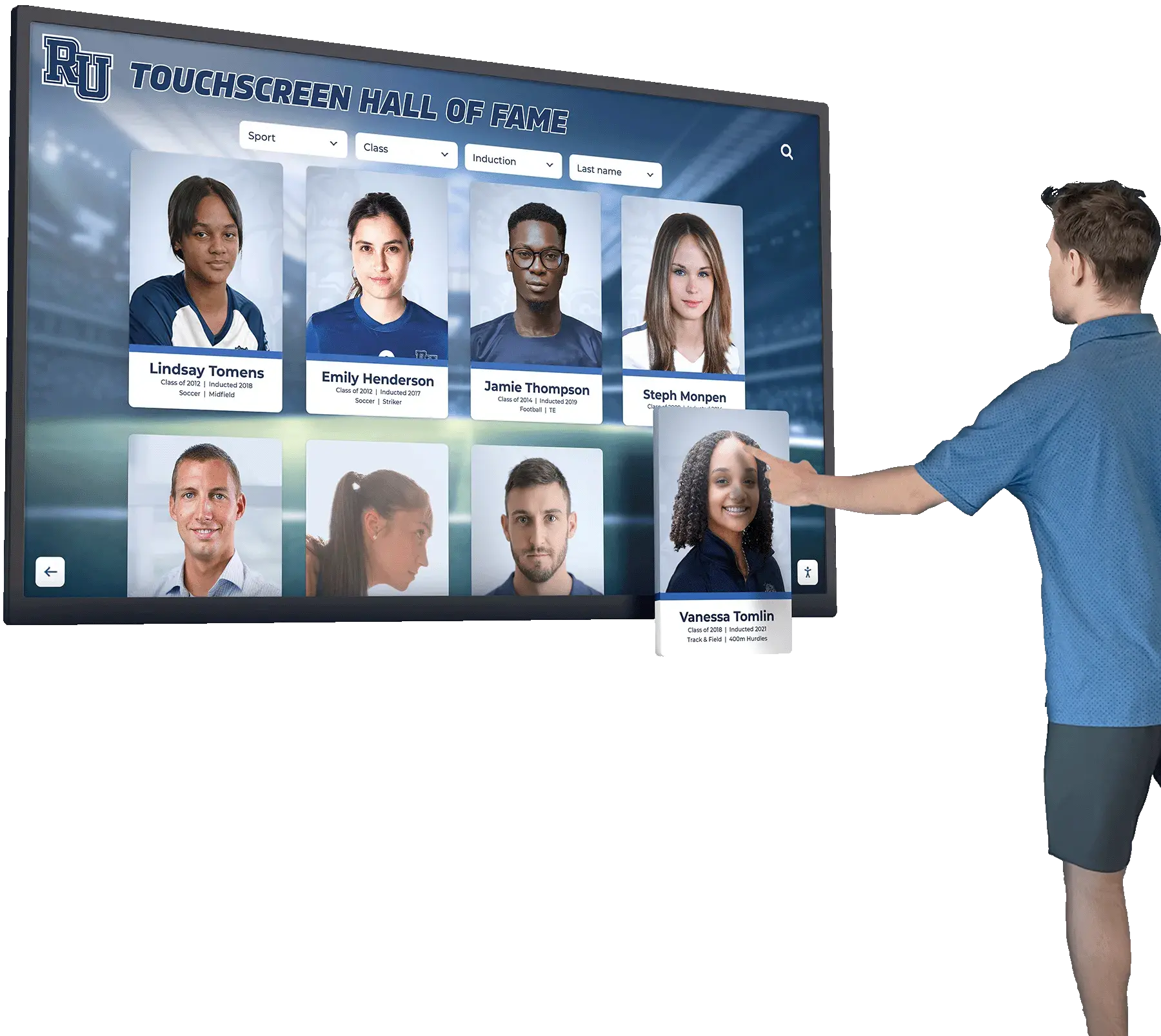
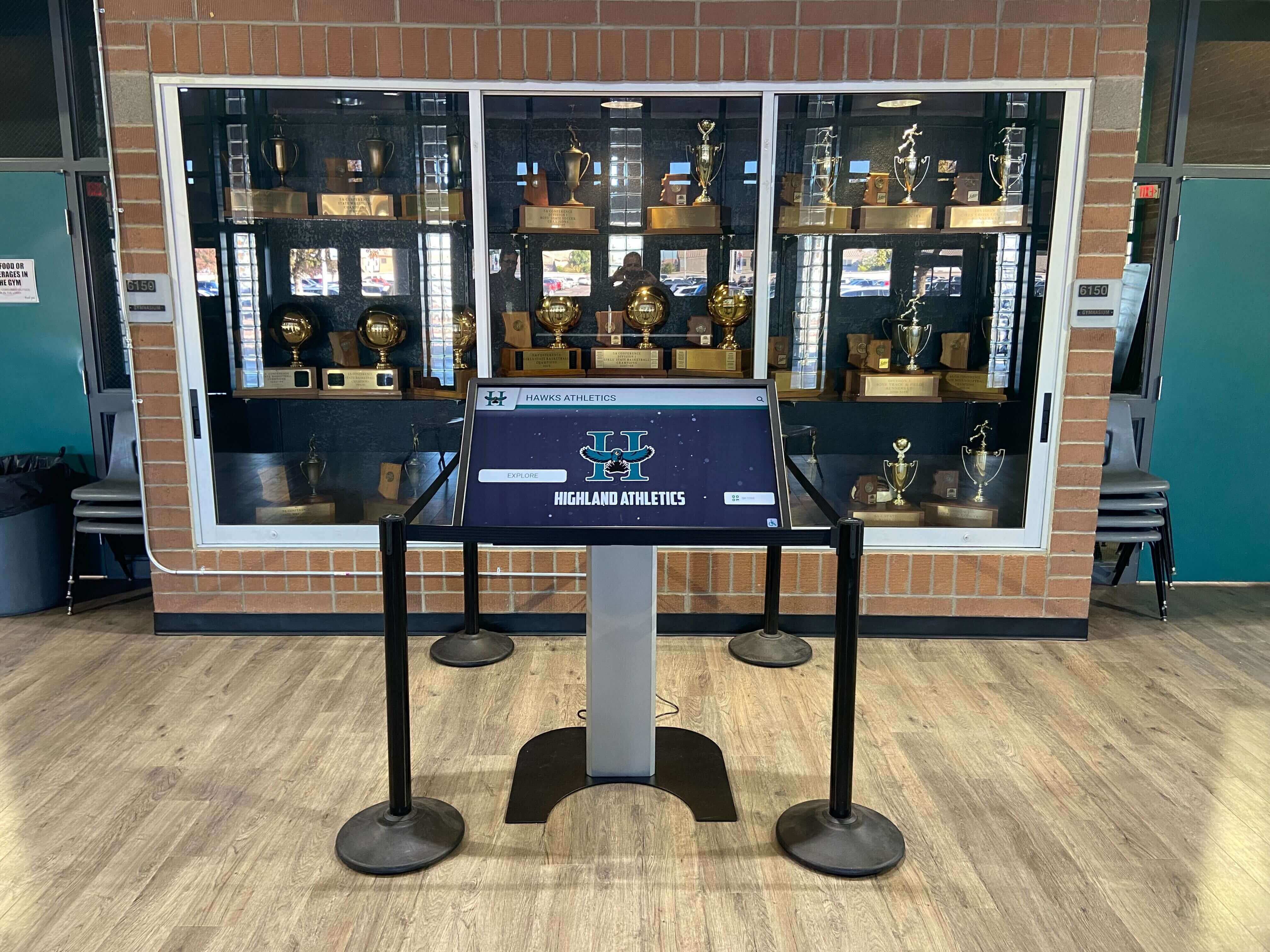
Recognition displays installed in enclosed trophy cases, lobby alcoves, and athletics hallways depend on a reliable DHCP lease to maintain their cloud platform connection—a starvation protection test confirms the network defenses are in place before an event reveals the gap
Why DHCP Starvation Is a Real Risk for School Recognition Displays
School networks are high-density environments. A single gymnasium open house, an alumni reunion weekend, or a championship night can add dozens or hundreds of personal devices to the guest wireless network—and if that guest SSID shares a DHCP scope with the recognition display VLAN without proper isolation, scope exhaustion becomes a realistic scenario rather than a theoretical one.
Recognition displays are particularly vulnerable for three reasons.
First, they typically hold leases for long intervals (24 to 48 hours is common for infrastructure devices) and are not expected to compete aggressively for re-leases. When the scope is exhausted, a kiosk that attempts to renew a lease the DHCP server has already reclaimed—because the previous binding was cleared during a server restart—may fail silently. The display continues showing cached content for hours before an administrator notices the sync channel has gone dark.
Second, recognition display kiosks are usually in hallways and lobbies visible to guests, parents, and community members who bring personal devices. Any of those devices could inadvertently run software that generates rapid DHCP DISCOVER packets—whether through a VPN client, a network scanning application, or a misconfigured hotspot. A school network without DHCP snooping enabled cannot distinguish these floods from the kiosk’s legitimate renewal.
Third, the consequence of a starvation event at the wrong moment is not merely a technical inconvenience. A hall-of-fame kiosk displaying outdated records during a spring awards ceremony, or a lobby athletics screen showing a buffering error during an induction event, reflects on the recognition program. Students, alumni, and families who encounter a non-functioning display during a high-visibility event form impressions about the institution’s commitment to honoring achievement that are slow to reverse.
Schools that operate recognition displays connected to cloud content platforms—displaying youth athlete of the year profiles and championship records—depend on continuous network access to keep those profiles current. A starvation event severs that connection.
The Four Controls This Test Validates
Before running the test, confirm all four controls below are present in your network configuration. The test procedure verifies each under realistic starvation pressure.
| Control | What It Does | Where to Configure |
|---|---|---|
| DHCP snooping | Drops DHCP packets from untrusted ports; prevents rogue DHCP servers and starvation flooding from unmanaged devices | Managed switch, per VLAN |
| DHCP snooping rate limiting | Limits the number of DHCP packets any single untrusted port can send per second; blocks rapid DISCOVER floods | Managed switch, per port |
| Static DHCP reservation | Ties the recognition display’s MAC address to a specific IP address at the DHCP server; ensures the display always receives the same address even during pool contention | DHCP server or router |
| IP source guard | Validates that IP packets from the display port match the MAC-to-IP binding in the DHCP snooping table; prevents unauthorized IP spoofing on the kiosk port | Managed switch, per port |
If any of these four controls is absent, the test may succeed in some scenarios but fail in others. Configure all four before proceeding to the numbered procedure.
Pre-Test Preparation Checklist
Complete every item before beginning the starvation simulation. The test requires a brief period of controlled DHCP flooding on an isolated test port; performing this without preparation could affect other devices in the same scope.
DHCP Server and Scope
- Identify the DHCP server serving the recognition display VLAN (server hostname or IP, DHCP scope range, lease duration)
- Confirm a static DHCP reservation exists for the recognition display’s MAC address (check DHCP server or router DHCP settings)
- Document the current DHCP scope size (total addresses) and the number of available leases at the time of the test
- Confirm the recognition display VLAN is separate from the guest wireless scope, or that the guest scope cannot exhaust the display VLAN’s pool
- Identify whether your DHCP server supports lease exhaustion alerts or logging
Managed Switch
- Confirm DHCP snooping is enabled on the recognition display VLAN (
show ip dhcp snoopingon Cisco IOS, or equivalent in your switch GUI) - Confirm the switch port serving the recognition display is a trusted port (if it connects through a managed uplink) or that untrusted-port rate limiting is in place
- Confirm rate limiting is configured on all untrusted ports in the VLAN (
show ip dhcp snooping statisticson Cisco) - Identify a spare port on the same managed switch where you can connect the test device
Test Device
- Laptop running Linux or macOS with
gobbler,dhtest, or a Python/Scapy script capable of sending DHCP DISCOVER packets with spoofed MAC addresses - Physical wired connection from the test laptop to the switch port designated as the untrusted test port
- Network access to the recognition display’s current IP address for connectivity verification during the test
Coordination
- Maintenance window approved with IT leadership; notify recognition program staff that display network connectivity will be monitored (not disrupted) during the test window
- Confirm recognition content is current on the display before starting
- Access to the DHCP server to monitor the lease table in real time during the test
Recognition Display DHCP Starvation Protection Test: Numbered Procedure
Run each step in order. Document observations at each step; the record becomes your diagnostic baseline and the evidence that protection controls are functioning correctly.
Step 1 — Verify current DHCP lease and reservation
From the DHCP server or router interface, confirm that the recognition display’s MAC address has an active static reservation and that the current lease matches the reserved IP address.
On Cisco IOS DHCP (router-based):
show ip dhcp binding | include <kiosk-mac>
On Windows Server DHCP: open the DHCP console, navigate to the recognition display’s scope, open Reservations, and confirm the display’s MAC address is listed with its reserved IP. On pfSense or OPNsense: navigate to Services > DHCP Server > Leases and confirm the static entry for the kiosk MAC.
Document the reserved IP address and the current lease expiration time. This is the IP address you will monitor throughout the test to confirm the display retains it under starvation pressure.
Step 2 — Confirm DHCP snooping status on the kiosk VLAN
Access the managed switch serving the recognition display via SSH (CLI) or the web GUI. On Cisco IOS:
show ip dhcp snooping
show ip dhcp snooping binding
Confirm that:
- DHCP snooping is enabled on the recognition display VLAN
- The kiosk’s MAC-to-IP binding appears in the snooping table
- The switch port serving the kiosk is listed as a trusted port or has rate limiting configured if it is untrusted
On Ubiquiti UniFi: navigate to Devices > select the switch > Ports > select the kiosk port and confirm DHCP guard is enabled. On Netgear ProSAFE: navigate to Security > DHCP Snooping and confirm the VLAN and port configuration.
Document the snooping configuration in the log before proceeding.
Step 3 — Configure the test port as untrusted with rate limiting
The starvation simulation will generate rapid DHCP DISCOVER packets from the test laptop’s designated port. Before running the simulation, confirm that this port is configured as an untrusted port with DHCP snooping rate limiting active. On Cisco IOS:
interface GigabitEthernet0/Z
 ip dhcp snooping limit rate 15
Replace GigabitEthernet0/Z with the test port. A rate limit of 15 DHCP packets per second is a standard starting value; adjust based on your switch documentation. This limit means that even if the test tool generates hundreds of DISCOVER packets per second, the switch will drop all but 15 per second from this port—protecting the DHCP server from being overwhelmed.
Verify the rate limit is active:
show ip dhcp snooping statistics interface GigabitEthernet0/Z
Step 4 — Ping the recognition display to establish a connectivity baseline
From a monitoring laptop (separate from the test laptop), continuously ping the recognition display’s reserved IP address to establish a pre-test connectivity baseline.
On Windows:
ping <reserved-kiosk-ip> -t
On Linux/macOS:
ping <reserved-kiosk-ip>
Leave this running throughout the test. Continuous successful replies confirm the kiosk maintains network connectivity during the starvation simulation. Any packet loss or interruption during the simulation is an immediate finding to investigate.
Step 5 — Run the DHCP starvation simulation
From the test laptop connected to the untrusted test port, run the starvation simulation. Using gobbler on Linux:
gobbler -i eth0 -n 500
This sends 500 DHCP DISCOVER packets with randomized spoofed MAC addresses in rapid succession, attempting to claim the full DHCP scope. Using dhtest:
dhtest -i eth0 -n 500 --starvation
On a Windows test machine, use a Python script with Scapy to generate DHCP DISCOVER packets with random source MACs—the Scapy documentation includes a standard starvation test script suitable for this purpose.
Run the simulation for 60 to 120 seconds. Monitor three things simultaneously:
- The continuous ping to the recognition display (should remain uninterrupted)
- The DHCP server’s available lease count (should drop as fake leases are claimed, then stabilize once rate limiting prevents further claims)
- The DHCP snooping statistics on the switch (should show rising drop counts as the rate limiter activates)
Step 6 — Check the recognition display’s DHCP reservation during starvation
While the starvation simulation is running—or immediately after it completes—return to the DHCP server and verify:
show ip dhcp binding | include <kiosk-mac>
The reserved IP address should remain bound to the kiosk’s MAC address regardless of how many other addresses the starvation simulation has claimed. A static DHCP reservation is immune to scope exhaustion: the DHCP server will not give the reserved address to any device other than the registered MAC. If the reservation is missing or reassigned during the test, the static reservation was either not configured correctly or the DHCP server implementation does not protect reservations from starvation—a configuration issue requiring immediate remediation.
Step 7 — Verify DHCP snooping rate limit enforcement
After the simulation, check the snooping statistics on the test port:
show ip dhcp snooping statistics interface GigabitEthernet0/Z
The output should show a significant count of DHCP packets dropped by the rate limiter on the test port. If the drop count is zero—meaning all starvation packets passed through—the rate limit was not active on the test port, and the protection must be re-applied and the test repeated.
Document the number of packets dropped versus forwarded. This ratio confirms the rate limiter intercepted the flood at the expected threshold.
Step 8 — Observe DHCP scope recovery
After stopping the starvation simulation, watch the DHCP scope’s available address count over 2–5 minutes. Spoofed leases issued during the simulation will expire based on the DHCP server’s lease time configuration for the scope, or they can be cleared manually. On Cisco IOS DHCP:
clear ip dhcp binding *
Use this only on a test scope or with caution on a production scope. After clearing, the scope should show all addresses available except the static reservation held by the kiosk. Verify the kiosk’s reservation remains intact after the clear.
Step 9 — Verify the recognition display remains operational
Navigate to the recognition display’s public-facing interface and confirm it is displaying current content—athlete profiles, award records, championship histories—and that it has maintained its connection to the cloud platform throughout the test. If the display has an administrative console showing sync status, confirm the last sync timestamp reflects activity within the expected heartbeat interval during the test window.
If the display is showing cached content and cannot sync, check whether the continuous ping from Step 4 showed any interruption. If the ping was uninterrupted but the display lost its cloud sync, the issue is above the network layer—firewall rules, TLS certificate expiration, or platform authentication—and warrants a separate diagnostic.
Step 10 — Remove test configuration and document
Remove the starvation simulation tool from the test port and restore any temporary test configuration changes. Verify the switch port serving the test laptop is returned to its normal production configuration.
Document all findings—scope behavior during starvation, snooping statistics, ping continuity, reservation integrity, and recovery time—in your IT runbook or ticketing system. A clean finding (all controls worked, display uninterrupted) is as important to document as a failure finding; it establishes the baseline for the next test.
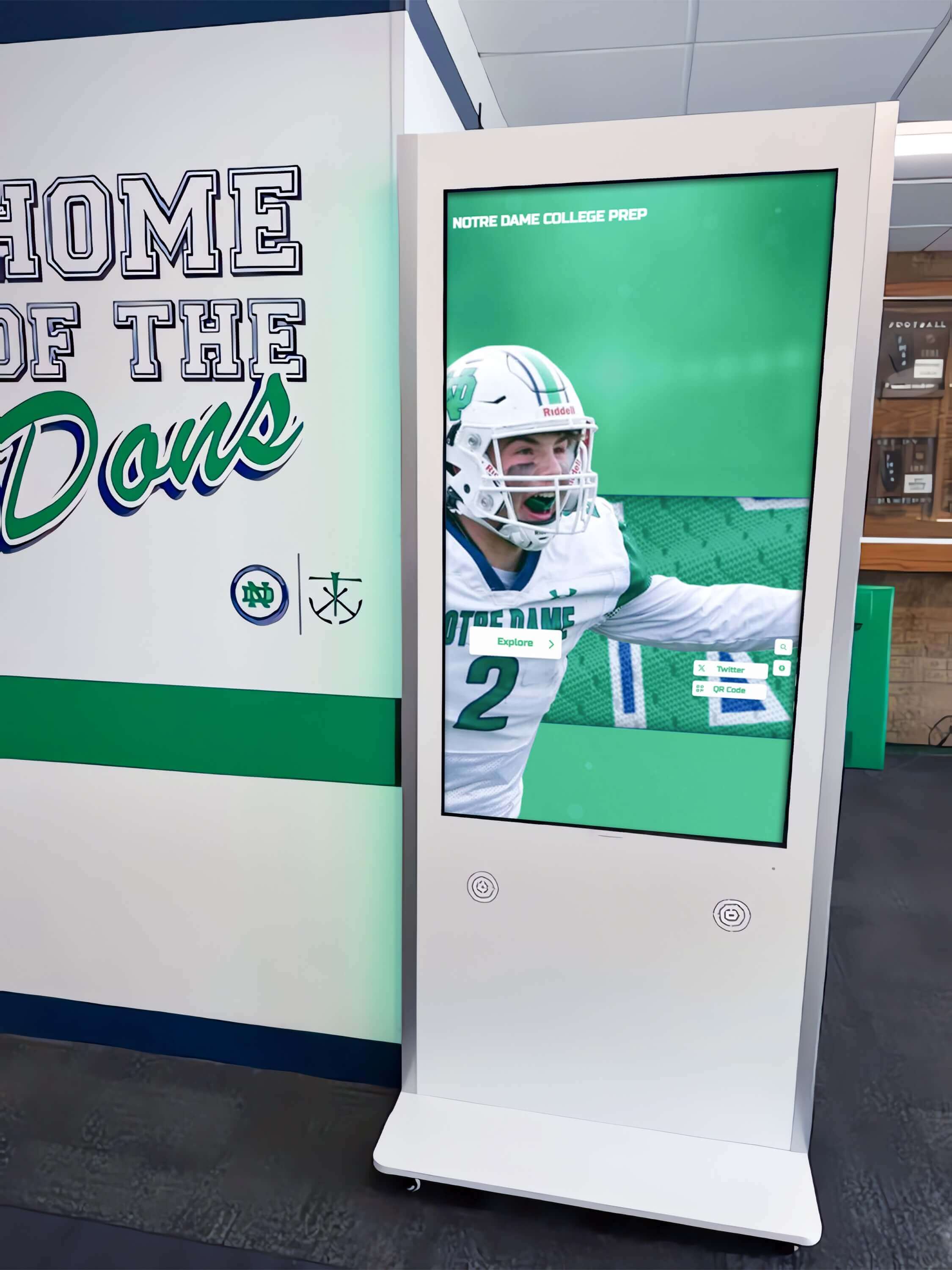
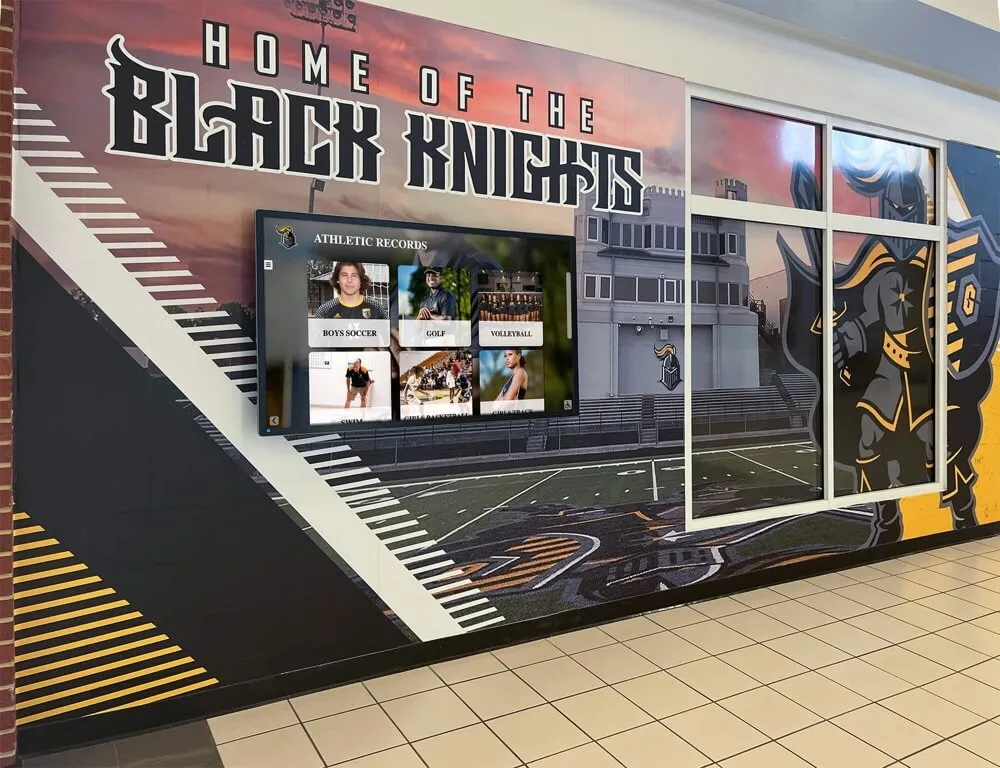
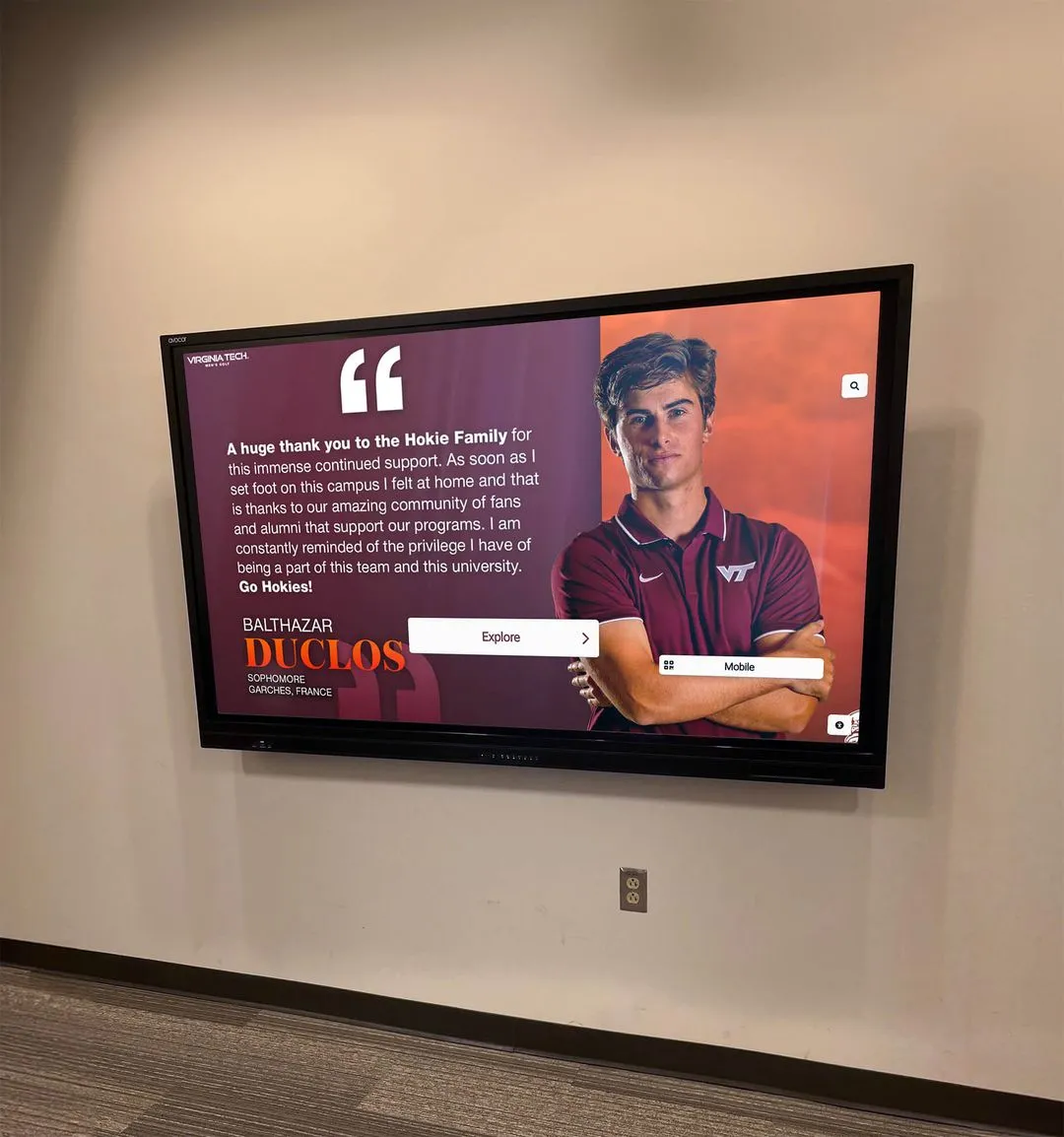
Athletics hallway kiosks displaying championship records and athlete profiles depend on uninterrupted network access—a DHCP starvation protection test run before major events confirms the network controls are working before they are tested by real conditions
Interpreting Test Results
| Finding | What It Means | Recommended Action |
|---|---|---|
| Ping uninterrupted throughout simulation | Kiosk retained network connectivity during DHCP exhaustion | Document as pass; schedule next test 6 months out or before major events |
| Static reservation remained bound during simulation | DHCP server correctly protected the reserved address | Document as pass; verify reservation is backed up in DHCP server config export |
| Rate limiter dropped starvation packets on test port | Snooping rate limiting is active and enforced | Document drop count as baseline; confirm same rate limit is on all untrusted ports |
| Snooping binding table showed kiosk MAC throughout | DHCP snooping is tracking the legitimate binding correctly | Document as pass; verify snooping is enabled on all VLANs containing recognition devices |
| Ping interrupted during simulation | Kiosk lost network connectivity during starvation | Investigate whether kiosk port is marked untrusted without rate limiting, or whether reservation was not configured |
| Reservation missing or reassigned during simulation | Static reservation was not protecting the kiosk address | Immediately configure a correct static DHCP reservation for the kiosk MAC; re-test |
| Rate limiter drop count is zero | Rate limiting was not enforced on test port | Verify rate limit command was applied to the correct interface; reapply and re-test |
| DHCP scope did not recover after simulation | Fake leases not expiring or DHCP server not clearing correctly | Adjust DHCP scope lease time or configure scope to refuse DISCOVER from unknown MACs |
| Display lost cloud sync despite ping success | Network layer intact but application layer disrupted | Run a separate connectivity diagnostic (DNS, firewall rules, platform authentication) |
Starvation Scenarios Specific to School Networks
School network environments create several DHCP starvation conditions that are less common in corporate networks. Understanding these scenarios helps you configure controls that prevent them specifically.
Guest Wi-Fi Scope Overlap
Schools frequently run a separate guest SSID for events but may use a shared DHCP server scope range that is not fully isolated from the recognition display VLAN. If a misconfigured scope allows the guest SSID to claim addresses in the display VLAN’s range, a busy event will exhaust the scope. Verify that scope ranges are non-overlapping and that each VLAN has its own distinct pool.
Student Device Saturation During Passing Periods
Between class periods, hundreds of student devices may simultaneously attempt DHCP renewal as they move from one wireless AP coverage area to another. In high-density school buildings, this renewal burst can reach 50–100 DISCOVER packets per second on an aggregation switch. DHCP snooping rate limiting at 15 packets per second per untrusted port prevents this burst from reaching the DHCP server as a spike.
Network Scanning Applications
Security tools, IT audit software, and student-used network scanning applications sometimes send rapid DHCP DISCOVER packets as part of host discovery routines. Without rate limiting on student device ports, a single scanning session can generate hundreds of DISCOVER packets in seconds. IP source guard—which validates that the source IP of every packet matches the snooping binding for that port—prevents a scanning tool from impersonating the recognition display’s IP address even if it learns it from ARP.
Temporary Devices at Events
Tables of Chromebooks set up for an awards ceremony, coaching staff laptops at athletic events, and parent devices joining the network during open-enrollment events create temporary DHCP demand spikes. A static reservation for the recognition display is the simplest protection against competition from temporary devices; the reserved address is never available to the temporary pool.
Schools that honor youth athlete programs with recognition content published during awards events are precisely the environments where temporary device density is highest. Confirming the display’s IP is protected during those events removes a category of risk from event-day IT checklists.
Switch Platform Quick Reference
The commands and interfaces for DHCP snooping and rate limiting vary by switch platform. Use this table to locate the relevant configuration for your environment.
| Platform | Enable DHCP Snooping | Rate Limit (per untrusted port) | Verify Configuration |
|---|---|---|---|
| Cisco IOS / IOS-XE | ip dhcp snooping vlan <id> | ip dhcp snooping limit rate <pps> | show ip dhcp snooping |
| Cisco Meraki | Dashboard: Switch > DHCP > Snooping, per network | Dashboard: Switch > Ports > DHCP snooping rate per port | Dashboard: Monitor > Event log |
| Ubiquiti UniFi | Network app: Settings > Networks > VLAN > DHCP Guarding | Not directly configurable; use port profile with DHCP guard enabled | Network app: Devices > Switch > Ports |
| Netgear ProSAFE | Web GUI: Security > DHCP Snooping > Enable | Web GUI: Security > DHCP Snooping > Rate Limit | Web GUI: Monitoring > DHCP Snooping Table |
| HPE Aruba / AOS | dhcp-snooping vlan <id> | dhcp-snooping max-bindings <n> per port | show dhcp-snooping |
| TP-Link JetStream | Web GUI: L2 Features > DHCP Snooping | Web GUI: L2 Features > DHCP Snooping > Port Rate Limit | Web GUI: L2 Features > DHCP Snooping > Binding Table |
Connecting This Test to Other Display Network Diagnostics
A DHCP starvation protection test addresses one layer of recognition display network reliability—ensuring the device always has an IP address. It is one part of a broader network verification practice that keeps kiosk content current and display operation reliable before major events.
Schools whose recognition programs have grown to include academic honors alongside athletics—like programs that display academic excellence and Latin honors alongside sports record boards—often publish new recognition content ahead of spring ceremonies. A spring publishing cycle that coincides with high network device density (graduation, end-of-year events) is exactly when starvation protection needs to be validated.
For display installations that have completed DHCP protection testing and want to extend their network verification to include traffic content analysis, the school recognition display HDMI-CEC configuration guide at Touchscreen Recognition covers signal chain configuration that connects physical display reliability to network-delivered content. Network delivery that works correctly but fails to reach the display panel is a separate diagnostic path.
Schools managing wrestling recognition programs and other athletics content that updates through a full competitive season have the most benefit from a twice-annual DHCP protection test cycle: once before fall season events and once before spring ceremonies, aligned with the content publishing peaks.
Recognition display kiosks that have been verified for touch accuracy through a recognition display touch sensitivity test are operationally complete only when the network layer is equally verified. Touch response depends on the display hardware, but content currency depends on the network—both layers need a documented test before high-visibility events.

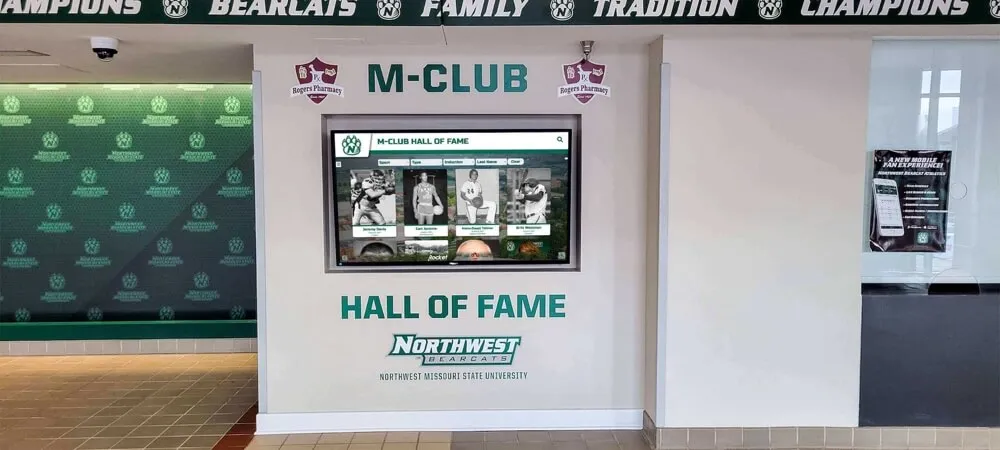
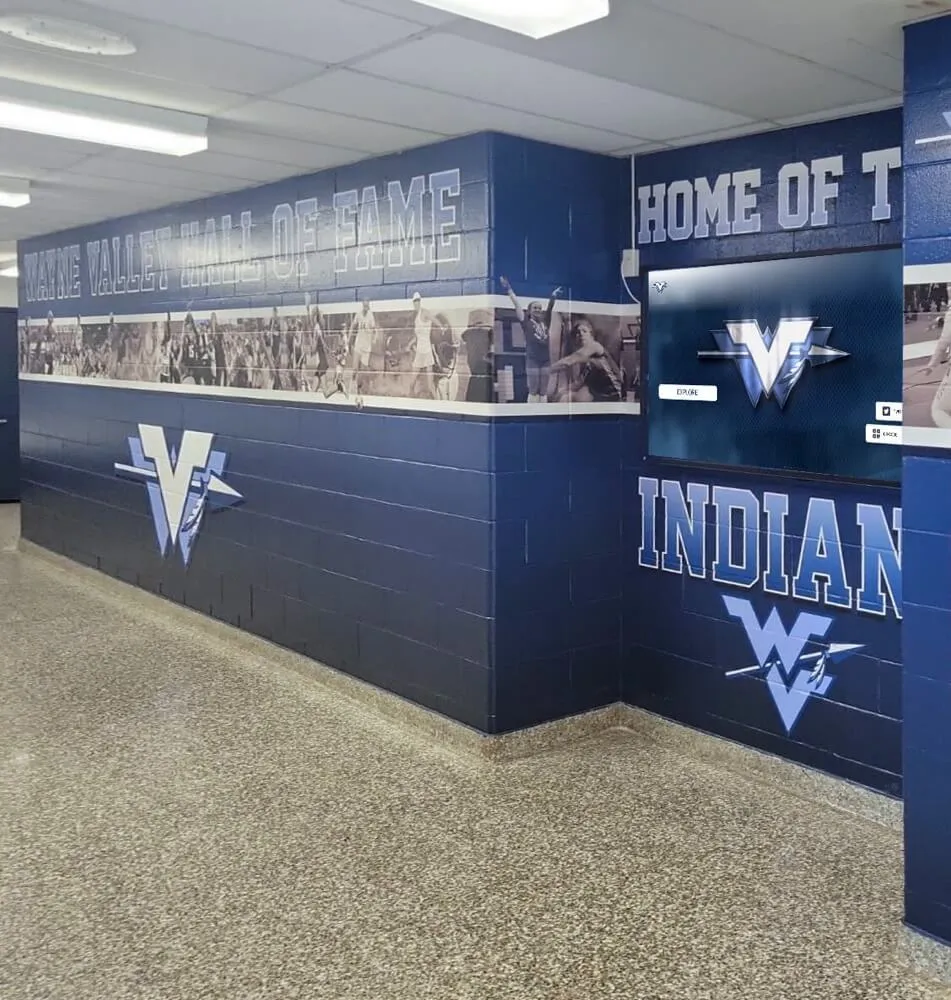
Recognition displays in school athletics hallways are most visible—and most exposed to dense device networks—during the events they are designed to celebrate; a starvation protection test run before those events confirms the display will stay online throughout
Q&A: DHCP Starvation Protection for School Recognition Kiosks
What is the simplest protection to implement if DHCP snooping is not yet configured on our switches?
A static DHCP reservation for the recognition display’s MAC address is the single most effective protection against starvation affecting the kiosk specifically. Even without DHCP snooping, a static reservation means the DHCP server will always hold that address for the kiosk’s MAC and will not issue it to any other device regardless of scope pressure. Snooping, rate limiting, and IP source guard are additional layers that protect the full scope and prevent flooding the DHCP server—configure them next, but the reservation is the critical first step.
Can DHCP starvation happen on a recognition display VLAN that is completely isolated from the guest network?
Yes, if the VLAN is isolated at the access layer but the DHCP server scope is shared. VLANs are Layer 2 isolation; a DHCP server can serve multiple VLANs on different scopes, or it may serve a single scope that routes to multiple VLANs through a DHCP relay. Verify that the recognition display VLAN has its own dedicated scope range at the DHCP server, not a range shared with any other VLAN. Scope isolation is the server-side complement to switch-side snooping.
Our recognition display uses a static IP address, not DHCP. Is a starvation protection test still relevant?
If the display is statically assigned, it will not lose its address to DHCP starvation directly. However, a starvation flood can still cause issues: the DHCP server may become overwhelmed and unresponsive for other network infrastructure devices, and IP source guard relies on DHCP snooping bindings—a statically addressed device needs a manual binding entry in the snooping table, or IP source guard will drop its traffic. Configure a manual DHCP snooping binding for the display’s static IP and MAC even if DHCP is not used, and verify the test confirms that binding is present.
How often should we run the DHCP starvation protection test?
Twice per year covers the two highest-risk windows for most schools: once before fall athletics season (when event crowds add peak device density to the network) and once before spring awards ceremonies (when graduation, letter nights, and induction events coincide with large guest device presence). If your school has completed a significant network change—new switch hardware, DHCP server migration, VLAN restructuring—run the test again after the change rather than waiting for the scheduled interval.
Does this test require taking the recognition display offline?
No. The test is non-disruptive to the recognition display. The starvation simulation runs from a separate test port and tests whether DHCP controls protect the display’s reserved address—the display itself is monitored via ping and content verification to confirm it remains unaffected throughout. The only disruption risk is if the test setup is misconfigured and the test port floods the DHCP server through an untrusted path, which is why Step 3 verifies rate limiting is active before the simulation begins.
What if the starvation simulation claims our entire DHCP scope before rate limiting activates?
If this happens, the rate limit was not applied correctly to the test port, or the simulation ran on a trusted port. Clear the fake bindings from the DHCP server, restore the kiosk’s reservation, verify the rate limit configuration on the test port, and re-run the test. A scope that can be fully exhausted in a simulation will be fully exhausted in a real event—this is a finding that requires immediate remediation.
Test Completion Checklist
Use this checklist to confirm the test was completed correctly and all findings were documented:
- DHCP server reservation for kiosk MAC confirmed before simulation
- DHCP snooping enabled on recognition display VLAN and verified via CLI or GUI
- Rate limiting configured and active on test port before simulation
- Continuous ping to kiosk IP established before simulation
- Starvation simulation run for 60–120 seconds; scope pressure observed
- Reservation remained intact at DHCP server throughout simulation
- Snooping rate limiter drop count confirmed non-zero on test port
- Ping uninterrupted throughout and after simulation
- DHCP scope recovered after simulation; reservation confirmed intact
- Display operational and showing current content after test
- Test port configuration restored to production state
- Findings documented in IT runbook or ticketing system
Building DHCP Protection Into Pre-Event Verification
The school IT team’s pre-event checklist typically focuses on visible hardware—screens powered on, cables connected, displays showing current content. DHCP protection verification belongs on that list even though it is invisible: a display that passes every visible check can still fail during an event if its lease expires into an exhausted scope and no reservation is waiting to recover it.
Schools that have invested in comprehensive recognition programs—covering hall-of-fame induction classes, athletics records, and academic honors—depend on the infrastructure layer to deliver that recognition content reliably. The recognition content itself may be perfectly maintained in the cloud platform, but a network layer failure prevents the display from receiving it. Programs that connect middle school recognition traditions to high school hall-of-fame displays across shared infrastructure benefit from running a DHCP protection test at each recognition display VLAN before major events.
Recognition display programs that maintain comprehensive yearbook-style archives of student achievement—tracking the kind of records documented in yearbook recognition programs—publish content updates frequently enough that the cloud sync channel is active during every significant event. DHCP protection testing confirms that channel stays open when the display is most needed.
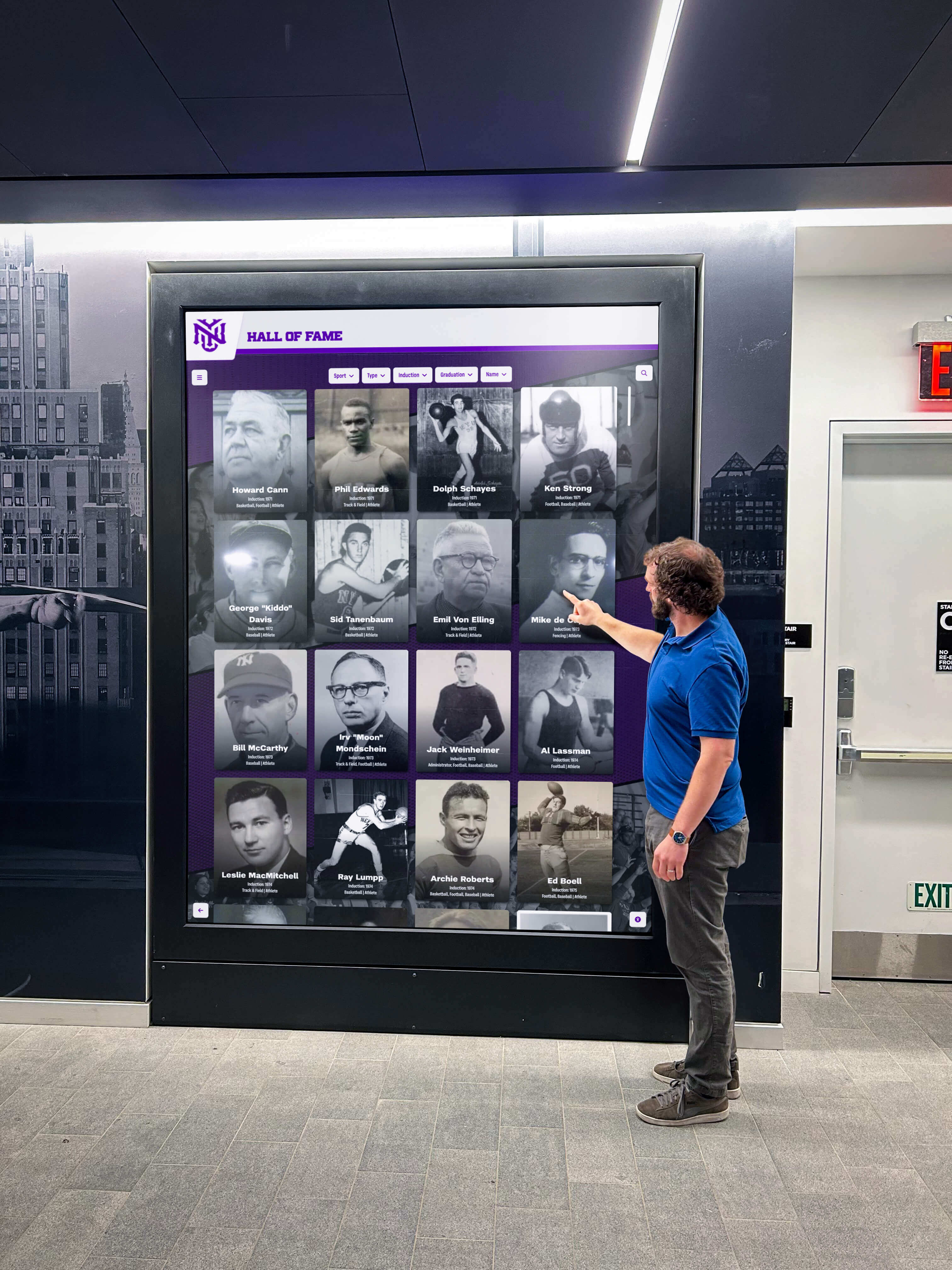
Recognition events bring guests and families to school lobbies and athletics hallways expecting displays to be operational—a DHCP starvation protection test completed before the event is the technical foundation for that expectation being met
A school recognition display DHCP starvation protection test is a 60-to-90-minute investment that eliminates an entire category of event-day network failure. The four controls it validates—static DHCP reservation, DHCP snooping, rate limiting, and IP source guard—are straightforward to configure and verify once, and they remain effective until a significant network change requires re-testing. Building the test into the pre-event IT checklist turns a reactive failure scenario into a documented, verified protection that works quietly while the recognition event runs exactly as planned.
See a Recognition Display Built for School Networks
If your school is deploying or evaluating a touchscreen recognition display and wants to understand exactly how it integrates with your network infrastructure—including DHCP requirements, firewall allowlists, and cloud platform traffic patterns—a live walkthrough gives you those answers before installation. Rocket Alumni Solutions builds recognition display platforms designed to work cleanly on school networks, with documented network requirements and support teams who can walk through infrastructure questions alongside your IT coordinator.