



Recognition display cooling fan noise becomes a maintenance concern when it shifts from inaudible background operation to a sound loud enough to be noticed by students, families, and alumni passing through a trophy hallway or lobby. The noise itself is not the primary problem—it is a symptom. A grinding tone indicates bearing wear. A rattling sound points to a loose component or foreign material inside the enclosure. A sudden increase in fan speed that does not settle back down within a few minutes indicates a thermal management failure: the display’s cooling system is running at maximum output because it cannot dissipate heat fast enough through normal operation. Each of those symptoms requires a different maintenance action, and none of them resolves by itself.
This guide is written for school IT coordinators, facilities managers, and athletic directors responsible for touchscreen recognition displays in athletics corridors, trophy hallways, and school lobbies. It covers the noise types and their likely causes, the diagnostic steps for identifying the source, the maintenance actions appropriate to each finding, and a log template for documenting every fan noise event from first observation through resolution.
Abnormal recognition display cooling fan noise is more than a nuisance at a hall of fame kiosk or athletics recognition wall. A display that is audibly louder than normal is one that is likely running hotter than normal—and elevated internal temperature is the leading cause of premature component failure in enclosed display systems. Catching the symptom early and tracing it to its source through a structured diagnosis protects the hardware investment and keeps the recognition content running through events when the display is most visible: induction ceremonies, trophy presentations, award nights, and season-opener open houses.

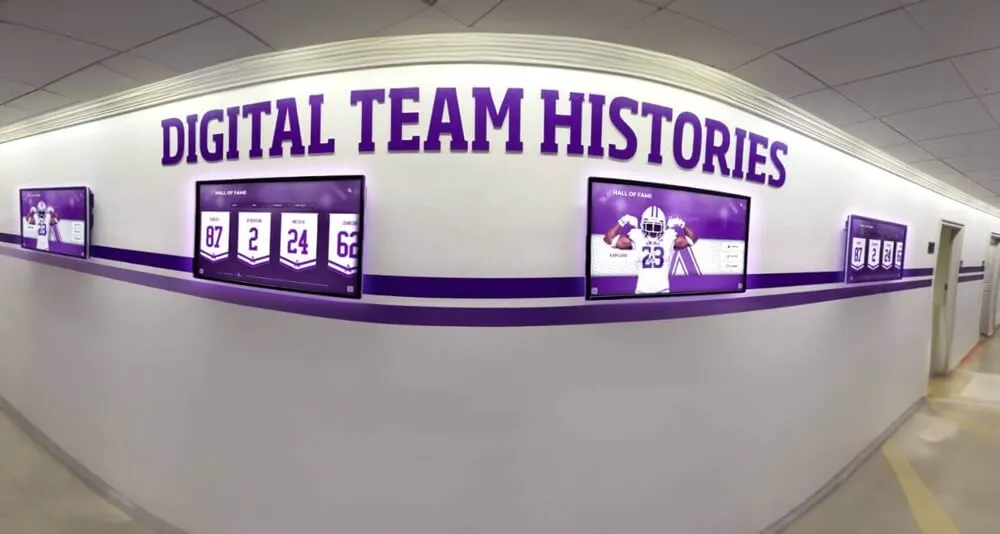
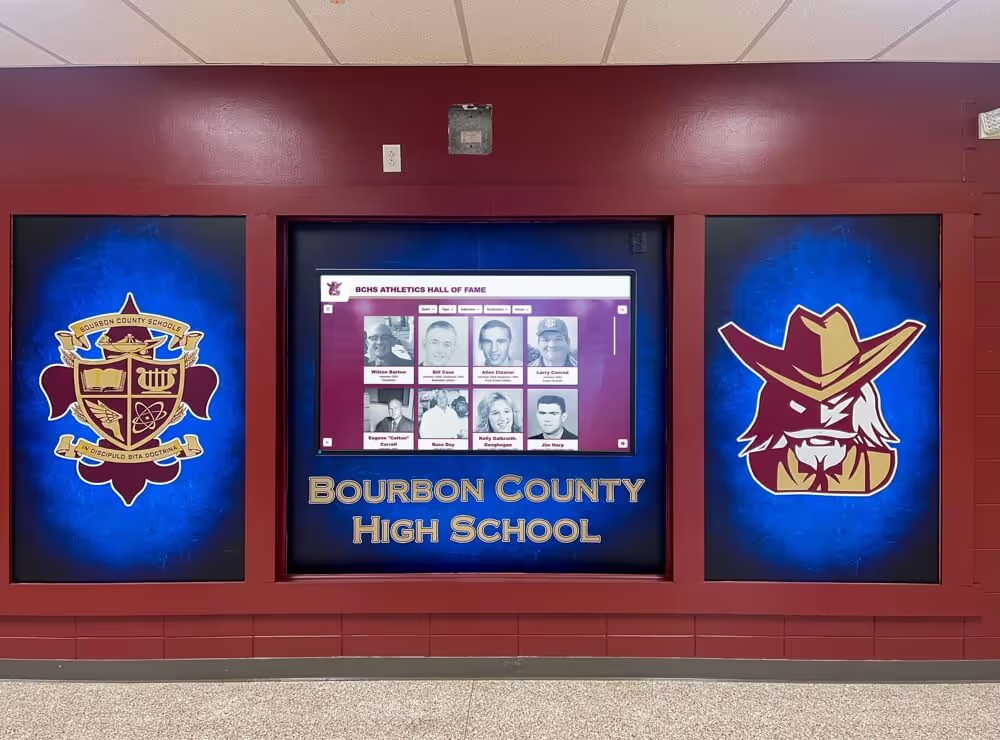
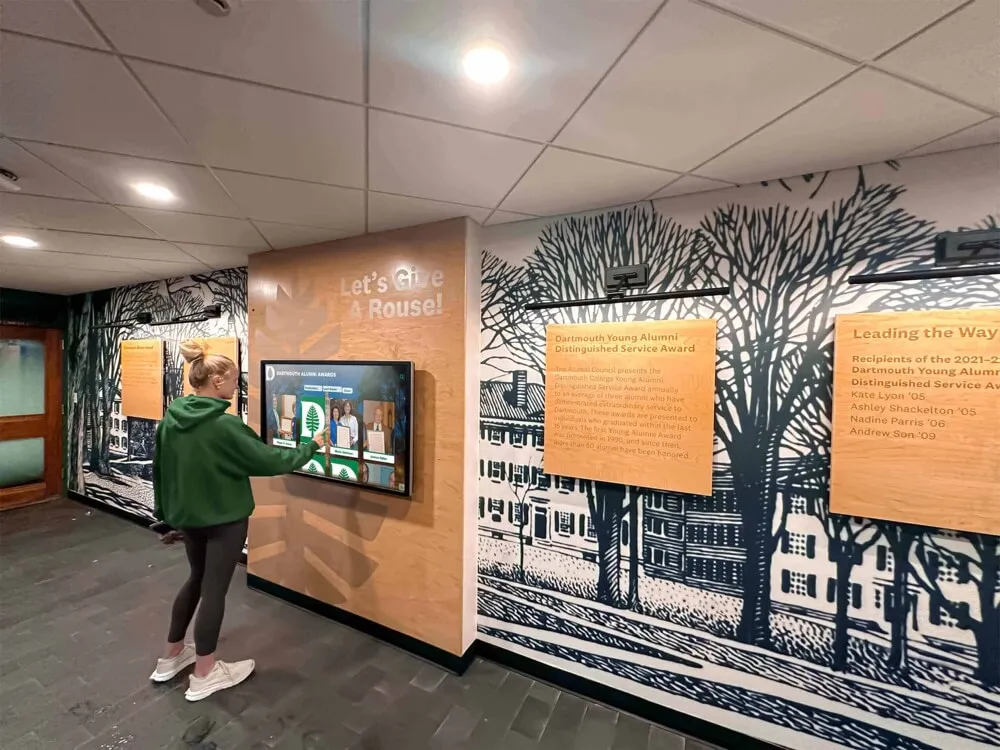
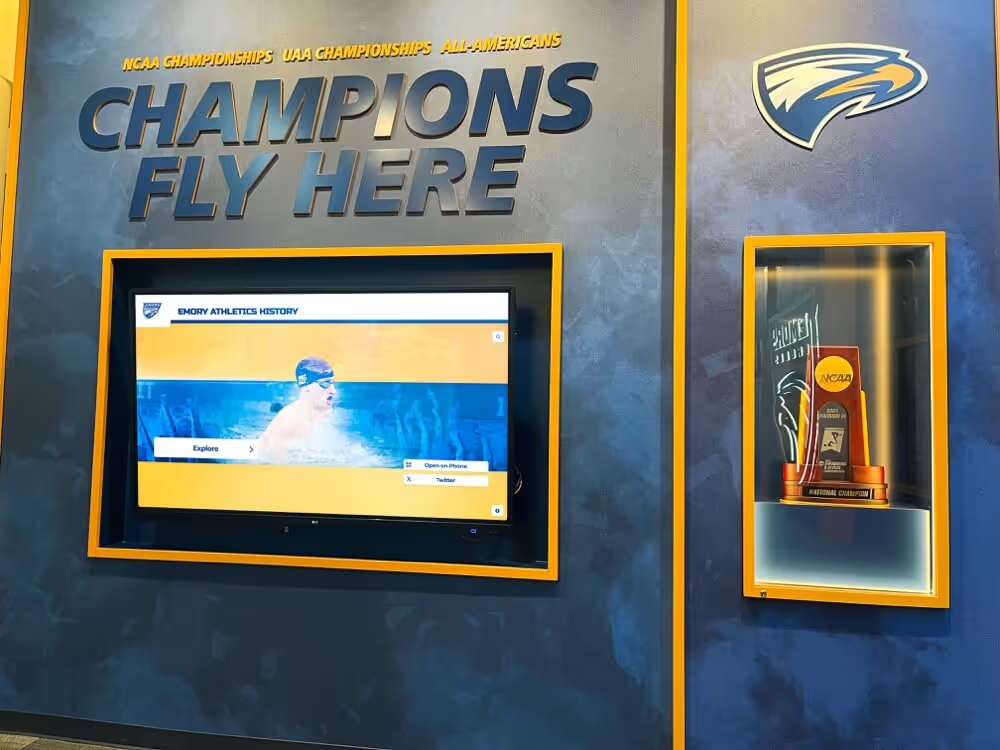
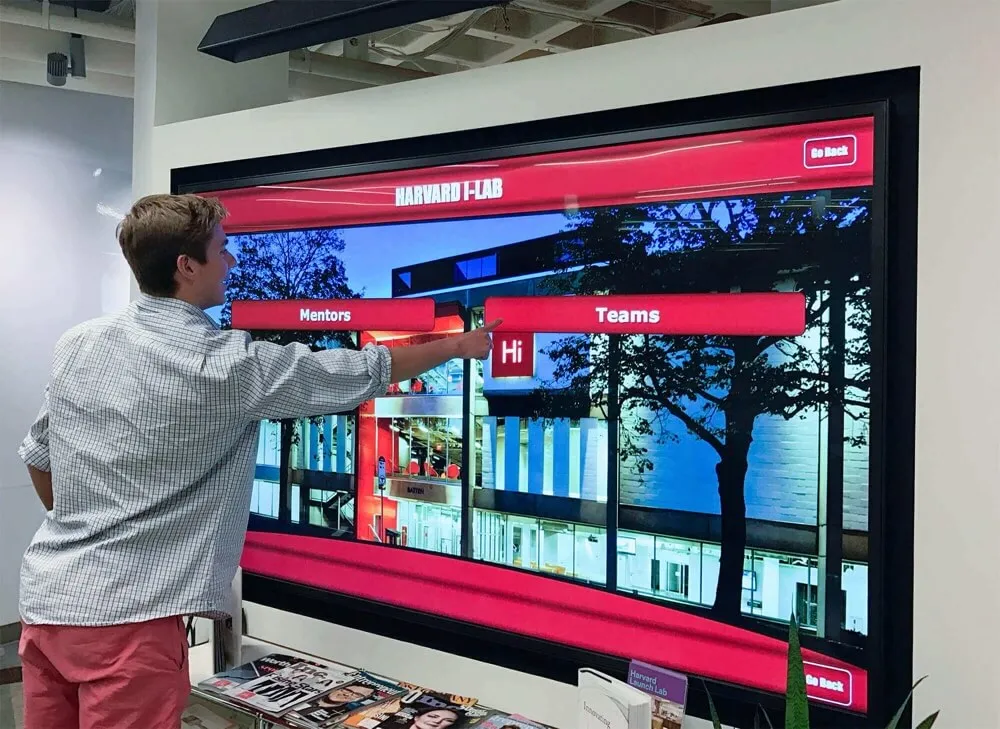
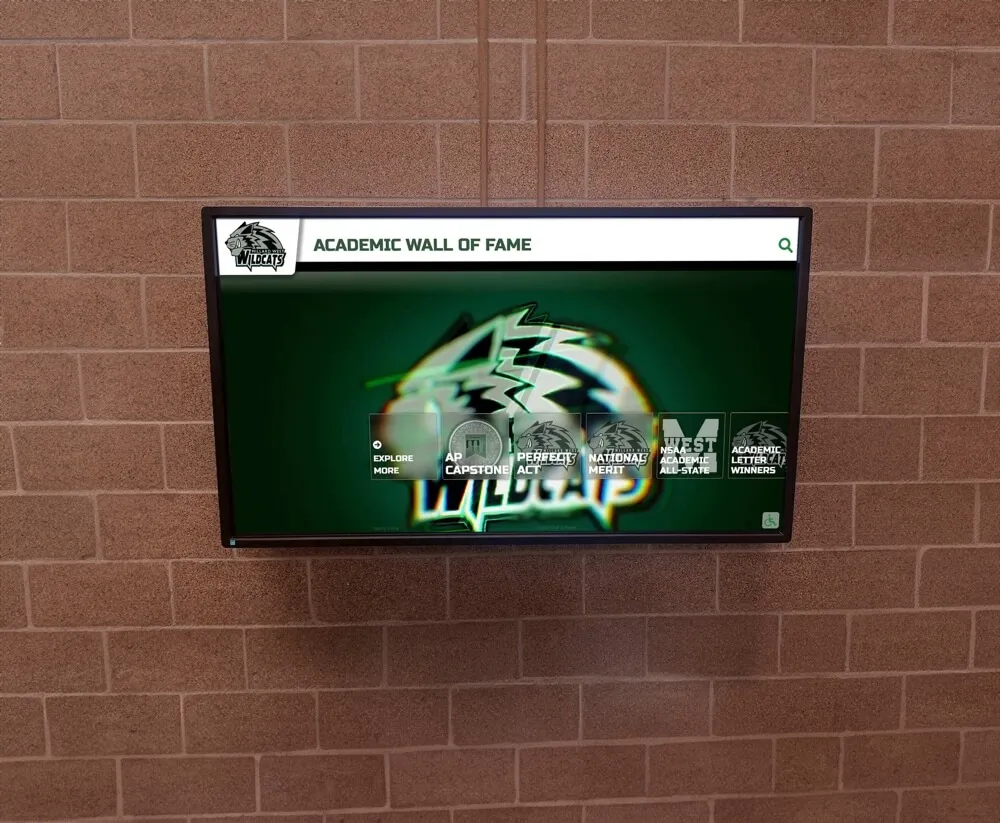
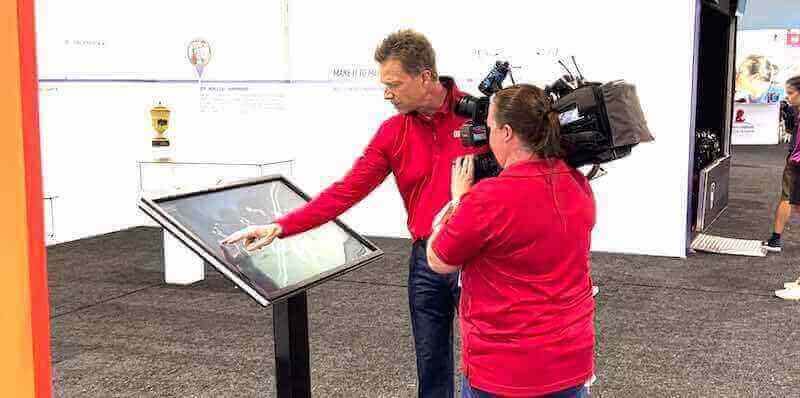
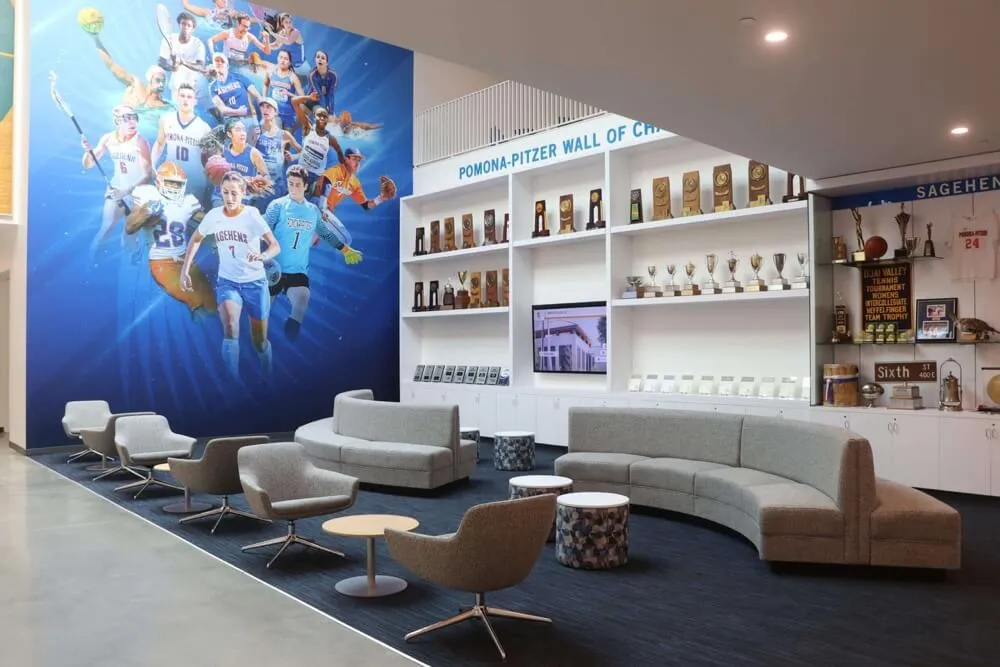
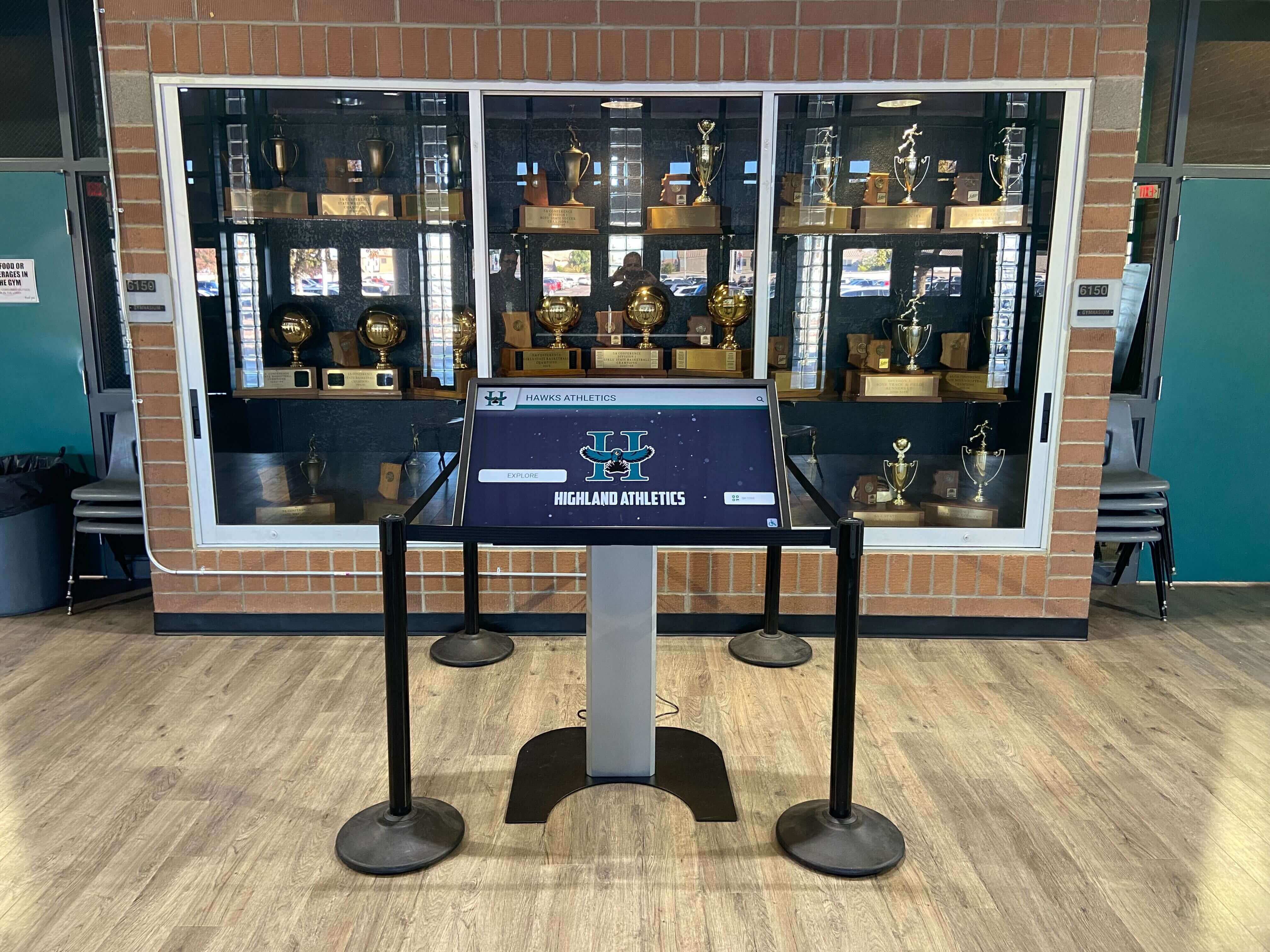
Recognition displays installed in enclosed trophy cases and lobby alcoves are particularly sensitive to cooling fan problems because reduced airflow around the enclosure increases thermal load on internal fans—abnormal noise from these installations warrants prompt diagnosis
When to Create a New Fan Noise Log Entry
A maintenance log entry is not required after every scheduled check where nothing is found. Create a new entry when any of the following conditions applies.
| Trigger Condition | Why It Requires a Log Entry |
|---|---|
| First observation of an unusual sound from the display | Establishes the baseline event date and the initial noise description for comparison with any follow-up events |
| Change in noise character (grinding replaces hum, rattling starts) | A change in noise type often indicates a change in failure mode—the log captures the progression |
| Fan speed that does not return to normal after 10 minutes at idle content | Sustained high-speed fan operation suggests a thermal management failure that noise alone does not fully describe |
| Display restart after a cooling-related automatic shutdown | Most commercial displays will shut down automatically when internal temperature exceeds a safety threshold; this event requires a documented root cause |
| After any enclosure cleaning or internal access | Confirms the fan and airflow path were returned to the correct state after maintenance |
| Scheduled semi-annual maintenance review | Proactive documentation confirms the fan is operating normally at the inspection interval, even when no noise has been reported |
| After software or firmware updates that alter fan speed control | Some firmware updates change thermal management parameters; a post-update noise check confirms the update did not affect fan behavior |
Classifying the Noise: What You Hear and What It Indicates
The first step in any recognition display cooling fan noise diagnosis is identifying what kind of sound is present. Different sounds have different causes and require different responses.
| Noise Type | Description | Most Likely Cause | Urgency |
|---|---|---|---|
| Continuous low hum (normal) | Steady, barely audible, consistent pitch | Fan at normal operating speed; acceptable | None—document at next scheduled check |
| High-pitched whine | Continuous, higher pitch than normal operation | Fan bearing beginning to wear; may worsen without intervention | Moderate—plan replacement within 30 days |
| Grinding or scraping | Cyclical grinding or metal-on-metal friction | Fan blade contact with shroud, or severe bearing failure | High—address within 72 hours; display at risk of thermal shutdown |
| Rattling or vibrating | Irregular, may stop and start | Loose screw, debris inside enclosure, or fan blade contact with cable | Moderate—diagnose within 7 days |
| Sudden sustained high speed | Fan running at full speed continuously | Thermal load exceeding cooling capacity; temperature sensor reading high | High—diagnose immediately; display may be close to thermal shutdown |
| Fan not audible at all | No fan sound when display is warm | Fan has failed; passive cooling only | Critical—diagnose immediately and remove from service if internal temperature is elevated |
Document the noise type using this table before moving to Phase 1. A log entry that describes the symptom precisely makes it possible for a repair technician to scope the work accurately if the diagnosis requires service escalation.
Phase 1: Safety Check and Airflow Inspection
Before opening any enclosure or touching the display hardware, complete this phase to rule out the two most common and easiest-to-address causes of recognition display cooling fan noise: blocked airflow and accumulated dust.
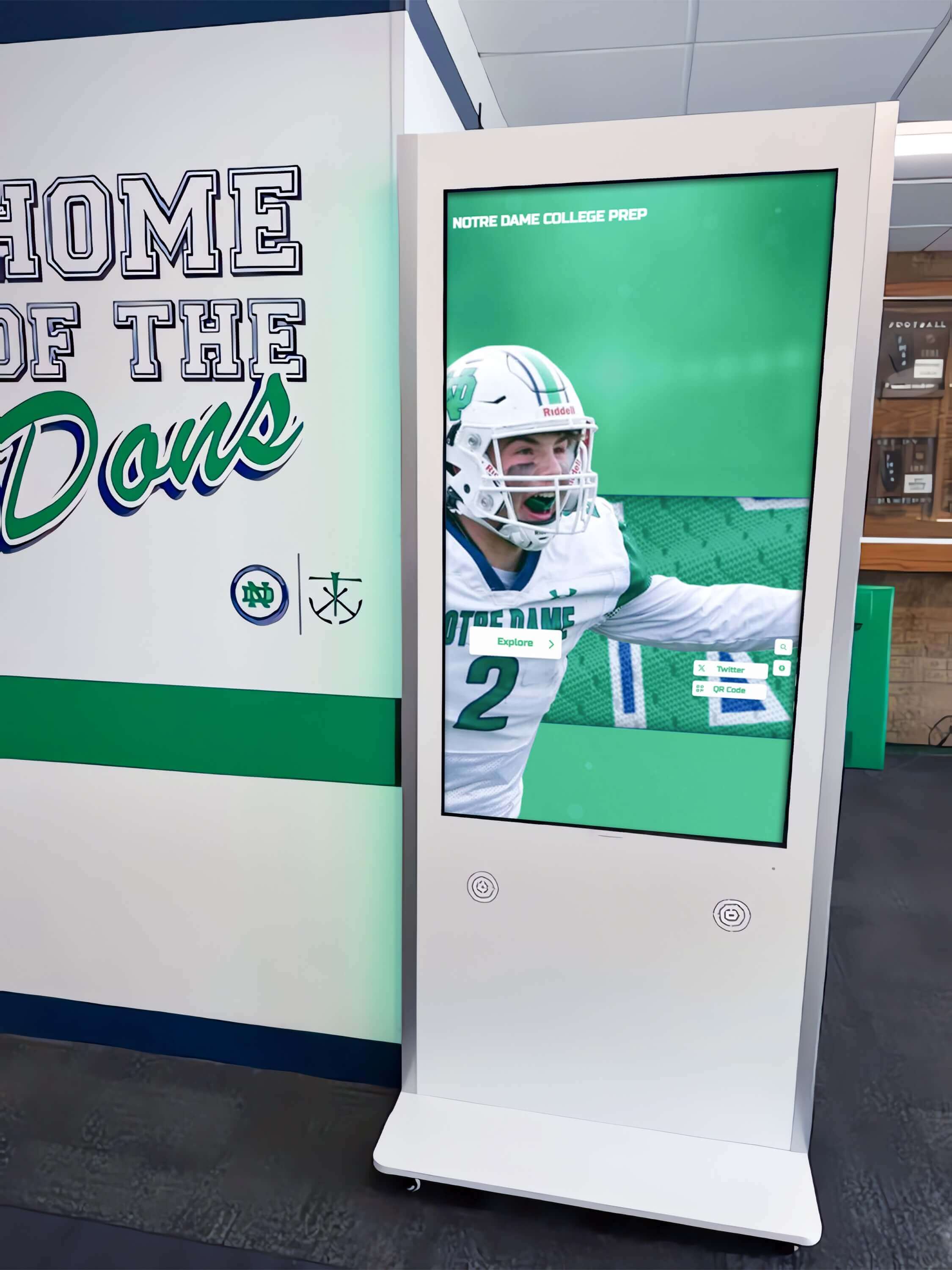
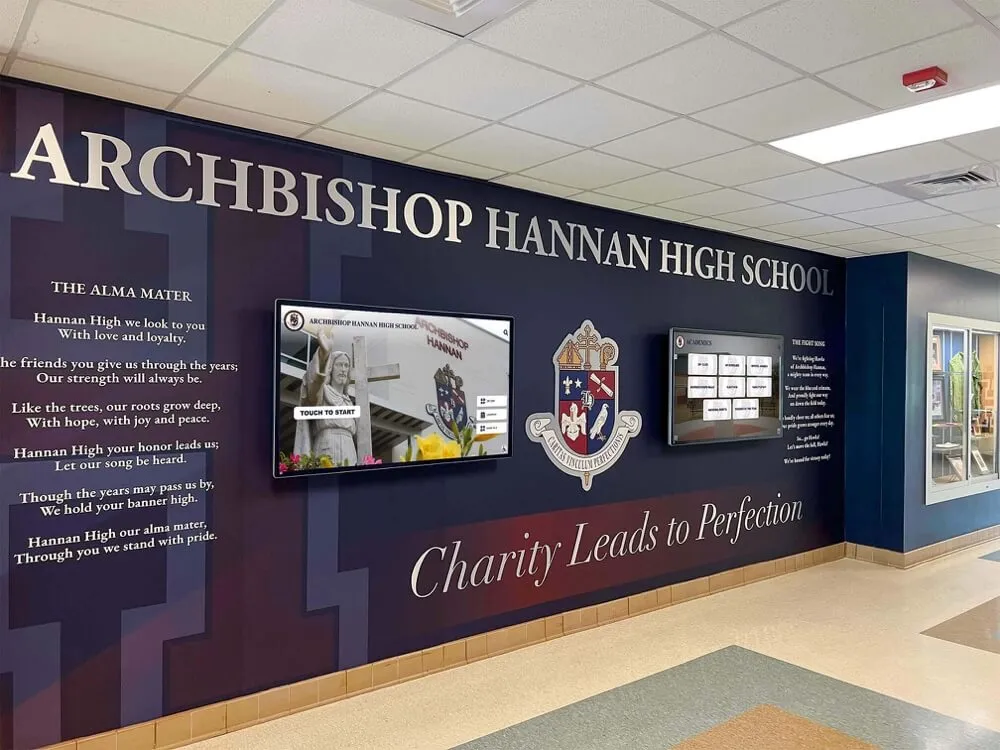
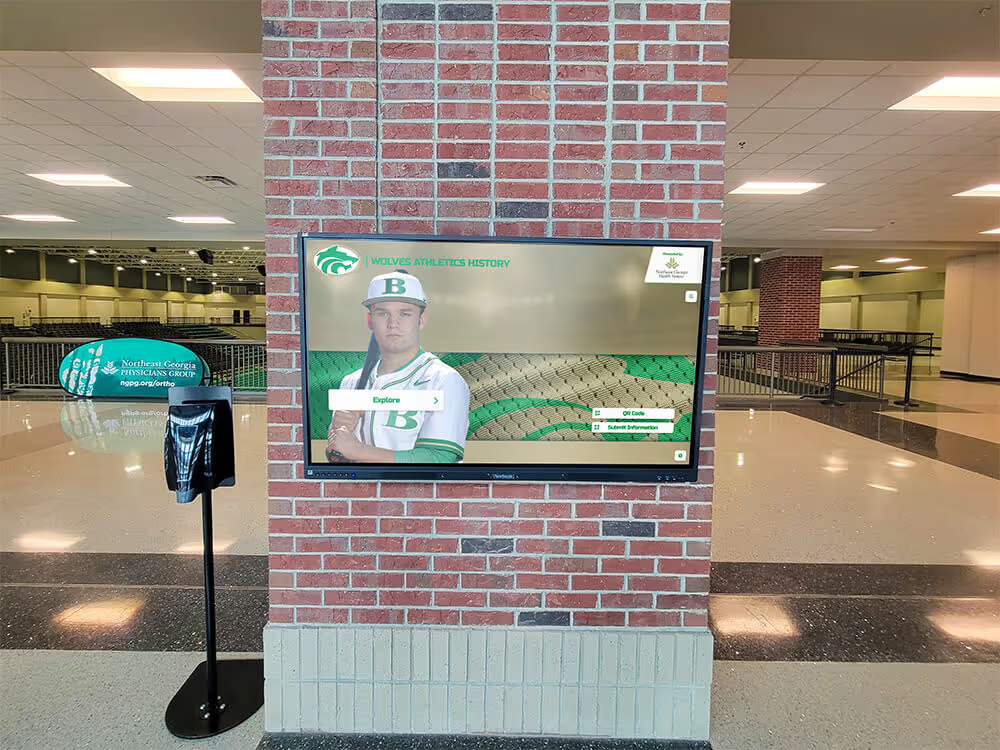
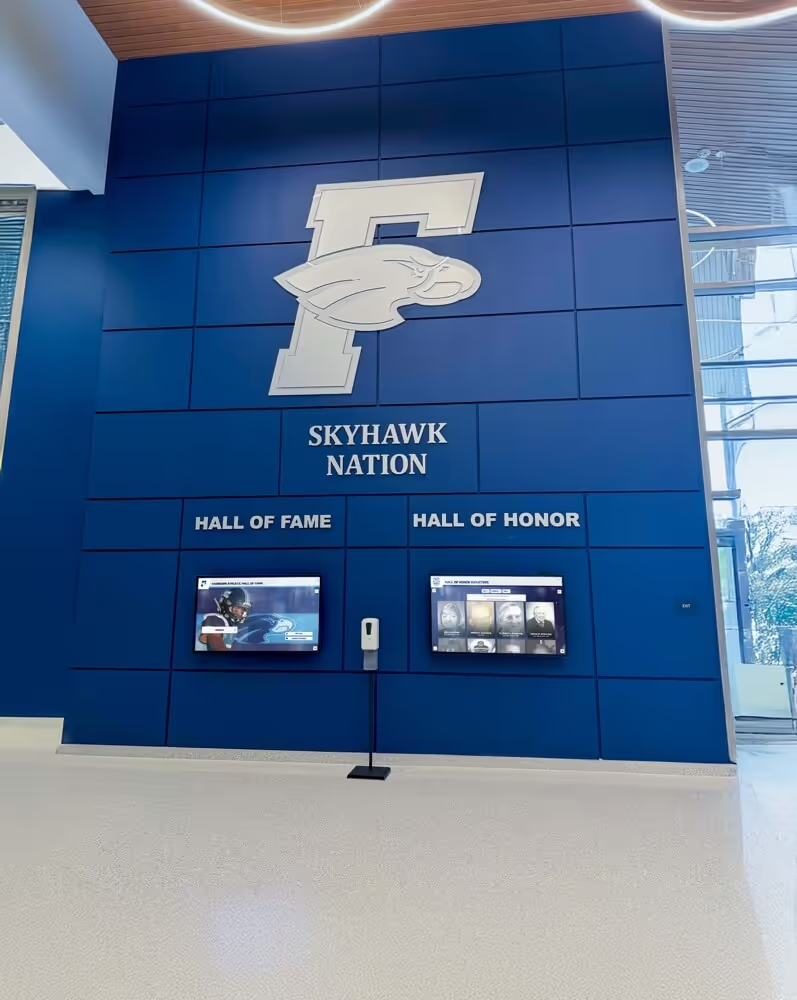
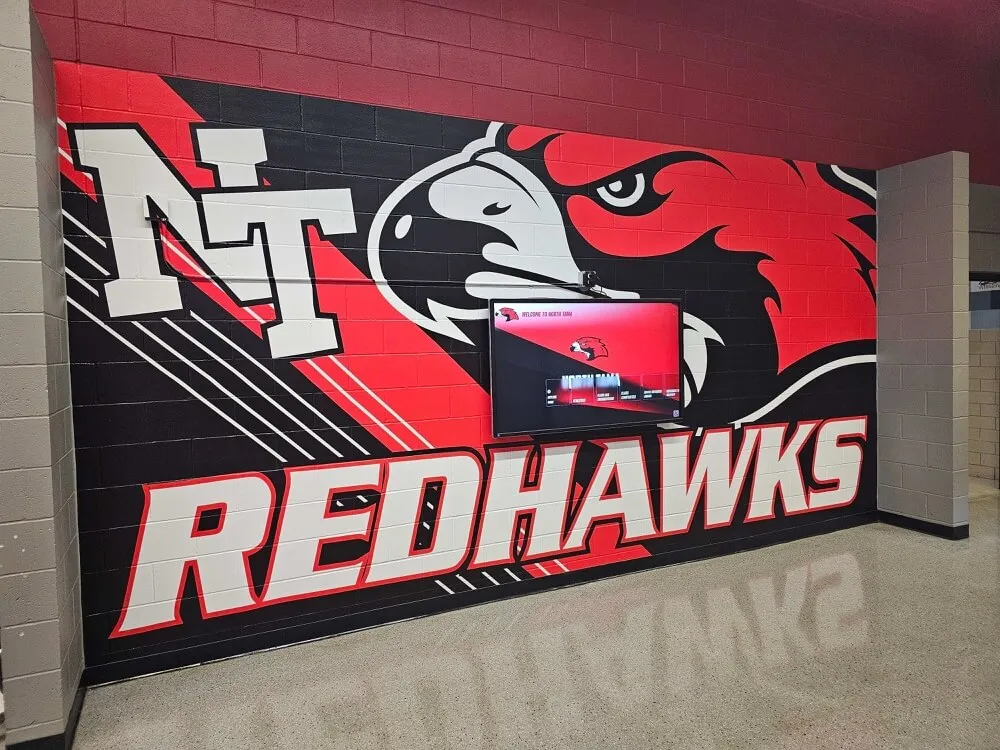
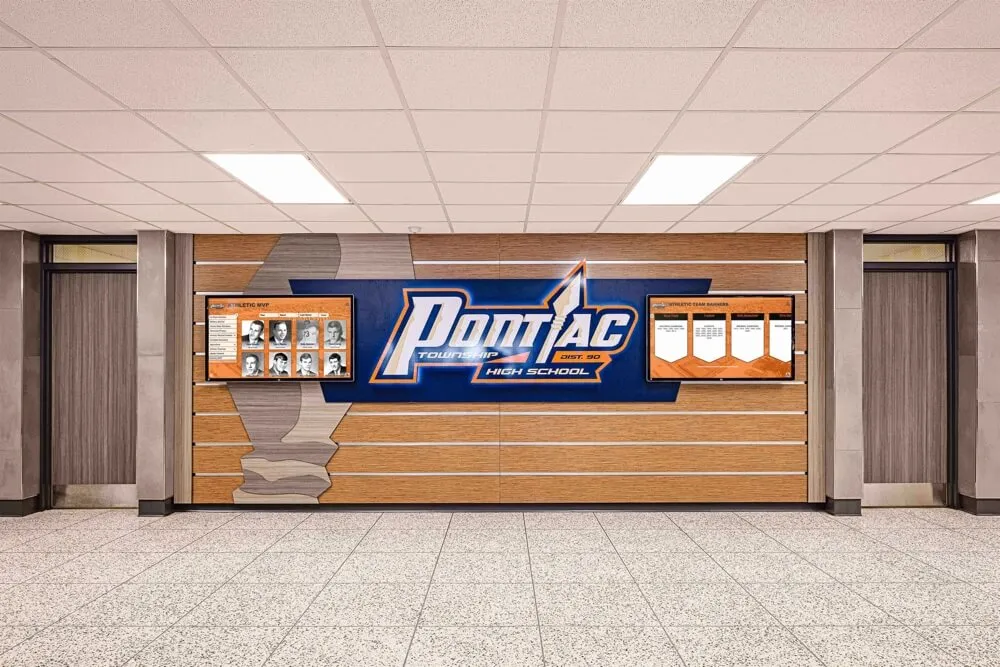
Kiosks installed in hallway alcoves or against walls require minimum clearance on all ventilated sides to maintain adequate airflow—verify clearance before diagnosing internal cooling components
Airflow Clearance Check
- Confirm the display is powered on and displaying normal recognition content
- Measure clearance on all sides of the enclosure where ventilation slots or fan exhaust openings are present
- Minimum clearance for most commercial recognition displays is 4 inches (100 mm) on vented sides; confirm against manufacturer specifications if available
- Check whether any material has been placed against the display since the last inspection: banners, poster boards, trophy case additions, or stored equipment
- Note ambient room temperature; a hallway or trophy room that runs significantly warmer in summer due to HVAC changes can push a display into high-fan-speed operation that did not occur in cooler months
If clearance is below the minimum or ambient temperature is significantly elevated: Restore clearance or address the room temperature issue before proceeding. Document the finding. If the noise resolves within 15 minutes of restoring clearance, the log entry is closed with that cause and resolution noted.
Dust and Debris Inspection
- Power off the display and unplug from mains power
- Using a flashlight, inspect the ventilation slots on all sides of the enclosure for visible dust accumulation or debris
- If the enclosure allows access to the fan intake filter without opening the main enclosure (some commercial display enclosures have a removable filter panel), remove and inspect the filter
- Using compressed air rated for electronics, blow out visible dust from exterior ventilation slots; work from the inside of the slot outward to push debris out rather than in
- Re-examine the vents; if visible blockage remains, note it for the log entry and flag for deeper cleaning at the next service window
- Reconnect power and allow the display to run for 10 minutes; confirm whether the noise has changed
Log what was found: Note whether dust blockage was present, whether the filter was cleaned, whether debris was found in the slots, and whether the noise changed after this step. This documentation matters: a display that requires dust cleaning within six months of the last cleaning is installed in a high-dust environment that may need more frequent scheduled maintenance.
Phase 2: Internal Fan Diagnostic
If Phase 1 does not resolve the noise, proceed to an internal assessment. This phase should only be completed by IT staff or facilities personnel authorized to access the internal components of the display enclosure. On displays still under warranty, verify that opening the enclosure does not void the warranty before proceeding; some manufacturers require that internal service be performed by an authorized technician.
Before Opening the Enclosure
- Power off the display and unplug from mains power
- Wait 5 minutes to allow internal components to partially cool before accessing
- Have a flashlight, compressed air canister, and a non-static brush available
- Note the display make, model, and serial number from the rear label for the log entry
Internal Inspection Steps
- Open the rear access panel according to the manufacturer’s procedure; do not force panels that do not release with standard hand pressure
- Locate the cooling fan or fans; most commercial recognition display enclosures contain one to three fans depending on the display size and the included media player or PC
- Inspect each fan blade visually: look for cracked blades, blades that appear bent or out of alignment, and any debris (dust clumps, cable fragments, wire insulation scraps) that may have entered the fan housing
- Inspect the fan mounting screws; press gently on the fan housing to confirm it is not loose in its mounting position
- Inspect cables routed near the fan; a cable that has shifted into the fan blade path will produce intermittent rattling or periodic contact sound
- Using compressed air, clear any remaining dust from the fan blades and the fan housing; hold the blade cluster stationary while blowing to prevent bearing stress from uncontrolled high-speed spin during cleaning
- With the enclosure still open, briefly reconnect power and listen for the noise at close range with the display running; note whether the noise is coming from the fan itself or from a different component (power supply, hard drive, or media player fan)
- Power off and unplug before closing the enclosure
Fan Bearing Assessment
If the noise is confirmed to originate from a specific fan and sounds like grinding or a high-pitched whine at any speed:
- Attempt to rotate the fan blade cluster manually with power off; resistance that is uneven or catches at a specific point indicates bearing wear
- Listen for scraping sound during manual rotation; any metal-on-metal contact during manual rotation at low speed means the bearing is failing
- If bearing wear is confirmed, flag the fan for replacement; a failing bearing will worsen and can seize, stopping the fan entirely and creating an immediate thermal risk to the display
Document the internal inspection findings in the log before closing the enclosure. Include which fan was inspected, what was found (dust, debris, cable contact, bearing wear, or nothing), and what action was taken.
Phase 3: Maintenance Actions by Finding
The appropriate maintenance action depends on what the diagnosis found. The table below maps each finding to its corresponding action and follow-up verification.
| Finding | Maintenance Action | Follow-Up Verification |
|---|---|---|
| Blocked external vents (dust only) | Compressed air cleaning of external vents | Run display 15 minutes; confirm fan speed returns to normal and noise resolves |
| Clogged intake filter | Remove, clean or replace filter; reinstall | Run display 15 minutes; confirm noise resolves |
| Insufficient airflow clearance | Restore minimum clearance; reposition nearby objects | Run display 15 minutes; confirm fan speed normalizes |
| Cable in fan path | Reroute and secure cable clear of fan blades | Run display; confirm noise resolves; recheck cable position at next inspection |
| Loose fan mounting | Reseat and tighten fan mounting screws | Run display; confirm vibration noise resolves |
| Dust on internal fan blades | Compressed air cleaning of fan blades (power off, blade held stationary) | Run display 15 minutes; confirm noise change |
| Debris inside fan housing | Remove debris; inspect blade for damage | Run display; if blade was struck, inspect for cracks before returning to service |
| Fan bearing wear confirmed | Replace fan with manufacturer-specified replacement or equivalent | Run display 30 minutes after replacement; verify noise resolved and fan speed normal |
| Fan bearing failure (fan seized) | Replace fan immediately; do not return to service until fan is replaced | Run display 30 minutes with new fan; monitor temperature if display has internal temperature reporting |
| Thermal shutdown event | After cooling: inspect and clear dust, verify clearance, inspect fan; if no cause found, escalate to vendor service | Monitor display temperature for 48 hours after return to service |
| No cause identified | Document findings; escalate to vendor service or hardware inspection | Follow escalation process; do not leave display in service if it is experiencing thermal shutdown |
Phase 4: Post-Maintenance Verification
After any maintenance action, complete this verification before considering the log entry closed.
- Reconnect power and allow the display to run for at least 15 minutes displaying normal recognition content
- Listen to the fan at rest, at idle, and during any content transitions that cause brief increases in display processing load
- Confirm the fan speed returns to quiet, low-speed operation within 5 minutes of the display reaching operating temperature in a normally ventilated environment
- If the display has an on-screen status menu that shows internal temperature, confirm the reading is within the manufacturer’s normal operating range
- If the original noise was grinding or whining at a confirmed bearing failure, confirm the replacement fan does not produce any of those sounds at any speed
- Document the post-maintenance verification result in the log entry
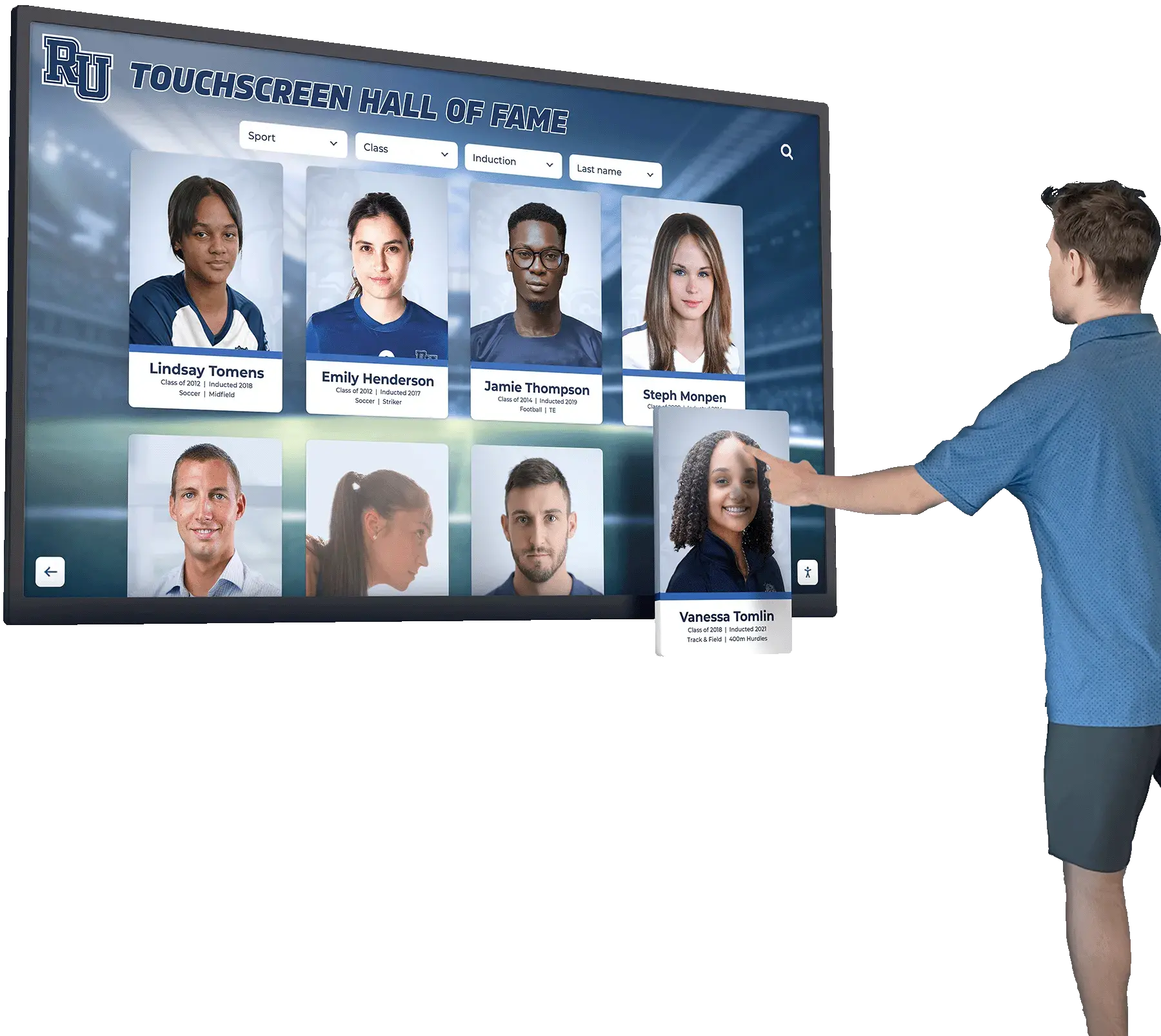
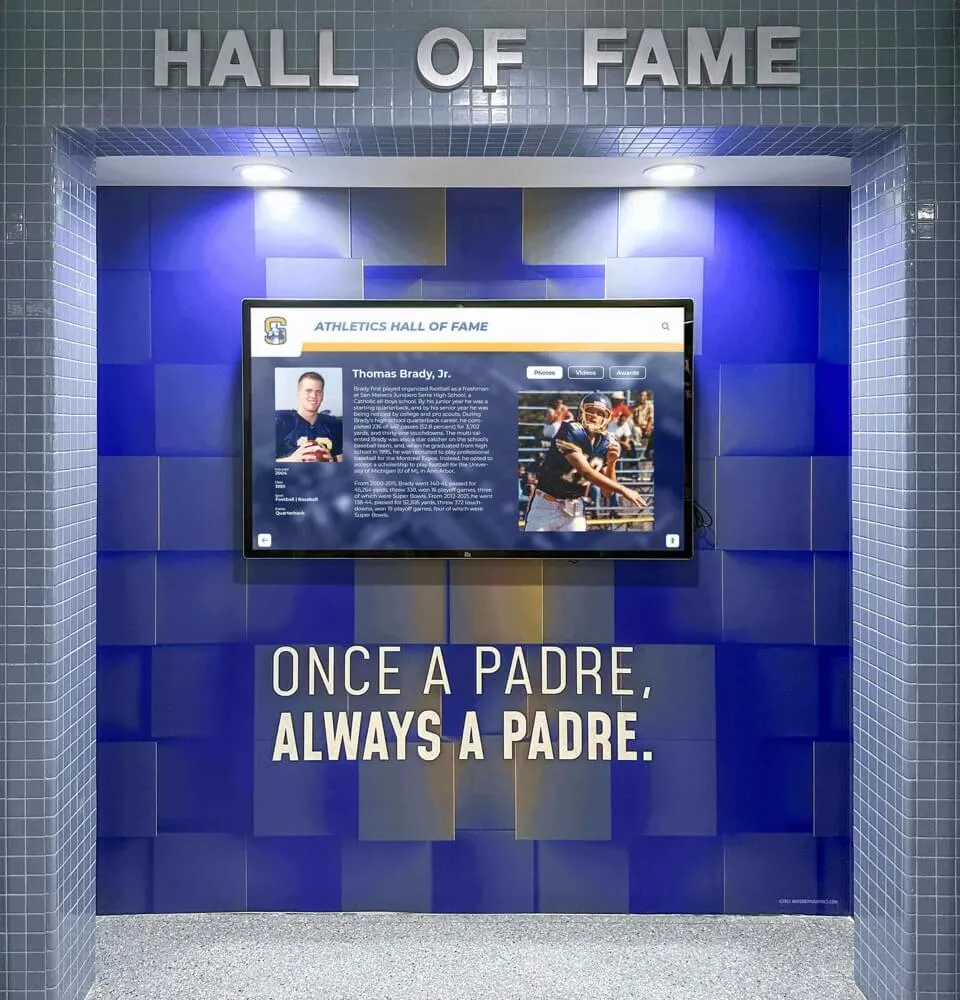
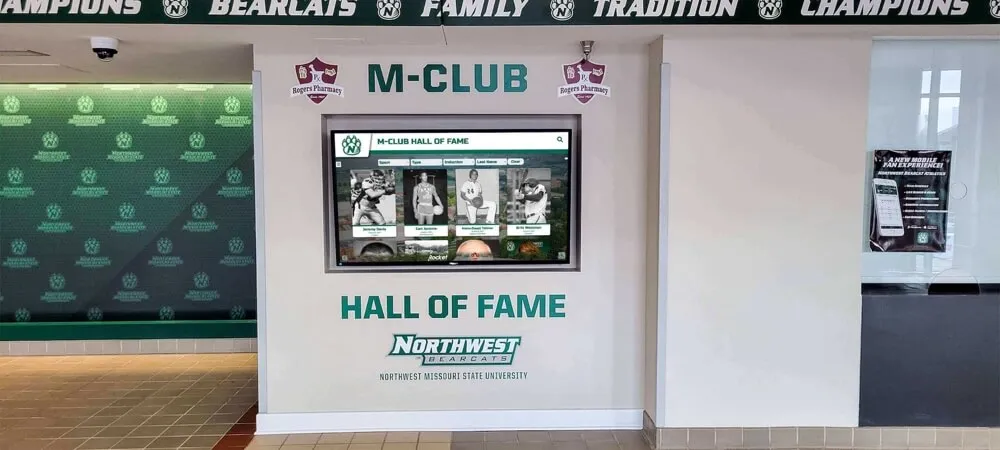
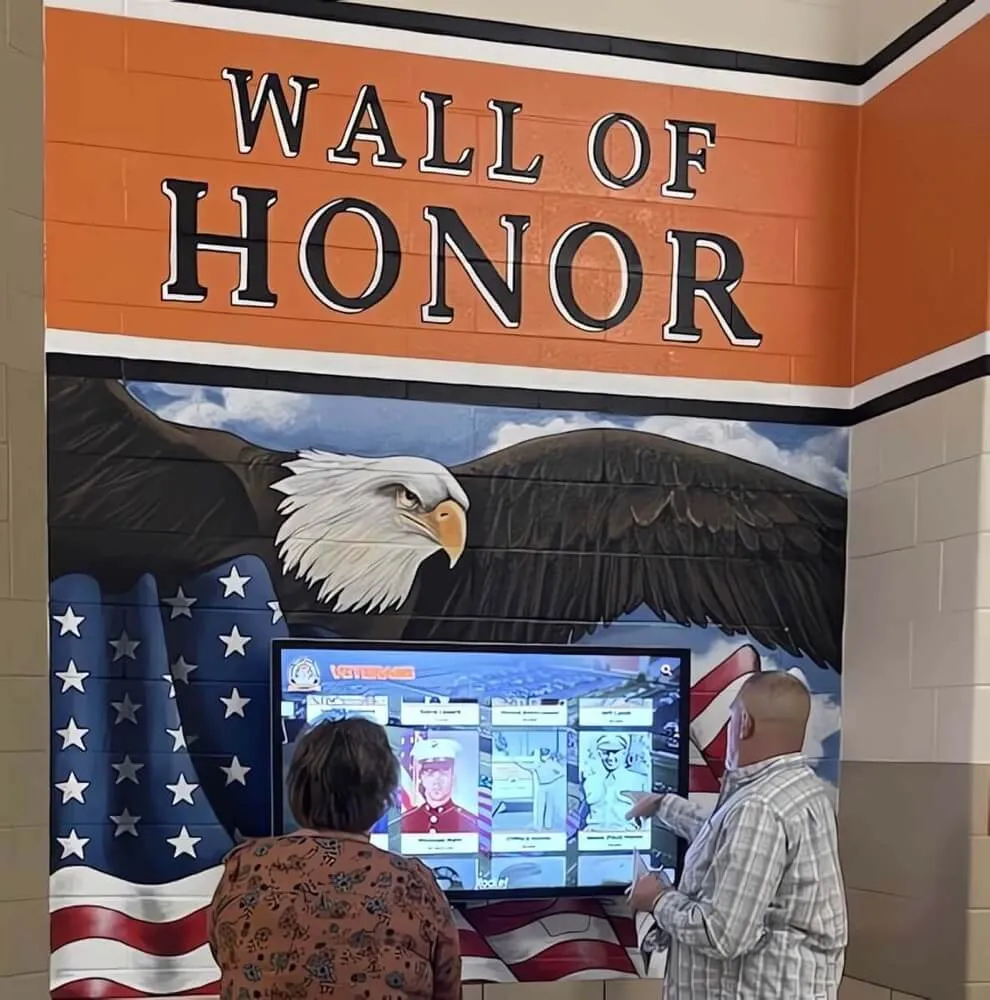
Post-maintenance verification confirms the display is running quietly and at normal temperature before it returns to public-facing service at the recognition wall—do not close the log entry until post-maintenance operation is confirmed
Fan Noise Maintenance Log Template
Use one row per event. Maintain this log as a shared document in the school’s IT or facilities folder, or include it in the device documentation folder for each recognition display. Consistent log fields across all displays make it straightforward to identify which installations have recurring fan problems and which have maintained clean maintenance histories.
| Field | Description | Example Entry |
|---|---|---|
| Display ID / Location | Unique identifier for this display | Athletics Hallway Kiosk – Main Lobby |
| Date | Date maintenance was performed | 2026-08-20 |
| Staff Name | Person who performed the inspection | K. Okafor |
| Trigger | What prompted this log entry | Staff report: grinding sound audible from display during off-period |
| Noise Type | Classification from the noise table | Grinding / scraping—cyclical, heard at all fan speeds |
| Phase 1 Findings | Airflow clearance and external dust check results | Clearance adequate; external vents lightly dusty; cleaned |
| Phase 2 Findings | Internal inspection results | Fan bearing wear confirmed on rear exhaust fan; manual rotation showed uneven resistance |
| Action Taken | Maintenance performed | Replaced rear exhaust fan with matching replacement unit |
| Fan Replaced? | Yes / No | Yes |
| Post-Maintenance Result | Observation after 15-minute run | Fan quiet; no grinding at any speed; temperature within normal range |
| Pass / Fail | Overall result | Pass |
| Notes | Anything relevant not captured above | Display model: commercial 55" all-in-one; fan part number noted for future procurement |
| Escalation Required | Yes or No; if yes, describe | No |
Q&A: Common Questions About Recognition Display Cooling Fan Noise
How loud is normal fan noise for a recognition display kiosk?
Normal fan noise from a properly operating recognition display should be inaudible or barely audible at a distance of three feet under typical hallway ambient noise conditions. If a student or visitor standing at the display can clearly hear the fan over the surrounding ambient noise, the fan is operating above its normal speed—which means either the display is running warmer than normal, or the fan bearing is producing additional mechanical noise. Either condition warrants investigation.
The display fan runs at full speed for a few minutes after the display wakes from sleep, then quiets down. Is this a problem?
Brief high-speed fan operation after a display wakes from sleep or after a content-heavy startup sequence is normal for most commercial all-in-one display systems. The internal components generate more heat during the initial load, and the fan runs faster until temperature stabilizes. If the display runs quietly within 5 minutes of completing startup, no action is required. If the fan does not return to low speed within 10 to 15 minutes, investigate airflow clearance and internal dust levels—the display is not reaching thermal equilibrium under normal cooling conditions.
The display shut itself off during an evening recognition event. What do we check first?
An unexpected shutdown on a recognition display during active use almost always indicates a thermal protection event: the display’s internal temperature sensor reached the threshold at which the firmware shuts the system down to prevent component damage. Before restarting: check that all ventilation clearances are intact; check that no material has been placed against or near the display during event setup; check the external vents for visible dust blockage. After restarting, observe whether the fan returns to low speed or continues to run at high speed. A display that shuts down from heat during an event and then runs at high fan speed after restart is not adequately cooling itself—internal inspection and possible fan replacement are the next steps. Document the shutdown event as a high-priority log entry before taking any other action.
Can we clean the fan without opening the display enclosure?
External vent cleaning with compressed air is always safe and appropriate without opening the enclosure. However, the most significant dust accumulation in enclosed display systems builds up on the fan blades and on the internal heatsinks—surfaces that cannot be reached through the external vents without enclosure access. If external cleaning improves the noise but does not fully resolve it, or if the fan noise returns within a short interval after external cleaning, internal cleaning is needed. On warranty-covered displays, check with the vendor on how to access the enclosure without voiding coverage.
Our school has three recognition display kiosks in different hallways. One is noisy; the other two are quiet. Should we inspect all three at the same time?
Yes. If three displays are installed in similar environments and one develops cooling fan noise significantly ahead of the others, it is useful to inspect all three in the same maintenance window. The noisy display requires the active diagnosis and repair. The quiet displays should receive a Phase 1 external inspection and a post-inspection log entry confirming that airflow clearance and external vents are clear. This comparison across three similar installations in the same building helps distinguish whether the noisy display has an isolated hardware problem or whether something about its specific installation location—higher ambient temperature, closer wall proximity, higher traffic—is creating conditions that the other two locations will face within the same maintenance cycle.
After replacing the fan, the display is quiet for a month and then becomes noisy again. What does that indicate?
Fan replacement that resolves the noise temporarily but leads to recurrence within weeks indicates either a thermal load problem that is too high for the replacement fan to manage, or an installation environment issue that wears fans faster than normal. Check the ambient temperature at the display location—a kiosk mounted in a southern-facing hallway that receives direct afternoon sun through windows may experience sustained elevated ambient temperatures that shorten fan life significantly. Check whether the replacement fan matches the original fan’s airflow specification; an undersized replacement will wear faster because it runs at a higher duty cycle to compensate for lower airflow capacity. Document both failures in the log with the replacement fan specifications so the pattern is visible in the record.
Connecting Fan Noise Logs to Broader Display Maintenance
A cooling fan noise maintenance log produces the most value when it is part of a complete documentation framework for recognition display hardware. Fan noise events gain context when they can be compared against the full maintenance history: when the display was last cleaned, whether a recent firmware update changed thermal management behavior, and whether other maintenance events correlate with the noise onset.
Schools building recognition display maintenance into department-level policy can reference the recognition display maintenance window policy at Touchscreen Website for guidance on formalizing scheduled maintenance as a documented responsibility, including how to define maintenance windows that minimize disruption to recognition events.
Fan noise events that involve suspected thermal problems benefit from documented power quality context. The power quality monitoring log for recognition displays at TouchWall.us covers how abnormal power delivery—voltage fluctuations, brownouts, or spikes—can increase thermal load on display components and contribute to faster fan wear, which is useful context when repeated fan failures do not have an obvious mechanical cause.
For programs managing displays that experience heat-related problems, the UPS battery maintenance checklist for recognition displays at Touchscreen Website addresses the interaction between power protection hardware and display thermal management—a failing UPS can cause the display PC to run at elevated load states that increase fan demand.
Display programs that maintain structured logs across multiple maintenance event types benefit from a consistent retention and filing approach. The recognition display log retention policy at Best Touchscreen covers how to define retention periods for different log types, including hardware maintenance records, so that multi-year patterns in fan performance and component wear are accessible when needed.
Maintenance logs for display hardware connect naturally to content management cycles. Programs that coordinate hardware inspection windows with content update cycles—so IT staff and recognition-program administrators share a maintenance window—can structure that coordination using the ambient light sensor calibration log for recognition displays at Best Touchscreen as a model for how hardware calibration and maintenance records integrate with content management schedules.
Recognition displays are often installed in spaces where the broader environment—trophy cases, award halls, and school heritage areas—frames the hardware context. Programs that manage hall of fame recognition walls alongside physical trophy cases may find guidance on graduation honors and recognition display ideas at Digital Trophy Case useful for thinking about how hardware reliability connects to the recognition program’s ability to consistently honor academic and athletic achievement.
Color calibration checks are a natural complement to fan noise inspections during the same maintenance window. The touchscreen recognition display color calibration log at Rocket Graphics covers the documentation approach for color calibration events, which often need to be performed after the display has reached normal operating temperature—making a combined maintenance window with fan inspection and color calibration efficient for facilities teams.
Recommended Fan Maintenance Schedule
Integrate recognition display cooling fan inspections into the maintenance calendar on a fixed schedule. Reactive log entries triggered by staff noise reports should supplement, not replace, the scheduled inspection cycle.
| Task | Frequency | Notes |
|---|---|---|
| Phase 1 external inspection (airflow clearance and vent check) | Every 6 months | Document findings even when nothing is found; establishes that the check was performed |
| External vent compressed air cleaning | Every 6 months or when visible dust is present | Do not force air directly into the display from the exhaust side |
| Internal fan cleaning and bearing assessment | Annually, or immediately after any noise report | For warranty-covered displays, confirm enclosure access terms before opening |
| Fan replacement (proactive) | At first confirmed bearing wear finding | Do not wait for complete failure; seizing fans create thermal emergencies |
| Documentation folder update | After each log entry | Ensure the completed entry is saved in the shared folder accessible to IT and facilities |
| Escalation pattern review | Quarterly | Check whether any display has had more than two fan maintenance events in the past 90 days |
| Post-event inspection | After major recognition events (induction nights, award ceremonies) | Events often bring additional people and equipment into display areas that can affect airflow |
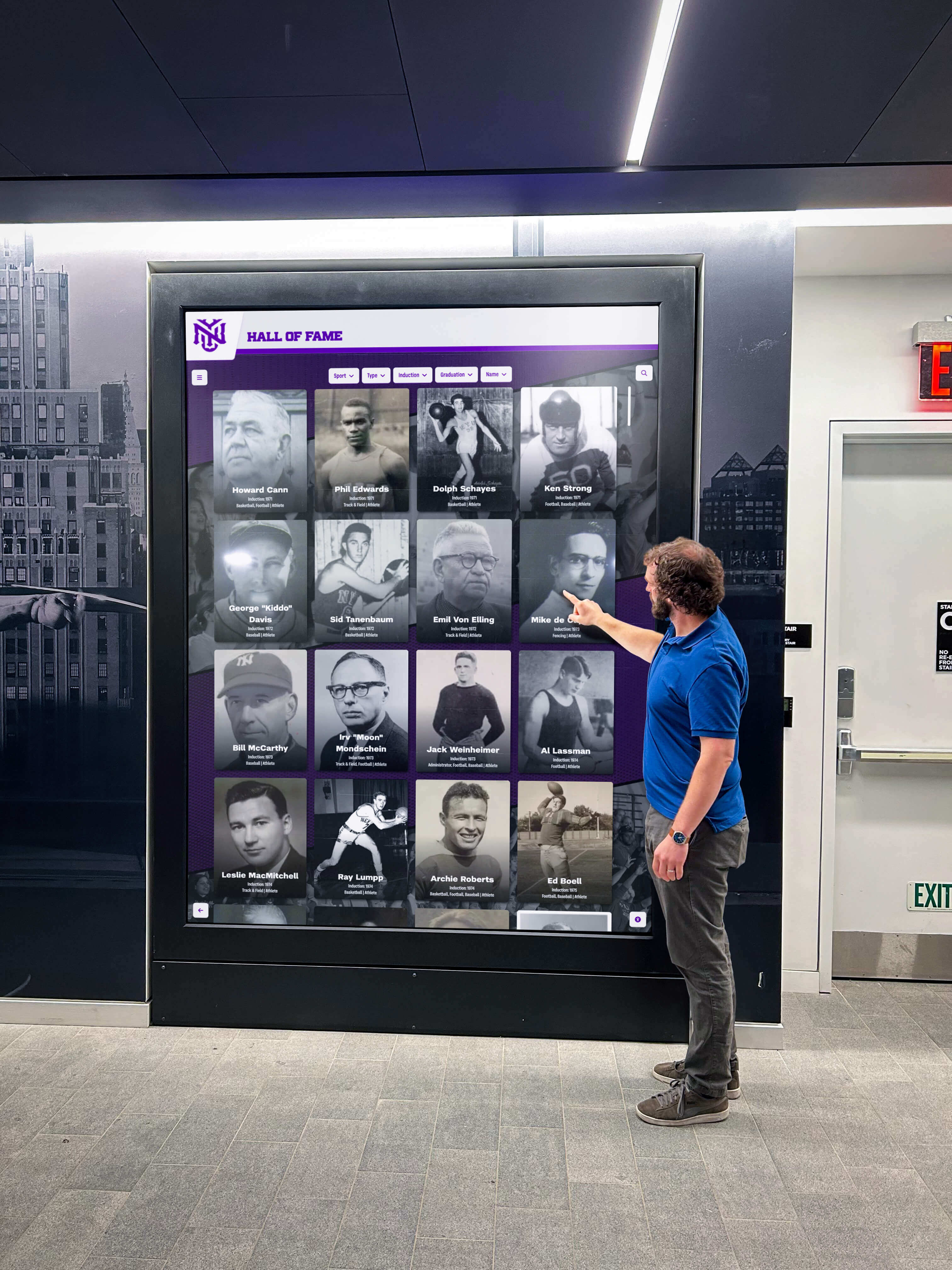
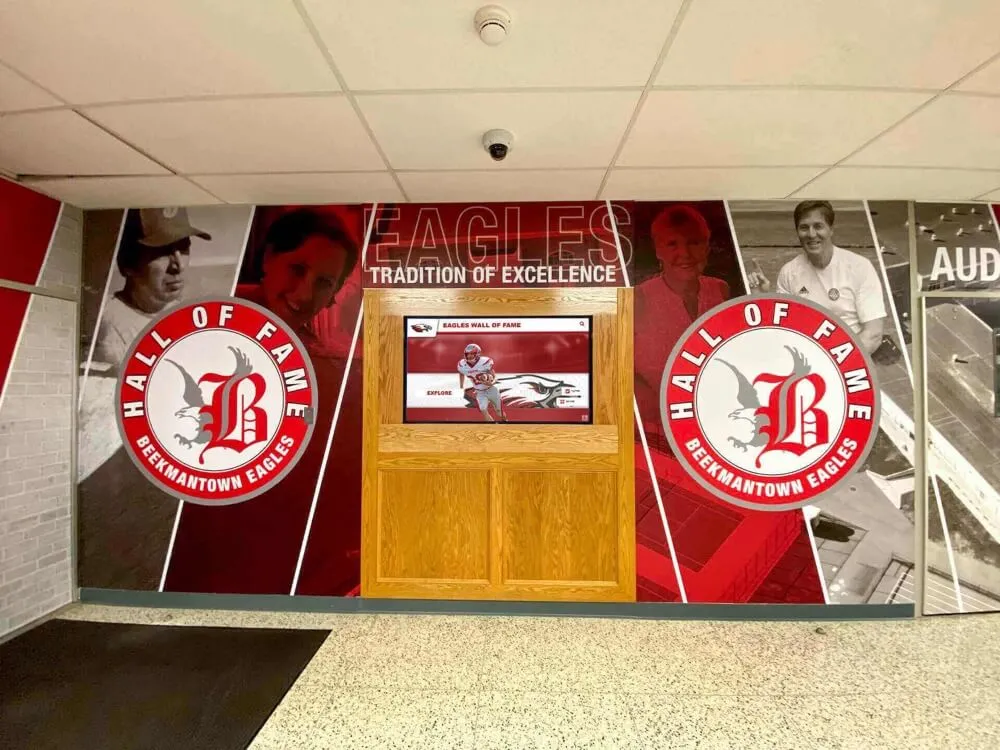
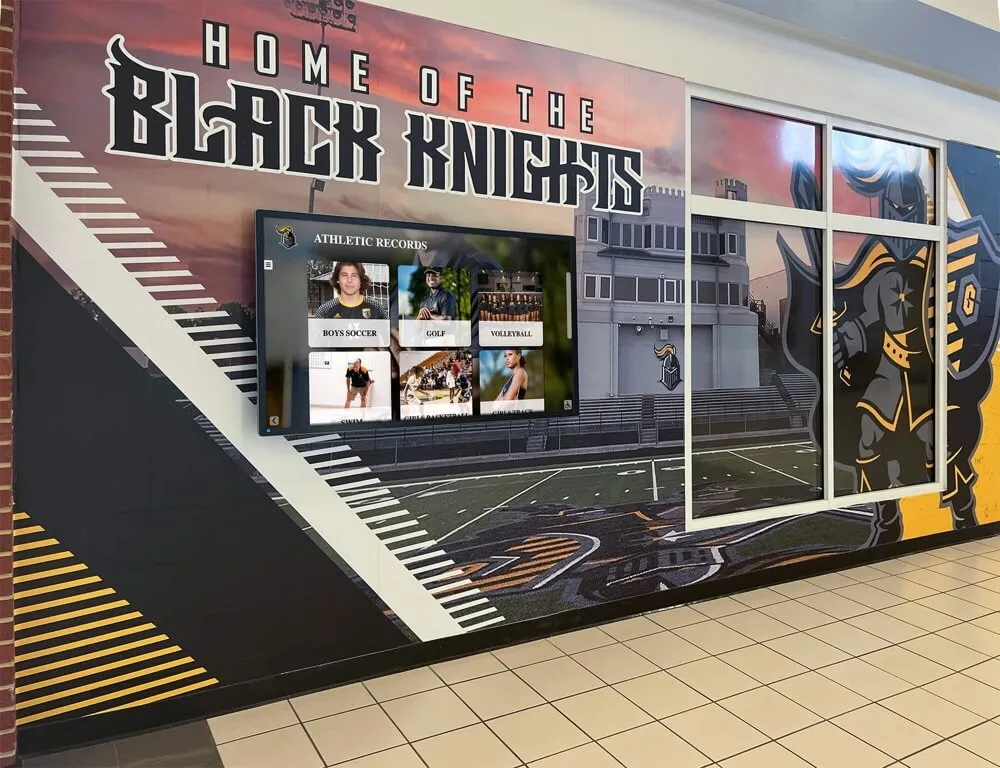
School recognition events—induction nights, award ceremonies, and alumni reunions—are when displays are most visible and most used; a maintenance log that identifies and resolves fan noise before those events protects the recognition experience
Recognition displays that operate in school trophy rooms and athletic hallways earn their place in the building by running reliably, quietly, and without requiring staff intervention during the events they are meant to support. The recognition display cooling fan noise diagnosis and maintenance log in this guide gives IT coordinators, facilities managers, and athletic directors a structured process for turning a reported noise symptom into a documented finding, a clear maintenance action, and a verified resolution—and for building a maintenance history that makes the next event a more predictable outcome than the last.
Programs that manage recognition displays for drill team, athletics, and school heritage recognition can also explore how drill team identity and tradition recognition display ideas at Digital Trophy Case connect the physical maintenance quality of a display to the community value of the recognition program it runs—a display that runs reliably is one that can be trusted to honor traditions consistently over years.

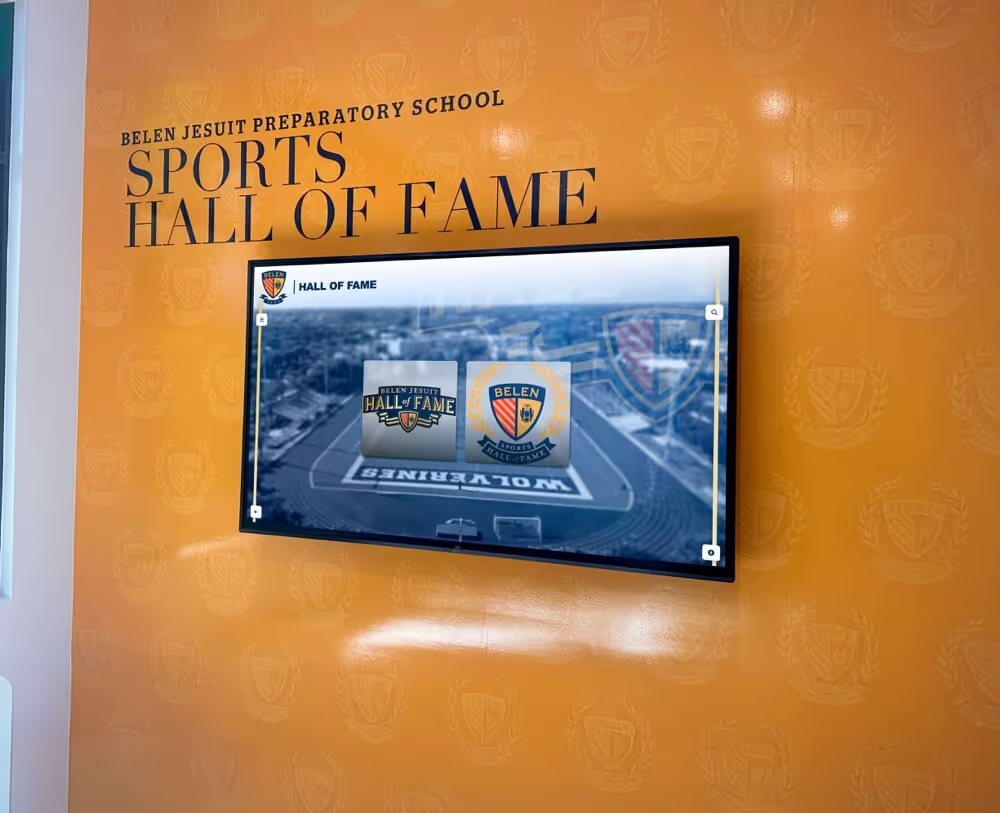
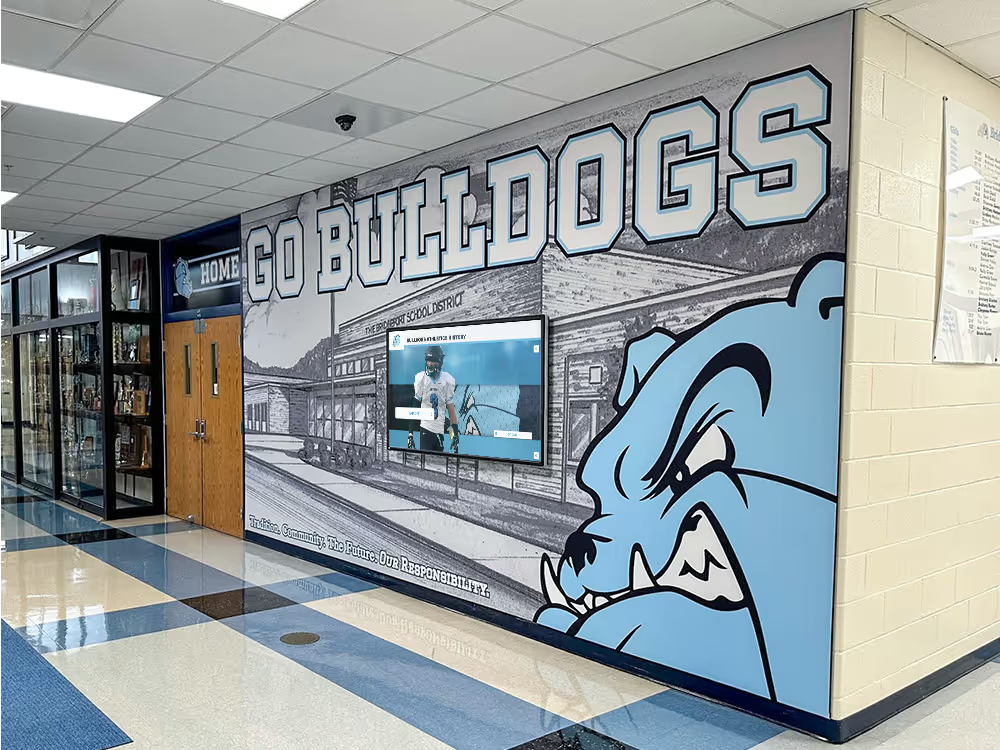
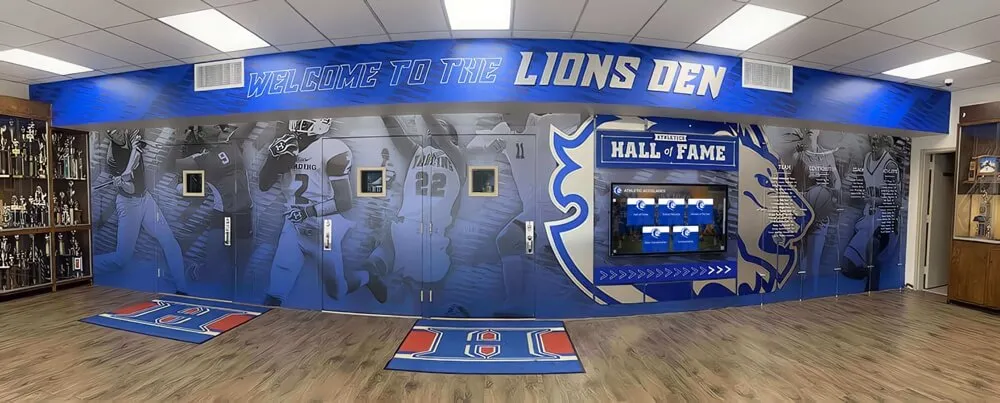
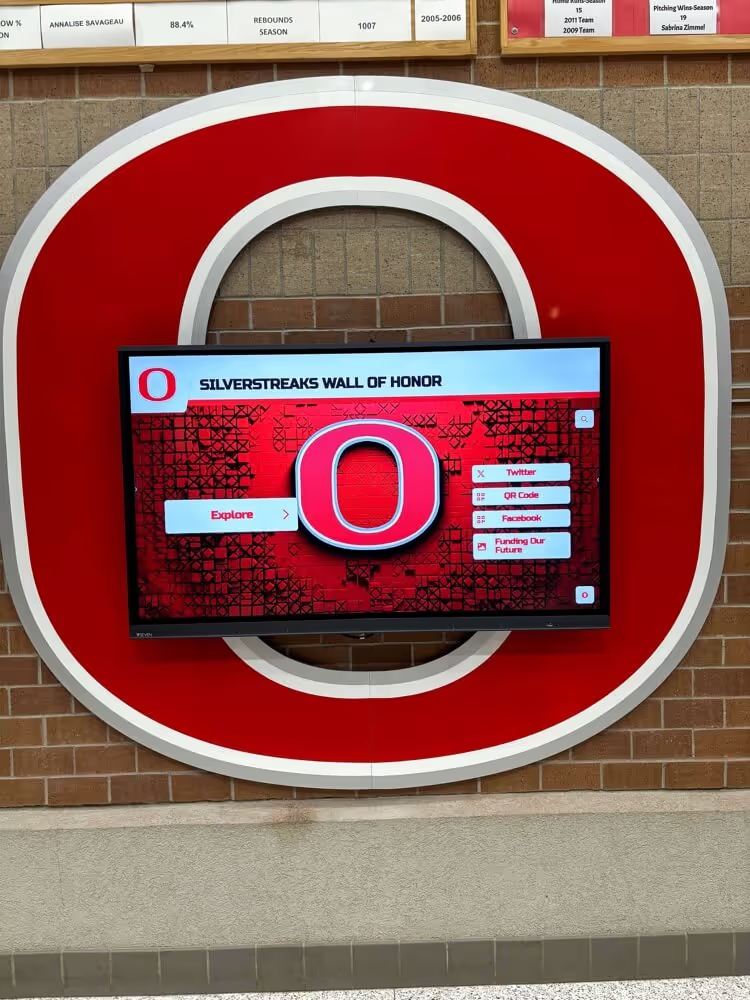
Recognition displays integrated into athletics hallways and trophy corridors are expected to run consistently across every school day and every recognition event—fan noise maintenance is the operational foundation that makes that consistency possible
See a Recognition Display Built for School Environments
If your school is deploying or maintaining a touchscreen recognition display and wants to see how a platform designed for school athletic halls, trophy corridors, and lobby recognition walls handles hardware reliability, remote content management, and long-term display operation, a live walkthrough gives you a clear picture of what that looks like in a real installation. Rocket Alumni Solutions builds recognition display platforms designed to stay on approved content, update remotely without on-site IT visits, and give IT coordinators and facilities staff confidence in the full display environment.