



A recognition display BPDU filter safety check audits the managed-switch ports in your school’s network to identify any port where spanning-tree bpdufilter enable has been applied incorrectly—creating a condition where a switching loop can form, grow undetected, and eventually take a lobby kiosk or hall-of-fame touchscreen offline with a broadcast storm. BPDU filter stops a switch port from sending or receiving Bridge Protocol Data Units (BPDUs), which are the control frames that Spanning Tree Protocol (STP) and Rapid Spanning Tree Protocol (RSTP) use to detect and block loops. When BPDU filter is applied to an edge port that genuinely connects only to a recognition display, it is benign. When it is applied to an uplink port, a trunk port, or any port that could connect to another switch, it blinds the spanning tree process to that port entirely—and a loop that forms through that port will not be blocked.
This guide explains exactly what BPDU filter does and does not do, why it differs from BPDU Guard, how to audit every switch port in the recognition display’s network path, and how to document the findings in a format that school IT coordinators can use for ongoing maintenance.
BPDU filter is one of the most frequently misunderstood spanning tree features in school network environments. It looks similar to BPDU Guard in command syntax, it is described in switch documentation under the same PortFast section, and both features involve BPDUs. The difference in what they do—and in the consequences of applying them incorrectly—is significant enough that a port-by-port audit is the only reliable way to confirm the feature is deployed safely in a network that carries recognition display traffic.

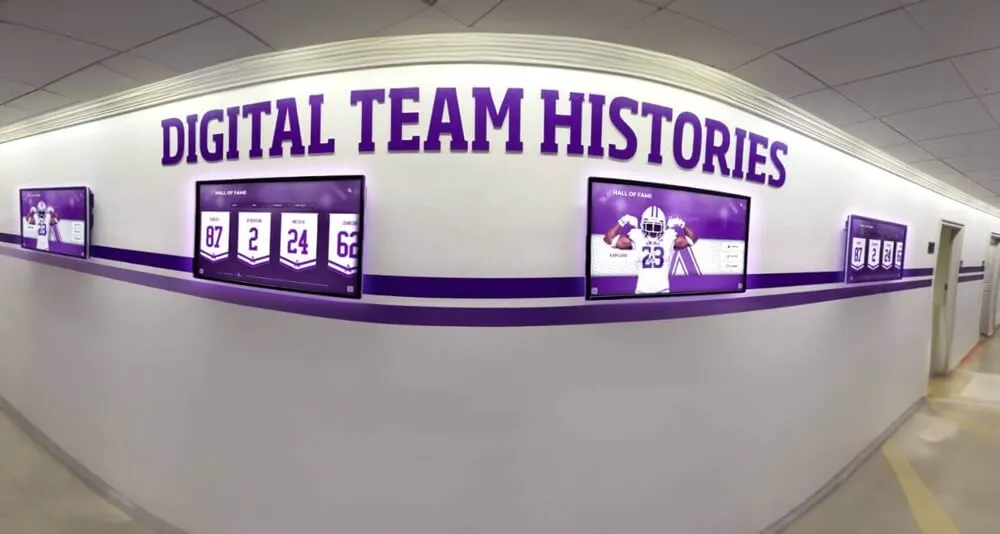
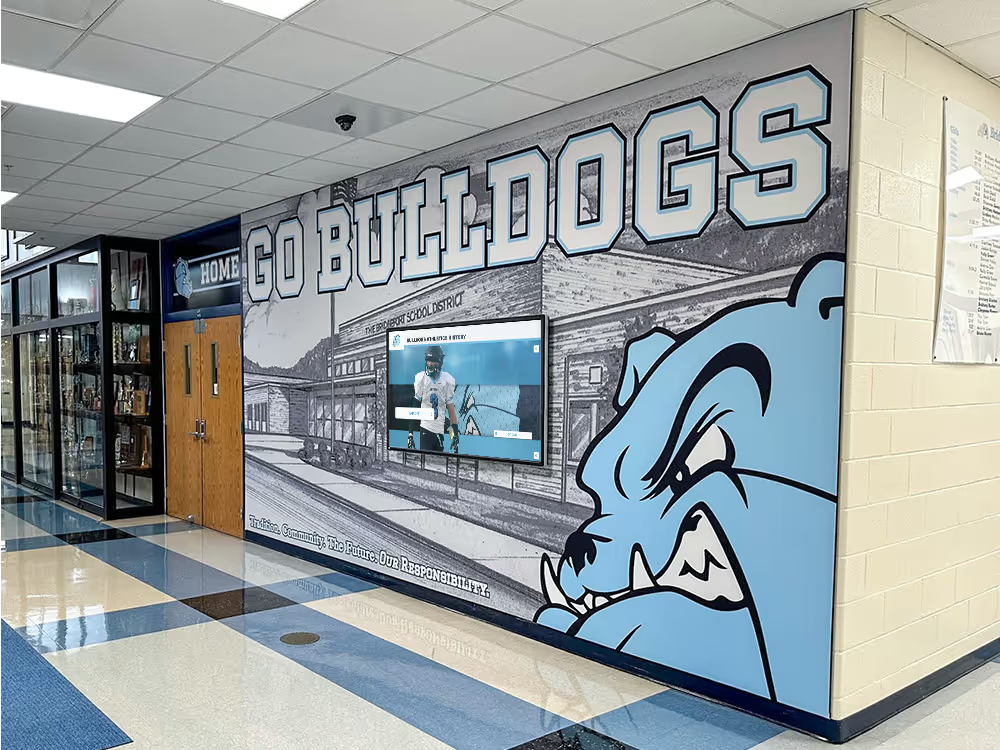
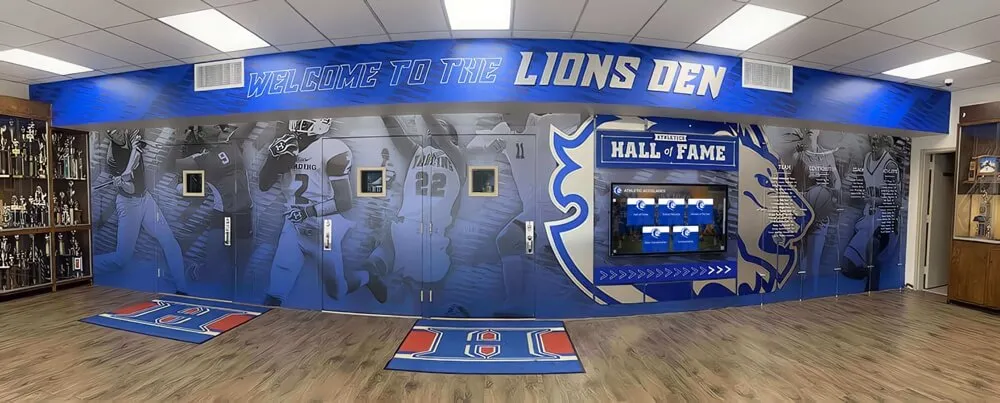
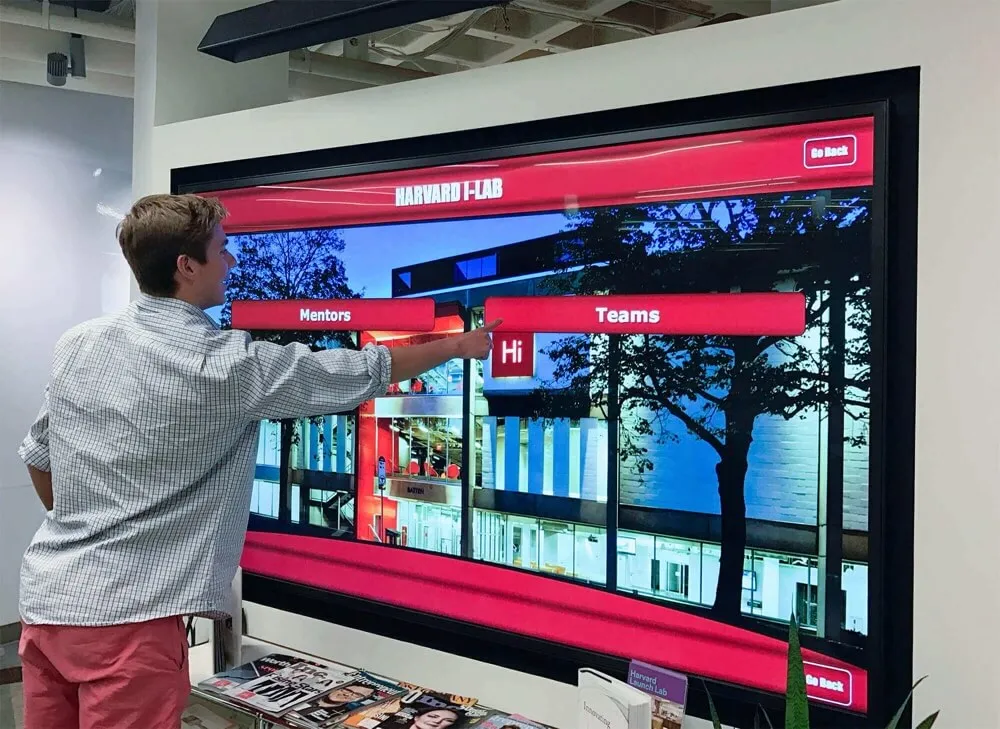
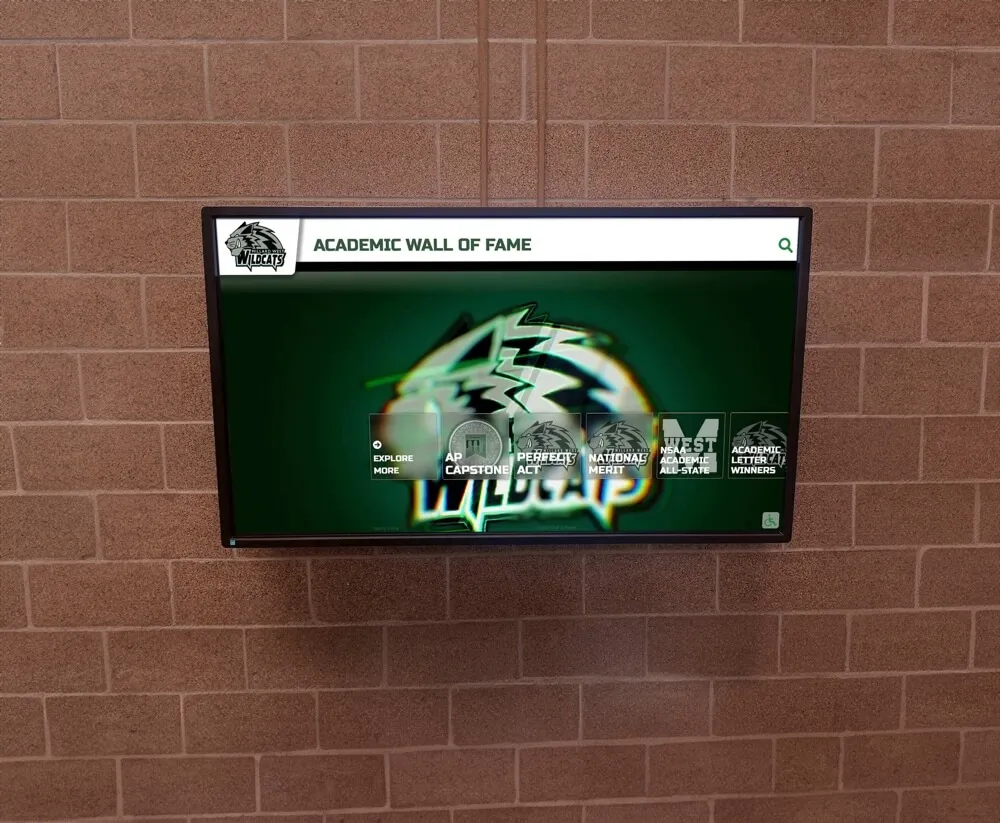
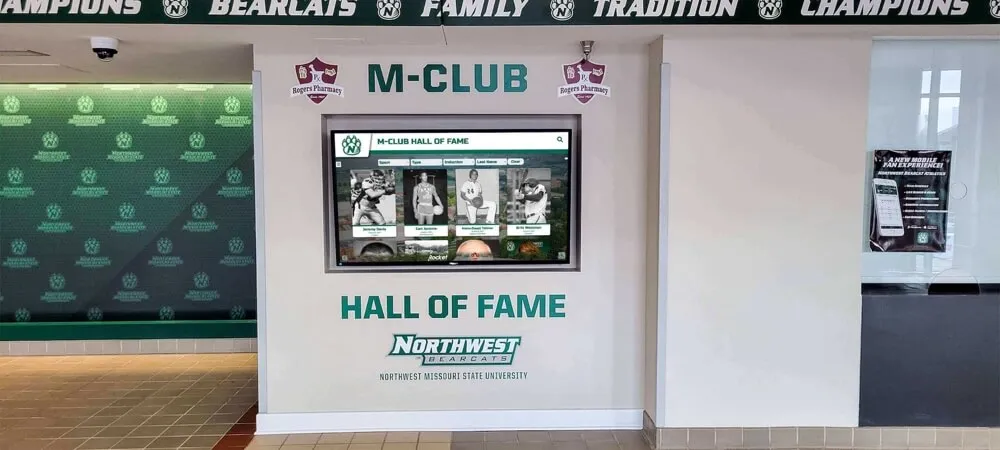
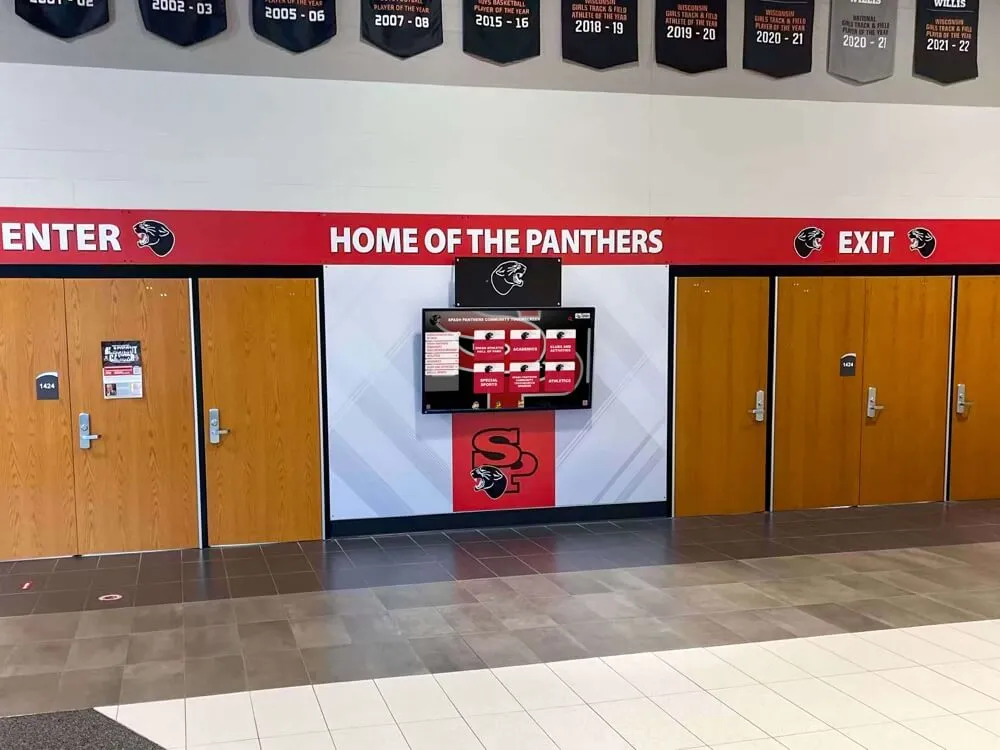
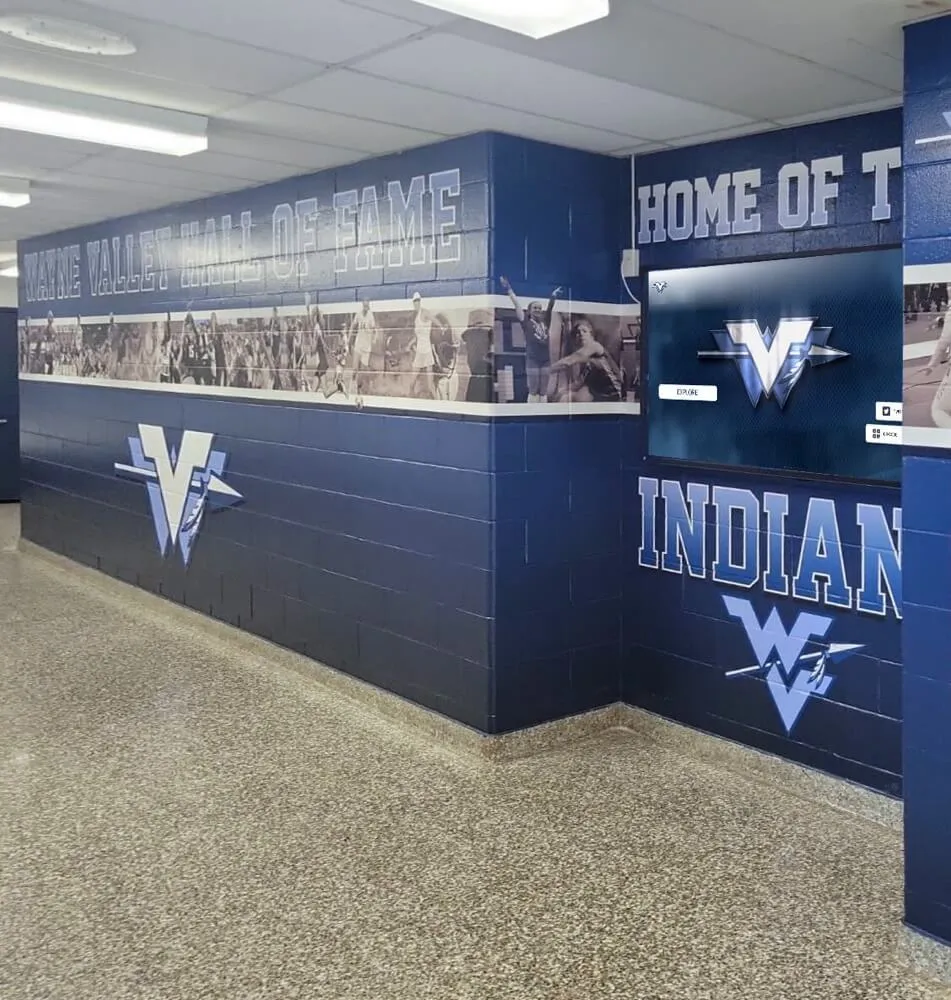
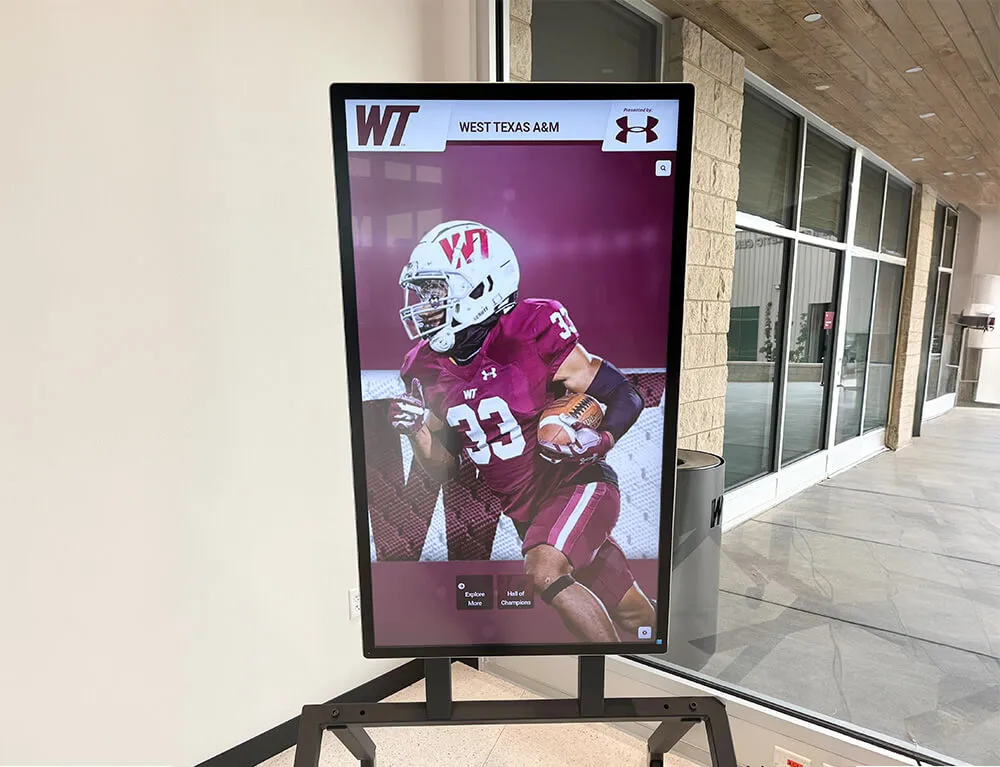
Recognition display kiosks in school hallways depend on spanning tree loop detection to prevent broadcast storms from taking the network offline—a BPDU filter safety check confirms that loop detection is not accidentally disabled on any switch port in the display's network path
What BPDU Filter Does—and What It Does Not Do
Spanning Tree Protocol works by having every switch exchange BPDUs continuously. Those BPDUs carry information about each switch’s identity, port costs, and the current root bridge election. When a loop is detected—when a switch receives a BPDU from itself, or when the topology reveals a circular path—STP places one or more ports into a blocking state to break the loop. RSTP (802.1w) performs the same function faster, using a proposal-and-agreement handshake instead of fixed timers.
BPDU filter removes a port from this conversation entirely. A port with BPDU filter enabled stops sending BPDUs to its neighbor and stops processing any BPDUs it receives from its neighbor. From the perspective of the spanning tree process, that port does not exist. The switch will not use the port to detect loops, it will not include the port in root bridge calculations, and it will not block the port to prevent a loop from forming through it.
This is distinct from what BPDU Guard does. BPDU Guard leaves the spanning tree process intact on the port—the port participates normally in RSTP. But if a BPDU arrives on a BPDU Guard–protected port, the switch immediately shuts that port down (places it into err-disabled state) and generates an alert. BPDU Guard is a protective response to an unexpected BPDU. BPDU filter is an unconditional suppression of all BPDU activity on the port.
| Feature | Sends BPDUs | Receives and Processes BPDUs | Response to Incoming BPDU | Loop Risk if Misconfigured |
|---|---|---|---|---|
| BPDU Guard (no filter) | Yes | Yes—shuts port on receipt | Port goes err-disabled | Low—err-disable prevents loop |
| BPDU Filter (per-port) | No | No—ignores incoming BPDUs | None | High—loop forms undetected |
| BPDU Filter (global, PortFast ports only) | Sends 11 BPDUs on link-up, then stops | Stops after the 11 probe BPDUs | Disables PortFast if BPDU received in probe window | Moderate—PortFast disables if neighbor sends BPDUs |
| Neither (standard RSTP port) | Yes | Yes | RSTP topology change processing | None—normal spanning tree behavior |
The per-port form of BPDU filter—applied with spanning-tree bpdufilter enable on a specific interface—is the version that carries the highest risk when applied incorrectly. It provides no probe window, no PortFast interaction, and no automatic recovery. The port simply stops participating in spanning tree, permanently, until the configuration is changed.
Why BPDU Filter Is a Recognized Risk on Non-Edge Ports
Cisco’s documentation for spanning-tree portfast bpdufilter default notes explicitly that enabling BPDU filter on a non-edge port is a misconfiguration that can lead to spanning tree loops. The IEEE 802.1w standard provides no mechanism for a switch to detect a loop through a port that has exited the spanning tree process—once BPDU filter is active on a port, spanning tree cannot help.
The practical path from BPDU filter misconfiguration to a recognition display outage follows a pattern that school IT teams encounter during facility changes and AV equipment deployments.
A PortFast edge port connecting a recognition display has BPDU filter applied. This is harmless—the port connects only to the display, no loops are possible through it. Months later, a staff member or AV contractor connects an unmanaged switch to that port during an event—a small five-port switch to extend the network to an additional scoreboard or camera system. The unmanaged switch has no spanning tree. A loop forms through the additional cabling. Because BPDU filter is active on the port, the managed switch never detects the loop. A broadcast storm develops. Within seconds to minutes, the recognition display’s network segment—and potentially the entire VLAN—is saturated with broadcast traffic. The display goes dark.
The audit in this guide identifies every port where BPDU filter is active, classifies each by risk, and confirms that BPDU filter is present only on ports that genuinely and permanently connect to non-switch end devices.
Schools whose recognition display deployments include network failover configurations should verify BPDU filter configuration as part of the same audit that validates uplink redundancy—a port where BPDU filter has incorrectly disabled spanning tree participation is a port that cannot contribute to RSTP failover.
Pre-Audit Preparation Checklist
Complete each item before beginning the per-port review. The audit itself requires only read access to the switch CLI; no configuration changes are needed during the audit phase. Configuration corrections, if required, should be scheduled in a maintenance window after the audit findings are documented.
Switch Access
- Confirm SSH or console access to every managed switch in the network path between the recognition display and the distribution layer
- Confirm your account has access to
showcommands on each switch (read-only is sufficient for the audit) - Identify the switch platform (Cisco IOS / IOS-XE, Cisco Meraki, Ubiquiti UniFi, Netgear ProSAFE, HPE Aruba) so you use the correct CLI syntax for each step
Topology Documentation
- Identify and document every switch in the path: recognition display → access switch → uplink → distribution switch (or equivalent for your topology)
- Identify the access port connecting the recognition display directly (the port where BPDU filter may be intentionally configured)
- Identify all trunk ports, uplink ports, and inter-switch ports on each switch in the path—these are the ports where BPDU filter must NOT be present
Baseline Configuration Review
- Note which switch ports have PortFast enabled (these are candidates for BPDU filter; non-PortFast ports with BPDU filter are high-risk findings)
- Determine whether the global
spanning-tree portfast bpdufilter defaultcommand is in use on any switch in the path (this applies BPDU filter to all PortFast ports globally) - Note the location of any recent equipment additions—temporary AV switches, additional access points, or scoreboards connected during events—that may have been added to ports without a corresponding configuration review
Audit Documentation Template
- Prepare a spreadsheet or runbook page to record: switch hostname, interface name, PortFast status, BPDU filter status, BPDU Guard status, connected device (display / uplink / trunk / unknown), and risk classification
- Confirm the date of the last configuration change on each switch (use
show versionor equivalent)—recent changes are higher priority for audit
Recognition Display BPDU Filter Safety Check: Numbered Audit Procedure
Run each step in sequence. The audit examines every switch in the recognition display’s network path. Record findings at each step; do not correct configurations during the audit—document first, then schedule corrections.
Step 1 — Identify all ports with BPDU filter active
On each switch in the path, list all ports where BPDU filter is currently enabled—whether by the global PortFast default command or by per-port configuration.
On Cisco IOS / IOS-XE:
show spanning-tree summary
In the output, look for the line:
Portfast BPDU Filter Default is enabled
If this line is present, BPDU filter is active on every port that has PortFast enabled on that switch. This is the global form of BPDU filter. Note whether it is present on each switch.
Next, identify any per-port BPDU filter configurations:
show running-config | include bpdufilter
This command returns every interface that has spanning-tree bpdufilter enable explicitly configured. Record the interface names from the output.
On Ubiquiti UniFi: navigate to Devices > select the switch > Ports. Per-port spanning tree settings, including BPDU filter, appear in the port profile assigned to each port. Review each port profile for the recognition display’s switch and any trunk/uplink ports.
On Netgear ProSAFE: navigate to Switching > Spanning Tree > Port Configuration. The BPDU Filter column shows the status for each port.
On HPE Aruba: use show spanning-tree port-state [interface] for each port and review the configuration output for BPDU filter settings.
Step 2 — Classify each BPDU filter port by connected device type
For each port identified in Step 1, determine what device is connected to that port. This classification determines the risk level.
On Cisco IOS / IOS-XE, check the MAC address table for each port:
show mac address-table interface GigabitEthernet0/X
Cross-reference the MAC address with your device inventory. Confirm whether the connected device is:
- The recognition display (or another end device that is never a switch): Low risk if PortFast is correctly enabled; BPDU filter on an edge port to a non-switch device does not create loop risk under stable conditions, but requires monitoring
- An uplink to a distribution or core switch: Critical risk — BPDU filter on an uplink port disables spanning tree participation on the inter-switch link and prevents loop detection
- A trunk port to another access switch: Critical risk — same reasoning as uplink
- An access point (managed): Moderate risk — the access point itself does not create loops, but if a user connects a portable switch through the access point’s wired port, BPDU filter prevents detection
- An unmanaged switch: Critical risk — unmanaged switches cannot participate in spanning tree; BPDU filter on the upstream port eliminates the only mechanism for detecting loops through the unmanaged switch
- Unknown or disconnected: High risk — an unknown device or an empty port with BPDU filter active is a configuration gap; any device connected to that port in the future will connect to a port outside spanning tree
Record the classification for every port identified in Step 1.
Step 3 — Verify BPDU Guard is present on the recognition display’s access port
On the access port connecting the recognition display, confirm BPDU Guard is enabled. BPDU Guard and BPDU filter serve different purposes: BPDU Guard is protective (shuts the port if a BPDU arrives, which would happen if someone connected a switch to the display’s port), while BPDU filter suppresses BPDU activity. On a correctly configured recognition display port, PortFast is enabled, BPDU Guard is enabled, and BPDU filter status depends on your environment (global BPDU filter default may apply it via the global command, or it may be absent on this port—both are acceptable if BPDU Guard is present, since BPDU Guard provides the protection against someone connecting a second switch).
On Cisco IOS / IOS-XE:
show spanning-tree interface GigabitEthernet0/X portfast
show spanning-tree interface GigabitEthernet0/X detail
In the detail output, look for:
The port is in the portfast mode— confirms PortFast is activeBPDU: sent X, received Y— if received count is nonzero on a port with BPDU filter, investigate (the filter may not be fully active)- Confirm BPDU Guard:
show spanning-tree summaryshould showBPDU Guard Default is enabled, or the per-port configuration should showspanning-tree bpduguard enable
A recognition display port that has BPDU filter but not BPDU Guard is missing the protective control that would shut the port down if someone connected an additional switch. Document this as a configuration gap even if BPDU filter itself is correctly applied.
Step 4 — Audit all uplink and trunk ports for absent BPDU filter
Confirm that no uplink ports, inter-switch links, or trunk ports have BPDU filter enabled. These ports must participate fully in spanning tree—receiving and sending BPDUs—to maintain loop detection across the entire network path.
On Cisco IOS / IOS-XE, list all trunk ports:
show interfaces trunk
For each trunk port listed, confirm it does not appear in the BPDU filter output from Step 1. A trunk port that appears in both the trunk list and the BPDU filter list is a critical finding.
For uplink ports (non-trunk inter-switch links), review the interface configurations:
show running-config interface GigabitEthernet0/X
The interface configuration for an uplink should not contain spanning-tree bpdufilter enable. If it does, that is a critical finding requiring correction.
Step 5 — Test the recognition display port’s spanning tree behavior
With the audit documentation in hand, confirm the recognition display’s access port behaves as expected when the display reconnects.
Disconnect and reconnect the recognition display’s network cable (or simulate this by bouncing the port with shutdown and no shutdown in a maintenance window). Observe the port-state transition in the switch CLI:
show spanning-tree interface GigabitEthernet0/X
With PortFast enabled, the port should transition directly to Forwarding within a second or two of link establishment. The display should receive its IP address promptly and begin pulling content. If the port has BPDU filter active (either globally or per-port), it will not send BPDUs during this transition—observe that the sent counter in show spanning-tree interface detail does not increment after the initial probe window (for global BPDU filter, 11 BPDUs are sent at link-up; for per-port BPDU filter, zero are sent).
Document:
- Time from port link-up to Forwarding state
- BPDU sent count during the transition
- BPDU received count (should be zero on a genuine edge port with BPDU filter; if nonzero, investigate)
- Whether the display obtained its IP address and reconnected to the content platform within the expected interval
Step 6 — Review switch logs for BPDU-related events
After auditing per-port configuration, review the switch log for BPDU-related events that may indicate past instances of misconnected equipment or spanning tree disturbances.
On Cisco IOS / IOS-XE:
show logging | include BPDU
show logging | include err-disabled
show logging | include TOPOLOGY_CHANGE
Events to investigate:
%SPANTREE-2-BLOCK_BPDUGUARD— a port with BPDU Guard received a BPDU; the port was err-disabled. This is protective, but it indicates someone connected a switch to a PortFast port at some point.%SPANTREE-2-LOOPGUARD_BLOCK— a Loop Guard–protected port stopped receiving BPDUs and was blocked (relevant if Loop Guard is also deployed)- Topology change notifications (
TOPOLOGY_CHANGE) on access ports that should be edge ports — an access port generating topology changes may have had a switch connected temporarily
BPDU Guard events on the recognition display’s port are a signal that the port has been used for equipment other than the display at some point. This does not require an immediate configuration change, but it warrants a conversation with facilities staff about what was connected and whether BPDU filter configuration should be reviewed in light of that history.
Schools managing recognition content that covers alumni milestones and hall-of-fame induction ceremonies often have their display switches in high-traffic hallways accessible to event staff—reviewing BPDU Guard events in the log connects the audit to the actual usage pattern of the port.
Step 7 — Document findings and assign risk classifications
Record the complete audit findings in your IT runbook or network documentation. For each port reviewed, document:
- Interface identifier
- Connected device (display, uplink, trunk, AP, unknown)
- PortFast status (enabled / disabled)
- BPDU filter status (enabled globally / enabled per-port / disabled)
- BPDU Guard status (enabled globally / enabled per-port / disabled)
- Risk classification (see table below)
- Recommended action (no change / add BPDU Guard / remove BPDU filter / escalate)
- Date of audit and technician name
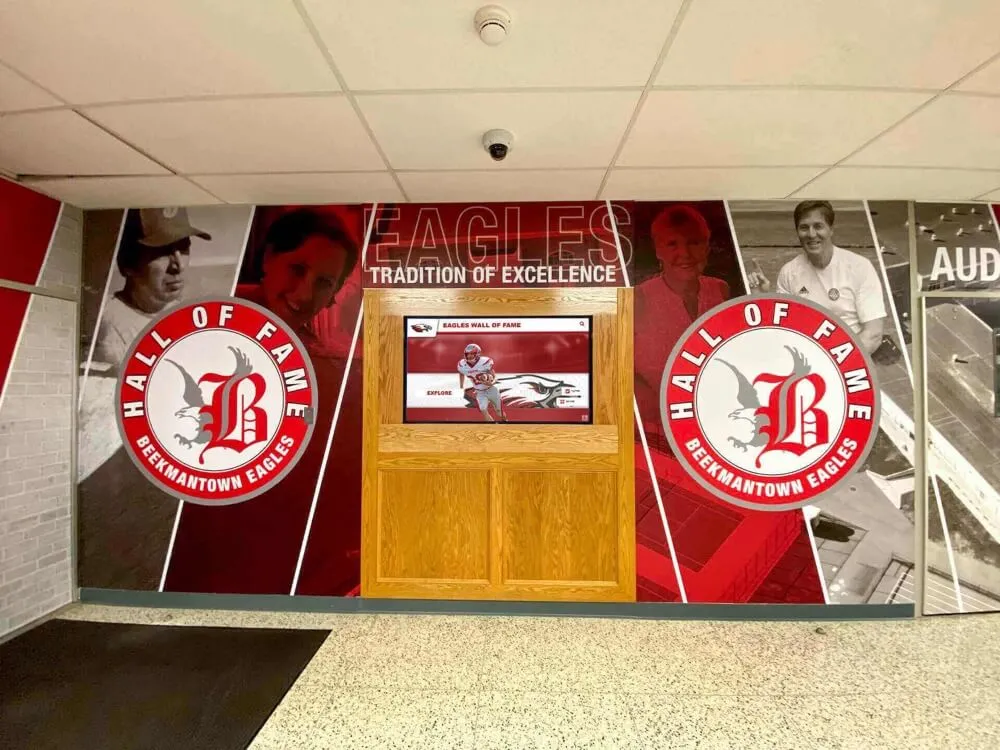
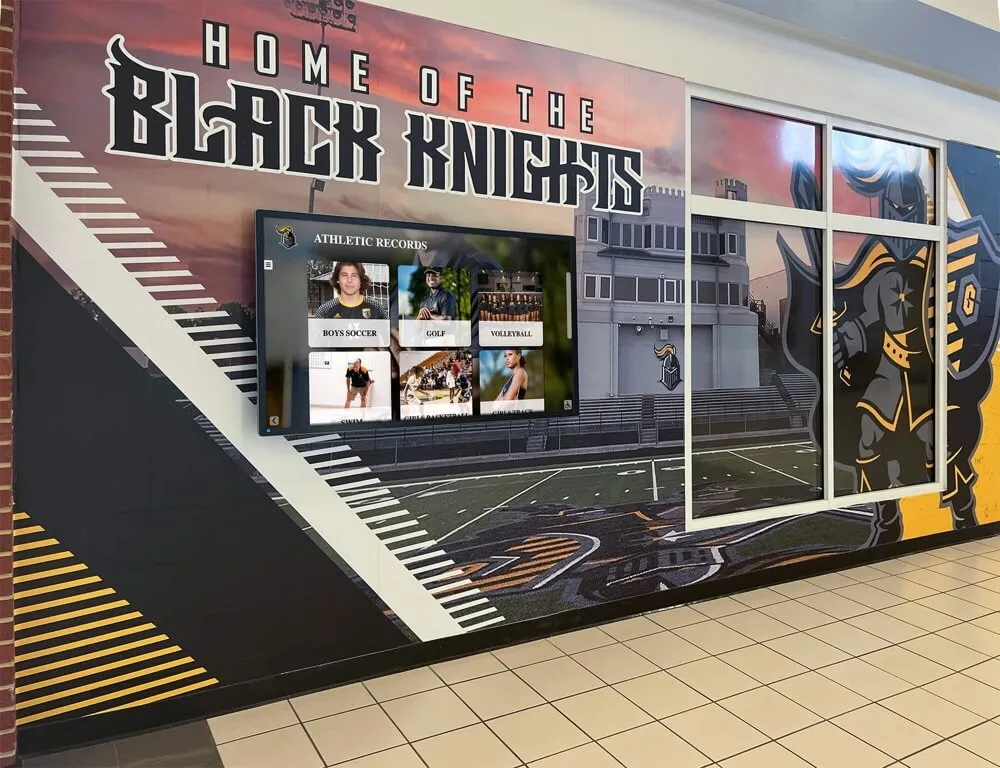
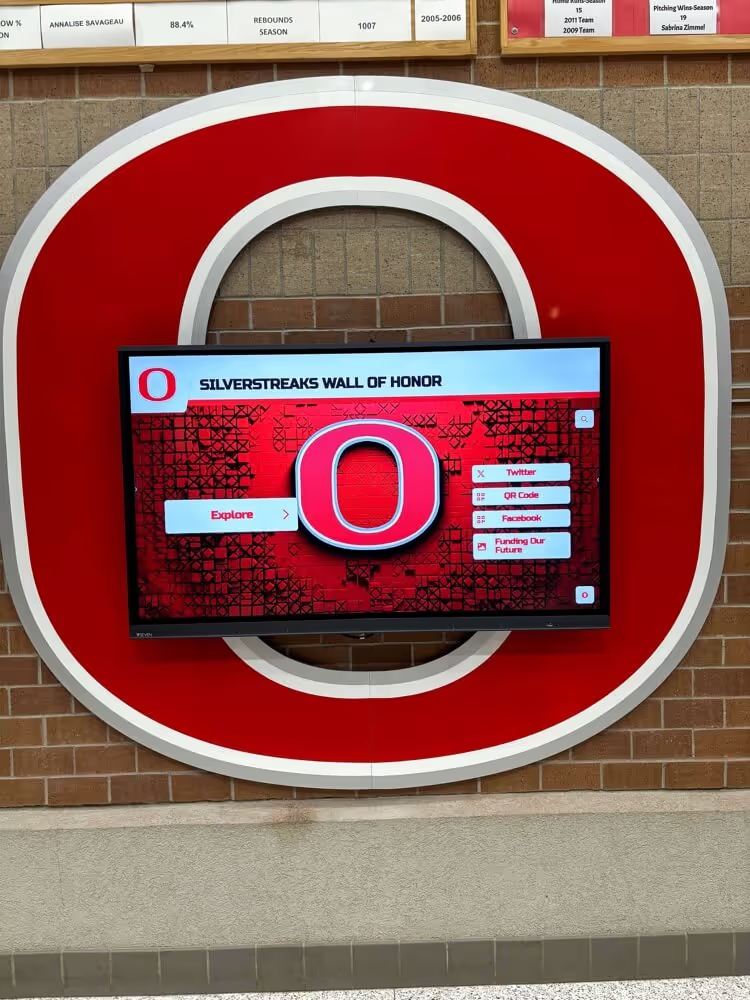
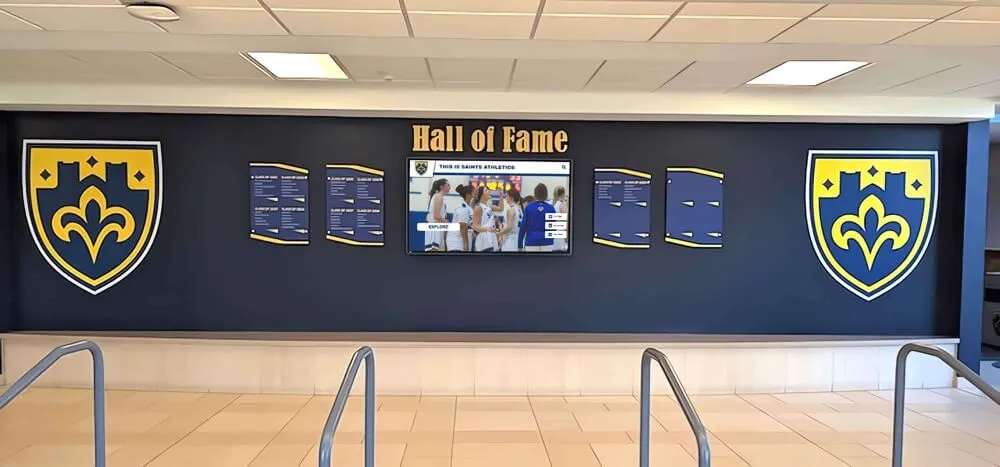
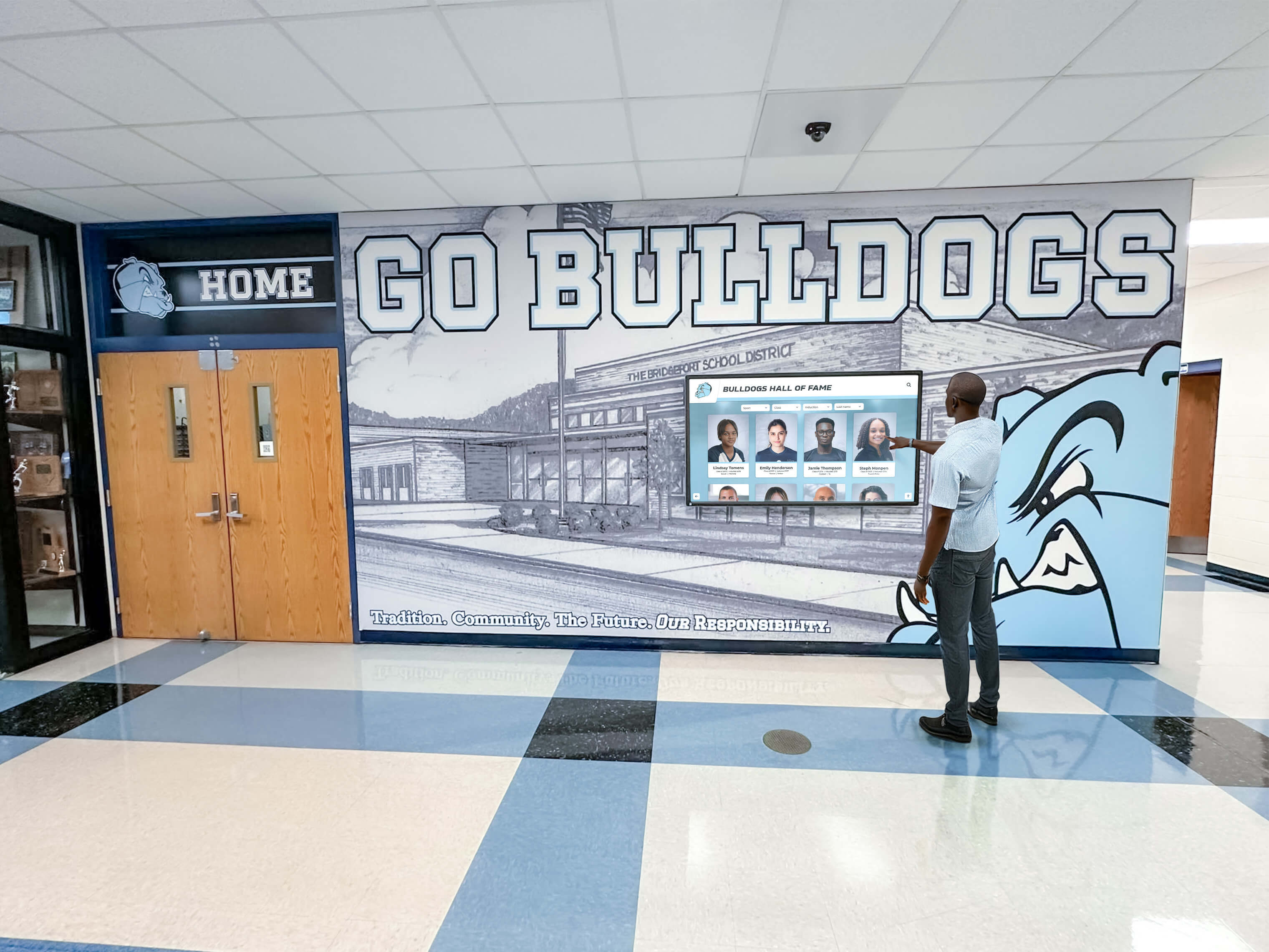
Recognition displays in school lobbies and athletics corridors are the most visible point of failure during a network broadcast storm caused by a loop that BPDU filter inadvertently hid from spanning tree—a port-by-port audit prevents that failure before it occurs
Port Risk Classification Table
Use this table to assign risk classifications during Step 2 and to prioritize remediation after the audit.
| Port Type | BPDU Filter Status | Risk Level | Recommended Action |
|---|---|---|---|
| Recognition display access port — PortFast enabled | BPDU filter enabled (global or per-port) + BPDU Guard enabled | Acceptable | No action required; BPDU Guard provides the protective control; monitor for BPDU Guard err-disable events |
| Recognition display access port — PortFast enabled | BPDU filter enabled, BPDU Guard absent | Moderate | Add BPDU Guard to the port; without it, a misconnected switch will not trigger an alert |
| Uplink to distribution switch | BPDU filter enabled (any form) | Critical | Remove BPDU filter immediately; uplink ports must participate in spanning tree; schedule correction in next maintenance window |
| Trunk port (inter-switch link) | BPDU filter enabled (any form) | Critical | Remove BPDU filter immediately; trunk ports carry BPDUs for all VLANs; filtering disables loop detection network-wide for the affected VLANs |
| Access point port | BPDU filter enabled | High | Remove BPDU filter; add BPDU Guard; APs with wired downstream ports can bridge a loop; spanning tree must be able to detect BPDUs from a connected device |
| Unknown or unoccupied port | BPDU filter enabled | High | Remove BPDU filter; any device connected to this port in the future will connect outside spanning tree |
| Any port | BPDU filter enabled, PortFast absent (non-edge port) | Critical | Remove BPDU filter immediately; per-port BPDU filter on a non-PortFast port disables spanning tree participation unconditionally with no probe window |
| Recognition display access port — PortFast enabled | BPDU filter disabled, BPDU Guard enabled | Optimal | Standard correct configuration for a recognition display port |
Planning a Recognition Display Network Deployment?
If your school is evaluating a touchscreen recognition display and wants to walk through network integration requirements—switch port configuration, VLAN isolation, spanning tree controls, and PoE requirements—a product demonstration can answer those questions for your IT team in one session. Request a free demo from Rocket Alumni Solutions to see the platform and discuss the infrastructure details your installation requires.
School-Specific BPDU Filter Risk Scenarios
School network environments create BPDU filter risks that differ from corporate environments in their frequency and in the way they manifest during recognition events.
Event Night AV Equipment Connections
Athletics departments and media crews connect additional equipment to switch ports during championship events, induction nights, and alumni weekends. A common scenario: a staff member locates a spare network port in the venue, connects a small unmanaged switch to extend connectivity to a video production laptop and a scoreboard controller, and does not inform IT. If that port has BPDU filter active—because it was previously used as a recognition display port and retained the PortFast and BPDU filter configuration when the display was moved—the loop risk from the unmanaged switch is invisible to spanning tree.
The audit specifically flags unoccupied ports with BPDU filter active (the final row in the risk table above) to address exactly this scenario. A port that has no current device connected but carries BPDU filter from a previous configuration is a latent risk that event night equipment can trigger.
Schools that display alumni recognition content, athletic championships, and induction profiles during high-visibility events are most exposed during the events themselves, when additional equipment is most likely to be connected. An audit completed before the event season is the preventive step.
Switch Replacements with Default PortFast and Global BPDU Filter
When an older access switch is replaced with a new managed switch, IT staff commonly apply a base configuration that enables spanning-tree portfast default (PortFast on all access ports) and spanning-tree portfast bpdufilter default (BPDU filter on all PortFast ports) as a bulk simplification. These global commands are appropriate for environments where every access port genuinely connects to an end device. In a school environment where access ports in hallways and multi-purpose rooms are occasionally used for temporary inter-switch connections, the global BPDU filter default creates the risk described above for every access port on the new switch.
The audit procedure in this guide identifies the global BPDU filter default in Step 1 and classifies the risk of each port individually in Step 2—so that global commands on a replaced switch are examined in the context of what is actually connected to each port.
Multi-Building Fiber Runs with Intermediate Unmanaged Switches
Some school facilities use an unmanaged switch at an intermediate distribution point—for example, in a boiler room or equipment closet where only a small number of ports are needed—and connect that unmanaged switch to a managed access switch serving the recognition display. If the uplink port from the managed switch to the unmanaged switch has BPDU filter active, spanning tree on the managed switch has no visibility into any loops that form through the unmanaged switch. Because the unmanaged switch itself cannot run spanning tree, the managed switch’s BPDU participation on that port is the only loop protection available—and BPDU filter removes it.
Any port connecting a managed switch to an unmanaged switch should be a critical finding in the audit, whether or not BPDU filter is currently active. These ports represent the highest-risk topology for loop formation and the most important candidate for BPDU Guard (which would err-disable the port if the unmanaged switch ever creates a path back to the managed network that generates a BPDU).
PoE Budget Expansion with Additional Small Switches
Schools that expand PoE coverage for recognition displays by adding small PoE injectors or PoE switches inline between the managed access switch and the display are creating a topology where an intermediate device sits between the managed switch port and the recognition display. If the intermediate device is unmanaged, BPDU filter on the managed switch port removes the only spanning tree protection. If the intermediate device is a managed PoE switch, BPDU filter on the upstream port disconnects that managed switch from spanning tree participation.
The audit step of documenting what is connected to each port (Step 2) identifies inline PoE switches that may not appear in network documentation. Each one requires a port risk reclassification.
Connecting This Audit to Adjacent Spanning Tree Controls
A BPDU filter safety check is one component of a broader spanning tree verification practice for recognition display deployments. The controls interact in ways that make the full suite more protective than any individual feature.
The relationship between BPDU filter and BPDU Guard is the most important: BPDU Guard provides the protective shutoff that BPDU filter lacks. On an edge port where BPDU filter suppresses BPDU traffic in both directions, BPDU Guard adds the backstop that detects an accidental switch connection (which would generate BPDUs even if the managed switch is not sending them). A recognition display port that has only BPDU filter—without BPDU Guard—relies entirely on the assumption that nothing other than the display will ever be connected to that port.
Root Guard (which prevents a connected device from claiming the root bridge role) and Loop Guard (which blocks a port that stops receiving BPDUs, protecting against unidirectional link failures) address loop scenarios that BPDU filter cannot. A network that has BPDU filter correctly applied to edge ports, BPDU Guard protecting those ports, Root Guard on distribution uplinks, and RSTP enabled throughout the path has layered protection. A network where BPDU filter is the only spanning tree feature that has been reviewed leaves the remaining protections unverified.
Schools monitoring network baseline performance for recognition displays can incorporate BPDU filter audit findings into the same documentation that tracks QoS baselines and uplink bandwidth utilization—building a single reference for the display’s network health that covers both traffic performance and spanning tree configuration.
Q&A: BPDU Filter Safety for School Recognition Display Ports
What is the difference between spanning-tree bpdufilter enable on a port and spanning-tree portfast bpdufilter default globally?
The per-port command spanning-tree bpdufilter enable unconditionally disables BPDU transmission and reception on that interface, regardless of whether PortFast is enabled. The global command spanning-tree portfast bpdufilter default applies BPDU filter only to ports that are currently configured for PortFast. Additionally, when the global command activates BPDU filter on a PortFast port, the switch sends 11 BPDUs at link-up as a probe; if it receives a BPDU during that probe window, PortFast is disabled on the port for that link session. The per-port command skips this probe entirely—the port never sends or receives BPDUs at all. The per-port form carries more risk because it provides no automatic recovery path if a switch is accidentally connected.
Should BPDU filter be enabled on the recognition display’s access port at all?
Not necessarily. The correct configuration for a recognition display port is PortFast enabled (so the display’s port comes up immediately without spanning tree delays) and BPDU Guard enabled (so the port is immediately shut down and alerted if any BPDU arrives—which would indicate a switch was connected). BPDU filter is optional in this configuration. If the global spanning-tree portfast bpdufilter default command is active, BPDU filter will apply to the display port as part of that global setting; this is acceptable as long as BPDU Guard is also present. If BPDU filter is not present on the display port, spanning tree will still function correctly—the port is an edge port, so BPDUs are not expected, and BPDU Guard will respond to any BPDU that does arrive.
What happens if BPDU filter is on an uplink port and a loop forms?
The switch with BPDU filter on its uplink port will not detect the loop through that port. BPDUs circulating in the loop will not be processed by that switch. Depending on the topology, other switches in the network may or may not have visibility into the loop through different ports. If no other switch can detect the loop, broadcast frames will replicate indefinitely around the loop path, consuming all available bandwidth on the affected VLAN. Devices on that VLAN—including the recognition display, if it shares the VLAN—will experience a broadcast storm. Network traffic will slow to near zero, and the display will lose connectivity to its content platform. The storm will continue until the loop is physically broken (a cable is disconnected) or the switches are rebooted and spanning tree can re-establish a clean topology.
Our recognition display reboots or loses connectivity briefly every time a PortFast port comes up. Could this be a BPDU filter interaction?
It could be a topology change notification (TCN) interaction. When a PortFast port that does not have BPDU filter transitions to Forwarding, RSTP generates a topology change—which causes connected switches to flush their MAC address tables. For a brief period after the flush, frames are flooded to all ports on the VLAN while MAC addresses are relearned. If BPDU filter is absent from a port that frequently bounces (an access point that reboots, a laptop that connects and disconnects repeatedly), the resulting topology change notifications can cause brief flooding bursts that the recognition display experiences as connectivity interruptions. BPDU filter on frequently-bouncing PortFast ports reduces the topology change notification rate—but BPDU Guard should be added alongside it to maintain loop protection.
How often should the BPDU filter safety audit be run?
Run the audit annually and after any switch configuration change, switch replacement, or facility change that affects the physical network path. Additionally, run the audit after any unplanned network event—a broadcast storm, an unexplained display outage, a BPDU Guard err-disable event in the switch log—that may indicate a loop condition occurred. A broadcast storm that resolved after a device was disconnected is a signal that BPDU filter or BPDU Guard configuration needs review.
Can I run this audit without downtime?
Yes. The audit procedure in this guide uses only read commands (show spanning-tree, show running-config | include bpdufilter, show logging). No configuration changes, port bounces, or link interruptions are required during the audit phase. The port-bounce step in Step 5 is a verification of the display port’s transition behavior and can be scheduled during a maintenance window if downtime is a concern. The audit itself can be completed during normal school hours without affecting the recognition display or other network devices.

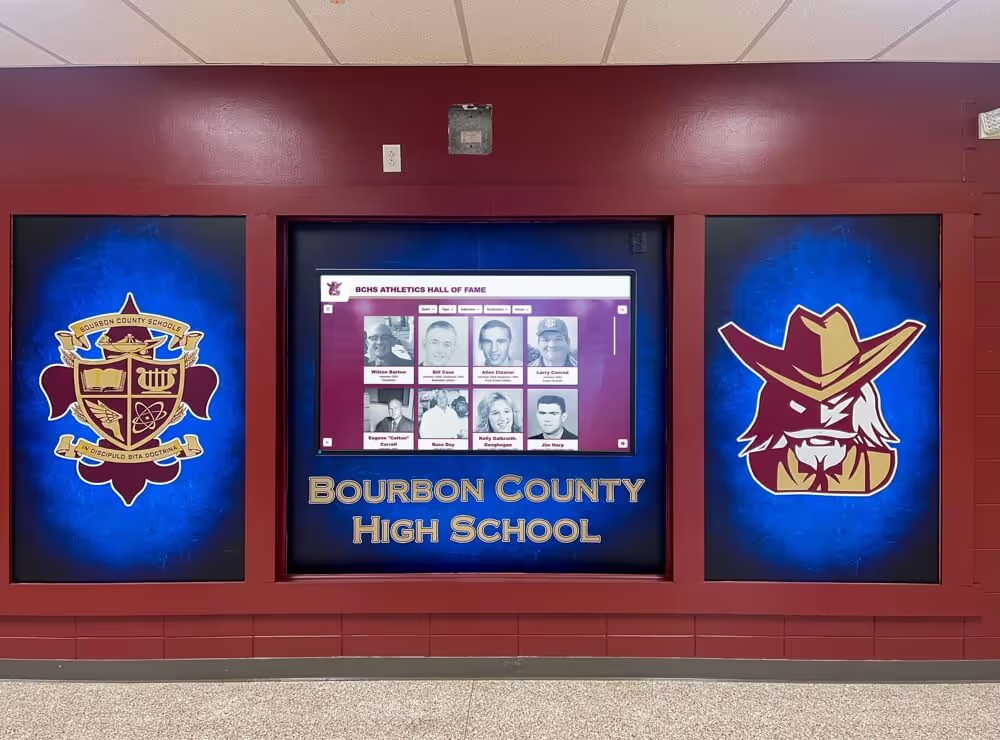
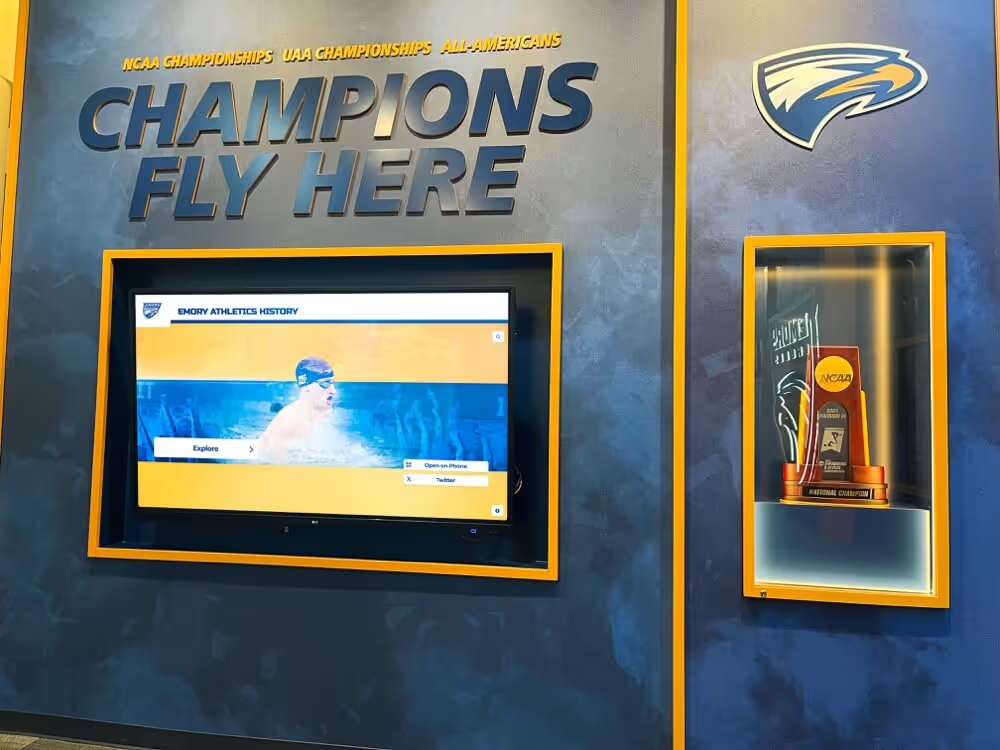
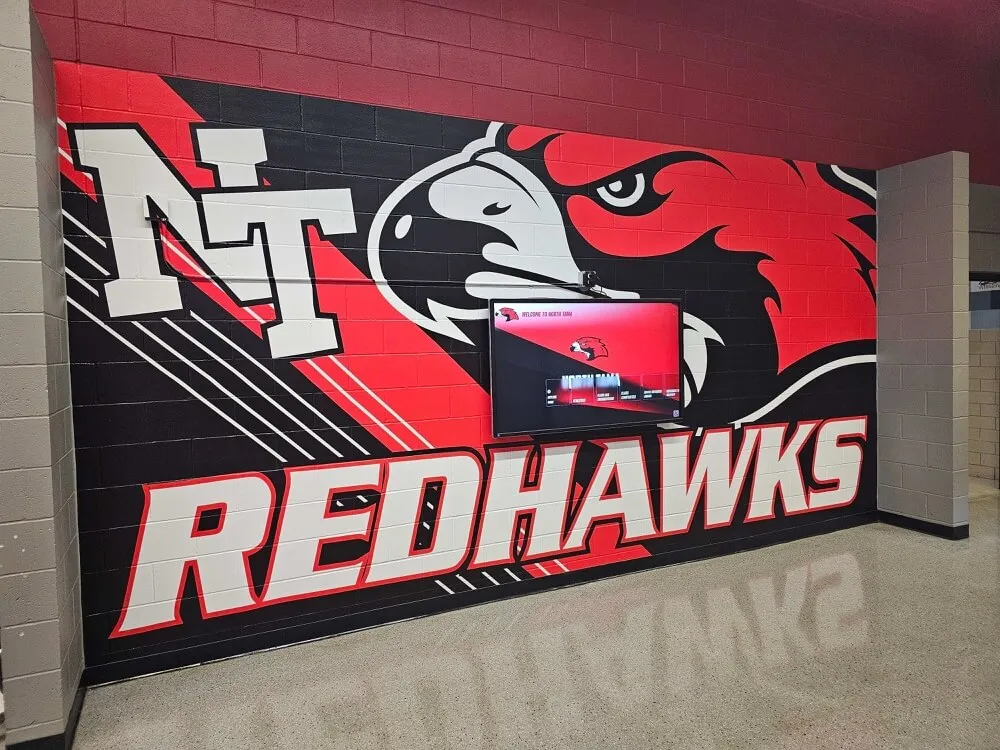
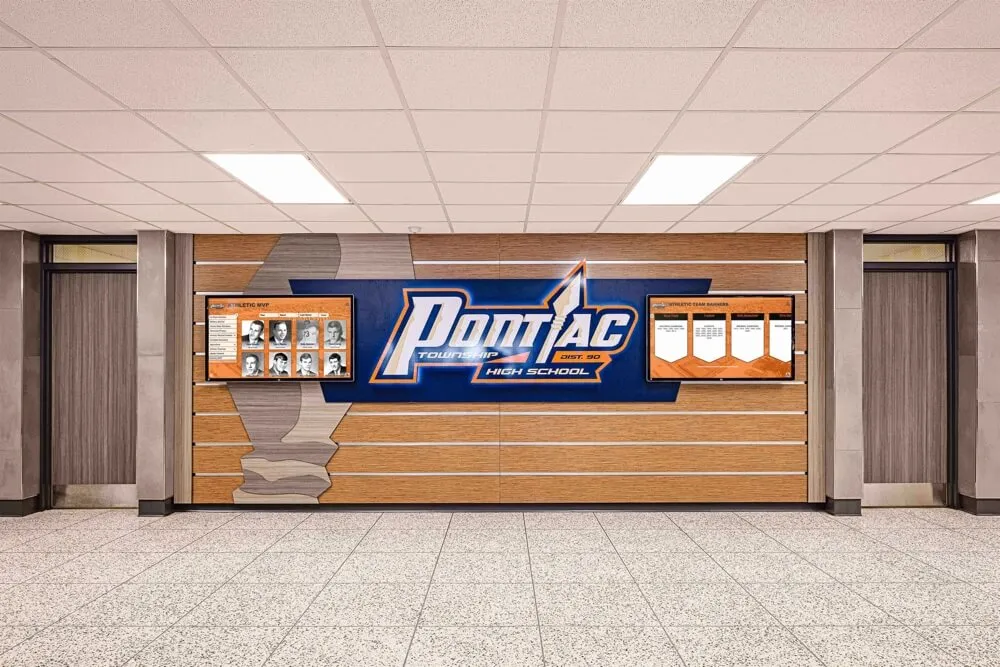
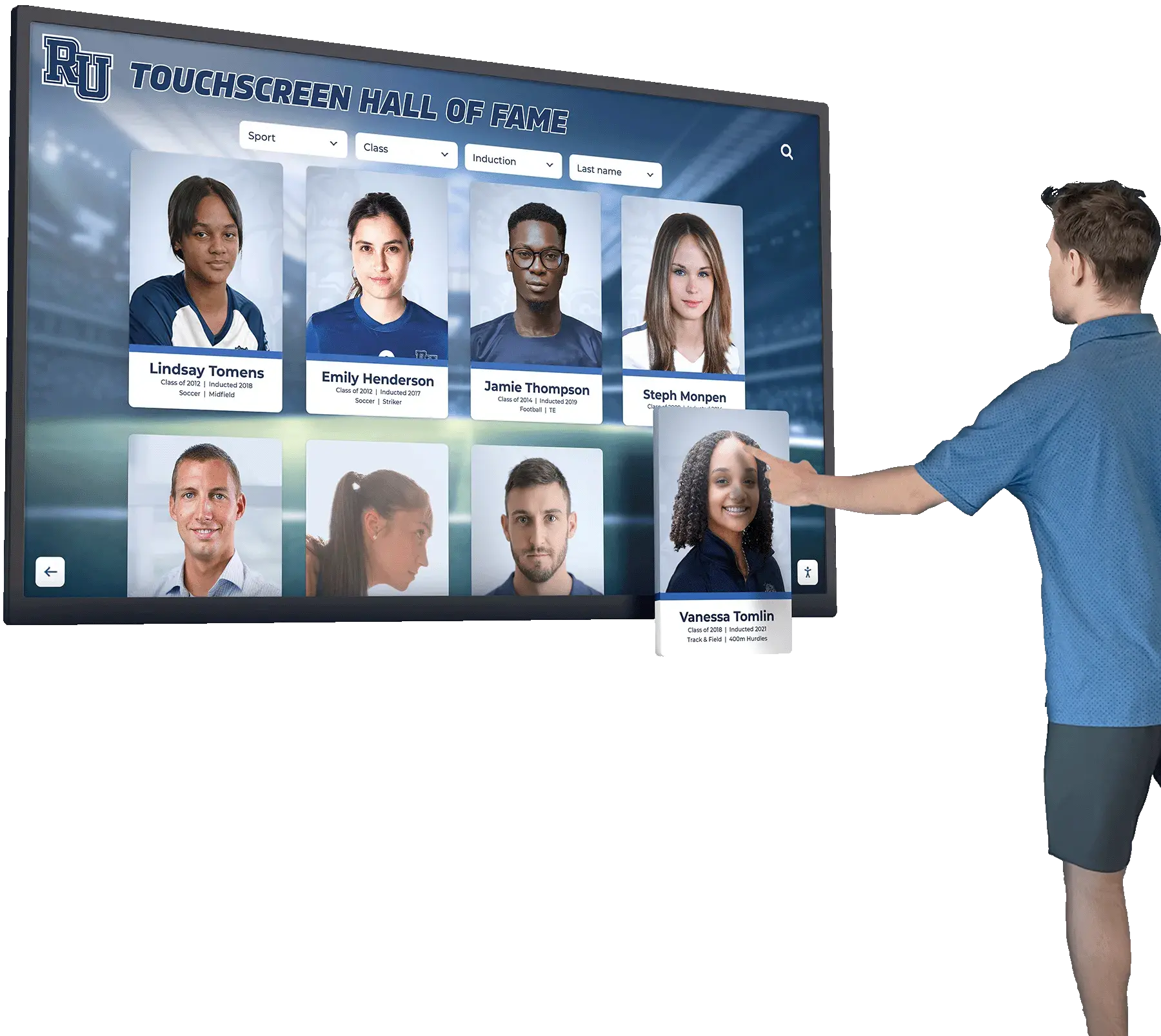
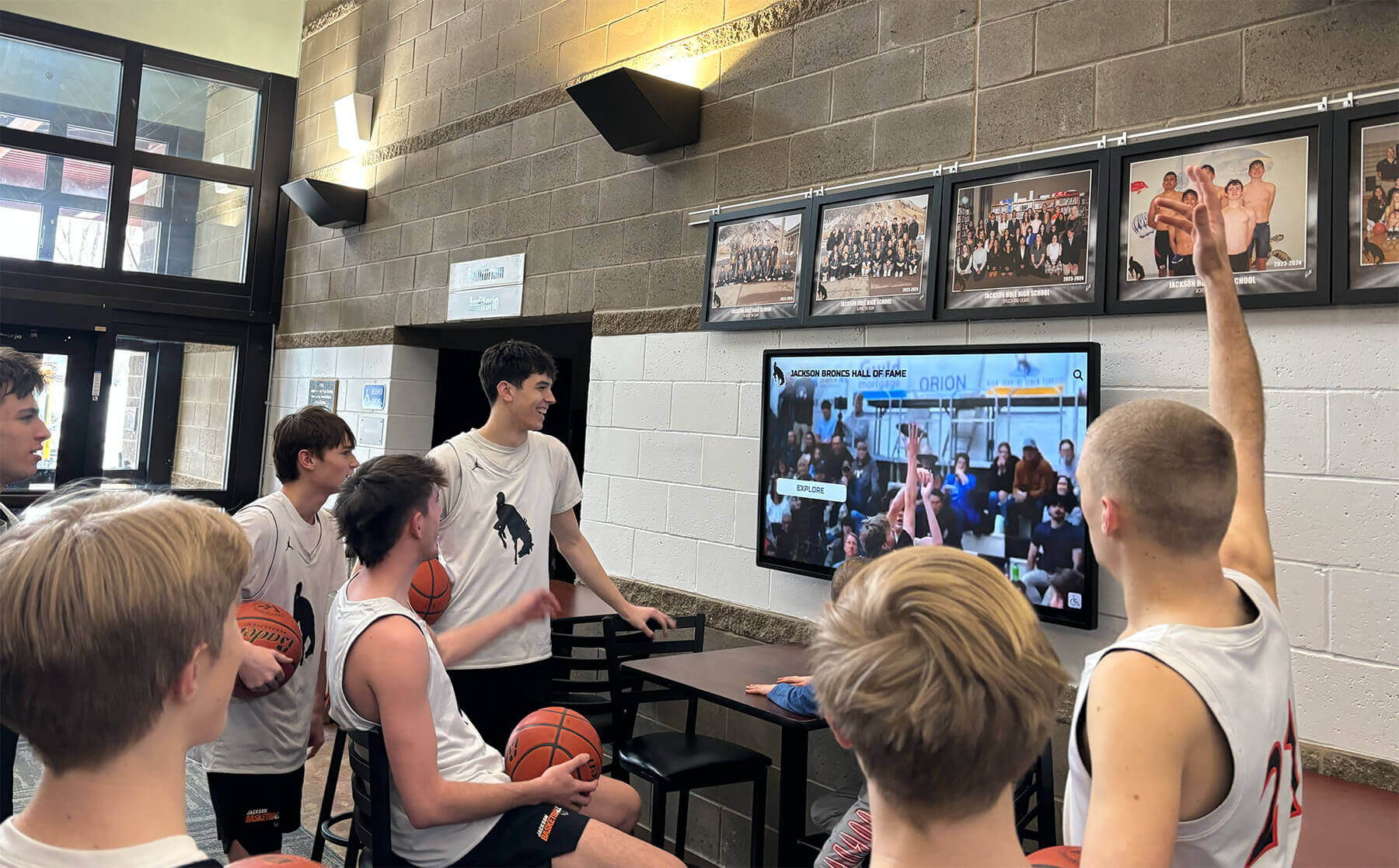
A row of recognition displays in a school athletics hallway represents a significant investment in honoring student achievement—a BPDU filter safety audit is the port-level verification that the switching infrastructure protecting those displays is correctly configured
Audit Completion Checklist
Use this checklist to confirm the BPDU filter safety audit was completed correctly and all findings are documented.
- All managed switches in the recognition display’s network path identified and SSH/console access confirmed
- Global
spanning-tree portfast bpdufilter defaultstatus checked on each switch; result documented (enabled / disabled) - Per-port BPDU filter configuration reviewed with
show running-config | include bpdufilteron each switch; all ports with per-port BPDU filter identified and listed - Connected device identified for each port with BPDU filter active (display / uplink / trunk / AP / unmanaged switch / unknown)
- Risk classification assigned for each port using the classification table
- BPDU Guard status confirmed on the recognition display’s access port
- Uplink ports and trunk ports confirmed free of BPDU filter configuration
- Switch logs reviewed for BPDU Guard err-disable events and topology change notifications from access ports
- Recognition display port behavior verified: PortFast transition to Forwarding confirmed; BPDU sent/received counts reviewed
- Remediation items documented and prioritized; critical-risk findings flagged for immediate correction
- Audit findings recorded in IT runbook: switch hostname, interface, connected device, PortFast, BPDU filter, BPDU Guard, risk classification, recommended action, technician, date
Building BPDU Filter Review Into the Recognition Display Network Maintenance Calendar
A recognition display BPDU filter safety check addresses a specific configuration risk that is invisible in normal network operation. A broadcast storm triggered by a loop through a BPDU-filtered port looks, from the display’s perspective, identical to a network outage caused by a failed uplink or a DHCP server problem—except that it affects every device on the VLAN simultaneously and does not resolve until the loop is physically broken. Running the audit annually and after every topology change adds the spanning tree configuration layer to the network maintenance practice.
Schools whose recognition programs carry the athletic records, hall-of-fame profiles, and academic achievement histories that communities return to year after year—through touchscreens in lobbies that visitors interact with before and after the events where achievement is celebrated—depend on network infrastructure that has been verified at every layer: IP addressing, VLAN isolation, spanning tree configuration, and failover behavior. The BPDU filter audit is the spanning tree configuration check that confirms loop detection is not accidentally disabled on any port in the display’s network path.
A port-by-port review of BPDU filter status takes one to two hours for a typical school access layer, produces a documented record of every spanning tree control on every port in the path, and eliminates the risk that an undetected loop will take the recognition display offline during the next event. That investment closes the gap between a network that appears to be correctly configured and one that has been verified to be correctly configured.
Connecting the BPDU filter audit to the related verification steps—RSTP convergence testing for uplink failover speed, QoS monitoring for bandwidth prioritization, and network segmentation to isolate recognition display traffic—builds a complete network verification record that supports the recognition program through every event, hardware refresh, and facility change.
See a School Recognition Display Platform in Action
If your school is planning or expanding a touchscreen recognition display deployment and wants to understand the full network integration—switch port requirements, VLAN configuration, spanning tree controls, and cloud platform connectivity—a live demonstration gives your IT team and athletic director those answers before installation begins. Rocket Alumni Solutions designs recognition display platforms for school environments, with documented infrastructure requirements and technical staff who can walk through spanning tree and switch port configuration questions alongside your IT coordinator.