Interactive Touch Screen Digital Signage: How It Works and What You Need
- Home /
- Blog Posts /
- Interactive Touch Screen Digital Signage: How It Works and What You Need
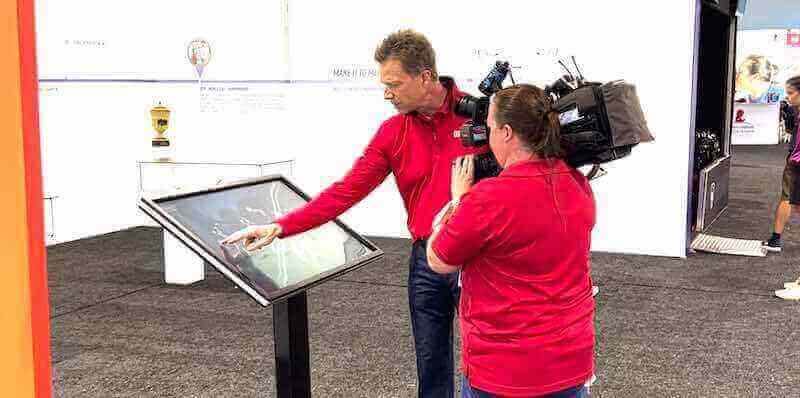
The Easiest Touchscreen Solution




Live Example: Rocket Alumni Solutions Touchscreen Display
Interact with a live example (16:9 scaled 1920x1080 display). All content is automatically responsive to all screen sizes and orientations.
Interactive touch screen digital signage moves communication from passive display to active conversation. Instead of glancing at a rotating slideshow, a visitor taps, swipes, and searches—spending several minutes discovering exactly the information that matters to them. That shift in how people engage is why schools, universities, athletic programs, and community organizations are replacing traditional static boards with purpose-built interactive systems.
But the decision isn’t simple. There are multiple touch technologies, hardware configurations, software platforms, and content strategies to evaluate—and choosing poorly means expensive equipment that collects fingerprints rather than engagement. This guide walks through how interactive touch screen digital signage actually works under the hood, what components a complete system requires, and the questions worth asking before you spend a dollar.
Whether you’re replacing a trophy case, modernizing a lobby directory, or building a searchable digital hall of fame, the same fundamentals apply: the right hardware paired with the right software, presenting content your audience actually wants to explore.

Interactive touch screens transform one-way communication into explorable experiences that hold attention far longer than static displays
What Interactive Touch Screen Digital Signage Actually Is
Interactive digital signage is a display system that responds to touch input, allowing users to navigate content rather than simply observe it. The distinction from passive digital signage (a TV looping a slideshow) is significant: interactive systems store substantial content libraries that users access through on-screen menus, search tools, and filtering—similar to using a tablet, but at a scale designed for public spaces.
A complete interactive touch screen system typically includes:
- A commercial-grade touchscreen display: Sized for the space and traffic pattern, rated for extended daily operation
- A computing module: Either built into the display or connected externally, running the signage software
- Content management software: A platform for uploading, organizing, and publishing content to the screen
- Network connectivity: Wired ethernet or Wi-Fi enabling remote updates and cloud sync
- Mounting hardware: Wall mounts, freestanding enclosures, or architectural integration
- Optional web extension: A companion website making the same content accessible from mobile devices
These components work together as a system, not independently. A powerful display running underpowered software—or excellent software on a display with sluggish touch response—will underperform expectations.
Explore a detailed breakdown of interactive touch screen displays designed for school lobbies and gyms to see how individual components fit together in real installations.
How Touch Screen Technology Works: The Three Main Types
Not all touch screens work the same way. Understanding the underlying technology helps explain performance differences between displays—particularly response speed, multi-touch support, and how they hold up in high-traffic environments.
Projected Capacitive Touch (PCAP)
Projected capacitive technology is the same technology used in smartphones and tablets. A grid of conductive electrodes (typically indium tin oxide, which is optically clear) sits beneath a glass surface. When a finger (or conductive stylus) approaches, it disturbs the electrical field, and the controller calculates the exact touch point.
Advantages:
- Fastest and most accurate response—typically under 20 milliseconds
- Supports true multi-touch (pinch, zoom, two-finger scroll)
- Smooth glass surface is easy to clean and durable
- No calibration required
Considerations:
- More expensive than other options, particularly at large screen sizes (55"+)
- Requires a conductive input—standard gloves don’t work without conductive fingertips
- Best suited for indoor, climate-controlled environments
PCAP is the preferred technology for dedicated recognition displays, kiosks, and anywhere the tactile experience matters. When someone presses a name on a hall of fame touchscreen, instant response builds trust in the system.
Infrared Touch (IR)
Infrared displays use a grid of invisible IR light beams across the screen surface. When a finger (or any opaque object) breaks those beams, the controller triangulates the touch point.
Advantages:
- Cost-effective at large sizes (65" and above)
- Works with any input—fingers, gloves, stylus, pointer
- No degradation of screen image quality from an overlay layer
- Scales well to very large formats (80"+ displays)
Considerations:
- Slightly slower response than PCAP, though modern IR controllers are close
- Dust and debris on the sensor bar can cause phantom touches
- Direct sunlight can interfere with IR sensors in some installations
IR technology is common in large-format educational displays and conference room screens where universal input compatibility matters more than premium response speed.
Resistive Touch
Resistive displays use two flexible conductive layers separated by a small gap. Pressing the screen pushes the layers together, completing a circuit at the touch point.
Advantages:
- Very low cost
- Works with any object including stylus, pen, and gloved hands
Considerations:
- Requires physical pressure rather than light touch
- Limited to single-touch (no multi-touch gestures)
- The flexible top layer degrades over time
- Image clarity is lower than glass-covered alternatives
Resistive technology is largely outdated for public-facing interactive signage. Its lower responsiveness and single-touch limitation make for a frustrating user experience compared to what people expect from modern touch interfaces.
Which Technology Fits Your Setting?
For most school lobbies, athletic facilities, and institutional recognition displays, the choice comes down to PCAP versus IR:
- PCAP if budget allows and the display is 55" or under—the touch experience is noticeably better
- IR if you need a large format (65"–86") display at a reasonable cost, or if users may wear gloves
Either can deliver excellent results when paired with capable software. The bigger differentiator in real-world deployments is often the software and content, not the underlying touch technology.
The Hardware You Need: A Practical Checklist
Display Size and Specifications
Screen size should match the physical space and expected viewing distance:
| Space Type | Recommended Size | Notes |
|---|---|---|
| Small office / vestibule | 43"–55" | Intimate setting; users approach closely |
| Standard lobby / hallway | 55"–65" | Most common for school recognition displays |
| Large gymnasium / entrance | 65"–86" | Needs to be visible from 15+ feet |
| Wide-format multi-panel | Custom | Two displays side-by-side for wide-format recognition walls |
Beyond size, look for these specifications on any display you evaluate:
- Commercial-grade rating: Look for 16/7 or 24/7 operation ratings. Consumer televisions are not designed for extended institutional use and will fail prematurely.
- Brightness: Minimum 350 nits for standard indoor spaces; 500+ nits near windows or in gyms with skylights
- Resolution: 1080p is workable; 4K is preferable for large formats or content with fine detail like statistical records
- Anti-glare coating: Critical for any display near a window or under overhead lighting that creates reflections
- Haze rating: For touch overlays, a haze value below 2% preserves image clarity
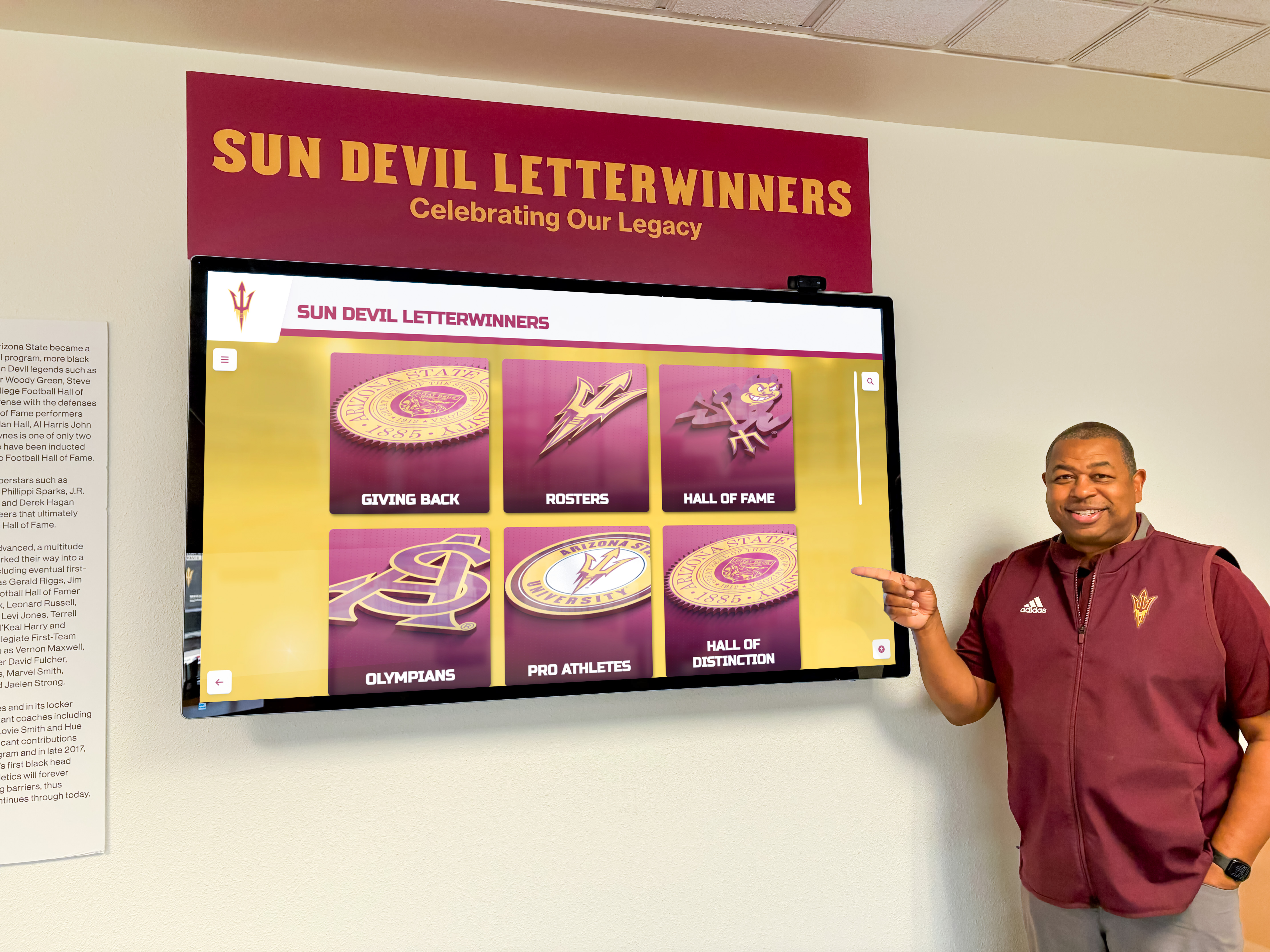
Large-format displays in high-traffic hallways require commercial-grade hardware and appropriate brightness for ambient light conditions
The Computing Module
The display shows the content; the computing module drives it. This is either a dedicated mini PC connected via HDMI or a System-on-Chip (SoC) module built directly into some commercial displays.
Minimum specifications for smooth performance:
- Processor: Intel Core i5 (8th generation or newer) or equivalent AMD
- RAM: 8 GB (16 GB preferred for content-heavy deployments)
- Storage: 256 GB SSD (solid state, not spinning hard drive)
- OS: Windows 10/11 LTSC or Android (depending on the software platform)
Why this matters: Underpowered hardware causes noticeable lag when users tap navigation elements, load video content, or search large databases. A display that takes 2+ seconds to respond to taps will be abandoned, regardless of how good the content is.
Read a detailed breakdown of what computing hardware belongs inside a touchscreen kiosk to avoid common configuration mistakes.
Mounting Options
Wall-mounted displays are the most common installation. They require:
- A structurally adequate wall (or blocking installed during construction)
- Concealed cable routing to a nearby electrical panel and data port
- Height placement centered at 54"–60" above finished floor for average adult ergonomics
Freestanding kiosks make sense when:
- No appropriate wall exists in the desired location
- The display needs to be repositioned occasionally
- You want a self-contained unit with built-in computing and cable management
Recessed or flush-mounted installations integrate the display into millwork or a custom surround. This creates the cleanest visual result but requires coordination with a contractor and is permanent.
Network and Connectivity
Interactive displays with cloud-based software need network access to receive content updates, sync databases, and push analytics back to the management platform.
Wired ethernet is strongly preferred over Wi-Fi for production installations. A wired connection eliminates the variables that cause intermittent connectivity: RF interference, password changes, DHCP issues, and physical distance from access points. Running a CAT6 cable to the display during installation adds minimal cost and eliminates a significant category of future support calls.
If wired ethernet is not possible, use a business-grade Wi-Fi access point mounted near the display—not relying on a distant router serving the entire building.
Choosing the Right Software
Hardware provides the foundation; software determines what the display actually does and how easy it is to manage over time.
Web-Based vs. Native Application Platforms
Web-based platforms run in a browser window on the display device. Content is hosted in the cloud; the browser fetches and renders it.
Advantages:
- Updates publish instantly without touching the device
- Works across operating systems (Windows, Chrome OS, Android)
- Easier remote management—no app deployment required
- Generally lower total cost of ownership
Considerations:
- Requires reliable network connectivity for full functionality
- Performance depends on browser rendering, which can vary
Native applications are installed directly on the device’s operating system.
Advantages:
- Can cache content for offline display
- Tighter hardware integration for some features
- Potentially more consistent performance in specific OS environments
Considerations:
- Updates require deployment to each device
- Platform-specific: an Android app won’t run on Windows
- Higher development and maintenance burden for the vendor
For most institutional interactive signage—particularly recognition displays—web-based platforms deliver the better operational experience. Remote content updates, centralized management of multiple displays, and cross-device flexibility outweigh the offline capability that native apps provide (which most lobby displays don’t need anyway).
Review a practical comparison of web-based versus native touchscreen signage software covering the trade-offs in real deployment scenarios.
What to Look For in Signage Software
Regardless of web-based or native architecture, evaluate any platform against these criteria:
Content management interface:
- Can a non-technical staff member add or update profiles without training?
- Does bulk import work (uploading a CSV of athlete records, for example)?
- Is there a media library for storing and reusing photos and videos?
Search and navigation:
- Can users search the full database by name, sport, year, or category?
- Does search handle misspellings or partial matches?
- Are filter controls accessible without navigating multiple levels?
Display customization:
- Can the interface match institutional branding (colors, fonts, logo)?
- Does it support multiple layout templates for different content types?
- How are transitions and animations controlled?
Analytics:
- What usage data is available? (sessions, duration, most-viewed content, search terms)
- How is this data accessed? (dashboard, export, scheduled reports)
Support model:
- Is there a dedicated support contact or only a ticketing queue?
- What are the response time commitments?
- Is onboarding and training included?
For a complete 2025 buying guide, see this detailed evaluation of touchscreen kiosk software platforms covering both enterprise and education-focused options.
Purpose-Built vs. General-Purpose Platforms
General-purpose digital signage platforms (designed for retail menu boards, corporate lobbies, and wayfinding) can technically run on a touchscreen, but they weren’t architected for the specific demands of recognition, hall of fame archives, or searchable athlete databases.
Purpose-built recognition platforms like Rocket Alumni Solutions are designed from the ground up for institutional recognition use cases—with pre-built templates for athlete profiles, searchable award databases, and content structures that match how schools actually organize their records. This specificity reduces setup time considerably and avoids the custom development work that general-purpose platforms require to match the same functionality.
The comparison isn’t about which is “better” in the abstract; it’s about fit. A general-purpose signage tool is reasonable for a cafeteria menu board or event calendar. It’s not a natural fit for a searchable database of 200 alumni spanning 40 years.
Read how interactive touch screen TV systems support school recognition and storytelling to understand what purpose-built platforms do differently.
Content Strategy: What to Put on the Screen
The most common mistake in interactive signage deployments is treating content as an afterthought. Hardware arrives, software is configured, and then someone asks: “What do we actually show?”
Content should be planned before purchase, not after.
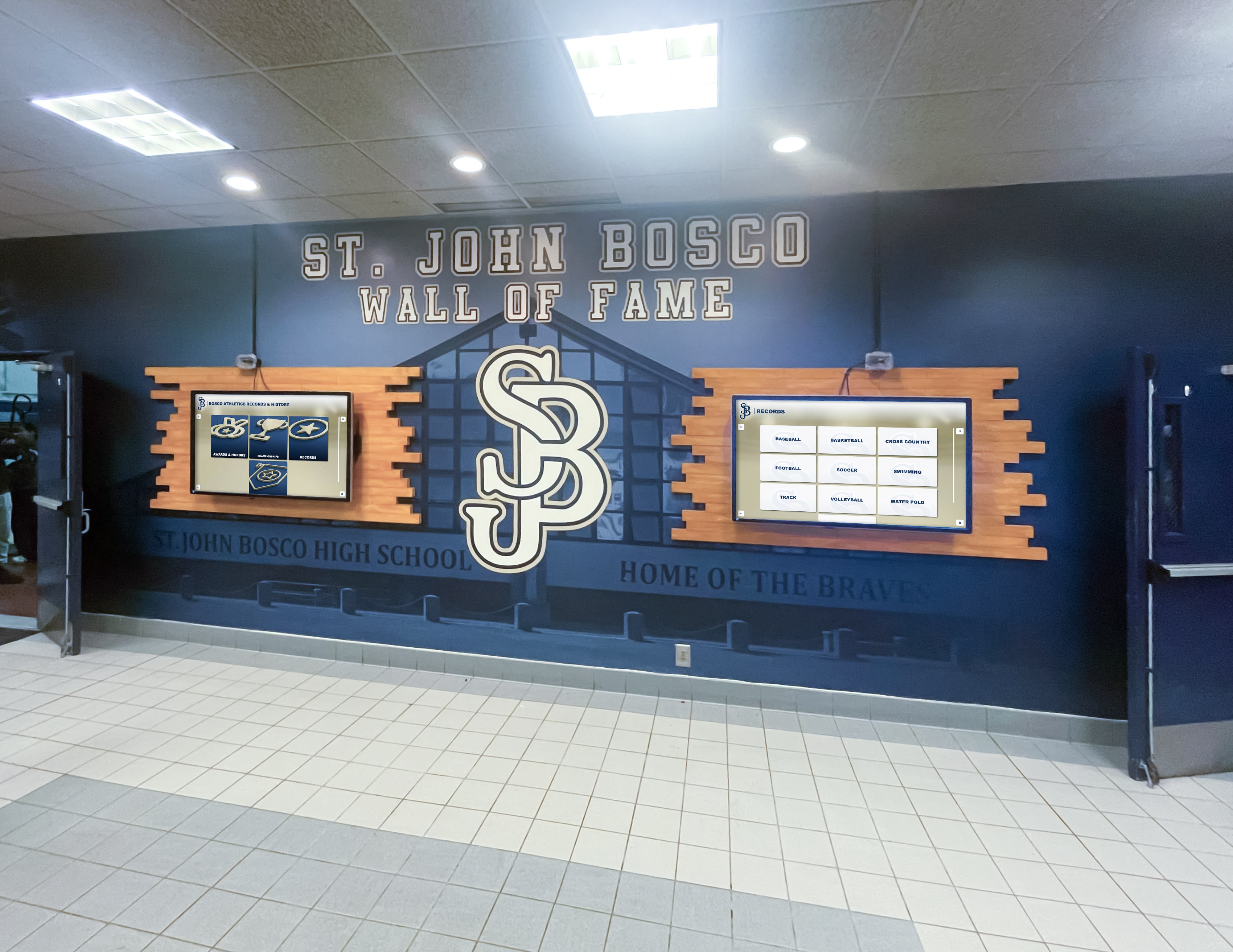
Schools with well-planned content strategies see consistent engagement—visitors know what to look for and find it quickly
Matching Content to Context
Different institutional contexts call for different content approaches:
Athletic recognition and hall of fame displays:
- Individual athlete profiles with stats, achievements, and photos
- Team championship records organized by sport and year
- Historical record boards updated when records fall
- Coach and staff recognition alongside athlete honors
Campus directory and wayfinding:
- Department and office listings with room numbers
- Faculty and staff directories with photos and contact info
- Event calendars showing upcoming activities
- Campus maps with interactive floor plans
Donor and alumni recognition:
- Named giving recognition at different contribution levels
- Alumni profiles highlighting career achievements
- Class and reunion history
- Campaign progress displays for active fundraising
General lobby engagement:
- School news and announcements
- Student achievement spotlights
- Upcoming event information
- Community recognition programs
Understand what users in your specific setting are most likely to search for, and build content depth in those areas first. A display with 20 complete, detailed profiles serves visitors better than one with 200 sparse, photo-less entries.
See a comprehensive library of digital signage content ideas for screens and kiosks organized by institution type and use case.
How Often to Update Content
Interactive displays lose their draw when content never changes. Repeat visitors—students, staff, and community members who pass the display daily—disengage when they’ve seen everything.
A practical update cadence for recognition displays:
- Weekly: Feature rotation (highlighting different athletes or achievements on the home screen)
- Monthly: Add new honorees, update current season records, refresh event information
- Seasonally: Add graduating class achievements, end-of-season award summaries
- Annually: Major content audits, photo updates, new class inductions
Cloud-based platforms make this manageable. Updates made in the content management system publish to the display immediately—no USB drives, no physical access to the device required.
Dynamic Content vs. Static Archives
Many effective interactive displays layer two types of content:
Static archive content (infrequently changing): Historical records, completed seasons, hall of fame inductees, photo galleries from past years. This is the deep library that rewards exploration.
Dynamic content (frequently refreshing): Current season standings, upcoming events, recent achievement spotlights, “new this week” callouts. This creates a reason for repeat visits.
The static archive provides depth and permanence. The dynamic layer provides freshness. Both matter for sustained engagement.
Installation, Placement, and ADA Considerations
Location Selection
The physical location of a touch screen display affects both usage frequency and the type of engagement it generates.
High-traffic placement (main entrance lobby, gymnasium entrance, hallway outside athletic offices) maximizes exposure but means interactions are brief—people passing through rather than stopping to explore.
Destination placement (near a trophy case, alumni gathering area, or academic display) attracts users who are already interested in recognition content. These interactions tend to be longer and more exploratory.
Both placements can work. Consider the primary goal: awareness (high traffic) or depth of engagement (destination). Many schools use both—a lobby display for broad visibility and a dedicated wall in the athletic complex for serious exploration.
Ergonomic Mounting Height
The center of a touchscreen display should sit between 52" and 60" above the finished floor for most adult users. This places primary interactive elements within comfortable reach without requiring users to raise their arms above shoulder height.
For displays serving children and wheelchair users, the usable interactive zone should extend as low as 36" from the floor—this typically means centering the display lower (around 48") or planning content so that critical interactive elements appear in the lower portion of the screen.
ADA standards under Section 508 and the Americans with Disabilities Act provide technical specifications for reach range, operable parts, and clearance floor space around interactive elements. If your display serves a public or federally funded institution, confirm your installation meets these requirements before finalizing mounting height.
Power and Cabling
Budget for electrical work if a dedicated circuit doesn’t already exist near the intended location. Commercial displays draw 150–400 watts depending on screen size; running them on a shared circuit with other equipment is not recommended.
Cable routing options:
- In-wall conduit: Cleanest result; requires a licensed electrician and is best done during renovation
- Surface raceway: A painted aluminum channel running up the wall; less elegant but non-destructive
- Furniture-integrated: For freestanding kiosks, power and data route through the enclosure pedestal
Plan cable runs for both power and data (ethernet) before finalizing the display location. Changing the location after installation is expensive.

Clean installation with concealed cabling creates a professional appearance and reduces vandalism risk compared to exposed wiring
Use Cases: Where Interactive Touch Screens Make the Biggest Difference
Athletic Recognition and Hall of Fame Displays
Schools and universities with established athletic programs have decades of records, championships, and individual achievements that deserve recognition—but physical wall space is finite. A 55" touchscreen can house the complete history of every varsity sport, every conference champion, every record holder, every hall of fame inductee, going back as far as records exist.
Users can search by name (looking up a grandparent who played in the 1970s), filter by sport, browse by decade, or jump directly to a specific achievement. This depth of exploration is impossible with physical plaques and trophy cases.
Solutions like Rocket Alumni Solutions are built specifically for this use case—with content structures organized around athletic programs, award categories, and searchable alumni profiles. The platform handles the database, the search interface, and the display layout, so athletic directors focus on adding content rather than building software.
See a comparison of digital wall of fame systems versus physical recognition displays examining the cost, maintenance, and community impact differences between the two approaches.
Campus Directories and Wayfinding
Interactive directories replace printed maps and static lists with searchable, up-to-date information. A visitor looking for the financial aid office taps “Financial Aid,” sees a photo of the staff, the room number, hours, and a campus map highlight showing how to get there.
Compared to a touchscreen kiosk, traditional campus maps present a maintenance challenge: any department move, staff change, or room renaming requires reprinting and remounting. A cloud-managed interactive directory updates in minutes from any browser.
The distinction between a directory-focused kiosk and a recognition-focused hall of fame display is worth understanding before you specify software. They serve different purposes, require different content structures, and aren’t always well-served by the same platform.
Read a detailed comparison of touchscreen building directories versus digital recognition kiosks to clarify which approach fits different institutional goals.
Donor Recognition Walls
Interactive donor displays allow giving recognition to scale far beyond the physical donor wall. Instead of fixed engraved plaques, a touch screen displays named donors at all giving levels, with the ability to search by name, view giving history, and see the impact of contributions described through program outcomes.
For active campaigns, the same display can show real-time progress toward fundraising goals—a format that has been shown to encourage additional giving during events and campus tours.
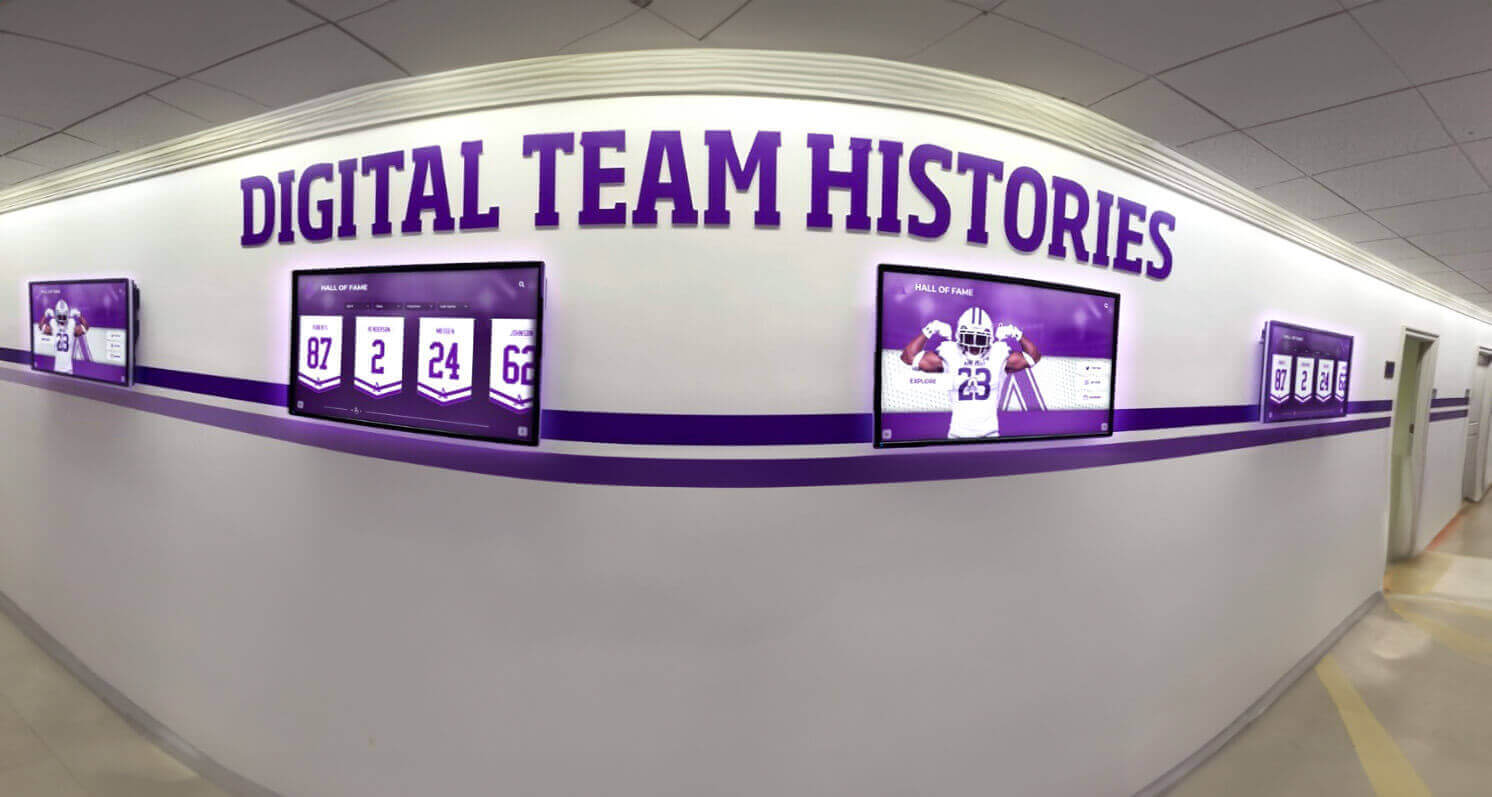
Interactive donor and team history displays create a consistent visual identity while making decades of records searchable and explorable
Rent vs. Buy: Evaluating Your Options
Some vendors offer interactive touchscreen systems on a monthly subscription or rental basis rather than outright purchase. Both models have merit depending on your situation.
Buying outright:
- Higher upfront cost; lower long-term cost if the display runs for 5+ years
- You own the hardware; flexibility to change software vendors
- Hardware maintenance and eventual replacement are your responsibility
Subscription/SaaS models:
- Lower or no upfront hardware cost in some programs
- Software updates, support, and sometimes hardware replacement included in the monthly fee
- Ongoing cost doesn’t end—evaluate total 5-year cost before comparing to purchase price
- Vendor lock-in is more significant when hardware and software are bundled
See an analysis of when it makes sense to rent versus buy interactive touch screen displays for schools with a cost-per-year breakdown for different scenarios.
Neither model is universally better. A school that needs one display, knows its content needs clearly, and plans to use it for 7+ years may come out ahead buying outright. A school uncertain about scope, expecting to add displays over time, or prioritizing support coverage may find the subscription model the better operational fit.
Smart Boards and Interactive Panels: A Related but Different Category
One common source of confusion is the distinction between interactive touch screen signage and smart boards (also called interactive flat panels or IFPs).
Smart boards are designed for collaborative classroom or conference room use: whiteboarding, annotation, video conferencing, screen sharing from connected laptops. They’re excellent educational tools in their intended environment.
Digital signage displays are designed for one-way or self-service public communication: kiosk navigation, recognition archives, directory lookup, announcement displays. They’re not designed for multi-device collaboration or classroom instruction.
The hardware often looks similar—both are large touchscreen displays—but the software, connectivity requirements, use patterns, and support ecosystems are different. Putting classroom smart board software on a lobby kiosk (or vice versa) results in a poor experience in both cases.
Learn more about smart board and interactive display systems and how they compare to purpose-built signage hardware in educational settings.
Ongoing Maintenance: What to Budget For
Interactive touch screen systems require ongoing attention to remain functional and engaging. Budget and planning for maintenance from the beginning prevents the “expensive display collecting dust” outcome.
Hardware Maintenance
Screen cleaning: Touch surfaces accumulate fingerprints and oils. Commercial-grade screens should be cleaned weekly with appropriate non-abrasive cloths and display-safe cleaning solution. Ammonia-based cleaners damage touch sensor coatings.
Ventilation and heat: Computing modules generate heat. Verify adequate ventilation around any enclosure. Annual cleaning of internal fans and heat sinks prevents thermal throttling that causes slow performance.
Cable inspection: Annually inspect all cable connections—HDMI, USB, ethernet, power—for looseness, damage, or corrosion. A loose cable is a common source of intermittent display failures that are misdiagnosed as software issues.
Display lifespan: Commercial displays are typically rated for 50,000–100,000 hours of operation. At 12 hours per day, that’s 11–23 years of display life—meaning the computing module will likely need replacement before the display itself.
Software Maintenance
OS and security updates: The computing module’s operating system needs regular security patches. In Windows environments, plan a monthly update window during off-hours. Unpatched systems in institutional networks are a security liability.
Content audits: Schedule a quarterly review of all published content for accuracy. Staff turnover, record updates, incorrect information entered at launch, and outdated photos are common issues that degrade the credibility of recognition displays over time.
Software platform updates: Cloud-based platforms typically update automatically. For on-premise installations, verify update procedures with your vendor and schedule accordingly.
Analytics review: Monthly review of engagement data—which content is most viewed, what searches return no results, what navigation paths users abandon—informs content improvements that increase engagement without requiring hardware changes.
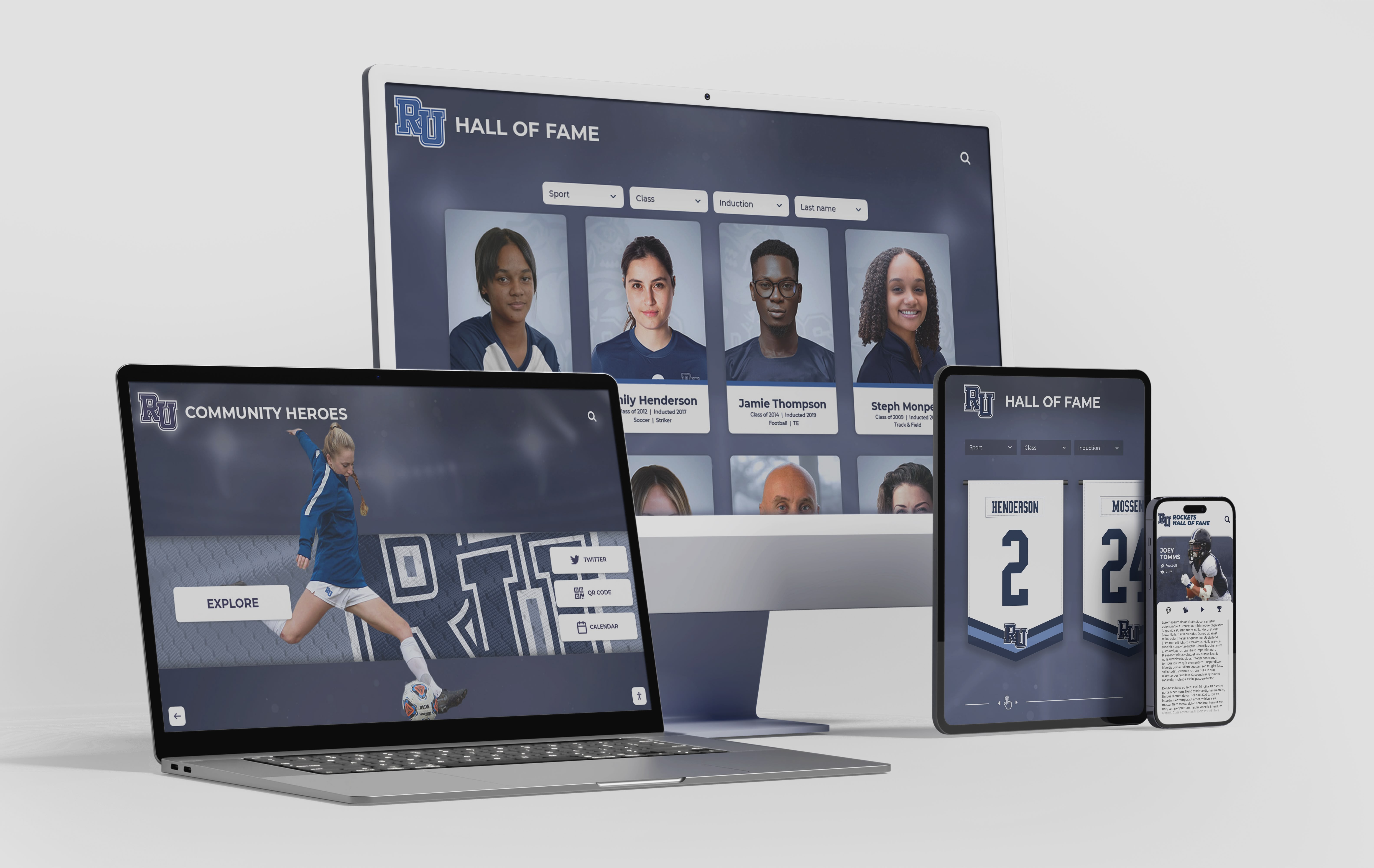
Cloud-based platforms allow content updates from any device, reducing the operational burden of keeping interactive displays current and accurate
What the Evaluation Process Should Look Like
Before committing to a vendor, a structured evaluation reduces the risk of purchasing a system that doesn’t meet your actual needs.
Step 1: Define your primary use case and content scope What specifically will users look for on this display? How many records, profiles, or pages of content will it need to hold? Who will manage content updates, and how often?
Step 2: Assess your physical environment Where will the display live? What’s the lighting situation? Is there an accessible wall with structural backing? Where’s the nearest electrical panel and data port?
Step 3: Request demonstrations from at least two vendors Ask vendors to demonstrate their software on the hardware you’re considering—not a dedicated demo unit at their facility. Specifically test search performance, content loading speed, and the content management interface.
Step 4: Check references from similar institutions Talk to schools or organizations of similar size and use case. Ask specifically about content management burden, support responsiveness, and whether the display gets used regularly or sits idle.
Step 5: Evaluate total cost of ownership Collect pricing for hardware, software licensing (monthly or annual), installation, content migration (if moving from a previous system), and support. Compare over a 5-year horizon, not just the first-year price.
Step 6: Understand the support model What happens when the display goes dark on a Friday afternoon before an alumni event? Know exactly how to reach support, what the response commitment is, and what the escalation path looks like for hardware failures.
Read a comprehensive hardware selection guide for digital hall of fame systems that walks through the evaluation criteria in detail.
Why Rocket Alumni Solutions Is Worth Serious Consideration
Among the platforms built specifically for institutional recognition, Rocket Alumni Solutions stands out for its combination of purpose-built software, managed implementation, and support depth that most general digital signage providers don’t match.
The platform is designed around how schools actually organize and manage recognition programs—with pre-built content structures for athlete profiles, championship records, academic honors, and donor recognition. Implementation includes content migration support, meaning your existing records don’t have to be re-entered manually. And updates happen remotely through a web interface accessible to any authorized staff member, not just IT.
For schools that want the capabilities of a custom interactive display without the resources to build and maintain one from scratch, Rocket Alumni Solutions offers a professionally packaged path to exactly that outcome.
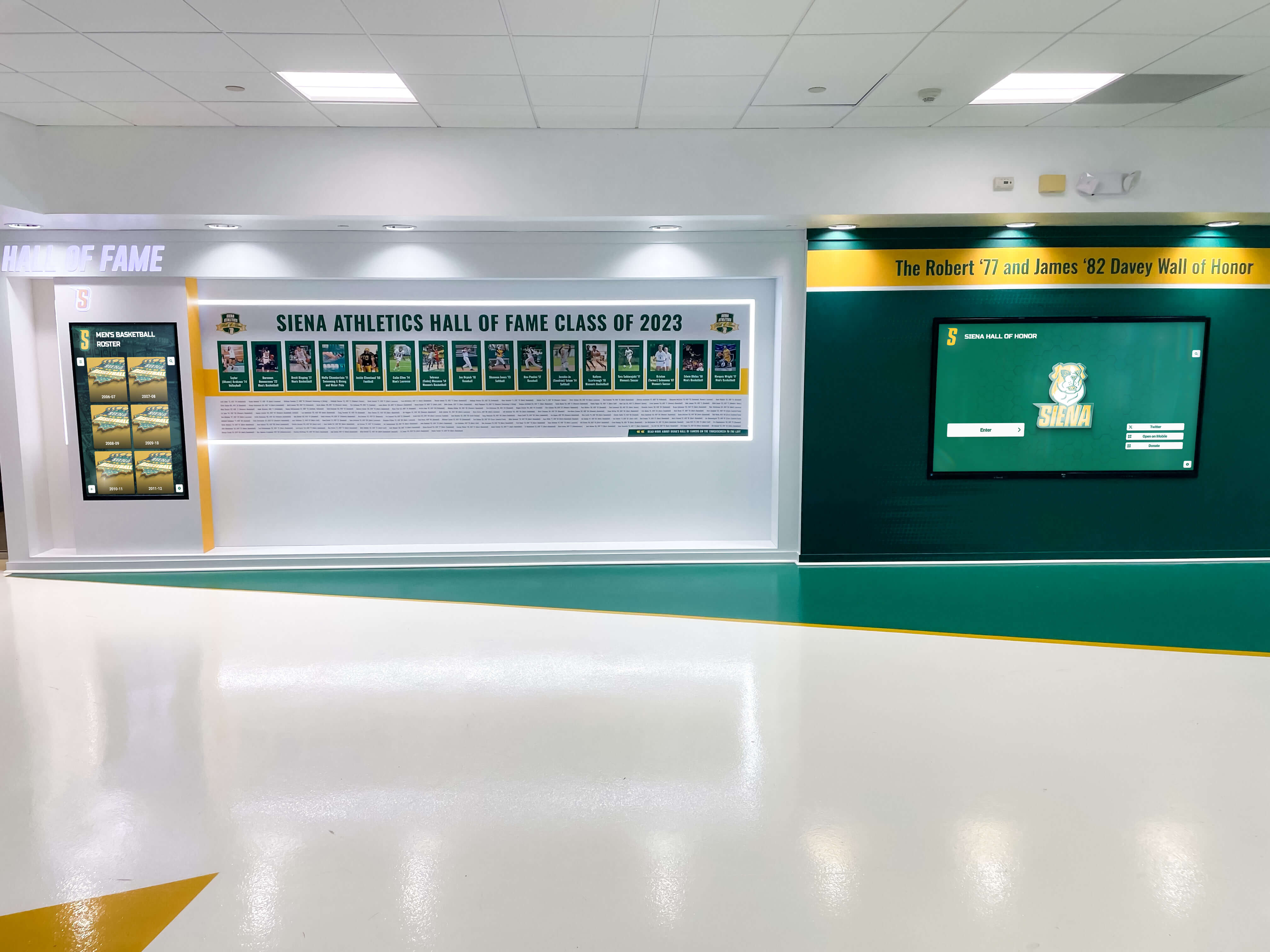
Professional recognition platforms combine hardware, software, and managed implementation so athletic directors focus on content rather than technology configuration
Common Questions Before You Buy
Do I need a touchscreen, or would a non-interactive display work? If the primary goal is passive communication—announcements, schedules, general messaging—a non-interactive digital display may suffice. If users need to search, browse, or discover specific information from a large content set, a touchscreen is the right tool. The cost difference is meaningful; don’t over-specify.
How long does implementation take? For purpose-built platforms, implementation typically runs 4–12 weeks from contract to live display. This includes hardware procurement and shipping, installation scheduling, content migration, and software configuration. Allowing 3 months of lead time before a target launch date (homecoming, alumni weekend, facility opening) is reasonable planning.
What happens to my content if I change vendors? Ask this question before signing anything. Clarify data export formats: can you export your complete profile database in a standard format (CSV, JSON, XML)? If not, you’re accepting a dependency that makes switching vendors prohibitively expensive.
Can the display work if internet connectivity is interrupted? Most cloud-based platforms cache content locally so the display continues operating if connectivity drops. Verify this with any vendor you evaluate, and ask how long cached content remains current before requiring a sync.
What if we want to expand to multiple displays later? Choose software that supports multi-display management from a single content management interface. Adding a second or third display should require only hardware—not a separate software account, separate content entry, or separate billing.
Conclusion
Interactive touch screen digital signage works because it meets users where they are: searching for something specific, curious about a name they recognize, or exploring an archive they didn’t know existed. The technology—touch sensor, display, computing module, software, and content—all have to work together for that experience to happen reliably.
The decisions that matter most aren’t which brand of display to buy. They’re which touch technology fits your environment, which software platform fits your content use case, whether general-purpose or purpose-built software is the right match, and how the system will be maintained after installation.
Organizations that spend time on those questions—before worrying about screen size or aesthetic finishes—end up with displays that earn attention every day. The ones that rush to hardware decisions and figure out software later tend to end up with expensive equipment that generates neither engagement nor recognition value.
Talk to the Rocket Alumni Solutions team to see how interactive recognition displays work in schools and institutions like yours—and what implementation looks like from start to live display.
Live Example: Rocket Alumni Solutions Touchscreen Display
Interact with a live example (16:9 scaled 1920x1080 display). All content is automatically responsive to all screen sizes and orientations.