



School administrators evaluating digital signage often request a product demo only to receive a slide deck. This video tour is different. It walks through Rocket Alumni Solutions digital signage for schools the way a facilities coordinator, athletic director, or principal would actually experience it—starting from the lobby screen visible to every visitor and working back through the cloud content management system, MDM device management layer, and the recognition content that fills those displays with something worth watching.
Rocket Alumni Solutions offers schools unlimited digital signage at $50 per year, with MDM device management included and feature coverage matching what most major digital signage platforms deliver. This tour explains what that means in practice—what the screen shows, who manages it, how devices are monitored, and what $50 actually buys.
The transcript below is structured as a production-ready script that schools can share with administrative teams, booster committees, and facilities staff who need to understand what they’re seeing before a live demo or installation decision.
School visitors form impressions fast. A display running a static slide from three months ago communicates something very different from one cycling through current athletic records, this week’s honor roll, and an upcoming event schedule. The difference between those two outcomes is almost never the screen—it’s the platform managing what runs on it and the process that keeps content current.

Video documentation of live platform demonstrations gives administrative teams and booster committees a reference point that no slide deck or spec sheet can replicate
Video Tour Specifications
| Parameter | Detail |
|---|---|
| Video type | Platform walkthrough — product tour |
| Total duration | 14–16 minutes |
| Aspect ratio | 16:9 (1920×1080 primary) |
| Target platforms | Website embed, planning presentations, board meeting review |
| Accessibility | Full closed captions; scene-level audio descriptions |
| Segments | 5 scenes + production notes |
This tour covers five scenes: the school lobby display in passive mode, the cloud CMS, MDM device management, recognition content categories, and pricing. Each scene includes on-screen descriptions, narration, and notes for production teams filming their own version of this walkthrough.
Scene 1: The School Lobby Display in Passive Mode (0:00–2:30)
What the Camera Shows
Establishing wide shot: A school lobby at approximately 8:15 a.m. Overhead lighting is on. Natural light enters from the front entrance. A commercial-grade 65-inch touchscreen mounted on the feature wall opposite the main office window is running in passive attract mode without any visitor interaction.
On-screen content: The display cycles through a series of school-branded cards, each appearing for roughly twelve seconds before transitioning. The current card shows the spring athletic schedule, school logo in the top corner, and dates formatted in the school’s primary color. The next card shows three current honor roll students—names and grade level only—with photos against a branded background. The card after that features the CTE program’s state competition placement from last month.
Camera push to medium shot: A student passes without stopping. The display advances to the next card. A parent visiting the main office pauses for four seconds, reads the athletic schedule card, then continues walking. No one touched the screen. Recognition still happened.
Close-up on-screen detail: The bottom of each card carries a subtle “Touch to Explore” prompt in small text. The school’s social media handles appear in the corner. The visual treatment matches the school’s brand standards—same typeface family used in printed materials, same color palette used on gymnasium banners.
Narration Script
“The passive display mode is what most visitors experience. No interaction required. The display does its job by simply being current and on-brand. That athletic schedule card was added by the activities director this morning from her desk. The honor roll cards were generated from a list the registrar uploaded on Monday. The CTE placement card was added by the department head the same afternoon the results were announced.
Each update took under three minutes. None required touching the display, visiting the building, or contacting a vendor. The system ran a content update on its own schedule and the display reflected it at the next cycle.
This is passive digital signage doing what it’s supposed to do: maintaining a living, current face for the school that reflects what actually happened this week—not what was relevant when someone last had time to update a slide deck.”
Scene 1 ADA and Accessibility Notes
- Closed captions: Full narration transcript required
- Audio description: “Wide shot of school lobby. A 65-inch commercial touchscreen occupies the main feature wall. School logo in upper-left corner of current display card. Athletic schedule text in 40-point type. Student passes at distance of approximately 10 feet without stopping.”
- Contrast compliance: Content cards use WCAG AA contrast ratios; verify at each content template update
Key Takeaways From Scene 1
- Passive mode delivers recognition and information to every visitor without requiring touch interaction
- Content updates happen remotely through the CMS; no physical display access needed
- Visual branding is maintained through templates, not manual formatting on each card
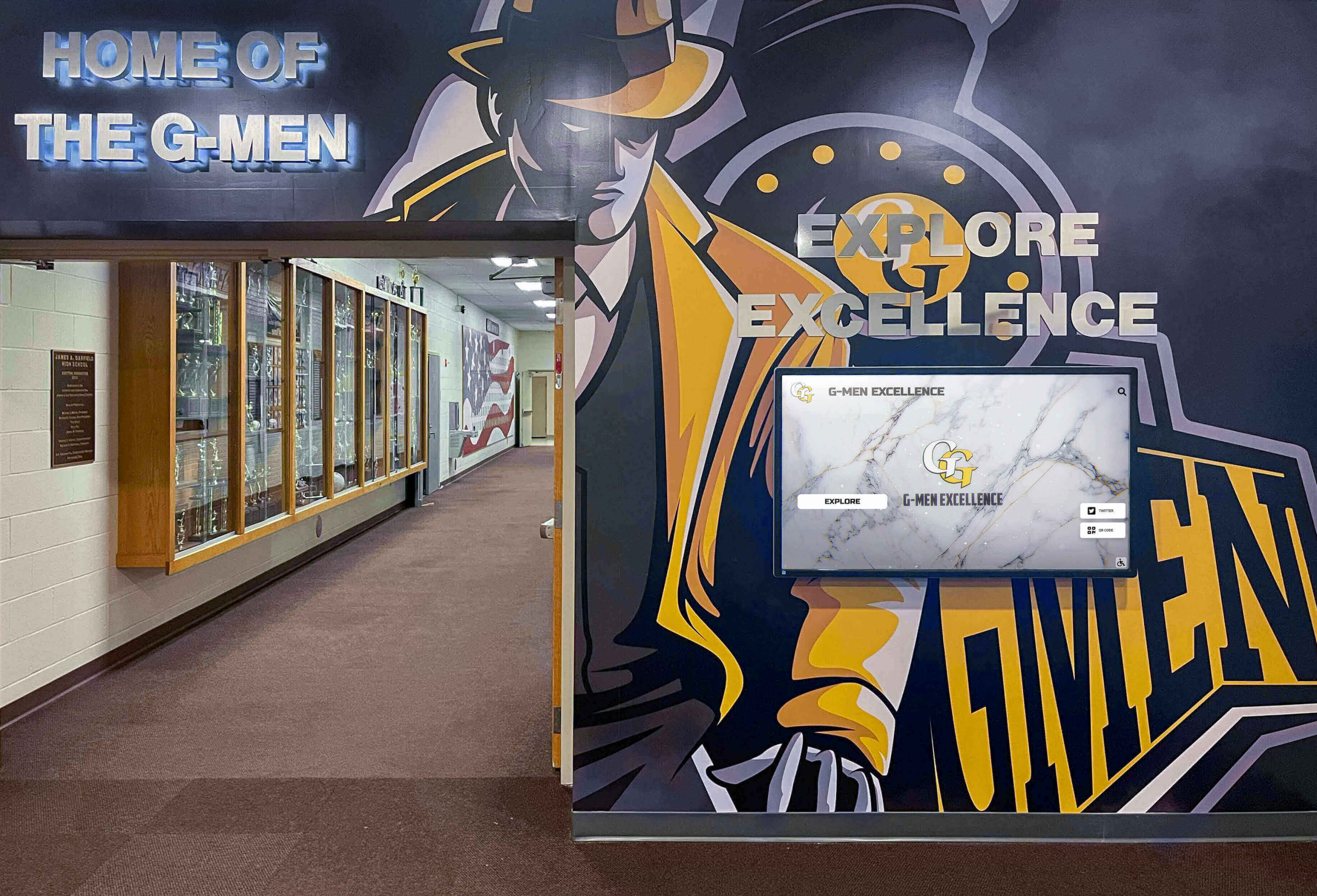
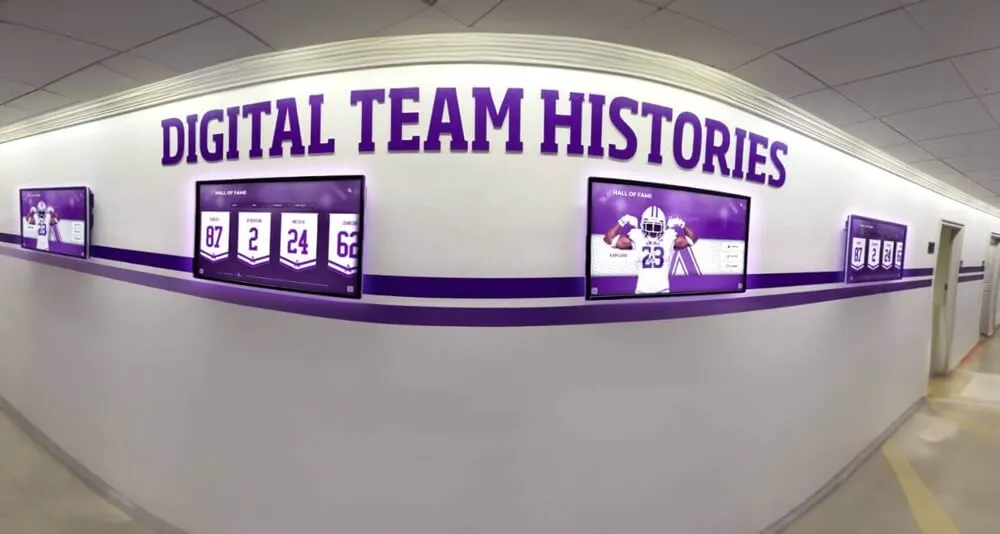
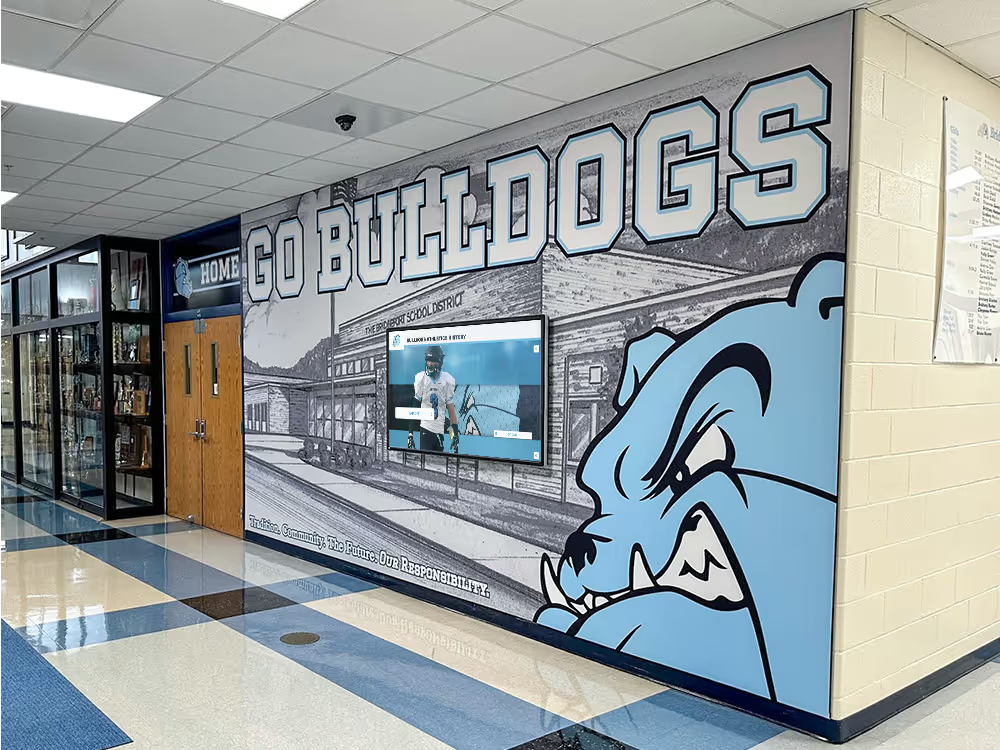
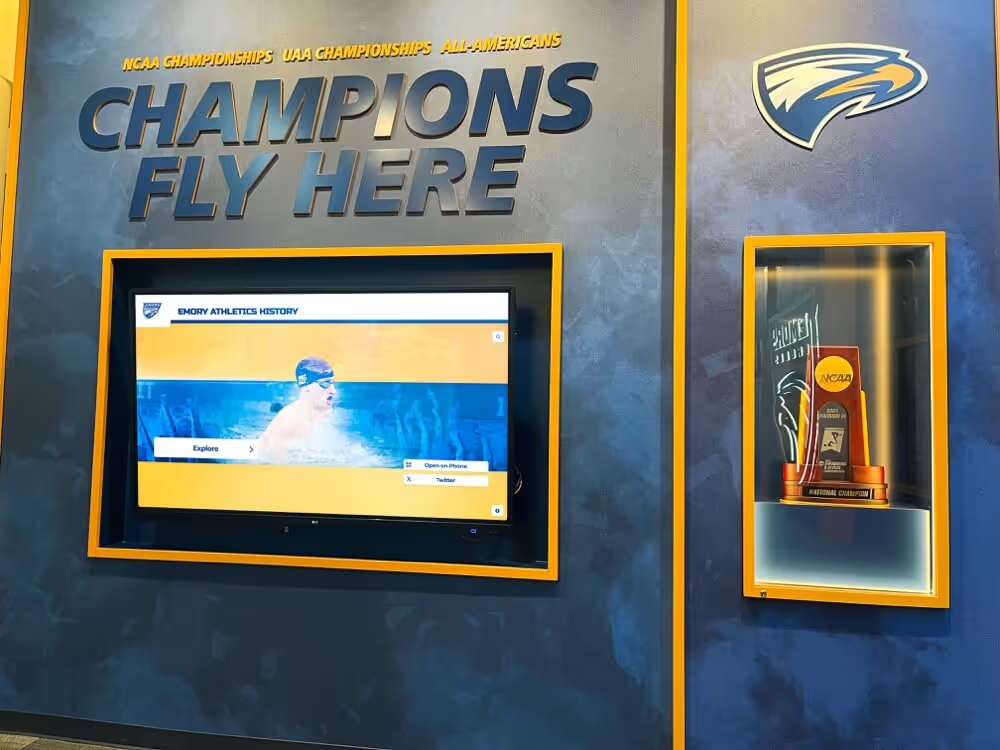
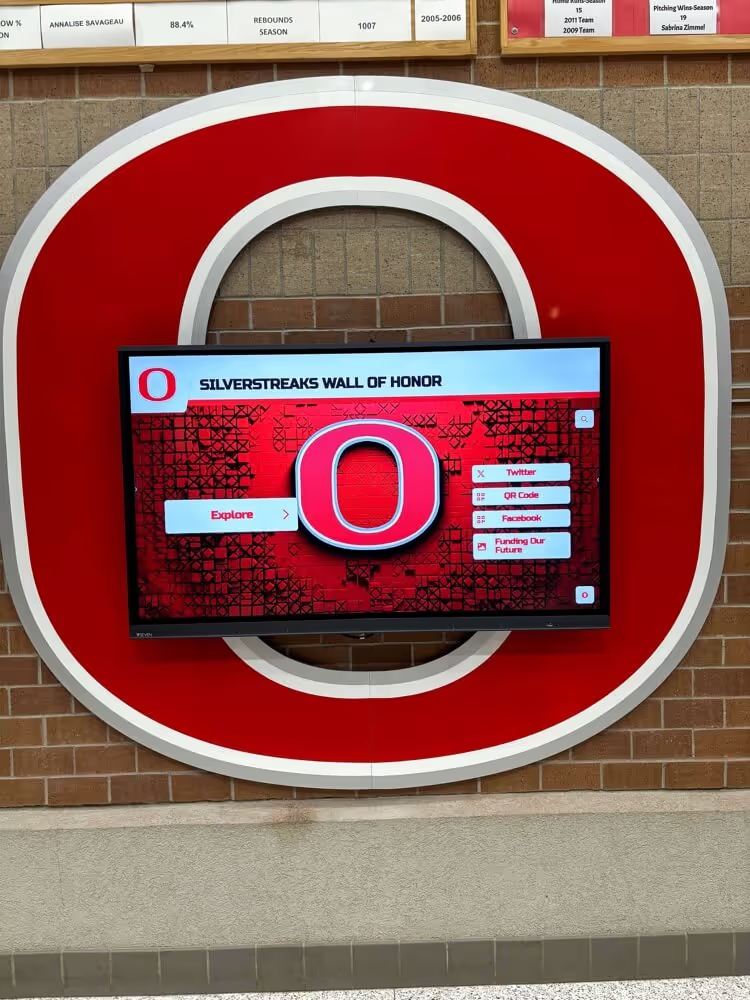
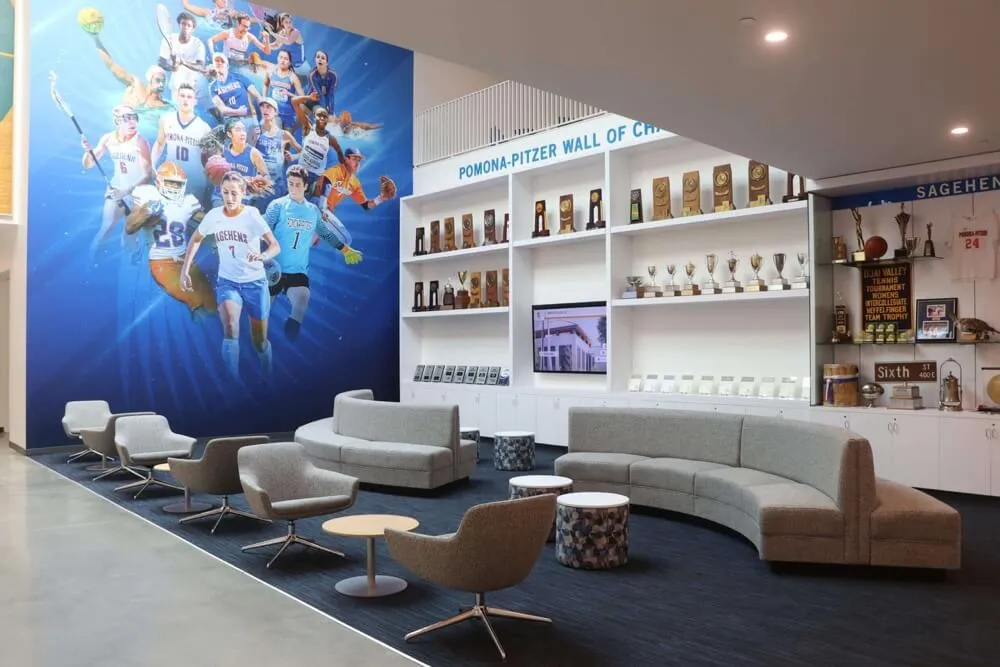
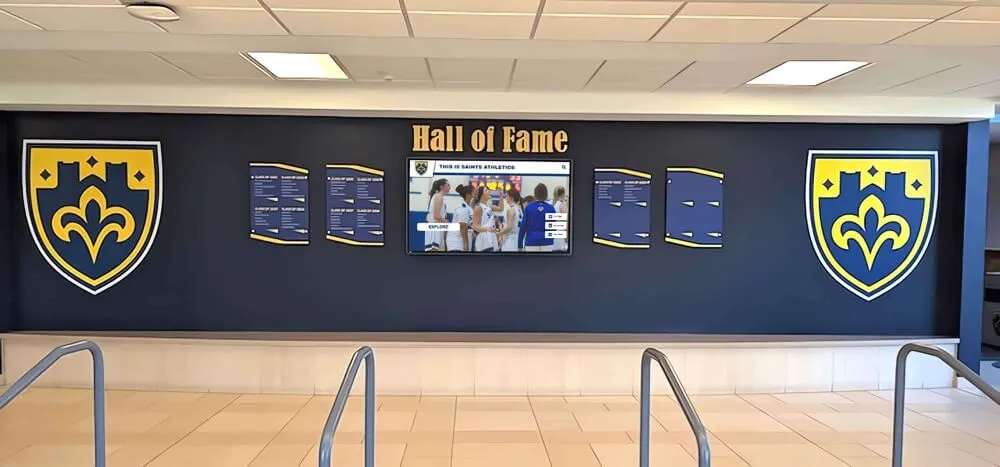
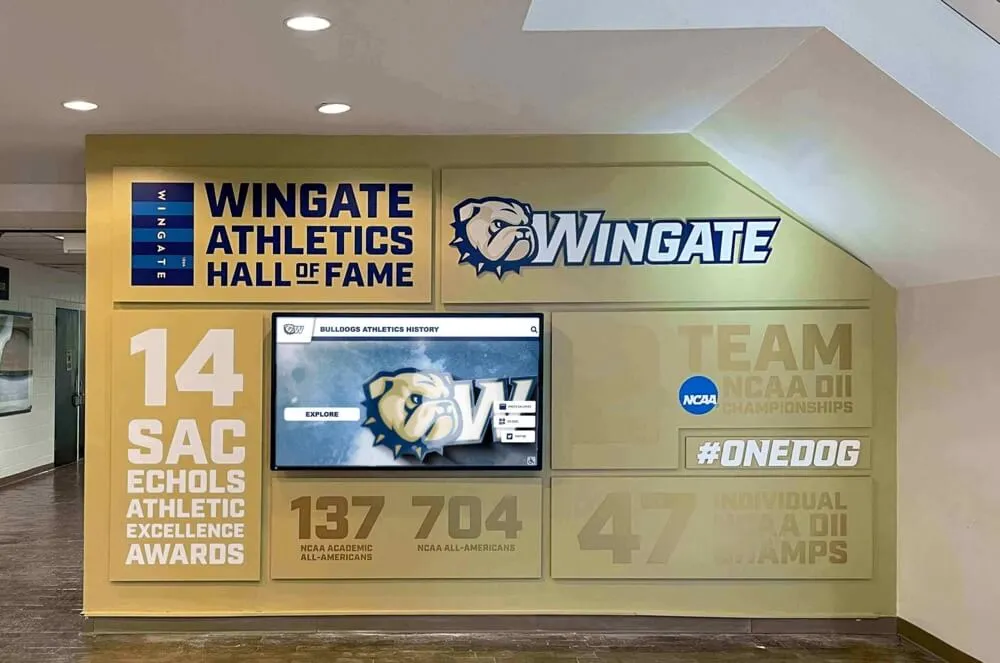
Digital displays positioned above traditional trophy cases extend recognition capacity without removing existing physical elements—the two formats coexist in the same hallway
Scene 2: The Cloud Content Management System (2:30–5:30)
What the Camera Shows
Screen capture, desktop browser: The Rocket Alumni Solutions CMS loads in a standard web browser—no downloaded software, no installed app. The interface shows a dashboard with four main sections: Content Library, Schedule, Displays, and Analytics.
Content Library view: A grid of content cards—photos, announcement templates, recognition layouts—each labeled by category. The administrator filters by “Athletics” and thirty-four cards appear. She selects a blank athletics announcement template. A form opens: event name, date, location, and photo upload. She types the girls’ soccer game information, uploads a photo from her desktop, and clicks “Preview.” The card appears exactly as it will show on the lobby display.
Schedule view: A weekly calendar grid. Each day shows colored blocks representing content groups that run during specific time windows. Monday through Friday has a “Morning Arrival” block (6:30 a.m.–8:30 a.m.) showing arrival-focused content: schedules, announcements, and reminders. “Afternoon Dismissal” shows a different block with club information and sports reminders. “Open Hours” runs the full recognition and achievement loop.
Publish flow: Administrator clicks “Add to Schedule” and assigns the soccer game card to the Thursday afternoon block. A confirmation message shows: “Card will appear on 3 displays: Main Lobby, Athletic Corridor, Front Office.” She clicks Confirm. The update queues automatically.
Narration Script
“Everything you just saw happens in a web browser. There is no specialized software to install, no file to transfer to a USB drive, and no need to physically access any display. The person managing content can be in the main office, at home, or at a conference—as long as they have internet access, they can update every display in the building.
The template system matters more than it might initially appear. Without templates, every content update requires someone to make layout decisions: font choice, sizing, color, alignment. Templates eliminate those decisions by pre-formatting them. The staff member fills in the information; the display handles the design. That’s the difference between a digital signage platform that stays current and one that slowly reverts to a single static slide because no one has time to be a graphic designer.
Schools evaluating interactive school display platforms that cover both passive communication and active recognition content should note how the scheduling layer bridges those two modes. The same platform that runs school announcements in the morning can present a searchable athletic hall of fame when a family arrives for an evening event.
Rocket Alumni Solutions includes CMS access in the standard subscription—no additional module purchase, no separate login for different features.”
Scene 2 Production Notes
- Screen capture setup: Record at 1920×1080 at 60 fps; browser zoom at 100%
- Mouse movement: Keep cursor movements deliberate and slow—rapid movement confuses viewers trying to follow the interface
- Narration timing: Record narration separately from the screen capture and sync in post; this allows re-recording narration if the CMS interface updates without redoing the entire screen session
Scene 3: MDM Device Management (5:30–8:00)
What the Camera Shows
Screen capture, MDM dashboard: A separate dashboard view shows every enrolled display device: 3 screens in this installation—Main Lobby, Athletic Corridor, Front Office. Each device shows its current status, last check-in time, operating system version, and storage available.
Device detail view: Administrator clicks the Main Lobby entry. A device record opens showing: device model, serial number, firmware version, current content playlist, Wi-Fi signal strength (displayed as a bar indicator), and last reboot time (48 hours ago, within normal range).
Remote action panel: A sidebar shows available remote actions: Reboot, Update Software, Push Configuration, View Screenshot, Lock Screen, and Power Schedule. Administrator clicks “View Screenshot”—within six seconds, a thumbnail of the current display content appears in the browser. The lobby screen is showing the correct content.
Power schedule view: A table shows the configured power schedule for the Main Lobby screen: On at 6:15 a.m., Off at 9:00 p.m., Monday through Friday; On at 7:00 a.m., Off at 6:00 p.m., Saturday; Off all day Sunday. The schedule runs automatically without manual intervention.
Narration Script
“MDM—mobile device management—is the layer of the platform that school IT coordinators ask about first. It answers a straightforward question: what is happening on a display at 2 a.m. on a Tuesday? Without managed hardware, no one knows until someone walks by and checks. With MDM, the platform knows the device’s status, its last check-in, what content it’s running, and whether it’s displaying anything at all.
The remote screenshot feature matters most for schools with more than one display. Instead of walking to the athletic corridor to verify that the content update from this morning actually applied, an administrator can pull a live screenshot from their desk. If the corridor screen is showing something unexpected—an old playlist, a blank screen, a software error—they see it immediately and can push a remote reboot or configuration correction.
Remote power scheduling reduces display wear and electricity use without requiring anyone to power screens on and off manually. A display that powers on at 6:15 a.m. and off at 9:00 p.m., five days a week, accumulates fewer operating hours than one left running overnight by accident—extending the hardware life of a commercial display that represents a meaningful capital investment.
Rocket Alumni Solutions includes MDM device management as part of the standard offering. For schools considering digital signage services that cover both content delivery and device monitoring, having both in one platform removes the coordination problem that comes with separate vendors managing separate systems.”
Scene 3 Production Notes
- Screen capture: Use the same recording setup as Scene 2; maintain visual continuity between platform sections
- Remote screenshot feature: Allow a full six-second pause in narration while the screenshot loads so viewers understand the real-time nature of the feature
- Device naming: Use generic device names in any demo recording (Main Lobby, Athletic Corridor) rather than school-specific names that would need to be obscured in edited video
Key Takeaways From Scene 3
- MDM provides real-time visibility into every enrolled display device from a single browser dashboard
- Remote reboot, configuration push, and screenshot review eliminate physical display checks for routine monitoring
- Automated power scheduling protects hardware and reduces electricity use without manual daily management
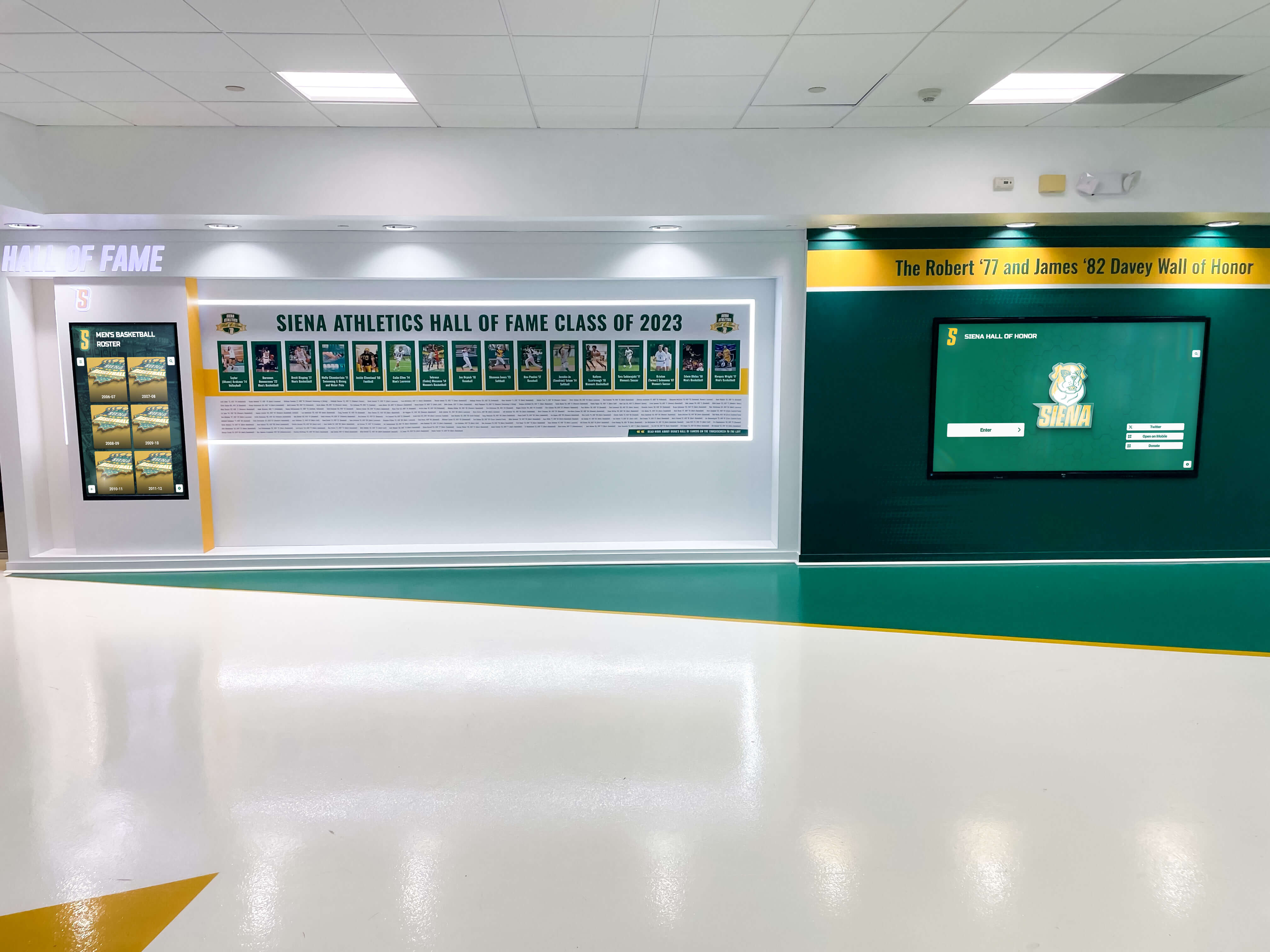
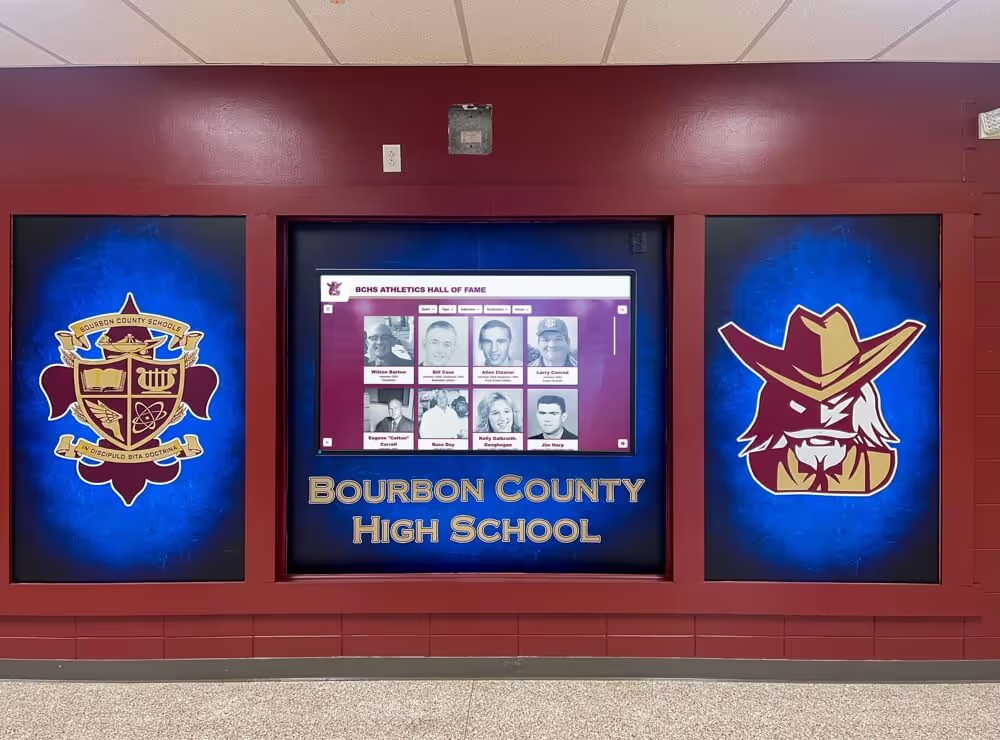
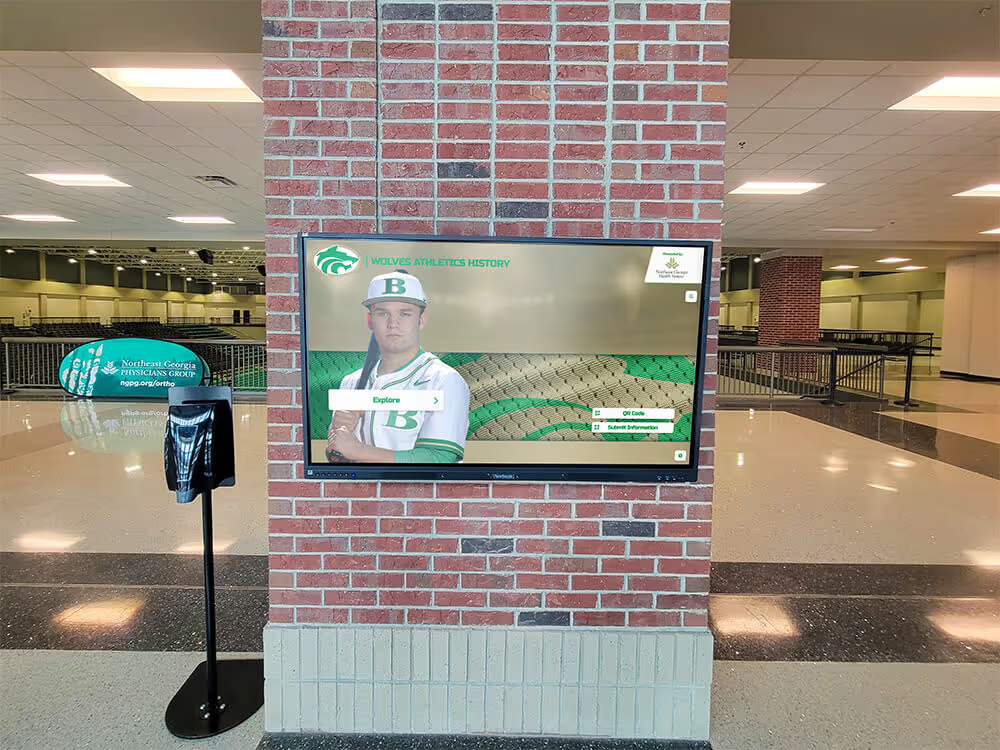
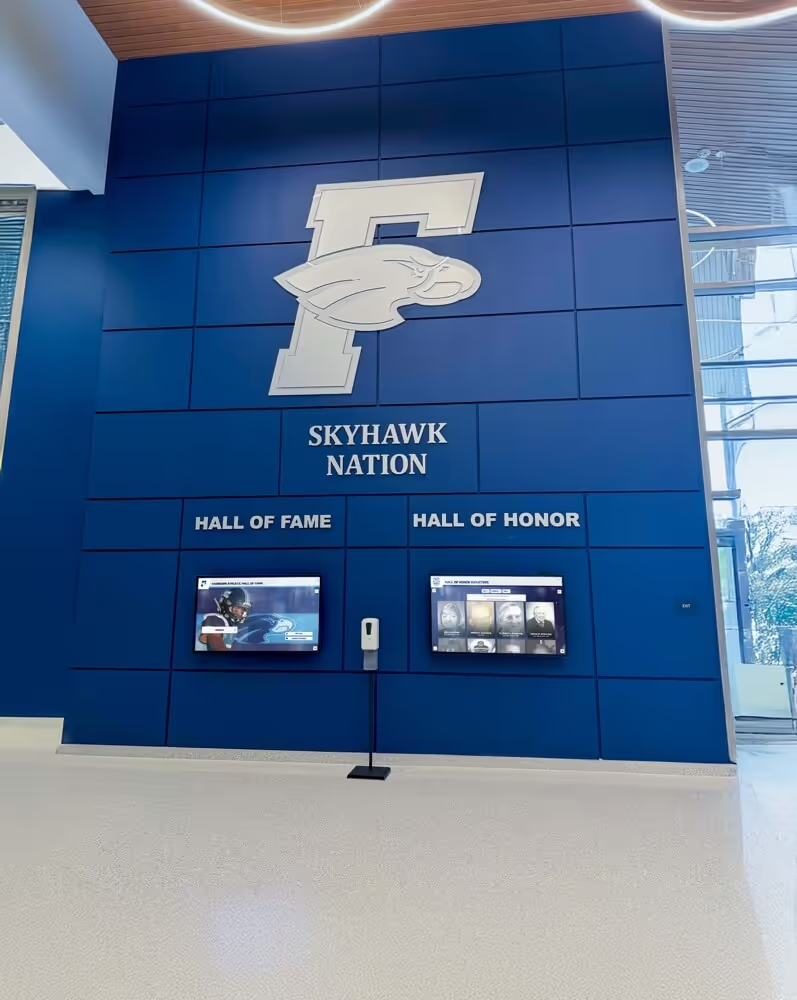
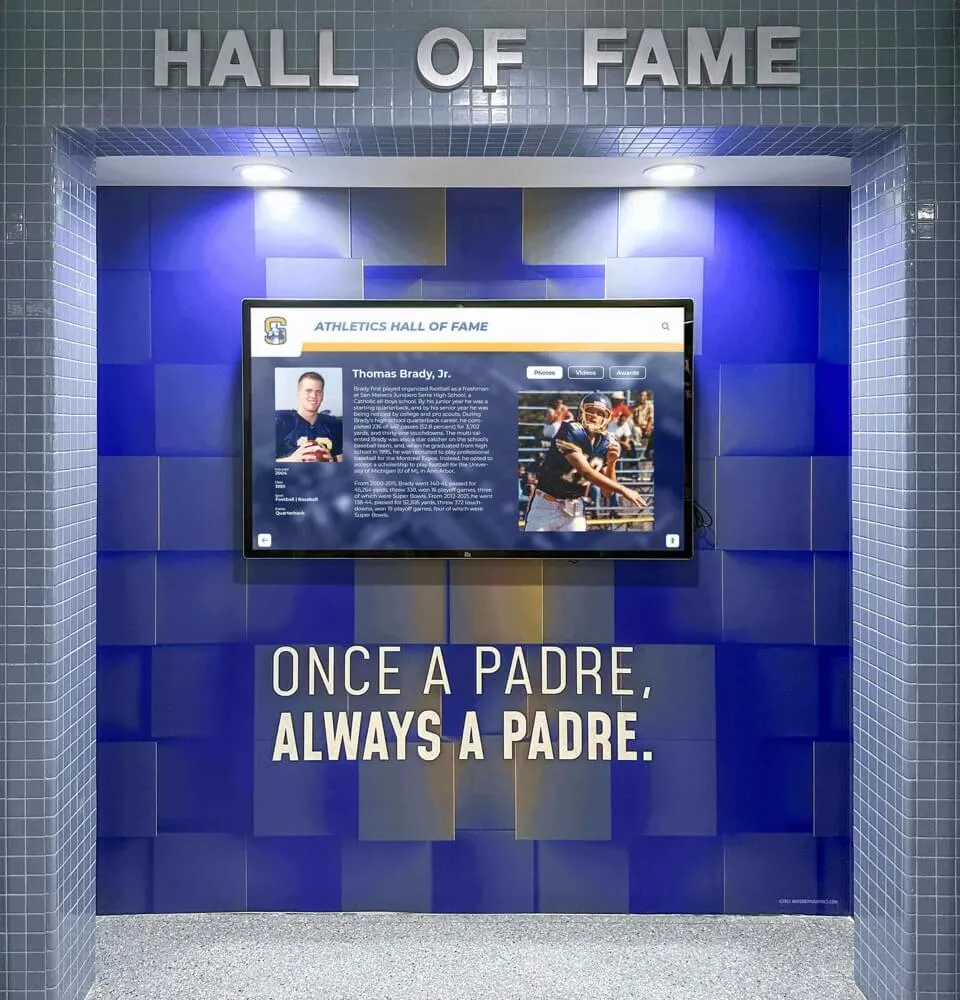
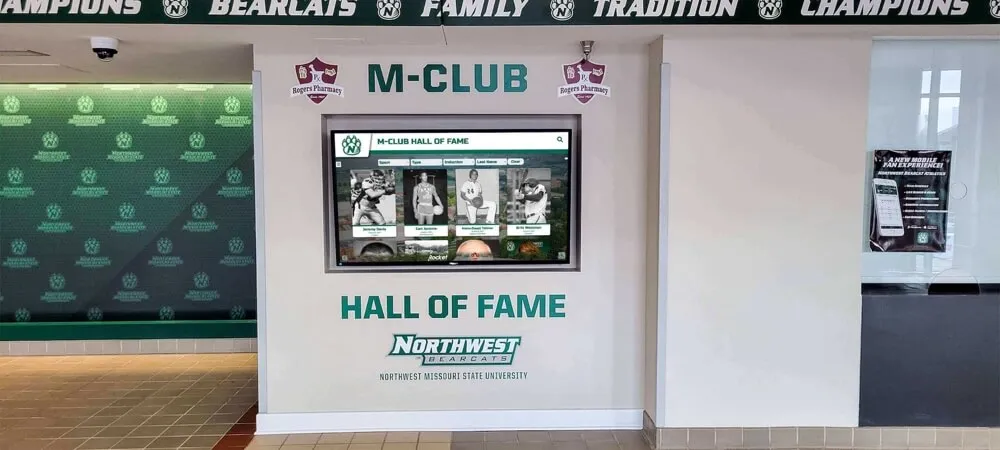
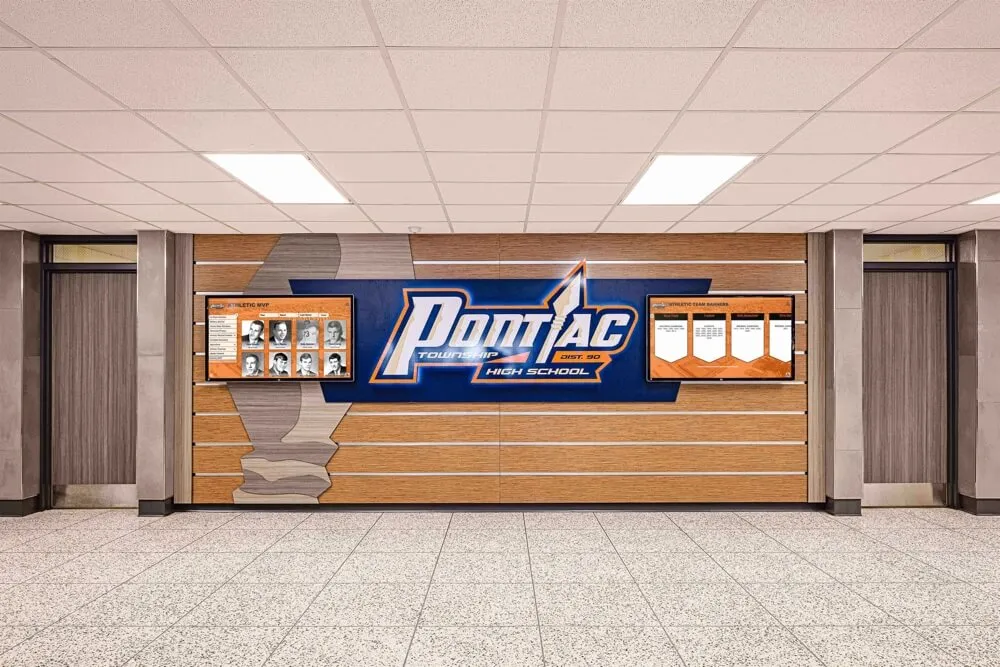
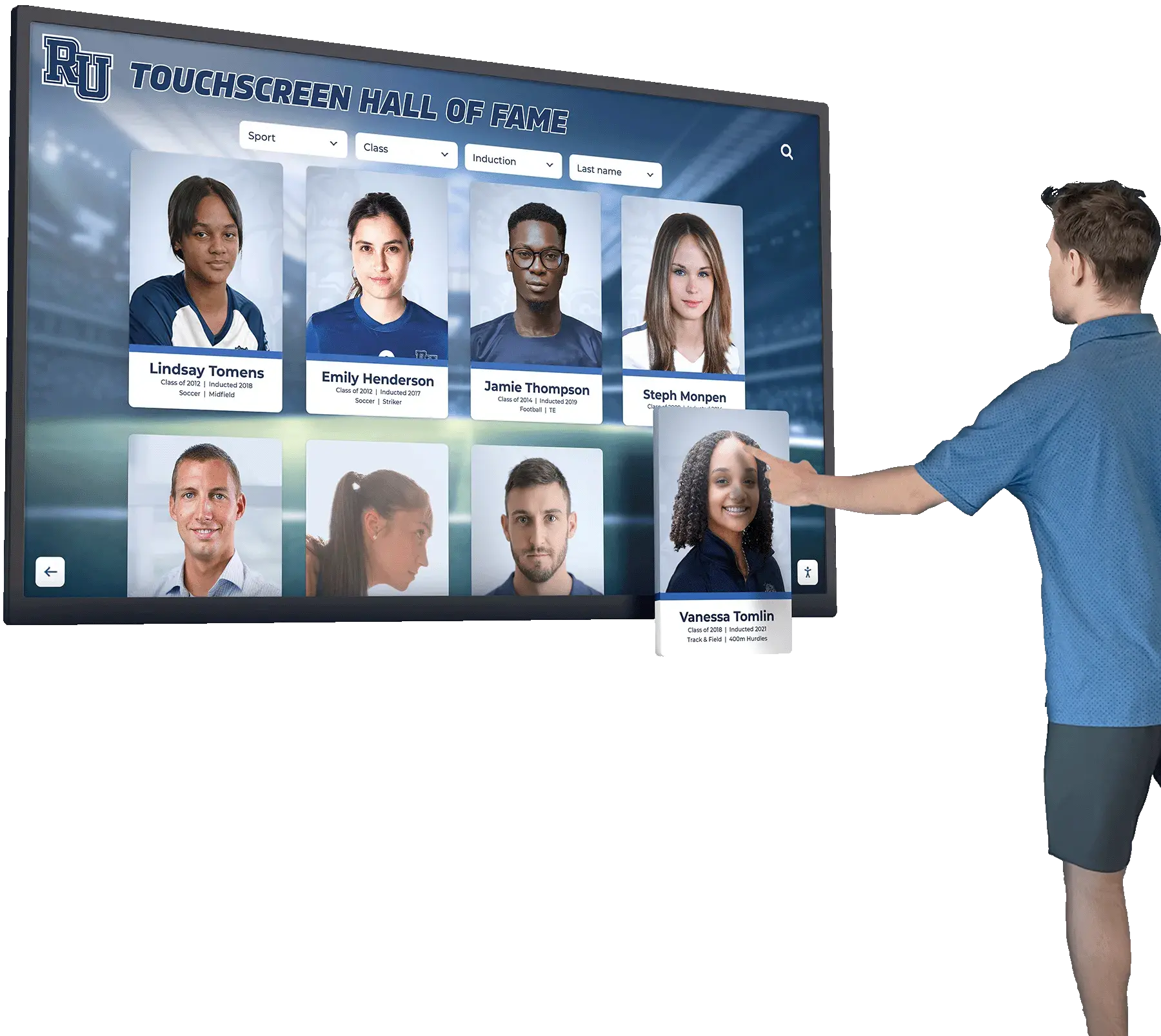
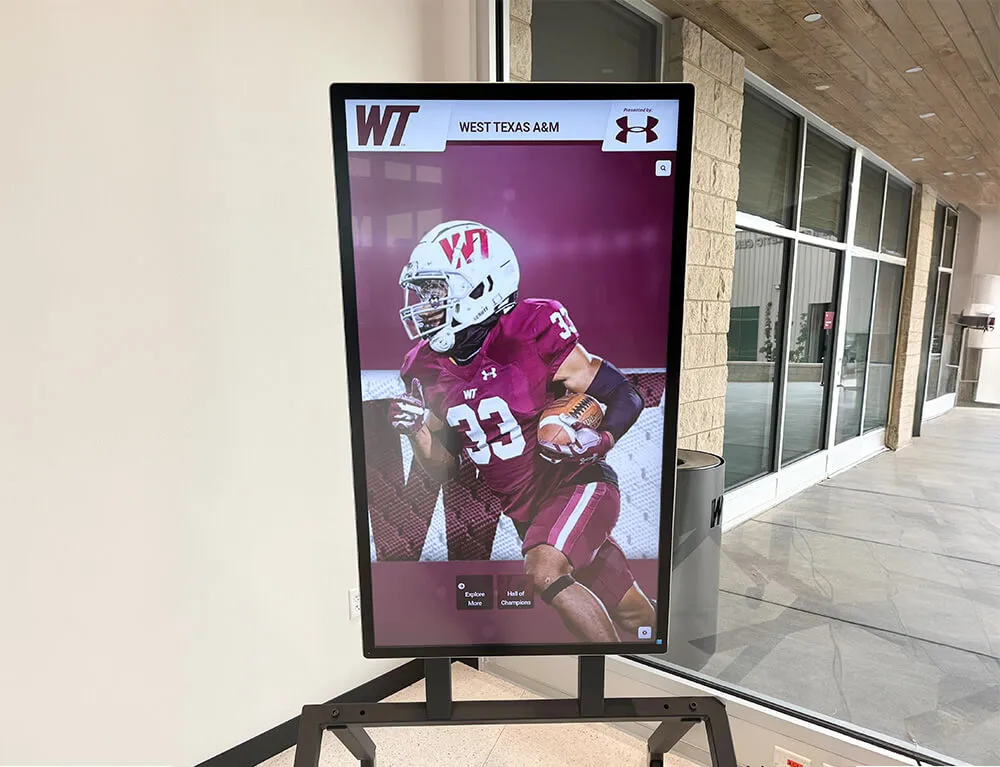
Athletic hall of fame content integrates with standard digital signage displays—no separate hardware required for recognition programming
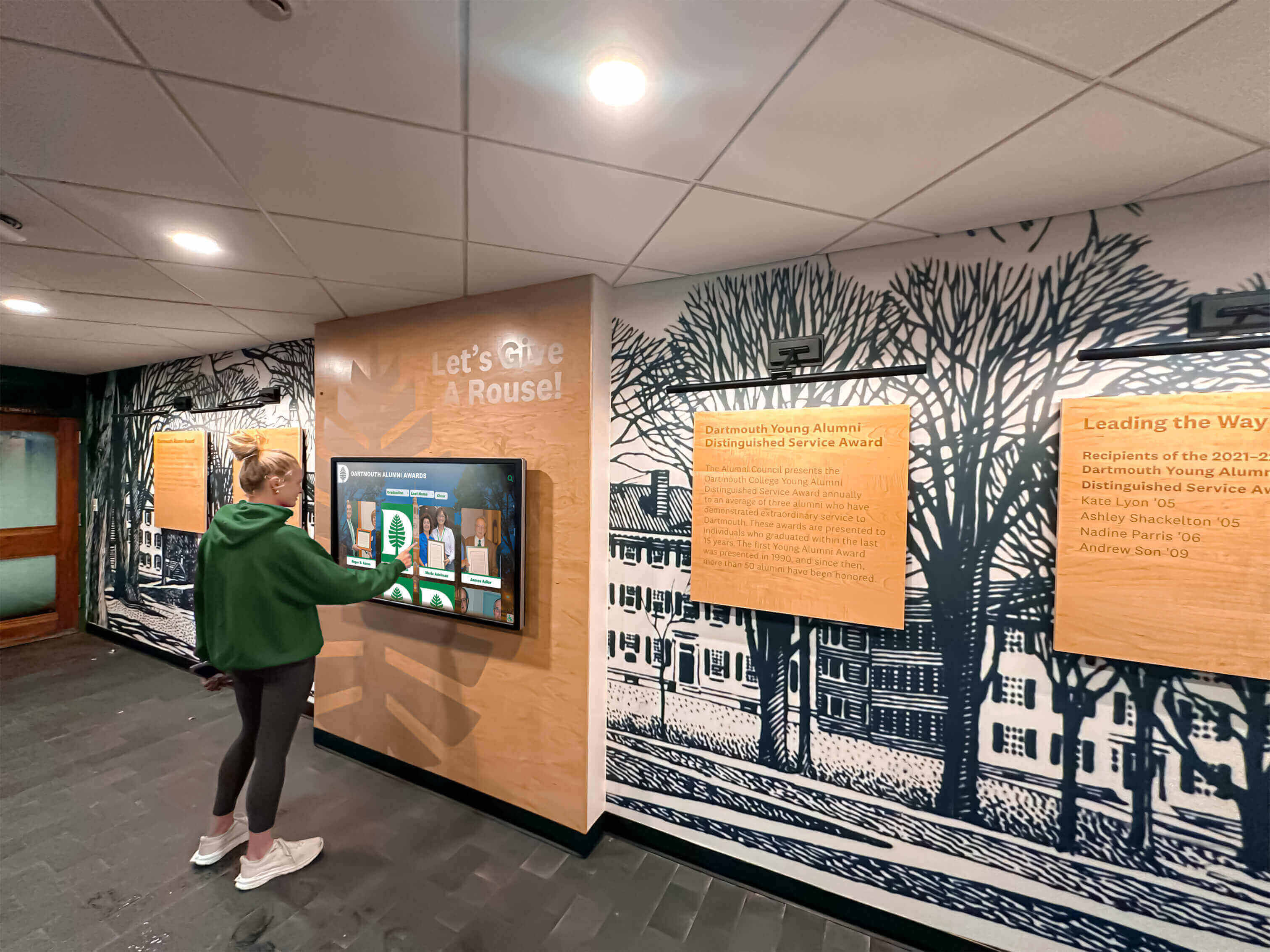
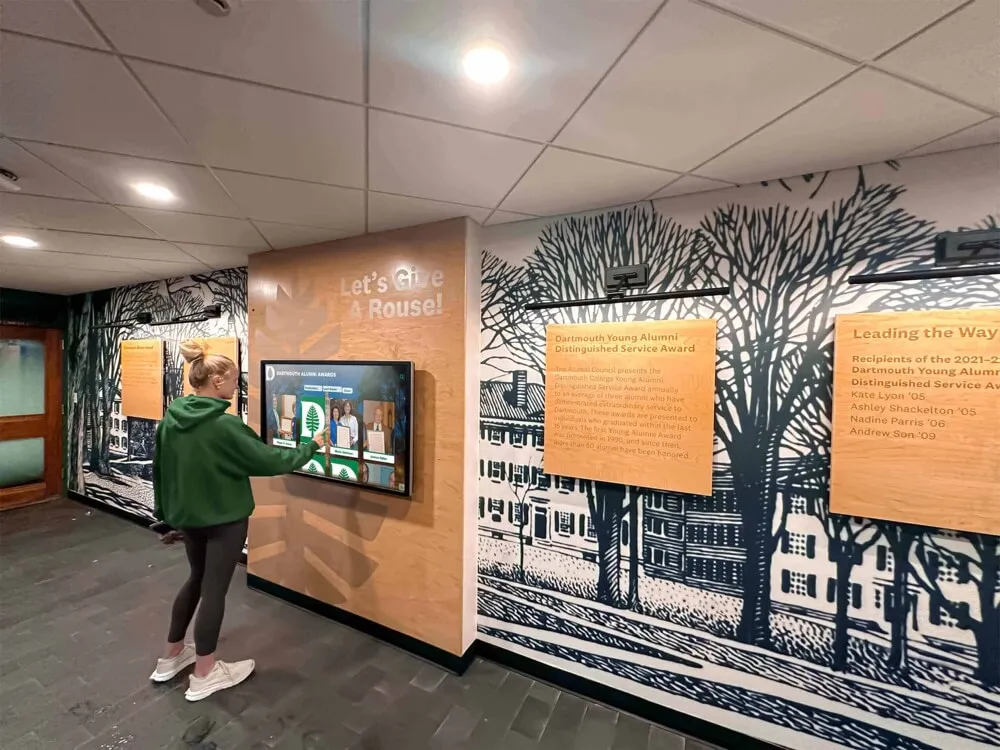
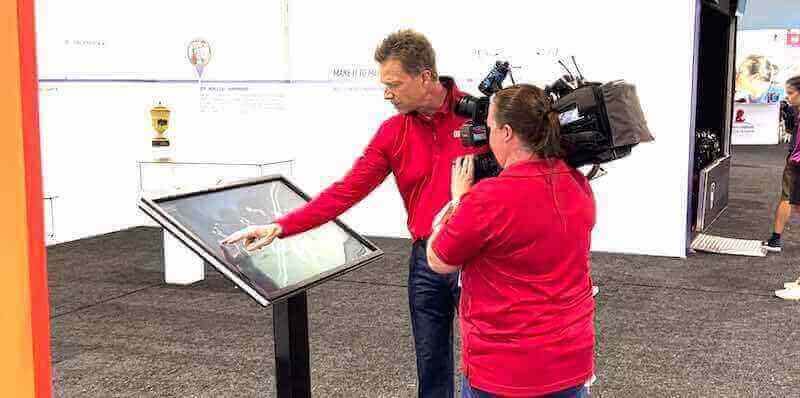
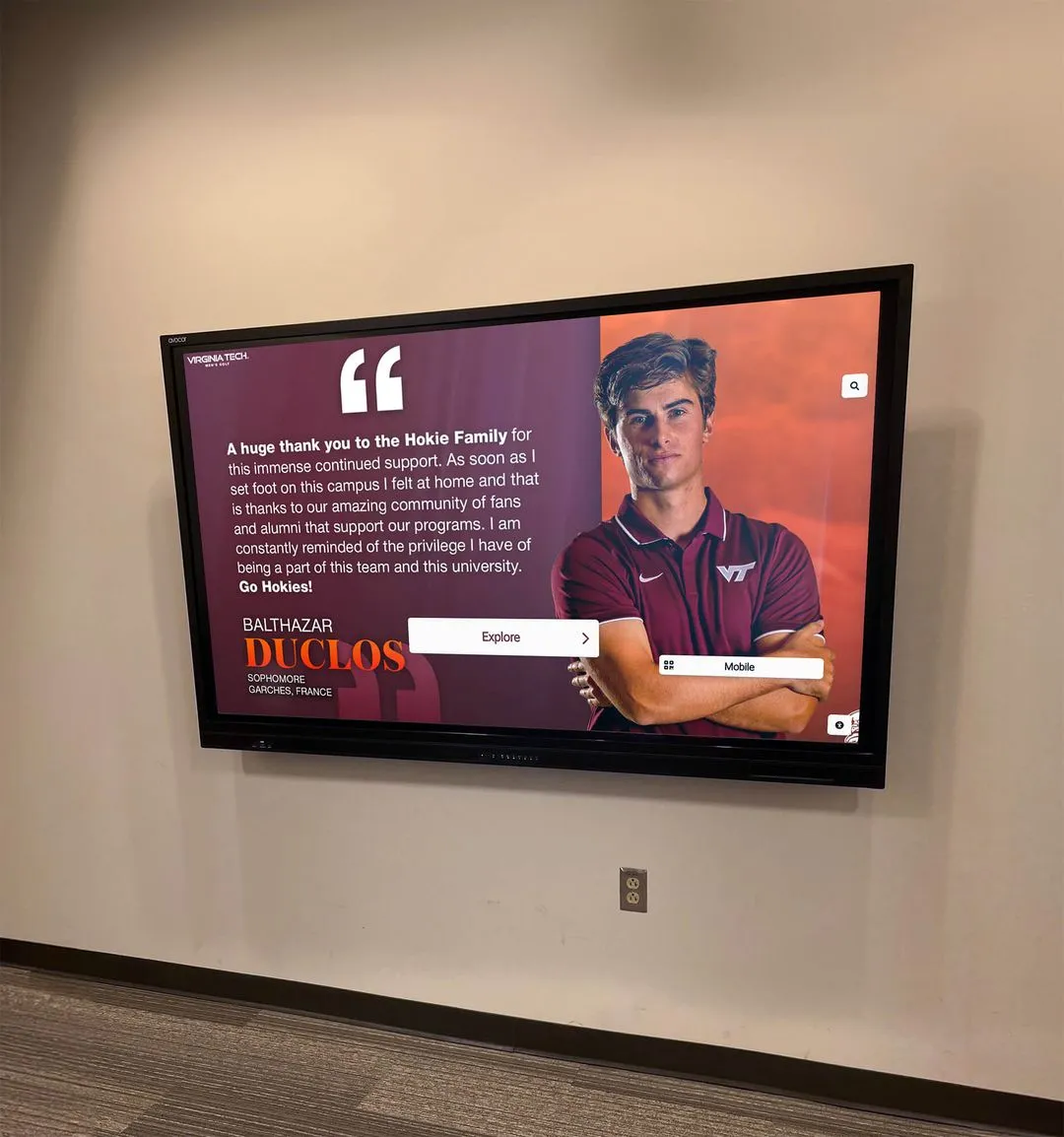
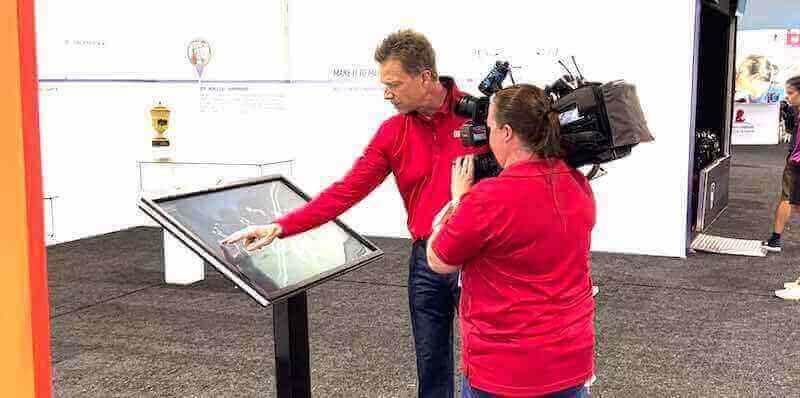
Students interact with recognition content during transitions between classes—spontaneous exploration is part of how recognition builds school identity over time
Scene 4: Recognition Content — Athletics, Academics, and Community (8:00–12:00)
This is the longest segment because recognition content is what differentiates Rocket Alumni Solutions from general-purpose display platforms. The tour visits four recognition content types in sequence.
Scene 4A: Athletic Records and Hall of Fame (8:00–9:30)
Visual: Visitor taps the “Athletics” section on the main navigation. A grid of sport icons appears. She taps “Track & Field.” A record board displays school records by event—men’s and women’s categories, event name, record holder name, record time or distance, and year set. Records link to individual athlete profiles.
Athlete profile view: Tapping a record holder opens a full profile: name, graduation year, sport, career accomplishments, and a photo. Below the profile, the display shows every school record associated with that athlete and their career statistics by season.
Narration Script
“A school record board in a trophy case shows the record, the name, and the year. That’s the physical limit of what fits on a plaque. The same record on a digital display connects to a full career profile—every season’s statistics, every title, every honor. When an alumnus visits for reunion weekend and sees their record still listed, they can tap their name and see the full story of that career. That’s a different level of recognition.
The athletic record function also handles the administrative reality of records changing. When a new record is set this season, the athletic director updates it in the CMS—no fabrication vendor, no new plaque order, no installation crew. The board reflects the new record at the next content cycle. Historical records remain visible in the athlete’s profile, so the previous record holder doesn’t disappear; they simply become the prior mark.
Schools building comprehensive athletic archives benefit from reviewing how digital awards display systems handle multi-sport recognition across many years of program history.”
Scene 4B: Academic Achievement Display (9:30–10:30)
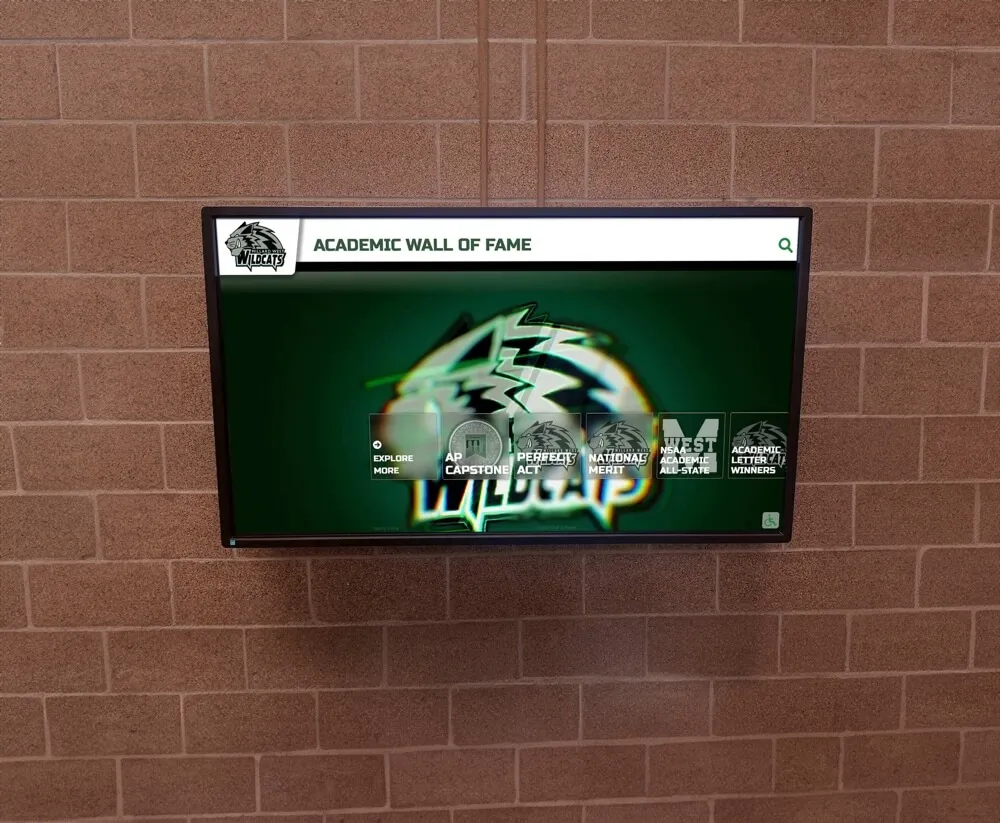
Visual: Back to main navigation. Visitor taps “Academics.” An honor roll list appears for the current semester, organized by grade and achievement tier. Tapping a student name opens a brief recognition card—name, achievement level, grade. No additional private information is displayed.
Scholarship section: Visitor navigates to “Scholarships.” A grid of scholarship award cards shows current-year recipients: name, scholarship name, award amount (if the school chooses to display it), and destination institution. Each card is formatted identically.
Narration Script
“Academic recognition on a digital display follows different privacy rules than athletic recognition. Most schools show names and achievement levels for honor roll without photos or detailed biographical information. Scholarship recognition typically shows name, scholarship, and institution. The platform supports that configuration—what appears on the public display is set in the CMS by the school, not determined by the platform defaults.
The practical benefit over a paper honor roll list is update frequency. A printed list published once per semester is accurate on one day and progressively outdated after that. A digital display showing the current semester’s honor roll stays accurate through the semester because the registrar can update it as corrections or additions occur.”
Scene 4C: Community and CTE Program Recognition (10:30–12:00)
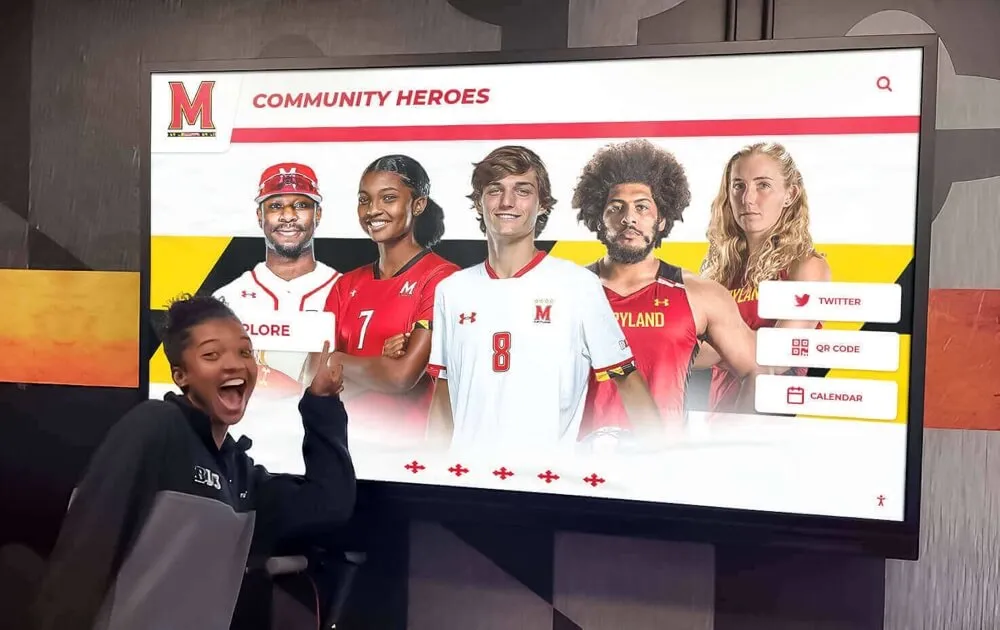
Visual: Administrator navigates to “Programs” section. A CTE program recognition page shows state competition placements, certification completions, and program milestones. A separate “Community Heroes” section shows a rotating display of staff recognition spotlights—name, role, recognition reason, and photo.
Building directory integration: A “Find Us” navigation option provides a simple interactive building directory listing departments, offices, and room numbers. Visitors can search by department name or browse alphabetically. This section runs on the same display platform and subscription, delivering wayfinding alongside recognition content.
Narration Script
“Schools that have invested in CTE program digital touchscreen displays often find that CTE recognition generates more spontaneous engagement from prospective families than athletic recognition alone, particularly those evaluating the school’s academic programs. A state-level certification or competition placement in a technical field carries weight with audiences that an athletic banner doesn’t reach.
The building directory feature illustrates a broader point: the same display platform covering recognition and announcements can also cover wayfinding. Adding a directory section doesn’t require a second screen or a second subscription. It’s another content type within the same system—configured once and maintained alongside other content categories.
For schools reviewing what school digital signage looks like in lobbies, gymnasiums, and hallways, the range of content types a single platform can serve meaningfully affects total cost of ownership when compared against deploying separate systems for announcements, recognition, and wayfinding.”
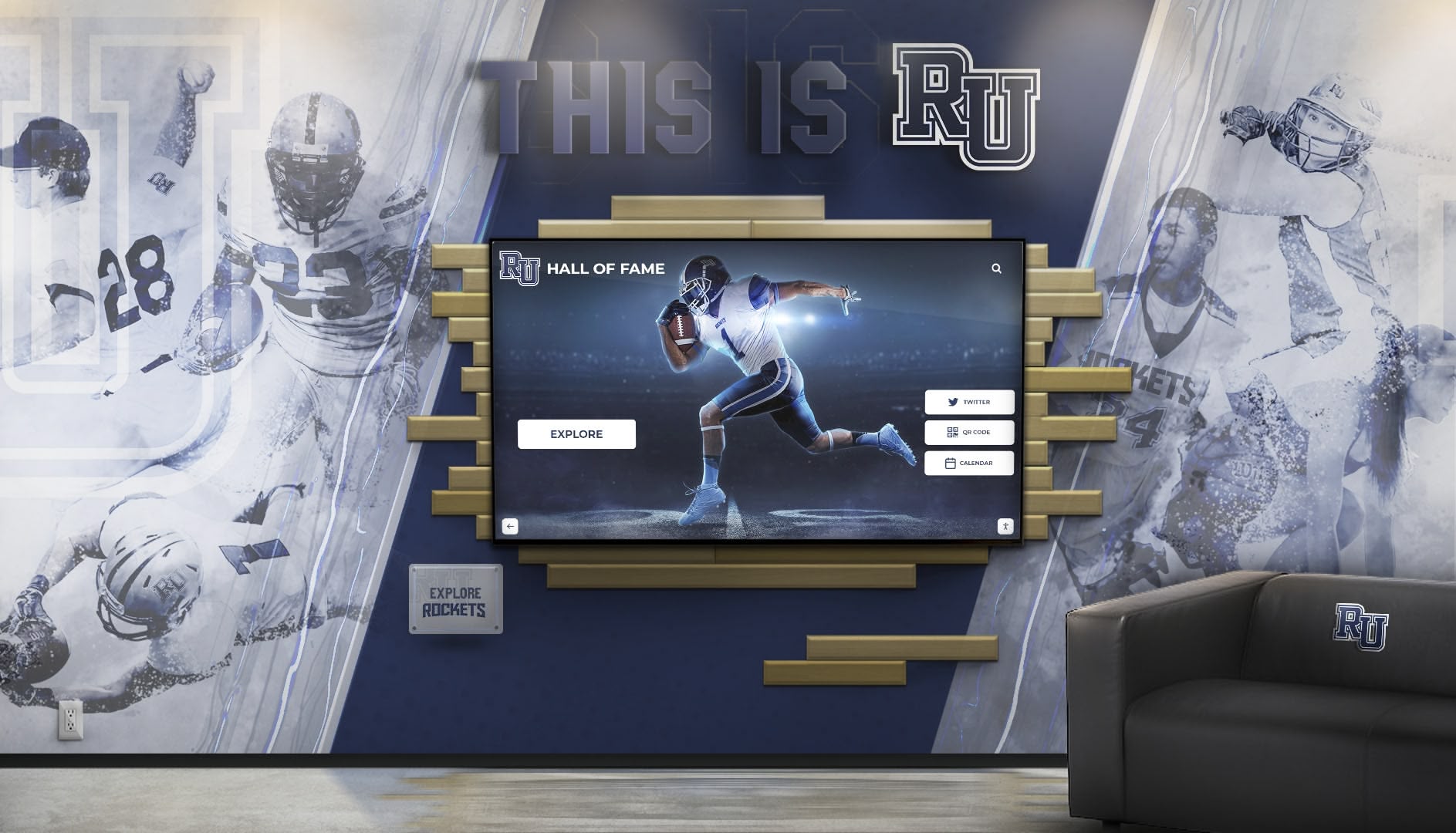
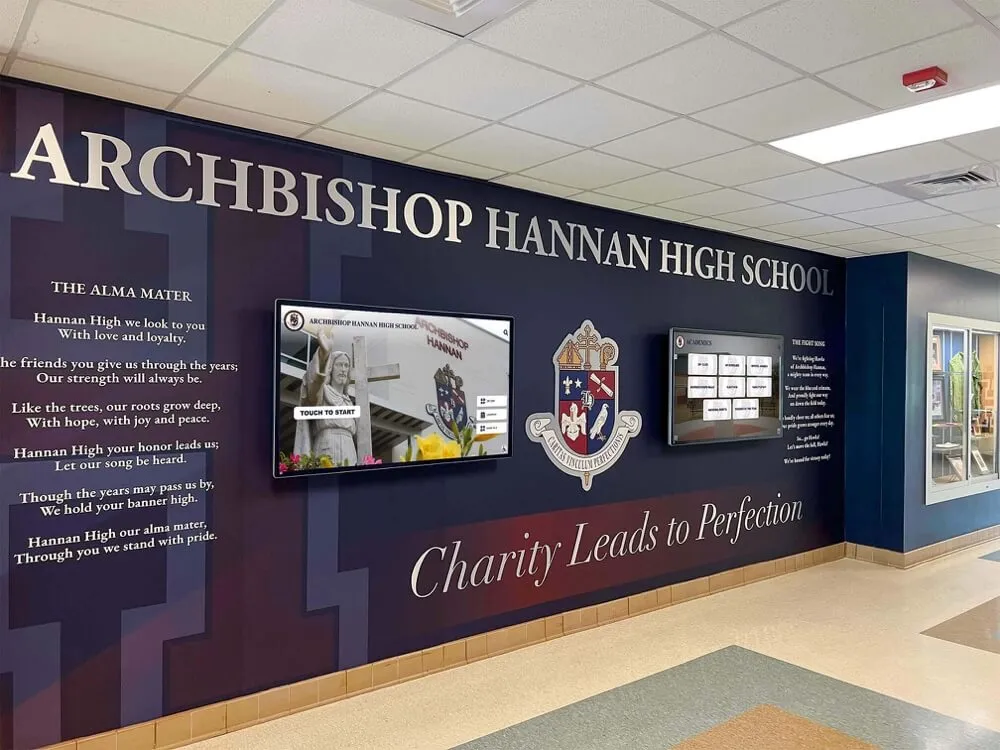
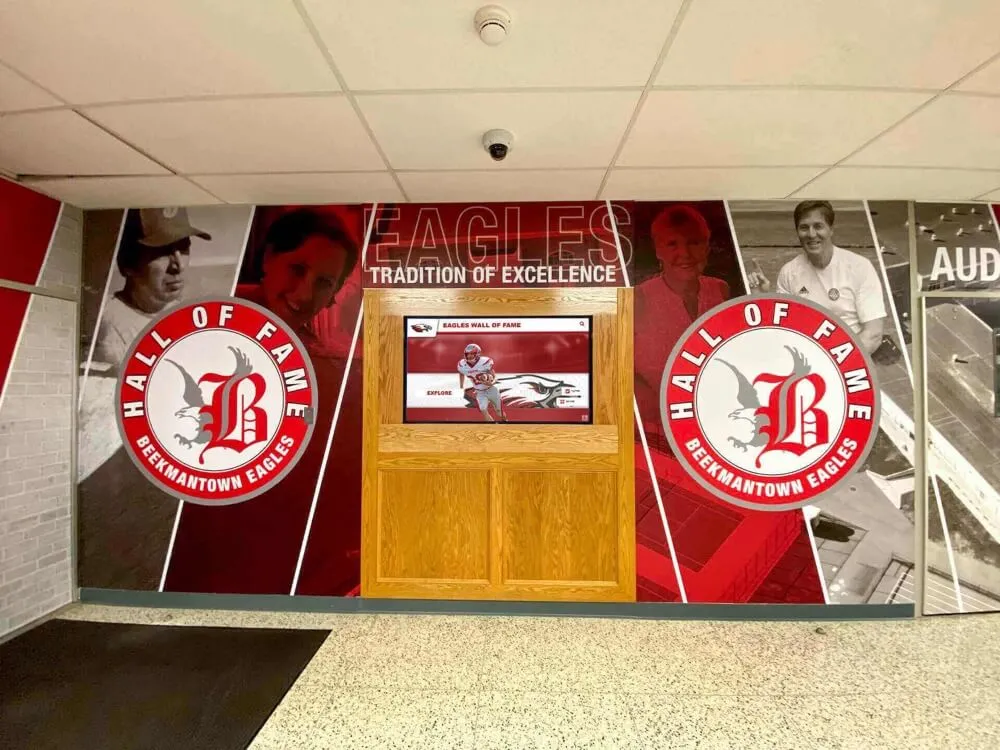
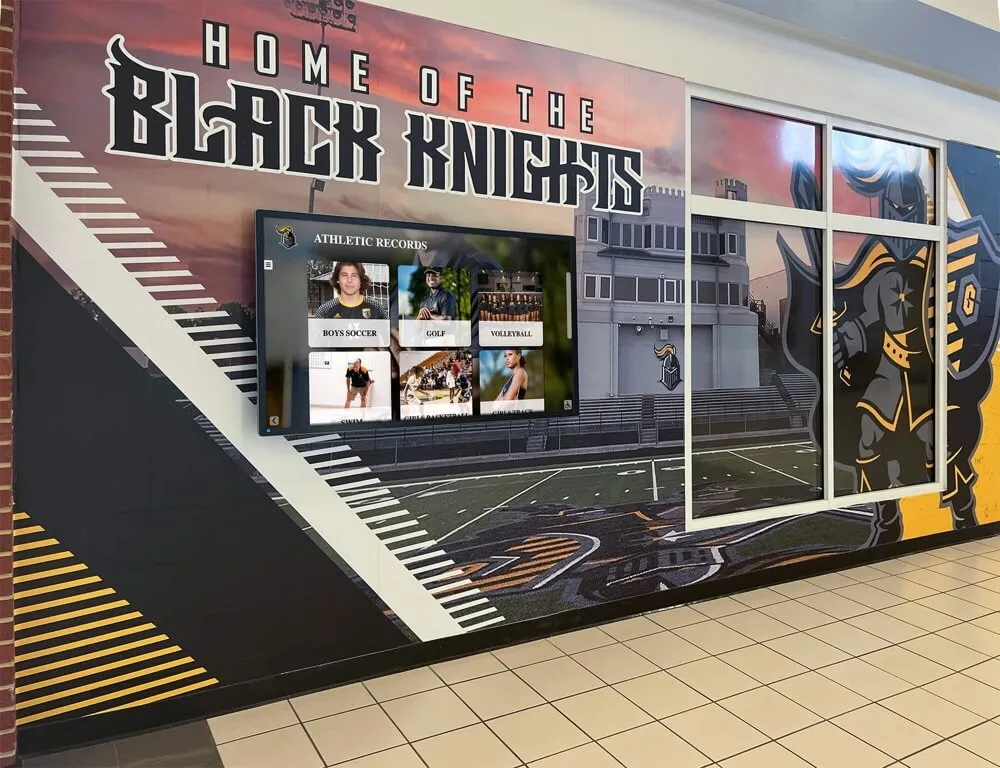
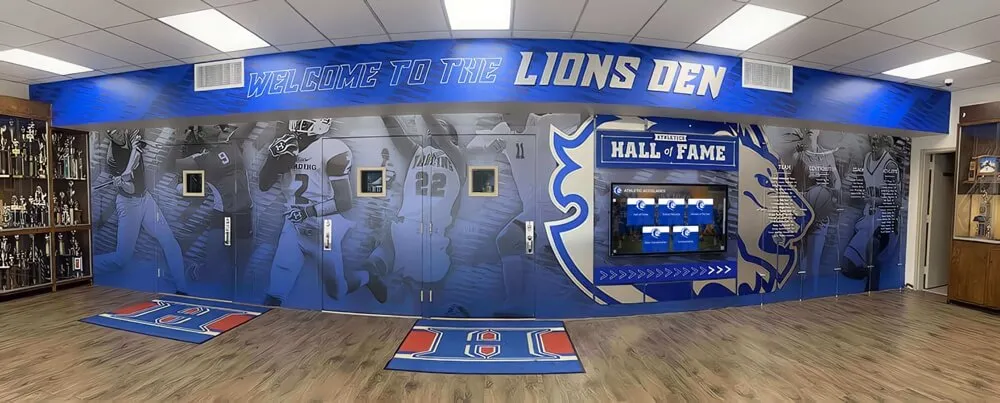
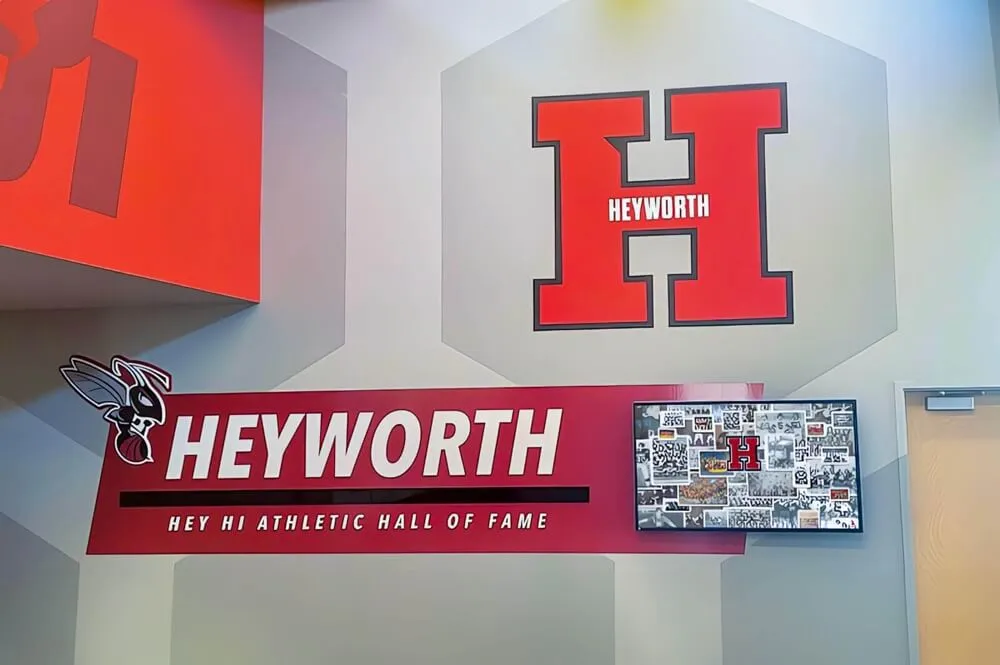
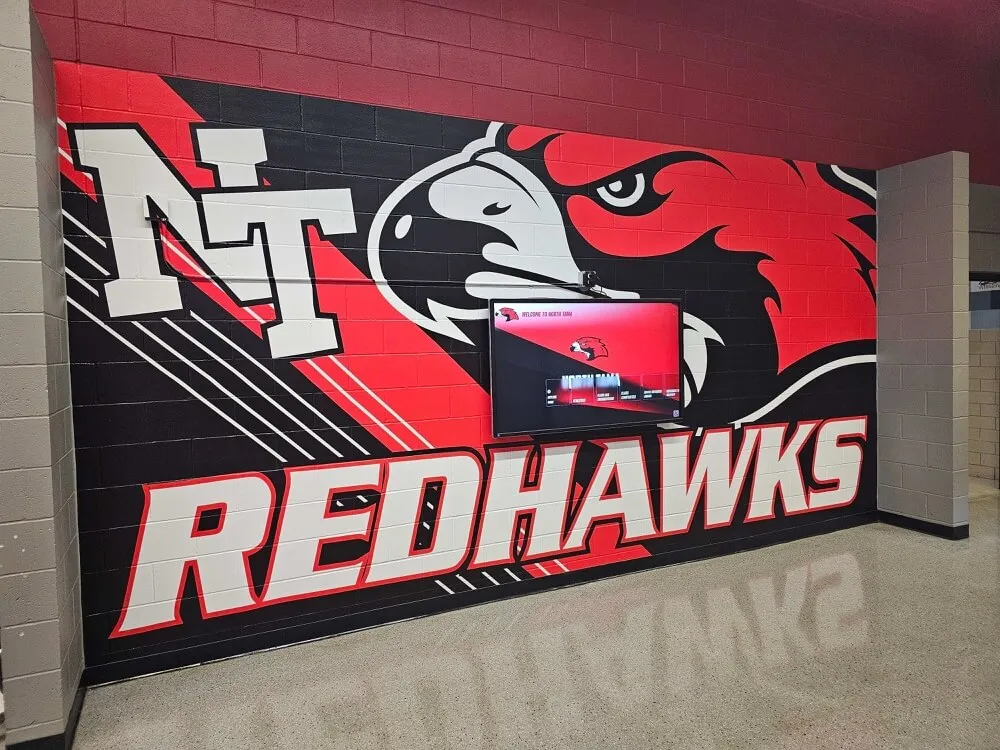
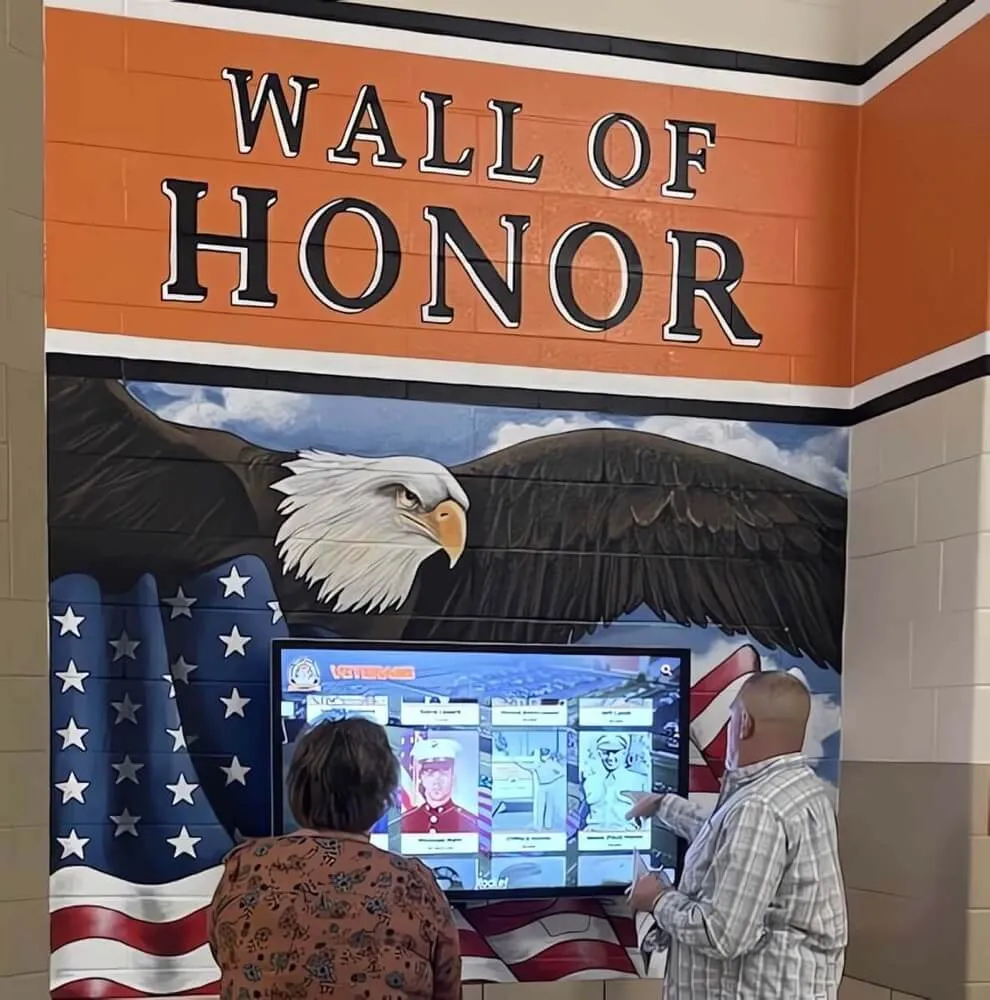
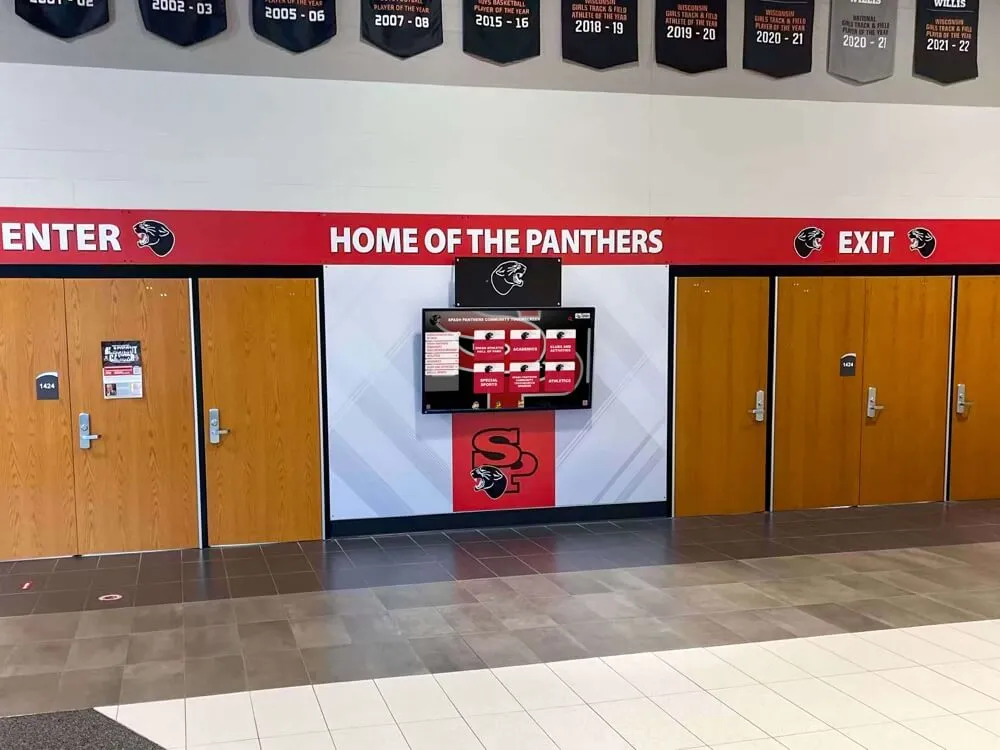
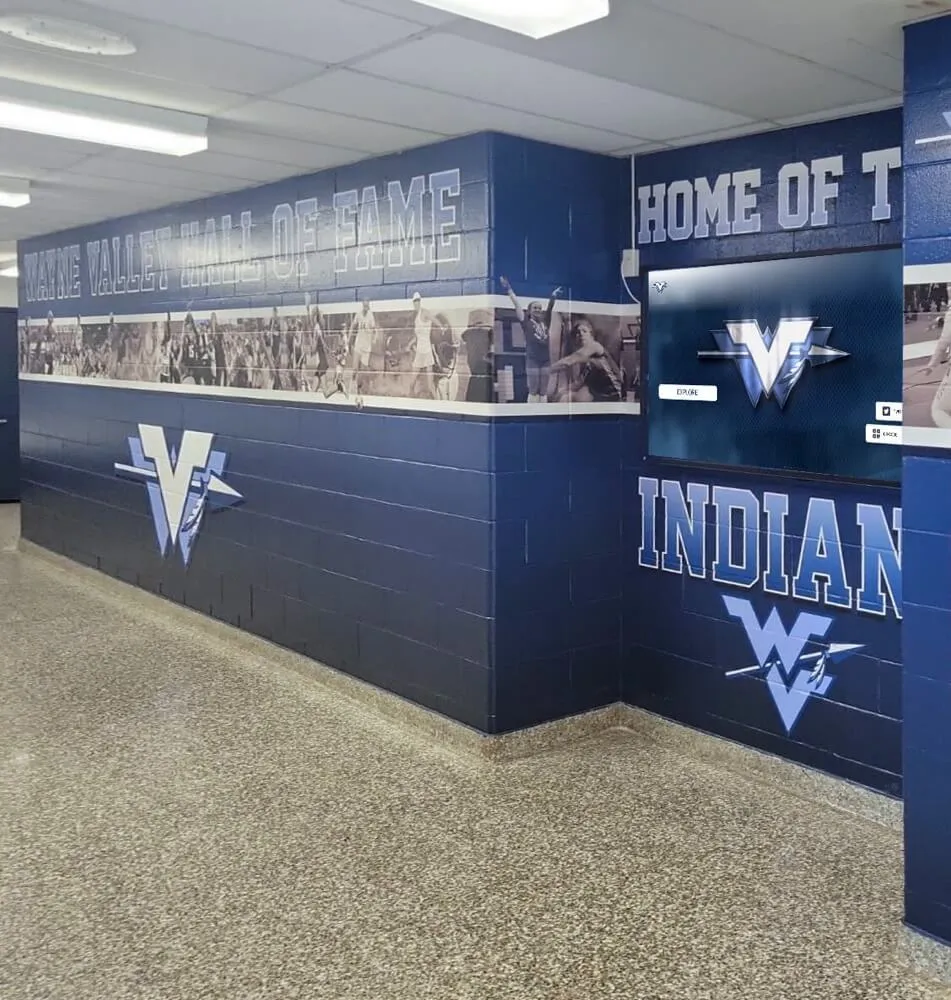
Recognition displays integrate with existing murals and physical branding rather than replacing them—the digital content layer adds depth to the visual environment the school has already built
Scene 5: Pricing — $50 Per Year, Unlimited (12:00–14:00)
What the Camera Shows
Screen capture, pricing summary: The platform pricing overview is visible: $50 per year for unlimited digital signage across unlimited displays at the school. No per-screen licensing. No content volume limits. MDM device management included.
Feature summary grid:
| Feature | Included in $50/year |
|---|---|
| Cloud CMS access | Yes |
| MDM device management | Yes |
| Athletic hall of fame and records | Yes |
| Academic recognition (honor roll, scholarships) | Yes |
| Announcements and scheduling | Yes |
| Building directory | Yes |
| Number of displays | Unlimited |
| Content volume | Unlimited |
Screen pan to lobby display: The lobby display runs in the background, cycling through content. The tour edit adds a simple text overlay: “$50/year. Unlimited displays. Unlimited content.” Then fades.
Narration Script
“The pricing question almost always comes with skepticism, so it’s worth being direct: $50 per year covers unlimited displays at the school, unlimited content volume, CMS access for all authorized staff, and MDM device management. There is no separate module purchase for the athletic hall of fame. There is no per-display licensing fee when a second or third screen is added. The $50 covers the school.
What the $50 does not cover is the display hardware itself. A commercial-grade 65-inch touchscreen represents a separate capital expenditure—typically in the range of $2,000–$5,000 for the display unit plus professional mounting and network configuration. The platform subscription and the hardware are distinct budget items, which is standard across every digital signage vendor regardless of price point.
The feature coverage at this price matches what major digital signage platforms deliver, including scheduling, multi-display management, remote device monitoring, and content templates. Schools that have reviewed digital signage subscription pricing across platforms consistently note that per-screen licensing from general-purpose providers adds up quickly once a school has more than two or three displays. At $50 annual for the entire school, the per-display software cost effectively approaches zero as the installation grows.
For budget planning purposes: a three-display deployment at this school—full platform access, MDM included—costs $50 per year in software licensing. The hardware reserve and maintenance schedule are separate budget lines, but the software commitment is among the lowest available for a feature-complete school digital signage platform.”
Scene 5 ADA and Accessibility Notes
- Closed captions: All narration transcribed; on-screen pricing table read aloud in narration
- Audio description: “Feature summary table appears on screen. Eight rows. Left column lists features; right column shows ‘Yes’ for each. Final row shows annual price of $50.”
Key Takeaways From Scene 5
- $50 per year covers unlimited displays and unlimited content across the school
- MDM device management is included—no separate device monitoring subscription required
- Hardware cost (commercial displays, mounting, network setup) is a separate capital expenditure from the platform subscription
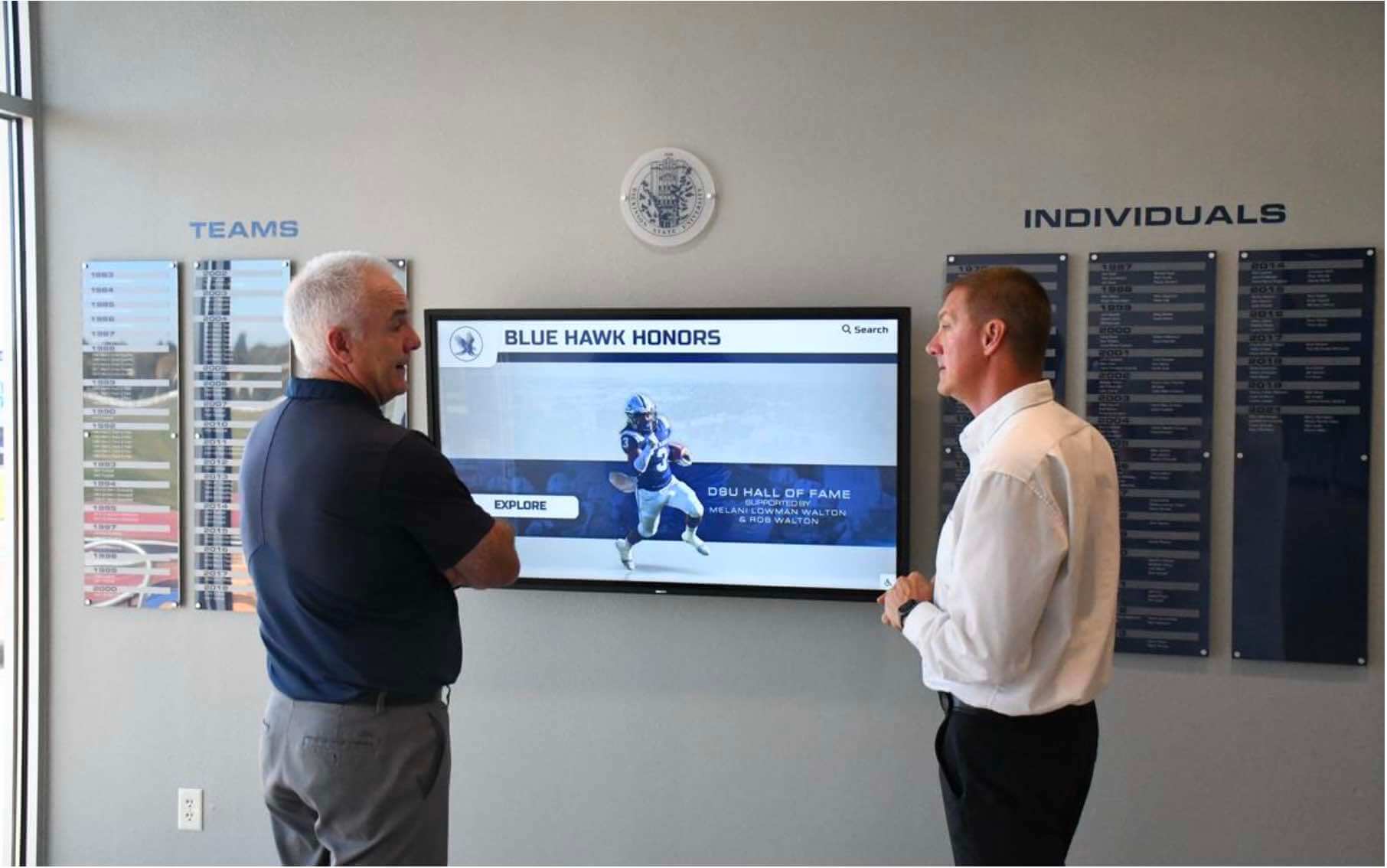
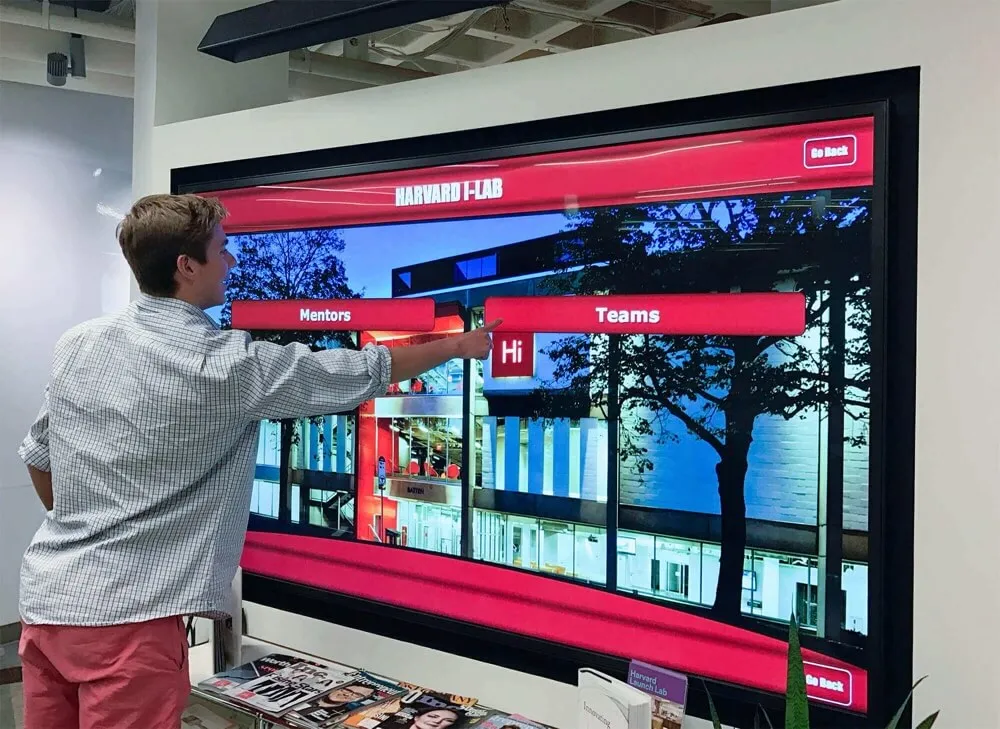
Evaluation visits and planning conversations go more efficiently when stakeholders have seen a video walkthrough beforehand—shared vocabulary reduces the time spent on basic explanations during a live demo
Production Notes: Filming the Platform Tour
These notes apply to schools, booster clubs, or communications teams producing their own version of this walkthrough for internal presentations or board reviews.
Equipment Recommendations
Camera: A mirrorless or DSLR camera capable of 1080p at 60 fps handles the display screen segments better than a smartphone. Rolling shutter artifacts common on smartphone sensors create horizontal banding when filming active screens. A tripod is non-negotiable for display close-ups.
Screen recording: Use a screen recording application capable of 1920×1080 at 60 fps for all CMS and MDM segments. Record at higher resolution if available; downscale in post rather than upscaling.
Audio: A directional shotgun microphone mounted on camera records cleaner narration in a lobby or hallway environment than an on-camera microphone. Budget for a lavalier if the narrator appears on camera alongside the display.
Lighting: Commercial display screens produce their own light, which affects how a camera handles exposure. Set manual exposure and white balance before filming to prevent auto-exposure flickering during content transitions. A polarizing filter reduces glare on touch-protected glass surfaces.
Aspect Ratio and Platform Considerations
The 16:9 format (1920×1080) serves website embeds, planning presentations, and YouTube distribution equally. If the tour will be shown on a school display during a vendor evaluation session, export a separate 4K version for direct playback on the commercial screen being evaluated—the resolution difference is visible when played directly on a 65-inch display versus streamed through a projector.
ADA Captioning Requirements
Every video distributed publicly requires closed captions. Most video hosting platforms accept SRT caption files. Record narration clearly and at consistent volume to improve automated transcription accuracy—this reduces caption editing time in post. Audio descriptions for non-verbal content (the on-screen feature table, the device status dashboard) should be written into the narration script rather than handled as a separate audio description track.
Filming the Interactive Display
Filming someone interacting with a touchscreen for a product tour requires rehearsal. Random browsing on camera reads as uncertain and slow. Script the tap sequence in Scene 1 and Scene 4 before filming: decide which navigation elements will be tapped, in what order, and at what pace. Rehearse it three times before rolling. Smooth, deliberate navigation communicates confidence in the platform and keeps the runtime tight.
School-Specific Adaptation Notes
When adapting this script for a school’s own recording, replace the generic content examples—soccer game announcement, honor roll display, CTE placement—with actual current content from the school’s platform. The specificity of real content makes the demonstration more credible to a live planning committee than placeholder text would. Student names in recognition content should be reviewed for parental consent requirements before filming.
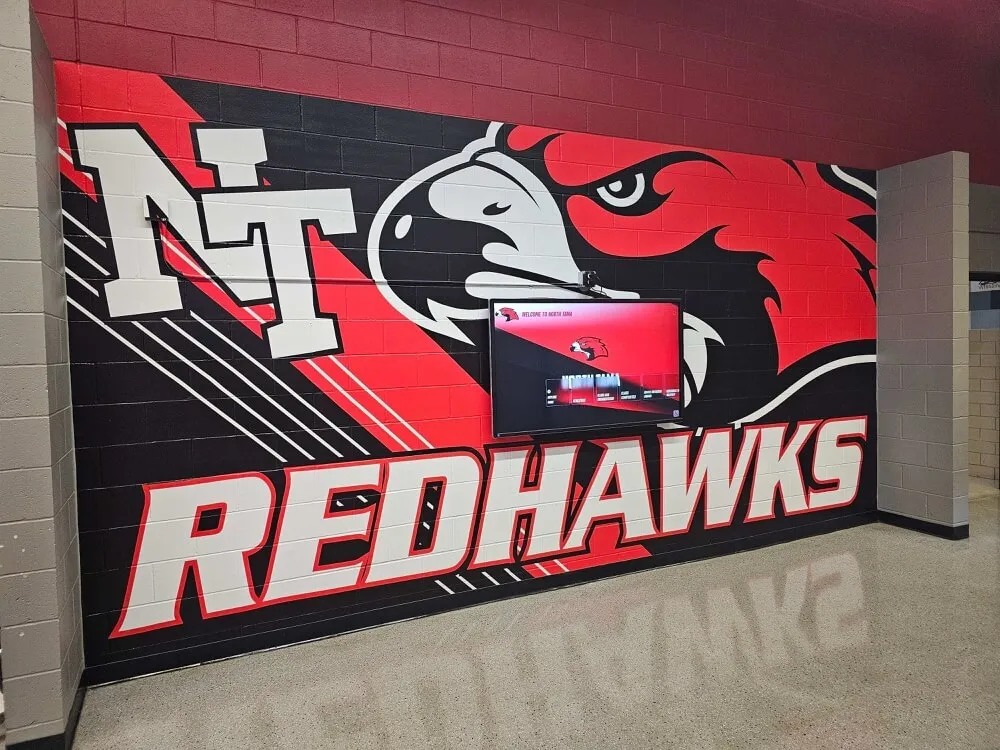
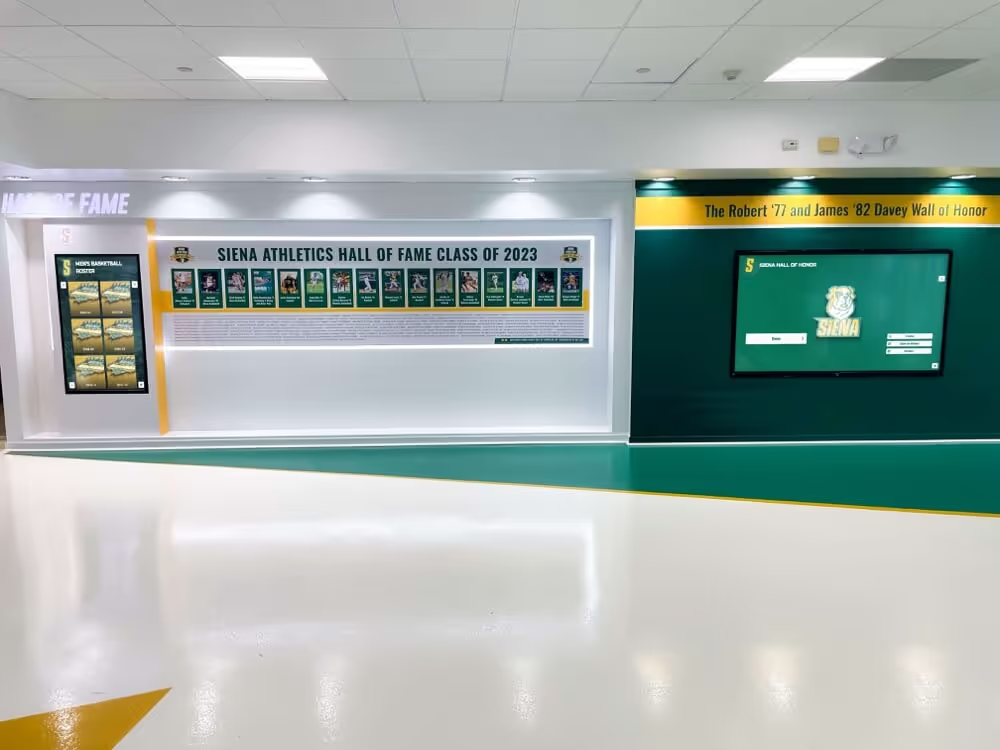
Athletic corridor installations combine existing wall murals with mounted digital displays—the screens add current, updateable content without altering the permanent identity elements of the space
Using This Tour in Administrative and Board Presentations
This walkthrough is structured to answer the questions administrative teams and school boards most commonly raise during digital signage planning:
- What does a visitor actually see? (Scene 1)
- Who manages the content, and how long does it take? (Scene 2)
- What happens when a screen has a problem at night? (Scene 3)
- What categories of recognition are covered? (Scene 4)
- What does this cost annually? (Scene 5)
Sharing the video—or this written transcript—before a planning meeting reduces the time spent on basic explanations and allows the conversation to focus on deployment decisions: how many displays, which locations, what content priorities, and what the implementation timeline looks like.
Schools comparing interactive touchscreen options for lobbies and hallways benefit from seeing the platform in motion before arriving at a vendor meeting. The questions become more specific—and the evaluation more focused—when stakeholders start from a common understanding of what the platform does.
For a full review of what school digital signage deployments look like in lobbies, gymnasiums, and athletic corridors, the school digital signage complete implementation guide covers placement strategy, content planning, and the decisions that typically separate successful installations from ones that go underutilized after the first semester.
The broader set of decisions schools are making about display technology—where interactive displays fit, what content types they serve, and how they compare to passive-only options—is covered in the guide to digital signage for schools: how interactive displays transform communication, which provides context for where a purpose-built recognition platform fits relative to general-purpose alternatives.
What to Request for the Live Demo
After watching this video tour, the most productive next step is a live platform demonstration where the school’s actual content requirements drive the session rather than a generic product overview.
Before scheduling a demo with Rocket Alumni Solutions, prepare the following:
Content inventory questions:
- How many distinct recognition categories does the school need? (Athletics, academics, performing arts, CTE, staff, donors, alumni)
- What existing content exists digitally? (Photos, award lists, record boards, program histories)
- What content currently lives only in physical form? (Trophy case plaques, printed programs, binder archives)
Display logistics questions:
- How many display locations is the school considering?
- What physical constraints exist at each location? (Power outlet access, wall construction, ceiling height for mounting, Wi-Fi signal availability)
- What is the primary audience at each planned display location?
Budget questions:
- Is display hardware already in place, or does this deployment include screens?
- Is the $50 annual software subscription in the operating budget or a booster or foundation allocation?
- Is there a timeline tied to a capital project, renovation, or specific school-year launch?
For schools reviewing the best digital signage software options in 2026, having answers to these questions before the evaluation conversation allows vendor comparisons on equal terms—same requirements, same deployment context, same budget assumptions—rather than comparing proposals built on different assumptions.
See Rocket Alumni Solutions in Action
Schedule a live video demo and walk through the platform with content specific to your school—your sport programs, your recognition categories, your display locations. The $50/year subscription covers everything shown in this tour, across unlimited displays, with MDM device management included.
Book a Live Demo