Touchscreen software for Mac has historically been a challenge for Apple users, as macOS lacks native support for external touchscreen displays and kiosk-mode applications. Schools, businesses, museums, retail stores, and organizations deploying interactive displays on Mac hardware have faced significant obstacles—requiring complex workarounds, unreliable third-party drivers, or abandoning Mac platforms entirely despite their preference for Apple’s ecosystem.
Yet the demand for Mac-based touchscreen solutions continues growing. Educational institutions with existing Mac infrastructure want to add interactive recognition displays without switching platforms. Businesses prefer Mac’s reliability and security for public-facing kiosks. Museums and cultural organizations value Mac’s design aesthetics and performance for visitor experiences. The challenge has never been whether Mac hardware is capable—it’s finding software that makes touchscreen functionality accessible, reliable, and simple to deploy.
This comprehensive guide explores the best touchscreen software solutions for Mac in 2025, examining kiosk-mode applications, display drivers, interactive content platforms, and purpose-built solutions like Rocket Touchscreen that eliminate the complexity traditionally associated with Mac touchscreen deployments. Whether you’re setting up a single digital signage display or managing dozens of interactive kiosks across multiple locations, you’ll discover practical approaches that make Mac touchscreen implementations finally achievable.
Touchscreen functionality on Mac serves diverse applications—from public information kiosks displaying wayfinding and directories to educational recognition systems celebrating student achievement, retail point-of-sale interfaces, museum interactive exhibits, and corporate lobby displays welcoming visitors. Each requires reliable software handling touch input, content management, security, and often kiosk mode preventing unauthorized access to underlying system functions.

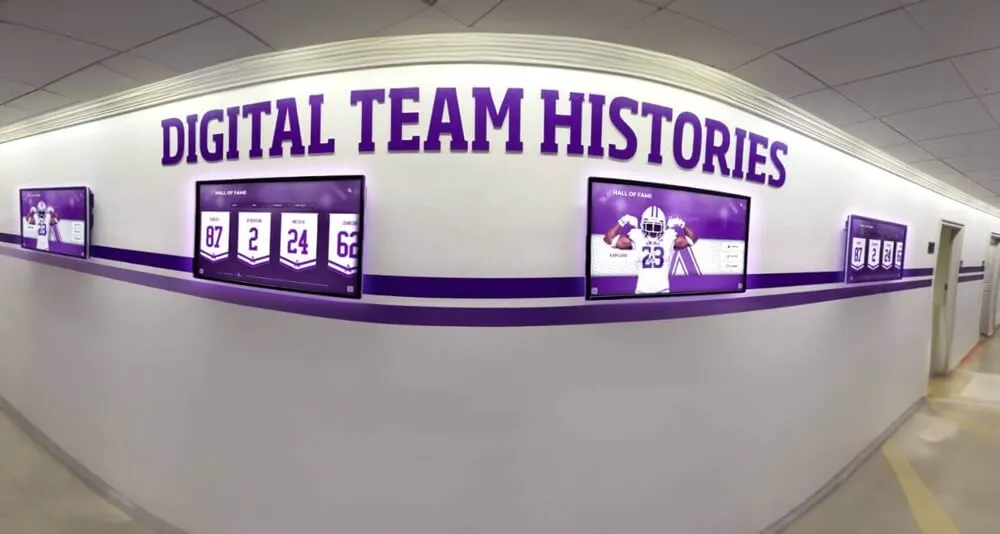
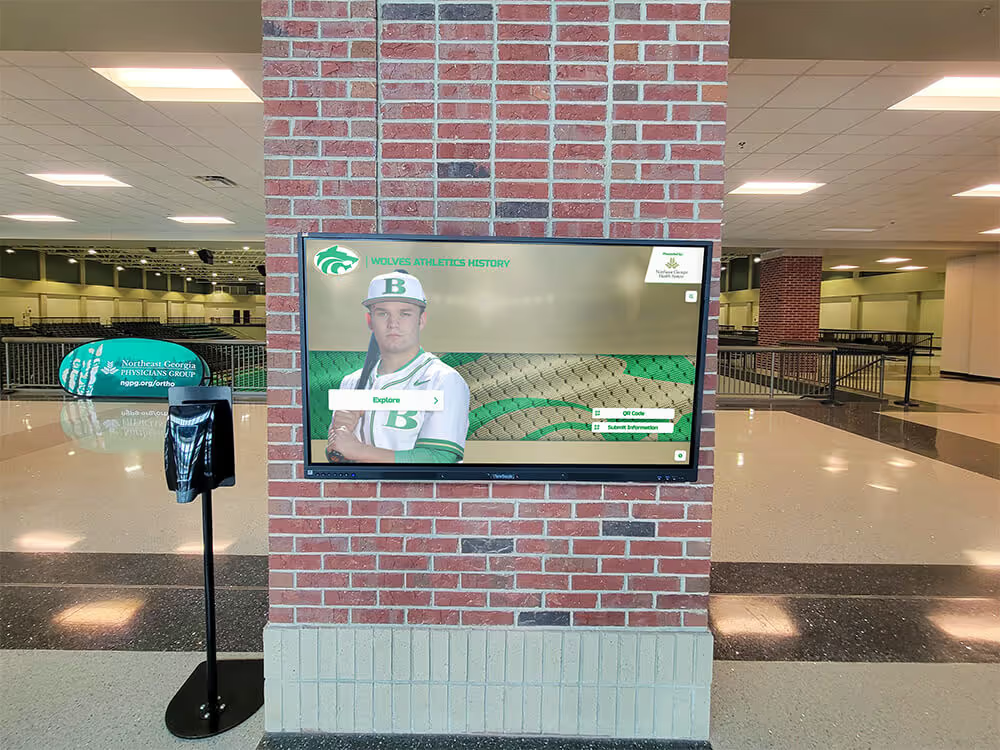
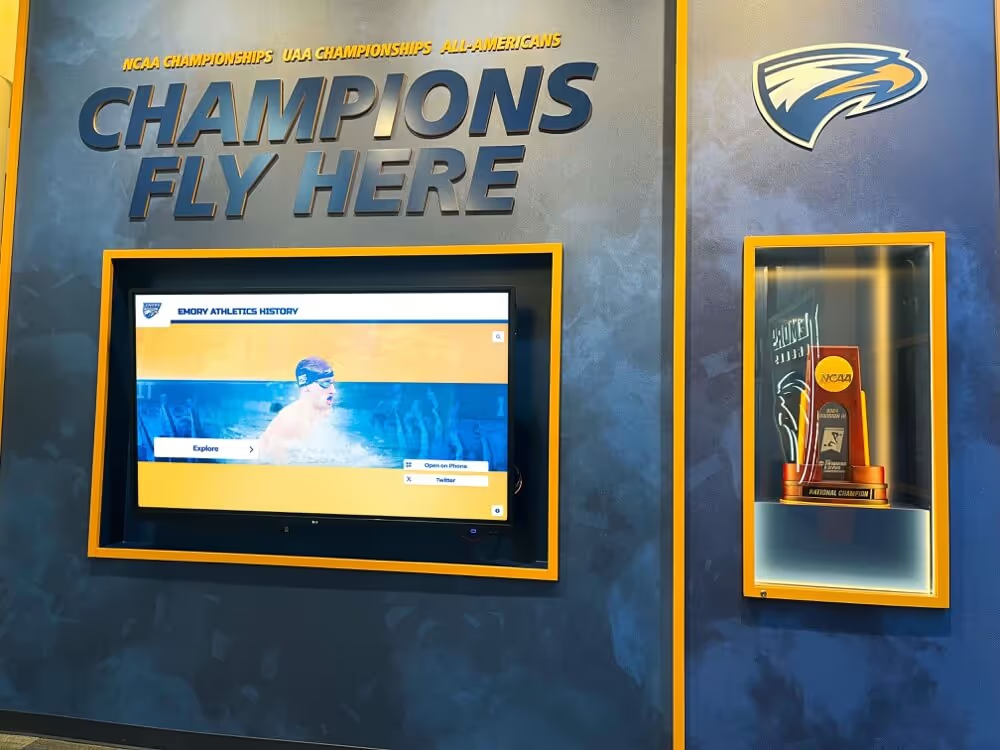
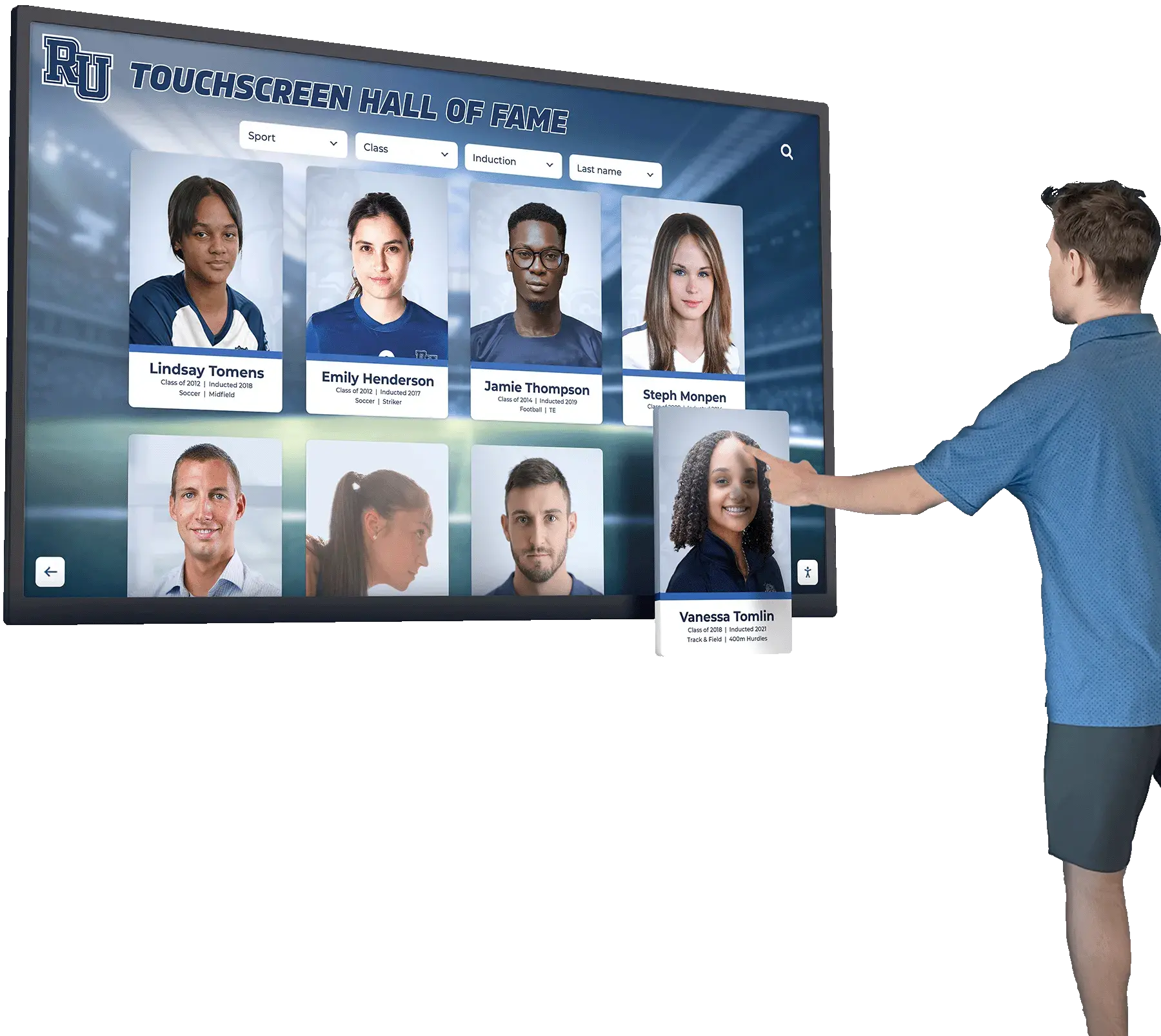
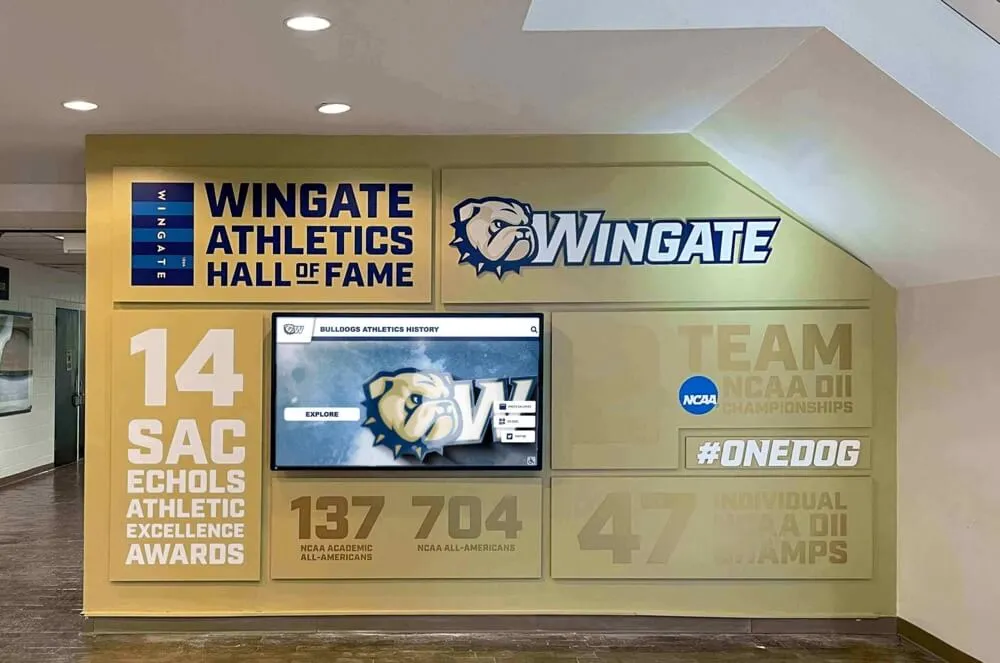
Modern Mac-based touchscreen kiosks provide professional interactive experiences for schools, businesses, and public installations
Understanding Mac Touchscreen Software Challenges
Before exploring specific solutions, understanding the unique challenges of Mac touchscreen software helps organizations make informed decisions and set appropriate expectations.
Why macOS Lacks Native Touchscreen Support
Apple’s Design Philosophy
Apple has consistently positioned touchscreen functionality as an iOS/iPadOS feature while keeping macOS mouse and trackpad focused:
Apple’s Stated Reasoning
- Ergonomic concerns about vertical touchscreen fatigue in laptop/desktop configurations
- User interface design differences between direct manipulation (iOS) and pointer-based (macOS) interfaces
- Maintaining clear product differentiation between Mac and iPad lines
- Belief that indirect input (trackpad) is superior for extended computing sessions
- Concerns about screen smudging and cleaning requirements
This philosophical stance means Apple provides no built-in drivers, system APIs, or frameworks for external touchscreen displays on macOS, leaving third-party developers to fill the gap through workarounds and independent solutions.
Technical Implications
The absence of native support creates practical challenges:
- External touchscreen monitors may partially work as “mouse hijackers” (translating touch to cursor movement) but lack multitouch gestures
- No system-level support for touch-specific UI elements, on-screen keyboards, or touch-optimized applications
- Third-party driver installation often requires disabling System Integrity Protection (SIP), raising security concerns
- Software updates can break touchscreen functionality requiring driver reinstallation
- Limited developer ecosystem compared to Windows touchscreen software
- Gesture support (pinch, zoom, swipe, rotate) requires specialized drivers rather than system-level APIs
Organizations deploying Mac-based touchscreen solutions must navigate these limitations through careful software selection and implementation planning.
Single-Touch vs. Multi-Touch Considerations
Touch Input Complexity
Not all touchscreen implementations require the same capabilities:
Single-Touch Applications Many practical touchscreen deployments function perfectly with single-touch input:
- Information kiosks where users tap buttons and select options
- Digital directories with simple navigation structures
- Recognition displays showcasing achievements and profiles
- Retail menu boards and ordering systems
- Museum exhibits with tap-to-explore interfaces
- Public announcement displays with basic interactivity
Multi-Touch Requirements Some applications demand multitouch gestures:
- Photo galleries requiring pinch-to-zoom functionality
- Map interfaces needing two-finger pan and zoom
- Creative applications with rotation and multi-finger gestures
- Games and entertainment experiences with complex interactions
- Educational software designed around iPad-style gestures
For many organizations, single-touch solutions—which are significantly easier to implement on Mac—provide all necessary functionality. Rocket Alumni Solutions recognized this reality and designed their touchscreen software around single-touch interaction patterns, ensuring all content and features remain accessible without multitouch gestures.
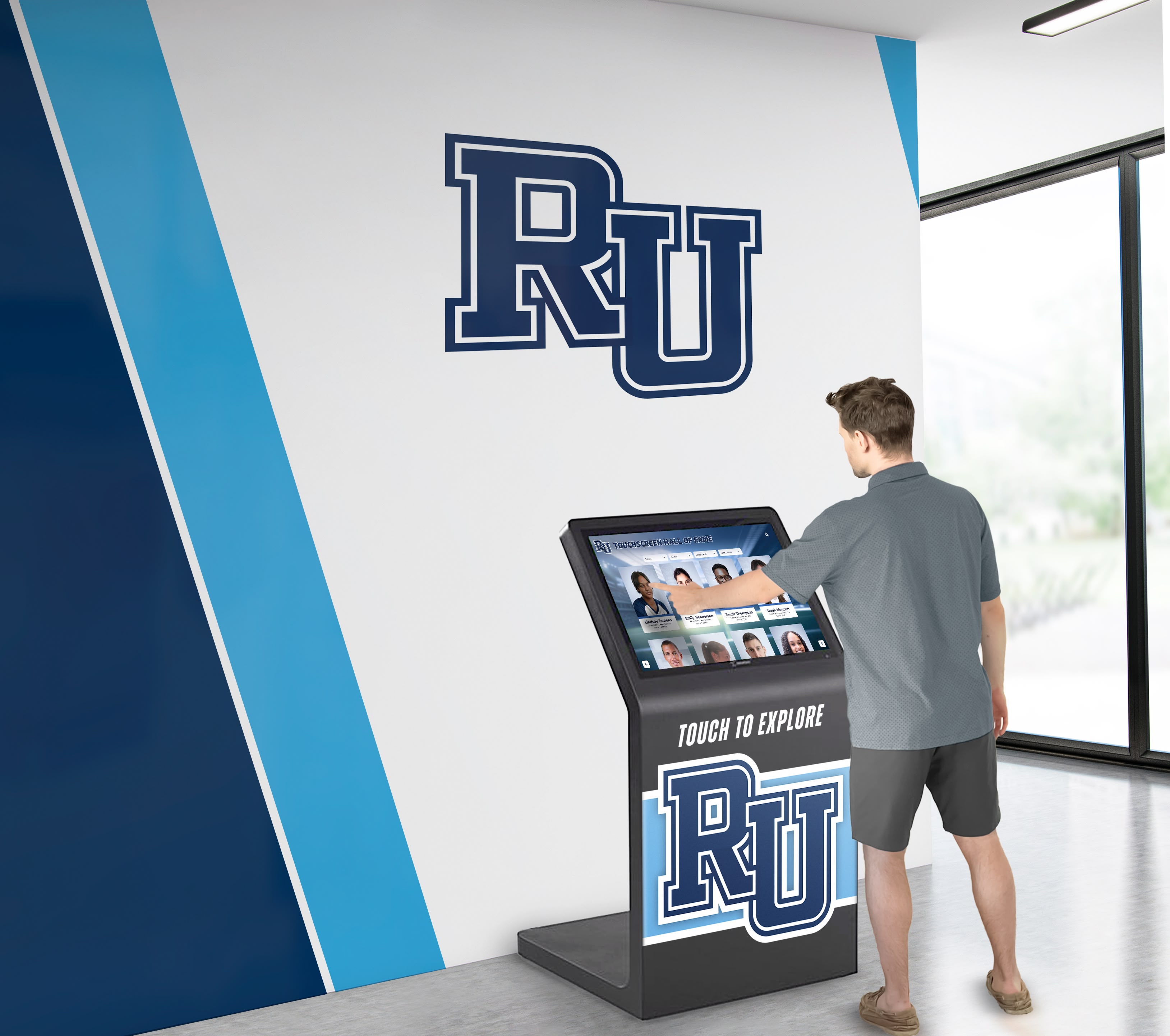
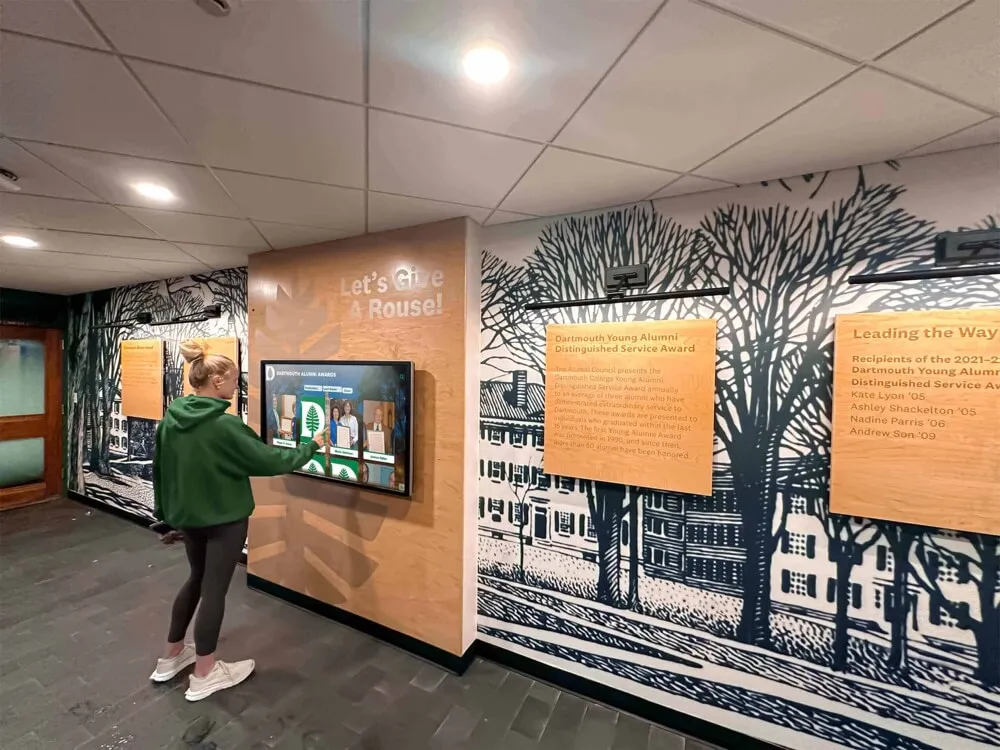
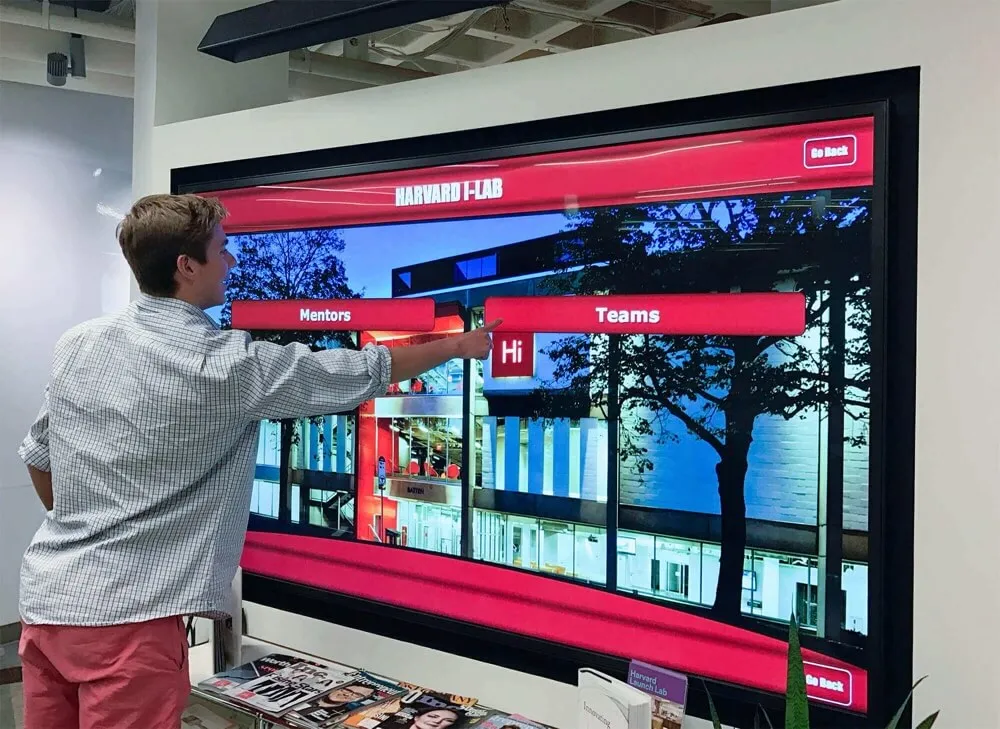
Single-touch interfaces provide intuitive navigation for information displays, recognition systems, and interactive content
Kiosk Mode Requirements
Security and Access Control
Public-facing Mac deployments require preventing users from accessing system functions, closing applications, or modifying settings:
Essential Kiosk Features
- Automatic launch into designated application on startup
- Full-screen mode preventing access to menu bar, dock, and system functions
- Disabled keyboard shortcuts that might exit the application
- Restricted ability to force quit or switch applications
- Password-protected settings and configuration access
- Automatic recovery if application crashes or quits unexpectedly
- Content update capability without requiring physical access to the device
- Remote management for multi-location deployments
Common Kiosk Challenges on Mac
Implementing true kiosk mode on macOS presents difficulties:
- Mac’s accessibility features and system shortcuts can conflict with kiosk restrictions
- Command-Q and other keyboard combinations may allow application exit
- macOS updates can reset security settings disabling kiosk functionality
- Some kiosk solutions require complex terminal commands and configuration file editing
- MDM (Mobile Device Management) solutions add costs and ongoing subscription fees
- Browser-based kiosk modes may still allow URL bar access or navigation away from intended content
Organizations need kiosk software specifically designed for Mac’s unique environment rather than trying to adapt Windows-focused solutions or relying on browser flags and command-line arguments.
Learn about professional kiosk deployments in touchscreen kiosk software buying guide examining comprehensive solutions.
Best Mac Touchscreen Software Categories
Mac touchscreen software falls into several categories, each serving different needs and implementation approaches.
Purpose-Built Kiosk Applications
All-in-One Touchscreen Kiosk Software
The most straightforward approach uses applications specifically designed for Mac touchscreen kiosk deployments:
Rocket Touchscreen
Available through the Mac App Store, Rocket Touchscreen provides purpose-built kiosk functionality designed specifically for Mac:
Key Capabilities
- Automatic launch into kiosk mode on startup without complex configuration
- Built-in Chromium browser engine providing reliable web content display
- Single-touch optimized interface ensuring all features work without multitouch gestures
- Full-screen locked mode preventing access to system functions
- Simple URL configuration pointing to any website or web-based content
- No ongoing subscription or licensing fees after App Store purchase
- Regular updates through Mac App Store ensuring compatibility with macOS updates
- Touch input handling without requiring separate driver installation
- Designed for schools, businesses, and organizations deploying public displays
Rocket Touchscreen eliminates the complexity typically associated with Mac kiosk deployments—organizations simply install the app from the Mac App Store, configure the display URL, and enable autolaunch. The application handles all kiosk functionality, touch input, and security restrictions automatically.
Ideal Use Cases
- Schools displaying digital recognition and hall of fame content
- Businesses showcasing websites, dashboards, or custom web applications
- Museums presenting interactive exhibits built as web experiences
- Retail stores displaying product catalogs and ordering systems
- Corporate lobbies showing visitor information and directories
- Athletic facilities featuring sports recognition displays
The single-touch design philosophy means organizations don’t sacrifice functionality—Rocket Alumni Solutions builds content platforms with single-touch navigation patterns ensuring full accessibility without complex gesture requirements.
Other Mac Kiosk Applications
Several alternative kiosk-focused apps exist for Mac:
AppKiosk
- Native macOS application for kiosk deployments
- Designed for museums, libraries, trade shows, and office lobbies
- Optimized for touchscreens and large displays
- One-time purchase with no recurring subscription fees
- Available through Mac App Store
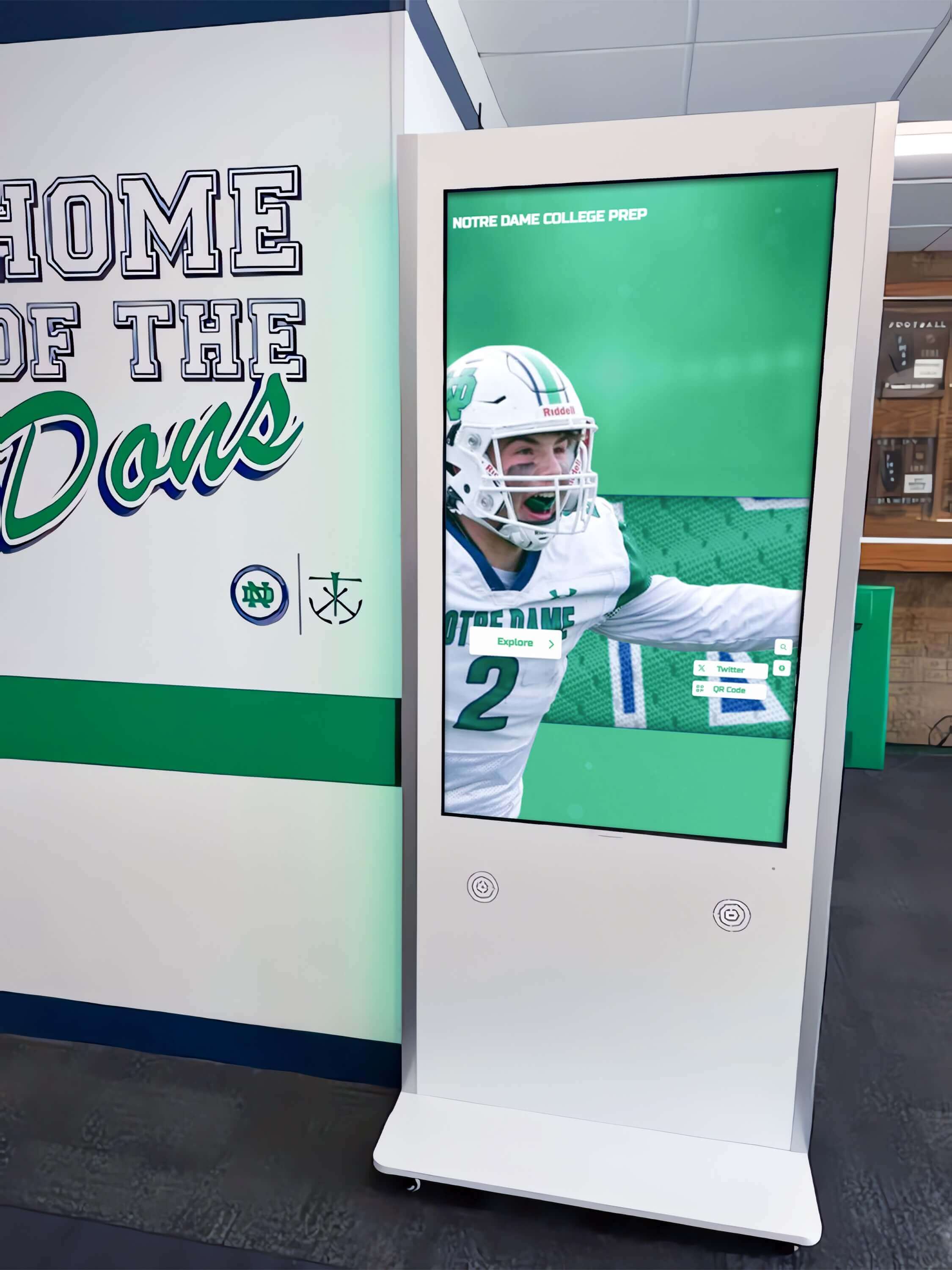
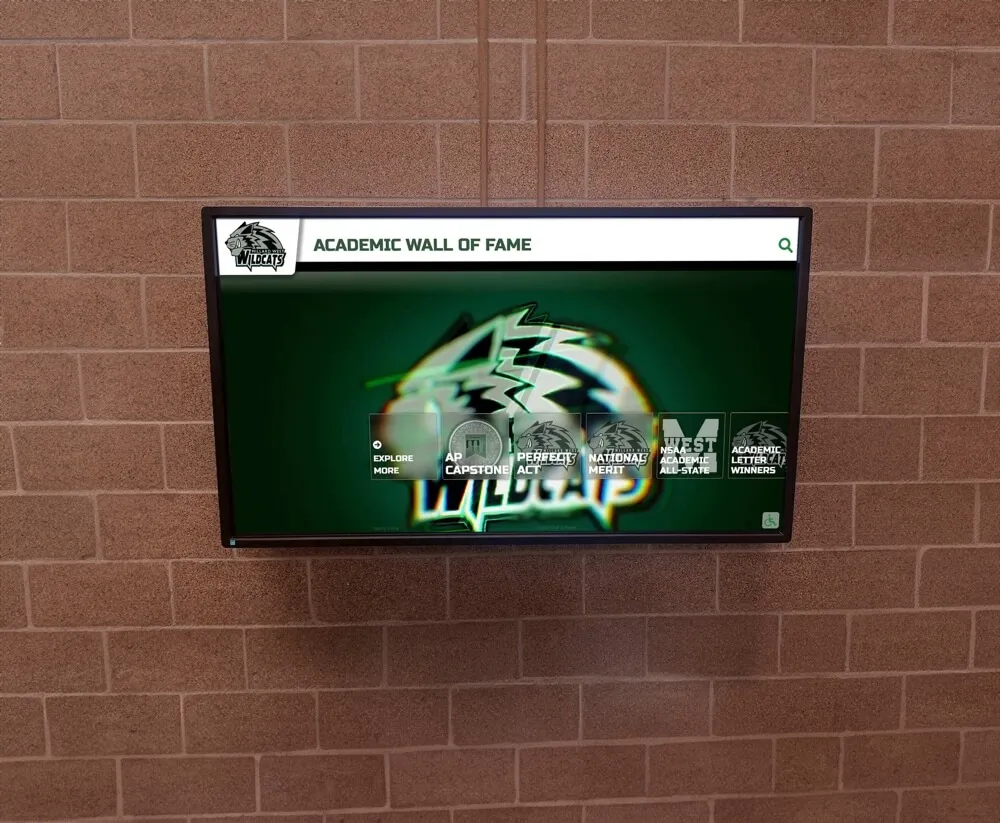
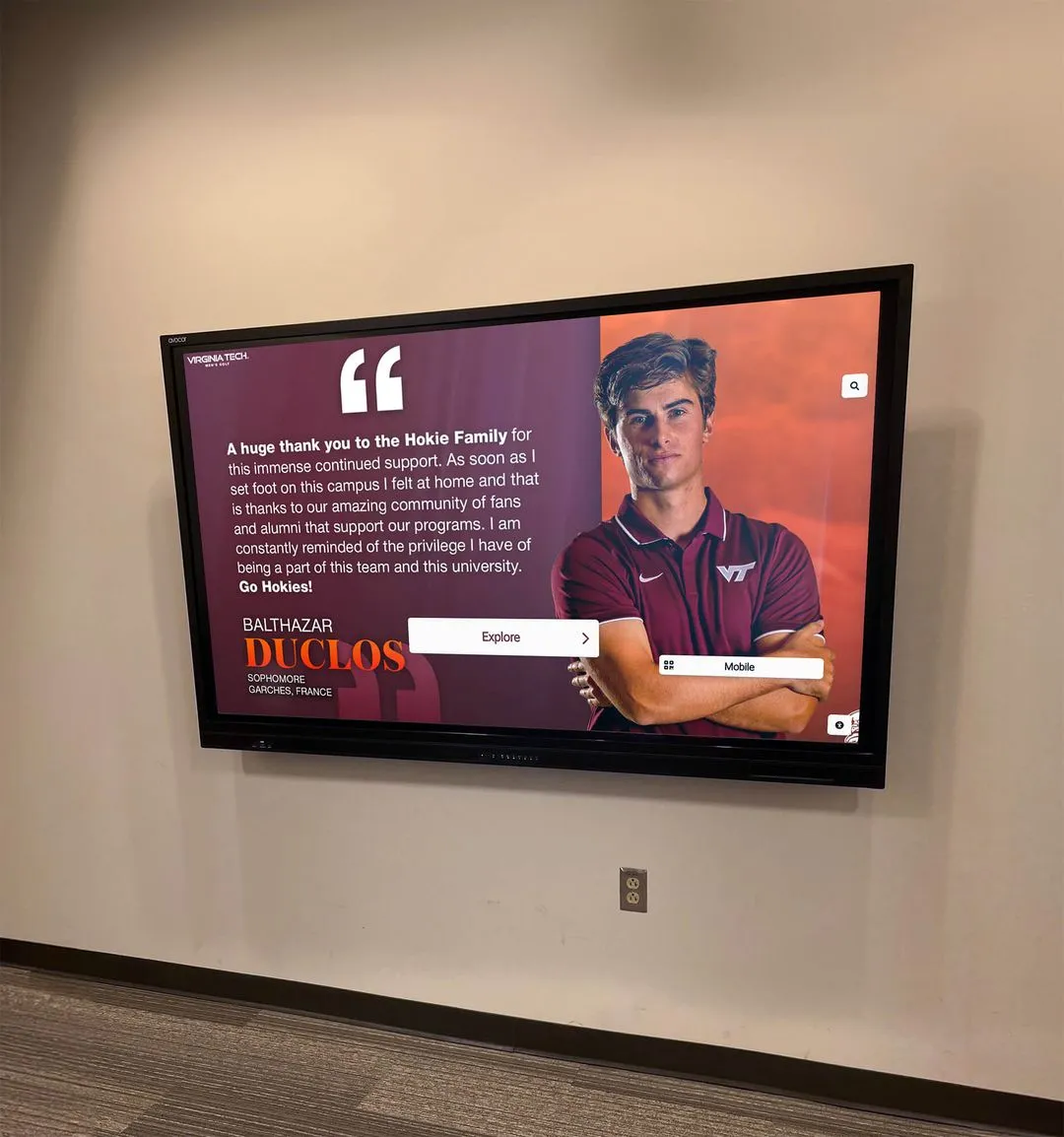
Strategic placement in high-traffic areas maximizes engagement with Mac-based interactive displays
Kiosk (mackiosk.com)
- Turns any Mac into standalone kiosk
- Full-screen web browser with powerful features
- Simple setup and configuration
- Designed specifically for Mac environment
These purpose-built applications recognize Mac’s unique requirements and provide native solutions rather than attempting to port Windows-centric approaches to macOS.
Touchscreen Display Drivers
Enabling Touch Input Hardware
Some organizations need touchscreen drivers to enable touch functionality on external monitors before implementing kiosk software:
UPDD (Touch-Base)
The UPDD universal pointer device driver provides comprehensive touchscreen support:
Driver Capabilities
- Support for macOS 10.6 and above
- Full multi-touch gesture support (pinch, zoom, rotate, swipe)
- Compatibility across Windows, macOS, Linux, and Android
- Extensive hardware compatibility with numerous touchscreen monitor brands
- Calibration tools ensuring accurate touch registration
- Configuration options for sensitivity and gesture recognition
Implementation Considerations
- Requires driver installation with system-level permissions
- May need System Integrity Protection (SIP) disabled during installation
- Licensing fees for commercial use
- Technical expertise helpful for installation and configuration
ViewSonic vTouch Driver
For organizations using ViewSonic touchscreen displays:
- Specifically designed for ViewSonic touch-enabled monitors
- Provides touch and gesture control access
- Free download from ViewSonic support site
- macOS compatibility enabling touch input on Apple devices
- Streamlined installation for ViewSonic hardware
Mimo Touchscreen Drivers
Mimo offers touchscreen drivers for their monitors:
- Downloadable Gesture Pack enabling swipe, two-finger scroll, pinch/magnify, and rotate
- Proprietary solution requiring Mimo hardware
- Nominal license fee for full functionality
- Designed specifically for Mimo touchscreen products
These drivers solve the fundamental challenge of enabling touch input on external monitors, but organizations still need separate kiosk or content software to create complete touchscreen solutions.
Explore hardware considerations in hardware selection guide for digital displays with comprehensive specifications.
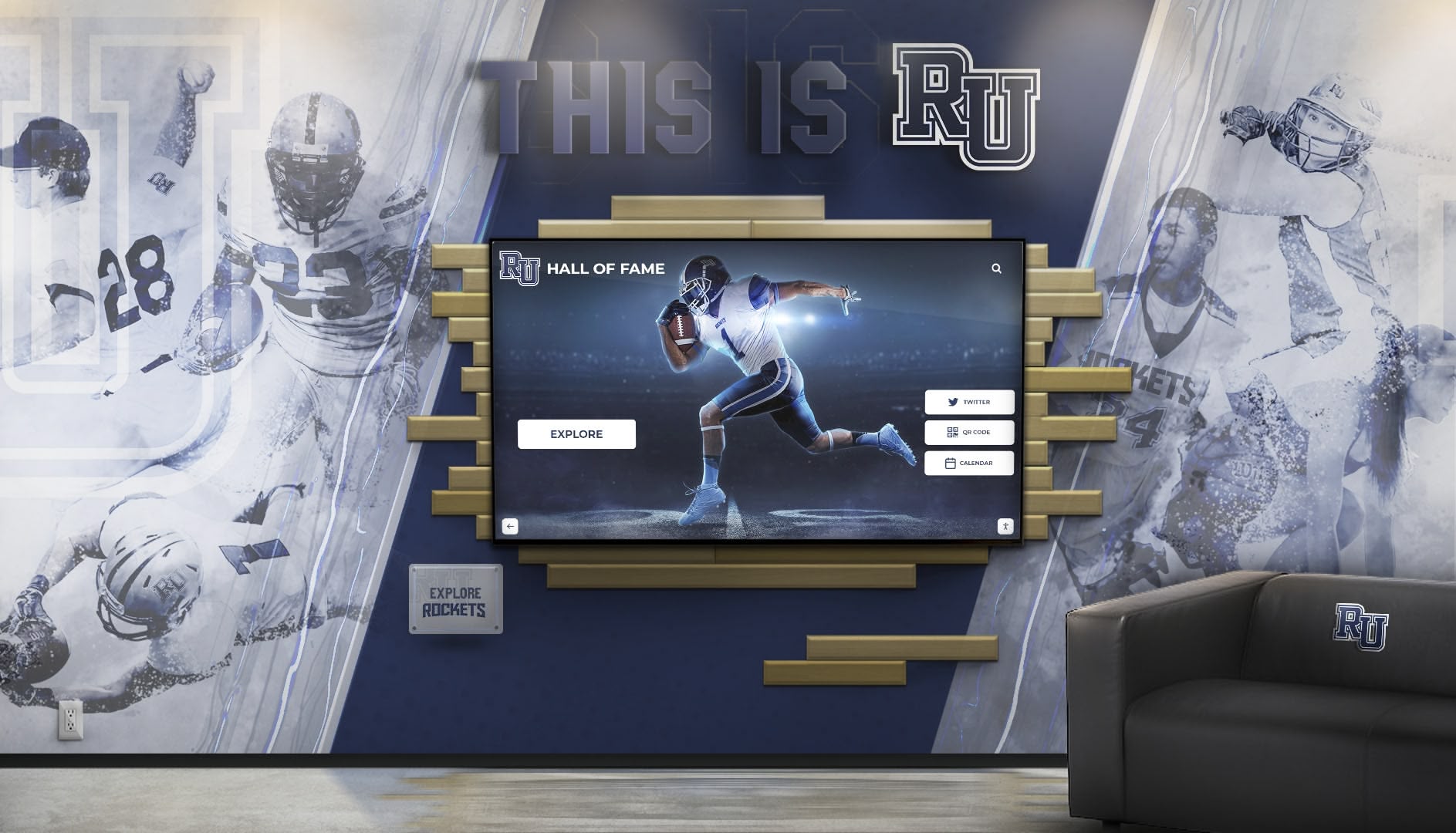
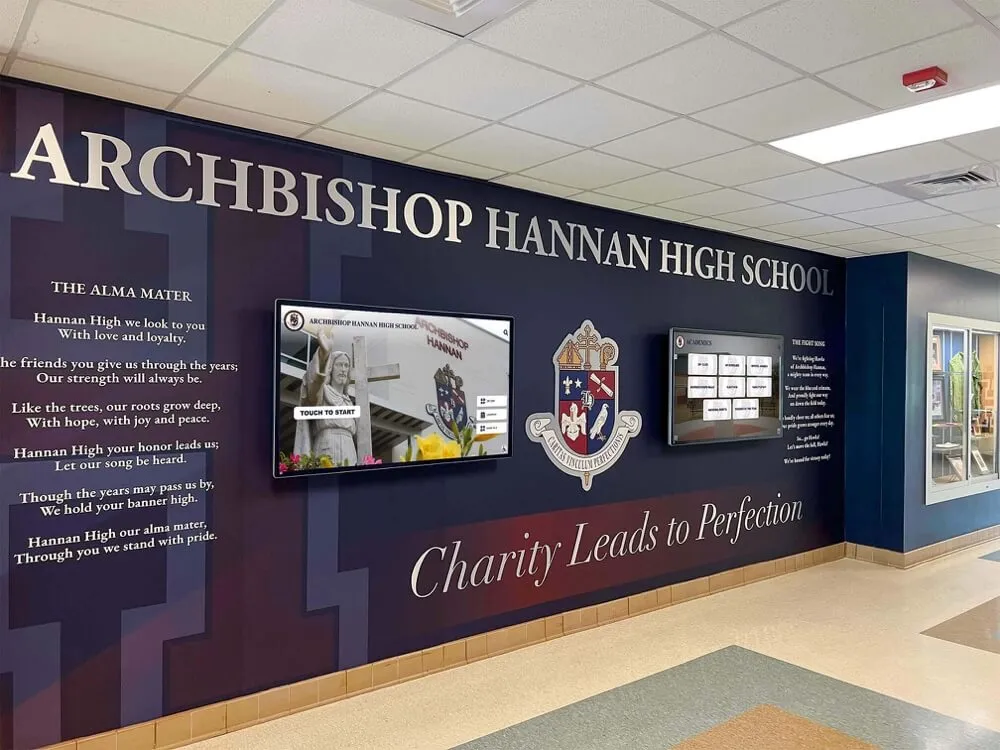
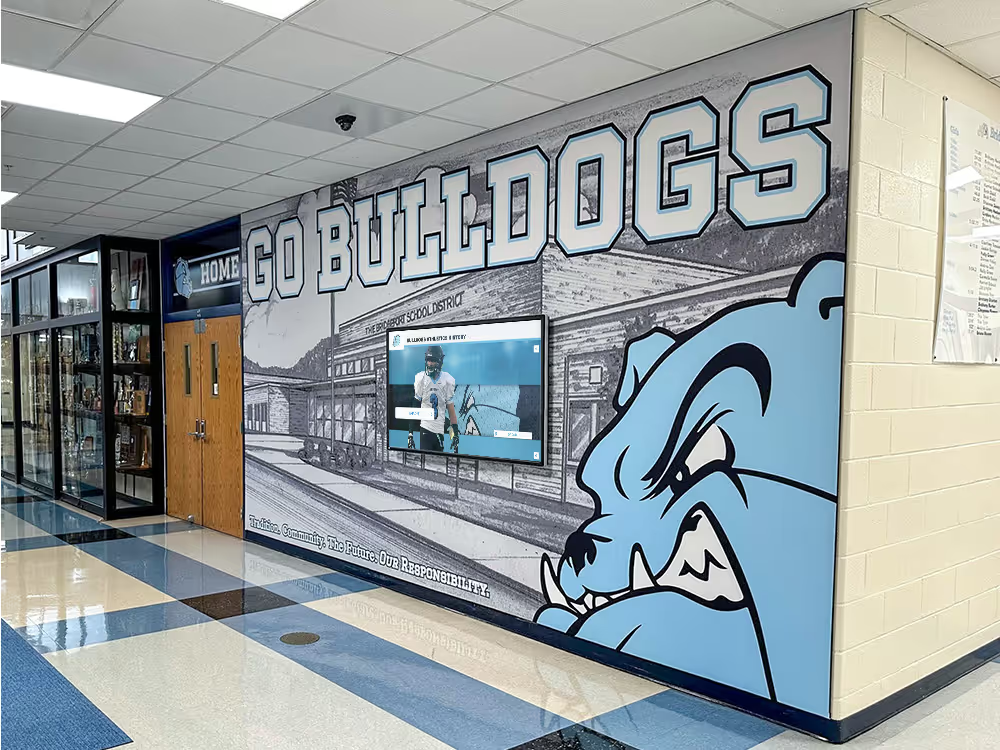
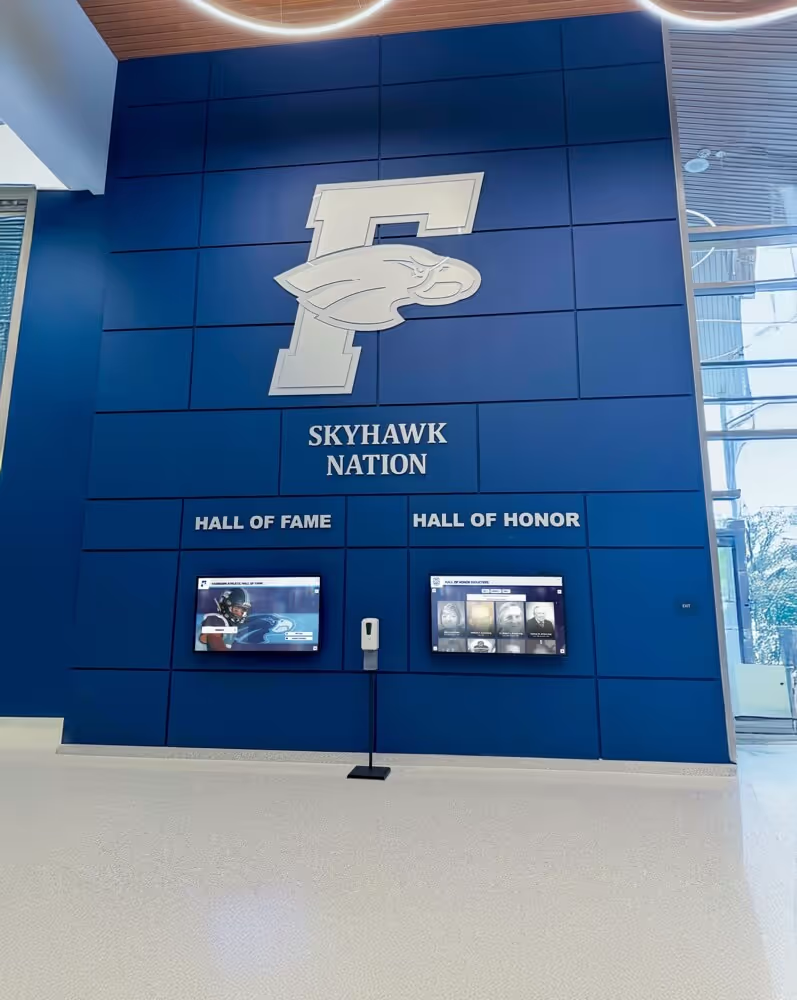
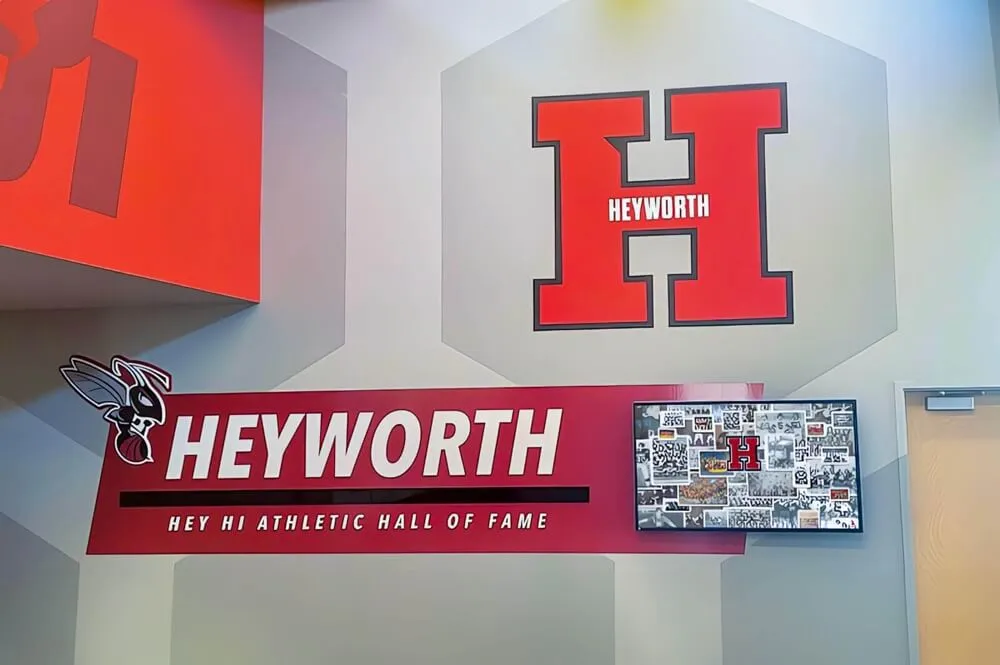
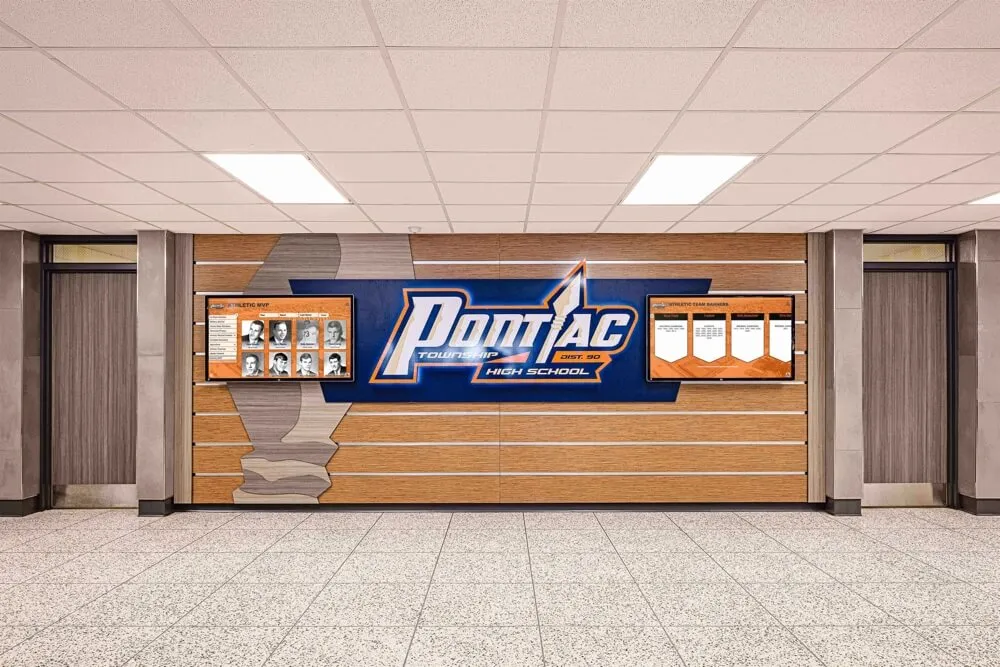
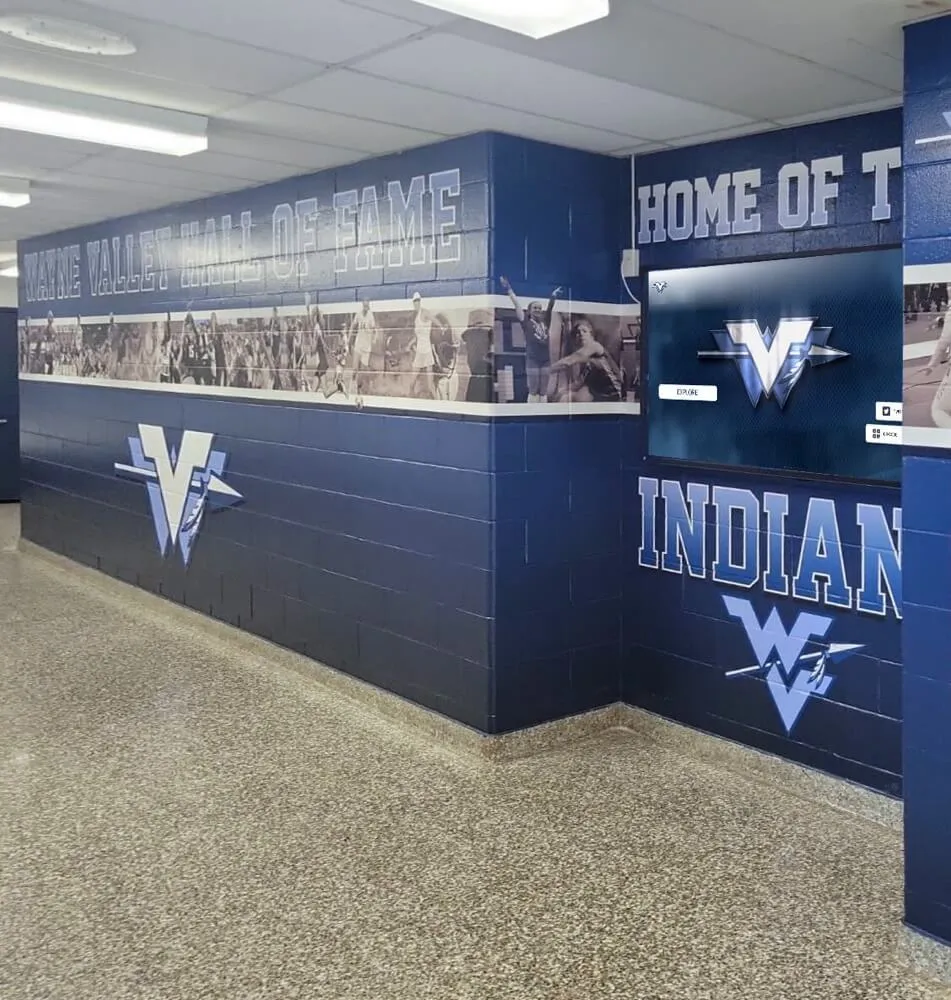
Professional installations integrate Mac-based touchscreen systems with school branding and architectural elements
Browser-Based Kiosk Solutions
Using Chrome/Chromium in Kiosk Mode
Some organizations deploy kiosk functionality using browser kiosk modes through command-line flags:
Chrome Kiosk Mode on Mac
Chrome can launch in kiosk mode using Terminal commands:
- Command:
/Applications/Google\ Chrome.app/Contents/MacOS/Google\ Chrome --kiosk --app=https://example.com - Opens Chrome without window decorations, maximized to full-screen
- Automatically displays specified URL on launch
- Touch events work natively as Chrome treats touch like mouse input
- Chrome enables touch features like swipe scrolling automatically in kiosk mode
Limitations and Challenges
- Users can still exit kiosk mode through keyboard shortcuts (Command-Q)
- No integration with Mac’s native kiosk API preventing dock access
- Requires creating launch scripts or login items for automatic startup
- Browser updates may reset settings or change kiosk behavior
- Limited configuration options compared to purpose-built kiosk applications
- Security restrictions may require additional lockdown measures
- No built-in content management or remote administration
When Browser Kiosk Works
This approach suits organizations with:
- Technical staff comfortable with command-line configuration
- Controlled environments where keyboard access can be physically restricted
- Simple web-based content requiring basic full-screen display
- Budget constraints preventing purpose-built kiosk software investment
- Short-term or temporary kiosk deployments
- Testing and prototyping before production deployment
For permanent, public-facing installations—especially in education, retail, or public spaces—purpose-built kiosk applications provide more reliable, secure, and maintainable solutions.
MDM and Device Management Solutions
Enterprise Device Management
Organizations with existing Mobile Device Management infrastructure can leverage these systems for kiosk deployments:
Hexnode UEM
Unified Endpoint Management platform supporting Mac kiosk functionality:
- Remote configuration and management of Mac devices
- Kiosk mode enforcement through MDM profiles
- Application restrictions and security policies
- Multi-platform support (macOS, iOS, Android, Windows)
- Cloud-based administration console
- Subscription-based pricing per device
Miradore
Cloud MDM/UEM platform with Mac kiosk capabilities:
- Secure management of macOS devices remotely
- Kiosk mode configuration through policy enforcement
- Application deployment and updates
- Monitoring and compliance reporting
- Free tier available for small deployments
- Paid plans for enterprise features
Considerations for MDM Approaches
- Ongoing subscription costs per device can add up quickly
- Requires technical expertise for MDM configuration and policy management
- Complex setup compared to standalone kiosk applications
- Provides broader device management beyond kiosk functionality
- Best suited for organizations already using MDM infrastructure
- May be overkill for simple kiosk-only deployments
MDM solutions make sense for organizations managing fleets of Mac devices where kiosk functionality represents one aspect of comprehensive device management strategy.
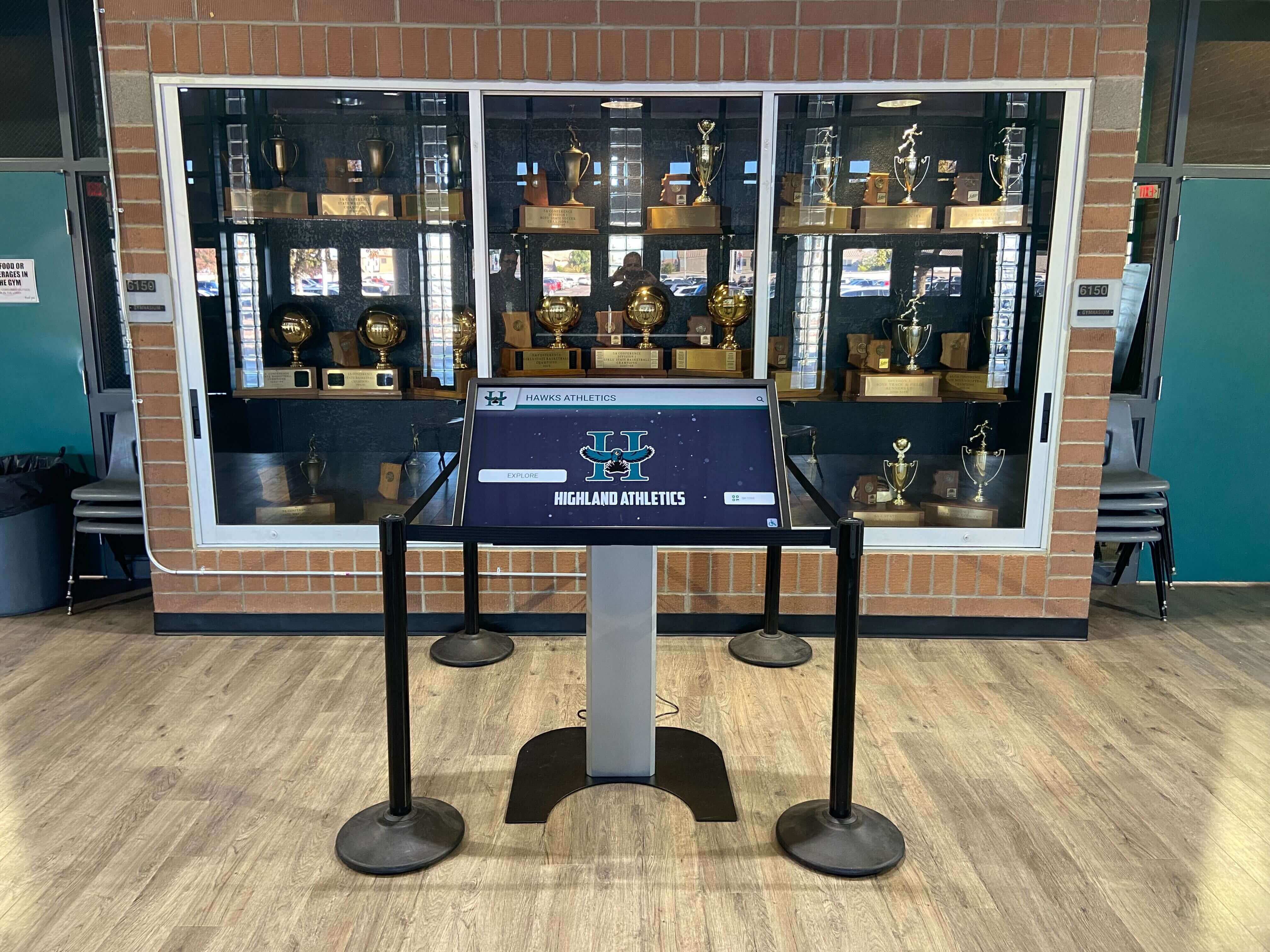
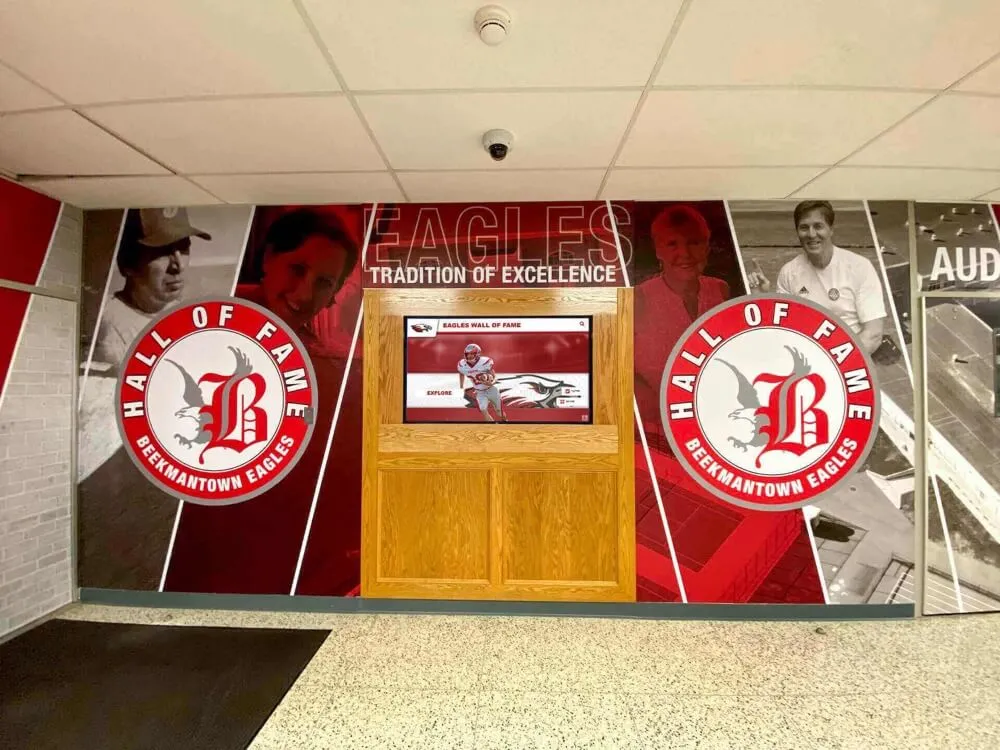
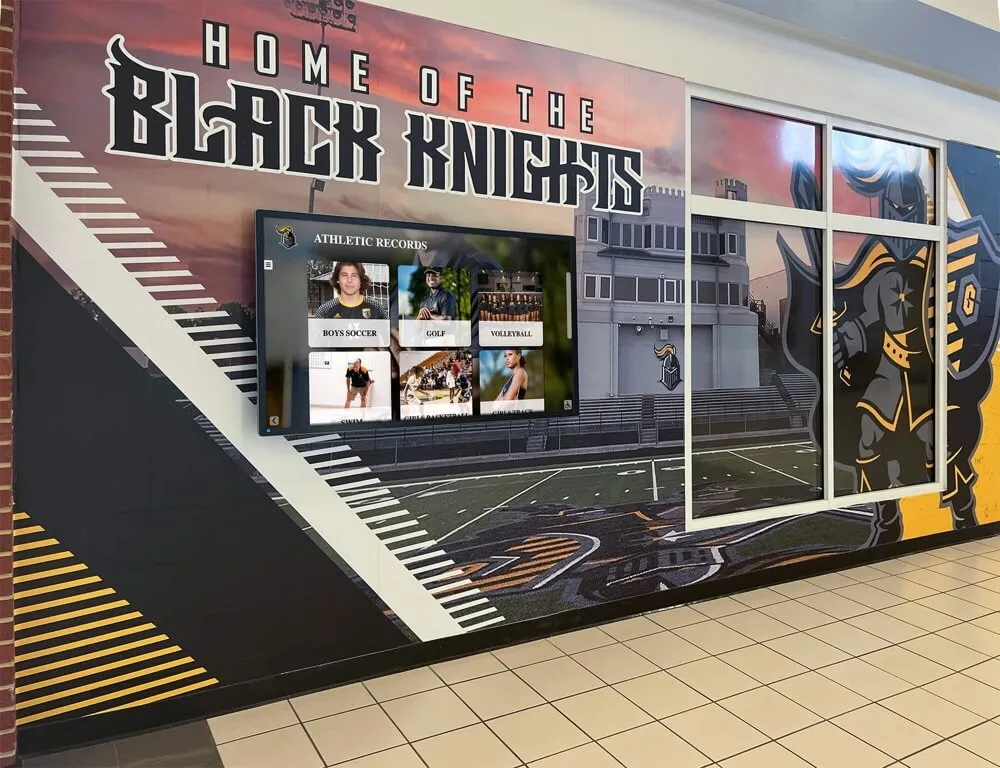
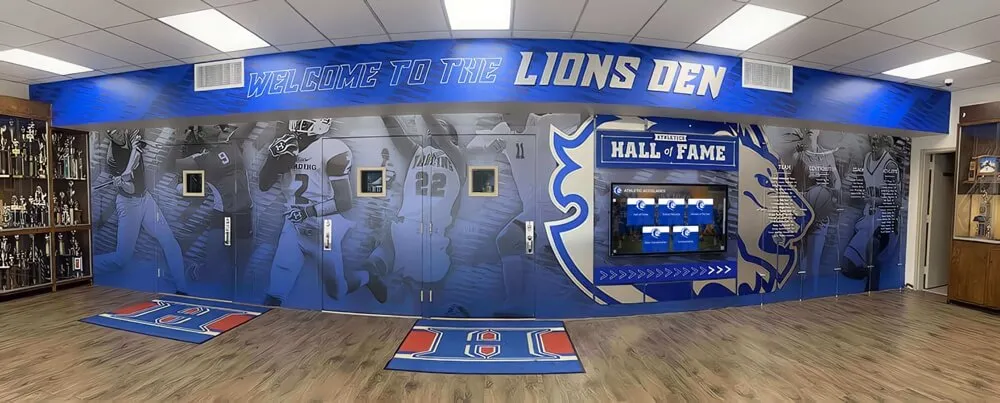
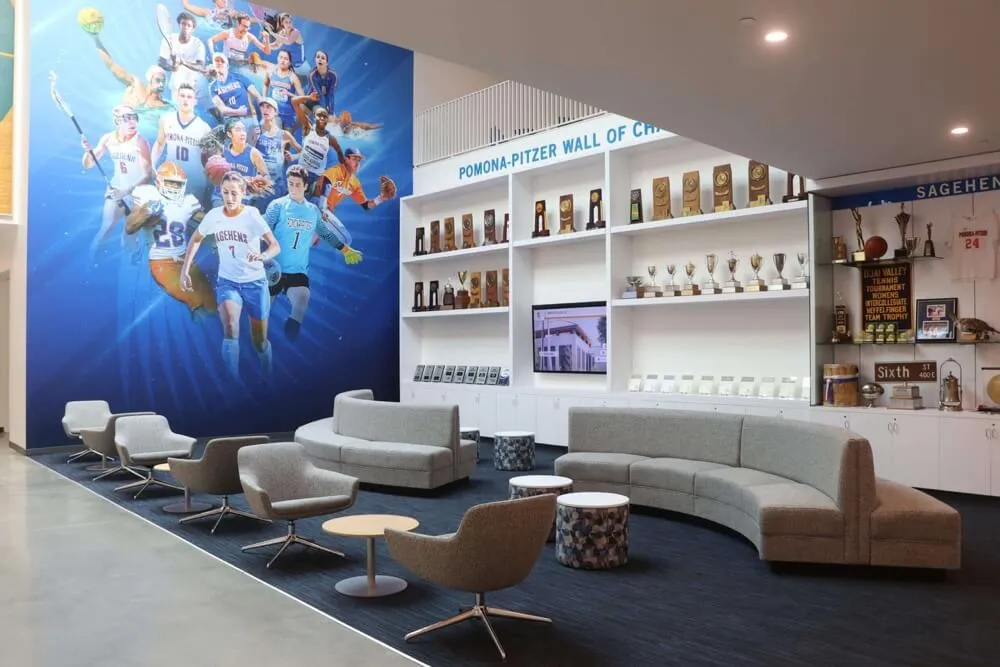
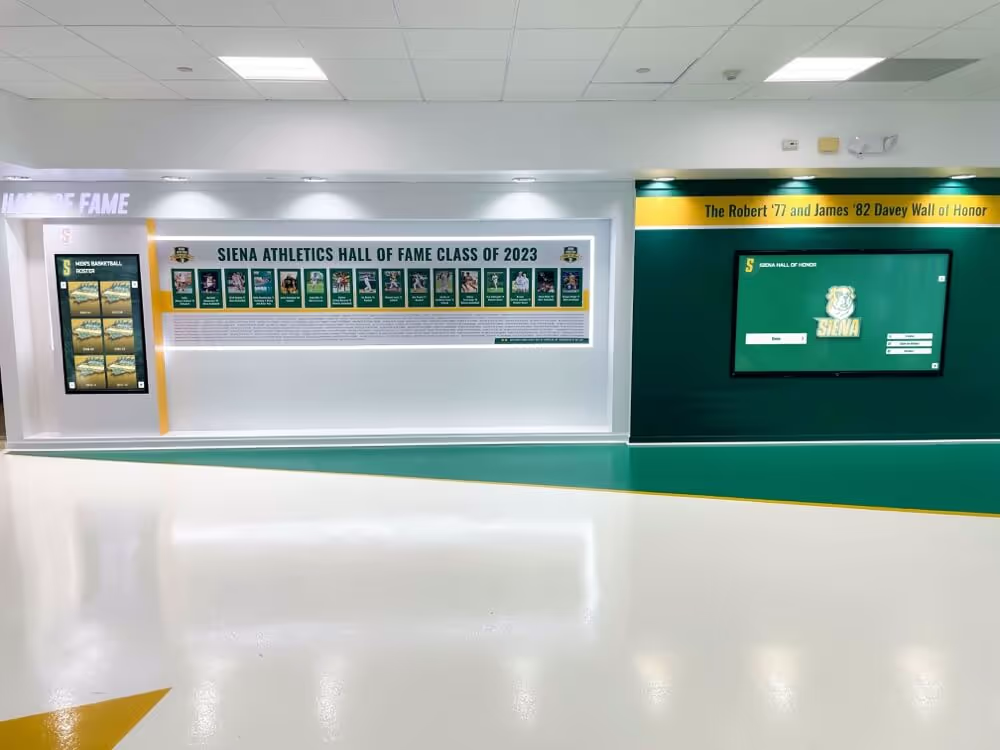
Mac-based displays integrate seamlessly with traditional recognition elements creating comprehensive athletic celebrations
Content and Display Software for Mac Touchscreens
Beyond kiosk functionality and drivers, organizations need content to display on their Mac touchscreen installations.
Web-Based Content Platforms
Leveraging Web Standards
The most flexible approach uses web-based content accessible through kiosk browsers:
Advantages of Web-Based Content
- Platform independence—works on Mac, Windows, iPad, or any device with modern browser
- No local application installation required for content display
- Cloud-based content management enabling updates from anywhere
- Mobile-responsive design ensuring proper display across screen sizes
- Rich multimedia support (photos, videos, interactive elements)
- Standardized development using HTML, CSS, and JavaScript
- Cost-effective development leveraging existing web technologies
- Easy integration with existing websites and web applications
Ideal Content Types
- Recognition and hall of fame displays showcasing achievements
- Digital directories providing wayfinding and information
- Event calendars and announcement systems
- Photo galleries and multimedia presentations
- Interactive maps and campus tours
- Product catalogs and retail displays
- Museum exhibits and educational content
Solutions like Rocket Alumni Solutions provide cloud-based platforms specifically designed for interactive recognition displays, delivering web-accessible content optimized for touchscreen interaction while requiring zero local software installation beyond the kiosk browser.
Digital Signage Software
Content Management Systems
Several digital signage platforms support Mac players for content display:
OptiSigns
Cloud-based digital signage software with Mac support:
- Create and manage dynamic content through web interface
- Mac player application for content display
- Support for images, videos, websites, and custom content
- Scheduling and playlist management
- Remote content updates across multiple displays
- Pricing starts at $10 per month per screen
- Touchscreen interaction support varies by content type
Considerations for Digital Signage
- Primarily designed for passive display rather than interactive touchscreen kiosks
- Touch interaction may be limited depending on platform
- Ongoing monthly subscription costs per screen
- Content creation tools may have learning curves
- Best suited for regularly changing promotional content
- May not provide kiosk lockdown features without additional software
Digital signage platforms work well for organizations needing dynamic content rotation and updates but may require combination with separate kiosk software for true interactive touchscreen functionality.
Explore signage approaches in digital signage software guide examining comprehensive options.
Custom Application Development
Building Mac-Native Touch Apps
Organizations with specific requirements may develop custom Mac applications:
Development Approaches
- Swift and SwiftUI for native macOS applications
- Electron framework for cross-platform development
- Web technologies wrapped in native container
- Touch event handling through Mac frameworks
- Custom UI optimized for touchscreen interaction
- Kiosk mode implementation through app design
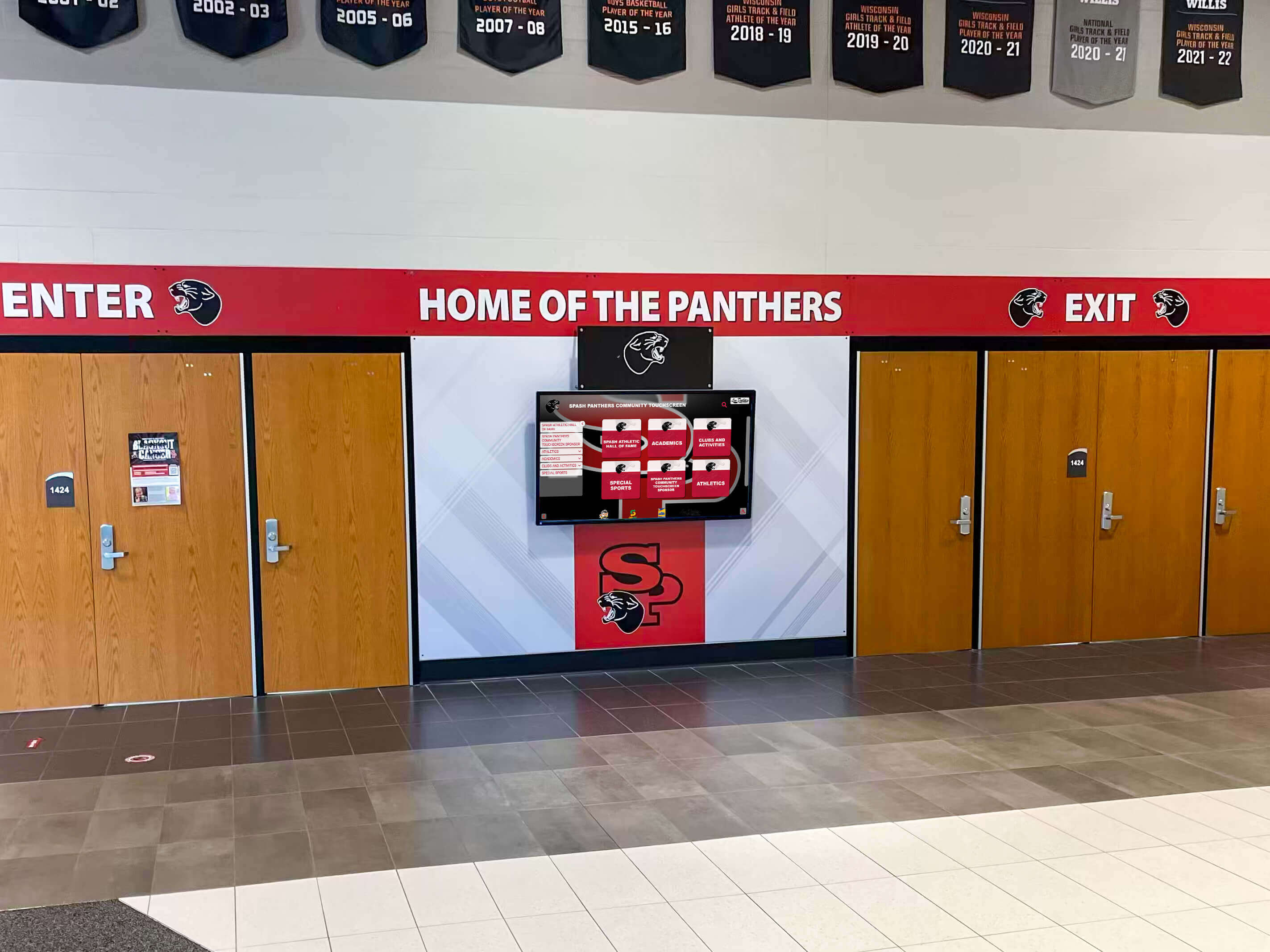
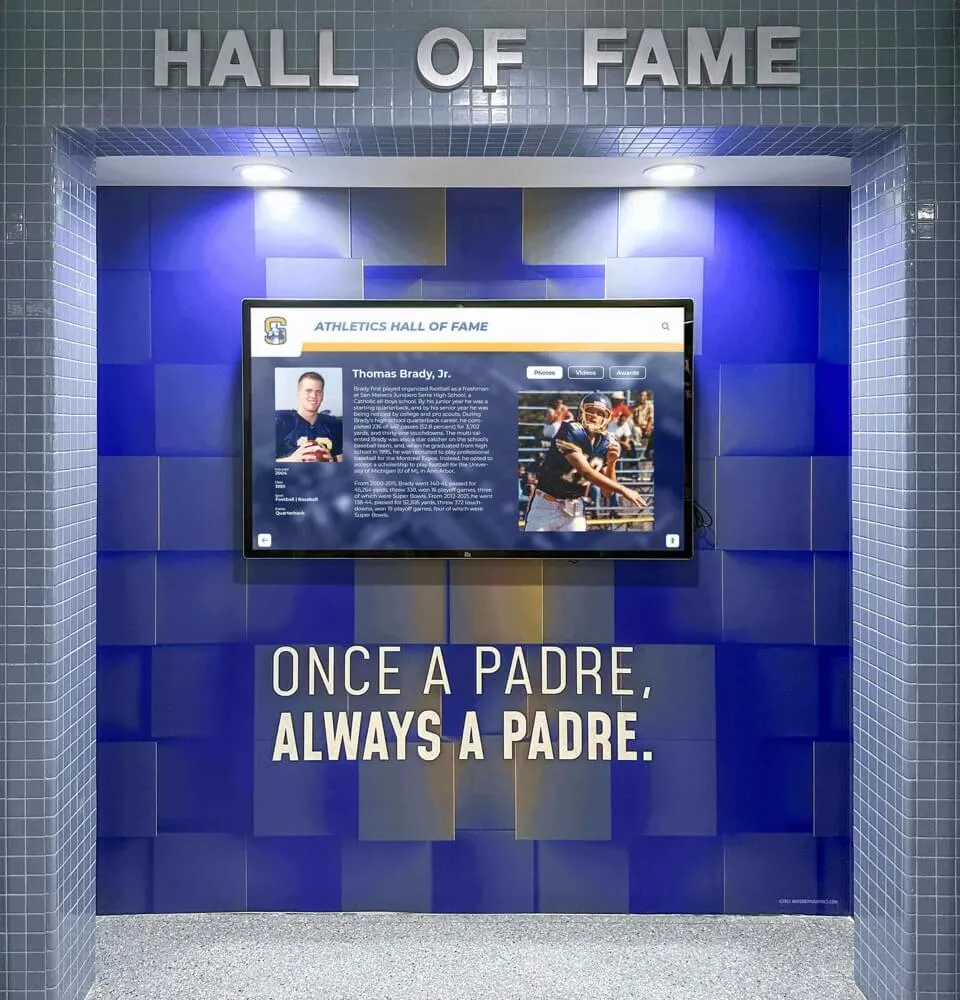
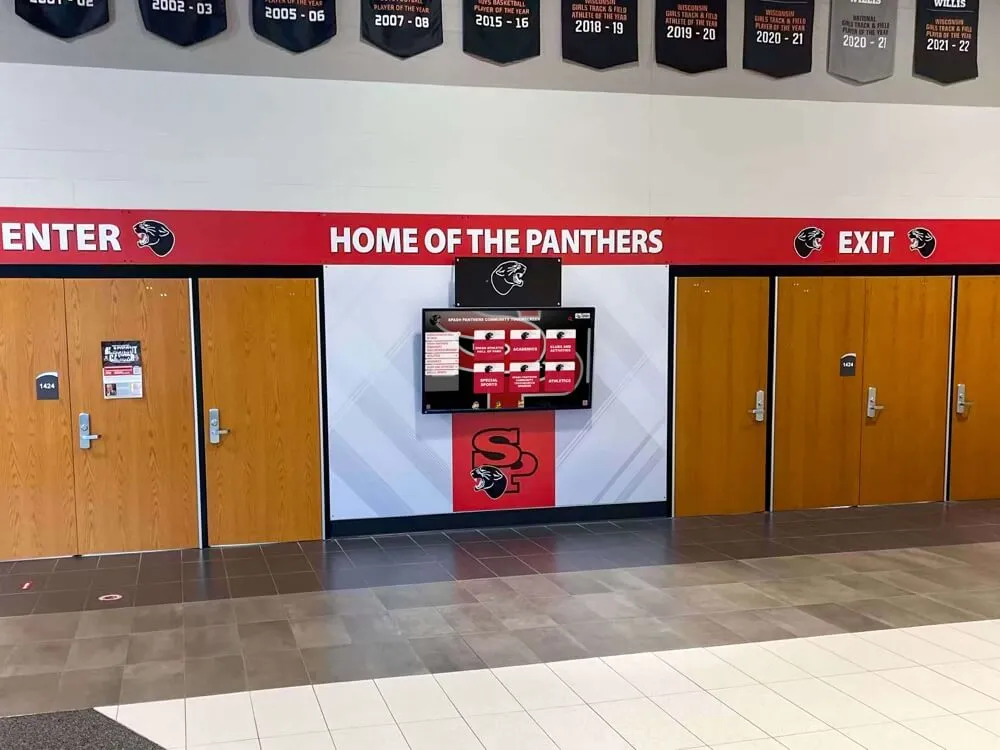
Entrance installations ensure every visitor encounters professionally designed Mac-based displays
When Custom Development Makes Sense
- Unique functionality unavailable in existing solutions
- Integration requirements with proprietary systems
- Organizations with in-house development teams
- Long-term deployments justifying upfront development investment
- Specialized workflows or industry-specific features
- IP protection concerns with third-party solutions
Development Challenges
- Significant upfront time and cost investment
- Ongoing maintenance and updates responsibility
- Testing across macOS versions and hardware
- App Store submission and approval process if distributing
- Support and troubleshooting burden
- Technical debt as macOS evolves
Most organizations find existing solutions more cost-effective than custom development unless requirements truly justify the investment.
Implementing Mac Touchscreen Solutions: Best Practices
Successful Mac touchscreen deployments require thoughtful planning beyond simply selecting software.
Hardware Selection and Compatibility
Choosing Appropriate Touchscreen Displays
Hardware decisions significantly impact user experience and reliability:
Touchscreen Monitor Considerations
- Screen size appropriate for viewing distance and content (typically 43"-75" for public kiosks)
- Commercial-grade displays rated for continuous operation (12-24 hours daily)
- Touch technology type (capacitive, infrared, or surface acoustic wave)
- Resolution sufficient for content clarity at intended viewing distance
- Brightness levels suitable for ambient lighting conditions
- Anti-glare coating for environments with windows or bright lighting
- Vandal-resistant construction for public installations
- VESA mount compatibility for flexible installation options
Mac Hardware Requirements
- Mac mini commonly used for kiosk deployments (compact, reliable, cost-effective)
- Sufficient processing power for content rendering and touch responsiveness
- Graphics capability supporting display resolution and video playback
- Adequate storage for application and local content caching
- Network connectivity (Ethernet preferred over WiFi for reliability)
- Physical security considerations (mounting, locking, ventilation)
Connectivity and Setup
- Thunderbolt or USB-C connection from Mac to touchscreen display
- Separate touch data connection (often USB) if not unified through video cable
- Testing touch functionality before permanent installation
- Calibration ensuring touch registration accuracy across screen surface
- Cable management for professional appearance and security
Explore hardware specifications in types of screens for digital signage with detailed technology comparisons.

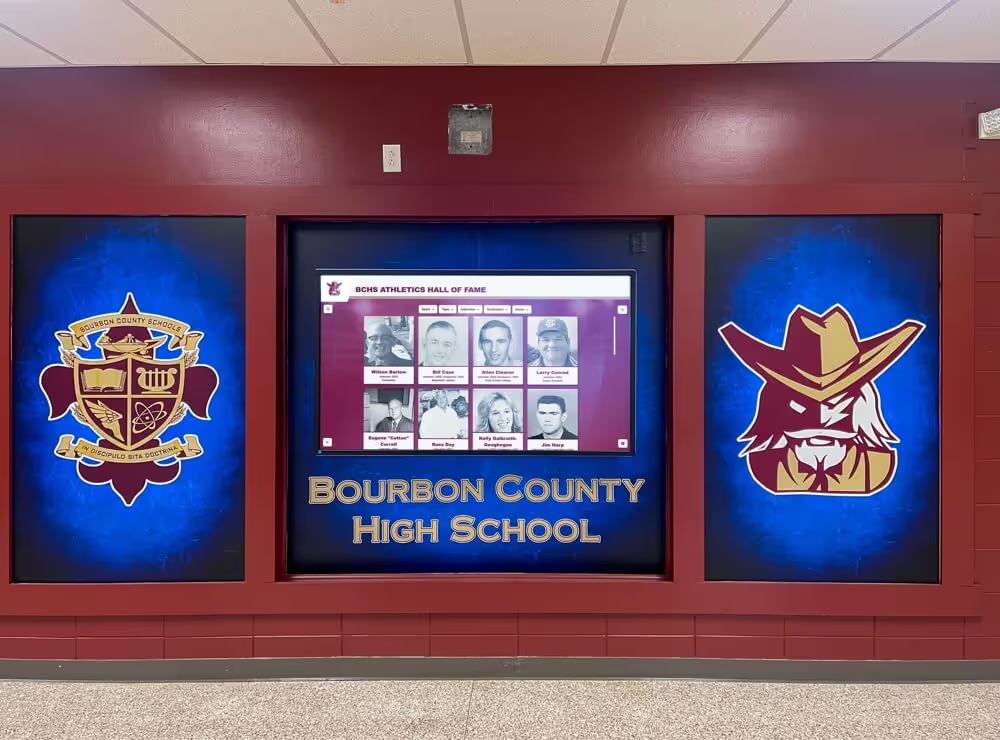
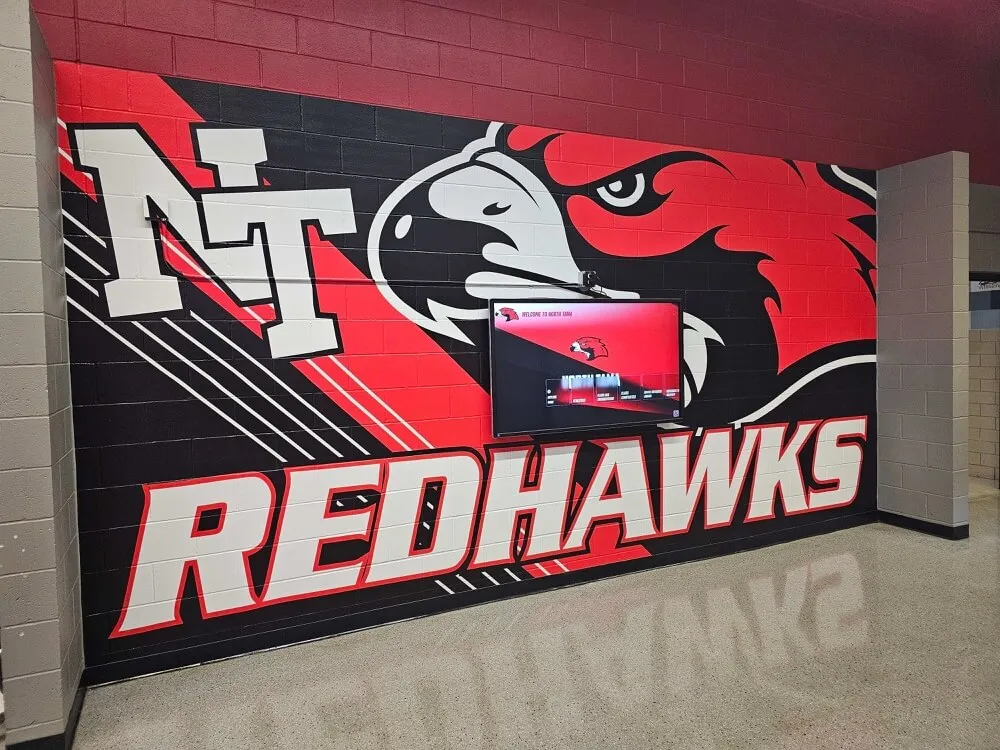
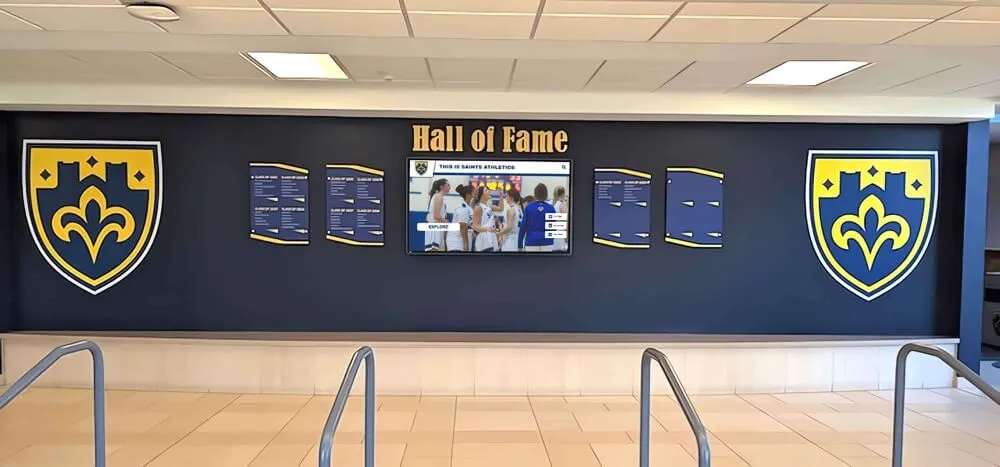
Coordinated design integrating Mac displays with murals and branding creates cohesive recognition environments
Installation and Physical Setup
Professional Installation Considerations
Physical installation impacts both functionality and aesthetics:
Mounting and Placement
- Height appropriate for standing or seated interaction (typically 40-48" center height for standing)
- Angle optimization for viewing and touch access (perpendicular or slight backward tilt)
- Accessibility compliance for users of varying heights and abilities
- Traffic flow consideration ensuring displays don’t obstruct circulation
- Viewing distance appropriate for content and screen size
- Lighting conditions avoiding glare or reflection on screen surface
- Wall construction capable of supporting display weight safely
Environmental Factors
- Temperature and ventilation preventing overheating
- Moisture and humidity considerations for certain locations
- Dust and particle exposure in industrial or outdoor environments
- Vandalism risk assessment and protective measures if needed
- Accessibility to power outlets and network connections
- Physical security of Mac hardware and cable connections
- Maintenance access for cleaning, servicing, and troubleshooting
Professional vs. DIY Installation Many organizations benefit from professional installation services:
- Proper mounting and weight distribution ensuring safety
- Clean cable routing and management
- Network configuration and connectivity testing
- Display calibration and touch registration optimization
- Integration with existing infrastructure
- Documentation and training for maintenance staff
- Warranty protection through authorized installation
While straightforward installations may be handled internally, complex deployments—especially those involving structural modifications or electrical work—typically justify professional services.
Content Strategy and User Experience
Designing Effective Touchscreen Content
Software and hardware mean nothing without compelling content that engages users:
Touch-Optimized Design Principles
- Button and touch target sizes appropriate for finger input (minimum 44-48 pixels)
- Visual feedback confirming touch registration (highlights, color changes, animations)
- Clear navigation hierarchy with obvious paths forward and back
- Simplified layouts avoiding visual clutter and confusion
- Text sizes readable at typical viewing distances (minimum 24-30pt for body text)
- High contrast between text and backgrounds ensuring legibility
- Minimal text with visuals conveying information efficiently
- Intuitive iconography and symbols reducing language barriers
Single-Touch Navigation Patterns Organizations using single-touch solutions should design accordingly:
- Tap-based navigation with buttons, cards, and clickable elements
- Scrolling through swipe gestures or visible scroll bars
- Avoiding multi-touch requirements (pinch-to-zoom, rotation, multi-finger gestures)
- Image viewing through tap-to-enlarge rather than pinch gestures
- Alternative navigation for content typically requiring multitouch
- Testing with single-touch input ensuring full functionality
Rocket Alumni Solutions specifically designs their recognition platforms with single-touch navigation, ensuring all features—browsing profiles, viewing photos, exploring history, searching content—work perfectly without multitouch gestures.
Learn about effective display design in designing stunning display layouts with professional guidance.
Accessibility Considerations Inclusive design ensures all users can engage with touchscreen content:
- Height and reach considerations for wheelchair users and children
- Audio alternatives for important information
- Visual contrast meeting WCAG accessibility standards
- Simple language and clear instructions
- Alternative input methods if touch proves difficult
- Timeout extensions or ability to disable automatic reset
- Multilingual content serving diverse communities
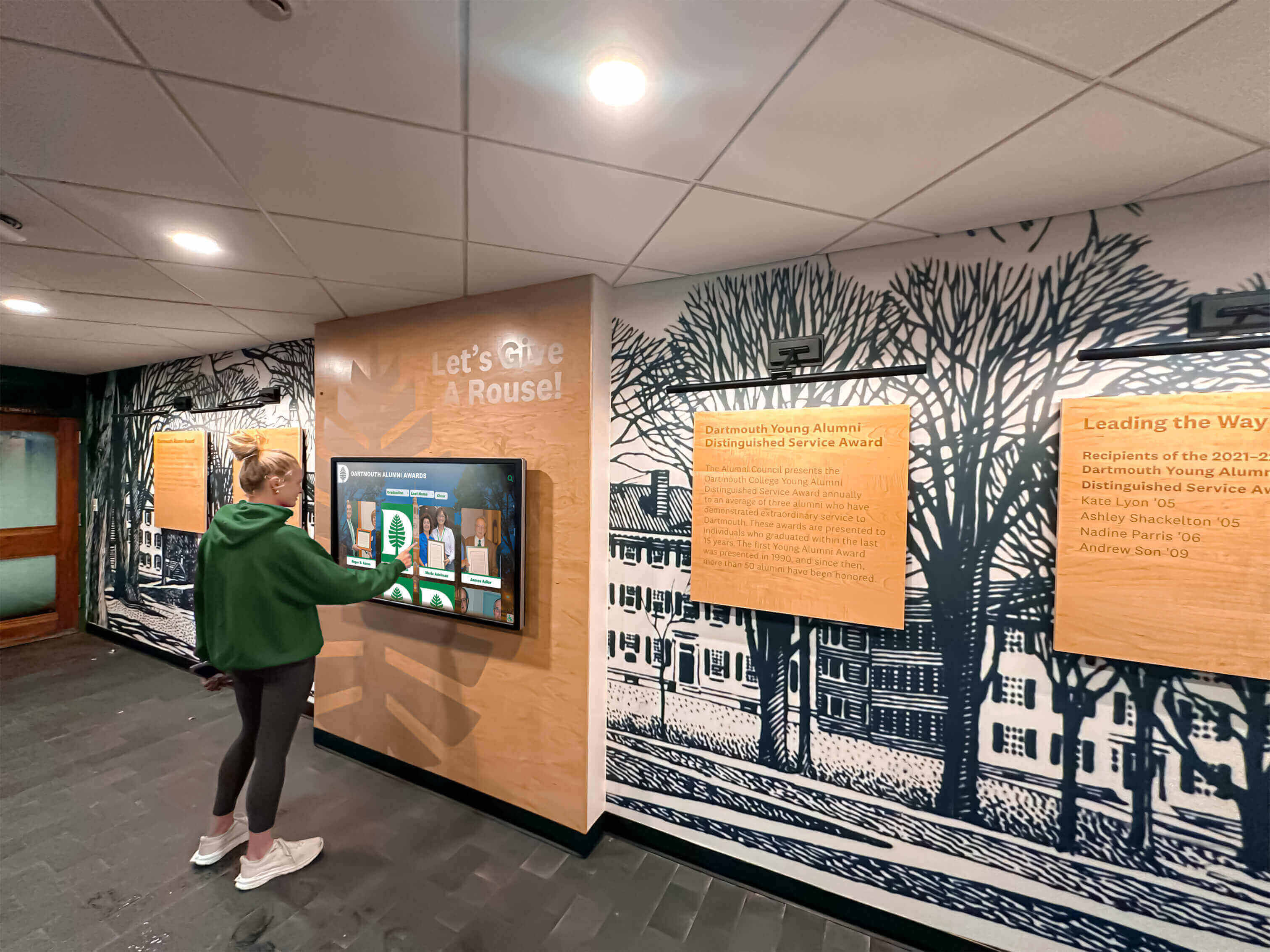
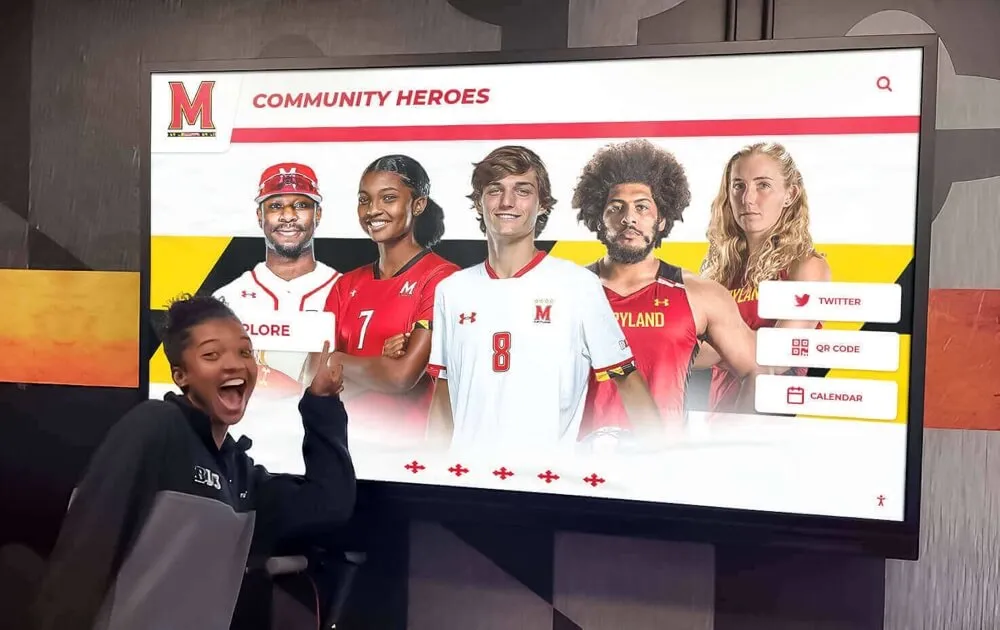
Accessible design ensures students of all abilities can explore Mac-based interactive content
Security and Maintenance
Protecting Public Mac Installations
Security considerations extend beyond kiosk mode to comprehensive protection:
Physical Security Measures
- Mac hardware secured in locked enclosures or mounting systems
- Cable locks preventing theft of small Mac mini or display components
- Tamper-evident seals on access panels
- Camera monitoring of high-value installations
- Peripheral port blocking preventing USB device insertion
- Power cable security preventing intentional unplugging
Software Security
- macOS updates and security patches applied regularly
- Strong administrator passwords protecting configuration access
- Disabled guest accounts and automatic login prevented
- FileVault encryption protecting data at rest
- Firewall enabled with appropriate rules
- Removal of unnecessary applications and utilities
- Automatic security monitoring if connected to network
Maintenance and Support Regular maintenance ensures continued functionality:
- Screen cleaning schedules preventing buildup and damage
- Touch calibration checks ensuring accuracy
- Software update testing before deployment to production
- Content updates and refreshes keeping information current
- Hardware inspection for wear, damage, or malfunction
- Network connectivity verification
- User feedback collection identifying issues and improvements
- Remote monitoring and management where feasible
Organizations should establish clear maintenance schedules and responsibilities, ensuring touchscreen installations remain functional, secure, and engaging long-term.
Mac Touchscreen Software Comparison and Selection
Choosing the optimal solution requires evaluating options against specific organizational needs and constraints.
Decision Criteria Matrix
Evaluating Software Options
Several factors influence which Mac touchscreen software best fits particular situations:
Ease of Implementation
- Installation complexity and technical requirements
- Configuration simplicity and documentation quality
- Time from purchase to operational deployment
- In-house technical expertise required
- Availability of vendor support and assistance
Kiosk Functionality
- Automatic launch and recovery capabilities
- Security lockdown and restriction effectiveness
- Keyboard and system shortcut disabling
- Password-protected configuration access
- Remote management and monitoring features
Touch Input Support
- Single-touch vs. multitouch requirements
- Driver installation necessity and complexity
- Gesture recognition capabilities
- Touch responsiveness and accuracy
- Hardware compatibility breadth
Content Flexibility
- Types of content supported (web, video, custom apps)
- Content management and update approaches
- Cloud-based vs. local content storage
- Integration with existing systems and platforms
- Customization and branding options
Cost Considerations
- Upfront software costs (purchase or licensing)
- Ongoing subscription or maintenance fees
- Hardware requirements and costs
- Implementation and setup expenses
- Long-term total cost of ownership
Scalability
- Multi-location deployment capabilities
- Centralized management for multiple displays
- Content synchronization across installations
- Remote configuration and updates
- Growth accommodation as needs expand

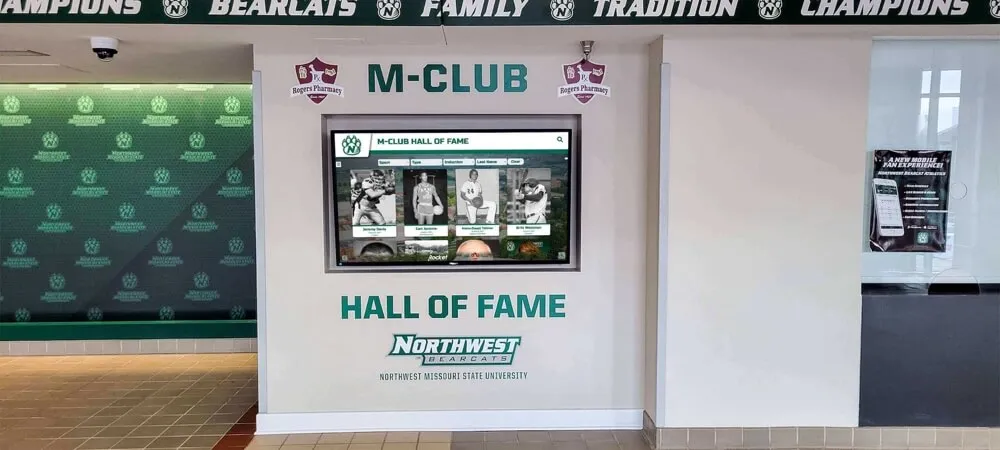
Prominent lobby installations create impressive first impressions showcasing Mac-based recognition systems
Rocket Touchscreen: Purpose-Built Mac Kiosk Solution
Why Rocket Touchscreen Stands Out
For organizations prioritizing simplicity, reliability, and educational/recognition applications, Rocket Touchscreen offers distinct advantages:
Simplified Deployment
- Mac App Store installation—no complex configuration or terminal commands required
- Automatic kiosk mode activation without MDM or scripting
- Built-in Chromium browser eliminating separate browser setup
- Simple URL configuration pointing to any web-based content
- Touch input handled natively without driver installation
- Updates through Mac App Store ensuring ongoing compatibility
Single-Touch Design Philosophy
- Explicitly designed for single-touch interaction patterns
- Paired with Rocket Alumni Solutions content platforms using single-touch navigation
- All features accessible without multitouch gestures
- Tested specifically for schools, businesses, and public installations
- Eliminates complexity of multitouch driver installation and configuration
Educational and Recognition Focus
- Created specifically for school recognition displays and hall of fame installations
- Integrates seamlessly with Rocket Alumni Solutions content management platforms
- Optimized for displaying achievements, profiles, history, and community content
- Professional appearance suitable for lobbies, hallways, and public spaces
- Content designed for engagement without requiring constant supervision
Cost Effectiveness
- One-time App Store purchase with no ongoing subscription fees
- No per-device licensing costs for multiple installations
- Eliminates MDM subscription expenses for kiosk-only deployments
- Reduces technical support requirements through simplified design
- Lower total cost of ownership compared to complex alternatives
Ideal Deployment Scenarios Organizations finding Rocket Touchscreen particularly valuable include:
- Schools implementing digital hall of fame displays and athletic recognition
- Universities showcasing alumni achievements and campus history
- Businesses displaying company information, achievements, or directories
- Sports facilities featuring athletic record boards and team histories
- Museums presenting interactive exhibits and collections
- Any organization preferring Mac hardware but needing touchscreen kiosk functionality
Alternative Solutions for Different Needs
When Other Options Make Sense
While Rocket Touchscreen excels for many applications, alternatives suit specific situations:
Complex Multitouch Requirements Organizations needing extensive multitouch gestures may require:
- UPDD drivers providing full gesture support
- Custom development building specific touch interactions
- iPad-based solutions instead of Mac hardware
- Windows-based alternatives with native touch support
Existing MDM Infrastructure Organizations already using comprehensive device management may prefer:
- Leveraging existing Hexnode, Miradore, or similar MDM systems
- Centralizing all device management in single platform
- Accepting higher costs for unified management approach
- Utilizing broader MDM features beyond kiosk functionality
Non-Web Content Requirements Situations demanding local applications or specific software may need:
- Custom development wrapping native Mac applications
- Alternative kiosk solutions supporting specific app launchers
- Hybrid approaches combining kiosk mode with specific applications
- Evaluation whether web-based alternatives could meet requirements
Budget Constraints Organizations with extremely limited budgets might explore:
- Browser kiosk mode using Chrome flags (with limitations understood)
- Open-source kiosk frameworks (requiring technical expertise)
- Testing and prototyping before production investments
- Phased deployments spreading costs over time
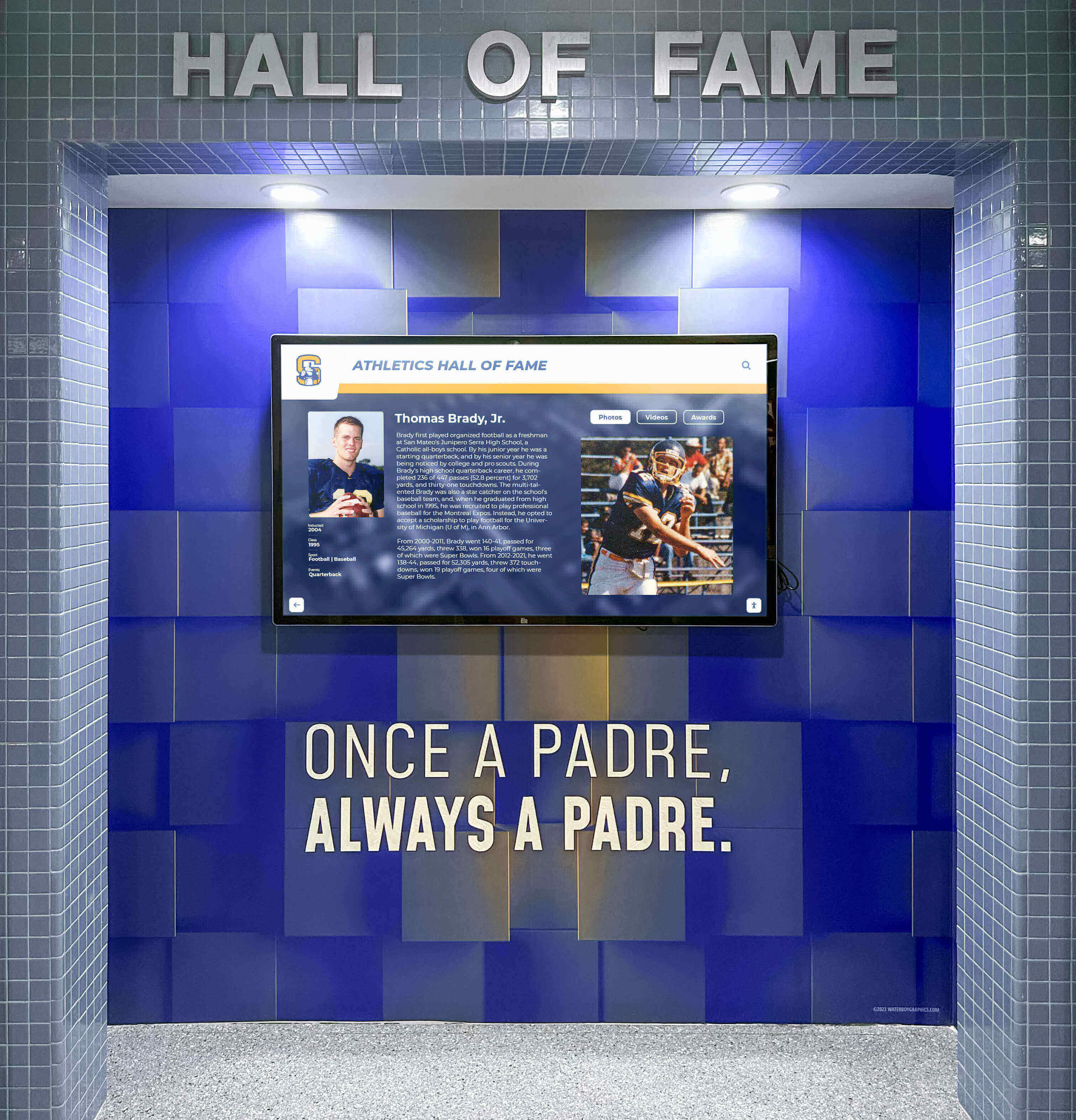
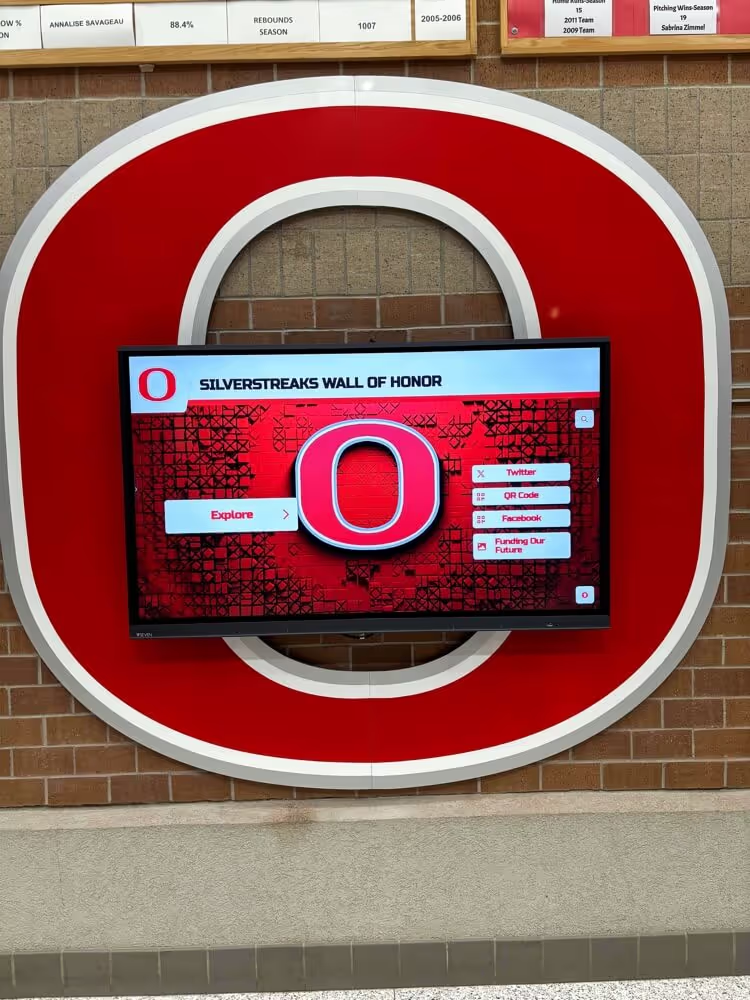
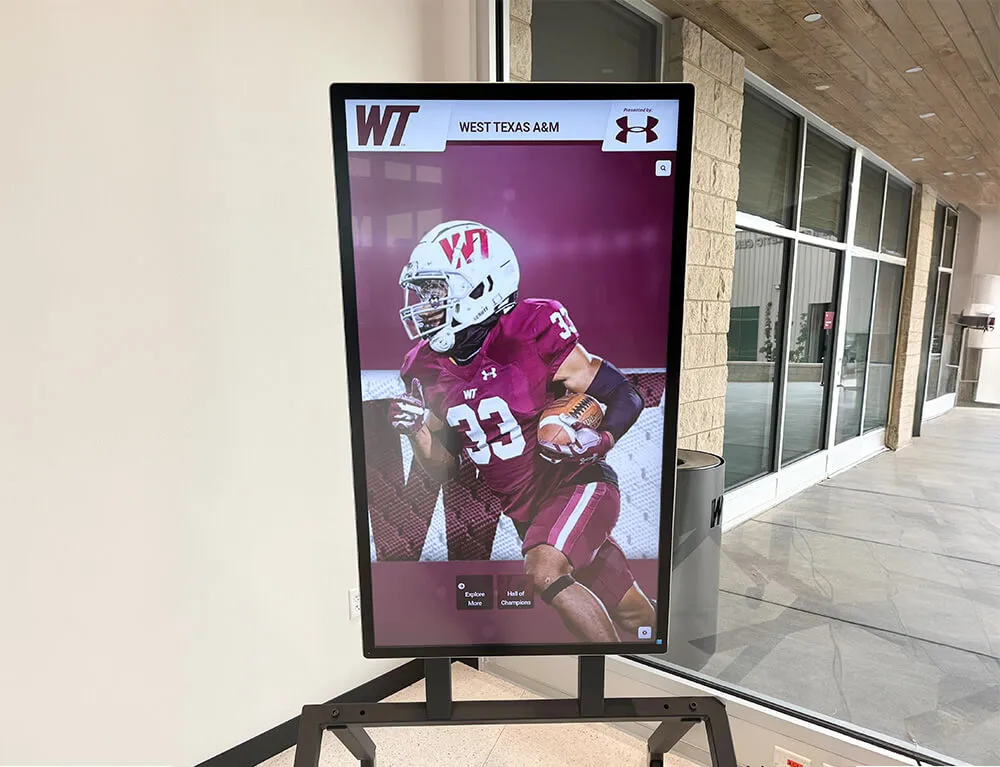
Dedicated athletic displays celebrate sports excellence using reliable Mac-based touchscreen systems
Real-World Mac Touchscreen Implementation Examples
Understanding practical applications helps organizations envision how Mac touchscreen solutions serve specific needs.
Educational Recognition Displays
School Hall of Fame Installations
Schools and universities deploy Mac-based touchscreen displays showcasing institutional achievement:
Typical Implementation
- Mac mini connected to 55" touchscreen display in main lobby or athletic facility
- Rocket Touchscreen app configured to display school’s recognition website
- Content managed through Rocket Alumni Solutions cloud platform
- Profiles of distinguished alumni, athletic achievements, academic honors, and school history
- Regular content updates adding new achievements and recognition
- Single-touch navigation enabling easy exploration without technical knowledge
Benefits for Schools
- Existing Mac infrastructure leveraged without platform switching
- Professional appearance consistent with school branding and aesthetics
- Student engagement with school history and achievement
- Alumni connection when visiting campus
- Recruitment appeal demonstrating tradition and success
- Space efficiency compared to traditional plaque walls
Explore comprehensive approaches in interactive timeline displays for educational environments.
Corporate Lobby and Visitor Information
Professional Business Installations
Businesses use Mac touchscreen kiosks for visitor engagement and information:
Common Applications
- Company history and milestone timelines
- Leadership and employee recognition
- Product showcases and capabilities demonstrations
- Visitor directories and wayfinding
- Meeting room schedules and availability
- Corporate values and mission presentations
Implementation Approaches
- Mac mini or Mac Studio powering lobby touchscreen displays
- Professional web-based content designed for touch interaction
- Content management enabling marketing and communications team updates
- Integration with existing corporate design systems and branding
- Scheduled content changes aligning with campaigns and initiatives
Museum and Cultural Institution Exhibits
Interactive Educational Displays
Museums, historical societies, and cultural institutions create engaging visitor experiences:
Exhibit Applications
- Collection catalogs with detailed artifact information
- Historical timelines with photos, documents, and multimedia
- Interactive maps showing locations and context
- Video presentations and oral histories
- Visitor feedback and survey collection
- Multilingual content serving diverse audiences
Mac Advantages for Museums
- Reliability and stability for public-facing installations
- Professional aesthetics matching exhibit design standards
- Security features protecting valuable content and systems
- Ease of content updates as exhibits change or expand
- Integration with existing museum technology infrastructure
Discover museum approaches in library touchscreen displays translating to cultural institutions.

Cultural and community installations leverage Mac reliability for permanent public engagement
Retail and Hospitality Applications
Customer-Facing Interactive Systems
Retail stores, hotels, and hospitality venues deploy touchscreen information systems:
Practical Uses
- Product catalogs with detailed specifications and pricing
- Menu boards and ordering systems for restaurants
- Hotel directory and concierge information
- Event schedules and activity calendars
- Wayfinding and facility maps
- Brand storytelling and company information
Deployment Considerations
- High-traffic environments requiring commercial-grade hardware
- Content management enabling frequent updates and changes
- Analytics tracking popular content and user engagement
- Integration with point-of-sale or reservation systems
- Branding consistency with overall customer experience
Future of Mac Touchscreen Software
Technology evolution continues improving Mac touchscreen capabilities and applications.
macOS Development Trends
Potential Apple Changes
While Apple maintains its position against touchscreen Macs, several trends may influence future directions:
Convergence Possibilities
- Increasing similarities between macOS and iPadOS
- Apple Silicon enabling consistent architectures across platforms
- iPad apps running natively on Mac suggesting touch-aware development
- Universal Control demonstrating cross-device interaction capabilities
- Possible future hybrid devices blurring Mac and iPad distinctions
Third-Party Innovation Regardless of Apple’s stance, third-party developers continue innovating:
- Improved touchscreen drivers with better gesture support
- More sophisticated kiosk applications addressing Mac-specific challenges
- Web standards enabling rich touch interactions platform-independently
- Cross-platform frameworks simplifying Mac touchscreen development
- Growing ecosystem as more organizations deploy Mac-based touch solutions
Emerging Applications
New Use Cases
Mac touchscreen technology enables applications previously impractical:
Augmented Reality Integration
- Touch displays serving as AR control interfaces
- Interactive exhibits combining physical artifacts with digital overlays
- Educational experiences merging physical and digital content
- Retail try-before-you-buy experiences with virtual products
Artificial Intelligence Enhancement
- AI-powered content recommendations personalizing touch experiences
- Natural language search enhancing content discovery
- Automated content generation reducing management burden
- Predictive maintenance identifying issues before failures
Advanced Accessibility
- Voice control complementing touch input
- Eye tracking and alternative input methods
- Adaptive interfaces adjusting to user abilities and preferences
- Universal design benefiting all users regardless of abilities
Learn about emerging trends in touchscreen technology history and future directions.
Conclusion: Choosing the Best Mac Touchscreen Software
Mac touchscreen software has evolved dramatically from the days when deploying interactive displays on Apple hardware meant complex workarounds, unreliable drivers, and constant technical challenges. Today’s purpose-built solutions—particularly those designed specifically for Mac environments like Rocket Touchscreen—make touchscreen kiosk deployments straightforward, reliable, and accessible even for organizations without extensive technical resources.
The key to successful Mac touchscreen implementation lies in understanding your specific needs and selecting software addressing those requirements directly. Organizations needing simple, reliable kiosk-mode displays for recognition, information, or engagement benefit enormously from purpose-built applications eliminating unnecessary complexity. Those requiring extensive multitouch gestures or custom application launching may need more complex solutions involving drivers, MDM systems, or custom development.
Simplify Mac Touchscreen Deployment
Discover how Rocket Touchscreen makes Mac kiosk mode simple, reliable, and effective for schools, businesses, and organizations. Available now in the Mac App Store with single-touch navigation designed for real-world touchscreen applications.
Get Rocket Touchscreen on Mac App StoreFor many organizations—particularly schools, universities, businesses, and cultural institutions—the combination of Rocket Touchscreen kiosk software with Rocket Alumni Solutions content platforms provides the most straightforward path from concept to deployed touchscreen installation. The Mac App Store distribution eliminates installation complexity, the built-in Chromium browser handles web content reliably, the single-touch design philosophy ensures accessibility without gesture complications, and the cloud-based content management enables updates without physical access to devices.
Educational institutions find this approach particularly valuable, as it allows leveraging existing Mac infrastructure investments while adding interactive recognition displays that strengthen culture, honor achievement, and engage students, alumni, and visitors. The professional appearance, reliability, and ease of management align perfectly with school environments where IT resources often stretch thin and solutions need “just working” without constant attention.
Whether you choose Rocket Touchscreen, alternative kiosk applications, browser-based approaches, or comprehensive MDM solutions, the Mac touchscreen landscape now offers viable options where frustration once dominated. The fundamental challenge has shifted from “Can we do this on Mac?” to “Which Mac touchscreen solution best fits our particular situation?”
Start wherever your current situation permits—whether testing browser kiosk mode to validate the concept, implementing a single Rocket Touchscreen display in your main lobby, or deploying comprehensive installations across multiple locations. Then systematically expand toward increasingly sophisticated touchscreen experiences that leverage Mac’s reliability, security, and performance while delivering the interactive engagement your organization and audience deserve.
Ready to explore Mac touchscreen solutions? Download Rocket Touchscreen from the Mac App Store or learn more about Rocket Alumni Solutions comprehensive recognition platforms designed for touchscreen interaction. Discover how interactive displays transform recognition or explore best practices for display layouts creating engaging Mac-based touchscreen experiences.