



An award ceremony slideshow is the visual backbone of a school recognition event—a structured sequence of slides that sets the atmosphere before guests arrive, guides the audience through each presenter and winner, and gives the ceremony a coherent story from opening loop to final thank-you. Done well, the same slideshow that runs on the auditorium screen during the event can be repurposed within days as a lobby display, a social archive, and a permanent digital record that honors recipients long after the applause stops.
This guide is organized around the three phases every recognition event coordinator needs to plan for: the preparation phase before the event, the live-presentation phase during the ceremony, and the archive and repurposing phase after. Each section includes a slide-by-slide checklist and production notes drawn from real school award programs—academic honors nights, athletic banquets, donor appreciation events, and hall of fame induction ceremonies—so you can adapt the framework to whatever format your school runs.
Walk into a well-run school award ceremony and you immediately know it before the first presenter takes the stage. The screens are already running. Nominee names are cycling through a pre-show loop. The room feels intentional, not improvised. Walk into a poorly run one and you’ll see a blank projector screen, a frantic AV volunteer, and a program printed at 4 p.m. the same day.
The difference almost always comes down to slide preparation—specifically, how much thought went into what the awards ceremony slideshow should contain, when each slide appears, and what happens to those assets after the room clears.

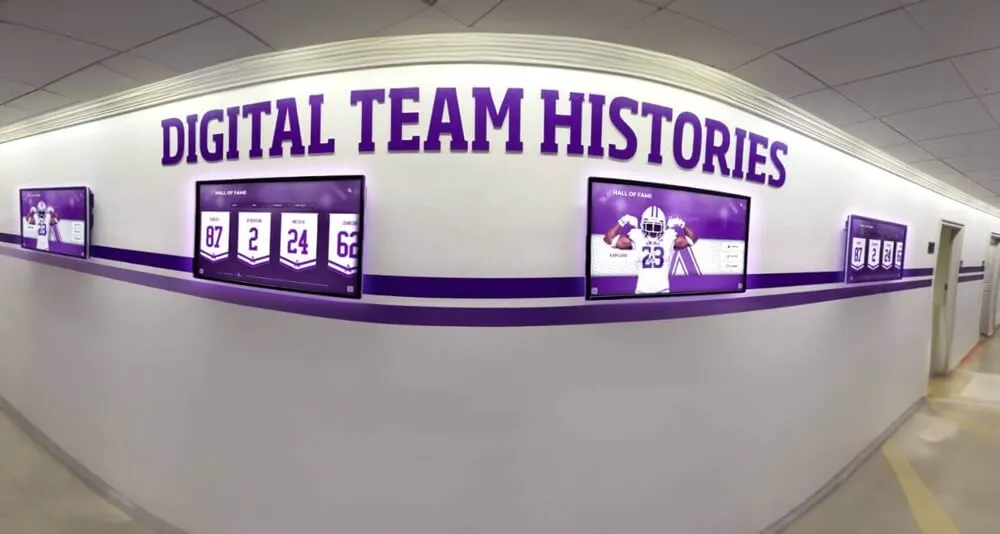
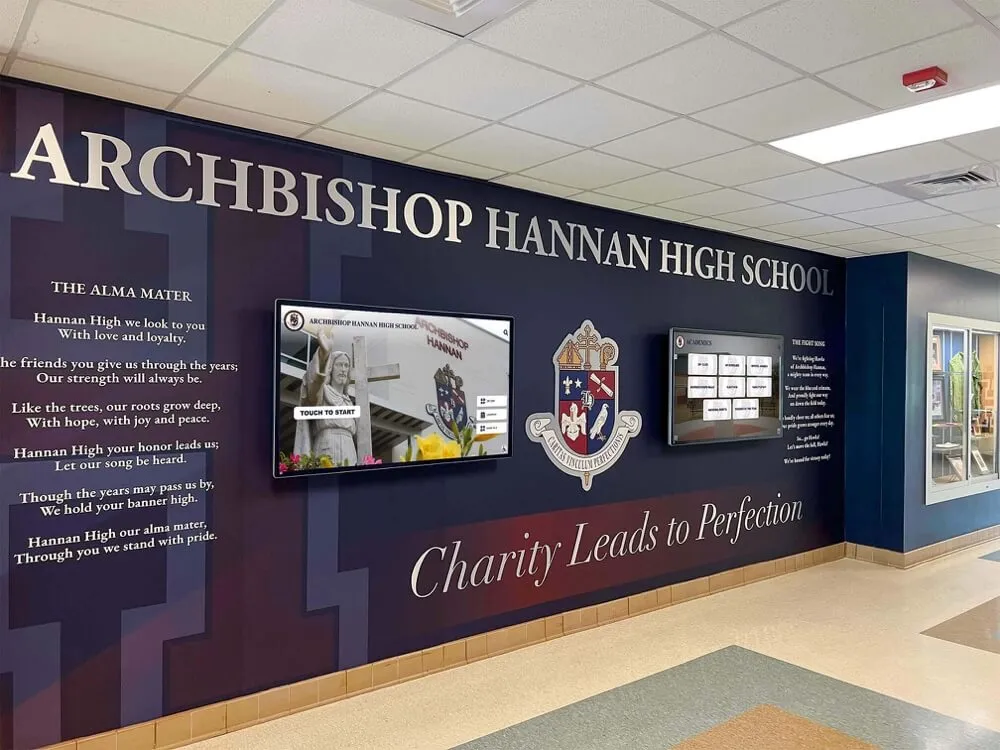
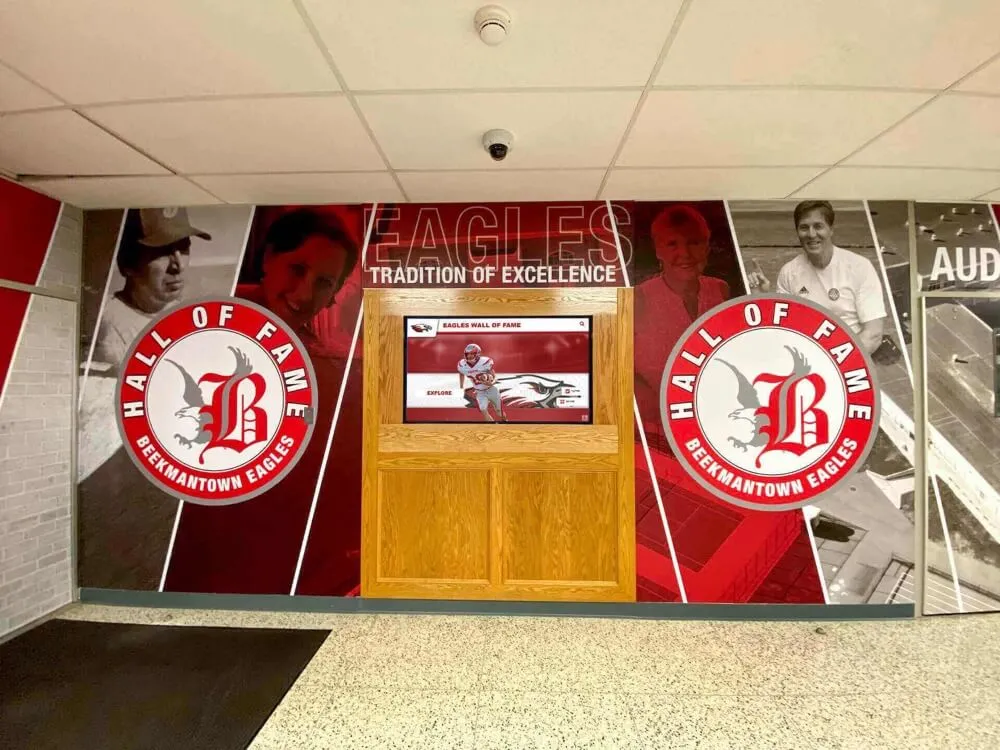
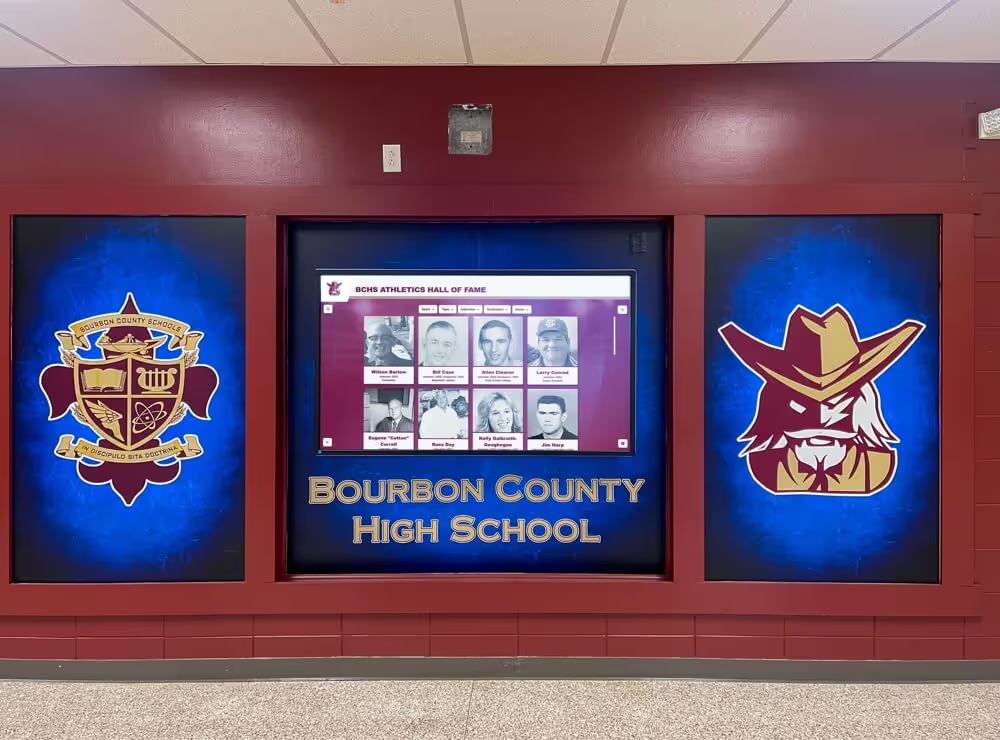
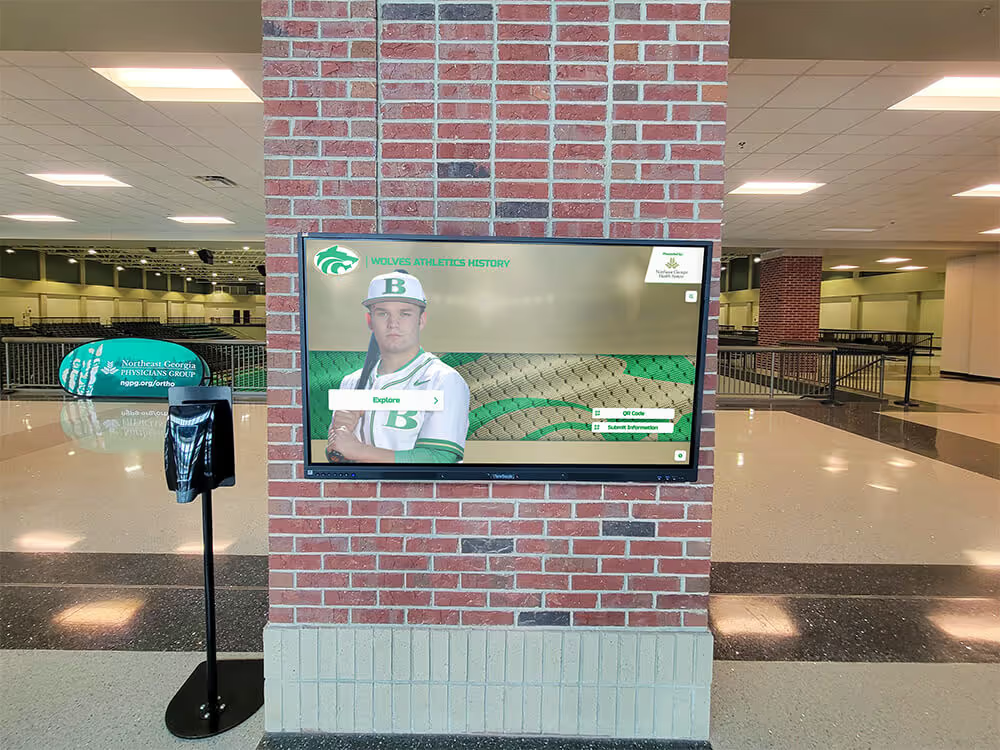
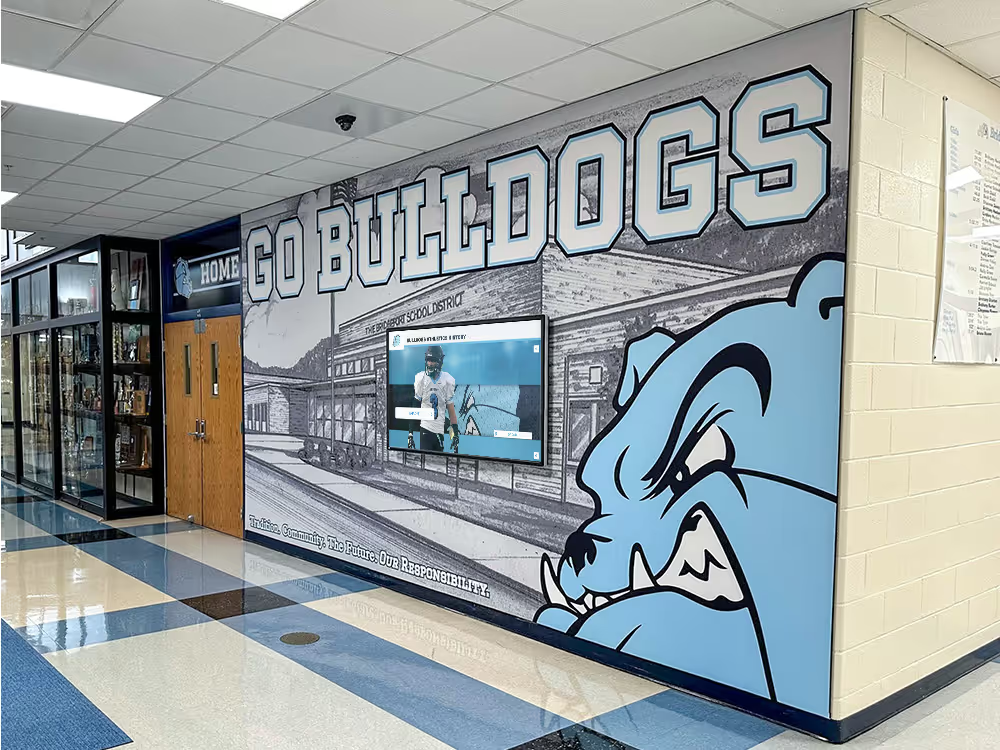
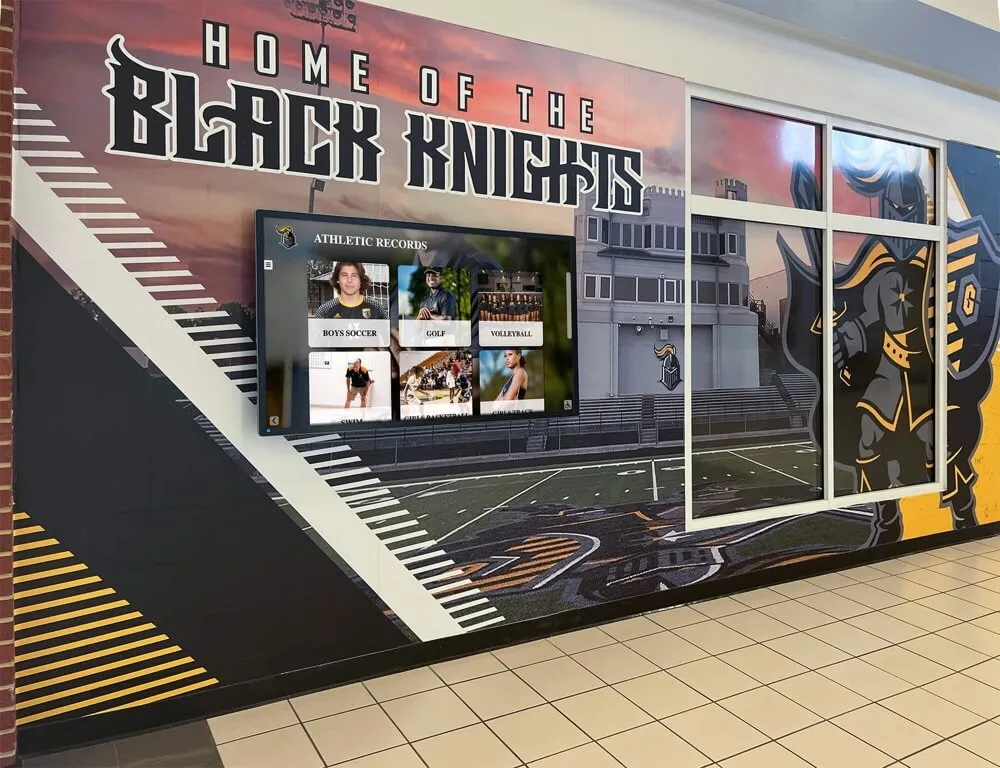
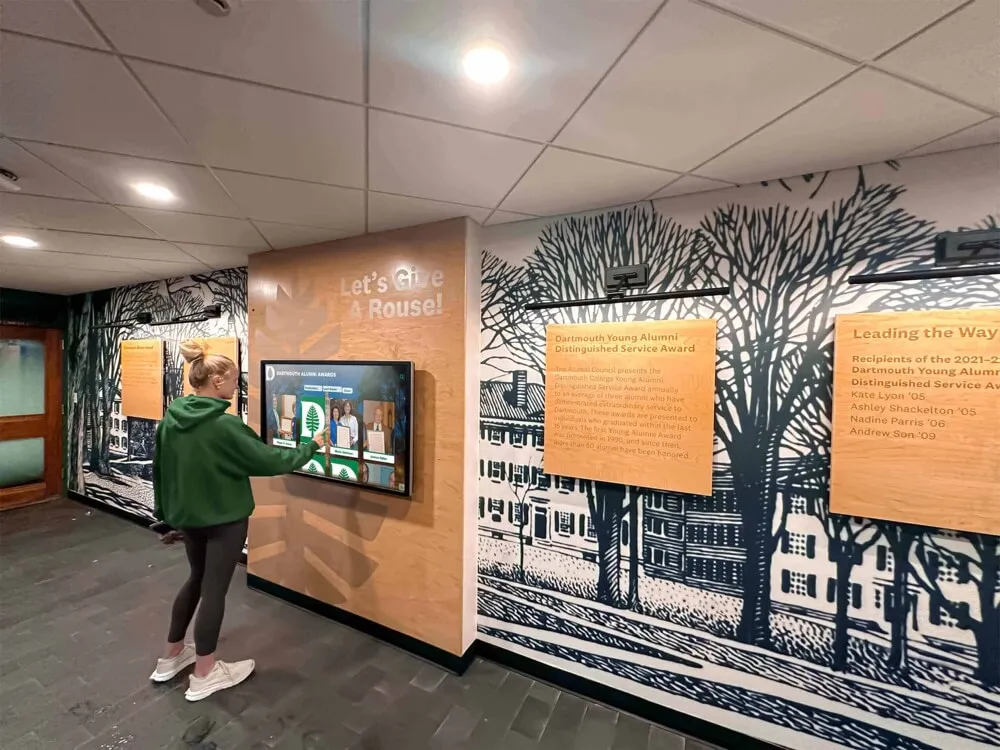
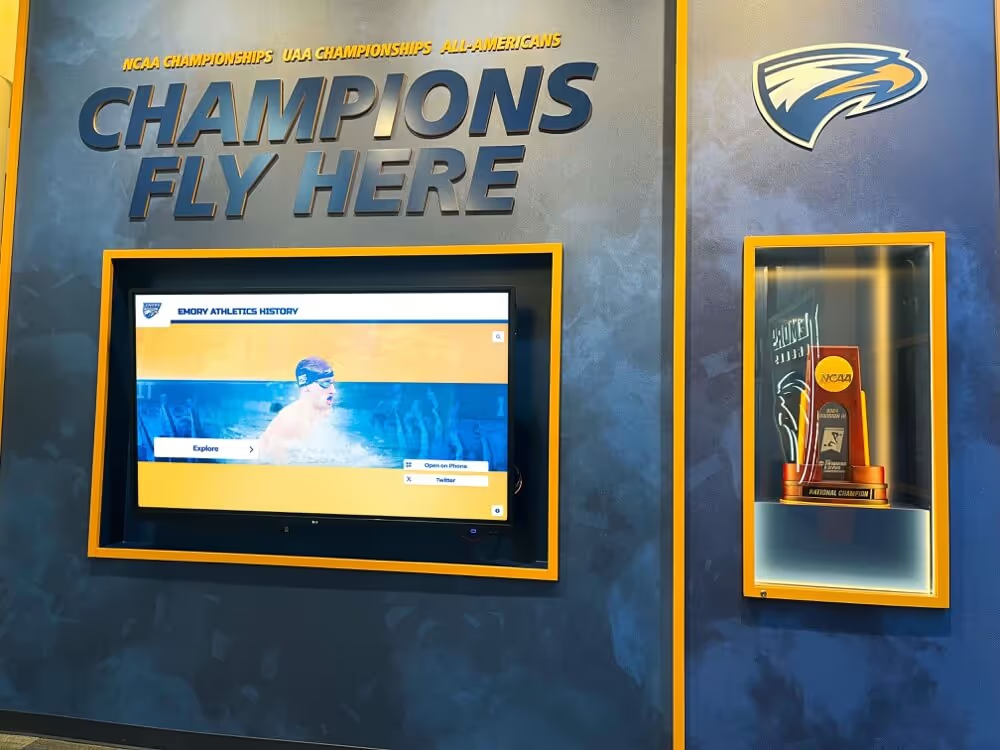
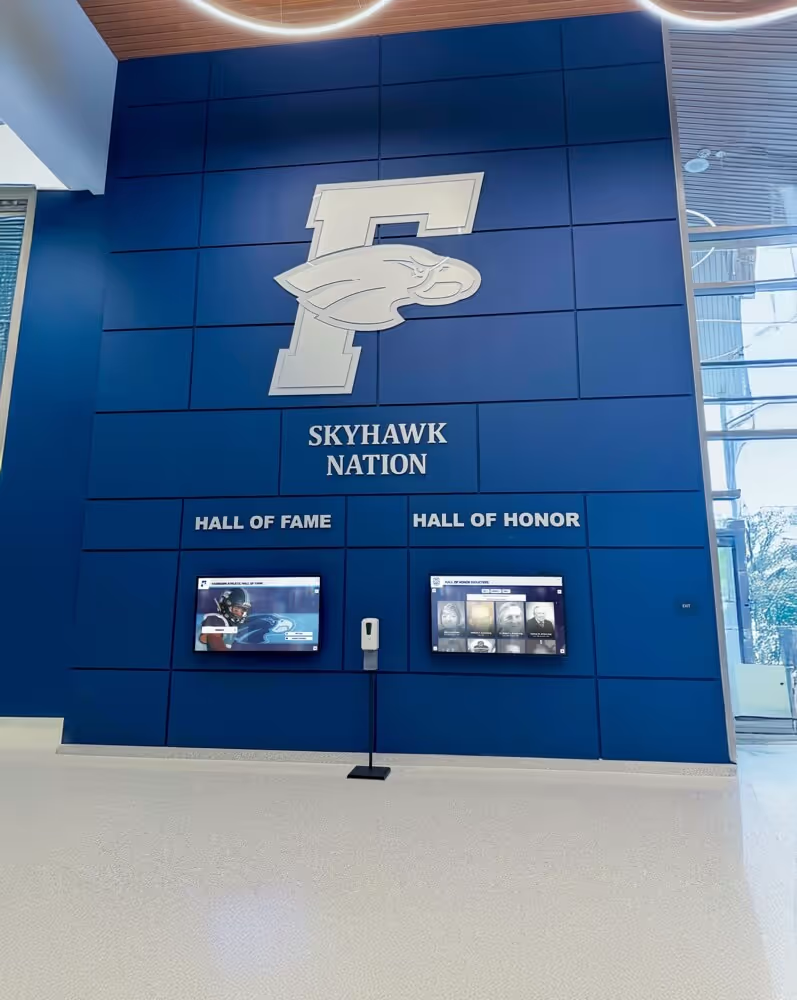
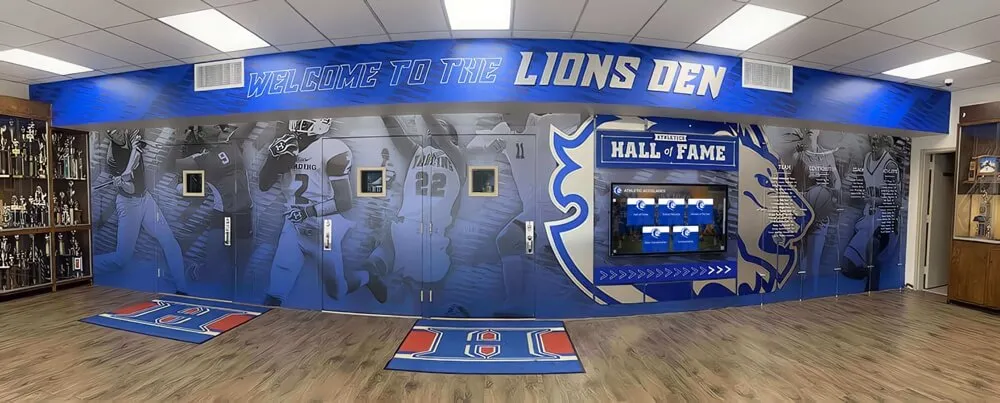
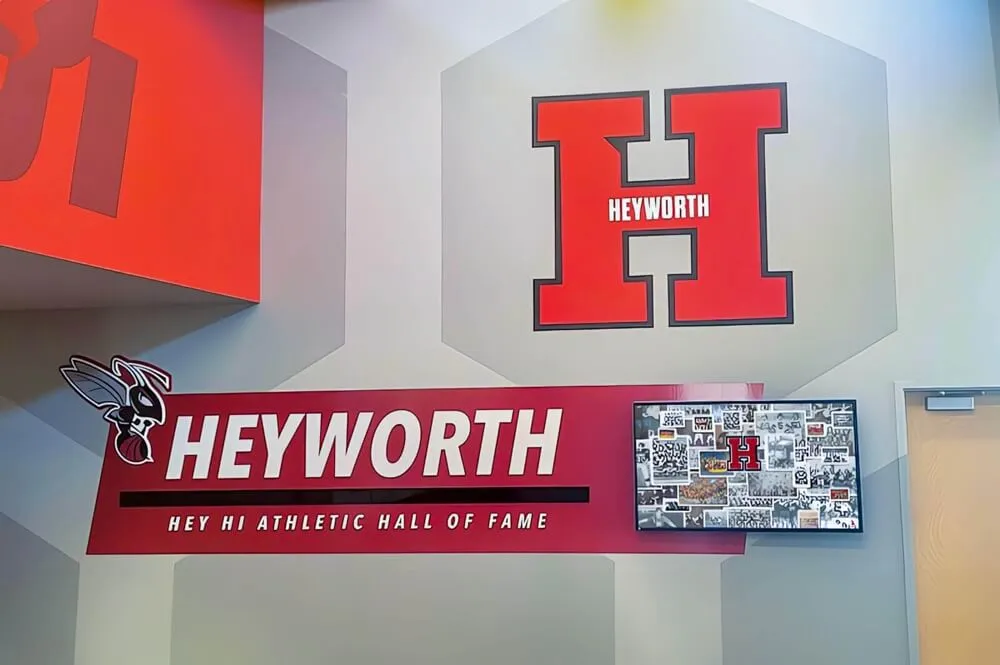
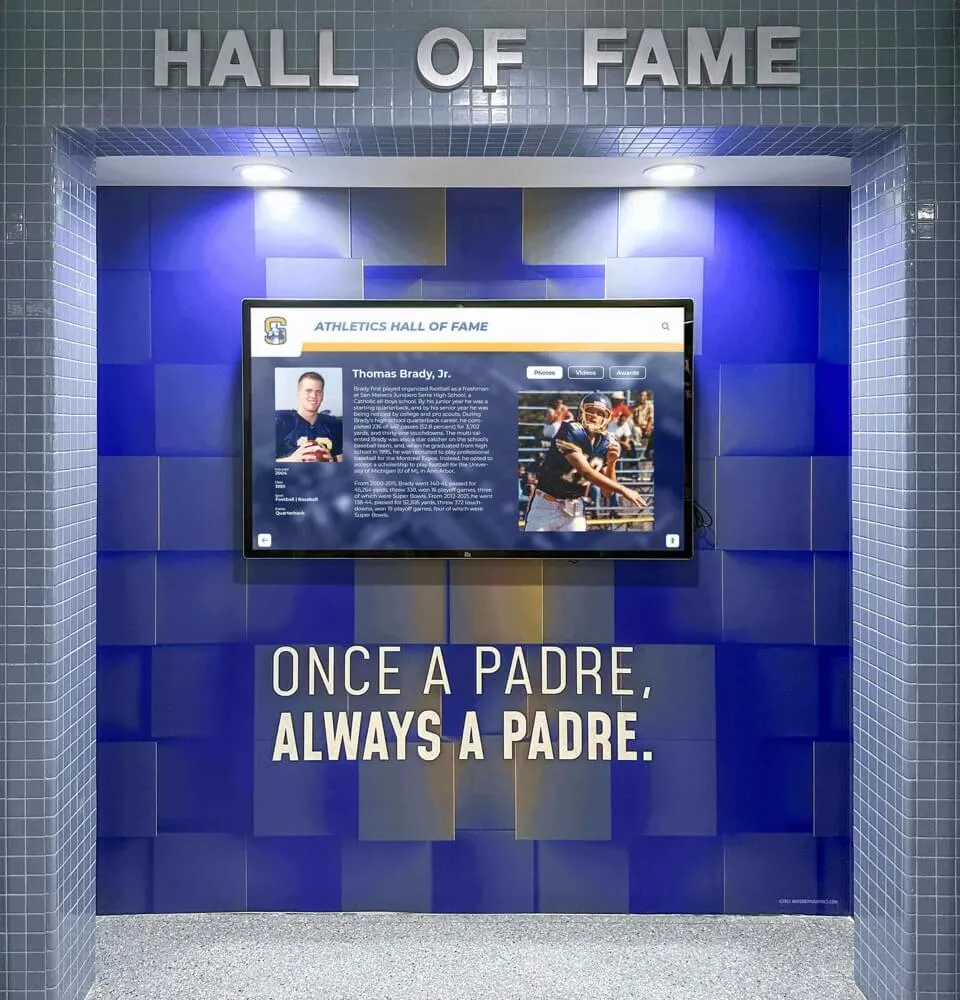
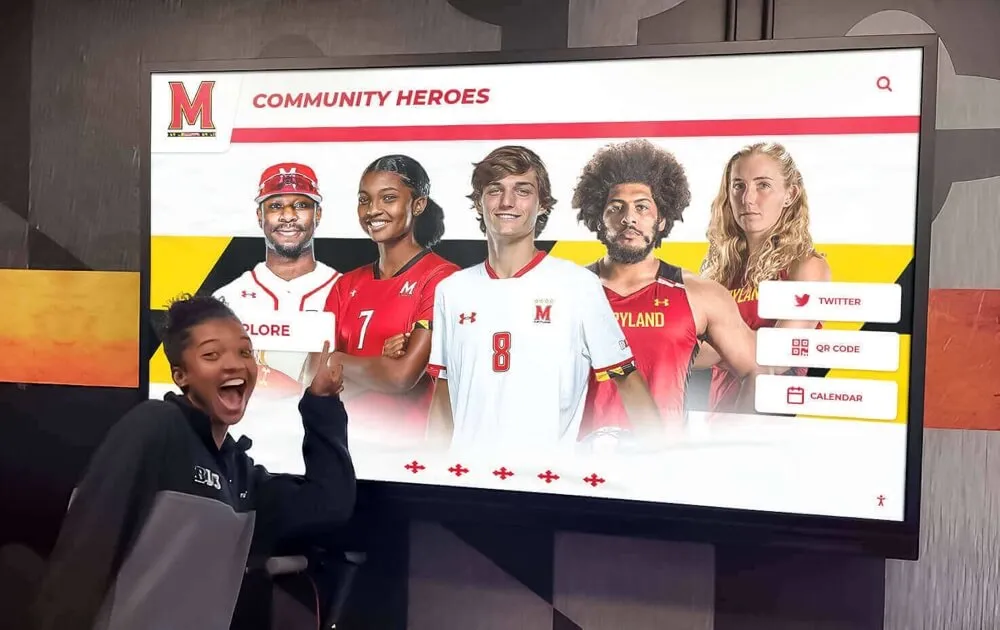
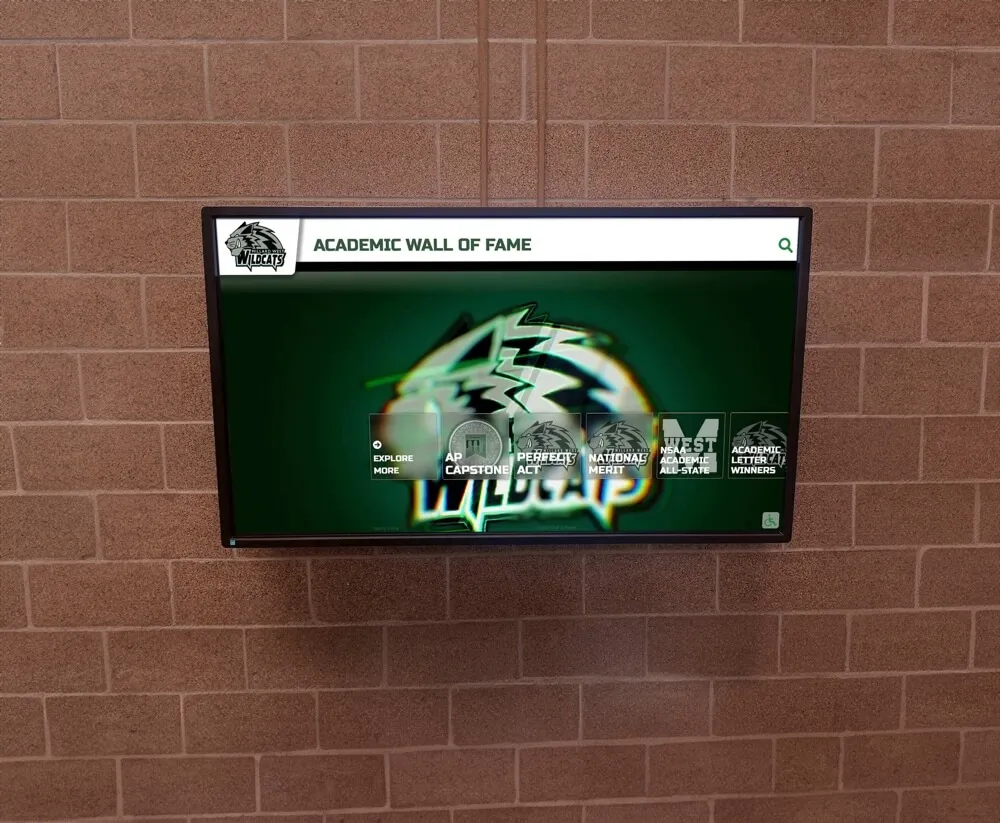
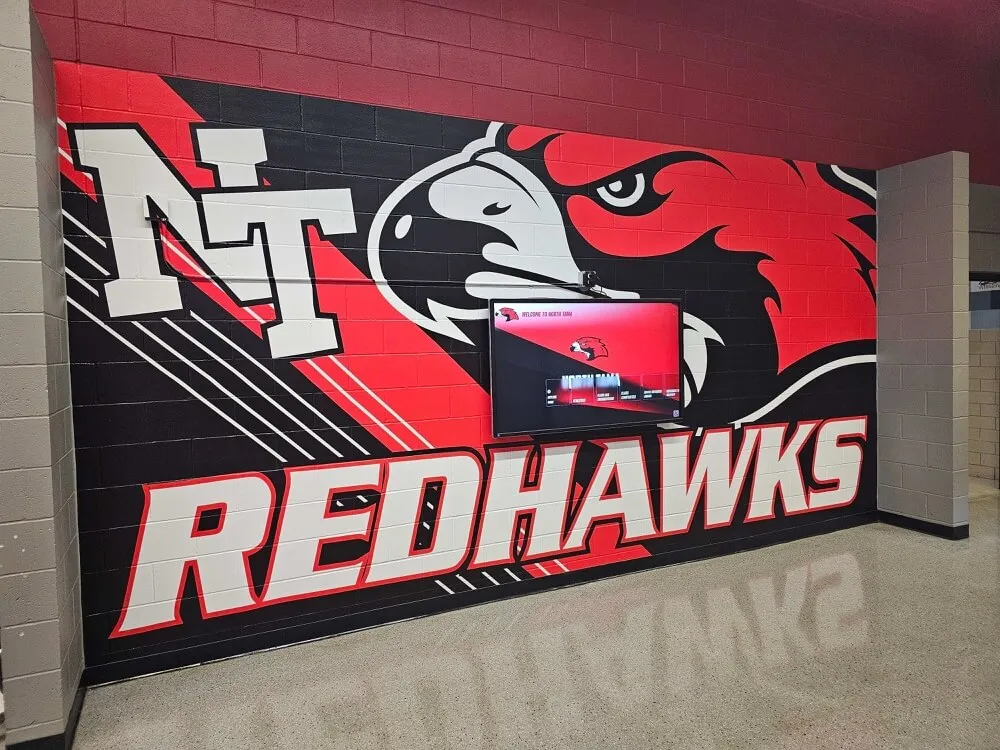
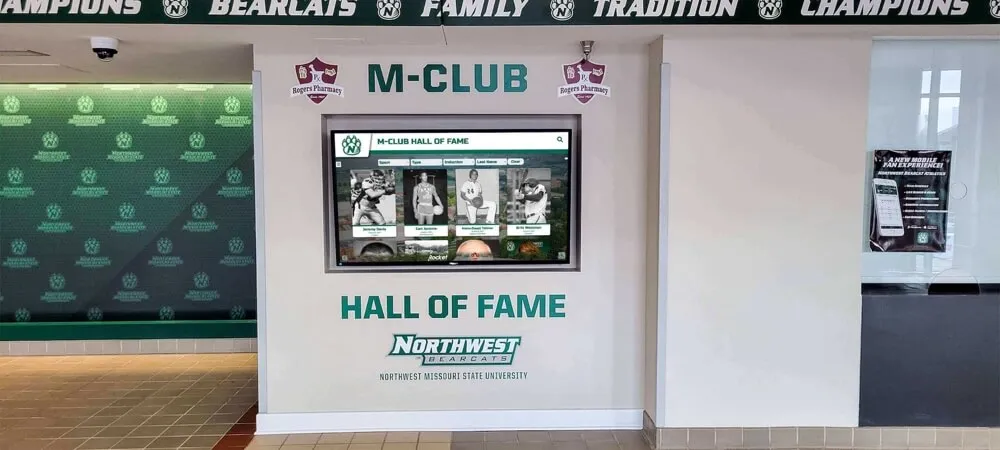
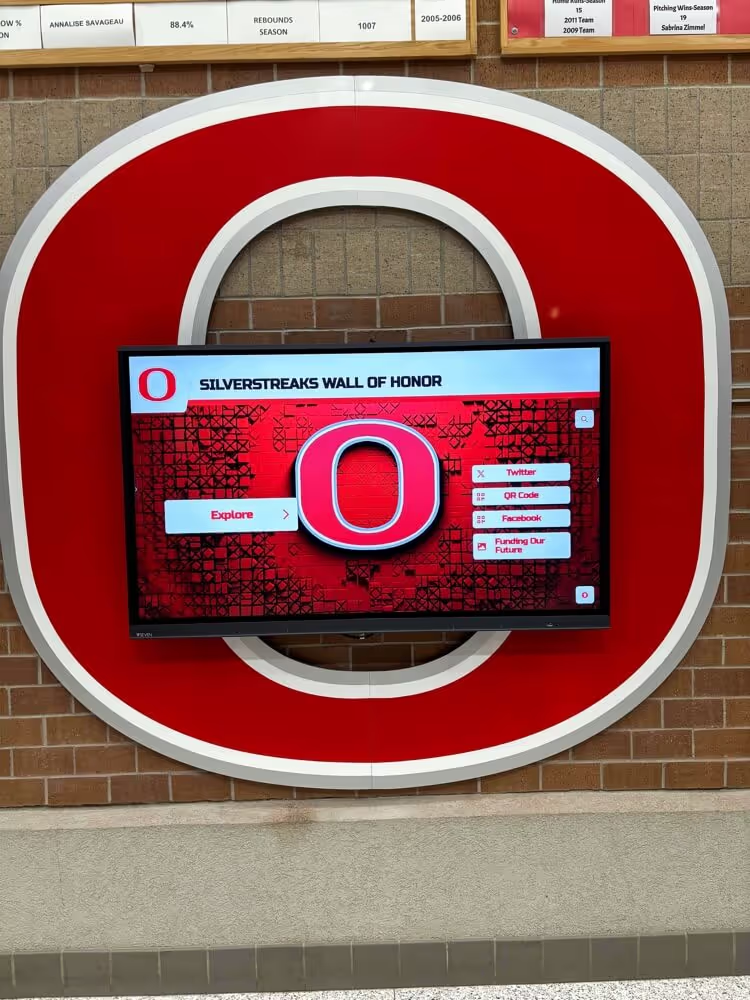
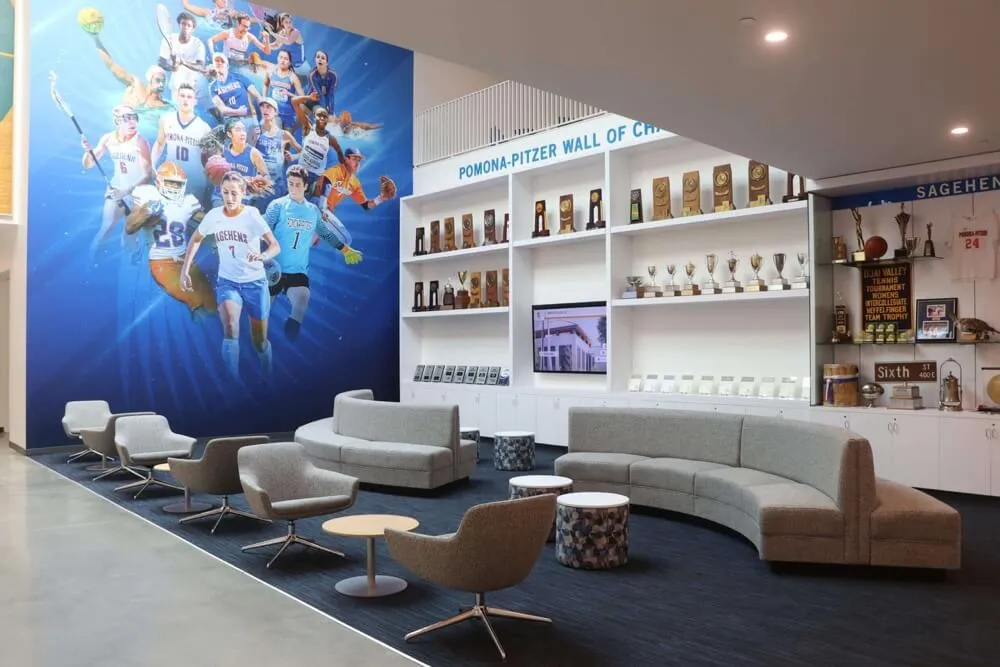
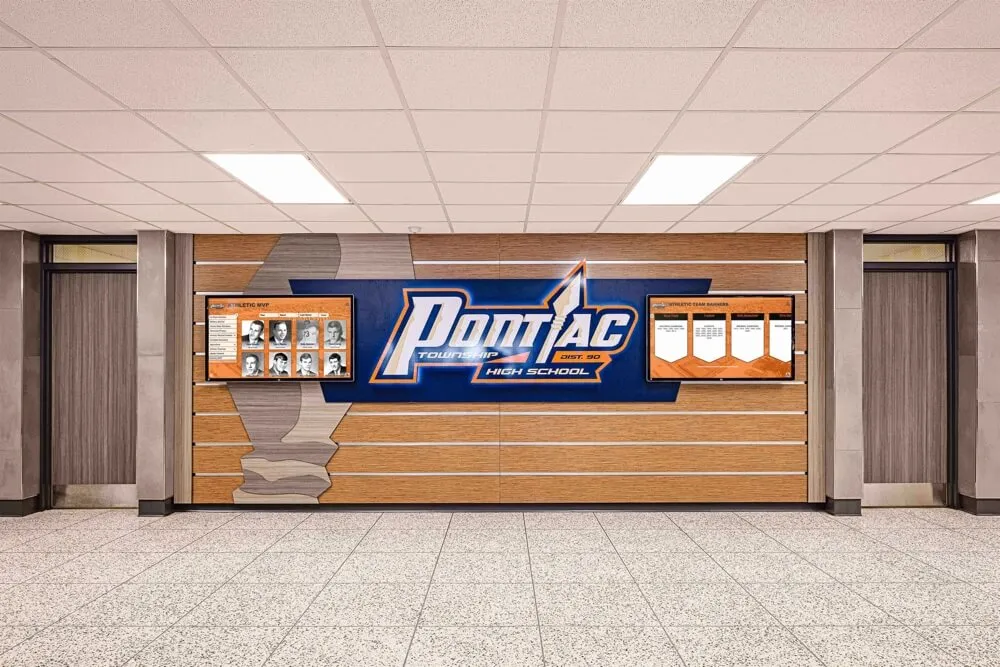
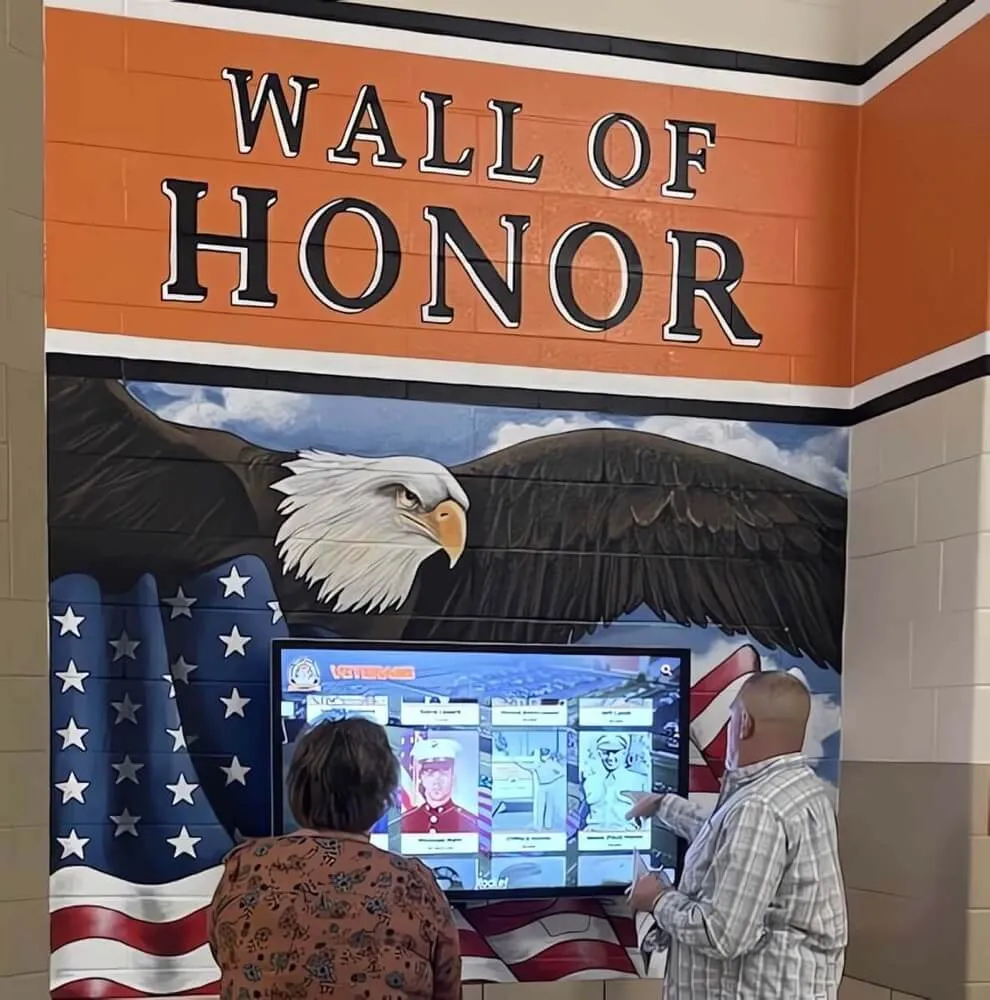
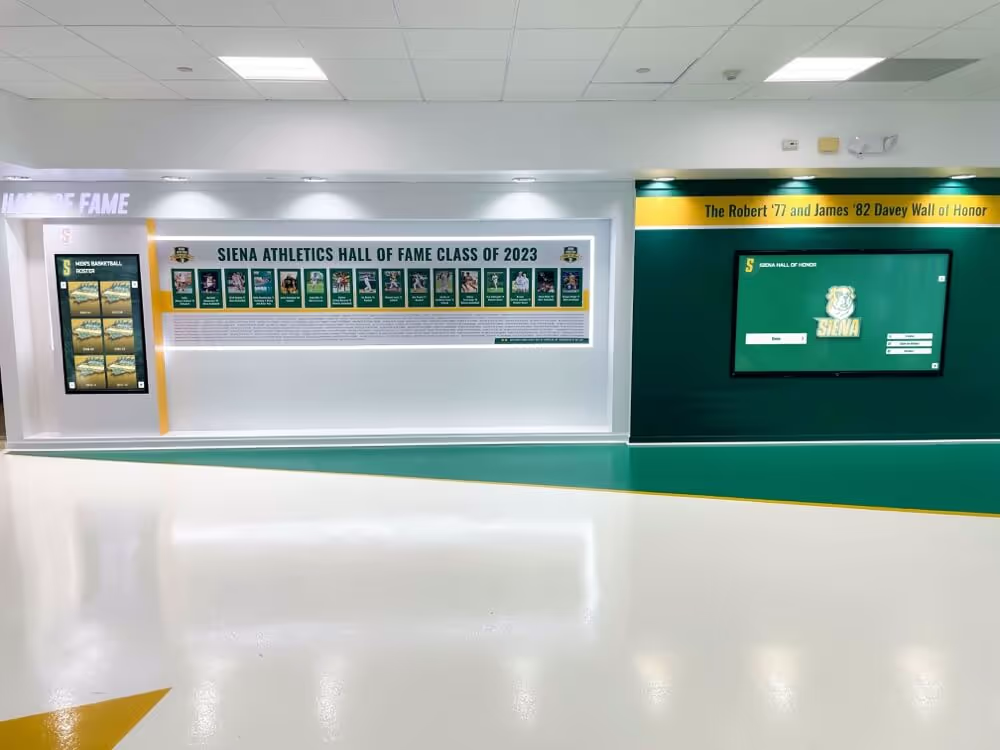
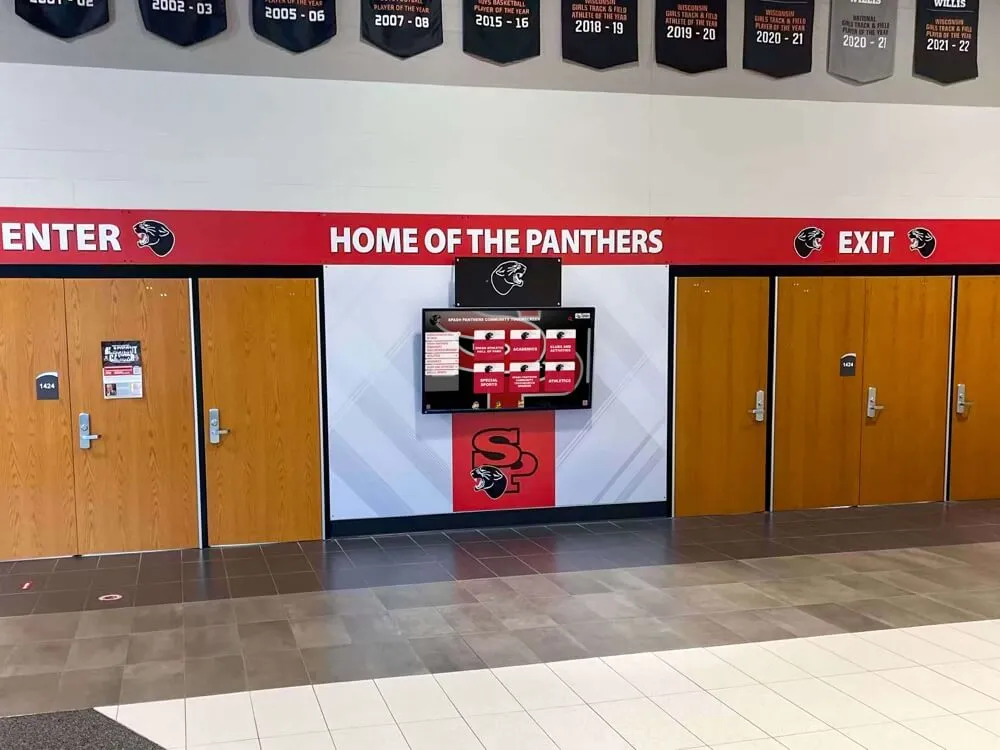
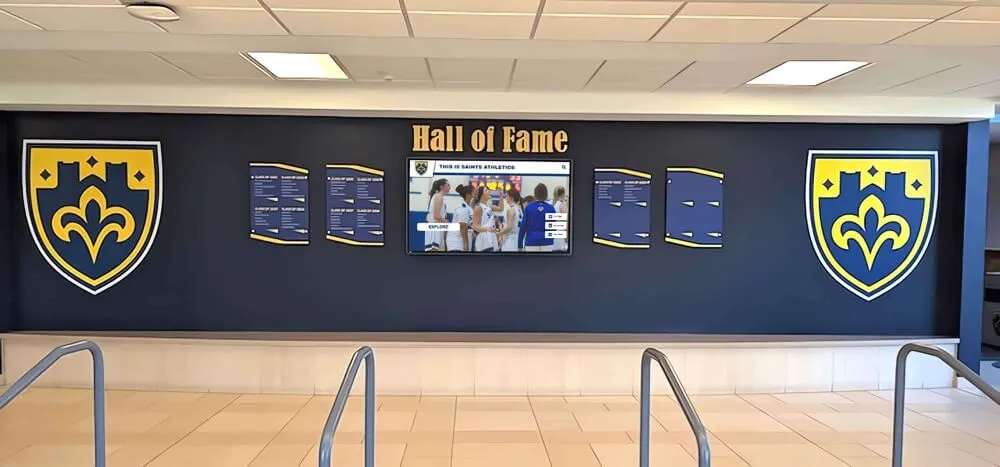
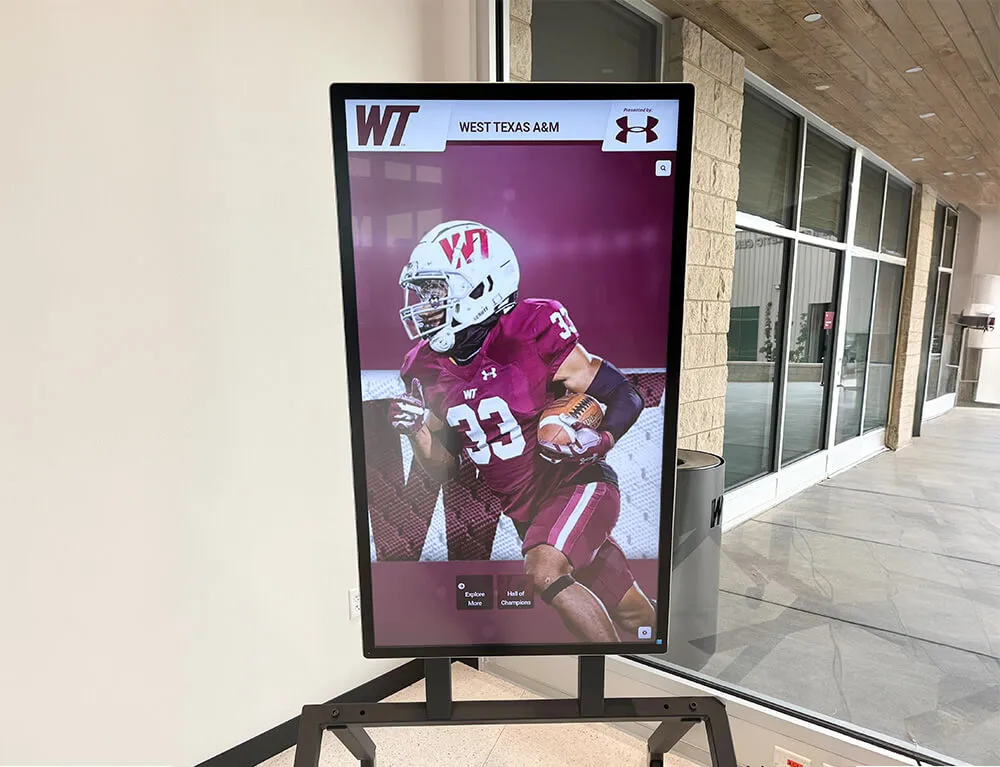
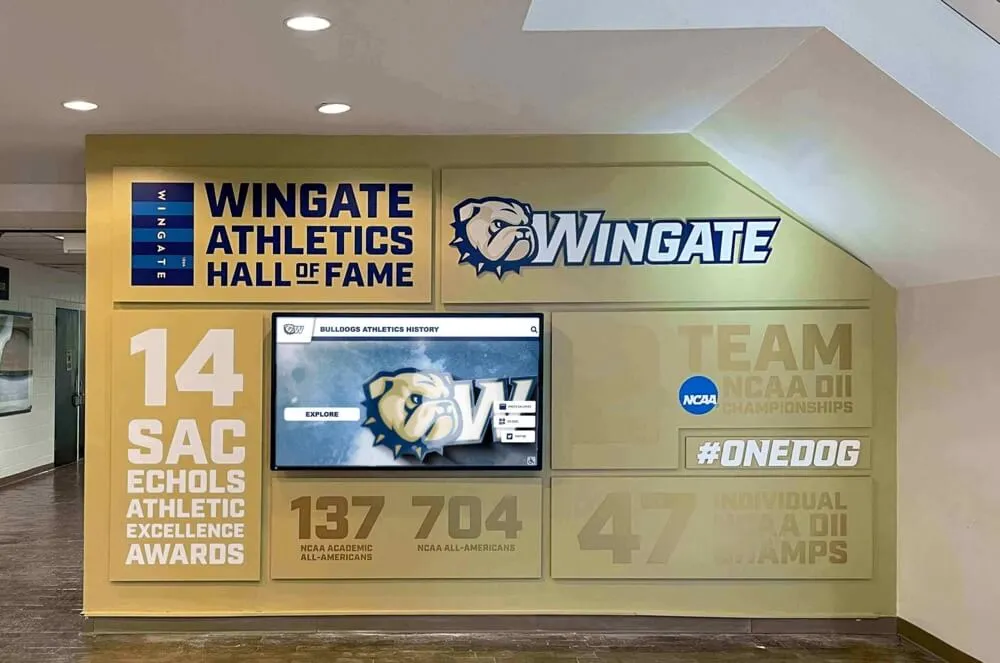
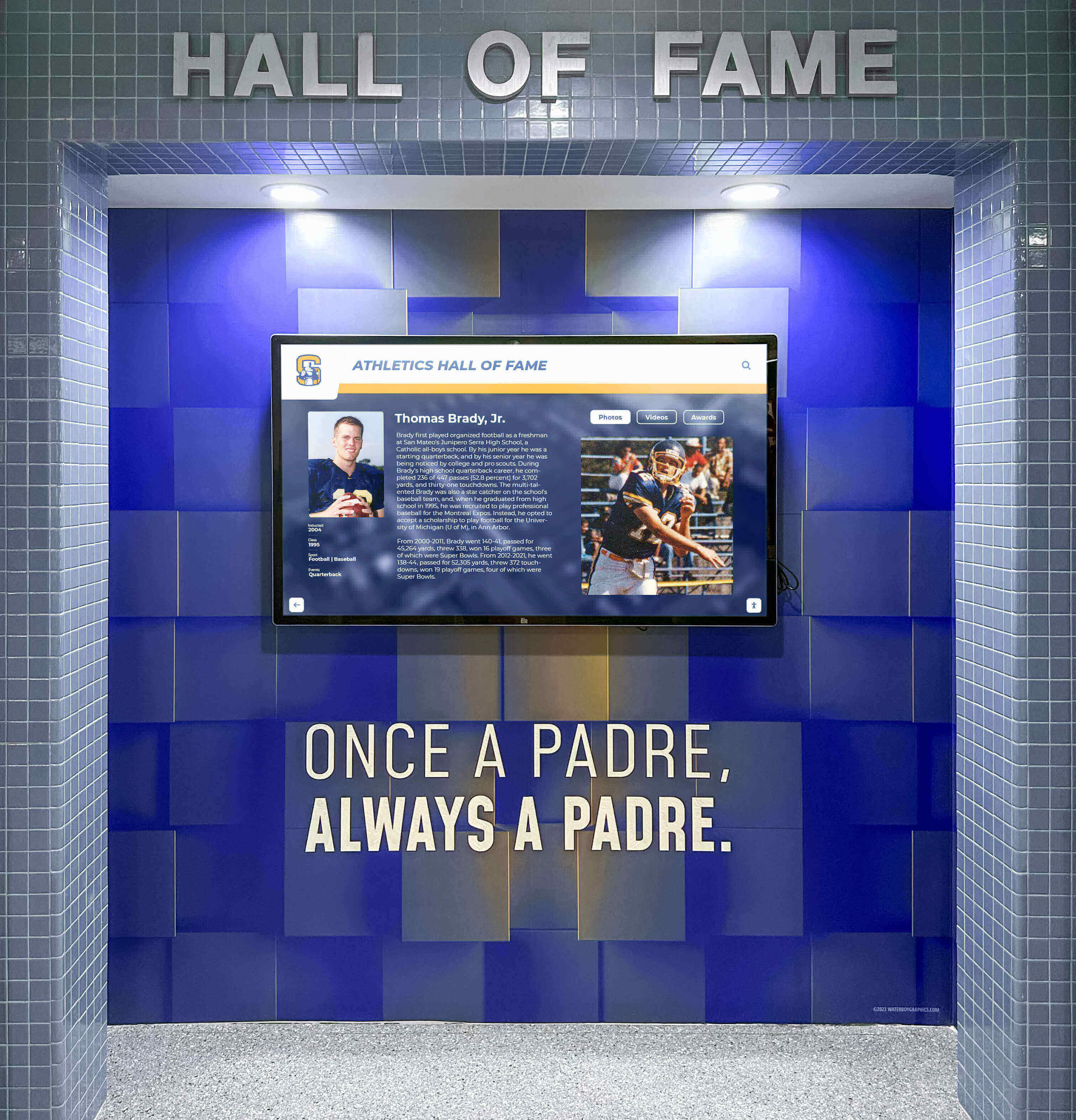
The same recognition content that runs on a ceremony screen can become a permanent lobby display—giving award recipients visibility that lasts far beyond one evening
What an Award Ceremony Slideshow Actually Does
Before building the deck, it helps to understand the four functional jobs the slideshow performs simultaneously:
- Atmosphere control — The pre-show loop sets tone and keeps guests engaged before the formal program begins.
- Pacing and flow — Category and presenter slides give the emcee clear visual cues and keep the run-of-show on time.
- Emotional amplification — Winner reveal slides, nominee photos, and achievement summaries turn a name announcement into a genuine moment.
- Institutional record — Every slide that includes a name, a year, and a category is a piece of data that can live in a permanent recognition archive.
Most school event teams plan for jobs one through three and overlook job four entirely. The archive function is where a well-built recognition event slideshow pays compounding dividends: the assets you produce for one night become the foundation for a lobby touchscreen display, a yearbook spread, a website highlights page, and next year’s opening-night tribute reel.
Quick-Reference Event Overview
| Phase | Slide Types | Primary Audience | Format Notes |
|---|---|---|---|
| Pre-show (before) | Opening loop, welcome, sponsor credits, nominee preview | Arriving guests | Automated rotation, no presenter needed |
| Live ceremony (during) | Category intros, presenter bios, nominee slides, winner reveals, photo moments | Full room | Presenter-advanced or AV-controlled |
| Post-event (after) | Recap reel, lobby archive, website gallery, hall of fame update | Community, alumni, future students | Repurposed from ceremony assets |
Phase 1: Before the Event — Slides to Build in Advance
The pre-show experience begins the moment the first guest walks in. If the screen is dark or showing a desktop wallpaper, you’ve already lost the opening minutes. The slides that run before the ceremony are among the most viewed of the entire night—every guest sees them.
Opening Loop / Attract Slides
The attract loop runs on autoplay from doors-open through the start of the formal program. It should cycle without any manual intervention. A well-designed loop for a school awards night typically includes:
- School name, event title, and year — front-and-center branding that photos and videos will capture all evening
- Sponsor and donor acknowledgment slides — rotating through organizational and individual supporters who helped fund awards, scholarships, or the event itself
- Program teaser — a “Tonight’s categories” summary that builds anticipation
- Photo highlights from past events — archive images from prior ceremonies that reinforce continuity and legacy
Slides in the attract loop should rotate every 8–12 seconds and use high-contrast text against school-branded backgrounds. Avoid dense paragraphs; guests reading from across the room need large type and a single idea per slide.
Nominee Preview Slides
If your event announces recipients publicly for the first time during the ceremony, skip these. If nominees were announced in advance (a common model for academic honors events), a nominee preview section adds a meaningful pre-show element:
- One slide per category listing all nominees
- Each nominee’s name, grade or department, and a headshot if available
- A category icon or color-coded header so guests can scan quickly
Gathering academic achievement examples to include in nominee bios—GPA milestones, team leadership roles, service hours—gives these slides more substance than a bare name list. A two-line achievement summary under each nominee’s name transforms a roster into a recognition moment before the formal program even starts.
Sponsor and Donor Credit Slides
Sponsor acknowledgment is often an afterthought crammed into a single crowded slide at the end. Give it proper real estate in the pre-show loop instead, where donors are guaranteed to be seen by every arriving guest:
- Tier-based credit: title sponsor gets a full-screen slide; supporting sponsors share a formatted grid
- Scholarship endowment credits: name the fund and the donor family who established it
- In-kind donor acknowledgment: catering, AV, venue, and print vendors who contributed services
Schools with active academic recognition programs often have long-standing scholarship donors who expect and deserve prominent placement. Pre-show loops are the right vehicle because they guarantee visibility before the room quiets and attention narrows to the stage.
Run-of-Show Slide
A single program-order slide displayed during pre-show gives guests and staff a shared reference. Keep it simple: category name, award type, presenting organization or sponsor. This slide doubles as a cue sheet for the emcee when printed at 200%.
Phase 2: During the Event — Slides That Drive the Ceremony
Live-presentation slides are different from pre-show slides in one critical way: every second of screen time competes with what’s happening on stage. The guiding principle is simplicity—fewer words, larger type, and nothing that pulls eyes away from the presenter or the recipient.
Category Introduction Slides
Each award category needs its own title card. A well-built category intro slide includes:
- Award name (large, center-screen)
- A one-sentence description of what the award recognizes
- The sponsor or endowment funding the award, if applicable
- Estimated number of recipients (e.g., “Three students will be recognized tonight”)
Keep these slides on screen while the presenter walks to the podium and delivers their introduction. Advance to the nominee or winner slide only when the presenter begins reading names.
Nominee Slides
For ceremonies where nominees are called before winners are announced, a nominee slide sequence builds meaningful suspense:
- Full-screen nominee photo with name and category overlaid
- A one- or two-line achievement summary (sport record, GPA, community service hours, leadership role)
- Consistent layout across all nominees so no one’s slide looks more produced than another’s
Photo quality matters more than most event planners anticipate. Request headshots at minimum 1920×1080 pixels. A low-resolution photo blown up to fill a 4K screen in a darkened auditorium is immediately noticeable—and sends an unintended message about how much the school values the recipient being honored.
Winner Reveal Slides
The winner reveal slide is the emotional peak of each category. It should be built to hold the screen for the entirety of the recipient’s walk to the stage and acceptance speech:
- Name large enough to read from the back row
- Award title and year
- Brief achievement callout (one line—this is not a bio paragraph)
- School logo or event branding in a corner, not competing with the recipient’s name
- Optional: a background photo of the recipient in action (athlete on the field, student in a lab, performer on stage)
For multi-recipient categories like honor roll acknowledgments or team championships, a formatted grid with all names works better than individual slides. Keep the grid to no more than 12–16 names; beyond that, split into two slides.
Presenter Bio Slides
If your ceremony features guest presenters—alumni, community leaders, donor representatives—a brief presenter slide gives the audience context before they speak:
- Presenter’s name and current role
- Connection to the school (class year, former coach, scholarship donor)
- Name of the award they are presenting
These slides serve double duty: they honor the presenter and they help the audience understand why this particular person is the right voice for this particular award.
Live Photo Moment Slides
Many ceremonies include a photo-op segment where recipients pose for official photos on stage. A dedicated “Photo Moment” holding slide—school logo centered, event name below, clean background—gives the photographer a neutral backdrop and keeps the screen from distracting from the moment. Run this slide during applause and hold it through the photo sequence.
Phase 3: After the Event — Repurposing the Slideshow
The ceremony ends, the chairs fold up, and most schools file the slideshow in a shared drive folder where it will never be opened again. That’s an institutional waste. Every award presentation slide produced for the ceremony is a content asset that, with minimal additional work, can serve recognition goals for months.
Lobby Display and Touchscreen Archive
The most immediate post-event opportunity is converting ceremony content into a lobby display. Winner slides already contain the essential information: name, award, year. Format those slides into a portrait-orientation layout and push them to a lobby touchscreen display or digital signage system within a week of the event while recognition is still fresh in the building’s memory.
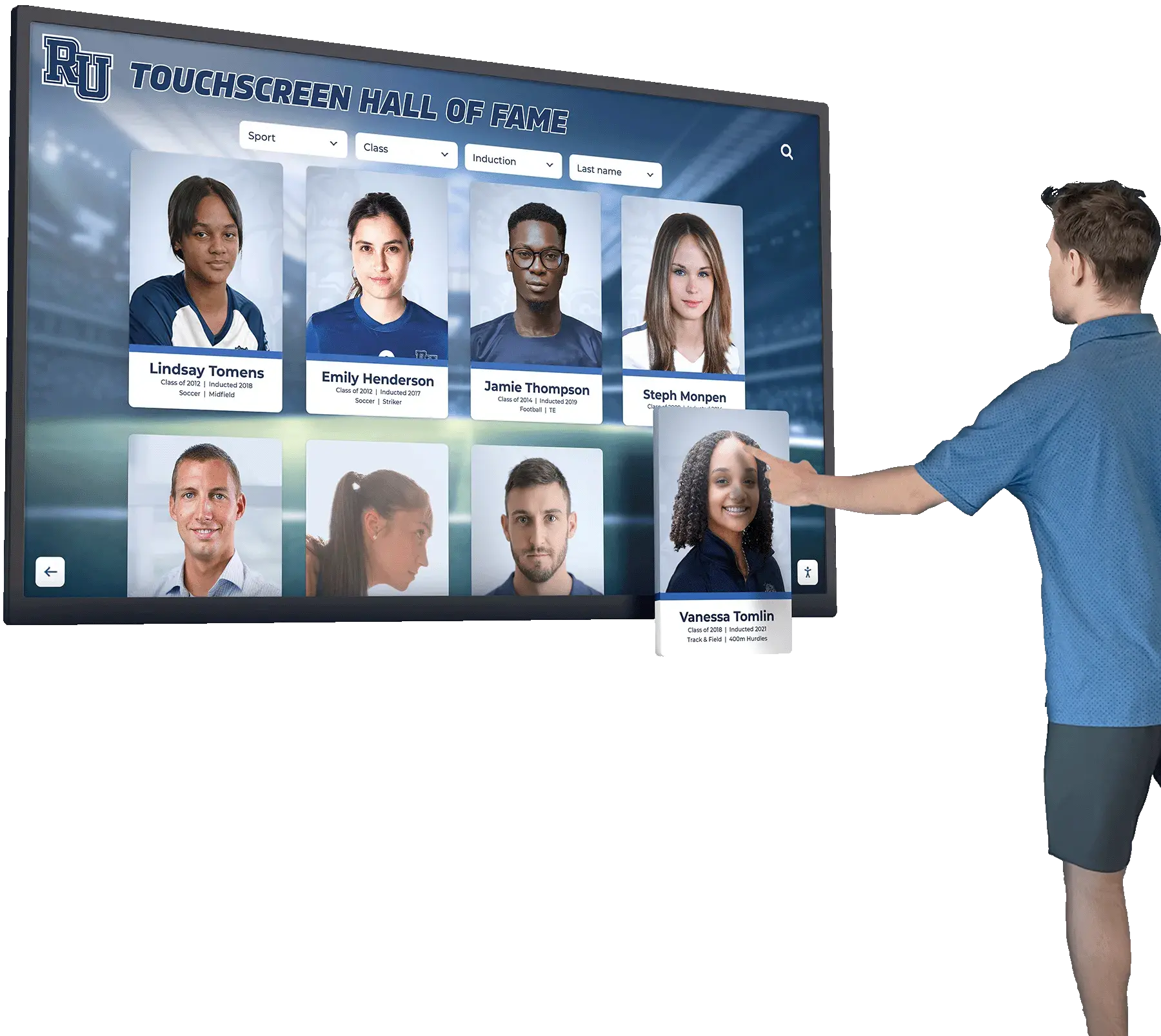
Schools using interactive touchscreen platforms like Rocket Alumni Solutions can turn this conversion into a repeatable workflow: ceremony slides feed a recognition database, recipients are searchable by name and year, and visitors can browse award history without staff assistance. For schools thinking through how to structure this kind of visual recognition space, digital wall of fame design ideas for schools offer practical layout frameworks for organizing content across multiple recognition categories.
Website and Social Media Highlights
A post-event recap slide deck—typically 10–20 slides drawn from the ceremony sequence—works well as a website gallery embed or a social media story series. Structure it as a mini-narrative:
- Event title and date
- Three to five category highlight slides (winner name + photo)
- Group or candid photography from the ceremony
- Sponsor thank-you slide
- “Save the date” for next year’s event
Export individual winner slides as static images for social posts in the week following the event. Tag recipients when posting. These posts consistently perform well with school community audiences because they’re hyperlocal and name specific students.
Hall of Fame Integration
Award recipients—particularly multi-year award winners, scholarship recipients, and athlete-of-the-year honorees—are logical candidates for a school’s digital hall of fame. The ceremony slideshow provides the core data: name, award, year. Supplementing that with a short bio and outcome information (college enrollment, career path) creates a lasting record.
Maintaining that record over time requires more than a slideshow file on a shared drive. Schools building long-term recognition archives benefit from a structured alumni database for K-12 schools that connects ceremony-year honorees with their post-graduation records, creating a searchable history that grows in value annually. Pairing that database with an interactive display gives future students a visible connection to the recognition legacy they’re working toward.
The alumni whose advice and career success you feature in that archive also become your strongest proof points during recruitment—a student-athlete reading about a scholarship recipient from five years ago who went on to play at the college level is far more influenced by that story than by any marketing language your school writes about itself.
Media Asset Management
Ceremony photos, video clips, and slide assets need a home that isn’t a personal Google Drive folder. Schools producing annual recognition events accumulate significant media libraries over time. A digital asset management system for schools built for educational environments handles version control, access permissions, and retrieval by event year or recipient name—making it possible to pull archive content for future tribute slides without hunting through years of folders.
Slide-by-Slide Checklist
| Slide | Phase | Required Elements | Optional Elements |
|---|---|---|---|
| Opening loop — title card | Pre-show | Event name, school, year | School logo, event sponsors |
| Sponsor / donor credits | Pre-show | Sponsor name and tier | Logo, fund description |
| Nominee preview (by category) | Pre-show | Names, category | Headshots, achievement summary |
| Run-of-show / program | Pre-show | Category list, order | Presenting organization |
| Category intro | During | Award name, description | Sponsor, recipient count |
| Nominee slide | During | Name, photo, category | Achievement summary |
| Winner reveal | During | Name, award, year | Photo, achievement callout |
| Presenter bio | During | Name, role, connection | Class year, award title |
| Photo moment holding slide | During | School logo or event name | Background pattern |
| Group recipients grid | During | All names, category | Headshots |
| Closing / thank-you | During | Sponsor acknowledgment | Next year’s date |
| Post-event recap deck | After | Winner names, event date | Candid photos, social CTA |
| Lobby archive slides | After | Name, award, year | Portrait photo |
Production Tips for School Award Ceremony Slideshows
Slide Count and Timing
A 90-minute ceremony with 10 award categories typically requires 45–65 slides depending on nominee count. Budget approximately:
- Pre-show loop: 8–12 slides cycling continuously
- Per category: 1 category intro + 3–6 nominee slides + 1 winner reveal = 5–8 slides
- Presenter bios: 1 per outside presenter
- Closing: 2–3 slides
Design Consistency
Use a single master template with three variations: pre-show (landscape, dark background, auto-cycling), live-ceremony (landscape, high contrast, presenter-advanced), and post-event portrait (vertical format for lobby and social). Keeping all three in the same branding system means your ceremony looks cohesive and your post-event assets don’t require redesign.
Photo Collection Timeline
Request headshots from award coordinators no later than two weeks before the event. Build your nominee slides one week out. Reserve the final week for winner-reveal slides once recipients are confirmed—and build placeholder versions of those slides first so that swapping in the winner’s name is a five-minute task on the day of the event, not an hour-long production scramble.
Backup and Display Redundancy
Export the complete slide deck as a PDF backup in addition to the native presentation file. If the presentation software crashes mid-ceremony, the PDF version opens in any browser in under ten seconds. Store the backup on a USB drive plugged into a second device at the AV table, not only in cloud storage that requires a working Wi-Fi connection in an auditorium.
How Digital Displays Extend Slideshow Life Beyond One Night
The single-event model for school recognition has a built-in problem: the ceremony is the only moment most community members encounter the honorees. Students who weren’t at the event never see the recognition. Parents who couldn’t attend miss it entirely. Future students have no awareness that the award exists.
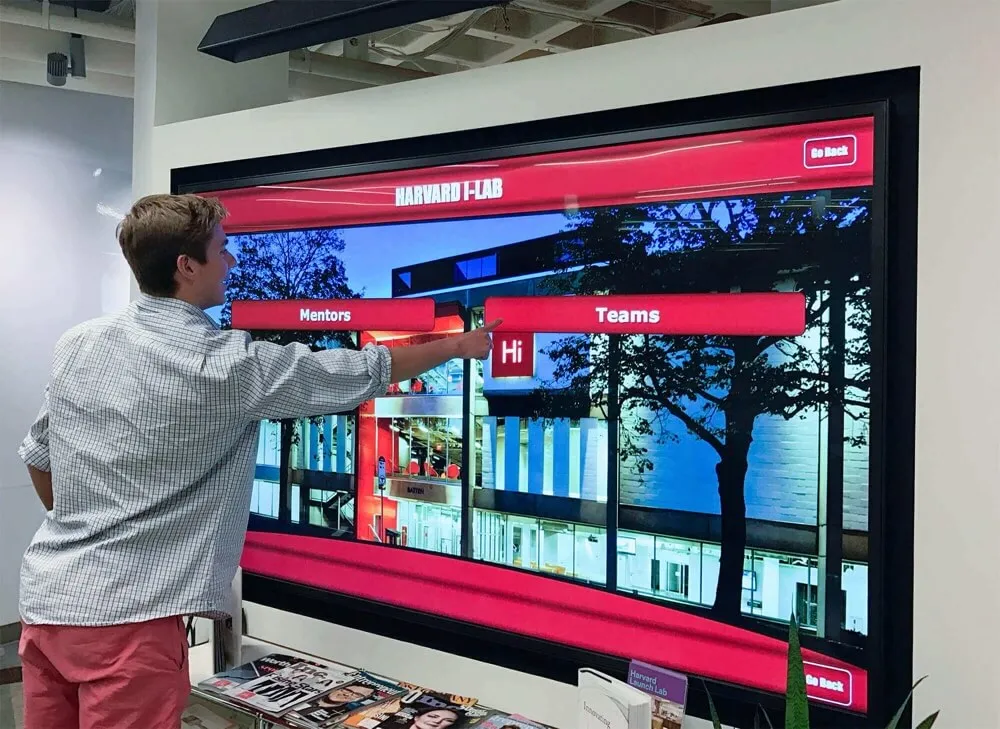
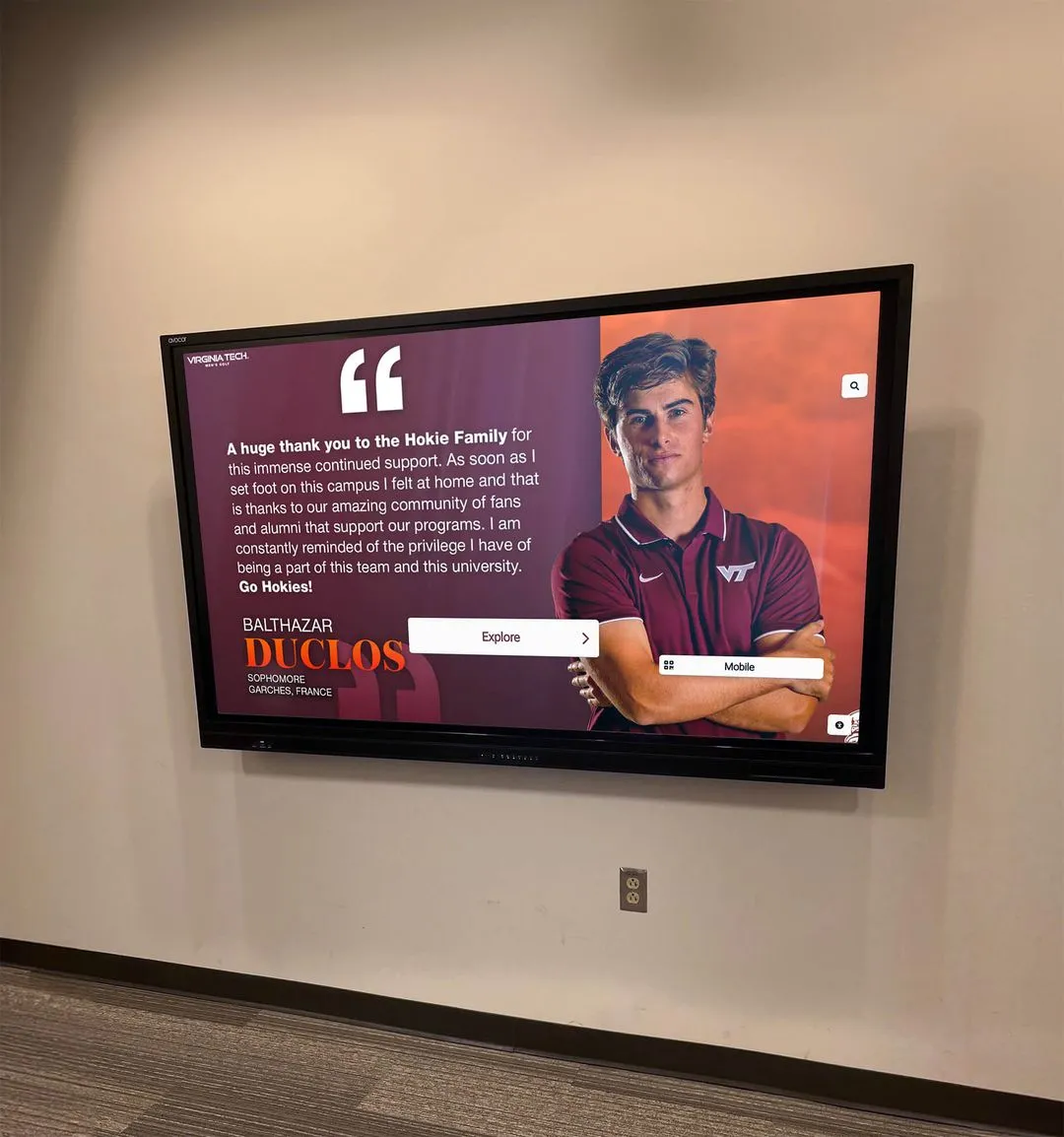
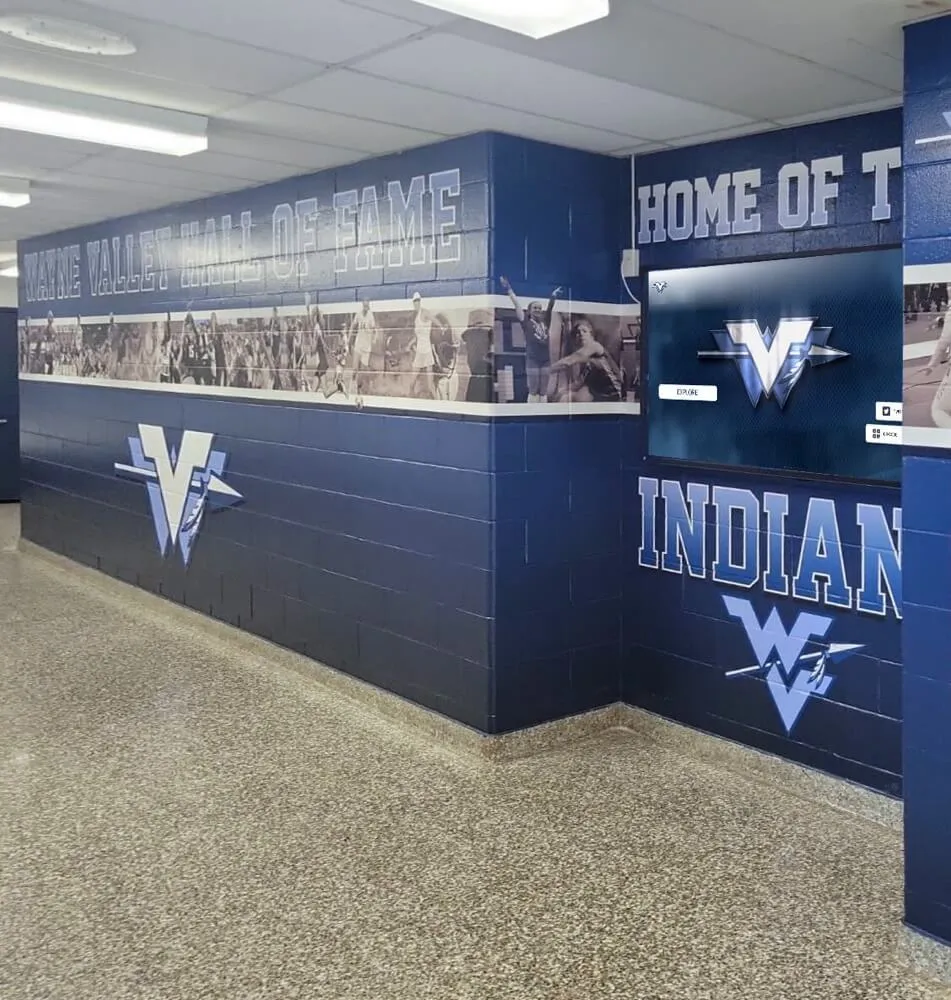
Touchscreen displays in school lobbies and athletics hallways solve this continuity problem by keeping recognition visible year-round. Schools that connect their annual ceremony content to a permanent digital display system transform a one-night event into an ongoing presence. The display shows this year’s winners alongside prior-year recipients, creating a visible record that grows more compelling with each annual ceremony.
Interactive systems add a second layer: visitors can search by recipient name, browse by award category, or explore the full history of a scholarship endowment. That depth of engagement is impossible to achieve with a slideshow file or a static wall plaque. Schools building this kind of interactive recognition archive can manage all of it—ceremony content, photo assets, recipient data—through a centralized platform rather than scattered drives and annual PowerPoint files.
For schools that run recognition programs across multiple departments—athletics, academics, performing arts, student council—the academic recognition programs that already exist on the administrative side often have richer data than the ceremony slideshow reflects. Connecting that data to a display system is what turns a recognition event into a recognition culture.
Frequently Asked Questions
What should the first slide of an award ceremony slideshow include?
The first slide—or the first frame of the attract loop—should include the event name, school name, and year. This is the slide that appears in photos, gets screenshotted for social posts, and anchors every visual memory from the event. Keep it clean: large typography, school colors, and nothing that competes with the essential information.
How many slides does a typical school awards ceremony need?
A 90-minute ceremony with 8–12 award categories typically uses 45–70 slides when nominee sequences are included. Ceremonies with fewer categories but more recipients per category (honor roll, academic letter programs) often use fewer slides with formatted grid layouts rather than individual nominee cards.
Should winner reveal slides show the winner’s photo?
Yes, when photo quality allows it. A full-screen portrait of the recipient creates a more memorable reveal than a text-only slide. If you can’t guarantee photo quality across all recipients, use a consistent name-over-background template so no one’s slide looks different from another’s—consistency signals equal treatment of all honorees.
How do you handle an award where the winner isn’t announced until the ceremony?
Build the winner slide in template form with a placeholder name. When the recipient is confirmed—whether five days before or five minutes before—you swap the name and export. Keep the placeholder version as a backup in case of last-minute changes. Never advance that slide before the presenter finishes reading the name aloud; the screen reveal and the spoken announcement should land simultaneously.
What’s the best way to repurpose ceremony slides for a lobby display?
Export winner slides as individual images (PNG or JPEG at 1920×1080 minimum). Reformat them to portrait orientation if your lobby display is vertical. Add the event year and award category as persistent labels. Upload to your digital signage or touchscreen platform within the first week after the event—recognition has the most community impact when it’s fresh.
How long should slides stay visible in a post-event lobby display?
Current-year recipients should remain featured on lobby displays through the full academic year at minimum. For scholarship recipients, athlete-of-the-year honorees, and hall of fame inductees, the display should be permanent—or at least accessible via an archive section of the touchscreen system. Recognition that disappears in September sends an unintended message about how the school values its honorees.
What file formats work best for award ceremony slides?
Build in Google Slides, PowerPoint, or Keynote depending on your AV setup—confirm with your venue before the event. Export a PDF backup always. For post-event repurposing, export individual slides as high-resolution PNG files. For lobby displays, confirm the required format with your digital signage provider; most accept JPEG, PNG, or MP4 for animated sequences.
Building a Recognition Event That Lasts
A well-built award ceremony slideshow does more than fill the screen during a 90-minute program. It establishes what the school values, who it chooses to celebrate, and how seriously it takes the act of recognition. The schools that get this right—consistent templates, collected photos, post-event repurposing, lobby display integration—create ceremonies that feel like institutional moments rather than annual administrative obligations.
The practical path forward is straightforward: start with the checklist above, collect assets earlier than you think you need to, build redundancy into your presentation setup, and make a plan on the morning after the event for how those slides will serve the school for the rest of the year.
Schools ready to take ceremony recognition beyond the slideshow file—into interactive lobby displays, searchable alumni archives, and year-round visibility—can explore how Rocket Alumni Solutions connects annual event content to permanent recognition infrastructure, eliminating the manual rebuild that starts every year from scratch.