



An athletic recognition video networkState check reads the browser’s HTMLMediaElement.networkState property to distinguish four distinct states—NETWORK_EMPTY (0), NETWORK_IDLE (1), NETWORK_LOADING (2), and NETWORK_NO_SOURCE (3)—so school IT staff can direct a stalled display to the correct fix rather than rebooting hardware or blaming the school network for a problem that may be a missing source URL. The networkState property, documented at MDN Web Docs, is a read-only unsigned short on the HTMLMediaElement interface that indicates the current state of the media element’s network activity. Paired with currentSrc, media.error, readyState, and event timestamps, it creates a narrow, precise snapshot of what the media element is doing at a given moment—which is the only basis for reliable diagnosis. A single networkState value alone cannot determine whether a kiosk is stalling because the school network is congested, because a source URL is wrong, or because the element was never given a source to begin with.
This guide walks athletic directors, recognition-program staff, and school IT personnel through reading each state correctly, building a decision table that maps observed state combinations to actionable next steps, and running a structured pre-event diagnostic before a hall-of-fame ceremony or athletic awards presentation.
When a visitor approaches a school recognition kiosk before an induction event and the display shows a blank video frame, the instinct of many staff members is to check the network or restart the hardware. Both responses may be appropriate—but neither is correct without first knowing what the networkState property reports. A kiosk displaying NETWORK_NO_SOURCE (3) needs a corrected source URL, not a network ticket; a kiosk at NETWORK_IDLE (1) is functioning correctly and should not be touched. Treating those two states as interchangeable wastes event-day time on the wrong fix.

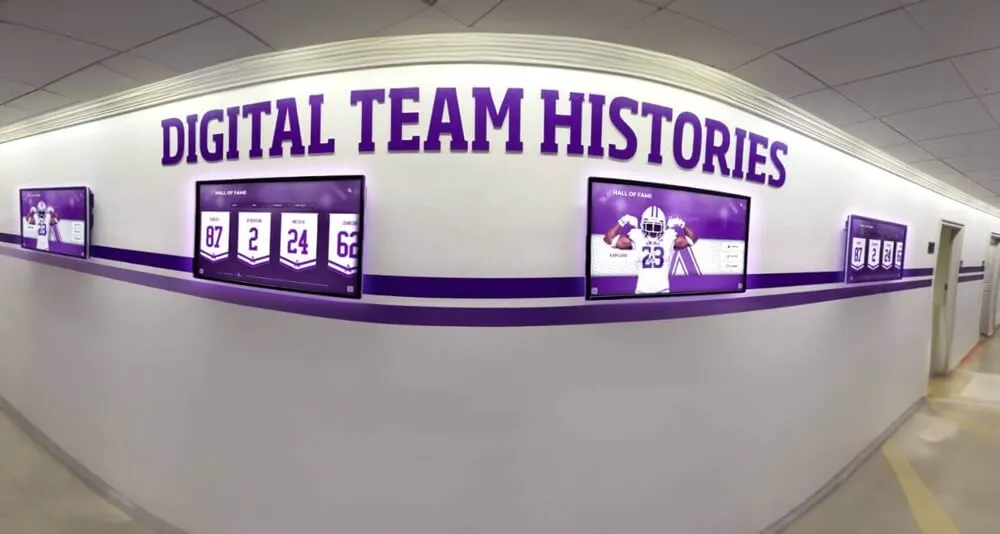
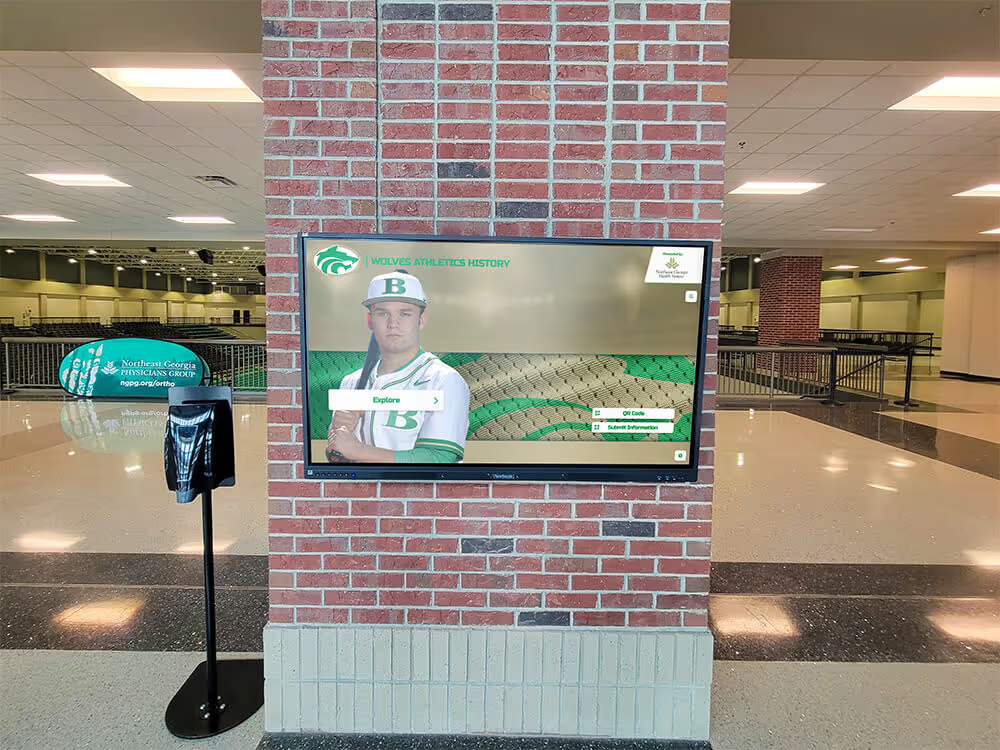
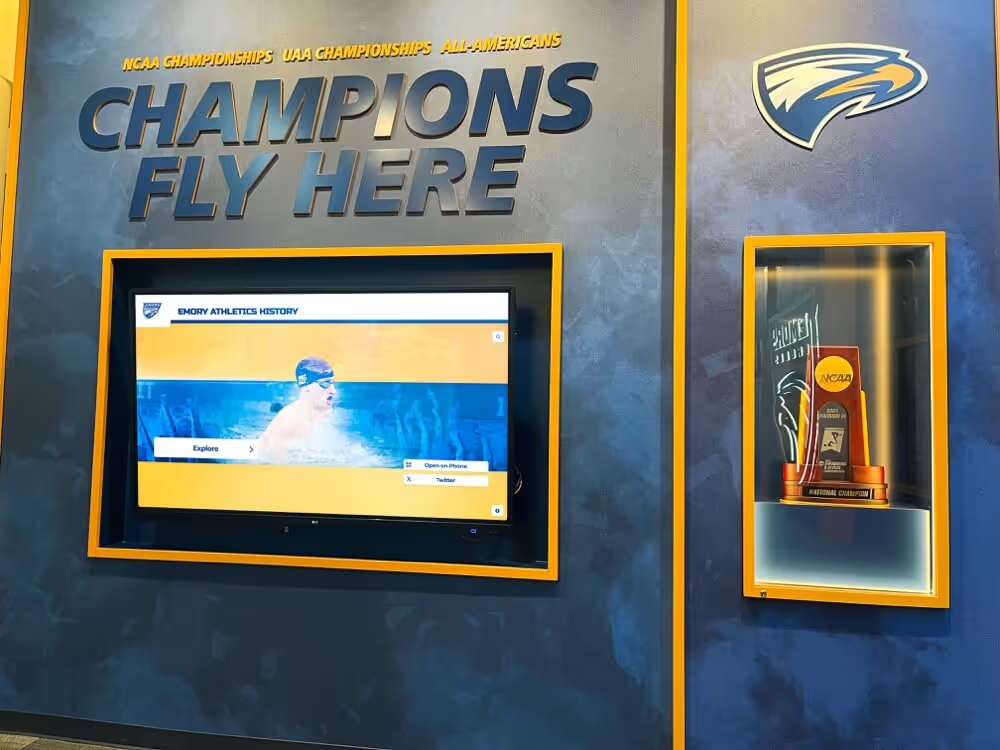
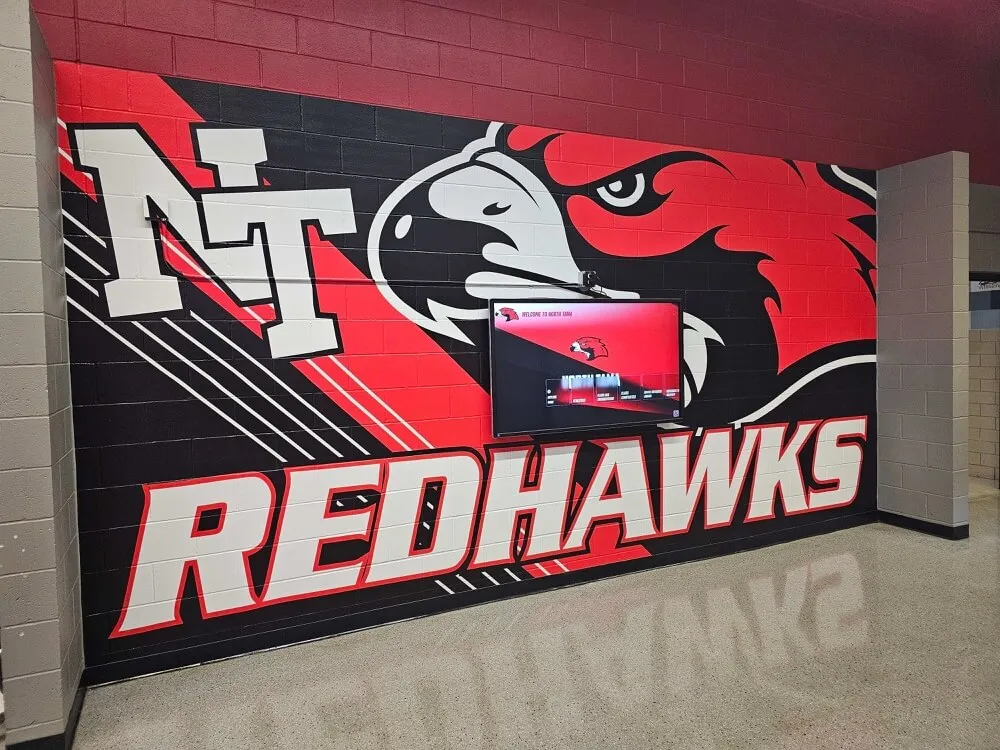
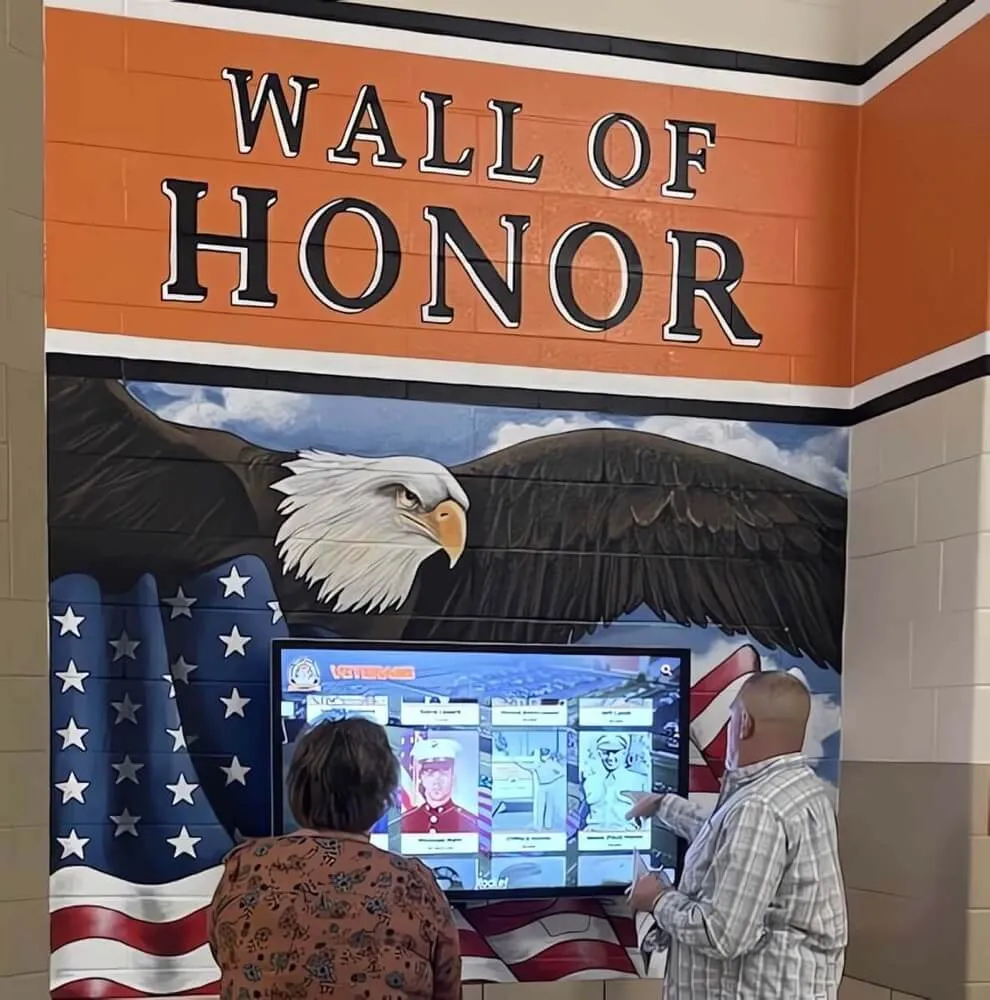
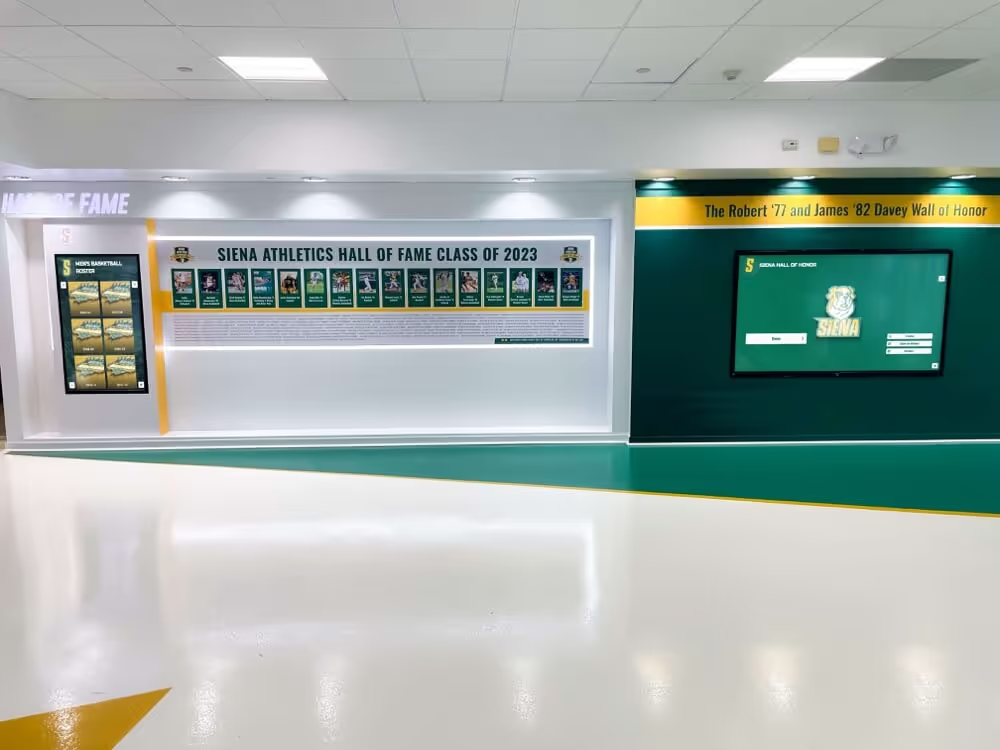
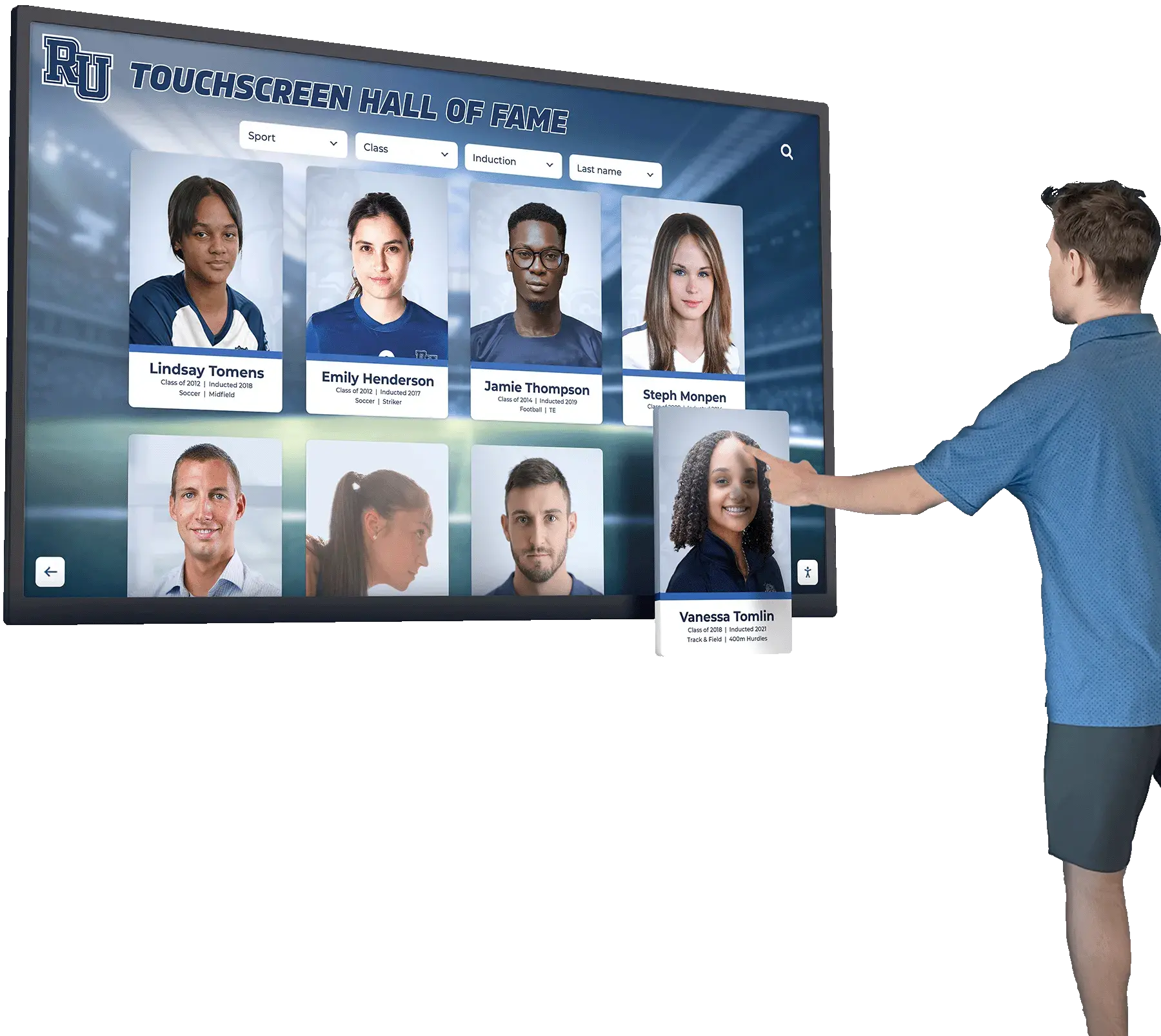
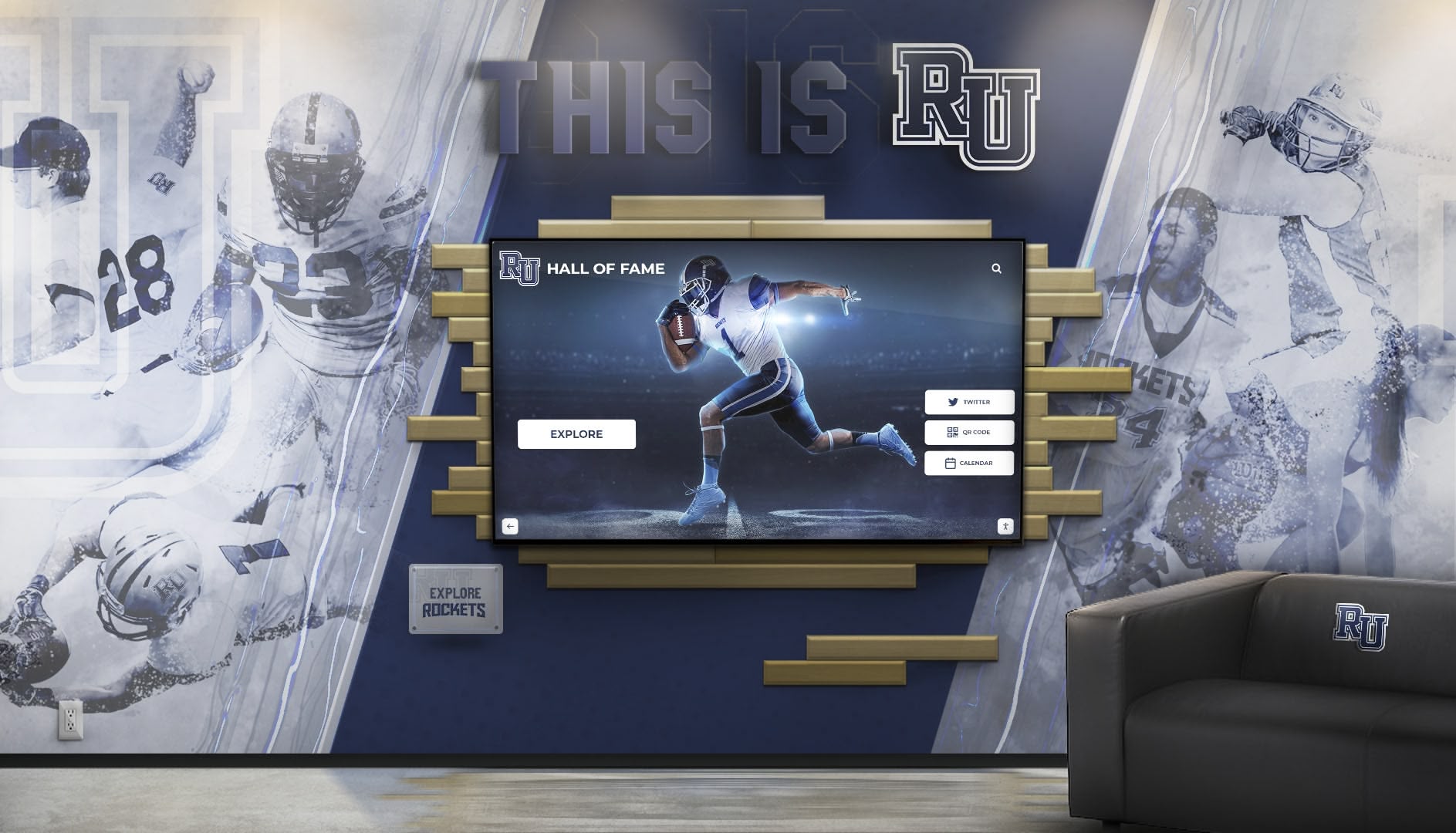
A school athletic hall of fame kiosk visible to visitors before any interaction—what the browser's networkState reports at a given moment determines whether a blank video frame signals a configuration problem, a network stall, or simply that playback has not yet been requested
The Four networkState Constants: What Each One Means
The MDN Web Docs reference for HTMLMediaElement.networkState defines four unsigned short values. Each corresponds to a distinct phase in the media element’s life cycle, and each calls for a different diagnostic response.
NETWORK_EMPTY — value 0. “There is no data yet. Also, readyState is HAVE_NOTHING.” The media element has been created but has not yet been given any source—neither a src attribute, a <source> child element, nor a call to load(). If networkState is 0 on a recognition kiosk, the <video> element exists in the page but has never been pointed at any media file. This is a configuration state, not a network failure.
NETWORK_IDLE — value 1. “HTMLMediaElement is active and has selected a resource, but is not using the network.” The element has a valid source URL and has selected it successfully, but is not currently making a network request. This is the normal resting state for a paused video whose metadata has already been downloaded, or for a video that has fully buffered. NETWORK_IDLE is not an error and does not require intervention.
NETWORK_LOADING — value 2. “The browser is downloading HTMLMediaElement data.” The element is actively making network requests to fetch media data. Observing NETWORK_LOADING during video playback is expected and normal. Observing it for an extended period without readyState advancing is a signal worth investigating—but NETWORK_LOADING alone is not a diagnosis of congestion or failure. It only confirms the browser is trying to fetch data.
NETWORK_NO_SOURCE — value 3. “No HTMLMediaElement src found.” The element has no usable source: every <source> child element has been tried and none returned a usable resource, or no source was provided at all. This state does not confirm that the school network is unreachable—the browser may have received a 404 response, a MIME type mismatch, or a URL that points to a missing file on the media server. NETWORK_NO_SOURCE is a source-availability problem, not necessarily a network-connectivity problem.
Why a Single networkState Value Cannot Diagnose a Stall
An IT coordinator who observes NETWORK_LOADING (2) on a frozen recognition display has confirmed one thing: the browser is issuing network requests for the video. That observation does not tell them whether those requests are being fulfilled, whether the responses are arriving slowly, whether the media server is returning errors, or whether the decoder is keeping up with incoming data. All of those factors affect whether a visitor sees smooth playback—but none of them is visible from networkState alone.
Useful diagnosis requires pairing networkState with at least three other values at the same moment:
currentSrc— the URL the browser actually selected as its media source. IfcurrentSrcis empty, the element has no selected source; if it contains a URL, confirming that URL is reachable from the display’s VLAN is the next step.media.error— theMediaErrorobject, which is null when there is no error and carries a numericcodeand descriptivemessagewhen the browser encountered a problem loading or decoding. A non-nullmedia.erroralongsideNETWORK_NO_SOURCEconfirms the browser received an error from the source; the specific error code narrows the cause.readyState— an independent property describing how much data the element has buffered:HAVE_NOTHING(0),HAVE_METADATA(1),HAVE_CURRENT_DATA(2),HAVE_FUTURE_DATA(3), orHAVE_ENOUGH_DATA(4). A video stuck atNETWORK_LOADINGandHAVE_METADATAhas started receiving data but does not yet have enough to play forward—a useful data point for determining whether the network is delivering at the required rate.- Event timestamps — noting when the
emptied,loadstart,loadedmetadata,canplay,stalled, anderrorevents fire, and in what sequence, places thenetworkStatesnapshot in a timeline that shows whether the element has progressed since page load or has been static.
The MDN documentation for networkState illustrates a practical example of combining it with an event listener:
const obj = document.getElementById("example");

obj.addEventListener("playing", () => {
  if (obj.networkState === 2) {
    // Still loading — loading alone does not confirm a stall
  }
});
This pattern illustrates the key principle: the event context (playing) and the state value (2) together are more informative than either alone.
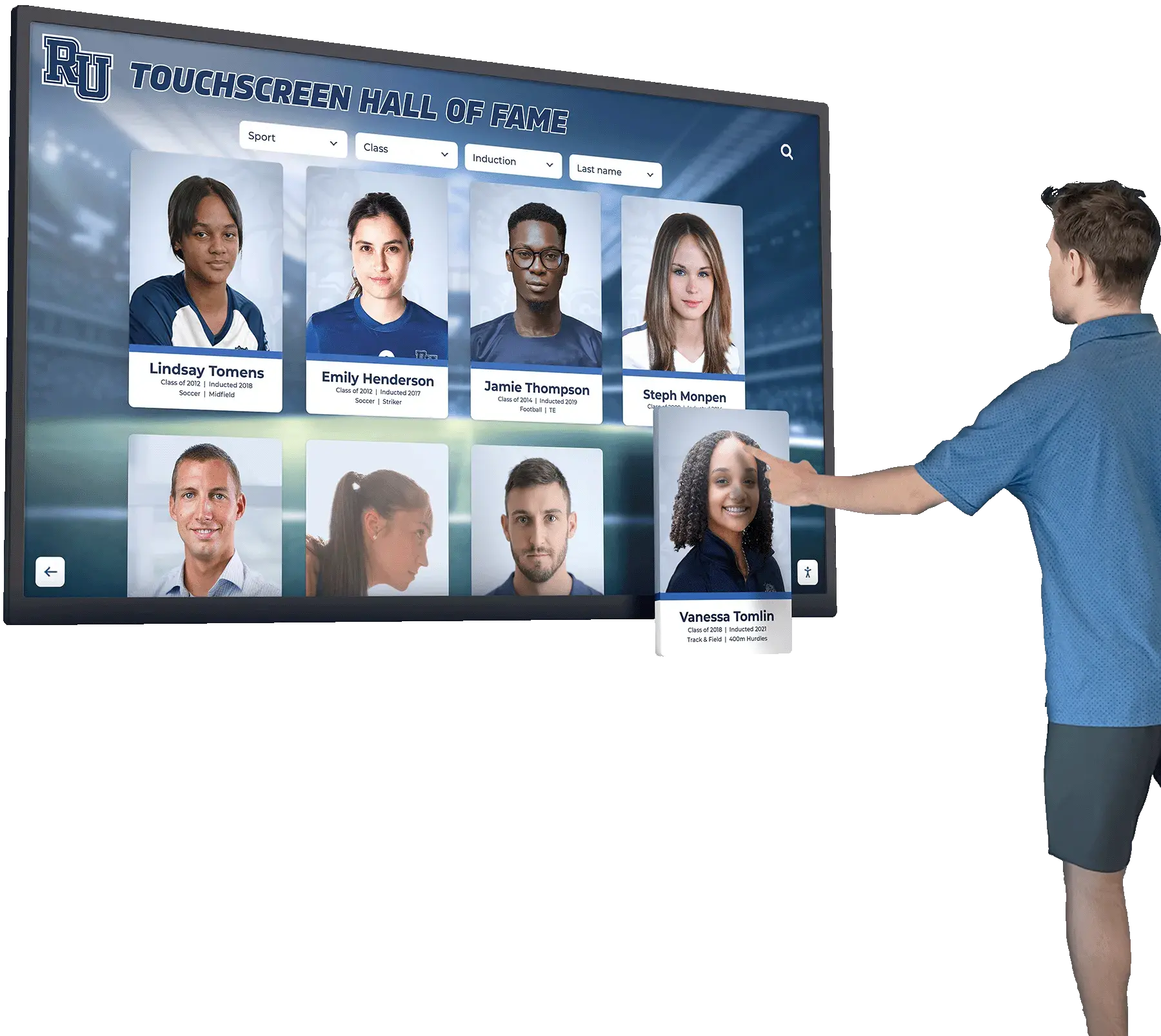
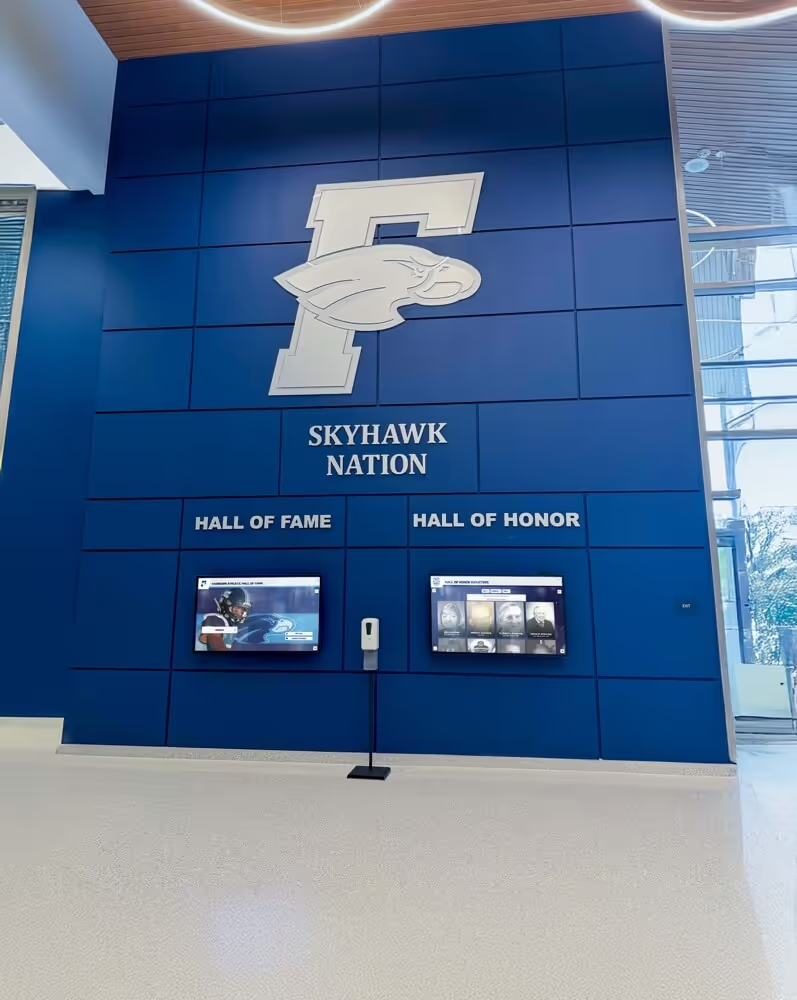
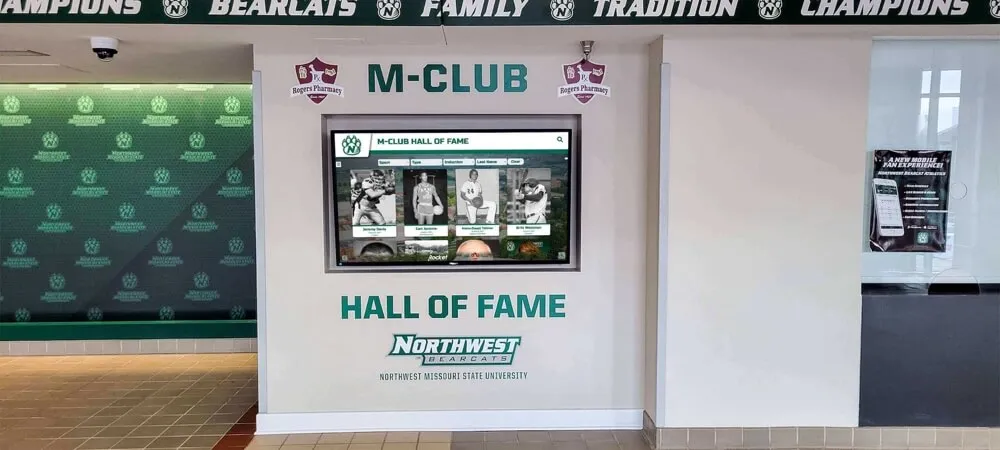
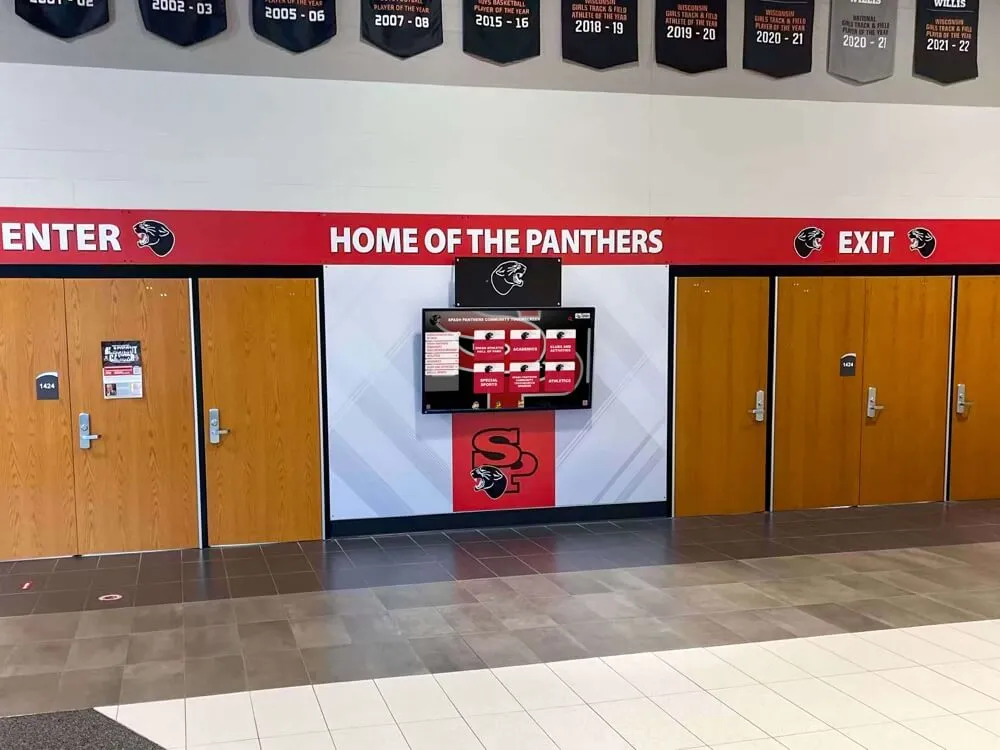
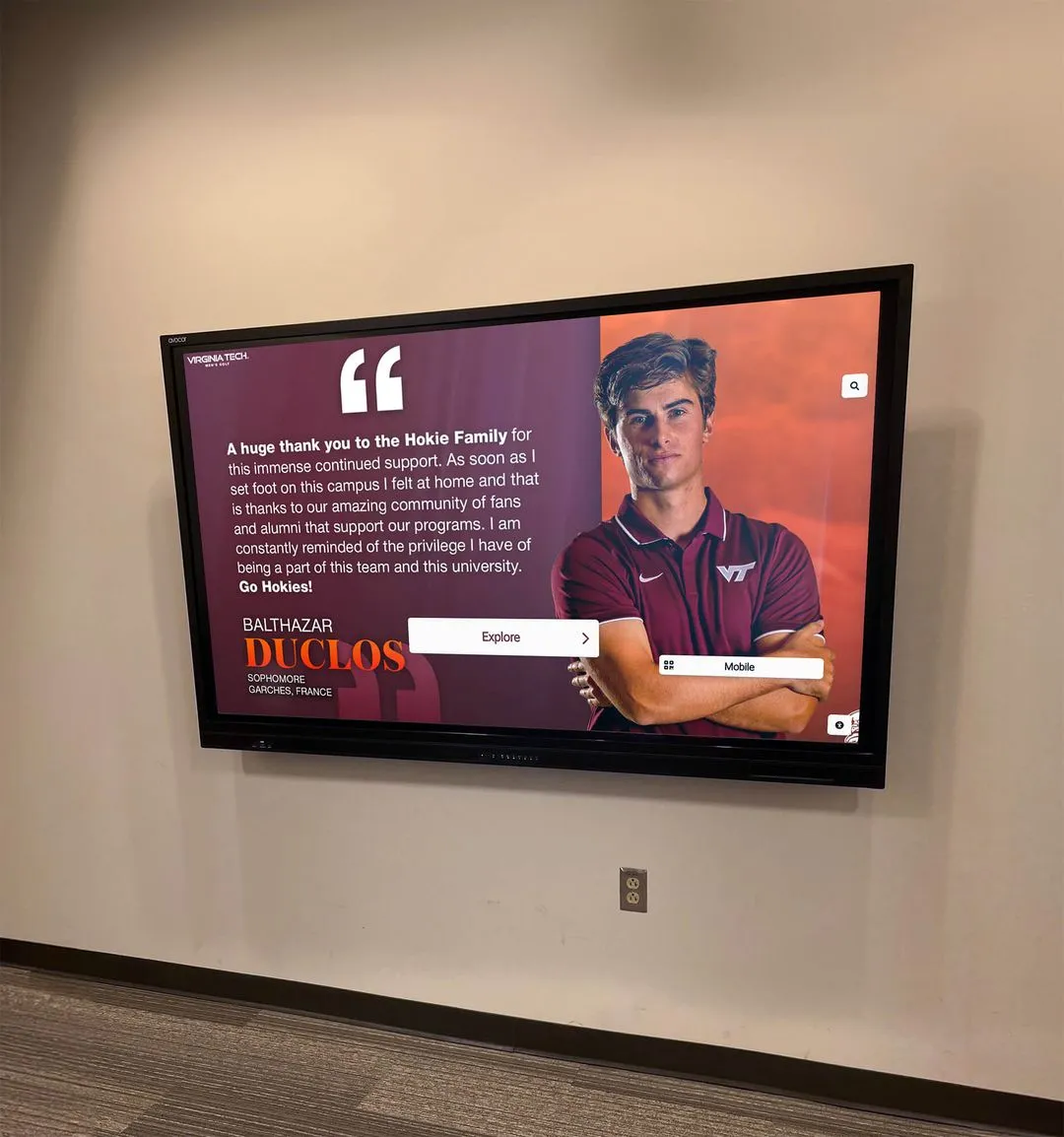
When a visitor approaches a recognition kiosk, staff have seconds to identify whether a blank video frame reflects a configuration gap, a source error, or network loading in progress—the networkState value paired with currentSrc and readyState makes that distinction possible
Reading the Four States from the Browser Console
Run this snapshot in the kiosk browser’s DevTools console while the recognition video is expected to be playing or loading. Replace 'video' with a more specific selector if the platform renders multiple <video> elements.
// Illustrative diagnostic snapshot — fictional test asset reference
const vid = document.querySelector('video');
console.table({
  networkState: vid.networkState,           // 0=EMPTY, 1=IDLE, 2=LOADING, 3=NO_SOURCE
  currentSrc: vid.currentSrc || '(none)',   // URL selected by browser; empty if none
  readyState: vid.readyState,               // 0–4: HAVE_NOTHING through HAVE_ENOUGH_DATA
  errorCode: vid.error ? vid.error.code : null,
  errorMessage: vid.error ? vid.error.message : null,
  paused: vid.paused,
  duration: vid.duration                    // NaN if metadata not yet loaded
});
The output of this snippet—captured alongside a timestamp—is the primary diagnostic artifact. It answers “what was the element doing at this exact moment?” in a way that a screenshot of the display cannot. Staff running this check before an event have a baseline; staff running it when a problem is reported can compare the current snapshot to that baseline.
For a recognition platform that renders multiple athlete-video elements simultaneously, capture the snapshot for each <video> element, not just the first:
// Illustrative multi-element loop — example only
document.querySelectorAll('video').forEach((v, i) => {
  console.log(`video[${i}]`, {
    networkState: v.networkState,
    currentSrc: v.currentSrc || '(none)',
    readyState: v.readyState,
    error: v.error ? v.error.code : null
  });
});
These are illustrative examples. The actual selectors and DOM structure depend on the recognition platform’s output—inspect the Elements panel before running the loop to confirm which elements correspond to recognition video content.
networkState Decision Table
Use this table to map the observed networkState value—combined with currentSrc and media.error—to the correct diagnostic next step. The table covers the most common combinations on school recognition kiosks during pre-event checks.
| networkState | currentSrc | media.error | readyState | What it means | First action |
|---|---|---|---|---|---|
| 0 — EMPTY | (empty) | null | 0 (HAVE_NOTHING) | Element exists but has never been given a source | Confirm the platform set a src attribute or <source> element; check page load order |
| 1 — IDLE | URL present | null | 2–4 | Normal paused or fully buffered state; no network activity needed | No action required; NETWORK_IDLE is not an error |
| 1 — IDLE | URL present | null | 0–1 | Source selected but very little data buffered; element may be waiting for play | Trigger load or check preload attribute value; confirm the URL is reachable |
| 2 — LOADING | URL present | null | 1–2 | Actively downloading; early in the buffer fill | Wait and observe readyState advance; flag if it does not advance within 15–30 seconds |
| 2 — LOADING | URL present | null | 3–4 | Downloading additional data while playback is ready or ongoing | Expected during continuous playback; no immediate action |
| 2 — LOADING | URL present | null | 0 (stalled at HAVE_NOTHING) | Download started but no data arriving; possible proxy block or server error | Check the URL’s HTTP response code from the display’s VLAN; inspect for proxy interception |
| 3 — NO_SOURCE | (empty or URL) | non-null | 0 | Source URL tried and failed; browser received an error response | Inspect media.error.code and media.error.message; load the currentSrc URL directly in the kiosk browser to observe the server’s response |
| 3 — NO_SOURCE | (empty) | null | 0 | No source was ever assigned | Return to the platform CMS and confirm the video asset is published and the URL is saved |
| 3 — NO_SOURCE | URL present | non-null | 0 | MIME type mismatch, 404, or codec rejection | Confirm the file exists at the URL; confirm the server returns the correct Content-Type header; test from an external device to rule out a VLAN-specific block |
A note on NETWORK_NO_SOURCE: Observing state 3 confirms the browser could not select a working source. It does not confirm that the school network is offline. The school network may be fully operational while the media server returns a 404 for a renamed file, or while a proxy in the display’s VLAN blocks the CDN hostname. Verify currentSrc and the HTTP response at that URL before concluding the network is at fault.
A note on NETWORK_IDLE: State 1 after the element has finished downloading and buffered the video is the expected resting state. Reporting NETWORK_IDLE as an anomaly when the video is paused between visitor interactions is incorrect; idle is the correct state for a paused, fully-buffered element.
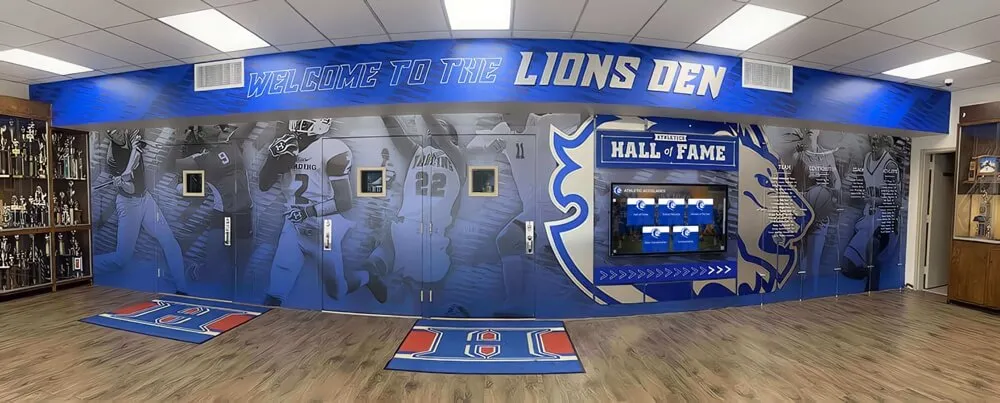
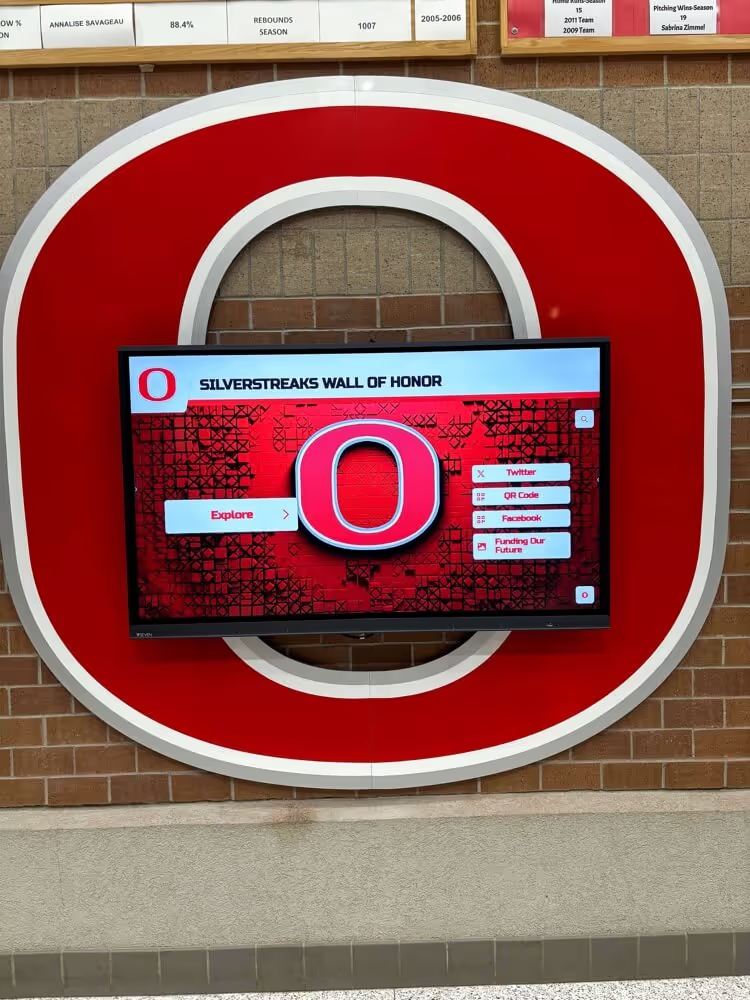
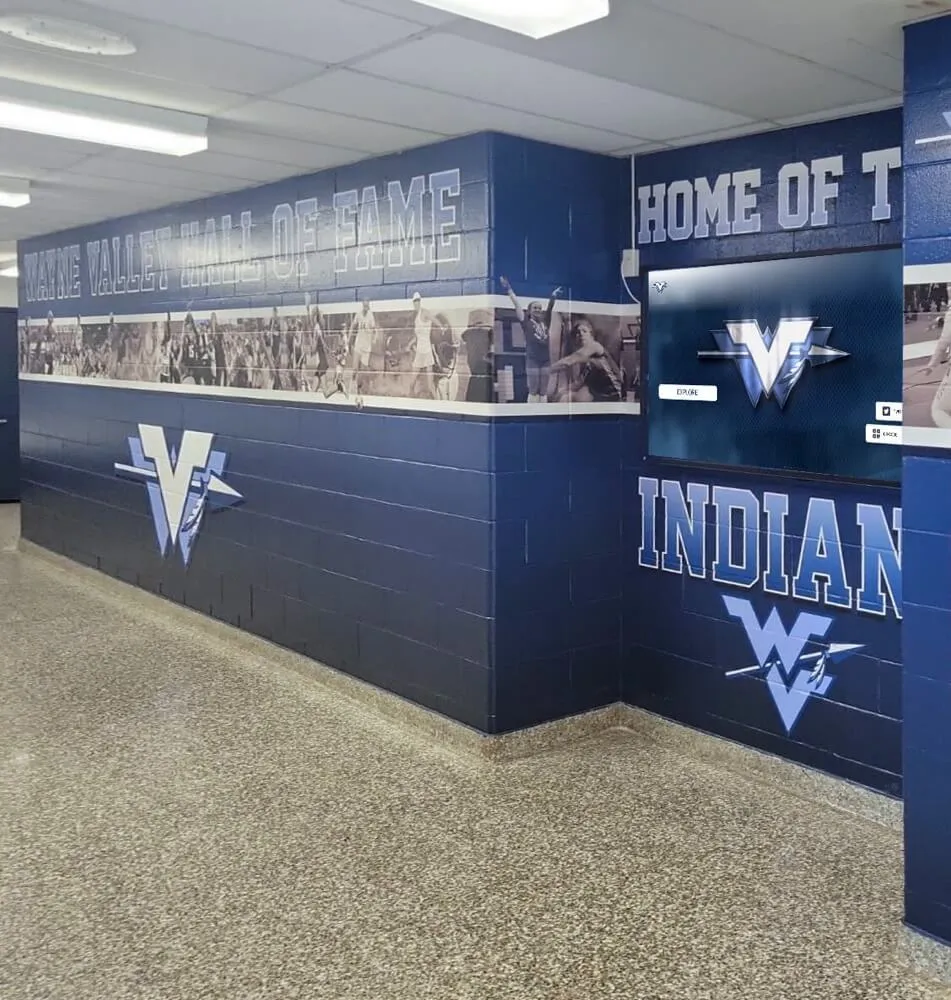
A visitor interacting with a recognition kiosk—when the screen shows a black frame instead of an inductee's highlight video, the networkState snapshot identifies whether the element lacks a source, is actively loading, or has encountered a source error
Step-by-Step Diagnostic Workflow
Run this procedure in order. Each step narrows the cause before moving to the next. Stop when you identify the cause; do not continue through steps that no longer apply.
Step 1 — Capture the baseline snapshot
Before the event, load the recognition page on the kiosk and immediately run the console snapshot above. Record the output alongside the time and date. A kiosk behaving correctly at this moment should show:
networkState: 1 (IDLE) or 2 (LOADING) while video is bufferingcurrentSrc: a non-empty URLreadyState: 2 or higher (HAVE_CURRENT_DATA or better)error: null
If the baseline snapshot shows 3 (NO_SOURCE) or 0 (EMPTY), investigate the source configuration before the event—not at the moment a visitor is waiting.
Step 2 — Check currentSrc directly
Paste the value of currentSrc into the kiosk browser’s address bar and navigate to it. One of three outcomes follows:
- The file plays or downloads normally. The source is reachable; the problem may be in how the
<video>element loaded the page or when thesrcattribute was set relative to DOM readiness. - The browser returns a 404 or similar error. The file does not exist at that path. The file was likely renamed, moved, or not yet published in the platform’s CMS.
- The browser shows a certificate warning, proxy login, or access-denied page. The display’s VLAN does not have permission to reach the media host—a network-level block that
networkState3 alone could not distinguish from a missing file.
Step 3 — Inspect media.error when networkState is 3
If media.error is non-null, note the code value. The MediaError interface defines four numeric codes:
1(MEDIA_ERR_ABORTED) — the user or script aborted the load2(MEDIA_ERR_NETWORK) — a network error interrupted a resource that was otherwise usable3(MEDIA_ERR_DECODE) — the file was received but could not be decoded4(MEDIA_ERR_SRC_NOT_SUPPORTED) — the source URL was not acceptable (format unsupported, or the server rejected the request)
A code: 4 error alongside NETWORK_NO_SOURCE typically points to a MIME type problem or a URL that returned a non-media response—not a school network failure. A code: 2 error alongside NETWORK_LOADING indicates the network interrupted a download that had started.
Step 4 — Compare readyState to networkState
networkState and readyState measure different things and must be read together. The MDN documentation for networkState notes that when networkState is NETWORK_EMPTY, readyState is HAVE_NOTHING. The relationships hold in the other direction as well: if readyState is HAVE_ENOUGH_DATA (4) and networkState is 1 (IDLE), the video has finished downloading and the browser is not making additional requests—this is normal. If readyState is HAVE_NOTHING (0) and networkState is 2 (LOADING), the browser is trying to download but has not yet received enough data to begin playback—this is where network throughput and media server responsiveness become relevant.
Step 5 — Check event timestamps
If the kiosk browser console is accessible before the event, add event listeners to the recognition video element immediately after the page loads:
// Illustrative event timestamp logger — example timestamps only
const vid = document.querySelector('video');
const ts = {};
['emptied', 'loadstart', 'loadedmetadata', 'canplay', 'canplaythrough', 'playing', 'stalled', 'error'].forEach(evt => {
  vid.addEventListener(evt, () => {
    ts[evt] = performance.now().toFixed(0) + 'ms';
    console.log(evt, ts);
  });
});
A video that fires loadstart but never fires loadedmetadata has not yet received enough data to know the video’s dimensions and duration. A video that fires canplay but then fires stalled is receiving data too slowly to sustain continuous playback. These event sequences, timestamped, give a time-ordered view of what networkState values accompanied each transition—information that the property snapshot alone cannot provide.
Step 6 — Document and report
Record the final snapshot—networkState, currentSrc, readyState, media.error, and event timestamps—in the school IT runbook or the event-day checklist. This record is the basis for any vendor escalation, since it distinguishes a source configuration problem from a network delivery problem with precision a verbal description cannot provide.
Proposed Shot List for a Diagnostic Storyboard
The following is a proposed shot list for a school IT diagnostic video that could be produced to document each networkState transition on a recognition kiosk. This is a storyboard outline only—no video using this shot list has been produced, and no durations, thumbnail images, or upload dates are associated with it.
| Shot # | Description | What to show on screen | networkState shown |
|---|---|---|---|
| 1 | Opening: IT staff at kiosk console with recognition page loaded | DevTools open; networkState value visible in console | 0 (EMPTY) — element present, no source yet set |
| 2 | Source URL assigned to the video element | Typing a fictional test asset path (/test-assets/recognition-highlight.mp4) into the CMS source field | Transition from 0 to 2 |
| 3 | LOADING state during buffer fill | Console showing networkState: 2, readyState: 1, currentSrc populated; network request visible in the Network tab | 2 (LOADING) |
| 4 | IDLE state after buffering completes | networkState: 1, readyState: 4, video paused between visitor interactions | 1 (IDLE) |
| 5 | NO_SOURCE: 404 from the media server | networkState: 3, media.error.code: 4, currentSrc pointing to a renamed test file path that returns 404 | 3 (NO_SOURCE) |
| 6 | NO_SOURCE: MIME type mismatch | Same networkState: 3, but the server returns text/html instead of video/mp4 for the test asset URL | 3 (NO_SOURCE) |
| 7 | Resolution: correcting the source URL | Updating the CMS to the correct test asset path; networkState transitions from 3 back to 2, then to 1 | Transition 3 → 2 → 1 |
| 8 | Closing: event-day checklist item marked complete | Pre-event checklist with the networkState baseline row checked | — |
Shots 5 and 6 show NETWORK_NO_SOURCE produced by two different causes—an HTTP 404 and a MIME type mismatch—to demonstrate that the state value alone does not identify which cause applies. The media.error.code and the browser’s network response to the currentSrc URL are the distinguishing data.
Pre-Event networkState Acceptance Checklist
Complete this checklist on the recognition kiosk hardware, in its installed environment, before each hall-of-fame event or athletic awards presentation.
Before the event (48–72 hours prior)
- Open the recognition platform’s page on the kiosk browser
- Run the console snapshot for all
<video>elements; recordnetworkState,currentSrc,readyState, andmedia.errorfor each - Confirm every video element shows
networkState1 (IDLE) or 2 (LOADING); flag any showing 0 (EMPTY) or 3 (NO_SOURCE) for immediate source-configuration review - Paste each
currentSrcvalue into the kiosk browser address bar and confirm the file loads without error - Confirm
media.erroris null for all video elements
Day-of-event check (1–2 hours before doors open)
- Re-run the console snapshot; confirm no elements moved to
NETWORK_NO_SOURCEsince the 48-hour check - Confirm
readyStateis at least 2 (HAVE_CURRENT_DATA) for each element; flag any element still at 0 (HAVE_NOTHING) after the platform has had time to load - Confirm
networkState1 (IDLE) elements are in that state because buffering completed, not because the source was never loaded—cross-checkcurrentSrcandreadyStatetogether
During the event
- If a visitor or staff member reports a blank video frame, run the console snapshot immediately to capture the state at the moment of the report
- Record the snapshot and compare to the pre-event baseline before taking any hardware or network action
- If
networkStateis 3 (NO_SOURCE), checkcurrentSrcandmedia.error.codebefore concluding the network is at fault
What Visitors See: Mapping State to Display Outcome
The networkState property reflects the browser’s internal state—visitors on the lobby side of the kiosk see only the video frame. The table below maps each state to the visual outcome visitors are likely to observe, to help staff communicate accurately without requiring them to read the console directly.
| networkState | What a visitor typically sees | Accurate staff communication |
|---|---|---|
| 0 — EMPTY | Blank or black video frame; no loading indicator | “The video configuration needs to be checked—the element has no source” |
| 1 — IDLE (fully buffered) | Poster image or first video frame, depending on the poster attribute | Normal; no visitor-facing problem |
| 1 — IDLE (minimal data buffered) | Poster image visible; video may not start immediately on tap | “The video is ready but may take a moment to begin” |
| 2 — LOADING | Spinner or loading indicator if the platform provides one; poster image otherwise | “The video is loading—it should be ready shortly” |
| 3 — NO_SOURCE | Blank or black frame; possible browser-default broken-media indicator | “We are checking the video source—the school network is not the cause” |
The last row reflects the most common misattribution on event day: when visitors see a blank frame and staff say “the network is down,” the networkState check provides the data to correct that framing. NETWORK_NO_SOURCE can appear on a kiosk with full internet connectivity, because the problem is a missing or unreachable source file, not the network path to the internet.

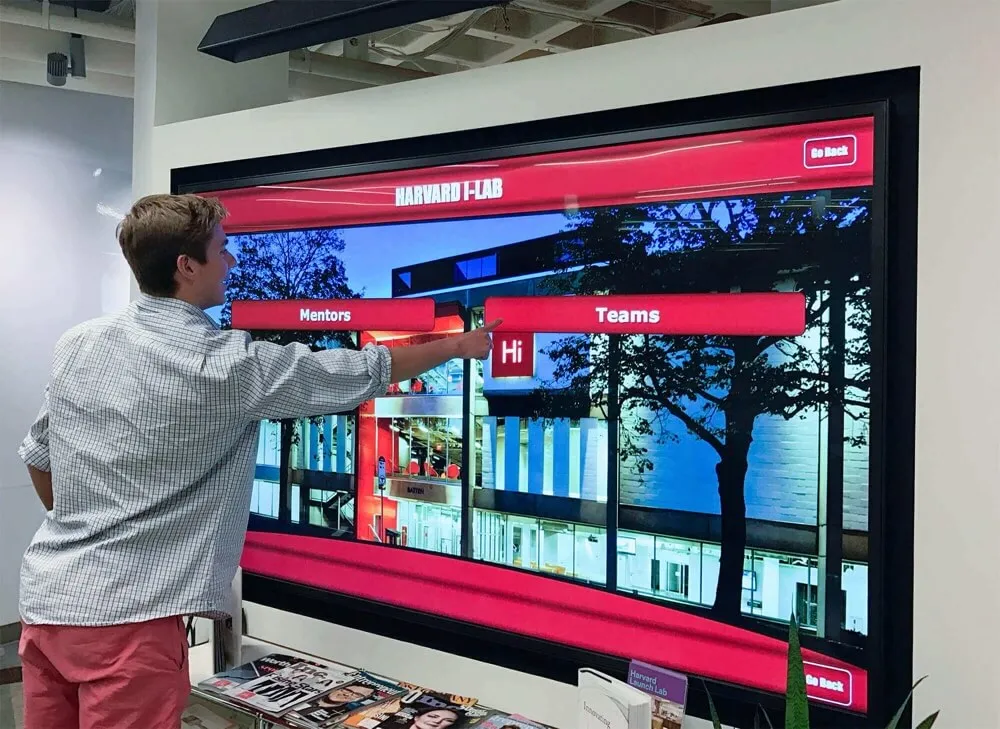
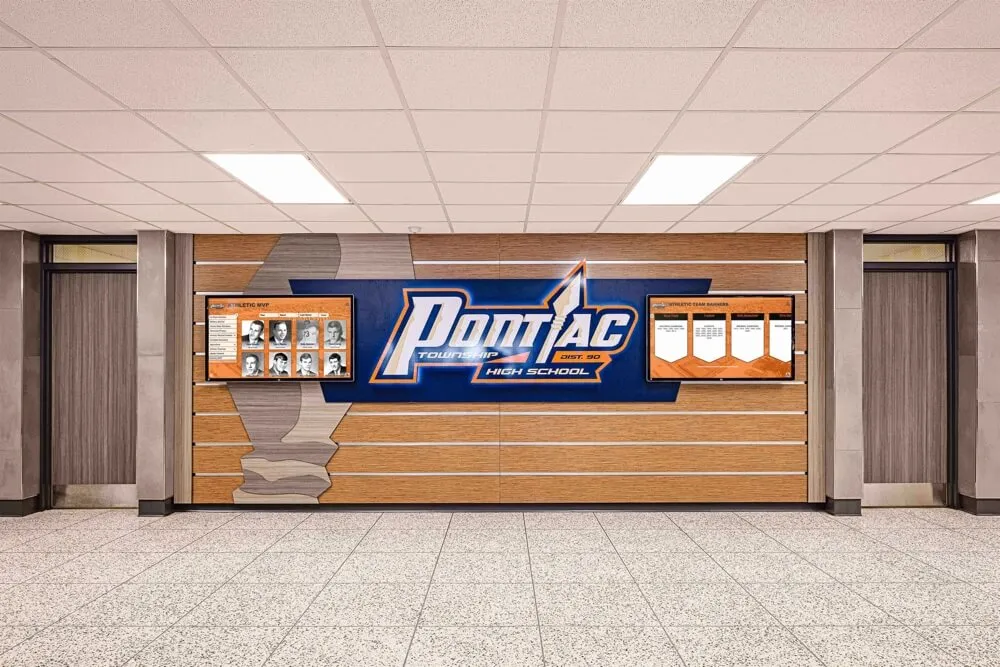
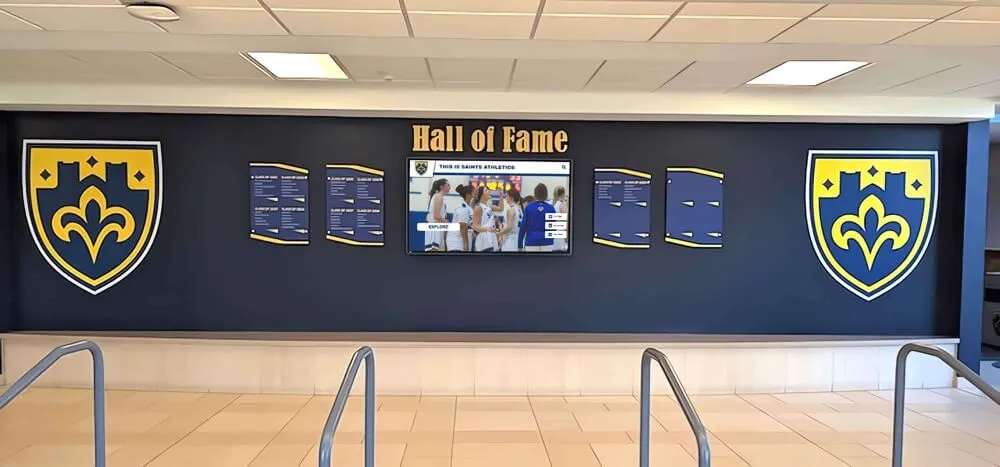
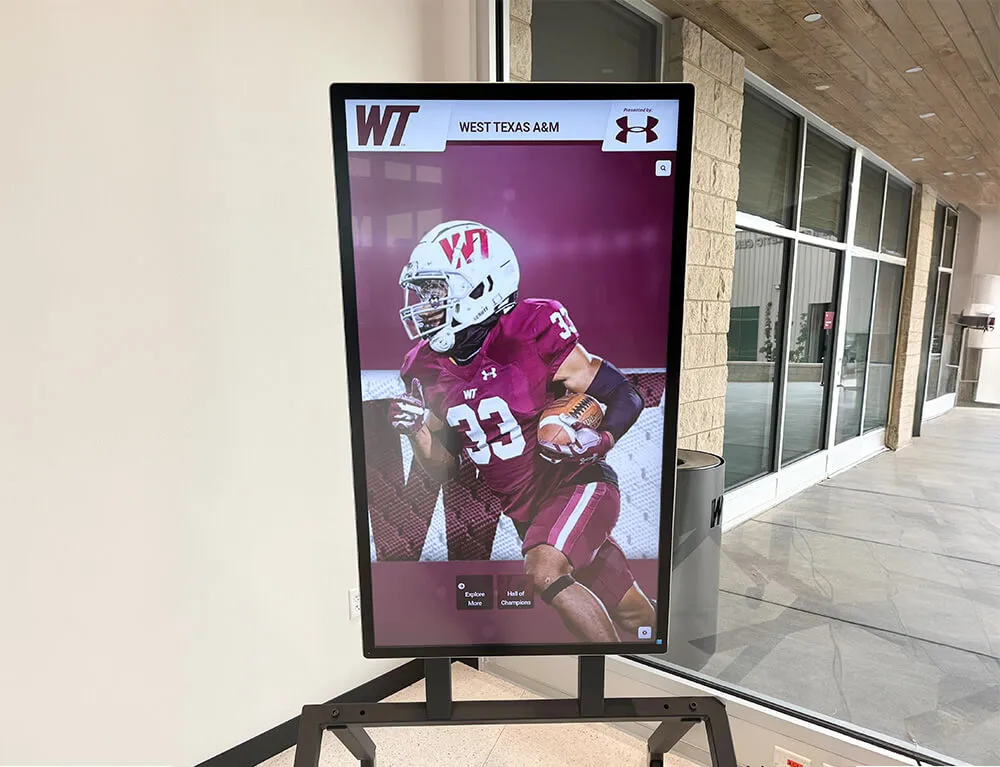
School recognition kiosk displays show inductee highlight videos during events—a networkState check before the event confirms each video element is in IDLE or LOADING state rather than stuck at NO_SOURCE or EMPTY
Connecting networkState Checks to the Broader Pre-Event Workflow
A networkState check confirms source availability and loading state but does not evaluate codec compatibility, display latency, or wake lock status—each of which is a separate diagnostic step.
Before running a networkState check, confirming that the kiosk browser can decode the video format the recognition platform uses is a prerequisite. The School Lobby Recognition Video: MediaCapabilities Decoding Checks Before Touchscreen Acceptance guide covers the MediaCapabilities.decodingInfo() test, which verifies that the kiosk hardware supports the specific codec and bitrate before a source URL is loaded. A video element can reach NETWORK_IDLE with a valid source but still fail to play if the browser cannot decode the format—a situation that networkState alone will not surface.
After confirming the video source is available and loading, the display’s screen wake lock state is an independent check. If the display is set to dim or sleep between visitor interactions, a video that successfully reaches NETWORK_IDLE can still disappear from view before a visitor finishes watching. The School Athletic Recognition Displays: Screen Wake Lock Release and Reacquisition Tests describes how to verify that the wake lock is held correctly and reacquired after an interruption, complementing the source-availability check that networkState provides.
For the visitor-facing experience when a video is in NETWORK_LOADING state longer than expected on a shared school network—latency perception becomes a factor in whether a visitor waits or walks away. The Touchscreen Latency: A Practical UX Checklist for Interactive Displays provides a structured approach to evaluating the perceived responsiveness of recognition display interactions, which matters most during the transition from loading to the first visible playback frame.
Athletic directors building or expanding a hall of fame program alongside its video assets should also ensure that the media being displayed has proper documentation. The Athletic Hall of Fame Accession Form: Document Every Artifact Before Display provides a structured template for confirming that each recognition asset—including video footage—has been formally documented before it goes on display. For video sourced from historical collections or third-party archives, the Athletic Memorabilia Provenance Form: Document Ownership, History, and Display Rights covers the documentation of ownership and display rights, which determines whether a given video file may be legally served from the platform’s media host.
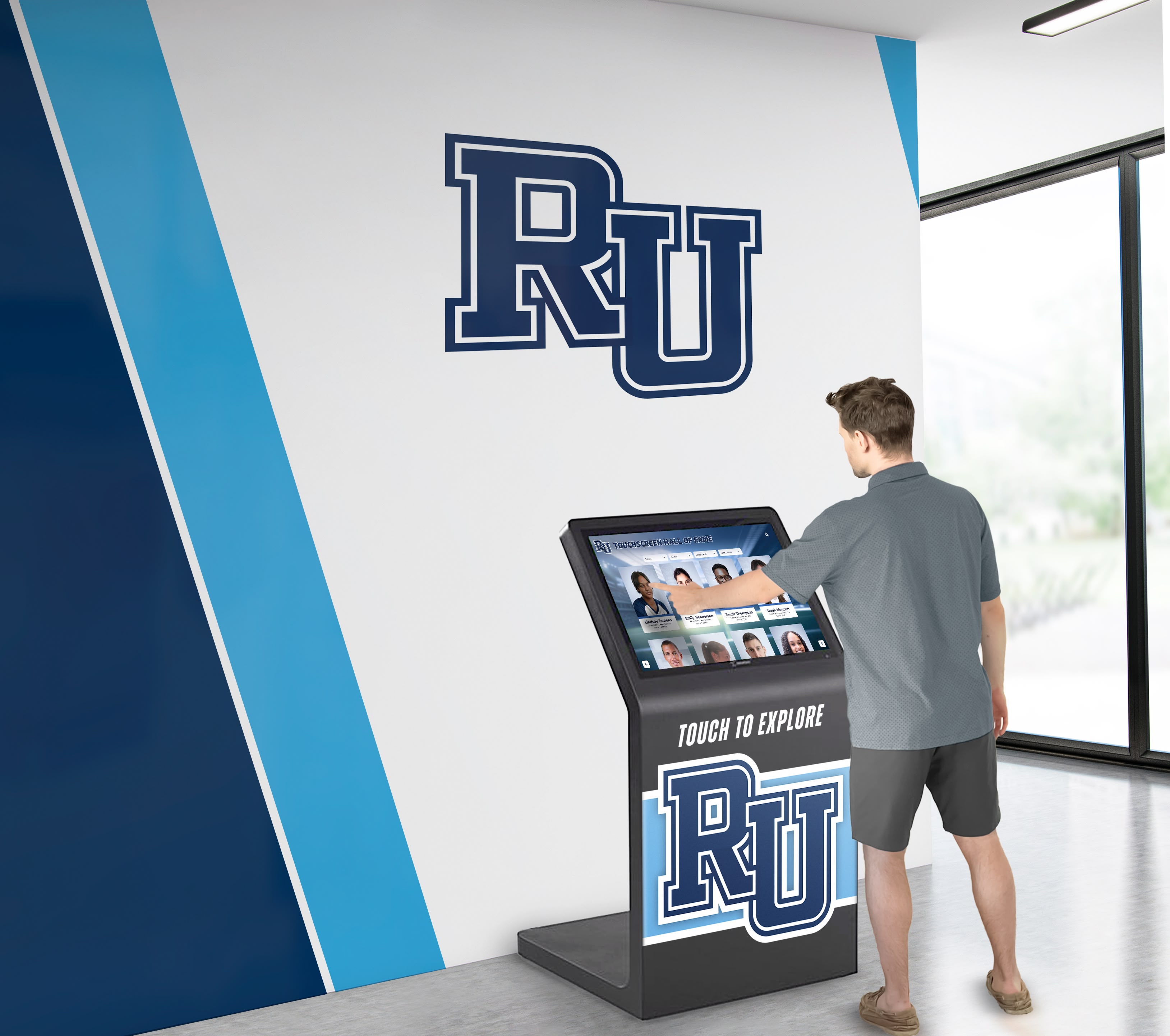
Visitors to school athletic recognition kiosks expect highlight videos to begin playing when they approach or tap a profile—a networkState check before the event is the structured confirmation that each video element has a valid source and is either loaded or actively loading
FAQs
What is the difference between NETWORK_IDLE and NETWORK_EMPTY?
NETWORK_IDLE (1) means the element has a valid, selected source and is not currently making network requests—typically because the video is paused and its data is already buffered. NETWORK_EMPTY (0) means the element has no source at all and has never begun any network activity. An element at NETWORK_IDLE has succeeded in finding a source; an element at NETWORK_EMPTY has not been given one. The two states call for completely different responses: NETWORK_IDLE requires no action; NETWORK_EMPTY requires a source-configuration review.
Does NETWORK_NO_SOURCE confirm the school network is offline?
No. NETWORK_NO_SOURCE (3) indicates the browser could not find a usable media source. The most common causes on school recognition kiosks are a source URL pointing to a file that was renamed, moved, or not yet published in the platform’s CMS; a server returning the wrong MIME type for the media file; or a network proxy blocking the media host. The school network’s internet connectivity may be fully operational while any of those source problems produce state 3. Checking currentSrc and the HTTP response at that URL—not rebooting network equipment—is the correct first step.
Can NETWORK_LOADING alone confirm that the video is stalling due to network congestion?
No. NETWORK_LOADING (2) confirms the browser is issuing network requests for media data. It does not confirm the rate at which data is arriving, whether the requests are being fulfilled, or whether the decoder is keeping up with incoming bytes. A video at NETWORK_LOADING with readyState advancing toward HAVE_ENOUGH_DATA is loading normally. A video at NETWORK_LOADING with readyState stuck at HAVE_METADATA or HAVE_CURRENT_DATA for an extended period is receiving data too slowly—but confirming the cause still requires checking network throughput and the media server’s response separately.
How often should staff run the networkState check?
At a minimum, run the check 48 to 72 hours before each major recognition event and again one to two hours before doors open. Any platform update, CDN change, or content migration can silently break source URLs without disrupting the rest of the recognition platform. A fresh networkState snapshot before an event is the fastest confirmation that every video element still has a valid, reachable source.
What should the readyState value be when networkState is 1 (IDLE)?
It depends on what the element has done since the page loaded. A readyState of 4 (HAVE_ENOUGH_DATA) alongside NETWORK_IDLE means the video is fully buffered and ready to play without any additional network requests. A readyState of 1 (HAVE_METADATA) alongside NETWORK_IDLE means the element knows the video’s dimensions and duration but has not buffered playable frames; it will need to start downloading again when play is requested. The combination of both values together is what determines whether the element is ready for event-day playback.
Does media.error always have a value when networkState is 3?
Not necessarily. media.error can be null when networkState is NETWORK_NO_SOURCE if no source was ever provided—the browser never attempted to load anything and encountered no error. If currentSrc is also empty in that case, the element simply has no source configured. media.error carries a non-null value when the browser attempted to load a source and received a response that made it conclude no usable source was available—a 404, a MIME type the browser cannot use, or a network interruption during the initial load attempt.
See Athletic Recognition Video Running Reliably on a School Display
If your school is evaluating a purpose-built athletic recognition platform and wants to understand how video content is served, managed, and verified across hall-of-fame kiosks, lobby displays, and corridor screens, a live walkthrough covers the complete delivery path—from source configuration and network requirements to the display experience visitors see on event day. Rocket Alumni Solutions designs touchscreen recognition systems for school athletic programs of every size.