



Walk into almost any school athletic hallway and you’ll find the same scene: a trophy case that ran out of shelf space a decade ago, framed team photos with faded colors, and a class of inductees honored on a plaque that took three months to order. The physical record of your school’s athletic legacy exists—somewhere between a storage closet and that one corner nobody visits—but it rarely looks like the achievement it actually represents.
A walkthrough video changes that conversation immediately. When a committee member, booster, or donor can see a touchscreen hall of fame in motion—an athlete’s profile opening on tap, a championship timeline scrolling through four decades, a coach’s biography appearing alongside the records he broke—the case for modernizing writes itself. This guide gives you every scene, every shot angle, and every narration beat you need to produce that video, whether you’re filming your existing installation or scripting a demonstration to show stakeholders what the finished product will look like.
These athletic hall of fame walkthrough video ideas are organized as a production-ready screenplay. Grab a camera crew or a single operator with a gimbal, work through these scenes in order, and you’ll have a 12–15 minute video asset that answers every question a committee might have before they’ve finished asking it.
The schools that get hall of fame projects approved fastest are the ones that stop describing and start showing. A walkthrough video—even a rough one produced on a phone—gives decision-makers a concrete visual reference that no brochure or slide deck can match. The scene structure below is designed to build that case systematically, moving from the pain of the status quo through the full richness of what a modern interactive display delivers.

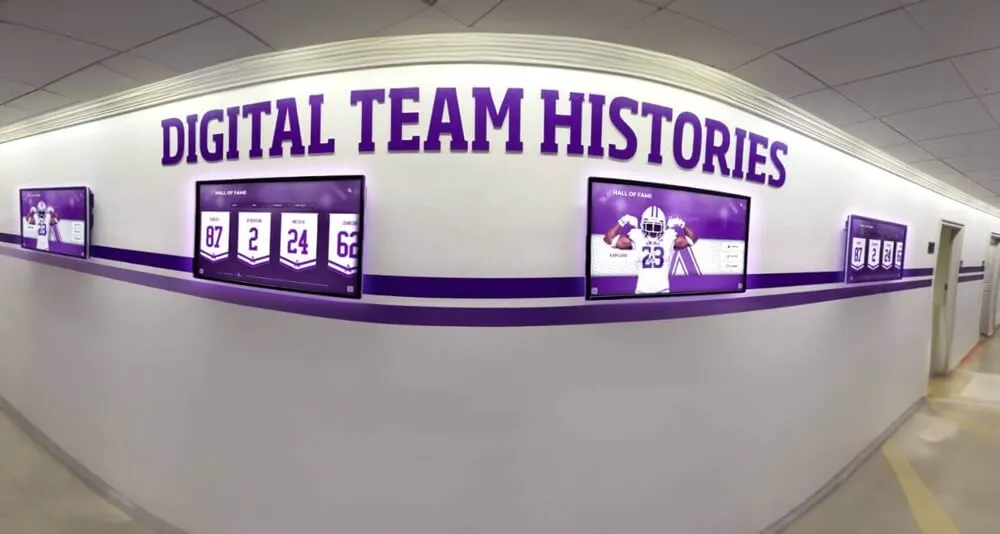
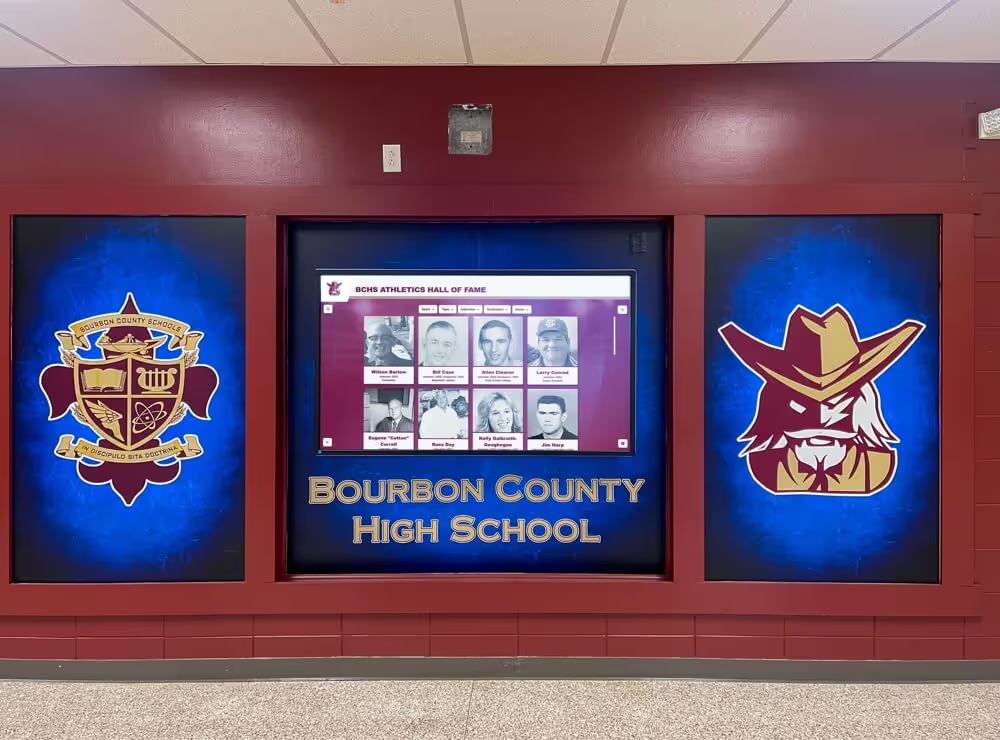
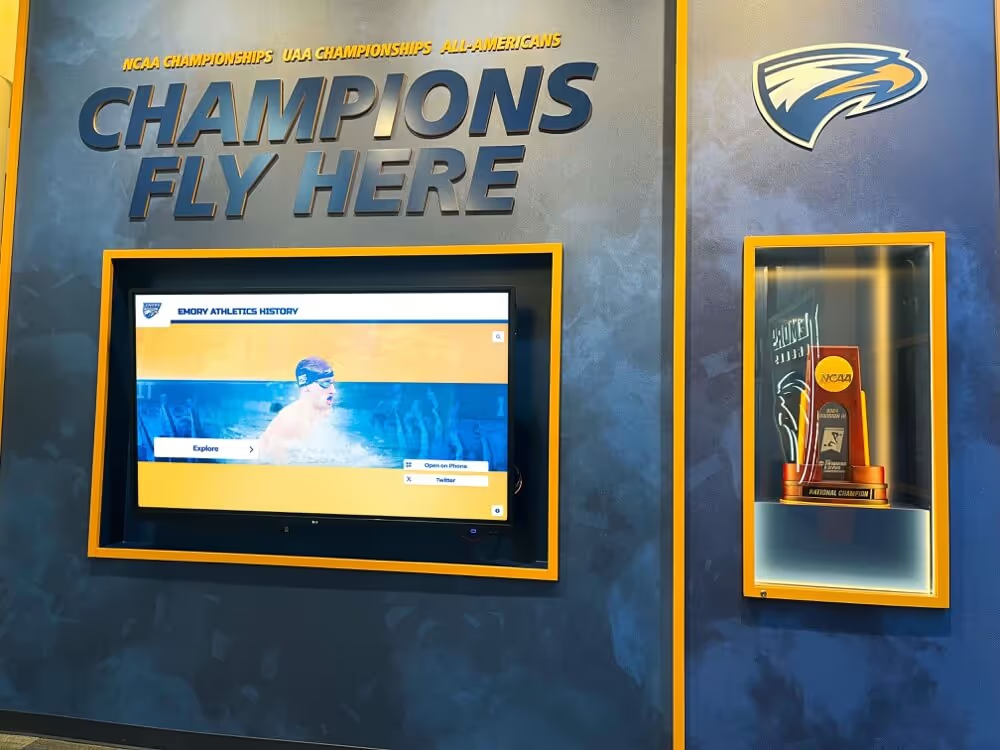
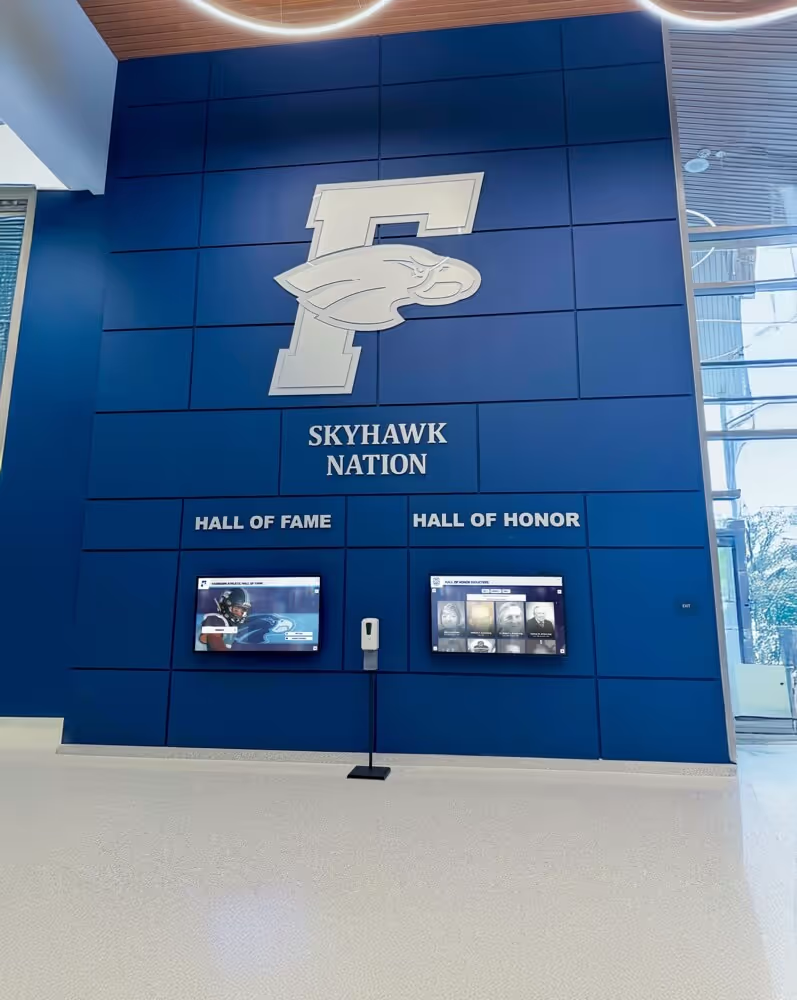
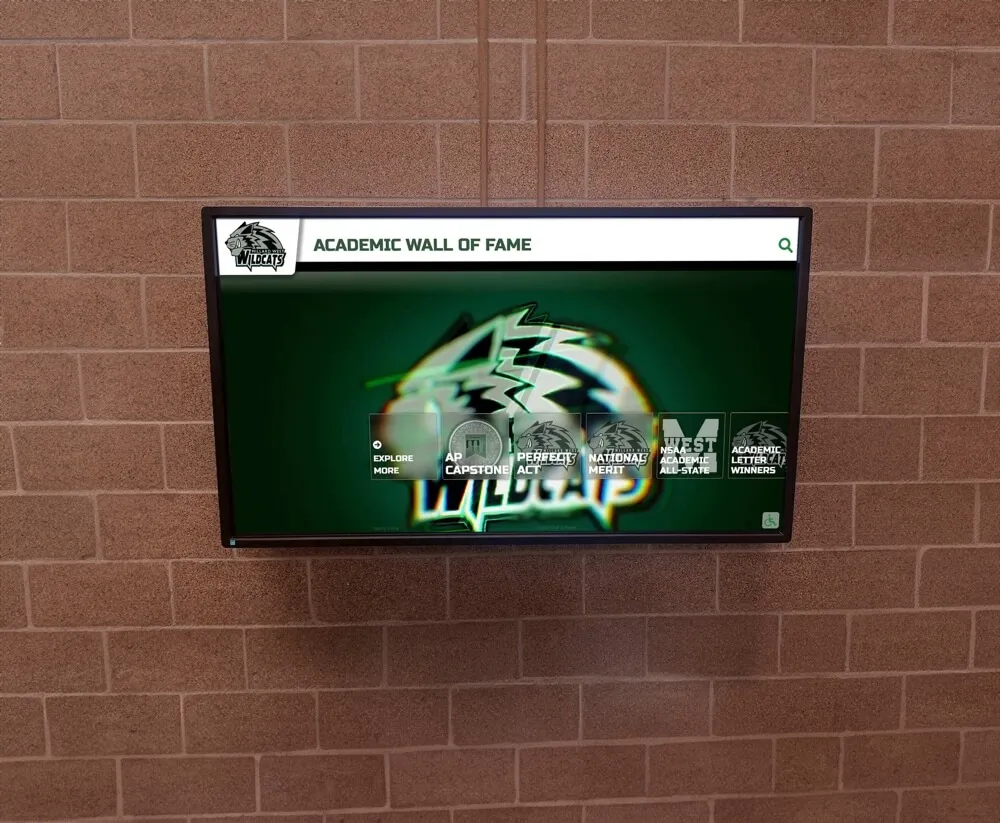
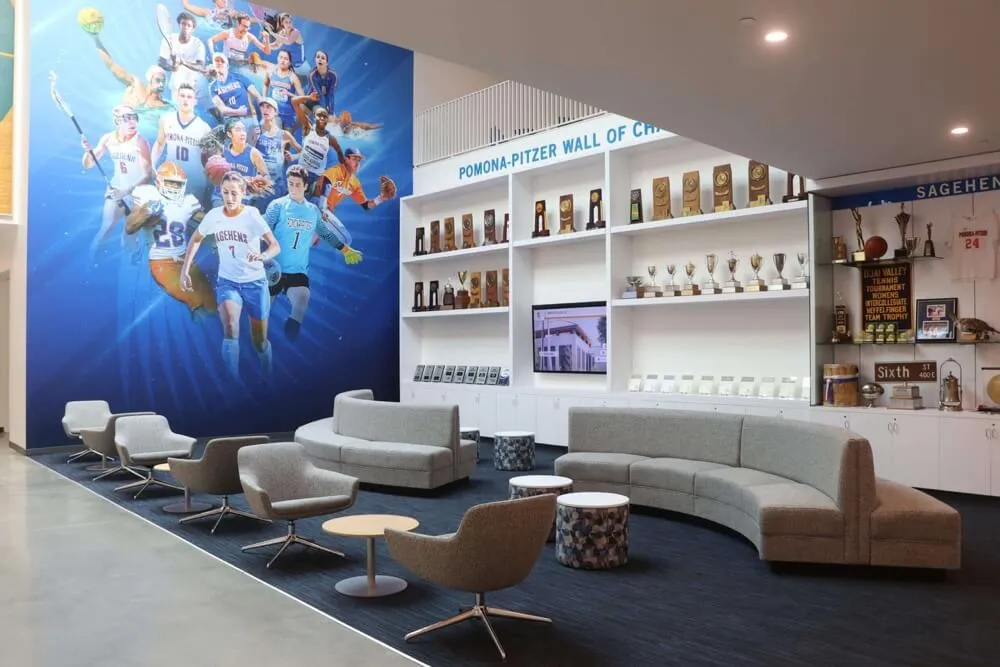
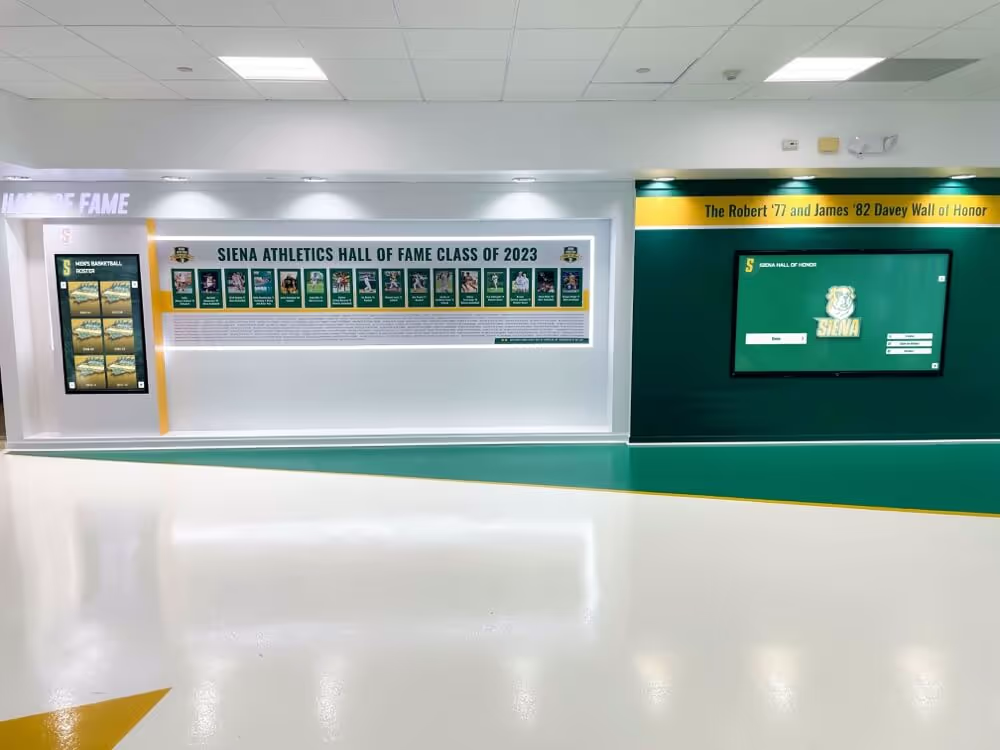
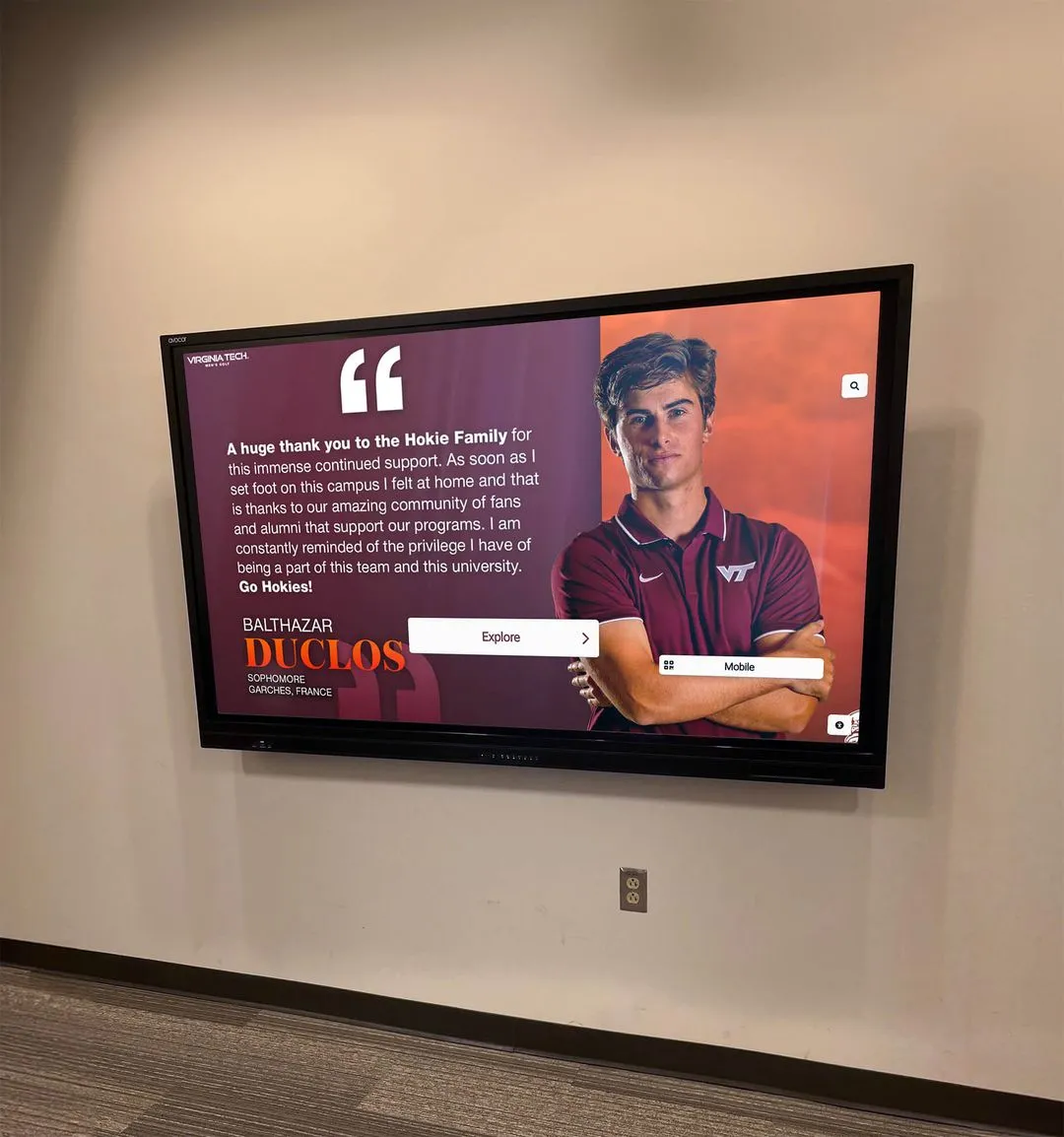
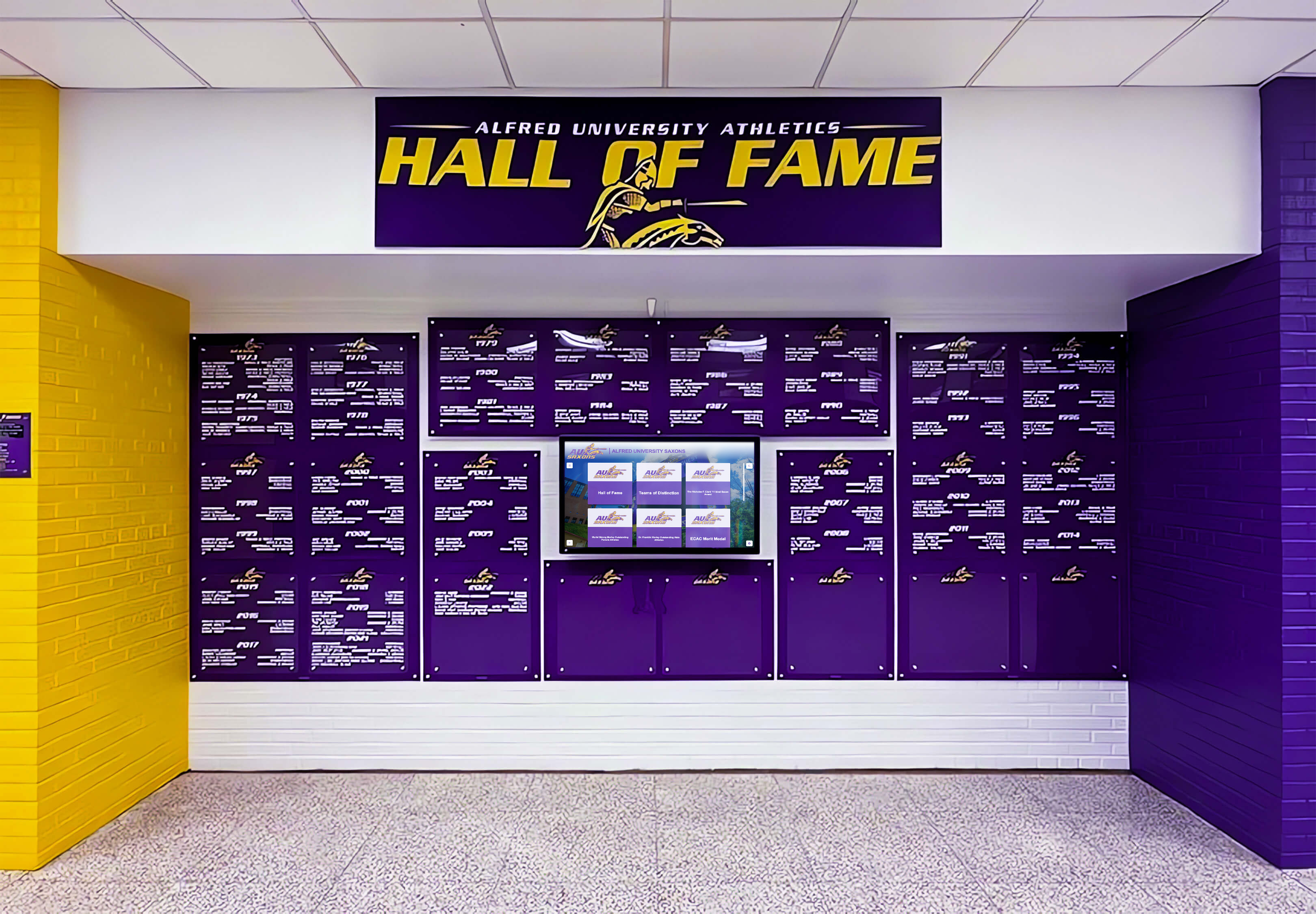
A well-produced walkthrough video shows decision-makers exactly how a school's colors, history, and championship legacy translate into an engaging physical display
Video Specifications and Production Overview
| Parameter | Detail |
|---|---|
| Video type | Athletic hall of fame walkthrough and demonstration |
| Total duration | 12–15 minutes |
| Aspect ratio | 16:9 (1920×1080 minimum; 4K preferred for screen detail) |
| Target platforms | Committee presentations, school website, YouTube, social media clips |
| Accessibility | Full closed captions; audio description at each scene change |
| Segments | 7 scenes + production notes + embedded VideoObject schema |
Tour Structure: Scene-by-Scene Breakdown
- The Status Quo: Existing HOF Limitations (0:00–1:30) — Establishing the visual and operational problems with traditional displays
- First Approach: The Wall as a Destination (1:30–3:00) — Exterior view, signage, and the attract-mode experience
- Athlete Profile Deep-Dive (3:00–6:00) — Tap-by-tap demonstration of inductee profiles, stats, and media
- Championship Timeline and Records (6:00–8:30) — Historical browsing, sport-by-sport records, searchable archive
- Coach and Staff Recognition (8:30–10:00) — Dedicated coach profiles, bio pages, and career highlights
- Remote Content Management (10:00–12:30) — Behind-the-scenes CMS demo: adding an inductee in real time
- The Close: Production Notes and Next Steps (12:30–15:00) — Equipment, lighting, ADA compliance, and the call to action
Scene 1: The Status Quo — What the Camera Reveals First (0:00–1:30)
What the Camera Shows
Wide establishing shot: A school athletic corridor during a passing period. Students and staff move past a bank of trophy cases on the left wall. Nobody stops. Nobody looks. The camera holds this shot for ten seconds—long enough for the absence of engagement to register with viewers.
Slow pan left: The trophy case. Trophies crowded together, newer ones pushed to the front, older ones turned sideways to fit. Championship banners above have visible color fading. A framed team photo from 1987 sits beside one from last fall—identical frames, zero context connecting them.
Close-up detail shots: A plaque with five inductee names, no photos, no statistics, no stories. A handwritten paper sign taped to the interior of a trophy case: “No room — overflow trophies in main office.” A gap in the display where a panel was removed but never replaced.
Narration Script
“Every school’s athletic history is worth celebrating. The question is whether your display actually does that—or whether it just stores the evidence.
What we’re looking at right now is the status quo for most institutions: trophy cases designed for a different era competing for attention they’ve stopped earning. Inductees reduced to names on a plaque. Championship seasons that deserve their own chapter compressed into a single line of text.
The rise of digital wall of fame displays is a direct response to exactly this problem—schools discovering that the physical constraints of traditional recognition were burying the very stories they were meant to celebrate.
What follows is a walkthrough of what the alternative looks like: an interactive hall of fame where every athlete gets a full profile, every championship gets context, and the display works as hard as your program does.”
ADA and Accessibility Notes
- Closed captions: Full narration transcript
- Audio description: “Wide shot of school hallway during passing period. Students walk past trophy cases on left wall without pausing. Camera pans slowly to show crowded trophies, faded banners, and a plaque listing five names without photographs.”
- This scene establishes emotional contrast—the narration should be calm and observational, not dismissive
Key Takeaways From Scene 1
- Creates emotional urgency without criticizing the school’s existing effort
- Establishes viewer empathy before the solution appears
- Best filmed during actual passing periods for authentic foot traffic
Scene 2: First Approach — The Wall as a Destination (1:30–3:00)
What the Camera Shows
Exterior establishing shot: Camera positioned thirty feet down the hallway, centered on the interactive display installation. The school’s mascot graphics appear in full color on the side panels. A 65-inch commercial touchscreen occupies the center. Subtle ambient animation plays on the attract loop—athletic imagery fading in and out, championship years floating across the bottom third, the school seal rotating gently in a corner.
Camera push-in (slow dolly or stabilized walk): Over eight seconds the camera moves from thirty feet to eight feet—close enough to read text on the attract loop but still capturing the full installation in frame.
Medium shot: A student or administrator approaches the display from camera right. They pause. They read a name from the attract loop. The camera catches their expression before they reach out to touch the screen.
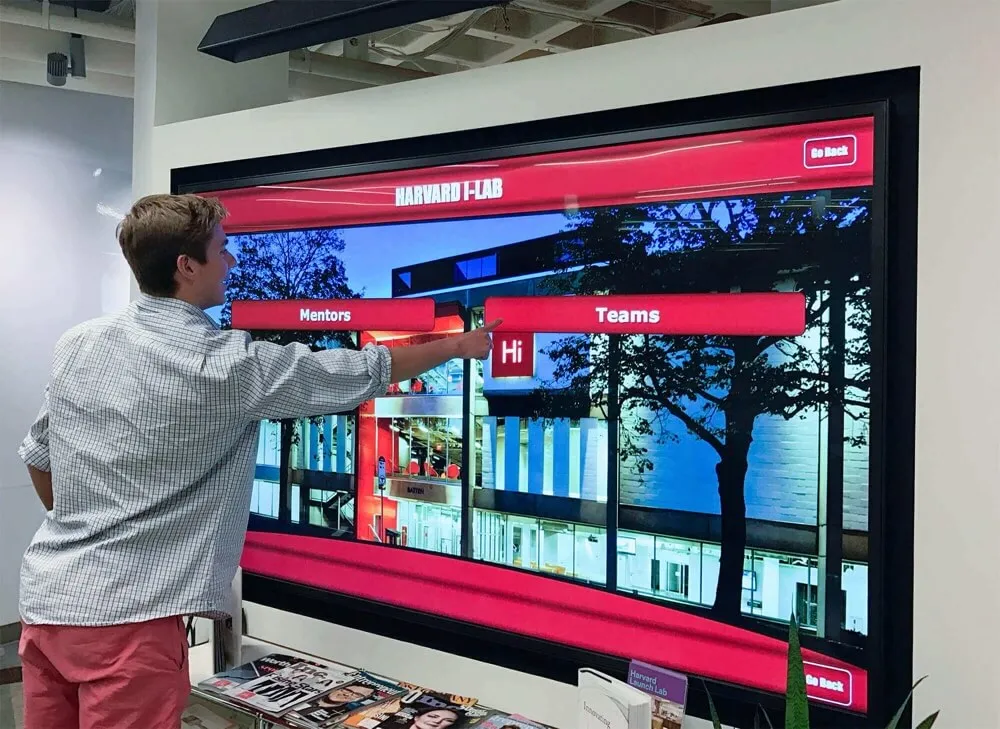
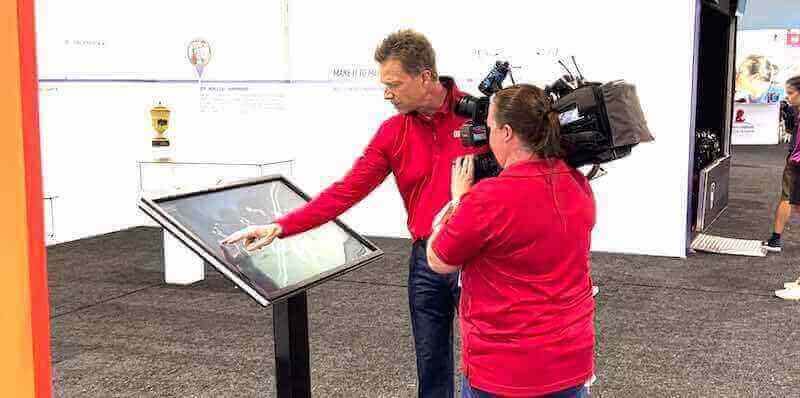
Over-the-shoulder shot: Camera positioned behind and slightly above the visitor’s right shoulder. We see both the person and the screen simultaneously. This angle is essential—it shows the scale of the interface relative to a human body and makes the interaction feel natural rather than performed.
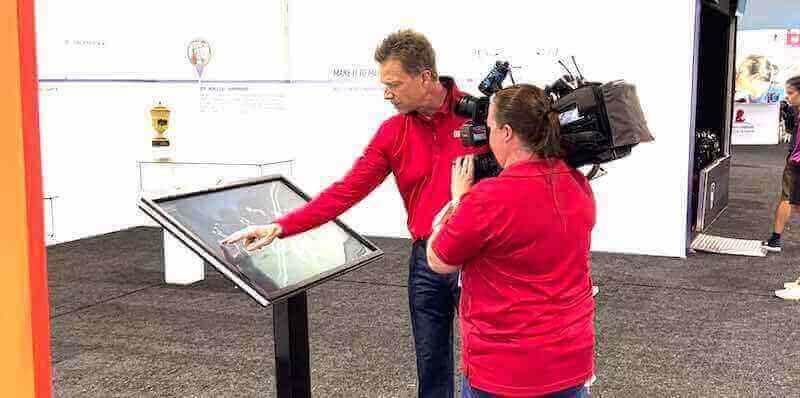
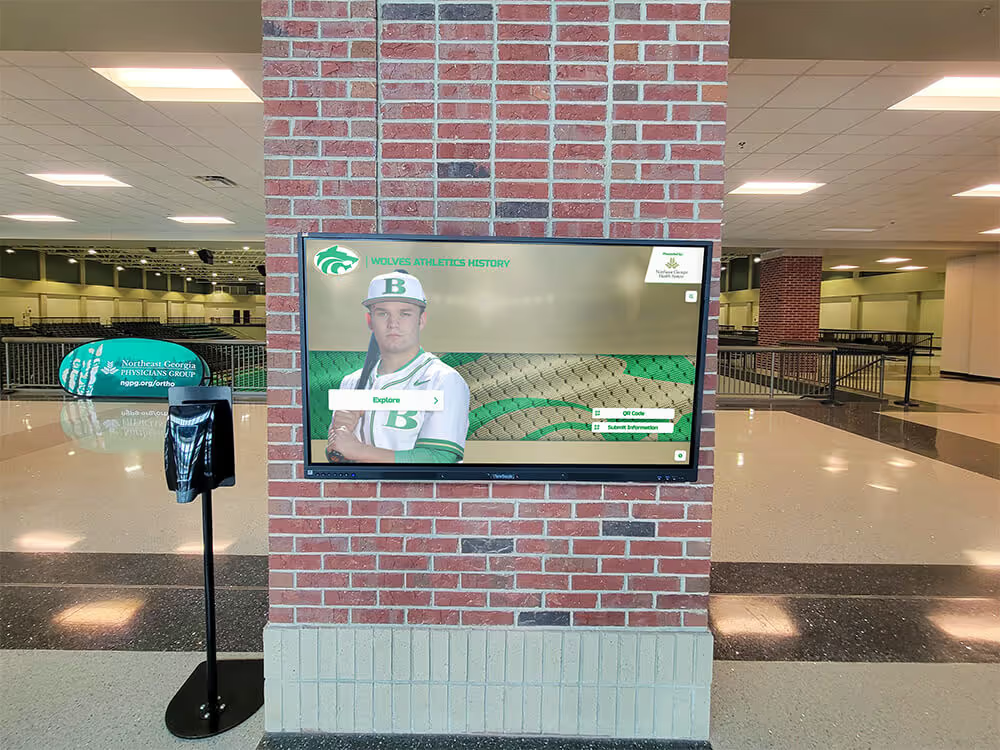
The over-the-shoulder angle is the workhorse shot of any HOF walkthrough—it shows both the interaction and the interface in a single frame
Narration Script
“The first thing a visitor notices is that this display is alive. The attract loop running here cycles through featured inductees every twenty seconds—portrait photos, sport, years inducted, one defining achievement. Recognition happens passively for everyone who walks past, even before anyone touches the screen.
Compare that to the plaque wall we just left. A visitor moving at normal walking pace registers maybe two or three names before passing out of reading range. This attract loop reaches every student who walks this corridor—every single day, automatically, with no staff involvement.
For athletic directors evaluating their hall of fame options, this passive recognition layer is often the deciding feature. The display doesn’t wait to be activated. It’s always on duty.”
For schools planning a new installation, understanding what an athletic director’s responsibilities include helps frame why ongoing recognition—not just induction ceremonies—matters so much to the people managing athletic programs day to day.
Scene 2 Production Notes
- Lighting: Shoot at the same time of day you’ll use for final delivery—morning light vs. afternoon changes the screen’s apparent brightness dramatically
- Attract loop timing: Ask the system administrator to slow the attract loop to 30-second intervals during filming so the camera can hold on each inductee
- Glare management: Use a circular polarizing filter to reduce reflections from overhead lighting on the touchscreen surface
Scene 3: Athlete Profile Deep-Dive (3:00–6:00)
This is the longest and most detail-rich scene. Take your time here—this is where the viewer’s emotional investment transfers from the concept of a hall of fame to the specific athletes whose stories the system tells.
Scene 3A: Navigation and Search (3:00–3:45)
Visual: Hand enters frame and taps the “Explore Athletes” menu. The attract loop dissolves into a full-screen navigation grid showing sport icons. The visitor taps “Football.” A gallery of inductee portraits appears—organized chronologically, searchable by name, filterable by decade.
Narration: “Navigation is intentionally straightforward. Visitors don’t need instructions. The system mirrors the intuition of browsing a phone—tap your sport, find your era, select a name. From the home screen to a full inductee profile in under four seconds.”
Scene 3B: Individual Profile View (3:45–5:15)
Visual: Visitor taps an inductee. Full-screen profile loads:
- Portrait photo, centered, professional quality
- Name, sport, inducted year, class year
- Career statistics panel (points per game, yards, batting average—sport-specific)
- A two-paragraph biography written in plain language
- A scrollable media section with action photos and game highlight thumbnails
- A “Related Athletes” carousel at the bottom showing teammates or players from the same era
Camera sequence:
- Full-screen wide of the profile view (5 seconds)
- Close-up on the career statistics panel—zoom in until the numbers are legible (3 seconds)
- Visitor scrolls to the media section; camera follows the gesture (4 seconds)
- Visitor taps a game highlight photo; it opens full-screen (3 seconds)
- Wide pull-back to show the full profile before visitor returns to browse
Narration: “Every inductee in this system has a complete profile—not just a name and a year, but a full athletic biography with career statistics, photos, and context that makes the achievement meaningful to someone who wasn’t there to see it.
For a junior watching this display today, tapping a name from 1994 and seeing that athlete’s stats, their biography, their senior photo—that’s not just history. That’s a standard. A benchmark. Recognition that motivates.
The student-athlete recognition profiles in a well-built digital HOF go far beyond what any plaque could communicate—they tell complete stories that make inductees feel genuinely honored rather than listed.”

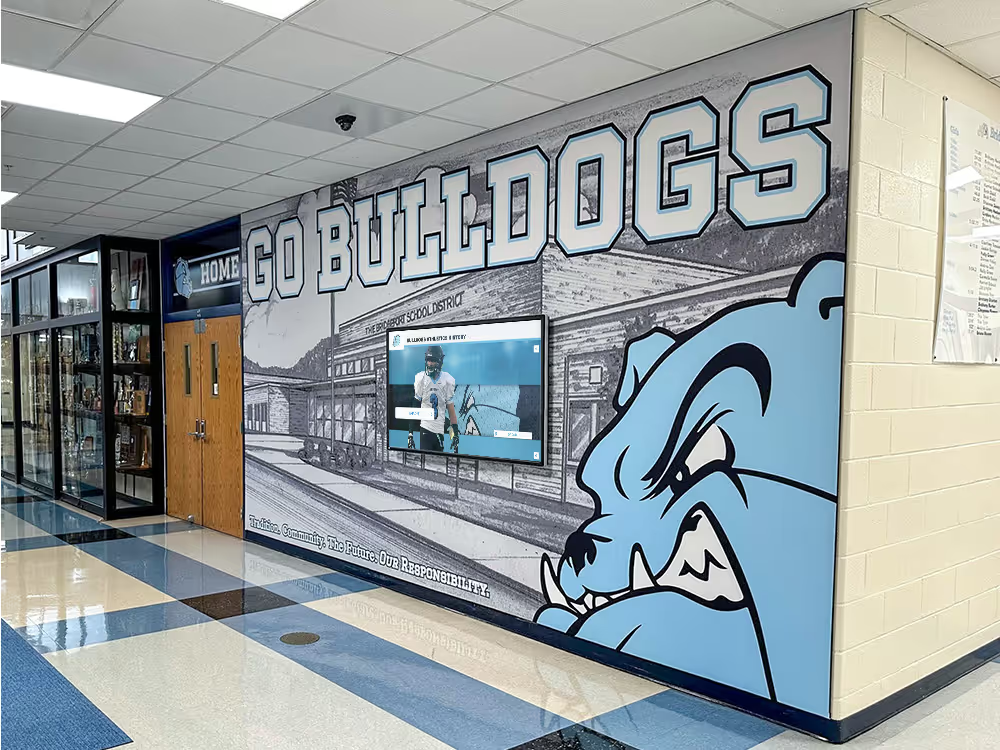
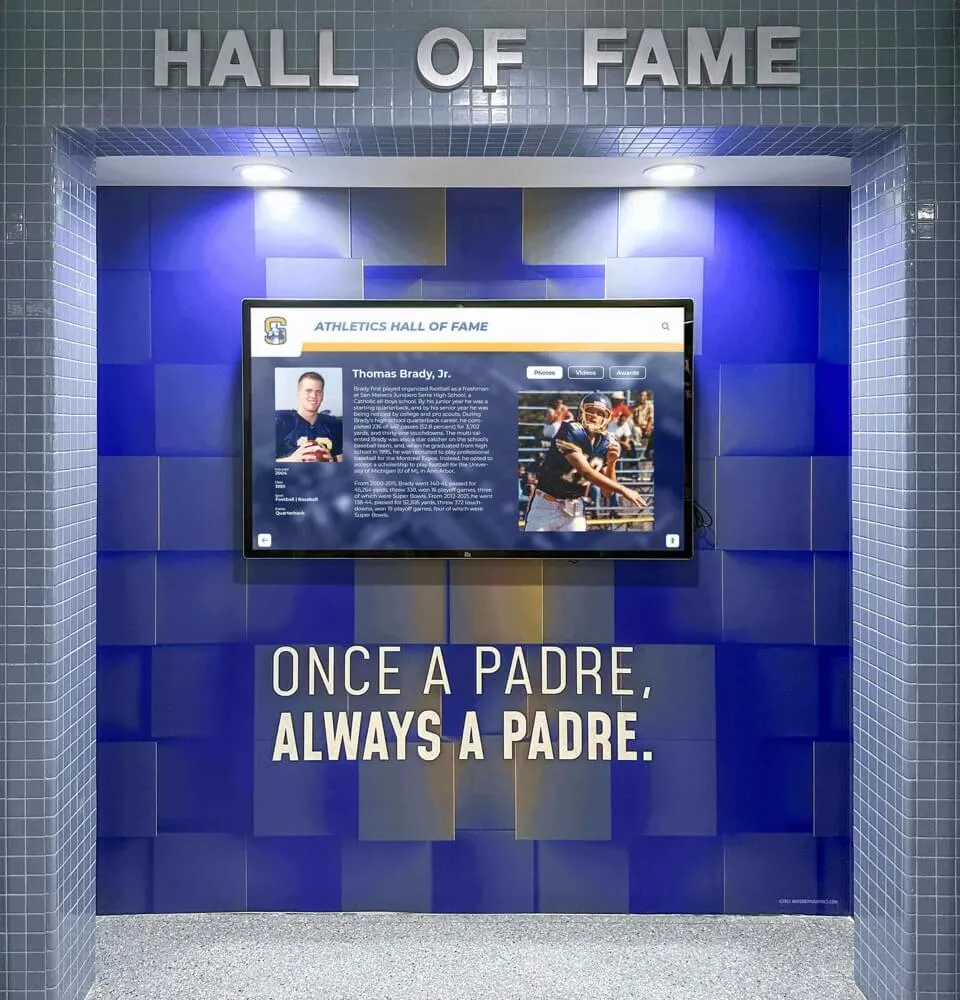
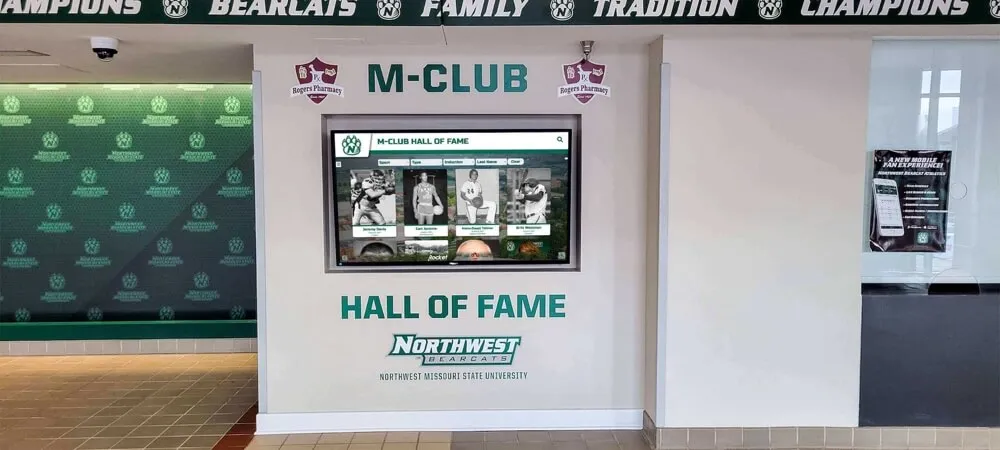
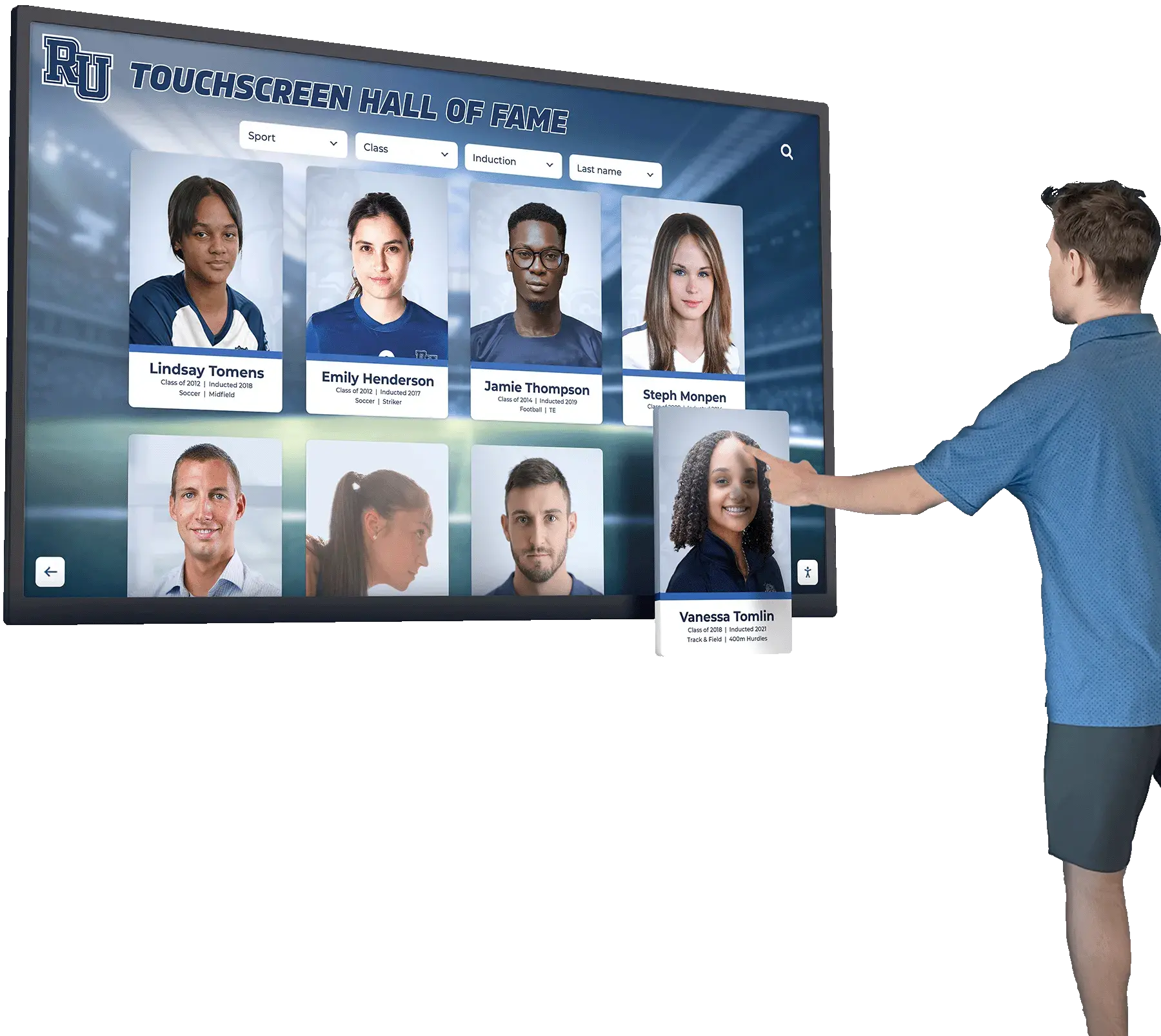
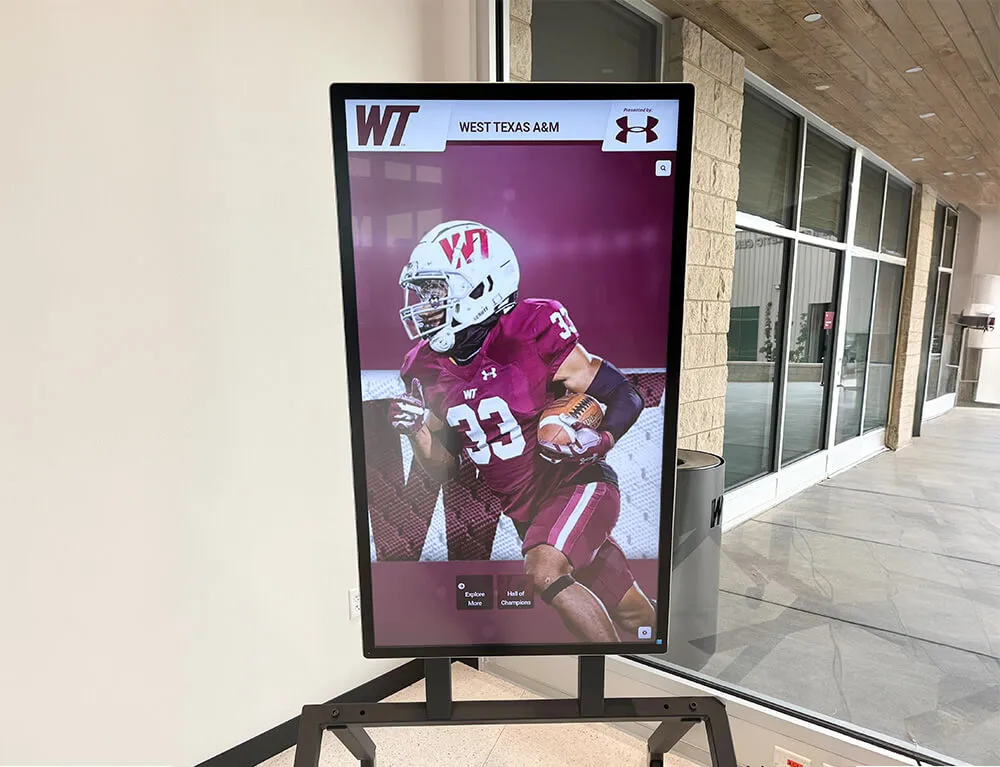
Close-up shots of the touchscreen interaction capture the intuitive browsing experience that makes digital HOF displays compelling to visitors of all ages
Scene 3C: Returning to Browse (5:15–6:00)
Visual: Visitor uses the back gesture (or hardware button) to return to the sport grid. Taps a different decade filter—the portrait gallery reshuffles to show only athletes inducted between 2000 and 2010. Camera captures the transition animation.
Narration: “The decade filter is one of the features alumni love most during visits. A 2003 graduate can jump directly to their era and find classmates, teammates, coaches from memory—turning the display into a conversation starter rather than a passive exhibit.”
ADA Notes for Scene 3
- Demonstrate the text-size scaling feature: one tap increases font size across the entire profile view
- Audio description must narrate all on-screen text as it appears, since profile content varies by inductee
- Ensure captions capture the narration including any pause time for viewer reading
Scene 4: Championship Timeline and Records (6:00–8:30)
What the Camera Shows
Wide shot: Visitor navigates from the athlete browser to “Championship History.” A full-screen timeline appears—a horizontal scrollable band with decade markers. Championship seasons appear as colored nodes on the timeline, with sport icons indicating which program won that year.
Camera movement: Slow zoom from wide to medium as the visitor drags the timeline left, scrolling backward through decades. The camera follows the on-screen motion without cutting, creating a sense of historical depth.
Close-up on a championship node: Visitor taps a node from 1989. An overlay card appears: sport name, season record (e.g., 24–2), conference, state classification, head coach name, a team photo. A “View Roster” button appears at the bottom.
Narration Script
“Most schools have championship history that spans multiple sports and multiple decades. Traditional displays handle this by giving each sport its own banner row—useful for counting titles, useless for understanding them.
This timeline view collapses your entire competitive legacy into a single navigable surface. Visitors see the full scope of your program at a glance, then drill into any season for complete context: the coach who ran the system, the record, the roster, the defining moments of that run.
Historical timeline touchscreen displays do something static banners fundamentally cannot: they make forty years of athletic history feel accessible and alive to a student who wasn’t born when most of it happened.”
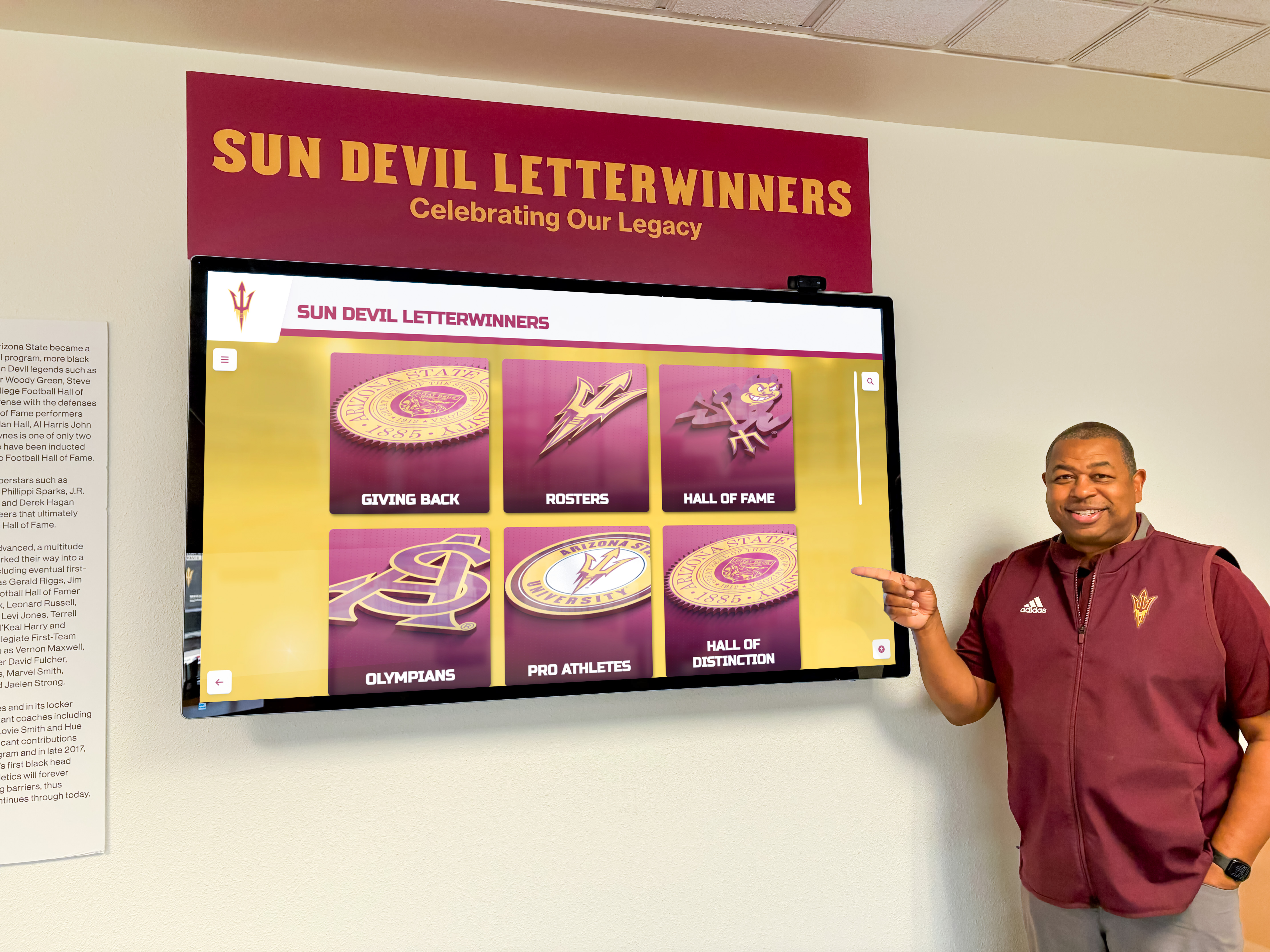
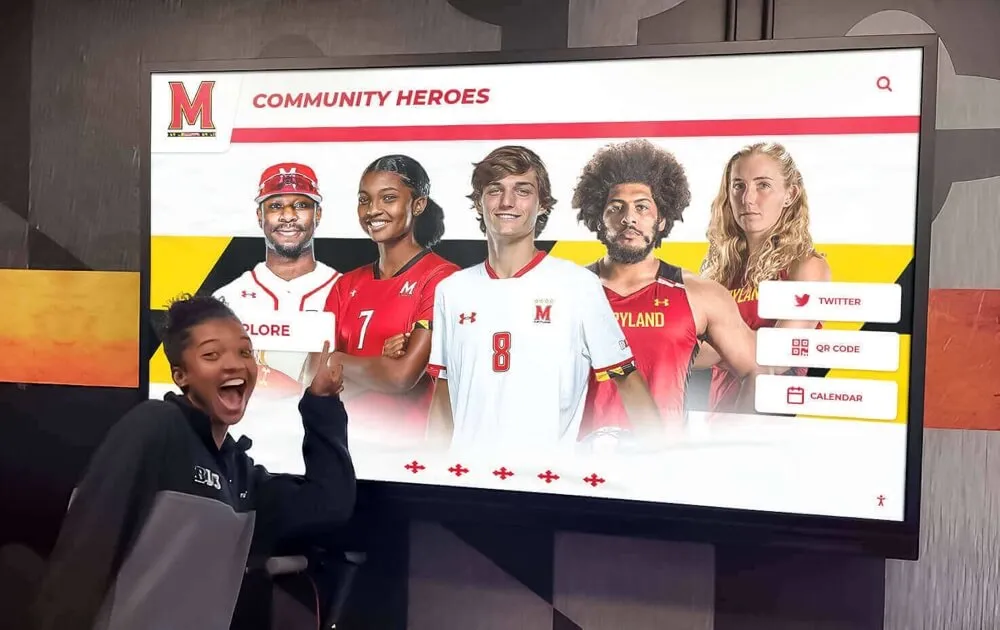
Championship history screens let visitors navigate decades of program excellence in seconds—no staff guidance required
Records Board Integration
If your HOF display includes a live records board, capture this separately:
Visual: Visitor navigates to “School Records.” A sport-specific grid shows event categories (e.g., 100m dash, shot put) with the record holder’s name, mark, and year. A “Recently Updated” badge appears on records broken this season.
Narration: “Live records integration means the display is never out of date. When a swimmer breaks the 200 backstroke record this week, the system updates automatically—no service call, no manual edit required. The board always reflects your current best.”
Key Takeaways From Scene 4
- Film the timeline scroll in a single continuous take—cuts undermine the sense of historical depth
- Capture at least three decade jumps to demonstrate the range of content
- If records integration is live, capture a sport with a recent update to show the real-time feature
Scene 5: Coach and Staff Recognition (8:30–10:00)
What the Camera Shows
Navigation moment: Visitor returns to the main menu and taps “Coaches.” A portrait gallery similar to the athlete browser appears, organized by sport or tenure period.
Individual coach profile: The profile structure mirrors the athlete view—portrait, name, sport, years, career record, biography, and a media section showing team photos from their coaching tenure. A “Notable Athletes” panel appears alongside the coach’s career stats, linking their profile to the inductees who played under their direction.
Narration Script
“A hall of fame that only recognizes athletes misses half the story. The coaches who built championship programs, who developed athletes academically and competitively across decades—their legacy is inseparable from the records they helped create.
Coach profiles in this system include career win-loss records, championship seasons, post-season appearances, and the narrative biography that makes those numbers meaningful. The cross-reference to athletes they coached creates a web of institutional memory: tap a coach and see the inductees they developed; tap an inductee and see the coach credited with their development.
For schools just beginning to think about how digital tools bring athletic history to life, the coach recognition layer is often the feature that generates the strongest emotional response during a live demo—because it makes the people who dedicated careers to the program visible in a way they’ve never been before.”
Scene 5 Production Notes
- Use the same shot sequence as athlete profiles for visual consistency
- If possible, arrange for an actual retired coach or inductee to interact with their own profile during filming—the genuine reaction is more compelling than any staged demonstration
- Capture the cross-reference link: tap from a coach profile to an athlete’s profile in a single continuous shot
Scene 6: Remote Content Management — The Behind-the-Scenes Demo (10:00–12:30)
What the Camera Shows
This scene shifts from the public-facing display to the administrative experience. A laptop or tablet is positioned beside the touchscreen (or filmed separately if the CMS is browser-based). The administrator logs in and demonstrates adding a new inductee.
Step-by-step visual sequence:
- Login screen: Clean dashboard, athlete browser visible on left sidebar
- “Add New Inductee” button: Administrator clicks, a form template appears
- Photo upload: Drag-and-drop a portrait photo; system auto-crops to required aspect ratio
- Biography field: Administrator types a brief biography; word count visible
- Statistics entry: Sport-specific stat fields populate based on the sport selected
- Preview mode: A full-screen preview of the completed profile, matching the exact layout visitors will see on the touchscreen
- Publish: One-click publish; camera cuts back to the touchscreen display where the new inductee now appears in the gallery
Narration: “The most common objection to interactive hall of fame systems is maintenance: who updates it, how long does it take, and what happens when the person who built it leaves the district?
Watch this sequence. From photo upload to published profile: under four minutes, no vendor involvement, no service ticket, no waiting. Any staff member who can use a web browser can add an inductee, update a biography, or remove an outdated entry from the admin dashboard.
Installing touchscreen displays in gymnasium spaces is just the beginning—the real long-term value is the remote content management layer that keeps the display current without requiring a technical staff member or a vendor visit every time a new class is inducted.”

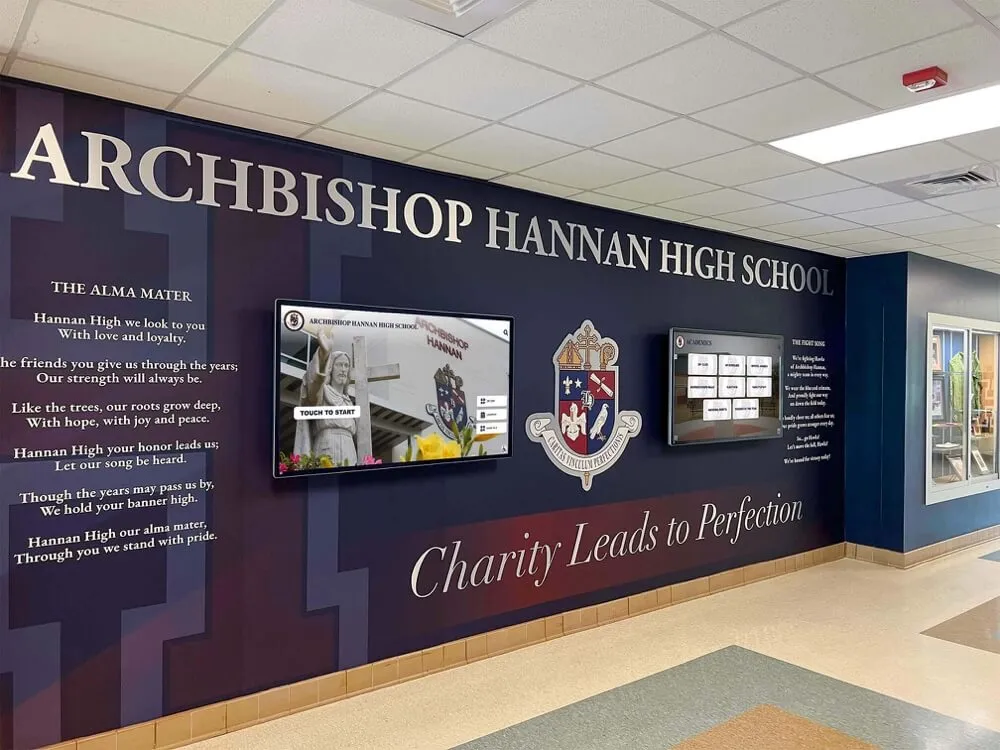
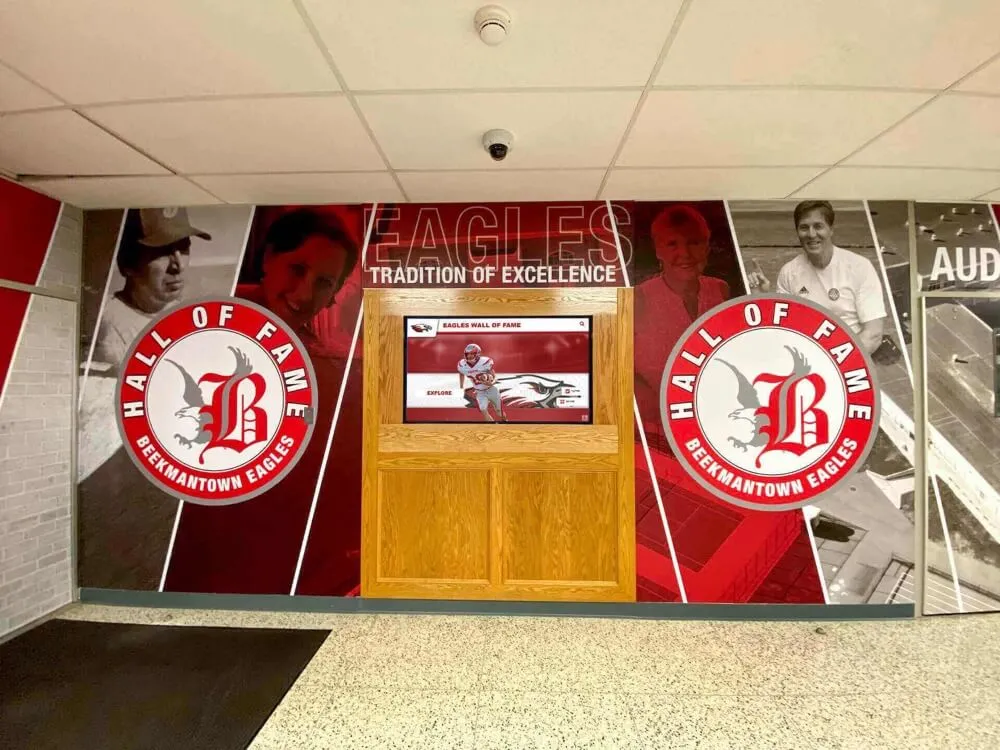
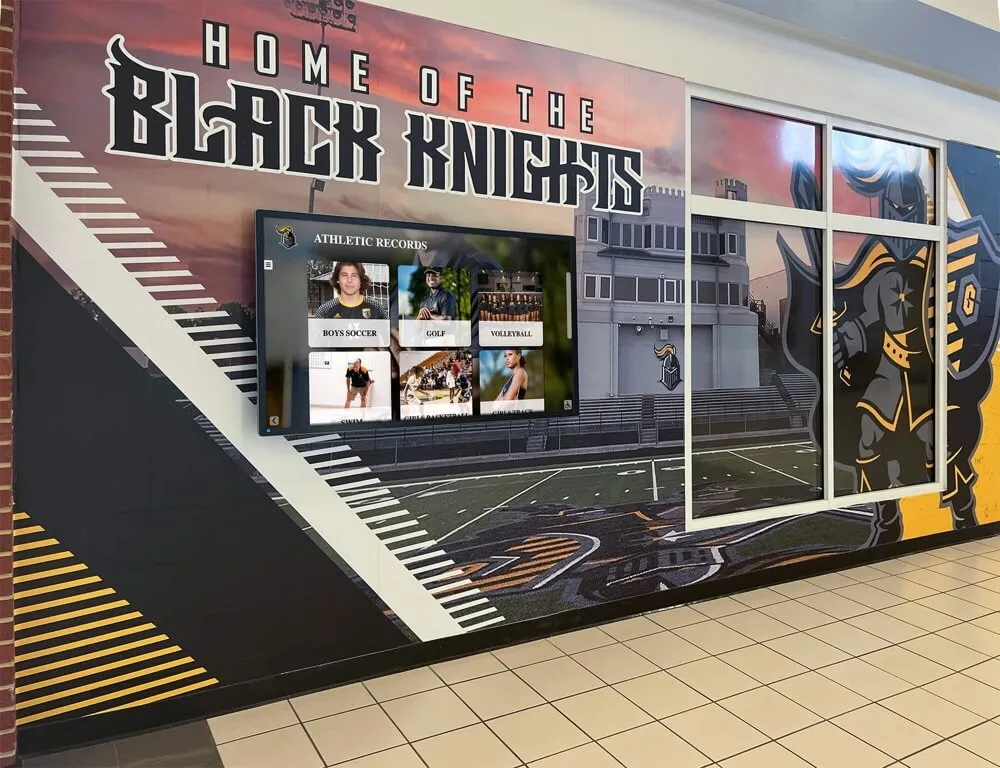
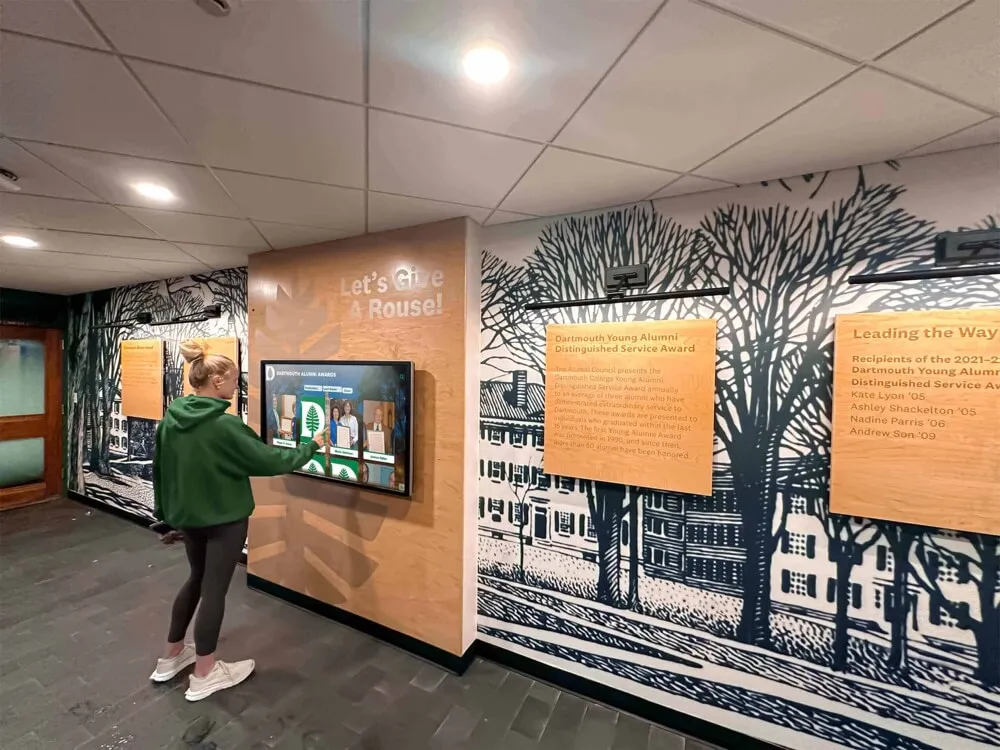
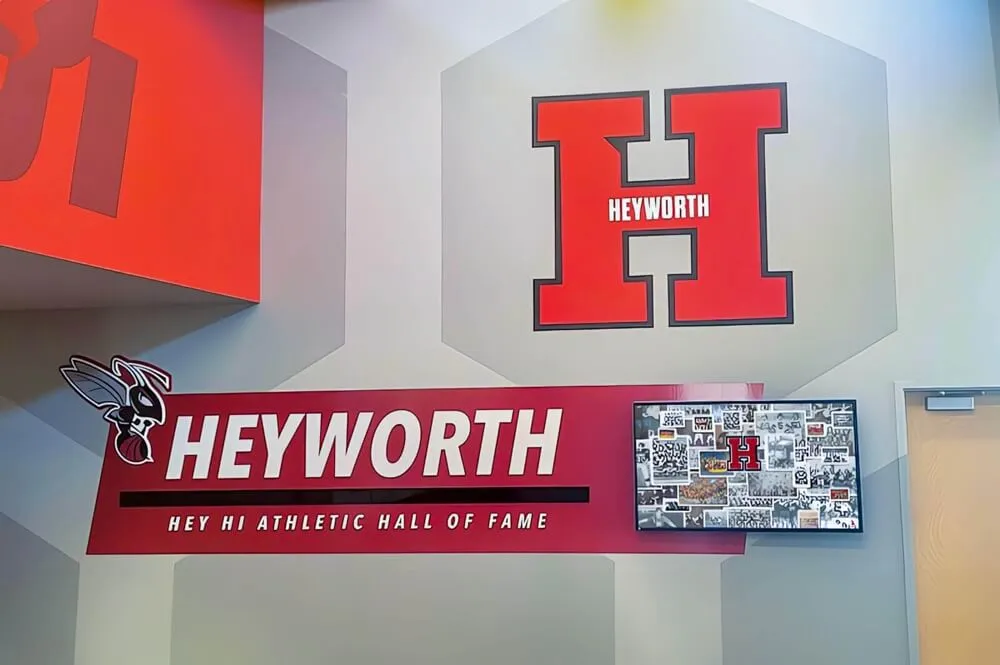
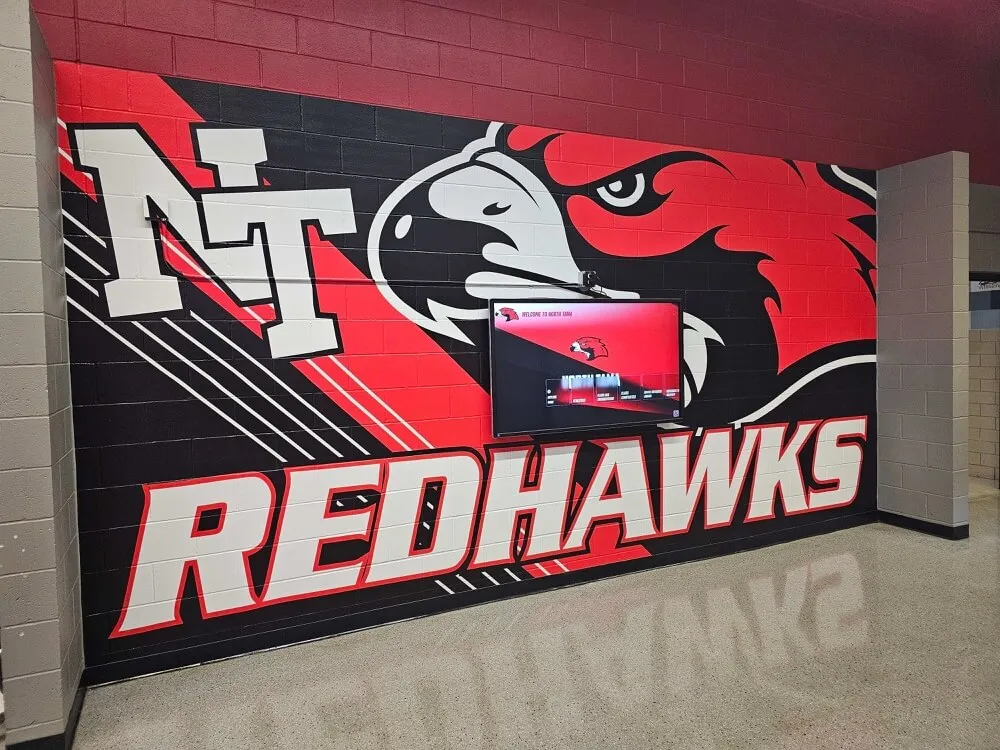
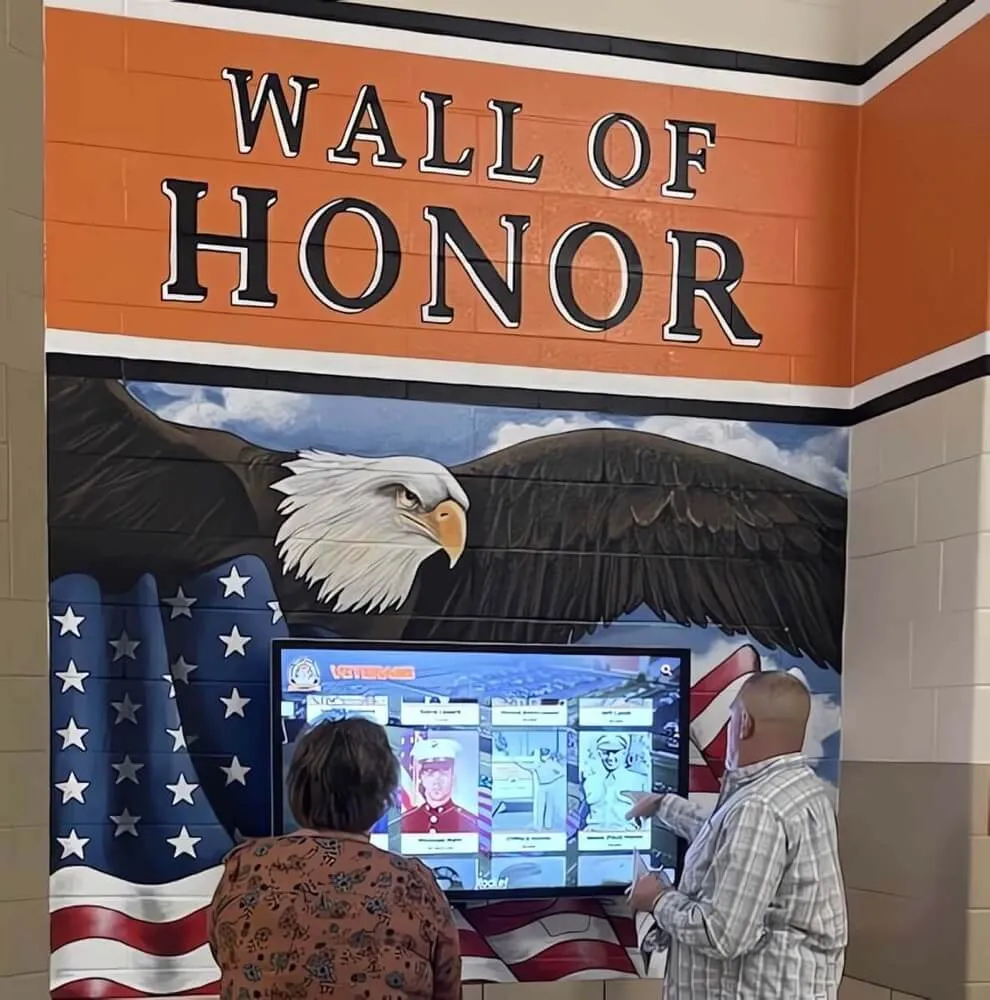
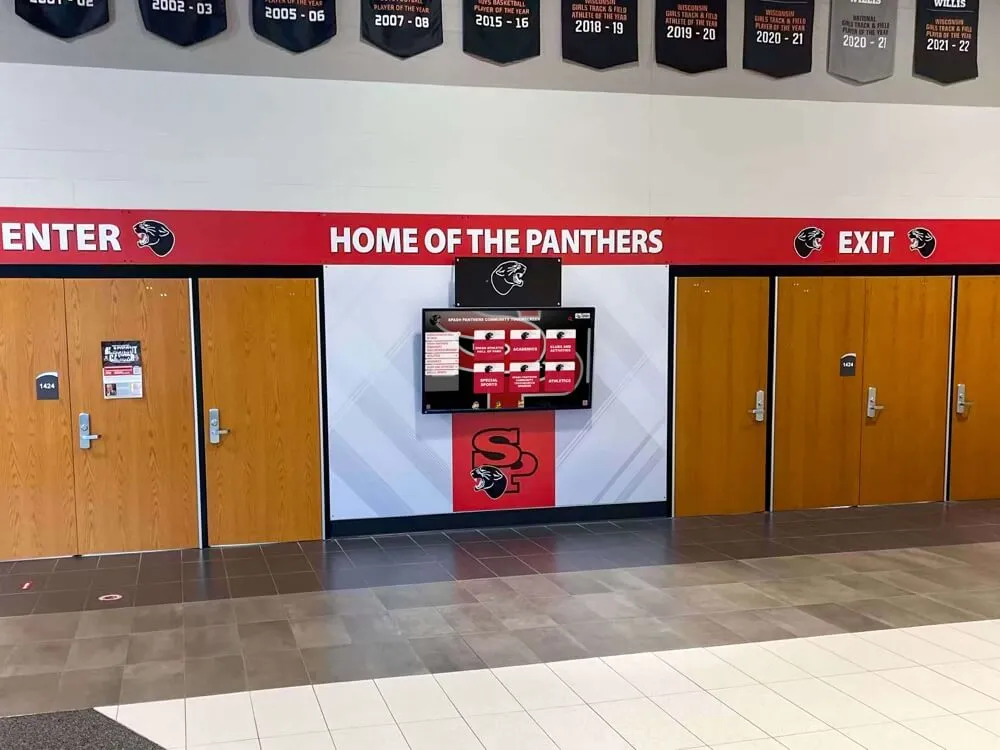
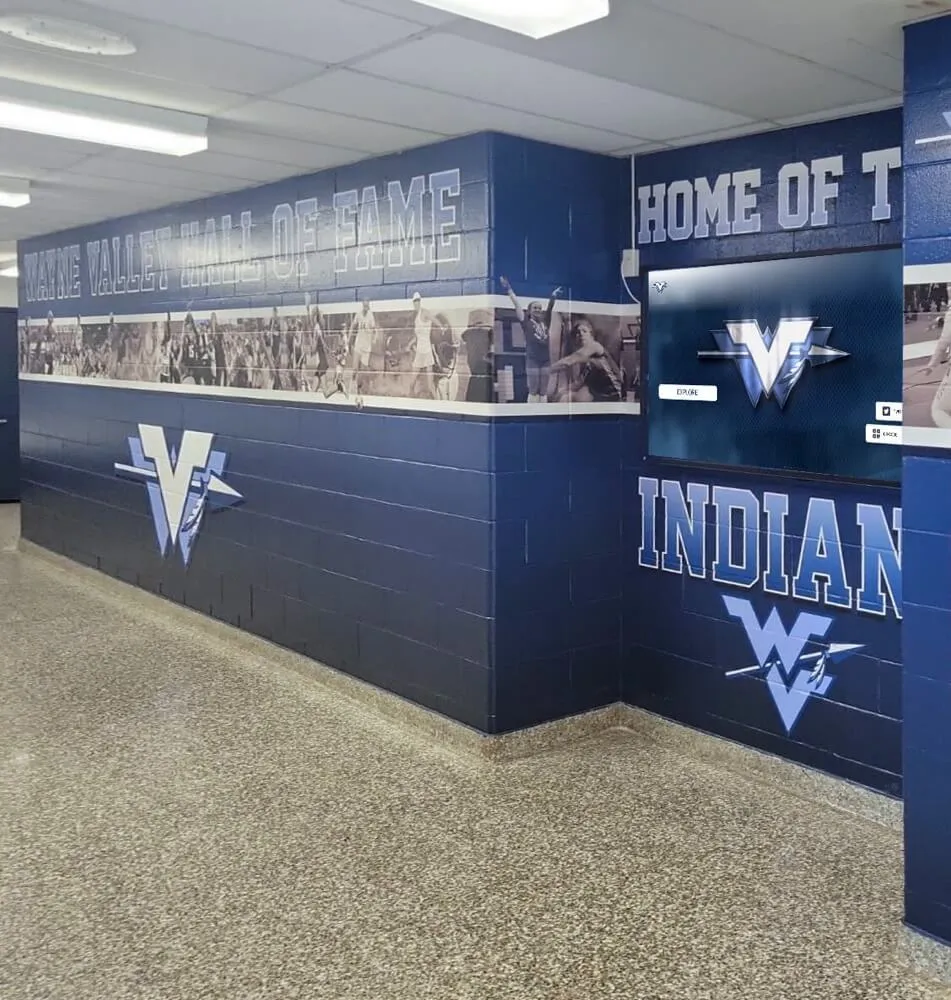
Modern athletic hall of fame installations integrate seamlessly with existing hallway graphics and murals, creating a cohesive recognition environment that staff can update remotely
CMS Scene Production Notes
- Film the full add-inductee workflow in a single continuous screen recording, then play that recording during the CMS segment—this guarantees a clean, uninterrupted demo
- Keep the CMS window at 100% zoom so text is legible on video
- Use a monitor that can be filmed without severe glare; matte screen protectors help significantly
Key Takeaways From Scene 6
- Demonstrate that the update workflow requires no specialized technical knowledge
- Show the preview-before-publish step—this is a frequent question from cautious administrators
- If the system supports scheduled publishing (inductees go live on induction night), demonstrate that feature
Scene 7: The Close — Coverage Angles, B-Roll, and the Full Picture (12:30–15:00)
B-Roll Checklist for Editing
Before you wrap production, capture these supporting shots that make the final edit feel complete:
| Shot | Purpose | Duration to Capture |
|---|---|---|
| Student stopping to browse unprompted | Social proof of organic engagement | 30–60 seconds |
| Alumni visitor recognizing their name or era | Emotional resonance for induction ceremony use | 45 seconds |
| Group of 2–3 people browsing together | Shows collaborative use case | 30 seconds |
| Night/evening shot with lobby lighting | For facilities committees evaluating installation environments | 20 seconds |
| Close-up of school branding on side panels | Reinforces visual alignment with school identity | 10 seconds |
| Attract loop cycling through three full inductees | Useful for social media clips | 90 seconds |
Closing Narration
“A school’s athletic hall of fame is one of the few physical spaces on campus where past and present exist in the same frame. The inductee from 1978 and the freshman who might be inducted in 2030 share the same corridor. The question is whether your display makes that connection visible—or whether it buries it behind a locked trophy case and a plaque that requires a fabricator to update.
The schools that produce this walkthrough video—even before a purchase decision is made—find that the process of planning the video helps them clarify exactly what they need their hall of fame to do. Which sports deserve prominence? How many inductees do you have across all years? What does the induction ceremony look like, and how does the display support it?
Those questions answer themselves once you start scripting the scenes.”
For schools exploring the full range of recognition options, interactive kiosk solutions for schools and organizations offer a broader look at how touchscreen technology is being deployed across campus environments beyond the athletic hallway.
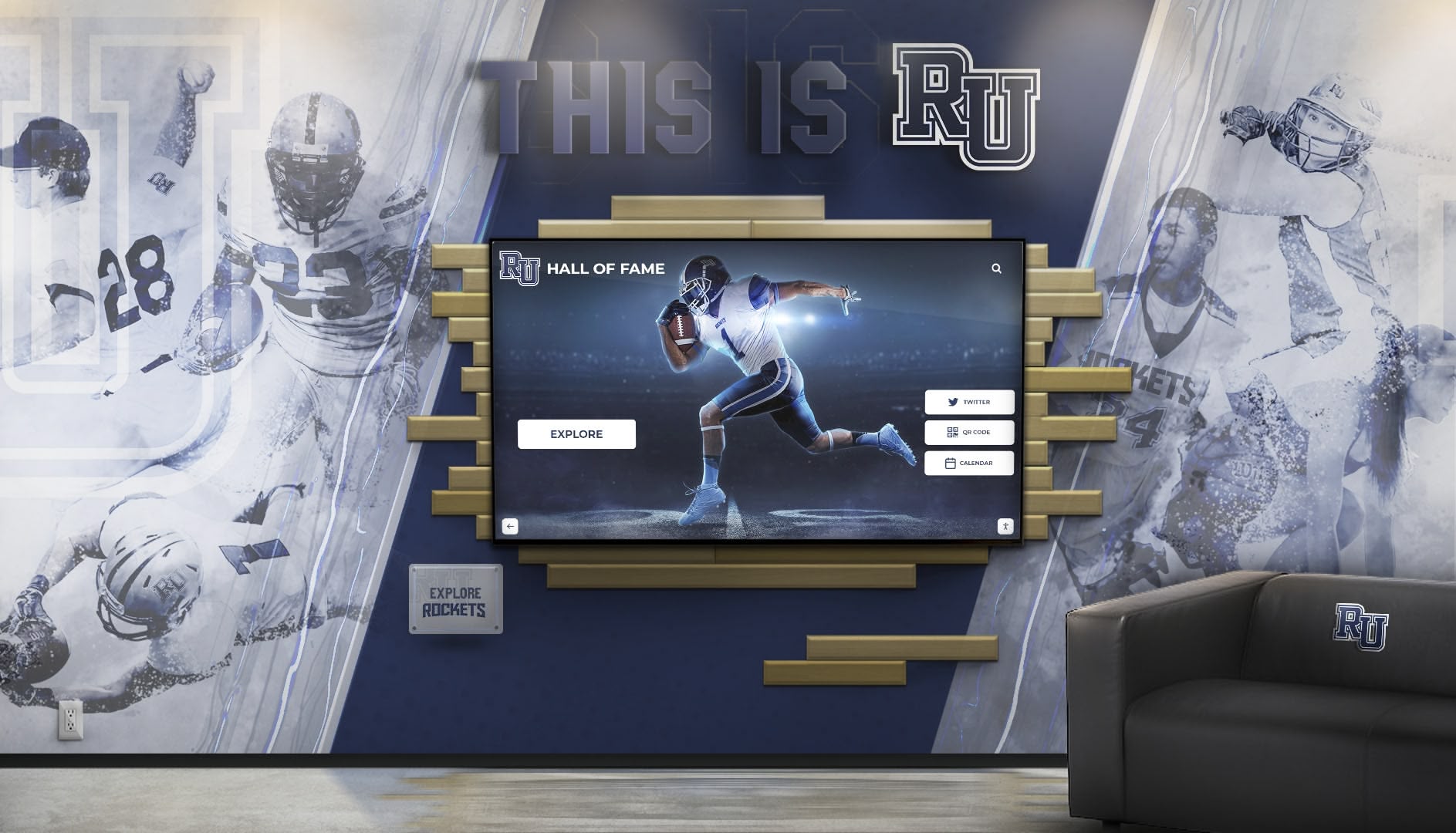
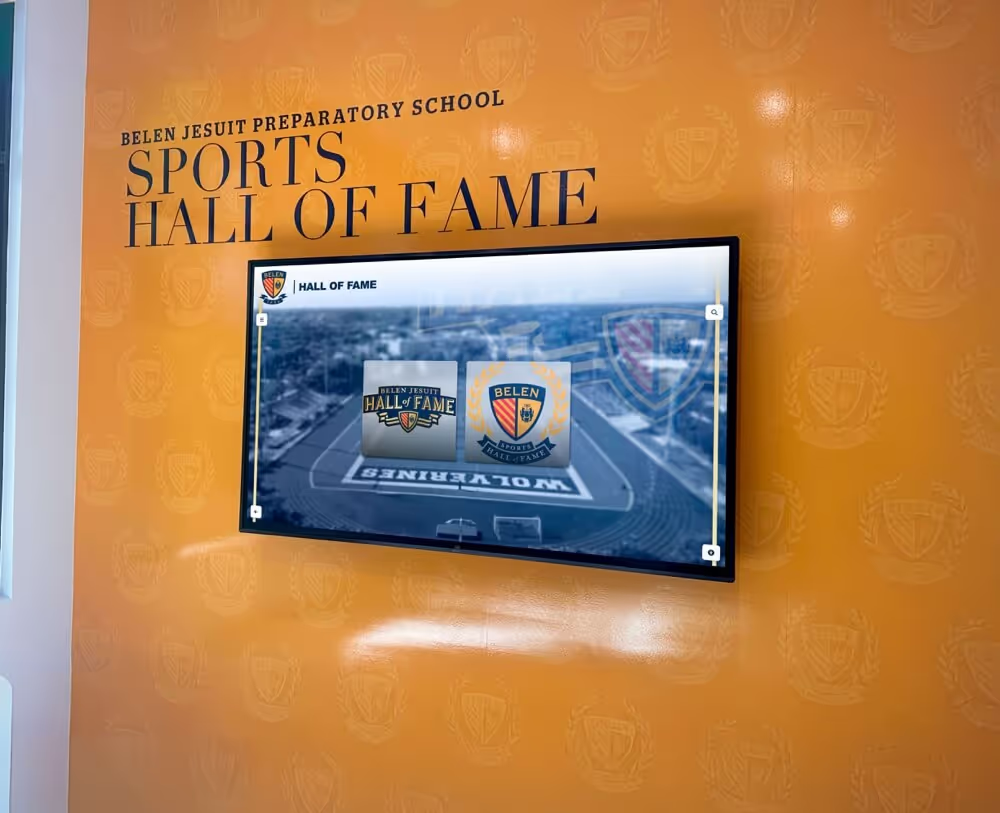
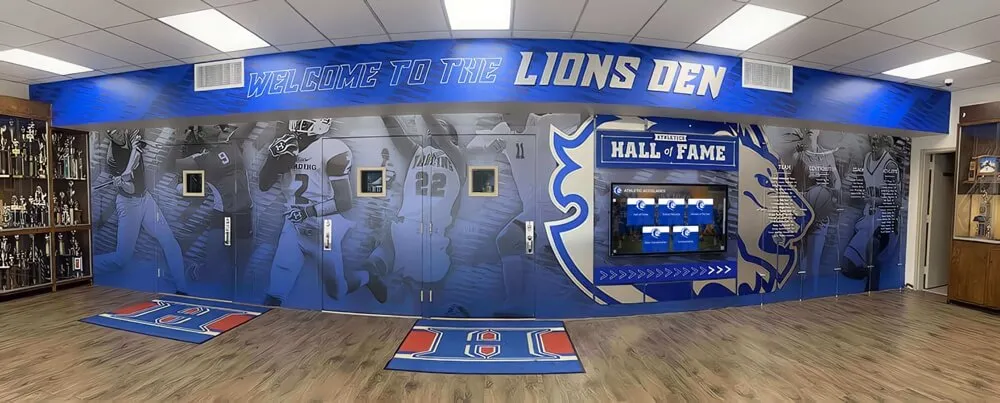
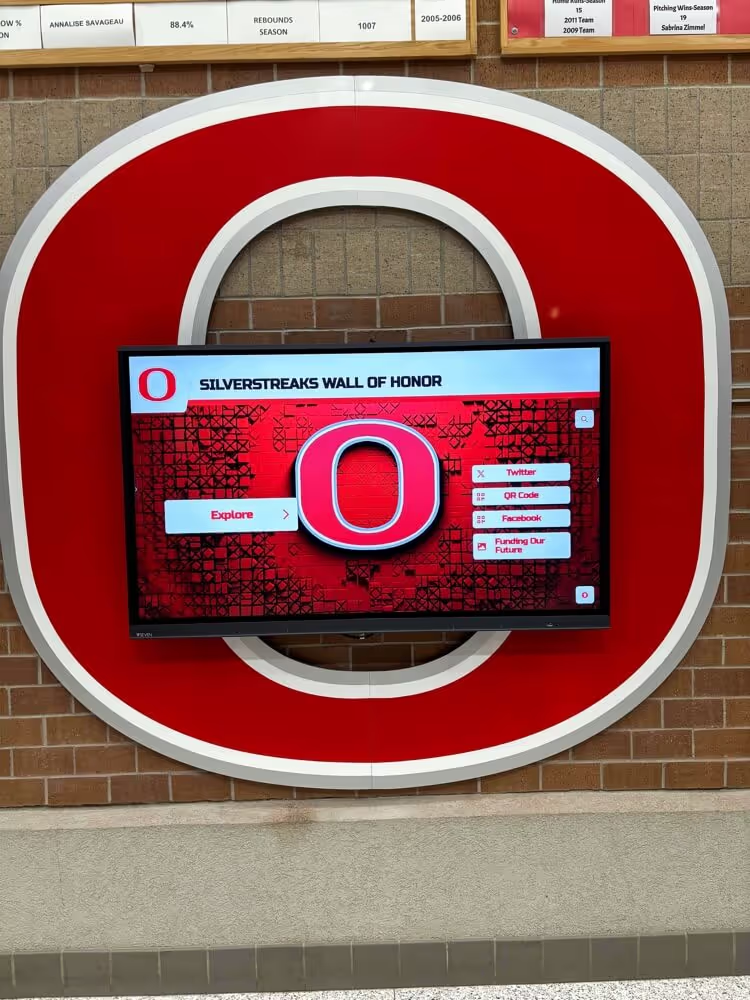
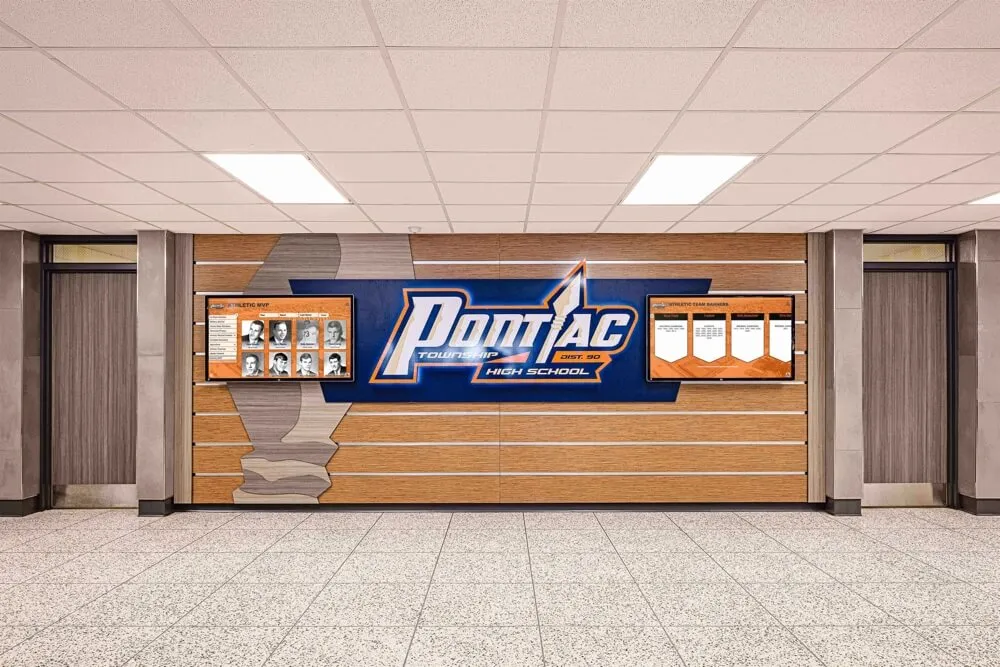
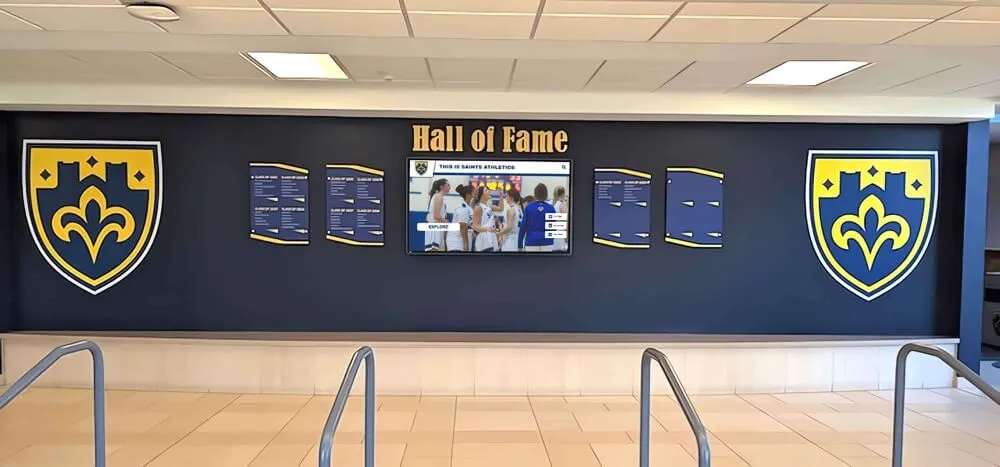
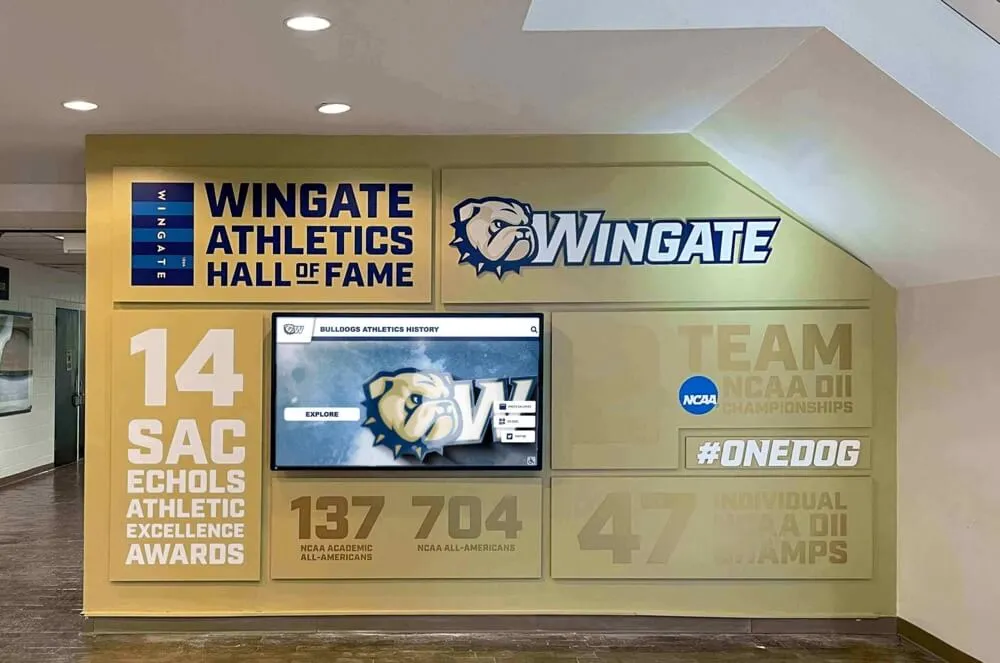
The finished product: a hall of fame installation that turns an athletic corridor into a genuine destination where past excellence and current achievement coexist
Full Production Notes
Equipment Recommendations
| Item | Recommendation | Notes |
|---|---|---|
| Primary camera | Mirrorless or DSLR, minimum 1080p/60fps | 4K preferred for screen detail; log profile recommended for post-production flexibility |
| Stabilization | 3-axis motorized gimbal | Handheld introduces unacceptable shake during slow push shots |
| Lens | 24–70mm f/2.8 equivalent | Wide end for establishing shots; 50–70mm for profile close-ups |
| Lighting | LED panel(s) with adjustable color temperature | Match to ambient lighting in the installation space |
| Polarizing filter | Circular polarizer (lens-diameter matched) | Essential for eliminating touchscreen surface reflections |
| Audio | Lavalier mic for narrator; room tone reference recording | Narration typically added in post; room tone useful for editing |
| Screen capture | Native screen recording on the CMS device | Scene 6 (CMS demo) should use screen recording rather than camera-on-monitor |
Lighting Strategy
Touchscreen displays present a unique lighting challenge: the screen itself is a light source, and overhead fluorescent or LED corridor lighting creates surface reflections that wash out detail in footage.
Solutions:
- Schedule your shoot for a time of day with minimal natural light spill from windows (early morning or after school)
- Use the circular polarizer at all times when the touchscreen is in frame
- Test your white balance against the actual screen color—auto white balance will drift as the attract loop cycles through different-colored backgrounds
- Bring a portable LED panel to add fill light on the visitor’s face during interaction shots without adding a new reflection source on the screen
ADA and Accessibility Compliance for the Video
Your walkthrough video must meet the same accessibility standards as the display it showcases:
- Closed captions: Full narration transcript synced to the video; auto-generated captions must be reviewed and corrected before publishing
- Audio description track: A separate narration describing all on-screen visual actions for viewers who are blind or have low vision
- Font size in exports: When exporting social media clips, ensure any on-screen text from the HOF display remains legible at the export resolution
- Color contrast in titles: Any lower-third titles or scene labels added in editing must meet WCAG 2.1 AA contrast ratios
File Delivery Specifications
| Format | Use Case |
|---|---|
| MP4 (H.264, 1080p/30fps) | Website embed, email, committee presentations |
| MP4 (H.265, 4K/30fps) | Archive master; 4K display playback at events |
| Vertical MP4 (1080×1920) | Instagram Reels, TikTok, booster social shares |
| SRT caption file | Upload alongside YouTube video; required for ADA compliance |
VideoObject Schema
{
  "@context": "https://schema.org",
  "@type": "VideoObject",
  "name": "Athletic Hall of Fame Walkthrough Video: School Interactive Display Tour",
  "description": "A complete scene-by-scene walkthrough of an interactive athletic hall of fame display at a school, demonstrating athlete profiles, championship history, coach recognition, and the remote content management system.",
  "thumbnailUrl": "/images/v2/alfred-university-athletics-hall-of-fame-purple-yellow-display.jpg",
  "uploadDate": "2026-06-01",
  "duration": "PT14M",
  "contentUrl": "https://touchwall.tv/videos/athletic-hall-of-fame-walkthrough",
  "embedUrl": "https://touchwall.tv/videos/athletic-hall-of-fame-walkthrough",
  "publisher": {
    "@type": "Organization",
    "name": "Rocket Alumni Solutions",
    "url": "https://rocketalumnisolutions.com"
  }
}
Planning Your Video Before the Purchase Decision
Not every school filming a walkthrough video already has an interactive display installed. Many use the scripted walkthrough format as a proposal tool—showing a committee or board what the finished product would look like by filming a live demo with the vendor before committing to an installation.
This approach is worth considering for several reasons:
It answers objections before they’re raised. When a board member asks “what does it look like in a real school?” a video of an actual installation at a comparable institution answers the question more convincingly than any specification sheet.
It surfaces the decisions you haven’t made yet. Planning shot lists for Scene 3 (athlete profiles) forces you to decide: how many sports are included? How far back does the athlete archive go? Are coaches in the same system or separate? Those content decisions determine your implementation scope.
It creates marketing assets before installation day. The video you produce for a committee presentation is also the video you share with alumni, post on the school website, and play at the induction ceremony. A single production investment pays dividends across multiple contexts.
Schools evaluating costs and scope at early stages will find affordable hall of fame solutions for small schools and tight budgets and turnkey digital hall of fame pricing for schools useful reference points for understanding the investment range before the first camera rolls.
Abbreviated Transcript for Accessibility
The following is a condensed transcript of the narration script above, formatted for screen reader use and caption upload. A full-length transcript including scene descriptions is available in the production notes document that accompanies this guide.
[0:00–1:30] Scene 1 — Status Quo Every school’s athletic history is worth celebrating. The question is whether your display actually does that—or whether it just stores the evidence. What we’re looking at right now is the status quo for most institutions: trophy cases designed for a different era competing for attention they’ve stopped earning. Inductees reduced to names on a plaque. Championship seasons that deserve their own chapter compressed into a single line of text.
[1:30–3:00] Scene 2 — First Approach The first thing a visitor notices is that this display is alive. The attract loop running here cycles through featured inductees every twenty seconds—portrait photos, sport, years inducted, one defining achievement. Recognition happens passively for everyone who walks past, even before anyone touches the screen.
[3:00–6:00] Scene 3 — Athlete Profiles Every inductee in this system has a complete profile—not just a name and a year, but a full athletic biography with career statistics, photos, and context that makes the achievement meaningful to someone who wasn’t there to see it.
[6:00–8:30] Scene 4 — Championship Timeline This timeline view collapses your entire competitive legacy into a single navigable surface. Visitors see the full scope of your program at a glance, then drill into any season for complete context: the coach who ran the system, the record, the roster, the defining moments of that run.
[8:30–10:00] Scene 5 — Coach Recognition A hall of fame that only recognizes athletes misses half the story. The coaches who built championship programs—their legacy is inseparable from the records they helped create.
[10:00–12:30] Scene 6 — Content Management From photo upload to published profile: under four minutes, no vendor involvement, no service ticket, no waiting. Any staff member who can use a web browser can add an inductee, update a biography, or remove an outdated entry.
[12:30–15:00] Scene 7 — Close The schools that produce this walkthrough video find that the process of planning the video helps them clarify exactly what they need their hall of fame to do.
What Happens After the Video
The walkthrough video is a means to an end. The end is a decision: yes, the school proceeds with an interactive hall of fame installation that honors decades of athletic achievement in a format that will still feel modern ten years from now.
Once your committee has seen the video—once they’ve watched the athlete profile load, the championship timeline scroll, the CMS update in real time—the conversation stops being about whether and starts being about when and where. Those are productive conversations. They’re also much faster ones.
The physical design of your installation, including mural integration, display mounting, and network infrastructure, deserves its own planning track. Resources on school lobby design ideas for creating welcoming and inspiring spaces and preserving school archives digitally are useful complements to the visual storytelling work covered here.
For schools at any stage of the process—from early-stage exploration through active vendor evaluation—Rocket Alumni Solutions offers live video demos of the complete interactive hall of fame system, tailored to your sport mix, inductee volume, and installation environment.
Ready to see the walkthrough in person?
Skip the scripted scenes and book a live video demonstration of Rocket Alumni Solutions’ interactive hall of fame platform—customized for your school’s history, your sports, and your physical space.