Athletic Hall of Fame Video Poster Images: Keep Faces and Titles Visible Before Playback
- Home /
- Blog Posts /
- Athletic Hall of Fame Video Poster Images: Keep Faces and Titles Visible Before Playback
The Easiest Touchscreen Solution




Live Example: Rocket Alumni Solutions Touchscreen Display
Interact with a live example (16:9 scaled 1920x1080 display). All content is automatically responsive to all screen sizes and orientations.
An athletic hall of fame video poster image audit confirms that the image shown before a recognition video plays displays the athlete’s face and inductee title legibly—at the correct aspect ratio, without cropping off the subject—in the kiosk’s installed orientation. The HTML <video> element’s poster attribute, documented by MDN Web Docs, accepts a URL pointing to an image that the browser displays while the video is loading and before playback begins. If no poster is set, the browser shows nothing until the first video frame is decoded and available—which can leave a black rectangle on the kiosk for several seconds, particularly on a slow network or with a large video file.
For school athletic directors, IT coordinators, and the content or archives staff managing a recognition kiosk, the audit covers four areas: choosing an image that keeps faces and inductee titles readable, matching dimensions to the display, controlling cropping with CSS, and confirming what happens when the poster image fails to load or when playback begins.
A hall-of-fame kiosk in a school lobby often runs in attract mode between visitor interactions, showing a static or rotating view of inductees. If the poster image for a highlight video shows a cropped forehead and no nameplate—or a black screen because no poster was set—the first impression for a visiting family is a blank display rather than a recognizable former athlete. This guide walks through the decisions and tests needed to prevent that outcome before an induction event.

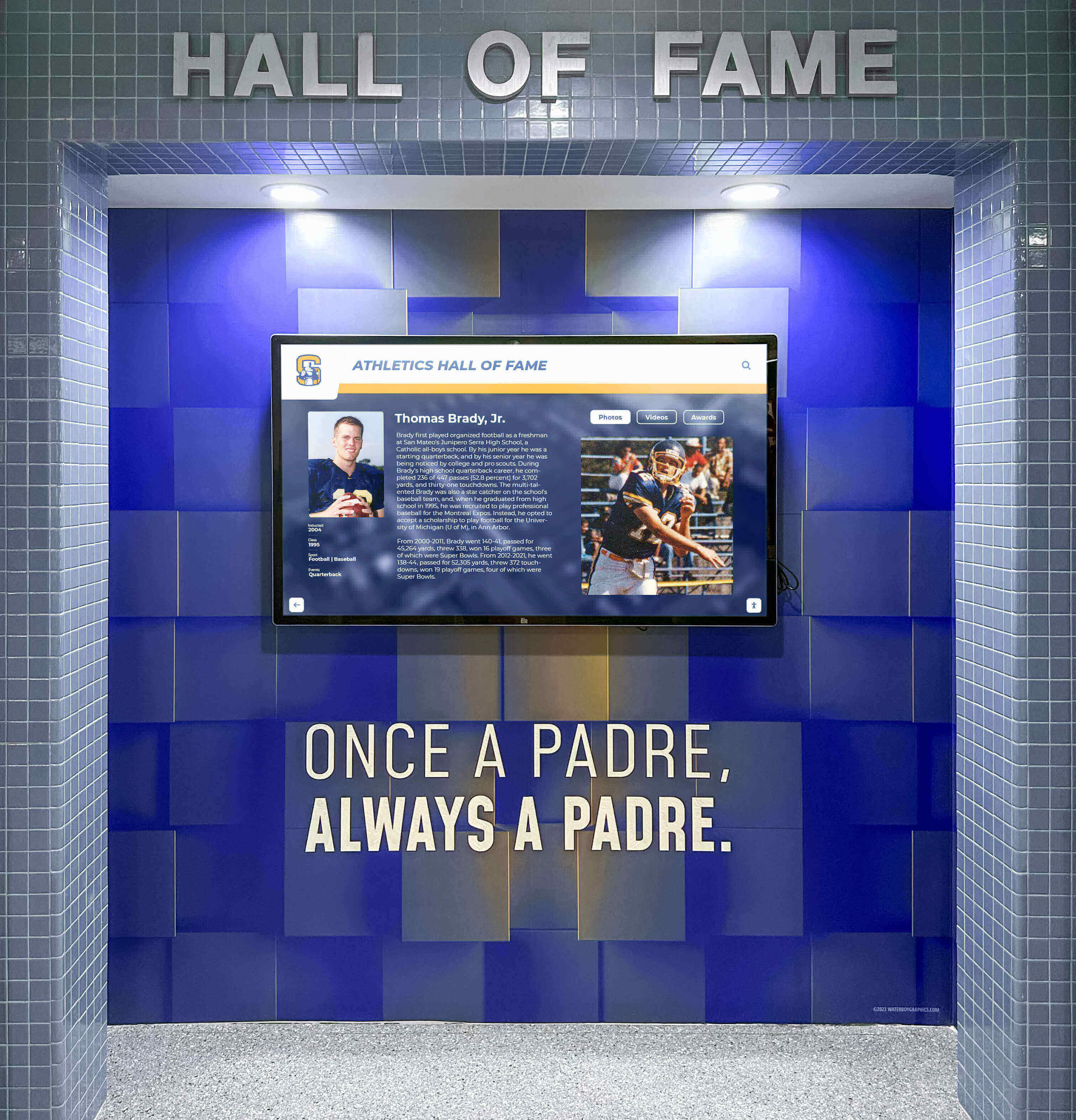
A school athletic hall of fame kiosk screen visible to visitors before any interaction—what appears before a video plays depends entirely on whether a poster image is set and whether it was prepared for the installed orientation
What a Poster Image Is and Is Not
Before running an audit, it helps to agree on scope. A poster image is the static preview the browser displays in the <video> element’s frame before playback begins. It is not:
- Captions or transcripts. Those are separate accessibility features attached to the media itself, independent of the poster attribute.
- Playback evidence. A screenshot taken from later in a video does not confirm the video plays correctly—it only confirms a frame exists.
- A thumbnail in a roster grid. A separate
<img>element used to represent a video in an athlete listing or carousel is not controlled by theposterattribute. - The first frame of the video. If no
posterattribute is set, the browser may eventually render the first decoded frame—but only after network and decode time, and not reliably across all kiosk browsers or network conditions.
Knowing this boundary keeps the audit focused: you are testing one attribute on one element, not the full video pipeline.
Poster vs. First-Frame Fallback: Decision Table
Use this table to decide whether a given video on the recognition kiosk needs an explicit poster image or whether relying on the first-frame fallback is acceptable.
| Condition | Explicit poster needed? | Reason |
|---|---|---|
| Video loads over a slow or shared school network | Yes | First frame may take several seconds; blank screen visible to lobby visitors during that gap |
| Kiosk runs in attract mode between interactions | Yes | Static poster keeps the display informative when no video is actively playing |
| Inductee name and sport are not visible in the first video frame | Yes | First-frame fallback would show unlabeled game footage with no identification |
| Video autoplay is blocked by the kiosk browser policy | Yes | No first frame is ever shown if the video cannot start; poster is the only visible content |
| Video is very short and the first frame shows the athlete’s face and name clearly | Review | First-frame fallback may be acceptable; confirm it renders before an event |
| Content server is on-premises with sub-second load times | Review | First frame may appear quickly enough; still test on the production device |
When in doubt, set an explicit poster. Preparing the image costs less than a blank screen during an induction ceremony.
Selecting the Poster Image for a Recognition Kiosk
The poster image should make an inductee identifiable before any interaction. For a school athletic hall of fame, that typically means satisfying three criteria.
Face visibility. The athlete’s face should be centered or positioned high enough in the frame that CSS cropping cannot push it out of the visible area. A head-and-shoulders portrait, or a game photo where the inductee is prominently centered, works reliably. A wide team photo where the honoree is one of fifteen figures usually does not—especially after cropping on a portrait-orientation kiosk.
Title or nameplate legibility. If the poster image includes the inductee’s name or sport overlaid on the image—common in purpose-built recognition kiosks—the text must fall within the safe zone that survives any cropping the browser applies. Test this at the actual kiosk display dimensions, not at the image’s native resolution.
Orientation match. A landscape poster image set on a kiosk running in portrait orientation (common when a 16:9 monitor is rotated 90 degrees for a vertical recognition column) will be letterboxed or cropped depending on the CSS applied. A portrait-format poster image avoids this mismatch. Confirm the kiosk’s physical orientation before preparing images.
Beyond composition, keep file size reasonable. Very large poster files—over 1 MB—delay display on shared school networks, which partly defeats the purpose of having a poster at all. JPEG or WebP at moderate compression handles still portraits well across most kiosk browsers.
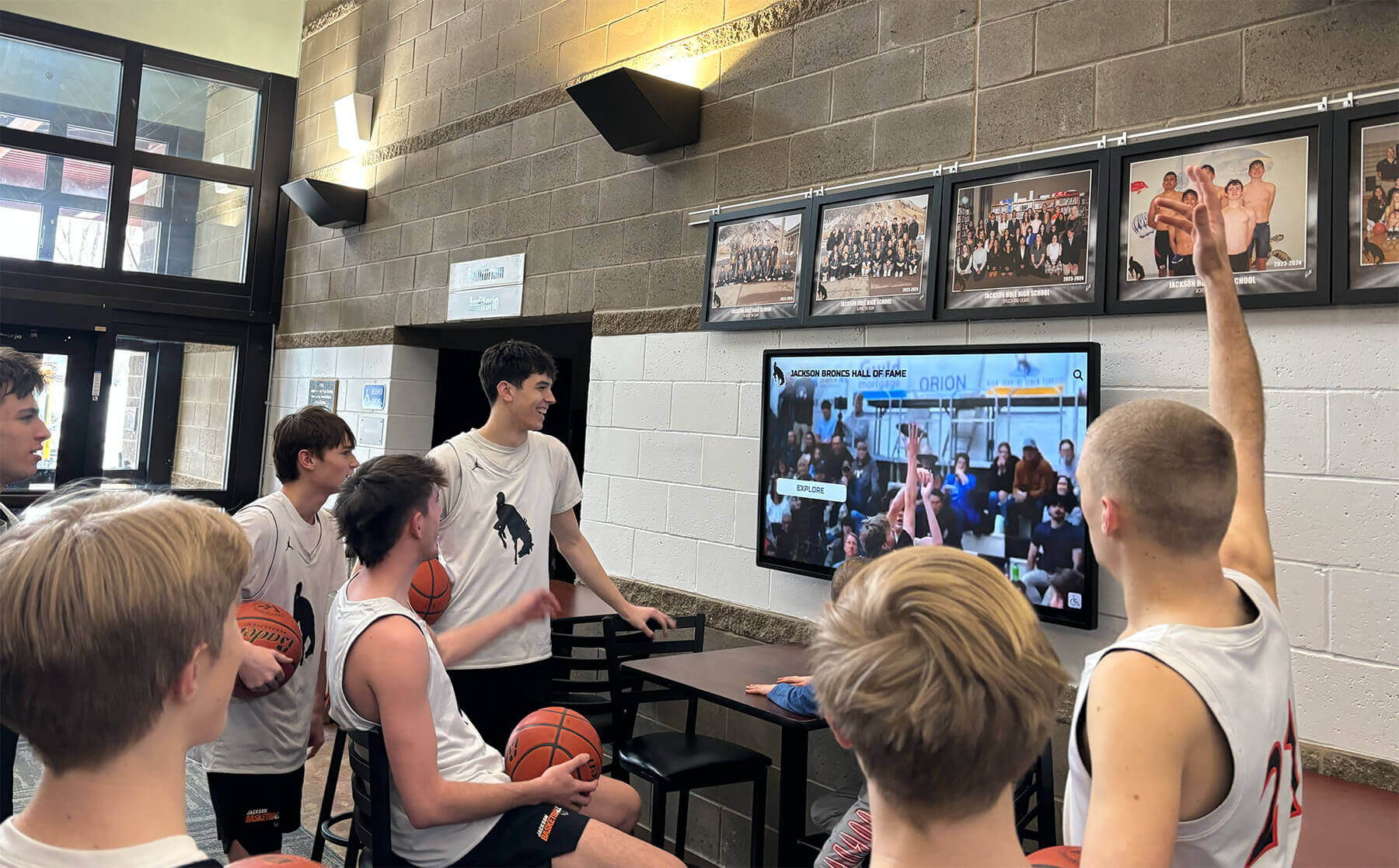
School lobby recognition screens are visible to students and families approaching from a distance—the poster image is what they see before any video begins playing
Dimensions and object-fit Cropping
The HTML <video> element displays its poster image within the same frame defined by the element’s width and height. The browser does not automatically crop or pad the poster to preserve faces—it applies the CSS object-fit and object-position rules that apply to the video content itself, as the MDN documentation for the <video> element confirms.
The default object-fit value for a <video> element is contain, which scales the image to fit within the frame while preserving the original aspect ratio and adding letterbox or pillarbox bars as needed. If the element uses object-fit: cover, the browser scales and crops the image to fill the frame without empty bars—which means content at the edges of the poster will be hidden.
The generic HTML example below shows how a school-owned custom system might configure these properties on a recognition kiosk video element. This is a browser-standard example and does not describe settings in any specific recognition platform:
<!-- Generic example for a school-owned custom system -->
<video
  src="inductee-highlight.mp4"
  poster="inductee-portrait-poster.jpg"
  width="1080"
  height="1920"
  style="object-fit: cover; object-position: center top;"
  preload="none">
</video>
object-position: center top shifts the anchor point upward so the subject’s face stays visible even when cover crops the bottom of the image. For a portrait-orientation kiosk (1080×1920), this is usually preferable to the default center-center anchor, which crops equally from top and bottom. Verify the actual computed value in the kiosk browser’s developer tools, since a platform’s stylesheet may override inline styles.
To confirm cropping behavior on the actual kiosk:
- Open the recognition page in the kiosk browser.
- With the video stopped and the poster visible, use the browser developer tools—if available on the kiosk build—or photograph the screen at normal viewing distance.
- Verify that the athlete’s face and any inductee title text are within the visible area at the element’s rendered size.
Loading Failures and Fallback Behavior
Poster images can fail to load for several reasons:
- The URL in the
posterattribute is incorrect, has moved, or returns an HTTP error - The kiosk network cannot reach the image server at load time
- The image format is unsupported by the kiosk browser (rare, but possible on older kiosk builds)
When the poster fails to load, the browser falls back silently—it does not display an error state in the video frame. Instead, it shows the same blank frame that would appear if no poster were set. Visitors see nothing informative. This failure is easy to miss if acceptance testing only checks that a poster file exists in the CMS, rather than confirming the image actually renders in the browser on the kiosk device.
To test loading failure handling:
- In the recognition page’s HTML, or using browser developer tools, temporarily change the
posterattribute value to a non-existent URL. - Reload the kiosk page.
- Confirm that a blank frame appears—not a broken-image indicator—so staff understand what visitors see if a poster file goes missing.
- Restore the correct URL and confirm the poster renders.
Run this test after any content migration, CDN change, or update to file naming conventions in the recognition platform. Each of those events can silently break poster image paths without affecting the video files themselves.
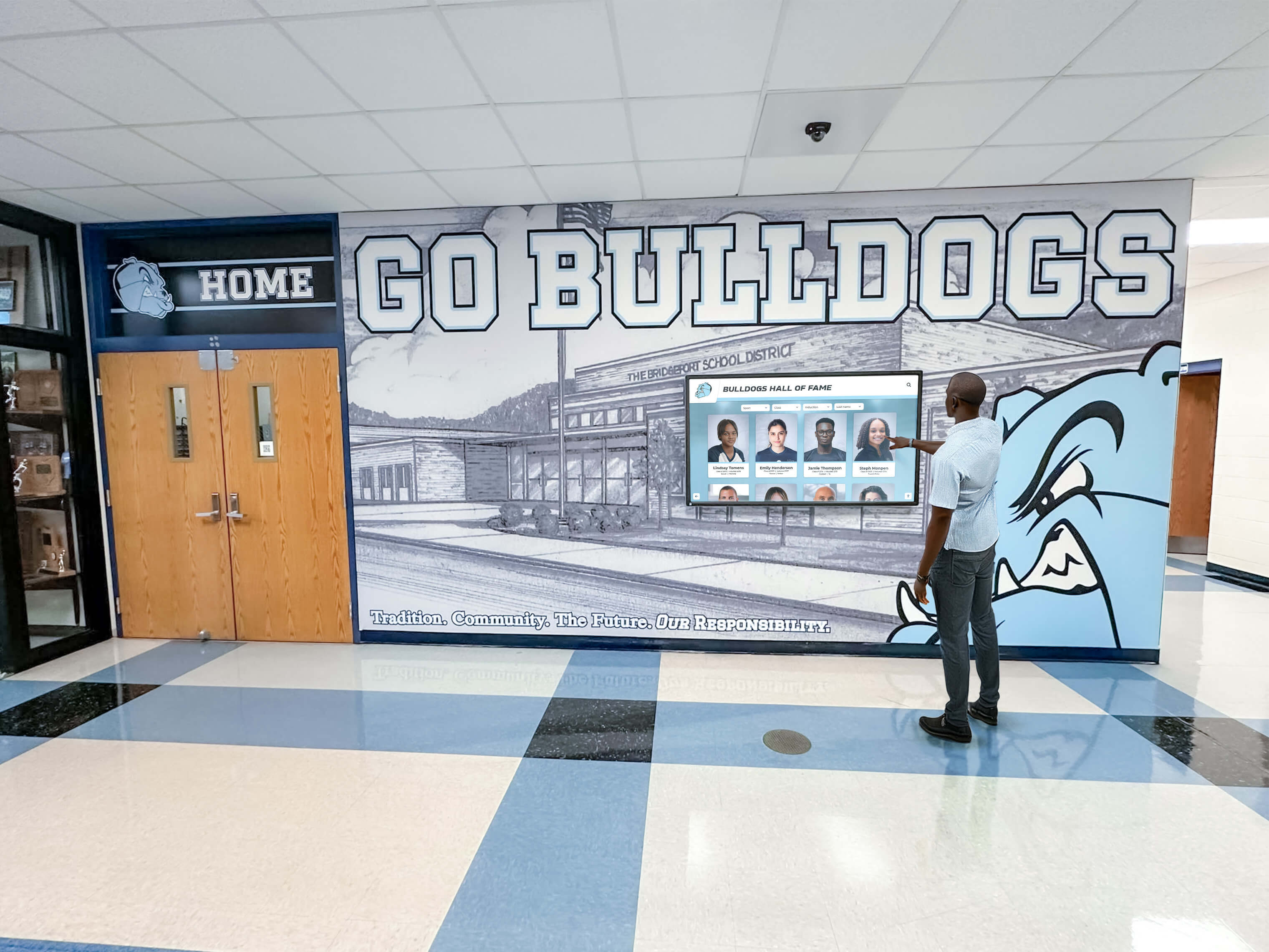
Hallway recognition kiosks are used independently by visitors—a missing or incorrect poster image URL produces a blank screen that offers no identification of the inductee before the visitor taps play
First-Frame Handoff
When a visitor starts playback—by tapping the screen or pressing a play control—the browser transitions from displaying the poster image to displaying video frames. This transition is the first-frame handoff. Two issues can occur:
Visible jump. If the poster image is substantially different in composition from the first video frame—for example, a close portrait crop for the poster followed by a wide game shot as the opening frame—the handoff is visually abrupt. For a recognition kiosk presented to inductees and their families, this is a polish concern rather than a functional failure, but it is worth noting during acceptance review.
Poster remaining visible during buffering. On a slower network, the browser may continue showing the poster after the visitor taps play because the first video frame has not yet buffered. This is expected behavior, not a malfunction—but it can appear to visitors as a non-responsive kiosk. Confirm that a loading indicator (a spinner or progress bar, if the kiosk interface provides one) is visible during this interval so visitors understand playback has started.
The preload attribute on the <video> element affects how quickly the first frame becomes available after play is requested. A value of none tells the browser not to load any video data until playback is requested; metadata loads enough data to determine the duration and dimensions; auto lets the browser decide how aggressively to preload. For a kiosk displaying many athlete profiles simultaneously, preload="none" reduces initial network load but increases the delay to the first visible frame after the visitor taps play.
Numbered Audit Workflow
Run this workflow on the actual kiosk device, in its installed orientation, before an induction ceremony or school recognition event. A desktop browser is not an adequate substitute—screen dimensions, browser version, network path, and GPU decode capability all differ from the installed kiosk environment.
Inventory all video elements on the recognition pages. List every
<video>element, note whether each has aposterattribute, and record the image URL. Flag any video without a poster for immediate remediation.Request each poster image URL directly in the kiosk browser. Paste the URL from the
posterattribute into the address bar and confirm the image loads and displays correctly. A 404 or redirect response indicates a broken path.Check image dimensions against the display. Compare the poster image’s native width and height—visible in browser developer tools or a file info panel—against the kiosk display’s pixel dimensions in its installed orientation. A landscape image on a portrait-orientation kiosk is a dimension mismatch; prepare a portrait-format replacement.
Inspect
object-fitandobject-positionvalues. In browser developer tools, select the<video>element and check its computed styles. Note whethercover,contain,fill, or another value is applied, and whetherobject-positionshifts the anchor away from center.Verify face and title visibility at the installed viewing position. Stand at the expected visitor distance—typically three to six feet from a lobby kiosk—and confirm the athlete’s face and any name or sport text are legible in the poster image. Check visibility at the top, center, and bottom of the visible area.
Test the loading failure scenario. Temporarily break the poster URL by changing one character, then reload the page. Confirm a blank frame appears. Restore the URL and reload to confirm the poster returns.
Test the first-frame handoff. Tap play and observe the transition from poster to video. Note whether the first-frame composition is close enough to the poster that the transition is smooth, and whether the loading indicator is visible if buffering occurs.
Repeat for each athlete profile. Poster images are per-element, so a defect in one athlete’s poster does not propagate to others—but each must be tested individually before an event where multiple inductees will be presented.
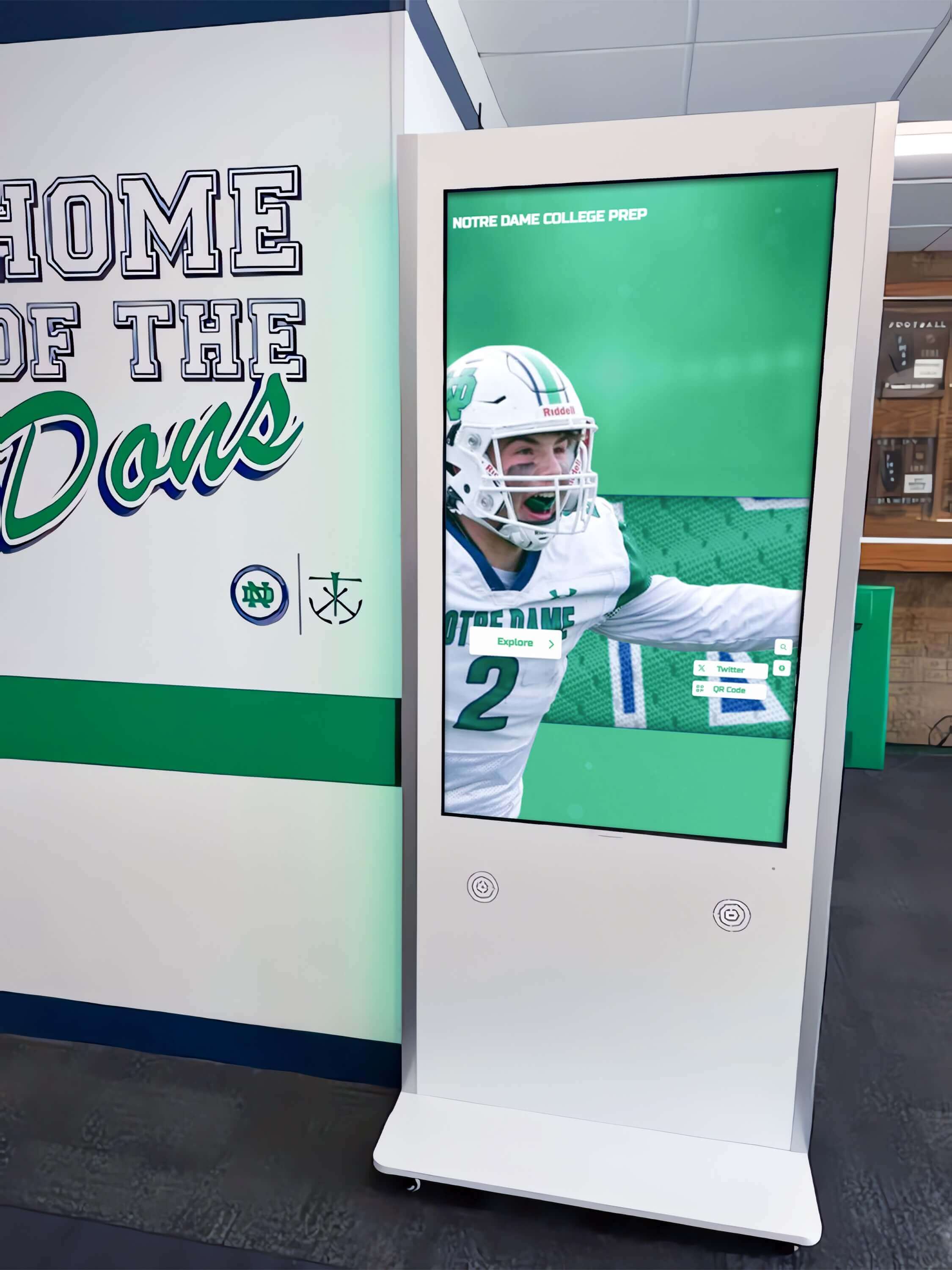
School hallway recognition kiosks present multiple athlete profiles—each video element may have its own poster image that requires individual verification before an induction event
Kiosk Orientation Considerations
School athletic hall-of-fame kiosks are installed in both landscape (horizontal, 16:9) and portrait (vertical, 9:16) orientations. The orientation determines the aspect ratio the poster image must match to avoid unwanted cropping or letterboxing.
A 16:9 landscape poster image displayed in a portrait <video> element—for example, on a 1080×1920 screen—will be either letterboxed with black bars at top and bottom if object-fit: contain is applied, or cropped heavily from the sides if object-fit: cover is applied. Side cropping can remove the athlete’s face entirely if it was positioned near the edge rather than centered.
The safest practice is to prepare poster images in the same aspect ratio as the kiosk’s installed orientation. If the recognition content system provides only landscape-format thumbnails, a separate portrait crop of the athlete’s headshot should be prepared as the poster for portrait-orientation kiosks.
If a single kiosk screen displays both landscape and portrait video elements—for example, a wide panel showing a landscape highlight reel alongside a portrait-orientation athlete profile column—each element needs its own appropriately formatted poster image.
Poster Image Audit Checklist
Copy this checklist and complete it on the kiosk device before each recognition event.
Setup and Inventory
- Listed all
<video>elements on the recognition pages - Confirmed every
<video>element has aposterattribute set - Recorded each poster image URL for direct verification
Image Loading
- Loaded each poster URL directly in the kiosk browser—no 404, redirect, or format error
- Confirmed each poster image renders within 2 seconds on the school network
- Tested broken URL scenario: confirmed a blank frame appears, not a broken-image indicator
Dimensions and Cropping
- Confirmed poster image aspect ratio matches the kiosk’s installed orientation (landscape or portrait)
- Noted the
object-fitvalue applied to each<video>element - If
object-fit: coveris used, confirmedobject-positionis set to preserve the face and title text - Verified no critical content—face, name, sport—is cropped at the element’s rendered dimensions
Content Verification
- Athlete face is visible and identifiable from normal visitor distance
- Inductee name or sport title, if included in the poster image, is legible
- Poster image shows the correct athlete—not a different inductee or a generic placeholder
First-Frame Handoff
- Tapped play and observed the transition from poster to video—no unexpected blank frame
- Confirmed loading indicator is visible if network delay causes buffering after play is tapped
Multi-Profile Kiosks
- Completed the above steps for each athlete profile on the kiosk
- Confirmed no poster images are shared between athletes unless intentional
FAQs
What does the browser show if a <video> element has no poster attribute?
Nothing is displayed in the video frame until the browser decodes and presents the first available video frame. As the MDN documentation for the <video> element states, without a poster the element shows nothing until the first frame is ready. On a school network with a large video file, that delay can run several seconds. Setting an explicit poster is almost always preferable for a recognition kiosk visible to lobby visitors.
Can the poster image be a different resolution than the video?
Yes. The poster attribute accepts any image URL, and the image does not need to match the video’s native resolution. The browser scales and positions the poster according to the <video> element’s CSS object-fit and object-position values—the same properties that apply to the video content itself. Prepare the poster at the kiosk display’s resolution or higher; a low-resolution poster on a 4K display appears blurry at normal viewing distance.
Does setting a poster image affect whether the video autoplays?
No. The poster attribute only controls what appears before playback; it has no effect on autoplay policy, muted autoplay, or playback-related permissions. Kiosk autoplay behavior is governed by the browser’s autoplay policy, the presence of the autoplay attribute on the element, and whether the video is muted. These are separate from poster image handling.
How does loading="lazy" interact with the poster image?
For a <video> element with loading="lazy", the browser defers downloading the poster until the element is near or within the viewport. On a kiosk where all recognition content is visible on-screen at once, this is rarely an issue. For recognition pages that scroll, the poster appears after the element scrolls into view rather than immediately on page load. The MDN documentation for the <video> element recommends setting explicit width and height attributes on lazy-loaded video elements to avoid layout shift when the poster eventually loads.
Should the poster image show the same composition as the video’s opening frame?
Not necessarily, but a close match produces a smoother handoff when playback begins. A headshot used as the poster followed by a video that opens on wide game footage produces a visible visual shift at the moment of handoff. That shift is not a technical failure, but it can be disorienting during an induction event. Where the recognition content allows it, choose a poster whose composition is similar to the video’s opening seconds.
What image formats can be used in the poster attribute?
The poster attribute accepts any image URL the browser can load. JPEG, PNG, WebP, and AVIF are all accepted in modern browsers. For a kiosk running a specific older browser build, verify that WebP and AVIF are supported before using them; some older Chromium-based kiosk deployments may not support AVIF. JPEG is the widest-supported format and a safe default when kiosk browser version is uncertain.
Keeping poster images accurate across a hall of fame kiosk is part of the broader content quality work that makes a recognition program trustworthy for inductees and their families. The Hall of Fame Accessibility Checklist for school recognition programs covers the wider set of accessibility requirements—navigation, contrast, and screen reader compatibility—that complement the poster image checks in this guide.
For recognition pages served on touchscreen kiosks, verifying that the layout remains usable at very high zoom levels is another content quality measure. The Digital Hall of Fame Reflow Accessibility Test at 400% Zoom describes how to run that test on a recognition display before an event.
Content managers responsible for athletic hall of fame video and image assets often work in coordination with those maintaining the broader athletic website. The Athletic Website Content Checklist covering teams, records, awards, sponsors, and alumni provides a parallel checklist for the website-side content that complements the kiosk display audit.
Before an induction ceremony, the display hardware itself should also be inspected. The Touchscreen Recognition Display Dead-Pixel Inspection Checklist covers how to identify and document hardware defects that would affect how both the poster image and the video content appear on screen.
Recognition content staff maintaining accurate athlete data across a digital hall of fame program will also benefit from a structured data template. The Hall of Fame Profile Data Dictionary Template for standardizing names, teams, awards, and media provides a framework for keeping athlete media assets—including poster image URLs—organized and verifiable across induction classes.

Recognition kiosk visitors select athlete profiles by touch—the poster image they see before tapping play is the primary visual identification of the inductee before playback begins
See Rocket Alumni Solutions Athletic Recognition Running Live
If your school is building or updating an athletic hall of fame display and wants to see how a purpose-built recognition platform manages athlete video content, poster images, and display reliability across induction events, a custom demo covers exactly that. Rocket Alumni Solutions designs touchscreen recognition systems for school athletic lobbies, corridors, and hall-of-fame installations.
Live Example: Rocket Alumni Solutions Touchscreen Display
Interact with a live example (16:9 scaled 1920x1080 display). All content is automatically responsive to all screen sizes and orientations.