Athletic Hall of Fame Video Playback Speed Audit: Reset Each Visitor to Normal Speed
- Home /
- Blog Posts /
- Athletic Hall of Fame Video Playback Speed Audit: Reset Each Visitor to Normal Speed
The Easiest Touchscreen Solution




Live Example: Rocket Alumni Solutions Touchscreen Display
Interact with a live example (16:9 scaled 1920x1080 display). All content is automatically responsive to all screen sizes and orientations.
An athletic hall of fame video playbackRate reset ensures that induction clips and athlete interview videos begin at normal speed for each new visitor, even after a previous visitor used slow-motion or fast-forward controls. The playbackRate property, documented at MDN Web Docs, is a live double on the HTMLMediaElement interface that reflects the current rate at which media is playing back; a value of 1 means normal speed, values below 1 produce slow motion, and values above 1 produce fast-forward. It is a runtime property that persists on the element until explicitly changed — it does not automatically return to 1 between visitor interactions or when a new athlete profile is displayed. The defaultPlaybackRate property is a separate value — also a double defaulting to 1 — that the browser applies to playbackRate when a new media resource is loaded. Because these two properties are independent and both must be audited, a speed reset triggered only by loading a new clip may not correct a defaultPlaybackRate that was itself changed during a previous session.
This guide walks school IT coordinators and athletic recognition-program staff through reading each property correctly, understanding when and why the previous visitor’s speed choice persists, attaching a ratechange listener to confirm resets, and building an acceptance check that runs on the application-defined session-end or profile-change action — not on the browser’s load cycle alone.
When an inductee’s family member approaches a hall-of-fame kiosk during a ceremony and taps the highlight video for their athlete, they expect to see the clip at normal speed. If the visitor before them had slowed the video to examine a specific moment — a record-breaking throw, a championship dive, a senior night tribute — and the application did not reset the rate before the next profile loaded, the new visitor’s video starts at that slower rate. The recognition experience that staff and athletic directors worked to curate plays at the wrong pace, and the fix is not visible without opening the browser console.
Correcting this requires auditing playbackRate and defaultPlaybackRate as two separate properties at the right moment in the application’s lifecycle — and confirming the reset through the ratechange event rather than assuming a new source load handled it.

An athletic hall of fame display during an active visitor session — induction clips and interview videos that begin at the wrong speed after a previous visitor's slow-motion use undermine the recognition moment the program is designed to deliver
playbackRate and defaultPlaybackRate: Two Separate Properties
The MDN documentation for HTMLMediaElement.playbackRate describes it as the rate at which media is played back, where 1 is normal speed, values below 1 produce slower playback, and values above 1 produce faster playback. It is a writable double that can be changed at any point during playback or while the media is paused. The browser fires the ratechange event whenever playbackRate is assigned a new value.
The MDN documentation for HTMLMediaElement.defaultPlaybackRate describes a separate property — also a writable double defaulting to 1 — that represents the intended playback rate for the media. When the browser processes a new media resource (for example, when load() is called or a new src is assigned), it applies defaultPlaybackRate as the starting value for playbackRate. Setting defaultPlaybackRate also fires the ratechange event.
The critical distinction for recognition kiosk management is this: the two properties can diverge independently. A visitor who uses a slow-motion control that only sets playbackRate leaves defaultPlaybackRate at 1, so a new clip load resets the live rate correctly. But if a UI component or script sets both — for example, to keep a “you have chosen slow motion” preference across clips — then loading a new clip applies the modified defaultPlaybackRate as the new starting rate, and the next visitor’s video still begins at the wrong speed. Auditing both properties separately at the session boundary is the only reliable confirmation.
// Illustrative audit at session-end — check both properties
const vid = document.querySelector('video');
console.table({
  playbackRate: vid.playbackRate,           // 1 = normal speed
  defaultPlaybackRate: vid.defaultPlaybackRate  // 1 = normal speed
});
A value of 1 on both properties at the moment a new visitor’s session begins confirms normal speed. Any other value on either property signals that a reset is needed before the next clip plays.
Why the Previous Visitor’s Speed Persists
playbackRate is a live DOM property on the media element, not a per-session preference stored in the application state. When a visitor moves to a new athlete profile, the application typically loads a new video source into the same <video> element. What the browser does to playbackRate at that moment depends on whether load() is called explicitly, whether the src attribute is replaced, and what value defaultPlaybackRate holds.
The MDN specification indicates that when a new media resource is loaded, the browser applies defaultPlaybackRate to playbackRate as the starting value. If defaultPlaybackRate has not been changed from 1, then a new source load does reset playbackRate to 1. But this reset path has conditions that recognition kiosk applications frequently do not meet:
- If the platform reuses the
<video>element across profiles without callingload()— common when only thesrcattribute is swapped via JavaScript — the reset may not occur on every browser or browser version. - If a previous visitor’s control interaction set
defaultPlaybackRatealongsideplaybackRate, the new load applies the modified default, not1. - If the platform’s session logic does not call
load()at all (for example, pausing the video and replacingsrcwithout triggering a full resource reload),playbackRateretains its last value.
The application-defined session boundary — the moment the platform marks a visitor session as ended or a new profile as active — is the correct place to reset both properties explicitly, regardless of what the load cycle may or may not do.
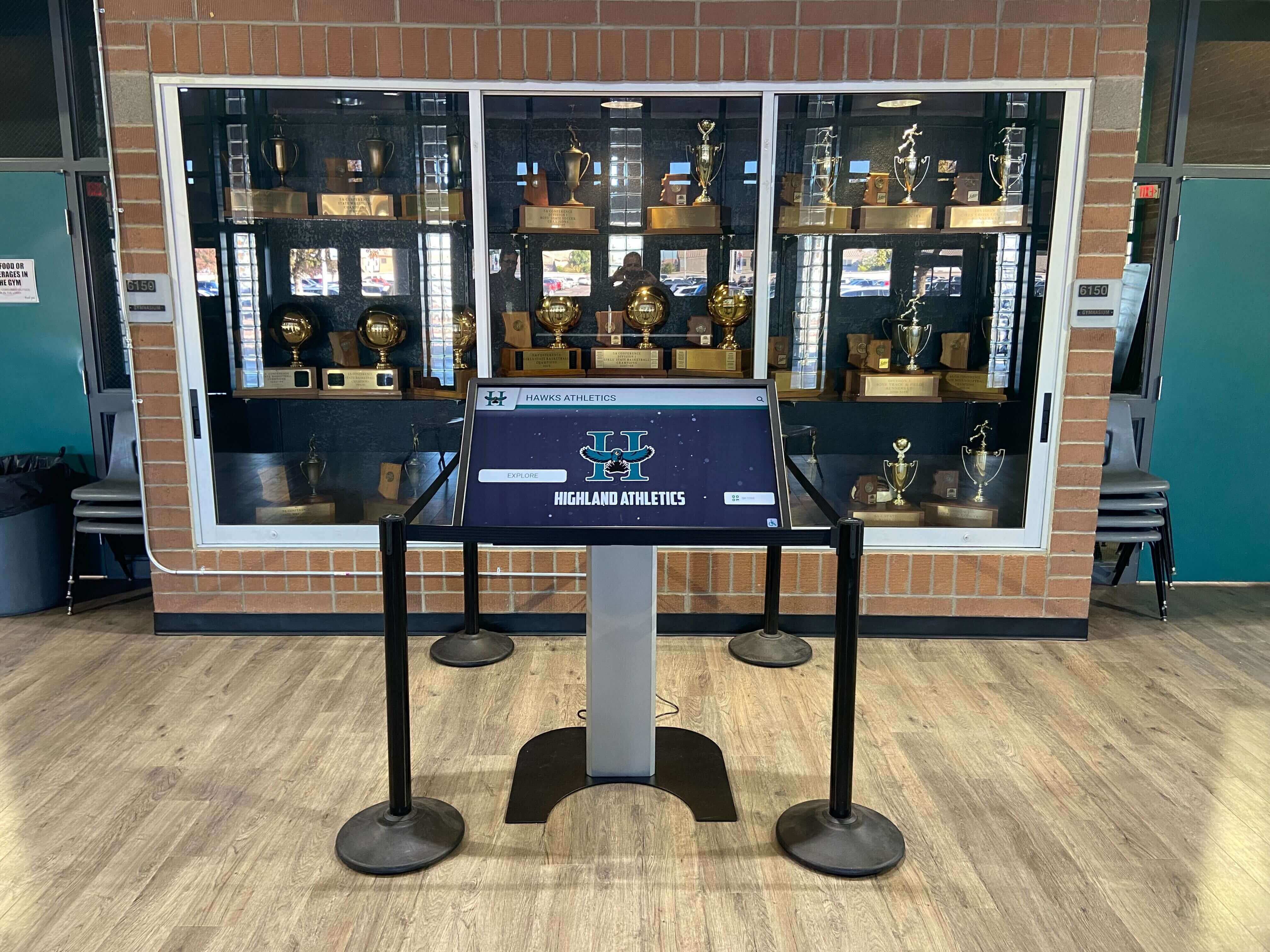
A hall-of-fame recognition kiosk installed alongside physical trophies — when the platform displays a new inductee's highlight reel after a session change, both playbackRate and defaultPlaybackRate must read 1 before playback begins
When and How to Reset
The reset must happen on the application-defined session-end or profile-change event, not on the browser’s load event alone. In a recognition platform that uses a timeout to end visitor sessions, or a “back to directory” navigation action, or a tap on a new athlete card, the reset should execute as part of that handler before the new clip is assigned a source or before play is initiated.
// Illustrative reset on session-end or profile-change action
function resetVideoSpeed(vid) {
  vid.defaultPlaybackRate = 1;
  vid.playbackRate = 1;
}

// Attach to the application-defined session-end handler
document.querySelector('#athlete-directory').addEventListener('click', () => {
  const vid = document.querySelector('video');
  resetVideoSpeed(vid);
  // Application then loads the next clip or returns to the directory
});
Set defaultPlaybackRate first, then playbackRate. This order ensures that if the browser internally reads defaultPlaybackRate during the transition to the new source, it already reflects the intended value. Both assignments fire the ratechange event, which provides a confirmation path.
Using ratechange to Confirm the Reset
The ratechange event fires on the media element whenever playbackRate or defaultPlaybackRate is assigned. It does not bubble and is not cancelable. Attaching a listener to it during a kiosk audit session provides a timestamped record of every rate change — both the visitor’s interaction and the subsequent reset — without requiring manual console inspection.
// Illustrative ratechange listener for an audit session
const vid = document.querySelector('video');
vid.addEventListener('ratechange', () => {
  console.log({
    event: 'ratechange',
    playbackRate: vid.playbackRate,
    defaultPlaybackRate: vid.defaultPlaybackRate,
    timestamp: performance.now().toFixed(0) + 'ms'
  });
});
In a correctly implemented reset, this listener logs two ratechange events in sequence when the session boundary fires: one for defaultPlaybackRate = 1 and one for playbackRate = 1. If only one event appears, one of the two properties was not reset. If neither appears, the reset code did not run on the application event being tested.
Keep the listener active during the full audit session — from the moment the kiosk loads through multiple simulated visitor interactions — to capture whether any application component sets either property to a non-1 value outside the controlled speed-selector interaction.
What load() Does and Does Not Reset
Calling load() on a media element aborts any ongoing fetch, resets the decoder state, and applies defaultPlaybackRate as the new value of playbackRate. It is a useful tool for resetting playback position and buffer state. But its effect on playback speed depends entirely on the current value of defaultPlaybackRate.
If defaultPlaybackRate is 1 when load() is called, then load() will set playbackRate to 1 — a correct speed reset as a side effect of the resource reload. If defaultPlaybackRate was previously changed to 0.5 by a visitor interaction, load() will set playbackRate to 0.5 — perpetuating the wrong speed into the next clip.
load() alone does not reliably reset application session state. It resets the media resource loading process. These are distinct operations. A recognition platform that calls load() at session end must also confirm that defaultPlaybackRate is 1 before or at the same moment. Setting defaultPlaybackRate = 1 before calling load() is a safe sequence: the subsequent load() then applies the corrected default as playbackRate.
// Safe sequence: reset default before load
function resetAndLoad(vid, newSrc) {
  vid.defaultPlaybackRate = 1;
  vid.playbackRate = 1;
  vid.src = newSrc;
  vid.load();
}
This sequence sets both properties, then loads the new source. The load() call applies defaultPlaybackRate (now 1) to playbackRate again — harmless redundancy that guards against any browser that defers the earlier playbackRate assignment.
Audio Behavior at Non-Default Rates
Pitch correction is active by default when playbackRate is not 1. Slowing a video to 0.5 does not lower the audio pitch; the browser compensates through HTMLMediaElement.preservesPitch, which is true by default. Recognition programs displaying spoken tributes, locker-room interviews, or coach commentary benefit from this default: slow-motion playback keeps voices at their natural pitch.
At rates far outside the normal range, the browser may mute audio rather than attempt pitch correction. The MDN documentation for playbackRate notes that in Gecko (Firefox), audio is muted outside the range of approximately 0.25 to 4.0. This is an engine-specific behavior; the exact muted range is not standardized and may differ between Chromium-based browsers and other engines. For kiosk applications, this muting behavior affects visitors who reach extreme rate values — either through a bug or a control that allows unlimited adjustment.
If an induction video’s audio is absent but the clip appears to be playing, verifying that playbackRate is within a reasonable range (for example, between 0.5 and 2.0) is one diagnostic step alongside checking the element’s muted attribute and the operating system’s audio output state.
Negative playbackRate values — intended to produce reverse playback — are defined in the specification but are not consistently supported across browsers. The MDN documentation notes open tracking issues in both Firefox and Chromium. Recognition platform controls should not offer reverse playback as a feature for visitor-facing kiosks, and reset logic should not need to handle negative values as an expected case. Auditing the minimum rate a visitor control can reach and ensuring it is a positive number is a straightforward acceptance check.

When a visitor selects a new inductee profile on a hall-of-fame touchscreen, the application's profile-change event is the correct moment to reset playbackRate and defaultPlaybackRate to 1 — before the next video source is assigned
Recording the Audit
A speed reset audit is most useful when it produces a record that IT staff and recognition-program owners can review. The record should cover four elements for each test case: the browser and device model, the clip being tested, the session action that triggered the reset, and the playbackRate and defaultPlaybackRate values observed immediately before and after the reset.
| Field | What to record |
|---|---|
| Browser and version | e.g., Chrome 128, Safari 17.4, Edge 125 — matters because muting range and reset behavior differ by engine |
| Device model | e.g., kiosk hardware model — behavior on a low-power display controller may differ from a desktop |
| Clip tested | The specific video file; a long induction highlight may behave differently from a short interview clip |
| Session action tested | e.g., timeout expiry, “back to directory” tap, profile-card selection, idle screen triggered |
| playbackRate before reset | The value read immediately before the reset handler fires |
| defaultPlaybackRate before reset | Audited separately from playbackRate |
| playbackRate after reset | Should read 1 |
| defaultPlaybackRate after reset | Should read 1 |
| ratechange events observed | Count of ratechange events fired; should be 2 for a full dual reset |
Run the audit against each session-end action the application supports. A timeout reset and a manual navigation reset may follow different code paths and should be tested independently. If the platform serves recognition content across multiple browser types — Chromium for kiosk hardware, Safari for iOS devices in the gym lobby, Firefox for a Linux display controller — audit each combination separately.
Vendor Acceptance Checks
When evaluating or accepting a recognition platform update that touches video playback controls, the following checks confirm that the speed reset behavior meets the expected standard. These are acceptance checks on an illustrative prototype or self-managed configuration — specific Rocket platform capabilities are separate and are not represented here.
Check 1 — Fresh profile load
Load a new inductee profile from the athlete directory. Immediately read video.playbackRate and video.defaultPlaybackRate in the DevTools console. Both should read 1.
Check 2 — Post-slow-motion reset
Set video.playbackRate = 0.5 in the console to simulate a slow-motion interaction. Then trigger the application’s session-end or profile-change action. Read both properties again. Both should read 1.
Check 3 — Post-fast-forward reset
Set video.playbackRate = 2 to simulate fast-forward. Trigger the session-end action. Both properties should read 1 after the reset.
Check 4 — defaultPlaybackRate independently changed
Set video.defaultPlaybackRate = 0.5 and then load a new clip through the application’s normal navigation. Read video.playbackRate immediately after the clip begins. If it reads 0.5, the platform’s load path is applying the modified default without resetting it first — the reset function needs to set defaultPlaybackRate = 1 before the source assignment.
Check 5 — ratechange count
With the ratechange listener active (see the code above), trigger a full slow-motion session followed by a session reset. Confirm that exactly two ratechange events fire at the reset moment: one for defaultPlaybackRate = 1 and one for playbackRate = 1. A single event indicates incomplete reset logic.
// Illustrative acceptance check — run in DevTools console on the recognition display
(function auditPlaybackReset() {
  const vid = document.querySelector('video');
  let changeCount = 0;
  vid.addEventListener('ratechange', () => { changeCount++; });

  // Simulate visitor leaving slow-motion session
  vid.defaultPlaybackRate = 0.5;
  vid.playbackRate = 0.5;
  changeCount = 0; // reset counter to watch only the application reset

  console.log('Simulate session-end action, then check changeCount and rate values.');
  // After triggering session-end in the application UI:
  // console.log({ changeCount, playbackRate: vid.playbackRate, defaultPlaybackRate: vid.defaultPlaybackRate });
  // Expected: changeCount === 2, both rates === 1
})();
This is an illustrative prototype. The exact selectors, event names, and application actions depend on the recognition platform’s structure.
Proposed Shot List for a Diagnostic Storyboard
The following is a proposed shot list for an IT diagnostic video demonstrating the speed audit and reset procedure on a school athletic hall of fame kiosk. This is a storyboard outline only — no video using this shot list has been produced.
| Shot # | Description | On-screen content | playbackRate shown |
|---|---|---|---|
| 1 | Opening: IT staff at kiosk with DevTools console open | Recognition platform loaded; athlete directory visible | 1 (fresh session, normal speed) |
| 2 | Simulating a visitor slow-motion interaction | DevTools console: vid.playbackRate = 0.5 entered; video visibly slows | 0.5 |
| 3 | Reading both properties after simulation | Console: playbackRate: 0.5, defaultPlaybackRate: 1 (only live rate changed) | 0.5 / default 1 |
| 4 | Triggering the application session-end action | Tapping “back to directory”; ratechange events logged | Transition: 0.5 → 1 |
| 5 | Confirming reset | Console: both properties read 1; ratechange event count: 2 | 1 |
| 6 | Variant: defaultPlaybackRate also changed | Console: both set to 0.5 to simulate a platform that stores the preference | 0.5 / default 0.5 |
| 7 | Session-end without defaultPlaybackRate reset | New clip loads; playbackRate reads 0.5 — incorrect | 0.5 (bug demonstrated) |
| 8 | Corrected reset sequence | defaultPlaybackRate = 1 set before load(); both properties read 1 after | 1 |
| 9 | Closing: acceptance checklist row marked complete | Pre-event checklist with speed-reset row checked; both properties confirmed at 1 | — |
Shots 6 and 7 show the specific failure mode where defaultPlaybackRate is not included in the reset, resulting in a new clip that starts at the wrong speed despite a reset attempt — the distinction between auditing both properties separately and only resetting playbackRate is the central point.
Pre-Event Speed Reset Acceptance Checklist
Complete this checklist on the recognition kiosk hardware in its installed environment before each hall-of-fame event or athletic awards presentation. Run it after any platform software update, CMS migration, or changes to the playback control interface.
48–72 hours before the event
- Open the recognition platform on the kiosk browser
- Read
video.playbackRateandvideo.defaultPlaybackRatefrom the DevTools console on a freshly loaded athlete profile; confirm both equal1 - Attach the
ratechangelistener and simulate a slow-motion session; confirm the listener logs events when the rate changes - Trigger the application’s session-end or profile-change action; confirm both properties return to
1and thatratechangefires for each assignment - Repeat the check using the fast-forward path if the platform offers variable speed controls above
1 - Confirm that
defaultPlaybackRatereads1independently — do not assume that auditingplaybackRatealone is sufficient
Day-of-event check (1–2 hours before doors open)
- Re-run the fresh-load read: both properties should equal
1with no prior interaction - Confirm the session-end trigger (timeout, navigation, idle screen) fires the reset correctly in the production environment — not just in a console simulation
- If audio is absent on a clip that should have audio, check
video.playbackRatealongside themutedattribute; a rate outside the engine’s audio-supported range can silence a clip that is otherwise functioning
During the event
- If a visitor reports that a video is running too slowly or too quickly after they approach the kiosk, read
video.playbackRatein DevTools before adjusting any hardware or network settings - Record the observed value alongside the clip name, device model, and what the previous visitor’s last action was before the session ended
- After a reset, confirm both properties read
1before the visitor resumes
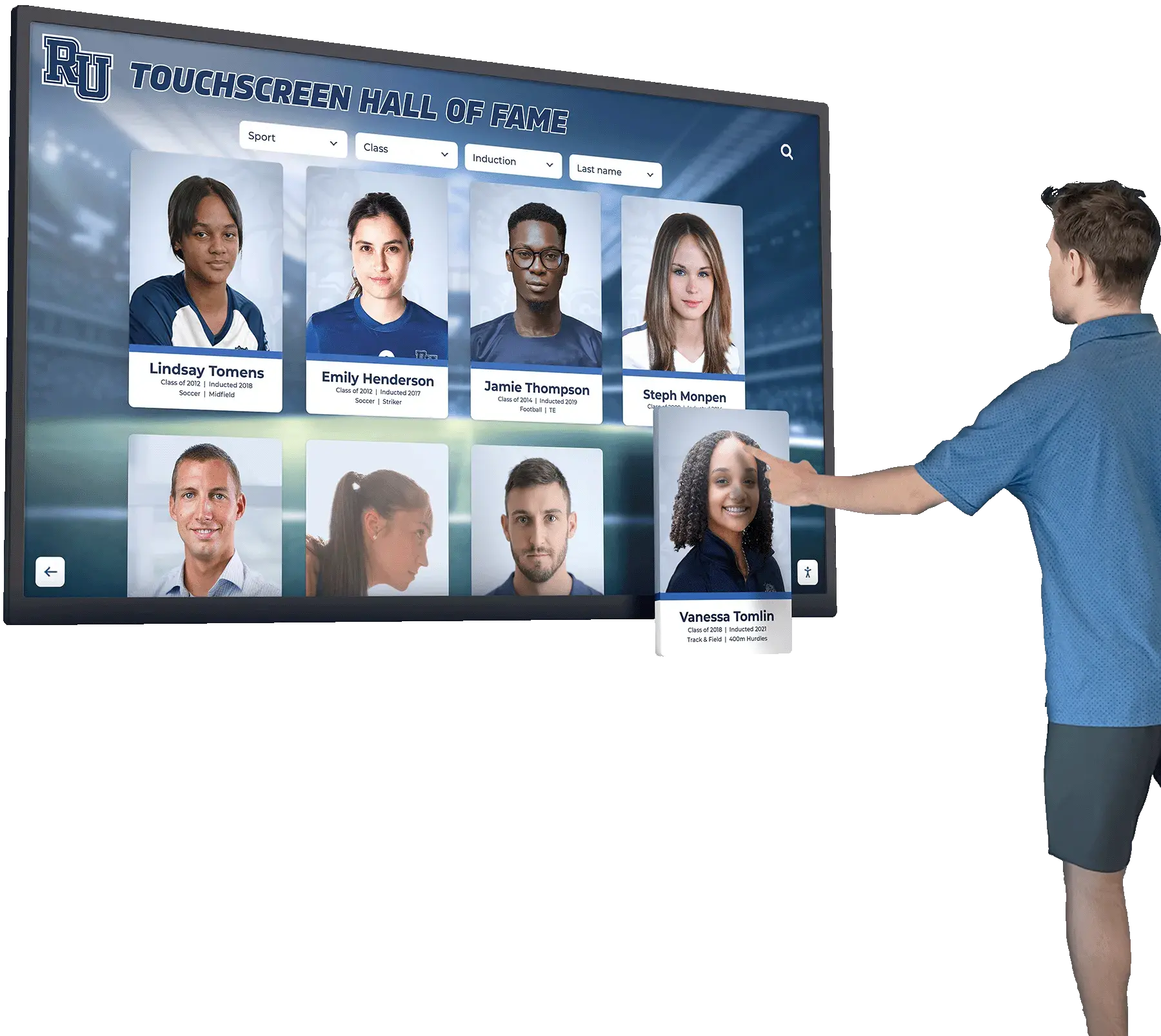
Each visitor to an athletic hall of fame kiosk deserves to see induction clips and athlete interviews at normal speed — a playbackRate and defaultPlaybackRate audit at the session boundary is the structured confirmation that the reset happened
Connecting the Speed Audit to the Broader Recognition Platform Workflow
A playbackRate and defaultPlaybackRate audit addresses one specific failure mode on recognition kiosks: speed state persisting between visitor sessions. It does not evaluate source availability, codec compatibility, or profile data quality — each of which is a separate concern.
Athletic programs building or expanding a hall-of-fame display benefit from standardized profile data before video content issues arise. A structured Hall of Fame Profile Data Dictionary Template provides a consistent schema for names, teams, awards, and media references — including the video clip identifiers that the recognition platform uses to load the correct source for each inductee. When profile records point to the right clip, the video element has a valid source; auditing playbackRate then confirms the speed at which that clip plays.
For programs that manage recognition across physical installations — lobby kiosks, corridor screens, gym entry displays — layout planning shapes what visitors encounter before they ever interact with the video. The resource on Gym Lobby Ideas for Schools: Records, Awards, Schedules, and Sponsor Displays covers how to structure lobby recognition content so that visitors are oriented toward the interactive elements where speed-controlled video playback occurs.
Touchscreen kiosks that present recognition video often rely on on-screen keyboards for visitor search and navigation. The implementation guide for an HTML On-Screen Keyboard for Touchscreen Kiosks covers the keyboard layer that surfaces above the recognition display — relevant because keyboard interaction and athlete-profile navigation are the session actions that trigger speed resets, and the keyboard’s visibility state affects when the session boundary fires.
Recognition programs that catalog historical footage alongside contemporary highlight videos benefit from consistent tagging for retrieval and display. A guide to Athletic Archive Controlled Vocabulary covers how to assign standardized tags to teams, awards, and individual records — tags that a CMS uses to associate the correct video with each hall-of-fame profile. A correctly tagged archive reduces the chance of loading the wrong clip, which is one source of unexpected playback behavior alongside speed-state carryover.
At the department level, the tools managing recognition video sit within a broader software environment covering rosters, records, and scheduling. Understanding the Athletic Department Management Software Stack for records, rosters, and recognition identifies where the recognition platform fits relative to the systems that supply athlete data, media files, and event-day logistics — including which system owns the session-reset logic that triggers the playbackRate audit.
FAQs
What is the difference between playbackRate and defaultPlaybackRate for a reset?
playbackRate is the currently active playback rate — the speed at which the video is playing or will play when started. defaultPlaybackRate is the rate the browser applies when it loads a new media resource. Setting playbackRate = 1 corrects the active speed for the current clip. Setting defaultPlaybackRate = 1 ensures that subsequent clip loads also begin at normal speed. Both must be set at the session boundary to guarantee a complete reset.
Does loading a new video clip automatically reset the playback speed to normal?
It depends on the value of defaultPlaybackRate. When a new media resource is loaded, the browser applies defaultPlaybackRate to playbackRate. If defaultPlaybackRate is 1, the new clip starts at normal speed. If defaultPlaybackRate was previously changed to 0.5, the new clip starts at 0.5 — slow motion — even though a new source was loaded. Relying on clip loading alone without auditing defaultPlaybackRate is not sufficient.
How do I know if the reset actually ran?
Attach a ratechange listener before triggering the session-end action. A complete reset of both properties fires two ratechange events: one when defaultPlaybackRate changes to 1 and one when playbackRate changes to 1. If only one event fires, one property was not reset. If neither fires, the reset code did not execute on the event being tested.
Does changing playbackRate affect audio pitch?
By default, no. Pitch correction is active by default through HTMLMediaElement.preservesPitch, which is true unless explicitly disabled. A visitor who slows a tribute video to 0.5 hears the audio at the original pitch, just slower. You can disable pitch correction by setting video.preservesPitch = false, but recognition kiosks typically should not do this.
Is there a speed range where audio is automatically muted?
Yes, but the exact range is engine-dependent. The MDN documentation for playbackRate notes that in Gecko (Firefox), audio is muted outside approximately 0.25 to 4.0. Chromium-based browsers may use a different range. If an induction video is playing but has no audio, confirming that playbackRate is within a sensible range (such as 0.5 to 2.0) is one diagnostic step alongside checking the muted attribute and system audio output.
Can a kiosk play a video in reverse by setting a negative playbackRate?
The specification includes negative values for reverse playback, but the MDN documentation for playbackRate notes that support for negative values is not yet widespread, with open tracking issues in both Firefox and Chromium. Recognition platform controls should not offer reverse playback as a visitor feature, and audit logic should treat any negative rate as an unexpected value requiring a reset to 1.
What should I record when auditing speed resets across multiple kiosks?
For each test case, record the browser and version, device model, clip being tested, session action that triggered the reset, and the playbackRate and defaultPlaybackRate values immediately before and after the reset. If ratechange events were observed, note the count. This record supports vendor escalation if a platform update breaks reset behavior, and it provides a baseline for comparing behavior across different kiosk hardware models.

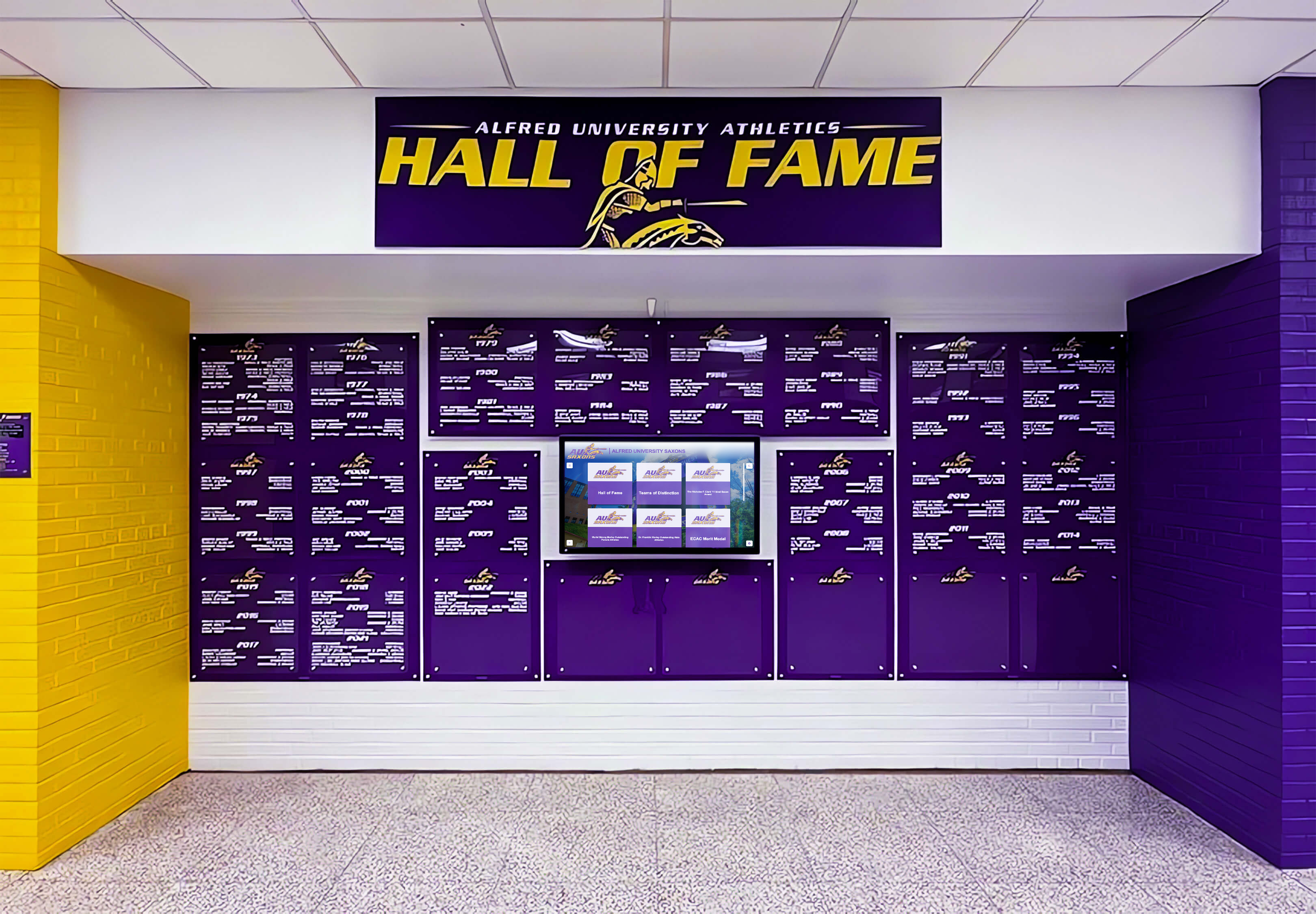
A school athletic hall of fame recognition wall — the video screen visible at right is where induction clips play for each visitor, and where a playbackRate reset at the session boundary ensures every visitor sees the tribute at normal speed regardless of how the previous visitor left the controls
See How Rocket Alumni Solutions Handles Athletic Recognition Video on School Displays
If your school is evaluating a purpose-built athletic hall of fame platform and wants to understand how induction clips, athlete interviews, and highlight reels are served and managed across visitor sessions, a live walkthrough covers the complete recognition experience — from profile data and video sourcing to the display controls that visitors interact with on event day. Rocket Alumni Solutions designs touchscreen recognition systems for school athletic programs of every size.
Live Example: Rocket Alumni Solutions Touchscreen Display
Interact with a live example (16:9 scaled 1920x1080 display). All content is automatically responsive to all screen sizes and orientations.