Athletic Hall of Fame Video Media Session API: Kiosk Checks for School Recognition Displays
- Home /
- Blog Posts /
- Athletic Hall of Fame Video Media Session API: Kiosk Checks for School Recognition Displays
The Easiest Touchscreen Solution




Live Example: Rocket Alumni Solutions Touchscreen Display
Interact with a live example (16:9 scaled 1920x1080 display). All content is automatically responsive to all screen sizes and orientations.
A Media Session API check for an athletic hall of fame video kiosk verifies that the browser’s navigator.mediaSession interface is present, that metadata describing the current athlete’s highlight reel is set correctly, and that OS-level media-key handlers—play, pause, stop, and seek—actually call the underlying <video> element methods rather than simply registering without effect. The Media Session API, documented at MDN Web Docs, lets a browser communicate with the operating system about the media currently playing, which matters on a school recognition kiosk where a facility manager might press a keyboard media key or where the OS media overlay could otherwise display stale information about a previous athlete’s video.
This guide walks athletic directors and school IT staff through feature-detecting navigator.mediaSession, setting artwork and track metadata for each athlete, wiring handlers that call real playback methods, synchronizing playback state when the kiosk switches between athlete profiles, and cleaning up handlers so stale state from a previous video does not carry over. It also names what the API explicitly does not do—including bypassing autoplay restrictions and overriding kiosk lockdown policies—so testing expectations stay grounded.
When a student-athlete’s family walks into the school lobby during hall-of-fame induction week, they often approach the recognition kiosk to find a highlight video already playing. If a staff member at the front desk then presses a keyboard pause key, or if the OS media overlay appears on a connected monitor, the kiosk should respond correctly—pausing the right video, displaying the right athlete name and school name, and resuming cleanly when play is pressed again. The Media Session API provides the browser interface for that coordination, but it requires deliberate implementation. Registering a handler is not the same as confirming the handler calls the media element; setting metadata once at page load is not the same as updating it every time the displayed athlete changes.

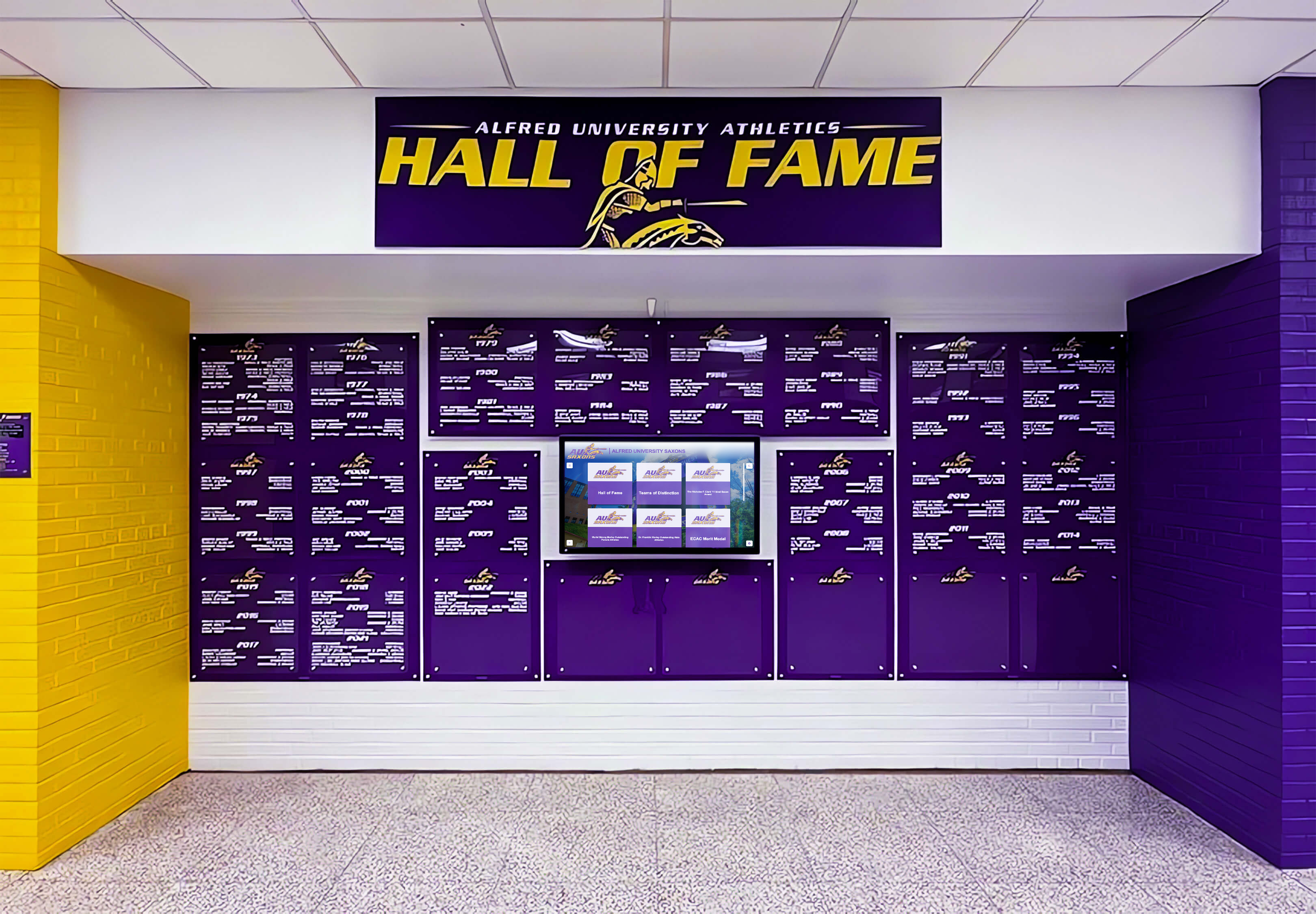
School athletic hall of fame recognition displays serve visitors continuously during induction events—Media Session integration keeps the OS media overlay and external controls synchronized with the correct athlete's video
Why the Media Session API Matters on a Recognition Kiosk
A school athletic hall of fame kiosk often runs in an always-on, unattended mode. The display cycles through inductee highlight reels or waits at an athlete selection screen until a visitor taps a profile. In that environment, several Media Session behaviors become relevant in ways they are not on a typical web page:
OS media overlay accuracy. On Windows and macOS, when media plays in a browser, the OS may display a media control overlay—visible on the lock screen, in the taskbar, or on a connected peripheral—showing the currently playing track. Without Media Session metadata, that overlay shows the page title or nothing. With it, the overlay can show the athlete’s name, team, and school artwork alongside play/pause controls. For a recognition kiosk serving families, accurate overlay content reflects the school’s care for the presentation.
External media key behavior. Keyboards, presentation remotes, and some AV receivers send OS-level play/pause/stop signals. By default, those signals may or may not reach the video element on a kiosk browser depending on the browser version and OS configuration. Registering explicit Media Session action handlers ensures those signals are routed to the correct <video> element on the page, rather than being silently ignored or misdirected to the first focusable element.
State accuracy across athlete switches. A recognition kiosk that displays multiple athletes in sequence loads different video sources as users navigate. Without updating Media Session metadata and handler bindings each time, the OS overlay continues displaying the first athlete’s name throughout the session. The handlers may also retain a reference to a video element that has since been removed or replaced, producing an error when a media key fires.
The API does not bypass autoplay restrictions—a kiosk that requires user interaction before video plays still requires it after Media Session handlers are registered. It also does not override OS-level kiosk lockdown policies. If the kiosk OS blocks the browser from receiving media key events, handler registration in JavaScript does not restore that access.
Feature Detection Before Any Handler Registration
Because the Media Session API is not available in all browsers or browser configurations—including older kiosk builds, some Linux environments, and certain kiosk-mode browser deployments—any implementation must feature-detect before attempting to call methods.
function mediaSessionSupported() {
  return 'mediaSession' in navigator;
}
Call this once at initialization. If it returns false, skip all navigator.mediaSession calls. Do not attempt to access navigator.mediaSession.metadata or call navigator.mediaSession.setActionHandler() without this check—those calls throw in environments where the property is absent.
For individual action types, check whether the browser accepts the handler without throwing:
function trySetActionHandler(action, handler) {
  if (!mediaSessionSupported()) return;
  try {
    navigator.mediaSession.setActionHandler(action, handler);
  } catch (e) {
    // This action type is not supported in this browser
  }
}
The 'seekto' and 'seekbackward'/'seekforward' action types are not supported in all browsers that support the basic 'play' and 'pause' actions. Wrapping each handler registration in a try/catch allows the supported subset to register while unsupported actions are silently skipped—appropriate for a kiosk where seek controls may not be needed at all.
School lobby recognition installations display multiple athletic programs—Media Session metadata should reflect the currently active athlete's video, not the page title or a stale previous entry
Setting Metadata for the Current Athlete
Media Session metadata describes the currently playing media to the OS. For an athletic hall of fame kiosk, that means the athlete’s name, sport, and school. Set it when a new athlete’s video begins—not once at page load.
function setAthleteMediaMetadata(athlete, schoolName, artworkUrl) {
  if (!mediaSessionSupported()) return;

  navigator.mediaSession.metadata = new MediaMetadata({
    title: athlete.name,
    artist: athlete.sport,
    album: schoolName,
    artwork: artworkUrl
      ? [{ src: artworkUrl, sizes: '512x512', type: 'image/jpeg' }]
      : []
  });
}
title, artist, and album are plain strings. The OS media overlay uses them to label the playing media. For a recognition kiosk, mapping title to the athlete name, artist to the sport or class year, and album to the school name produces a readable overlay entry.
artwork is an array of image descriptors. A recognition kiosk can pass the athlete’s portrait URL here—many school recognition platforms expose athlete portrait images through their content delivery network. If the image URL is not available (for example, because the platform does not expose it directly from the kiosk browser context), pass an empty array rather than a placeholder that does not reflect the athlete.
Setting navigator.mediaSession.metadata to null before setting a new MediaMetadata object is not required, but assigning the new object immediately when the athlete changes is. The OS overlay reads the metadata at display time; a stale object from a previous athlete persists until it is replaced.
Handlers That Call Actual Media Methods
Registering a handler does not produce any playback behavior by itself. The handler callback must call the methods on the <video> element. This is the most common implementation error on recognition kiosks: handlers are registered but call no-op functions, leaving media key events silently unhandled.
function registerMediaSessionHandlers(videoElement) {
  if (!mediaSessionSupported()) return;

  trySetActionHandler('play', () => {
    videoElement.play();
    navigator.mediaSession.playbackState = 'playing';
  });

  trySetActionHandler('pause', () => {
    videoElement.pause();
    navigator.mediaSession.playbackState = 'paused';
  });

  trySetActionHandler('stop', () => {
    videoElement.pause();
    videoElement.currentTime = 0;
    navigator.mediaSession.playbackState = 'none';
  });

  trySetActionHandler('seekto', (details) => {
    if (details.seekTime !== undefined) {
      videoElement.currentTime = details.seekTime;
    }
  });
}
Each handler references videoElement directly through closure. This is the element currently loaded with the athlete’s video—the same element the user sees playing. Calling .play() and .pause() on it causes actual playback state changes, not simulated ones.
navigator.mediaSession.playbackState is a string property—'none', 'paused', or 'playing'—that tells the OS the browser’s view of the current playback state. Setting it inside each handler keeps the OS overlay synchronized: pressing pause from a keyboard should show the overlay in a paused state, not still show a play indicator. Setting playbackState alone is not sufficient—the handler must also call the underlying media method.
Metadata is not a substitute for handler calls. Setting navigator.mediaSession.metadata updates what the OS overlay displays; it does not cause the video to play or pause. Both are needed.
Synchronizing State and Cleaning Up When Switching Athletes
A recognition kiosk that lets visitors browse between athlete profiles must update Media Session state each time the active video changes. The sequence is:
- Pause or stop the current video element
- Remove or null out the old
navigator.mediaSession.metadata - Load the new athlete’s video source
- Call
registerMediaSessionHandlers(newVideoElement)with the correct element reference - Call
setAthleteMediaMetadata(newAthlete, schoolName, artworkUrl)with the new athlete’s data - Begin playback and update
navigator.mediaSession.playbackState = 'playing'
If the kiosk reuses a single <video> element (changing its src attribute rather than creating a new element), the handler registration from the previous athlete remains valid as long as the closure variable videoElement still references the active element. Update the metadata immediately after the src change and before calling .play().
If the kiosk creates a new <video> element for each athlete, the old handlers still reference the removed element. Re-register handlers with the new element reference:
function switchToAthlete(athlete, newVideoElement, schoolName, artworkUrl) {
  if (mediaSessionSupported()) {
    navigator.mediaSession.playbackState = 'none';
  }

  registerMediaSessionHandlers(newVideoElement);
  setAthleteMediaMetadata(athlete, schoolName, artworkUrl);

  newVideoElement.play().then(() => {
    if (mediaSessionSupported()) {
      navigator.mediaSession.playbackState = 'playing';
    }
  }).catch(() => {
    // Autoplay was blocked; playbackState remains 'none' until user interaction
  });
}
The .play() call returns a Promise. Updating playbackState to 'playing' inside the resolved callback rather than immediately after the call avoids marking the state as playing when autoplay was blocked by the browser or OS. On a kiosk where autoplay is permitted by the browser policy, the promise resolves immediately and the state updates without perceptible delay.

School athletic recognition displays cover multiple programs and years of inductees—synchronizing Media Session state with each athlete's video prevents stale metadata from carrying over between profiles
Kiosk Acceptance Checklist
Use this checklist before a hall-of-fame induction ceremony or event where the recognition kiosk will display athlete highlight videos to visitors. Complete it on the actual kiosk device, not a separate development machine, because browser configuration, OS media key routing, and hardware video decode vary per device.
API Support and Feature Detection
-
'mediaSession' in navigatorreturnstruein the kiosk browser console -
'play'and'pause'action handlers register without throwing (wrap in try/catch and confirm no error is logged) -
'seekto'handler registration is attempted; if it throws, confirm this is caught and logged rather than crashing the initialization function - Confirm kiosk browser build version supports Media Session (available in Chromium-based browsers from approximately version 73 for metadata; action handlers available from approximately version 96 for the full action set—verify against your specific browser build)
Metadata Accuracy
- Navigate to three different athlete profiles on the kiosk; confirm the OS media overlay (if visible) updates its displayed name and sport for each
- Confirm
navigator.mediaSession.metadata.titlematches the displayed athlete name in the browser console after each switch - Confirm artwork URL resolves to the correct athlete portrait—load the URL directly in the browser to verify accessibility from the kiosk network context
- If artwork is not available for a given athlete, confirm an empty artwork array is passed rather than an unresolvable URL
Handler Verification
- Press a keyboard or peripheral play key while a video is paused; confirm the video resumes playback and
playbackStatereads'playing' - Press a keyboard or peripheral pause key while video is playing; confirm the video pauses and
playbackStatereads'paused' - Confirm handler calls log no console errors (no null-reference errors on the video element, no unresolved promises left unhandled)
- After switching athletes, press pause on the new athlete’s video; confirm it pauses the new video, not the previous athlete’s element
State Cleanup on Athlete Switch
- Confirm
navigator.mediaSession.playbackStateupdates to'none'during the transition between athletes (not held at'playing'while the next video loads) - Confirm no console errors occur when handlers fire during the switch interval—the old element should be paused before removal; the new element should have handlers registered before
.play()is called - Run through five consecutive athlete switches without manual interaction; confirm the OS overlay reflects the fifth athlete accurately
Autoplay and Lockdown Boundaries
- Confirm that registering Media Session handlers does not cause autoplay to succeed where the browser policy blocks it—if the kiosk requires a user tap to start video, that requirement should remain after handler registration
- Confirm that Media Session handler registration does not trigger any kiosk lockdown policy alert—if the OS or kiosk management software restricts media key access, confirm this is documented as an expected condition rather than a handler failure
| Check | Expected result | Action if not met |
|---|---|---|
'mediaSession' in navigator | true | Update kiosk browser; document as unsupported |
| OS overlay shows current athlete name | Name matches displayed profile | Verify metadata assignment runs at athlete load time |
| Keyboard pause key pauses video | Video pauses; state = 'paused' | Confirm handler calls videoElement.pause() |
| Keyboard play key resumes video | Video resumes; state = 'playing' | Confirm handler calls videoElement.play() |
| Athlete switch updates overlay | New name visible in overlay | Confirm setAthleteMediaMetadata() called at switch |
| Autoplay blocked state unchanged | Play requires user tap if policy requires | Confirm .play() promise rejection is caught |
For recognition kiosks that display long athlete portrait galleries alongside video, the way the page renders off-screen profiles can affect how quickly athlete content becomes available when a user selects a new inductee. The Recognition Touchscreen Content-Visibility Test for Long Athletic Portrait Galleries covers how content-visibility rendering behavior affects loading readiness for portrait-heavy recognition pages—a complementary check for kiosks with large inductee rosters.
Handling Unsupported Browsers and Actions Separately
Not every action type is supported in every browser that otherwise exposes navigator.mediaSession. The following table lists the four primary action types and their handling approach for a school recognition kiosk:
| Action | Purpose | If unsupported |
|---|---|---|
'play' | Resume playback when OS or peripheral signals play | Document; visitor tap on screen is the fallback |
'pause' | Pause playback when OS or peripheral signals pause | Document; visitor tap on screen is the fallback |
'stop' | Halt playback and reset position | If unsupported, pause without reset is acceptable for kiosk use |
'seekto' | Jump to a specific time in the highlight reel | Most kiosk use cases do not require seek; skip if unsupported |
When a recognition kiosk does not need seek controls—for example, when the display plays linear highlight reels without a scrubber UI—omit 'seekto' registration rather than registering a no-op handler. An empty handler registered for an action tells the OS that the browser will handle seek requests; if the handler does nothing, seek commands are silently consumed rather than falling through to browser defaults.
For kiosks where the school IT team has access to a full recognition platform management interface, the platform may expose its own playback control UI that operates independently of Media Session. Those controls interact directly with the <video> element through the platform’s JavaScript layer. Media Session integration supplements those controls with OS-level media key routing—it does not replace them. Both can coexist as long as both update navigator.mediaSession.playbackState when they change the video state.
School hall of fame recognition environments often include signage alongside digital displays—Media Session keeps the digital kiosk component synchronized with OS media overlays visible on the same or adjacent screens
What Media Session Does Not Control
Several aspects of kiosk video playback that school IT teams sometimes assume are affected by Media Session are outside its scope:
Autoplay policy. Media Session handlers do not grant the page permission to autoplay video without user interaction. Browser and OS autoplay policies are enforced before JavaScript handlers fire. If a kiosk session requires a visitor tap before video starts, that requirement persists regardless of Media Session implementation.
Kiosk lockdown and OS policies. A kiosk management software layer that restricts browser permissions—such as preventing the browser from receiving media key events—is not affected by Media Session handler registration. If the OS does not route media keys to the browser, setActionHandler() callbacks do not fire. This is a configuration issue at the kiosk OS or management software level, not a Media Session implementation problem.
Playback quality and frame presentation. Media Session manages the OS-level representation of playing media—the metadata overlay and key event routing. It has no interaction with video decode performance, frame presentation continuity, or network delivery quality. Per-frame diagnostics for recognition video playback use separate browser APIs.
Screen wake lock. A kiosk display that dims or sleeps during long recognition sessions is not addressed by Media Session. The Screen Wake Lock API is the relevant interface for preventing display sleep during active recognition sessions. The School Athletic Recognition Displays: Screen Wake Lock Release and Reacquisition Tests covers that interface and the test approach for school recognition environments.
Video decoding capability. Before loading a recognition video in a kiosk browser, it is worth confirming the browser can decode the video’s codec and resolution at acceptable quality. The School Lobby Recognition Video: MediaCapabilities Decoding Checks Before Touchscreen Acceptance covers pre-load decoding checks using the MediaCapabilities API—separate from Media Session and relevant to kiosk acceptance testing before an event.
Accessibility Considerations for Media Session Integration
The Media Session API is one layer of media accessibility on a school recognition kiosk. For visitors using assistive technologies or navigating with keyboard controls rather than touch, Media Session handler registration ensures that OS-level media key routing works. It does not replace in-page keyboard focus management, ARIA labels on play/pause controls, or accessible names on the video element.
Hall of fame video kiosks that include touch-based controls for starting and stopping video should also handle pointer events consistently—ensuring that touch, mouse, and stylus interactions all produce predictable playback state changes. The Digital Hall of Fame Pointer Cancellation Test for Touchscreen Controls covers pointer event cancellation behavior on touchscreen controls in recognition display contexts.
For recognition platforms that display championship graphics and award badge imagery alongside video content, accessible names on those graphics ensure the full recognition context is available to visitors using screen readers. The Digital Hall of Fame Inline SVG Award Badge Audit: Give Championship Graphics Accessible Meaning covers SVG accessibility for recognition display graphics—a complementary check for kiosks that show award imagery alongside athlete highlight videos.

School athletic hall of fame recognition displays combine athlete imagery with video content—accessible controls and Media Session integration work together to serve all visitors, including those using assistive technology or OS media key interfaces
Frequently Asked Questions
Does setting navigator.mediaSession.playbackState actually pause the video?
No. Setting playbackState updates the OS’s understanding of the current playback state—it affects what the media overlay displays. It does not cause any change to the <video> element’s actual playback. The handler callback must call videoElement.pause() to pause, and videoElement.play() to resume. Setting playbackState without calling the underlying method causes the OS overlay to show incorrect state.
Will Media Session handlers fire if the kiosk is in locked kiosk mode?
It depends on the kiosk OS and management software configuration. Some kiosk deployments restrict which browser APIs can receive OS-level signals; if media key events are blocked at the OS layer, registered handlers do not fire. Test on the production kiosk device in its actual operating mode—not in a normal browser session—to confirm whether handlers are receiving events.
Should navigator.mediaSession.metadata be set to null when a video ends?
Setting metadata to null when the video ends is reasonable for a kiosk that returns to a selection screen after playback—it clears the OS overlay. For a kiosk that immediately loads the next athlete’s video in sequence, updating metadata to the next athlete’s information is preferable to clearing it first, which would briefly show an empty overlay before the next metadata assignment.
Can Media Session be used to display the school’s name alongside the athlete name in the OS overlay?
Yes. The album field in MediaMetadata accepts a plain string—passing the school name in album causes the OS overlay to display it alongside the title (athlete name) and artist (sport or class year) fields. The exact display format depends on the OS and its media overlay implementation; not all platforms display all three fields.
What happens if navigator.mediaSession.setActionHandler is called twice for the same action?
The second call replaces the first. Each setActionHandler call for a given action type registers the new callback, discarding any previously registered callback for that action. This is the correct behavior for a kiosk that switches between athlete videos: calling registerMediaSessionHandlers(newVideoElement) on each athlete switch registers new handlers that close over the new element, replacing the handlers from the previous athlete.
Does the Media Session API affect how the browser requests audio focus from the OS?
On platforms that support audio focus (primarily Android and some Linux configurations), the browser may request audio focus when media begins playing. Media Session metadata is used to populate the OS media session that accompanies that focus request. This is an OS behavior that varies significantly by platform—on Windows and macOS desktop kiosk environments it is not typically a concern, but on Android-based kiosk hardware it may affect whether the recognition video’s audio is audible alongside other system sounds.
See Rocket Alumni Solutions Athletic Recognition in Action
If your school is building out an athletic hall of fame recognition kiosk and wants to see how a purpose-built platform handles athlete video playback, content updates, and display reliability across induction events, a live demo covers exactly that. Rocket Alumni Solutions builds touchscreen recognition systems for school athletic corridors, lobby honor walls, and hall-of-fame installations.
Live Example: Rocket Alumni Solutions Touchscreen Display
Interact with a live example (16:9 scaled 1920x1080 display). All content is automatically responsive to all screen sizes and orientations.